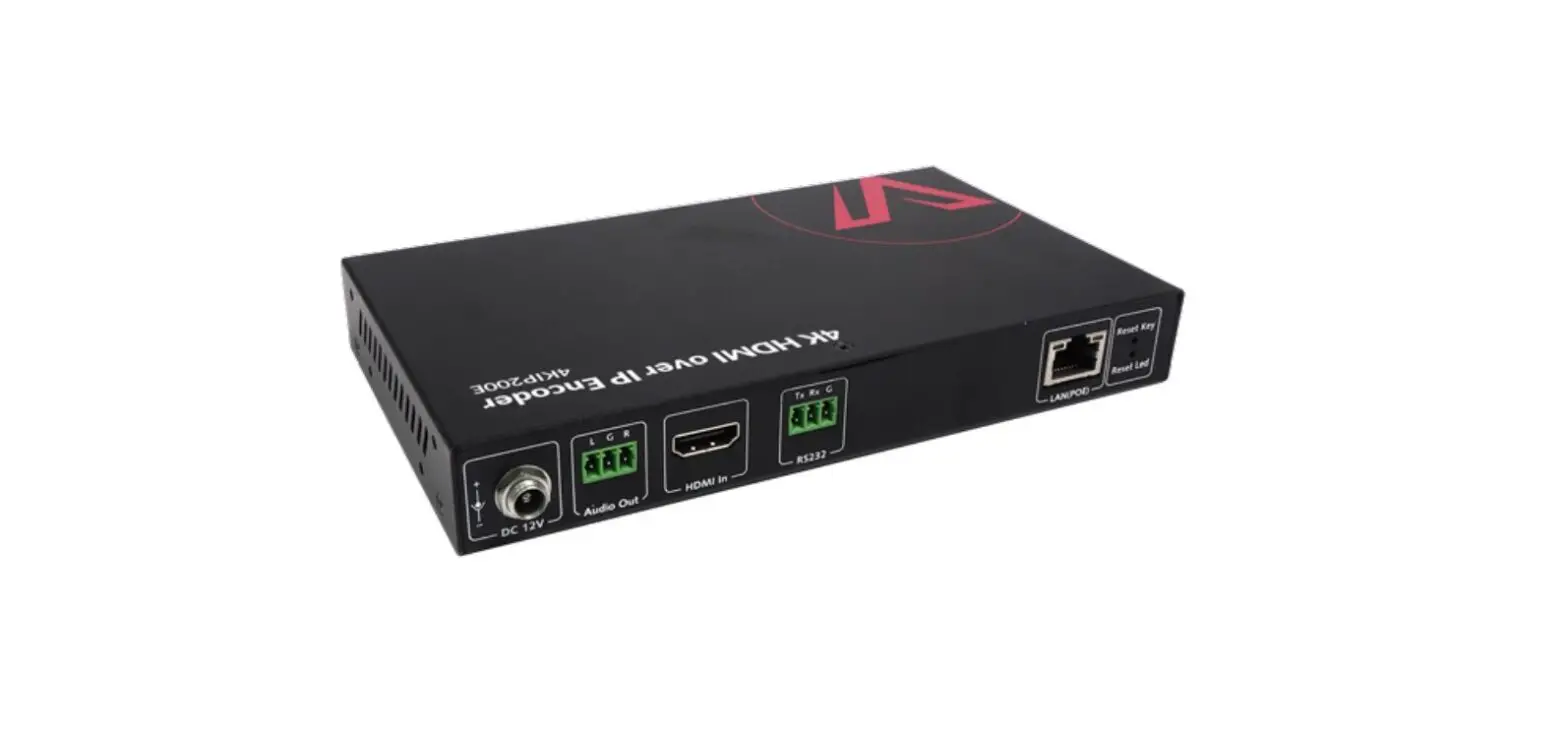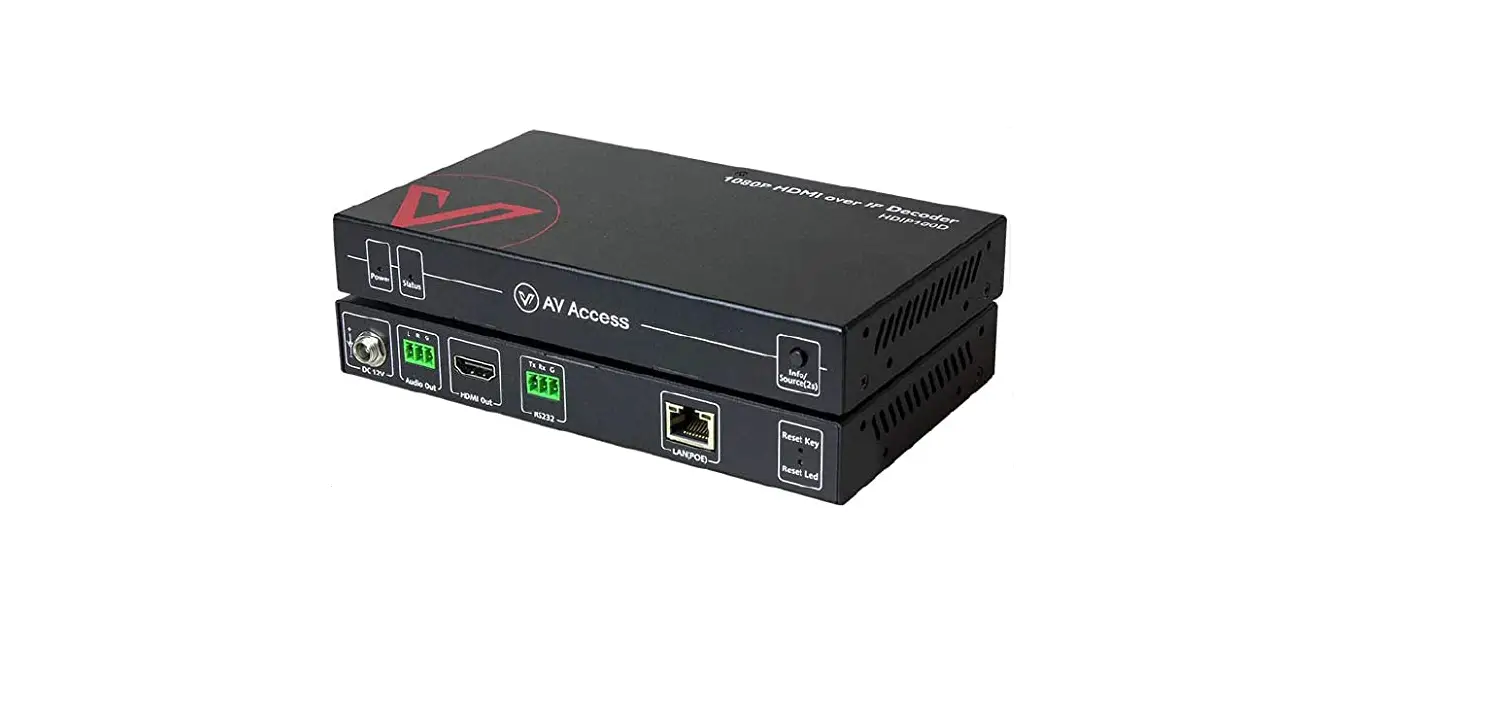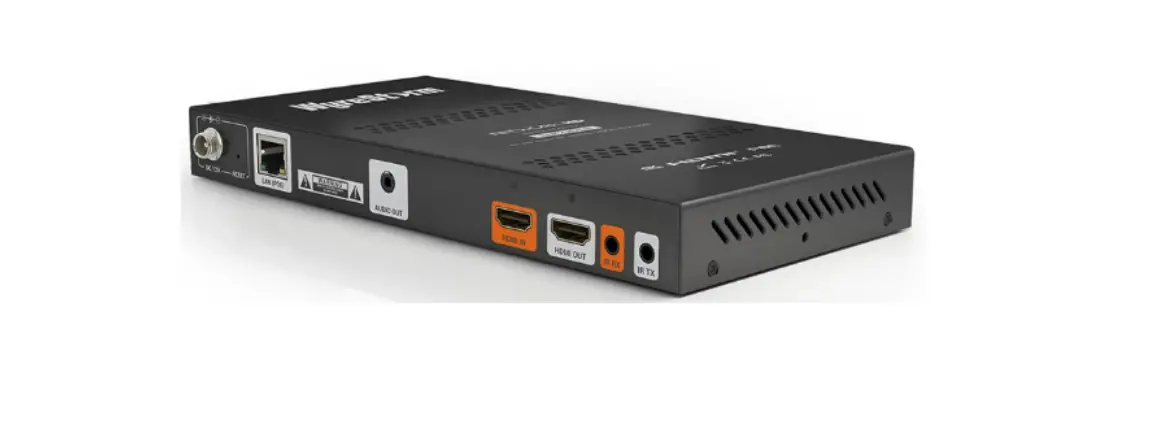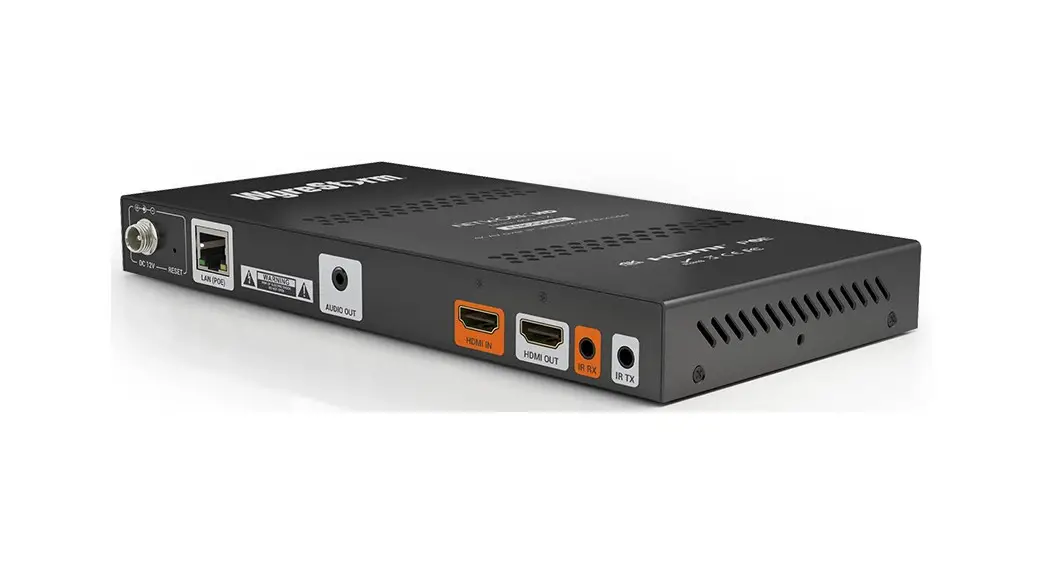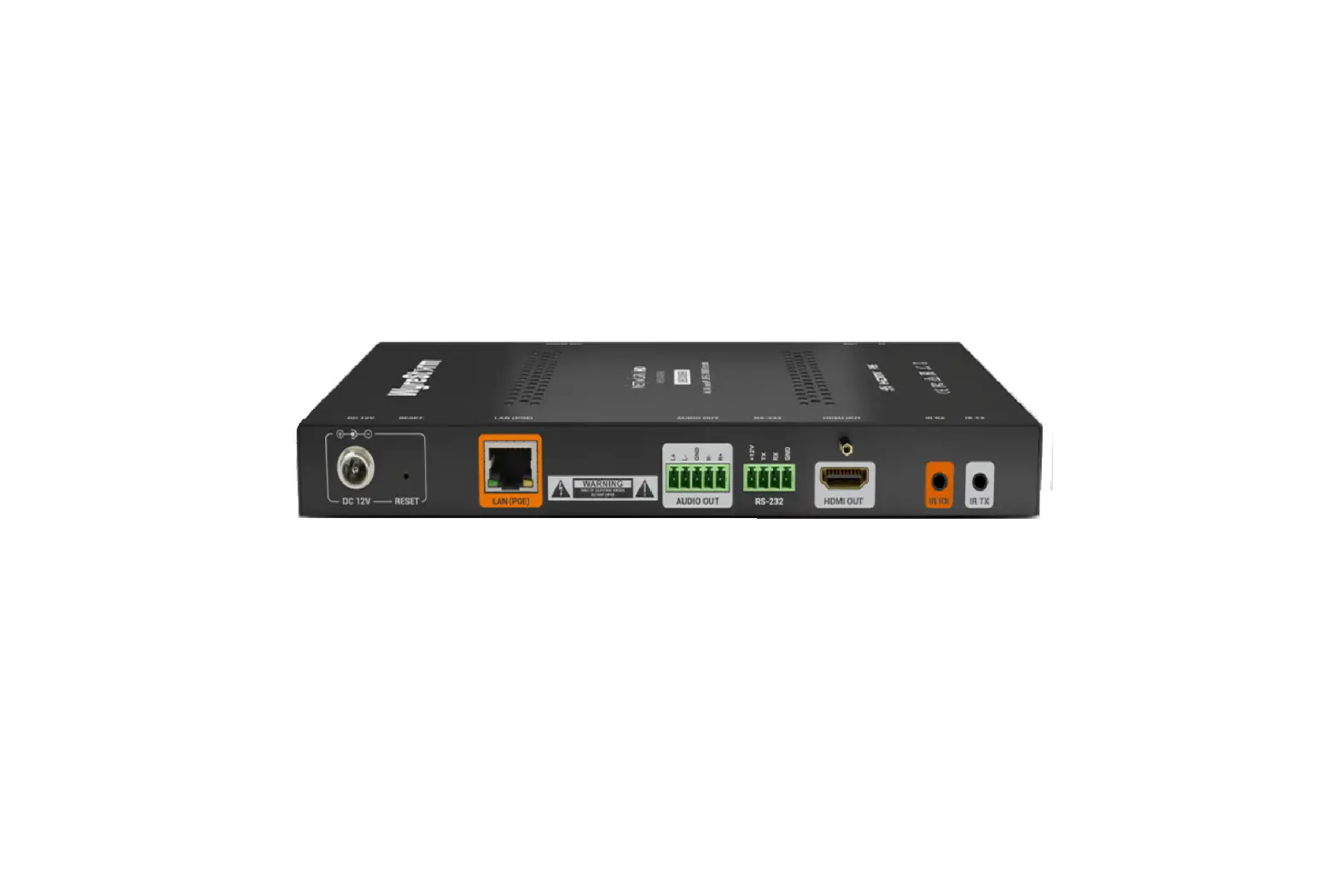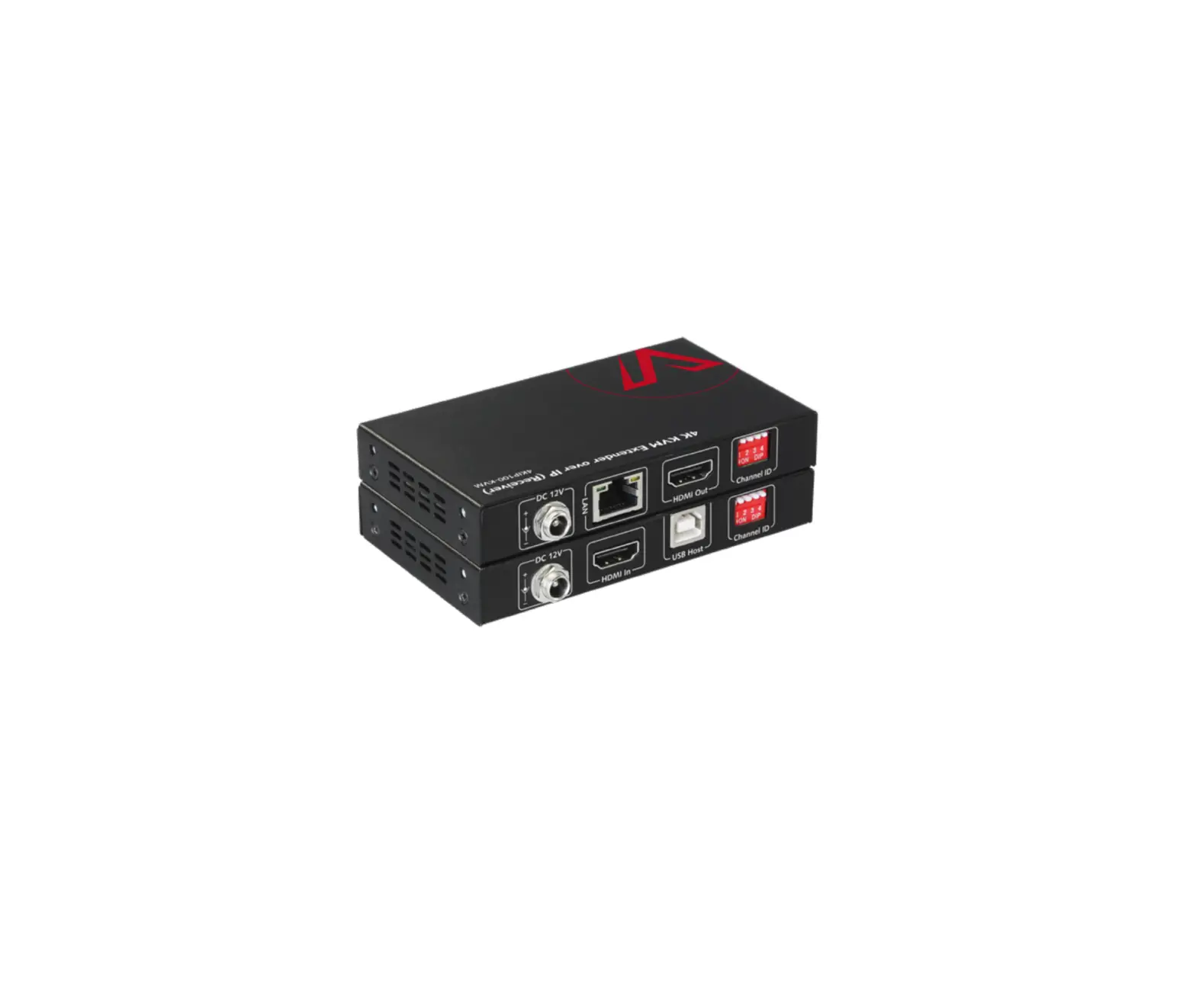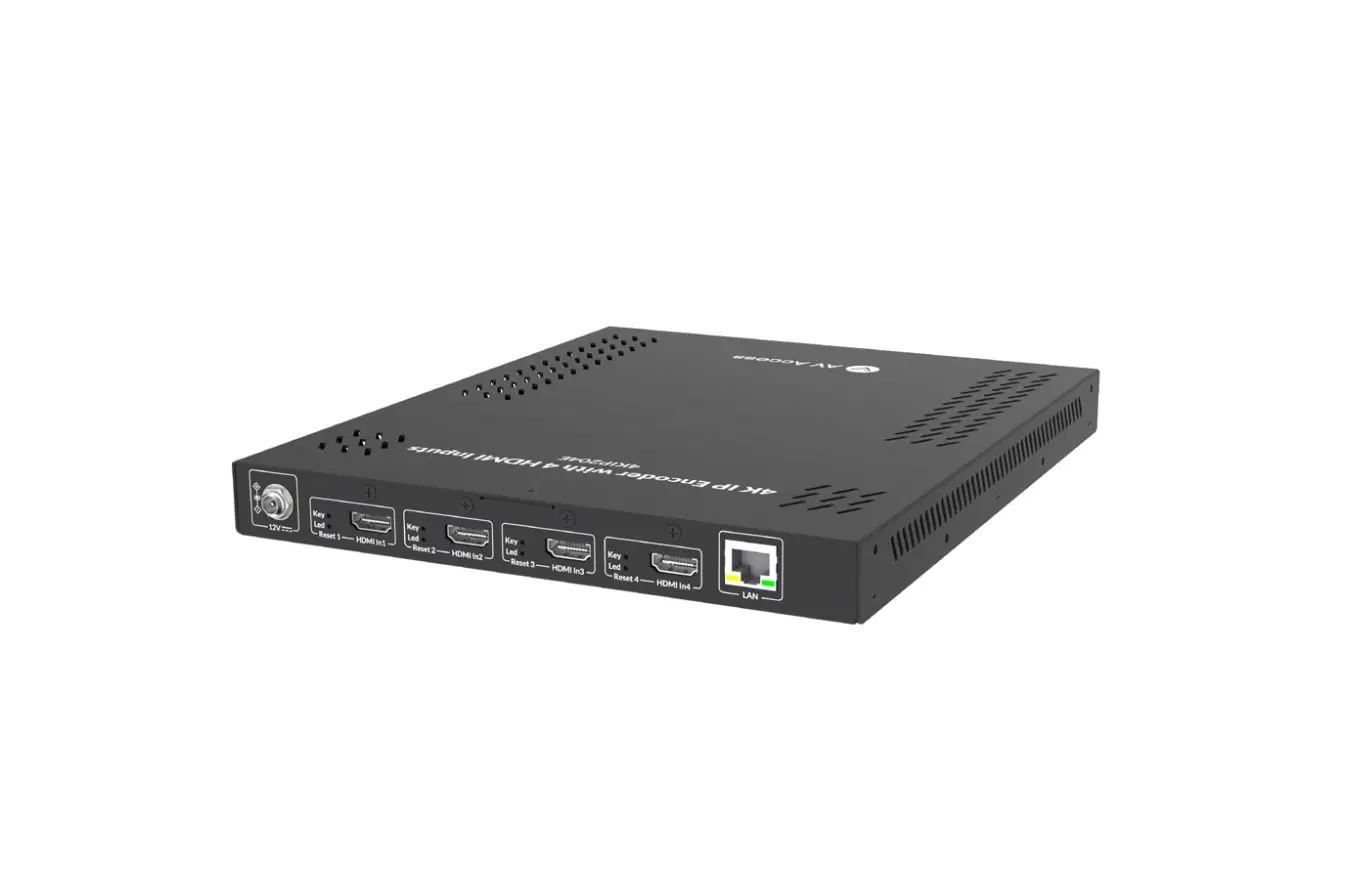
AV Access 4KIP204E 4K IP Encoder
Introduction
Overview
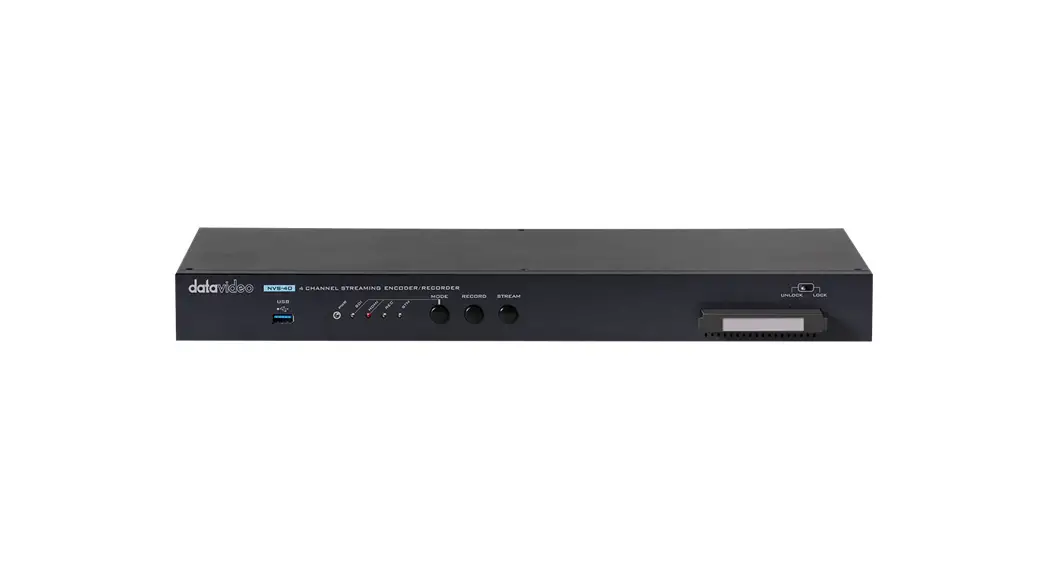
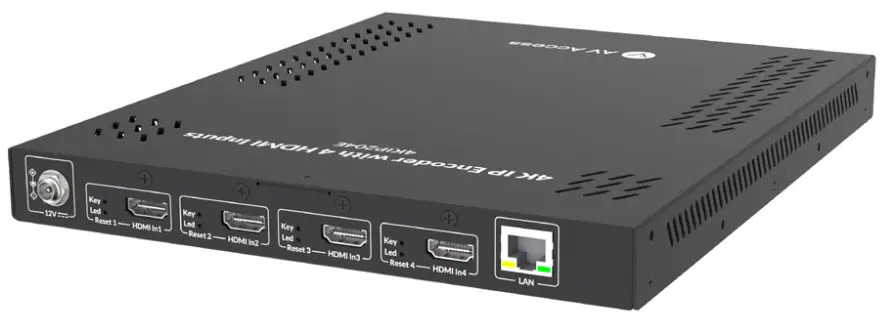
This product is a four-in-one 4K IP encoder that includes 4 HDMI inputs with resolutions supported up to 3840x2160p@30Hz. It provides flexible control options of front panel buttons and VDirector App (IOS/Android/Windows version). It is ideal for applications in sports bars, conference rooms, shopping malls, digital signage, etc., especially for places with limited installation and deployment space.
Features
- Includes four HDMI inputs.
- Works easily with an Ethernet switch, no configuration is required.
- Provides selection buttons to link the 4KIP200D decoder to the encoder.
- Provide Display Control buttons to transmit displays on/off commands to the decoders.
- Plug and play.
- Supports visual control through a tablet/cellphone/PC.
- Supports high-efficiency H.265 video codec.
Package Contents
Before you start the installation of the product, please check the package contents:
- Encoder x 1
- Power Adapter (DC12V 3A) x 1
- Mounting Brackets x 4
- Screws (M2.5*L5) x 4
- User Manual x 1
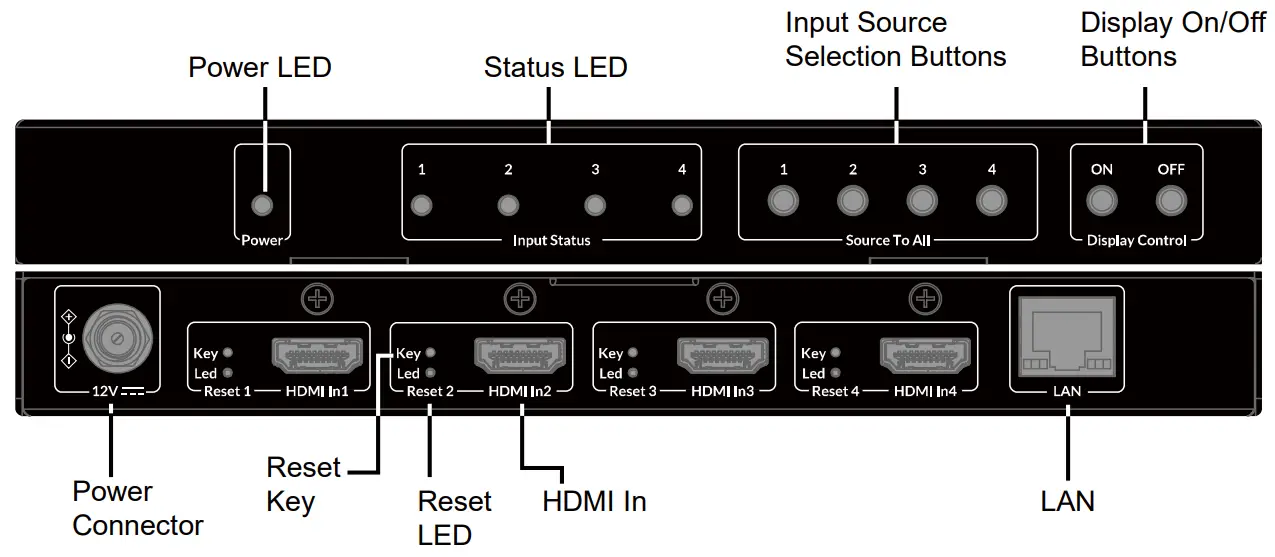
Panel
Installation and Application
Note: Disconnect all devices from power before installation.
Bracket Installation
Steps to install the device in a suitable location:
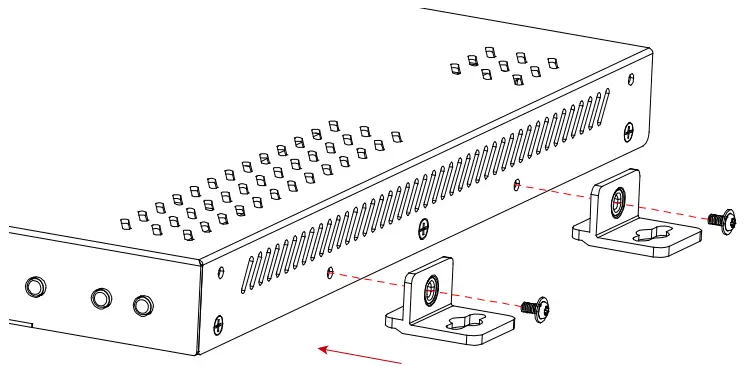
- Attach the mounting brackets to the panels of both sides using the screws (two on each side) provided in the package.

- Install the brackets onto the position as desired using the screws (not included).
Application
Matrix/Video Wall
Take IOS version for example, to configure matrix and video wall, perform the following:
- Scan the QR code on the right or visit Apple App Store to search, download and install VDirector App with your iPad.

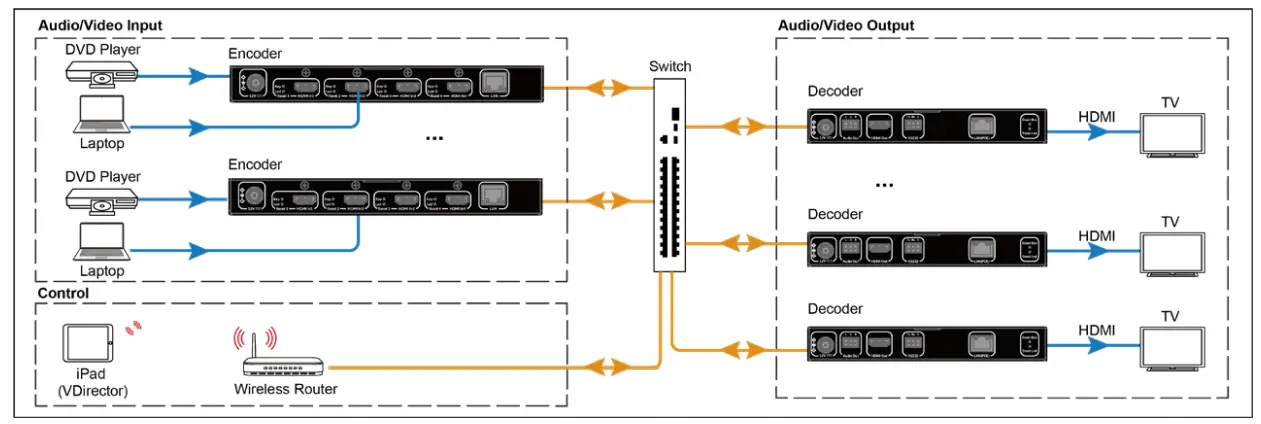
(Note: to get Android version, please visit Google Play Store; to get Windows version, please visit www.avaccess.com) - Connect all encoders, decoders and the wireless router to the network switch according to the following diagram shown:

- Configure the wireless router properly, and then connect your iPad to the Wi-Fi network. Launch VDirector on iPad, it will start searching for online devices, and the following main screen will appear:


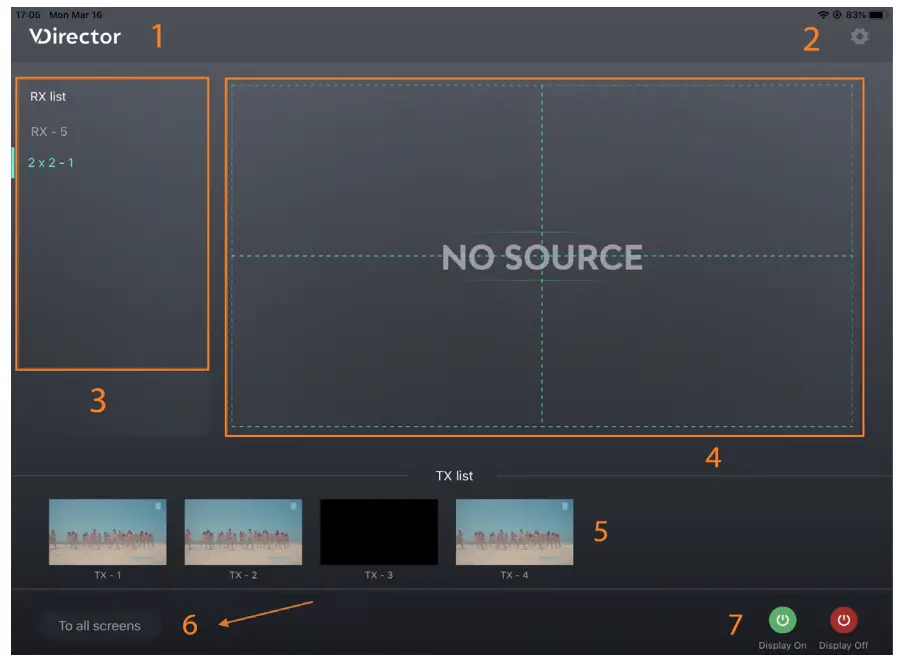
| No. | Name | Description |
| 1 | Logo | This logo can be changed to a new one. |
| 2 | System Configuration Button | Click this button to enter system configuration page for the functions: 1) Naming and Sequencing; 2) Video Wall Settings; 3) Advanced Settings; 4) System Information. |
| 3 | RX List | Shows the list of online RX devices, including single device and devices for video walls. |
| 4 | RX Preview | Shows the live preview of current RX assignments. |
| 5 | TX List | Shows the IP stream’s live preview from TX device. |
| 6 | To All Screens | Drag a TX from TX list over this button means the switching of this TX to all RX devices in RX list, including video walls. |
| 7 | Display On/Off |
|
Specifications
| Video | |
| Input Port | 4 x HDMI |
| Input Resolutions | up to 3840x2160p@30Hz |
| Output Port | 1 x LAN |
| Output Resolutions | up to 3840x2160p@30Hz |
| Video Protocol | H.265 |
| Audio | |
| Input Port | 4 x HDMI |
| Output Port | 1 x LAN |
| Audio Format | MPEG4-AAC Stereo |
| Control | |
| Control Method | Front Panel Buttons, VDirector App (IOS/Android/Windows Version) |
| General | |
| Operating Temperature | +32°F ~ +113°F (0°C ~ +45°C), 10% ~ 90%, non-condensing |
| Storage Temperature | -4°F ~ 140°F (-20°C ~ +70°C), 10% ~ 90%, non-condensing |
| Power Supply | DC12V 3A |
| Power Consumption | 14W (Max) |
| General | |
| ESD Protection | Human body model: ±8kV (air-gap discharge)/±4kV (contact discharge) |
| Dimensions (W x H x D) | 215mm x 25mm x 260.2mm/ 8.46” x 0.98” x 10.24” |
| Net Weight | 1.40kg/3.08lbs |
Warranty
Products are backed by a limited 1-year parts and labor warranty. For the following cases AV Access Technology Limited shall charge for the service(s)claimed for the product if the product is still remediable and the warranty card becomes unenforceable or inapplicable.
- The original serial number (specified by AV Access Technology Limited) labeled on the product has been removed, erased, replaced, defaced or is illegible.
- The warranty has expired.
- The defects are caused by the fact that the product is repaired, dismantled or altered by anyone that is not from an AV Access Technology Limited authorized service partner. The defects are caused by the fact that the product is used or handled improperly, roughly or not as instructed in the applicable User Guide.
- The defects are caused by any force majeure including but not limited to accidents, fire, earthquake, lightning, tsunami and war.
- The service, configuration and gifts promised by salesman only but not covered by normal contract.
- AV Access Technology Limited preserves the right for interpretation of these cases above and to make changes to them at any time without notice.
Thank you for choosing products from AV Access.
Customer Support
If you have any question, please contact us via the following emails:
General Enquiry: [email protected]
Customer/Technical Support: [email protected]

 AV Access | Quality & Budget Assured Pro AV Product Manufacturer