 Assembly Instructions
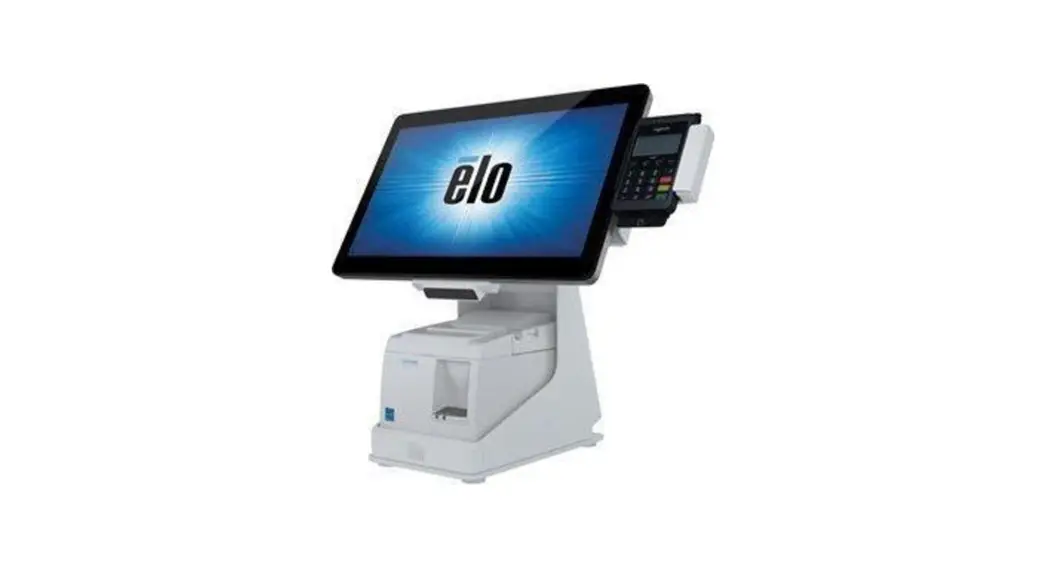
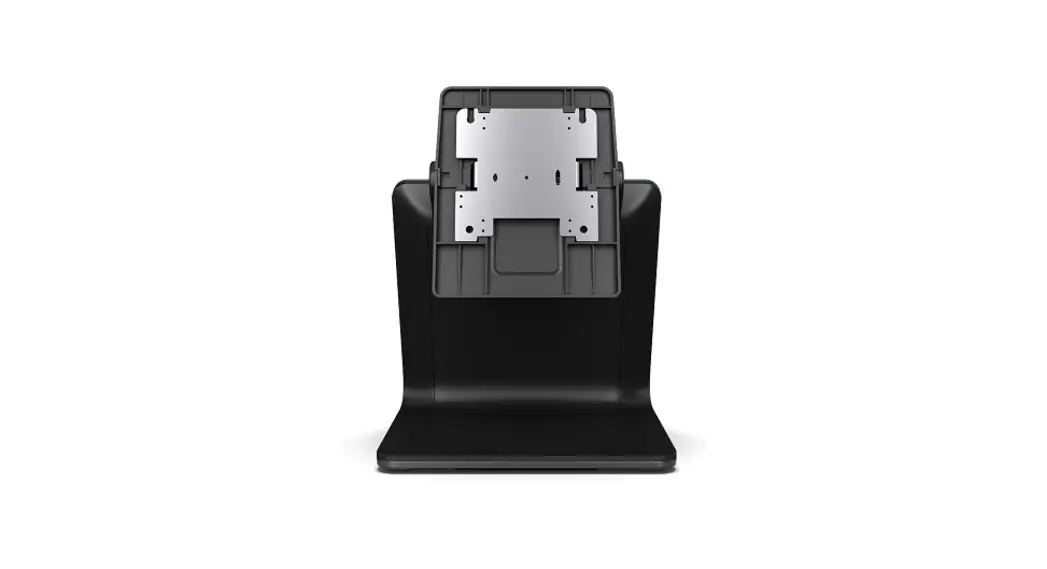
Z20 POS Stand
Box Contents
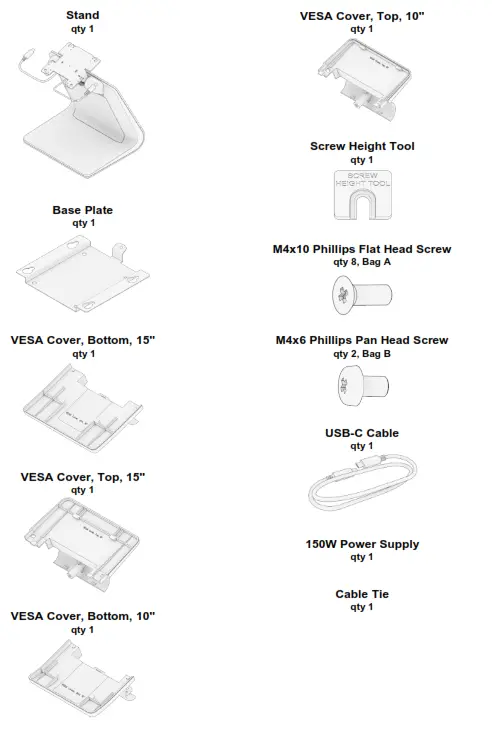
| Recommended Assembly Torque | |
| Thread | Torque |
| M4 | 12 in-lb (1.4 N-m) |
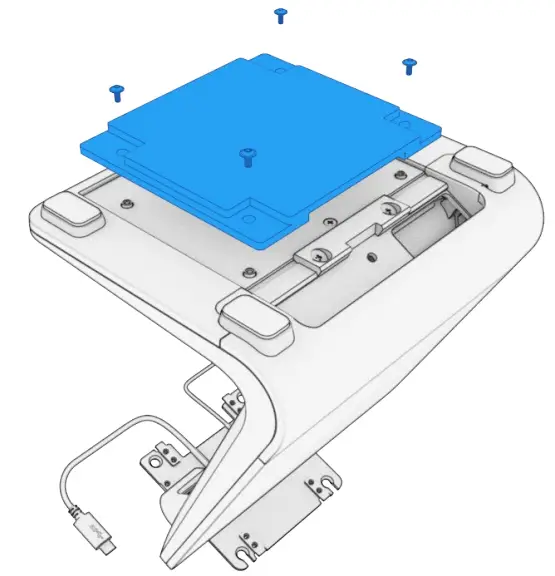
Step 1: If attaching the stand to the counter using the screw-down method, remove 4 screws to disassemble the weighted plate. Reinstall 4 screws back into stand.
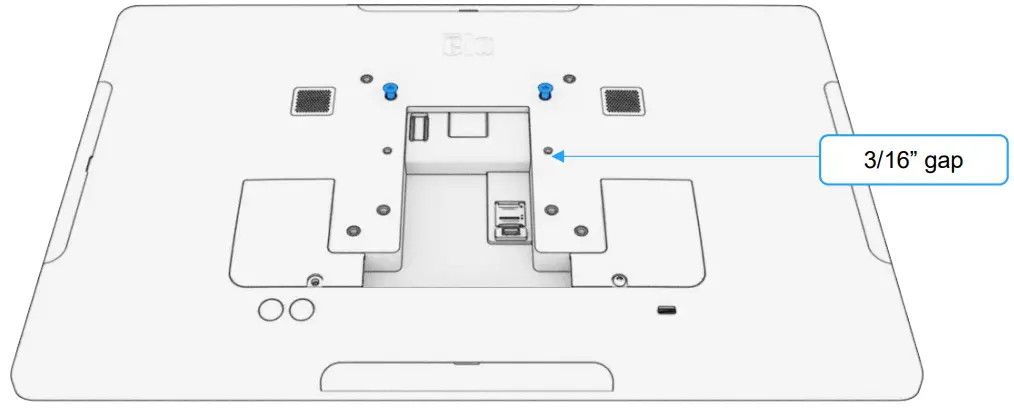
Step 2: Install 2 screws from bag A into I-Series as shown, using 2 top holes in 75mm VESA pattern. Do not tighten the screws fully. Leave the top of screws approximately 3/16” above the back of I-Series.
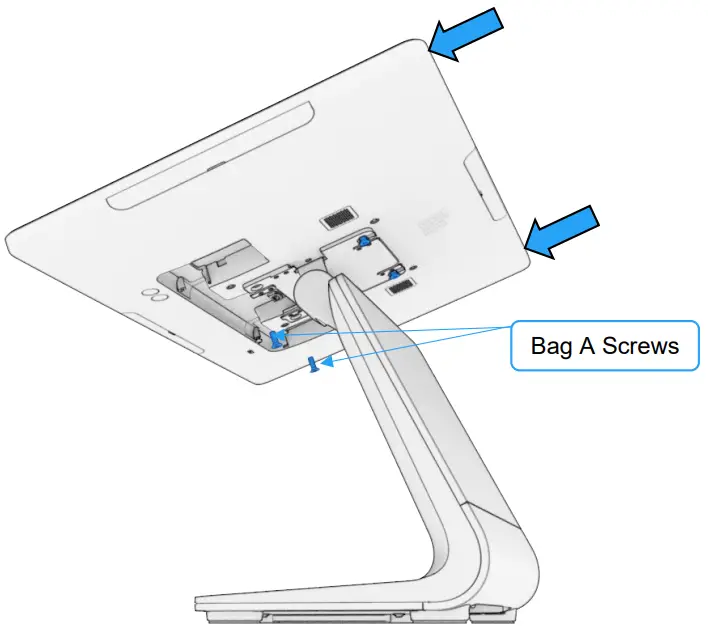
Step 3: Remove I-Series cable doors. Assemble I-Series to stand as shown, sliding 2 screws from step 2 into upper slotted holes on stand VESA bracket. Tighten screws. Install 2 screws from bag A into lower holes on the stand VESA bracket. All VESA screws are to be tightened to 12 in-lb (1.4 N-m).
Step 4: Connect power and USB-C cables from stand to I-Series. Reassemble I-Series cable covers.
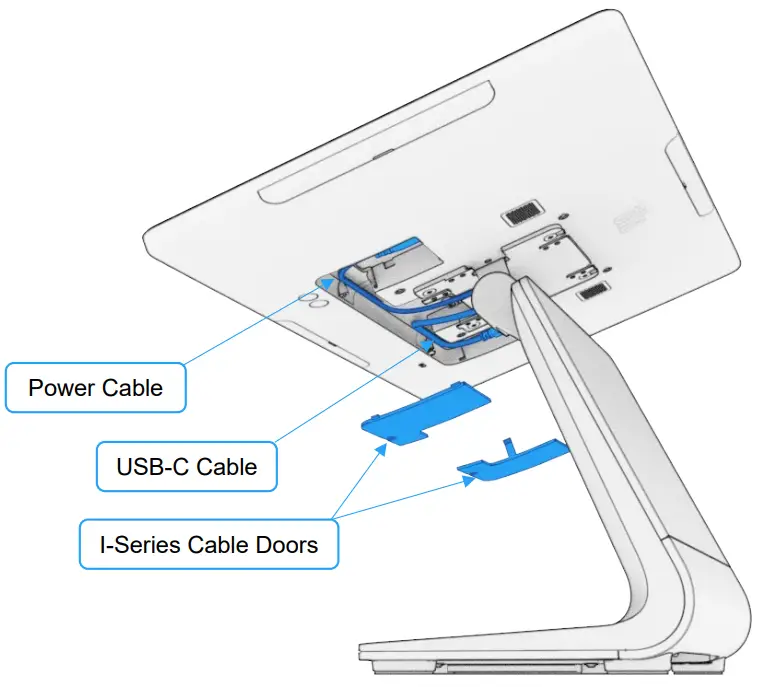
Step 5: Assemble the top VESA cover by sliding it down onto stand VESA bracket. Use VESA covers corresponding to the I-Series size you are installing (10” or 15”).
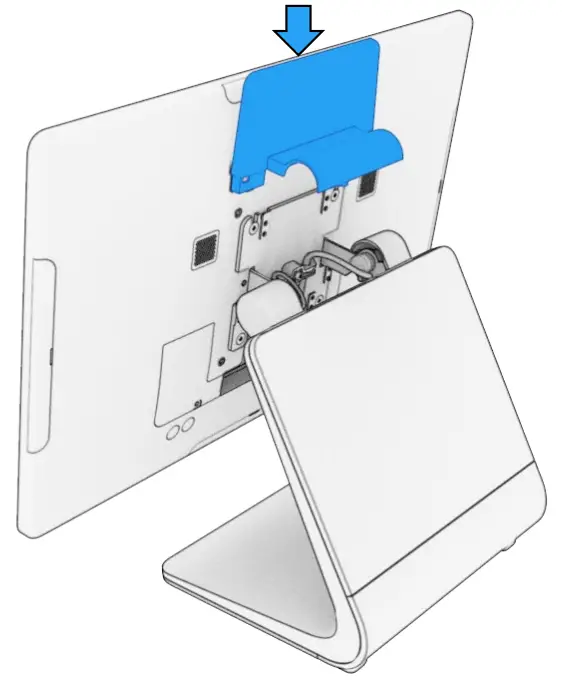
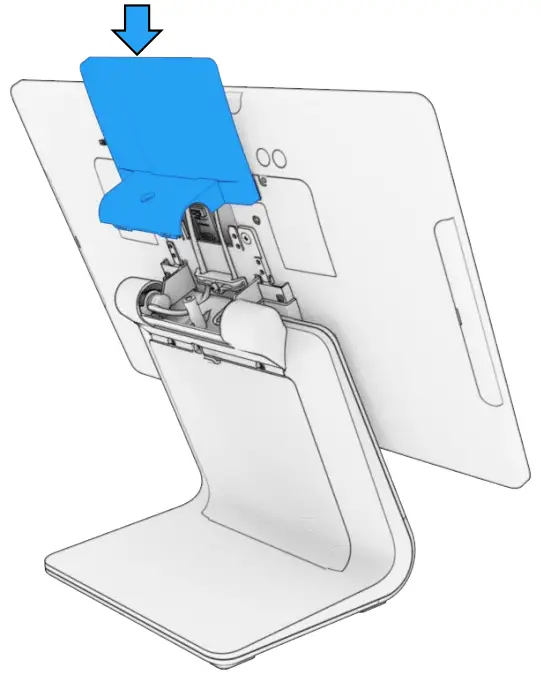
Step 6: Flip I-series over by rotating the stand hinge. Assemble bottom VESA cover by sliding down onto stand VESA bracket.
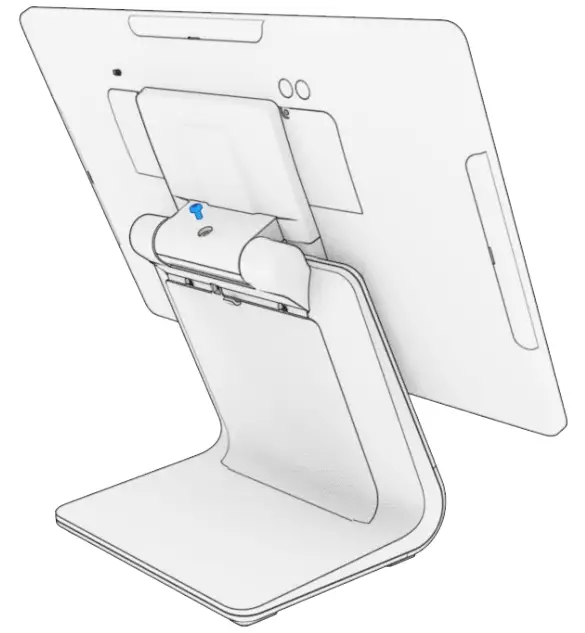
Step 7: Secure using screw provided with VESA covers.
Step 8: Remove the center screw securing the top of door. Tilt open the door by grabbing the tab at top of the door.
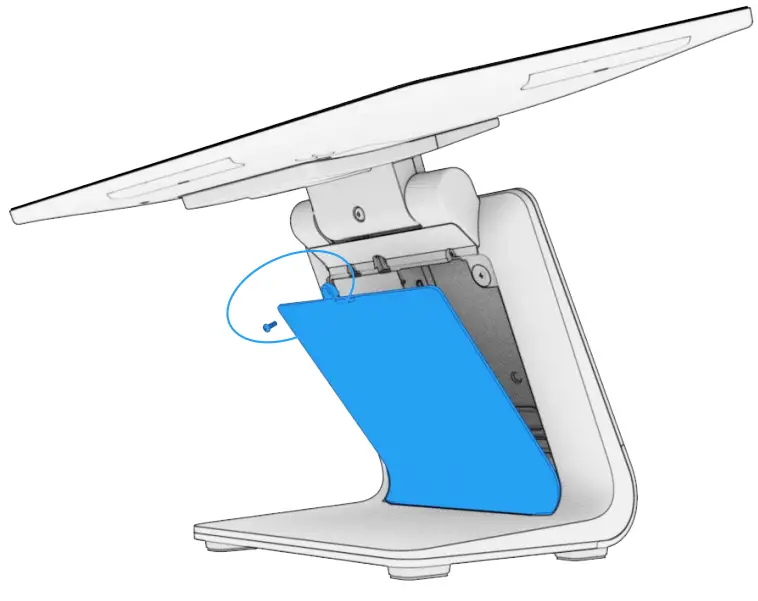
Step 9: If adding a customer-facing display (CFD), remove the screw securing the front cover. Otherwise, skip stepping 15.
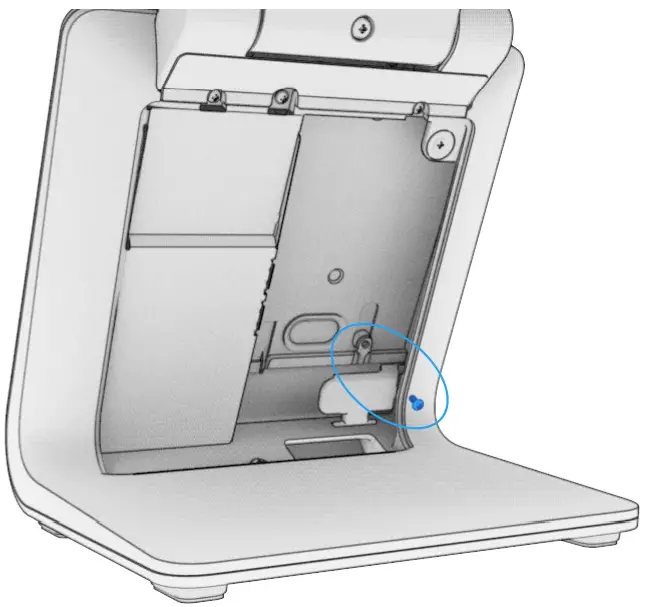
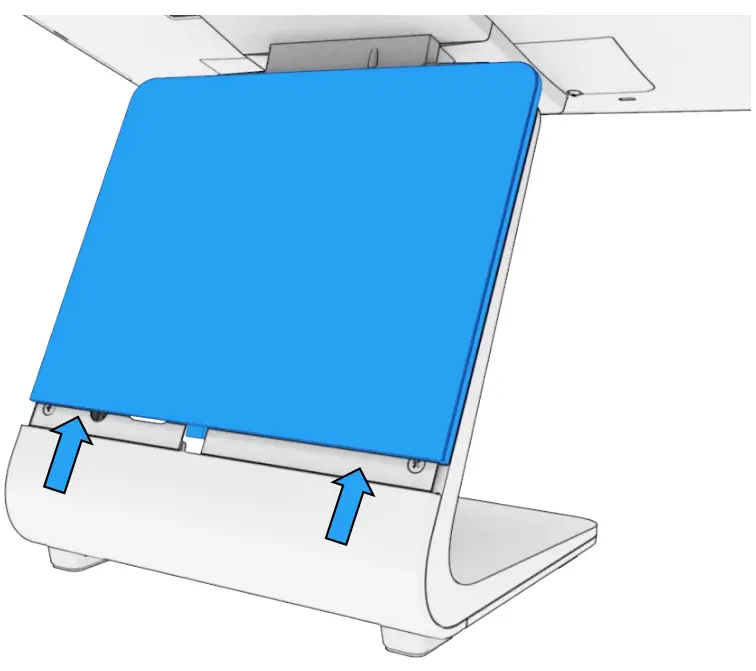
Step 10: Slide front cover up and remove.
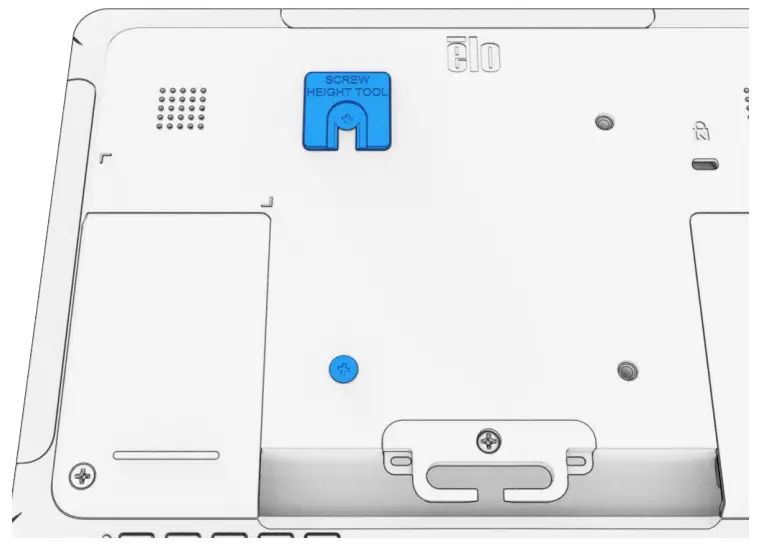
Step 11: Install 2 screws from bag A into left holes of CFD as shown (75mm VESA pattern). Use screw height tool to set screw height. Tighten screws down until screws just touch screw height tool, then remove tool.
Step 12: Remove CFD cable doors. Connect USB-C cable (included with stand) to CFD. Attach CFD cable clamps. Reinstall CFD cable doors.
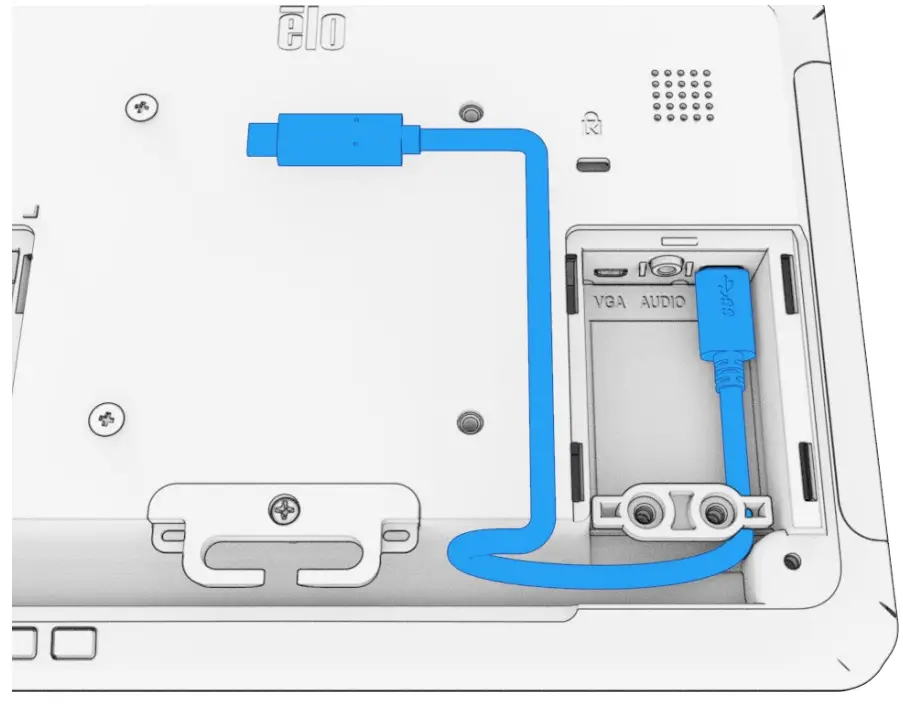
Step 13: Feed another end of USB-C cable through the cable hole in the stand. Assemble CFD onto the stand, aligning 2 screws from step 11 with keyholes in the stand. Once screws are engaged with keyholes, slide CFD as shown until seated.
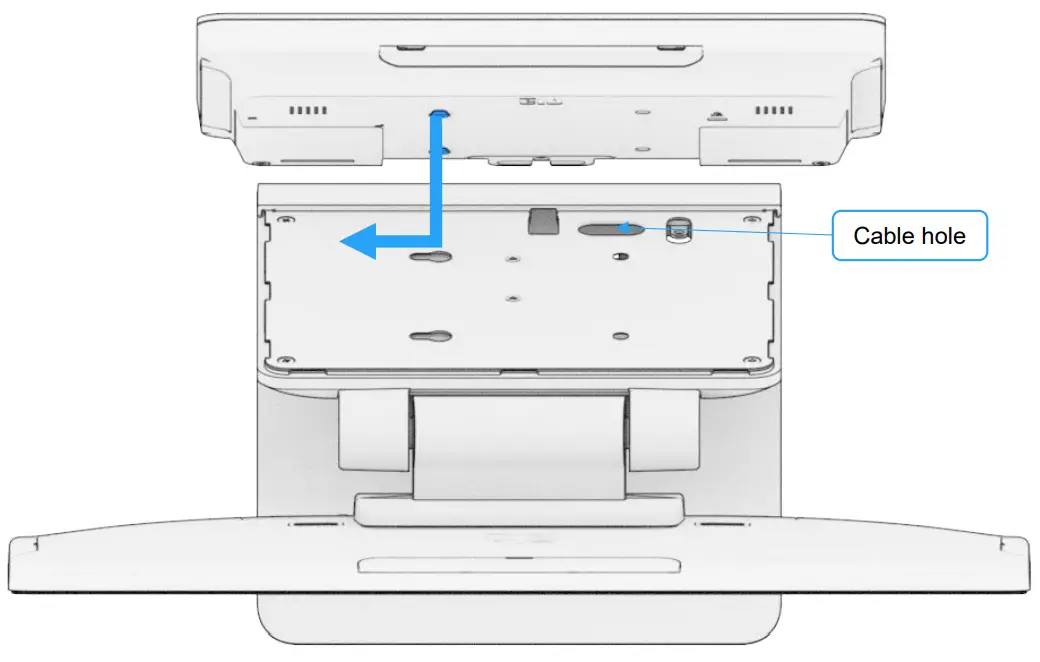
Step 14: Install 2 screws from bag A into remaining 2 VESA holes in CFD. Connect USB-C cable to stand connector.
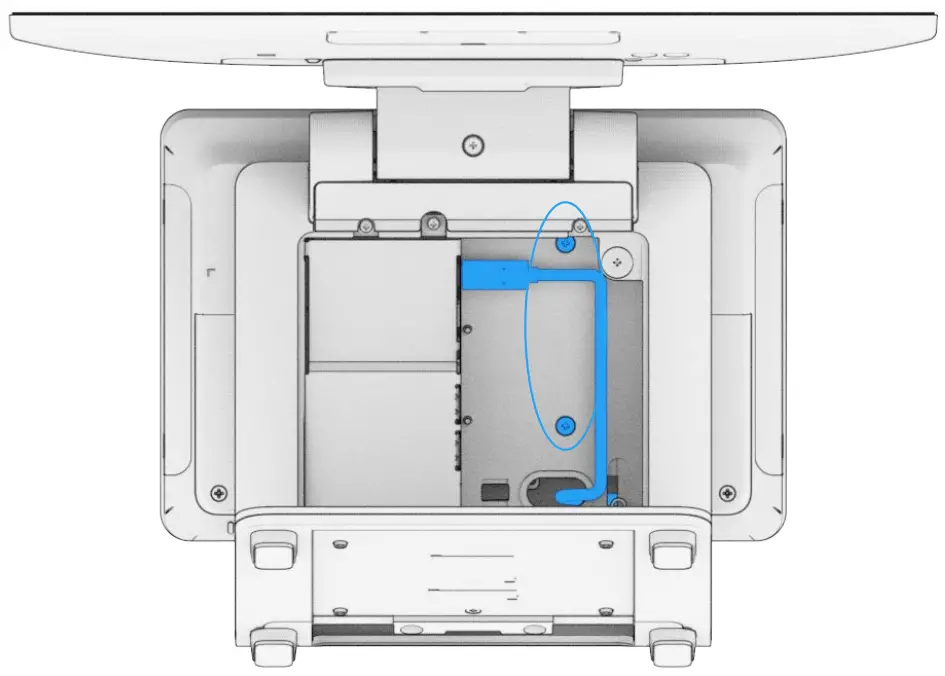
Step 15: Connect the stand power supply, LAN, and external peripherals to the stand, routing cables through the hole in the bottom of the stand.
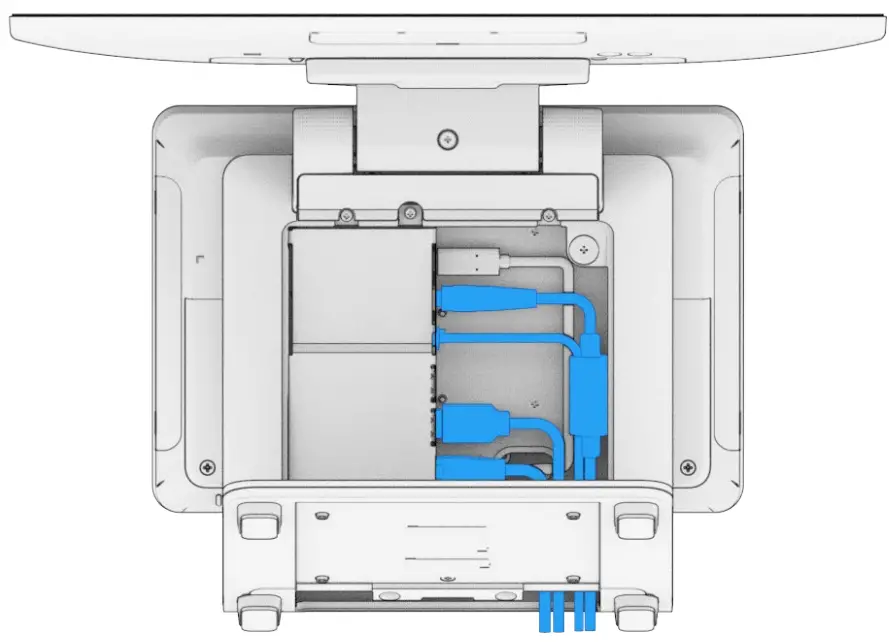
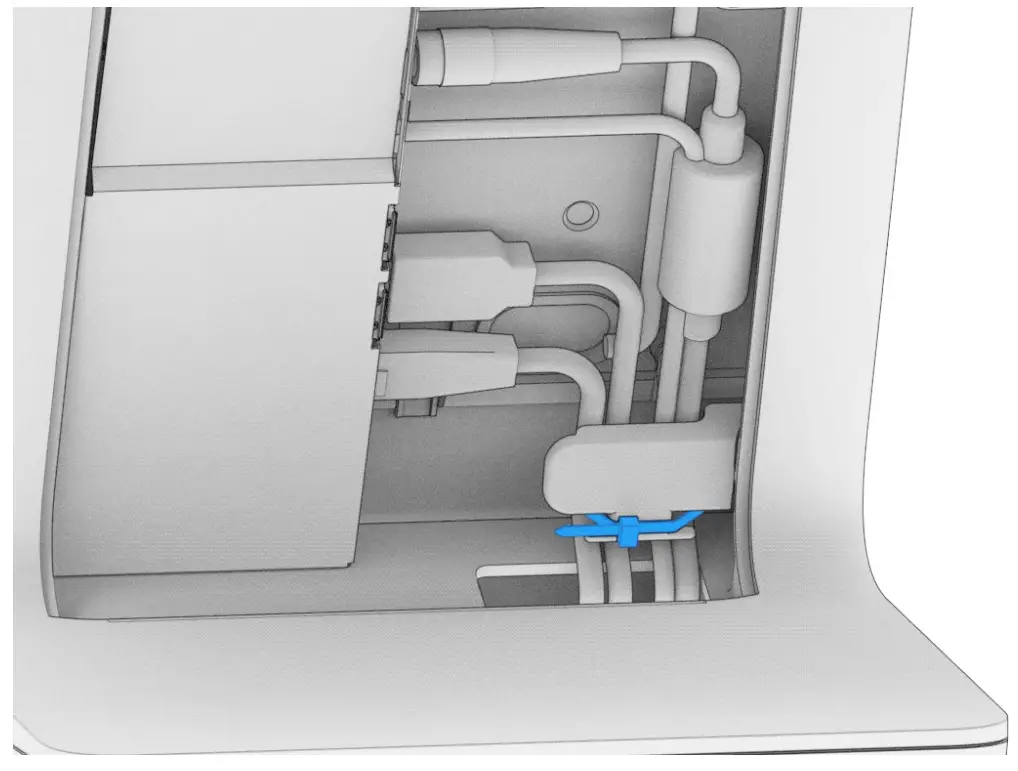
Step 16: Secure cables to cable retainer using a cable tie. If screwing down to counter, proceed to step 17. If not screwing down to the counter, reinstall the door and door screw from step 8. Product assembly is complete and ready to use.
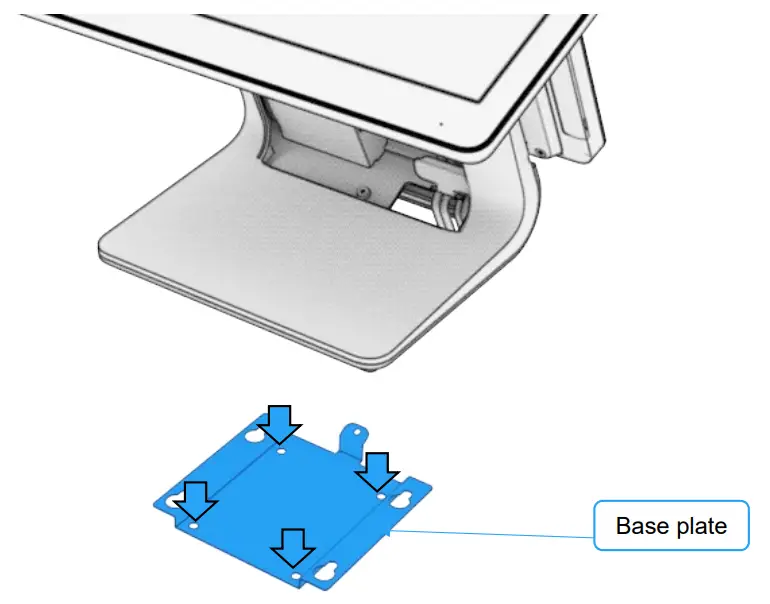
Step 17: Screw base plate to countertop (4 places).
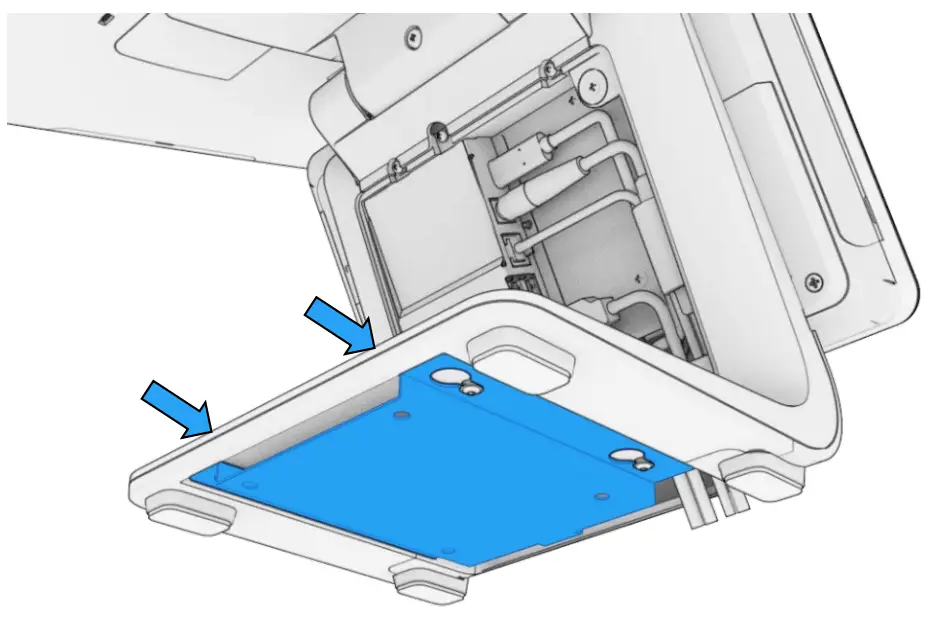
Step 18: Drop stand onto a base plate so the screws in the bottom of the stand (from step 1) align with the keyholes in the base plate. Slide stand back to engage screws fully into keyholes.
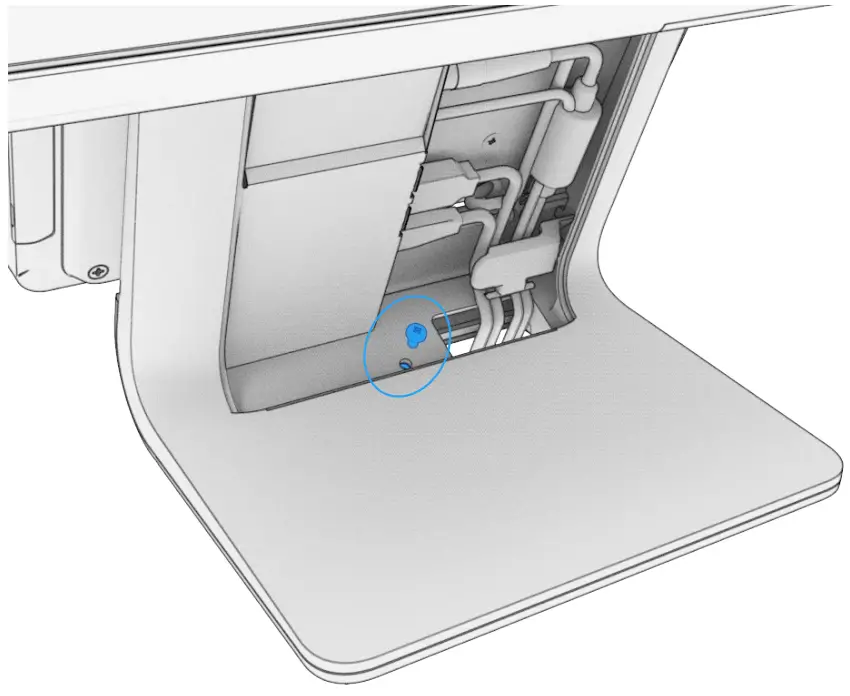
Step 19: Add a screw from bag B to secure the stand to the base plate. Reinstall the door and screw from step 7. Product assembly is complete and ready to use.
Learn more about Elo at EloTouch.com.
Americas
Tel +1 408 597 8000
[email protected]
Europe (EMEA)
Tel +32 16 930 136
[email protected]
Asia Pacific
Tel +86 (21) 3329 1385
[email protected]
The information in this document is subject to change without notice. Elo Touch Solutions, Inc. and its Affiliates (collectively “Elo”) make no representations or warranties with respect to the contents herein and specifically disclaim any implied warranties of merchantability or fitness for a particular purpose. Elo reserves the right to revise this publication and to make changes from time to time in the content hereof without the obligation of Elo to notify any person of such revisions or changes. No part of this publication may be reproduced, transmitted, transcribed, stored in a retrieval system, or translated into any language or computer language, in any form or by any means, including, but not limited to, electronic, magnetic, optical, chemical, manual, or otherwise without prior written permission of Elo Touch Solutions, Inc.
Elo and the Elo logo are either trademarks or registered trademarks of Elo Touch Solutions, Inc.
© 2021 Elo Touch Solutions, Inc. All rights reserved.

 Touchscreens for Retail, Self-Order & POS | Elo® Official Website