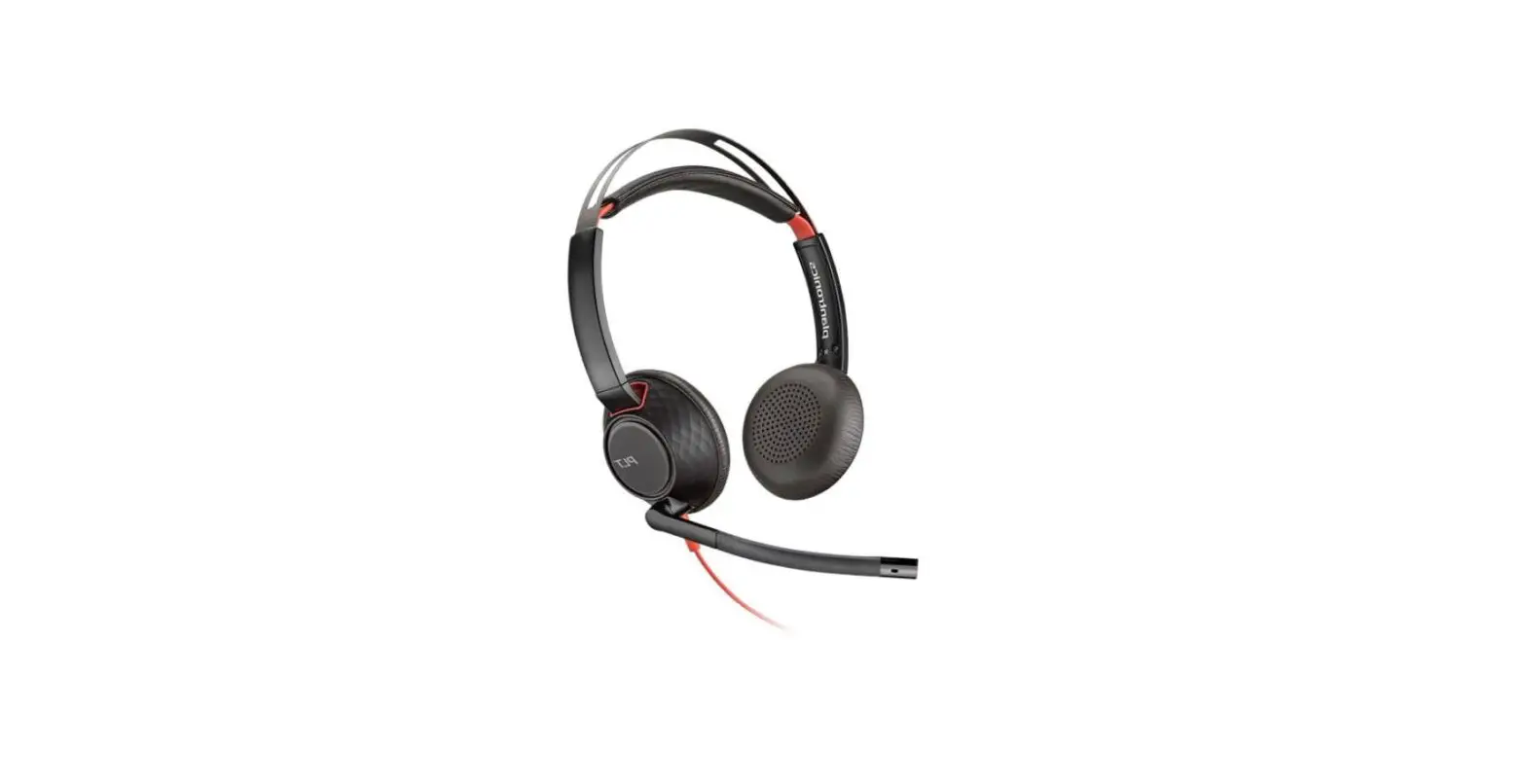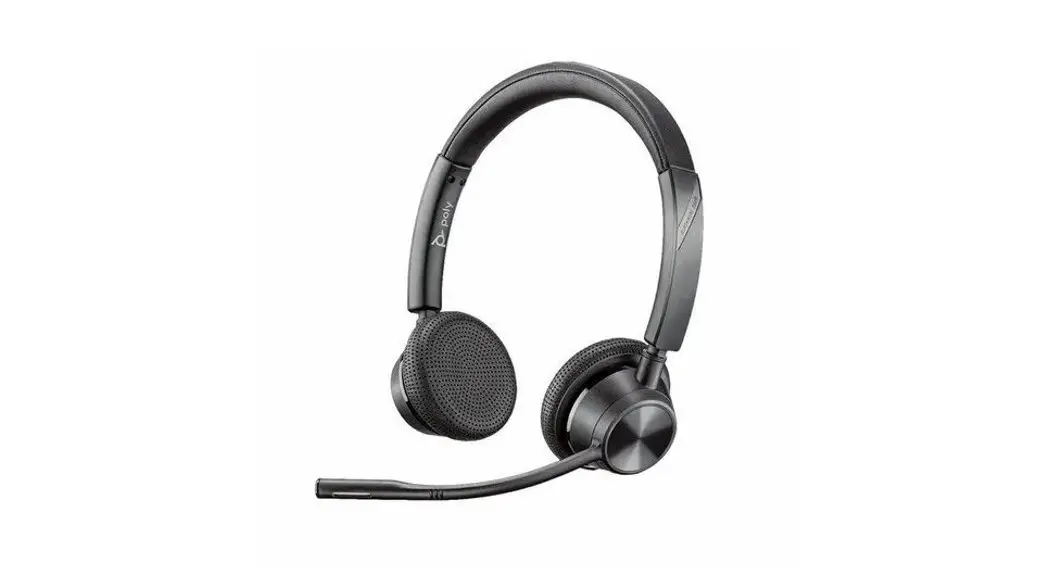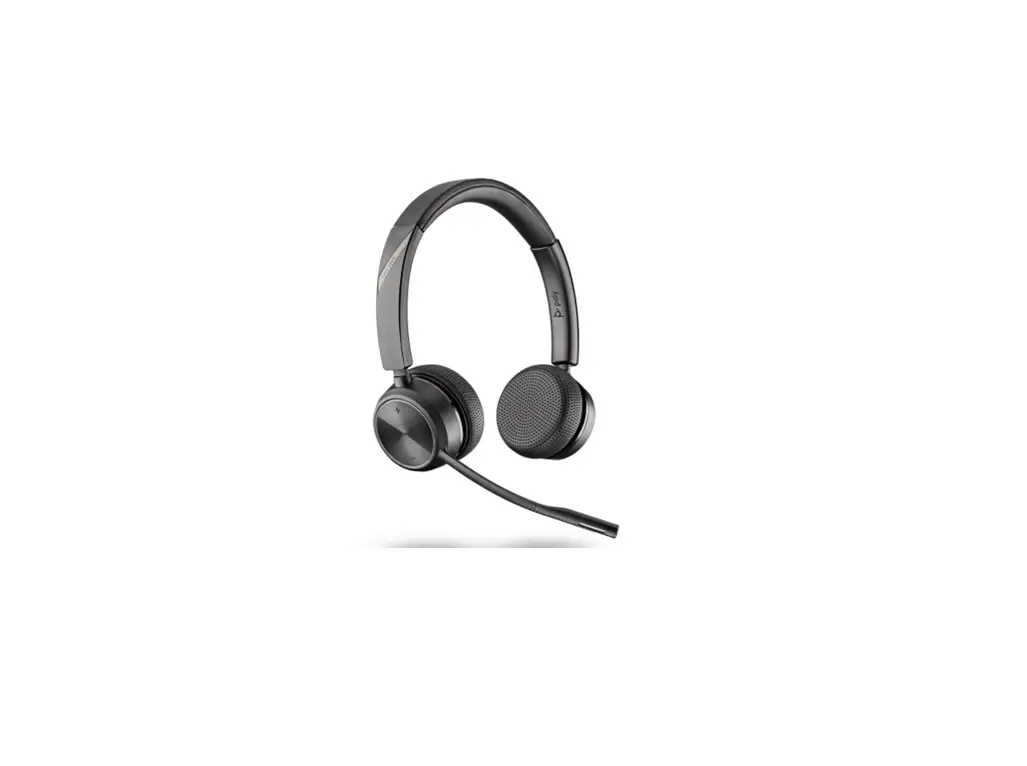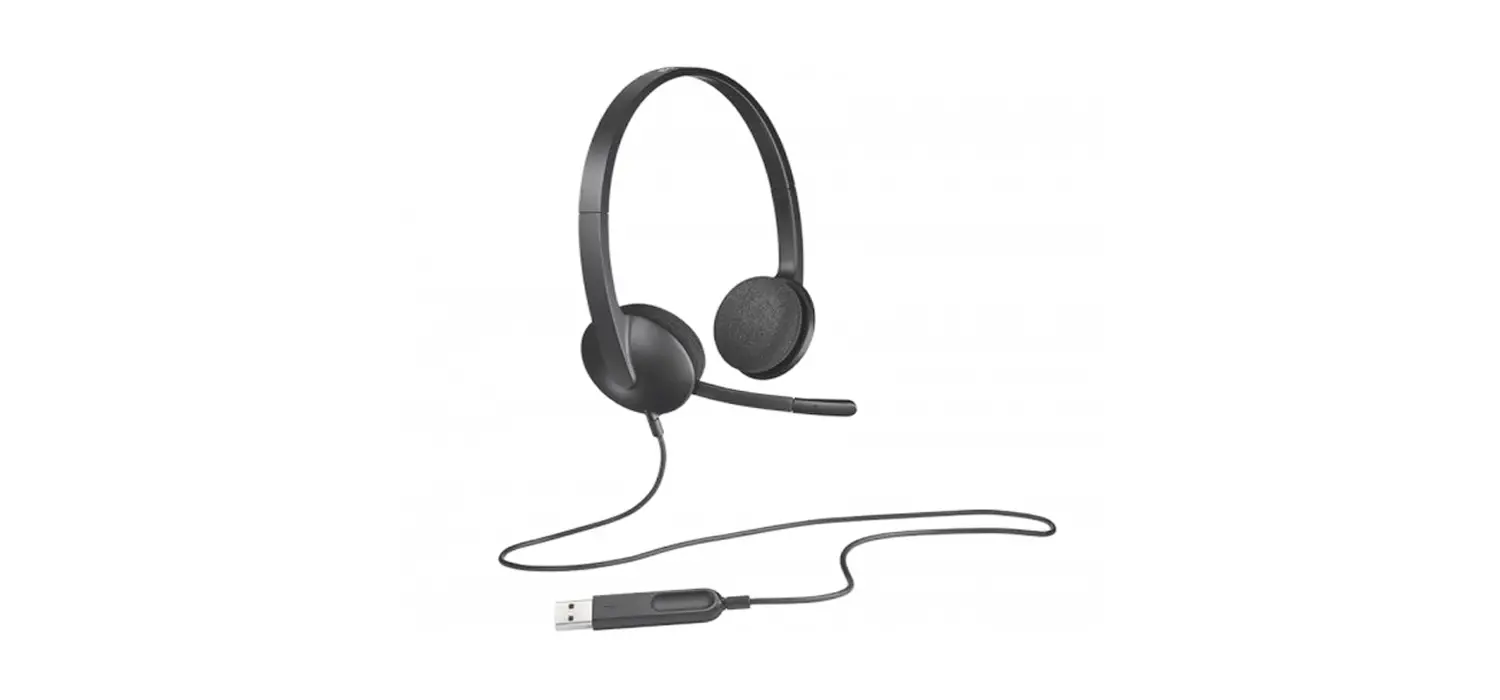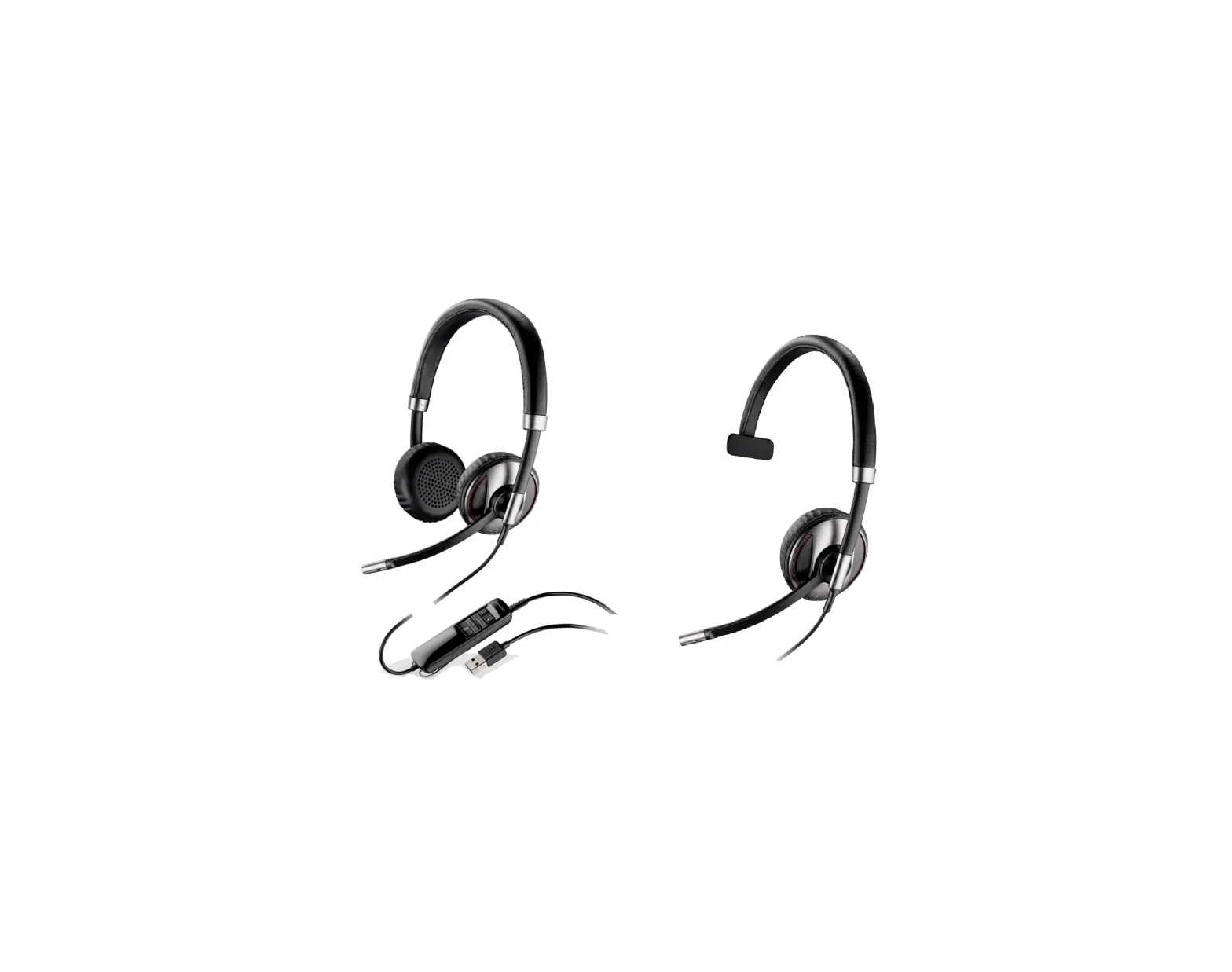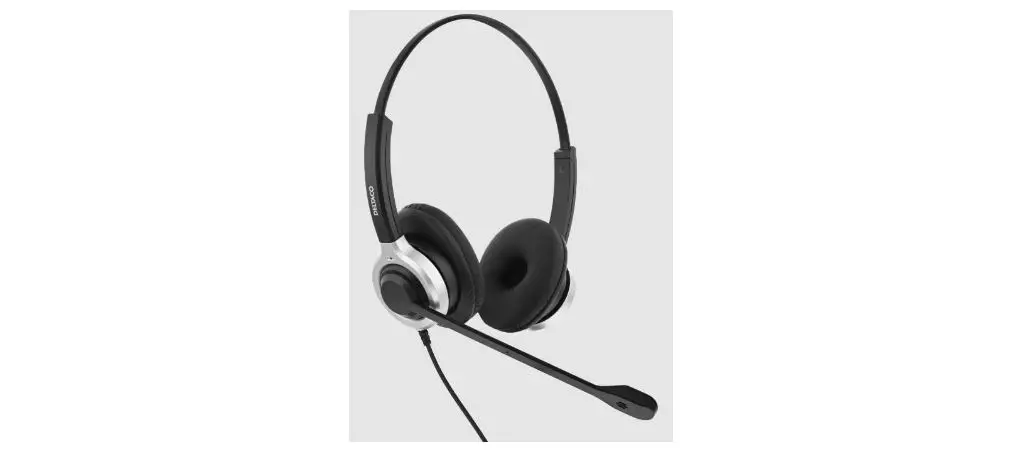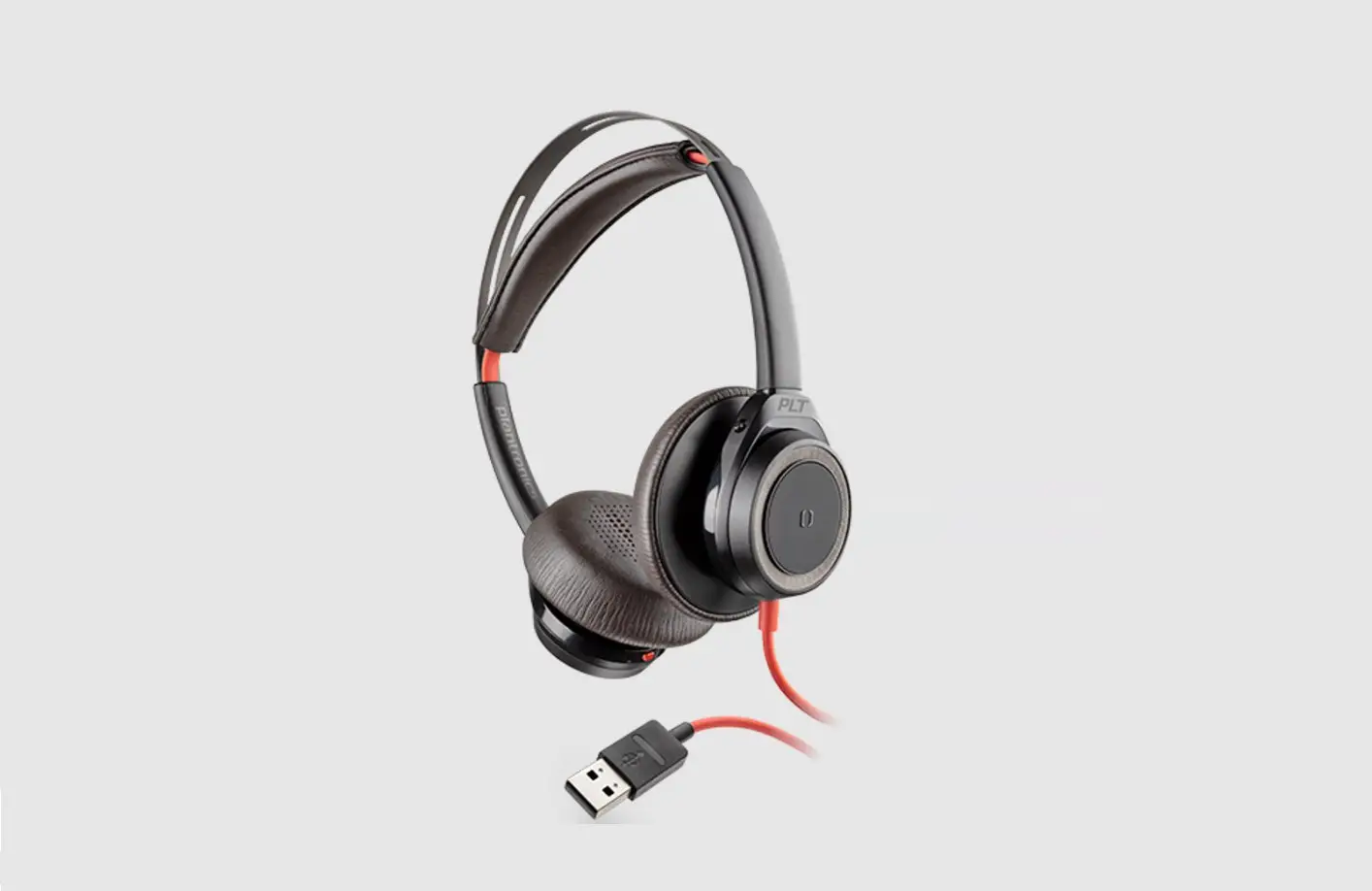
poly Blackwire 7225 Corded USB Headset User Guide
Setup
Headset overview
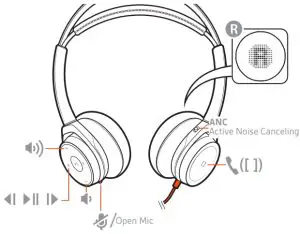
 Volume up
 Volume down
 Track backward
 Play/pause audio
 Track forward
 Call button ([ ])
 Mute/unmute
(Open Mic) To hear your surroundings, tap the mute button to activate OpenMic while headset is idle (not on a call). To deactive, tap the mute button again.
(ANC) Active noise canceling: switches ANC off and on.
Load software
Customize your device behavior through advanced settings and options with Poly Lens Desktop App. Some softphones require the installation of Poly software to enable device call control (answer/end and mute) functionality. Download: poly.com/lens.
NOTE Device settings are also available in Plantronics Hub Desktop App.
Update your Poly device
Keep your firmware and software up-to-date to improve performance and add new
features to your Poly device.
Update your device using your computer with Poly Lens Desktop App. Download at poly.com/lens.
While updating:
- Do not use your Poly device until the update is complete.
- Do not start a second update from a second device.
- Do not stream media.
- Do not answer or place a call.
Daily Use
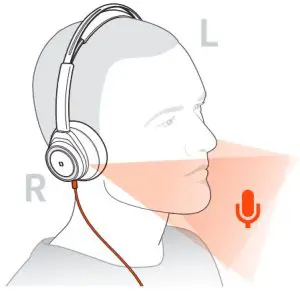
Fit
IMPORTANT Headset microphones are on the front of your earcups.
For best call audio, ensure that left and right earcups are on the correct ear.
Make a call
Dial using your softphone application.
Answer or end a call
Tap the Call button or use your softphone.
Answer a second call
- While on a call, press the headset Call button for 2 seconds to answer the second call. This will place the first call on hold.
- To switch between the calls, press the headset Call button for 2 seconds.
Redial
When not on an active call, double-tap the call button to redial the last call.
Hold
Press and hold the call button for 2 seconds to put a call on hold.
Mute
While on an active call, tap the Mute button.
Mute reminder
If mute reminder is on, an alert repeats when you speak to remind you that mute is activated. Customize your settings in Poly Lens Desktop App
Volume
Listening volume
Press the Volume up (+) or Volume down (-) button.
Adjust headset microphone volume (softphone)
Place a test softphone call and adjust softphone volume and PC sound volume accordingly.
More Features
Active Noise Canceling (ANC)
Active Noise Canceling (ANC) reduces external noise and enhances your music and sound quality. Slide the switch to activate or deactivate ANC.
OpenMic
While not on a call, tap the red Mute button to activate OpenMic and hear your
surroundings. Control the level of ambient noise you hear by adjusting the volume.
NEED MORE HELP?
poly.com/support
Plantronics, Inc.
345 Encinal Street
Santa Cruz, CA 95060
United States
Plantronics B.V
Scorpius 171
2132 LR Hoofddorp
Netherlands
© 2021 Plantronics, Inc. All rights reserved. Poly, the propeller design, and the Poly logo are trademarks of Plantronics, Inc. All other trademarks are the property of their respective owners. Manufactured by Plantronics, Inc.