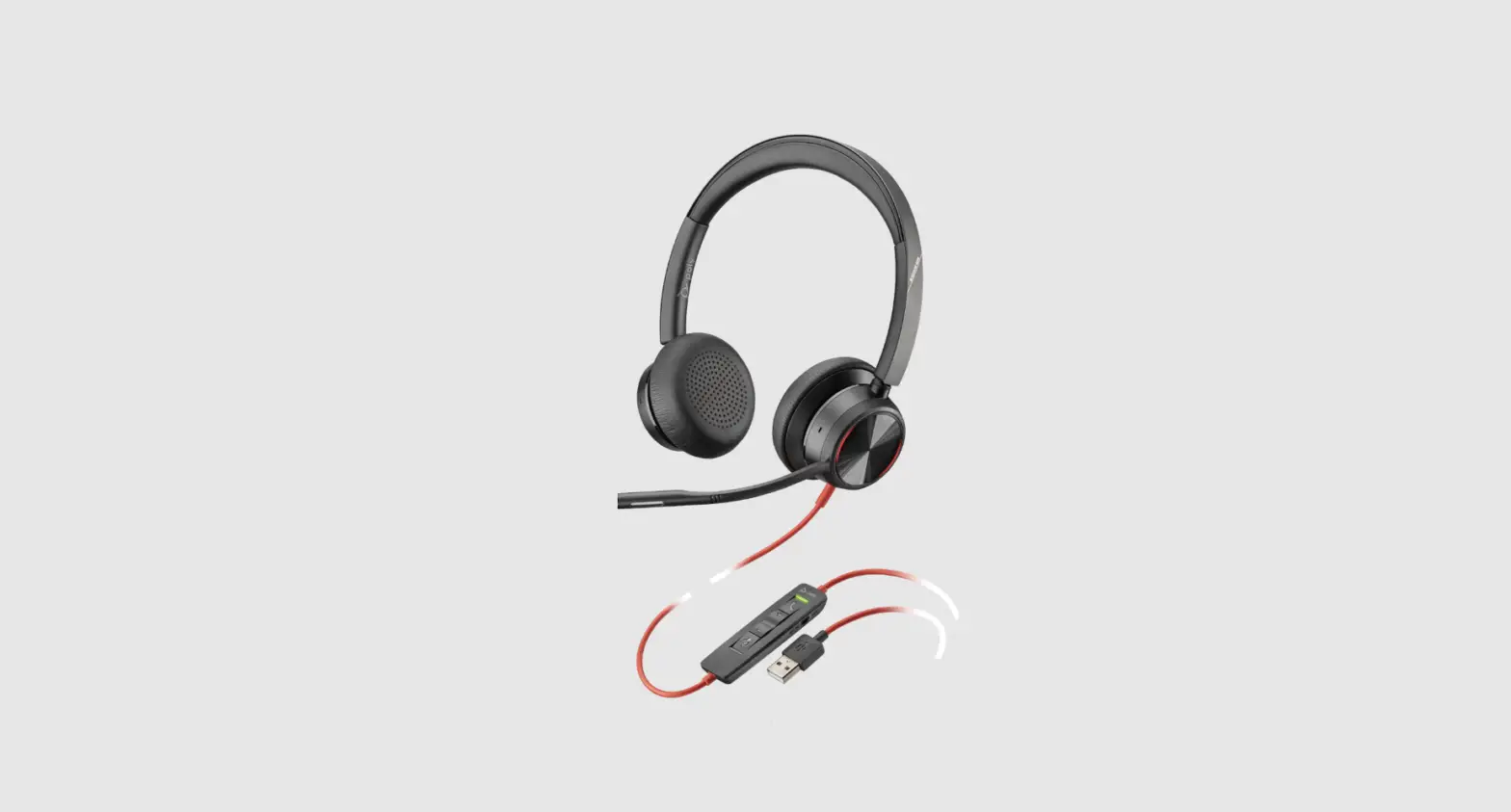
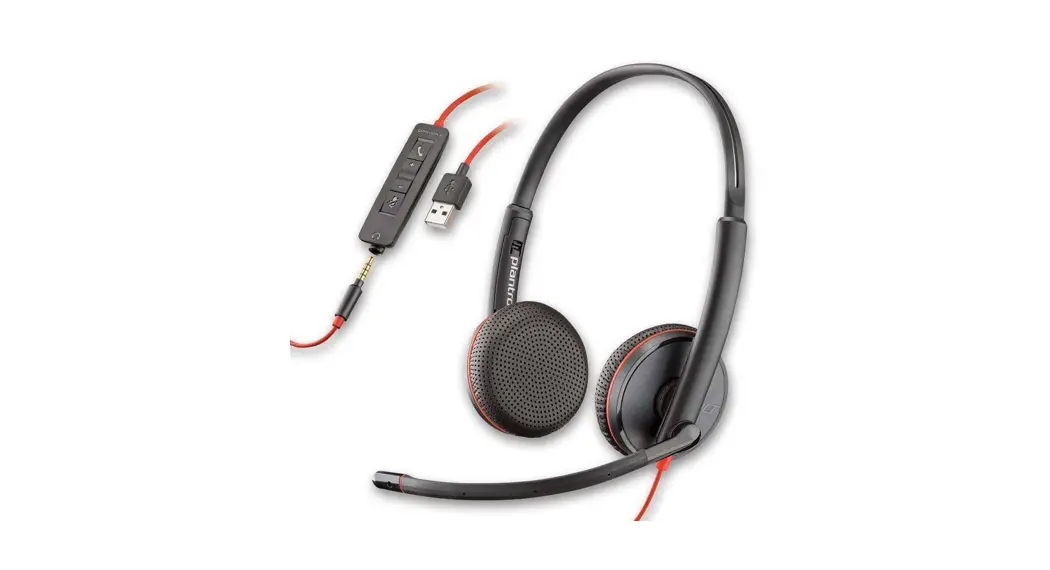
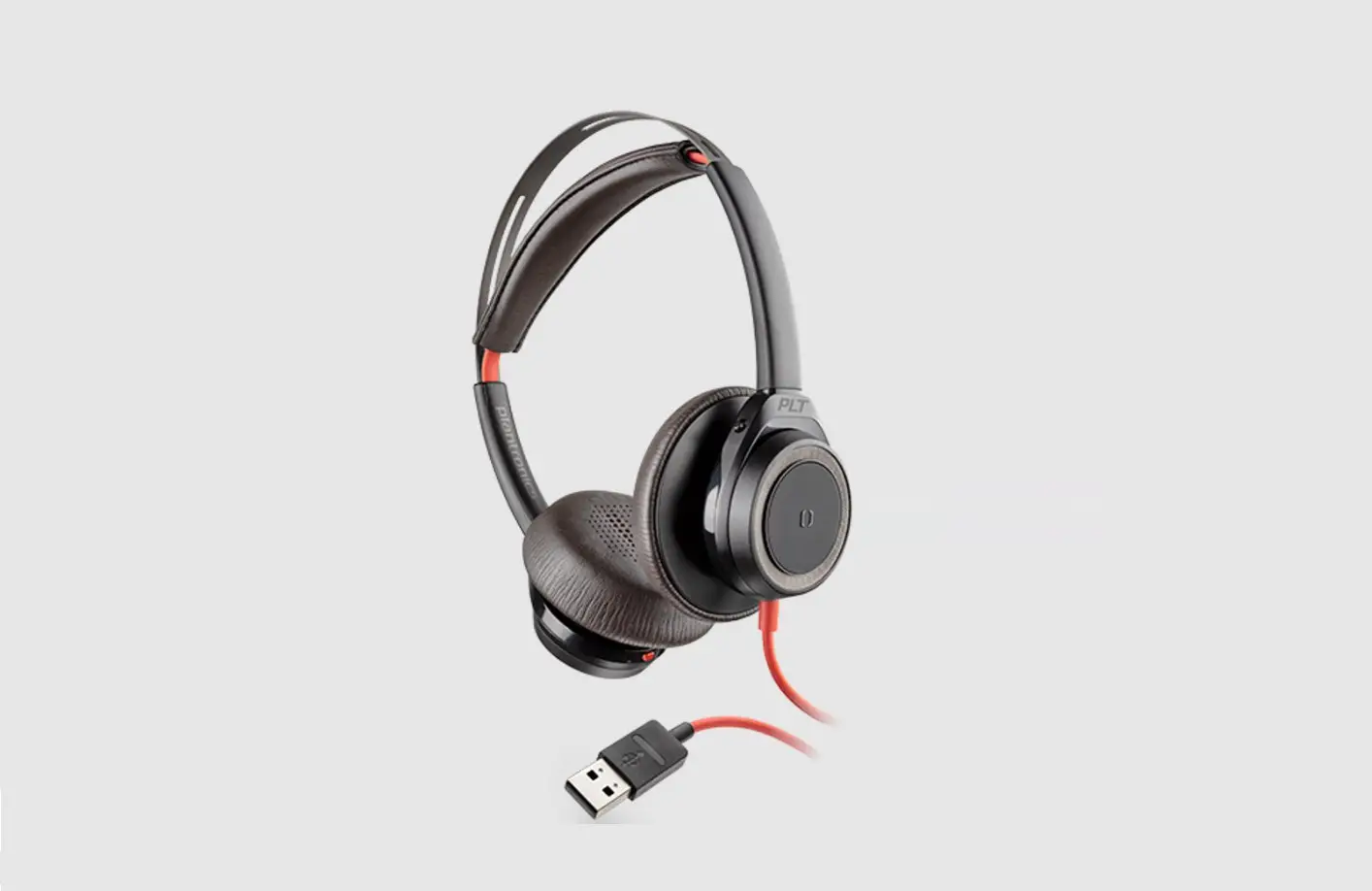
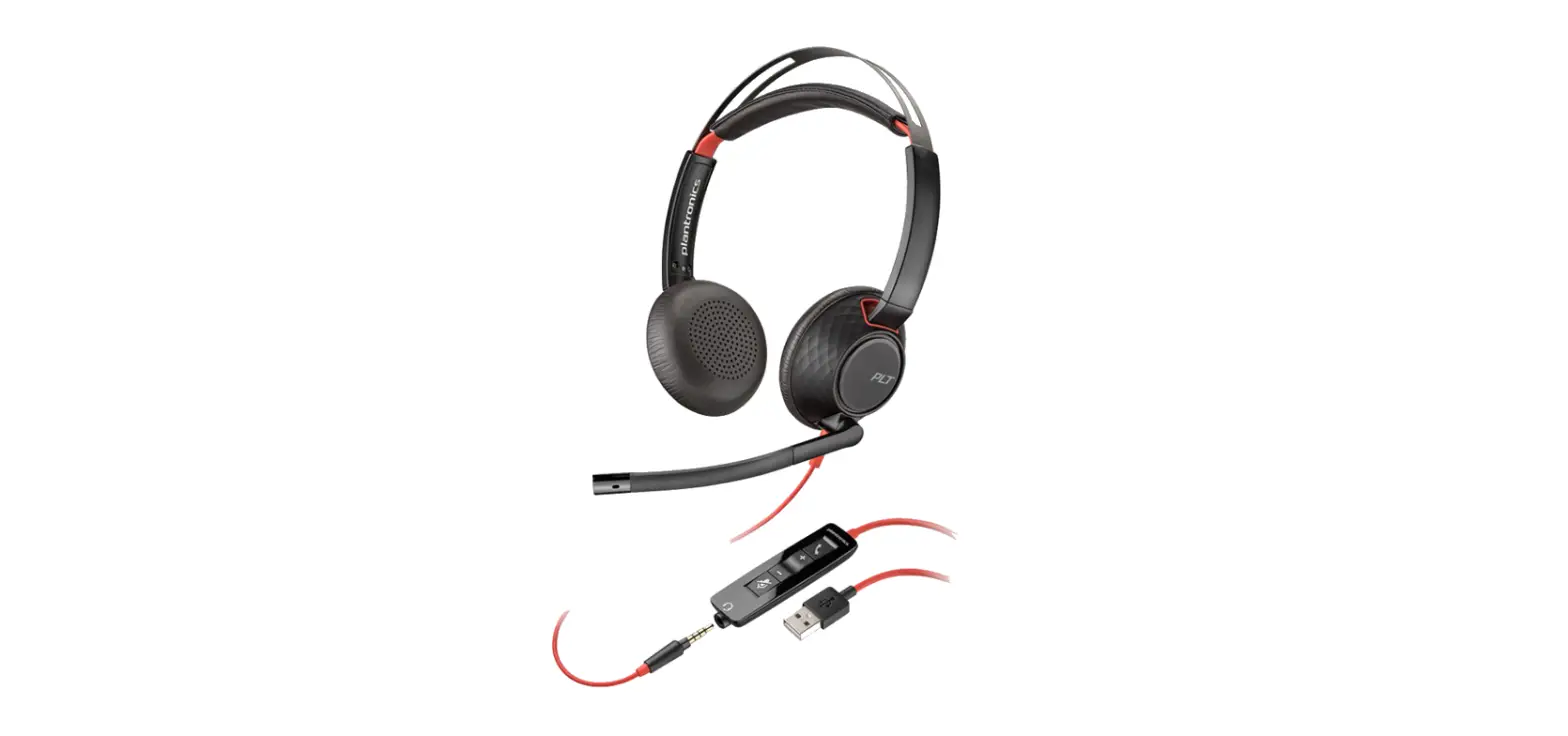
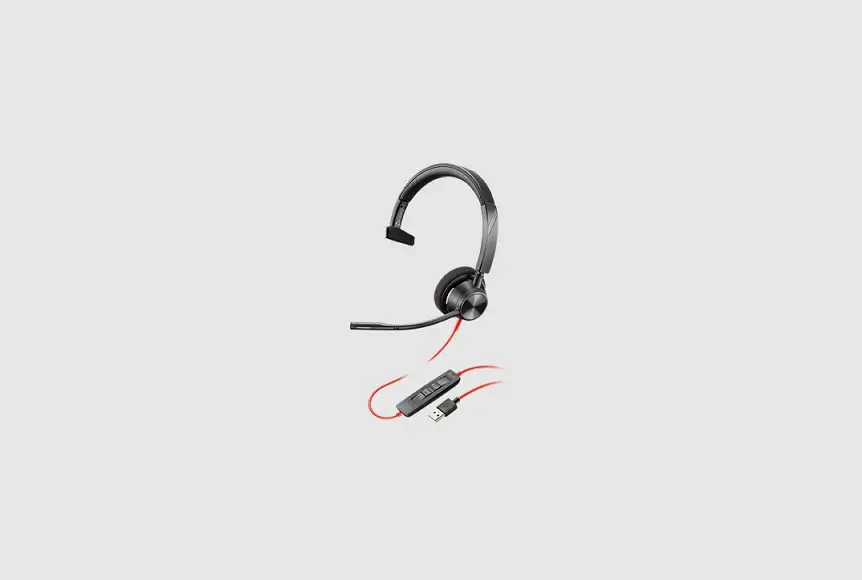
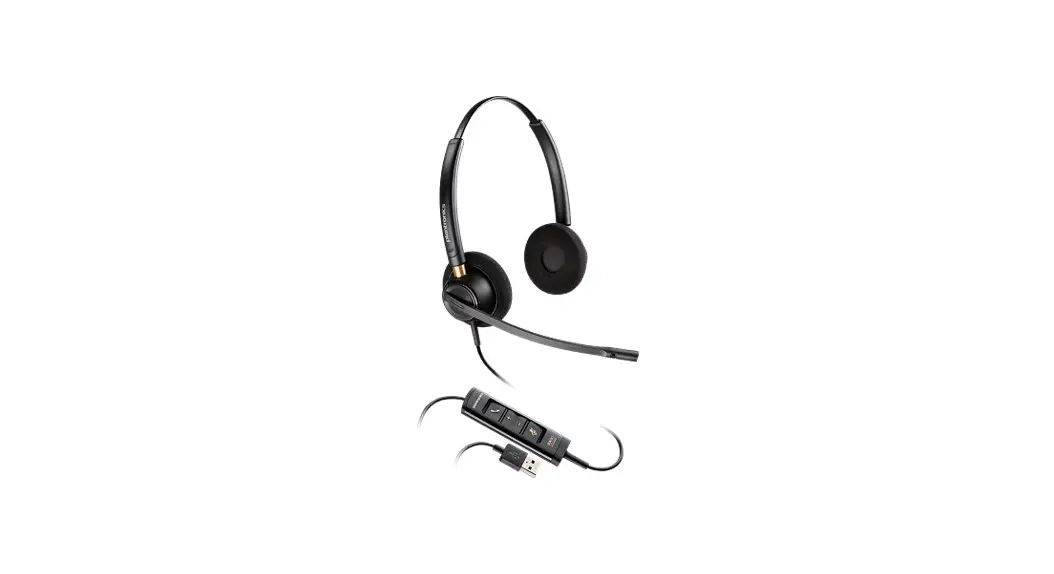
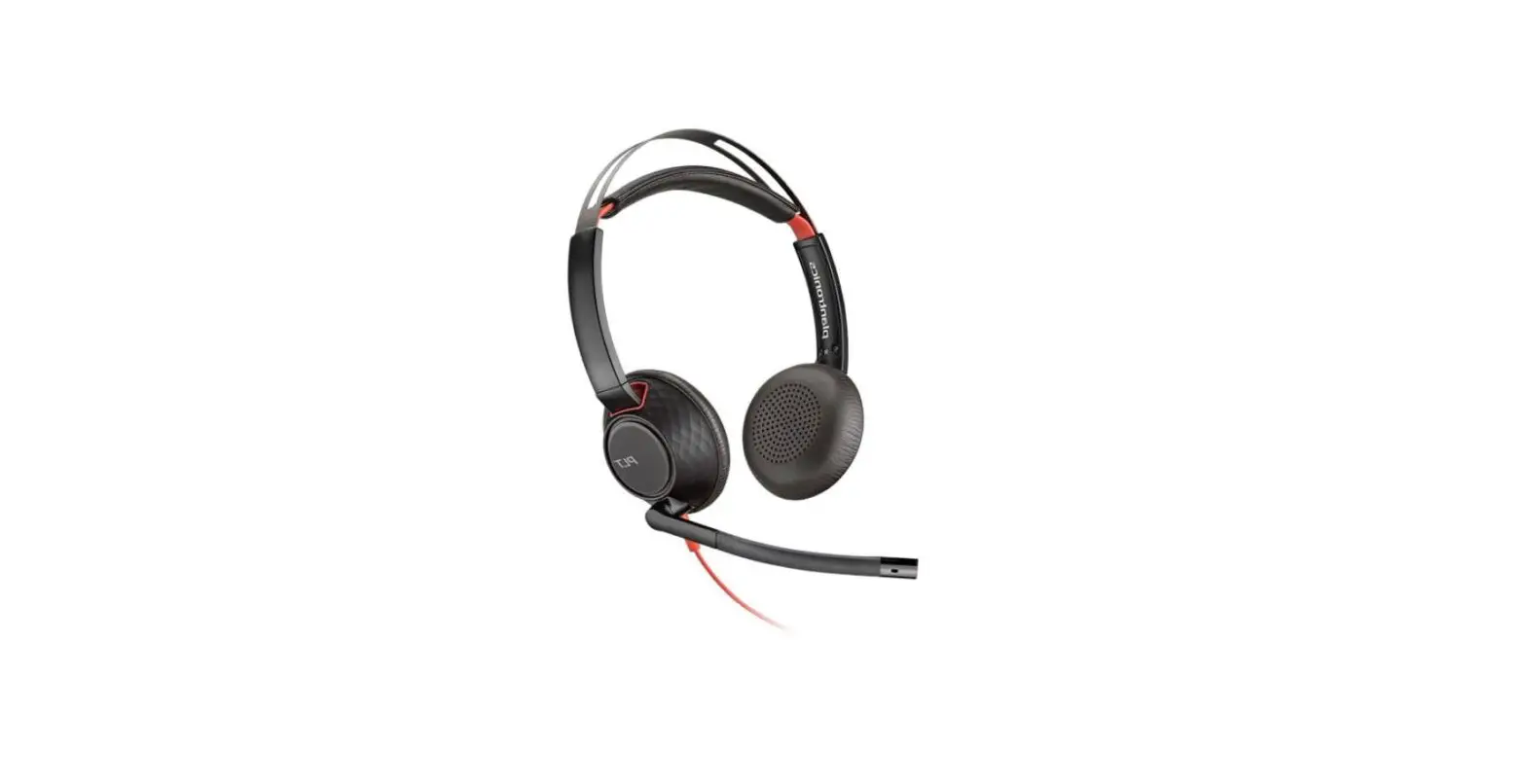
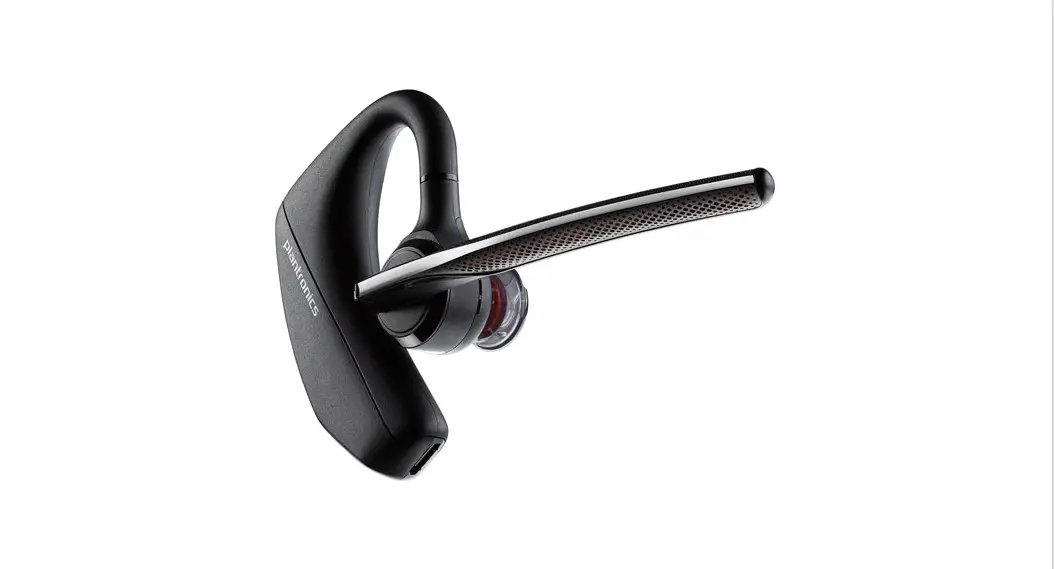
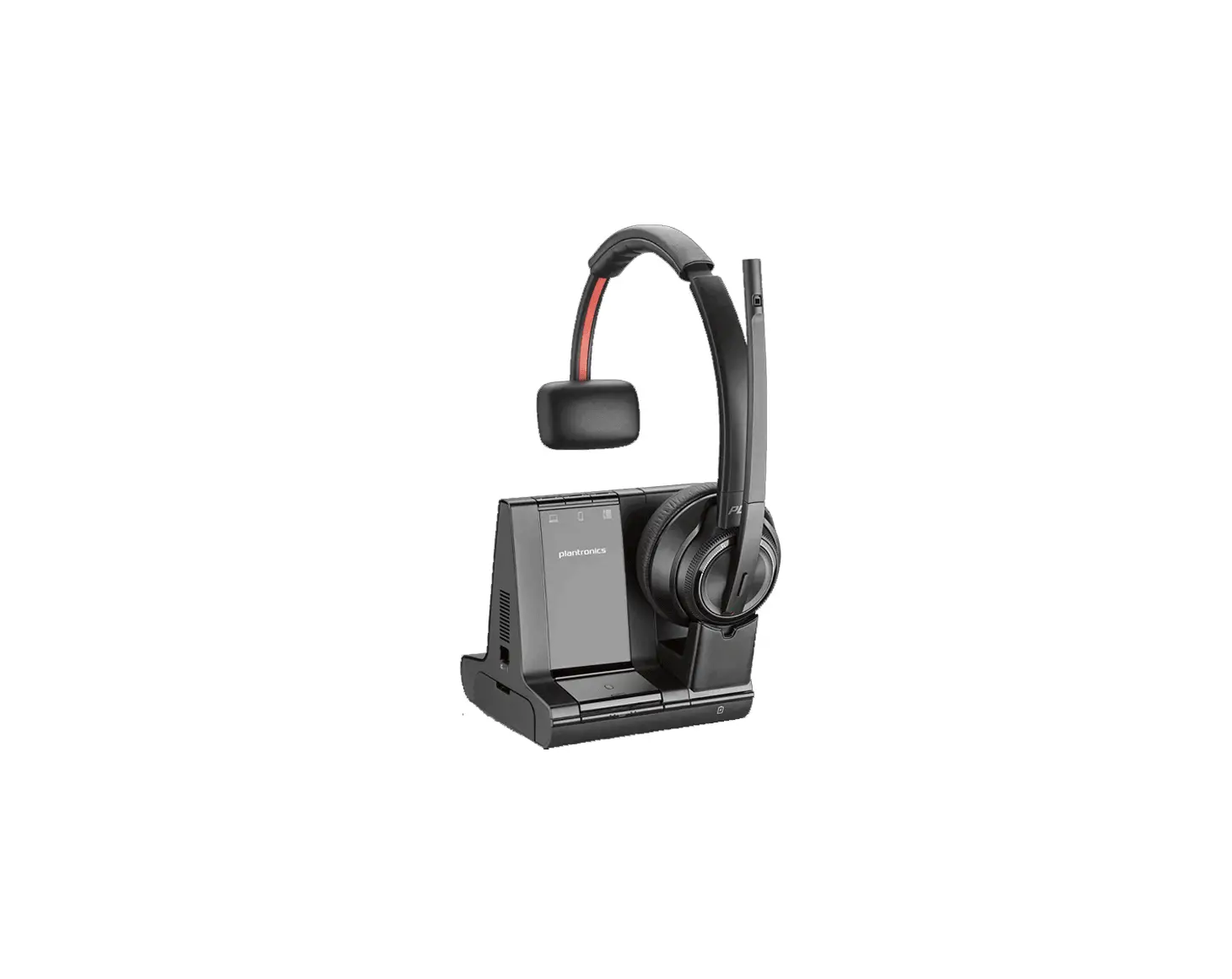
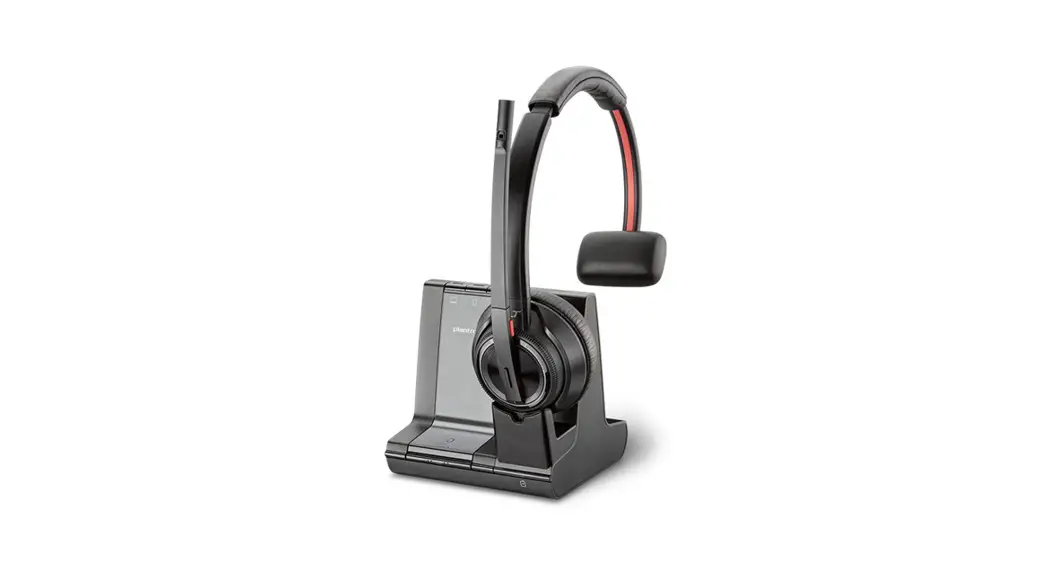
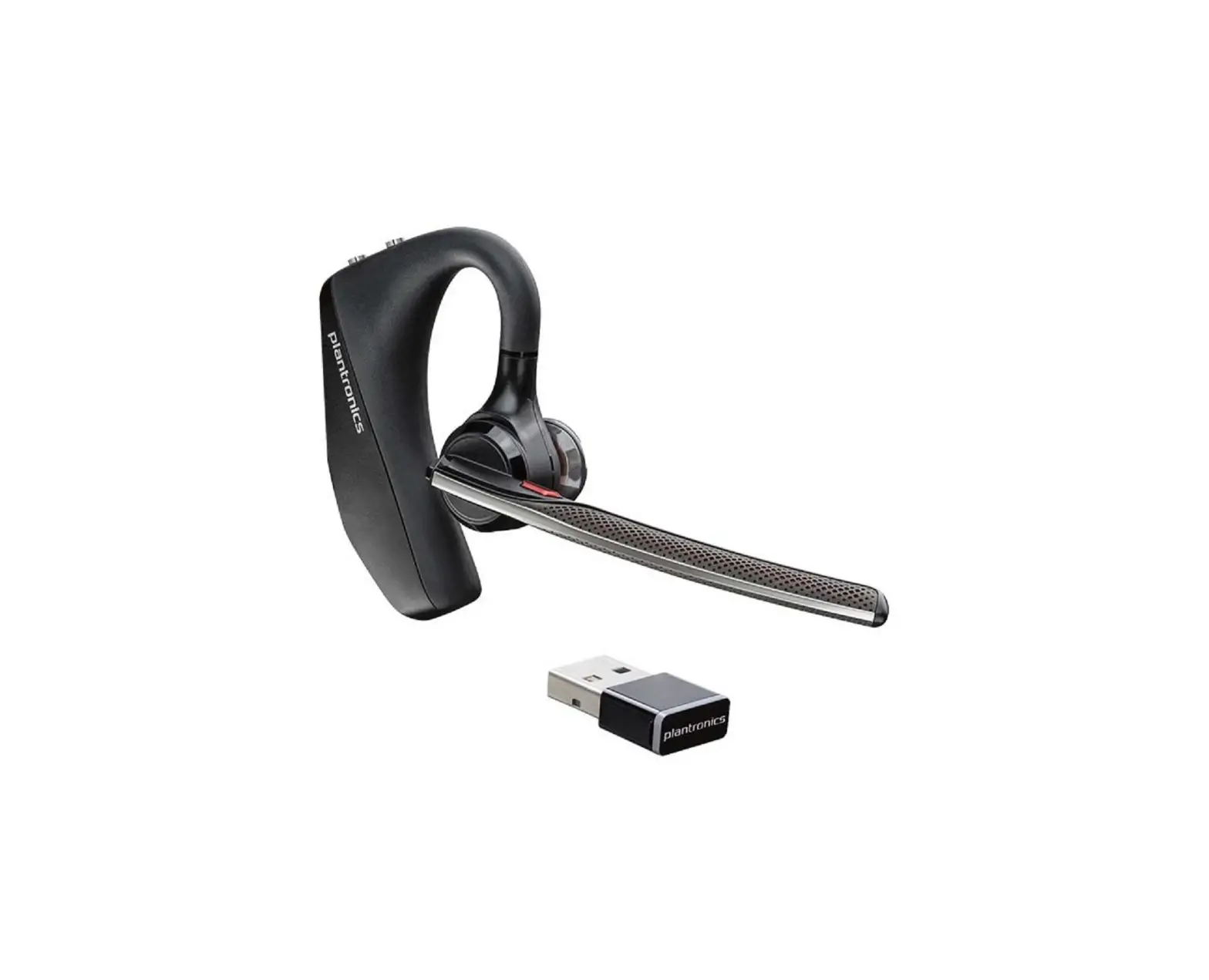
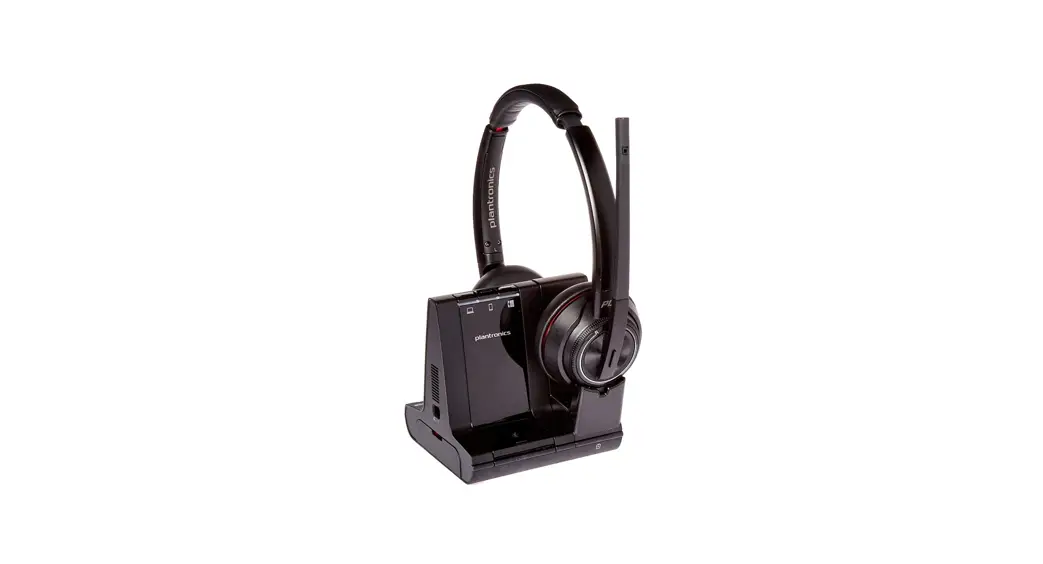
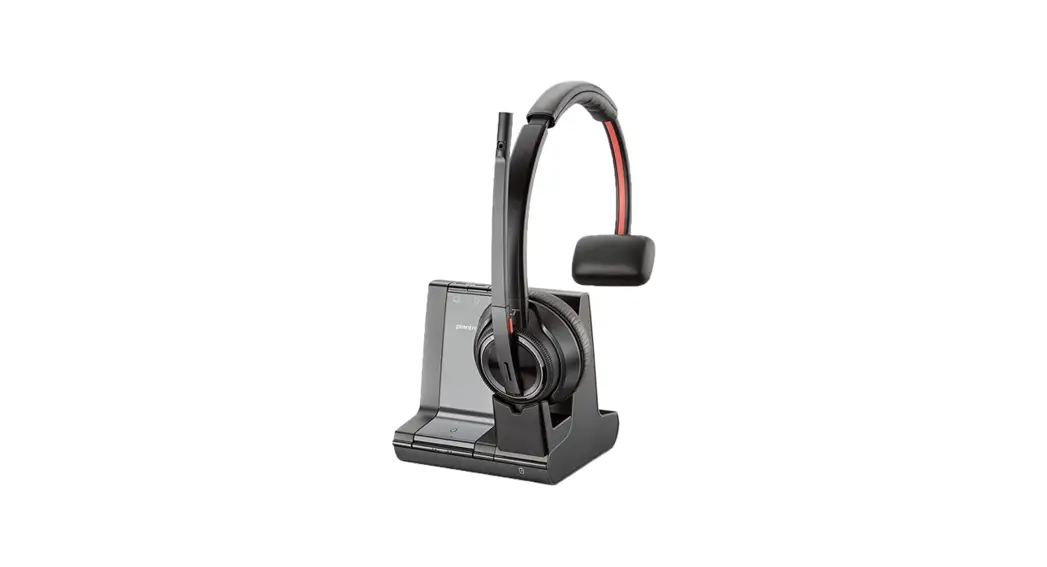
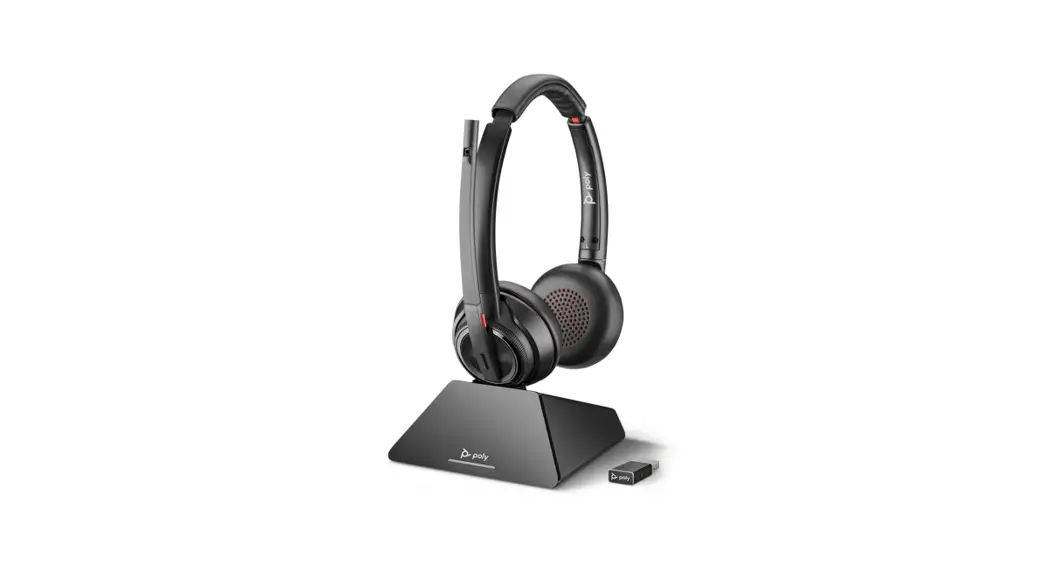
Blackwire 3200 Series Corded Headset
Product Information
The Blackwire 3200 Series is a corded headset with inline call
control. It features an adjustable headband, a boom microphone, and
an inline controller for call management. The headset is compatible
with both computers and mobile devices.
Features:
- Inline control with call button, volume buttons, and mute
button - LED indicators for incoming calls and mute status
- Adjustable headband for a comfortable fit
- Rotatable boom microphone for left or right side wearing
- Compatible with softphones for call control functionality
Setup:
- Power on the headset by connecting it to your computer or
mobile device using either the USB-A/USB-C connector or the 3.5 mm
connector (only available on Blackwire 3215/3225). - If using a softphone, install the Poly Lens Desktop App to
enable device call control functionality. Download the app from
poly.com/lens. - To customize device settings, you can also use the Plantronics
Hub Desktop App. - Keep the firmware and software of your Poly device up-to-date
for optimal performance and new features.
Fit:
To ensure a comfortable fit, follow these steps:
- Adjust the headband by lengthening or shortening it until it
fits comfortably. The cushions should sit over the center of your
ears. - Position the boom microphone by rotating it to align with your
mouth. - Adjust the boom by gently bending it in or out, approximately
two finger widths from the corner of your mouth.
Usage Instructions:
Using the inline controller:
- To make, take, or end calls, press the call button on the
inline controller. If using a softphone, make sure to press the
headset call button first before using the softphone
application. - To adjust the listening volume, press the volume up (+) or
volume down (-) button. - To mute the headset microphone during a call, briefly press the
mute button on the inline controller. Press the button again to
unmute. - To redial the last call, double key press the call button if
not on an active call. - To put a call on hold, press and hold the call button for 2
seconds. - To adjust the headset microphone volume during a softphone
call, make a test call and adjust the softphone volume and PC sound
volume accordingly.
Troubleshooting:
If you encounter any issues, refer to the troubleshooting
section in the user manual for solutions. Common issues include
problems with wearing the headset, headset controller, audio
quality, and compatibility with softphones.
Please consult the user manual for more detailed troubleshooting
steps and instructions.
Blackwire 3200 Series
Corded headset with inline call control
User Guide
Contents
Overview 3 Setup 4
Load software 4 Fit 5
Adjust the headband 5 Position the boom 5 Adjust the boom 5 Use the inline controller 6 Make/take/end calls 6 Volume 6 Mute 6 Troubleshooting 7 Headset 7 Support 8
2
Overview
Icons
Inline control Call button
LEDs Flashes green
Solid green
Volume up button
Volume down button
Mute button
Solid red
Function Incoming call On a call Increases the listening volume Decreases the listening volume
Headset is muted
3
Setup
Power on your headset by connecting to your computer or mobile device. You can connect your headset in 2 ways: 1 Via USB-A/USB-C connector NOTE Headset call control functionality may vary in mobile devices.
2 Via 3.5 mm connector* NOTE Headset call control functionality is not available.
Load software
* 3.5 mm connector available on Blackwire 3215/3225 only.
Customize your device behavior through advanced settings and options with Poly Lens Desktop App. Some softphones require the installation of Poly software to enable device call control (answer/end and mute) functionality. Download: poly.com/lens.
NOTE Device settings are also available in Plantronics Hub Desktop App.
Update your Poly device Keep your firmware and software up-to-date to improve performance and add new features to your Poly device.
Update your device using your computer with Poly Lens Desktop App. Download at poly.com/lens. While updating: · Do not use your Poly device until the update is complete.
· Do not start a second update from a second device.
· Do not stream media.
· Do not answer or place a call.
4
Fit
Adjust the headband
Lengthen or shorten the band until it fits comfortably. The cushions should sit comfortably over the center of your ears.
Position the boom
This headset can be worn on the left or right side. Rotate the boom to align with your mouth.
CAUTION To avoid breaking the boom, only rotate it up and over 180°.
Adjust the boom
Gently bend the boom in or out so it is approximately two finger widths from the corner of your mouth.
5
Use the inline controller
Make/take/end calls
Volume Mute
Headset call control is a software feature and dependent on a compatible softphone. If you have not installed Poly Lens Desktop App (poly.com/lens) or do not have a compatible softphone, press the headset call button first and then make/take/end the call using the softphone application.
Answer or end a call Tap the Call button or use your softphone.
Make a call Dial using your softphone application.
Redial If not on an active call, double key press the call button to redial the last call.
Hold Press and hold the call button for 2 seconds to put a call on hold.
Listening volume Press the Volume up (+) or Volume down (-) button.
Adjust headset microphone volume (softphone) Place a test softphone call and adjust softphone volume and PC sound volume accordingly. During a call, briefly press the mute button to mute the microphone on the inline controller. To unmute press the button again.
6
Troubleshooting
Headset
I hear a high-pitched noise when · Ensure that your 3.5 mm connector is fully connected to the
wearing the headset.
headset controller.
I cannot hear caller.
· Listening volume is too low. Press the volume up button on the headset. and/or ensure that the volume setting on your computer is set accurately.
· Your headset is not set as the default audio device. Use the audio settings in your sound control panel/preferences to select your headset as the default audio device.
· Ensure that your 3.5 mm connector is fully connected to the headset controller.
Callers cannot hear me.
· Headset is muted. Tap the mute button to unmute the microphone.
· Headset microphone boom aligned incorrectly. Align the headset boom with your mouth.
· Your headset is not set as the default Voice device. Use the audio settings in your sound control panel/preferences to change the input device.
· Ensure that your 3.5 mm connector is fully connected to the headset controller.
The sound in the headset is distorted.
· Lower the listen volume on your softphone until the distortion disappears.
I can hear an echo in the headset. · Adjust volume on headset.
· Ensure that your 3.5 mm connector is fully connected to the headset controller.
When I use my headset with a softphone, the headset call control and mute buttons don’t work.
· Make sure the softphone you are using is supported by viewing www.plantronics.com/softphonecompatibility.
· If required to enable headset control (answer/end and mute) functionality, ensure you have Poly Lens Desktop App installed. See Load software.
· Your mobile device may not support call control functionality. Check with device manufacturer.
The other headset I was using to · Your headset will set itself as the default audio device in
listen to music does not work any Windows. Use the audio settings in your sound control panel/
more.
preferences to change the audio device.
My phone is not finding my headset during a call or while listening to music.
· When on a call or listening to music, make sure that audio is routing to the desired headset by going to your settings and ensuring it is defaulted.
7
Support
NEED MORE HELP?
poly.com/support
Plantronics, Inc. 345 Encinal Street Santa Cruz, CA 95060 United States
Plantronics B.V. Scorpius 171 2132 LR Hoofddorp Netherlands
© 2022 Plantronics, Inc. All rights reserved. Poly, the propeller design, and the Poly logo are trademarks of Plantronics, Inc. All other trademarks are the property of their respective owners. Manufactured by Plantronics, Inc.
211088-06 02.22
8
 Supported Softphones | Poly, formerly Plantronics & Polycom
 Poly Lens App - Make it your own | Poly, formerly Plantronics & Polycom