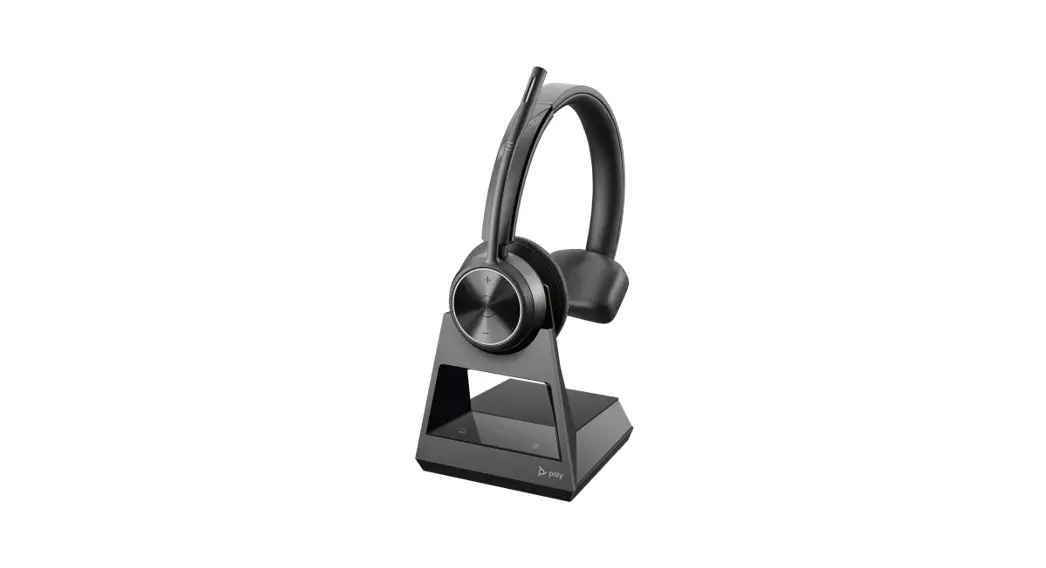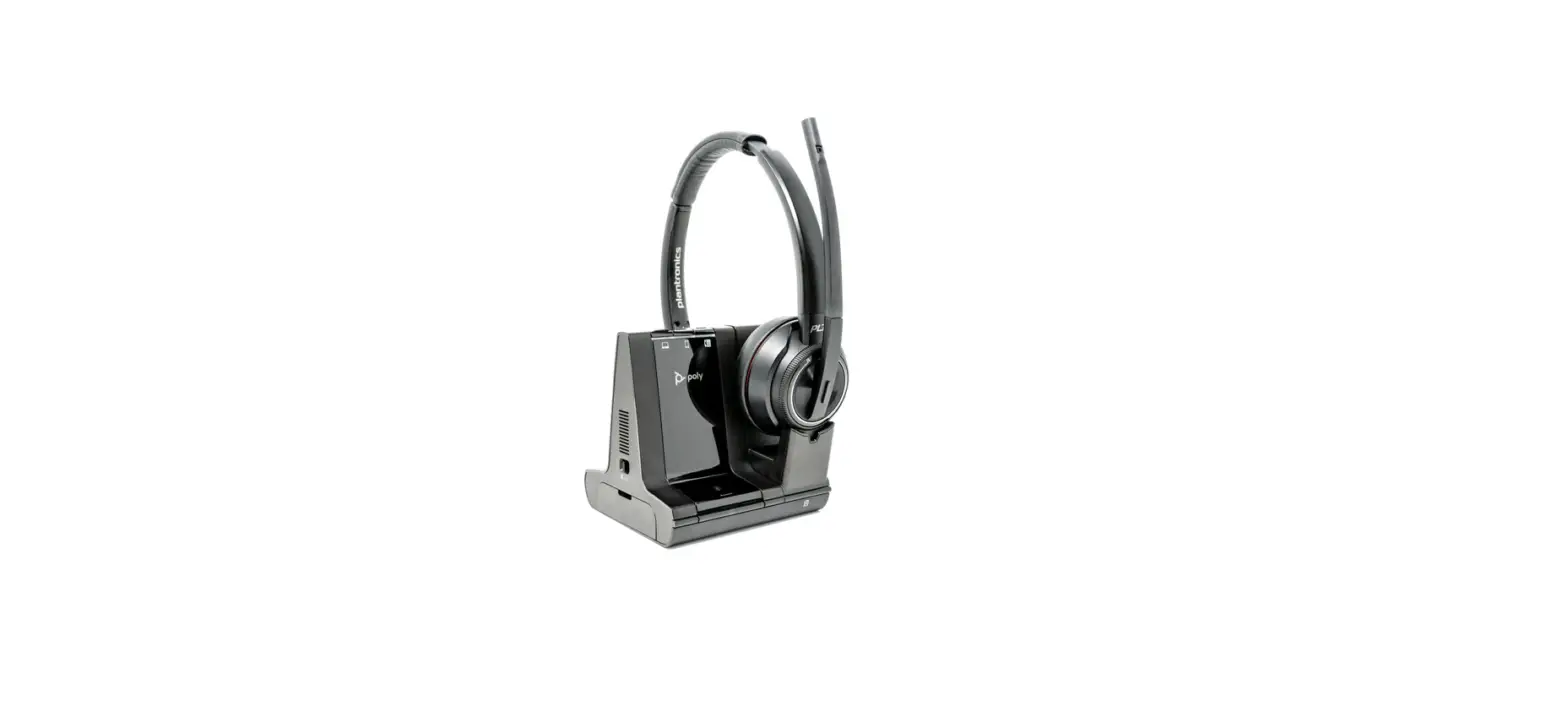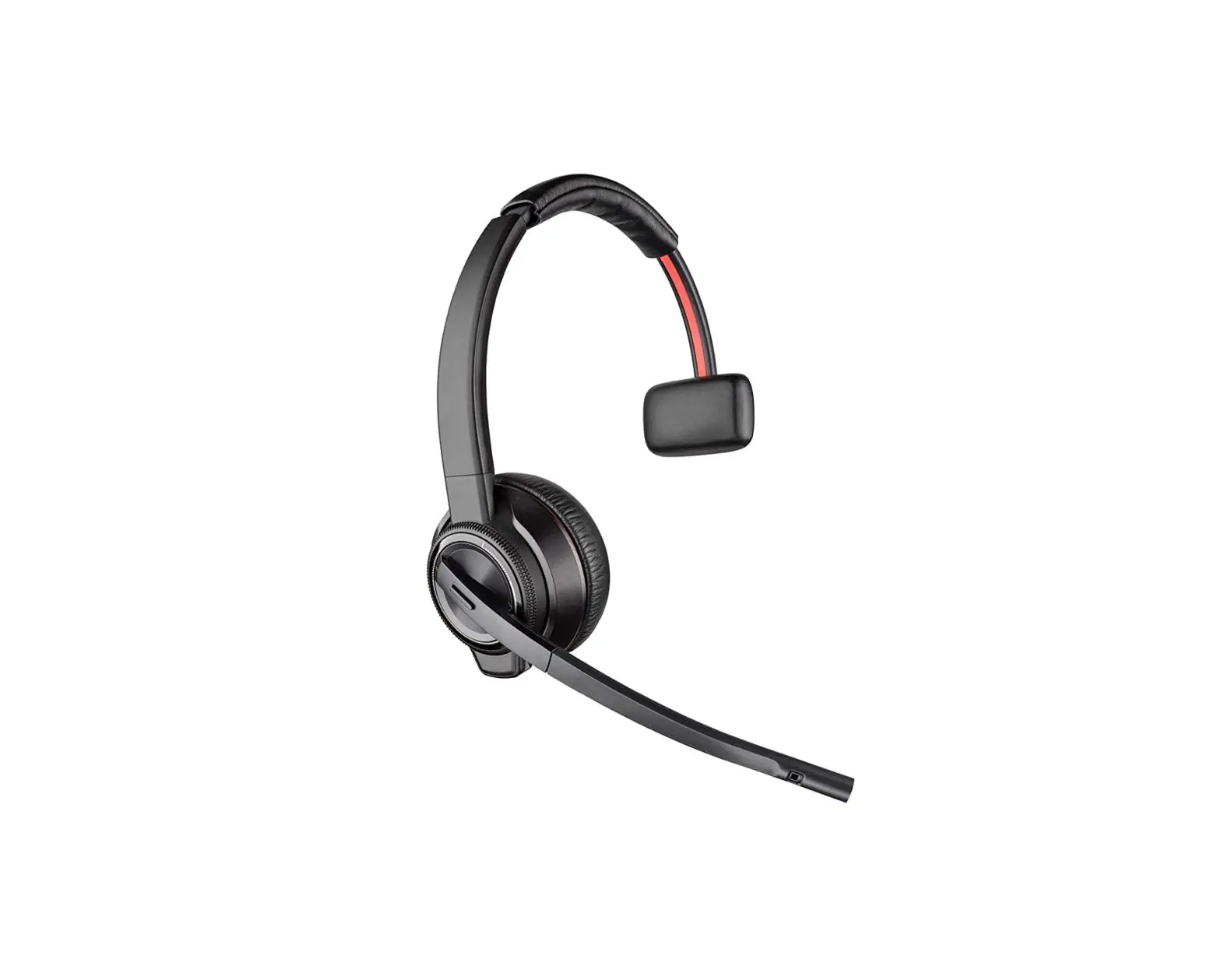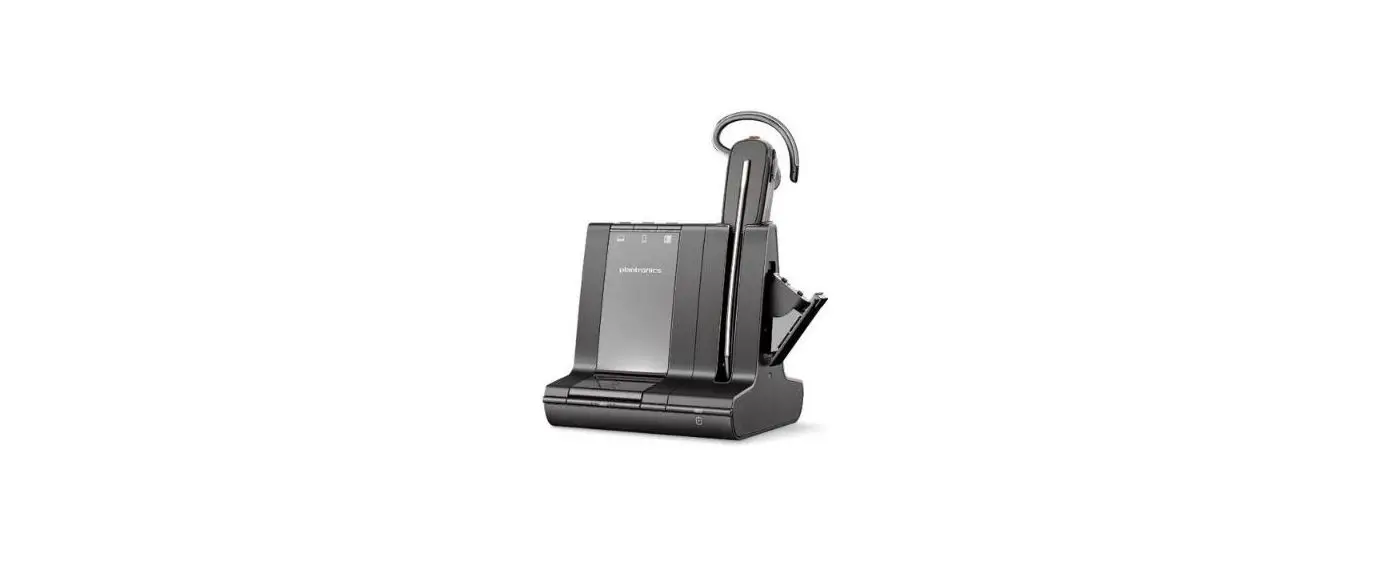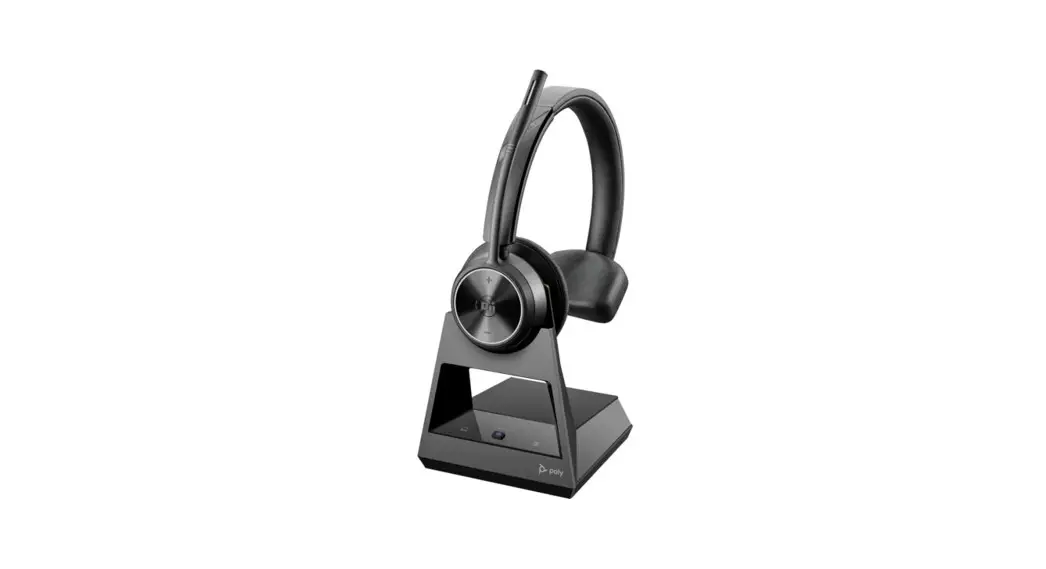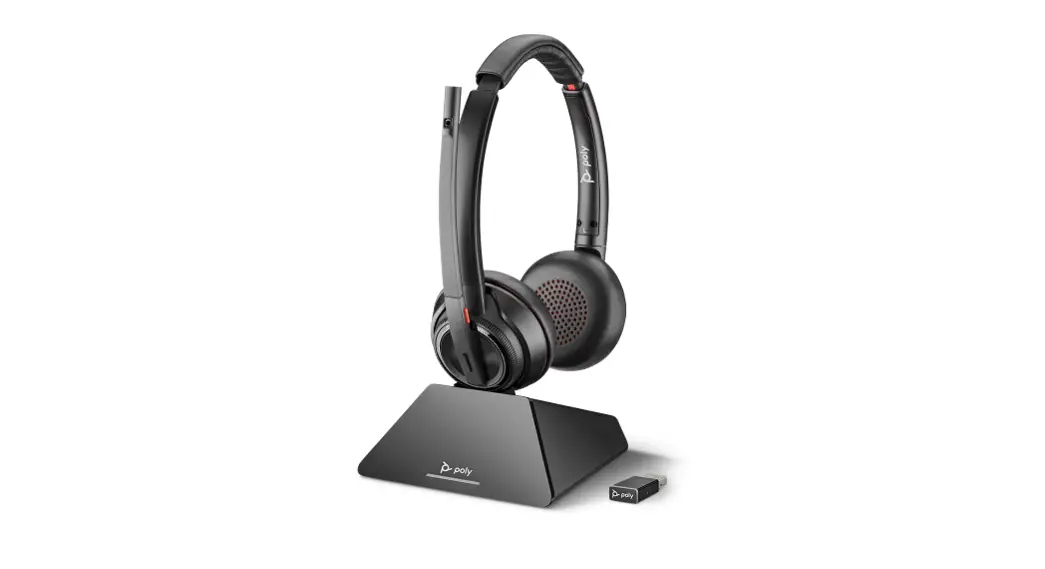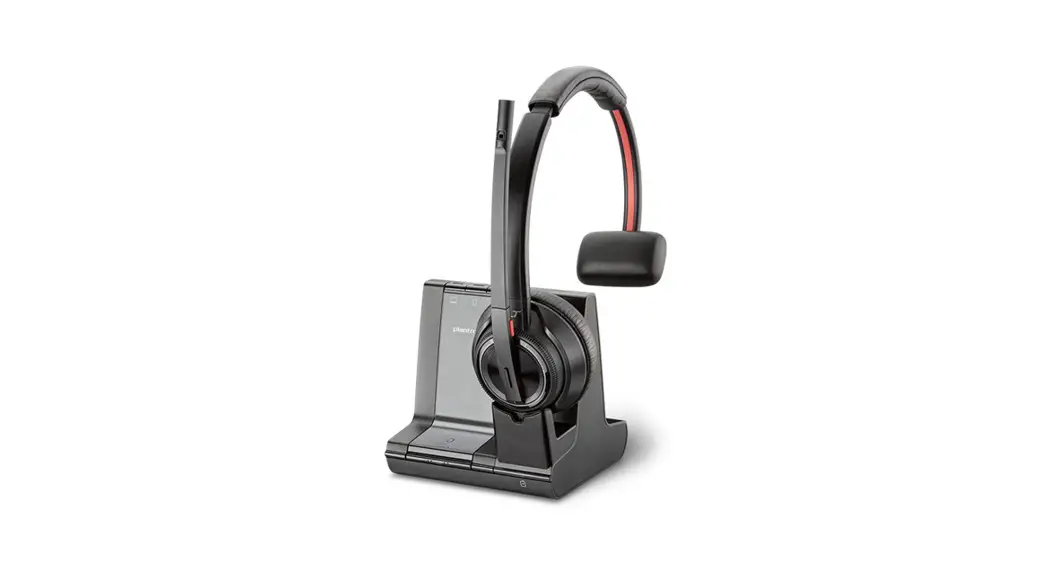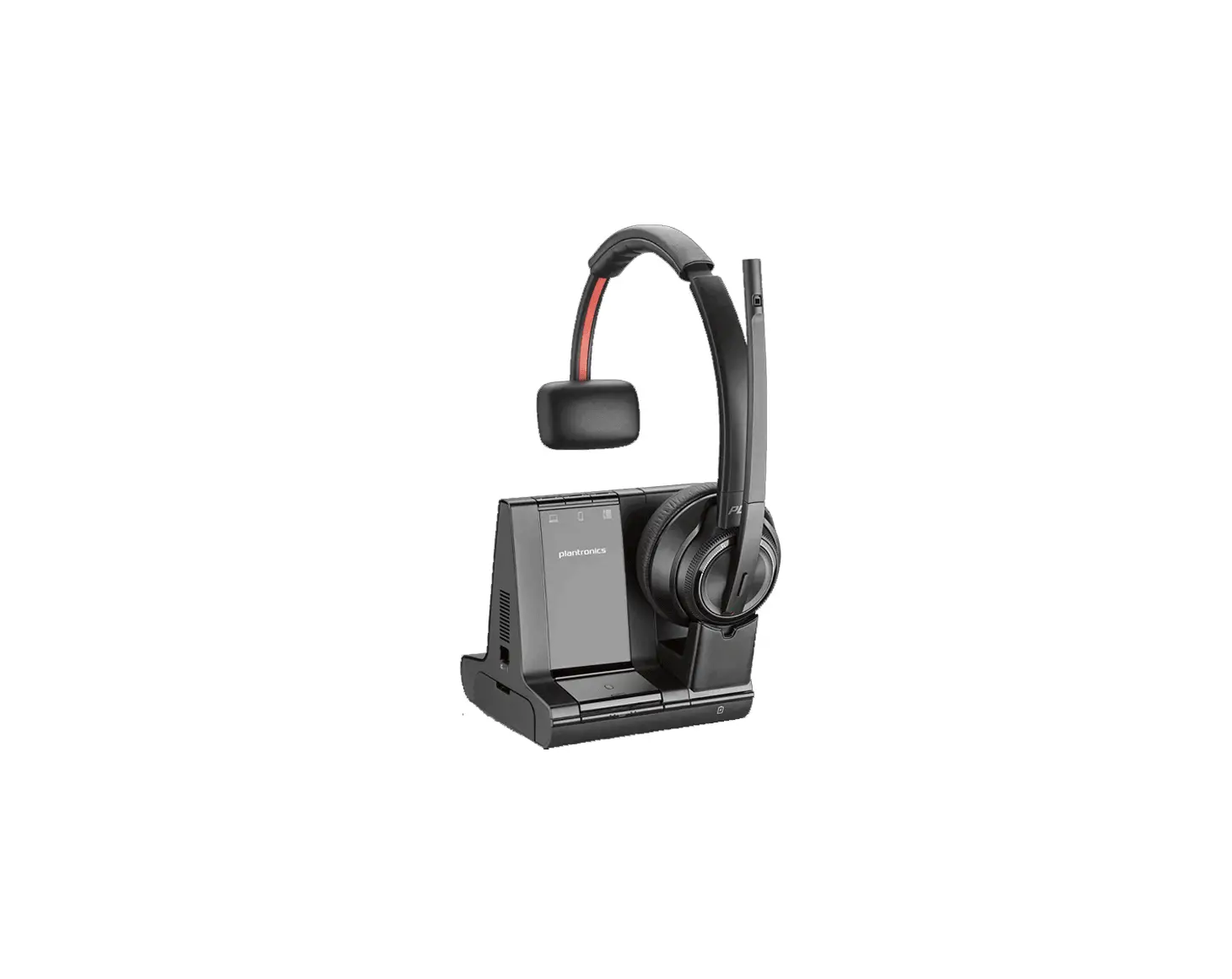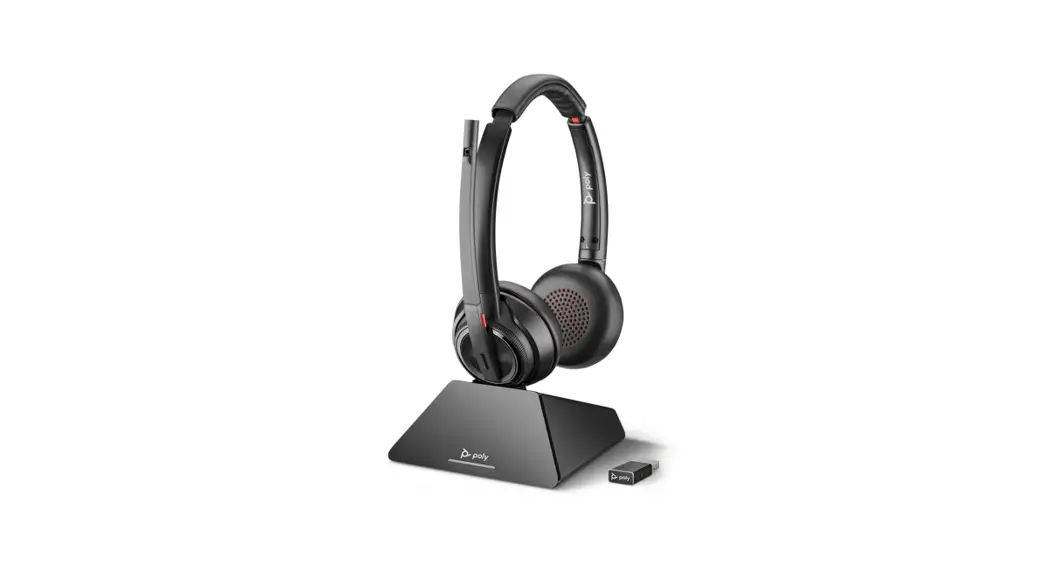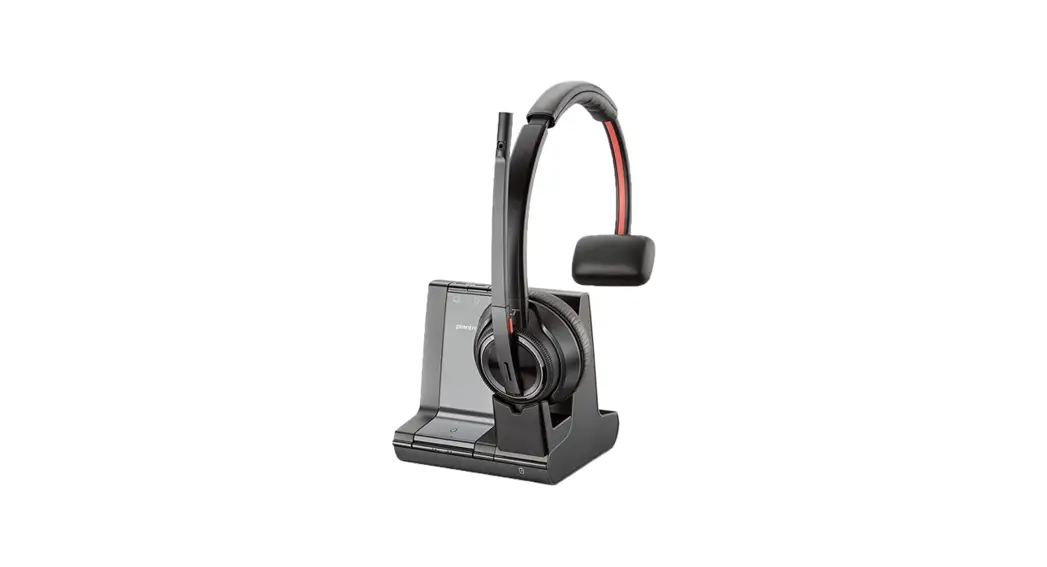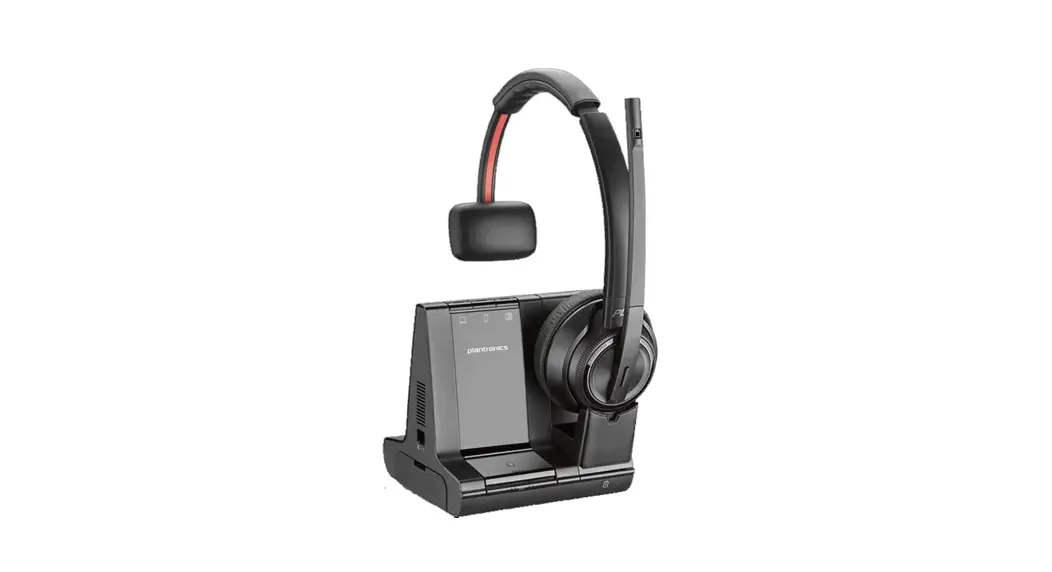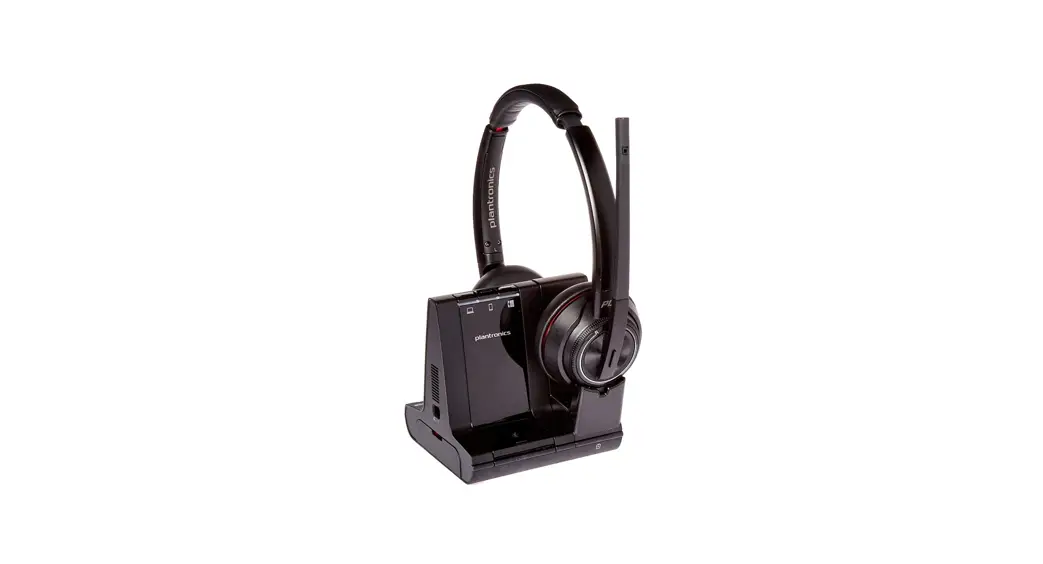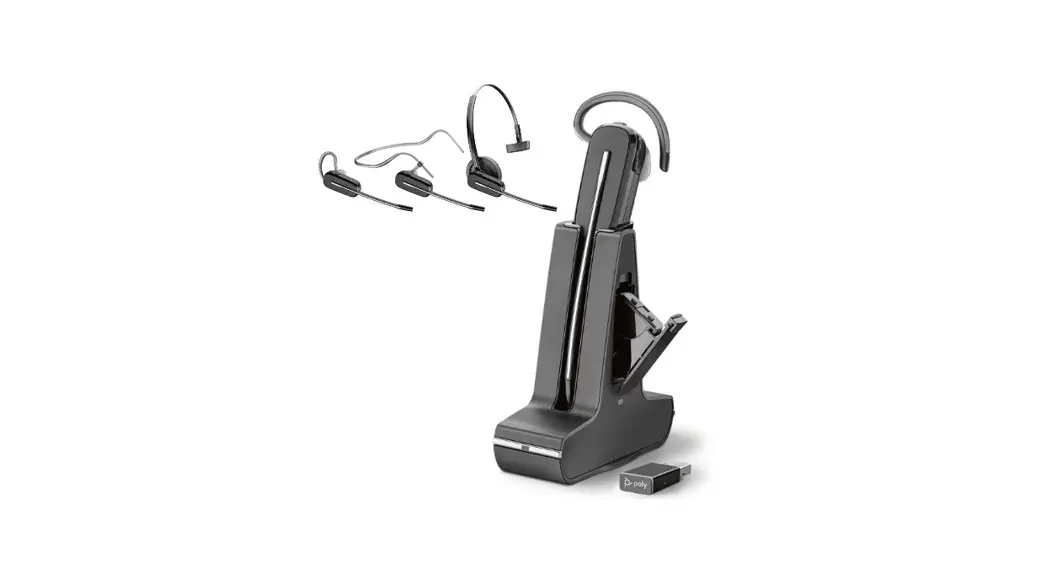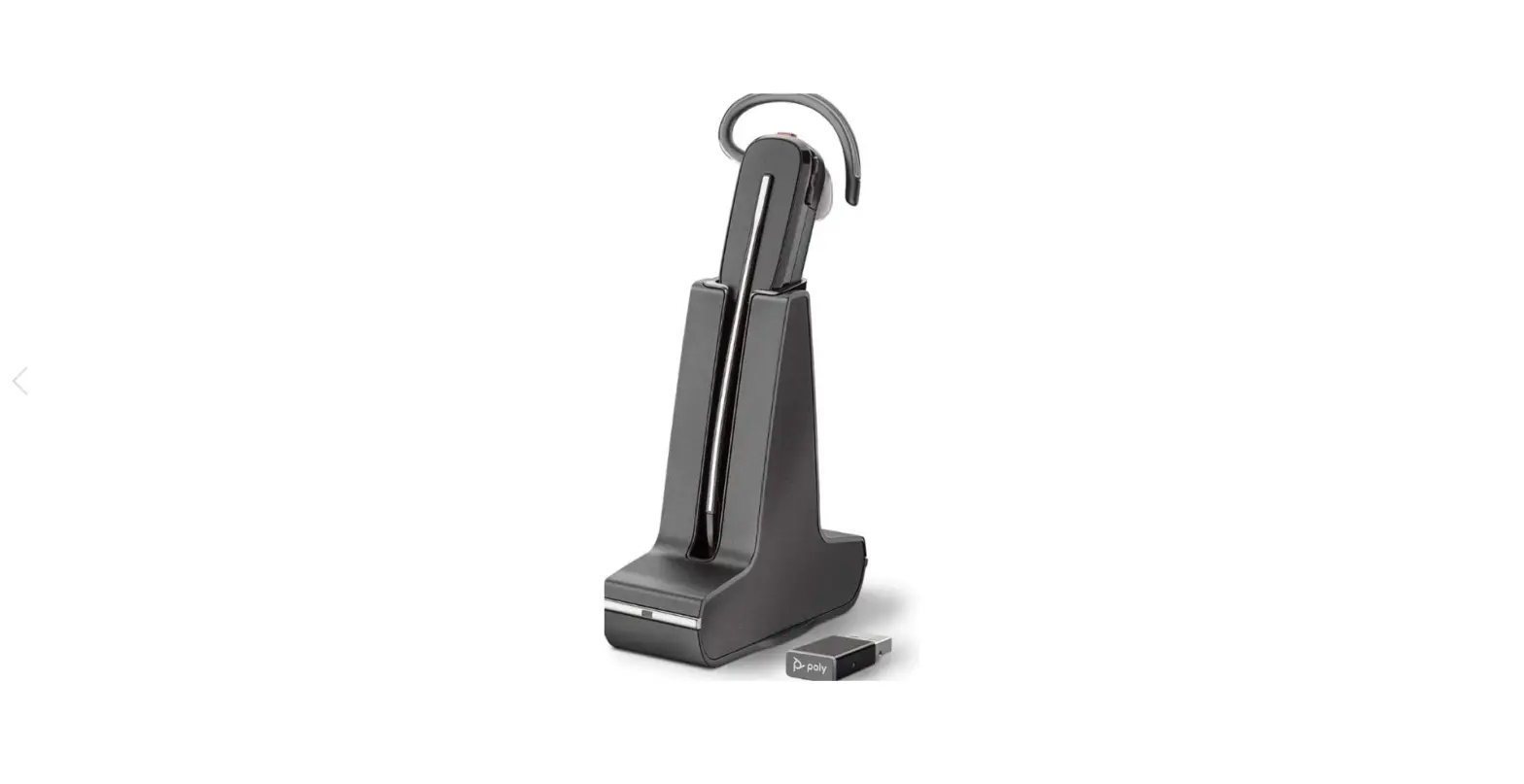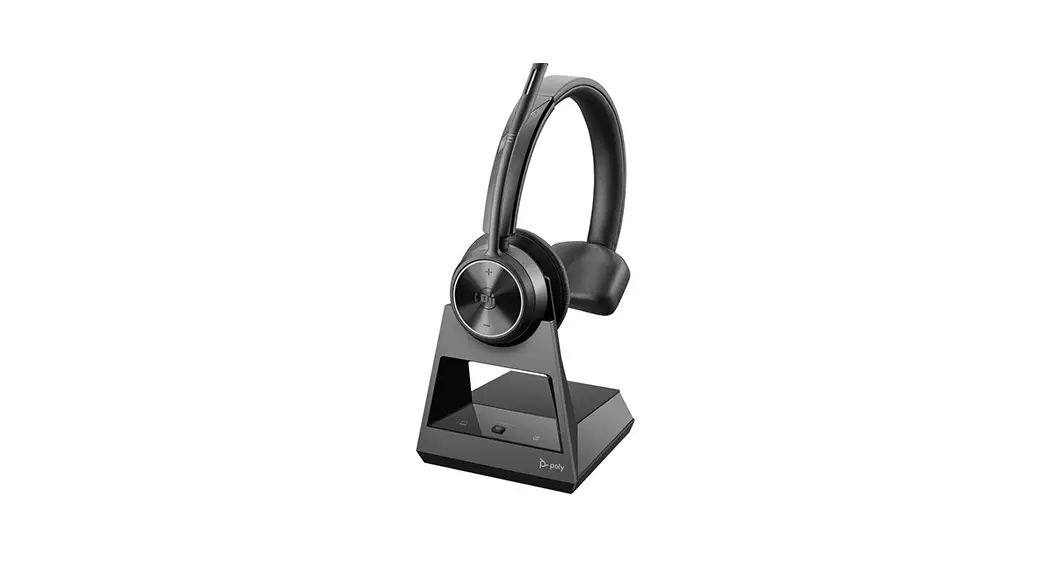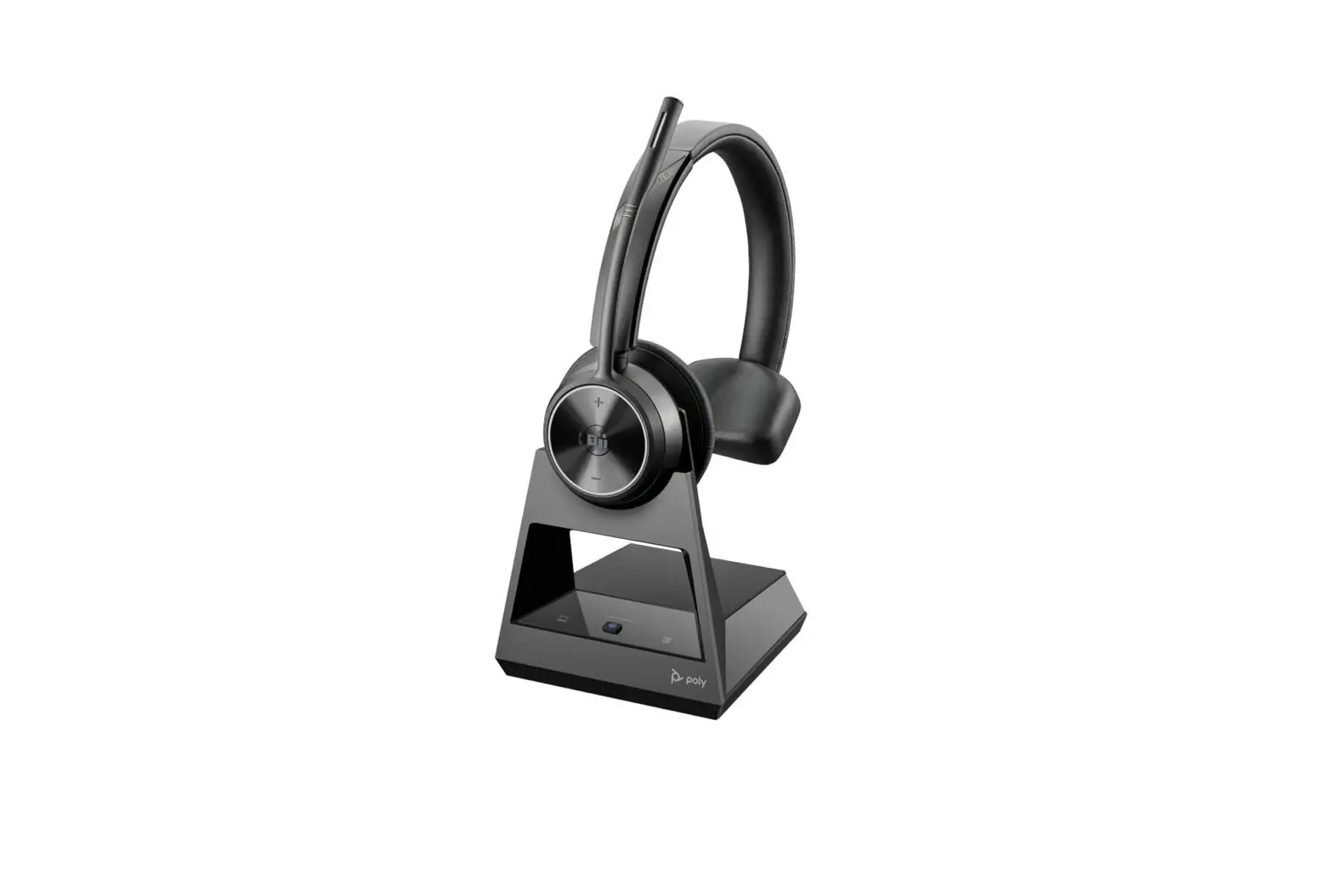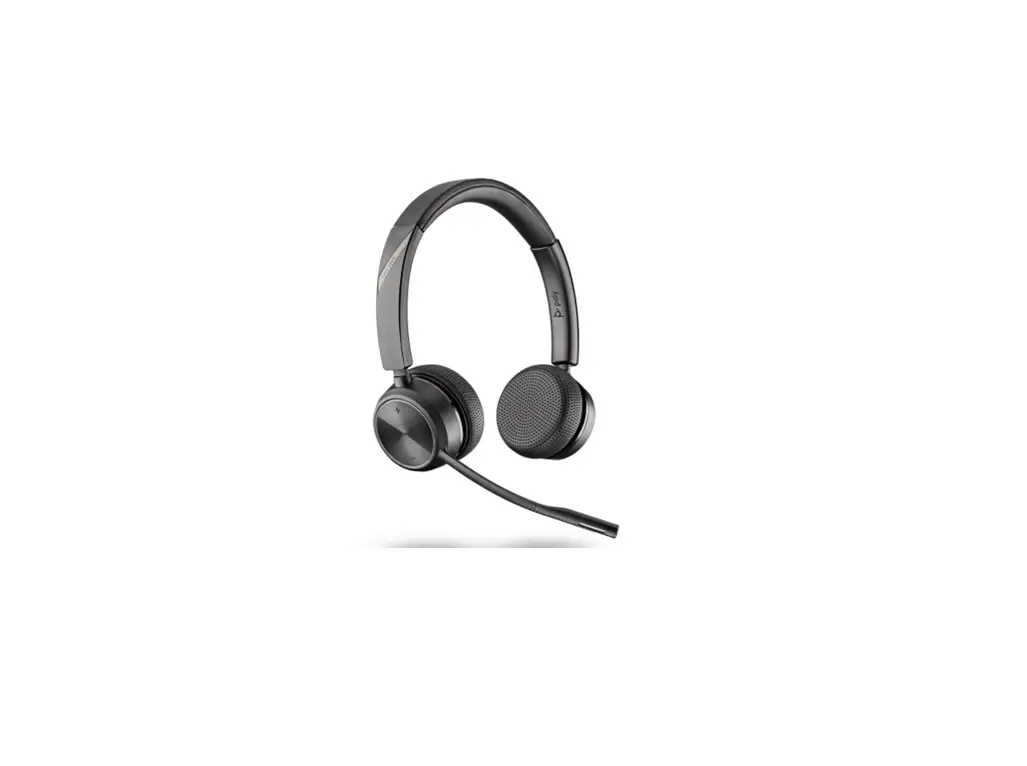
poly Savi 7210/7220 Office Headset for Desk Phone User Guide

DECT Information
DECT products should never be used outside the region in which they were originally purchased and intended to be used.
The enclosed DECT wireless product uses restricted wireless radio frequencies which vary by country. DECT devices are generally authorized for use in Europe, Australia and New Zealand. Use of this DECT product in unauthorized countries is a violation of law, may disrupt telecommunications networks and devices, and can subject you to fines and penalties by regulatory agencies.
DECT Enhanced Security
Plantronics is a member of the DECT Forum and has fully adopted their recommendations for enhancements to security within all DECT products.
Plantronics DECT-based products now fully incorporate the latest recommendations on Enhanced Security from the DECT Forum and ETSI. These improvements cover registration, authentication, authorization and encryption procedures. Plantronics DECT products are now secure against all the known vulnerabilities that were highlighted by the public announcements of the Chaos Council in 2009.
Plantronics DECT products have been tested against and passed the DECT Forum security certification requirements and consequently have been granted ‘DECT Forum security’ logo certification.
Plantronics products using the new enhanced version of DECT that includes these security improvements are marked on the base with the DECT Forum security logo.
Overview
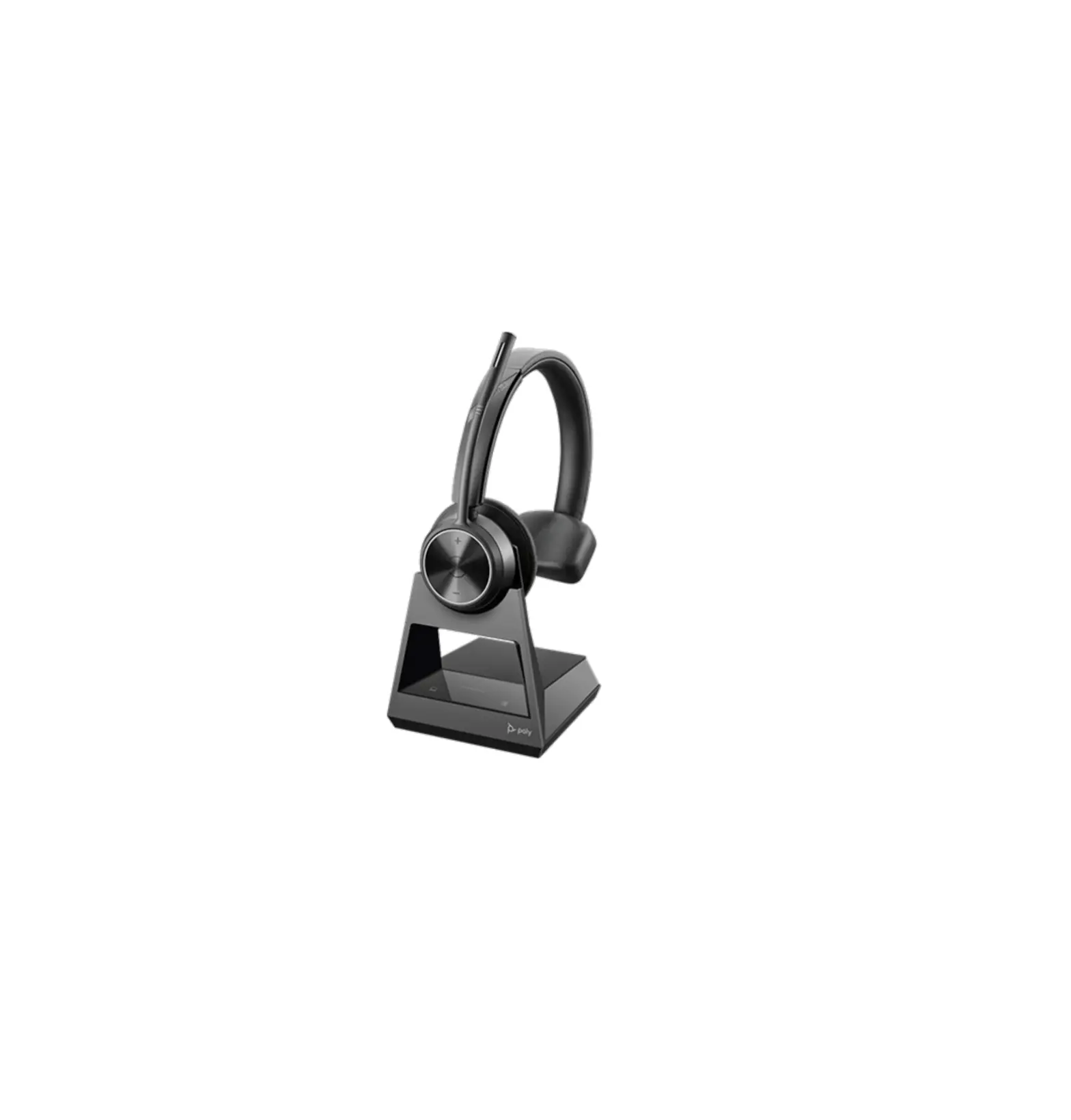
Headset overview
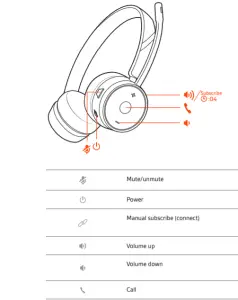 ]
]
Be safe
Please read the safety guide for important safety, charging, battery and regulatory information before using your new headset.
Base overview
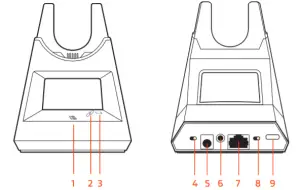
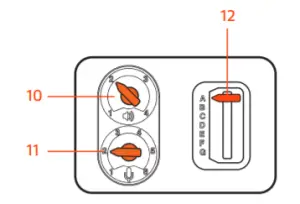
- Desk phone LED 7 Telephone interface cable jack
- Subscribe LED 8 Auto answer
- Charging LED 9 Subscription button
- Wideband/narrowband audio switch 10 Desk phone listening volume
- Power jack 11 Desk phone speaking volume
- Handset lifter jack 12 Desk phone configuration switch
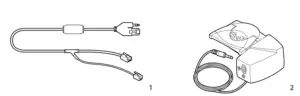
Accessories
- Electronic hookswitch cable (EHS cable) Electronically and automatically answers/ends a desk phone call. Enables remote call control with your headset.

- HL10 lifter Automatically lifts handset and returns it to the cradle. Enables remote call control with your headset.
Hook up system
Using the diagram, connect your headset system.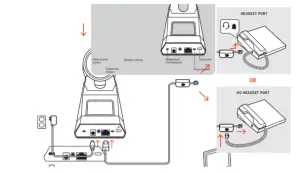
Desk phone setup details
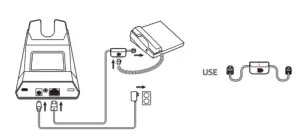
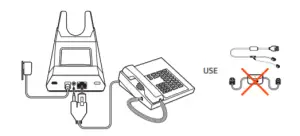
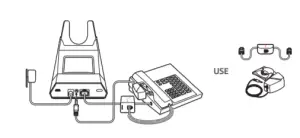
Choose a desk phone setup A, B, C or D and connect cables.
A Desk phone with dedicated headset port USE
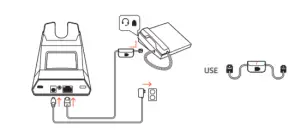
- Connect one end of the telephone interface cable to the back of the base
- Connect the other end of the telephone interface cable into the dedicated headset port on the desk phone
- Adjust the configuration switch on the bottom of the base to default A, which works for most phones. Use configuration D for Cisco phones.
NOTE Use this setup if you are not using the HL10 lifter or EHS cable. In this configuration, press both the headset button on your desk phone and the call control button on the headset to
answer or end calls. B Desk phone (standard)
- Connect one end of the telephone interface cable to the back of the base
- Disconnect the handset coil cord from the base of the desk phone and re-connect it to the telephone interface cable junction box
- Finally connect the remaining end of the telephone interface cable into the open handset port on the desk phone
- Adjust the configuration switch on the bottom of the base to default A, which works for most phones. Use configuration D for Cisco phones.
NOTE Use this setup if you are not using the HL10 lifter or EHS cable and your desk phone does not have a dedicated headset port. In this configuration, manually remove the handset on your
desk phone and press the call control button on the headset to answer or end calls. C Desk phone + EHS cable (sold separately)
- Adjust the configuration switch on the bottom of the base to default A, which works for most phones.
D Desk phone + HL10 lifter (sold separately)
Subscribe headset to base
The headset and base that came in the box are subscribed (connected) to each other. However, if you wish to use a new headset or need to restore subscription to your current headset, the units
can be subscribed to each other by the following two methods.
Automatic secure subscription
With your system idle, docking a headset will automatically subscribe it to the base, making it the primary headset. The base subscription LED will flash during subscription process and becomes
solid green when the new subscription is established.
Manual over-the-air subscription
- With your system idle and your headset undocked, press and hold the Subscription button on the back of the base for 4 seconds. The subscription LED on the display panel will flash.
- Press and hold the Volume up button on the headset for 4 seconds until the headset LED turns solid green.
- When the base subscription LED turns solid green and headset LED turns off, the headset and base are subscribed to one another.
NOTE If the subscription process times out after 2 minutes or if the subscription process fails, try to re-subscribe the headset again.
Ending subscription
If the base is in subscription mode and you want to stop the base from searching for a headset, press the subscription button again or place the headset in the charge cradle. The subscription
LED on the base stops flashing and is solid green.
Fit and charge
Wear on the right or left
To position the microphone on the right or left side, rotate the microphone boom up and over.
Gently bend the boom so it is approximately 2 finger widths from the corner of your mouth.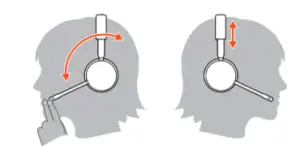
Charge your headset
Place the headset in the charge cradle. The charging LED will flash green when charging the headset and turn off when the headset is fully charged. Charge for at least 20 minutes prior to the
first use. Charge for 3 hours to get 8 hours of talk time.
System basics
Power on your headset
To turn on the headset, slide the Power button.
Adjust volume
- Headset volume Fine-tune your headset volume by adjusting the volume controls.
- Desk phone volume When you are on a desk phone call and your voice is too quiet/loud, adjust the microphone volume on the bottom of the base. If your caller’s voice is too loud/quiet on a desk phone call, adjust the base volume dial.
- Base ringtone volume Adjust the base ringtone volume on the bottom of the base. This ringtone alerts you if you are not wearing your headset and a call comes in. There are 4 base ringer settings: off, low, medium and high.
Make, answer, end calls
Make a call (deskphone)
- Tap the headset call button. The desk phone icon lights up on your base display. You should hear a dial tone in your headset.
NOTE Press your phone’s Headset button or manually remove the handset if you don’t have an HL10 lifter or EHS cable.
TIP If you do not hear a dial tone, turn over the base and adjust the switch (A–G). “A” works for the majority of desk phones.”D” works for Cisco phones. - Dial from your desk phone. End/take a call To answer or end a call, tap the headset Call button.
NOTE If you don’t have an HL10 lifter or EHS cable, press your phone’s Headset button or remove the handset when answering a call and hang up when ending a call. Mute a call
Tap the Mute button to mute a call, you hear 3 quick tones. The corresponding base icon turns red.
Tap again to unmute. Hold a call To hold an active call, press the Volume Up or Down button for 4 seconds. Press the Call button to resume a held call. Switch between calls (flash)
To switch between calls, press the Volume Up or Down button for 4 seconds. Auto-answer Automatically answer an incoming call by removing the headset from the charging cradle by sliding the Auto-answer button to the left.
Troubleshooting
Headset
| I can’t hear a dial tone in the headset. |
|
| I hear static. |
|
| The sound is distorted. |
|
| I hear echo in the headset |
|
Desk phone
| People I talk to can hear a buzz in the background. |
|
| The handset lifter is installed but does not lift the handset. |
|
| I can’t hear my desk phone dial tone in the headset. |
|
Support
NEED MORE HELP?
plantronics.com/support
Plantronics, Inc. Plantronics B.V. 345 Encinal Street
Santa Cruz, CA 95060 United States
Scorpius 171 2132 LR Hoofddorp Netherlands
© 2019 Plantronics, Inc. All rights reserved. Poly, the propeller design, and the Poly logo are
trademarks of Plantronics, Inc. DECT is a trademark of ETSI. All other trademarks are the
property of their respective owners. Manufactured by Plantronics. 215231-06 11.19