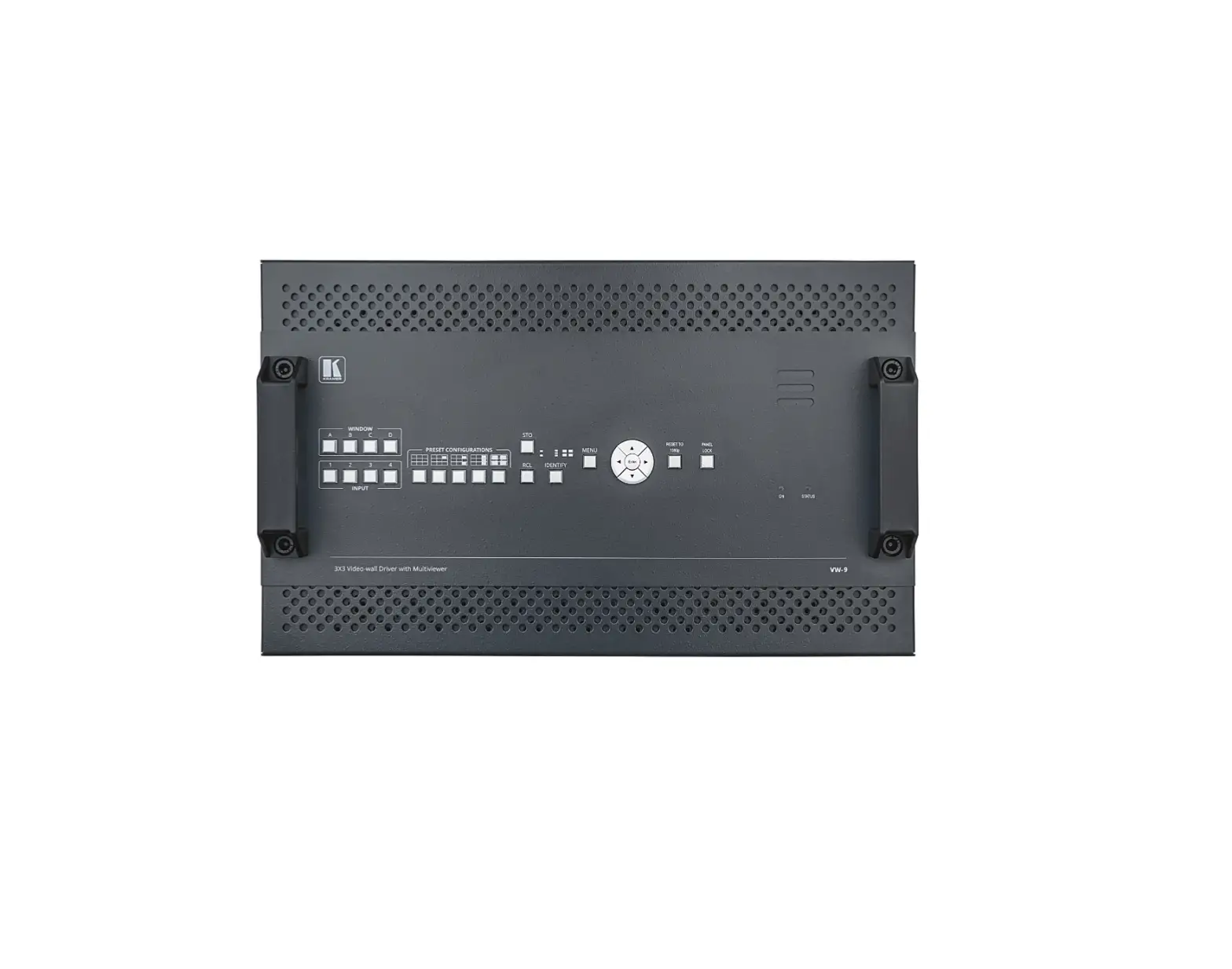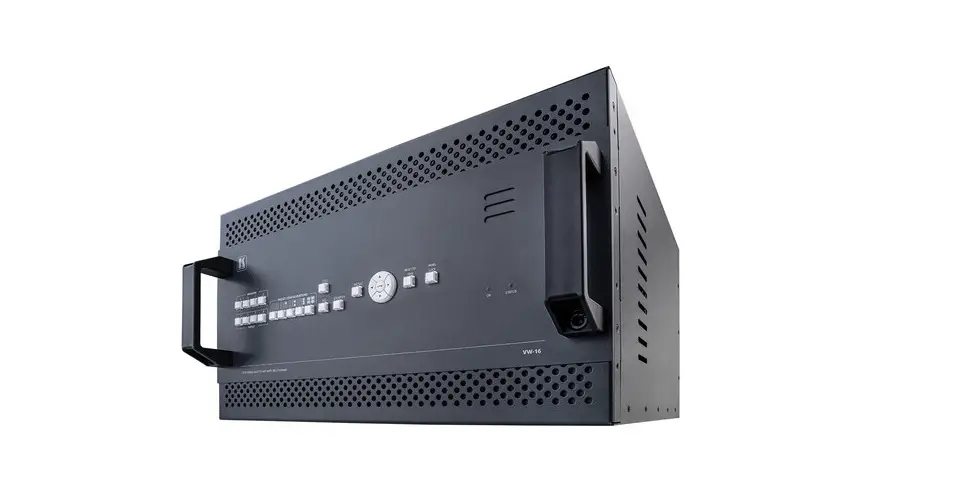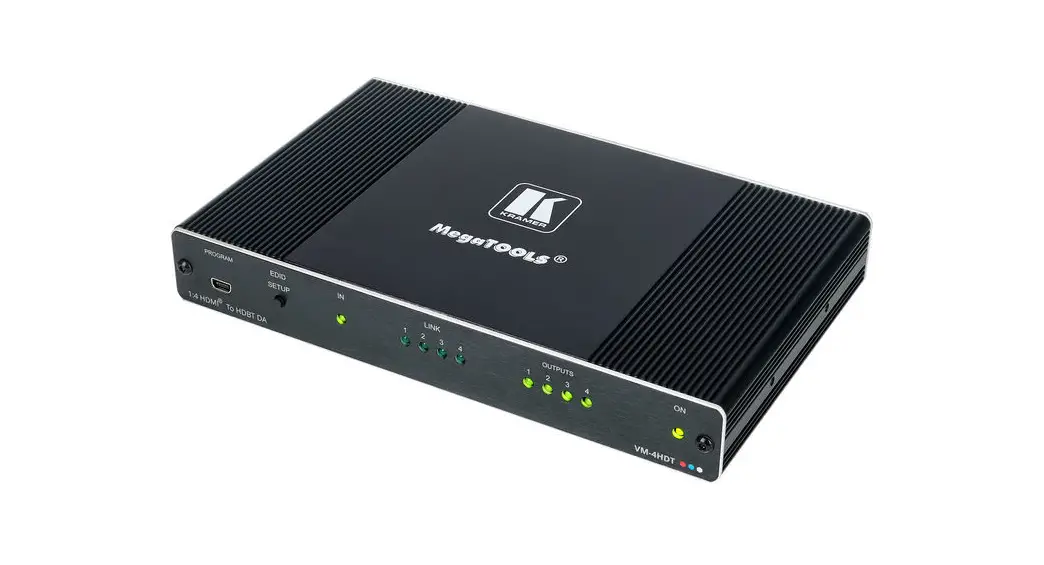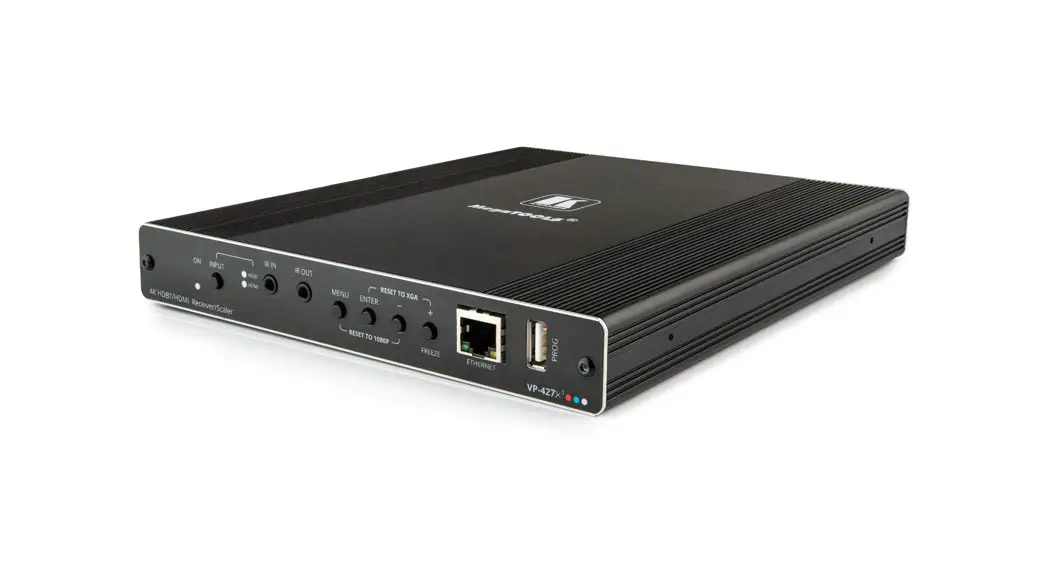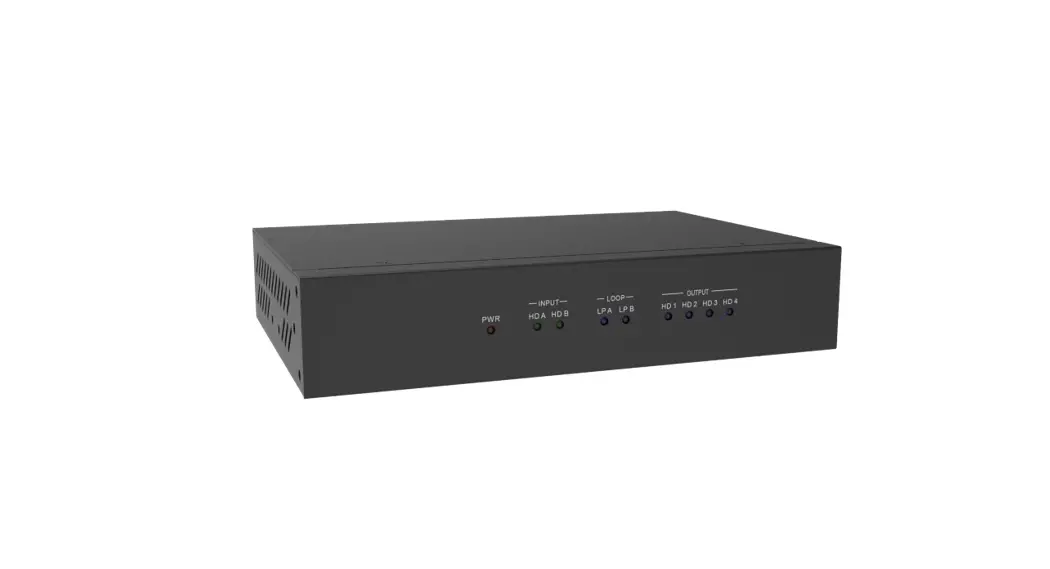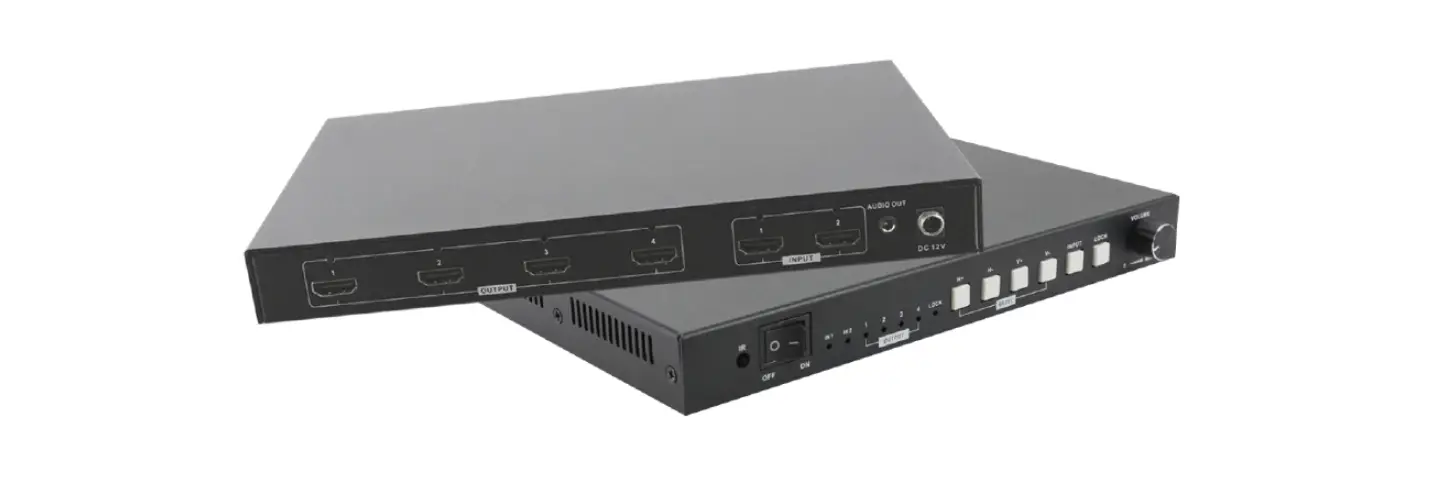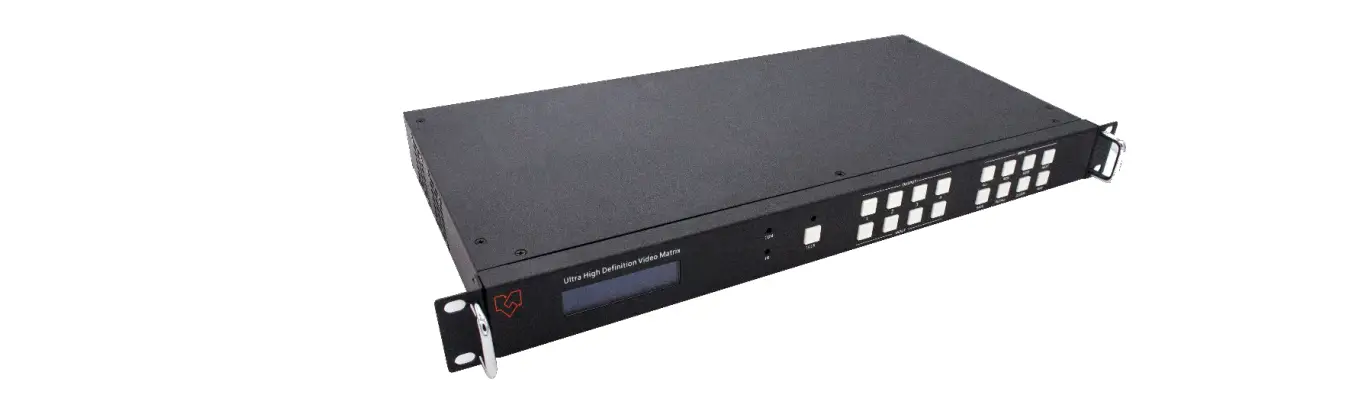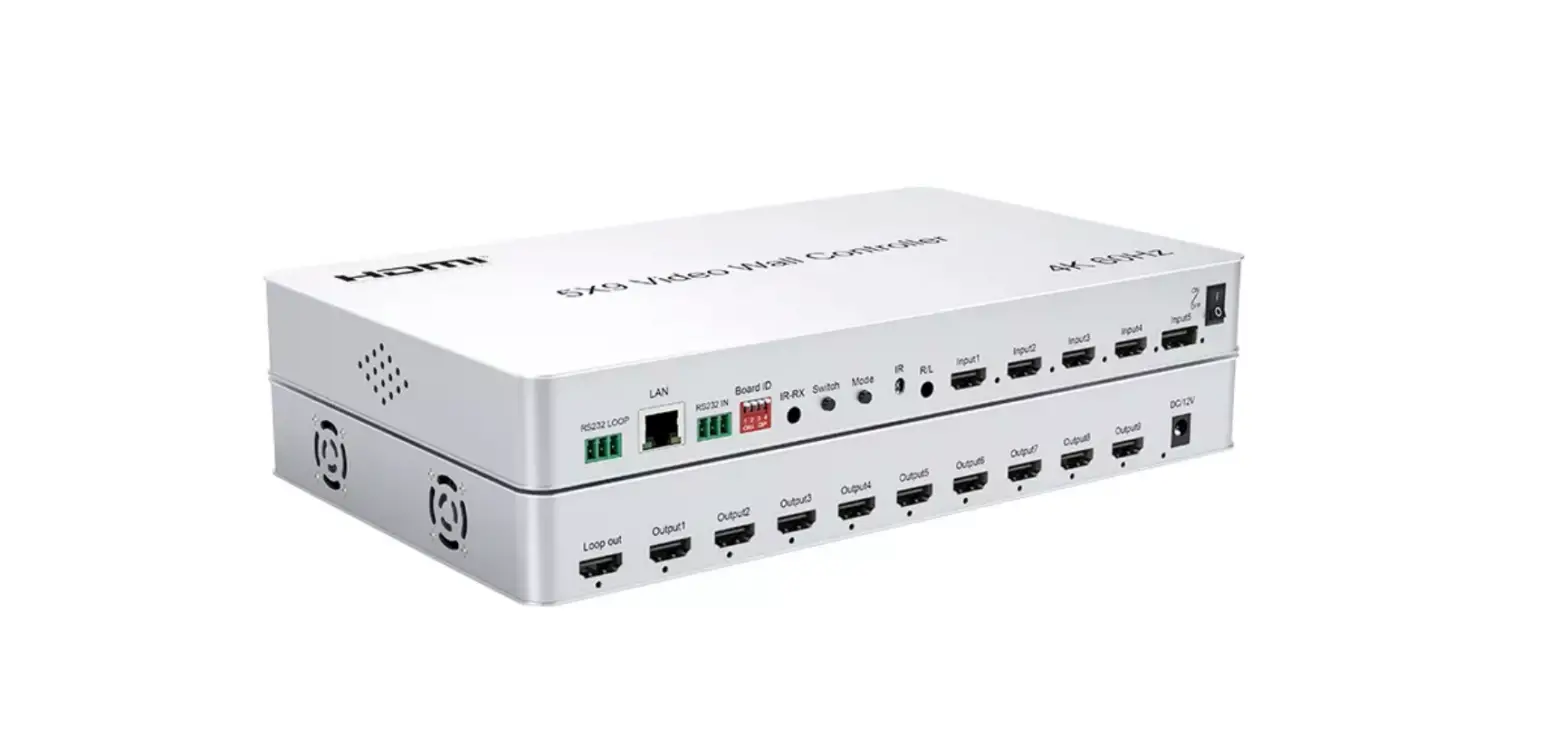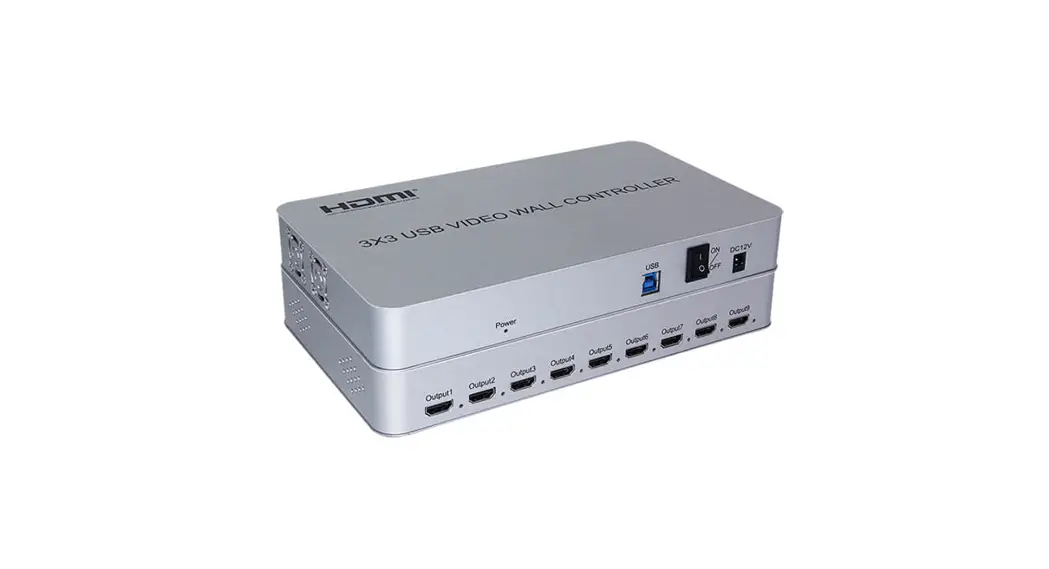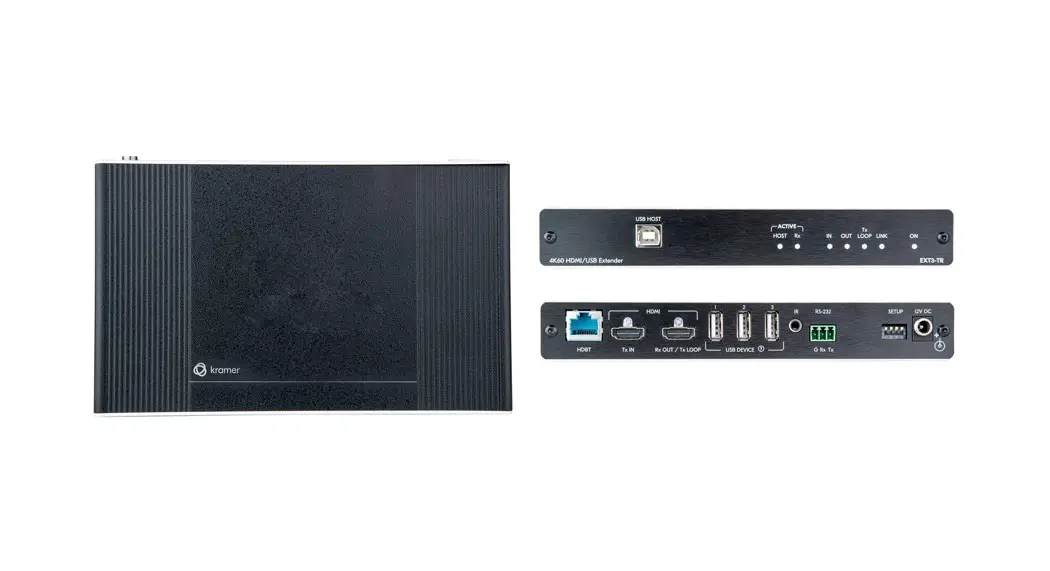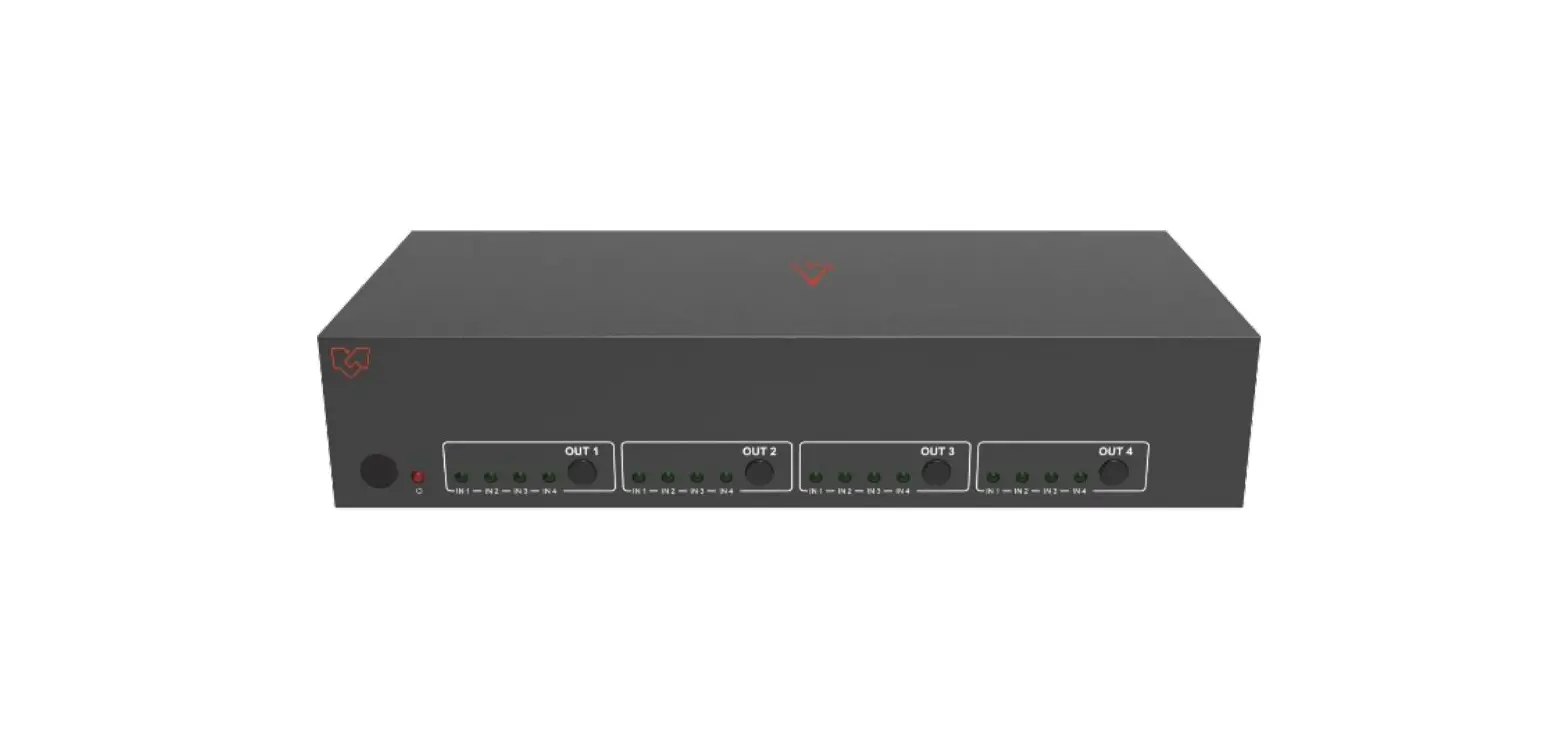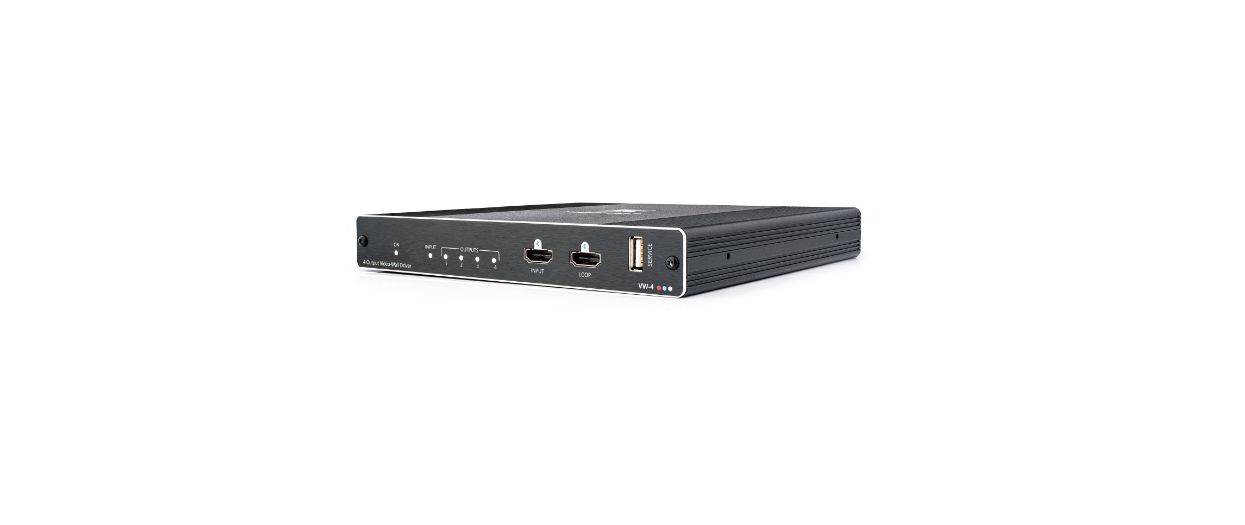

KRAMER VW-4 4 HDMI Output Cascading Video Wall Driver
Check what’s in the box
- VW-4 4 Output Video-Wall Driver
- 1 Power adapter and cord
- 1 Bracket set
- 4 Rubber feet
- 1 Quick start guide
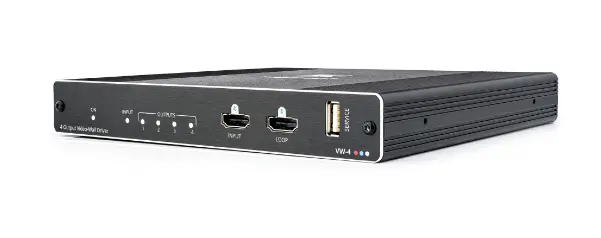
Get to know your VW-4

| # | Feature | Function |
| 1 | ON LED | Lights green when the device is powered. |
| 2 | INPUT LED | Lights green when a valid input signal is detected on the input. |
| 3 | OUTPUT LEDs (1 to 4) | Light green when an acceptor is detected on that output. |
| 4 | INPUT HDMI Connector | Connect to an HDMI source. |
| 5 | LOOP HDMI Connector | Connect to an additional VW-4 device for configuring a large video wall or to a local monitor. |
| 6 | SERVICE USB Port | Use to perform firmware upgrade. |
| 7 | OUT HDMI Connectors (1 to 4) | Connect to up to 4 HDMI acceptors that make up the video wall configuration. The appropriate segments of the zoomed picture are output on these connectors for connection to the displays in the video-wall. The output on these connectors is at 1080P resolution. |
| 8 | SETUP 4-way DIP-switch | For fast, basic configuration of the device without needing to be connected to a PC, see Step 6: Configure VW-4. |
| 9 | RS-232 3-pin terminal block connector | Use to setup and monitor the VW-4 via the Windows software and to upgrade the firmware. |
| 10 | ETHERNET RJ-45 Connector | Connect to a PC via a LAN to setup and monitor the VW-4 via the configuration app. |
| 11 | 5V DC Connector | Connect to the supplied power adapter. |
Mount VW-4
Install VW-4 using one of the following methods:
- Attach the rubber feet and place the unit on a flat surface.
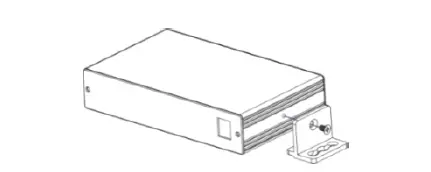
- Fasten a bracket (included) on each side of the unit and attach it to a flat surface (see www.kramerav.com/downloads/VW-4)..
- Mount the unit in a rack using the recommended rack adapter (see www.kramerav.com/product/VW-4).

DANGER
- Ensure that the environment (e.g., maximum ambient temperature & air flow) is compatible for the device.
- Avoid uneven mechanical loading.
- Appropriate consideration of equipment nameplate ratings should be used for avoiding overloading of the circuits.
- Reliable earthing of rack-mounted equipment should be maintained.
- Maximum mounting height for the device is 2 meters.
Connect inputs and outputs
The three devices in this 6×2 diagram are designated 0, 1 and 2. Each output is designated by the device number and its outputs. For example, VW-4 (1) is the second device in this video wall configuration and VW-4 (1-2) is HDMI OUT 2 on that device. 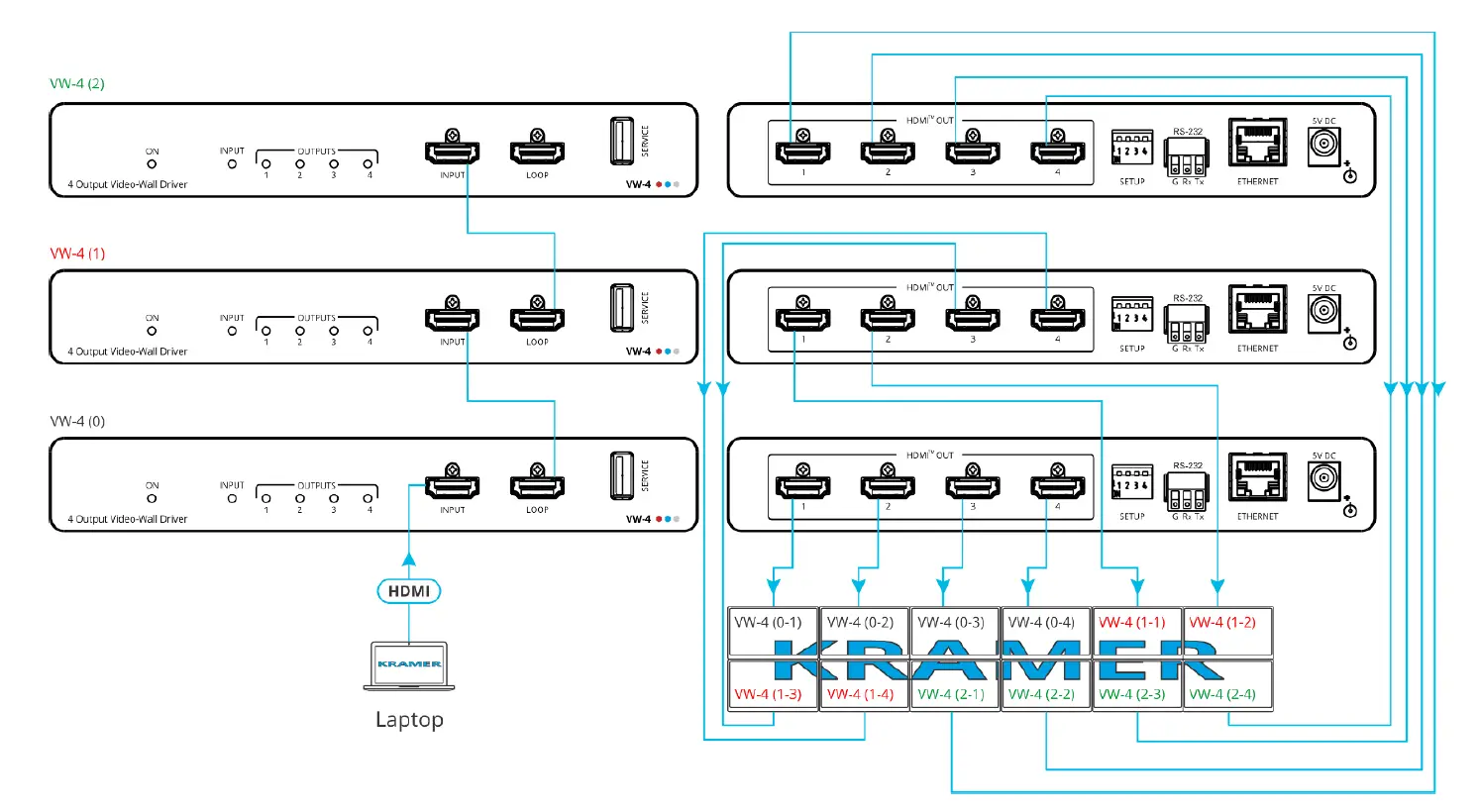
Connect power
Connect the power adapter to VW-4 and plug it into the mains electricity. Safety Instructions (See www.kramerav.com for updated safety information) Caution:
- For products with relay terminals and GPI\O ports, please refer to the permitted rating for an external connection, located next to the terminal or in the User Manual.
- There are no operator serviceable parts inside the unit.
Warning
- Use only the power cord that is supplied with the unit.
- Disconnect the power and unplug the unit from the wall before installing.
Configure VW-4
Configure VW-4 via
- DIP-switch settings – for basic video wall configuration.
- VW-4 app, via the Ethernet or RS-232.
- Remotely, by RS-232 serial commands transmitted by a touch screen system, PC, or other serial controller.
RS-232 Control / Protocol 3000 Baud Rate: 115,200 Parity: None Data Bits: 8 Command Format: ASCII Stop Bits: 1 Example: (Set Auto-sync Off to Fast): #SCLR-AS 1,2 Default Ethernet Parameters IP Address: 192.168.1.39 Gateway: 192.168.0.1 Subnet mask: 255.255.0.0 TCP Port #: 5000
Video Wall Configuration via DIP-switch Settings
You can use the DIP-switch settings to quickly configure a basic video wall (without bezel correction) of up to 4×4, consisting of 1 or more VW-4 devices.
When the video wall size is configured using the DIP-switches, it is not possible to set it up via the configuration app. (To use the app, make sure that the DIP-switches are all OFF).
| DIP 1 | DIP 2 | DIP 3 | DIP 4 | Columns x Rows Layout | Notes |
| OFF | OFF | OFF | OFF | Basic setup is not used (default) | |
| OFF | OFF | OFF | ON | Full size picture (“1×1” wall) | Image appears on all displays. |
| OFF | OFF | ON | OFF | N/A | |
| OFF | OFF | ON | ON | N/A | |
| One VW-4 Device | |||||
| OFF | ON | OFF | OFF | 2×2 wall (0) | |
| OFF | ON | OFF | ON | 4×1 wall (0) | |
| OFF | ON | ON | OFF | 1×4 wall (0) | |
| OFF | ON | ON | ON | N/A | |
| Three VW-4 Devices | |||||
| ON | OFF | OFF | OFF | 3×3 wall, first unit (0) | |
| ON | OFF | OFF | ON | 3×3 wall, second unit (1) | |
| ON | OFF | ON | OFF | 3×3 wall, third unit (2) | |
| ON | OFF | ON | ON | N/A | |
| Four VW-4 Devices | |||||
| ON | ON | OFF | OFF | 4×4 wall, first unit (0) | |
| ON | ON | OFF | ON | 4×4 wall, second unit (1) | |
| ON | ON | ON | OFF | 4×4 wall, third unit (2) | |
| ON | ON | ON | ON | 4×4 wall, fourth unit (3) | |
Video Wall Configuration via the configuration app
Use the VW-4 Windows® Control Software app to configure a video wall of up to 8×8, consisting of 1 or more VW-4 devices (see www.kramerav.com/product/VW-4#Tab_Resources).
To configure the video wall (for example, a 3×2 video wall, using 2 devices)
- 1. Download the latest VW-4 Control Software app from www.kramerav.com/product/VW-4#Tab_Resources.
- Open the app.
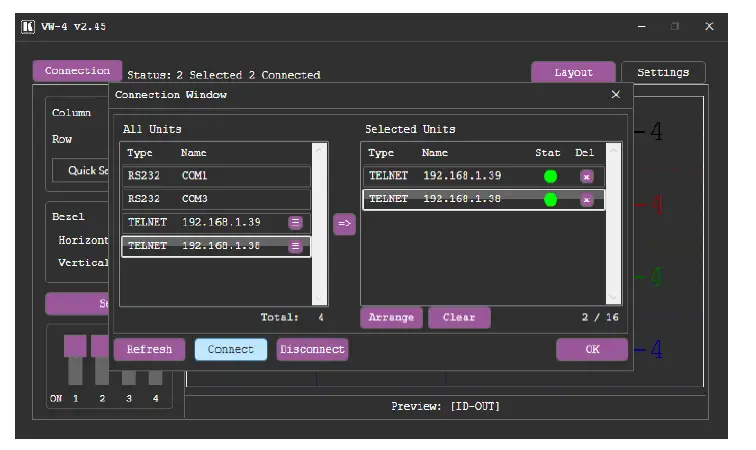
- Click Connection.
The Connection window opens, showing a list of all the connected VW-4 devices and the available RS-232 ports on your PC. The Connection window opens.
- Select a device under All Units and click . The selected device moves to the Selected Units area.
- Add the other connected devices.
- Click OK.

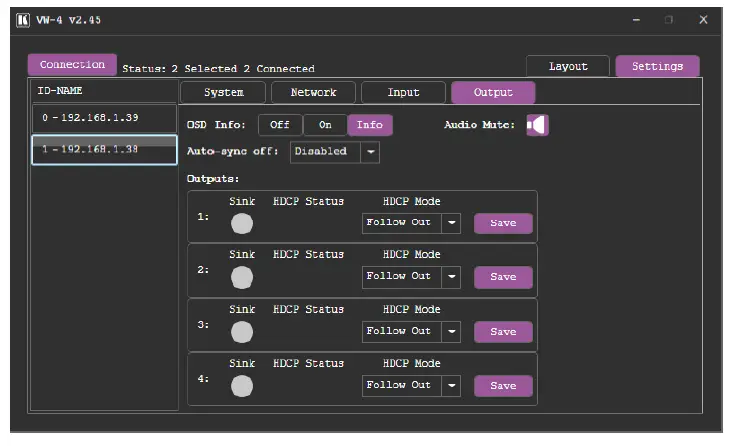
- Select the Settings tab and then select the Output tab.
- If you need to change the device ID, enter the new ID under ID-NAME and press Enter on your keyboard.

You can set the ID number individually only when the device is directly connected to your PC. The ID number is set to each device, and according to that number each device is assigned its physical position in the video wall setup. - View the sink status of each device output and:
- Set OSD Info.
- Define Auto-Sync Off status.
- Set the HDCP per output and click Save.
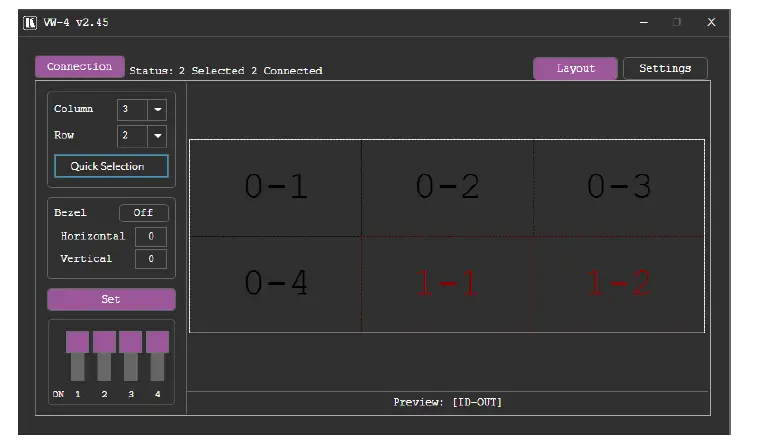
- Select the Layout tab.
- Set the video wall size by either:
- Selecting Column and Row numbers (for example, 3 x 2). OR
- Clicking Quick Selection for common video wall configurations.
- Select horizontal and vertical bezel corrections (in pixels).

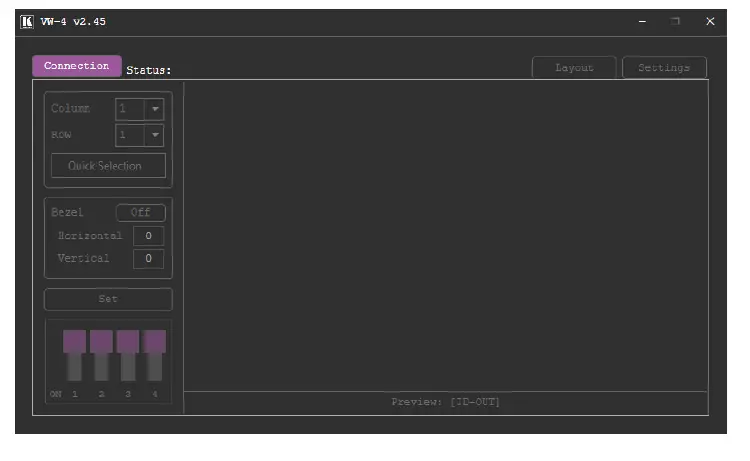
For each connected device, VW-4 App also enables performing factory reset, upgrading the firmware, viewing network settings and copying the EDID to the input from a selected EDID source.