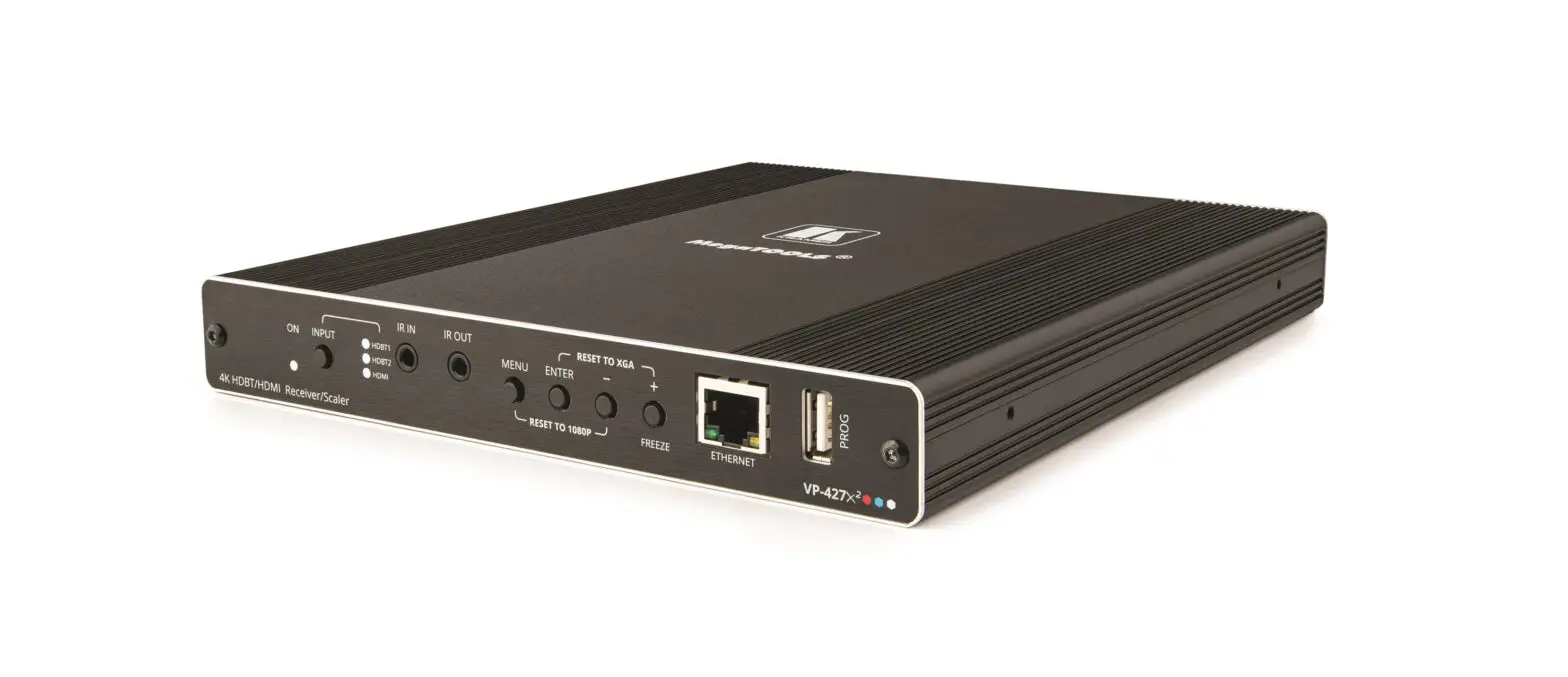
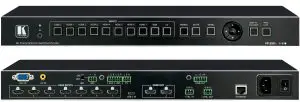
KRAMER VP-550X 10-Input 4K HDR HDMI Switch/Scaler
 | This guide helps you install and use your VP-550X for the first time. Go to www.kramerav.com/downloads/VP-550X to download the latest user manual and check if firmware upgrades are available. |
Check what’s in the box
- VP-550X 4K Presentation Switcher/Scaler
- 1 Set of rack ears
- 4 Rubber feet
- Remote control transmitter with batteries
- 1 Power cord
- 1 Quick start guide
- 2 Cable straps
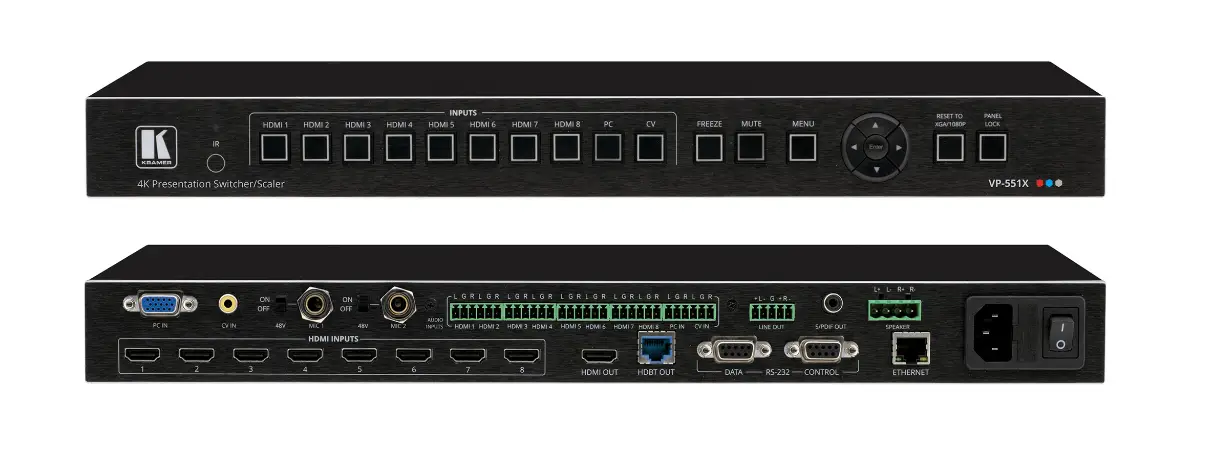
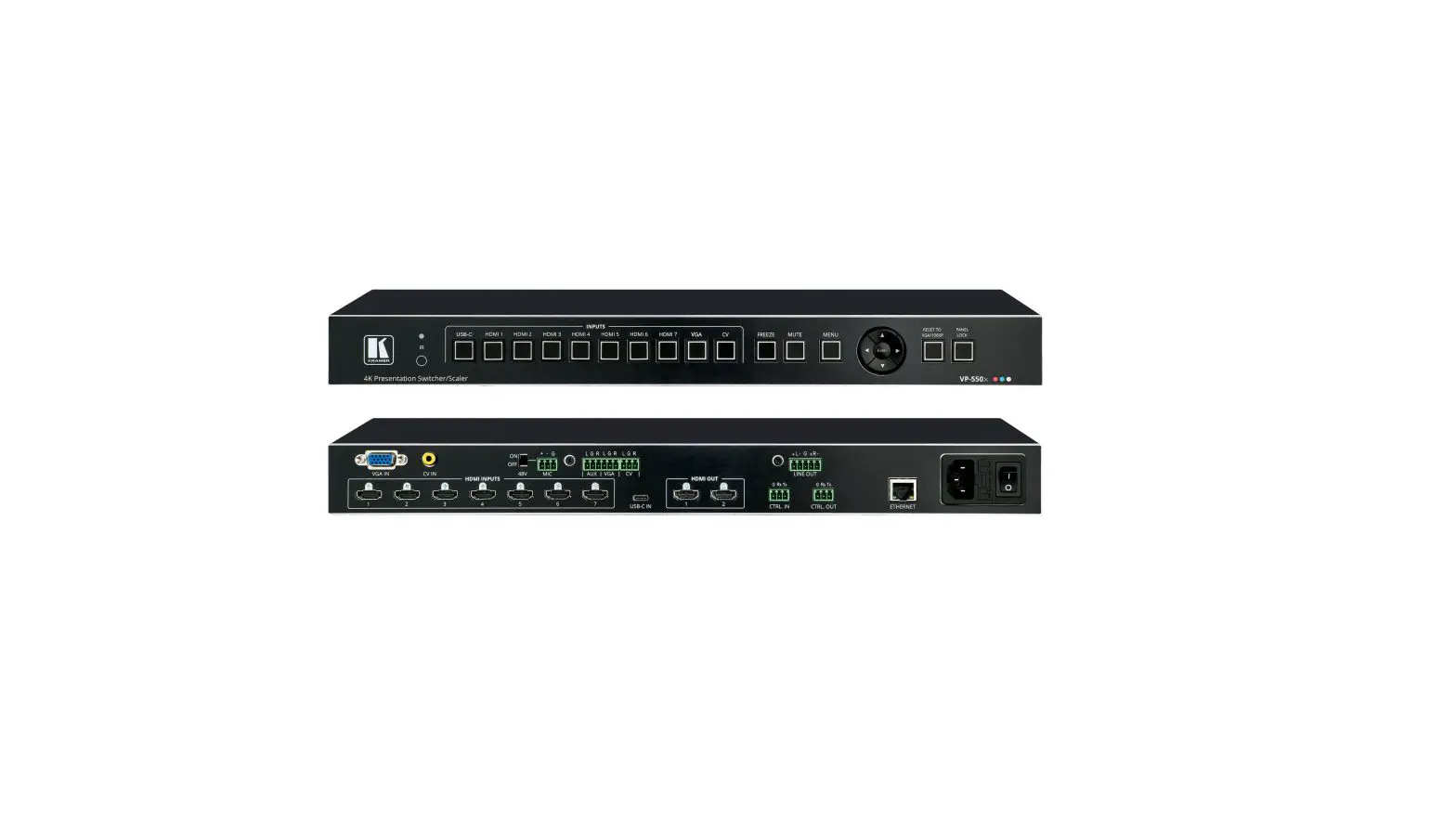
Get to know your VP-550X

| # | Feature | Function | |
| 1 | IR Receiver | Receives signals from the remote-control transmitter. | |
| 2 | IR LED | Lights when the unit accepts IR remote commands. | |
| 3 | Input Selector Buttons | USB-C | Press to select a USB-C source. |
| HDMI | Press to select the HDMI input (from HDMI 1 to HDMI 7). | ||
| VGA | Press to select the computer graphics input. | ||
| CV | Press to select the composite video input. | ||
| 4 | FREEZE Button | Press to freeze/unfreeze the output video image. Not applicable when in video bypass mode. | |
| 5 | MUTE Button | Press to toggle between muting (blocking out the sound) and enabling the audio output (both line and speakers). Muting the audio is not applicable when in audio bypass mode. | |
| 6 | MENU Button | Press to enter/exit the on-screen display (OSD) menu. | |
| 7 | Navigation Buttons | ◀ | Press to decrease numerical values or select from several definitions. When not within the OSD menu mode, press to decrease the output volume. |
▲ | Press to move up the menu list. | ||
▶ | Press to increase numerical values or select from several definitions. When not within the OSD menu mode, press to increase the output volume. | ||
▼ | Press to move down the menu list. | ||
| Enter | Press to accept changes and change the SETUP parameters. | ||
| 8 | RESET TO XGA/1080p Button | Press and hold for about 5 seconds to toggle resetting the video resolution to XGA or 1080p. | |
| 9 | PANEL LOCK Button | Press and hold for about 5 seconds to lock/unlock the front panel buttons (panel locking options are configurable). | |

| # | Feature | Function |
| 10 | HDMI INPUT Connectors | Connect to an HDMI source (from 1 to 7). You can connect Step-in devices to inputs 1 and 2. |
| 11 | VGA 15-pin HD Connector | Connect to a computer graphics source. |
| 12 | CV IN RCA Connector | Connect to a composite video source. |
| 13 | USB-C IN Connector | Connect to a USB-C port, charging up to 18W. |
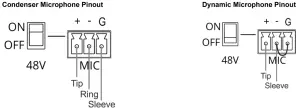
| 14 | 48V MIC Switch | Move up (ON) to select a condenser type microphone; down (OFF) to select a dynamic-type microphone. |
| 15 | MIC 3-pin Terminal Block Connector | Connect to a microphone source. |
| 16 | AUX 3-pin Terminal Block Connector | Connect to an auxiliary source. |
| 17 | VGA 3-pin Terminal Block Connector (audio signal related to VGA IN) | Connect to the analog audio associated with the computer graphics source. |
| 18 | CV 3-pin Terminal Block Connector (audio signal related to CV IN) | Connect to the analog audio associated with the composite video source. |
| 19 | HDMI OUT Connectors | Connect to HDMI acceptors (from 1 to 2). |
| 20 | CTRL IN 3-pin Terminal Block Connector | Connect to a PC or remote controller to control VP-550X via RS-232 Protocol commands. |
| 21 | LINE OUT Balanced Stereo 5-pin Terminal Block Connector | Connect to a balanced stereo analog audio acceptor. |
| 22 | CTRL OUT 3-pin Terminal Block Connectors | Connect to an acceptor (for example, a display) to control it via RS-232 Protocol 3000 commands. |
| 23 | ETHERNET Connector | Connects to the PC or other Serial Controller through computer networking. |
| 24 | Mains Socket | Connect the mains power cord. |
| 25 | Mains Fuse Holder | Fuse for protecting the device. |
| 26 | Power Switch | Switch for turning the unit ON or OFF. |
Mount VP-550X
To rack mount the machine, attach both rack ears (by removing the screws from each side of the machine and replacing those screws through the rack ears) or place the machine on a table.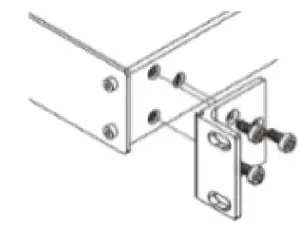
 |
|
Connect inputs and outputs
Always switch OFF the power on each device before connecting it to your VP-550X.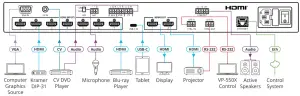
For optimum range and performance use the recommended Kramer cables available at www.kramerav.com/product/VP-550X.
Connecting the audio output
To a balanced stereo audio acceptor: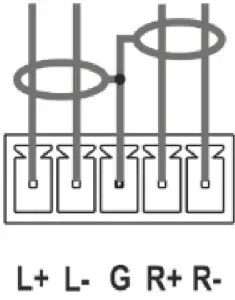
To an unbalanced stereo audio acceptor: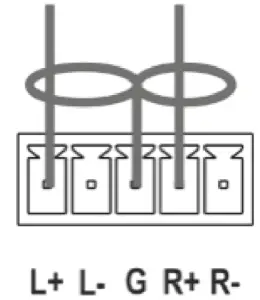
Connect power
Connect the power cord to VP-550X and plug it into the mains electricity.
Safety Instructions (See www.kramerav.com for updated safety information)
Caution:
- For products with relay terminals and GPIO ports, please refer to the permitted rating for an external connection, located next to the terminal or in the User Manual.
- There are no operator serviceable parts inside the unit.
Warning:
- Use only the power cord that is supplied with the unit.
- Disconnect the power and unplug the unit from the wall before installing.
- Do not open the unit. High voltages can cause electrical shock! Servicing by qualified personnel only.
- To ensure continuous risk protection, replace fuses only according to the rating specified on the product label which located on the bottom of the unit.
Operate VP-550X
Operate VP-550X:
- Remotely, by RS-232 serial commands transmitted by a touch screen system, PC, or other serial controller.
- Using the embedded webpages via the Ethernet
- Remotely, using the IR remote control transmitter.
- Via the front panel buttons.
RS-232 Control / Protocol 3000 Baud Rate: 115,200 Parity: None Data Bits: 8 Command Format: ASCII Stop Bits: 1 Example: (route input HDMI 2 to the outputs): #ROUTEV1,1,2<CR> Default Ethernet Parameters IP Address: 192.168.1.39 UDP Port #: 50000 Subnet mask: 255.255.0.0 TCP Port #: 5000 Gateway: 192.168.0.1 Authentication User/Password Admin/Admin - Via the OSD menu buttons using the front panel navigation buttons.
OSD Menu Item Function Picture Set the Contrast brightness and color.
For VGA: adjust the phase, clock horizontal and vertical position.
For video: adjust the hue, sharpness, and noise reduction.Input Select the input. Output Define image size.
Enable or disable bypass mode. Select the output resolution.Audio Set the input volume for each input individually. Set the output volume.
Set delay time.
Enable or disable DRC and loudness. Mute/unmute the output audio.
Set the audio source for each input to analog or embedded, or select automatically.
Define microphone settings: mic mode, depth, trigger, attack time, hold time, and release time.
Adjust mic volume.
Adjust equalizer level per bandwidth. Enable/bypass DSP.OSD Define OSD position, timeout timer, transparency, and display. EDID Manage For each input, acquire the EDID from a selected output or use a default EDID value. Advanced Define Ethernet parameters. Set HDCP modes.
AUTO sync off option. Define auto switch mode. Set Lock mode behavior. Enable/disable daily reset.
View device lifetime.Info. View the input and output information, and firmware version. Factory Perform full factory reset.
Perform soft reset, excluding Ethernet parameters.The terms HDMI, HDMI High-Definition Multimedia Interface, and the HDMI Logo are trademarks or registered trademarks of HDMI Licensing Administrator, Inc.