
KRAMER VP-427X2 4K HDBT or HDMI Receiver or Scaler

Check what’s in the box
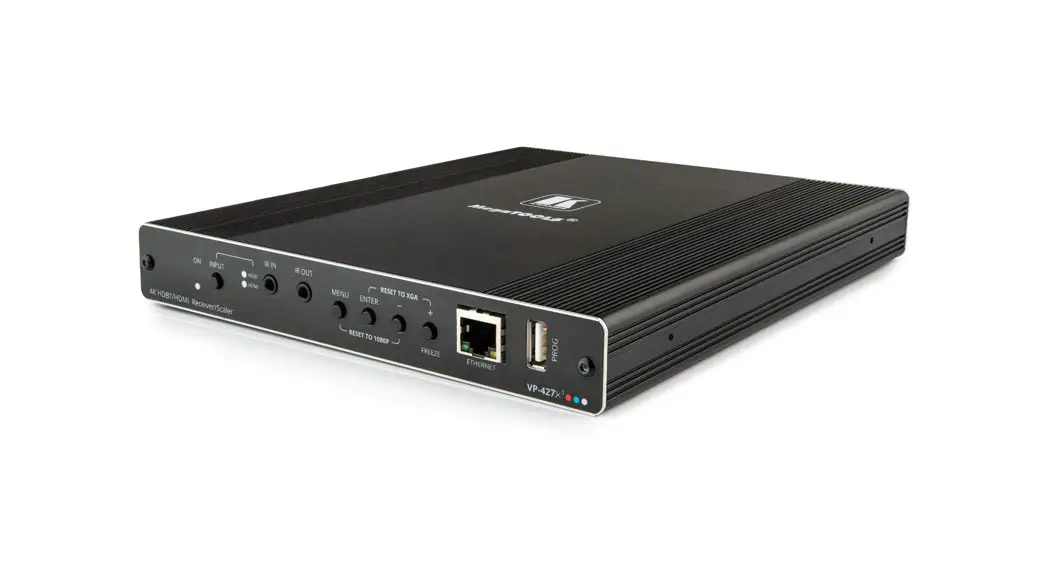
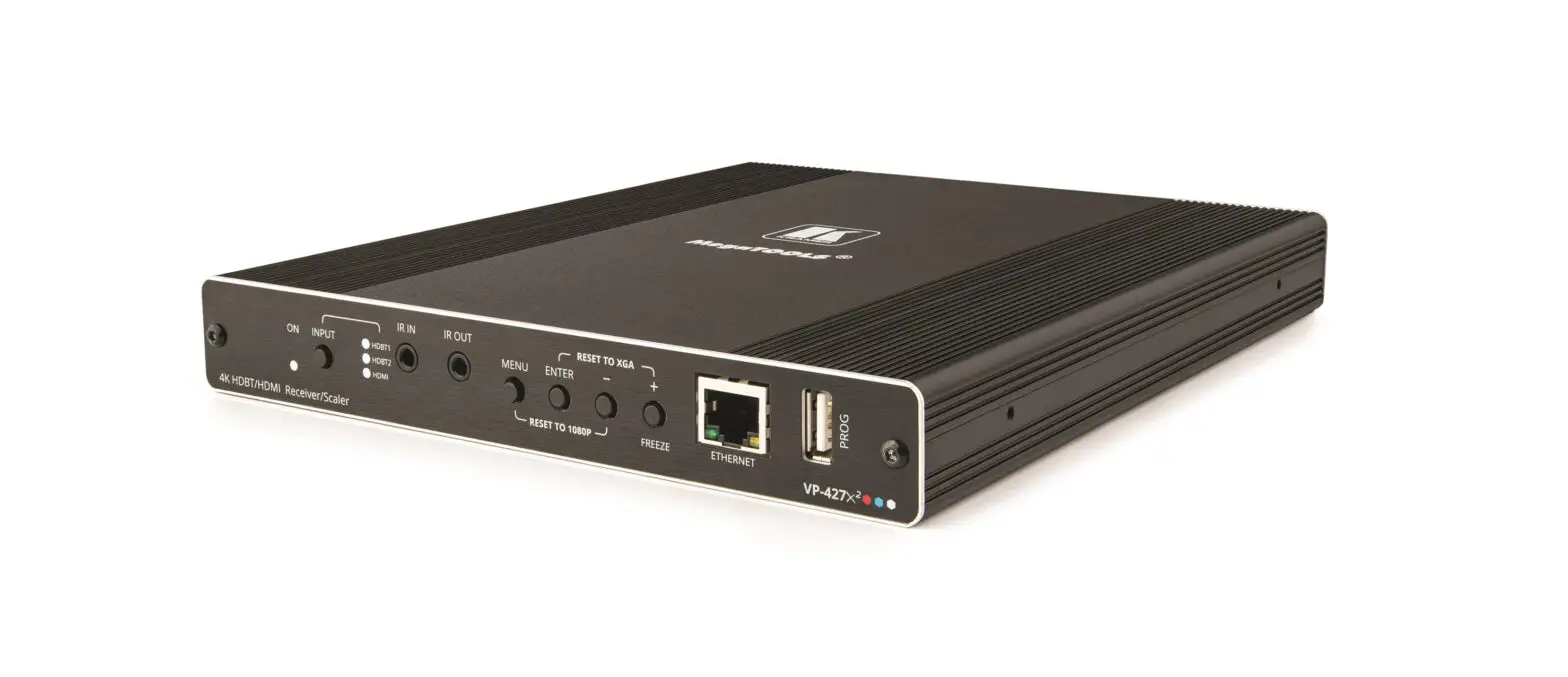
VP-427X2 4K HDBT/HDMI Receiver/Scaler
- Power adapter and cord
- Bracket sets
- Rubber feet
- Quick start guide
Get to know your VP-427X2

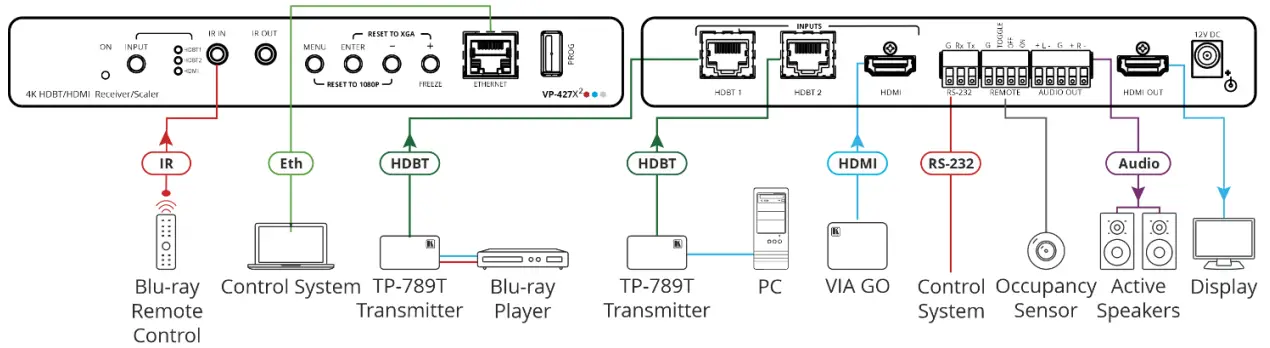
| # | Feature | Function | |
| 1 | ON LED | Lights green when device is powered. | |
| 2 | INPUT Select Button | Press to select the input (HDBT 1, HDBT 2 or HDMI). | |
| 3 | INPUT LEDs | HDBT 1 | Lights green when the HDBT 1 input is selected. |
| HDBT 2 | Lights green when the HDBT 2 input is selected. | ||
| HDMI | Lights green when the HDMI input is selected. | ||
| If the selected source is not connected to an input, its LED flashes. | |||
| 4 | IR IN 3.5mm Mini Jack | Connect to an IR sensor. Use to control a remote device that is connected to the transmitter side. IR commands are passed via HDBT tunneling only to the selected HDBT input (1 or 2). | |
| 5 | IR OUT 3.5mm Mini Jack | Connect to an external IR emitter to control a local device from the transmitter side. | |
| 6 | MENU Button | Press to enter/exit the on-screen display (OSD) menu. Press together with the – button to reset the output to 1080p resolution. | |
| 7 | ENTER Button | In OSD, press to choose the highlighted menu item. Press together with the FREEZE/+ button to reset the output to XGA resolution (1024×768). | |
| 8 | – Button | In OSD, press to move back through menus or decrement parameter values. Press together with the MENU button to reset the output to 1080p resolution. | |
| 9 | FREEZE/+ Button | In OSD, press to move forward through menus or increment parameter values. When not in OSD, press to freeze the display. | |
| 10 | Ethernet RJ-45 Connector | Connect to a PC via a LAN to setup and monitor the VP-427X2, tunnel data via HDBT, as well as upgrade the firmware. (Configured via web pages). | |
| 11 | PROG USB Connector | Connect to a USB stick to perform firmware upgrades. | |
| 12 | INPUTS | HDBT 1 RJ-45 Connector | Connect to a transmitter (for example, the Kramer TP-789Txr). |
| 13 | HDBT 2 RJ-45 Connector | Connect to a transmitter (for example, the Kramer TP-789Txr). | |
| 14 | HDMI Connector | Connect to an HDMI source. | |
| 15 | RS-232 CONTROL 3-pin Terminal Block Connector | Connect to a serial controller or PC to control VP-427X2 (default configuration), or connect to a device (e.g., a display) to control it via VP-427X2. Can be configured via the device web page. | |
| 16 | REMOTE Contact-Closure 4-pin Terminal Block Connector | Connect to contact closure switches, an occupancy sensor and/or toggle switches (contact between the desired pin and GND pin), to turn display on or off. See Step 6: | |
| 17 | AUDIO 5-pin Terminal Block Connector | Connect to a balanced stereo audio acceptor. | |
| 18 | HDMI OUT Connector | Connect to an HDMI acceptor. | |
| 19 | 12V DC Connector | Connect to the supplied power adapter. | |
Mount VP-427X2
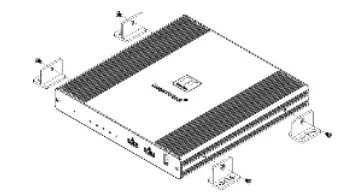
Install VP-427X2 using one of the following methods:
- Attach the rubber feet and place the unit on a flat surface.
- Fasten 2 brackets (included) on each side of the unit and attach them to a flat surface (see www.kramerav.com/downloads/VP-427X2).
- Mount the unit in a rack using the recommended rack adapter (see www.kramerav.com/product/VP-427X2).

Connect inputs and outputs
- Ensure that the environment (e.g., maximum ambient temperature & air flow) is compatible for the device.
- Avoid uneven mechanical loading.
- Appropriate consideration of equipment nameplate ratings should be used for avoiding overloading of the circuits.
- Reliable earthing of rack-mounted equipment should be maintained.
- Maximum mounting height for the device is 2 meters.
Always switch OFF the power on each device before connecting it to your VP-427X2.
Connecting the audio output
To a balanced stereo audio acceptor:
To an unbalanced stereo audio acceptor: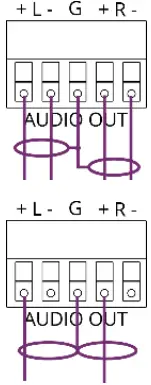
Wiring the RJ-45 Connectors
This section defines the TP pinout, using a straight pin-to-pin cable with RJ-45 connectors. For HDBT cables, it is recommended that the cable ground shielding be connected/soldered to the connector shield.
| EIA /TIA 568B | |
| PIN Wire Color | |
| 1 | Orange / White |
| 2 | Orange |
| 3 | Green / White |
| 4 | Blue |
| 5 | Blue / White |
| 6 | Green |
| 7 | Brown / White |
| 8 | Brown |
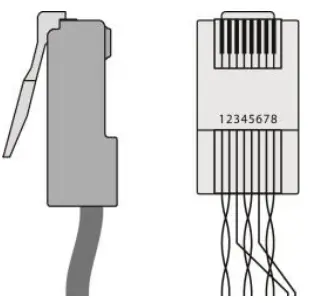
To achieve specified extension distances, use the recommended Kramer cables available at www.kramerav.com/product/VP-427X2.
Using third-party cables may cause damage.
Connect power
- Connect the power adapter to the VP-427X2 and plug it to the mains electricity.
- Safety Instructions (See www.kramerav.com for updated safety information)
Caution: For products with relay terminals and GPIO ports, please refer to the permitted rating for an external connection, located next to the terminal or in the User Manual. - There are no operator serviceable parts inside the unit.
- Warning: Use only the power cord that is supplied with the unit.
- Disconnect the power and unplug the unit from the wall before installing.
Operate VP-427X2
Operate VP-427X2 via: Front panel buttons. · Remotely, by RS-232 serial commands transmitted by a touch screen system, PC, or another serial controller. Embedded web pages via the Ethernet.
| RS-232 Control / Protocol 3000 | |||||
| Baud Rate: | 115,200 | Parity: | None | Stop Bits: | 1 |
| Data Bits: | 8 | Command Format: | ASCII | ||
| Example: (Route video HDBT INPUT to HDMI OUTPUT): #ROUTEV1,1,1<CR> | |||||
| Default Ethernet Parameters | |||||
| IP Address: | 192.168.1.39 | UDP Port #: | 50000 | ||
| Subnet Mask: | 255.255.0.0 | TCP Port #: | 5000 | ||
| Gateway: | 192.168.0.1 | Default Username/password: | Admin/Admin | ||
Operating via the remote control switches
Momentarily connect the desired pin to the GND pin to select an input:
| Pin Name | Function | |
| TOGGLE | One button toggles between display on and display off (instead of using two separate buttons for on and off). Alternatively, using the VP-427X2 OSD, configure turning the display on or off according to whether a switch is open or closed, for example, when using an occupancy sensor. | |
| OFF | Turn off the display (via CEC). | |
| ON | Turn on the display (via CEC). |
This guide helps you install and use your VP-427X2 for the first time. Go to www.kramerav.com/downloads/VP-427X2 to download the latest user manual and check if firmware upgrades are available. Scan for full manual
 Kramer | Audio Visual Solutions - Kramer