
Link Touch – Manual
Document name: Link Touch – Manual
Document date: 1.4 15/06/2021
Introduction
Overview
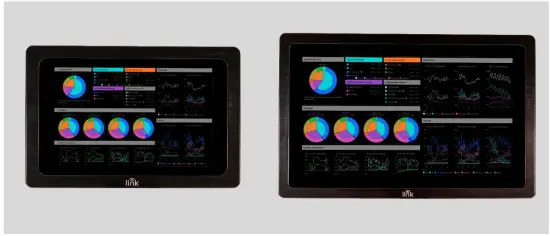
HMIs have developed heavily in the last decades with the introduction of LCD screens first and LCT touch screens more recently, moving from hardware gauges and potentiometers to displays showing charts and gauges similar mimicking the physical hardware.
With more and more development available with the use of HTML5, improved graphics, and high-resolution panels, displays now are opening on visualizations that look so nice that are used in kiosk dashboards on stores, in public places, showing data transformed and with clear graphics that become an addition to the system rather than just a tool to interface with it.
Powerful high-resolution panels are becoming a must to get nice graphics displayed on touch screens, with the required high responsiveness that makes operating the system practical and easy.
At Cannon we believe in helping our clients achieve the best results, achieving greatness. We took the best industrial panels with 6 cores CPUs, capacitive touch screen, high resolution, powered by Android OS to guarantee compatibility with standard systems, and we enhanced the experiencing building a kiosk app on top that makes the screens safe and easy to use, with direct implementation of Niagara Kiosk mode.
In the box you will find:
- 1x Link Touch display
- 1x 12V 4A Power Supply Unit
- 3x mains leads (UK, US and EU)
- 1x kit of 4 clips and screws for “flush” installation
Available models
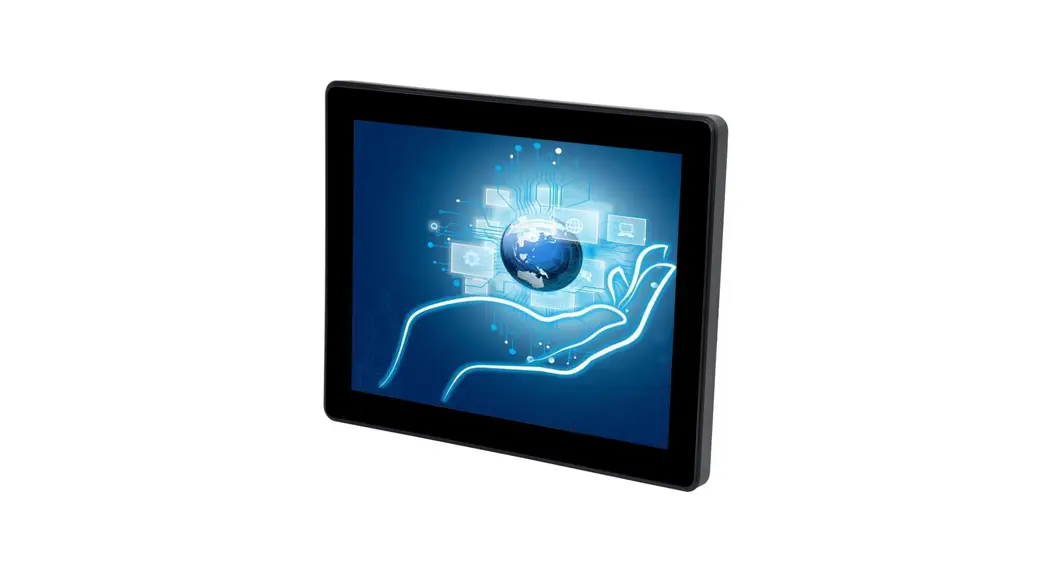
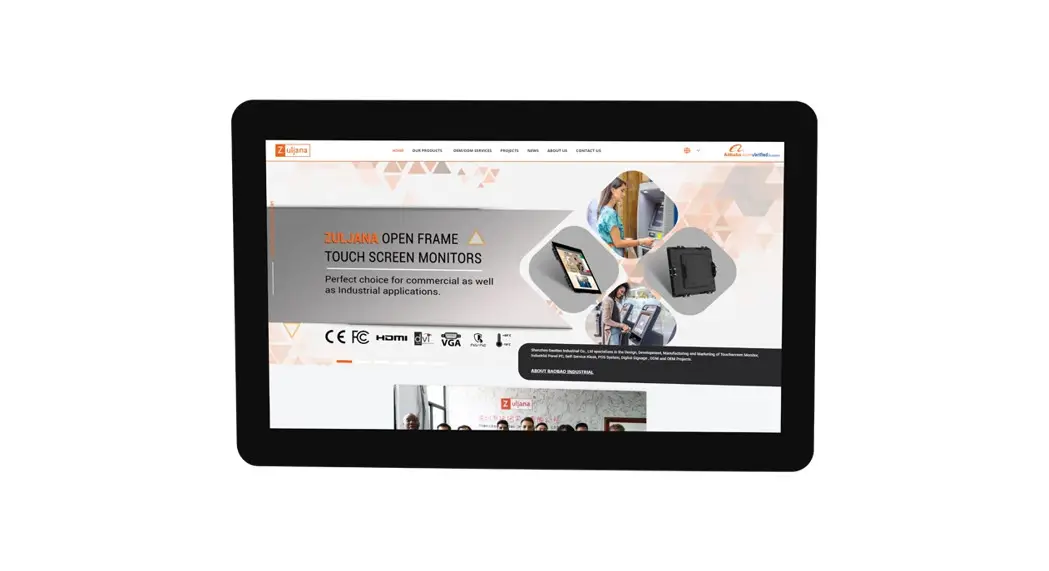
LNK-T10-IP-WEB (Original part number TPC101-A100) 10.1” touch panel 1280×800
LNK-T15-IP-WEB (Original part number TPC156-A100) 15.6” touch panel 1920×1080
Hardware
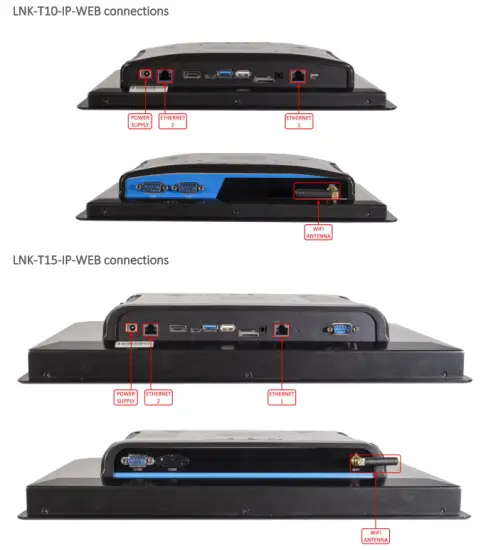
Connectivity with the network devices can be achieved using the onboard WiFi (located on the top) or through an Ethernet cable using the RJ45 socket at the bottom. The power supply barrel connector is also located at the bottom of the device.
Wiring power supply
A dedicated “brick type” PSU is provided in the box.
The PSU works with 100 to 240 Vac mains voltage and 50 Hz or 60 Hz frequency.
Three separate mains leads are already provided in the box:
- type G (UK)
- type B (the USA, Canada, and Mexico)
- type F (Europe and Russia)
The mains leads are connected to the power supply unit using an IEC C13 plug (“kettle lead”).
If you plan to use a different power supply unit, the screen requires a 12 Vdc 4 A connection using a barrel-type connector (see size and polarity below).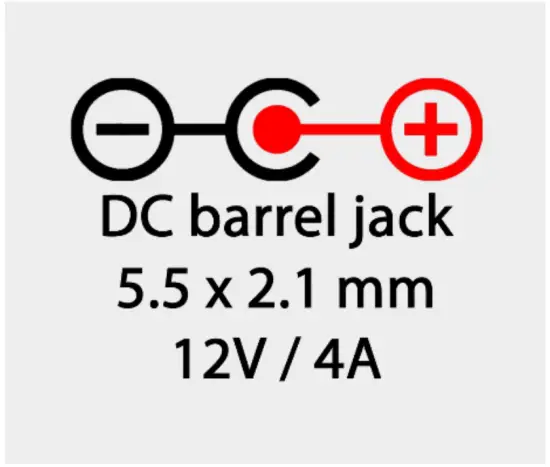
Using the HDMI output
Link Touch is provided with an HDMI output available on board. Connecting an external monitor/TV, Link Touch will provide a mirrored video output making it a useful tool to drive and control large kiosk displays, for example.
Internal speaker
Link Touch is provided with an internal small mono speaker located on the back, near the connectors. The volume control is available also when using the Link Touch application.
Flush installation
The screen is provided with clips to be mounted flush (ie on an electrical panel door).
The front of the screen is IP65 rated.
The bezels are 3mm deep.
Size of the hole: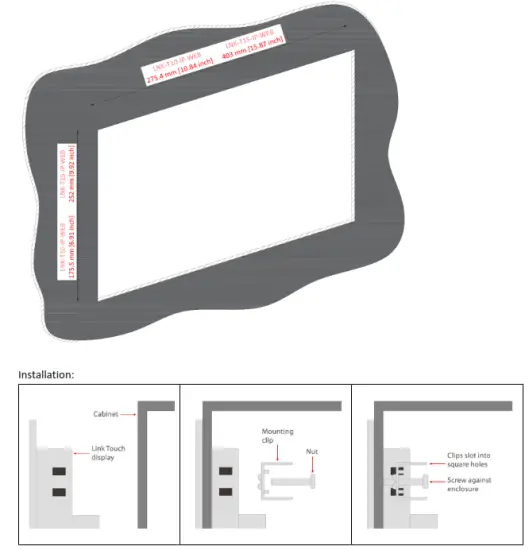
Surface installation (using the VESA connection)
Link Touch provides on both the 10.1” and the 15.6” versions the possibility of using a VESA bracket.
The supported VESA standards are 75 x 75 mm and 100 x 100 mm.
VESA brackets for surface installation are available on the market.
An example of a surface installation with a flat low-profile bracket: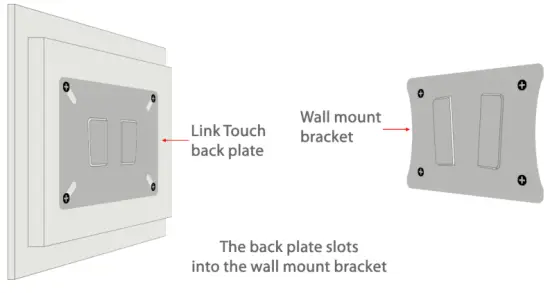
The Link Touch App
Navigation
When the screen is powered up, the Link Touch application runs natively and cannot be overridden.
The Link Touch app sets the device in “kiosk” mode and prevents the user from accessing the Link Touch as a regular Android tabled. Android settings are only available through the app and are password protected by default. See the next chapter for more information.
The app starts by default from the “Panels” page.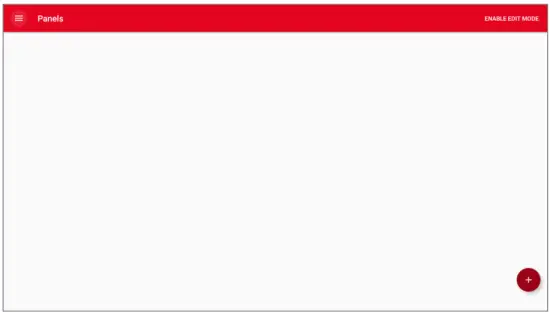
What is a panel?
A “panel” defines a specific IP address and port to connect to and visualize the available graphical web pages. A panel can be a Tridium Jace or supervisor (where auto login is supported for both secure and insecure connections), or any generic device that provides HTML pages to display Scrolling on the screen from the bottom side to the top, the Android button bar is shown.
Hide the bar by pressing the 2 chevrons on the left side.
Note: the on/off button is disabled. Use the physical button on the back of the screen or remove power supply to power down the device.
When navigating inside a panel, a small button is shown at the bottom when touching the screen: Pressing it will expand some useful navigation buttons: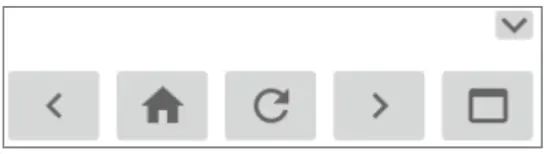
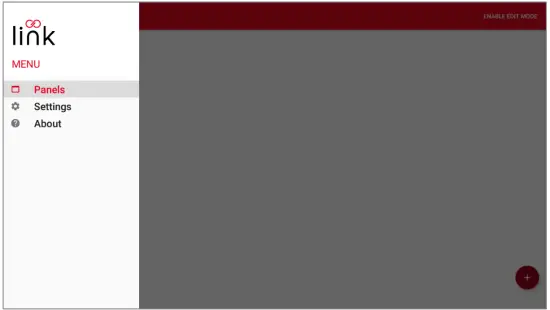
This will allow to navigate to back and forward on the HTML pages, reach the home page configured in the panel address, refresh the visualized web page, or go back to the “panels menu” Scrolling on the screen from the left side to the right, the app menu will be shown.
- “Panels”. From here you can add, modify, or view your panels.
- “Settings”. Allows the configuration of Link Touch
- “About”. Provides information about the app release
A couple of notes about security
The Link Touch App is not only a tool that makes the Link Touch display versatile and designed for the HMI.
The Link Touch App adds important security layers, an essential topic in a BMS network.
As quickly mentioned in the chapter above, the App basically sets Android in kiosk mode, not the same as a tablet. The app basically controls the screen and cannot be overridden, unless the user decides to factory default Link Touch and use it as a regular Android tablet (there is a dedicated chapter in this manual).
What the Link Touch App protects:
- The Android settings are limited with some settings locked, and the ones available are accessible only if the settings password is inserted
- Installation of any other app or anything else on the screen is blocked
- The USB ports are locked. When connecting any device, the app verifies the content and will allow access only to the update apk file of the Link Touch App (which is a signed app, so any other app with the same name would not work)
- External commands are blocked
The Android version running on the device cannot be upgraded, The Link Touch App is locking any access to keep the device secured from malicious attacks.
Be aware that when proceeding with the factory default and deleting the app, Android will unlock completely allowing the installation of any app and removing all the layers of protection offered by the Link Touch system.
If you select the option “Settings” from the app menu, the Link Touch password will be required.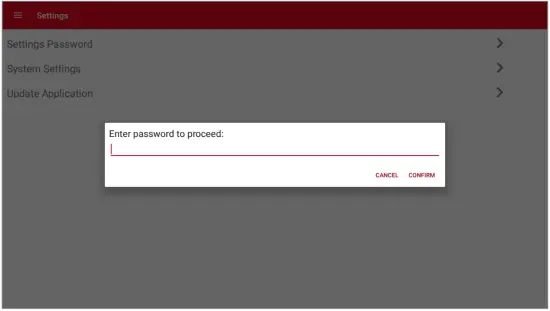
The default password is link1234 (the password is case-sensitive).
Input the password and press “Confirm”. The settings menu is then available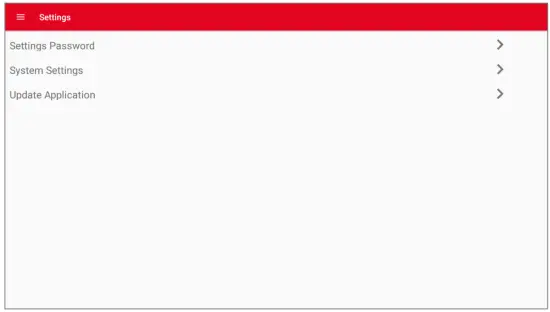
Settings Password
The settings password can be modified.
NOTE: do not forget your password. Losing the password will require the screen to be sent to Innon to be restored to factory settings and re-programmed.
Changing the password requires inputting the new password twice, on “Change current password” and on “Confirm new password”. Use the “Show Password” flag if you want to check it. Then press “Change password” to confirm.
You can also remove the protection password allowing anyone to edit panels and settings, using the The “Remove password” button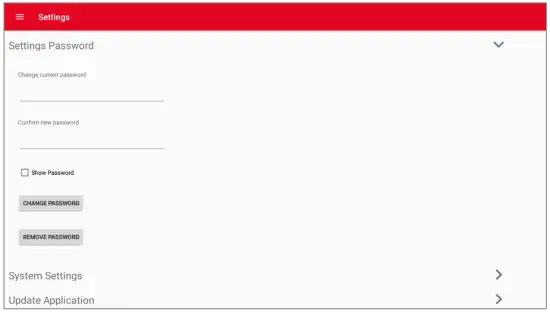
System settings
System settings open the native Android Settings menu. Note that the Link Touch app removes some options from the settings to avoid corrupting the Link Touch. 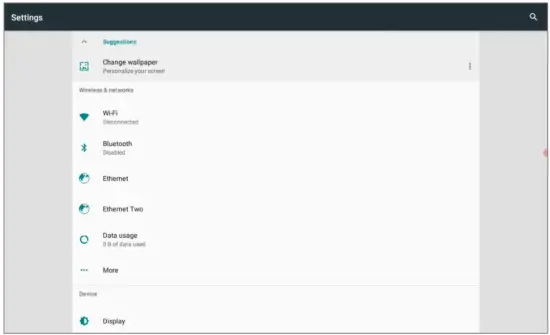
WiFi settings allows to discover and add connectivity to a WiFi network. WiFi is disabled by default.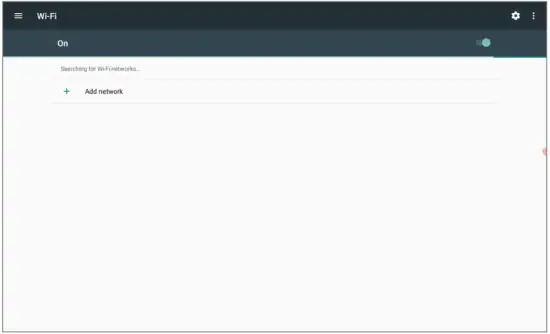
Ethernet ports 1 and 2 can be independently configured. By default, they work on DHCP, but static IP addresses can be used 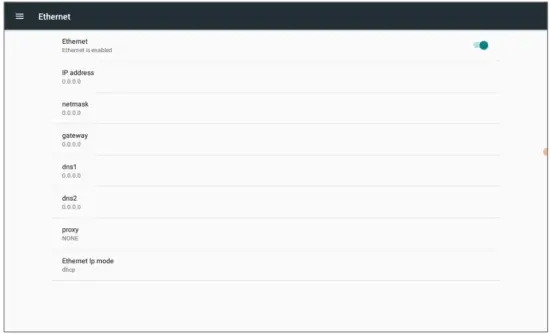
Display brightness, display rotation and factory reset settings are available.
Check the factory reset chapter on this manual for more information.
To exit the settings, swipe up to show the buttons menu at the bottom of the screen and tap the “back” button until you get back to the main Link Touch app section
Update Application
The Link Touch app can be updated via USB.
Use a USB pen drive formatted in FAT32 and add only the update.apk file in the root of the USB drive.
The update.apk files for newer Link Touch app versions can be downloaded from our support website, here: http://support.innon.com/Link%20Touch/Firmware_updates/
Use the update.apk file within the “update” folder of the required version. The “install” folder is used only for installing the app using a PC on Link Touch after a factory default has been performed (see related chapter).
Insert the USB pen drive on one of the available USB type-A ports of Link Touch. Then, click on the Update Application option: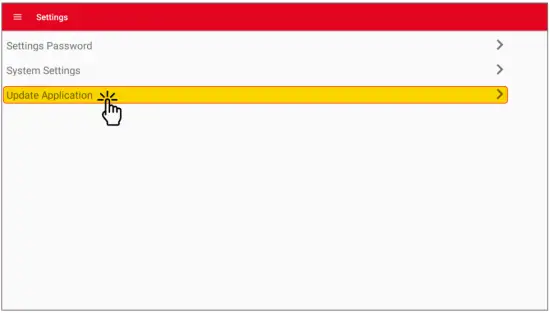
The screen will ask for confirmation and then run through the update process automatically.
DO NOT REMOVE POWER WHILE THE UPDATE PROCESS IS RUNNING
Add a panel
The panel’s menu allows adding as many devices and configurations as required.
To add your first panel, press the “Add” button 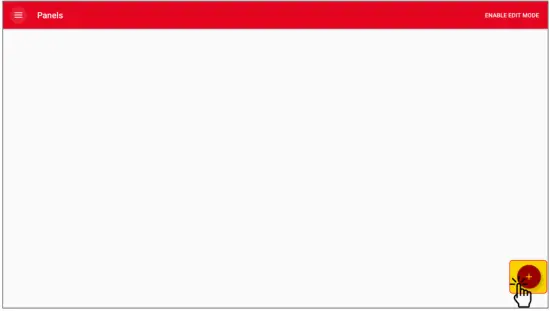
For each panel you can configure the name displayed, HTTP or HTTPS, IP address (add the port number after the IP separated by “:” if the port used is different from 80 and 443), a predefined login type for “kiosk” auto-login (Niagara 4 and Niagara AX are both supported) and “default view”, which will open this panel by default on start-up. See the example below: 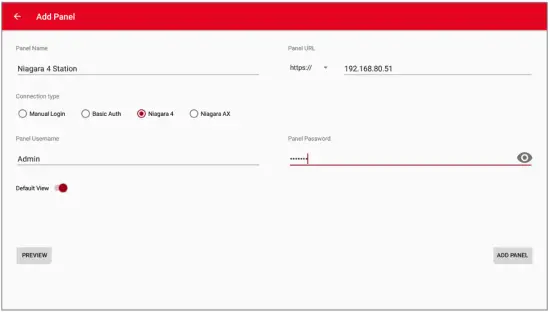
Edit a panel
Once you have a few panels configured, you will be able to view them using the “view” button.
“Edit” and “Delete” will also be visible for each panel. If a setting password is configured (default link1234), you will need to enter the “Edit Mode” by typing the password to use them (see example below, the message at the bottom of the screen will be displayed if you try touching them)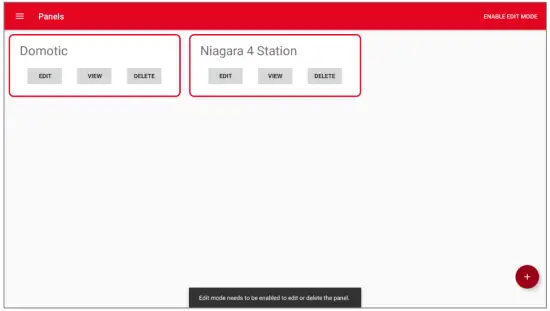
Touch the “Enable Edit Mode” on the top right corner of the screen and insert the set password. 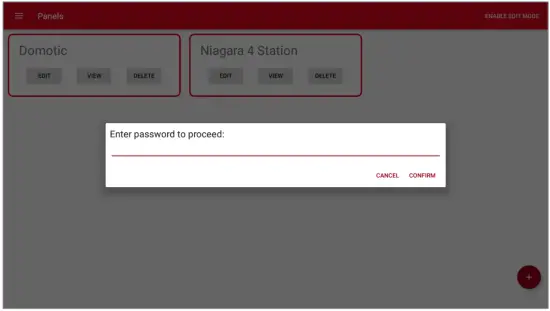 The “Enable Edit Mode” message disappears, and you can now Edit or Delete panels
The “About” screen provides information regarding the installed Link Touch application version, about Innon and our support useful links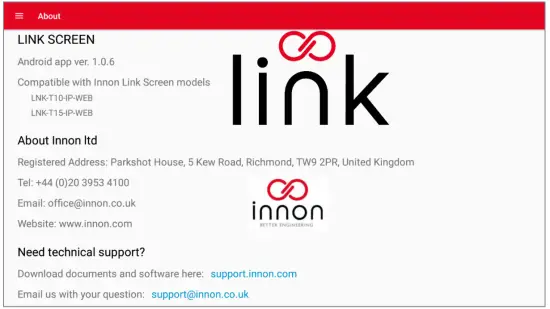
Factory reset (deleting the Innon application)
We allow customers to restore the Link Touch screen to “factory settings” from the main Android settings.
This will delete the Link Touch app from the device and allow to use Link Touch as a standard Android device.
Note that the Link Touch application will only work on Link Touch. Any other android device, even with the exact same specifications will not allow the Link Touch app to run. To reinstall the Innon Link Touch application after a factory reset, please refer to the next chapter. Enter the Link Touch menu and select “Settings – System Settings” to open the Android menu. Scroll down on the Android settings until you find the “Backup & reset” option, and select it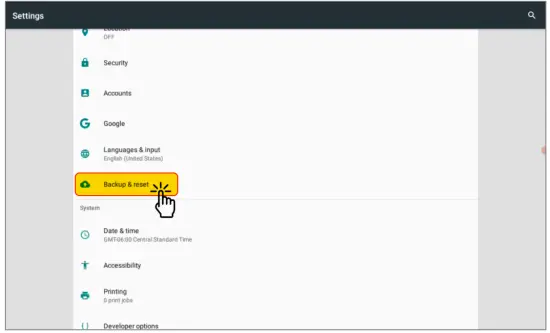
From the options available, select “Factory data reset” 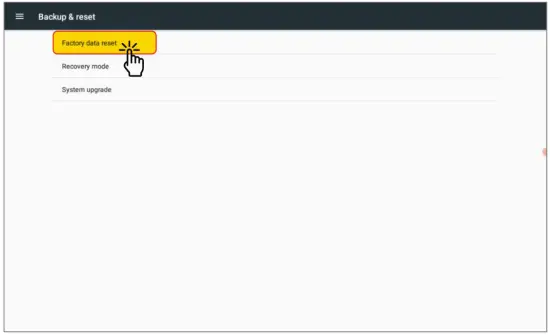
Follow the instructions on screen to proceed.
Once the screen is back to default, you can adjust the orientation of the screen from the display menu, The landscape default mode is rotated at 270 degrees 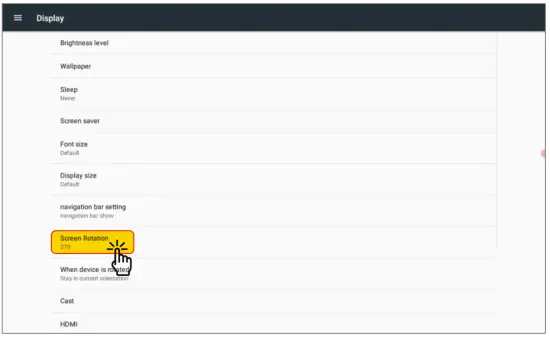
Installing the Innon Link Touch app (after a factory reset)
If for any reason you have a Link Touch device that went through a factory reset, it is still possible to install the Innon Link Touch app using a PC (Windows) and a USB type C to USB type A cable. The kiosk mode and all the Innon Link Touch app user restrictions will be applied again automatically when the device is rebooted.
Note that the Link Touch application will only work on Link Touch. Any other android device, even with the exact same specifications will not allow the Link Touch app to run.
Steps.
Connect Link Touch to your PC using a USB cable type C (connected to the Link Touch connector highlighted below) to USB type A (connected to your PC running Windows).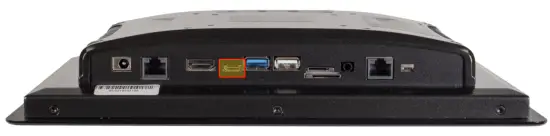
Open our support website and find the firmware folder
http://support.innon.com/Link%20Touch/Firmware_updates/
For each firmware version, you will find 2 folders, an “update” folder containing the update file for the regular software update process, and an “install” folder containing the necessary software to install the Innon Link Touch app via PC 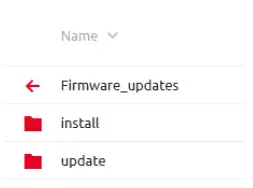
Download the full content of the “install” folder and place it into a new folder on your PC.
With the device correctly connected via USB, double click the “install.bat” file.
This will open a command prompt and will automatically run the installation process.
Once finished, reboot Link Touch and the app should be working as normal.
Technical data
Drawings
Part number: LNK-T10-IP-WEB (Original part number TPC101-A100)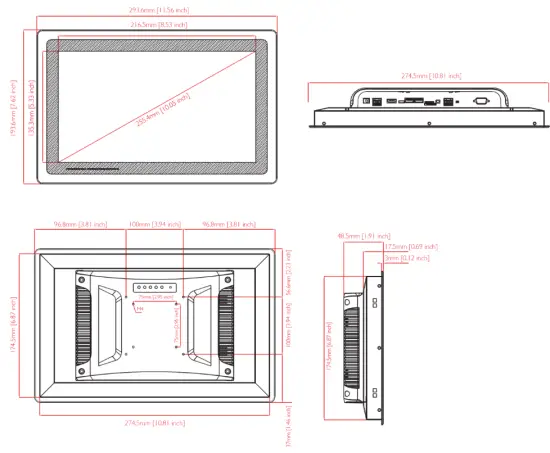 Part number: LNK-T15-IP-WEB (Original part number TPC156-A100)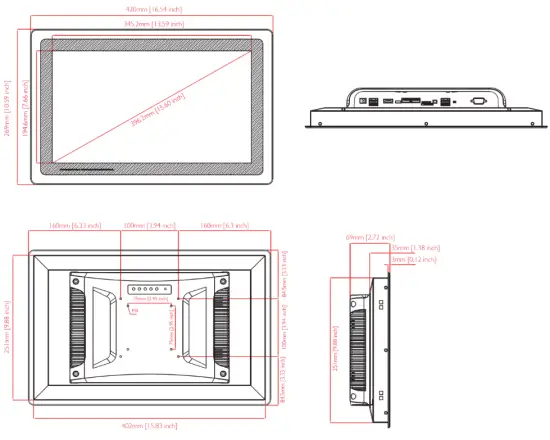
Specifications
Part number: LNK-T10-IP-WEB (Original part number TPC101-A100)
| Screen size | 10.1 inches |
| Panel type | Industrial LCD panel A+ grade |
| Aspect ratio | 16:10 |
| Resolution | 1280 x 800 |
| Contrast | 800:1 |
| View angle | 85/85/85/85 |
| Luminance | 300 nit |
| Response time | 5 ms |
| Active area | 222.7 x 125.2 mm (8.77 x 4.93 inches) |
| Display colors | 16.7 M (8 bit) |
| CPU configuration | RK3399 dual-core Cortex A72 + quad-core Cortex A53, 64 bit, 1.8 GHz |
| Internal memory | eMMC 32 GB |
| RAM | 4 GB dual-channel DDR3 |
| GPU | Mali T864 GPU |
| WiFi | 802.11b/g/n 2.4G and 5G wifi |
| Touch type | Capacitive Touch Screen |
| I/O | USB2.0 x1, USB3.0 x1, Type C x1, COM232 x1, OTG x1, TF/SIM x1, DC12V x1, HDMI out x1, RJ45 gigabit x1, Audio 3.5mm out x1 |
| Panel install hole | 275 x 175 mm (10.83 x 6.89 inches) |
| Temperature and humidity | Operating: -20°C to +70°C (-4°F to 158°F), 10 to 80 %RH |
| Storage: -30°C to +70°C (-22°F to 158°F), 10 to 90 %RH | |
| Certificates | CE, FCC, RoHS, ISO |
| Installation | VESA (75 x 75 mm or 100 x 100 mm optional) |
| Material | Aluminium alloy |
Part number: LNK-T15-IP-WEB (Original part number TPC156-A100)
| Screen size | 15.6 inches |
| Panel type | Industrial LCD panel A+ grade |
| Aspect ratio | 16:9 |
| Resolution | 1920 x 1080 |
| Contrast | 1000:1 |
| View angle | 85/85/85/85 |
| Luminance | 350 nit |
| Response time | 5 ms |
| Active area | 344.2 x 193.6 mm |
| Display colors | 16.7 M (8 bit) |
| CPU configuration | RK3399 dual-core Cortex A72 + quad-core Cortex A53, 64 bit, 1.8 GHz |
| Internal memory | eMMC 32 GB |
| RAM | 4 GB dual channel DDR3 |
| GPU | Mali T864 GPU |
| WiFi | 802.11b/g/n 2.4G and 5G wifi |
| Touch-type | Capacitive Touch Screen |
| I/O | USB2.0 x1, USB3.0 x1, Type C x1, COM232 x1, OTG x1, TF/SIM x1, DC12V x1, HDMI out x1, RJ45 gigabit x1, Audio 3.5mm out x1 |
| Panel install hole | 403 x 252 mm |
| Temperature and humidity | Operating: -10°C to +60°C (14°F to 140°F), 10 to 80 %RH |
| Storage: -30°C to +70°C (-22°F to 158°F), 10 to 90 %RH | |
| Certificates | CE, FCC, RoHS, ISO |
| Installation | VESA (75 x 75 mm or 100 x 100 mm optional) |
| Material | Aluminum alloy |
Guidelines for Disposal
- The appliance (or the product) must be disposed of separately in accordance with the local waste disposal legislation in force.
- Do not dispose of the product as municipal waste; it must be disposed of through specialist waste disposal centers.
- Improper use or incorrect disposal of the product may have negative effects on human health and on the environment.
- In the event of illegal disposal of electrical and electronic waste, the penalties are specified by local waste disposal legislation.
Document name: Link Touch – Manual
Document date: 1.4 15/06/2021
 Innon Support (http://support.innon.com)