 Equipment and Products for Quality Hay. lm
P.O. Box 63 d 2821 Harvey Street Hudson, WI 54016 800-635-7468
www.harvesttec.com
Operation Manual
300 Series Small Square Baler Models
25 & 55-gallon Preservative Applicators
344-345-350-351-16-APR 5/22
DECLARATION OF INCORPORATION
MANUFACTURER:
Harvest Tec LLC.
2821 Harvey St.
P.O. Box 63
Hudson, WI 54016, U.S.A.
REPRESENTATIVE ESTABLISHED IN COMMUNITY: Profitable Farming Company Middle Burlington, Roborough Winkleigh, Devon, EX19 8AG ENGLAND
The person above certifies and declares that:
VIRTUAL MACHINE: Equipment mounted on a farm press and for the application of inoculants onto forage crops.
MODEL: 344-345-350-351-16-APR
BRAND: Harvest Tec
SERIAL NUMBER:
This application preservatives for the hay Harvest Tec system meets the Directive 2006/42/EC of the European Parliament and the Council of 17 May 2006 and other applicable European Directives including Directive 2004/108/EC on Electromagnetic compatibility.
The application of preservatives for the hay Harvest Tec system will be turned on after being installed on a farm press has been declared in conformity with the Machinery Directive.
Person in the community authorized to provide information on the partly completed machinery and make this statement:
Richard Snell, President, Profitable Farming Company
Signed on May 21, 2011: Middle Burlington, Roborough
Winkleigh, Devon, EX19 8AG
ENGLAND
Introduction
Read this manual carefully to ensure the correct steps are done to operate the applicator. This applicator is designed to apply Harvest Tec buffered propionic acid. The use of alternative products may cause complications. Including inaccurate readings from the flow meter and damage to all parts. Resulting in the warranty being void. The applicator can be installed on many square balers with the proper installation kit. Before installing the unit on the baler, make sure you have the proper installation kit (See the chart below).
*Made for iPad® running the current iOS operating system
*iPad is a trademark of Apple Inc., registered in the U.S. and other countries.
300 Series Applicators with serial numbers before THS07000 will require the THS to be sent to Harvest Tec for a required update in order to use the iPad Integration Module (030-6670C).
Hay App version must be at least 2.7.1 (or higher) to operate with the iPad Integration Module (030-6672C)
Model Kit Reference
| Baler Make | Baler Model | Model Number | Installation Kit | Tank Size |
| AGCO | 7105, 7110, 7115, 7120, 1835, 1837, 1837, 1841 | 344 | 4416C | 55 Gallon |
| Case IH | 8500 Series | 344 | 4416C | 55 Gallon |
| Case IH | SBX 520, 521 | 345 | 4409C | 25 Gallon |
| Case IH | SBX 530, 540, 550, SB531, SB541, SB551 | 345 | 4415C | 25 Gallon |
| Case IH | SBX 530, 540, 550, SB531, SB541, SB551 | 351 | 4415C | 55 Gallon |
| Challenger | SB 34, 36, 44 | 344 | 4416C | 55 Gallon |
| Freeman | 270, 370 | 350 | 4506C | 55 Gallon |
| Hesston | 4550, 4570, 4590, 4600, 4655 | 344 | 4416C | 55 Gallon |
| Hesston | 4690N, 4690S | 350 | 4502C | 55 Gallon |
| John Deere | 328, 336, 338, 346, 347, 348 | 345 | 4410C | 25 Gallon |
| Massey Ferguson | 1835, 1836, 1837, 1838, 1839 1840, 1841, 1842 | 344 | 4416C | 55 Gallon |
| Massey Ferguson | 1843N, 1843S | 350 | 4502C | 55 Gallon |
| Massey Ferguson | 1844N, 1844S | 350 | 4485C | 55 Gallon |
| New Holland | 200, 300 Series, 565 & BC5050 | 345 | 4409C | 25 Gallon |
| New Holland | 570, 575, 580, BC5060, BC5070, BC5080 | 345 | 4415C | 25 Gallon |
| New Holland | 570, 575, 580, BC5060, BC5070, BC5080 | 351 | 4415C | 55 Gallon |
| New Holland | 585, BB900 | 350 | 4507C | 55 Gallon |
| New Idea | 7205, 7210, 7215 | 344 | 4416C | 55 Gallon |
| Welger | AP630, AP730, AP830 | 345 | 4412C | 25 Gallon |
Safety
Carefully read all the safety signs in this manual and on the applicator before use. Keep signs clean and in good working order. Replace missing or damaged safety signs. Replacement signs are available from your local authorized dealer. See your installation manual or under the replacement parts section for the correct part numbers.
Keep your applicator in proper working condition. Unauthorized modifications to the applicator may impair the function and/or safety of the machine. Carefully read and understand all of the baler safety signs before installing or servicing the baler. Always use the supplied safety equipment on the baler to service the applicator.
Safety Signs Definitions
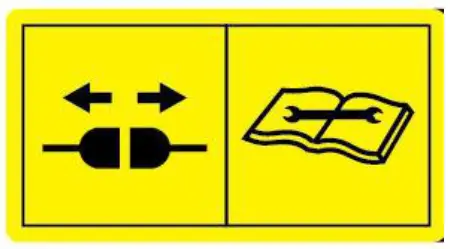 | Number 1 Spraying hazard. Disconnect power before servicing the applicator Part no. DCL-8003 |
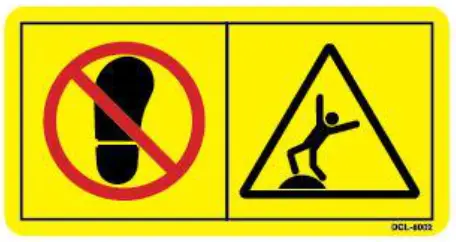 | Number 2 Falling hazard. Do not step into this area. Part no. DCL-8002 |
 | Number 3 Use caution when working around chemicals. Wear all protective equipment according to the label of the product. Part no. DCL-8001 |
 | Number 4 Read and understand the operator’s manual before using or working around the equipment. Part no. DCL-8000 |
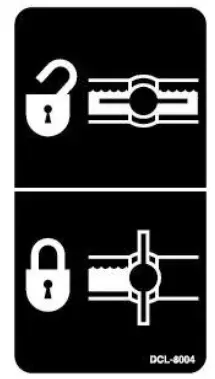 | Number 5 Open (unlocked) and closed (locked) position of the ball valve. Part no. DCL-8004 |
Preparing the Applicator for Operation
After the Applicator has been installed on the baler, follow the below steps to prepare for operating the applicator both safely and correctly.
Filling the tank through the Drain / Fill kit (Model 344, 350 & 351)
Read the label of the product being filled into the tank to determine what individual protective measures need to be taken. Locate the drain/fill line on the baler. Open the cam-couplers (A) and remove the protective plug (B). Insert the male coupler (found on the transfer pump) into the female cam and close the cams (A).
To open the ball valve (C) turn the handle so it is vertical. After the ball valve has been turned on switch the pump to the On position. Monitor the level on the tank visually and shut off the pump before overfilling. Once the pump is turned off, close the ball valve and remove the male coupler. The handle of the ball valve (C) will be horizontal when closed. Reinstall the protective plug and close the cams. The Harvest Tec model 9212 transfer pump is recommended for this process.
Water is recommended for first-time and annual start-up procedures.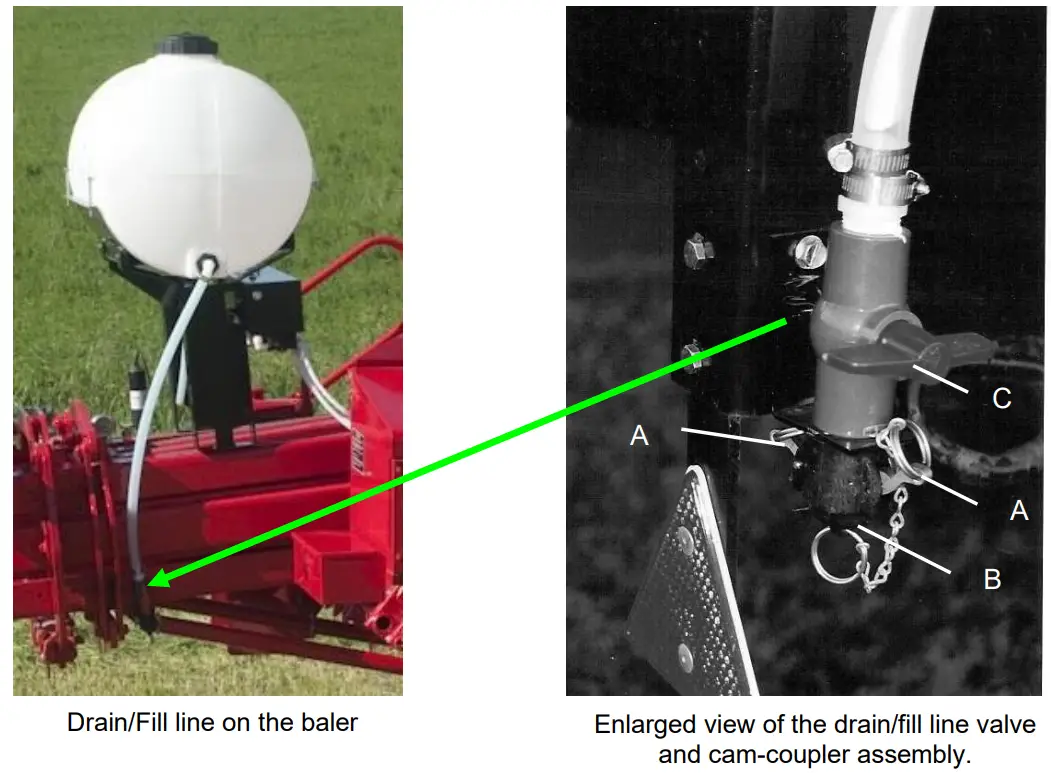
Filling the tank through the tank lid opening (Model 344, 345, 350, 351)
Read the label of the product being filled into the tank to determine what individual protective measures need to be taken. Clean the tank lid area and unscrew the lid. Transfer product from the container into the tank.
Water is recommended for first-time and annual start-up procedures.
Operation of the Main Ball Valve
The ball valve should always be closed when the applicator is not being used. The valve should also be closed when any service work is being done to the baler or applicator.
The valve is located next to the pump and by the applicator tank. The arrow below points to the valve.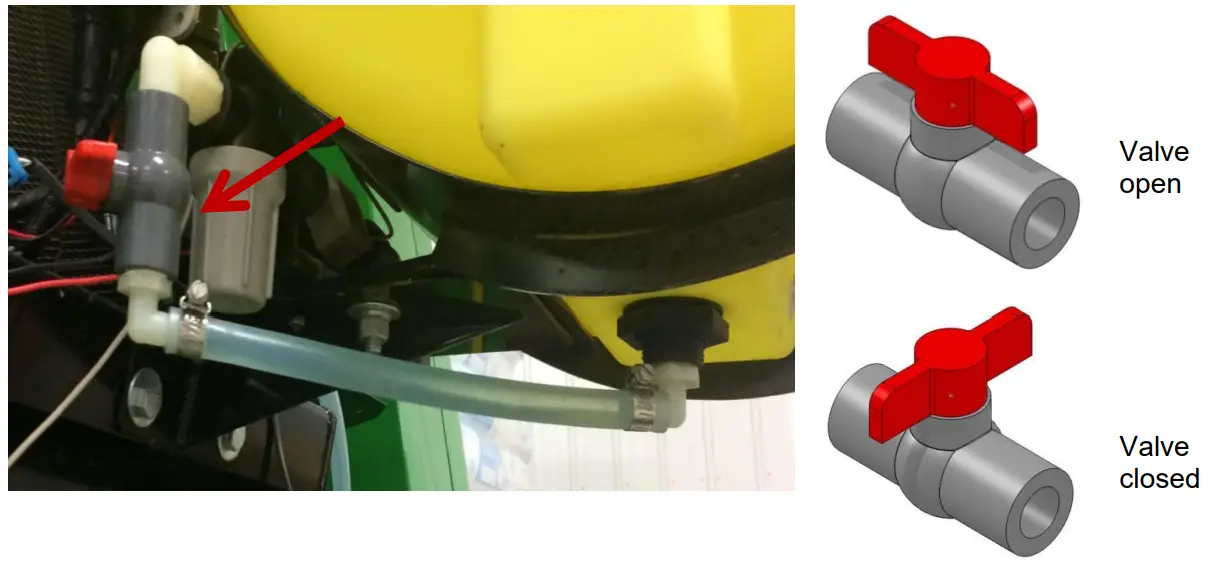
Connecting the power harness
The power harness that supplies power from the tractor battery to the applicator pump has a disconnect at the hitch. Connect the two together for operation. Always disconnect before servicing the applicator or baler.
WARNING: Stop tractor engine and shift to park, set brakes, and remove key before leaving the tractor.
Operation
Turn On / Off the iPad using the Sleep/Wake button
*(Info from Apple User’s Guide)
Turn the iPad on. Hold down the Sleep/Wake button until the Apple logo appears. The iPad will take a moment to load
You can lock the iPad and put it to sleep when you’re not using it. Locking the iPad puts the display to sleep, saves the battery, and prevents anything from happening if you touch the screen. 
When you are not going to use the iPad for an extended period of time put the unit into sleep mode by pressing the Sleep/Wake button. Press Sleep/Wake button to wake the iPad and then unlock the iPad by entering a passcode.
Turn iPad off. Hold down the Sleep/Wake button for a few seconds until the slider appears onscreen, then drag the slider to the right.
Downloading Harvest Tec App
- If iPad does not have Wi-Fi turned on, select the Settings tab
 then select the Wi-Fi tab (below)
- Turn Wi-Fi on by sliding the button to the right.
*Green bar indicates ON - Use the same process to turn on the Bluetooth function
- Select an available network when detected by the iPad, shown in the area above that currently says ‘Other.’
- Select the App Store icon (below) and open it. *You will need a Wi-Fi connection available to view App Store
 then select the Wi-Fi tab (below)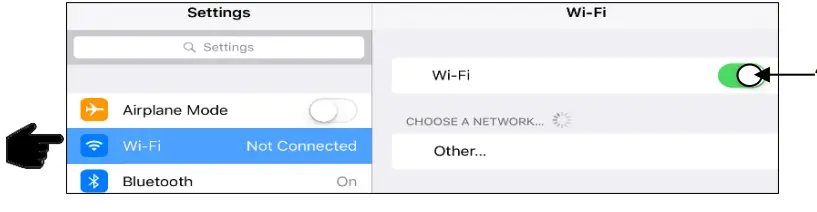
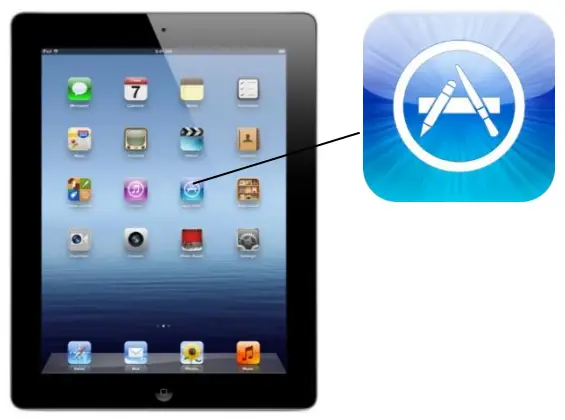
Download the Hay App in the App Store by searching for ‘Hay App’ in the search bar in the top right corner of the screen (right): *The advertisements displayed on the App Store screen will change.
The app will have the icon as shown: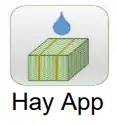
**The Harvest Tec system WILL NOT appear under the Bluetooth tab in the Setting App. Open the Hay App to connect.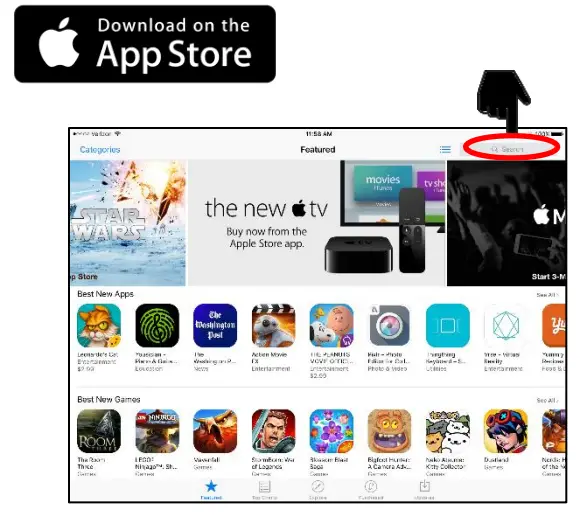
Note: Made for iPad® running the current iOS operating system
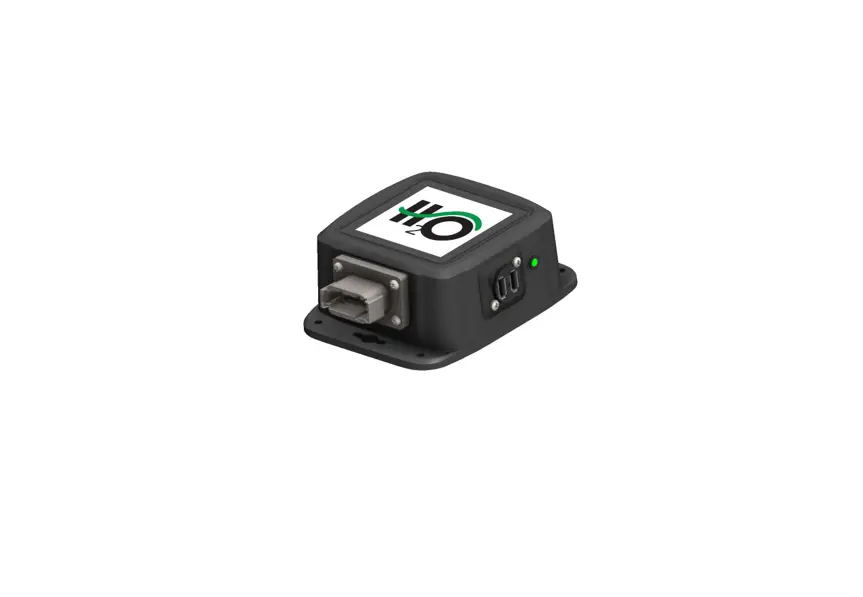
iPad Integration Control Module
To operate the applicator, connect the iPad cord to the iPad
Integration Control in the port is indicated by: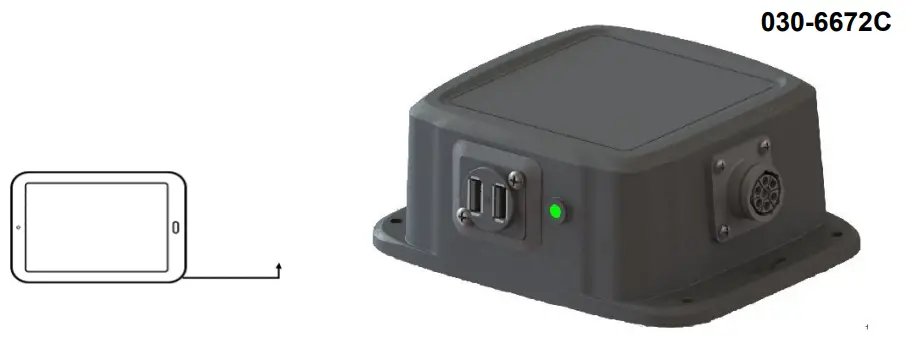
iPad Integration Control Light Signals
Green Slow Blink – Power is supplied to the applicator system and the unit is going through its startup process. This will take approximately 25-35 seconds. 
Green Double Blink – Indicating the iPad module recognizes the iPad but the app is not open or connected.
Green Solid Light – The module is connected to the app and is ready to operate.
*Recommended to use the USB cable included with the applicator kit (006-6672USBC)
Bluetooth Receiver Lights
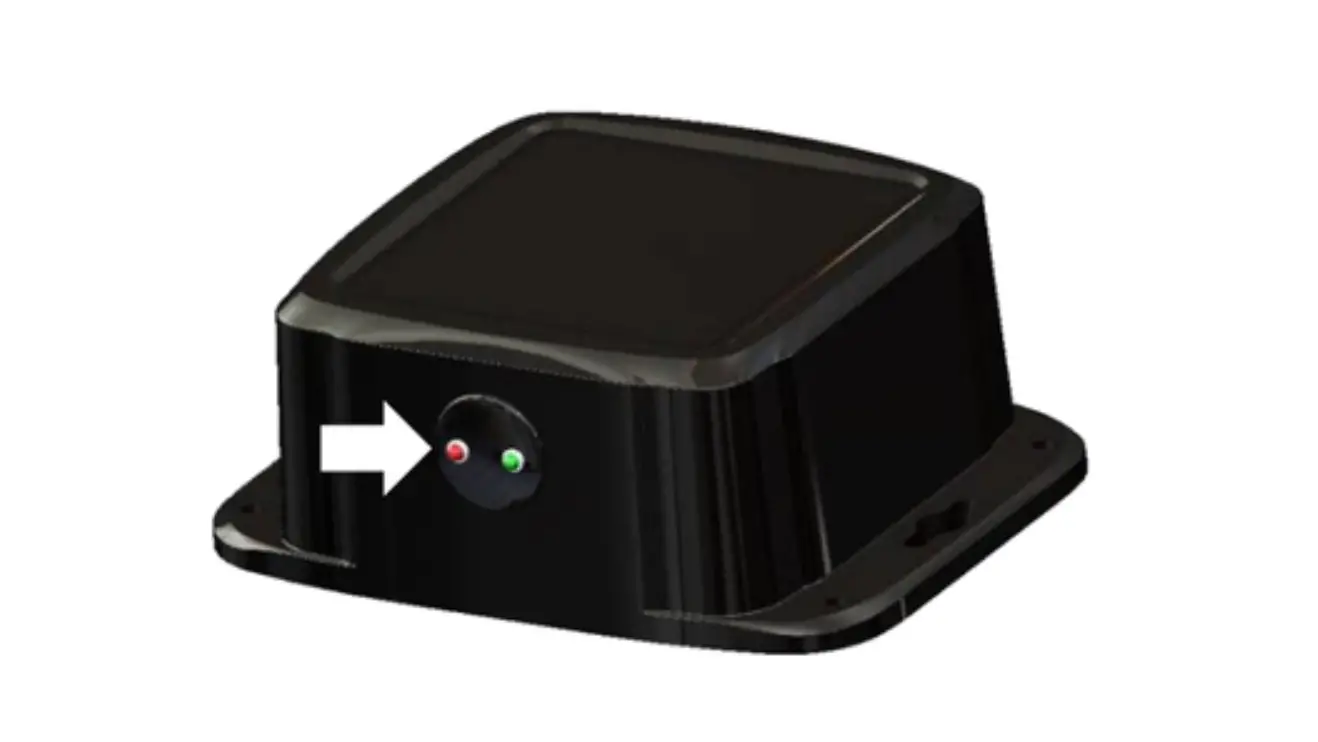
Pre-2020 applicators equipped with Bluetooth receivers (030-6672B) are now equipped with lights to indicate both power and Hay App connection on the Apple iPad. Clean light regularly
Blinking Lights – The system is waiting for the processor to connect, which could take up to 35 seconds.
Red Light – The Bluetooth receiver has power
Green Light – The Bluetooth receiver is connected to the Hay App. 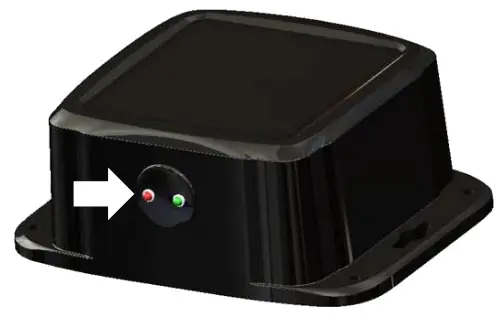
300 Series Applicators with serial numbers before THS07000 will require the THS to be sent to Harvest
Tec for a required update in order to use the iPad Integration Module (030-6670C).
Hay App version must be at least 2.7.1 (or higher) to operate with the iPad Integration Module (030-6672C)
*Made for Apple iPad badge
Use of the Made for Apple iPad badge means that an accessory has been designed to connect specifically to the Apple product(s) identified in the badge and has been certified by the developer to meet Apple performance standards. Apple is not responsible for the operation of this device or its compliance with safety and regulatory standards.
Please note that the use of this accessory with an Apple product may affect wireless performance.
Shutting Down the Hay App
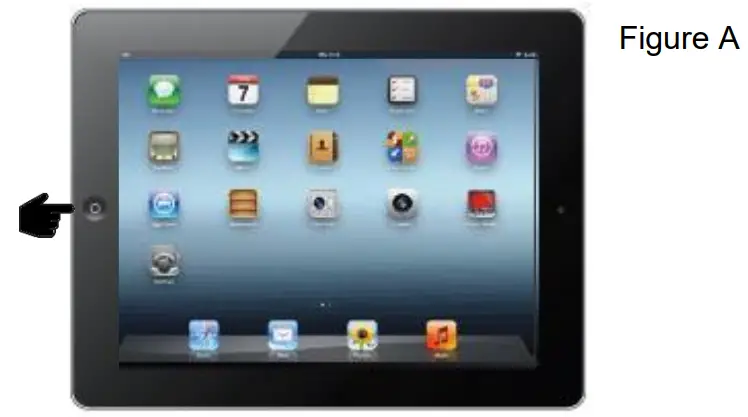
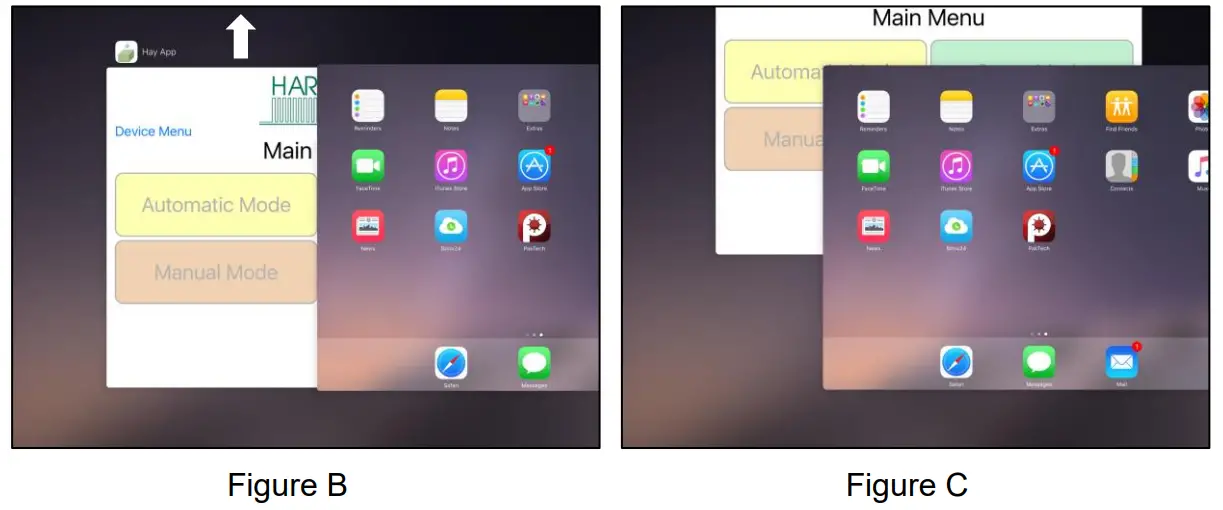
- To shut down the Hay App double-click the home button (Figure A). This will show the open apps that are running on your iPad (Figure B).
*Note: By pressing the home button one time to return to the home screen, the Hay App does not shut down. The system will, however, stop applying preservatives after 10 seconds.
- Slide the app you want to shut down by sliding the app toward the top of the iPad until the app is no longer visible (Figure C).
Operating the Harvest Tec iPad App
When ready to operate your applicator system, open the Hay App on the iPad by selecting the Hay App icon.
Device Selection
The app will open to the Device Menu screen as shown below.
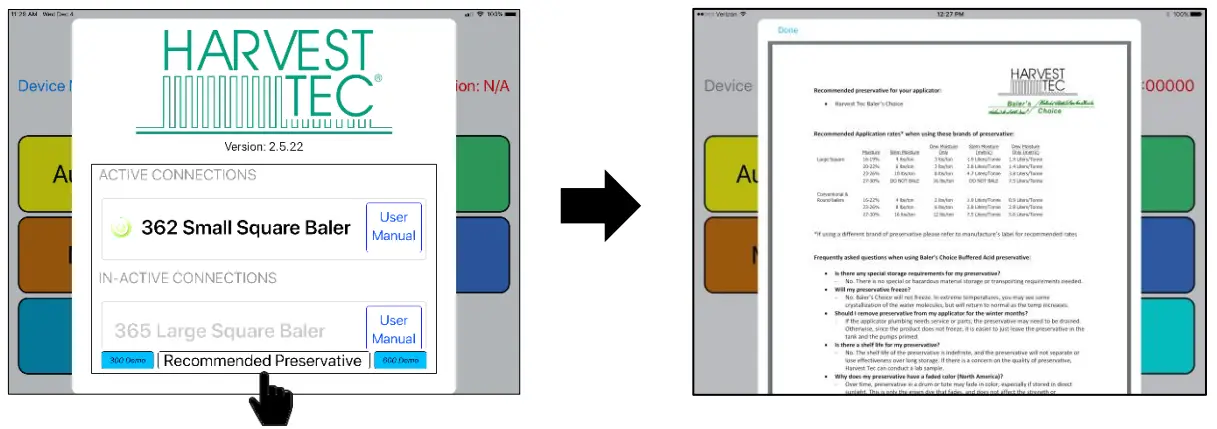
Pre-2020 applicators which are equipped with the Bluetooth receiver (030-6672B) that are within range (20’) of the iPad and have power going to them, will be shown under the Active Connections section (below) after the initial startup of the system (35-45 seconds).
The production year 2020 applicator systems and beyond will include the iPad Integration Module 030-6672C, shown on the previous page. When plugging in the iPad cord to the module the app will change to the applicator Main Menu for immediate operation. Unplug the cord to return to the Device Menu page.
*Hay App version must be at least 2.7.1 (or higher) to operate with the iPad Integration Module (030-6672C
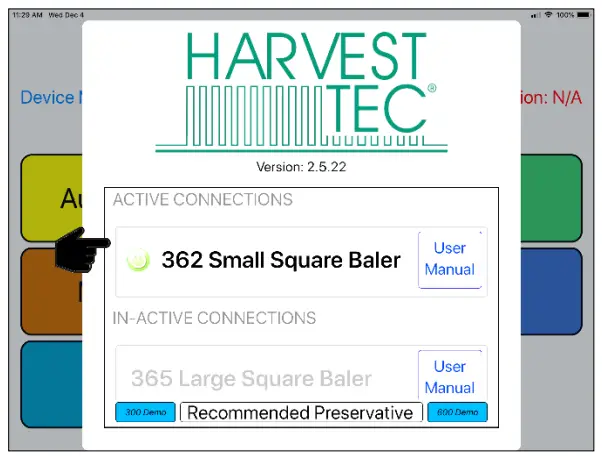
After the iPad connects to the Bluetooth receiver, select the applicator you want to connect with.
The In-Active Connections section will show applicator systems that have been connected in the past but are not within range of the iPad or do not currently have power going to them (bottom left).
To remove a baler from the In-Active list, slide the bar displaying the baler name to the left, and select the Delete button that will appear (bottom right). 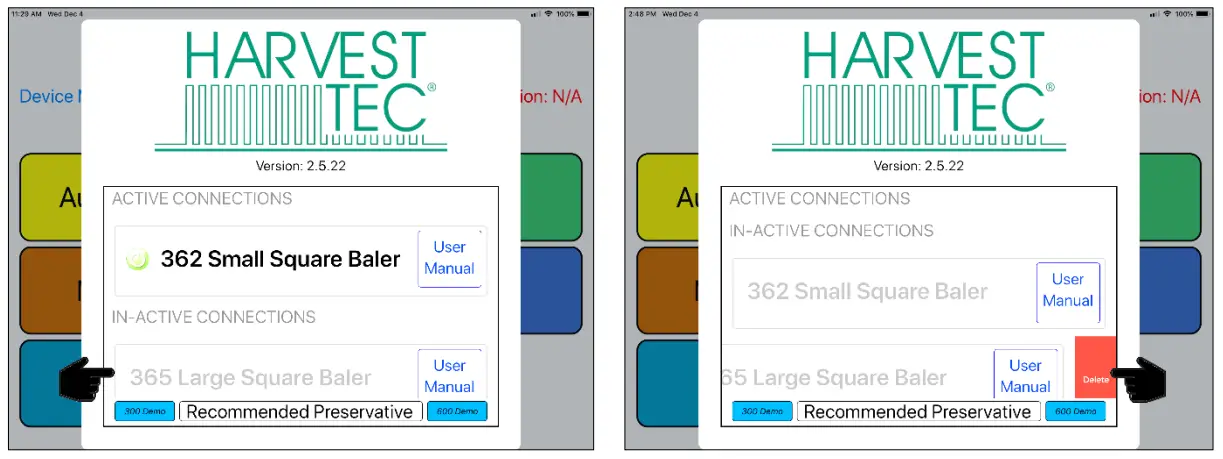
Operating the Harvest Tec iPad App (continued)
Demo Mode
Selecting the 300 Demo or 600 Demo button (below) will allow you to view the different screens of the applicator without requiring a connection to an applicator system.
*This function is intended to be used as a visual aid, no values will be displayed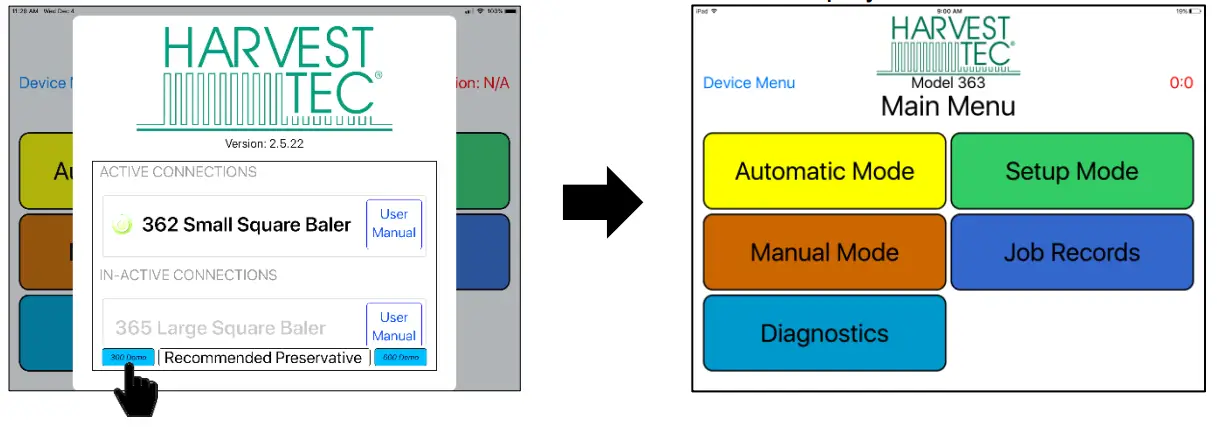
Manual Selection
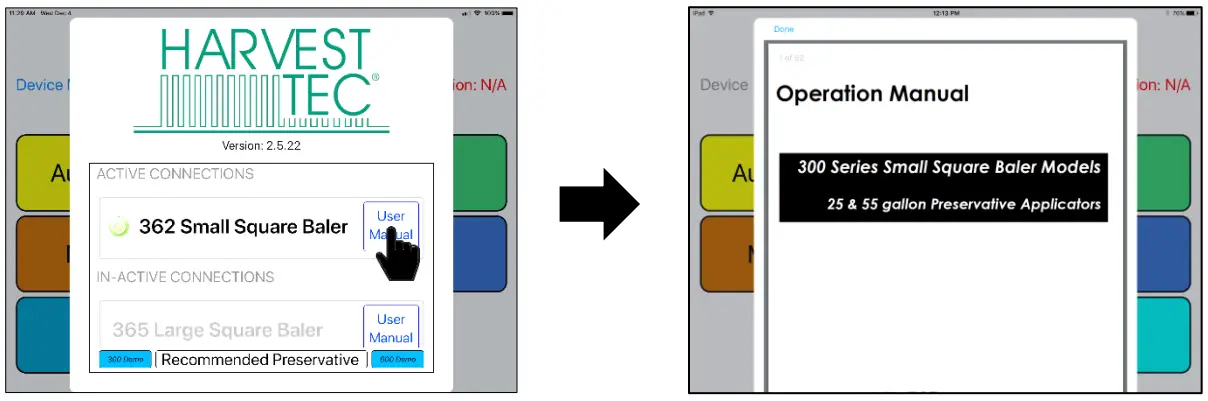
Selecting the Manual button (below) displayed to the right of the baler name will open the operation manual for your baler.
*You do not need to be connected to a baler to open the manual and recommended preservative tabs after a baler has been connected.
Recommended Preservative
To view recommended preservative information, application rates, and frequently asked preservative questions, select Recommended Preservative (below)
Operating the Harvest Tec iPad App (continued)
Once you have selected the baler you want to connect with from the Device Menu, the applicator main menu will display (below).
Ensure the iPad Bluetooth function is turned on in the Settings App.
*The applicator system will not appear under the Bluetooth Devices in the Settings App upon initial connection.
You must open the Hay App to view the available devices by selecting the Device Menu. After you have connected through the Hay App, the system will then appear under the Bluetooth Devices in the Settings App.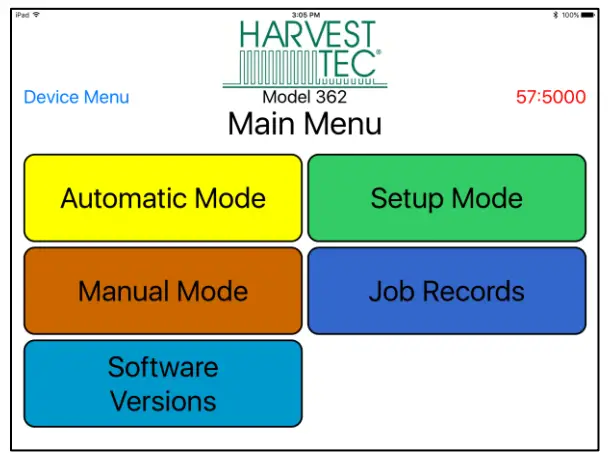
Tab Descriptions
Automatic Mode: This mode allows you to use all of the applicator features such as adjusting preservative application on the go and counting the total pounds of product used.
Manual Mode: This allows the operator to manually turn the pump on and off. This model also has moisture content displayed. Use this mode to prime the pump.
Software Versions: This will allow you to view the current software versions running on the applicator.
Setup Mode: This mode allows the operator to adjust bale rate, application rate settings, and select tip output.
Job Records: Keep track of up to 300 jobs with the total product used, average moisture content, tons baled, and baling date.
Device Menu: This button will take you back to the Device Menu to select an applicator to connect with.
Screen Menus
Use the screenshots below to navigate through the operation screens.
Automatic Mode
Manual Mode
Operation Note:
Pressing the Home Button on the iPad WILL NOT stop the application of the Harvest Tec System (see below):
Select  to stop the application
*To close the app see the Shutting Down Hay App Section
Setup Mode
Job Records
Software Versions
First Time and Annual Startup Instructions
THE UNIT MUST BE CHECKED OUT BEFORE FIELD OPERATION!
Check and Prime the Pumps
- Put 10 gals (5L) of water or preservative in the tank and turn the main ball valve on.
- Inspect for any leaks or drips at this time. If any are found tighten or replace the area or fitting.
- Turn the controller on.
- Press the SETUP MODE key. Turn the AVG Bale weight to 100 lbs (45kg), and Time Per Bale to 10 seconds, and turn off the bale rate timer. Press the MAIN MENU key to return to the opening screen.
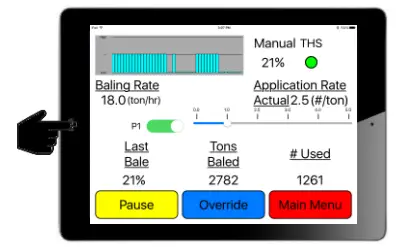
- Press the MANUAL MODE key and the screen shown below will appear.
 *Note: The system comes with the high tips already installed on the spray shield. Test the system with the tips you will use most often.
 - Turn the pump on (P1). To turn the pump on slide the button next to P1 to the right. This will turn the bar next to P1 green, indicating the pump is on.
- Set the pump output to setting 1.0.
- Move the pump output settings to 2.0, 3.0, 4.0, and 5.0. With the baling rate set at 18 tons/hr, the application rate actual reading should be
Testing Liquid Tips Level 1.0 #/Ton (L) Level 2.0 #/Ton(L) Level 3.0 #/Ton(L) Level 4.0 #/Ton(L) Level 5.0 #/Ton(L) Water Low 2.8-3.3 (1.2-1.4) 3.6-4.2 (1.5-1.8) 4.6-5.4 (2.0-2.3) 5.8-6.8 (2.5-2.9) 8.2-9.7 (3.5-4.1) Water High 3.4-4.0 (1.5-1.7) 6.1-7.1 (2.6-3.1) 9.5-11.2 (4.1-4.8) 14.6-17.2 (6.3-7.4) 17.7-20.8 (7.6-8.9) Preservative Low 1.4-1.6 (.6-.7) 2.7-3.1 (1.1-1.3) 3.8-4.5 (1.6-1.9) 5.1-6.0 (2.2-2.6) 6.4-7.5 (2.7-3.2) Preservative High 1.9-2.3 (.8-1.0) 4.7-5.5 (2.0-2.4) 8.4-9.8 (3.6-4.2) 13.3-15.6 (5.7-6.7) 18.1-21.3 (7.8-9.1) - This process will also be used to prime the pump whenever needed.
- While running the pump check for a good spray pattern out of the respective tips and verify that no parts of the system are leaking.
- While doing these tests the Volume Used on the bottom of the screen will be increasing, this verifies that the flow meter is functioning.
- The THS (Three Hundred Series) button displays your connection signal with the Bluetooth receiver. Green
– THS is connected, Yellow – THS is connecting, Red – THS not connected. - Press the main menu to return to the initial startup screen. Go to Setup Mode, select Baling Rate Setup and reset your Avg Bale Weight, the time per bale, and turn the Bale Rate Timer on.
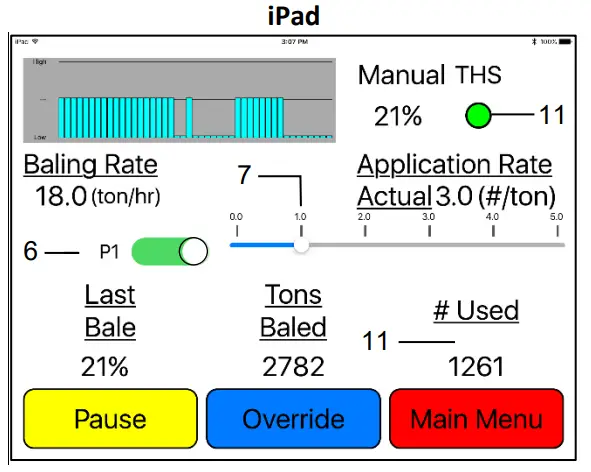 *Note: The system comes with the high tips already installed on the spray shield. Test the system with the tips you will use most often.
Setting Up the System for initial use with the iPad
In this mode, you will set up your initial application rate and baling rate.
Application Rate
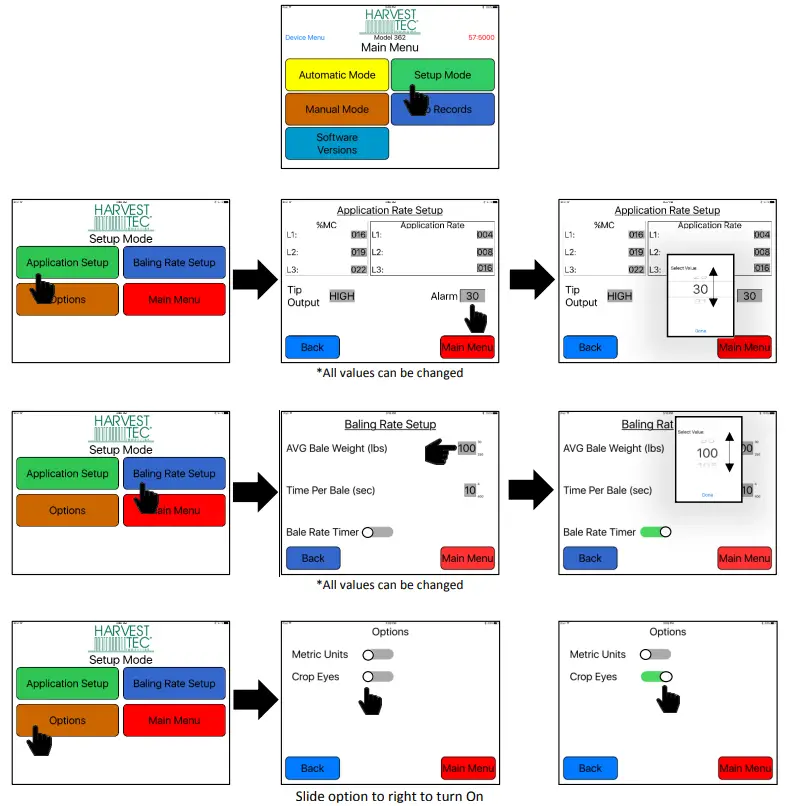
After pushing the SETUP MODE key in the Main Menu screen, the top left screen will appear
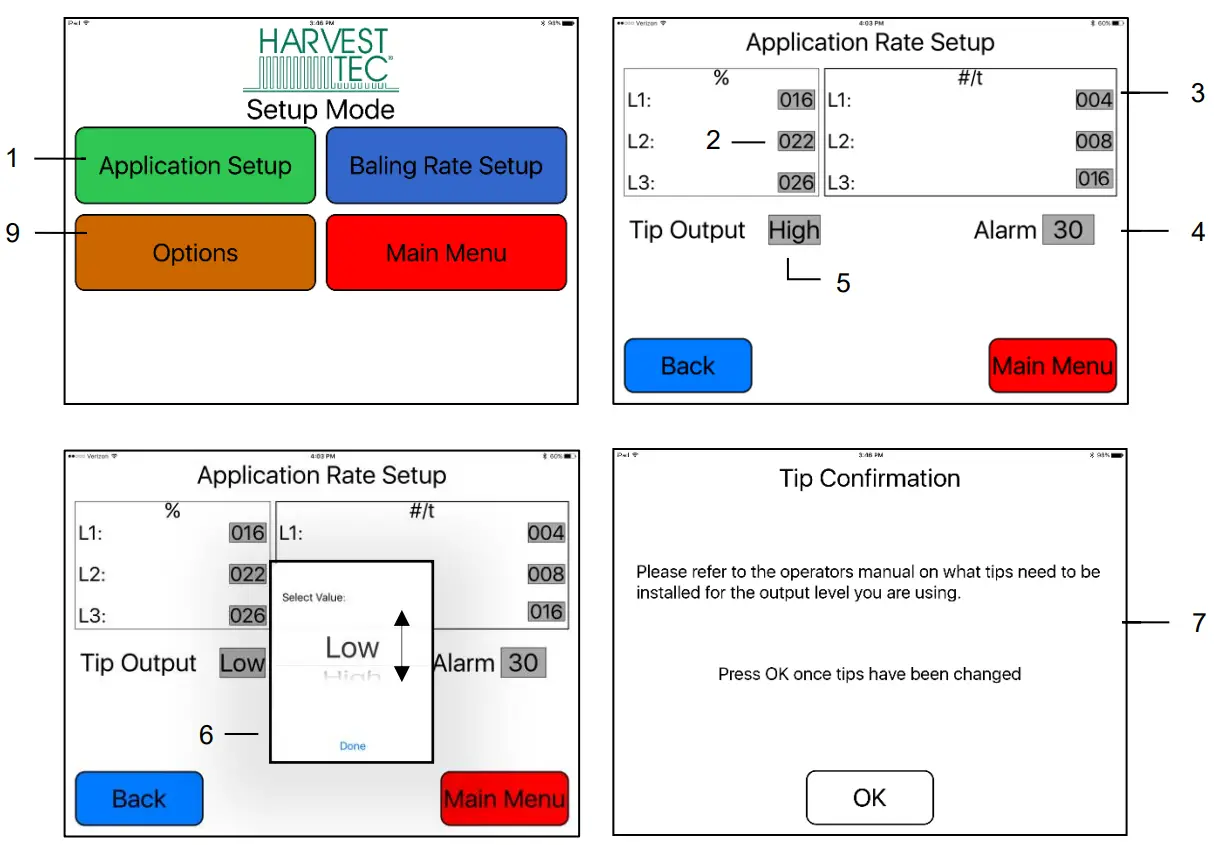
- On the Setup Mode screen press the APPLICATION RATE key. Once selected the SETUP APPLICATION The RATE screen will be shown. (Top right picture)
- Press any of the grey number values to the right of %MC to adjust their figures. The scroll pad shown on the bottom left will display. Remember level 1 must be lower than level 2 and level 2 must be lower than level 3. Press Done, when the value has been selected. Harvest Tec products recommend set points of 16, 22, and 26 % MC levels. These are preset from the factory. Press Back to return.
- To change the rate of chemical application, press any of the grey number values to the right of RATE.
Remember level 1 must be lower than level 2 and level 2 must be lower than level 3. Press Done, when the value has been selected. Harvest Tec products recommend rates of 4, 8, and 16 lbs/ton (2,3,8 L/MT). These rates are preset from the factory. Press Back to return to the previous screen. IT IS THE OPERATOR’S RESPONSIBILITY TO FOLLOW THE RECOMMENDATIONS OF THE PRESERVATIVE. ONLY THE OPERATOR CAN APPLY THE PROPER RATE. - To set the alarm, press the grey number value and set the level at which you want the alarm to activate. Turn the alarm off, and set the level above 50.
- Press the grey area next to Tip Output to cycle between the high and low sets of tips. Use the correct tip set for the field conditions.
- The menu will appear to choose between Low and High Output tips. Based on 4, 8, 16 #/Ton application rates, select the one that best represents your ton/hr rate: Low 3-7 Ton/hr, High 4-25 Ton/hr.
- The tip confirmation screen will appear. Press OK once tips are changed.
- Next press the BACK key found on the bottom left-hand figure of the screen to return to the SETUP MODE screen or press the MAIN MENU key on the bottom right-hand figure of the screen to return to the opening screen.
- Press OPTIONS to adjust the unit between metric and standard units
Baling Rate Settings – Small Square Balers
After pushing the SETUP MODE key in the Main Menu screen, the screen on the left will appear: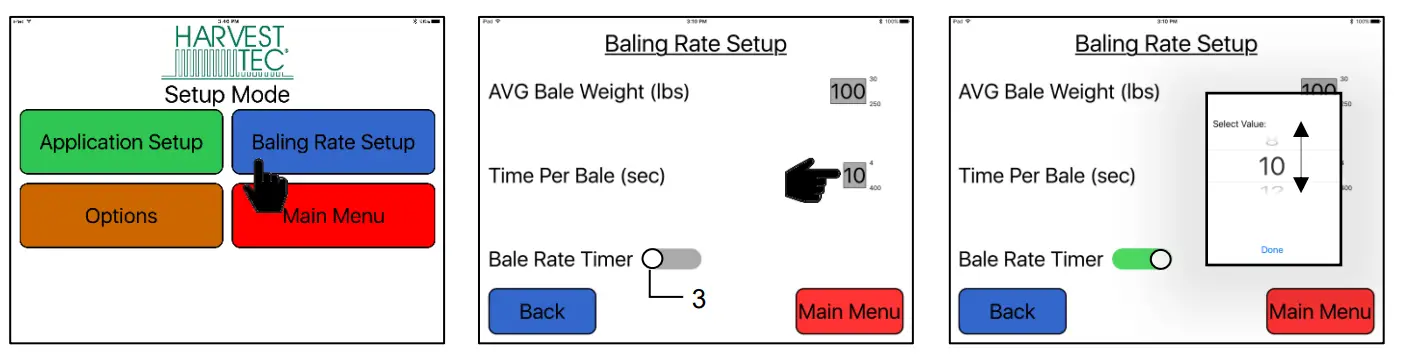
- On the setup mode screen press the BALING RATE SETUP key.
- Press the grey number value to the right of AVG Bale Weight (Lbs). To adjust the weight of your bales, the scroll tool shown on the right will display. Scroll through the values to select correct information, and press DONE when the value has been selected. The information will be saved until updated. Use the same procedure for adjusting time per bale.
- Small square balers are equipped with a Bale Rate Timer which can be turned ON by sliding the bar to the right as shown above. A green bar indicates that the bale rate sensors are on. While a grey bar means the bale rate sensors are off.
Note: Bale rate sensors are used instead of a fixed time per bale to help determine a real-time ton per hour reading. - Press the BACK key found on the bottom left-hand figure of the screen to return to the SETUP MODE screen or press the MAIN MENU key to return to the opening screen.
Operation Instructions
Automatic mode will automatically apply the product based on hay moisture content sensed by the moisture sensors and the operator’s presets. See SETTING UP SYSTEM FOR INITIAL USE to change any settings.
Automatic Mode
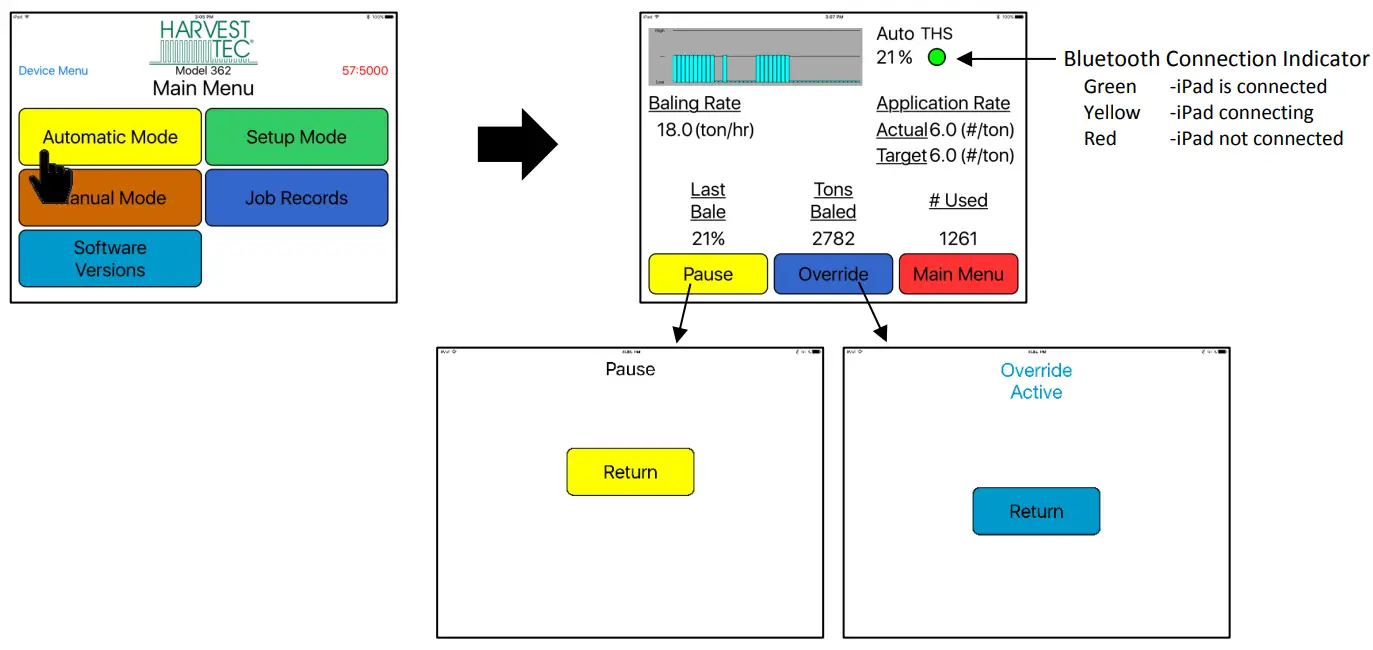
After pushing the AUTOMATIC MODE key in the Main Menu screen, the following screen will appear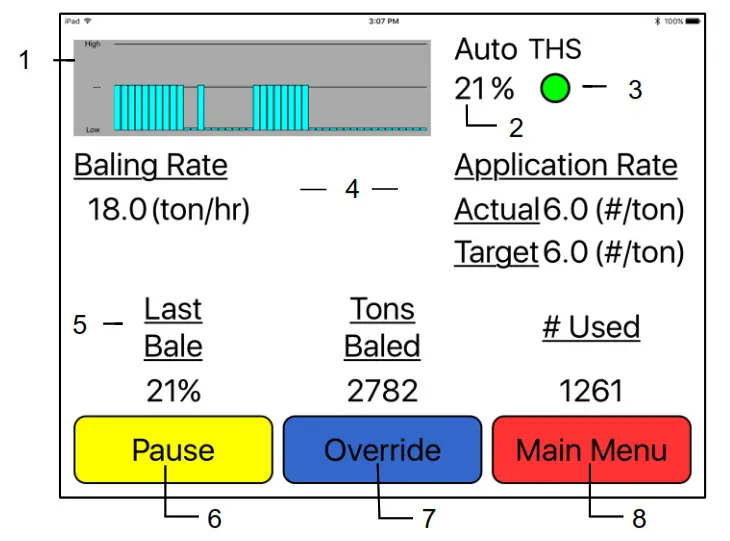
- The graph shows the moisture trend from the past 90 seconds in 3-second intervals.
- The moisture content is shown in the upper right-hand corner.
- The THS (Three Hundred Series) button displays your connection signal with the Bluetooth receiver. Green – THS is connected, Yellow – THS is connecting, Red – THS not connected.
- Baling Rate and Application Rate are shown in the middle of the screen. The operator sets the target application rate and baling rate in the setup mode; the actual rate should be within +/- one pound.
- Last Bale Moisture, Tons Baled, and # Used (pounds used) will show at the bottom of the screen.
These numbers will only reset once a new job record is created.
NOTE: Initial start-up requires pressing the New Job key in the Job Records screen for Volume Used accumulation to be recorded. This only needs to be done once on the initial start-up of the system and not every time. (See JOB RECORDS screen) - To pause the unit while in operation select the Pause key.
- Push the OVERRIDE key to turn the pump for the full output of the system. Use this mode when going through a short area of wet crop.
- Press the MAIN MENU key to return to the opening screen.
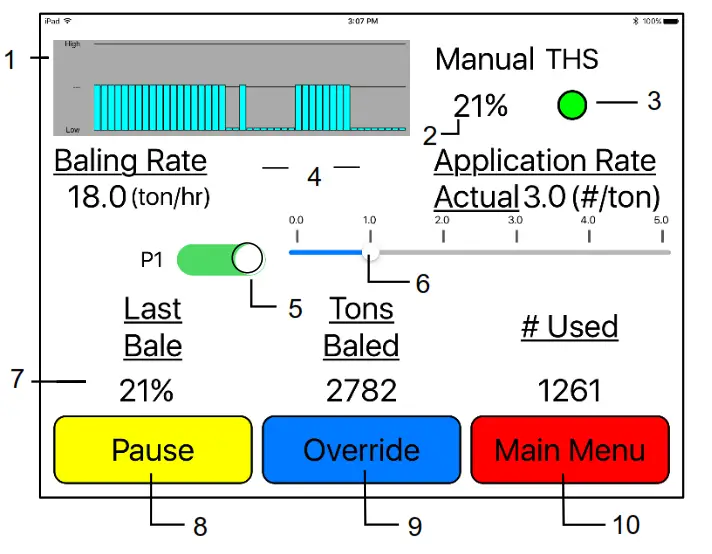
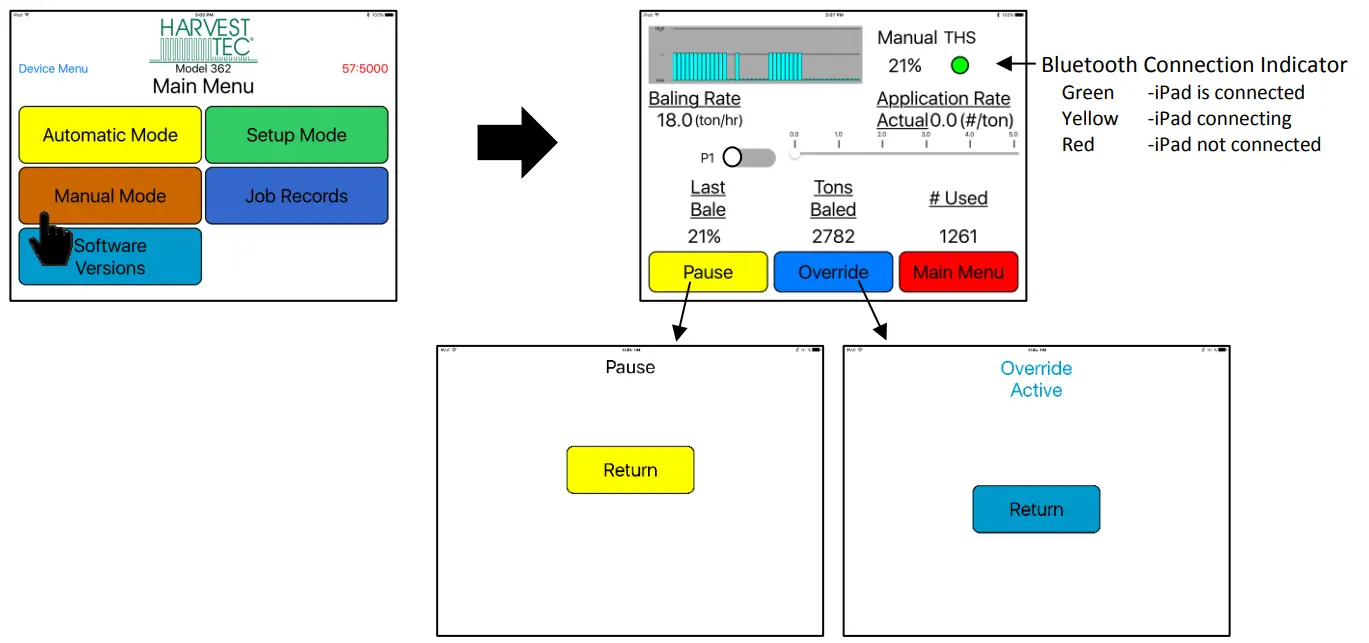
- This graph shows the moisture trend from the last 90 seconds of baling (one every 3 seconds).
- The moisture content is shown in the upper right-hand corner.
- The THS (Three Hundred Series) button displays your connection signal with the Bluetooth receiver.
Green – THS is connected, Yellow – THS is connecting, Red – THS not connected. Pressing the MAIN MENU key to return to the initial startup screen. - Baling rate and Application rate are shown in the middle of the screen.
- To turn the pump on, by moving the slider next to P1, so it shows green. In Manual Mode (regardless of moisture, baling rate, or bale weight) the outputs are fixed rates.
- Slide the pump output button from level 1.0 → 5.0 to increase the amount of preservative being applied.
The application rates are shown below. Pump outputs are considered normal when they are within +/- 8%.Testing Liquid Tips Level 1.0 Lbs/HR (L) Level 2.0 Lbs/HR(L) Level 3.0 Lbs/HR(L) Level 4.0 Lbs/HR (L) Level 5.0 Lbs/HR (L) Water Low 50.9-59.8
(21.8-25.6)65.0-76.3
(27.9-32.7)82.2-96.5
(35.2-41.4)104.6-122.8
(44.8-52.6)148.1-173.9
(63.5-74.5)Water High 61.6-72.4
(26.4-31.0)109.2-128.2
(46.8-54.9)171.4-201.2
(73.5-86.3)263.4-309.2
(112.9-132.6)318.9-374.4
(136.7-160.5)Preservative Low 24.8-29.2
(10.6-12.5)47.8-56.2
(20.5-24.1)69.0-81.0
(29.6-34.7)92.0-108.0
(39.4-46.3)115.0-135.0
(49.3-57.9)Preservative High 35.0-41.0
(15.0-17.6)84.6-99.4
(36.3-42.6)150.9-177.1
(64.7-75.9)239.2-280.8
(102.5-120.4)326.6-383.4
(140.0-164.3) - Last Bale Moisture, Tons Baled, and # Used (pounds used) will show at the bottom of the screen. These numbers will reset once a new job record is created
NOTE: Initial start-up requires pressing the New Job key in the Job Records screen for Volume Used accumulation to be recorded. This only needs to be done once on the initial start-up of the system and not every time. (See JOB RECORDS screen) - To pause the unit during operation, select the Pause key.
- Push the OVERRIDE key to turn on the pump for the full output of the system. Use this mode when going through a short area of wet crop.
- Pressing MAIN MENU will return you to the opening screen.
Job Records
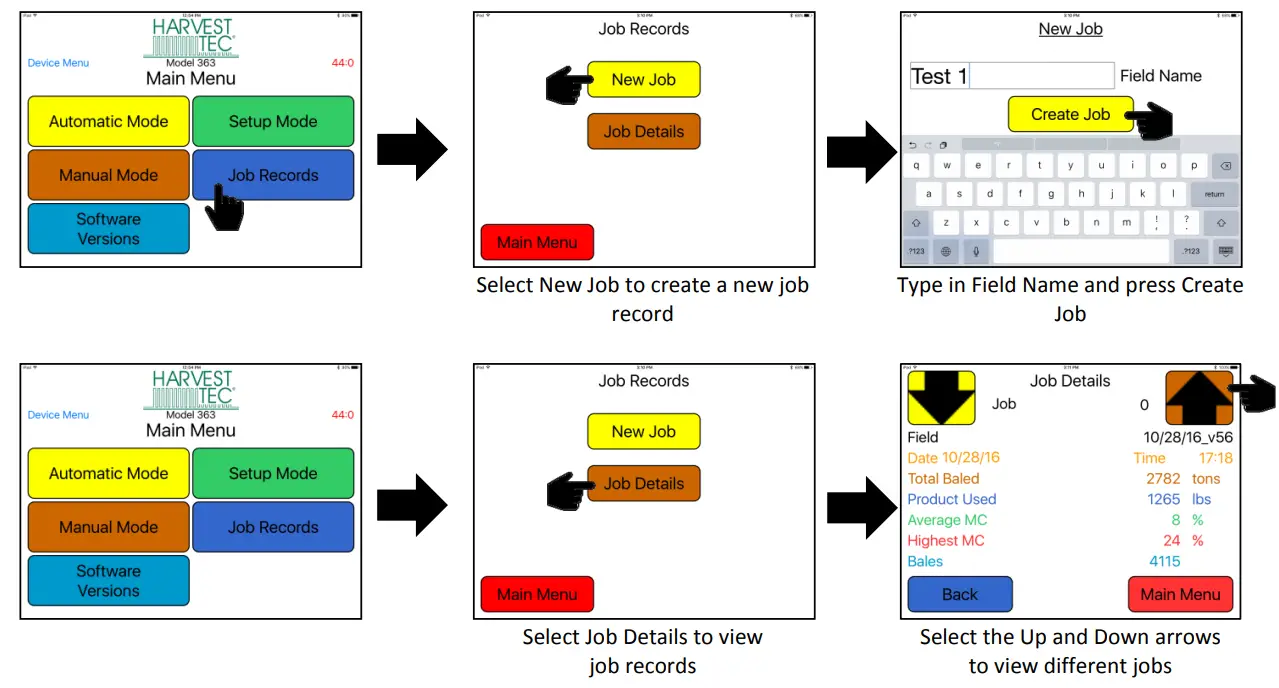
After pushing the JOB RECORDS key in the Main Menu screen, the following screen will appear: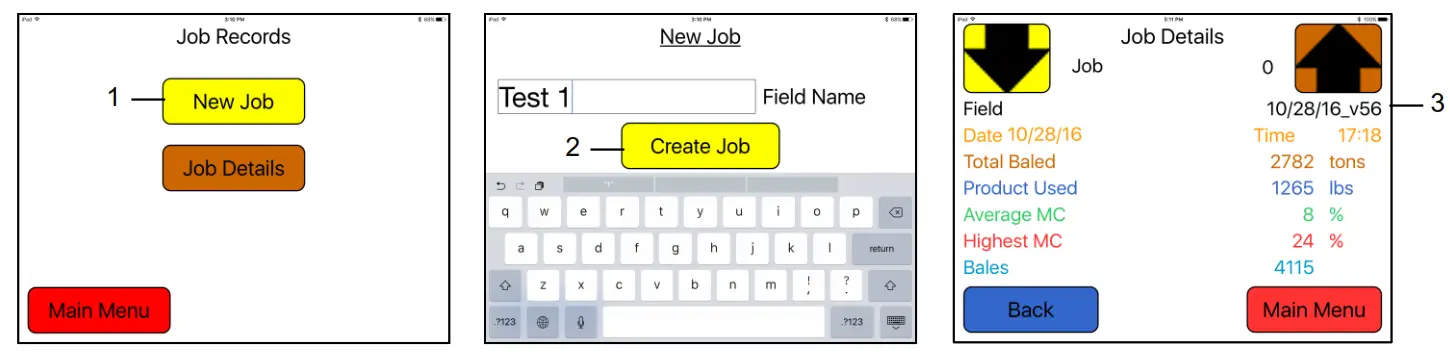
- Select the New Job tab when creating a new job record.
- Type in the desired field name and press Create Job
- The job details screen will appear with the name of the job shown under the up arrow. The information shown on this screen will include Date, Total Baled (tons baled), Product Used, Average Moisture Content, Highest Moisture Content, and Bales.
- Every time the NEW JOB key is pressed the accumulated pounds on auto and manual modes will be reset to zero. After 300 jobs have been stored, the next time the NEW JOB key is pressed the system will start over with job one and the old job will be replaced.
- To return the opening screen, press the MAIN MENU key. NOTE: Initial start-up requires pressing the New Job key in the Job Records screen in order for Volume Used accumulation to be recorded. This only needs to be done once on the initial start-up of the system and not every time the system is started for operation.
Software Versions
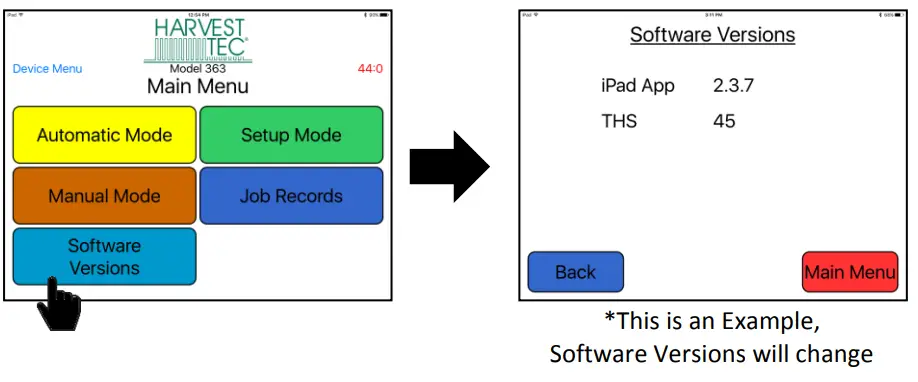
After pushing the Software Versions key in the Main Menu screen, the following screen will appear: 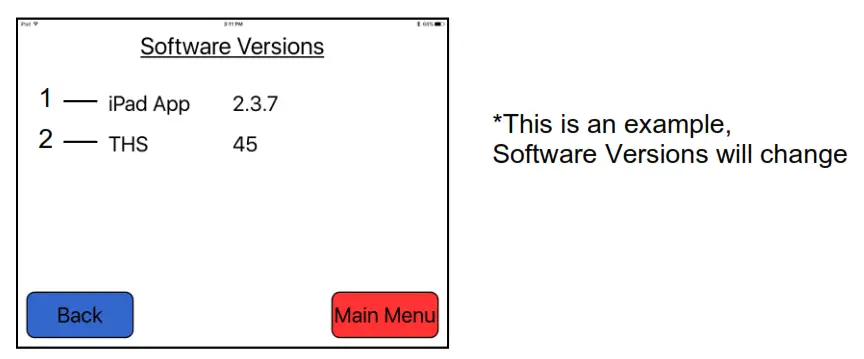
- The first line will show the current version of the Hay App being used on the iPad.
Note: When an update is available, your iPad will prompt you when connected to the internet - The second line will show the current version of software being used on the Three Hundred Series (THS) applicator system.
Note: Any software updates that are available will be shown at: harvesttec.com/product-updates/
Maintenance
If you are unsure how to perform any of the maintenance steps have your local authorized dealer perform the tasks.
Maintenance Schedule
| Daily | 10 hrs | 400 hrs | Weekly | Monthly | Season | |
| Diagnostics | X | X | ||||
| Filter bowl cleaning | X | X | ||||
| Tips & tip screen cleaning | X | X | ||||
| Tank lid cleaning | X | X | ||||
| Dielectric grease connections | X | X | ||||
| Rebuild pump | X | |||||
| Battery connections | X | X | ||||
| Check valves | X | |||||
| Visually inspect hoses | X | X |
Filter bowl cleaning: The filter bowl is located in front of the applicator’s tank and is connected to the ball valve. Before cleaning the filter bowl all personal protective equipment must be worn (Face shield or goggles, chemically resistant apron, boots, and gloves).
Verify that the ball valve located next to the pump is turned off. Locate the filter bowl on the side of the pump manifold (A). Unscrew the bottom section of the filter bowl and remove the strainer (B). Clean off any debris and soak in warm water with mild soap if necessary. Once the screen is clean reinstall it by following the directions in reverse. 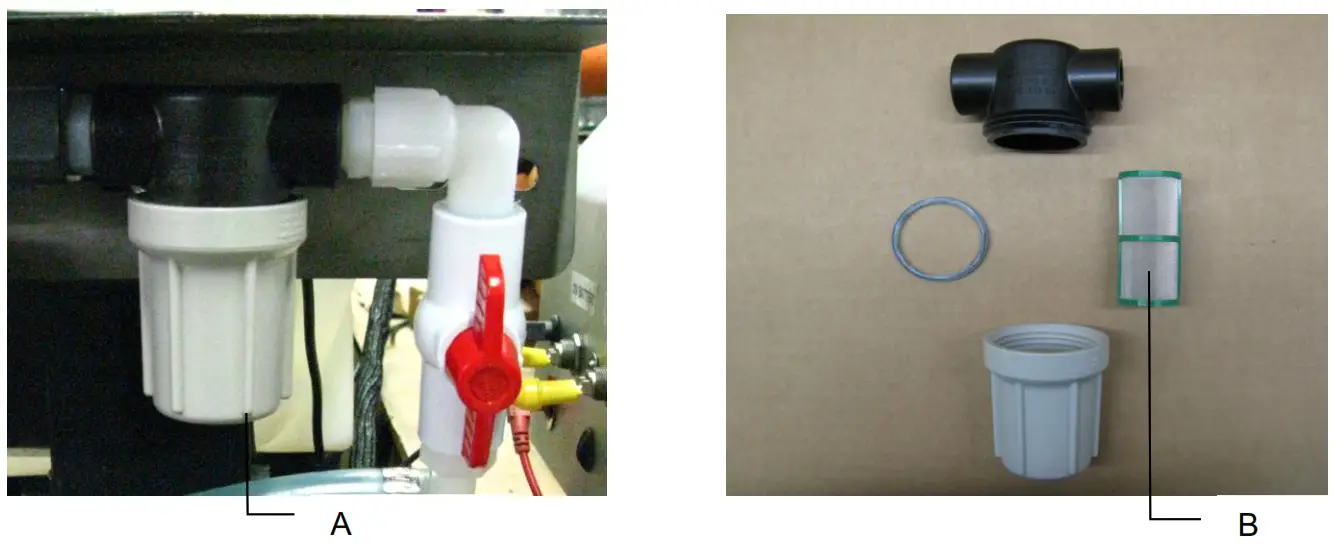
Tips & tip screen cleaning: Before cleaning the tips and screens all personal protective equipment must be worn (Face shield or goggles, chemically resistant apron, boots, and gloves).
Verify that the ball valve located next to the pump is turned off. Disconnect spray shield from hangers if possible or remove tips in place. Remove the tip, and screen if equipped. Some models may require a wrench to remove. Clean off any debris and soak the tip and screen in warm water with mild soap if necessary. Once the tips and screens are cleaned reinstall by following the directions in reverse.
Tank lid cleaning: Before cleaning the tank lid all personal protective equipment must be worn (Face shield or goggles, chemically resistant apron, boots, and gloves).
The tank lid is located on the top of the tank. Unscrew the tank lid and bring it down to ground level. Use compressed air to clean out the tank screen (D). If the screen cannot be thoroughly cleaned with compressed air, replace the fitting (005-9022B3). Once the screen is cleaned reinstall the cover. 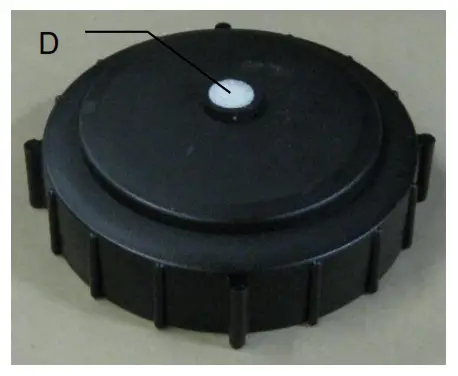
Dielectric grease connections: Disconnect all harnesses on the applicator, clean the connections, and repack with dielectric grease.
Rebuild pump: If Manual mode shows that the pump is running lower than normal, a pump rebuild may be necessary. To do this rebuild the pump must be removed from the pump manifold. Pump rebuild is part no. 007-4581. A service pack that includes pump rebuilds and check valves is available from your local dealer.
Verify that the ball valve is turned off. Before working around the pumps all personal protective equipment must be worn (Face shield or goggles, chemically resistant apron, boots, and gloves). Remove the pump from the manifold.
Follow rebuild instructions supplied with the pump rebuild kit. Reinstall after the rebuild is complete.
Battery connections: Follow the battery safety warnings and clean the battery connections. If the connections cannot be cleaned, replace the harness.
Solenoid Valves: Before servicing the solenoid, all personal protective equipment must be worn (Face shield or goggles, chemically resistant apron, boots, and gloves), the inlet side of the solenoid could be under pressure Clean the solenoid valve body (004-1207VF).
Verify the ball valve is turned off before servicing the solenoid. Replace the solenoid if needed (002-2203F).
Miscellaneous maintenance:
- Depending on the product being used, the system may need to be flushed with water at a regular interval (consult with the manufacturer of the chemical.) If Harvest Tec product is being used, flushing is not necessary.
- Although the pump can run dry, extended operation of a dry pump will increase wear. Watch the preservative level in the tank.
- If you are using bacterial inoculants, flush your system daily after every use.
Winter Storage
- Thoroughly flush the system with water.
- Remove the filter bowl and run dry until the water has cleared out of the intake side.
- Drain all lines on the outlet side.
- Never use oils or alcohol-based anti-freeze in the system.
- For spring start-up, if the pump is frozen, turn off the power immediately to avoid burning the motor or damaging the circuit board. The pump head can be disassembled and freed or rebuilt in most cases.
- Disconnect power from the Three Hundred Series (THS) Control Box.
- Remove display from tractor and store in a warm, dry place.
Wiring Diagram – 344, 345, 350, 351
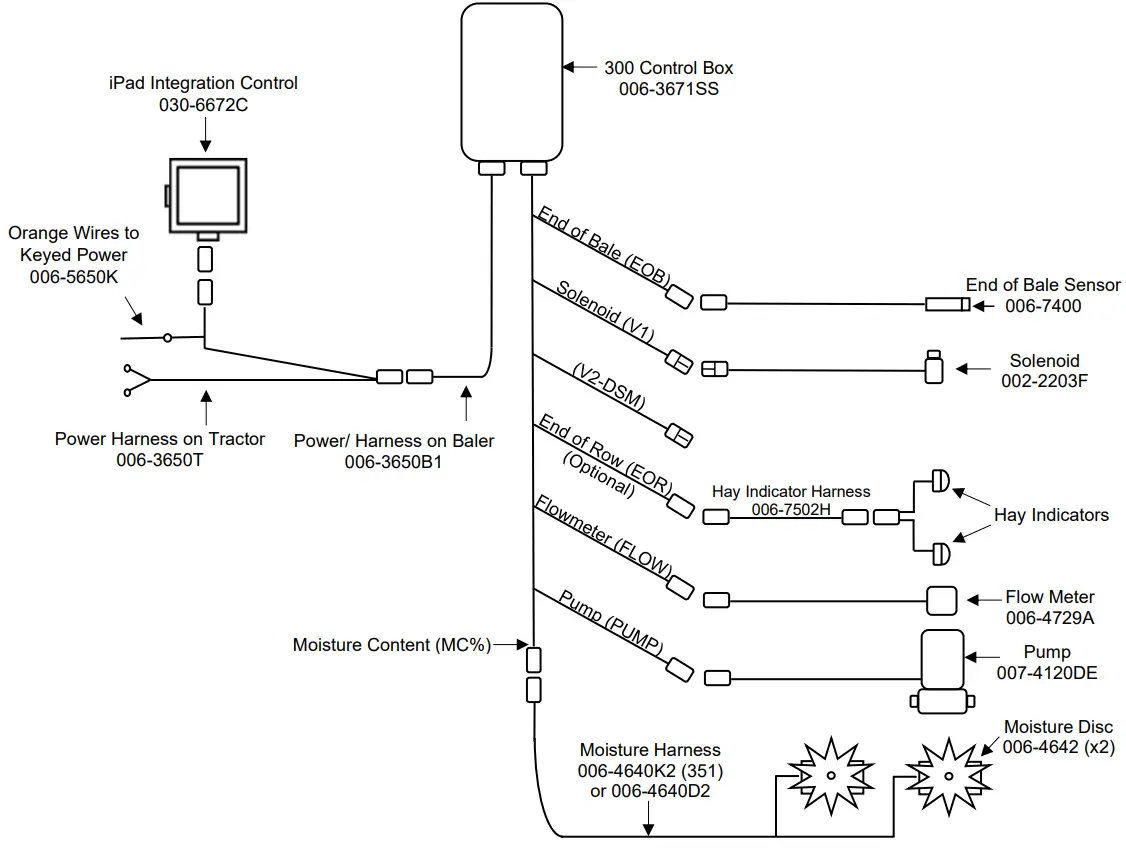
- Connect the power harness (006-3650T) to the tractor battery (12 volts) using the red wire with fuse to the positive side and the black wire to the negative.
A. The power harness must be connected to the battery! The unit will draw more amps than convenience outlets can handle. Any modifications to the power harness will void the system’s warranty. CONTACT HARVEST TEC BEFORE MODIFICATIONS.
B. This unit will not function on positive ground tractors.
C. If the unit loses power while operating it will not keep track of accumulated pounds of product used. - The power harness on the tractor (006-3650T) will run from the tractor battery to the hitch. The power harness on the baler (006-3650B1) will connect to the tractor power harness (006-3650T) at the hitch.
- Connect the keyed power wire (006-5650K) to a keyed power source on the tractor. The keyed power wire must connect to a keyed source or the unit will not power up correctly.
- Attached is the iPad Integration Control (030-6672C) to the tractor power harness (006-3650T).
- Attach the End of Bale (EOB) connection on the controller to the End of Baler Sensor (006-7400).
- Attach the Solenoid (V1) (Delphi connector) connection on the controller to the wire from the solenoid (002-2203F).
Note: If the solenoid is connected to a V2-DSM (not used) connection, the solenoid will not work. - Attach the Flowmeter (FLOW) connection on the controller to the flowmeter (006-4729A).
A. Attach the spade connectors on the FLOW harness to the Pump (007-4120DE).
System wiring diagram
| Harness | Color |
| ROB | Brown |
| V1 | White (Delphi Connector) |
| MORE | Yellow |
| FLOW | White |
| V2-DSM | White (Delphi Connector) |
| Pump | Orange |
Common Questions
- How do I turn the system on/off?
To turn the system ON open the Hay App, then select the active system for the baler you are using.
To turn the system OFF click the Main Menu screen. To close the app double-click the home button on the iPad and swipe the app that you would like closed, toward the top of the screen until it is no longer visible. See SHUTTING DOWN THE HAY APP for more details. - How to get in the LBS/TON, MC%, and TONS/HR screens?
In the Main Menu press the SETUP MODE key. From this screen you can change your application rates and how much product is applied. See SETTING UP FOR INITIAL USE for a detailed explanation of this process. - The unit is stuck in the Application Rate screen.
In the Application Rate screen, level 1 must be less than level 2, and level 2 must be less than level 3. For example, if level 1 is set at 16, level 2 must be set at 17 or higher, and level 3 must be set higher than level 2. - How does OVERRIDE work?
Override turns on the pump and opens the solenoid for full output. The pump and solenoid will remain at full output until the operator turns the pump off by pressing the OVERRIDE key again. - The flow meter reading is more or less than the programmed level set in the box.
Some variation in flow meter readings compared to the programmed set point is normal due to factory tolerances on the pump motor as well as varying tractor voltages inputted to the control box. The flow meter reading is an accurate measure of how much product is being applied. The set points then will need to be adjusted if you want to attain a different flow meter reading. - The moisture content displays “LO” or “HI” all the time.
When the moisture content display does not change frequently while baling, there is likely a faulty star wheel connection. Initially check inside the white star wheel block, to see if the electronic swivel is in the star wheel shaft and that the star wheel shaft is not coming out of the block. Also, check all star wheel wires and connectors to see if there is a continuity of grounding problem. - Should the battery connections be removed before jump-starting or charging a battery?
Yes. Anytime the tractor will have voltage going up rapidly the connections should be removed. - What is the expected battery life of the iPad when baling?
3.5 hours is the expected amount of time for the battery when continuously baling. Shut off all other applications, wireless internet, and Wi-Fi signals to reduce the number of programs the iPad is running.
It is recommended to use an accessory outlet charger when operating (not included with the iPad).
*Note: Not all chargers are designed to charge an iPad, verify before purchasing. - What is the max distance for connection between the iPad and the Bluetooth Receiver?
Pre-2020 applicators were equipped with Bluetooth receivers (030-6672B). The range for the connection will depend on the amount of equipment (tractor, baler, etc.). The max distance will range between 10’–20’. - What do the lights on the 030-6672B indicate?
Pre-2020 applicators were equipped with Bluetooth receivers (030-6672B) and are now equipped with lights to indicate both power and Hay App connection on the Apple iPad.
Red Light – The Bluetooth receiver has power
Green Light – The Bluetooth receiver is connected to the Hay App.
Troubleshooting
| Problem | Possible cause(s) | Solution(s) |
| The pump will not run. | 1. No voltage to THS. | 1. Check for short, low voltage, and replace fuse if necessary. |
| 2. Pump locked up. | 2. Clean or rebuild pump if motor ok | |
| 3. Damaged wire. | 3. Repair damaged wire. | |
| 4. Damaged solenoid | 4. Replace / Clean | |
| The pump runs but will not prime. | 1. Air leak in intake. | 1. Tighten fittings on the intake side. |
| 2. Clogged intake. | 2. Clean. | |
| 3. Restricted outlet. | 3. Check and clean tips. | |
| 4. Check valve stuck closed. | 4. Clean or repair check valve. | |
| 5. Dirt inside the pump. | 5. Replace the pump check valve. | |
| The pump does not develop enough output. | 1. Air leaks or clogs on the inlet. | 1. Tighten or clean the filter bowl |
| 2. Pump worn or dirty. | 2. Rebuild the pump. | |
| Moisture reading errors (reading high or low) | 1. Wire disconnected or bad the connection between star wheels and THS | 1. Reconnect wire. |
| 2. Low power supply to THS | 2. Check voltage at the box. Min of 12V | |
| 3. Hay over 32% moisture | ||
| 4. Ground contact with one or both star wheels and THS | 4. Reconnect. | |
| 5. Short in the wire between star wheels and THS | 5. Replace wire. | |
| Moisture Reading Erratic | 1. Check all wiring connections for corrosion or poor contact. | 1. Apply dielectric grease to all connections. |
| 2. Check the power supply at the tractor. Voltage should be constant between 12V-14V | 2. Install voltage surge protection on the tractor’s alternator. | |
| The product is less than the actual product used. | 1. Voltage supplied to flow meter is less than 11 volts. | 1. Check for a min of 11 volts supplied at THS. |
| 2. Wiring short in signal to baler mounted processor. | 2. Inspect wire and replace if necessary. | |
| 3. Using products other than Harvest Tec | 3. Catch and weigh a product to check outputs. | |
| The product shown is 10% different than the actual product used. | 1. High voltage supplied to the meter. | 1. Check voltage at THS. Max of 18 volts. |
| 2. Air leak in intake. | 2. Look for air bubbles in the line. Replace the line or another defective area that is allowing air into the system. | |
| 3. Using products other than Harvest Tec | 3. Catch and weigh a product to check outputs. | |
| System leaks product out of tips after shut down. | 1. Dirty or defective solenoid | 1. Clean or Replace. |
| The system does not pause at the end of a row. | 1. Short in the cable. | 1. Replace cable. |
| The solenoid will not pulse | 1. Dirty or plugged solenoid 2. Damaged wire from the control 3. Wire disconnected | 1. Clean or Replace 2. Repair 3. Reattach |
| Bluetooth Receiver lights will not illuminate | 1. Bluetooth receiver not connected 2. Harness disconnected 3. Low power | 1. Check connections and voltage. Minimum 12.5V needed. |
| Red Light – The Bluetooth receiver has power Green Light – When the proper active connection is selected in the Hay App menu, the green light will indicate a connection with the iPad. | ||
iPad Troubleshooting
| iPad Symptom | Troubleshooting |
| iPad won’t turn on | -Turn your iPad off and on. Press and hold the Sleep/Wake button for a few seconds until a red slider appears; then slide it. Press and hold the Sleep/Wake button to turn it on again. |
| -Reset your iPad. Press the “Sleep/Wake” button and the “Home” button simultaneously for at least 10 seconds until the Apple logo appears on the screen. This reset will not damage your files. | |
| -Battery may be drained. Plug the iPad into your computer or AC adapter and see if anything happens. The iPad will recognize it has been connected to a power source and charge its battery. If it will no longer charge, the battery must be swapped with a replacement battery. Battery level displays in the top right corner of the iPad. | |
| Cannot get an active baler connection | -Make sure that your Bluetooth accessory and iOS device are close to each other when connecting. |
| -Make sure that your Bluetooth accessory is on and fully charged or connected to power. If it uses batteries, test them to see if they need to be replaced. | |
| -Restart your Bluetooth receiver, by removing power and reconnecting after 30 seconds. | |
| -Make sure that you have at least a 3rd generation iPad with iOS8 or greater operating system on your iPad | |
| -On your iPad, go to Settings > Bluetooth and make sure that Bluetooth is on. If you can’t turn Bluetooth on or you see a spinning gear, restart your iPad | |
| –Unpair the Bluetooth accessory, put the accessory back in discovery mode, then pair and connect it again. By tapping on its name in the Bluetooth accessories tab and then Forget this Device. In settings, tap on a device’s name, then Unpair. | |
| -Display connector plug and bale rate sensors plug are switched on THS. Switch connections. | |
| -Short in display cable. Replace the cable. | |
| iPad touchscreen is slow or does not respond | -Screen may be dirty. Clean screen. Unplug everything, turn off the iPad and with a soft, lint-free, slightly damp cloth gently wipe the screen. DO NOT use window cleaners and paper towels. |
| -If you have a screen protector sheet, try removing it. | |
| iPad is not charging or is slow to charge | -In order to charge your iPad you can try either connecting your iPad to a power outlet or connecting to a USB 2.0 port on a computer. However, note that computers generally don’t supply enough power to their USB ports to be able to charge an iPad. When this happens, a “Not Charging” message will appear. |
| How can I unlock my iPad if I forgot the passcode? | -If you cannot remember the passcode, you will need to restore your device using the computer with which you last synced. This allows you to reset your passcode and resync the data from the device (or restore it from a backup). If you restore on a different computer that was never synced with the device, you will be able to unlock the device for use and remove the passcode, but your data will not be present. |
| How do I send in my iPad for service? | -Refer to your iPad owner’s manual or contact Apple. DO NOT SEND iPad TO HARVEST TEC. |
| For other issues refer to your iPad Owner’s Manual or contact Apple Directly | |
*Harvest Tec Does Not Service iPads*
Pin Outs
Power Harness 006-3650T at Tractor Hitch
| Pin 1 | Red | +12V Power to BLE |
| Pin 2 | Red | +12V Power to THS |
| Pin 3 | Orange | Keyed Power |
| Pin 4 | Not Used | |
| Pin 5 | Green | HT Can Low |
| Pin 6 | Yellow | HT Can Hi |
| Pin 7 | Not Used | |
| Pin 8 | Black | Ground from BLE |
| Pin 9 | Black | Ground from THS |
| Pin 10 | Not Used |
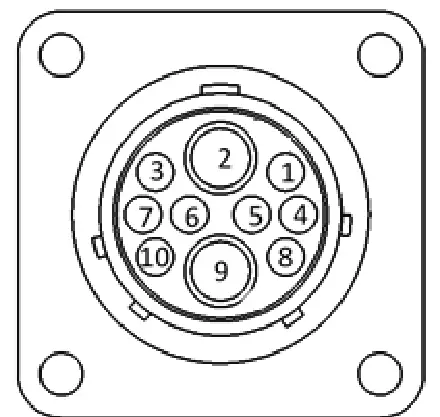
Power Harness 006-3650B1 at Baler Hitch
| Pin 1 | Red | +12V Power to BLE |
| Pin 2 | Red | +12V Power to THS |
| Pin 3 | Orange | Keyed Power |
| Pin 4 | Not Used | |
| Pin 5 | Green | HT Can Low |
| Pin 6 | Yellow | HT Can Hi |
| Pin 7 | Not Used | |
| Pin 8 | Black | Ground from BLE |
| Pin 9 | Black | Ground from THS |
| Pin 10 | Not Used |
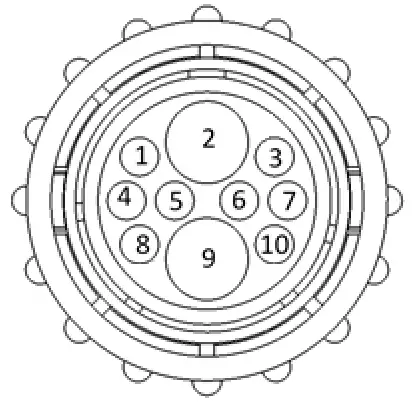
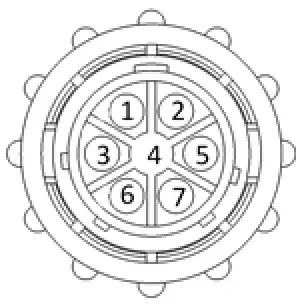
Bluetooth Receiver on Harness 006-3650T
| Pin 1 | Red | +12V Power for BLE |
| Pin 2 | Black | Ground for BLE |
| Pin 3 | Yellow | HT Can Low |
| Pin 4 | Not Used | |
| Pin 5 | Green | HT Can Hi |
| Pin 6 | Not Used | |
| Pin 7 | Not Used |
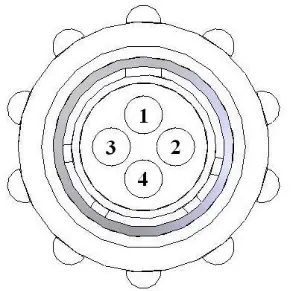
End of Bale Sensor at 300 Controller Harness
| Pin 1 | Brown | Sensor Power |
| Pin 2 | Blue | Sensor Ground |
| Pin 3 | N/A | |
| Pin 4 | Black | Signal from Sensor |
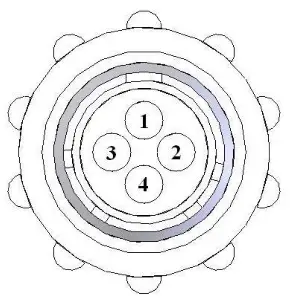
Flow Meter at 300 Controller Harness
| Pin 1 | White | +5-12V Power |
| Pin 2 | Brown | Ground |
| Pin 3 | Green | Signal |
| Pin 4 | Not Used |
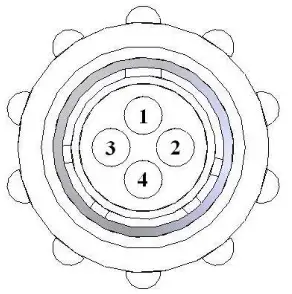
Pin Outs (continued)
End of Row Sensor at 300 Controller Harness
Pin 1 Red/White +12V Power
Pin 2 Black/White Ground
Pin 3 Yellow Signal Pin 4 N/A
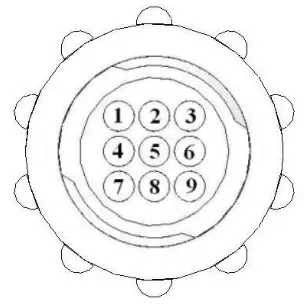
Moisture Sensor connection at 300 Controller Harness
| Pin 1 | Not Used | |
| Pin 2 | Not Used | |
| Pin 3 | Not Used | |
| Pin 4 | Not Used | |
| Pin 5 | Not Used | |
| Pin 6 | Not Used | |
| Pin 7 | Not Used | |
| Pin 8 | Blue | Signal for Sensor 1 |
| Pin 9 | Blue | Signal for Sensor 2 |
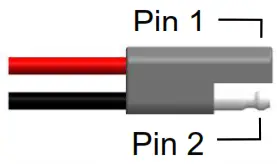
Pump connection at 300 Controller Harness
Pin 1 Red Power to Pump
Pin 2 Black Ground to Pump
Solenoid Connection at 300 Controller Harness
Pin A Black Solenoid Pause
Pin B White Solenoid Ground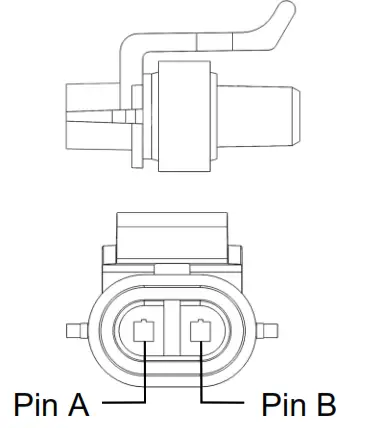
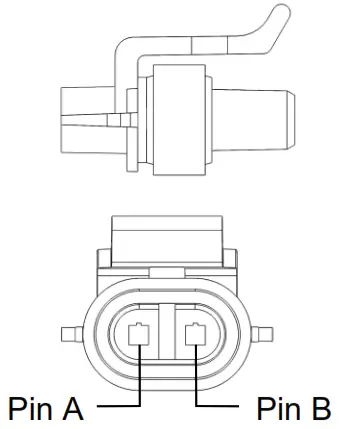
V2-DSM Connection at 300 Controller Harness
Pin A Black Solenoid Pause
Pin B White Solenoid Ground
Parts Breakdown
Model 344 Base Kit
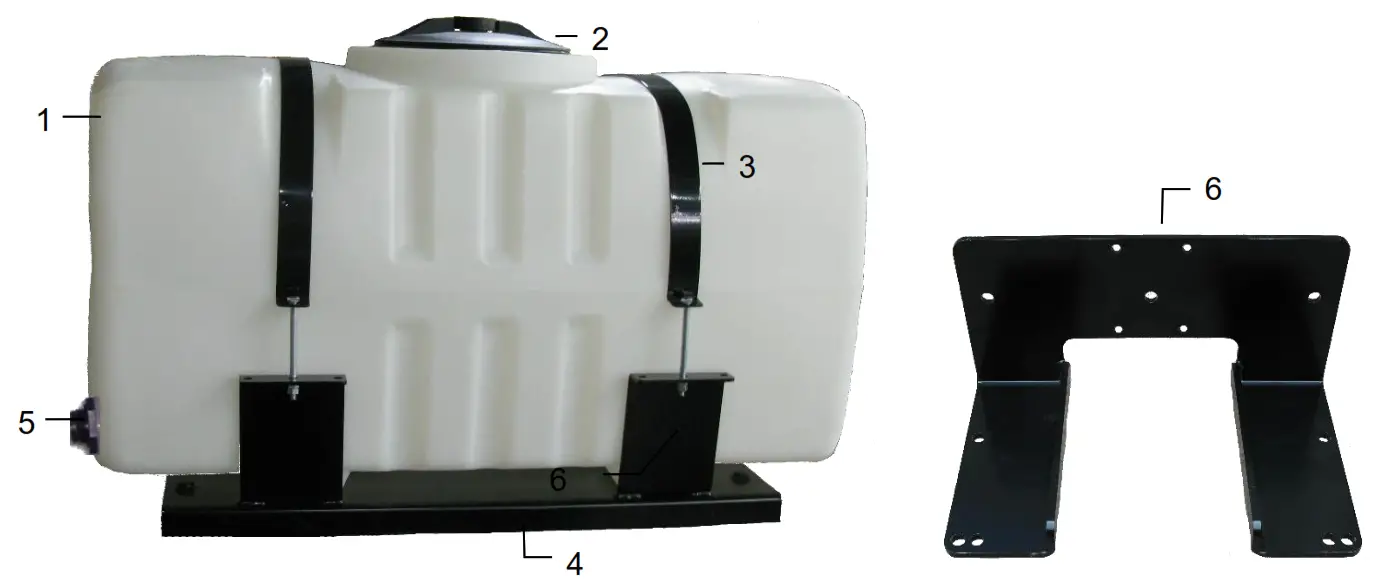
| Ref# | Description | Part # | Qty | Ref# | Description | Part # | Qty |
| 1 | Tank | 005-9203SQ | 1 | 4 | Tank Saddle | 001-4703X | 1 |
| 2 | Tank lid | 005-9022H | 1 | 5 | Tank fitting | 005-9100 | 1 |
| 3 | Tank straps | 001-4402 | 2 | 6 | Pump Plate Mount | 001-4647 | 1 |
| Tank Saddle Kit (1-5) | 030-0432-TK | ||||||
| 4647 Mount Kit (6) | PMP-4647MT |
Model 345 Base Kit
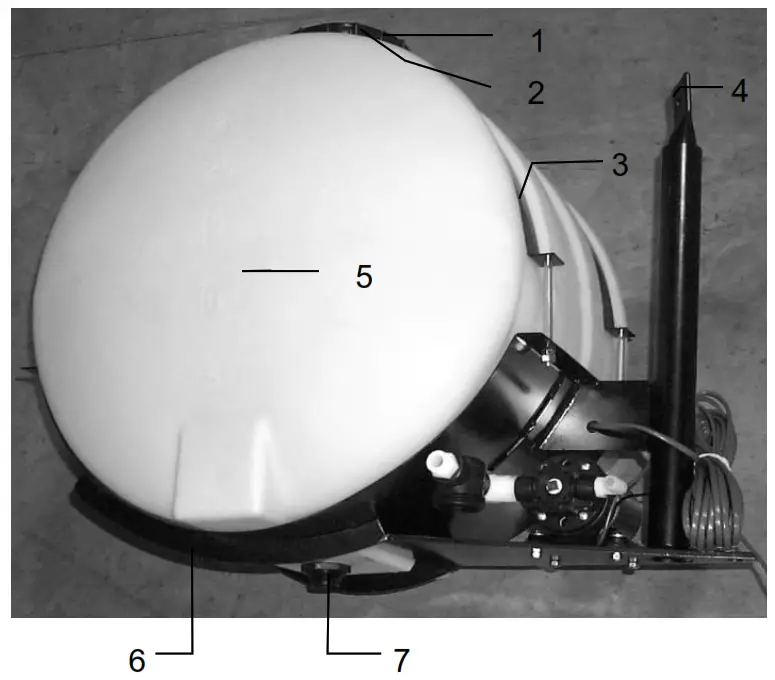
| Ref | Description | Part # | Qty |
| 1 | Tank Cap | 005-9022C | 1 |
| 2 | Tank Cap Gasket | 005-9022CG | 1 |
| 3 | Tank Strap | 001-4402 | 2 |
| 4 | Stub Pipe | 001-4403 | 1 |
| 5 | Tank | 005-9022 | 1 |
| 6 | Saddle | 001-4401 | 1 |
| 7 | Tank Fitting | 005-9100 | 1 |
| *25 Gal Tank Includes Bottom Fitting Only | |||
| Tank Saddle Kit | 030-0441-TK | ||
Model 350 Base Kit
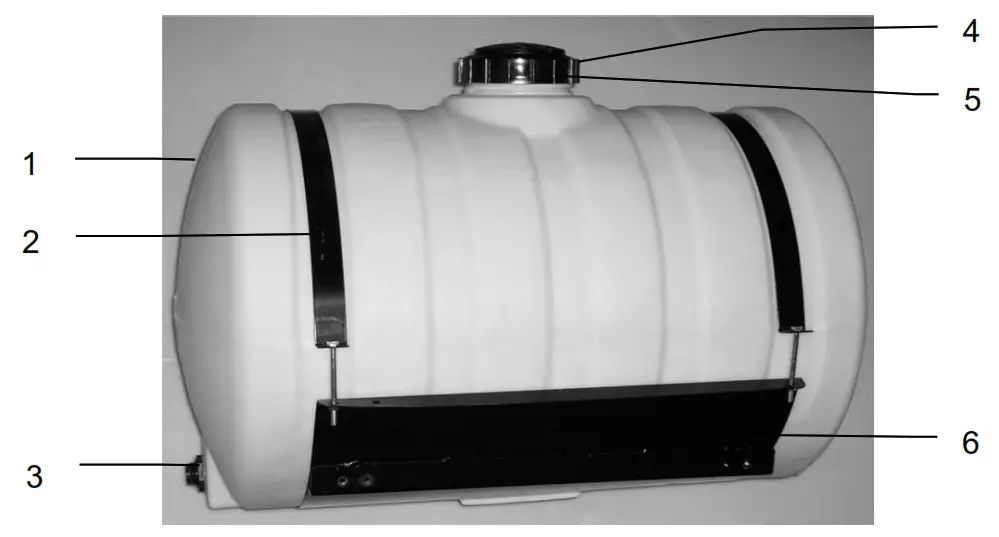
| Ref# | Description | Part # | Qty | Ref# | Description | Part # | Qty |
| 1 | Tank | 005-9203 | 1 | 4 | Tank Cap | 002-9022C | 1 |
| 2 | Straps | 001-4402 | 2 | 5 | Tank Gasket | 002-9022CG | 1 |
| 3 | Tank Fitting | 005-9100 | 1 | 6 | Saddle | 001-4703 | 1 |
| *55 Gal Tank Includes Side Tank Fitting Only | |||||||
| Complete Saddle Kit | 030-0448-TK | ||||||
Model 351 Base Kit
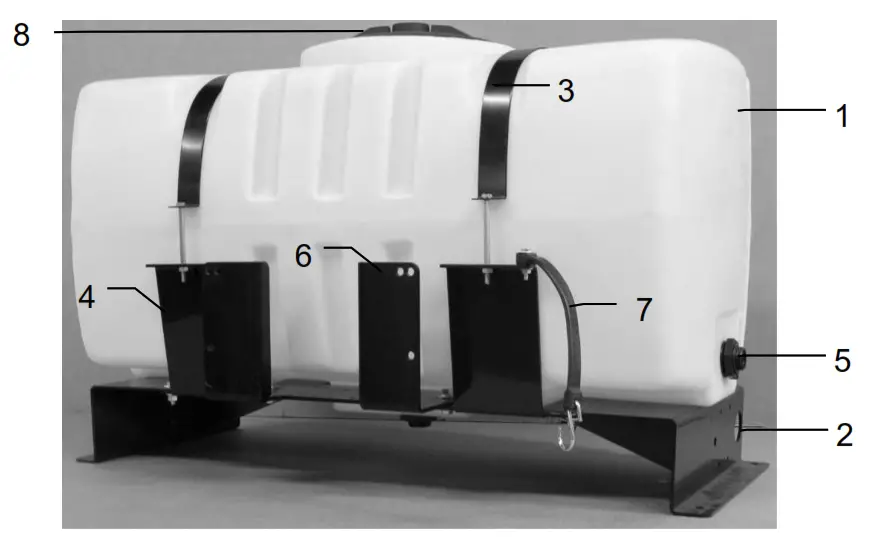
| Ref# | Description | Part # | Qty | Ref# | Description | Part # | Qty |
| 1 | Tank | 005-9203SQ | 1 | 6 | Mounting Bracket | 001-4647 | 1 |
| 2 | Tank Saddle | 001-4703C | 1 | 7 | Door Latch | 001-4703CL | 1 |
| 3 | Tank Straps | 001-4402 | 2 | 8 | Tank Lid | 005-9022H | 1 |
| 4 | Short Strap Base | 001-4703CC | 2 | NP | Long Strap Base | 001-4703CD | 2 |
| 5 | Tank fitting | 005-9100 | 2 | *Tank Includes Cap, Bottom & Side Tank Fitting | |||
| Complete Saddle Kit (1-5,7-NP) | 030-0440-TK | ||||||
| 4647 Mount Kit (6) | PMP-4647MT | ||||||
Parts Breakdown for Pump Assembly
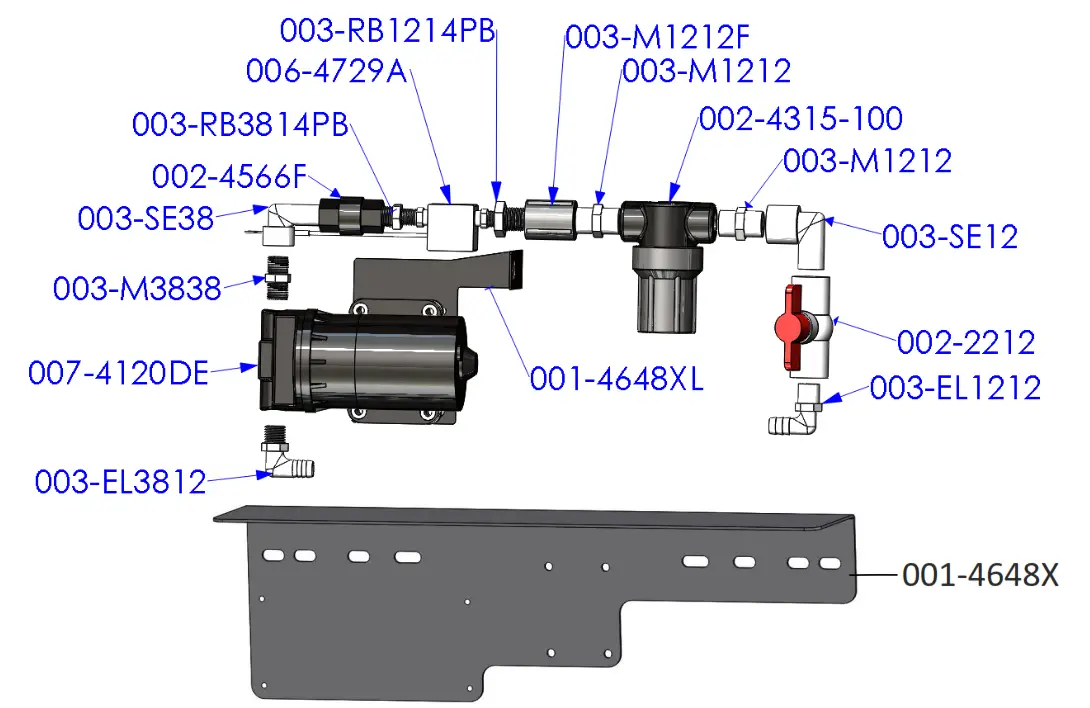
| Part# | Description | Qty | Part# | Description | Qty |
| 003-EL3812 | 3/8”MPT X 1/2″HB Elbow | 1 | 003-M1212 | 1/2″ Union | 2 |
| 007-4120DE | 300 Series Pump | 1 | 002-4315-100 | 1/2″ Line Strainer-100 Mesh | 1 |
| 003-M3838 | 3/8” x 3/8” Union | 1 | 003-SE12 | 1/2″ Street Elbow | 1 |
| 003-SE38 | 3/8” Street Elbow | 1 | 002-2212 | 1/2″ Ball Valve | 1 |
| 002-4566F | 3/8” Check Valve | 1 | 003-EL1212 | 1/2″MPT x 1/2″ HB | 1 |
| 003-RB3814PB | RB 3/8” x 1/4” Reducer | 1 | 001-4648XL | 300 Pump Support | 1 |
| 006-4729A | Flow Meter – Block Style | 1 | 001-4648X | Pump Plate Mount | 1 |
| 003-RB1214PB | RB 1/2″ x 1/4″ Reducer | 1 | 003-A1212 | Not Pictured | |
| 003-M1212F | 1/2″ Coupler | 1 | 003-A3812 | Not Pictured |
Pump Assembly PMP-3636P (001-4648X Not Included)
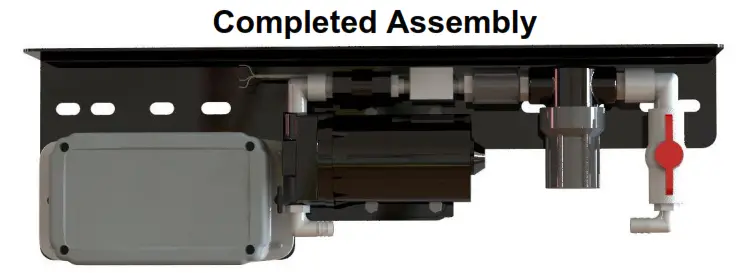
*Note: Due to alternative baler designs, elbow 003-EL3812 can be replaced by straight fitting 003-A3812. As well as elbow 003-EL1212 can be replaced by straight fitting 003-A1212. Both straight fittings are included.
Star Wheel Sensors
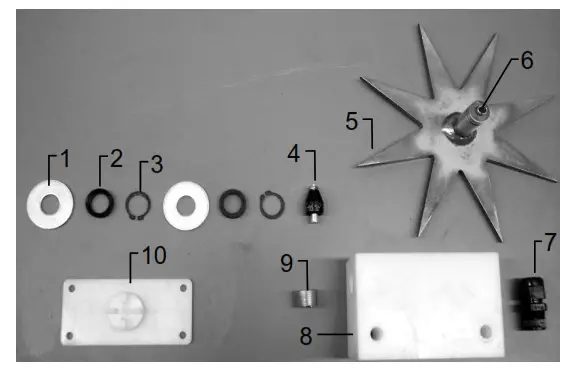
| Ref | Description | Part# | Qty |
| 1 | Washer (per side) | 006-4642K | 2 |
| 2 | Dust Seal (per side) | w/006-4642K | 1 |
| 3 | Snap Ring (per side) | w/006-4642K | 2 |
| 4 | Swivel | 006-4642A | 2 |
| 5 | Star Wheel | 030-4641E | 2 |
| 6 | Insert | w/ Ref # 5 | 2 |
| 7 | Wiring grommet | 008-0821A | 2 |
| 8 | Star wheel block | 006-4641D | 2 |
| 9 | Plug Fitting | 003-F38 | 2 |
| 10 | Block Cover | 006-4641B | 2 |
| 1-10 | Star wheel assembly | 030-4642 | 2 |
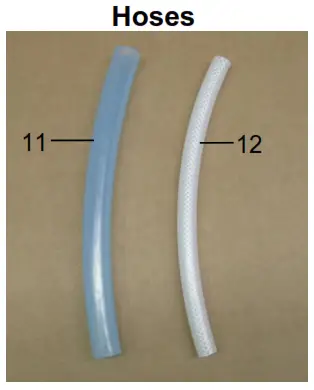
| Ref | Description | Part # | Qty |
| 11 | 1/2” Hose (Tank to Solenoid) | 002-9001 | 15ft |
| 12 | 1/4″ Hose (Solenoid to Tips) | 002-9016 | 6ft |
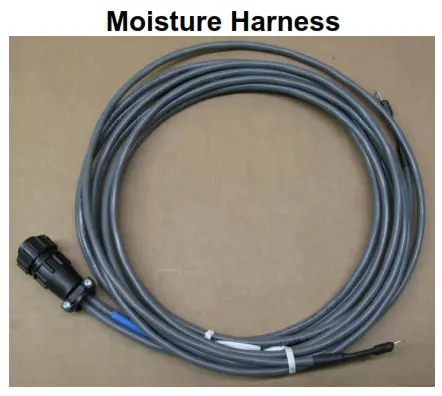
| Ref | Description | Part # | Qty |
| NP | Moisture Harness (344,345,350 Kits) | 006-4640D2 | 1 |
| NP | Moisture Harness (351 Kit) | 006-4640K2 | 1 |
Control Box and Wiring Harnesses
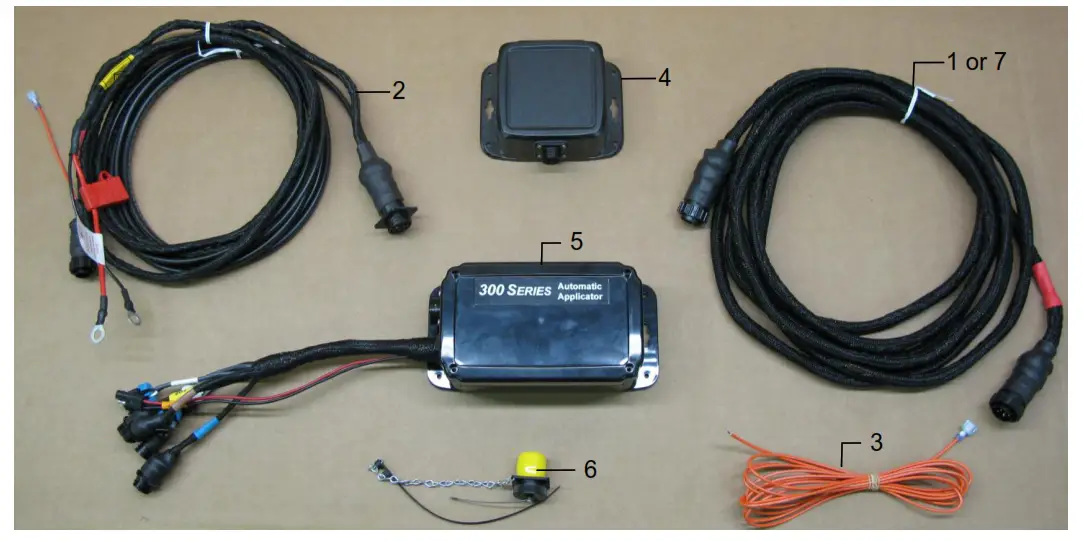
| Ref | Description | Part# | Qty | Ref | Description | Part# | Qty |
| 1 | Power lead baler 20’ (344, 345, 350 Kits) | 006-3650B1 | 1 | 6 | Dust Plugs | 006-5651Plugs | 1 |
| 2 | Power lead tractor | 006-3650T | 1 | 7 | Power lead baler 30’ (451) | 006-3650B2 | 1 |
| 3 | Key Switch Wire | 006-5650K | 1 | NP | Moisture Harness (344,345,350 Kits) | 006-4640D2 | 1 |
| 4 | iPad Int. Control | 030-6672C | 1 | NP | Moisture Harness (351 Kit) | 006-4640K2 | 1 |
| 5 | 300 Series Controller | 006-3671SS | 1 | NP | USB Cable | 006-6672USBC | 1 |
| Complete Assembly (1-6) | 030-362CPA |
| Complete Assembly (2-7) | 030-362CPB |
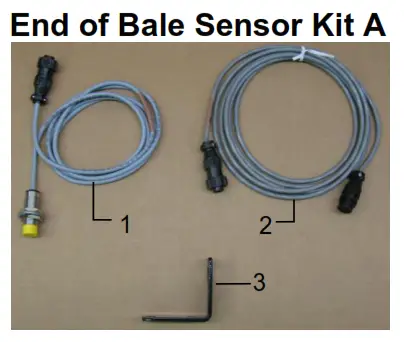
| Ref | Description | Part # | Qty |
| 1 | End of Bale Sensor | 006-7400 | 1 |
| 2 | EOB Extension | 006-7400EXT | 1 |
| 3 | End of Bale Bracket | 001-4648SS | 1 |
| Complete Assembly | EOB-SS-A |
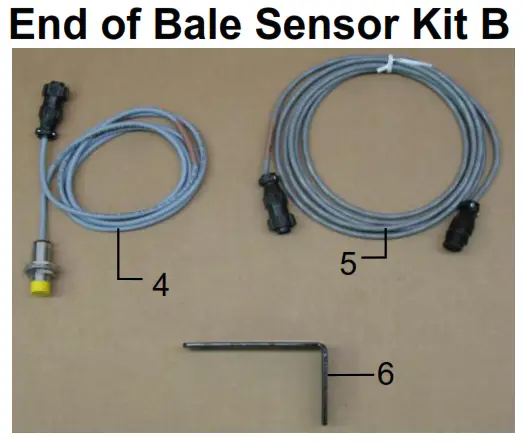
| Ref | Description | Part # | Qty |
| 4 | End of Bale Sensor | 006-7400 | 1 |
| 5 | EOB Extension | 006-7400EXT | 1 |
| 6 | End of Bale Bracket | 001-4648SI | 1 |
| Complete Assembly | EOB-SS-B |
300 Solenoid Packages
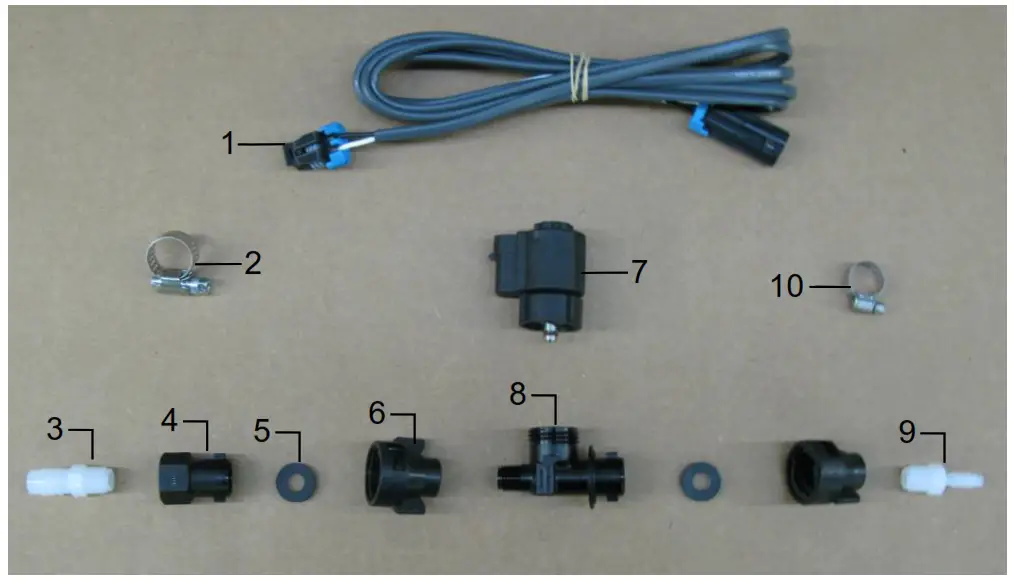
Solenoid Package A
(Applicator Kit: 351)
| Ref | Description | Part # | Qty | Ref | Description | Part # | Qty |
| 1 | Solenoid Harness (5’) | 006-3650-S1 | 1 | 6 | 1/4″ Female Disconnect | 004-1207H | 2 |
| 2 | #6 Hose Clamp | 003-9003 | 1 | 7 | Solenoid | 002-2203F | 1 |
| 3 | 1/4″ x 1/2″ Straight Fitting | 003-A1412 | 1 | 8 | Solenoid Valve Body | 004-1207VF | 1 |
| 4 | 1/4″ Female Connector | 004-1207G | 1 | 9 | 1/4″ x 1/4″ Straight Fitting | 003-A1414 | 1 |
| 5 Rubber Washer | 004-1207W | 2 | 10 | Mini Hose Clamp | 003-9002 | 1 | |
| Complete Assembly | SOL-3SP-A | ||||||
Solenoid Package B
(Applicator Kits: 344, 345, 350)
| Ref | Description | Part # | Qty | Ref | Description | Part # | Qty |
| 1 | Solenoid Harness (10’) | 006-3650-S2 | 1 | 6 | 1/4″ Female Disconnect | 004-1207H | 2 |
| 2 | #6 Hose Clamp | 003-9003 | 1 | 7 | Solenoid | 002-2203F | 1 |
| 3 | 1/4″ x 1/2″ Straight Fitting | 003-A1412 | 1 | 8 | Solenoid Valve Body | 004-1207VF | 1 |
| 4 | 1/4″ Female Connector | 004-1207G | 1 | 9 | 1/4″ x 1/4″ Straight Fitting | 003-A1414 | 1 |
| 5 | Rubber Washer | 004-1207W | 2 | 10 | Mini Hose Clamp | 003-9002 | 1 |
| Complete Assembly | SOL-3SP-B |
Parts Bag Packages
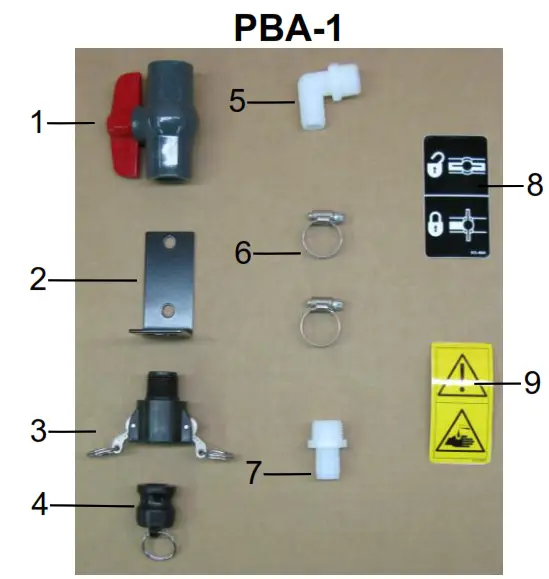
| Ref | Description | Part # | Qty |
| 1 | 3/4″ Ball Valve | 002-2200 | 1 |
| 2 | Valve Holder | 001-6702H | 1 |
| 3 | Female Coupler | 002-2204A | 1 |
| 4 | Male Shut-Off Plug | 002-2205G | 1 |
| 5 | 3/4” x 3/4″ Elbow | 003-EL3434 | 1 |
| 6 | #10 Hose Clamp | 003-9004 | 2 |
| 7 | 3/4″ x 3/4″ Straight Fitting | 003-A3434 | 1 |
| 8 | Valve Decal | DCL-8004 | 1 |
| 9 | Chemical Hazard Decal | DCL-8001 | 1 |
| Complete Drain Fill Kit | 030-0493DFK |
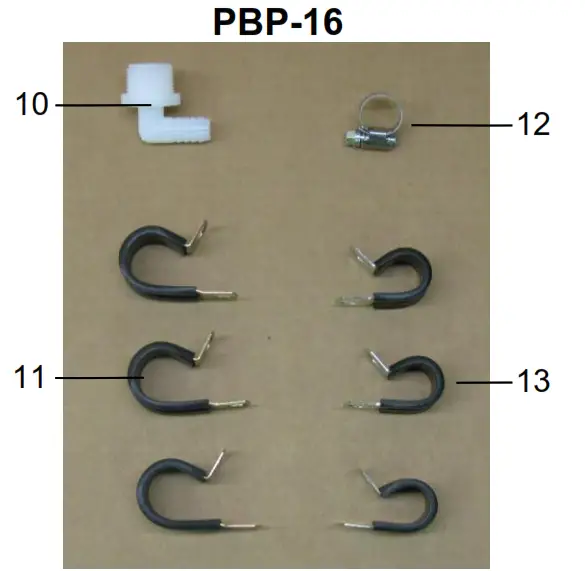
| Ref | Description | Part # | Qty |
| 10 | 3/4″ x 1/2″ Elbow | 003-EL3412 | 1 |
| 11 | 3/4″ Jiffy Clip | 008-9010 | 3 |
| 12 | #6 Hose Clamp | 003-9003 | 1 |
| 13 | Small Jiffy Clip | 008-9009 | 3 |
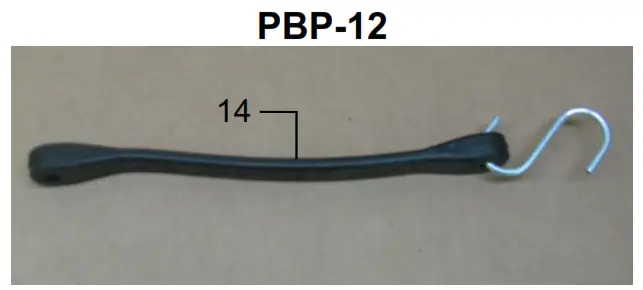
| Ref | Description | Part # | Qty |
| 14 | Door Latch | 001-4703CL | 1 |
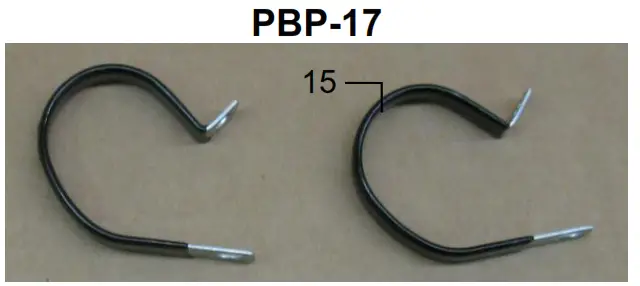
| Ref | Description | Part # | Qty |
| 15 | Vinyl Clamp | 008-9013 | 1 |
Optional iPad Mini Mounting Kit (030-2014MK)
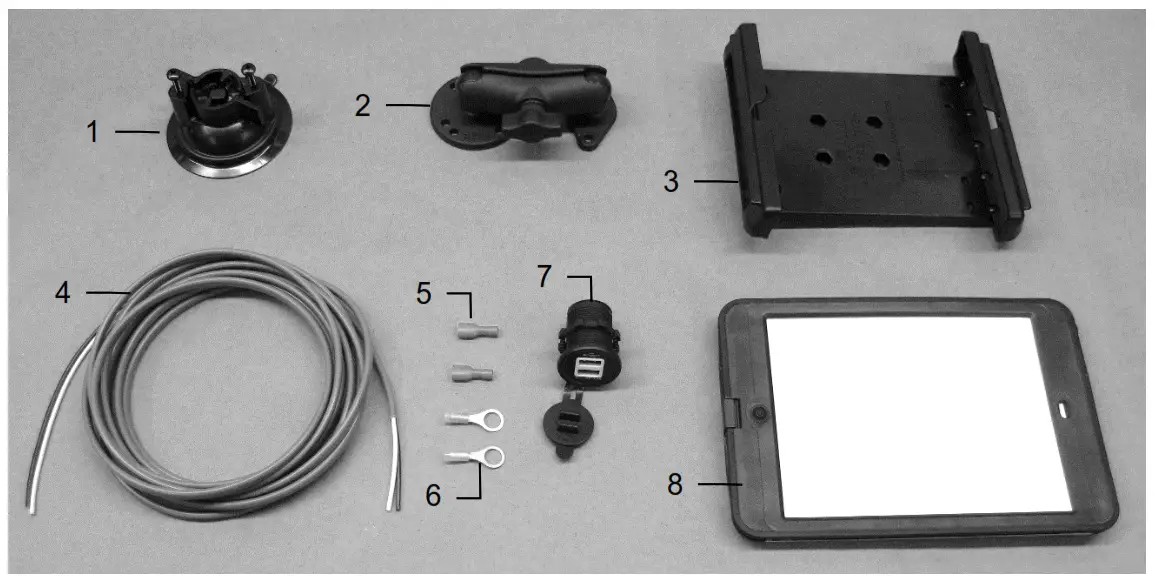
| Ref | Description | Part # | Qty |
| 1 | Suction cup mount | 001-2012SCM | 1 |
| 2 | Ram mount | 001-2012H | 1 |
| 3 | iPad Mini® spring load cradle (Mini 2) | 001-2012SLC | 1 |
| 4 | 16 gauge power wire | 006-4723P | 1 |
| 5 | Female spade connector | Hardware | 2 |
| 6 | Eye loop connector | Hardware | 2 |
| 7 | iPad Mini Charger 12V | 001-2012P | 1 |
| 8 | iPad Mini 4 case | 001-2012C4 | 1 |
| NP | 4 amp fuse | Hardware | 1 |
| Mounting Kit Assembly | 030-2014MK (Includes All Parts) |
Installation Instructions
- Identify a 12V power source for wires to connect.
a. Eye loops included if wiring directly to the battery is desired.
b. Test for key power source if preferred to have power to the USB shut off with the key. - Once the power source is identified, cut wires to the desired length.
- Crimp the two supplied quick connectors onto each white and black wire.
- Remove the round locking plastic nut from the USB plug before connecting the wires. Black (+) White (-).
- The wires will then be hooked to the designated terminals on the bottom of the USB plug
- Drill a 1 1/8” hole in the preferred mounting location. Be sure to clean any sharp edges after drilling.
- Feed the wires through the mounting hole.
- If using the round plastic nut to secure the plug in place, slide the nut back over the wiring before connecting the wires to the powered source.
- Connect the wires to the identified power source if easier to do so before tightening the plug into place.
- Tighten the plug using either the round plastic nut or mounting plate and two screws, both options are supplied.
- Once connected, hook a USB charging cord into the plug and connect a mobile device/tablet to ensure the plug is operating as you wish (key power working properly if necessary).
NOTE: This plug is not designed to charge two iPads. System damage could occur if this is attempted.
The system will charge a mobile phone and iPad simultaneously without a problem.
*iPad mini is a trademark of Apple Inc., registered in the U.S. and other countries.
Optional iPad Display Kit (030-4670DK)
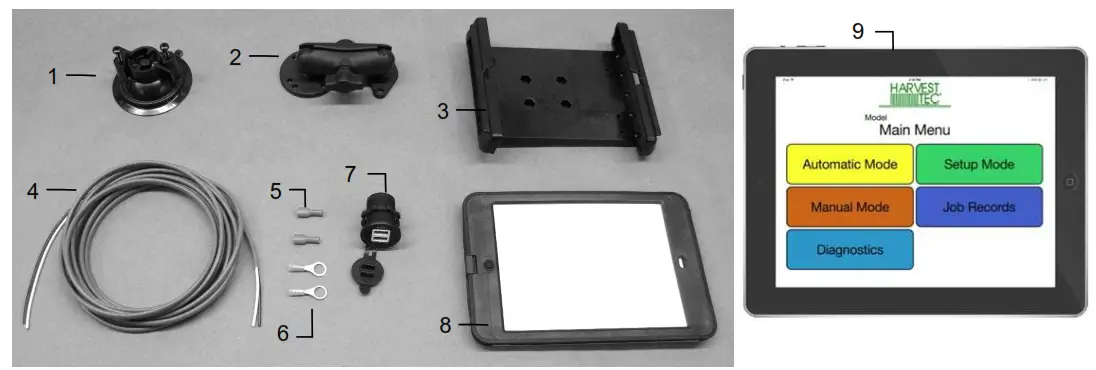
| Ref | Description | Part # | Qty | Ref | Description | Part # | Qty |
| 1 | Suction cup mount | 001-2012SCM | 1 | 7 | iPad Mini Charger 12V | 001-2012P | 1 |
| 2 | Ram mount | 001-2012H | 1 | 8 | iPad Mini 4 case | 001-2012C4 | 1 |
| 3 | iPad Mini spring load cradle (Mini 4) | 001-2012SLC | 1 | 9 | iPad Mini 4 | 006-2670IP | 1 |
| 4 | 16 gauge power wire | 006-4723P | 1 | NP | 4 amp fuse | Hardware | 1 |
| 5 | Female spade connector | Hardware | 2 | ||||
| 6 | Eye loop connector | Hardware | 2 | Mounting Kit Assembly | 030-4670DK (Includes All Parts) | ||
Installation Instructions
- Identify a 12V power source for wires to connect.
- Eye loops are included if wiring directly to the battery is desired.
- Test for key power source if preferred to have power to the USB shut off with the key.
- Once the power source is identified, cut wires to the desired length.
- Crimp the two supplied quick connectors onto the white and black wire.
- Remove the round locking plastic nut from the USB plug before connecting the wires. Black (+) White (-).
- The wires will then be hooked to the designated terminals on the bottom of the USB plug
- Drill a 1 1/8” hole in the preferred mounting location. Be sure to clean any sharp edges after drilling.
- Feed the wires through the mounting hole.
- If using the round plastic nut to secure the plug in place, slide the nut back over the wiring before connecting the wires to the powered source.
- Connect the wires to the identified power source if easier to do so before tightening the plug into place.
- Tighten the plug using either the round plastic nut or mounting plate and two screws, both options are supplied.
- Once connected, hook a USB charging cord into the plug and connect a mobile device/tablet to ensure the plug is operating as you wish (key power working properly if necessary).
NOTE: This plug is not designed to charge two iPads. System damage could occur if this is attempted.
The system will charge a mobile phone and iPad simultaneously without a problem.
*iPad mini is a trademark of Apple Inc., registered in the U.S. and other countries.
Model 4409C Installation Kit
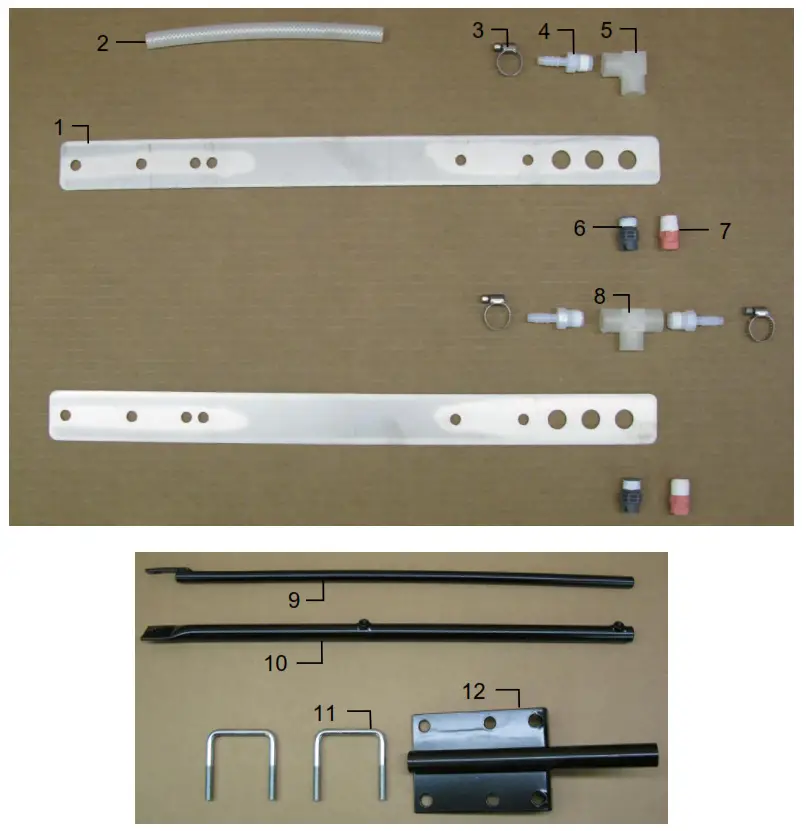
| Ref | Description | Part # | Qty | Ref | Description | Part # | Qty |
| 1 | Nozzle Holder | 001-4215 | 2 | 8 | 1/4″ Tee Sq | 003-TT14SQ | 1 |
| 2 | 1/4″ Hose | 003-9016 | 3 | 9 | Reach Rod – Outside | 001-4404 | 1 |
| 3 | Mini Hose Clamp | 003-9002 | 3 | 10 | Reach Rode – Inside | 001-4405 | 1 |
| 4 | 1/4″ x 1/4″ Straight Fitting | 003-A1414 | 3 | 11 | 1/2″ x 4” U-Bolt | 001-4406A | 2 |
| 5 | 1/4” Female Street Elbow | 003-SE14F | 1 | 12 | Base Bracket | 001-4406 | 1 |
| 6 | Tip – Grey | 004-T6504-PT | 2 | Shield Only (Ref 1-8) Tank Mount Kit (Ref 9-12) Complete Assembly | 030-4409C-SO TMK-4401 030-4409C | ||
| 7 | Tip – Pink | 004-T6501-PT | 2 | ||||
* Tip color subject to change
Model 4410C Installation Kit 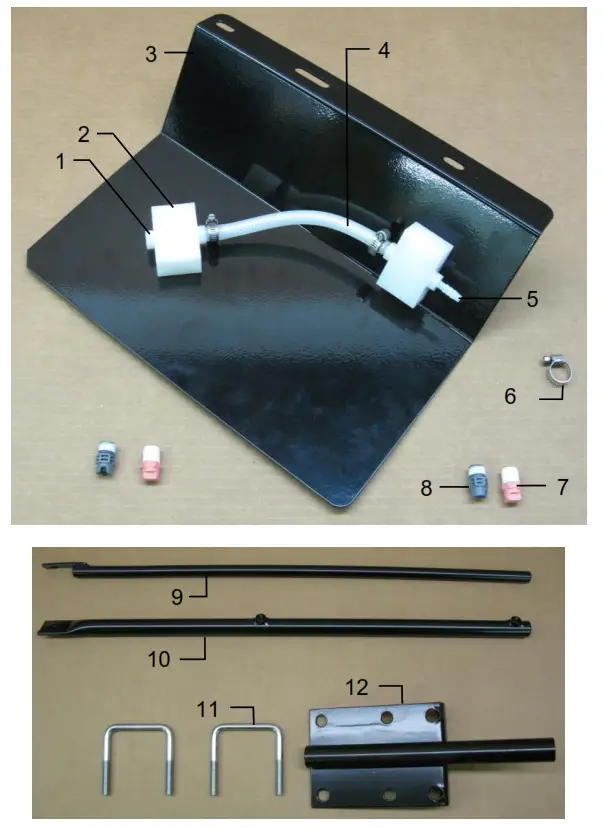
| Ref | Description | Part # | Qty | Ref | Description | Part # | Qty |
| 1 | 1/4″ Hex Plug | 003-F14 | 1 | 7 | Tip – Pink | 004-T6501-PT | 2 |
| 2 | Shield Manifold Block | 001-4435NSB | 2 | 8 | Tip – Grey | 004-T6504-PT | 2 |
| 3 | Nozzle Holder SS Block | 001-4426A | 1 | 9 | Reach Rod – Outside | 001-4404 | 1 |
| 4 | 1/4″ Hose | 002-9016 | 1 | 10 | Reach Rode – Inside | 001-4405 | 1 |
| 5 | 1/4″ x 1/4″ Straight Fitting | 003-A1414 | 3 | 11 | Base Bracket | 001-4406 | 1 |
| 6 | Mini Hose Clamp | 003-9002 | 3 | 12 | 1/2″ x 4” bolt | 001-4406A | 2 |
| * Tip color subject to change | Shield Only (Ref 1-8) Tank Mount Kit (Ref 9-12)Complete Assembly | 030-4410C-SO TMK-4401 030-4410C | |||||
Model 4412C Installation Kit 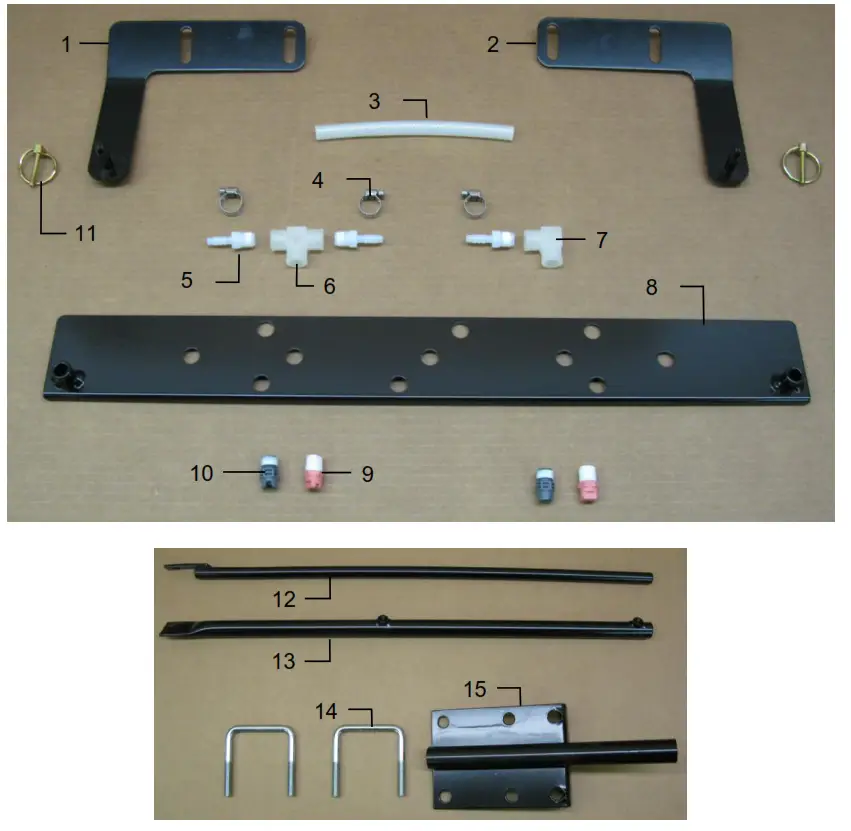
| Ref | Description | Part # | Qty | Ref | Description | Part # | Qty |
| 1 | Left Mounting Bracket | 001-4436DL | 1 | 9 | Tip – Pink | 004-T6501-PT | 2 |
| 2 | Right Mounting Bracket | 001-4436DR | 1 | 10 | Tip –Grey | 004-T6504-PT | 2 |
| 3 | 1/4″ Hose | 002-9016 | 1 | 11 | 3/16” Lynch Pin | 008-4576 | 1 |
| 4 | Mini Hose Clamp | 003-9002 | 3 | 12 | Reach Rod – Outside | 001-4404 | 1 |
| 5 | 1/4″ x 1/4″ Straight Fitting | 003-A1414 | 3 | 13 | Reach Rode – Inside | 001-4405 | 1 |
| 6 | 1/4″ Sq Tee | 003-TT14SQ | 1 | 14 | 1/2″ x 4” bolt | 001-4406A | 2 |
| 7 | 1/4″ Female St Elbow | 003-SE14F | 1 | 15 | Base Bracket | 001-4406 | 1 |
| 8 | Tip Holder Spray Shield | 001-4810 | 1 | Shield Only (Ref 1-11) Tank Mount Kit (Ref 12- 15) Complete Assembly | 030-4412C-SO TMK-4401 030-4412C | ||
| * Tip color subject to change | |||||||
Model 4415C Installation Kit
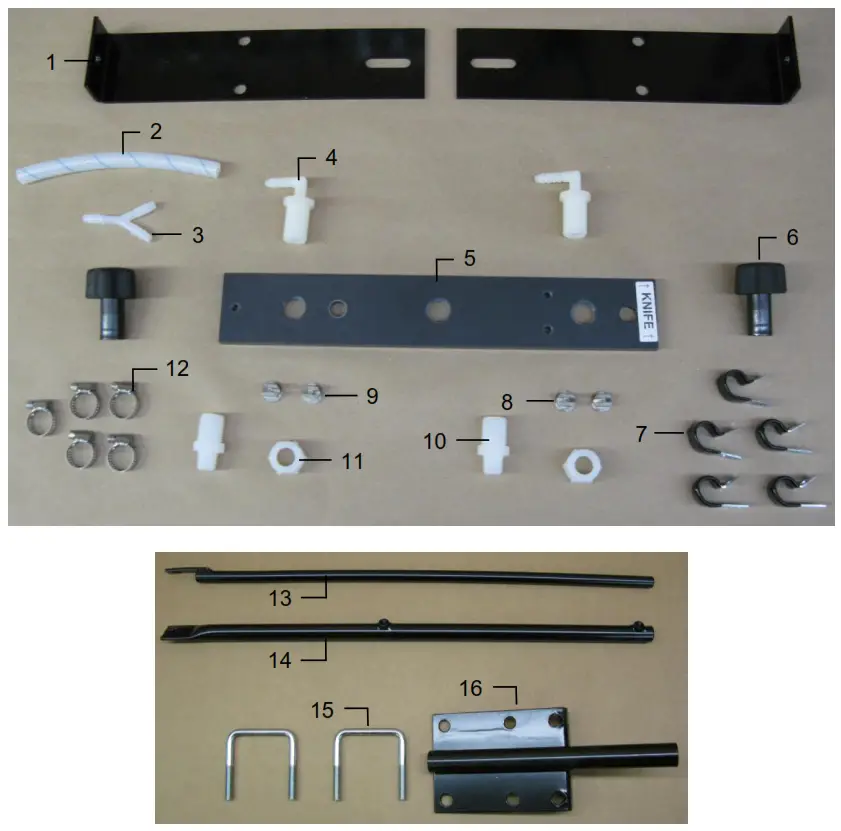
| Ref | Description | Part # | Qty | Ref | Description | Part # | Qty |
| 1 | Hose Support | 001-4425B | 2 | 8 | Tip – Low Output | 004-11001-SS | 2 |
| 2 | 1/4″ Hose | 002-9016 | 3 | 9 | Tip – High Output | 004-11004-SS | 2 |
| 3 | Y Fitting | 003-Y1414 | 1 | 10 | 1/4″ Drill Guide | 003-M3814NB | 1 |
| 4 | 1/4″ Nozzle Body Elbow | 003-EL3814NB | 2 | 11 | Nozzle Cap | 003-BC12 | 2 |
| 5 | Hay Guard Shield | 001-4425C | 1 | 12 | Mini Hose Clamp | 003-9002 | 5 |
| 6 | SS Manifold Knob | 008-0925 | 2 | 13 | Reach Rod – Outside | 001-4404 | 1 |
| 7 | 477 Jiffy Clips | 008-9014 | 5 | 14 | Reach Rode – Inside | 001-4405 | 1 |
| * Tip color subject to change | 15 | 1/2″ x 4” bolt | 001-4406A | 2 | |||
| 16 | Base Bracket | 001-4406 | 1 | ||||
| Shield Only (Ref 1-12) Tank Mount Kit (Ref 13-15) Complete Assembly | 030-4415C-SO TMK-4401 030-4415C | ||||||
Model 4416C Installation Kit 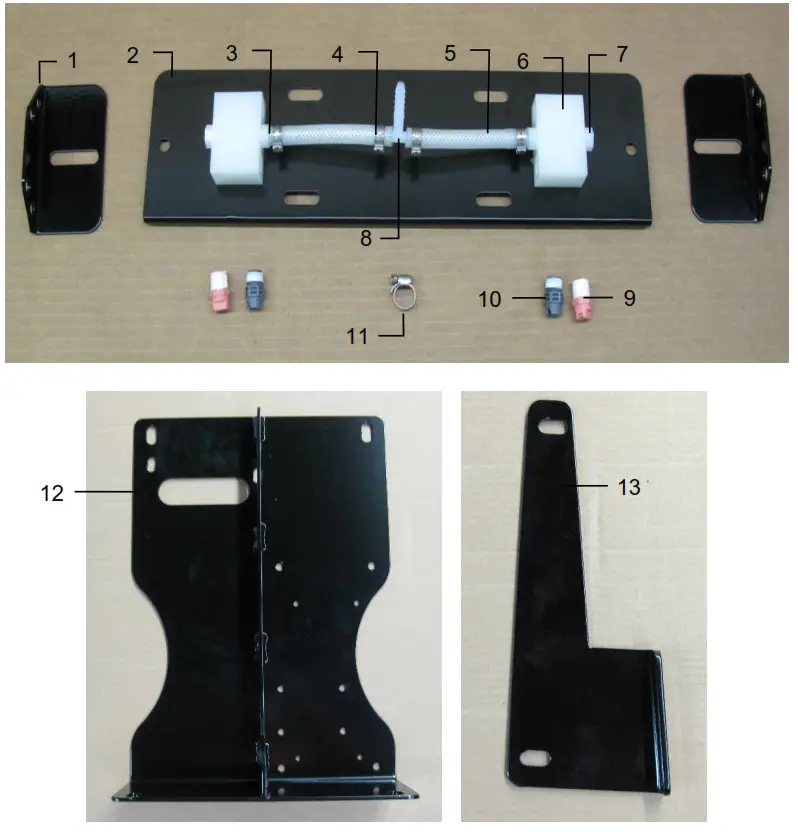
| Ref | Description | Part # | Qty | Ref | Description | Part# | Qty |
| 1 | Spray Shield Holders | 001-4424B | 2 | 8 | 1/4″ Tee | 003-T1414 | 1 |
| 2 | Spray Shield | 001-4424A2 | 1 | 9 | Tip – Pink | 004-T6501-PT | 2 |
| 3 | 1/4″ Straight Fitting | 003-A1414 | 2 | 10 | Tip – Grey | 004-T6504-PT | 2 |
| 4 | 1/2” Otiker Clamp | 003-9008 | 4 | 11 | Mini Hose Clamps | 003-9002 | 1 |
| 5 | 1/4″ Hose | 002-9016 | 1 | 12 | Saddle Legs | 001-4703Q | 2 |
| 6 | Manifold Block | 001-4435NSB | 2 | 13 | Kicker Bracket | 001-4703QC | 1 |
| 7 | Hex Plug | 003-F14 | 2 | ||||
| * Tip color subject to change | Shield Only (Ref 1-11) Tank Mount Kit (Ref 12- 13) Complete Assembly | 030-4416C-SO TMK-4416 030-4416C | |||||
Model 4485C Installation Kit 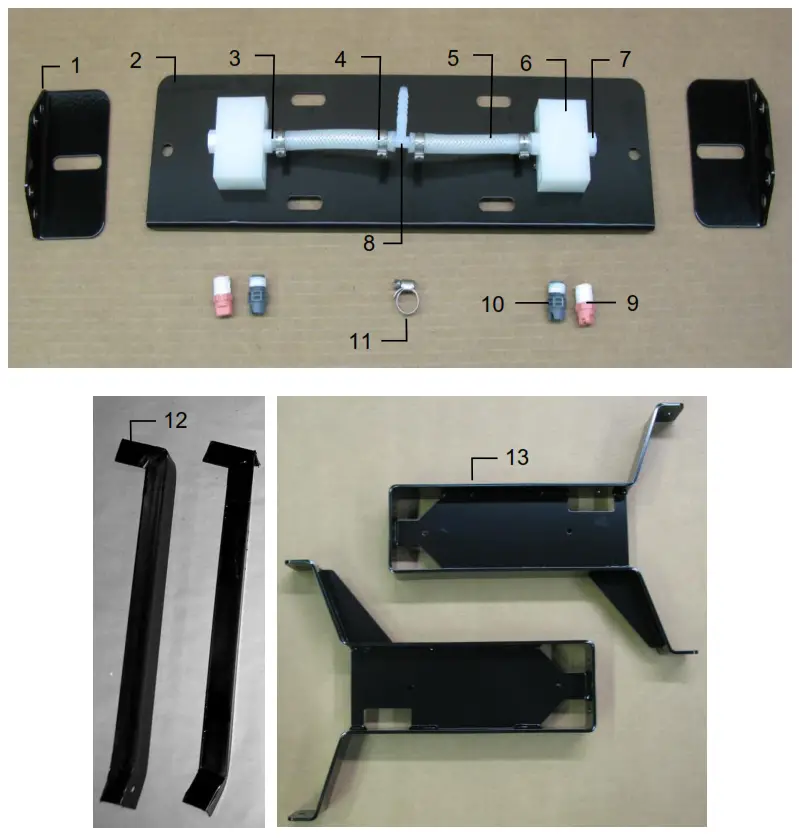
| Ref | Description | Part # | Qty | Ref | Description | Part # | Qty |
| 1 | Spray Shield Holders | 001-4424B | 2 | 8 | 1/4″ Tee | 003-T1414 | 1 |
| 2 | Spray Shield | 001-4424A2 | 1 | 9 | Tip – Pink | 004-T6501-PT | 2 |
| 3 | 1/4″ Straight Fitting | 003-A1414 | 2 | 10 | Tip – Grey | 004-T6504-PT | 2 |
| 4 | 1/2” Otiker Clamp | 003-9008 | 4 | 11 | Mini Hose Clamps | 003-9002 | 1 |
| 5 | 1/4″ Hose | 002-9016 | 1 | 12 | Support Bracket | 001-4424C | 2 |
| 6 | Manifold Block | 001-4435NSB | 2 | 13 | 55 Gal Long Leg | 001-4703B | 2 |
| 7 | Hex Plug | 003-F14 | 2 | Shield Only (Ref 1-11) Tank Mount Kit (Ref 12-13) Complete Assembly | 030-4416C-SO TMK-4485 030-4485C | ||
| * Tip color subject to change | |||||||
Model 4502C Installation Kit
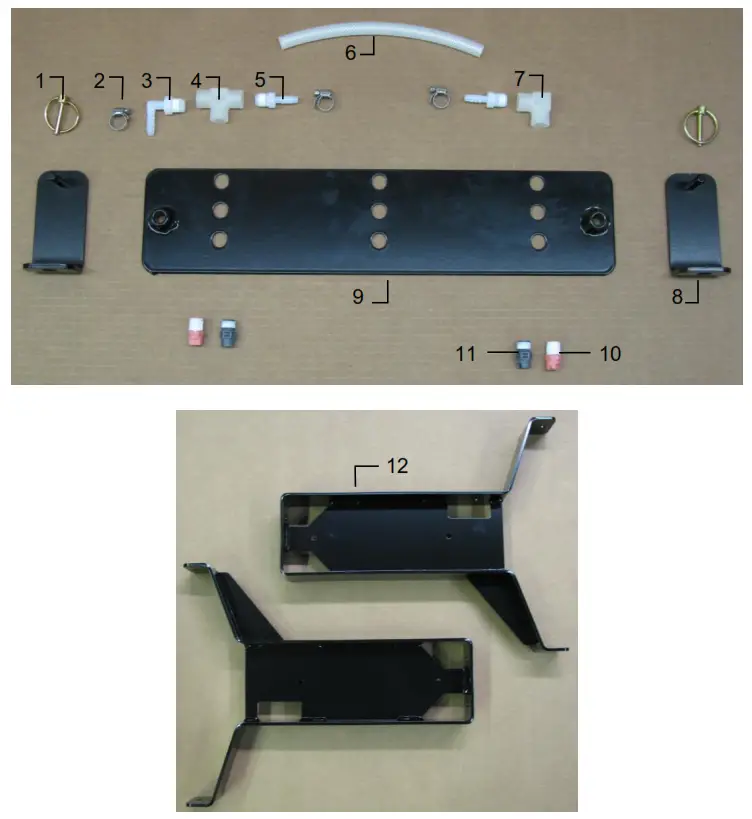
| Ref | Description | Part # | Qty | Ref | Description | Part # | Qty |
| 1 | 3/16” Lynch Pin | 008-4576 | 2 | 8 | Shield Holder | 001-4703I | 2 |
| 2 | Mini Hose Clamp | 003-9002 | 3 | 9 | Spray Shield | 001-4703G | 1 |
| 3 | 1/4″ x 1/4″ Elbow | 003-EL1414 | 1 | 10 | Tip – Pink | 004-T6501-PT | 2 |
| 4 | 1/4″ Tee Sq | 003-TT14SQ | 1 | 11 | Tip – Grey | 004-T6504-PT | 2 |
| 5 | 1/4″ x 1/4″ Straight fitting | 003-A1414 | 2 | 12 | 55 Gal Long Leg | 001-4703B | 2 |
| 6 | 1/4″ Hose | 002-9016 | 1 | Shield Only (Ref 1-11) Tank Mount Kit (Ref 12) Complete Assembly | 030-4502C-SO TMK-4703B 030-4502C | ||
| 7 | 1/4″ Female Street Elbow | 003-SE14F | 1 | ||||
| * Tip color subject to change | |||||||
Model 4506C Installation Kit 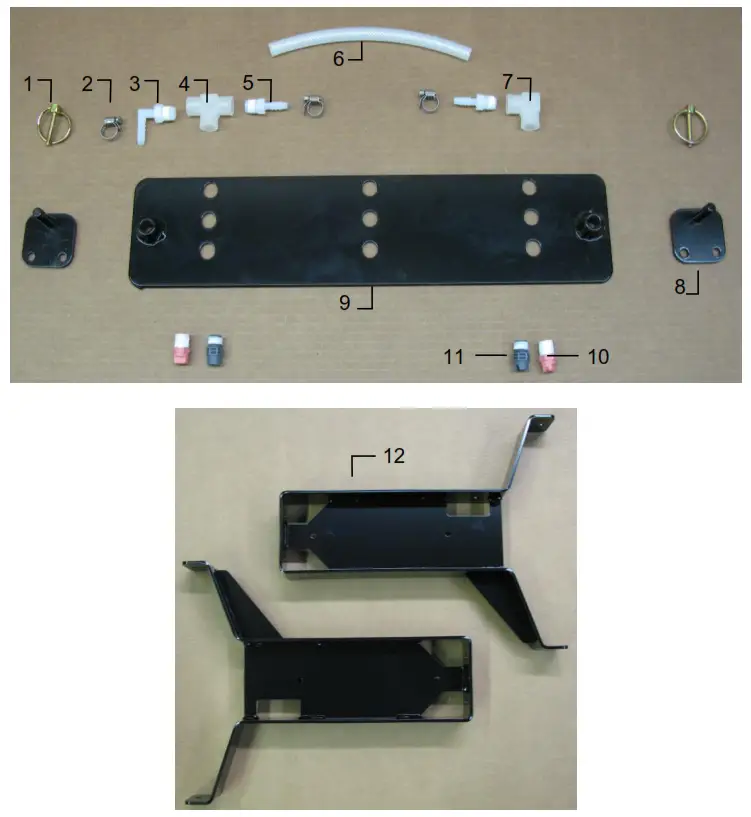
| Ref | Description | Part # | Qty | Ref | Description | Part # | Qty |
| 1 | 3/16” Lynch Pin | 008-4576 | 2 | 8 | Shield Holder | 001-4703H | 2 |
| 2 | Mini Hose Clamp | 003-9002 | 3 | 9 | Spray Shield | 001-4703G | 1 |
| 3 | 1/4″ x 1/4″ Elbow | 003-EL1414 | 1 | 10 | Tip – Pink | 004-T6501-PT | 2 |
| 4 | 1/4″ Tee Sq | 003-TT14SQ | 1 | 11 | Tip – Grey | 004-T6504-PT | 2 |
| 5 | 1/4″ x 1/4″ Straight fitting | 003-A1414 | 2 | 12 | 55 Gal Long Leg | 001-4703B | 2 |
| 6 | 1/4″ Hose | 002-9016 | 1 | Shield Only (Ref 1-11) Tank Mount Kit (Ref 12-15) Complete Assembly | 030-4506C-SO TMK-4703B 030-4506C | ||
| 7 | 1/4″ Female Street Elbow | 003-SE14F | 1 | ||||
| * Tip color subject to change | |||||||
Model 4507C Installation Kit 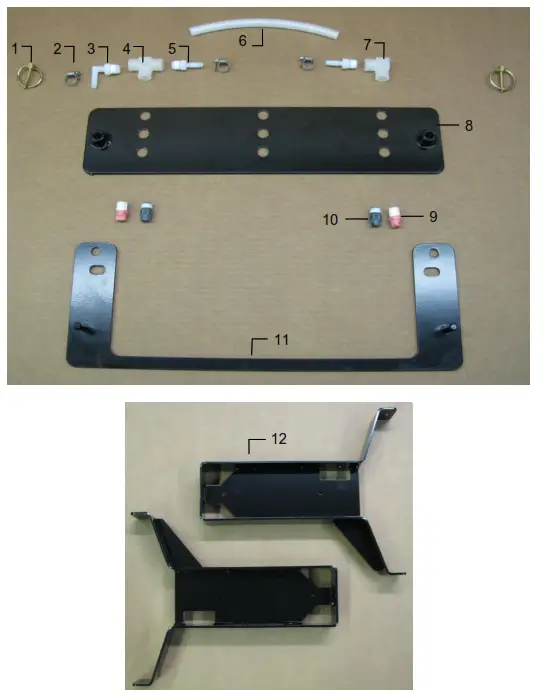
| Ref | Description | Part # | Qty | Ref | Description | Part # | Qty |
| 1 | Lynch Pin | 008-4576 | 2 | 8 | Spray Shield | 001-4703G | 1 |
| 2 | Mini Hose Clamp | 003-9002 | 3 | 9 | Tip – Pink | 004-T6501-PT | 2 |
| 3 | 1/4″ x 1/4″ Elbow | 003-EL1414 | 1 | 10 | Tip – Grey | 004-T6504-PT | 2 |
| 4 | 1/4″ Tee Sq | 003-TT14SQ | 1 | 11 | Shield Holder | 001-4703J | 2 |
| 5 | 1/4″ x 1/4″ Straight Fitting | 003-A1414 | 2 | 12 | 55 Gal Long Leg | 001-4703B | 2 |
| 6 | 1/4″ Hose | 002-9016 | 1 | Shield Only (Ref 1-11) Tank Mount Kit (Ref 12) Complete Assembly | 030-4507C-SO TMK-4703B 030-4507C | ||
| 7 | 1/4″ Female Street Elbow | 003-SE14F | 1 | ||||
| * Tip color subject to change | |||||||
Notes
Harvest Tec LLC. Warranty and Liability Agreement
Harvest Tec, LLC. will repair or replace components that are found to be defective within 12 months from the date of manufacture. Under no circumstances does this warranty cover any components which in the opinion of Harvest Tec, LLC. have been subjected to negligent use, misuse, alteration, accident, or if repairs have been made with parts other than those manufactured and obtainable from Harvest Tec, LLC.
Our obligation under this warranty is limited to repairing or replacing free of charge to the original purchaser any part that in our judgment shows evidence of defective or improper workmanship, provided the part is returned to Harvest Tec, LLC. within 30 days of the failure. If it is determined that a non-Harvest Tec branded hay preservative has been used inside the Harvest Tec applicator system where the failure occurred, then Harvest Tec reserves the right to deny the warranty request at their discretion. Parts must be returned through the selling dealer and distributor, and transportation charges prepaid.
This warranty shall not be interpreted to render Harvest Tec, LLC. liable for injury or damages of any kind, direct, consequential, or contingent, to persons or property. Furthermore, this warranty does not extend to loss of crop, losses caused by delays or any expense prospective profits, or for any other reason. Harvest Tec, LLC. shall not be liable for any recovery greater in amount than the cost or repair of defects in workmanship. There are no warranties, either expressed or implied, of merchantability or fitness for a particular purpose intended or fitness for any other reason.
This warranty cannot guarantee that existing conditions beyond the control of Harvest Tec, LLC. will not affect our ability to obtain materials or manufacture necessary replacement parts.
Harvest Tec, LLC. reserves the right to make design changes, improve design, or change specifications, at any time without any contingent obligation to purchasers of machines and parts previously sold. Revised 4/17
HARVEST TEC, LLC.
P.O. BOX 63
2821 HARVEY STREET
HUDSON, WI 54016 USA
Phone: 715-386-9100
1-800-635-7465
Fax: 715-381-1792
Email: [email protected]
 Product Updates - Harvest Tec
 Pair a third-party Bluetooth accessory with your iPhone or iPad - Apple Support