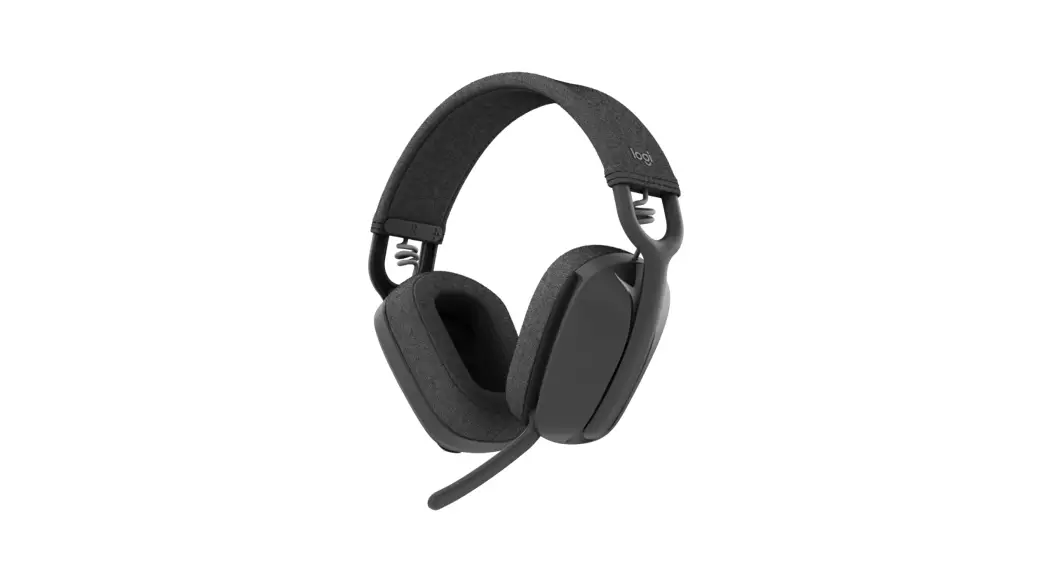
Logitech ZONE VIBE 125 Wireless Headset User Guide

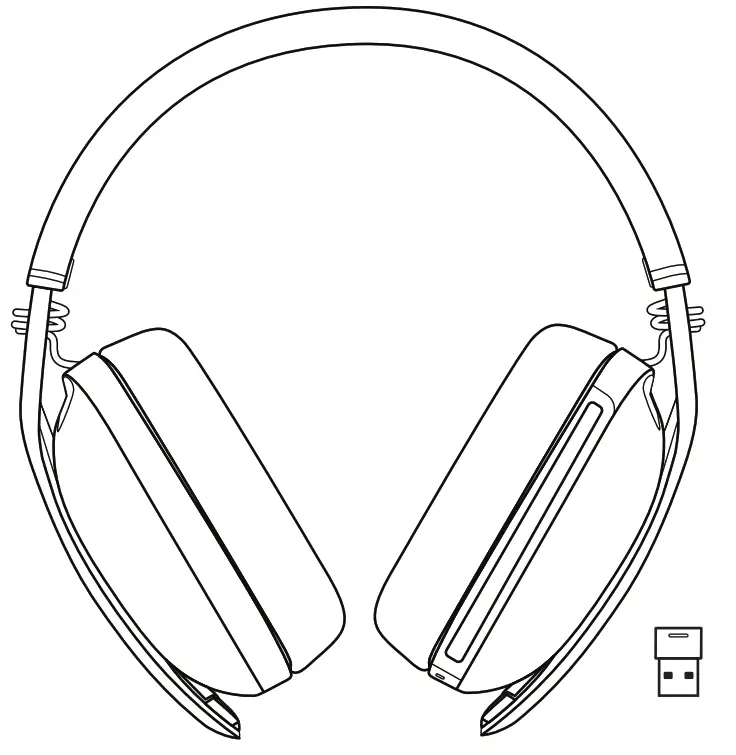
KNOW YOUR PRODUCT
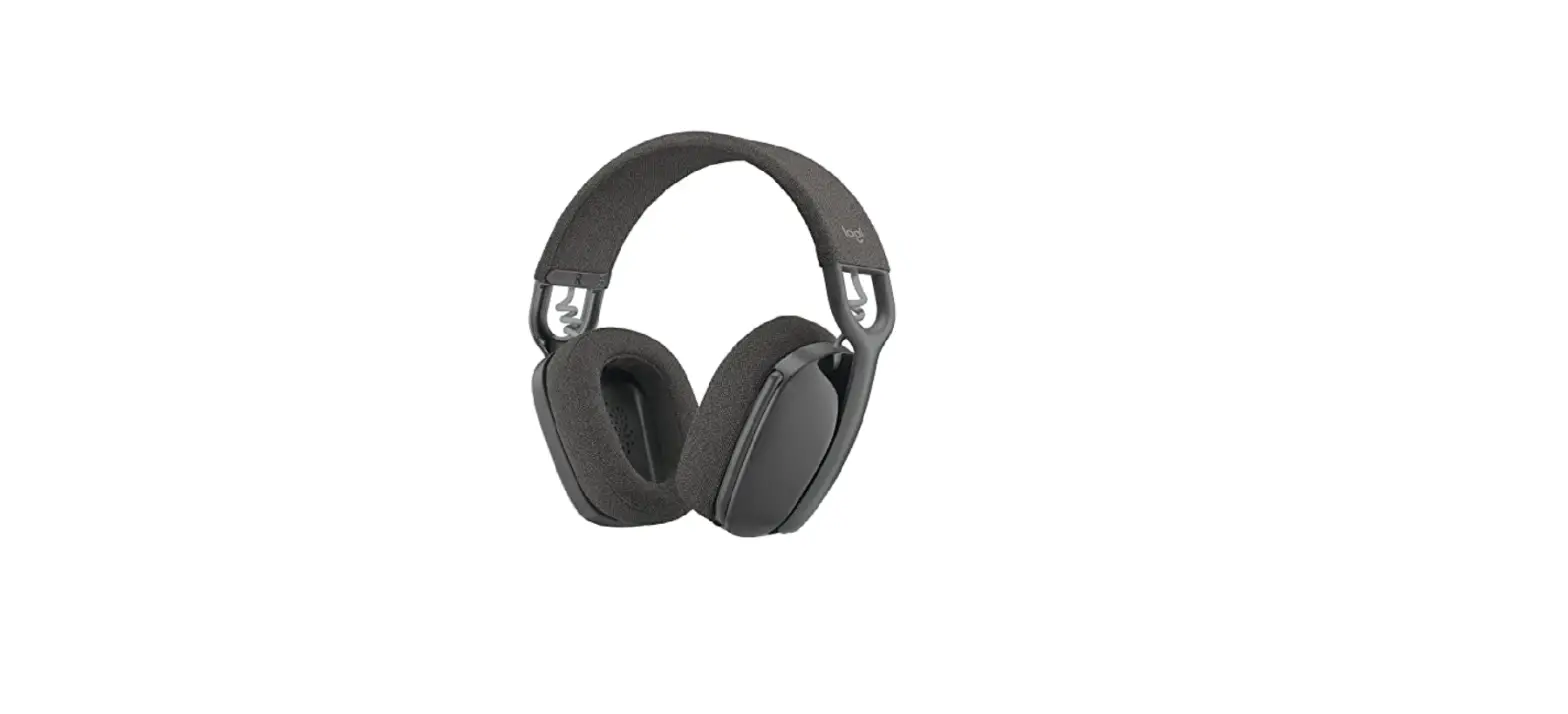
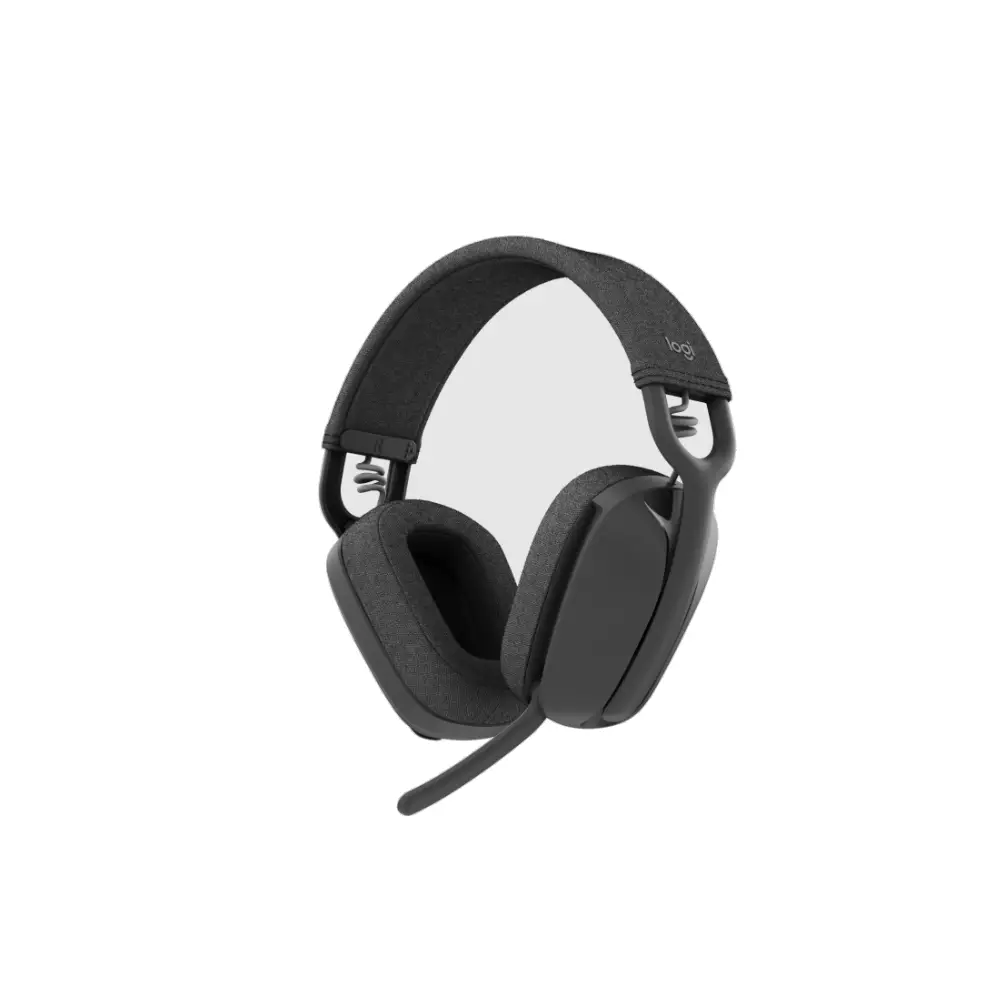
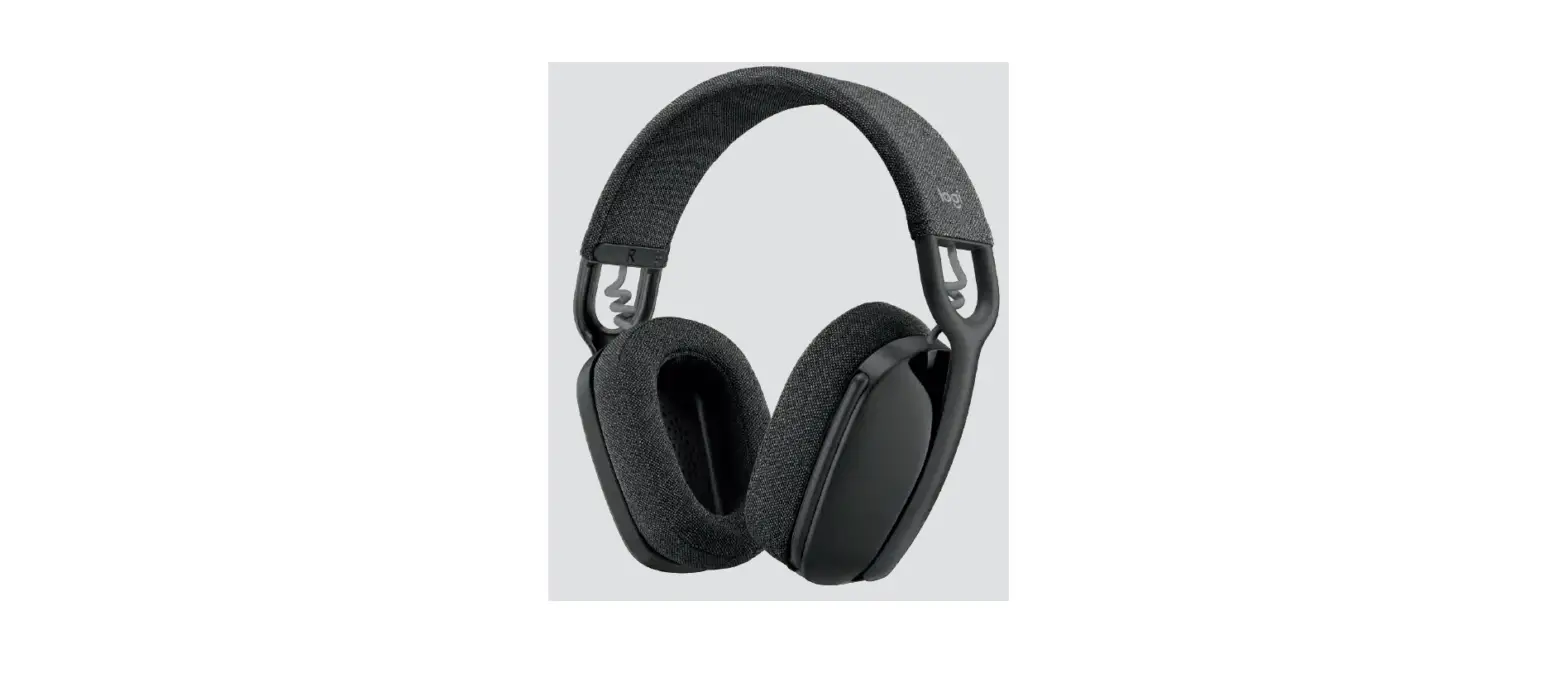
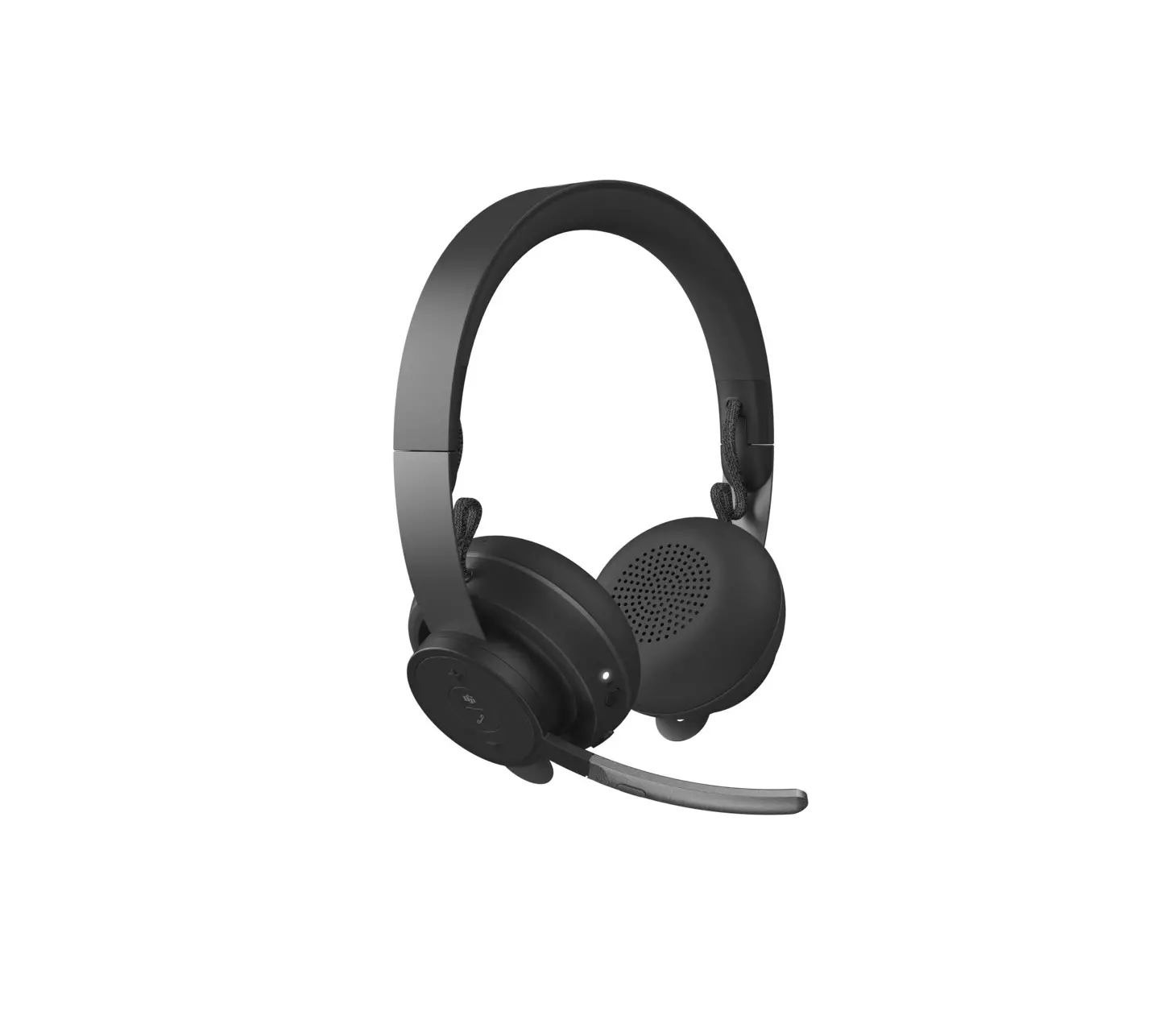
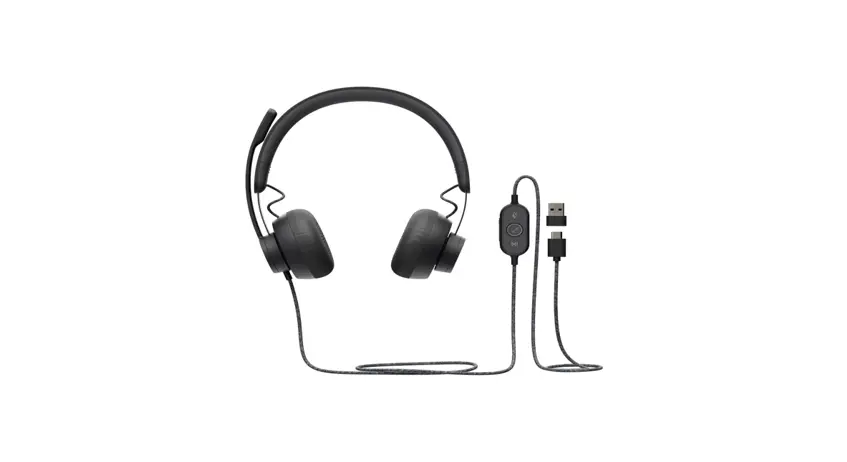
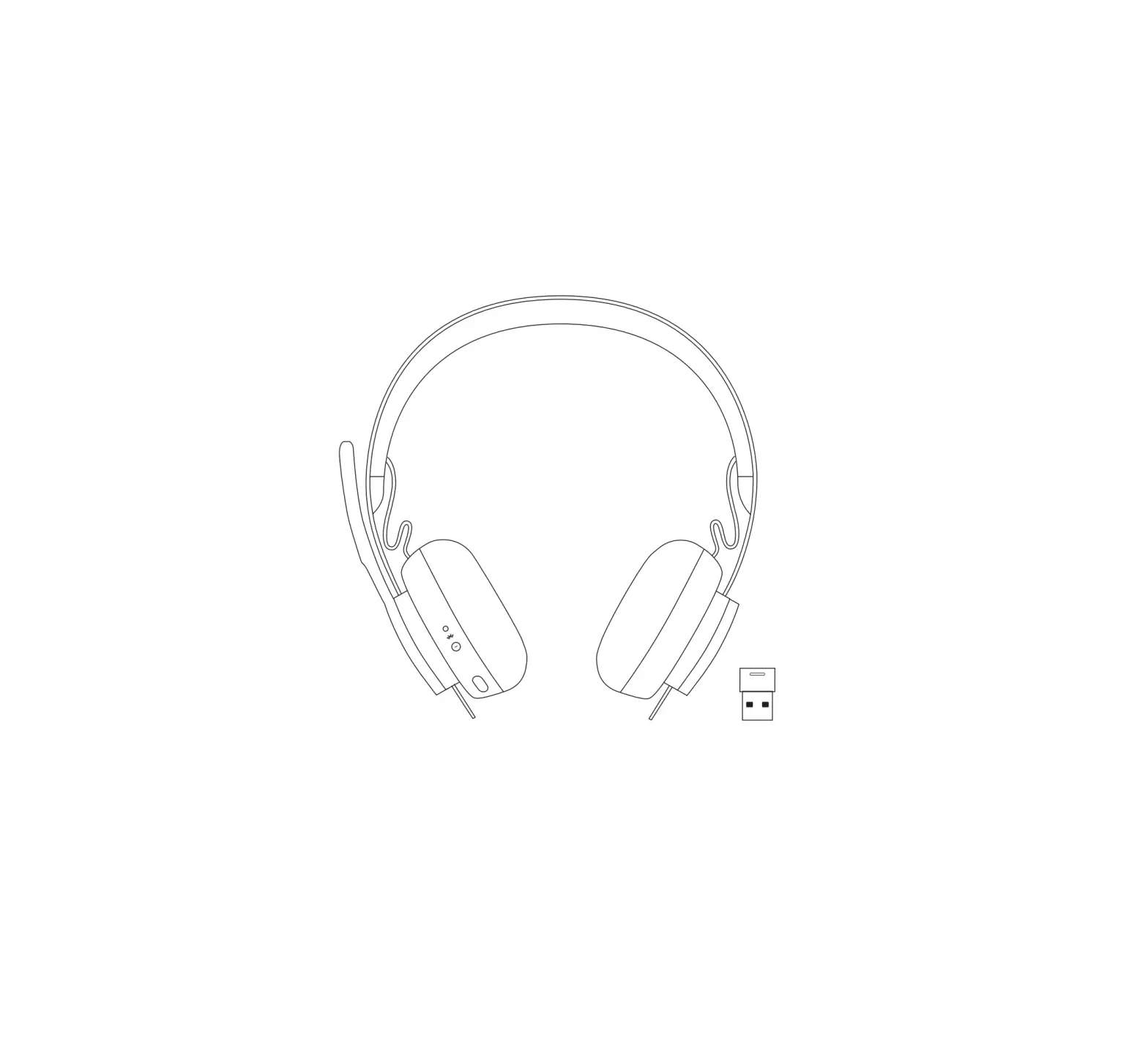
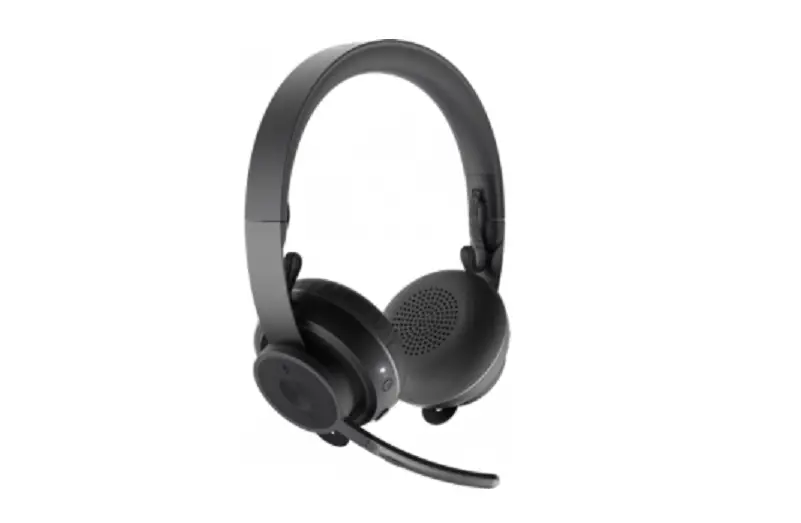
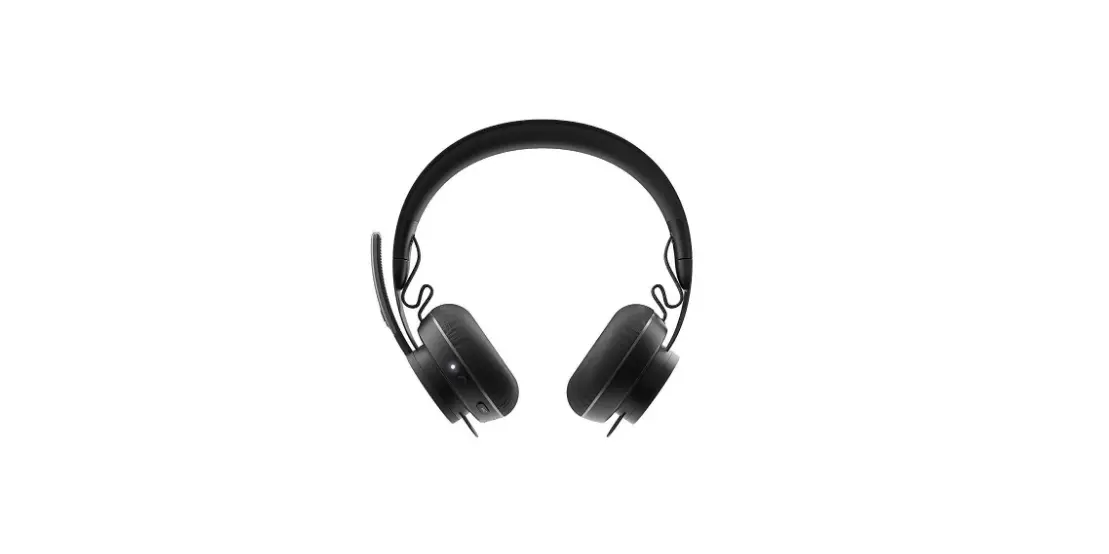
Front view: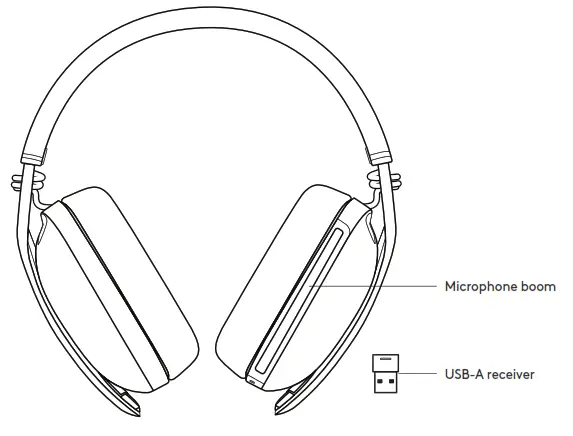
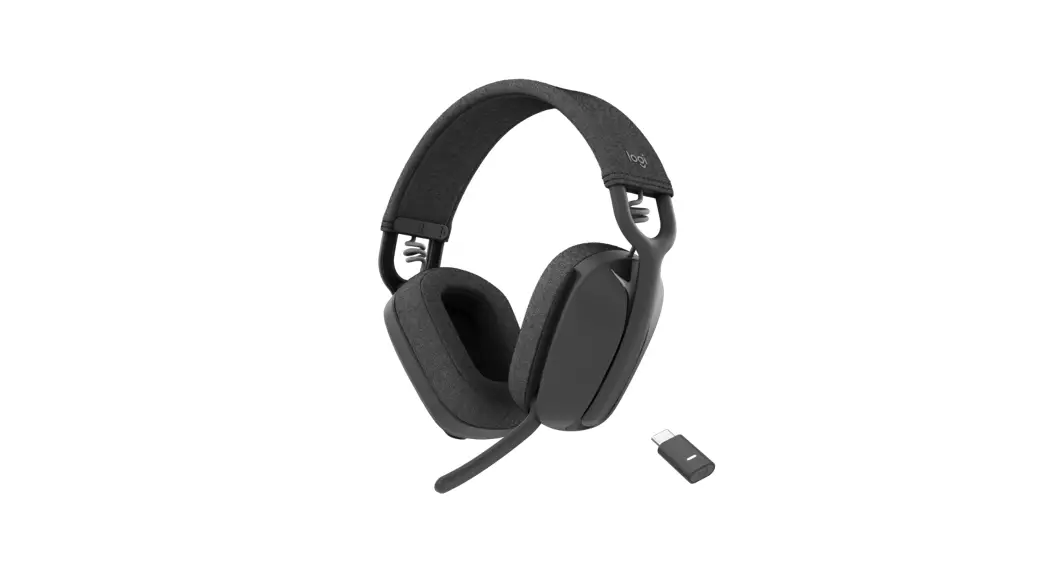
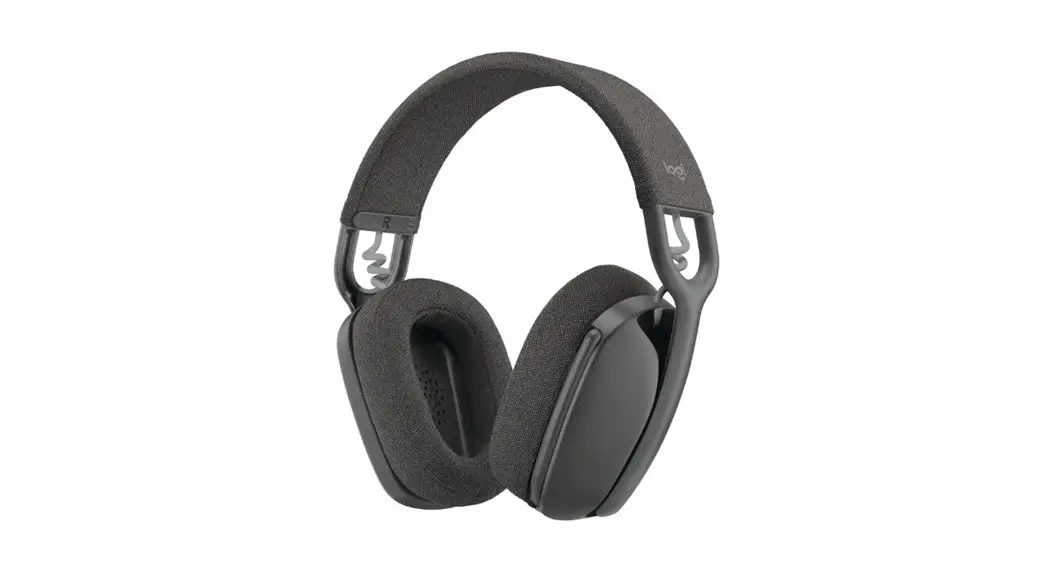
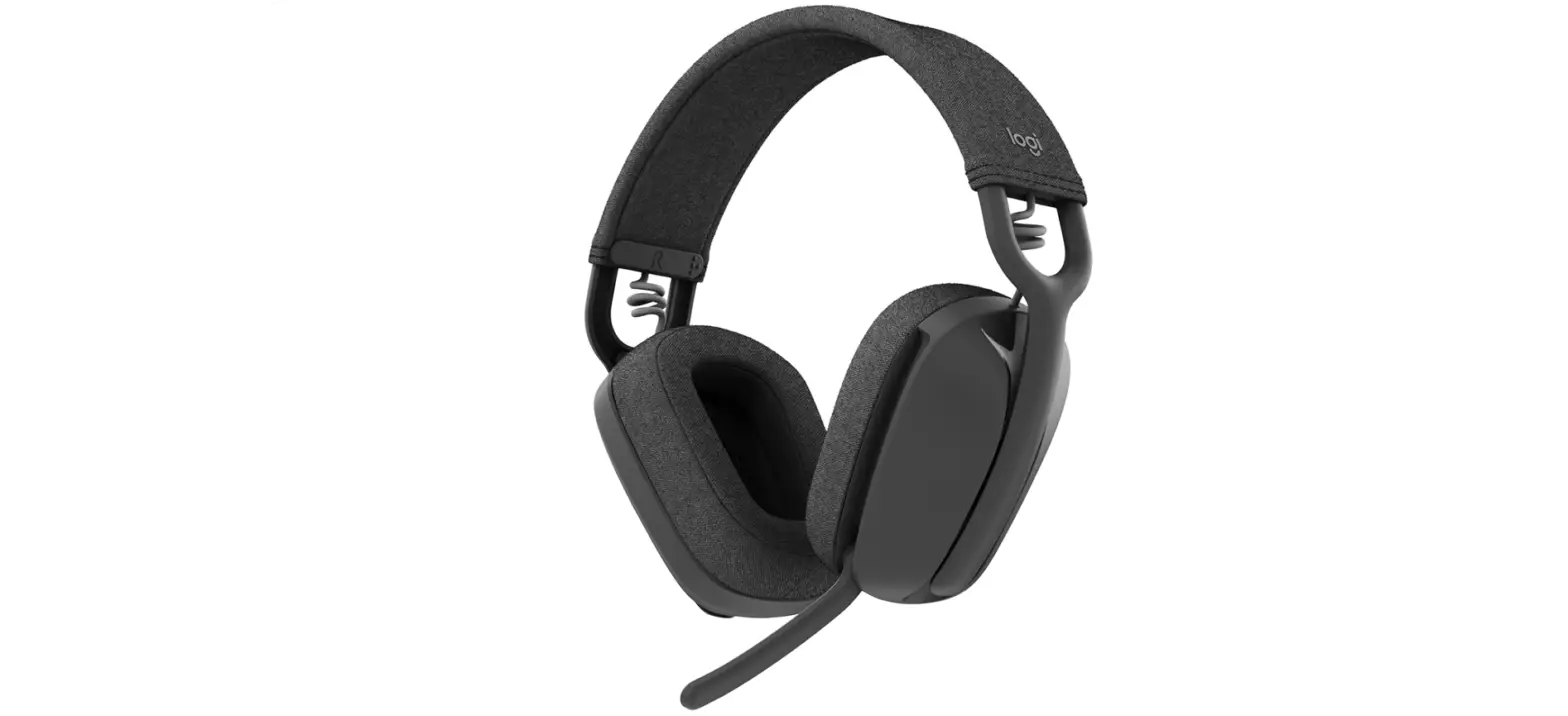
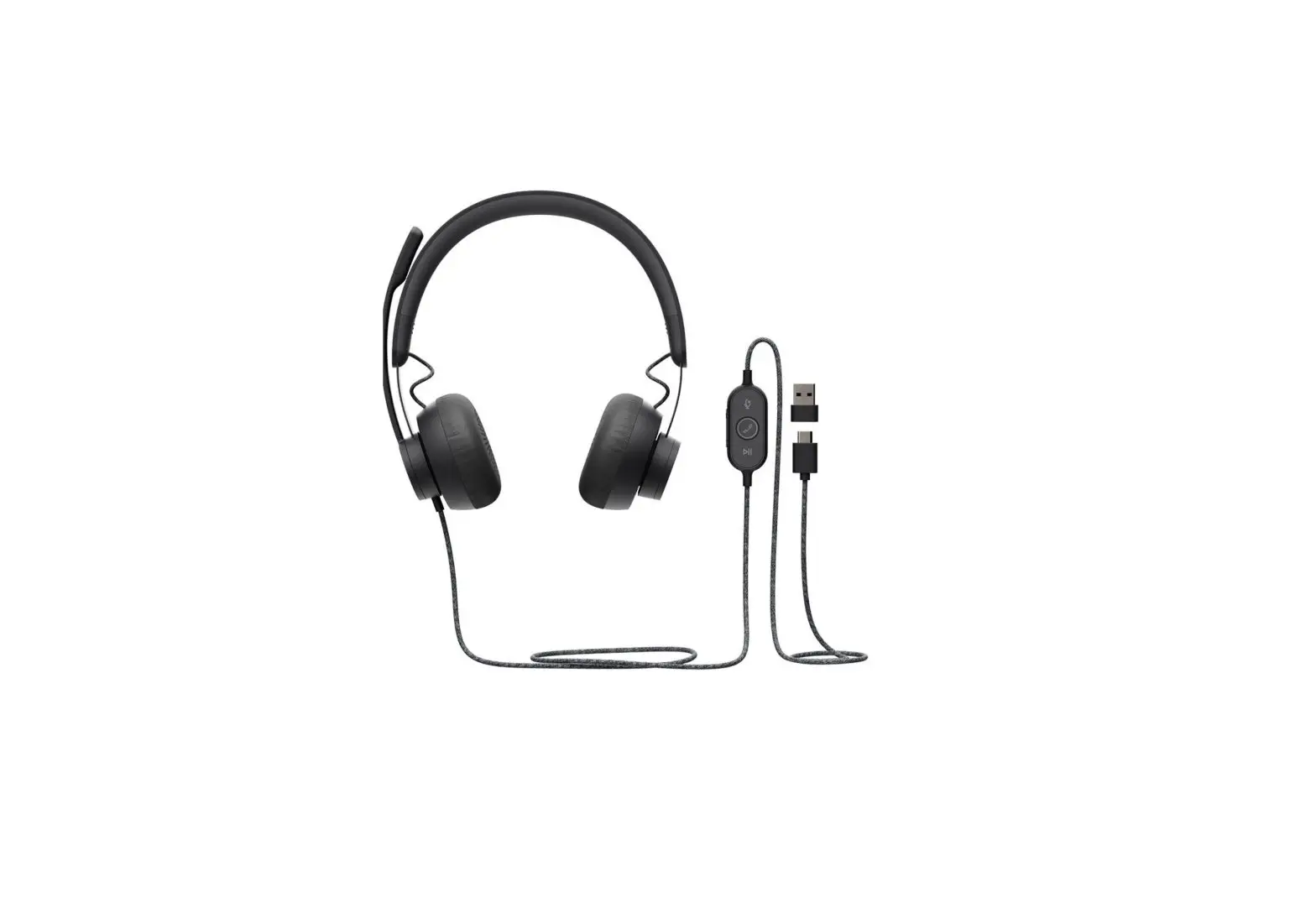
Back view:
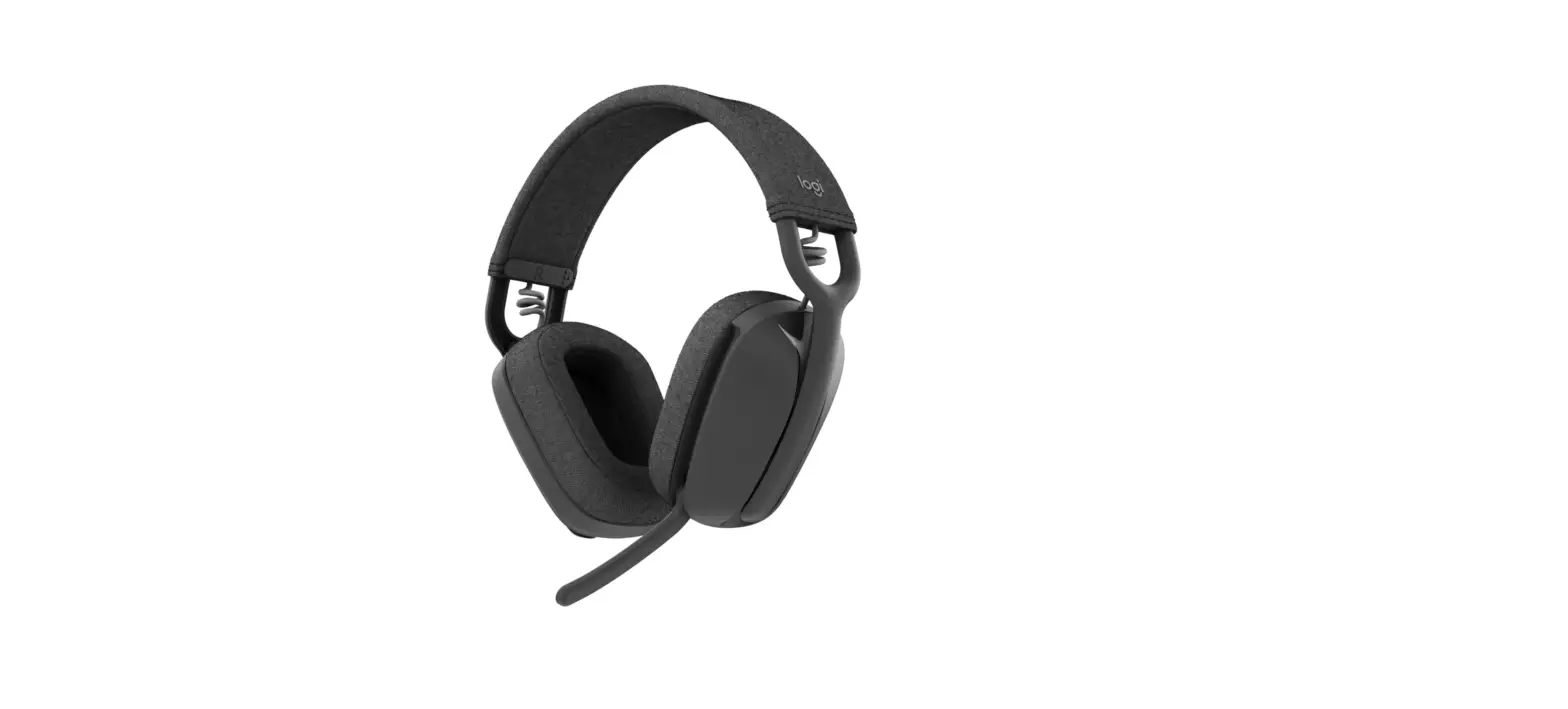
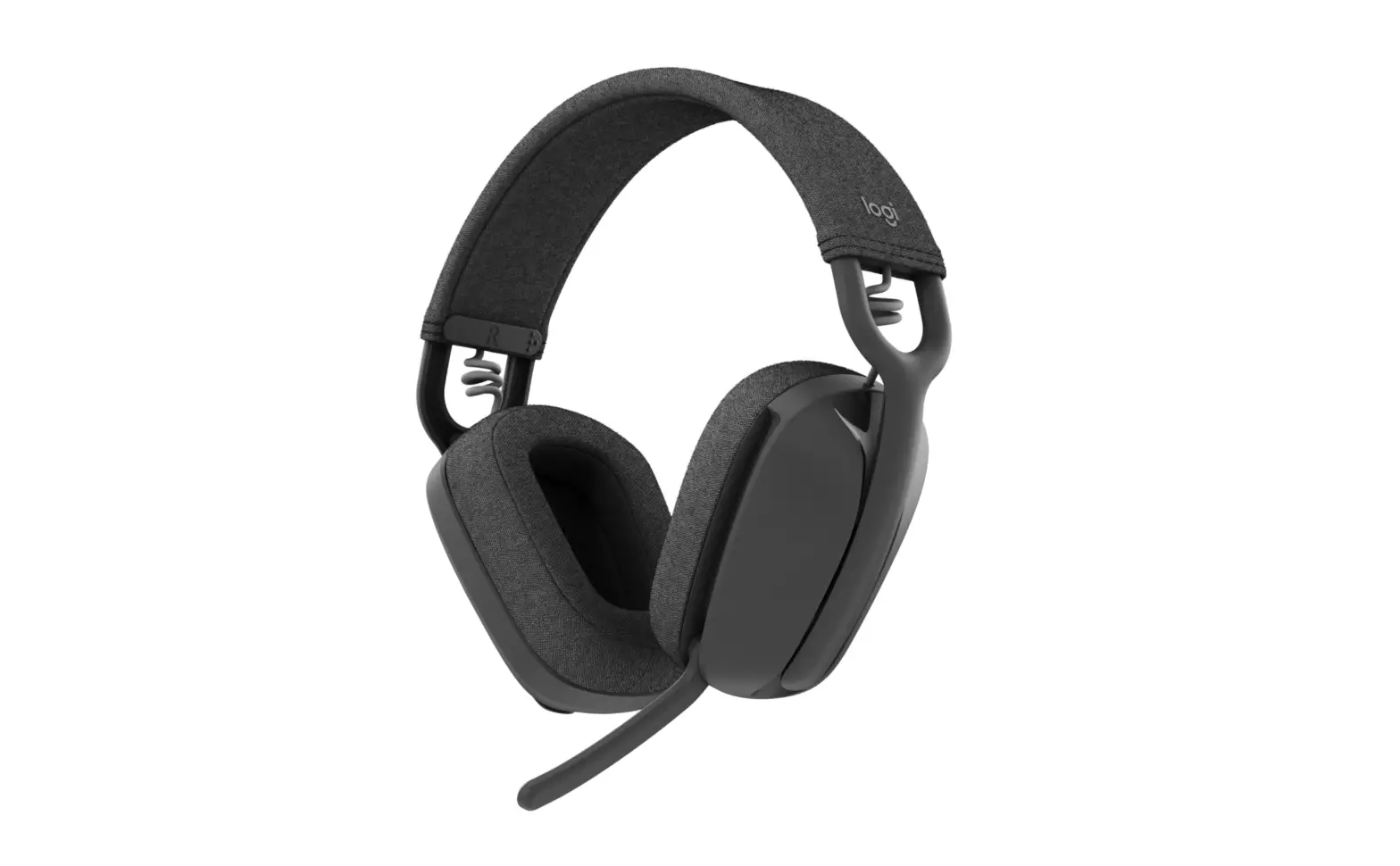
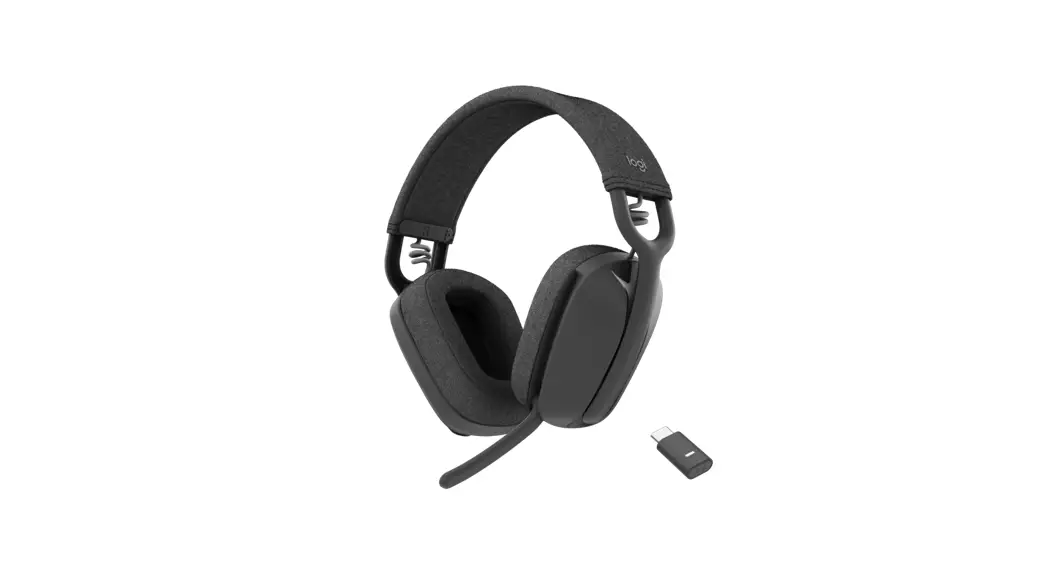
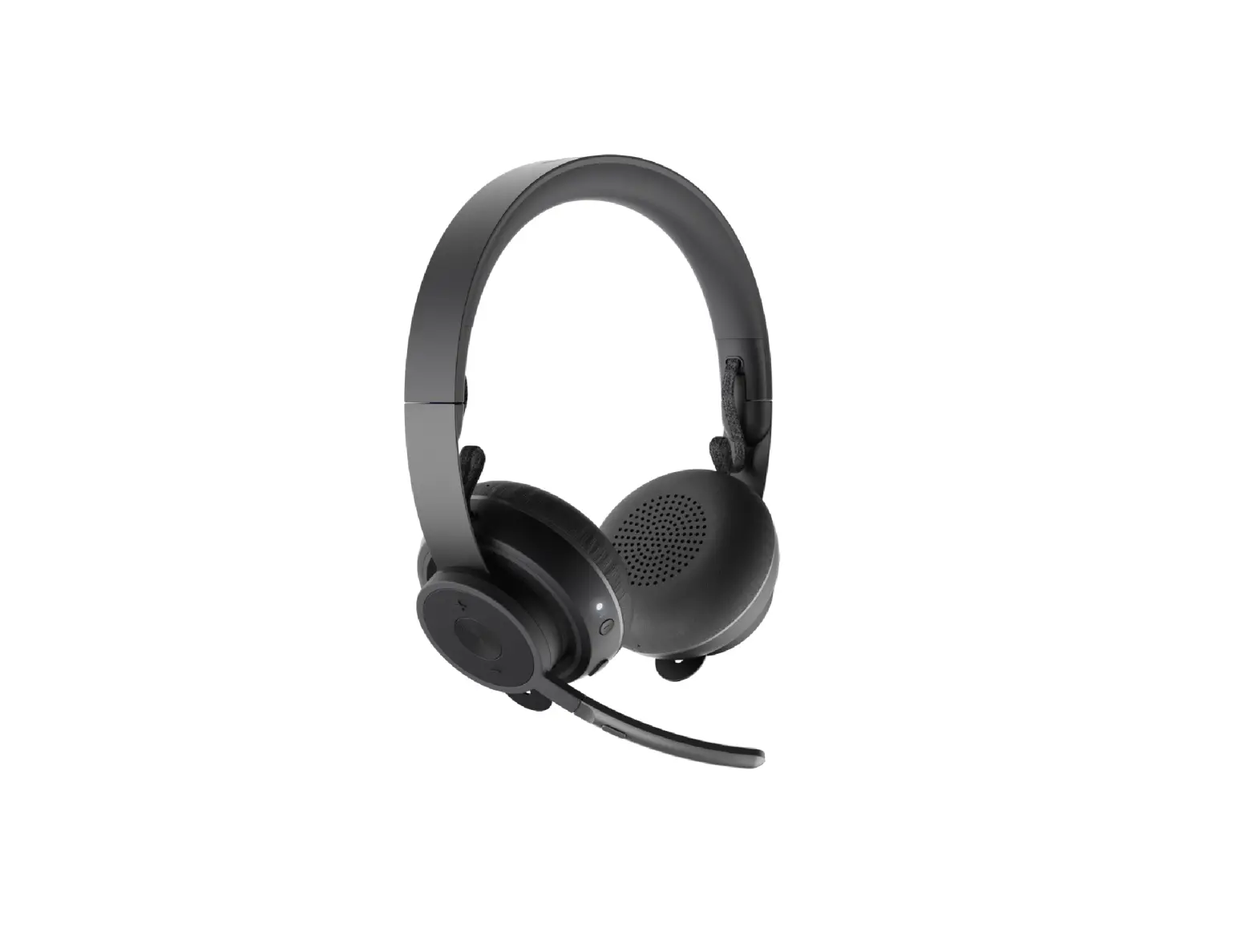
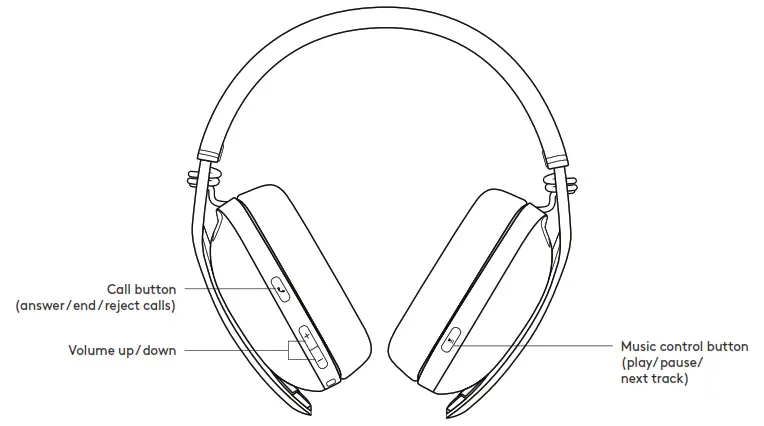 Bottom view: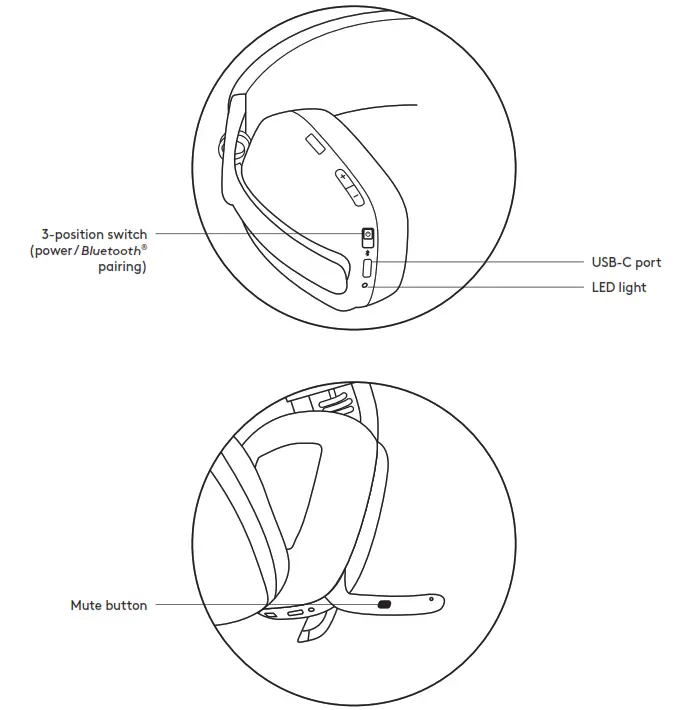
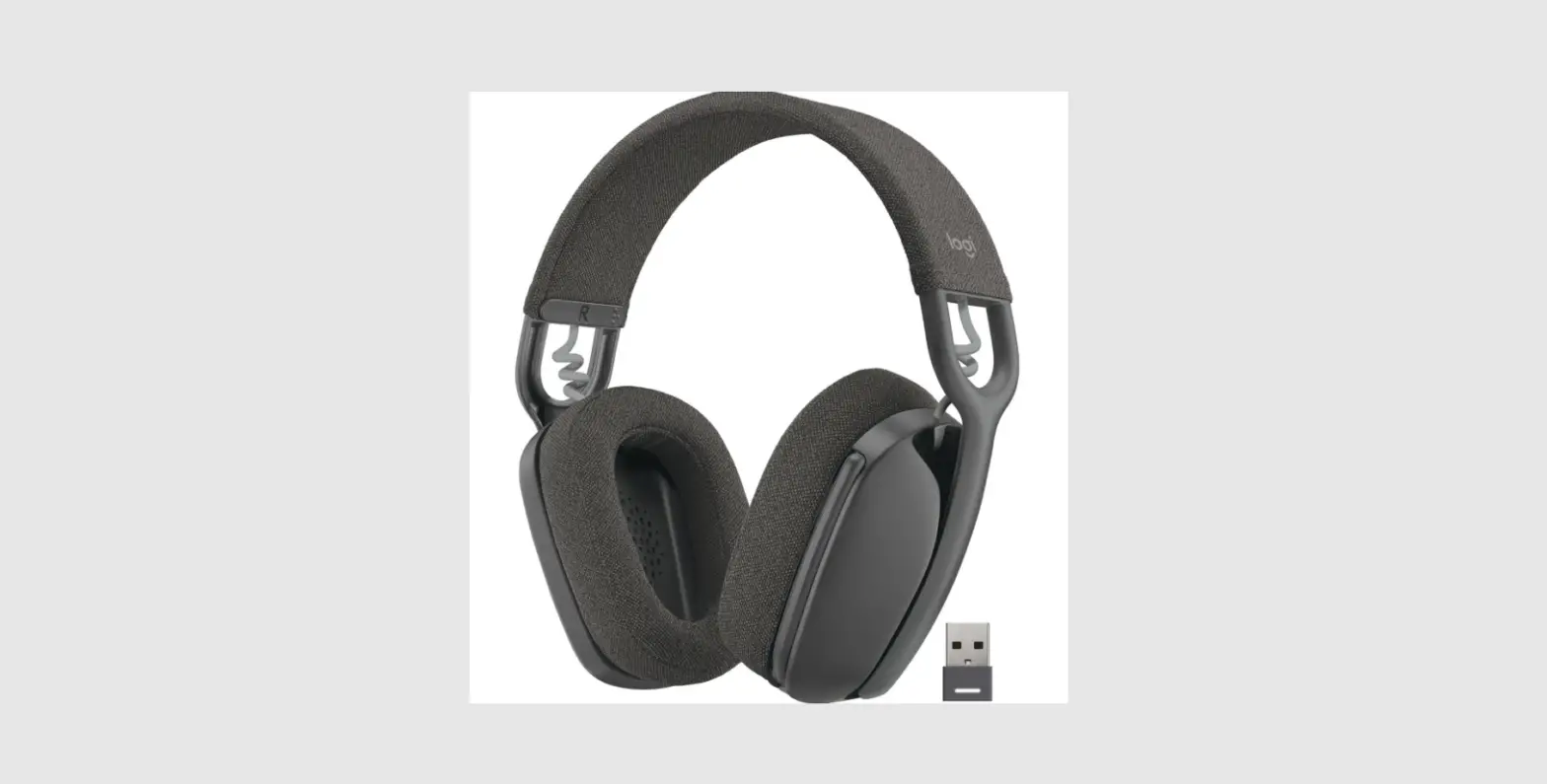
BOX CONTENT
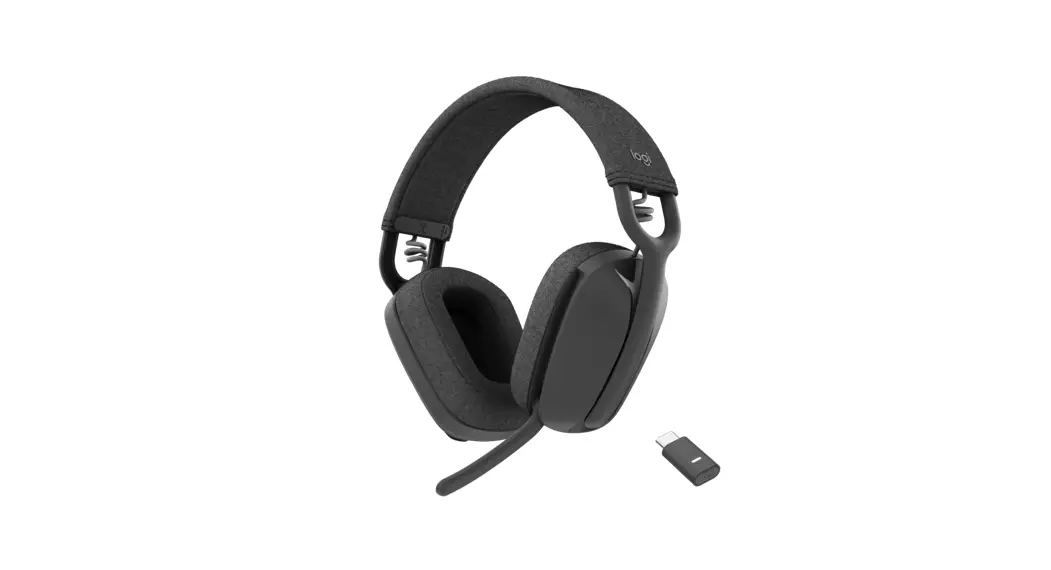
- Zone Vibe 125 wireless headphones
- Charging cable
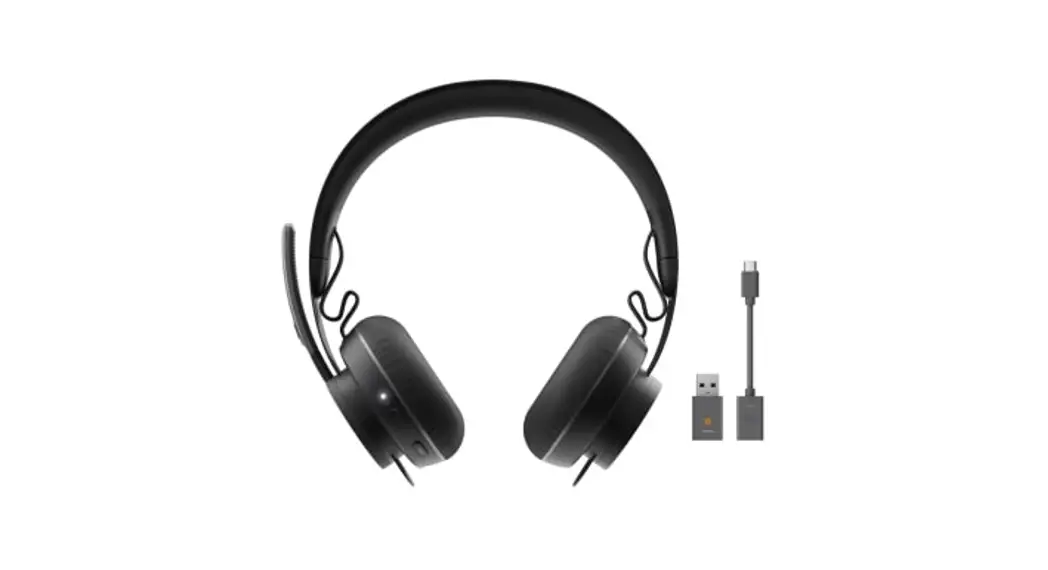
- USB-A receiver
- USB-C adapter
- Travel bag
- User documentation

POWER ON / OFF
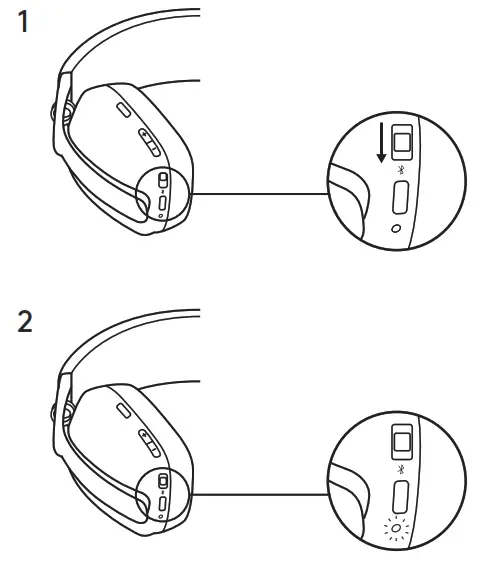
- Slide the switch in the arrow’s direction to the middle to power on the headphones

- Once powered on, the LED light will slightly turn white
- There will be a voice prompt that tells you the battery status
CONNECT YOUR HEADPHONES
a. Connect via USB-A receiver
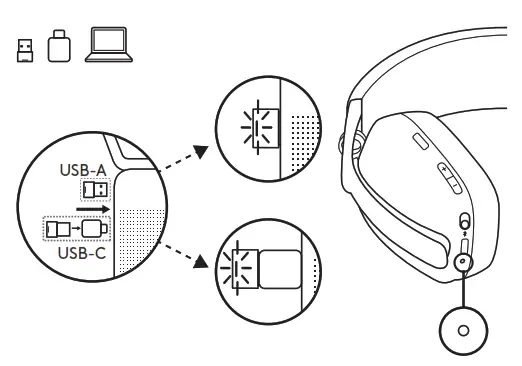
- Insert the receiver into the computer USB-A port Or insert the USB-A receiver with the USB-C adapter to the USB-C port
- Zone Vibe 125 is already paired to the receiver it ships with
- Once successfully paired, the LED light on the receiver will turn solid white

b. Connect via BLUETOOTH ®
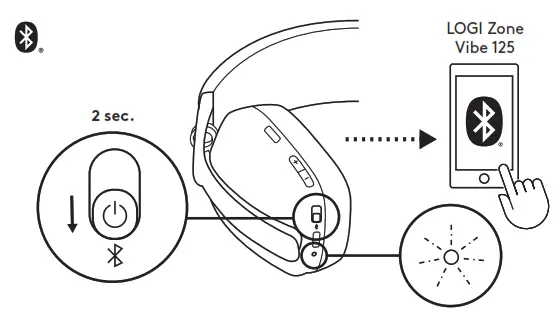
- Slide the switch to the bottom in the arrow’s direction for 2 seconds to initiate pairing
- The LED light will flash white rapidly
- Open Bluetooth ® settings on your device
- Select Logi Zone Vibe 125 in discoverable devices
- Once successfully paired, the LED light will turn solid white

ADJUSTING HEADPHONES
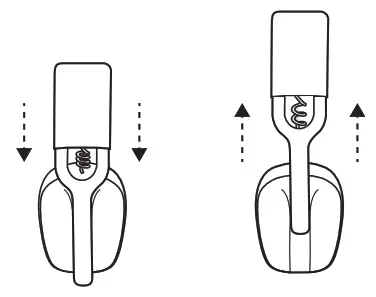
- Adjust the headphones by sliding earcups up and down the extended part of the headband
- It may be easier to adjust the headphones on your head Slide the earcups up and down the headband until they sit comfortably on your ears

HEADPHONES CONTROLS
| UC version: | |||
| Usage | Button | Action | |
| Call controls | Answer / End call | Call button | Short press |
| Reject call | 2 sec. press | ||
| Music controls | Play / Pause | Music control button | Short press |
| Track forward | Double press | ||
| Volume | Volume up | 11+11 | Short press |
| Volume down | II -II | ||
| Connectivity | Bluetooth® pairing | Power button | 2 sec. press |
Note: – Media control functionality depends on the type of application – Call activities are always the first priority When two devices are connected, the Bluetooth ®
the connection will be prioritized over the receiver
Tip: Music EQ controls are available on Logi Tune
MUTE
There are 2 ways to mute your microphone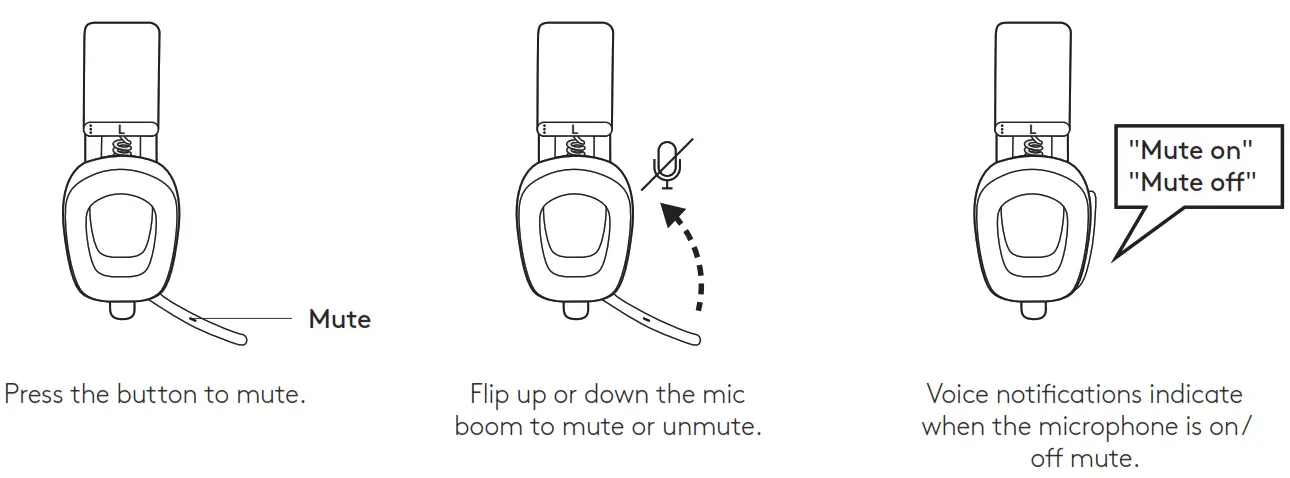
HEADPHONES LIGHT INDICATOR
| Category | Status | Light | |
| White | Power | Power ON | Turn solid white and then dim |
| Battery charging | Breathing | ||
| Battery fully charged | Solid | ||
| Connectivity | Bluetooth® pairing | Fast blinking | |
| Biuetooth® / receiver connected | Turn solid white and then dim | ||
| Link lost | Dim white | ||
| Calls | Active call | Solid | |
| Incoming call | Slow blinking | ||
| Red | Calls | Mute | Solid |
| Power | Low battery (< 10%) | Slow blinking | |
| Factory reset | Fast blink from red to white for three times then LED turn off | ||
Note: – User-triggered behaviors, such as Bluetooth ® pairing or link lost, will be prioritized then revert back to its previous status once the behavior is completed
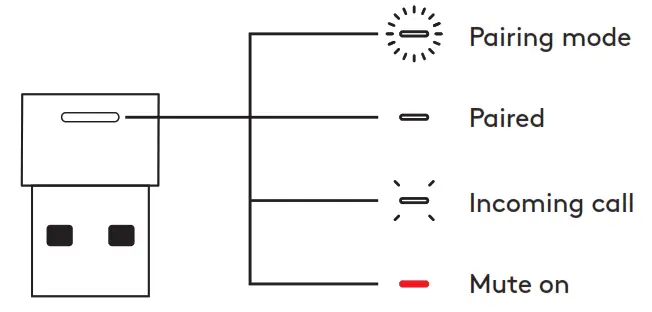
RECEIVER LIGHT INDICATOR
| Category | Status | Light | |
| White | Connectivity | Pairing | Fast blinking |
| Receiver connecting | Off | ||
| Receiver connected | Solid | ||
| Receiver disconnected | Off | ||
| Calls | Active call | Solid | |
| Incoming call | Repeat “fast blinking 3 times then LED off” | ||
| Red | Calls | Mute | Solid |
CHARGING
To conserve battery life, headphones automatically power off after 30 minutes without usage.
Sleep timer could be adjusted in Logi Tune.
The LED light on the headphones will blink slowly in RED when the battery is low.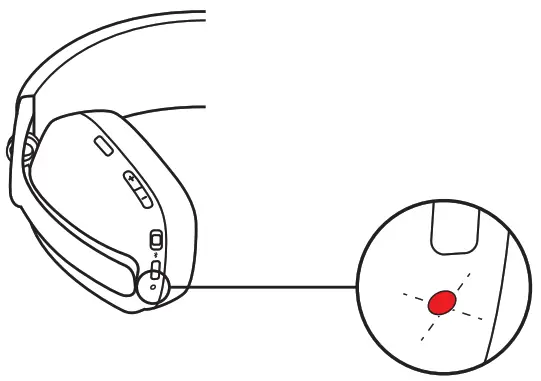
Charging via USB cable
- Plug the USB-C cable end into the USB-C port on the bottom of the earcup
- Plug the USB-A end into the USB-A charging port on your computer or AC adapter
- The LED light will start breathing white when charging The LED light will turn solid white when fully charged
– 2 hours will fully charge the battery
– 5 minutes will give you 1 hour of playback
Battery life may vary based on user, environment, and computing conditions - The headphones can be used with the receiver and Bluetooth ®paired while charging
LOGI TUNE
Logi Tune helps boost the performance of your headphones with periodic software and firmware updates It is recommended to update both your headphones and receiver To do so, download Logi Tune from www.logitech.com/tune
ADJUSTING SIDETONE
Sidetone lets you hear your own voice during conversations so you are aware of how loud you are talking In Logi Tune, select the sidetone feature, and adjust the dial accordingly – A higher number means you hear more external sound – A lower number means you hear less external sound
AUTO SLEEP TIMER
By default, your headphones will automatically power off when not in use for 30 minutes Adjust the sleep timer in Logi Tune To wake up your headphones, try sliding off/on the power switch again
RESET YOUR HEADPHONES
- Power the headphones on
- Press and hold the call button and volume ’–’ button for 5 seconds
- The LED light will quickly blink from red to white for 3 times and then turns off when your headphones are successfully reset
- The headphones will turn off after reset
SPECIFICATIONS
DIMENSIONS
Headphones: Height x Width x Depth: 183 03 x 169 68 x 73 mm
Weight: 0 185 Kg
Earpad: Height x Width x Depth: 98 6 x 75 44 x 19 3 mm
Receiver: Height x Width x Depth: 21 5 x 13 6 x 6 0 mm
Adapter: Height x Width x Depth: 25 2 x 16 5 x 9 5 mm
SYSTEM REQUIREMENTS
Works with common calling applications across almost all platforms and operating systems Works with Windows®, Mac, or Chrome™-based computers via USB-C, USB-A, Bluetooth ® and Android™ Bluetooth ® enabled devices
TECHNICAL SPECIFICATIONS
Microphone Type: Dual omnidirectional MEMS mics with directional beamforming and DSP
Frequency response (Speaker): 20-20kHz (music mode), 100-8kHz (talk mode) Frequency response (Microphone): 100-8kHz
Talk time up to 18 hrs
Listen time up to 20 hrs
Battery life may vary based on user, environment, and computing conditions Bluetooth ® version (headset): 5 2 Bluetooth ® version (receiver): 5 0
Wireless range: Up to 30 m / 100 ft (open field line of sight) Cable length (USB-A to C charging cable): 4 25 ft (1 3 m)
© 2022 Logitech Logitech, Logi and the Logitech logo are trademarks or registered trademarks of Logitech Europe S A and/or its affiliates in the U S and other countries The Bluetooth ® word mark and logos are registered trademarks owned by Bluetooth SIG, Inc and any use of such marks by Logitech is under license All other trademarks are the property of their respective owners Logitech assumes no responsibility for any errors that may appear in this manual Information contained herein is subject to change without notice www.logitech.com/support/zonevibe125
FAQ – Frequently Asked Questions
The following controls are available on your headset:
Incoming call:
– 1-second short press to answer call
– 2-second long press to reject call
During a call:
– 1-second short press to end call
Not in a call:
– Double press to play/pause music
– Short press MFB and Volume “+” to track forward
– Short press MFB and Volume “-” to track backward
NOTES:
– Music controls depend on the application used, may not work in web-based applications
– In dual connectivity scenario, native Bluetooth will be prioritized over the receiver
Other controls:
– 2-second long press invoke voice assistant (Siri, Google Voice, Cortana)
– Short press Volume “+” and “-“: Battery and connectivity status
There are two ways to reset your headset:
– Press and hold the Call button (A) and the Volume down “–” button (B) for five seconds.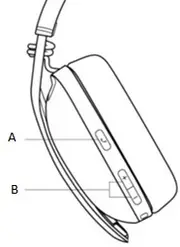
The LED will start pulsing rapidly and the headset will power off. Turn the headset back on — it will return to the default settings.
– In the Logi Tune app under Zone Vibe 125 > About the Headset, click Factory Reset.
If your firmware update or other over-the-air (OTA) updates fail multiple times, please make sure that you are not in a call or in the middle of a meeting with the headset. We highly recommend keeping the device idle during firmware updates.
NOTE: Music streaming is allowed but it might take a longer time to complete the update.
If you have plugged the USB receiver into a USB port, and after several minutes the device is not recognized in the system or doesn’t show up in your applications, use the following steps to determine whether it is a connection issue rather than problems with your hardware:
– Check your setup — is the connection plugged in securely and correctly?
– Try a different USB port — sometimes a USB port on your system may have an issue.
– Try a different device — does Zone Vibe 125 work fine on another system?
If connected through an adapter or USB hub, try plugging directly into a USB port — some external hubs or extenders may not have adequate power or specifications to support your device.
– Try to reboot your device.
For Windows:
1. Open Device Manager to check that the driver is properly installed. To access Device Manager:
– Click the Windows Start icon and type “Device Manager” in the search bar.
2. In Device Manager click Sound, video and game controllers and confirm that Zone Vibe 125 is listed.
3. If your headset is not listed, check if Windows Update is enabled. Windows Update is a Microsoft Service that automatically downloads and installs updates over the internet to the operating system.
4. To check the Windows Update settings: Click the Windows Start icon and type “Windows Update” in the search field. Make sure Windows Update is enabled.
NOTE: Windows Update settings may be controlled by the Administrator of your system if you work in a professional or corporate environment. You may need to contact your IT department for help.
For macOS:
– Select the Apple icon at the top left of the screen.
– Select About this Mac in the drop-down menu, and then System Report in the pop-up box.
– In System Report, if the headset is properly recognized, it will be listed under Audio as Zone Vibe 125.
Check to make sure that the headset is charged and turned on:
1. Cycle the power switch from Off to On. If the headset is charged, a voice prompt will announce the amount of battery remaining.
2. If there is no announcement, charge the battery for at least 15 minutes then repeat step 1.
3. If no response, perform a factory reset using one of the following:
– Long press the Call Answer / End (CAE) button and the Volume button for five seconds.
– In the Logi Tune app under Zone Vibe 125 > About the Headset, click Factory Reset.
Zone Vibe 125 automatically shuts off after 30 minutes of inactivity to conserve battery power. Alternatively, you can use the Tune app to configure multiple shut off timer durations (sleep setting) according to your preference.
Sidetone levels can be adjusted in the Tune app to regulate the volume at which you “hear yourself back”. This will help you maintain a consistent speaking level where you are neither talking too loudly because the sidetone is not high enough, nor speaking too softly because your sidetone is too high.
If your headset takes a long time to pair, make sure your headset is powered on and in pairing mode — hold the power button for two seconds to enter pairing mode.
If your headset still doesn’t reconnect:
1. Open your phone’s settings and tap on Bluetooth.
2. Tap on your headset from the list of available known devices.
3. If you’re still experiencing a problem, forget the device in the list and then start the pairing process again.
4. If it still doesn’t work, please contact Support.
Your Zone Vibe 125 headset is already paired to the receiver it ships with. Just turn the headset on. The headset is successfully connected when the light indicator on the receiver turns solid white.
If your headset and receiver lose pairing or if you have a replacement of Zone Vibe 125 wireless receiver and need to re-pair, do the following:
1. Insert the receiver into the computer USB-A port or USB-C port using the provided adapter.
2. Install and open Logi Tune Desktop. You can download it from www.logitech.com/tune
3. Logi Tune Desktop will confirm that a new receiver is found. Click Pair headset to start connecting to the headset.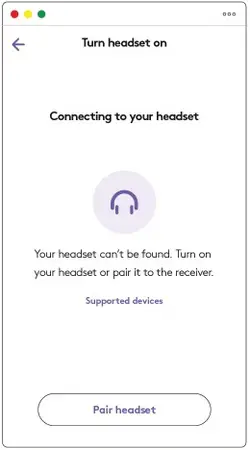
4. Enter pairing mode on the headset by switching the power switch to the bottom and hold for two seconds.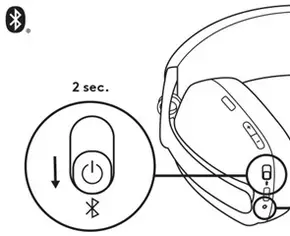
On the Logi Tune app, click Continue.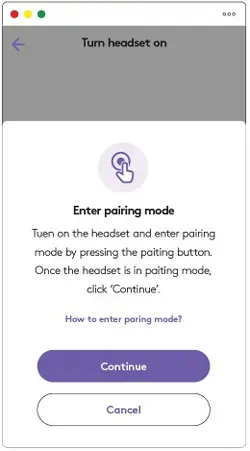
5. If pairing mode is successful, light indicators on the receiver and headset will flash white. Once the receiver is paired with the headset, light indicators on the receiver and headset will turn solid white.
6. Look for Zone Vibe 125 under the Bluetooth list of your device and connect.
When Zone Vibe 125 is connected to a computer using Bluetooth, the flip-to-mute function and the Mute button will function as intended. However, the Bluetooth connection does not provide the ability to sync the mute status with applications running on the computer.
Zone Vibe 125 has two ways to mute the microphone:
– Flip the microphone boom up to the vertical stowed position, or
– Press the Mute button on the mic boom. To un-mute, flip the mic boom down again or press the Mute button on the mic boom again.
Make sure the headset microphone boom in the left ear cup is in the down position. Zone Vibe 125 mutes the microphones automatically with the mic boom in the upright position.
Your headset should automatically reconnect if your Bluetooth signal is lost during a call. If it doesn’t, it only takes a few steps to get it connected again:
– Turn your headset off.
– After two seconds, turn the headset back on and wait for it to connect.
If this doesn’t resolve the issue, you may need to restart your phone’s Bluetooth connection. Here’s how:
– Set your phone to Airplane mode.
– Wait ten seconds and then switch Airplane mode off.
– If your headset still doesn’t reconnect, open your phone’s settings and tap on Bluetooth.
4. Tap on your headset from the list of available known devices.
If you’re still experiencing connection issues, please contact Support.
1. If your headset fails to enter pairing mode, try resetting the headset. This will cause the headset to disconnect and return to the original factory settings.
To reset your headset:
Press and hold the Call button and the Volume down “–” buttons for five seconds.
A – Call button
B – Volume Up/Down
The LED will start pulsing rapidly and the headset will power off.
2. Turn the headset back on — it will return to the default settings.
Follow the pairing process.
You can, but results may vary depending on your computer configuration, operating system, and so on.
We recommend that Zone Vibe 125 be connected to computers with the USB-A receiver where the headset system controls both sides of the Bluetooth radio, and provides call control for supported applications.
Logitech cannot guarantee performance when directly connected without the USB-A receiver.
Zone Vibe 125 can connect to two different devices or hosts simultaneously. Typically, the USB-A receiver is plugged into a PC or Mac with a direct Bluetooth connection to a smartphone or other Bluetooth device.
When in multi-point, the USB-A receiver connection takes priority over the direct Bluetooth connection.
Supported Bluetooth Profiles for Zone Vibe 125
The following profiles are supported:
HFP — Hands Free Profile supports hands-free devices including headsets.
A2DP — Advanced Audio Distribution Profile supports Bluetooth audio/stereo streaming.
AVRCP — Audio/Video Remote Control protocol supports Play/Pause, Advance.
No, Zone Vibe 125 is not compatible with the Unifying Receiver.
The ear cushions are not replaceable but they can be cleaned. See Clean your Logitech Zone Vibe 125 headset for more information.
If you need to clean your Zone Vibe headset, please review the following guidelines first:
Before you clean:
– Do not wash ear pads in a washing machine.
– Do not dry ear pads in a tumble dryer.
– Do not apply cleaning liquids directly to the ear pads and headband.
– Do not use bleach, acetone/nail polish remover, strong solvents, or abrasives as it might affect the fabric surface condition and/or cause discoloration.
– Use alcohol wipes to clean the ear pads.
Wiping and cleaning your Zone Vibe 125 headset (excluding ear pads):
– To clean all areas of the headset use regular tap water to a lightly moisten a clean, soft, lint-free cloth and gently wipe down the headband and ear pads.
– For heavier stains, you might additionally use a small amount of soap on the lightly moistened, clean, soft cloth and gently rub stained areas. Rinse thoroughly the surface by using the same moistened cloth. Repeat until all traces of soap are gone.
– You can also use fragrance-free disinfecting wipes, fragrance-free anti-bacterial wet wipes.
– Let dry at room temperature.
Logitech encourages users to properly sanitize their products in accordance with guidelines put out by the World Health Organization and the Centers for Disease Control guidelines.
To check for updates and apply them to your Zone Vibe 125, you’ll need to download and install the Logi Tune Desktop application. Click the Download link in the left menu panel to get the latest version.
Make sure your headset is on and the Bluetooth USB receiver is plugged in. The headset can only be upgraded Over The Air (OTA).
In Logi Tune, click Settings and confirm that Zone Vibe 125 is on the device list. Click About the headset and then click Check for update to run the update.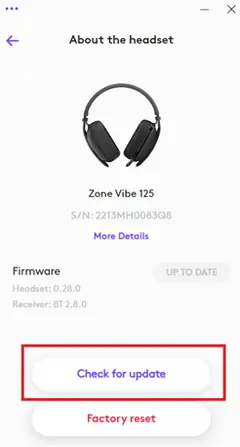
Zone Vibe 125 uses native drivers on your computer and requires no additional software to run — it is plug and play.
 Logitech Support + Download