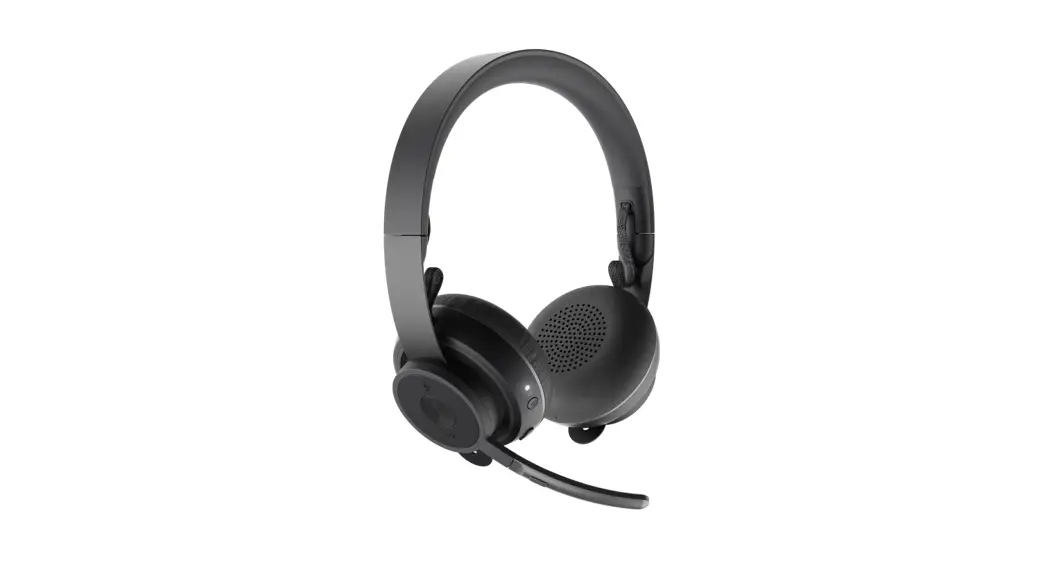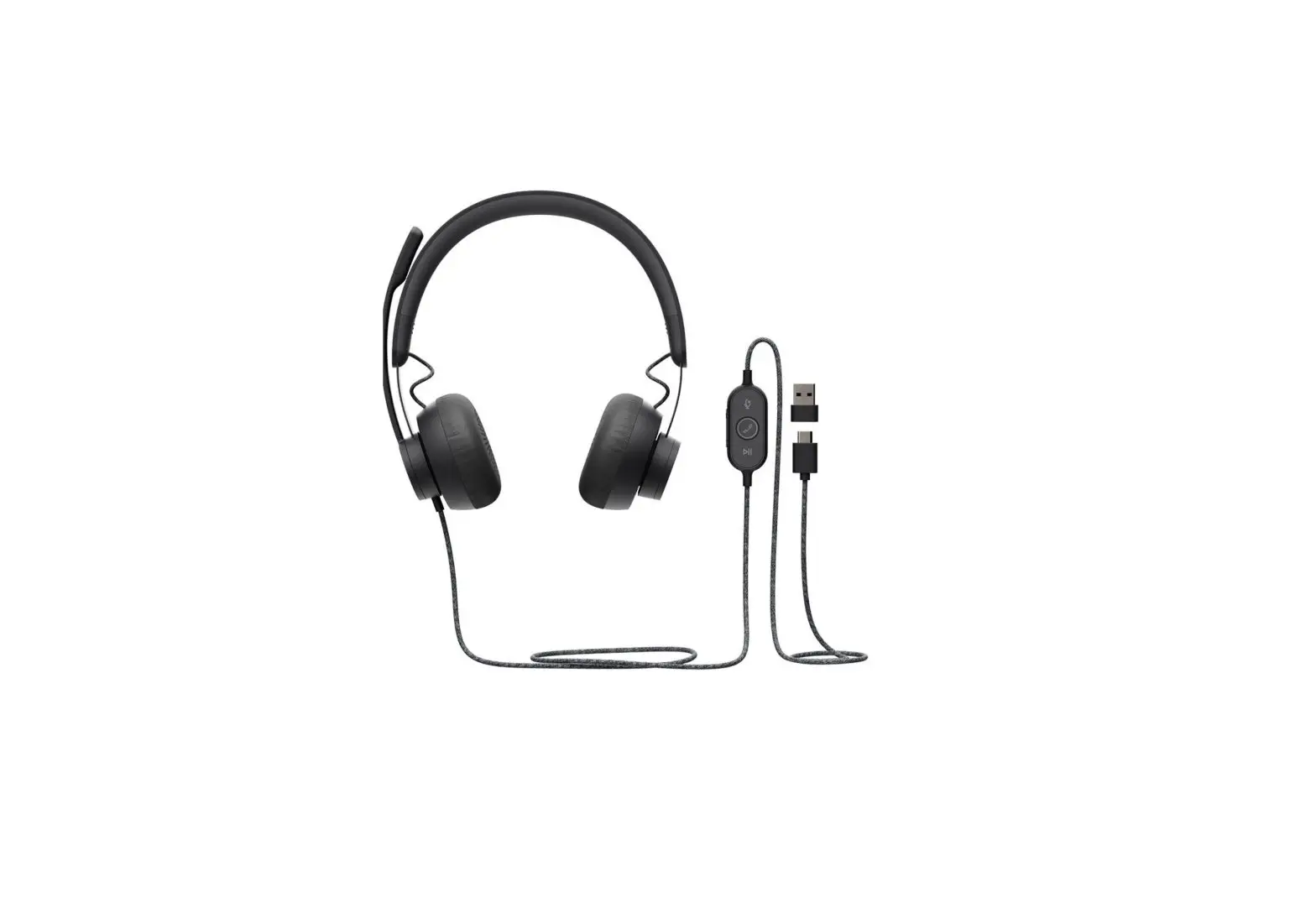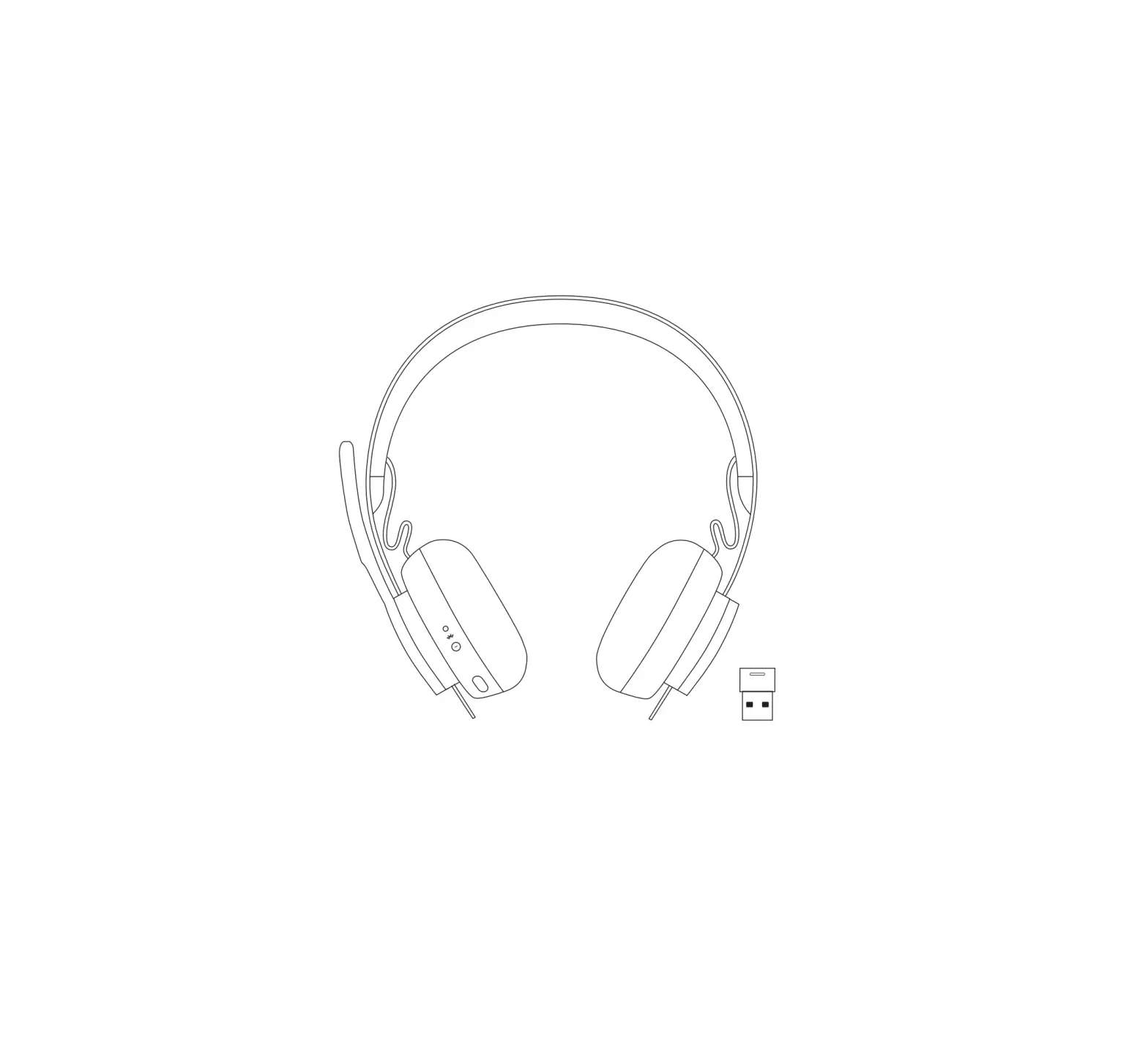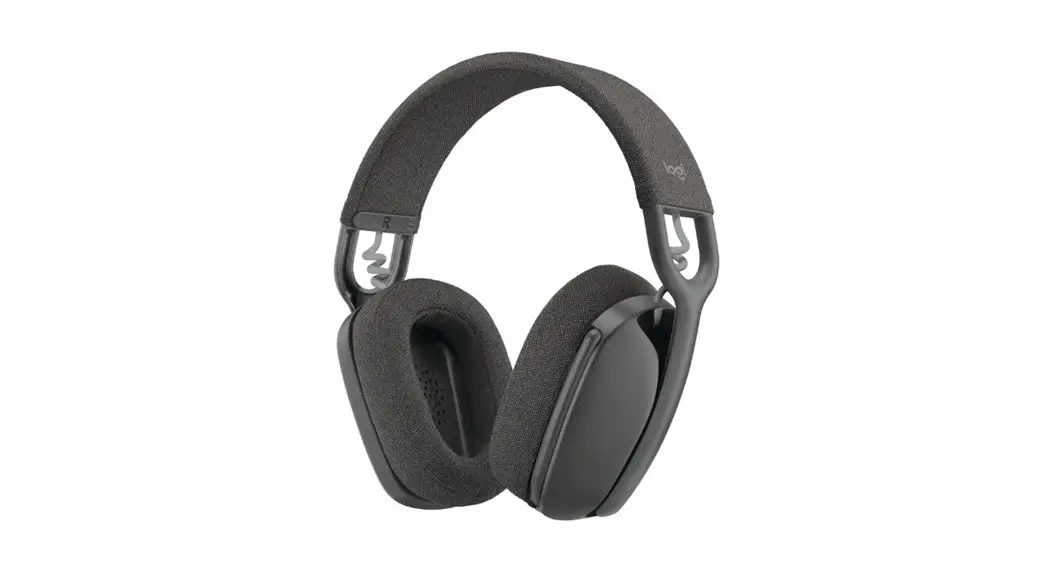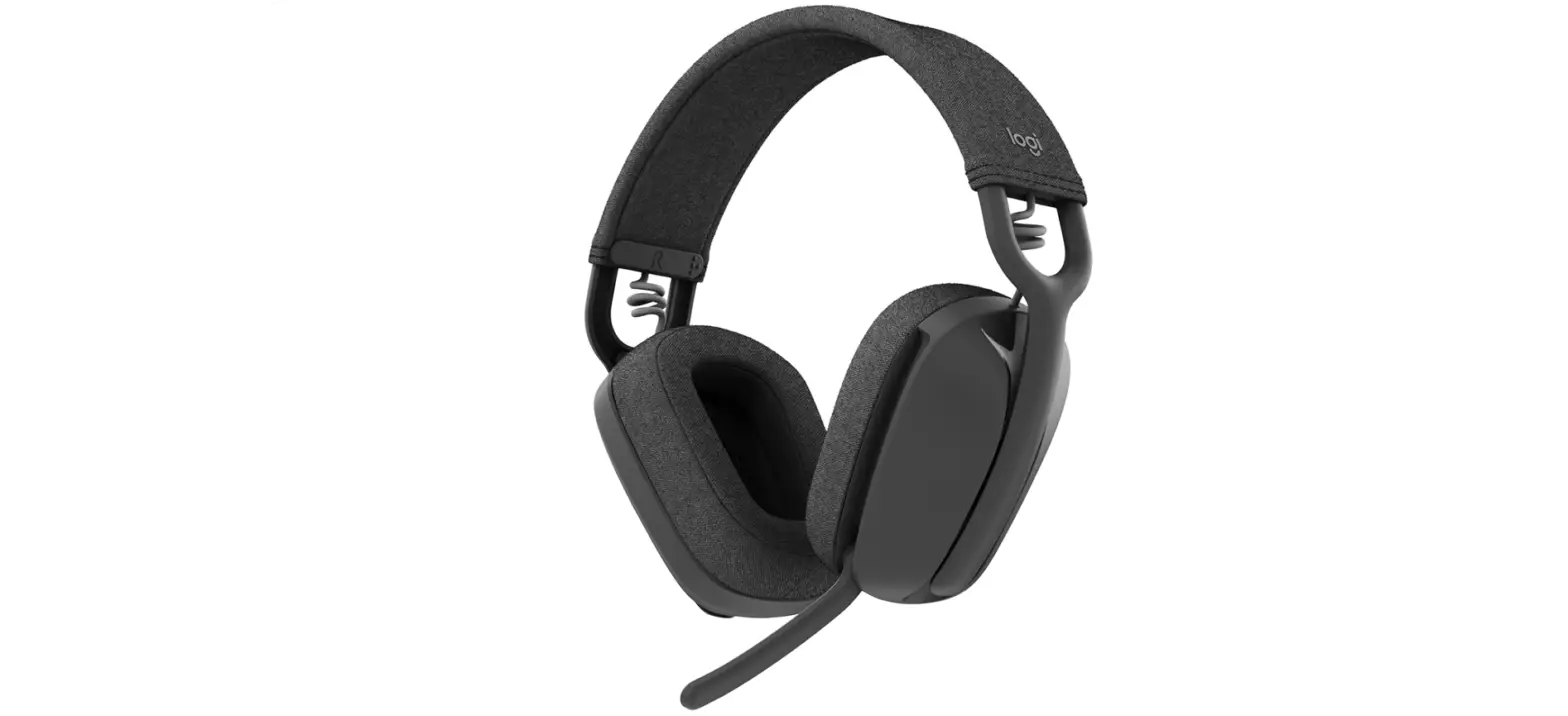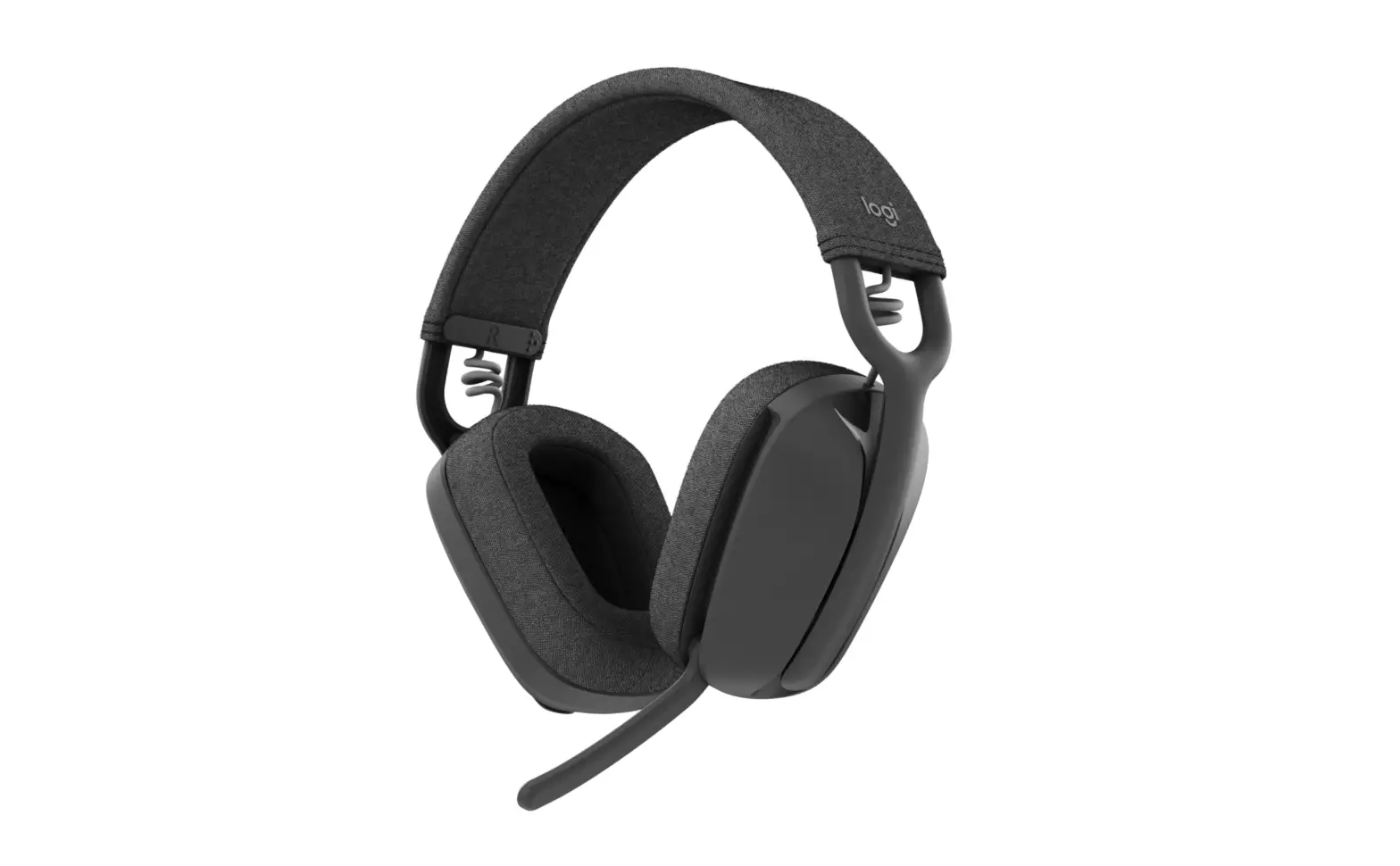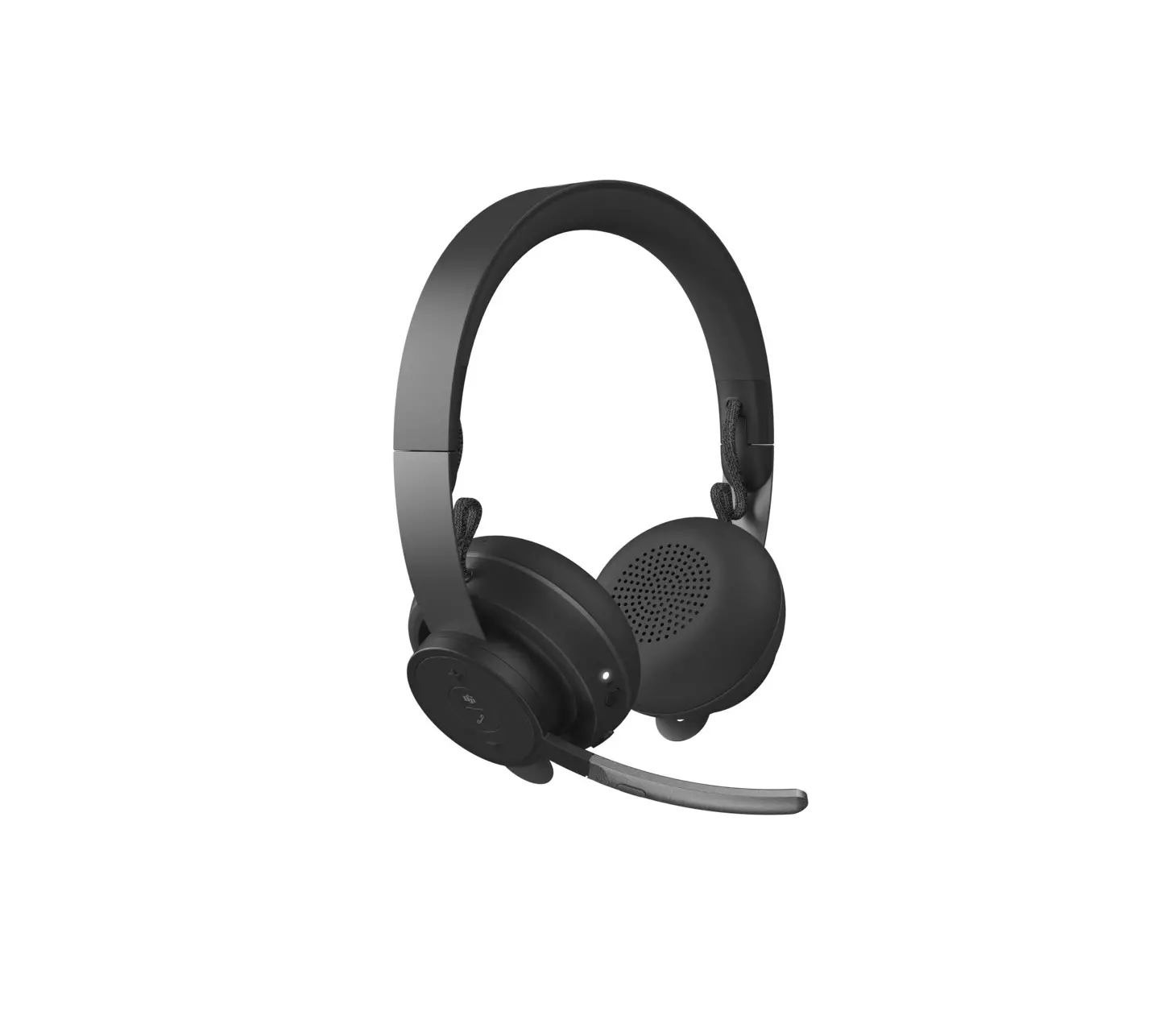
logitech 981-000806 Zone Wireless Plus Wireless Headset User Guide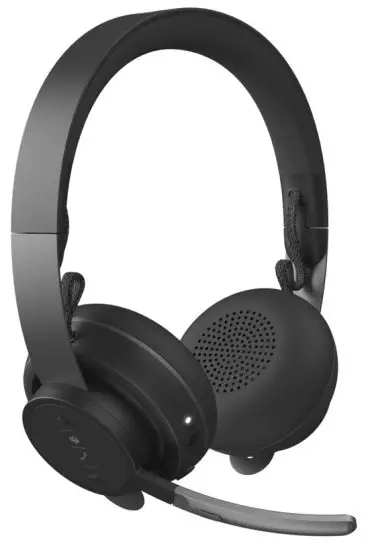
KNOW YOUR PRODUCT
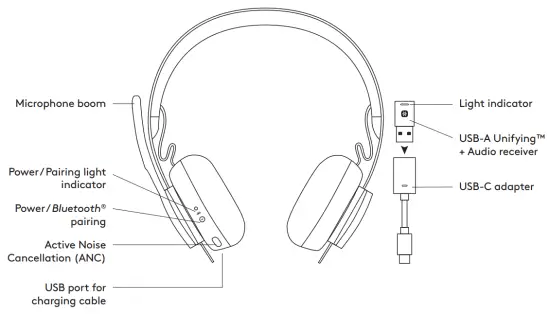
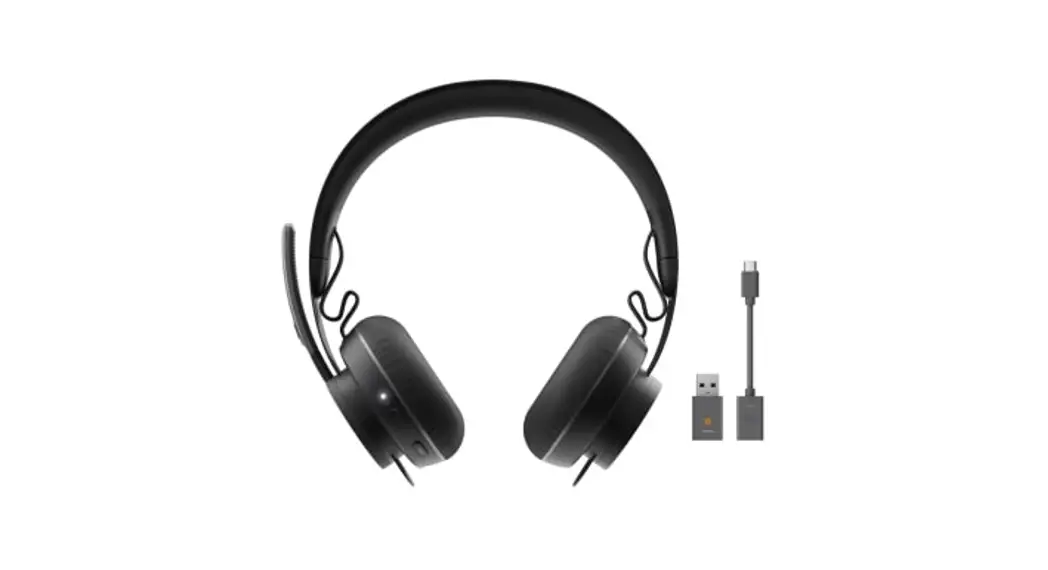
WHAT’S IN THE BOX

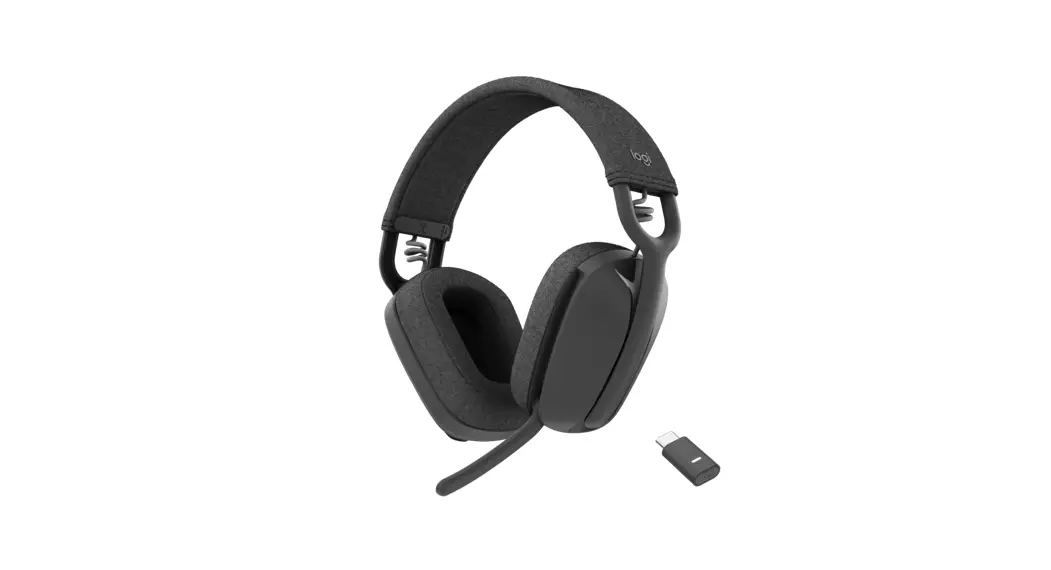
- Headset
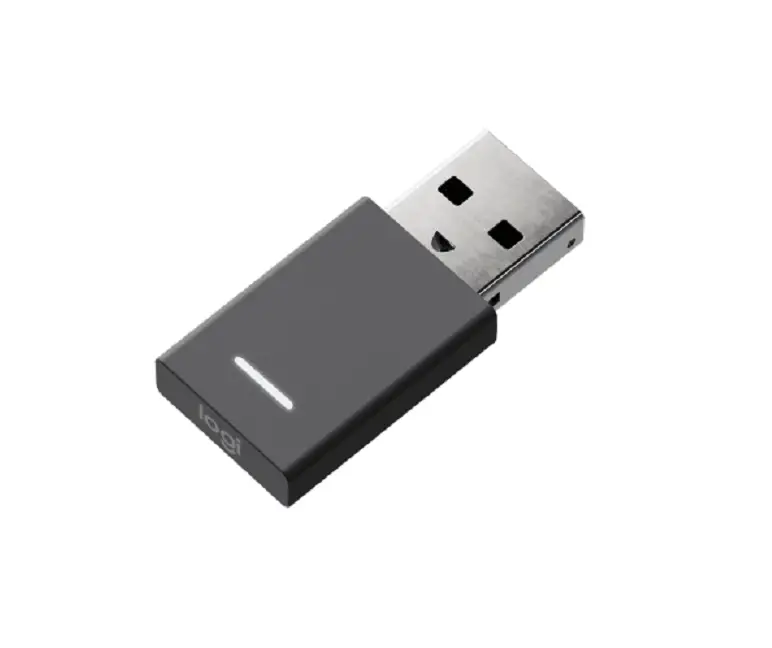
- USB-A Unifying™ + audio receiver
- USB-C to A adapter
- USB-A to C charging cable
- Travel bag
- User documentation
POWER ON/OFF
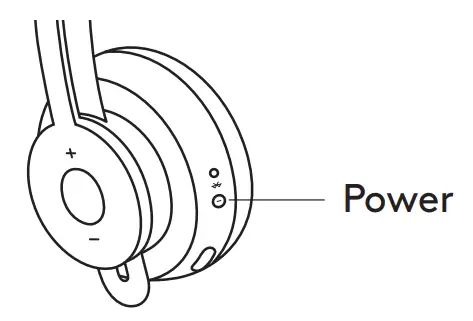
- Press power button for 1 second.
- Once powered on, light indicator turns white.
If no device is connected, it will flash white slowly.
PAIRING VIA BLUETOOTH®
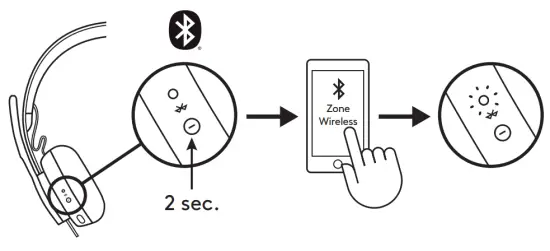
- Press power button for 2 seconds. Light indicator will flash white rapidly.
- Open Bluetooth® settings on your device.
- Select Zone Wireless Plus in discoverable devices.
- Once successfully paired, light indicator will turn solid white.
PAIRING HEADSET, KEYBOARD AND MICE VIA USB RECEIVER
www.logitech.com/support/unifying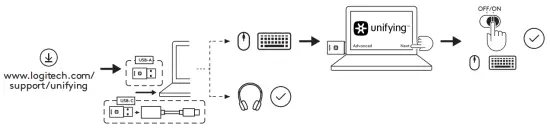
- Download Logitech® Unifying Software at www.logitech.com/support/unifying.
- USB-A
Insert the Zone Wireless Plus receiver into the computer USB-A port.
USB-C
Insert the USB-A receiver into the USB-C adapter. Then insert the adapter into the computer USB-C port. - Zone Wireless Plus headset is already paired to the receiver it ships with. Just power on the headset.
Once successfully paired, the light indicator on the receiver will remain solid white. Light indicator on the headset will turn solid white. - To pair mice and keyboard,
- Open the software and continue clicking “Next” on the bottom right corner. If you already have other unifying receivers (with
 logo), please unplug them.
 - Locate the OFF-ON slider on your mice and keyboard. Turn each device off and back on to restart your devices and finish pairing.
- If paired, please follow the on-screen prompt and test it out to confirm successful pairing.
- If pairing failed, please retry or refer to our support page www.logitech.com/support/zonewirelesspluspairing.
NOTE: you can pair up to 6 Logitech Unifying peripherals.
- Open the software and continue clicking “Next” on the bottom right corner. If you already have other unifying receivers (with
 logo), please unplug them.
ADJUSTING HEADSET
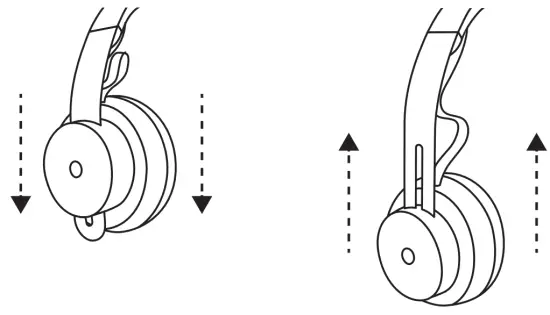
- Adjust headset by sliding earcups up and down the headband.
- It may be easier to adjust the headset on your head.
Move the earcups up and down the headband until they sit comfortably on your ears.
ADJUSTING THE MICROPHONE BOOM
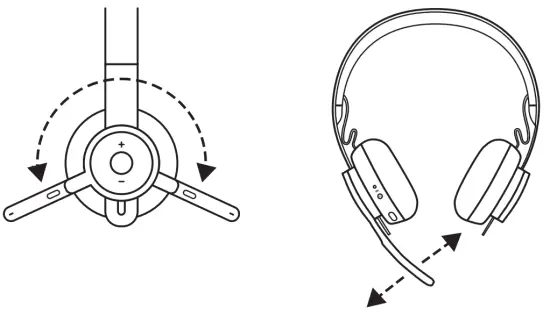
- Microphone boom rotates 270 degrees. Wear it on either left or right side. Audio channel will switch automatically, depending on the direction you are wearing the microphone.
- Flexible microphone boom — adjust boom location to capture voice better.
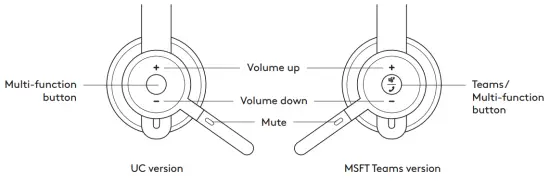
HEADSET CONTROLS
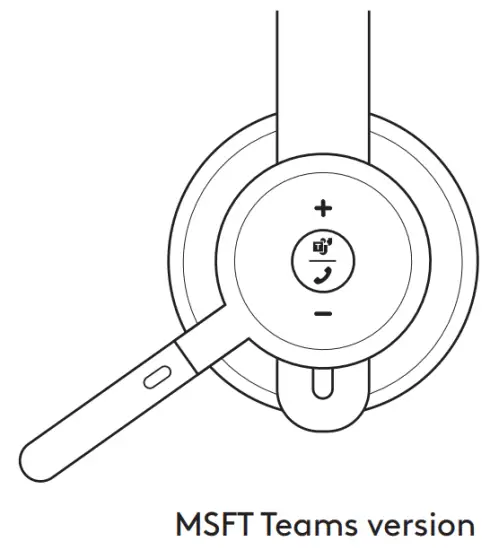
TEAMS version | |||
| Usage | Button | Action | |
| Call controls | Answer / End call | Multi-function | Short press |
| Reject call | 2 second press | ||
| Resume call | Short press | ||
| Transfer active call to other device | Short press | ||
| Teams activities | Check connection to teams | Short press | |
| Quick access to Teams | Short press | ||
| Respond to Teams notifications | Short press | ||
| Trigger Teams voice skills (Cortana) | 2 second press | ||
| Media controls | Play / Pause | Multi-function | Double press |
| Track forward | Multi-function and “+” | Short press | |
| Track backward | Multi-function and “–” | Short press | |
| Volume | Volume up | “+” | Short press |
| Volume down | “–” | Short press | |
| Headset connection and battery status | Check connectivity and battery life | “+” and “–” | Short press |
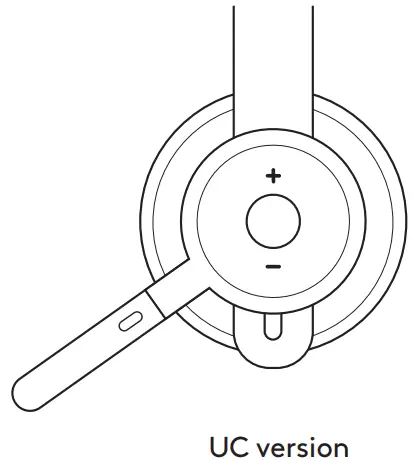
UC version | |||
| Usage | Button | Action | |
| Call controls | Answer / End call | Multi-function | Short press |
| Reject call | 2 second press | ||
| Voice assistant | Multi-function | 2 second press | |
|
Media controls | Play / Pause | Multi-function | Double press |
| Track forward | Multi-function and “+” | Short press | |
| Track backward | Multi-function and “–” | Short press | |
| Volume | Volume up | “+” | Short press |
| Volume down | “–” | Short press | |
| Headset status | Check connectivity and battery life | “+” and “–” | Short press |
Note:
- Teams activities are only functional when Teams is running on an unlocked computer.
- Media control functionality depends on type of application.
- Call activities are always the first priority. When two devices are connected, the Bluetooth® connection will be prioritized over receiver. When two Bluetooth® devices are connected, the last active device will override the other.
Tip: Button customizations and Music EQ controls available on Logi Tune app.
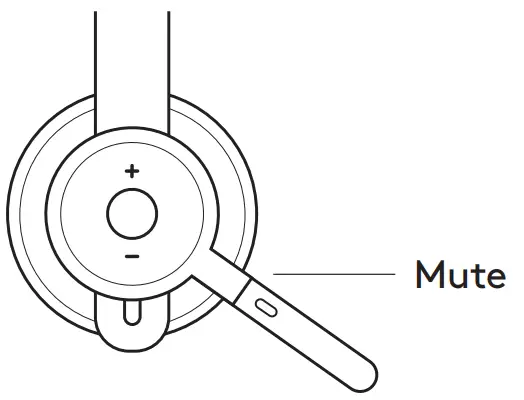
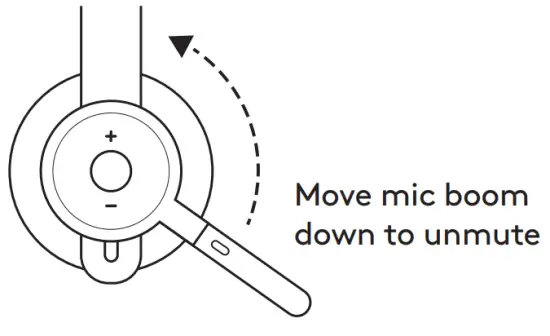
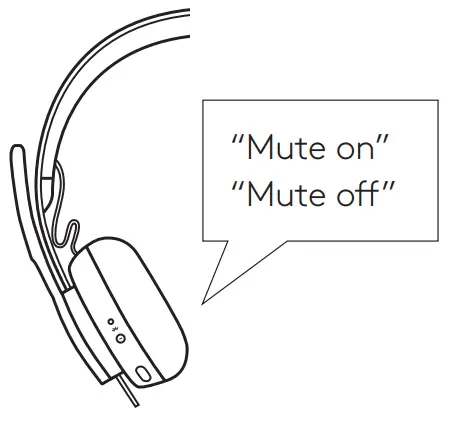
- MUTE

- Move mic boom up to mute

- Voice notifications indicate when the microphone is on/ off mute

ACTIVE NOISE CANCELLATION (ANC)
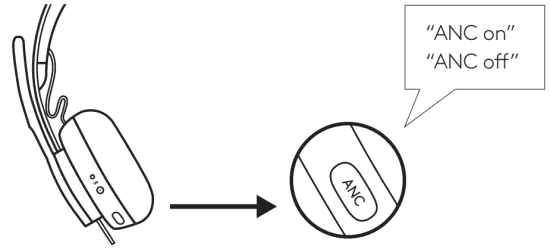
ANC blocks out the noise around you to help you concentrate on the task at hand.
- Press the ANC button on the side of the earcup.
- There will be voice notifications when turning ANC on and off. These can be turned off in the Logi Tune app.

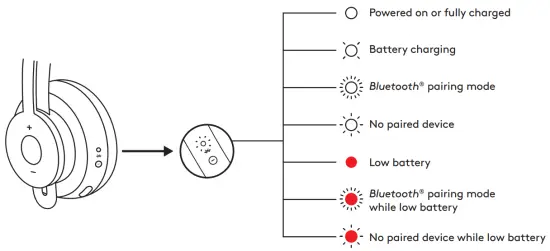
HEADSET LIGHT INDICATOR
| Light | Status | |
|
White | Solid | Powered on or fully charged |
| Breathing | Battery charging | |
| Fast pulsing | Bluetooth® pairing mode | |
| Slow pulsing | No paired device | |
|
Red | Solid | Low battery |
| Fast pulsing | Bluetooth® pairing mode while low battery | |
| Slow pulsing | No paired device while low battery | |
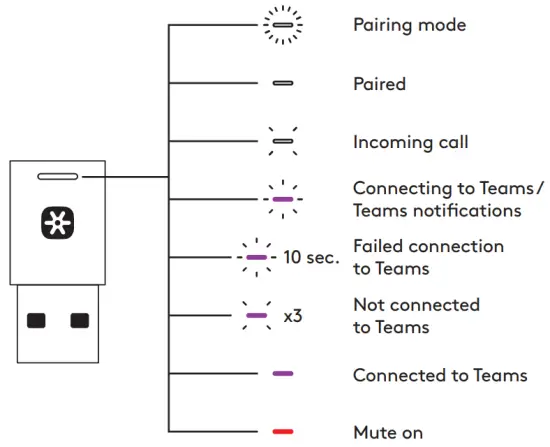
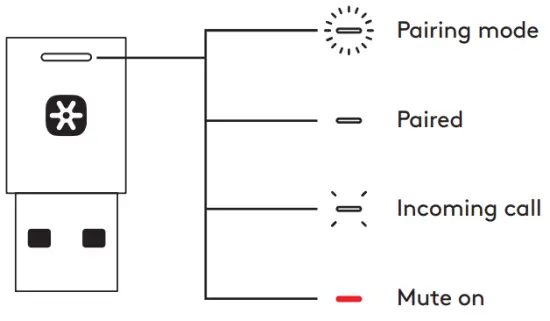
RECEIVER INDICATOR LIGHT
| TEAMS version | ||
| Light | Status | |
|
White | Fast flashing | Pairing mode |
| Solid | Paired | |
| Repeat flashing on and off | Incoming call | |
|
Purple | Pulsing | Connecting to Teams / Teams notifications |
| Flashing for 10 seconds and off | Failed connection to Teams | |
| Flashing 3 times and off | Not connected to Teams | |
| Solid | Connected to Teams | |
| Red | Solid | Mute on |
| UC version | ||
| Light | Status | |
|
White | Fast flashing | Pairing mode |
| Solid | Paired | |
| Repeat flashing on and off | Incoming call | |
| Red | Solid | Mute on |
Note:
Receiver light indicates headset status only.
CHARGING
Headset automatically powers off when left idle.
Sleep timer can be changed in the Logi Tune App.
Headset indicator light will turn RED when battery is low.
Charging via USB cable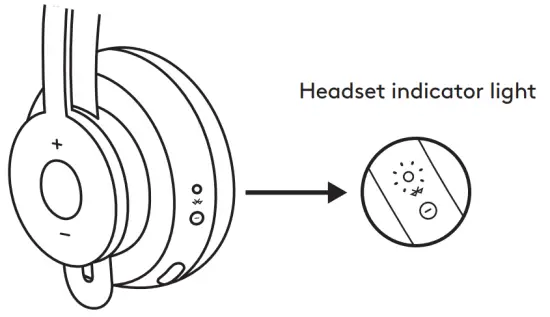
- Plug the USB-C cable end into the USB-C port on the bottom of the earcup.
- Plug the USB-A end into the USB-A charging port on your computer or AC adapter.
- Indicator light will be a breathing white light for charging.
- Indicator light will be solid white when fully charged.
- 2 hours will fully charge the battery.
- 5 minutes will give you 1 hour of talk time.
- Headset can be used with receiver and Bluetooth® paired while charging.
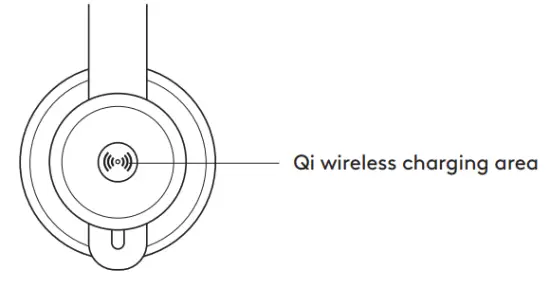
Charging via Qi wireless charger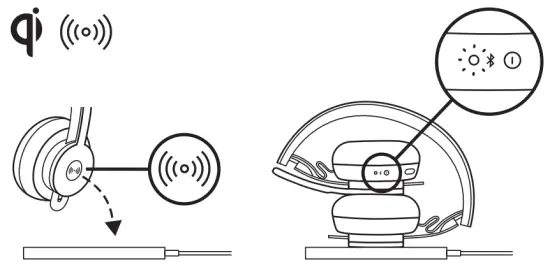
- Fold headset with the wireless charging icon on the earcup to the outside.
- Place earcup with wireless charging icon on top of any Qi wireless charging base.*
- Indicator light will be a breathing, white light when charging.
- Indicator light will be solid white when fully charged.
- 2 hours of charging fully charges the battery.
* Qi wireless charging base is not included.
- 2 hours of charging fully charges the battery.
LOGI TUNE APP
Install application
- Download Logi Tune Desktop from www.logitech.com/tune
- Download the Logi Tune mobile app from the Apple App Store® or Google Play™ stores by searching for “Logi Tune“.



ADJUSTING SIDETONE
Sidetone lets you hear your own voice during conversations so you are aware of how loud you are talking.
In the Logi Tune app, select the sidetone feature, and adjust the dial accordingly.
- A higher number means you hear more external sound.
- A lower number means you hear less external sound.
AUTO SLEEP TIMER
By default, your headset will automatically power off when not in use for one hour. Adjust the sleep timer in the Logi Tune App.
UPDATE YOUR HEADSET
It is recommended to update both your headset and receiver. To do so, download the Logi Tune Desktop from www.logitech.com/tune
RESET YOUR HEADSET
To reset your headset back to its original state, power headset on, press and hold the ANC button and volume ’–’ button for 5 seconds. The headset is successfully reset when it powers off and indicator light turns off.
DIMENSIONS
- HEADSET:
Height x Width x Depth:
174.7 x 176.7 x 70.7 mm - WEIGHT:
0.1808Kg - EARPADS:
Height x Width x Depth:
70.7 x 70.7 x 16.4 mm - RECEIVER:
Height x Width x Depth:
35.5 x 16.2 x 5.3 mm - ADAPTER:
Height x Width x Depth:
106.7 x 17.5 x 10.1 mm
SYSTEM REQUIREMENTS
Works with common calling applications across almost all platforms and operating systems.
Works with Windows, Mac, or Chrome™ based computer via USB-C, USB-A, Bluetooth® and iOS or Android Bluetooth® enabled devices.
TECHNICAL SPECIFICATIONS
Microphone Type: Omni-directional dual MEMS mic array
Frequency response (Headset): 30~13kHz @ -10dB (music mode), 100~8kHz (talk mode)
Frequency response (Microphone): 85~20kHz @-3dB
Battery type: Built-in battery (Lithium ion)
Battery life (talk time): 14 hrs (ANC on), 15 hrs (ANC off)
Battery life (listening time): 14 hrs (ANC on), 16 hrs (ANC off)
Bluetooth® version: 5.0
Wireless range: Up to 30m /100 ft (open field line of sight)
Qi Wireless charging enabled
USB-A to C charging cable: 4.25 ft (130 cm)
http://www.logitech.com/support/zonewirelessplus

 Tun Device Database
 Logitech | Defy Logic - Tools to Create a Better Tomorrow