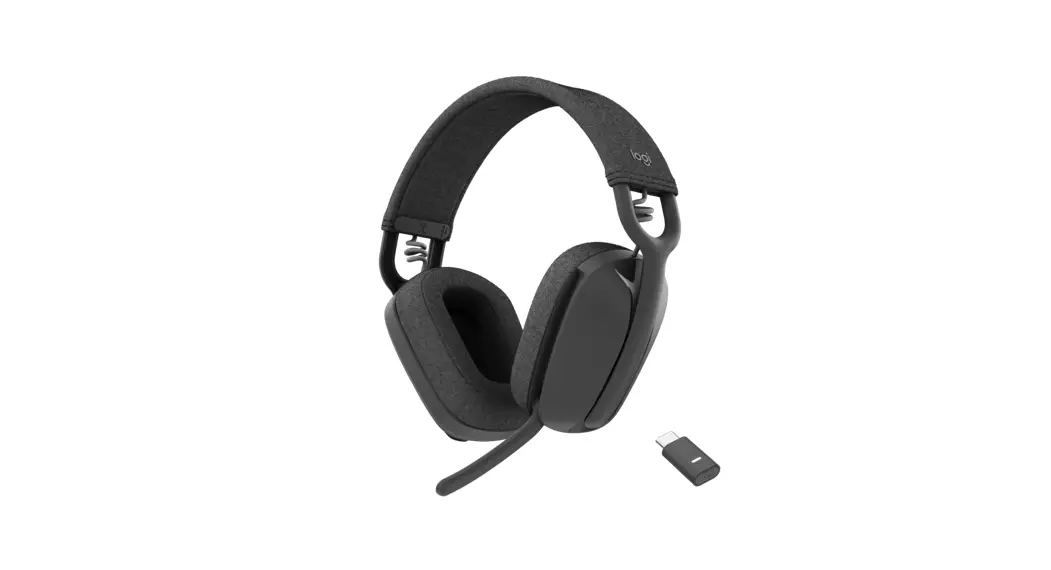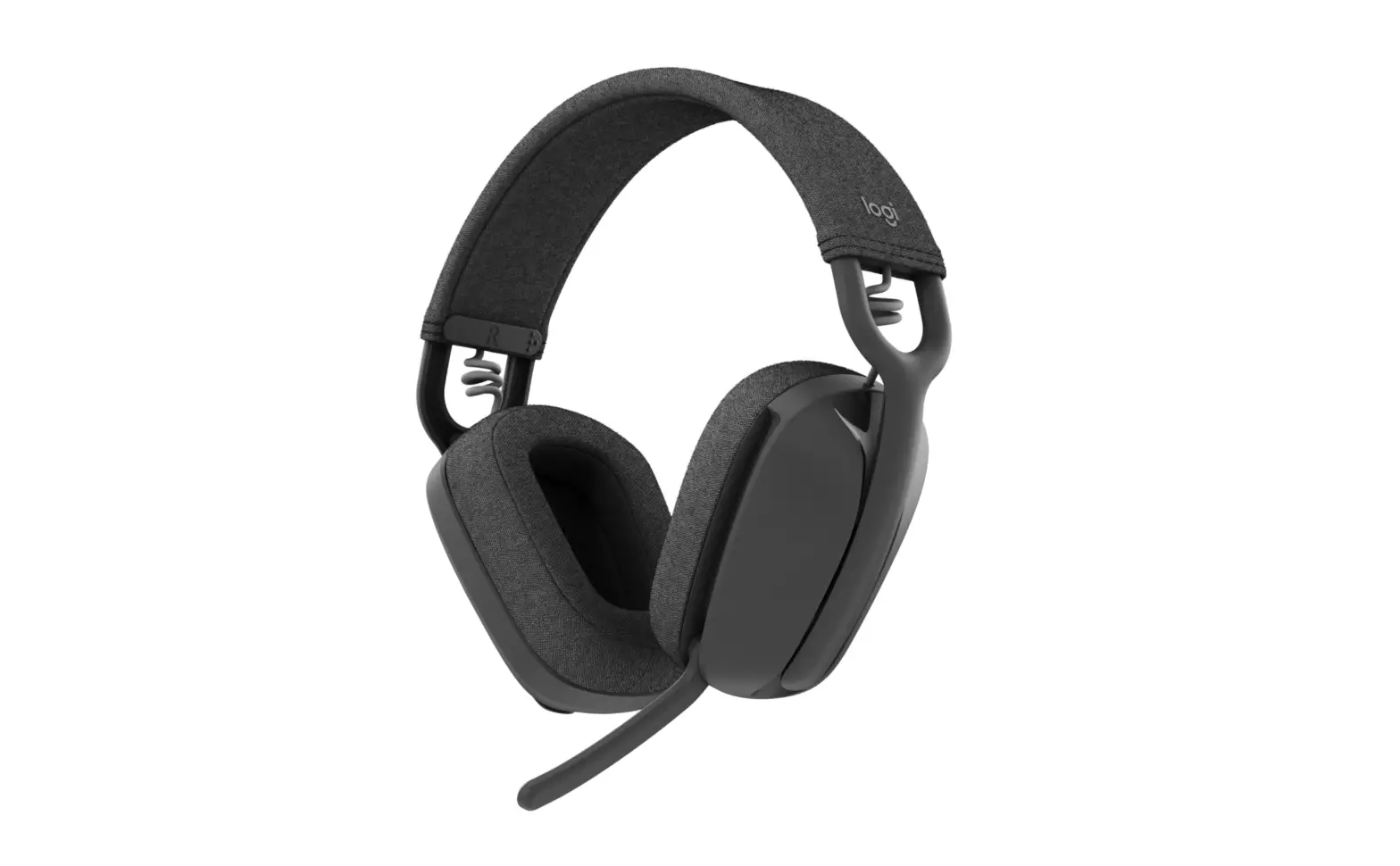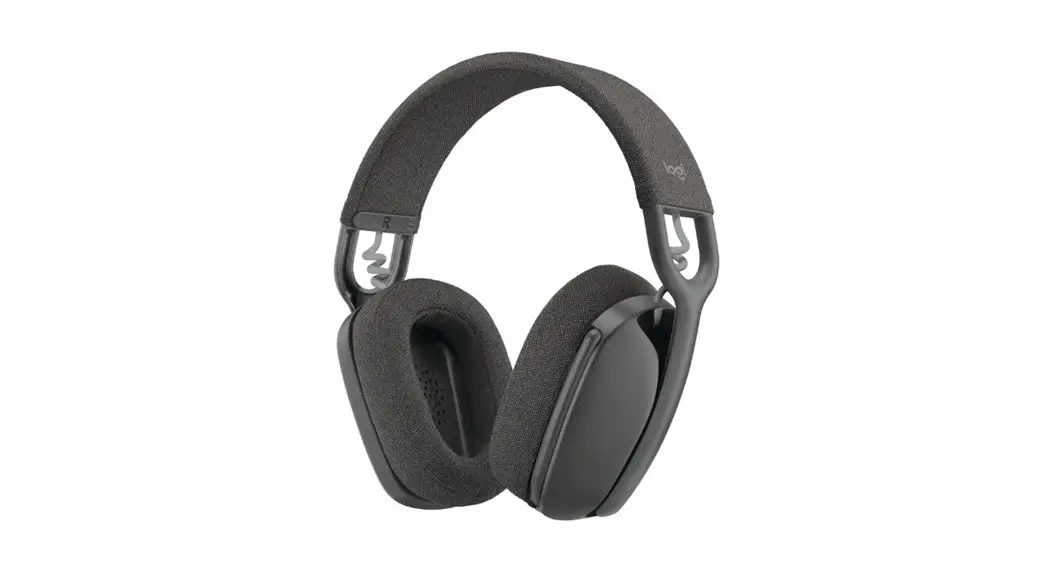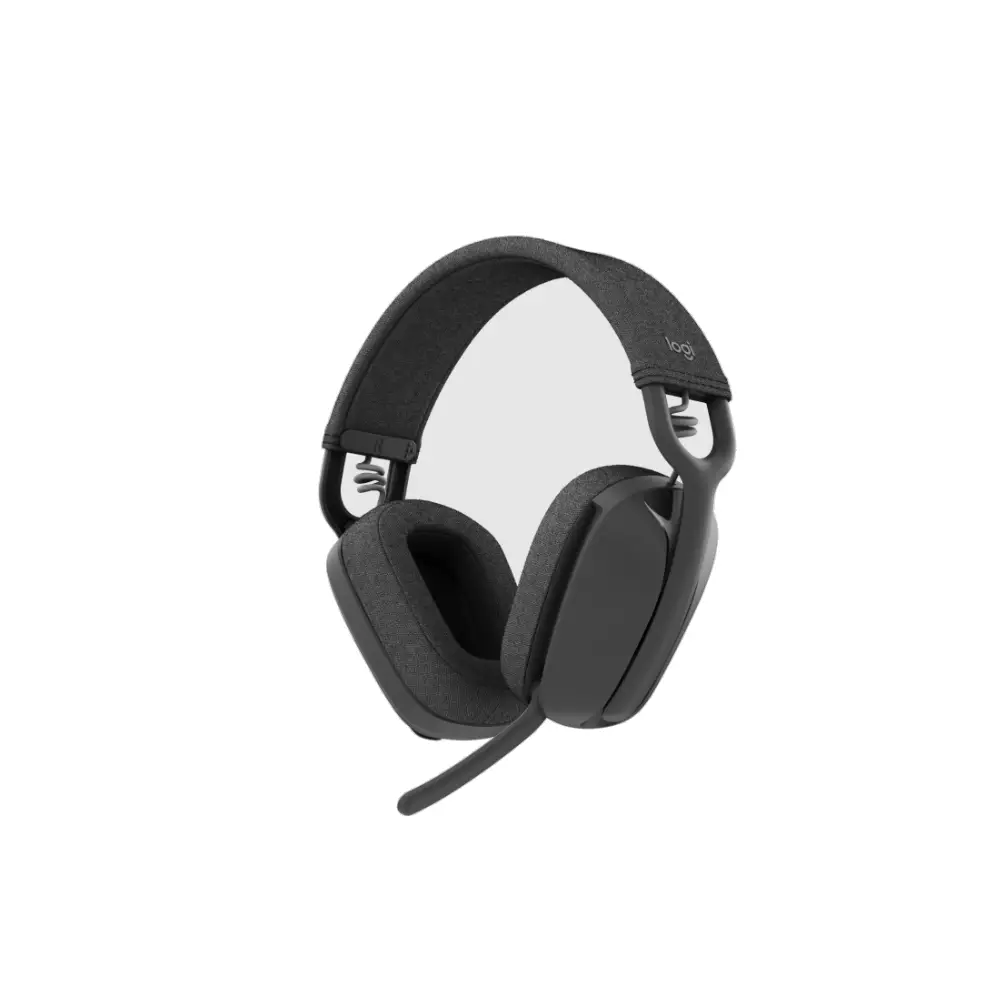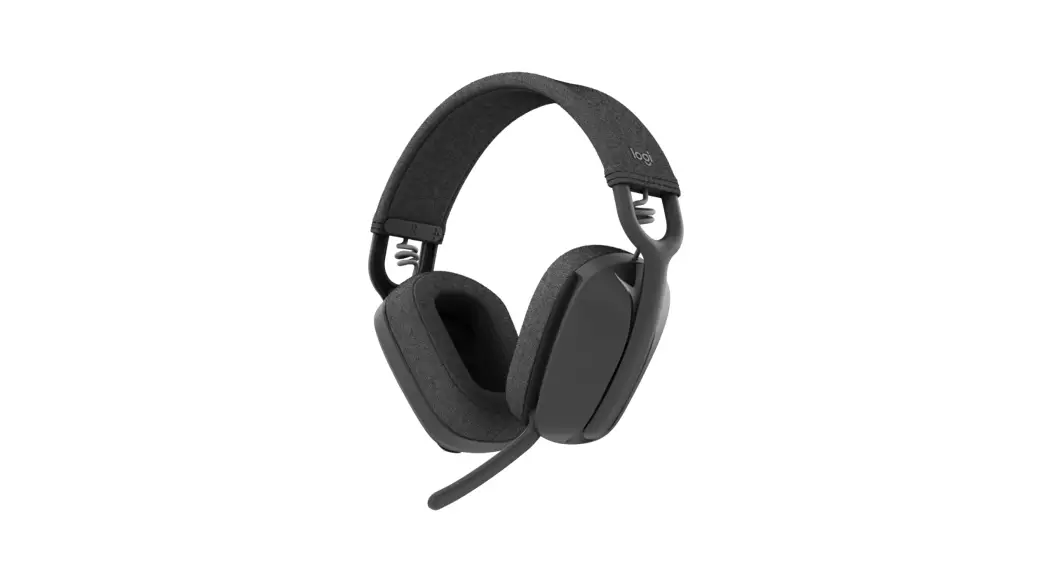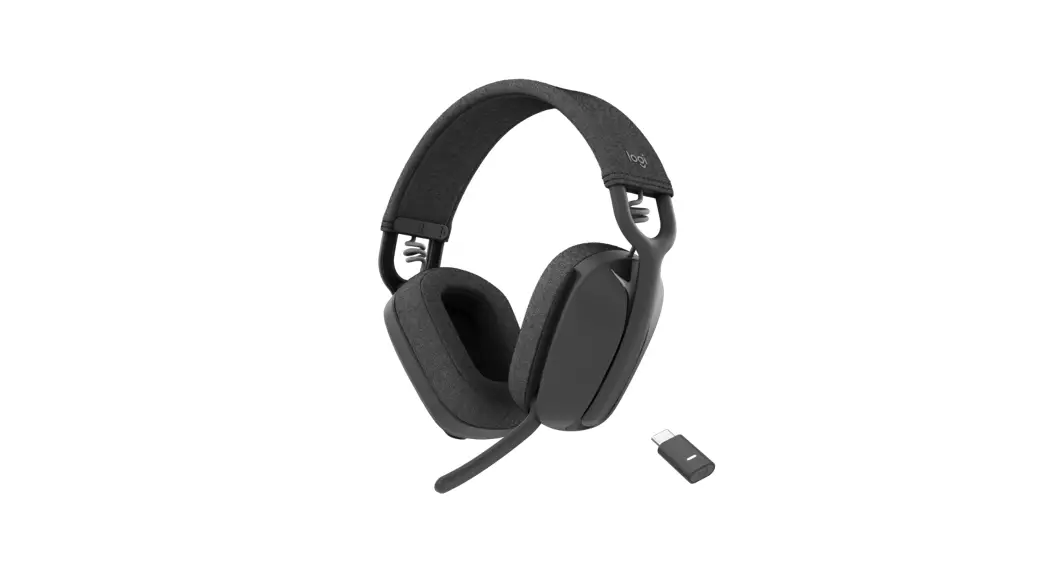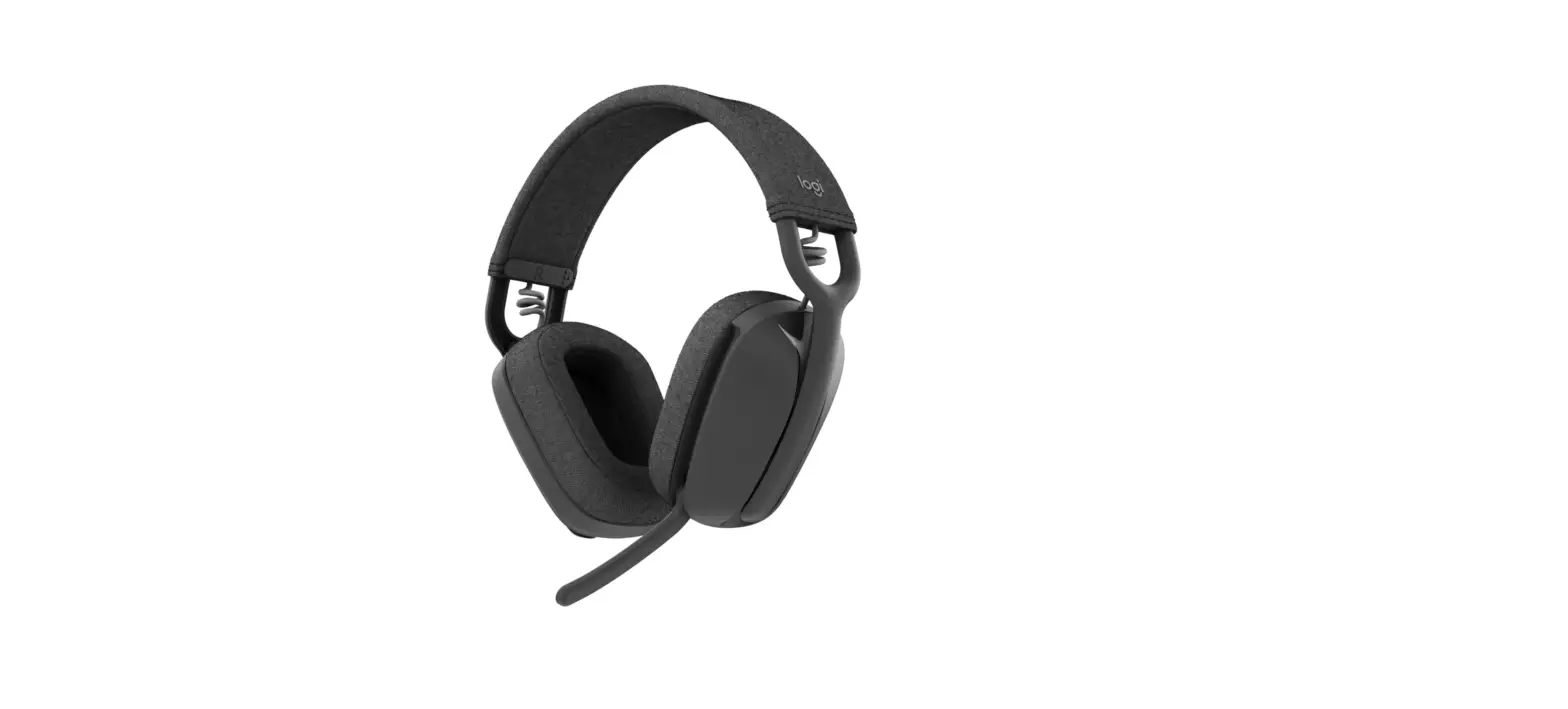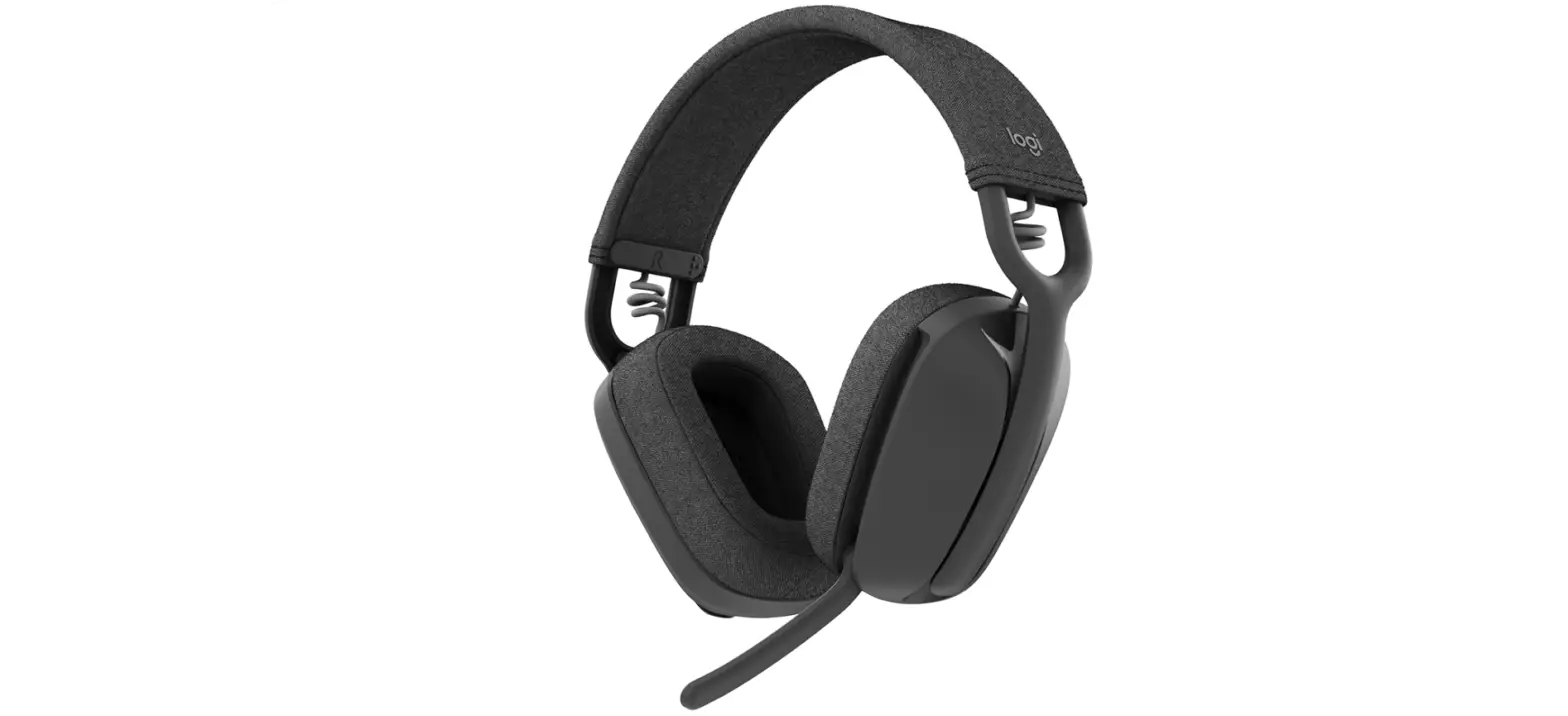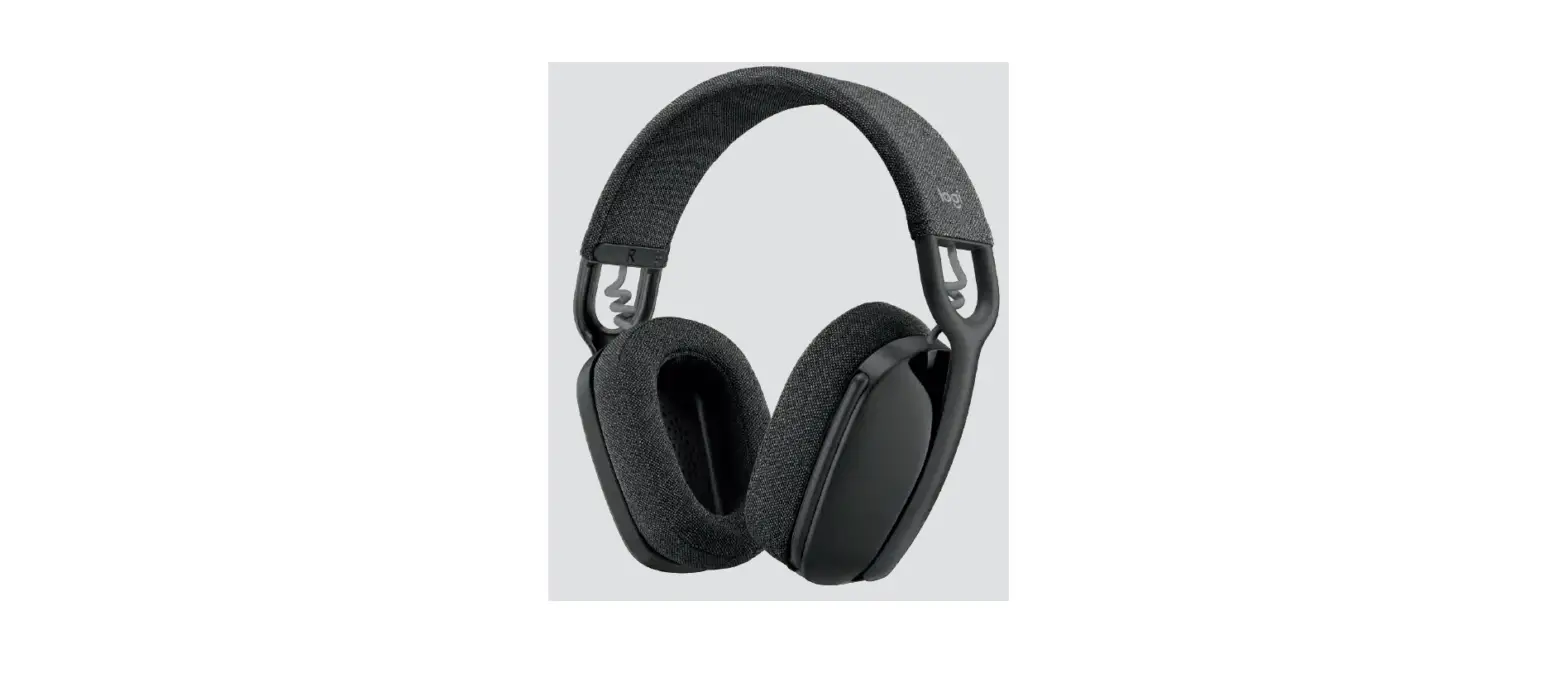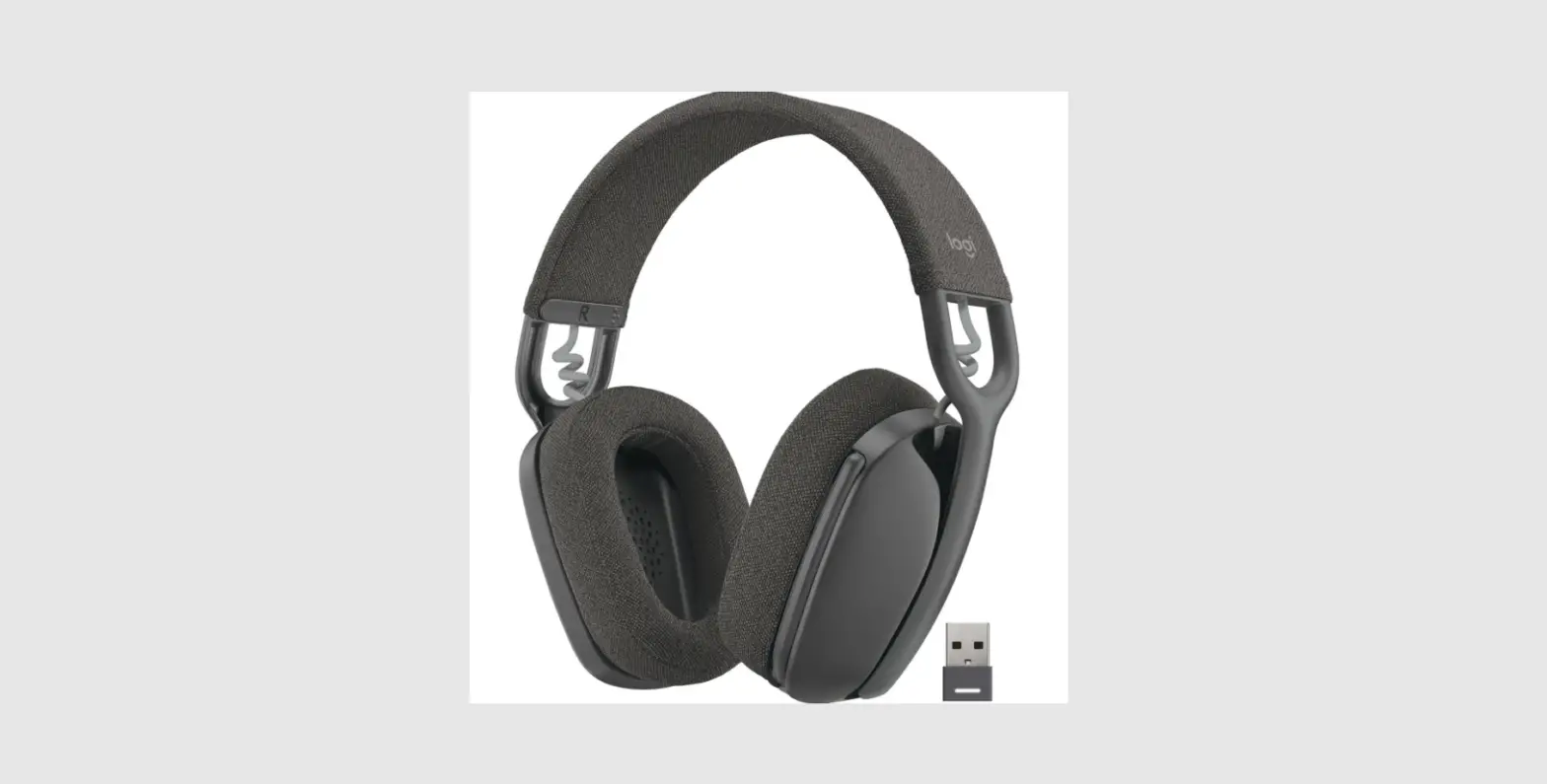

logitech ZONE VIBE 125 True Wireless Headphone
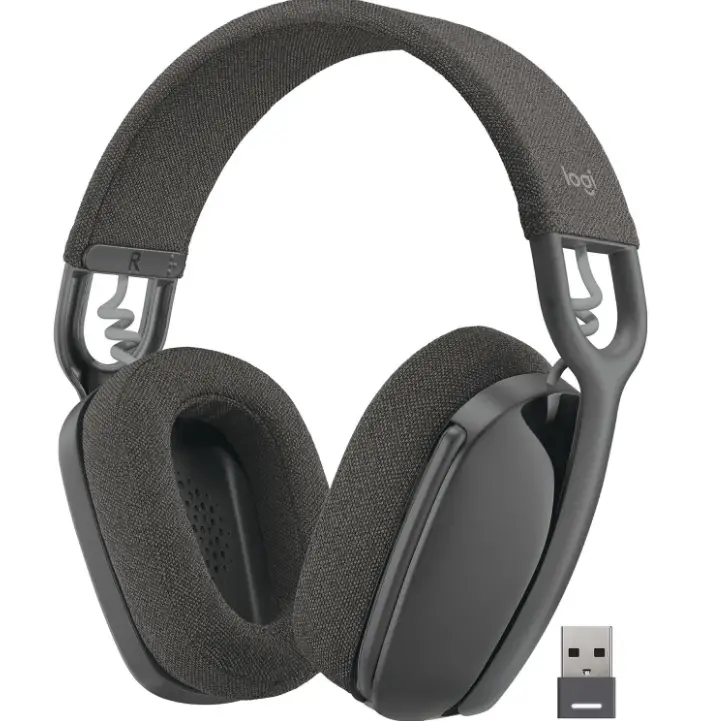
KNOW YOUR PRODUCT
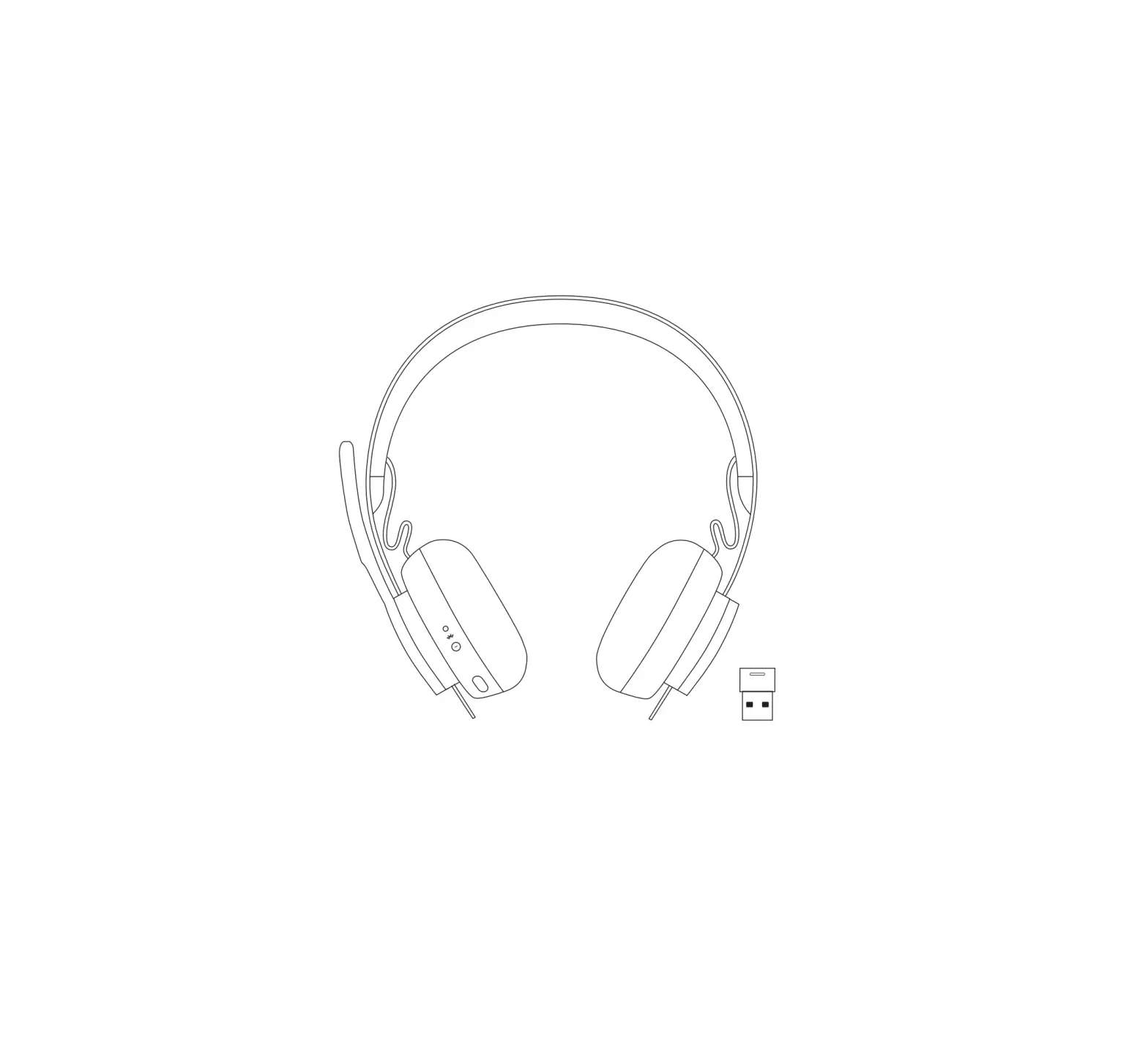
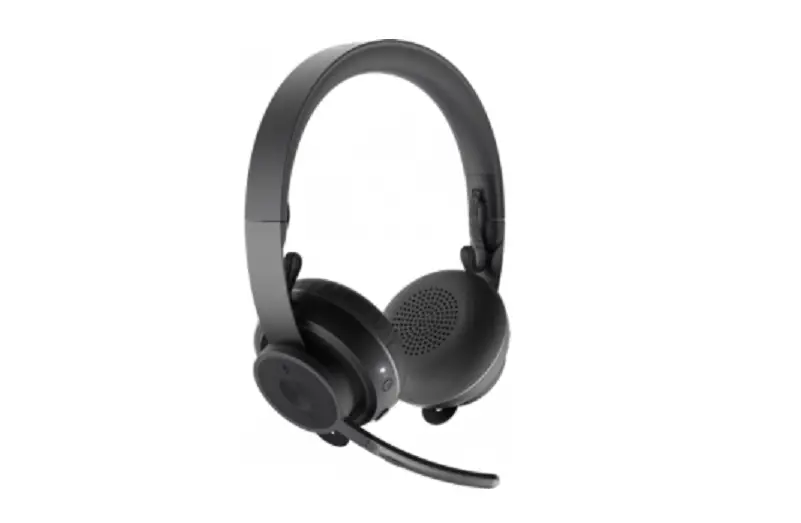
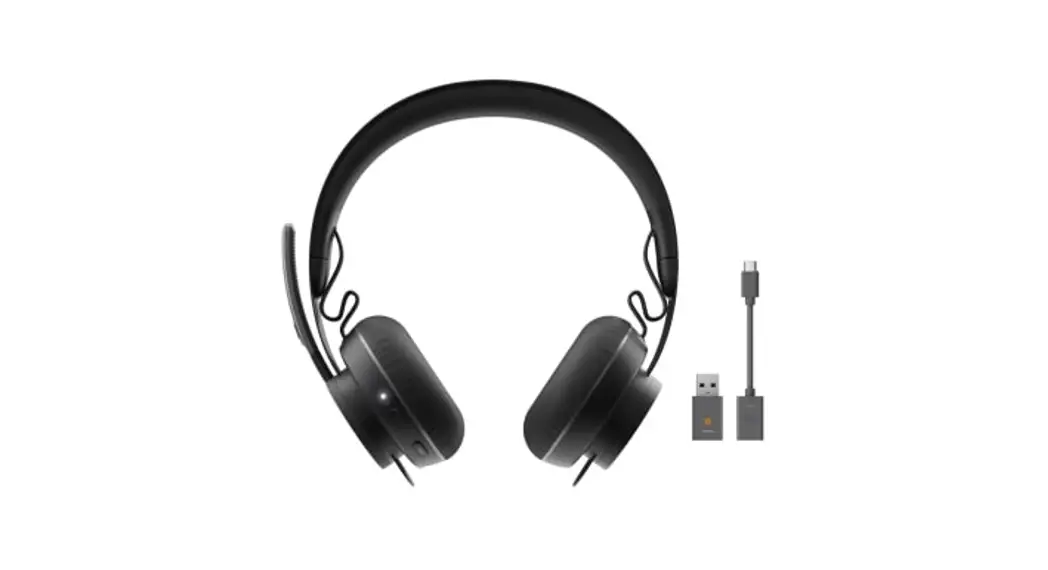
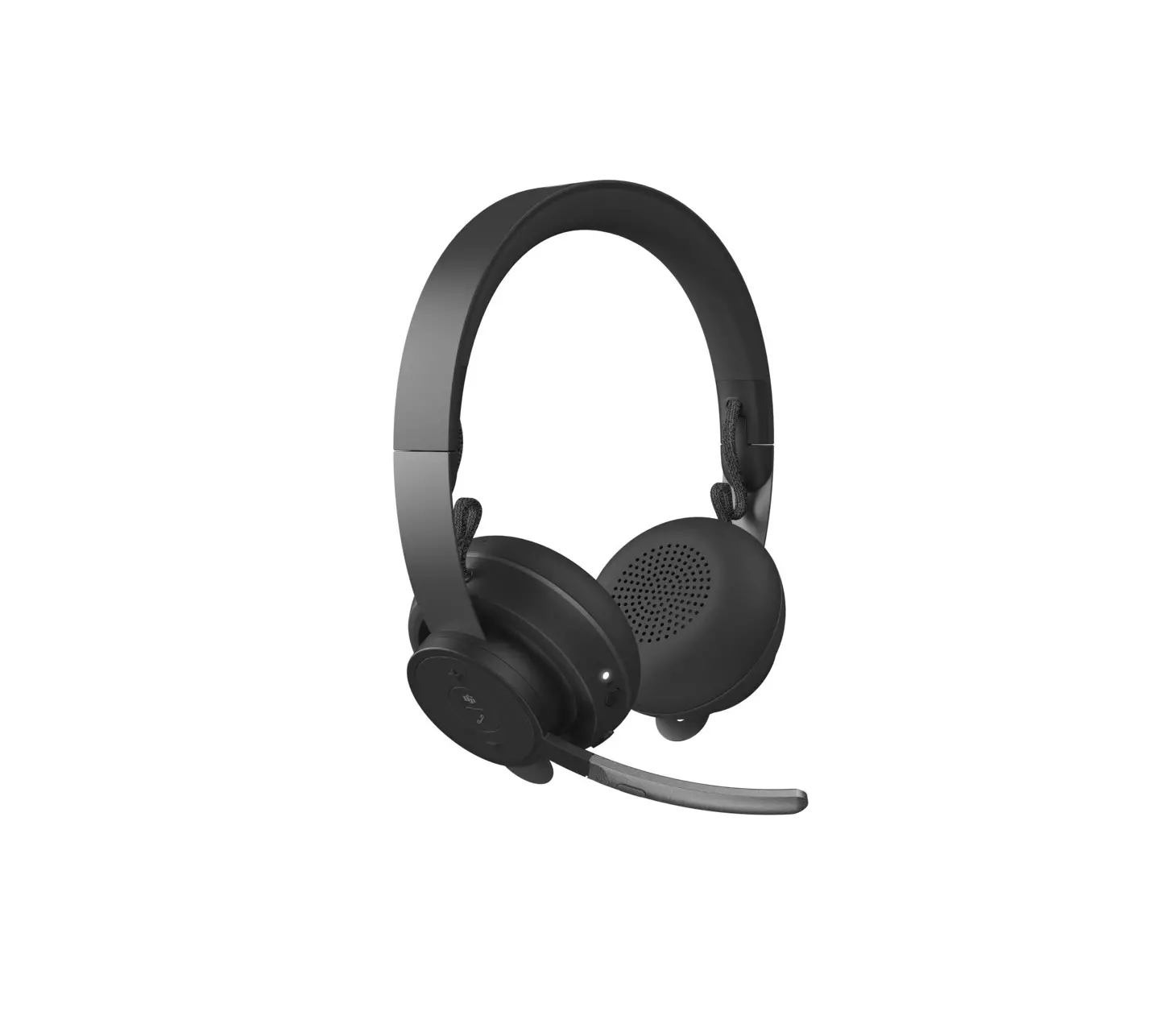
Front view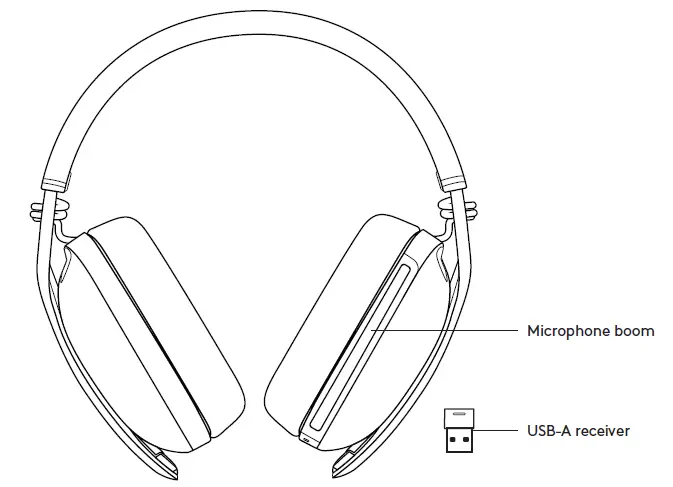
Back view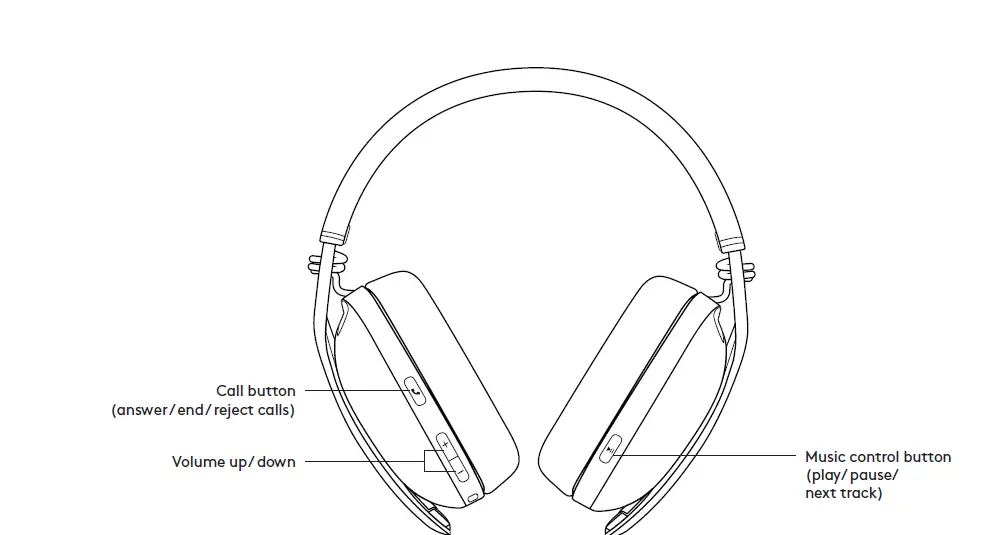
Bottom view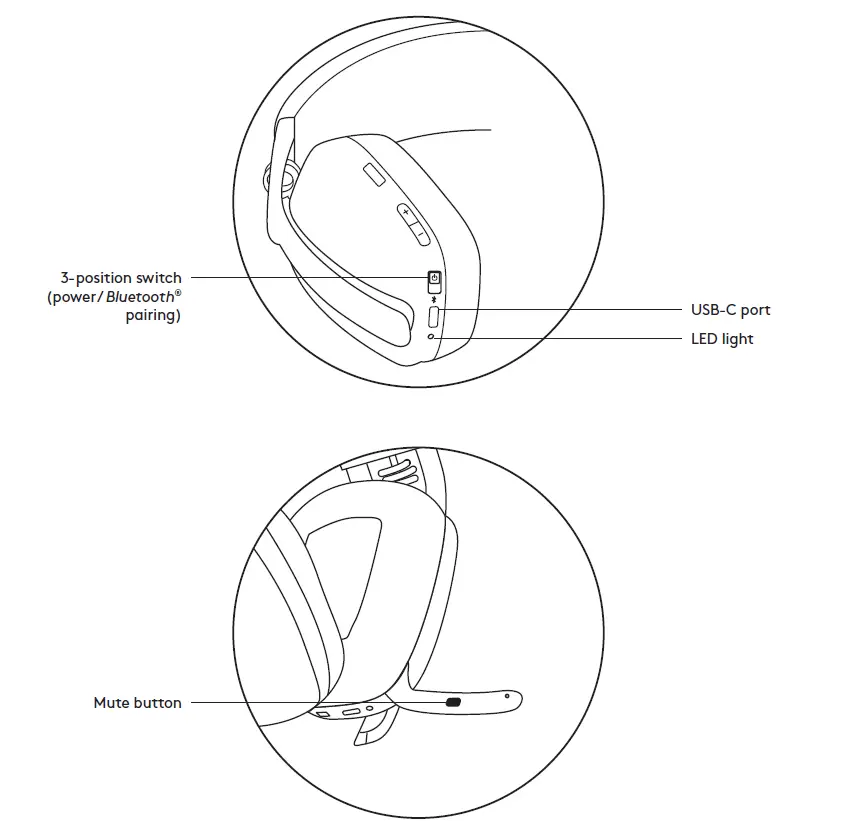
BOX CONTENT
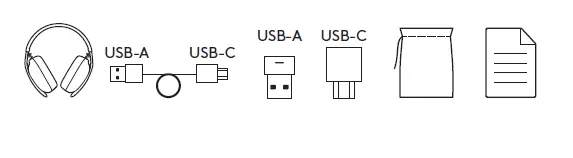
- Zone Vibe 125 wireless headphones
- Charging cable
- USB-A receiver
- USB-C adapter
- Travel bag
- User documentation
POWER ON / OFF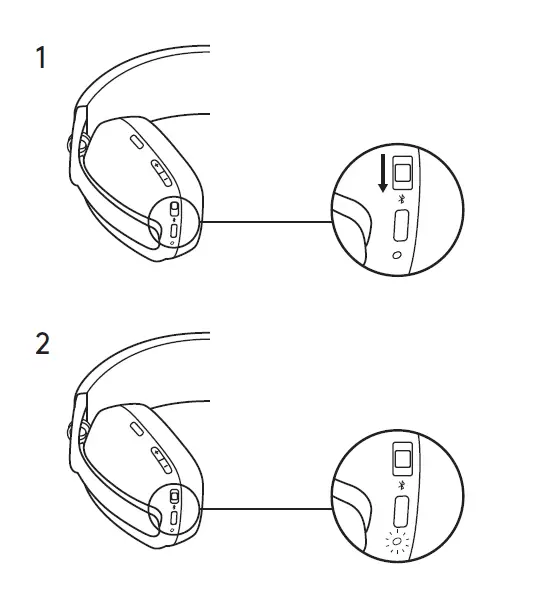
- Slide the switch in the arrow’s direction to the middle to power on the headphones.
- Once powered on, the LED light will slightly turn white.
- There will be a voice prompt that tells you the battery status.
CONNECT YOUR HEADPHONES
Connect via USB-A receiver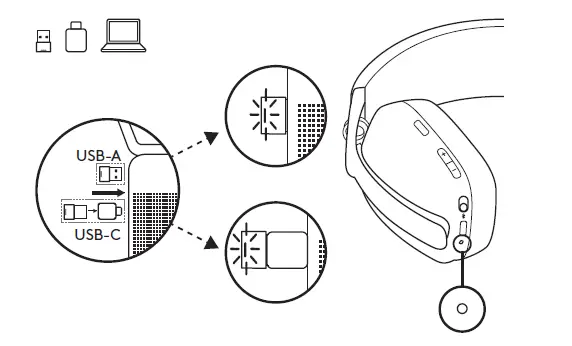
- Insert the receiver into the computer USB-A port. Or insert the USB-A receiver with the USB-C adapter to the USB-C port.
- Zone Vibe 125 is already paired to the receiver it ships with.
- Once successfully paired, the LED light on the receiver will turn solid white.
Connect via BLUETOOTH®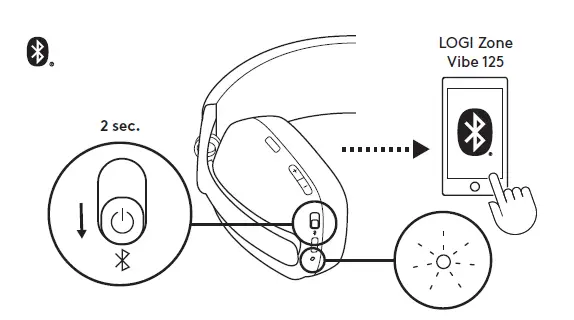
- Slide the switch to the bottom in the arrow’s direction for 2 seconds to initiate pairing.
- The LED light will flash white rapidly.
- Open Bluetooth® settings on your device.
- Select Logi Zone Vibe 125 in discoverable devices.
- Once successfully paired, the LED light will turn solid white.
ADJUSTING HEADPHONES
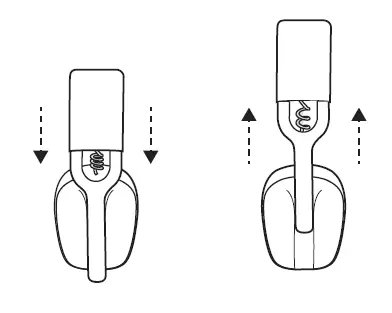
- Adjust the headphones by sliding earcups up and down the extended part of the headband.
- It may be easier to adjust the headphones on your head. Slide the earcups up and down the headband until they sit comfortably on your ears.
HEADPHONES CONTROLS
| UC version: | |||
| Usage | Button | Action | |
| Call controls | Answer / End call | Call button | Short press |
| Reject call | 2-sec press | ||
| Music controls | Play / Pause | Music control button | Short press |
| Track forward | Double press | ||
| Volume | Volume up | “+” | Short press |
| Volume down | “-“ | ||
| Connectivity | Bluetooth® pairing | Power button | 2-sec press |
Note
- Media control functionality depends on the type of application.
- Call activities are always the first priority. When two devices are connected, the Bluetooth® connection will be prioritized over the receiver.
TIP: Music EQ controls are available on Logi Tune.
MUTE
There are 2 ways to mute your microphone.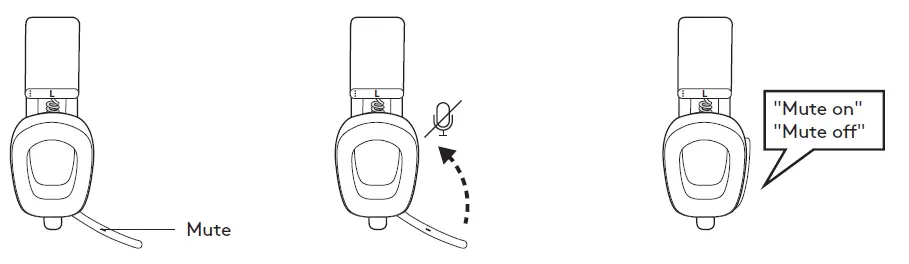
- Press the button to mute.
- Flip-up or down the mic boom to mute or unmute.
- Voice notifications indicate when the microphone is on / off mute.
HEADPHONES LIGHT INDICATOR
| Category | Status | Light | |
|
White | Power | Power ON | Turn solid white and then dim |
| Battery charging | Breathing | ||
| Battery fully charged | Solid | ||
| Connectivity | Bluetooth® pairing | Fast blinking | |
| Bluetooth® / receiver connected | Turn solid white and then dim | ||
| Link lost | Dim white | ||
| Calls | Active call | Solid | |
| Incoming call | Slow blinking | ||
| Red | Calls | Mute | Solid |
| Power | Low battery (< 10%) | Slow blinking | |
| Factory reset | Fast blink from red to white three times then the LED turns off | ||
Note: User-triggered behaviors, such as Bluetooth® pairing or link loss, will be prioritized and then revert back to their previous status once the behavior is completed.
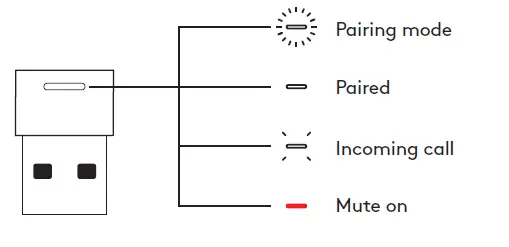
RECEIVER LIGHT INDICATOR
| Category | Status | Light | |
|
White |
Connectivity | Pairing | Fast blinking |
| Receiver connecting | Off | ||
| Receiver connected | Solid | ||
| Receiver disconnected | Off | ||
| Calls | Active call | Solid | |
| Incoming call | Repeat “fast blinking 3 times then LED off” | ||
| Red | Calls | Mute | Solid |
CHARGING
- To conserve battery life, headphones automatically power off after 30 minutes without usage.
- The sleep timer could be adjusted in Logi Tune.
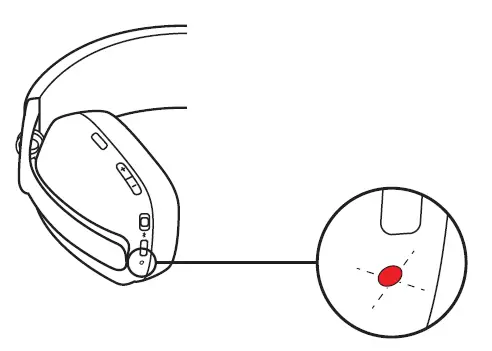
- The LED light on the headphones will blink slowly in RED when the battery is low.
Charging via USB cable
- Plug the USB-C cable end into the USB-C port on the bottom of the earcup.
- Plug the USB-A end into the USB-A charging port on your computer or AC adapter.
- The LED light will start breathing white when charging.
- The LED light will turn solid white when fully charged.
- 2 hours will fully charge the battery.
- 5 minutes will give you 1 hour of playback.
- Battery life may vary based on user, environment, and computing conditions.
- The headphones can be used with the receiver and Bluetooth® paired while charging.
LOGI TUNE
- Logi Tune helps boost the performance of your headphones with periodic software and firmware updates.
- It is recommended to update both your headphones and receiver. To do so, download Logi Tune from www.logitech.com/tune
ADJUSTING SIDETONE
Sidetone lets you hear your own voice during conversations so you are aware of how loud you are talking. In Logi Tune, select the sidetone feature, and adjust the dial accordingly.
- A higher number means you hear more external sound.
- A lower number means you hear less external sound.
AUTO SLEEP TIMER
By default, your headphones will automatically power off when not in use for 30 minutes. Adjust the sleep timer in Logi Tune. To wake up your headphones, try sliding off/on the power switch again.
RESET YOUR HEADPHONES
- Power the headphones on.
- Press and hold the call button and volume ’–’ button for 5 seconds.
- The LED light will quickly blink from red to white for 3 times and then turns off when your headphones are successfully reset.
- The headphones will turn off after resetting.
DIMENSIONS
Headphones
- Height x Width x Depth: 183.03 x 169.68 x 73 mm
- Weight: 0.185 Kg
- Earpad: Height x Width x Depth: 98.6 x 75.44 x 19.3 mm
- Receiver: Height x Width x Depth: 21.5 x 13.6 x 6.0 mm
- Adapter: Height x Width x Depth: 25.2 x 16.5 x 9.5 mm
SYSTEM REQUIREMENTS
Works with common calling applications across almost all platforms and operating systems. Works with Windows®, Mac, or Chrome™ based computers via USB-C, USB-A, Bluetooth®, and Android™ Bluetooth® enabled devices.
TECHNICAL SPECIFICATIONS
- Microphone Type: Dual omnidirectional MEMS mics with directional beamforming and DSP
- Frequency response (Speaker): 20-20kHz (music mode), 100-8kHz (talk mode)
- Frequency response (Microphone): 100-8kHz
- Talk time up to 18 hrs
- Listen time up to 20 hrs
- Battery life may vary based on user, environment, and computing conditions.
- Bluetooth® version (headset): 5.2
- Bluetooth® version (receiver): 5.0
- Wireless range: Up to 30 m / 100 ft (open field line of sight)
- Cable length (USB-A to C charging cable): 4.25 ft (1.3 m)
www.logitech.com/support/zonevibe125
© 2022 Logitech. Logitech, Logi and the Logitech logo are trademarks or registered trademarks of Logitech Europe S.A. and/or its affiliates in the U.S. and other countries. The Bluetooth® word mark and logos are registered trademarks owned by Bluetooth SIG, Inc. and any use of such marks by Logitech is under license. All other trademarks are the property of their respective owners. Logitech assumes no responsibility for any errors that may appear in this manual. Information contained herein is subject to change without notice
 Logitech Support + Download