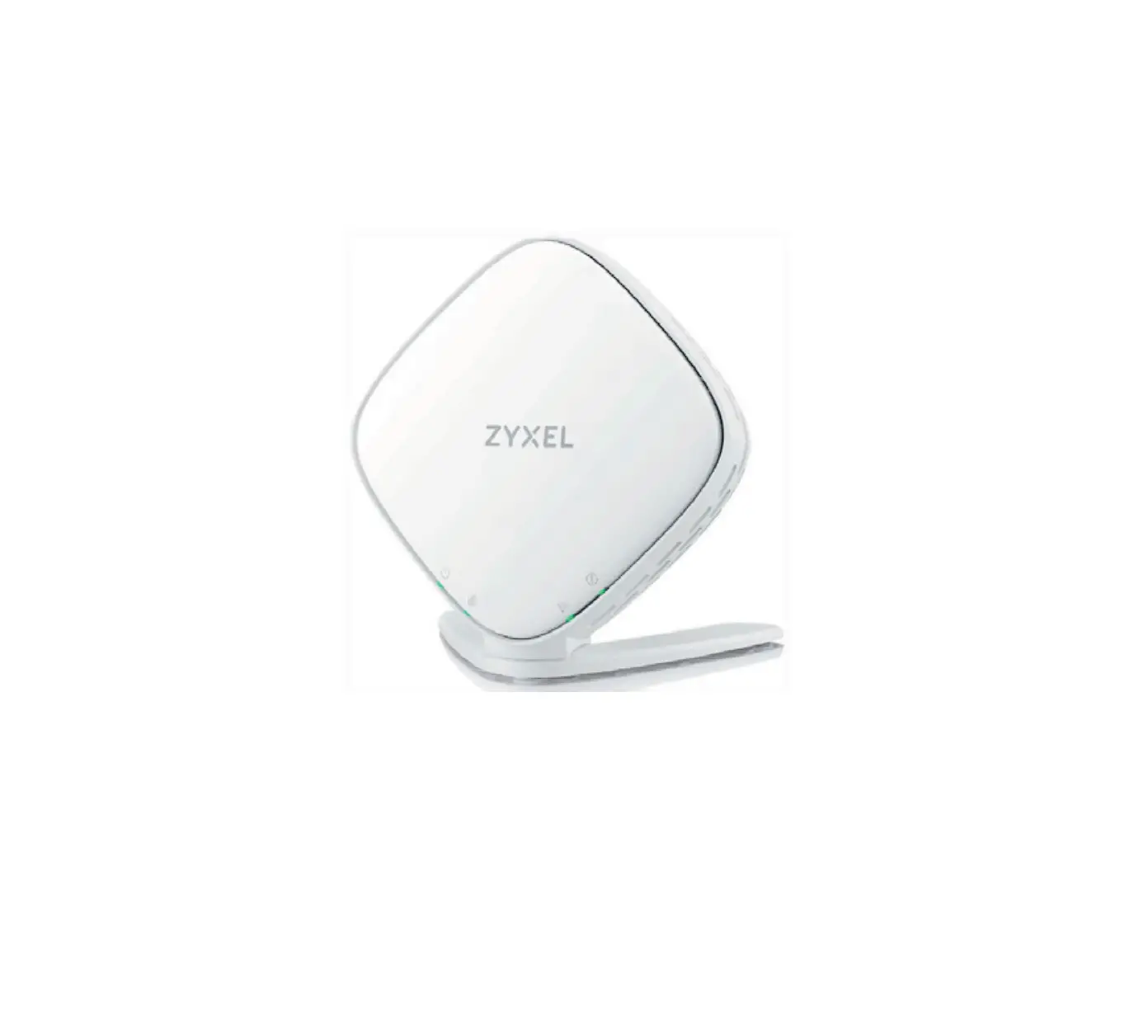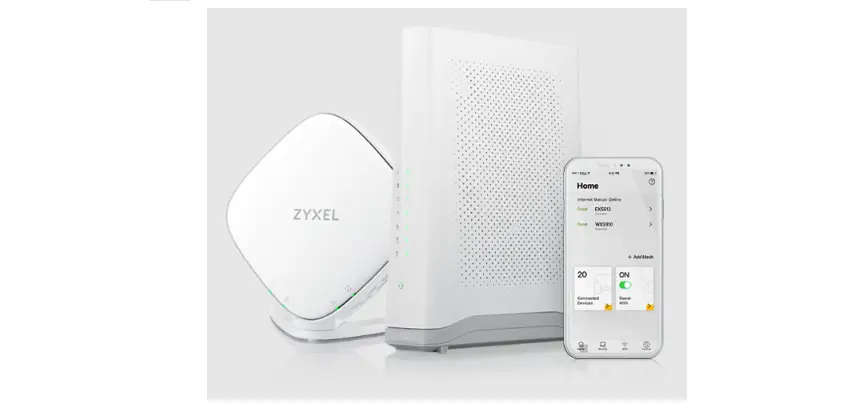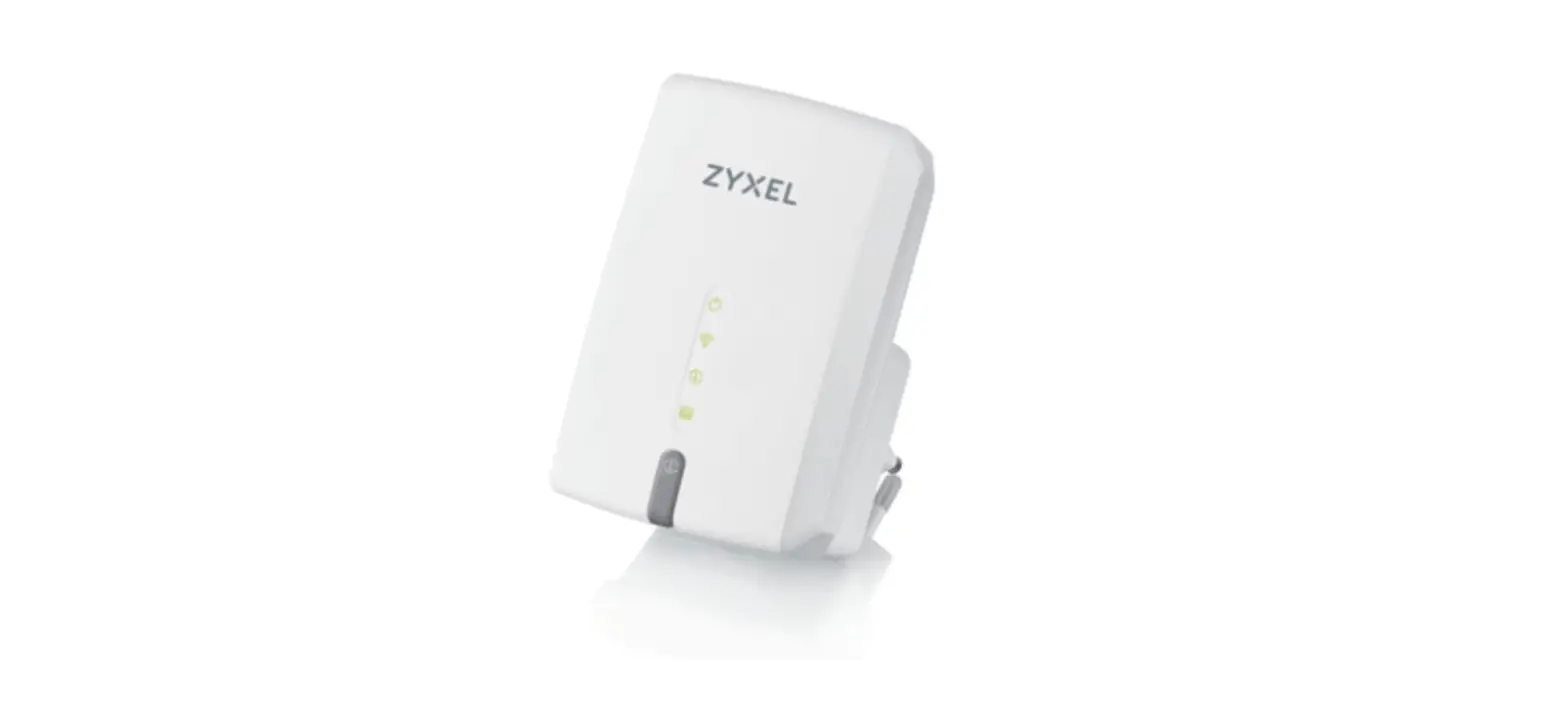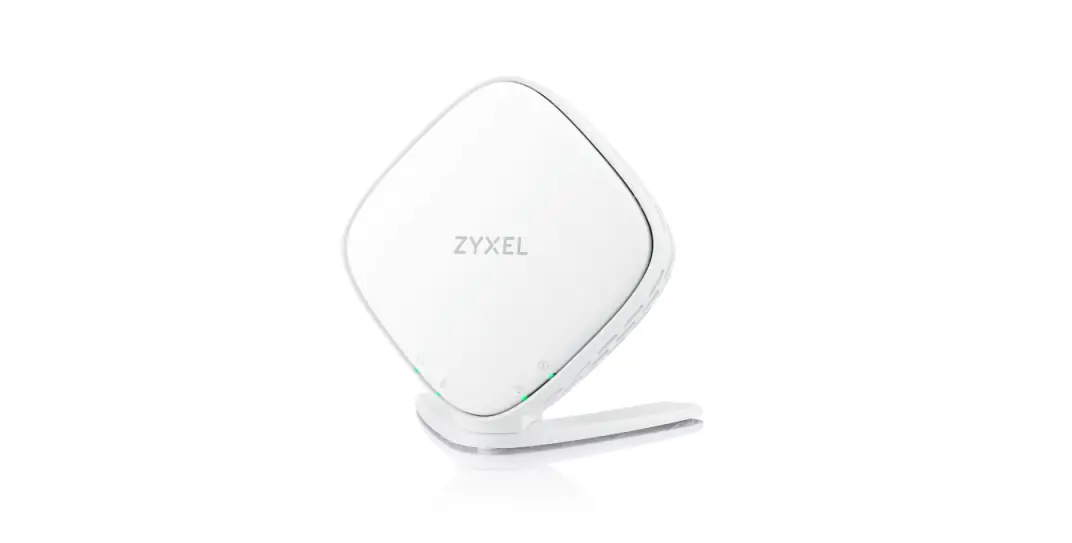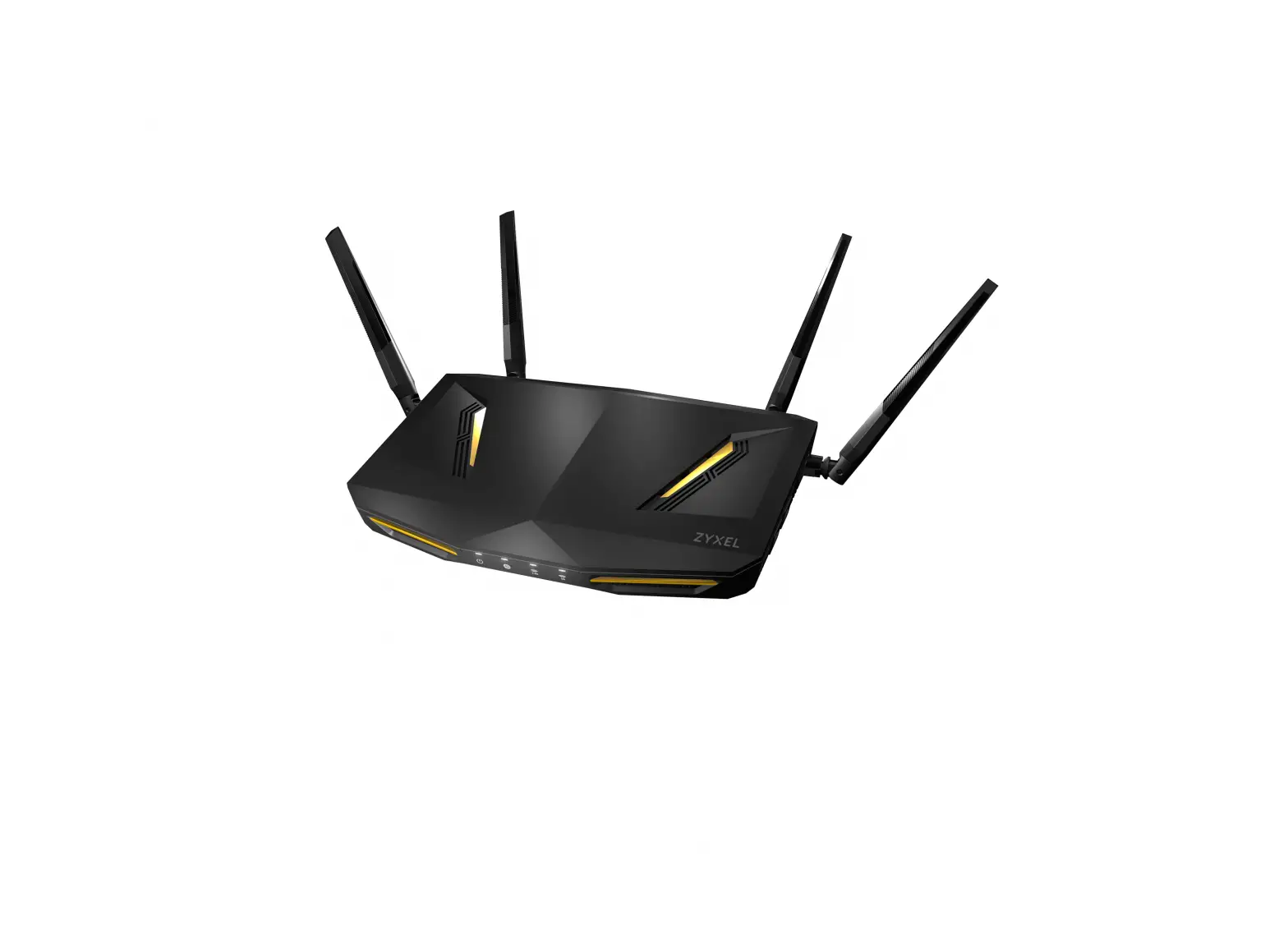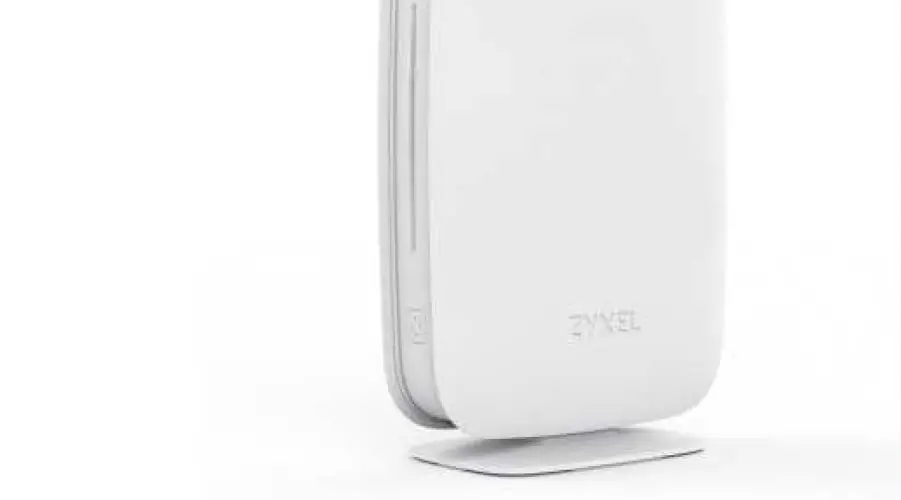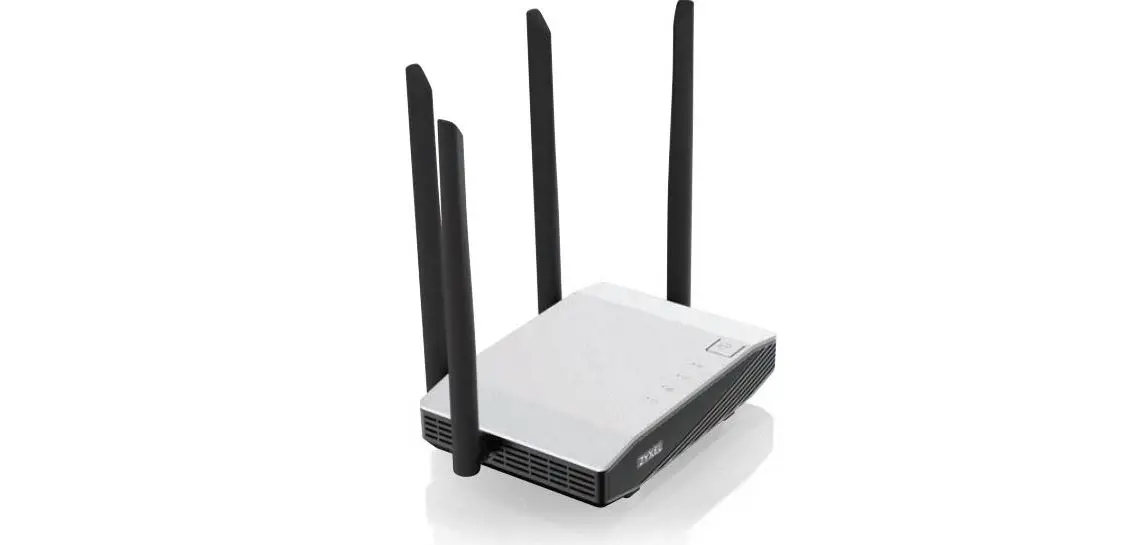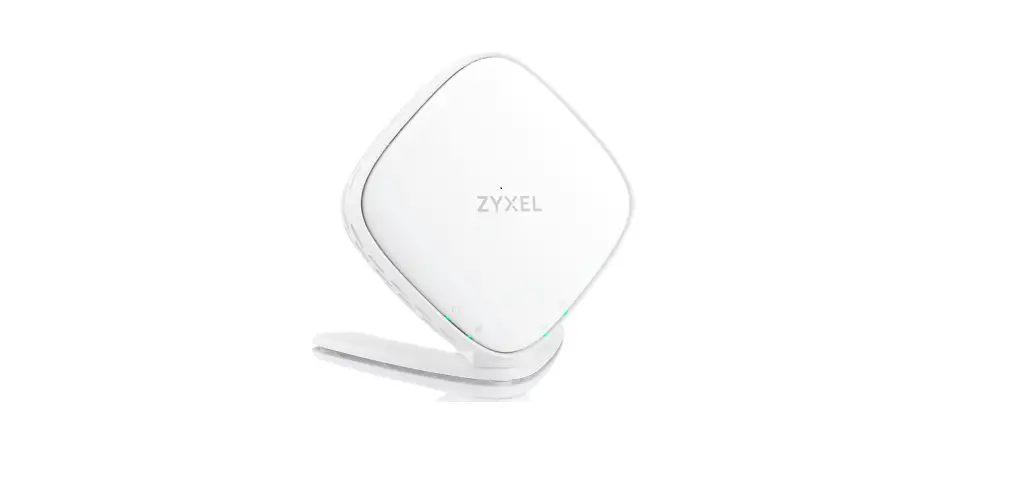
ZYXEL WX3310-B1 Dual Band Wireless AX Gigabit Access Extender User Guide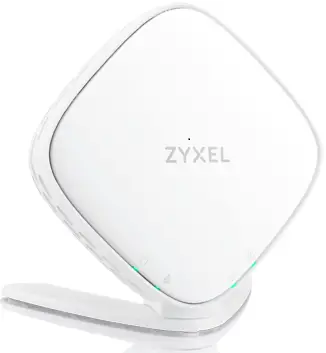
Package Contents
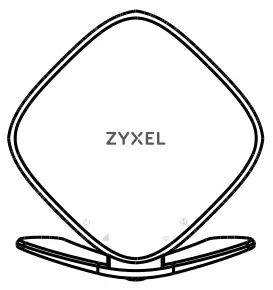
- WX3310-B1

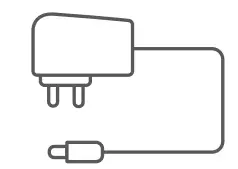
- Power Adopter

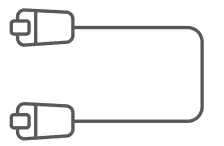
- Ethernet Cable

- Quick Start Guide

Hardware Installation
Attach the brocket to the bottom of the WX3510-B1as shown. See the back side if you want to mount the WX3310-B1 on a wall after the initial setup.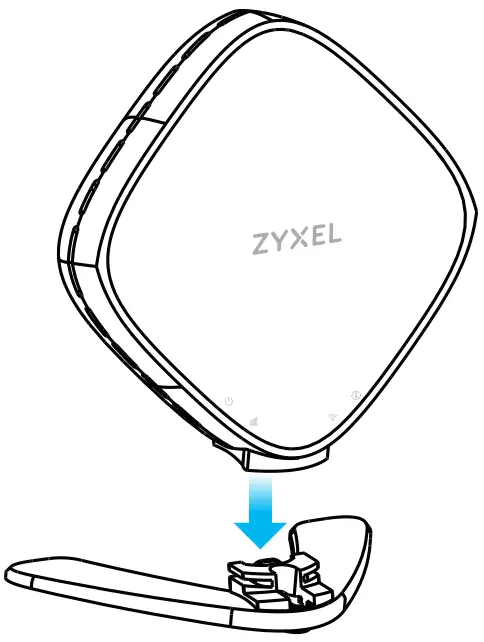
Connect via WiFi (See the back side to connect via cable.)
- Place the WX3310-B1 Near Your Modem/Router

Place your WX3310-B1 next to your modem/router (within 2 meters) for initial setup. You can move the WX3310-B1 to a new location after the initial setup. - Power On

Green Blinking – System is booting. On – System is ready.
Red On – System has failed.
Off -System is Dowered off.
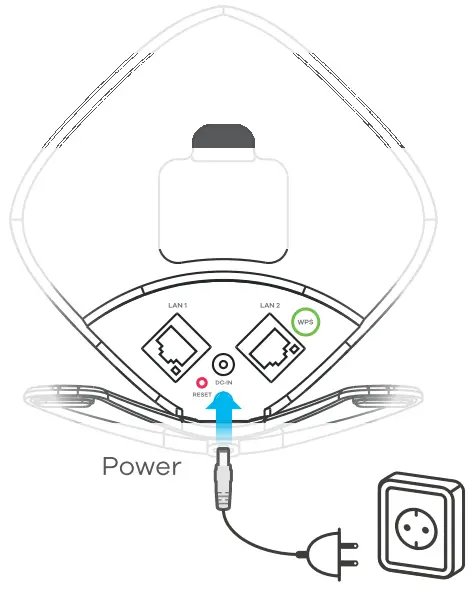
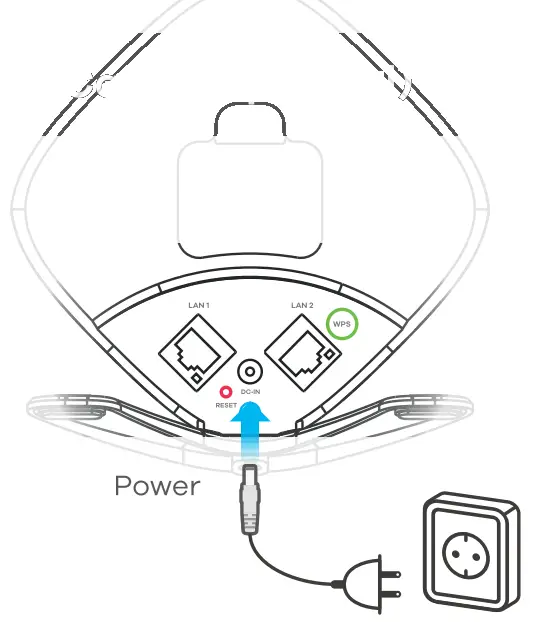
Use the included power adaptor to connect the WX3310-81 power socket to an appropriate power outlet and wait until the power LED 0 stays on solid green. If the LED does not stay on solid green, un-plug the power adaptor and plug it bock in again. - Connect the WX3310-B1 to Your Modem/Router

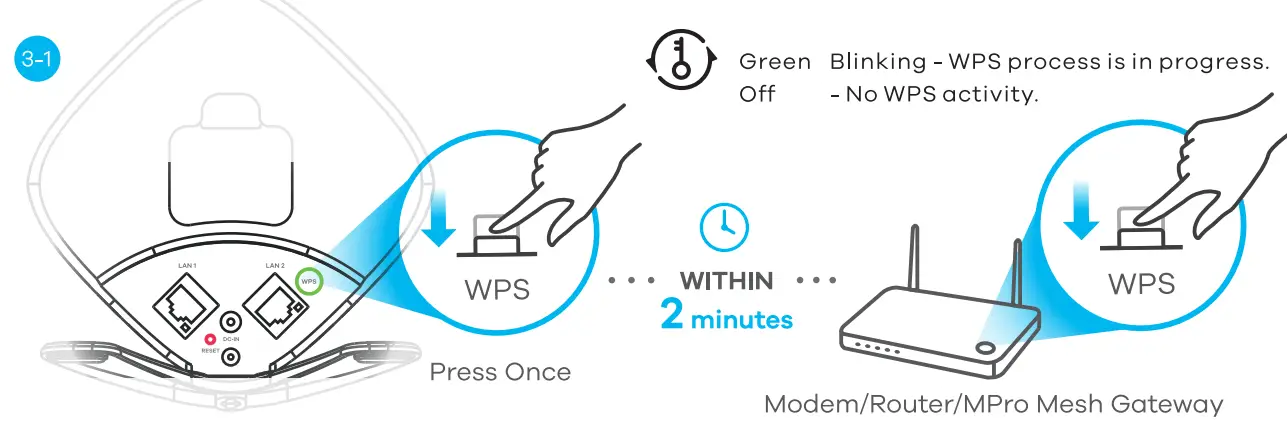
Press the WPS button once, the WX3310-B1 WPS LED blinks green. Within Two minutes, press the WPS button on your modem/router. Then the WiFi LED
 ) blinks slowly (1 sec on and 1 sec off) during setup. If the WX3310-B1 WPS LED turns red, do the process again.
Wait Two minutes. When the link quality and Win LED ore on or blinking, you can go to the next step to connect your wireless device to the WWI. - Connect Your Device to the
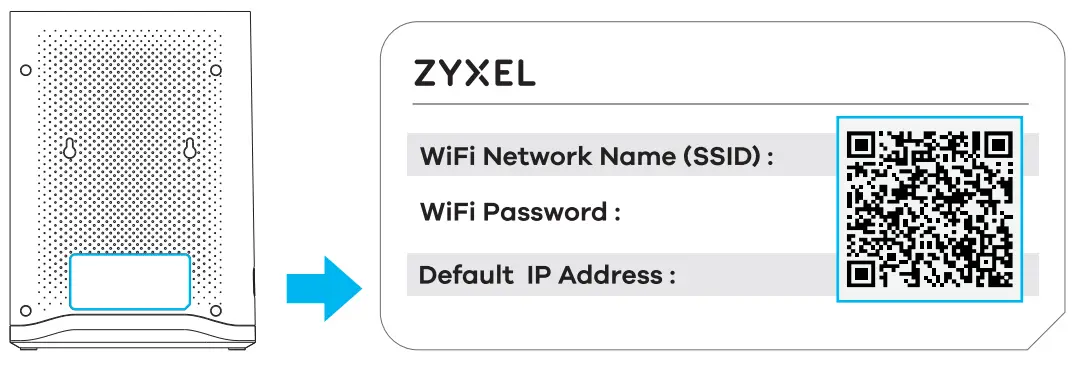
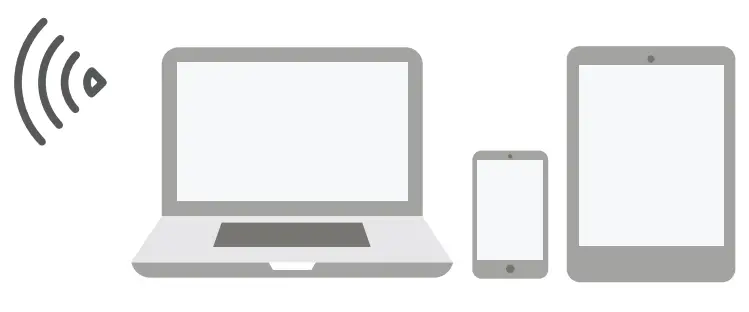
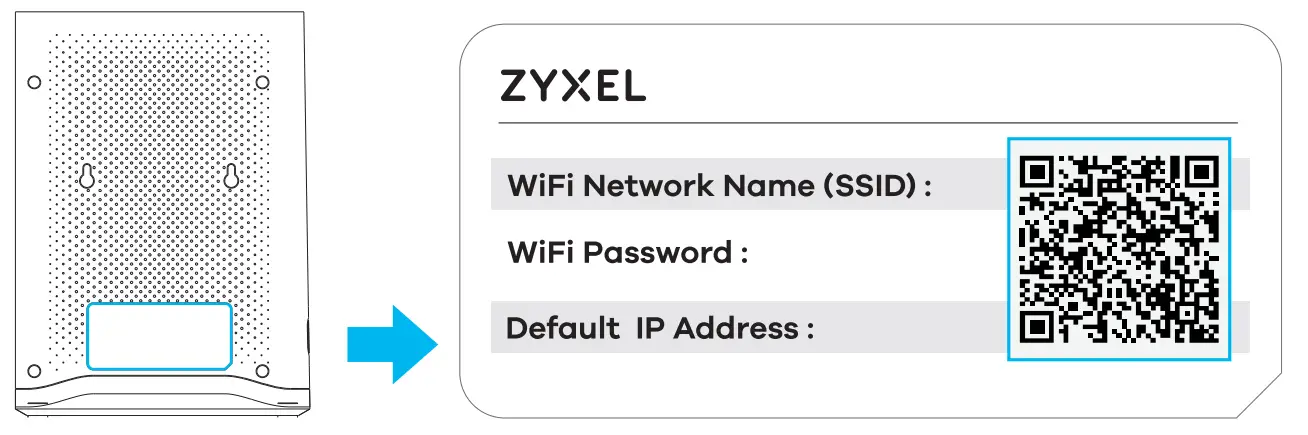
WiFi Check whether the link quality LED is SOLID ON or BLINKING. If SOLID ON: Your WX3310-B1 has synced the WiFi name (SSID)/password with your Zyxel gateway. Connect your wireless device to the existing WiFi name (SSID). The default WiFi name and password are on the Zyxel gateway back label.
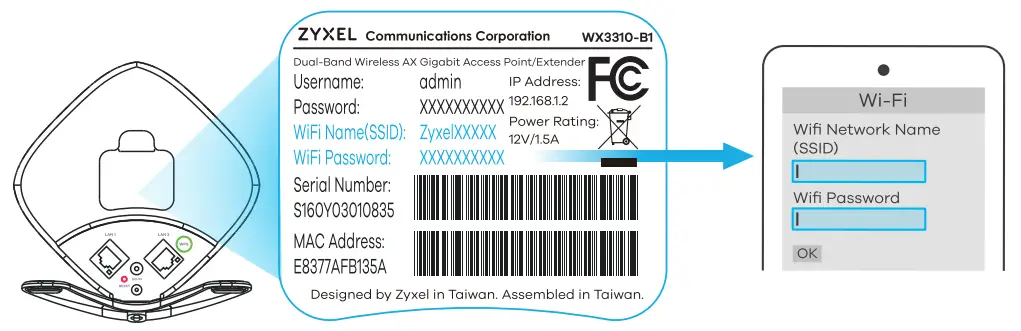
 If BLINKING: Connect your wireless device to the WWI name (SS113)/password on the W)(3310-B1 back label.
- Relocate the WX3310-B1 to an Optimal Location
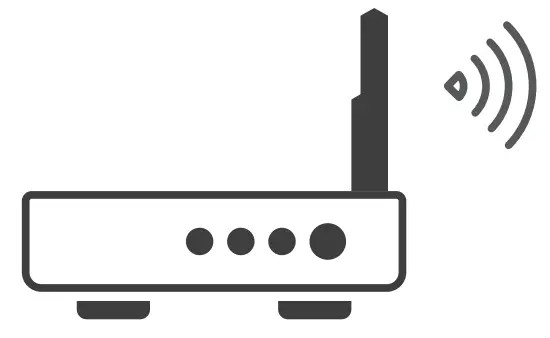
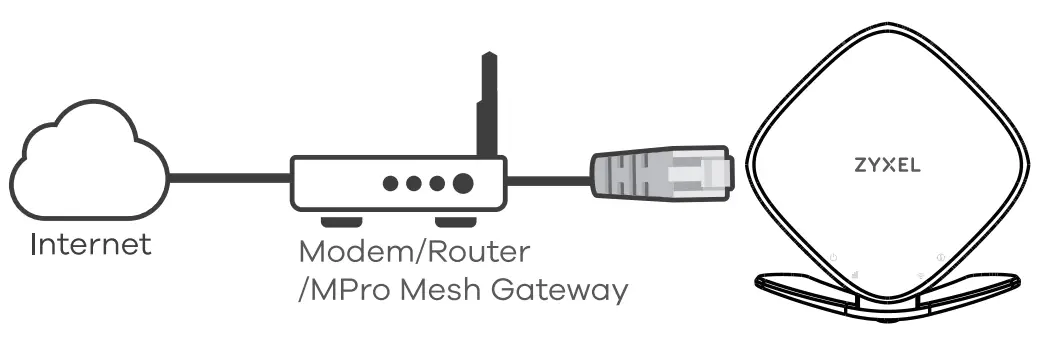
- Modem/Router/MPro Mesh Gateway

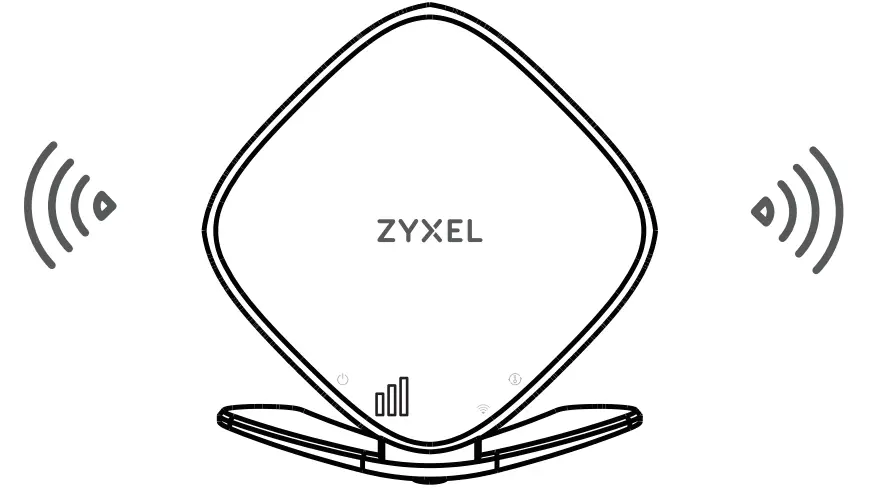
- Green/Amber – Good location. Red or off- Move closer to the modem/rooter.


Unplug your WX3310-B1 and move it to a new location about halfway between your modem/router and the area with a poor WiFi signal. Plug in your WX3310-B1.
The WX3310-B1 must be within range of your modem/router WiFi network. If the link quality LED is OFF or RED, move the WX3310 B1 closer to the modem/router and try again until the link quality LEDOW lights green or amber. Now yOu Can use WiFi and the internet.
- Modem/Router/MPro Mesh Gateway

 If BLINKING: Connect your wireless device to the WWI name (SS113)/password on the W)(3310-B1 back label.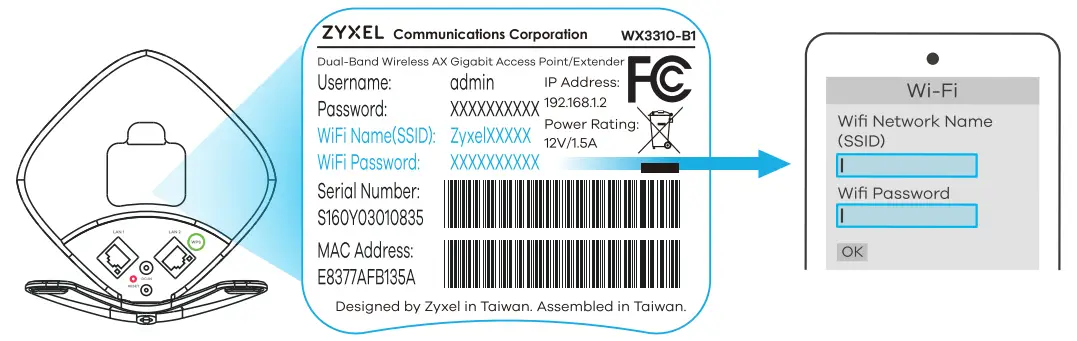
Connect via Cable(Optional)
- Power On

Green Blinking – System x booting, On-System is Ready
Red-on-system has failed
Off -System is powered off
Use the included power adaptor to connect the WX3310-B1 power socket to an appropriate power outlet and wait until the power LED stays on solid green. If the LED does not stay on solid green, un-plug the power adaptor and plug it back in again. -
Connect The WX3310-B1 to your Modem/Route

Use the included Ethernet cable to connect LANT or LAN2 on the WX3310-B1 to an Ethernet port on your modem/router. - Connect Your Device to the WiFi
Check whether the link quality LED is SOLID ON or BLINKING. If S0LID ON: Your WxS310-81has synced the WiFi name (SSI0)/password with your Zyxel Your Gatewey, connect your wireless device tothe existing WiFi name (SSID) The default WiFi name and password are on the Zyxel gateway back label. Now you can use WIFI and the internet. IF BLINKING: Connect your wireless device to the WiFi name($SID)/password on the WX3310-81 back label. Now you can use WIFI and the internet.
Wall Mounting(Optional)
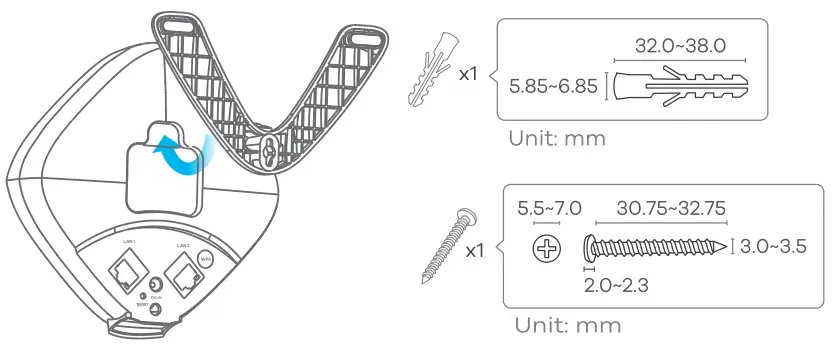
Attach the bracket to the back of the WX3310-81 as shown.
Drill a hole in the wall. Insert the screw anchor in the hole and install the screw.
Place the Wx3310-B1 so the wall mount hole lines up with the screw. Slide the WX3310-B1 down gently to fix it into place.
MPro Mesh App
If you are using a Zyxel MPro Mesh gateway, you can use the MPro Mesh app to manage the Zyxel MPro Mesh system including the WX3310-B1.
FCC Safety Warning
The FCC safety warning displays after you log into the web configurator. You can also see it by going to http//xxx.x/legalinfo.html, Where “xxx” is the WX3310-B1’s IP address.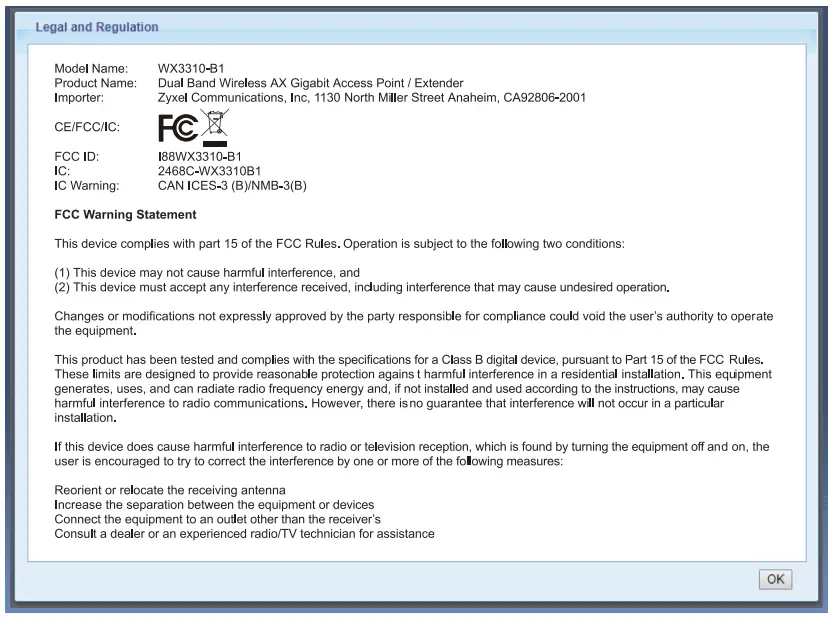
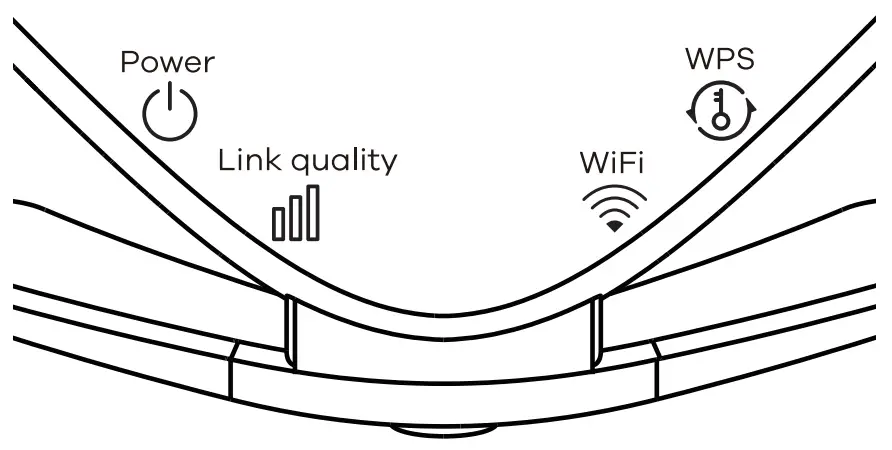
Power | Green On – The WX331O – B1 is ready. Blinking – The WX3 310 – BI is booting. |
| Red On – System failure. Blinking – Firmware upgrading. | |
| Off Not receiving power. | |
Link Quality | Connected via WiFi I Repeater mode) Green On – Good link quo lity. Blining – Good link quolity, but not synced with a Zyxel MPro Mesh gateway. Amber On – Place the WX331O-B1 farther from the modem/router for better coverage. Blinking – Place the WX331O-BI farther from the modem/router for better coverage. Not synced with a Zyxel MPro Mesh gateway. Red On – Pl a ce th e WX3 310 – B1 cIose r to th e mod em/router. Blinking – Place the WX331O-B1 closer to the modem/router. Not synced with a Zyxel MPro Mesh gateway. Cable connection IAP mode)Gr On – Connected to the modem/router. Blinking – Connected, but not synced with a Zyxel MPro Mesh gateway. Off There is no connection to the modem/router. |
Wi-fi | On – 2.4G a nd SG wireless rod ios a re ready.BIin king – Sending and receiving data.Slow Blinking – (1 sec on and 1 sec off.) The WX331O-BI is applying WiFi settings.Off The 2.4G or NG wi re Iess ra d io i s not rea d y or ha s fa il ed. |
WPS | Green Blinking-The WPS process in progressRed On-WPS failed Blinking-overlapping WPS process Off No WPS Activity |
FCC Radiation Exposure Statement
- This equipment complies with FCC RF radiation exposure limits set forth for an uncontrolled environment
- This transmitter must be at least 20 cm from the user and must not be co-located or operating in conjunction with any other antenna or transmitter.
- Operation of this device is restricted to indoor use only, except for relevant user’s manual mention that this device can be installed into the external environment.
CANADA
‘The following information applies if you use the product within Canada area
Industry Canada ICES Statement
CAN ICES-3 (B)/NMB-3(8)
Industry Canada RSS-GEN & RSS-247 Statement
- This device complies with Industry Canada license-exempt RSS standard(s). Operation is subject to the following two conditions: (1) this device may not cause interference, and (2) this device must accept any including interference that may cause undesired operation of the device.
If the product with 5G wireless function operating in 5150-5250 MHz and 5725-5850 MHz, the following attention must be paid, - The device for operation in the band 5150-5250 MHz is only for indoor use to reduce the potential for harmful interference to co-channel mobile satellite systems.
- For devices with detachable antenna(s), the maximum antenna gain permitted for devices in the band 5725-5850 MHz shall be such that the equipment still complies with the eiirp. limits specified for point-to-p non-point-to-point operation as appropriate; and
- The worst-case tilt angle(s) necessary to remain compliant with the e.irp. elevation mask requirement set forth in Section 62:2(3) of RSS 247 shall be clearly indicated.
If the product with SG wireless function operating in §250-5350 MHz and 5470-5725 Mz, the following attention must be paid.
- For devices with detachable antenna(s), the maximum antenna gain permitted for devices in the bands 5250-5350 MHz and 5470-5725 MHz shall be such that the equipment still complies with the eiirp. limit.
Industry Canada radiation exposure statement.
This device complies with IC radiation exposure limits set forth for an uncontrolled environment. This device should be installed and operated with a minimum distance of 24 cm between the radiator and your body.