
COMMUNICATIONS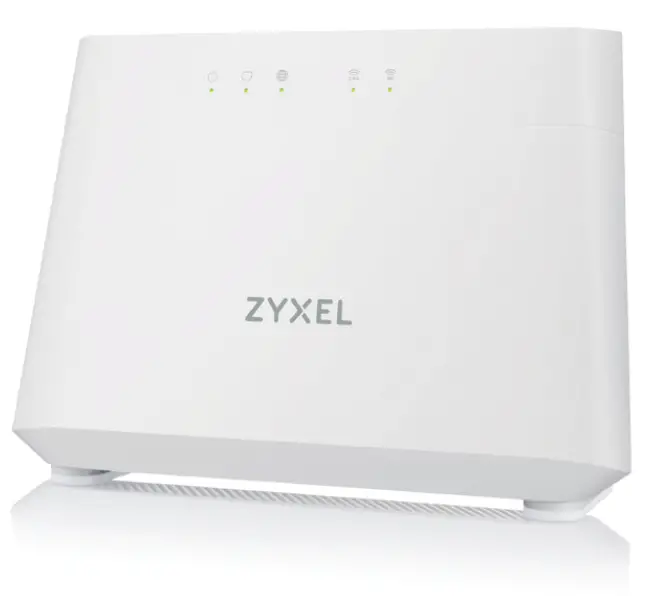
Quick Start Guide
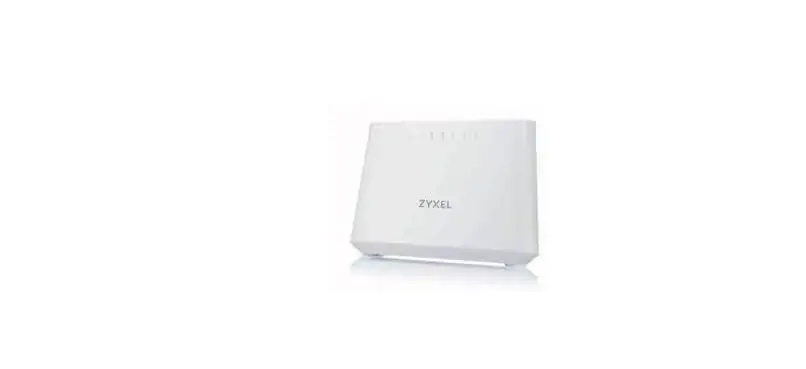
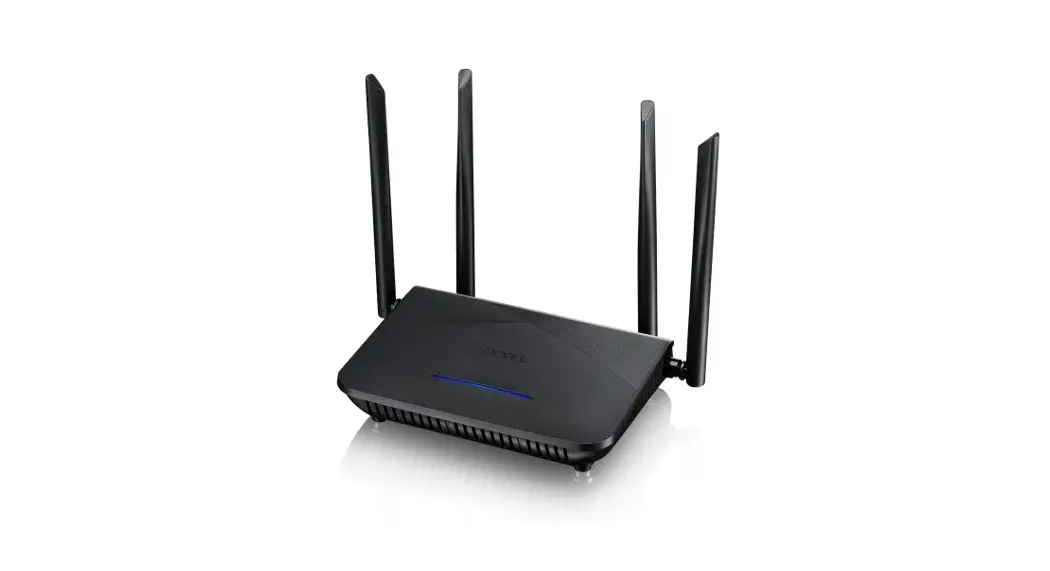
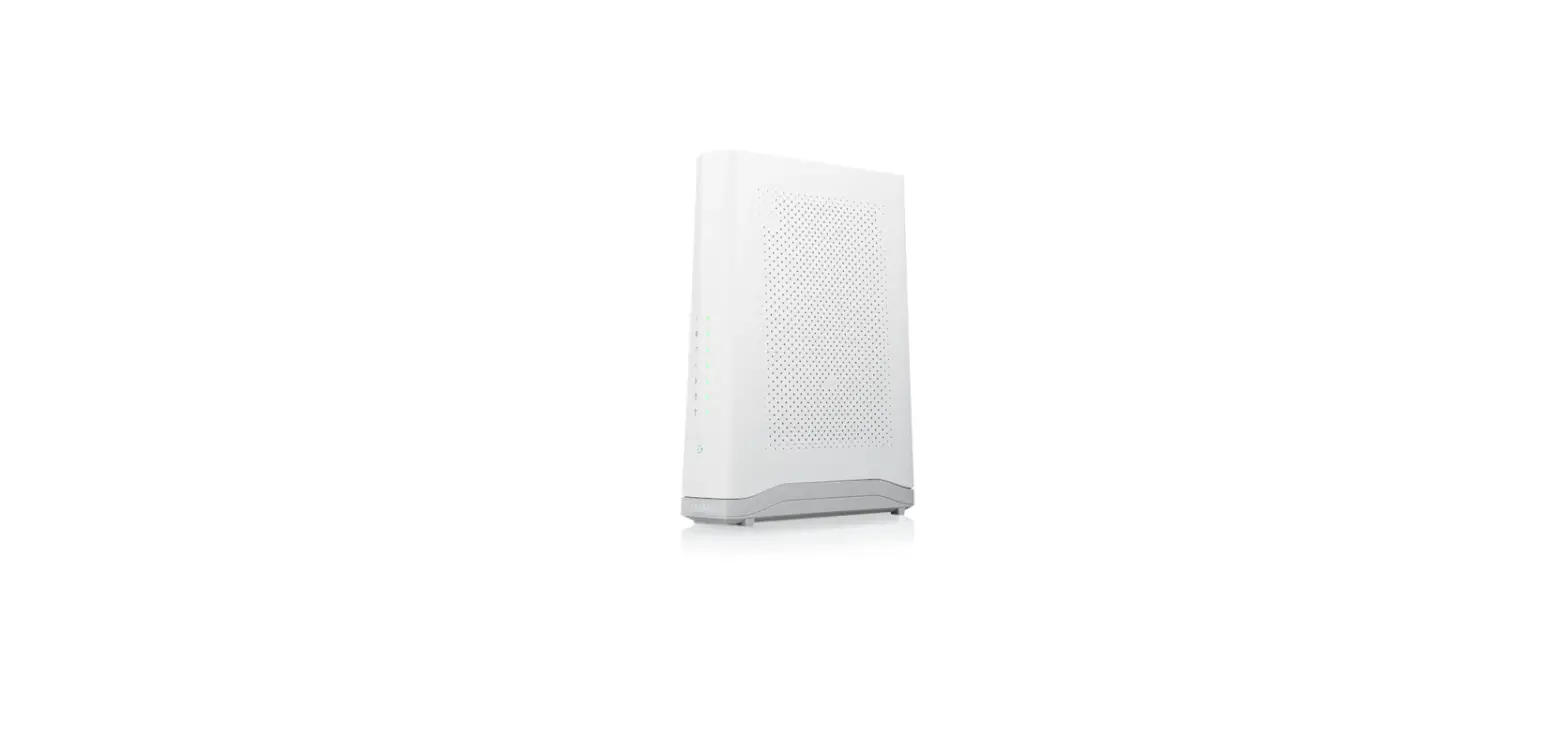
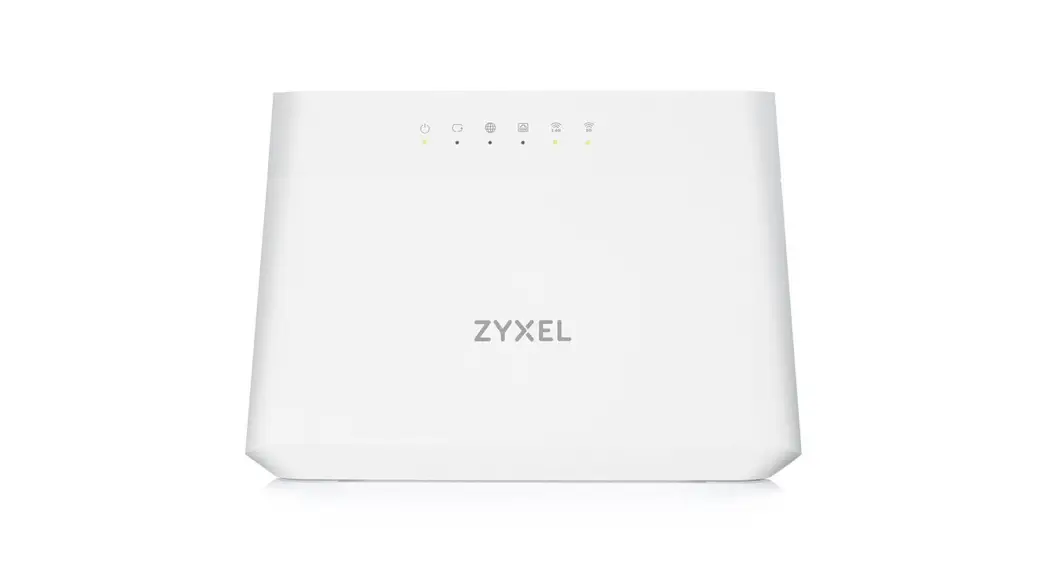
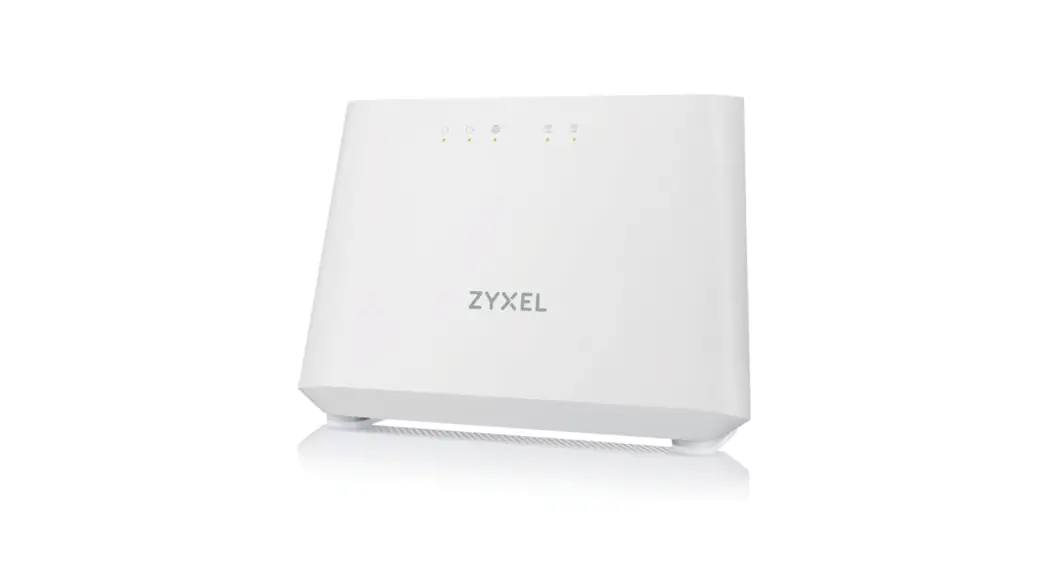
EX2210-TO Dual-Band Wireless AX1800 Gigabit Ethernet Gateway
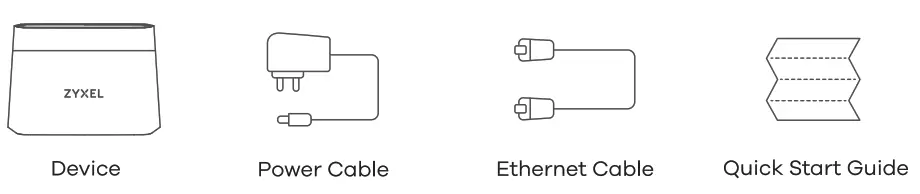
Package Contents
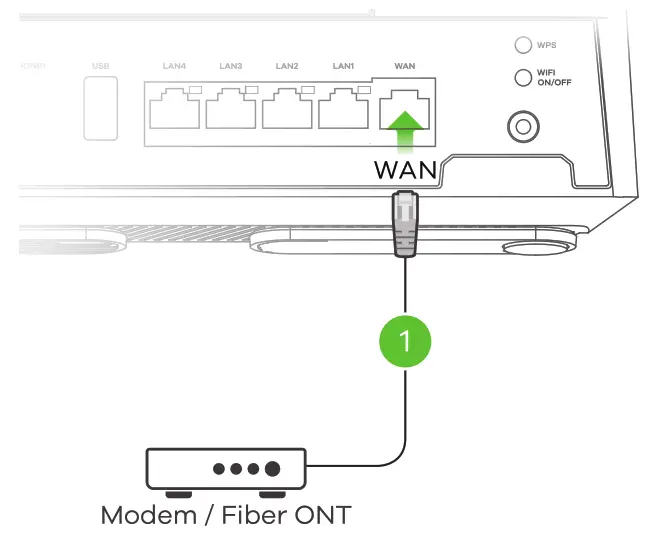
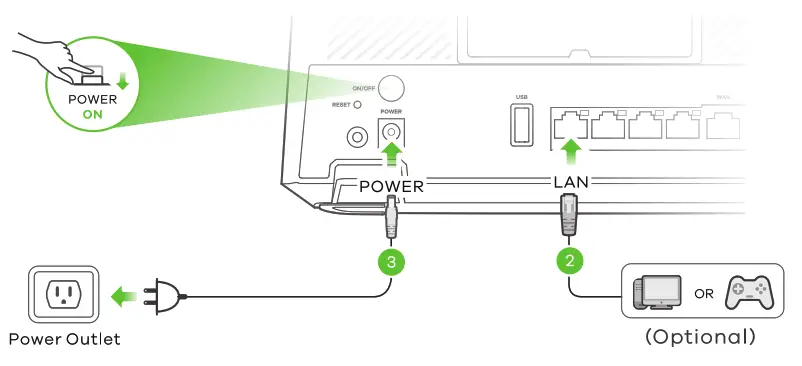
Step1 Hardware Connections
 | Green On – Internet is ready. Blinking – Transmitting/receiving Internet data. Red On – Attempted to get an IP address, but failed. Off – Internet is not ready. |
 | Green On – Power is on. Blinking – Starting up. Red On – Malfunctioning. Blinking – Upgrading firmware. |
Setp2 wifi Connection
4-a Using SSID
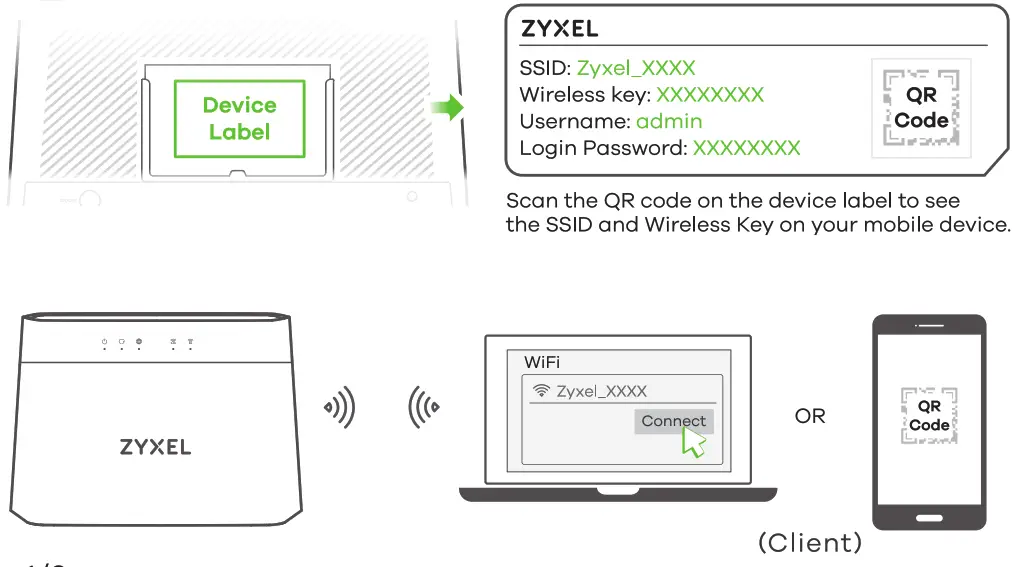
(4-a) Use the SSID and Wireless key on the device label to connect wirelessly to the Zyxel Device. On your smartphone or notebook, find this SSID. Enter the Wireless key to connect
4-a Using WAP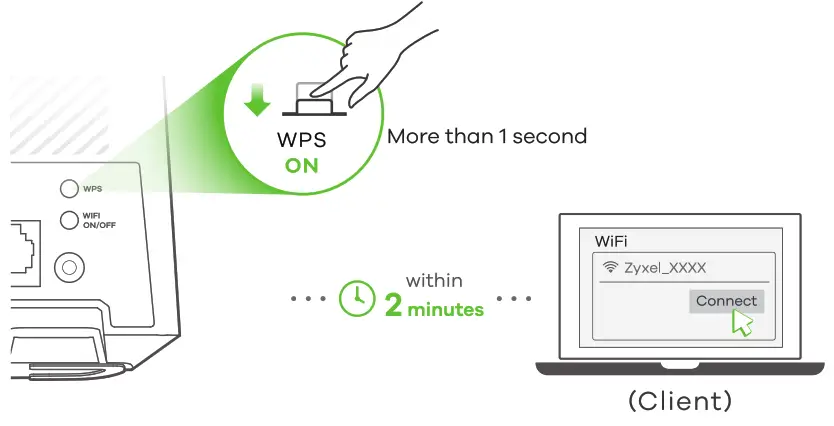
 Amber Blinking – The Zyxel Device is connecting to 2.4 GHz WiFi via WPS. Green On – 2.4 GHz WiFi is ready. Blinking – Transmitting/receiving data.
 Amber Blinking – The Zyxel Device is connecting to 5 GHz WiFi via WPS. Green On – 5 GHz WiFi is ready. Blinking – Transmitting/receiving data.
(4-b)Press the WPS button until the WiFi 2.4G and 50 LEDs light up in amber. Press the WPS button on the client. If the WPS method fails, use the SSID and wireless key to set up a WiFi connection (4-a).
Step 3 Quick Start Wizard
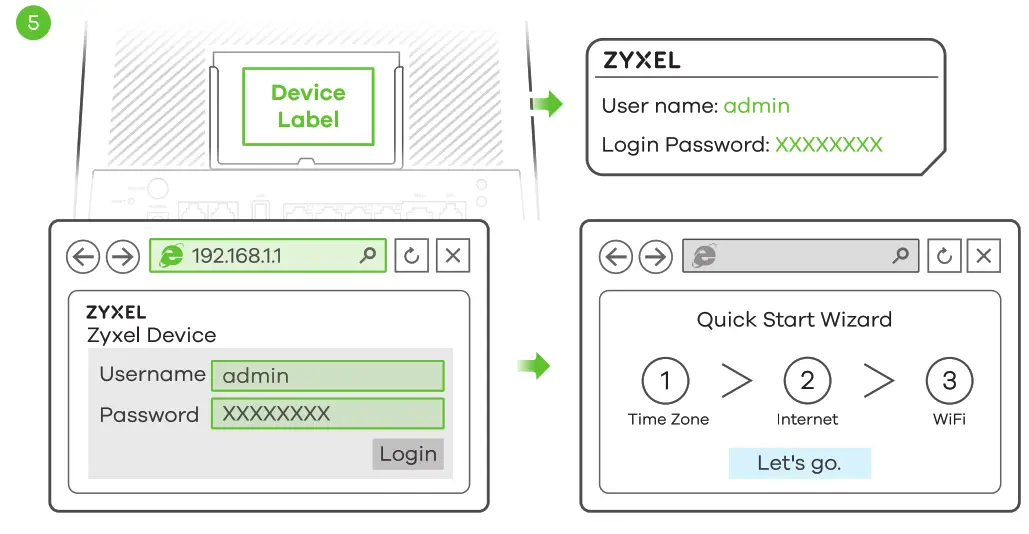
5. Open a web browser and go to http://192.168.1.1. Enter the default User name (admin) and admin Login Password (on the device label), and then click Login. The Wizard runs. Follow the wizard prompts to complete the setup.
Wall Mounting (Optional)
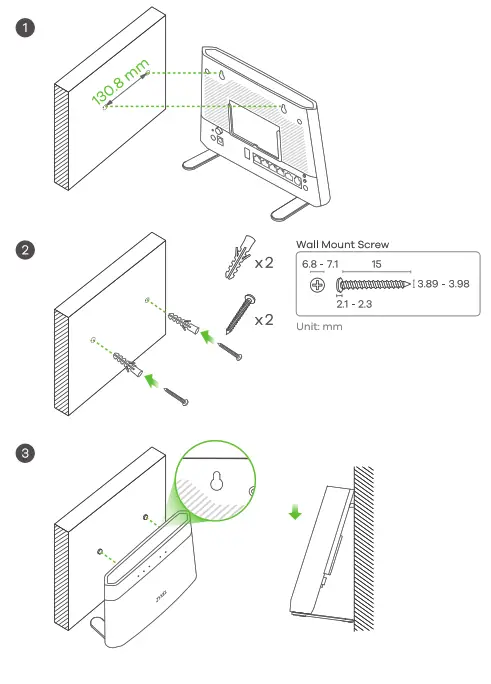
(Optional)
- Drill two holes on the wall of a distance of 130.8 mm.
- Insert screw anchors and screws (not provided) into the holes.
- Place the Zyxel Device so the wall mount holes line up with the screws. Slide the Zyxel Device down gently to fix it into place.
UNITED STATES of AMERICA
The following information applies if you use the product within the USA.
FCC EMC Statement
 This device complies with part 15 of the FCC Rules. Operation is subject to the following two conditions: (1) This device may not cause harmful interference, and (2) This device must accept any interference received, including interference that may cause undesired operation.
- This product has been tested and complies with the specifications for a Class digital device, pursuant to Part 15 of the FCC Rules. These limits are designed to provide reasonable protection against harmful interference in a residential installation. This equipment generates, uses, and can radiate radio frequency energy and, if not installed and used according to the instructions, may cause harmful interference to radio communications. However, there is no guarantee that interference will not occur in a particular installation.
- If this device does cause harmful interference to radio or television reception, which is found by turning the equipment off and on, the user is encouraged to try to correct the interference by one or more of the following measures:
- Reorient or relocate the receiving antenna
- Increase the separation between the equipment or devices
- Connect the equipment to an outlet other than the receiver’s
- Consult a dealer or an experienced radio/TV technician for assistance The following information applies if you use the product with RF function in the USA. FCC Caution Any changes or modifications not expressly approved by the party responsible for compliance could void the user’s authority to operate this equipment. FCC Radiation Exposure Statement This equipment complies with FCC RF radiation exposure limits set forth for an uncontrolled environment This transmitter must be at least 20 cm from the user and must not be co-located or operating in conjunction with any other antenna or transmitter. Operation of this device is restricted to indoor use only, except for the relevant user’s manual mention that this device can be installed into the external environment.
63-100-000368Z
US Importer Zyxel Communications, Inc 1130 North Miller Street Anaheim, CA 92806-2001
https://www.zyxel.com/us/en Copyright © 2022 Zyxel Communications Corp.
All Rights Reserved.