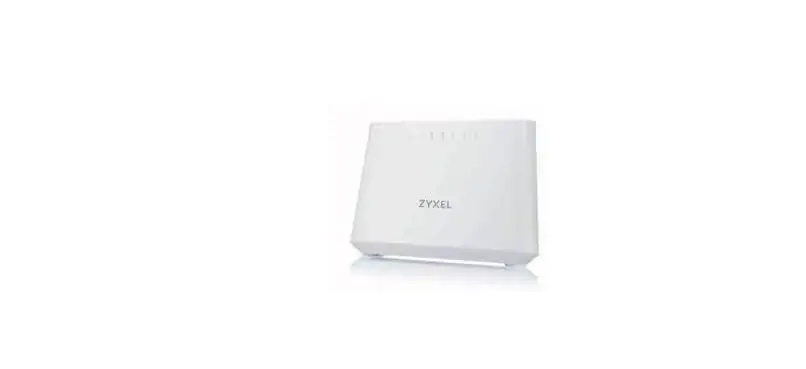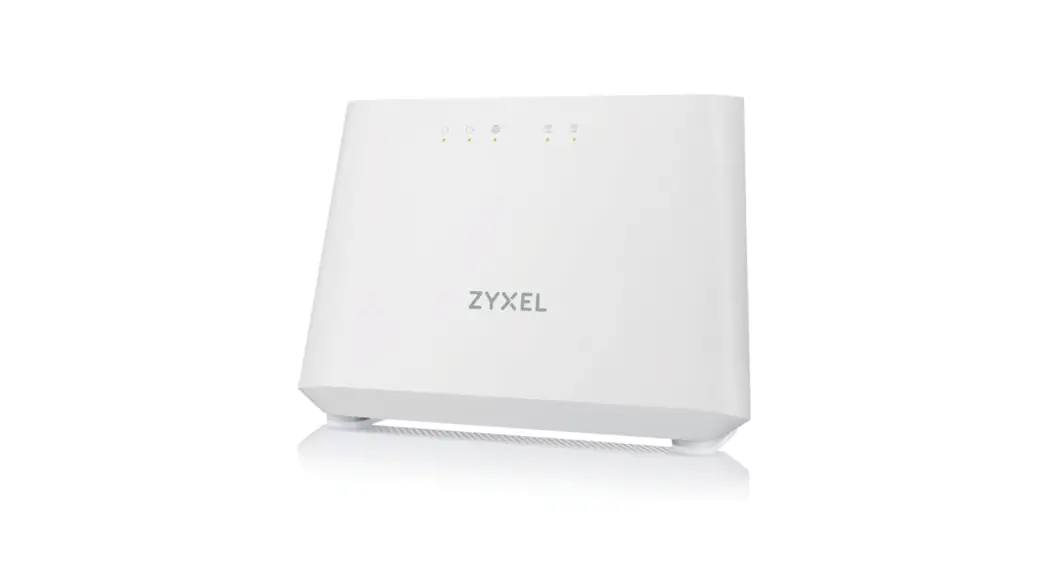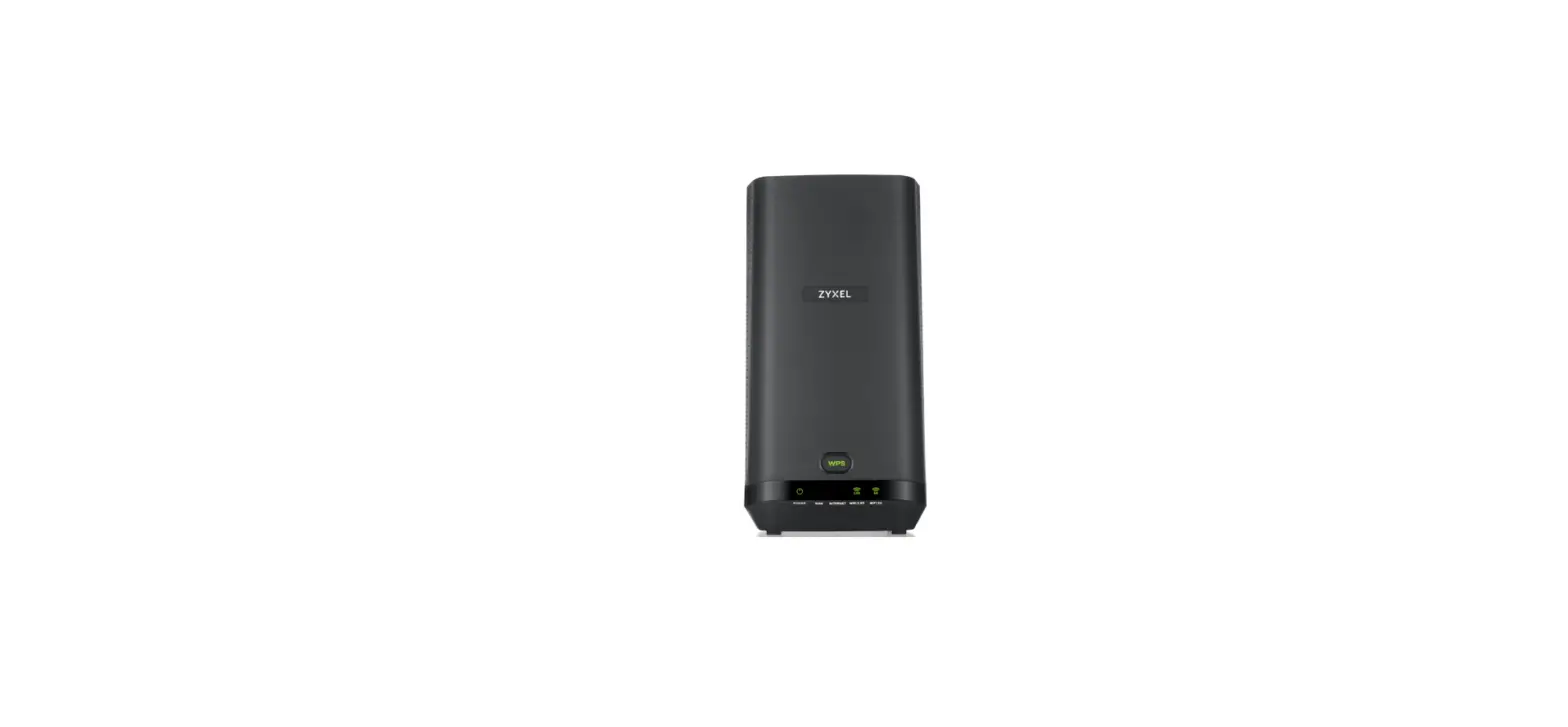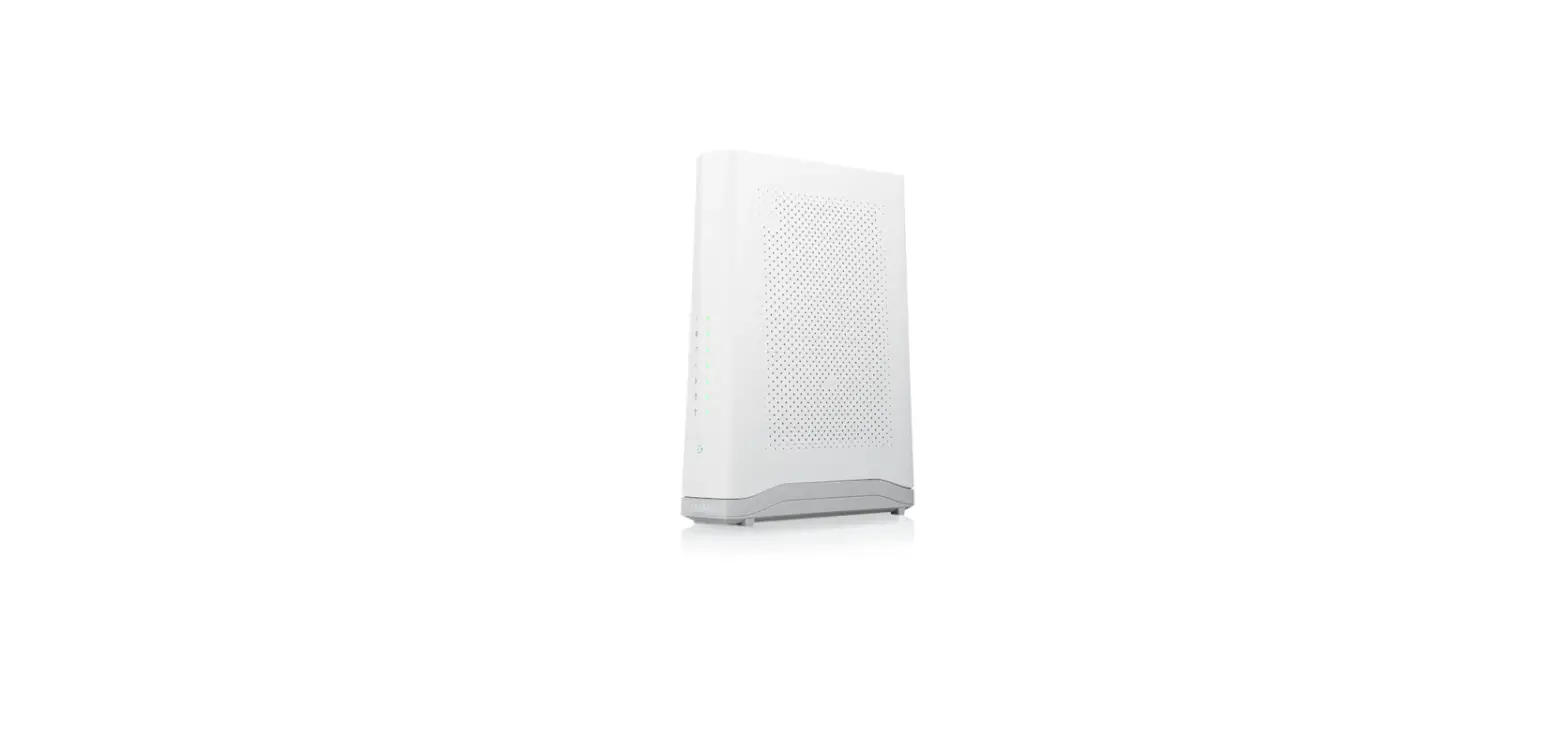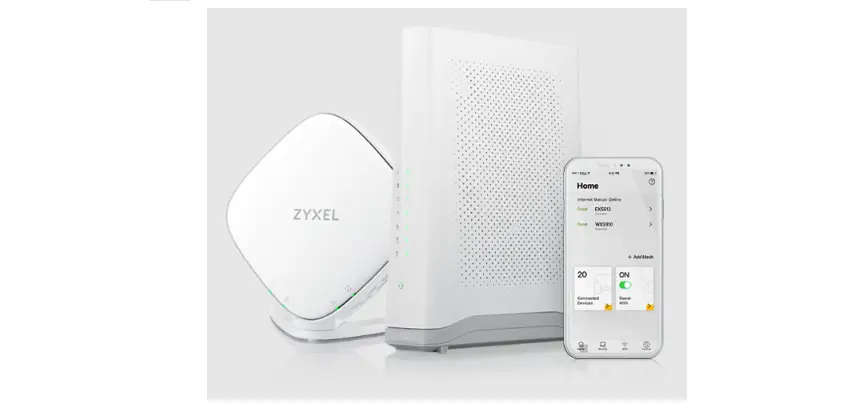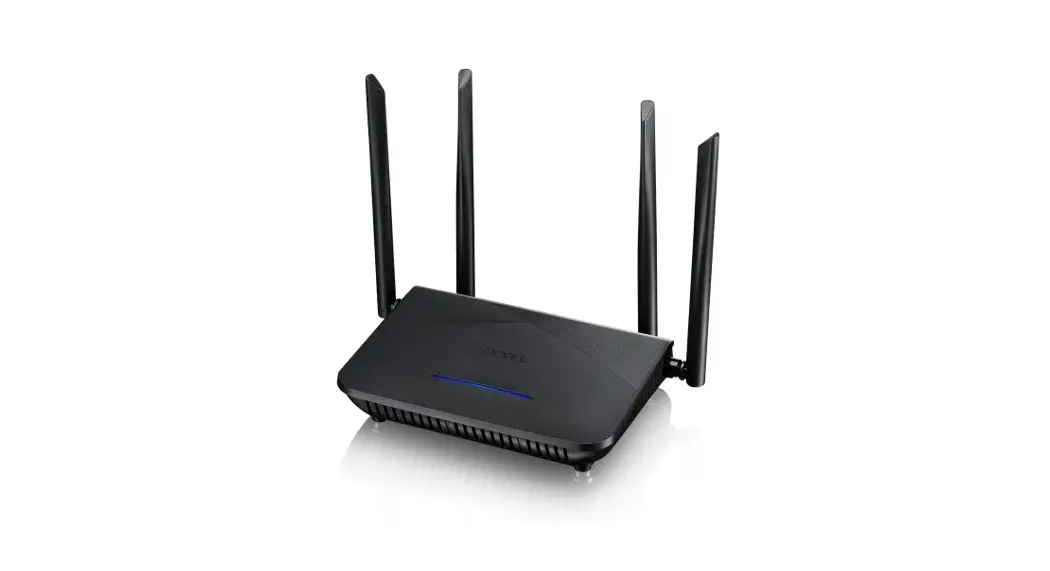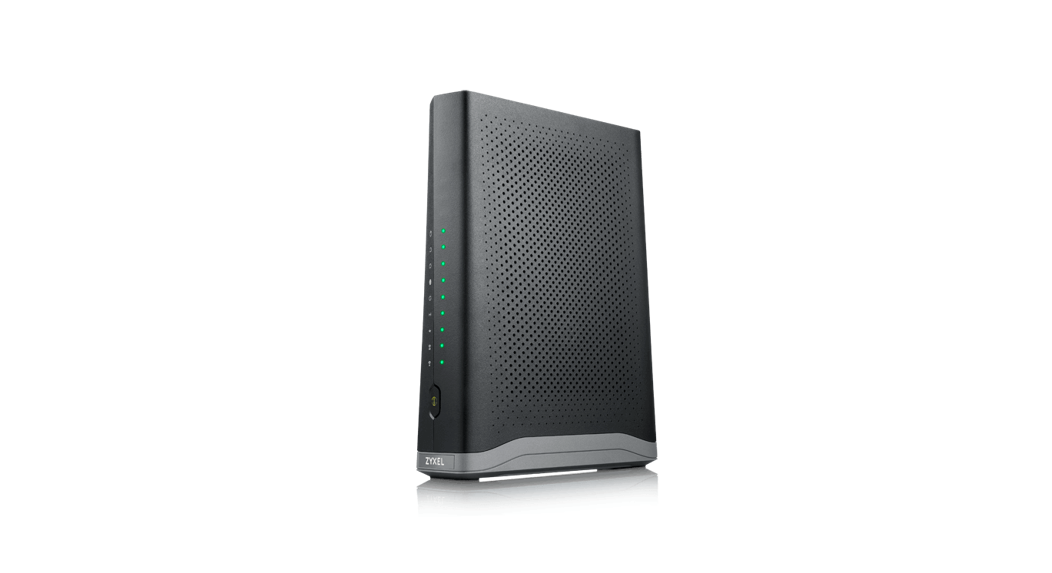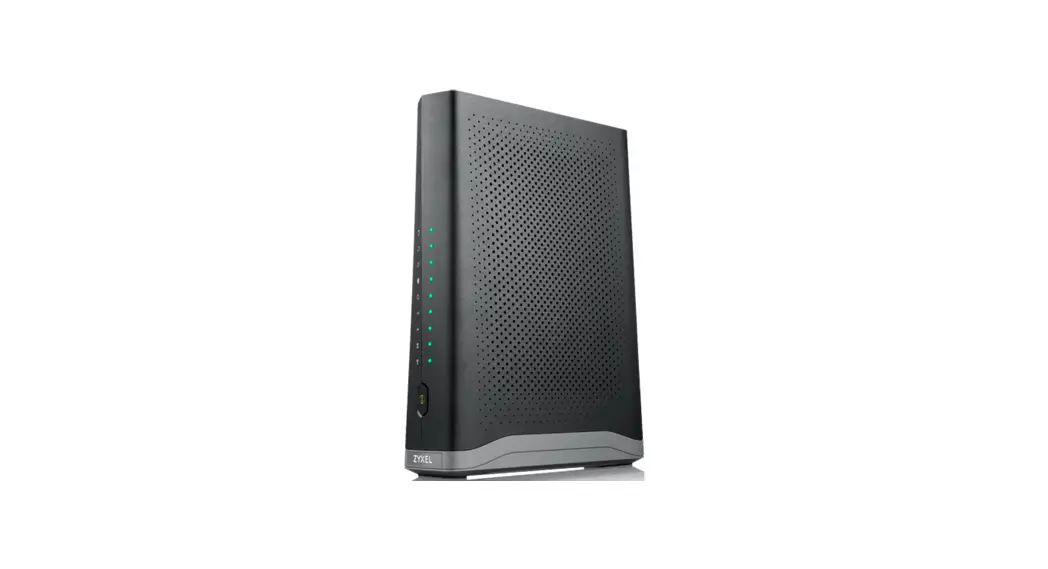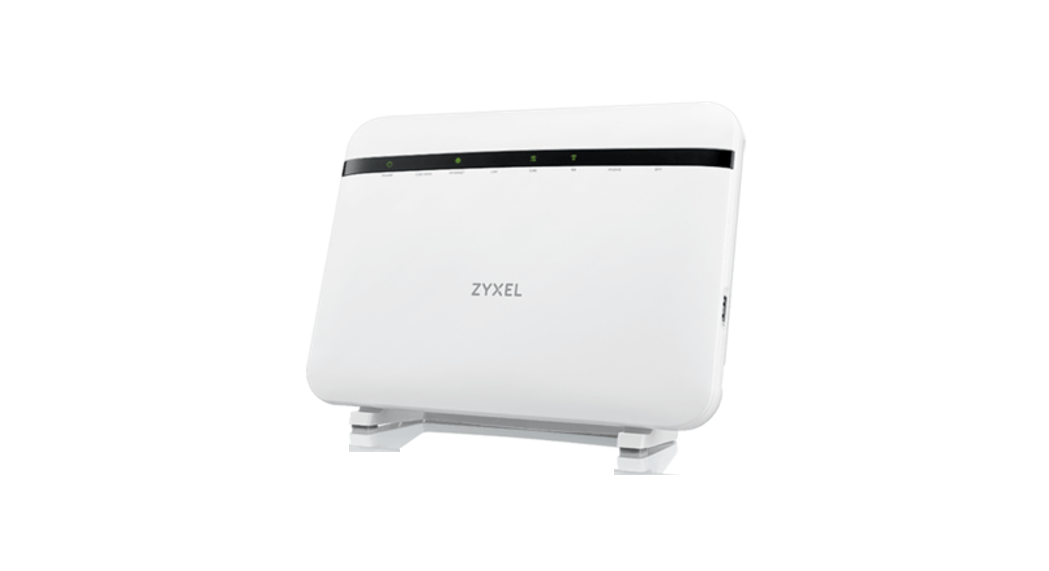
 EX5601-T0 Dual-Band Wireless AX6000 2.5G Ethernet IAD with SFP
EX5601-T1 Dual-Band Wireless AX6000 2.5G Ethernet IAD
EX5600-T0 Dual-Band Wireless AX6000 2.5G Ethernet Gateway with SFP
EX5600-T1 Dual-Band Wireless AX6000 2.5G Ethernet Gateway
User Guide 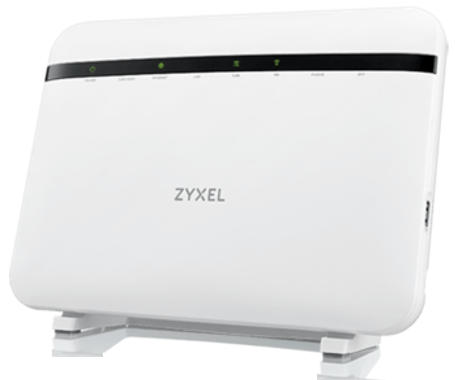
Package Contents
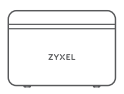 | Device |
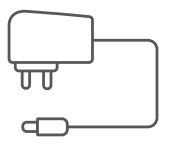 | Power Cable |
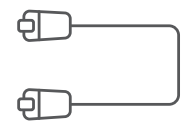 | Ethernet Cable |
 | Quick Start Guide |
 | Declaration of Conformity Safety Warnings |
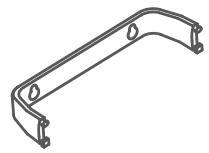 | Bracket |
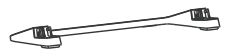 | Device Stand |
See the User’s Guide at www.zyxel.com for more information, including customer support and safety warnings.
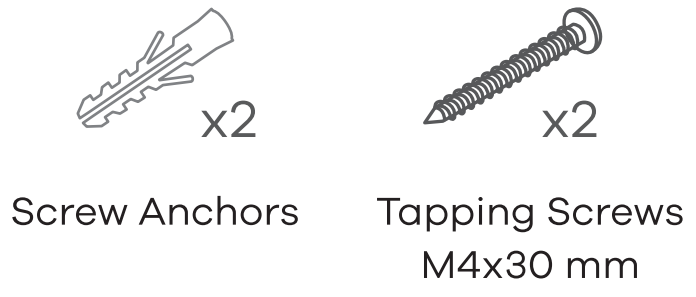
Mounting Kit
EU Importer
Zyxel Communications A/S
Gladsaxevej 378, 2. th. 2860 Soborg, Denmark.
https://www.zyxel.com/dk/da/
UK Importer
Zyxel Communications UK Ltd.
2 Old Row Court, Rose Street, Wokingham, RG40 1XZ, United Kingdom (UK)
https://www.zyxel.com/uk/en/
Copyright© 2022 Zyxel and/or its affiliates. All Rights Reserved.
Step 1 Hardware Connections
| 2.5G WAN | 2.5G LAN X1 | LAN X 3 | SFP | USB 3.0 | PHONE | 2.4G/5G WiFi | |
| EX5601-T0 | YES | YES | YES | YES | YES | YES | YES |
| EX5601-T1 | YES | YES | YES | NO | YES | YES | YES |
| EX5600-T0 | YES | YES | YES | YES | YES | NO | YES |
| EX5600-T1 | YES | YES | YES | NO | YES | NO | YES |
 INTERNET INTERNET | Green | On – Internet is ready. |
| —- | Off – Internet is not ready. | |
 POWER POWER | Green | On – Power is on. The Zyxel Device is ready for use. Blinking – Starting up. |
| Red | On – Malfunctioning. Blinking – Upgrading firmware. |
Please refer to the Desktop Placement section for device stand installation.
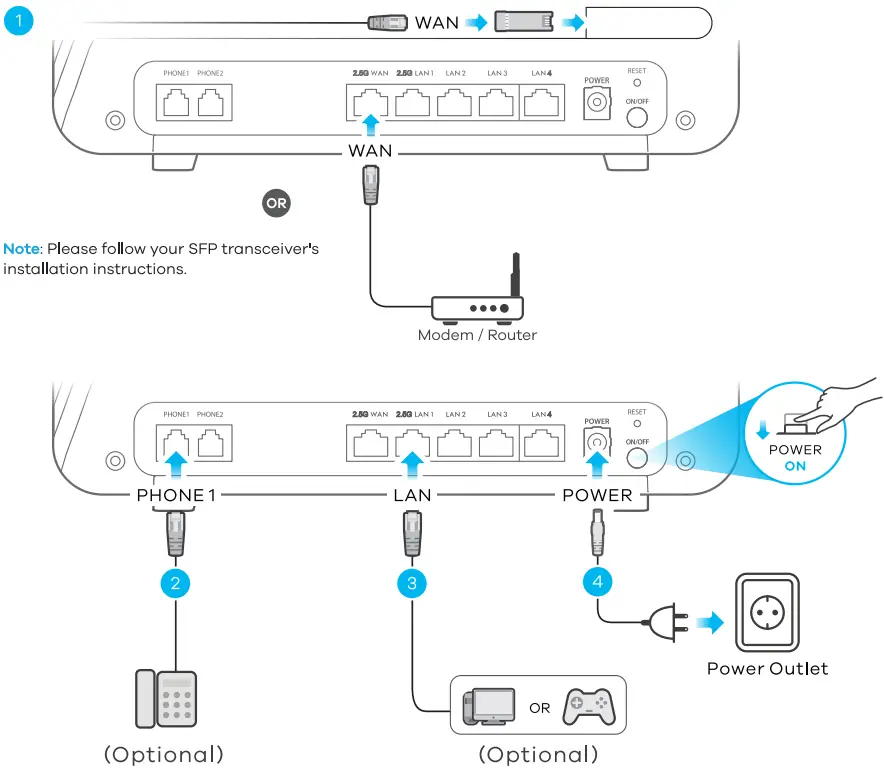
- Use an Ethernet cable to connect the 2.5G WAN port to a gateway modem.
OR
Use the SFP port with an SFP transceiver for WAN connection. - Connect a phone to the phone port using the phone cable (optional).
- Connect a computer to the LAN port using the yellow Ethernet cable (optional).
- Connect the power cable to the Zyxel Device and press the power button.
Step 2 WiFi Connection
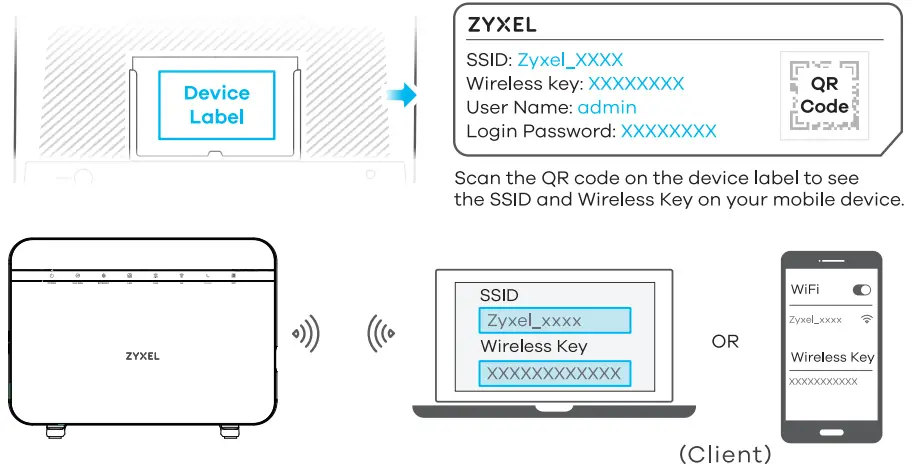
5-a Using SSID
 5-a.
5-a.
The SSID and Wireless Key are on the device label.
On your smartphone or notebook, find this SSID. Enter the Wireless Key to connect.
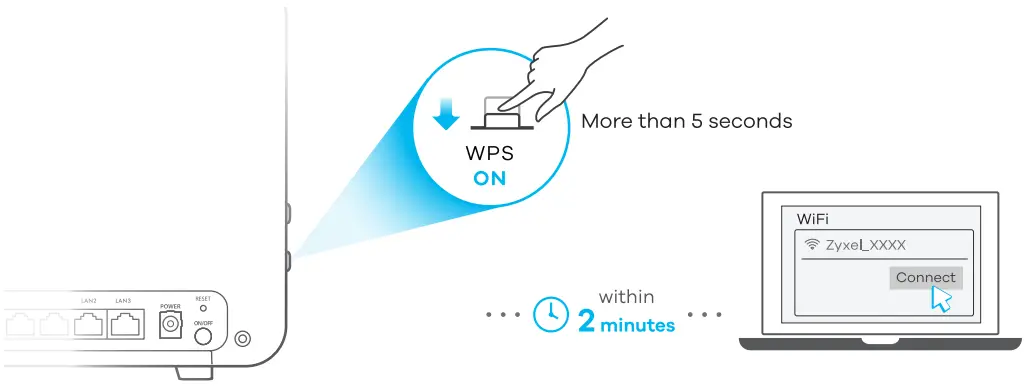
5-b Using WPS
 5-b.
5-b.
Press the WPS button until the wi1 2.4G and 5G LEDs light up in amber.
Press the WPS button on the client. If the WPS method fails, perform the Using SSID method.
 | Amber | Blinking – The Zyxel Device is connecting to 2.4 GHz WiFi client via WPS. |
| Green | On -2.4 GHz WiFi is ready. | |
 | Amber | Blinking – The Zyxel Device is connecting to 5 GHz WiFi client via WPS. |
| Green | On – 5 GHz WiFi is ready. |
Step 3 Quick Start Wizard
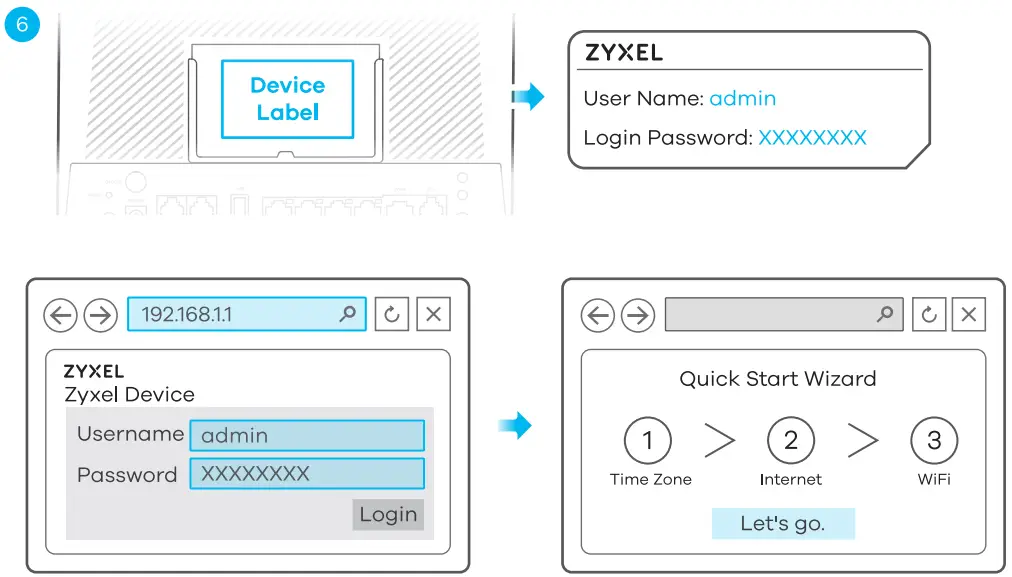
6. Open a web browser and go to http://192.168.1.1. Enter the default Username (admin) and ad min login password (on the device label), and then click Login. A wizard runs. Follow the wizard prompts to complete the setup.
Desktop Placement
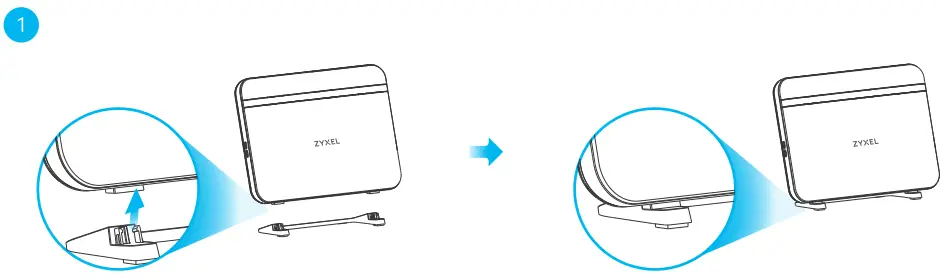
- Connect the stand to the Zyxel Device
Note: Do not remove the stand after installation.
Wall Mounting
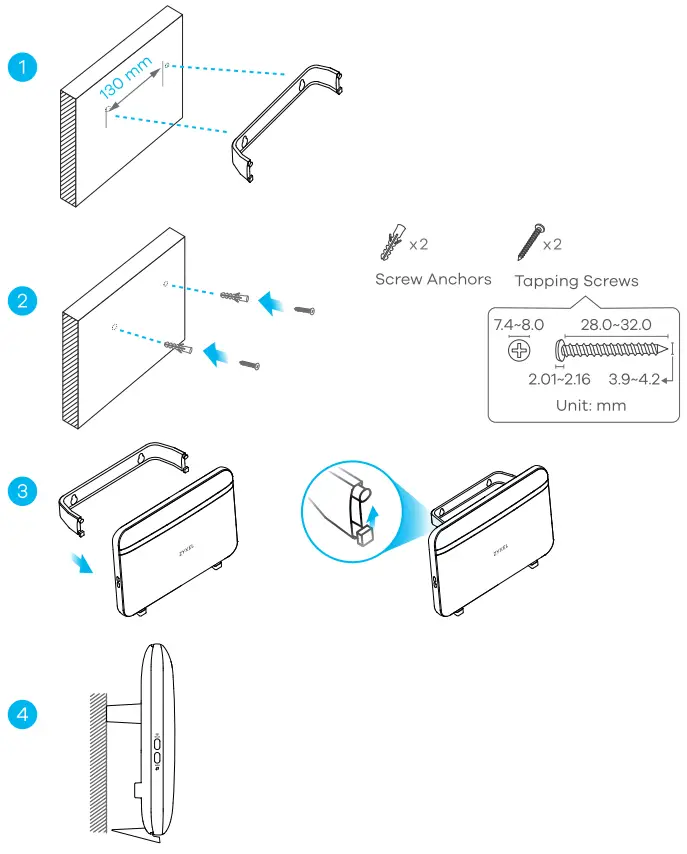
- Drill two holes at the distance of 130 mm apart.
- Insert screw anchors and screws into the holes.
- Attach the bracket to your Zyxel Device with the bracket holes facing down.
- Hang it on the screws.