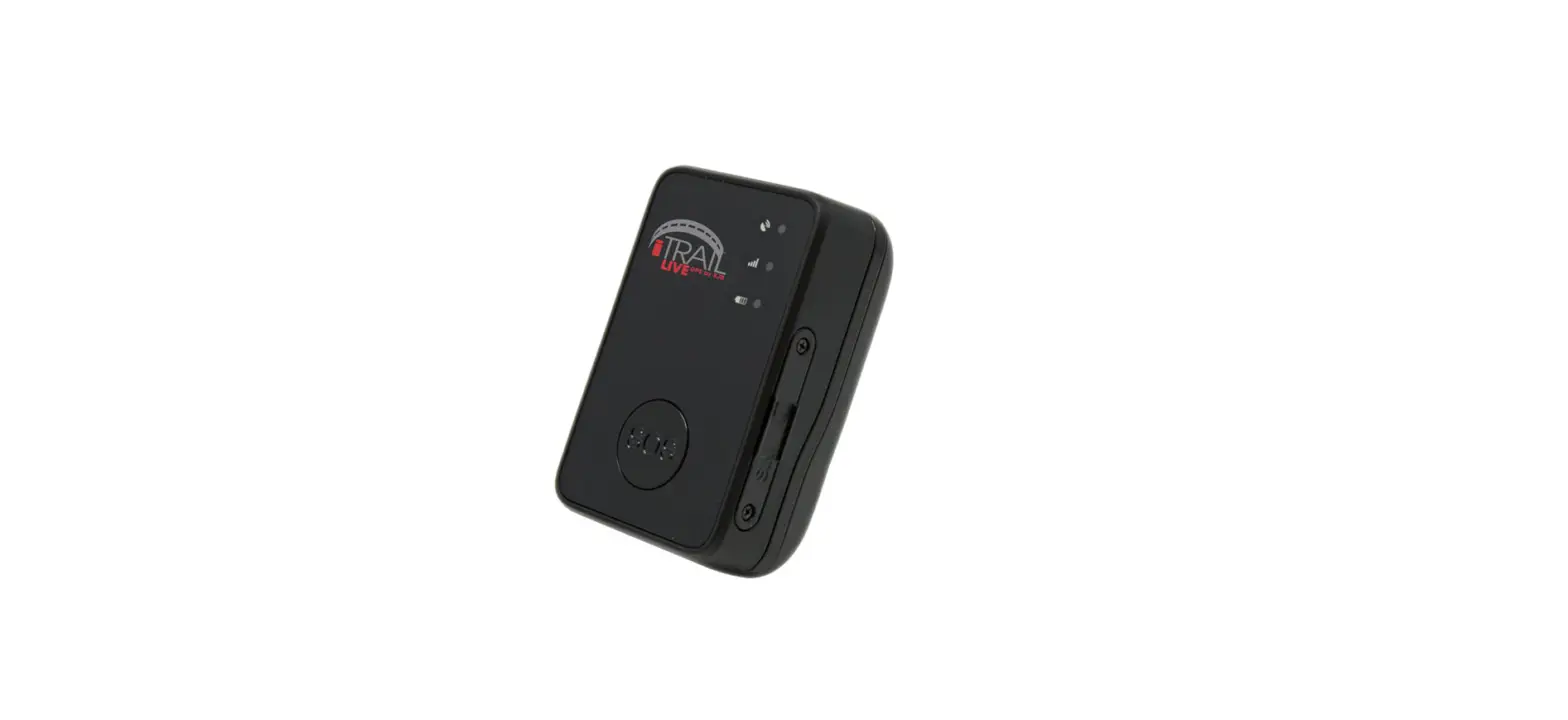

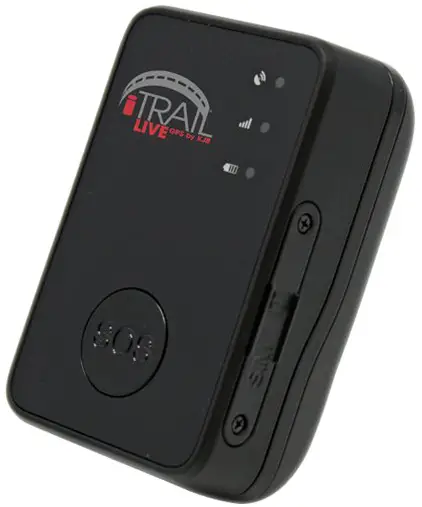
What’s Inside
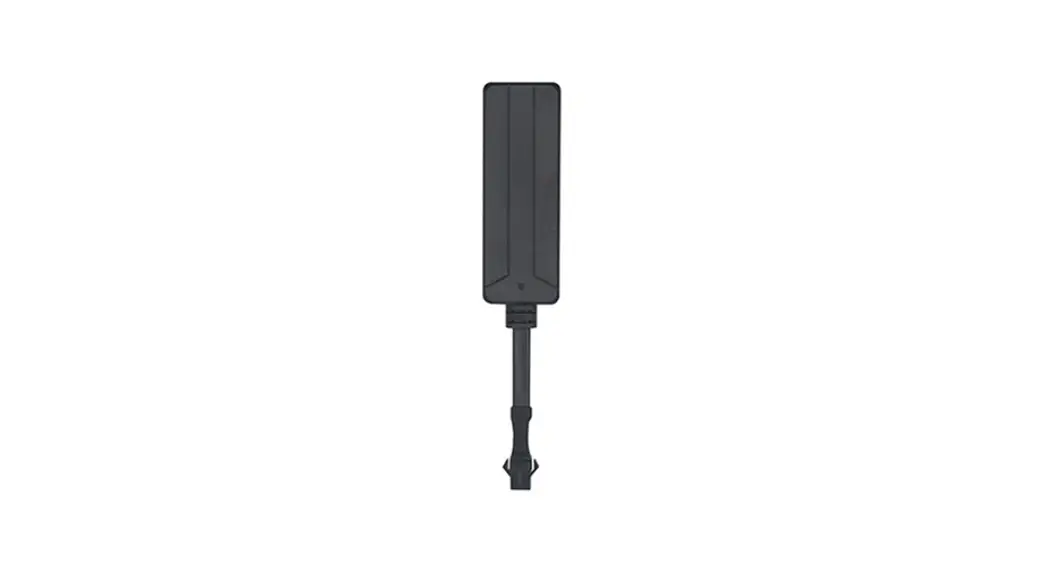
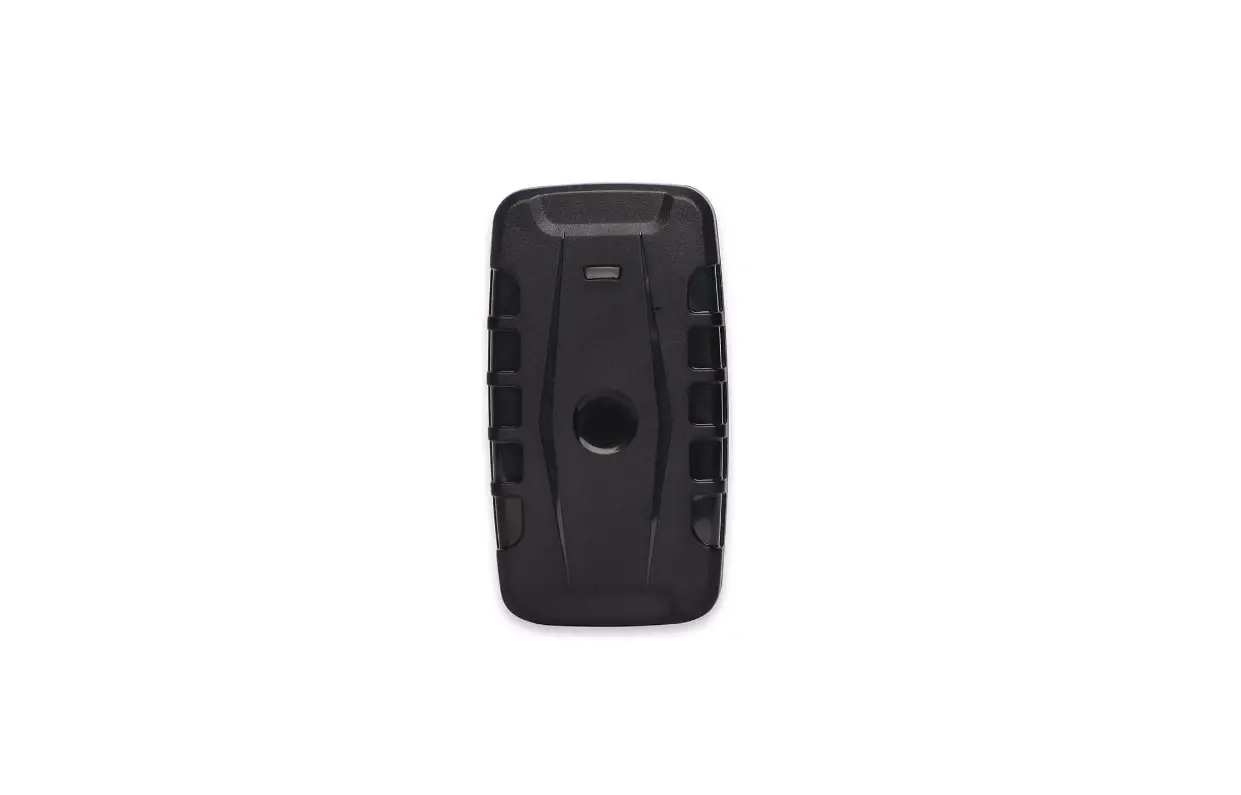
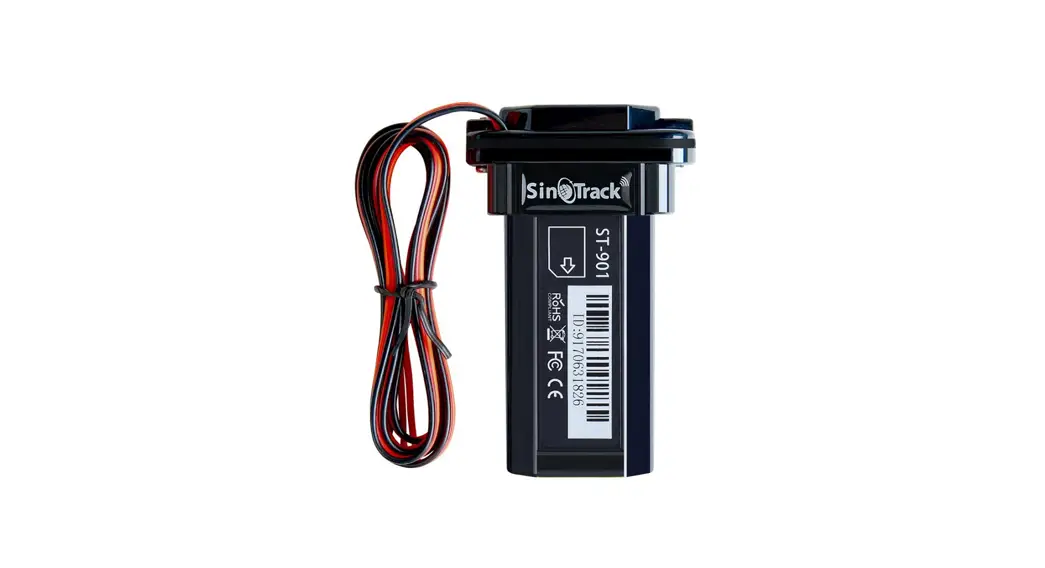
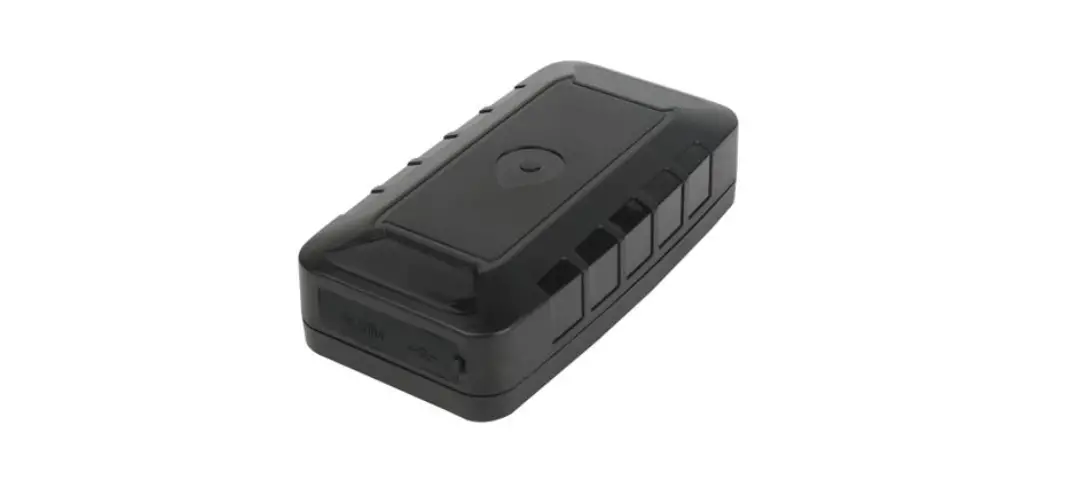
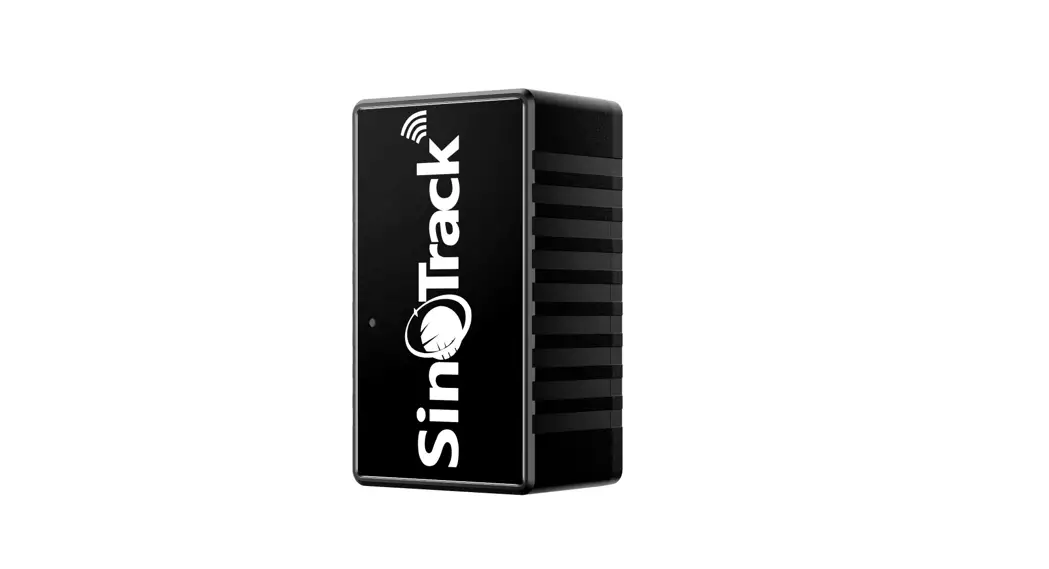
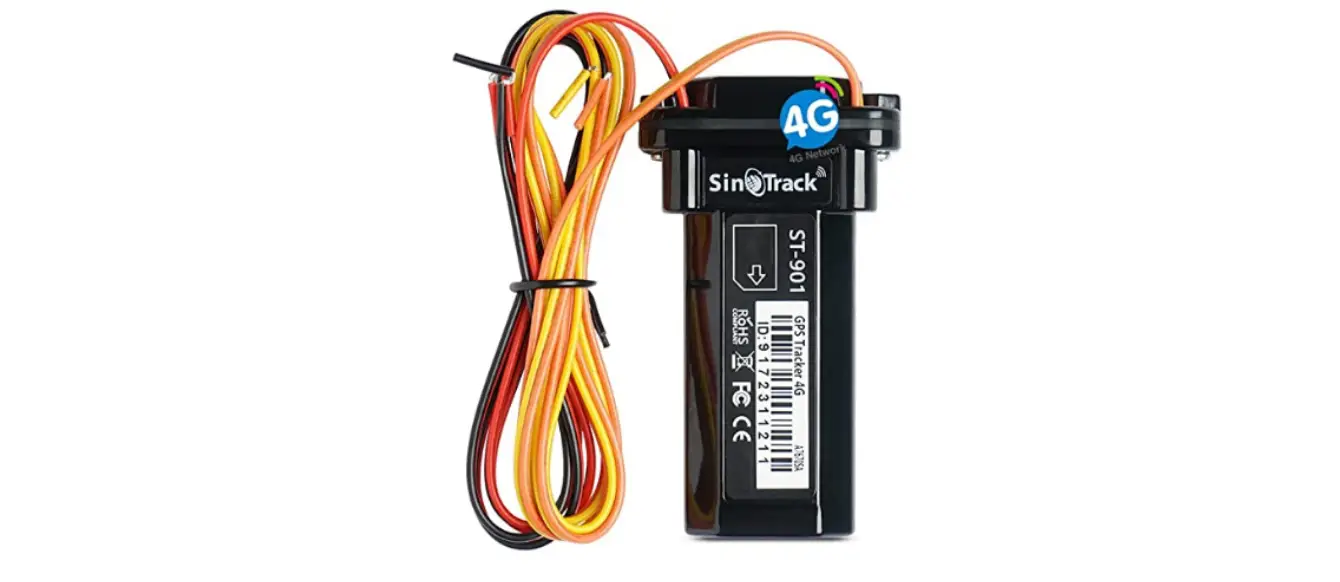
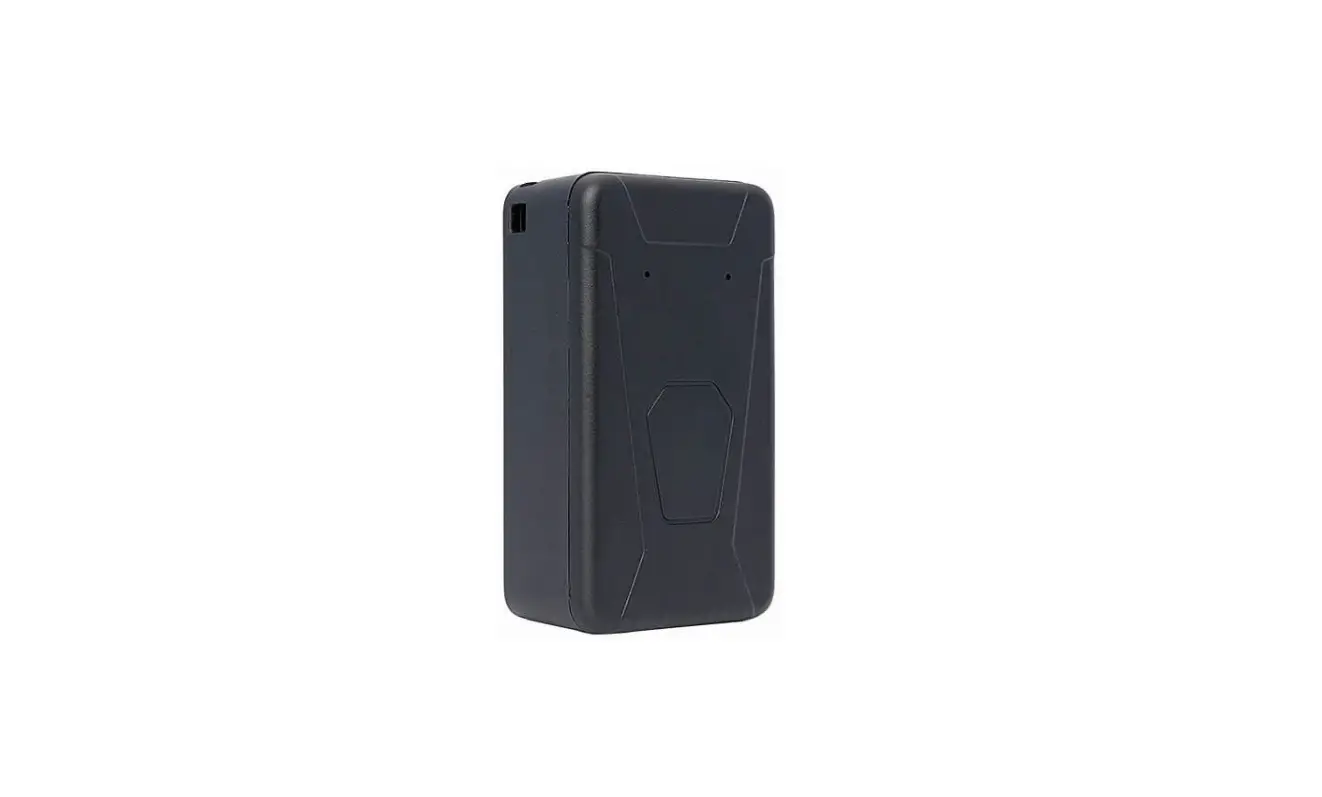
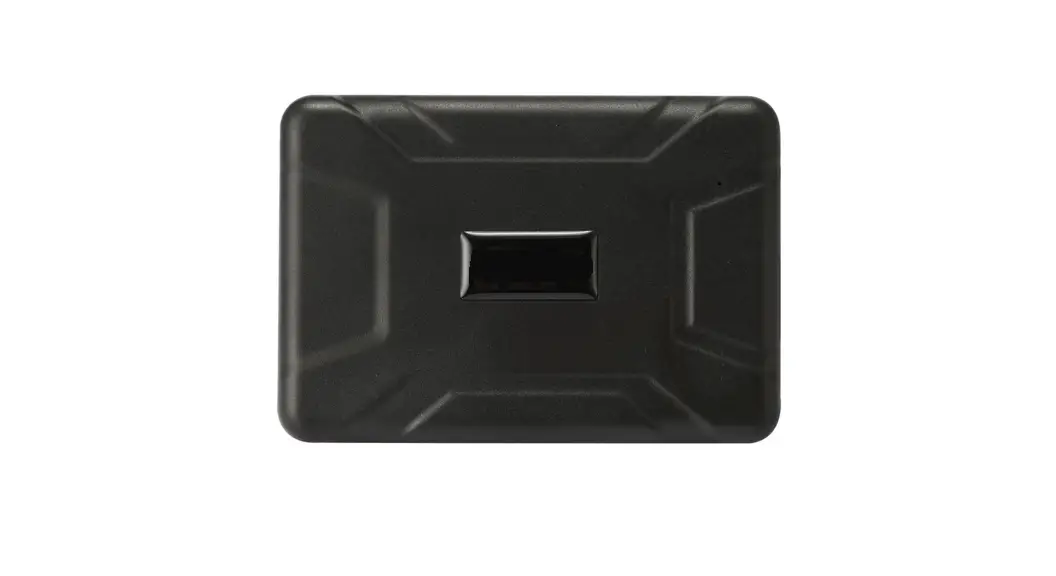
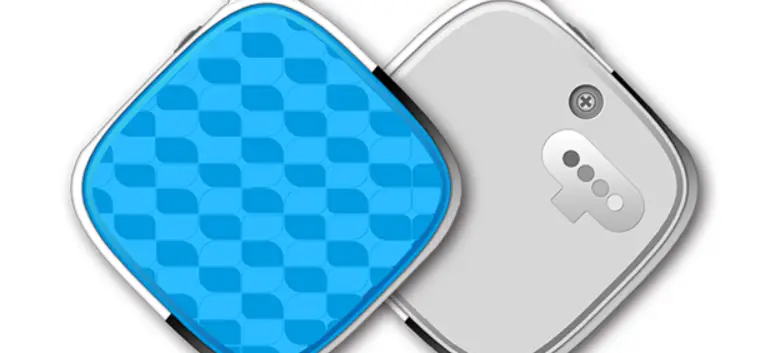
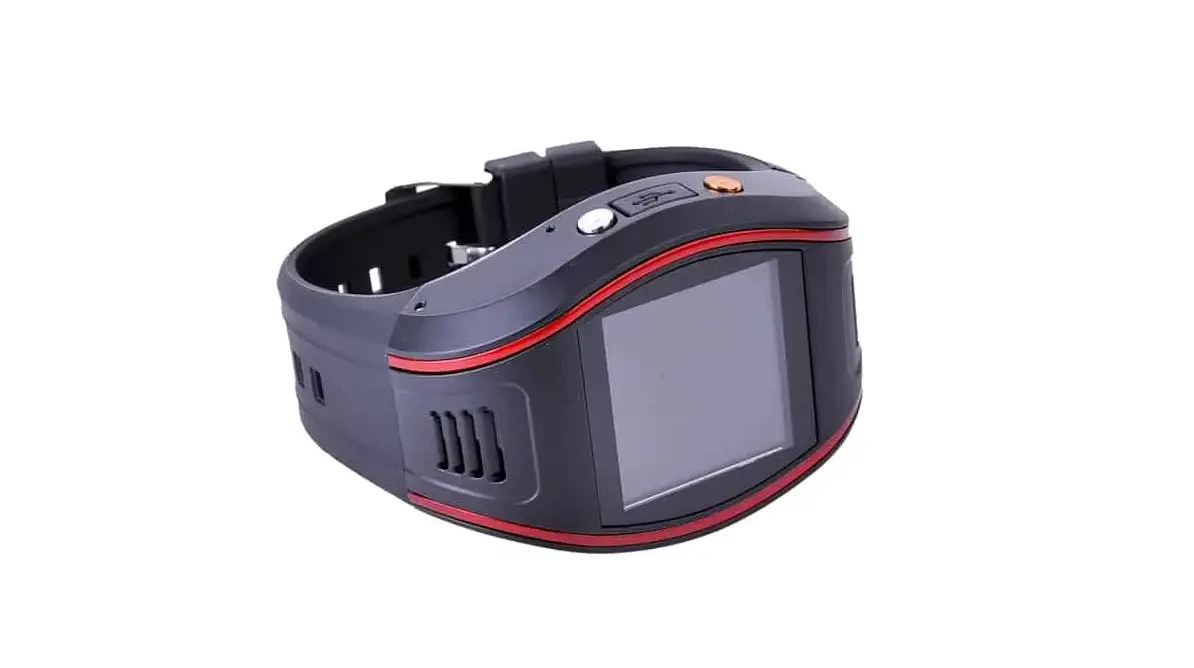
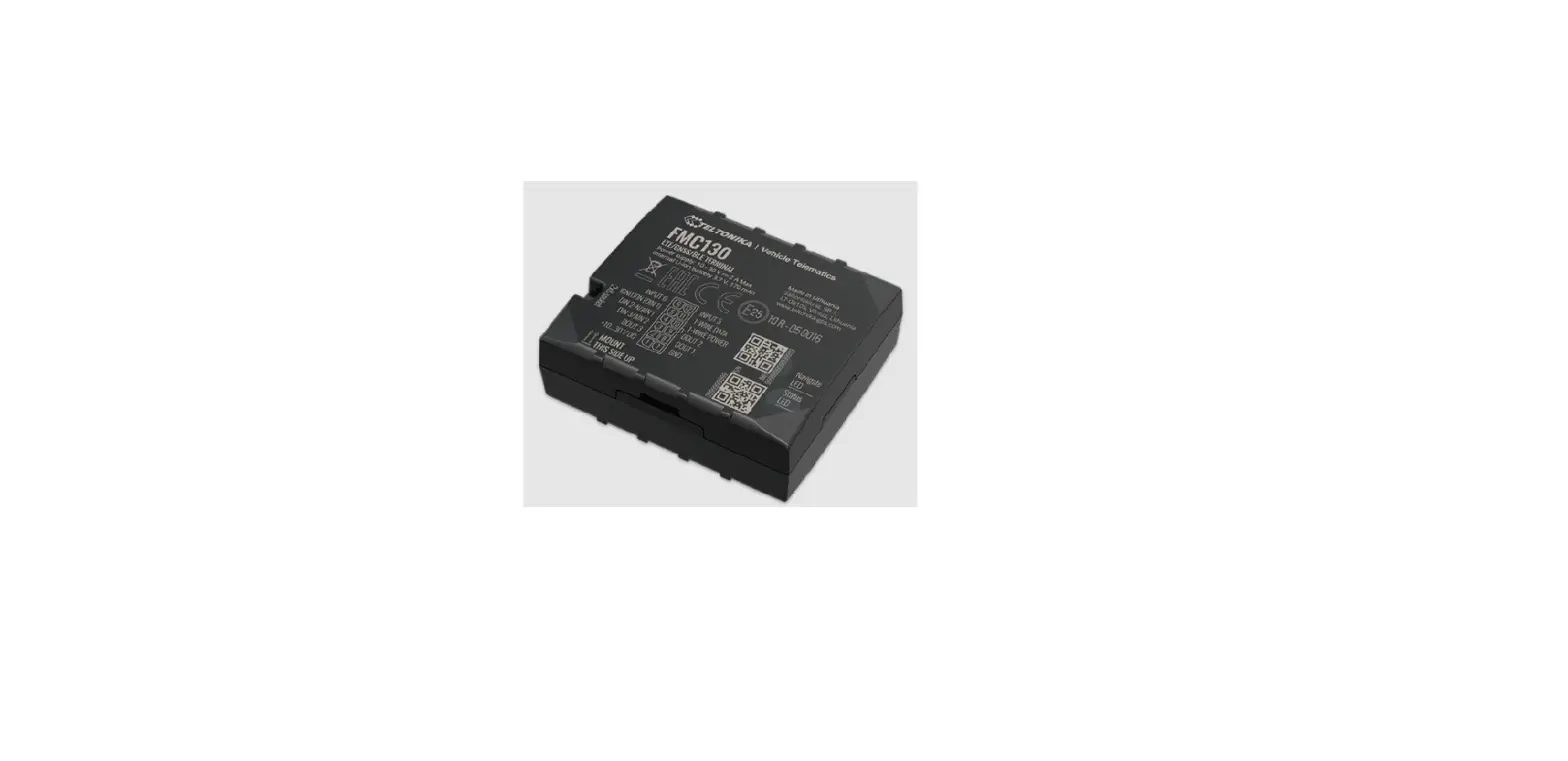
- iTrail GPS Device
- iTrail Charger
- iTrail Serial Number
- iTrail IME#
- iTrail Subscription Plan (Separate but Required)
- iTrail GPS App (Download free from the iOS App Store or Google Play Store)
- iTrail GPS Web Platform (http://track.myitrail.com)
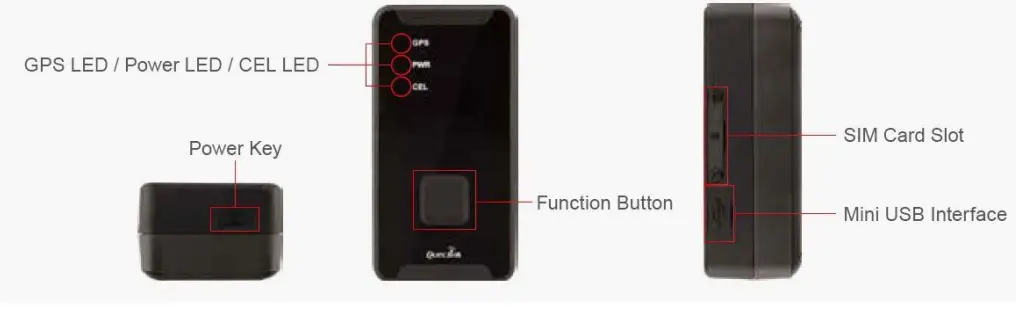
LEDs
GPS LED: Blue Light
When the unit has successfully connected to a GPS satellite, the light will blink Blue at a steady pace, indicating that it is receiving location information.
Power LED: Red Light
- The Red light will blink to indicate that it is charging. After the battery is full, the battery light be a constant glow.
- When the battery is low, it will blink Red at a steady pace indicating that the battery will need to be charged soon.
- If the device has not been charged for a long period of time, the Red light may take a few hours to light up and start blinking.
- If you have not charged the device for a long time and the light does not light up when the device is plugged in, please allow at least 6 hours of charge, and then try to power the device on
Cellular Data Signal LED: Green Light
- The Green light blinks to indicate that the device has successfully connected to the Cellular Data network
- If there are no Cellular Data networks connected, the light will remain off
Getting Started
With your iTrail Solo purchase, an activation fee was included in your purchase price. Please go to http://myitrail.com and click on “Activate Device” to sign up for a Billing account and select a Data Subscription Plan that will fit your needs. For this process, you will be signing up for two separate accounts: one for Billing and one for the Live Tracking platform. You will therefore receive two separate email confirmations: one will be a confirmation email stating you have created a Billing account, or that you have added a data plan to your existing account. The second email will contain your Tracking account credentials. Your Tracking account is created for you by our iTrail Support Team. The first thing you need to do before you can start tracking is to charge the iTrail Solo. Plug the A/C adapter into a wall outlet and connect the charger to the charging port. Charge the Solo for at least 6 hours before first use. When fully charged, the Orange light will stop glowing. When the device is done charging, disconnect it from the charger and press the Power button to turn the device on. Once charged make sure that the rubber port cover is secure, and make sure the device registers on the satellite network. To do this, we suggest placing it on the dashboard of a car and taking it for a drive for 20-30 minutes. It is important that it has a clear, unobstructed view of the sky. Since the device is motion-activated, it is not sufficient to leave it outside or on a window sill for it to register. It must be moving in order to register and report its location.
Placing Your Device
Once the iTrail Solo begins reporting, the Cellular Data LED (green) will blink about once every 10 seconds to indicate that it is connected to the cellular network. If the green Cell Data LED is not blinking, then the device is not connected to the network. Your iTrail Solo will always give the most accurate location data when it has a clear view of the sky. It is capable of transmitting and receiving through materials like glass, plastic, and cloth, but not other materials such as metal. Keep this in mind when placing the device. Avoid placing the device in the trunk of a vehicle. It may or may not report from a glove compartment or underneath a seat. This interference can vary from vehicle to vehicle, however, as all vehicles are constructed differently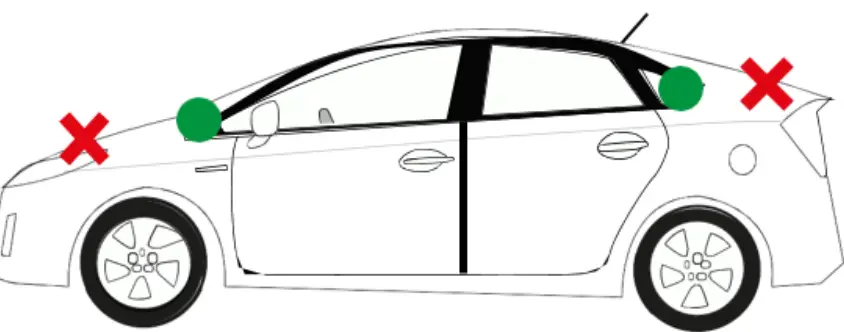
Navigating iTrail Live
To log into your iTrail Live tracking account, open a browser window and go to http://track.myitrail.com. Enter your Username and Password provided to you, and click on Login. We strongly suggest you change your Password, as this default Password is not unique to your account. See page 20 for details. The iTrail Live website is divided into 5 tabs: Dashboard, Tracking, Routing, Geofence, and Reports. You can find these tabs at the top of the website.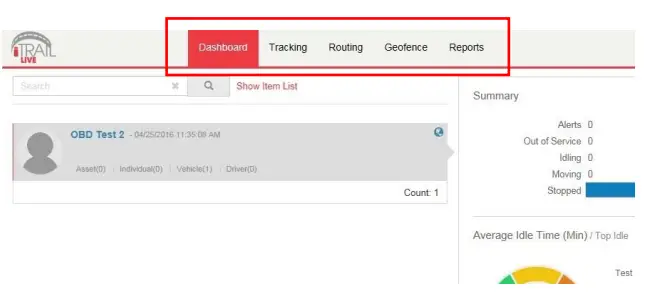
Dashboard
- Your Group Name is along the left-hand side of the Dashboard, showing how many GPS trackers are registered under that Group.
- The Summary allows a user to easily see how their trackers are doing, how many alerts were sent, how many devices were in idle status, how many registered movement, and how many were stopped.
- You are also able to see the Average Idle Time, Average Max. Speeds, and most recent Alerts Triggered in corresponding cells on the Dashboard.

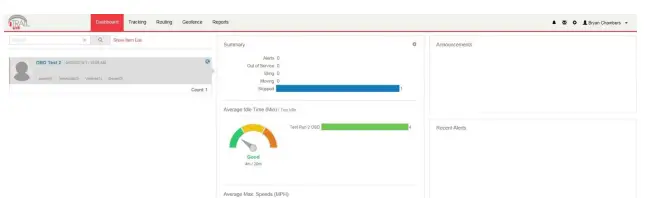
In the upper right-hand corner of the Dashboard, you can see your account name, along with a few icons.
- Alerts: the bell icon is for alerts, and will have a red dot when there are unviewed alerts triggered.
- Messages: the envelope icon is for the Messaging Center, which can be used to send an email to iTrail Support.
- Gear: the Gear icon is for Favorites and Commands.
- Account Name: clicking on your Account Name will allow you to log out or change your password
Alerts: The Alerts section lets you manage what kinds of alerts your device will create and how you will be notified.
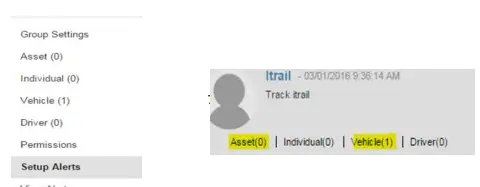
- Click on Setup Alerts under your Vehicle or Asset to get the following selection:

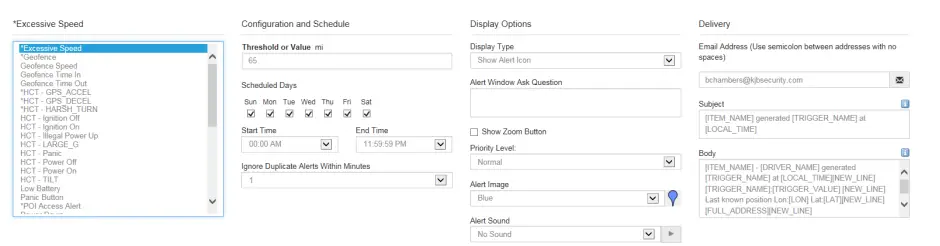
- Click the Excessive Speed Selection on the “Select a Trigger” portion of the screen, for example. This will then change the setup values on the remaining tabs, which lets you choose when and where alerts will be sent. Select the device you would like to edit by checking the box next to it. *Please note that you will need to select the device you want the alert attached to if you have multiple devices.
- On the Configuration and Schedule option, the Threshold is the speed limit you want to set. Select the number of days with start and end time. If you do not want constant speed alerts, you can click on Ignore Duplicates and select how many duplicated messages you want blocked.
- On the Display Option, you can have special icons on the platform to warn you when someone is speeding. This is optional.
- Choose what icon will appear where a Geofence alert was created using the Alert Image dropdown box.
- Enter your email or phone number, and click “Save.”

Tracking
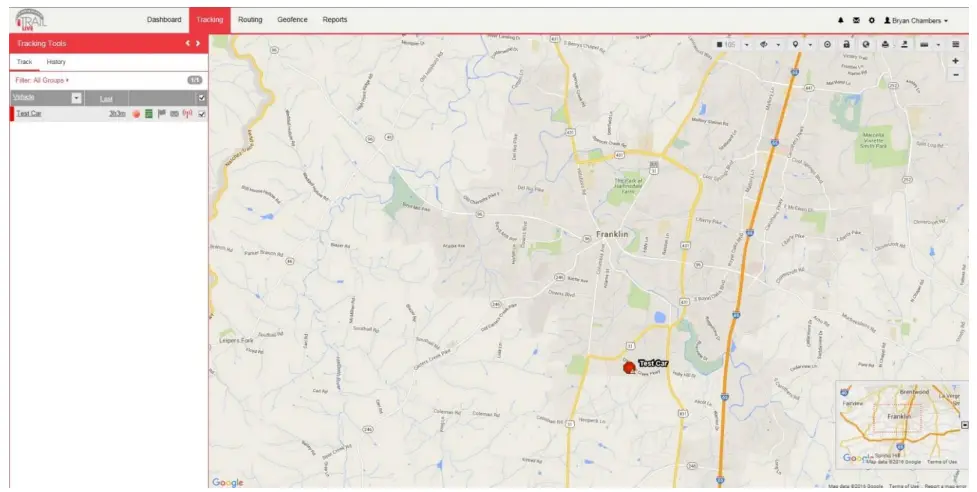
Tracking information is displayed using Google Earth Maps, so navigation is similar to what most people have grown used to in using internet-based mapping solutions. You can use the Navigation arrows and Zoom Bar to move around the map, or drag the map using your mouse and zoom using a click-wheel mouse
- Countdown Timer: Countdown to when the tracking page refreshes and updates the map with the latest tracker location (does not affect actual GPS update frequency you selected with your data plan). Click the dropdown arrow to select a desired refresh rate.
- Label: Toggles GPS tracker names given to the units.
- POI: Toggles Points of Interest (POI) created by the user. Click the dropdown arrow to choose to see the buffer zone surrounding the POI.
- Geofence: Toggles visibility of created Geofences.
- Lock: Locks the map in place. The map won’t snap back to the default position when it refreshes if it is locked.
- Print Map: User can print the Live or History tracking map. Included is an image of the map, along with current info on individual trackers.
- Export KML: The user can export the map to a KML format to open separately in Google Maps or Google Earth.
- Show Ruler: User can measure either distances or areas of their choosing on the map. Click the dropdown arrow to select between area and distance measurements.
- Map Layer: Click to choose between Google Street, Satellite, or Hybrid views of the Tracking Map.
- Zoom Tool: Click the + or – buttons to zoom in and out of the map.
- Map Overview: Located in the lower right-hand corner of the Tracking Map, the Overview is a zoomed out view of the larger area the Tracking Map occupies. Click on the + or – to hide this Overview Mini Map.
- Show/ Hide Arrows: Arrows ( < > ) to the right of the Tracking Tools on the left-hand side of the page toggle between fullscreen Tracking Tools, both Tracking Map and Tools, or fullscreen Tracking Map.
- Tracking Tools: Located to the left of the Tracking Map.
- Track Tab: Shows live map and locations of trackers.
- User can filter by Group name to find specific trackers
- Can also filter by other options and parameters when clicked.
- List of trackers available to view.
- Select or deselect to see what trackers you want.
- Buttons for Session Info, Alerts, Command Messages, Ping available.
- History Tab: Shows history tracking map for GPS units.
- User can filter by Group name to find specific trackers
- Can also filter by start date, end date, or key words.
- List of trackers available to view.
- Select or deselect to see what trackers you want.
- Buttons for Session Info available.
- When tracker trip is toggled, User can select to see alerts, show or hide trip positions, export to KML file, or can play back the trip and includes Stop, Play, Pause, FF, RW, and Speed controls for playback.
- User can select specific locations on the History trip map to bring up zoomed detailed location and other session info.

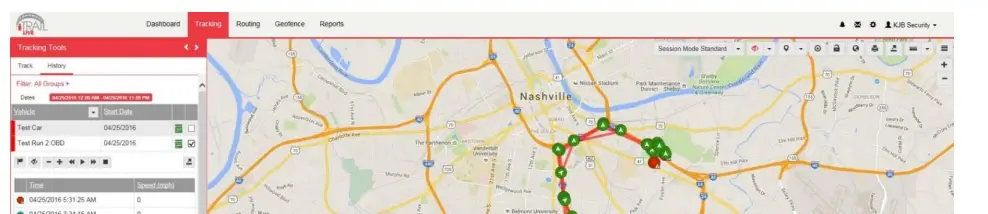
Session Info: When you click on a tracker’s location icon (usually green arrows), either in Live Tracking or History Tracking, the Session Info window will pop up. This will show your tracker’s name, Session, Alerts triggered, Locations the tracker has been, Geofences, Live Tracker, and Status of the device.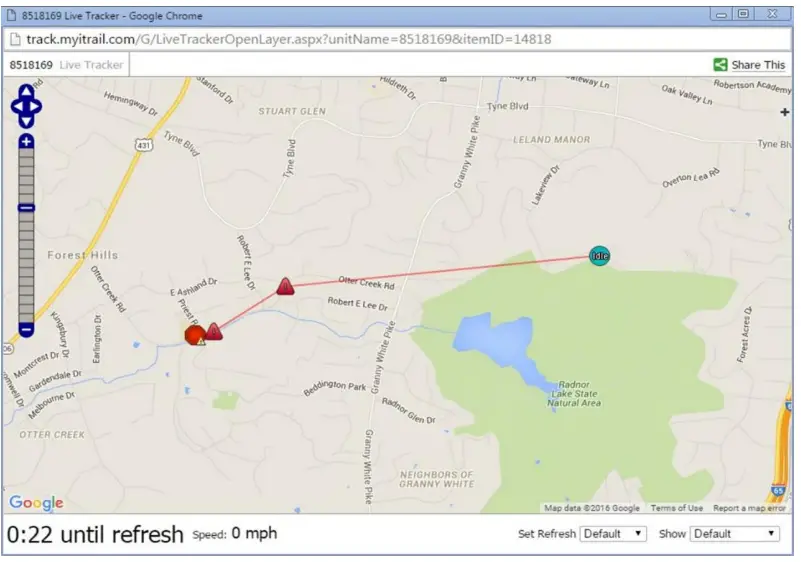
Live Tracker: Live Tracker will open up a separate window displaying your devices’ locations and allows you to see past locations. Using the drop-down boxes on the bottom right of the window, you can adjust how often your screen refreshes and how many locations will appear on the screen. The counter on the bottom left of the window displays how long it will be until your screen refreshes. You can email a link to this page, allowing other users to view your tracker’s location by click on the Share This icon in the upper right-hand corner of the window. When doing so, you may choose how long the link will be active before expiring using the Link Expiration dropdown
Routing
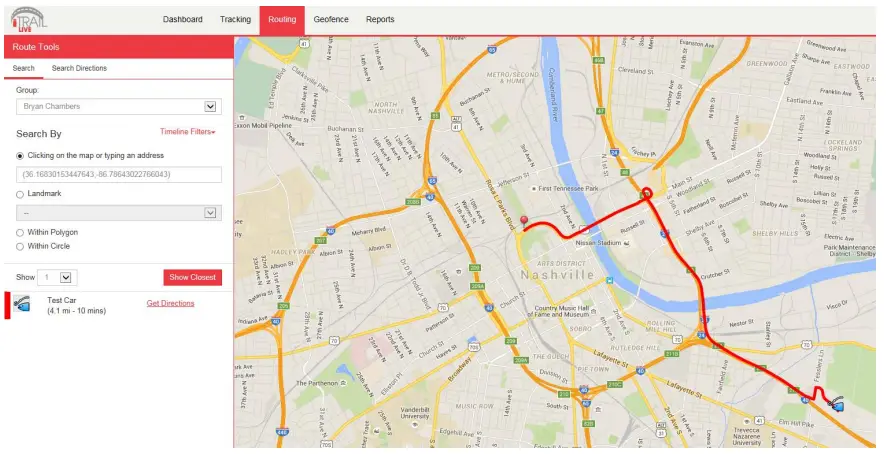
The Routing tab allows you get routes and directions to specified locations from all of your trackers. This tool can be very useful, especially for fleet use with multiple service vehicles, as the map will show all of the vehicles’ distances and estimated travel times to a location.
Map Tools: Located in the upper right-hand corner of the Route Map.
- Map Layer: Click to choose between Google Street, Satellite, or Hybrid views of the Tracking Map.
- Zoom Tool: Click the + or – buttons to zoom in and out of the map.
Route Tools: Located to the left of the Route map.
- Search: User can search for a route to a specific address or area on the map from a GPS tracker.
- You can filter by Group for list of GPS trackers for a route
- Either click on the map to drop a destination pin, choose a created Landmark (POI), or type in an address to generate a route.

Geofence
The GeoFence tab allows you to create quick Geofences, based on the location you are currently viewing or route for the device. A Geofence is a virtual barrier. The user can create a Geofence of different shapes around a specific location, and set up alerts to let them know when a tracker enters or exits that created area.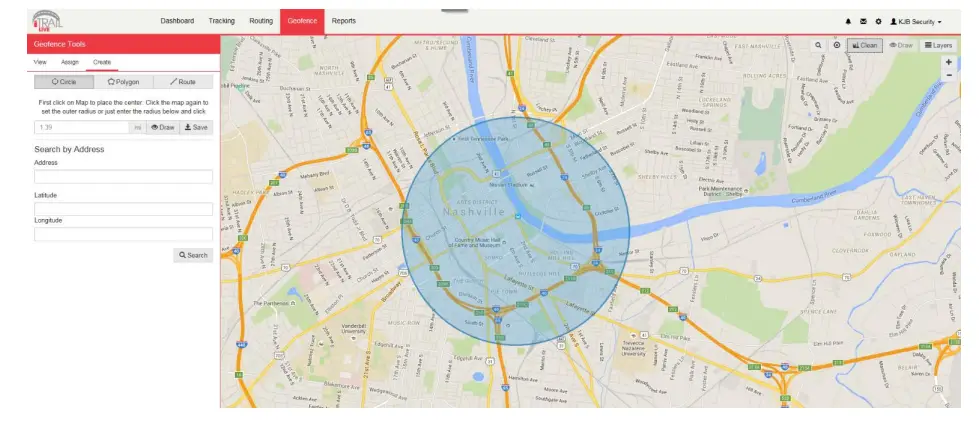
Map Tools: Located in the upper right-hand corner of the Geofence Map.
- Search: Click the Search button to search for an address you want your Geofence to be drawn around.
- Clean: User can erase a drawn Geofence (before saving) if a mistake was made while drawing.
- Map Layers: Switch between (Street/ Satellite/ Hybrid) views.
- Zoom Tool: Click the + or – buttons to zoom in and out of the map
Geofence Tools: Located to the left of the Geofence Map.
View Tab
- Search button used to search for an address you want your Geofence to be drawn around.
Assign Tab
- Tracker List
- Gear icon (next to the tracker name) to assign a Geofence to a tracker
- User can search for trackers by name or filter by Group name
Create Tab
Circle Geofence
- Click on Circle Geofence.
- You will see a small circle around your mouse arrow. Click once on the desired location, and again away from the middle of the circle. This will create a circle around the item.
Polygon Geofence
- Click on Polygon to create a free-form shaped Geofence.
- Click around the desired location. Each click is an angle in your custom shape. Double click to finish drawing and close the shape.
Route Geofence
- Click on the Route Geofence to create a boundary that will follow the entire trip of your tracker.
- Click along the road that you plan on having your device follow. Double click to end the Geofence.
Saving your Geofence
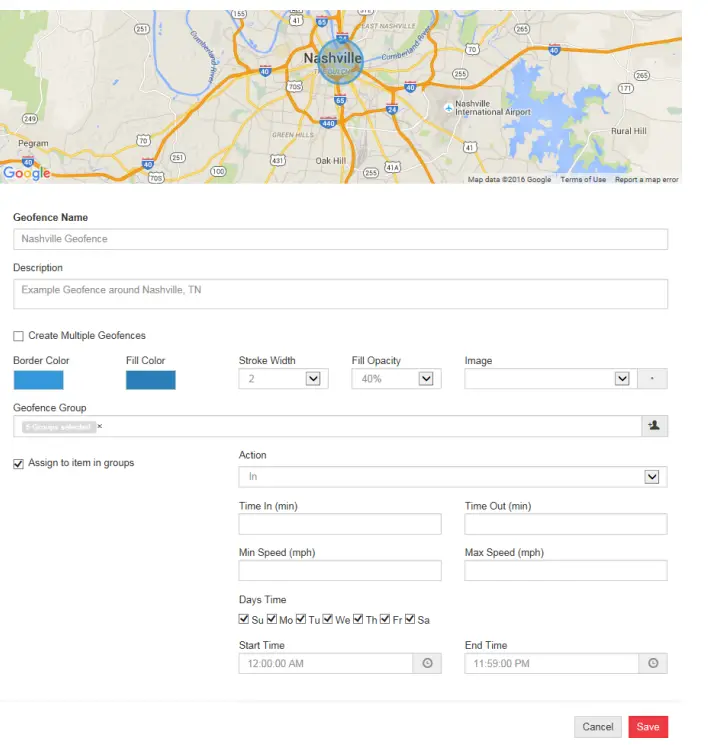
- Once you have created your Geofence, click save.
- The Geofence Editor window will then pop up. Enter the name and descripton (optional).
- You can also choose the Border and Fill color of your Geofence, along with line weight, opacity, or choose an image.
- For a Route Geofence, enter a Route Buffer. Route Buffer is the distance in miles the tracker is allowed to stray off course before sending an alert.
- Check the “Assign to item in groups” box, and use the Action dropdown box to choose if you would like an alert created when the device enters the chosen area, exits the area, or both.
- When you are finished, click the “Save” button at the bottom to save your new Geofence.

Reports
- To run Reports on your tracking device, click on the Reports tab at the top of the screen.

- My Reports: Any reports that you may have run in the past will show up under the My Reports tab.
- Report Templates Tab: To create a new Report, simply click on Report Templates. You can then choose a report you would like to run.

When creating a report for the first time, you will have 4 options you will have to complete before running the report: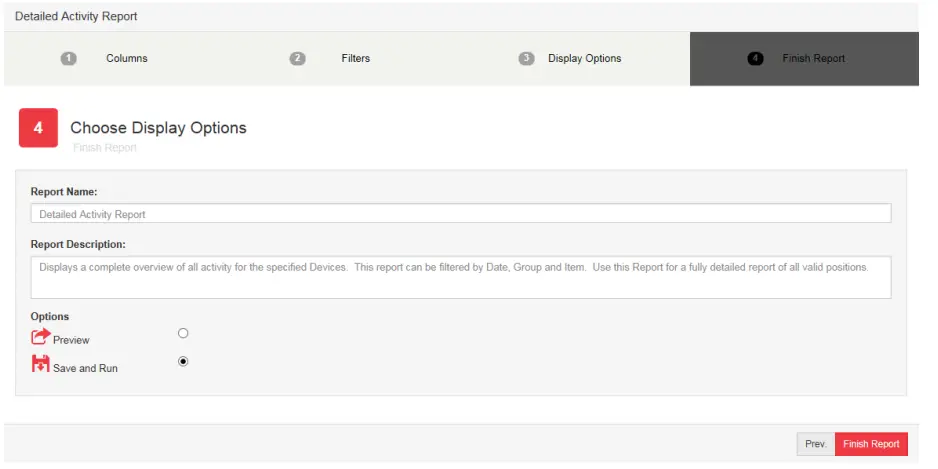
- Columns: All columns are already pre-selected. You can click “Next” to continue.
- Filters: Select the date range you want to pull data from. Select your Group, Item (Tracker), and Driver (a driver has been created). Click “Next” to continue.
- Display Options: You can add either a grid or a chart to your report, or choose none of them to keep it simple. Click “Next” to continue.
- Finish Report: Name your report and add a description. You will need to create a unique name (can’t be named the same as default).
- Next, either preview your report or save and run it, and select “Finish Report.” Your report will open, and now show up when you first click the Reports tab from the Menu.
Changing Your Password
To change your Password, click on the account name, which should appear in the upper right corner of the browser window. Once you enter your new Password, click the “Change Password” button to save your changes.
Support
To access FAQs, as well as other support materials for your device and the iTrail Live Tracking platform, go to http://myitrail.com/FAQS. For additional support, contact iTrail Support Team:
- Call 1-800-590-4271 (option 3)
- Email [email protected]
iTrail Live support is available Monday through Friday between 8 am and 5 pm CST.
FAQS
Do GPS have panic buttons?
The Emergency Button is a portable solution with integrated GPS / GSM mobile technology. Exact coordinates are recorded by GPS and transmitted via SMS or GSM / GPRS. In an emergency, by pressing the red Alarm-Button, help via direct voice call or SMS can be requested.
What is panic button GPS tracker?
Comes with a 3 foot USD cord, clear accessory clip and 1 year warranty. The Personal GPS Panic Button helps you instantly connect with loved-ones or emergency personnel in a life alert emergency situation at the push of a panic button.
Do GPS trackers work worldwide?
GPS works the same no matter where you are, using Global Positioning Satellites to triangulate the position of the GPS tracking device and determine its exact location.
What is the world’s smallest GPS tracker?
The smallest GPS tracker on the market is the Mirco Hornet. The tiny GPS tracker developed by Origin GPS weighs only 2.5 gm.
How far can the panic button reach?
Since the Panic Button has no power cord, it can be placed anywhere it’s needed as long as it is within range of the Base Station (250 feet / 76 meters line of sight).
How far does the panic button work?
Depending on the manufacturer, panic pendants work up to a few hundred feet from the base unit.
Can AirTags work as GPS?
Does Apple AirTag have GPS? No, Apple AirTags don’t have GPS. But the technology is similar
Can Life Alert be tracked?
A medical alert system with GPS tracking allows loved ones and emergency services to locate the medical alert user in the event of an emergency
Can police track a GPS tracker?
The police can install and set up the tracking device without your knowledge and only must notify you that you were tracked by a GPS device within 10 days after the tracking period ends.
How far can a GPS tracker work?
The technology implemented in GPS tracking devices is so unique and advanced that it can provide you with the exact location of up to 10 meters. Some high-end devices can offer better precision and are accurate up to 1 meter.
What is the difference between a GPS and a tracker?
To put it in very simple terms, GPS navigation tells you where you are and how to get to a destination.
Can someone track you from another country?
Surveillance companies are marketing systems to governments worldwide that are capable of pulling location data out of global cellular networks
What is the longest range tracker?
The Tile Pro (2022) is a more expensive and slightly larger, fob-shaped version of the Tile tracker, with a longer range
How do you confuse GPS tracking?
Any electrically conductive metal will reflect and absorb the device’s incoming and outgoing signals and interfere with its operation
Is there a GPS tracker that doesn’t need a SIM card?
Satellite trackers such as Spot use GPS to determine location, but then send that data over the Globalstar satellite network rather than cellular networks. For this reason, they do not require a SIM card, but still require a high monthly service fee and initial investmen