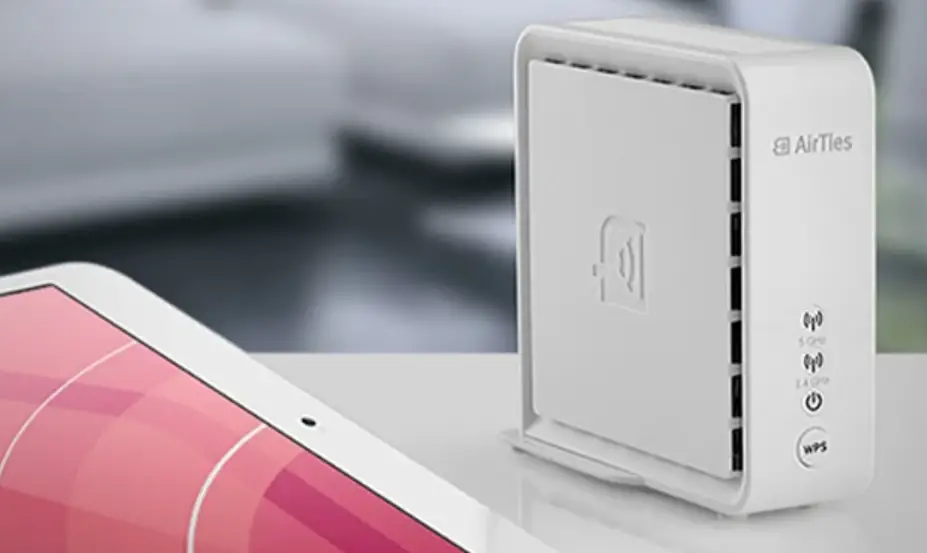
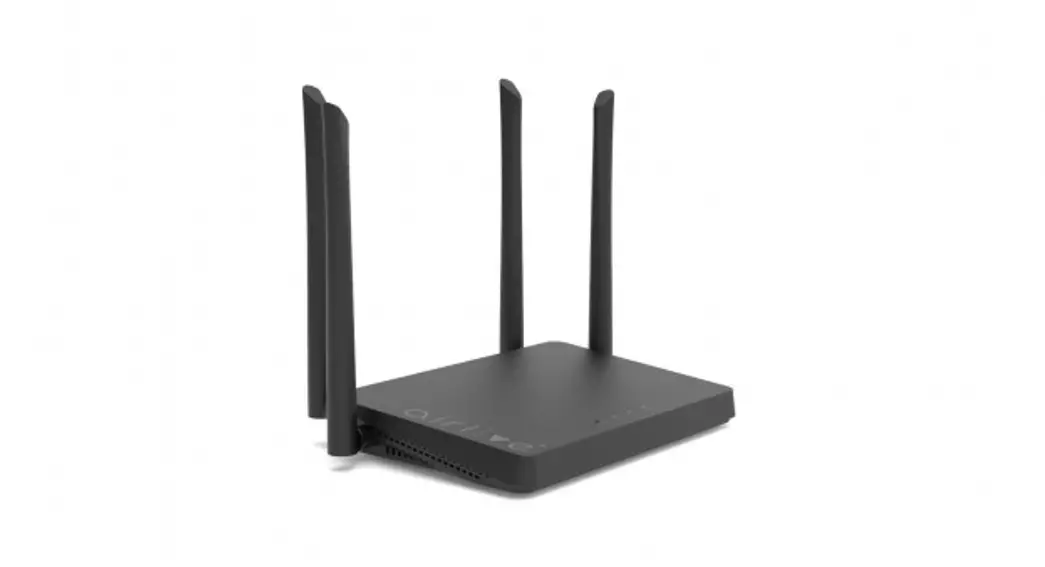
4960XR Air Wi-Fi 6 Smart Mesh System
Product Information
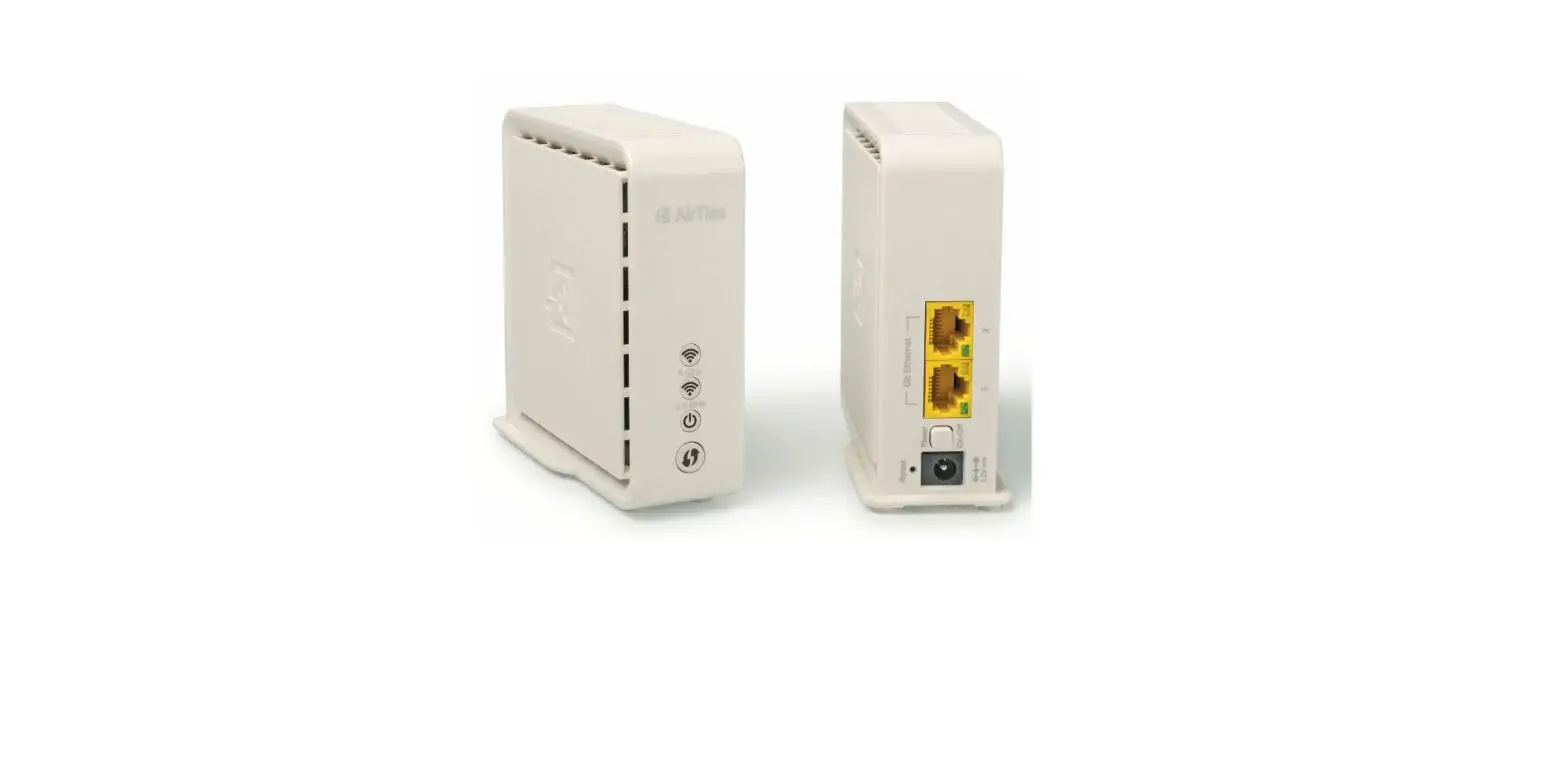
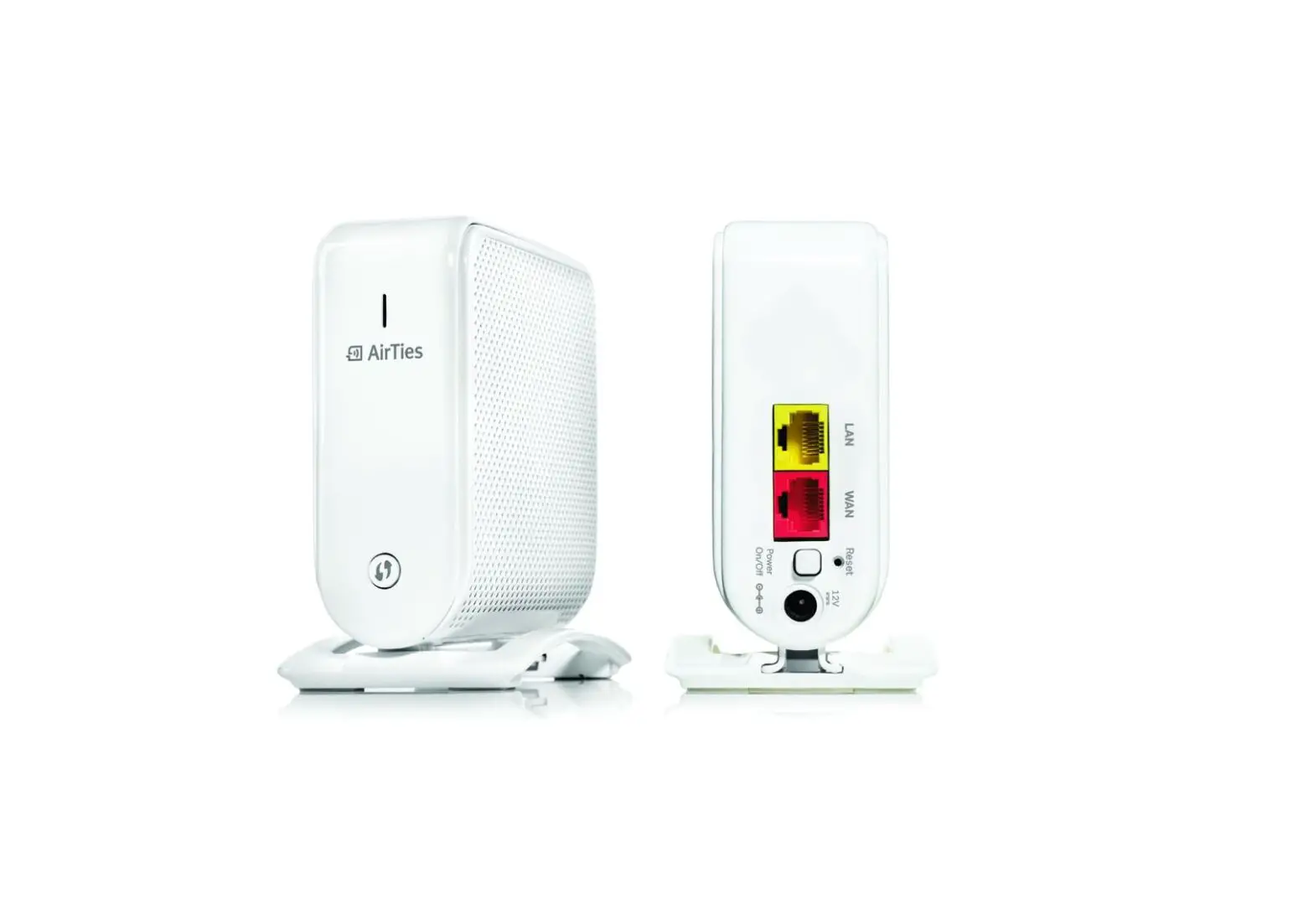
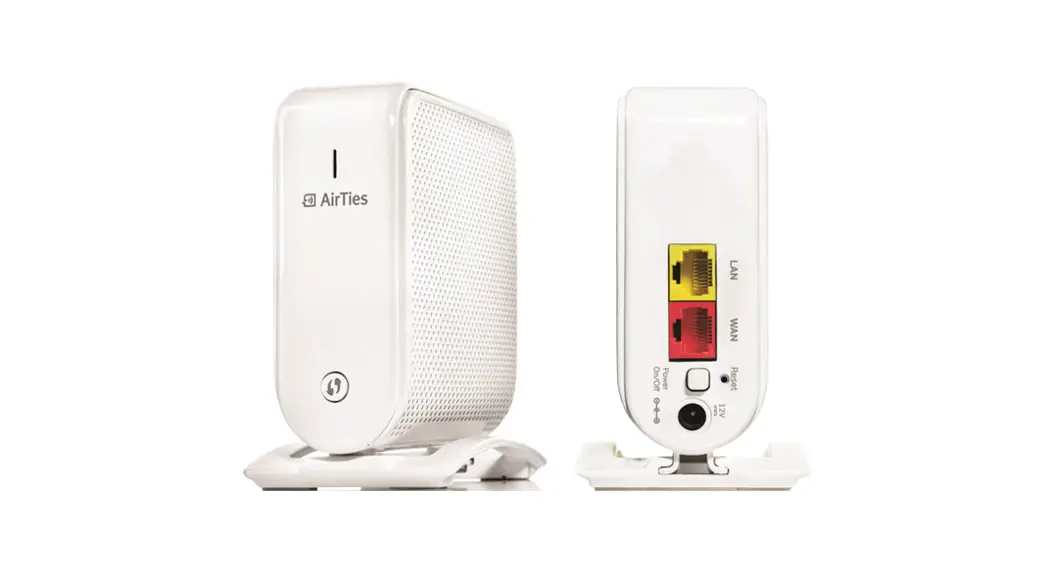
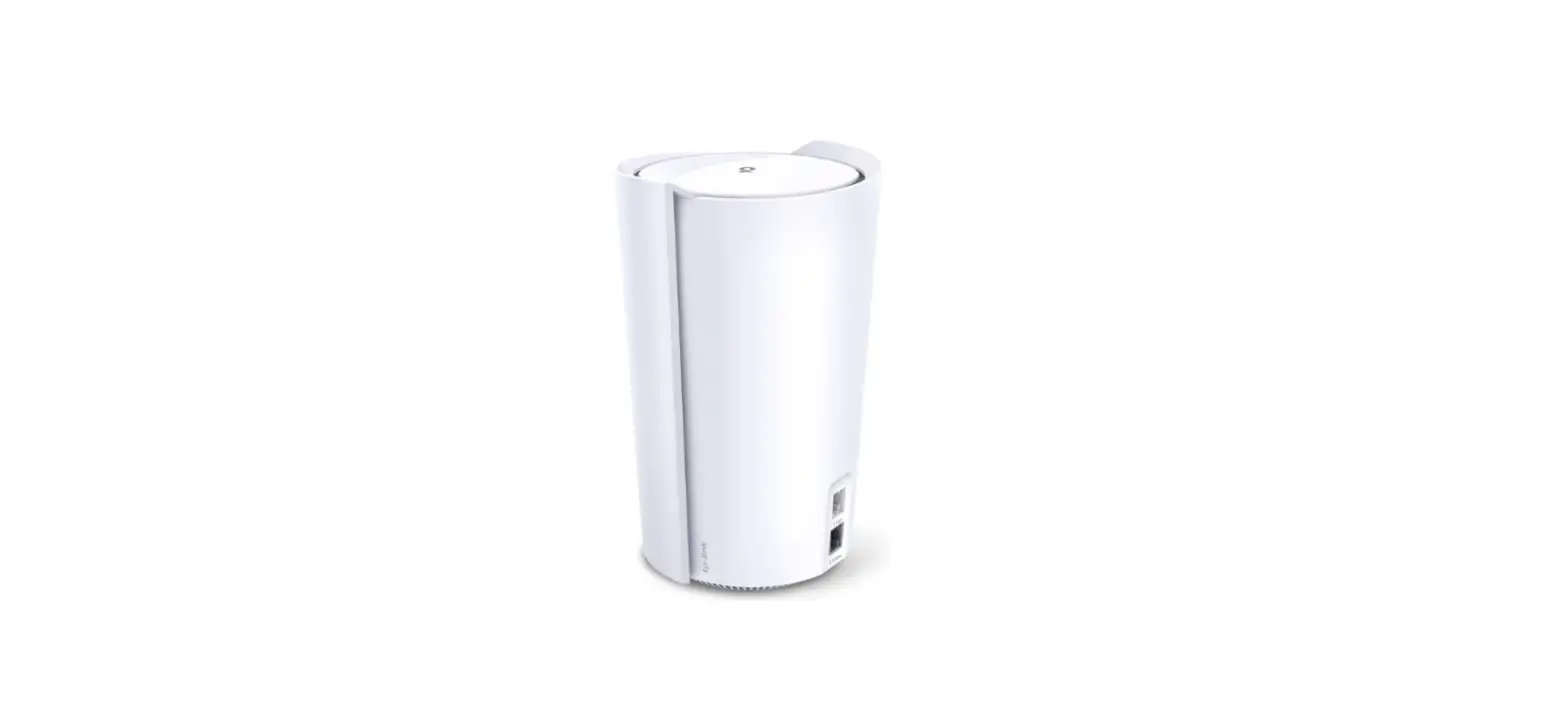
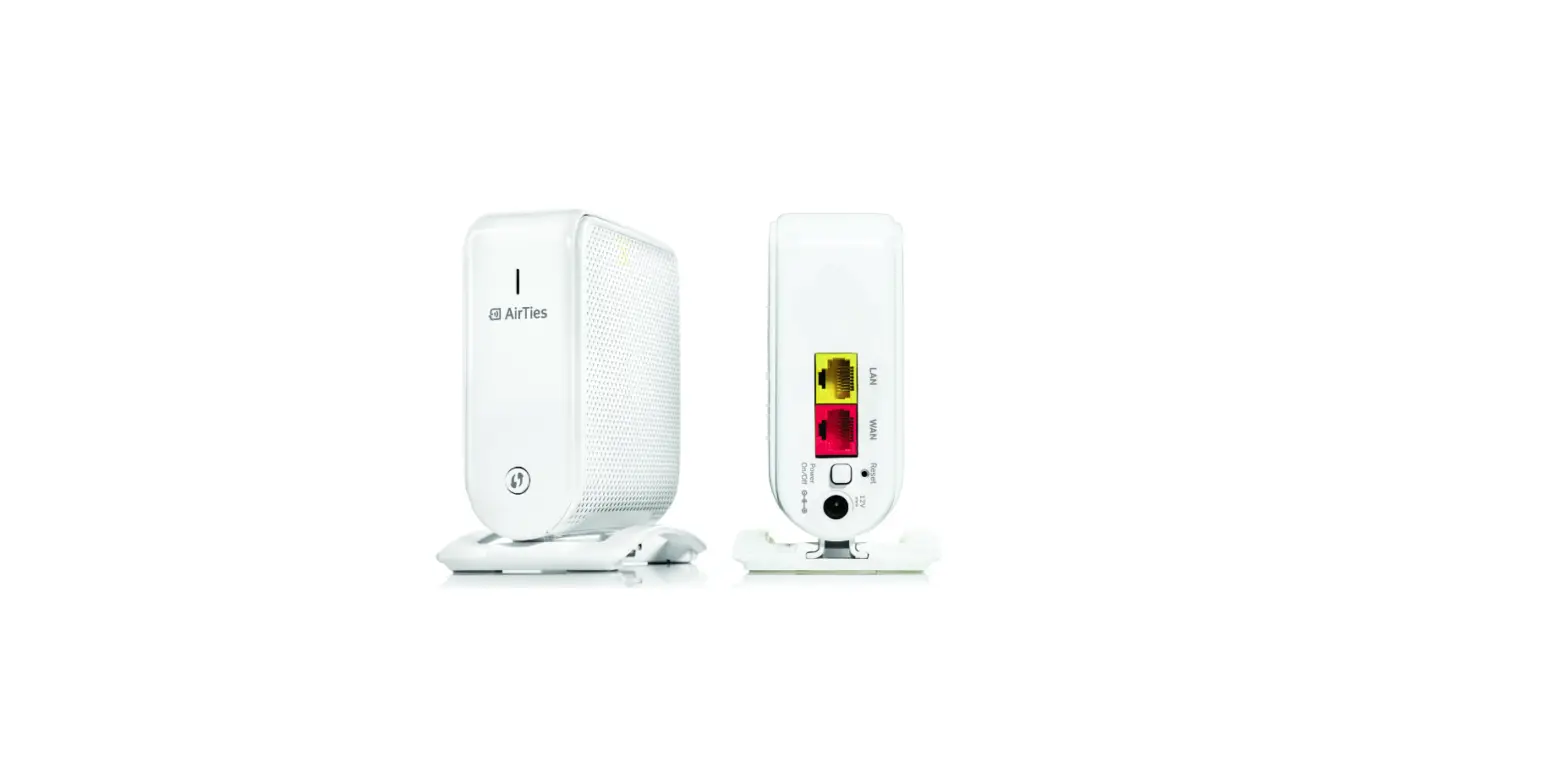
The Air 4960R is a Wi-Fi 6 Smart Mesh System that comes with
ports and buttons such as Status LED, Gigabit LAN Ethernet Port,
Gigabit WAN/LAN Ethernet Port, WPS Button, Power On/OFF Button,
Reset Button, and an External Power Supply. The Ethernet (Internet)
cable from your Internet Service Provider or modem should be
plugged into the WAN/LAN Ethernet Port of Air 4960R. The device is
designed to work indoors and under room temperature conditions
only.
- Status LED
- Gigabit LAN Ethernet Port
- Gigabit WAN/LAN Ethernet Port*
- WPS Button
- Power On/OFF Button
- Reset Button
- External Power Supply
*Ethernet (Internet) cable from your Internet Service Provider
or modem should be plugged into WAN/LAN Ethernet Port of Air
4960R.
Installation
To install the Airties Wireless devices, please download Airties
Vision application on your mobile device by scanning the QR code
provided in the user manual. Follow the instructions in the mobile
application to complete your setup. Please remove the protective
plastic on the device before first use.
Tips for Best Performance
For best performance, keep the device away from potential
sources of electrical interference, large metal surfaces and
objects, sources and areas of heat such as ovens and sunrooms as
well as direct sunlight. Use the device in an upright position to
ensure proper ventilation. Do not block or cover openings.
Changing Advanced Settings
To change advanced settings on your device, you can access web
UI with the credentials provided in the user manual by typing
http://masternode.local in the address field of your browser and
press enter to display the login window.
Returning to Factory Settings
To return the device to factory settings, press down on the
reset button (in the small opening on the back shown above) for 5
seconds and release. When the reset process is triggered, the LED
in the front will blink rapidly and the device will reboot to
factory settings.
Product Notices
The Air 4960R operates in 2.4 GHz and 5 GHz frequency bands and
supports various modes including 802.11b, 802.11g, 802.11n (HT20),
802.11n (HT40), 802.11ax (HE20), 802.11ax (HE40), 802.11a, 802.11ac
(VHT20), 802.11ac (VHT40), 802.11ac (VHT80), 802.11ac (VHT160),
802.11ax (HE80), and 802.11ax (HE160).
Troubleshooting
| Condition | LED Color | LED Behavior | Timing | Explanation |
|---|---|---|---|---|
| Power OFF | OFF | – | – | Device is turned off. |
| Power ON, booting | White | Blinking | 5O milliseconds OFF 5 seconds ON | Device is booting and wireless network is healthy. |
| Wireless network healthy | Green | Solid | – | Device is connected to the router/gateway with an ethernet cable and acts as a wireless access point. No other mesh devices are configured in the network. |
| Device configured as single wireless access point | Green | Blinking | 4 seconds OFF 4 seconds ON | Device is not configured and connected to the wireless mesh network. |
| Unconfigured mesh device | Blue | Blinking | 1/2 second OFF 1/2 second ON | Weak connection to the wireless mesh network. |
| No Internet | Red | Solid Blinking | – | The device is not connected to the Internet. |
| Software upgrade | Blue | Blinking | 1/2 second OFF 1/2 second ON | The device is upgrading its software. |
Product Usage Instructions
- Follow the installation instructions in the user manual to set
up the Air 4960R Wi-Fi 6 Smart Mesh System. - Before first use, make sure to remove the protective plastic on
the device. - For best performance, keep the device away from potential
sources of electrical interference, large metal surfaces and
objects, sources and areas of heat such as ovens and sunrooms as
well as direct sunlight. - Use the device in an upright position to ensure proper
ventilation. Do not block or cover openings. - To change advanced settings, access web UI with the credentials
provided in the user manual by typing http://masternode.local in
the address field of your browser and press enter to display the
login window. - To return the device to factory settings, press down on the
reset button (in the small opening on the back shown above) for 5
seconds and release. When the reset process is triggered, the LED
in the front will blink rapidly and the device will reboot to
factory settings. - The Air 4960R operates in 2.4 GHz and 5 GHz frequency bands and
supports various modes including 802.11b, 802.11g, 802.11n (HT20),
802.11n (HT40), 802.11ax (HE20), 802.11ax (HE40), 802.11a, 802.11ac
(VHT20), 802.11ac (VHT40), 802.11ac (VHT80), 802.11ac (VHT160),
802.11ax (HE80), and 802.11ax (HE160).
Air 4960R
Wi-Fi 6 Smart Mesh System
User Manual
PORTS and BUTTONS
Status LED
Gigabit LAN Ethernet Port
Gigabit WAN/LAN Ethernet Port*
WPS Button
Power On/OFF Button
Reset Button
External Power Supply
* Ethernet (Internet) cable from your Internet Service Provider or modem should be plugged into WAN/LAN ethernet port of Air 4960R.
!
Please remove the protective plastic on the products before installation.
INSTALLATION
To install the Airties Wireless devices, please download “Airties Vision” application on your mobile device by scanning this QR code.
Please follow the instructions in the mobile application to complete your setup.
TIPS FOR BEST PERFORMANCE
Keep devices away from: Potential sources of electrical interference. Equipment that may potentially cause interference include home security systems, microwaves and consumer electronic devices.
Large metal surfaces and objects.
Sources and areas of heat such as ovens and sun rooms as well as direct sun light.
Please make sure to remove the protective plastic on the device before first use.
Please use the device in upright position. The openings are provided for ventilation, do not block or cover openings.
Your device is designed to work indoors and under room temperature conditions only. Avoid placing the device to very cold, very hot, very humid or very dry locations inside your home.
To change advanced settings on your device, you can access web UI with the credentials below by typing http://masternode.local in the address field of your browser and press enter to display the login window:
Username: admin Password:default Wi-Fi password on the label under your device.
Wi-Fi Name: XXXXXXXXXXXX Password: XXXXXXXXXX
Wi-Fi Name: XXXXXXXXXXXX
Password: XXXXXXXXXX
Model: Air 4960XR
MAC: XX:XX:XX:XX:XX:XX S/N: AMPPPYYWWXXXXXX
RETURNING TO FACTORY SETTINGS
To return the device to factory settings, press down on the reset button (in the small opening on the back shown above) for 5 seconds and release. A metal paperclip (with an extended tip) or strong toothpick are typically good choices for this task. When the reset process is triggered, the LED in the front will “blink rapidly” and the device will reboot to factory settings.
PRODUCT NOTICES
Operational modes:
2.4
GHz:
802.11b, 802.11g, 802.11n (HT20), 802.11n (HT40), 802.11ax (HE20), 802.11ax (HE40)
5
GHz:
802.11a, 802.11n (HT20), 802.11n (HT40), 802.11ac (VHT20), 802.11ac (VHT40), 802.11ac (VHT80), 802.11ac (VHT160), 802.11ax (HE20), 802.11ax (HE40), 802.11ax (HE80), 802.11ax (HE160)
TROUBLESHOOTING
Condition
LED Color LED Behavior Timing
Power OFF
OFF
–
Power ON, booting Wireless network healthy
White Green
Device configured as single wireless access point
Green
Unconfigured mesh device Weak connection to the wireless mesh network
No Internet
Blue Red Red
Blinking Blinking
Solid
Blinking Solid Blinking
5O milliseconds OFF 5 seconds ON
4 seconds OFF 4 seconds ON
1/2 second OFF 1/2 second ON
Software upgrade
Blue
Blinking
1/2 second OFF 1/2 second ON
Explanation
Device is turned off.
LED is steady green with a short blink every 5 seconds. Device is connected to the router/ gateway with an ethernet cable and acts as a wireless access point. No other mesh devices are configured in the network. Device is not configured and connected to the wireless mesh network.
Your internet connection is down.
Device is retrieving the latest software.
Recommended Action(s)
Make sure the power button on the back is pressed and power supply unit is connected to the device.
No action required. If the device was just powered on, please wait for at least 2 minutes for the device to boot up.
No action required.
No action required, more mesh devices can be added to the wireless mesh network if needed.
Configure the device using Airties Vision app.
Bring device closer to another device in the wireless mesh network.
Please check WAN/LAN ethernet cable connection between your modem and Air 4960R. If the issue persists, contact your Internet Service Provider.
Wait for the upgrade to complete. Device will automatically start with the latest software.