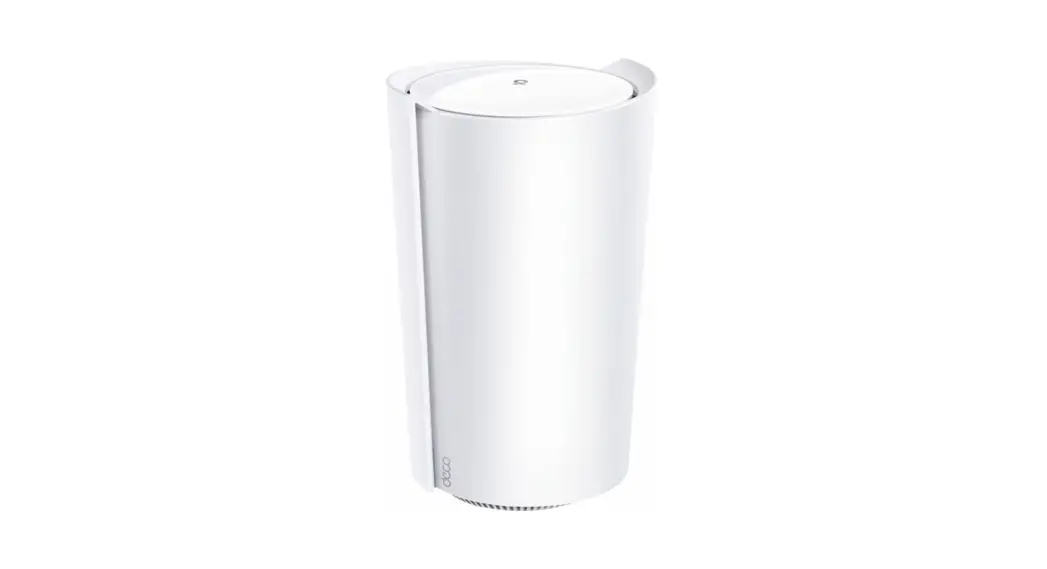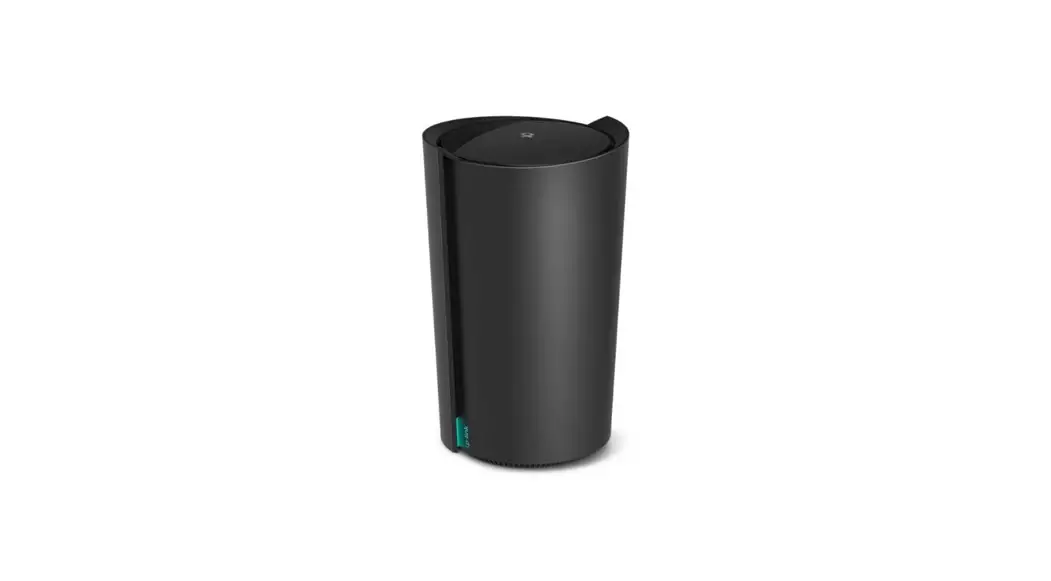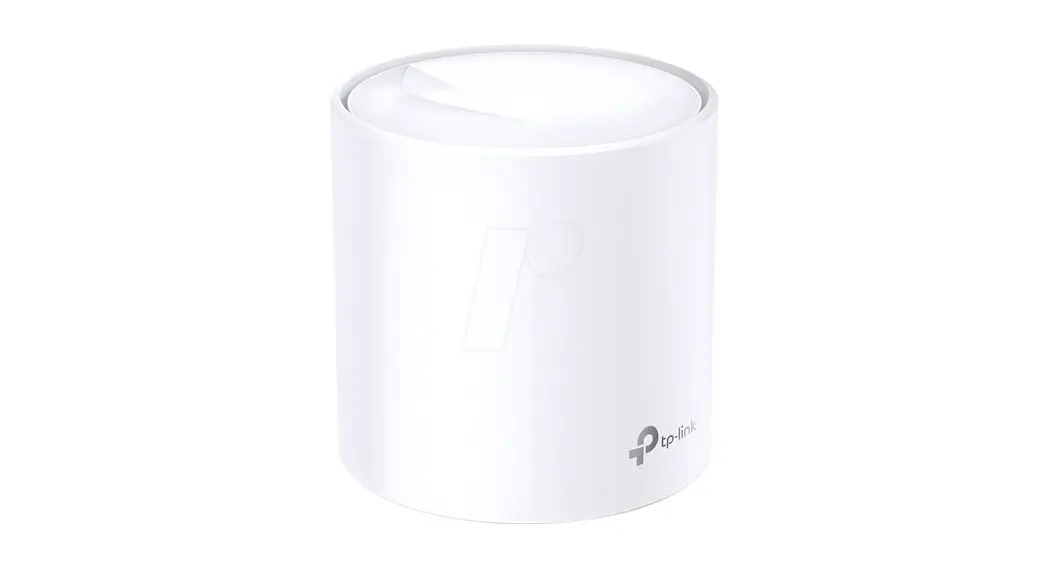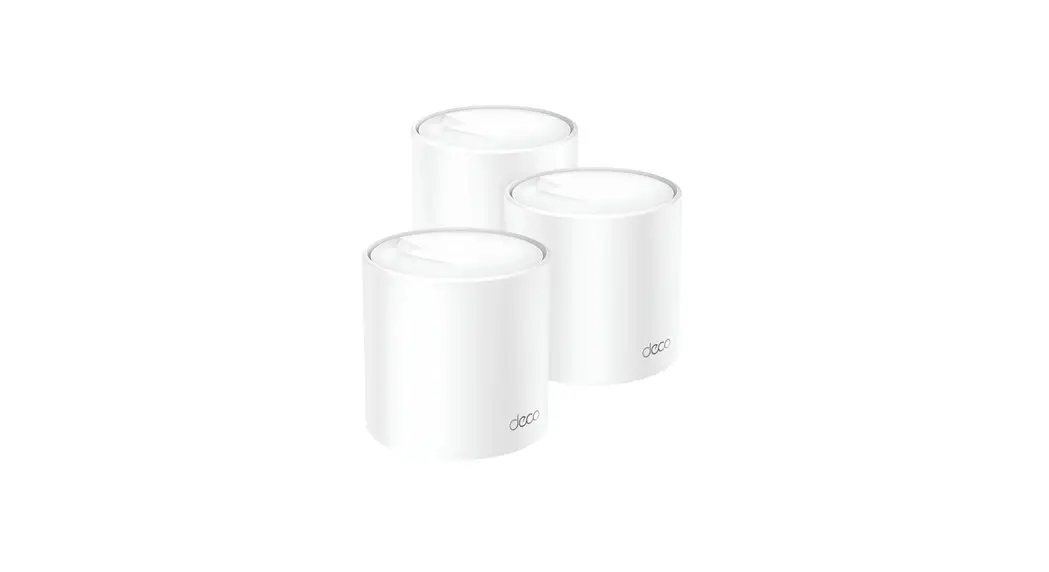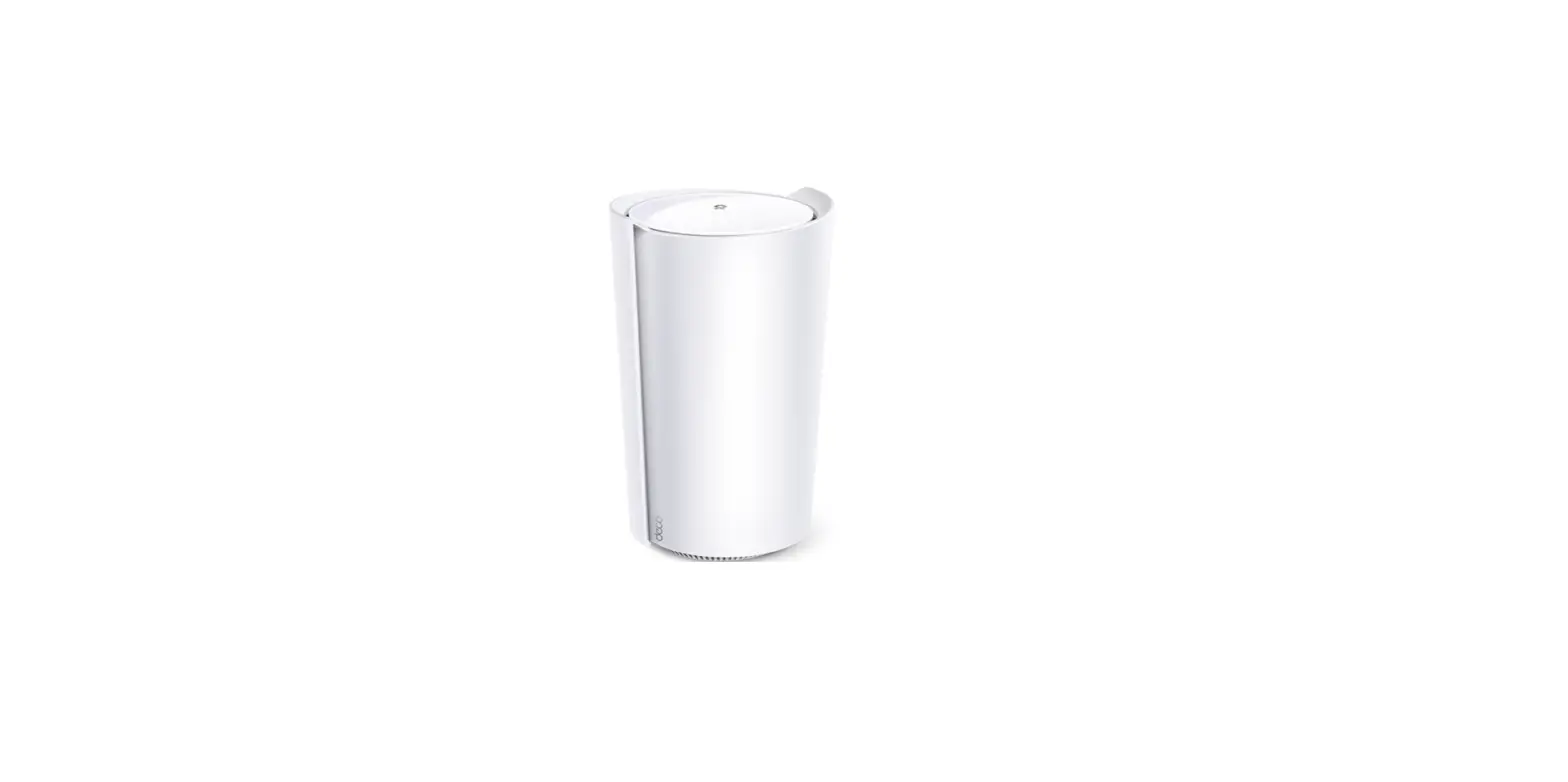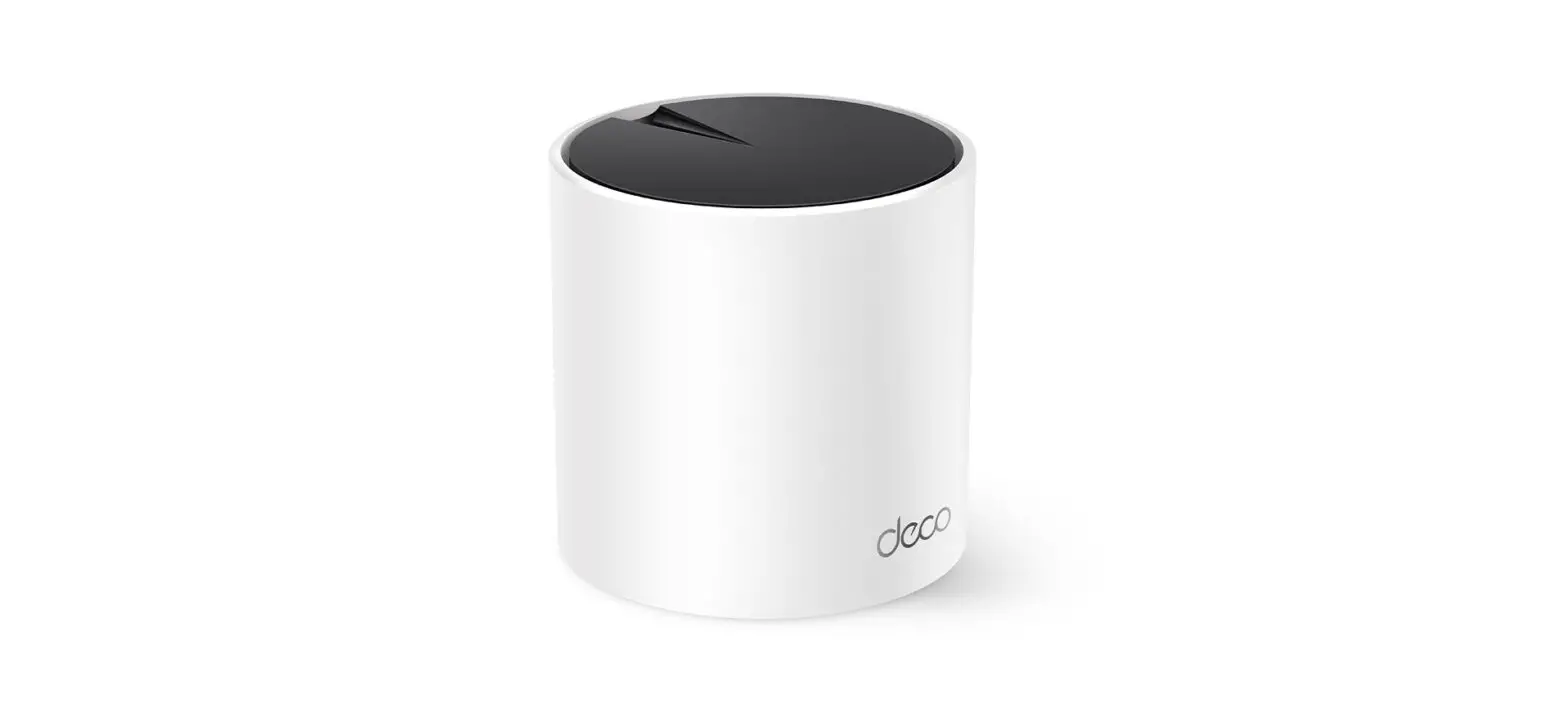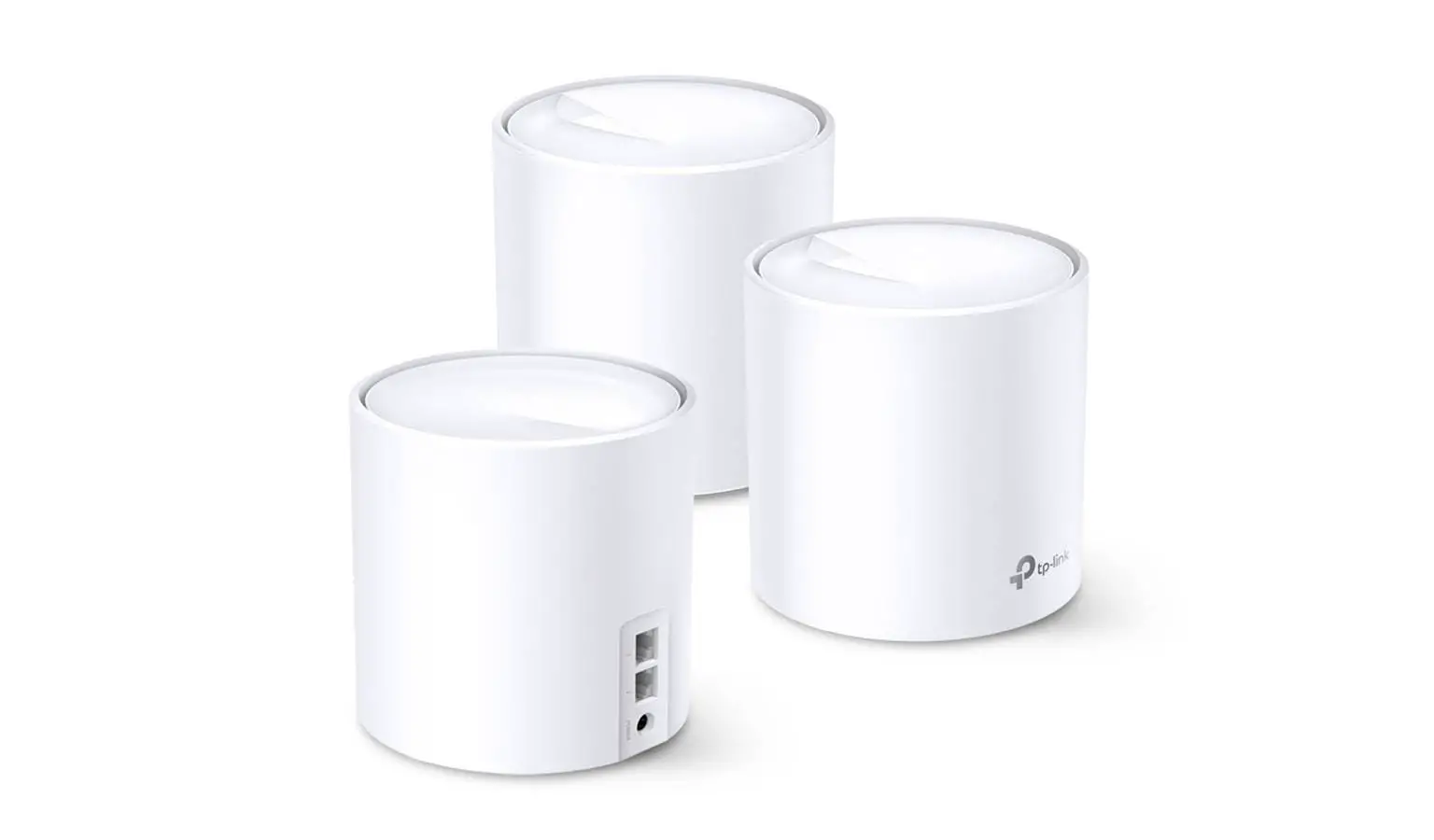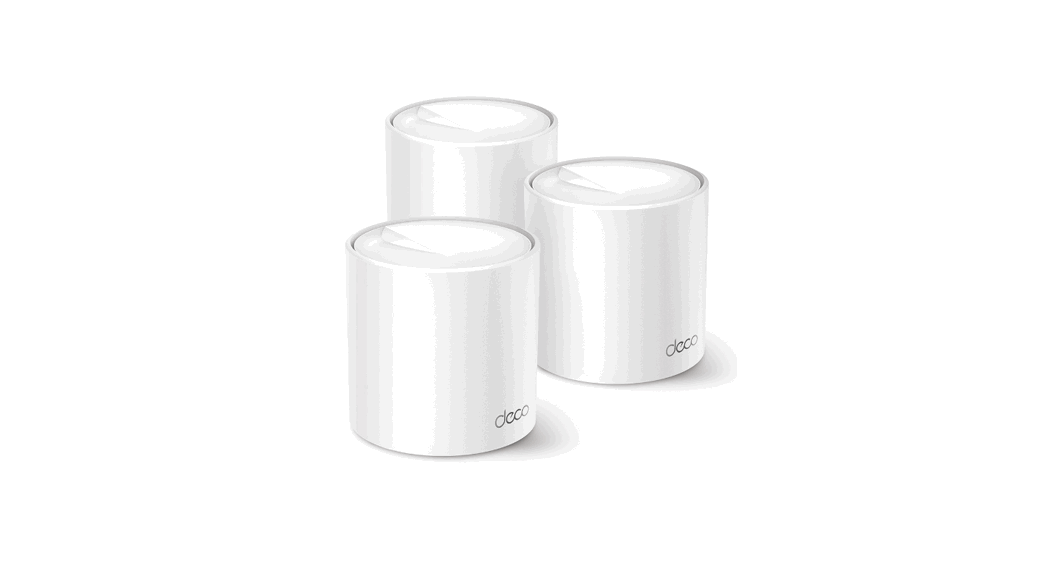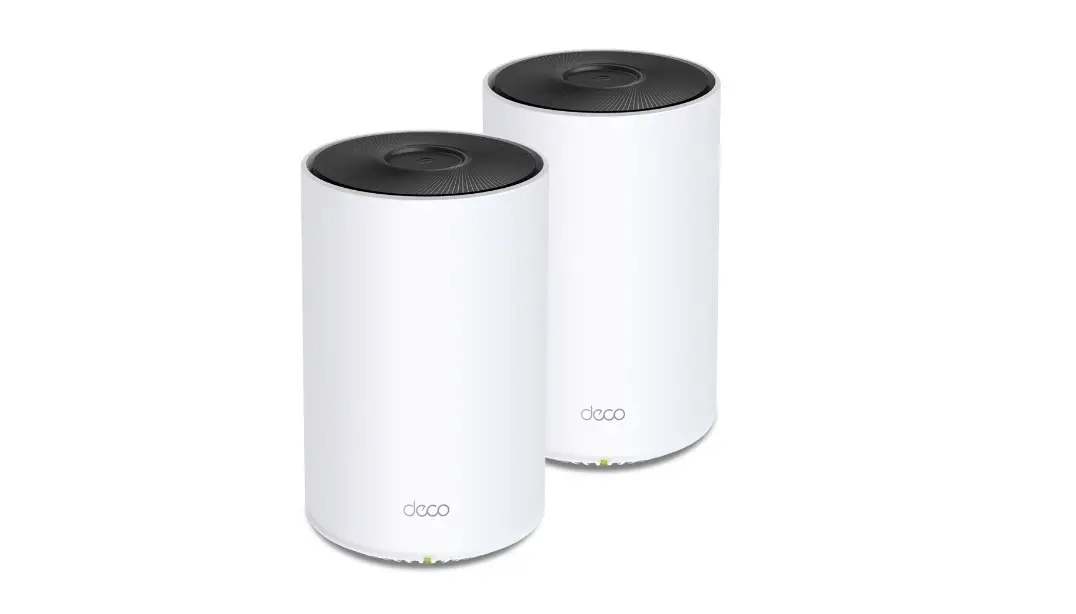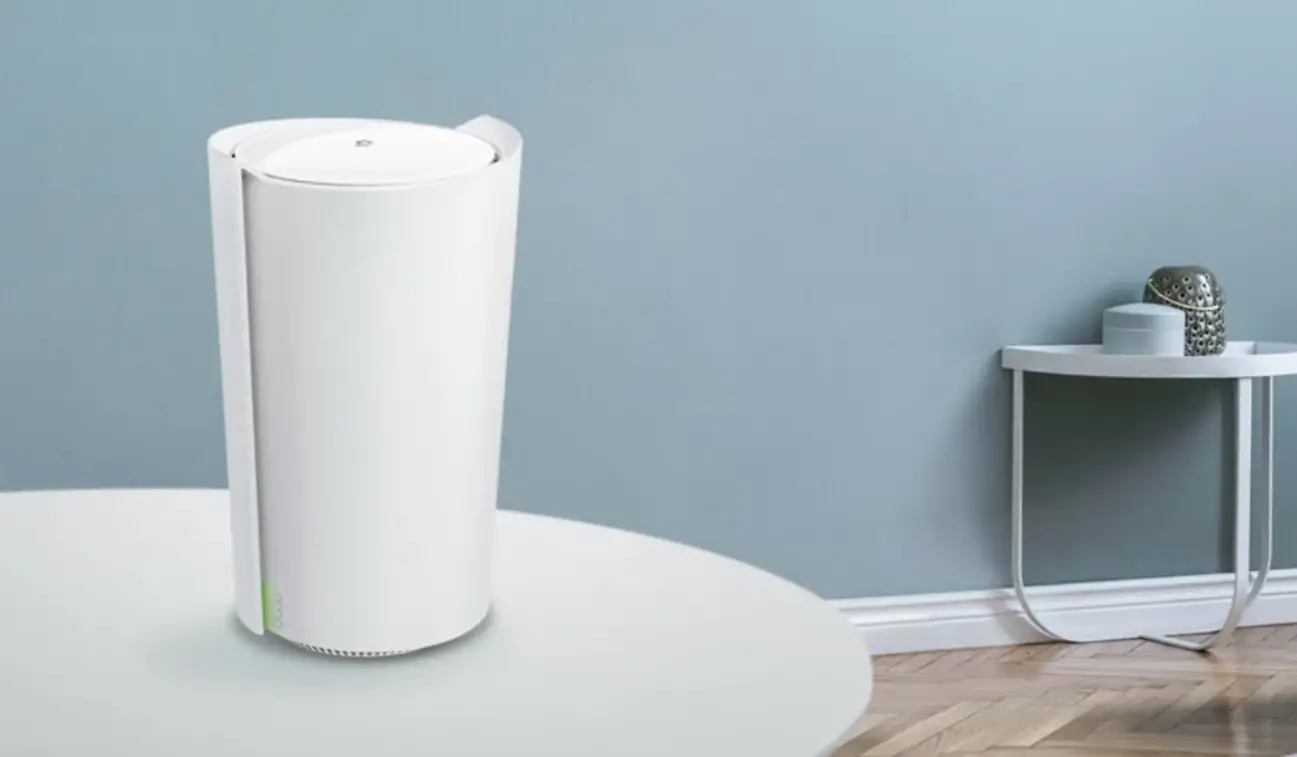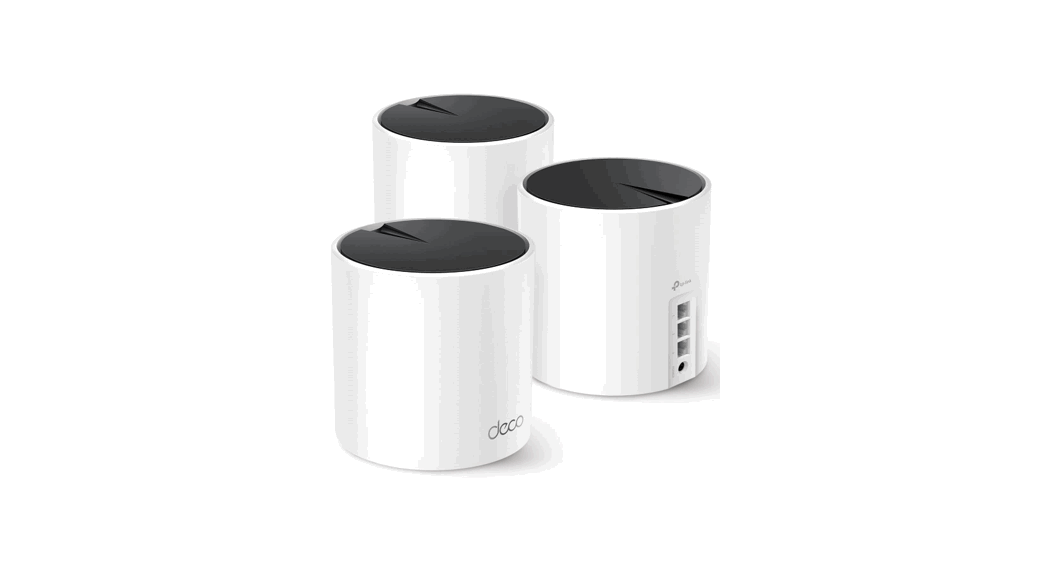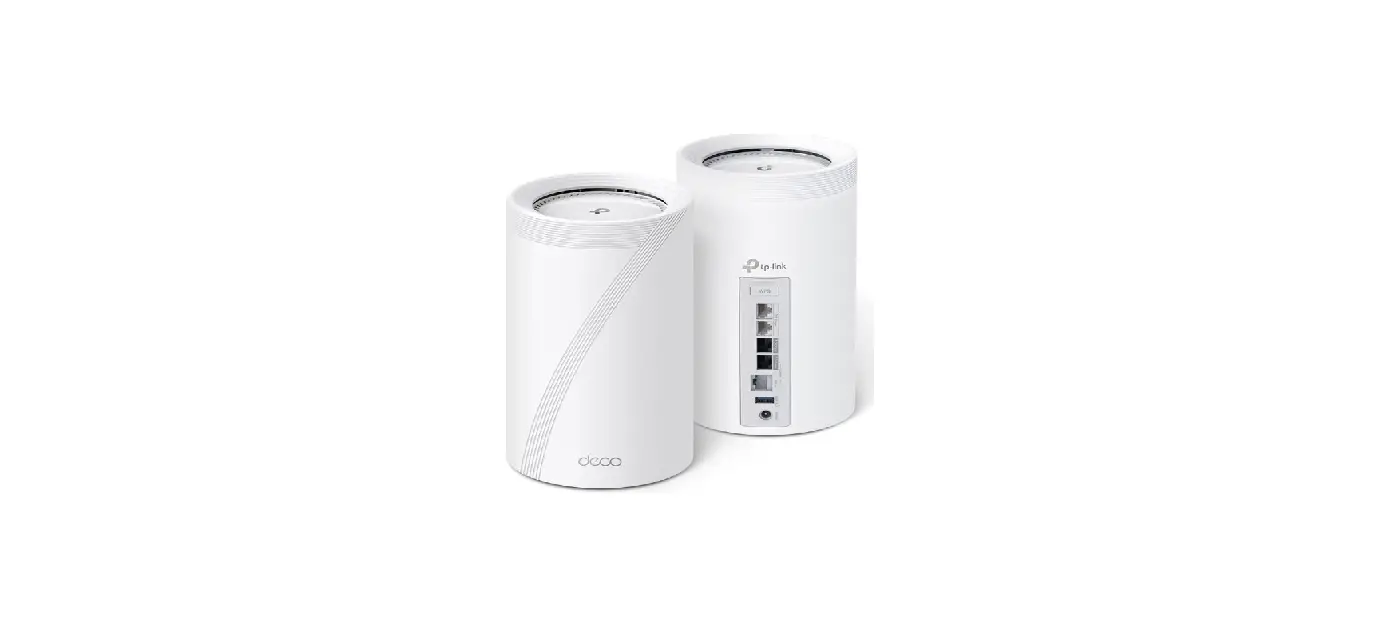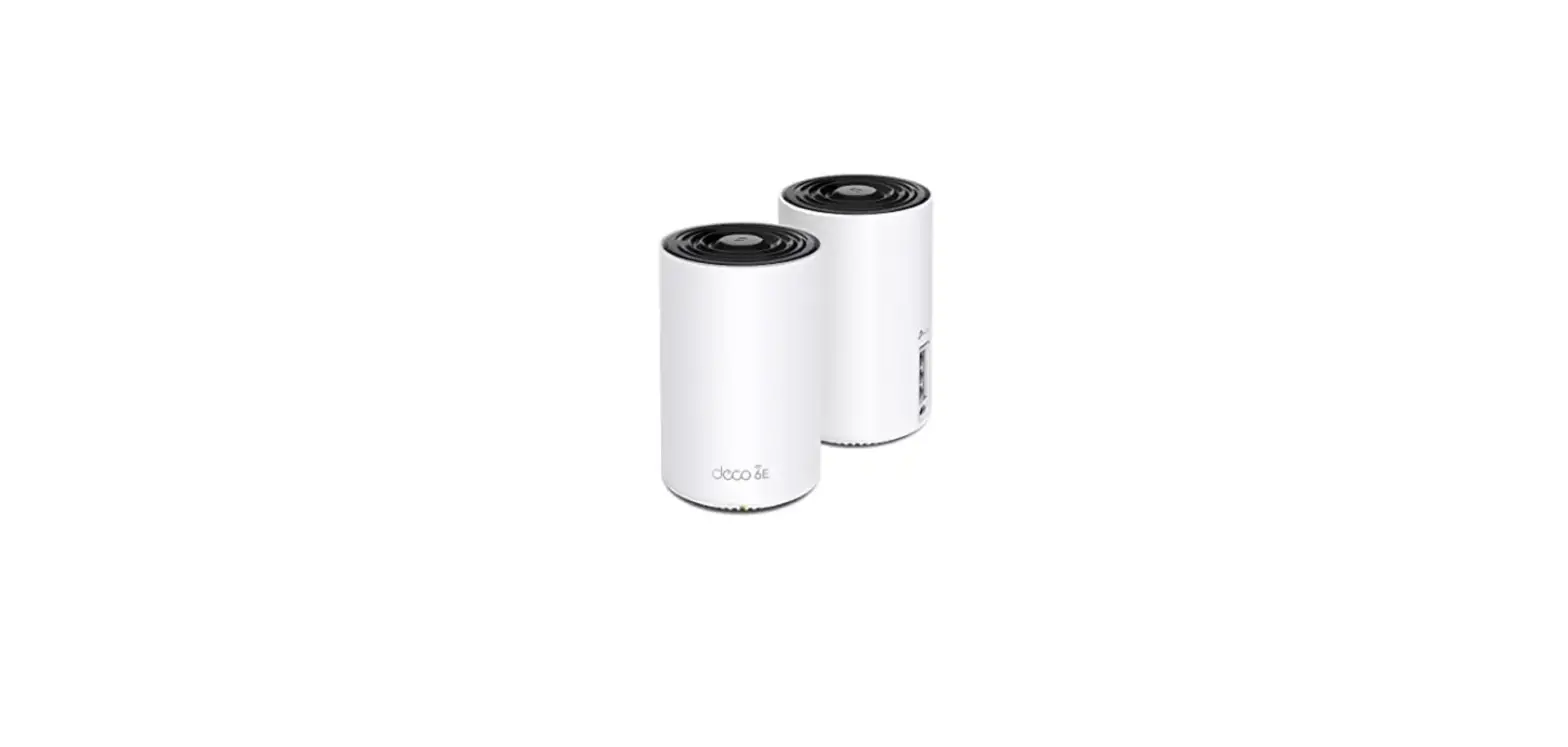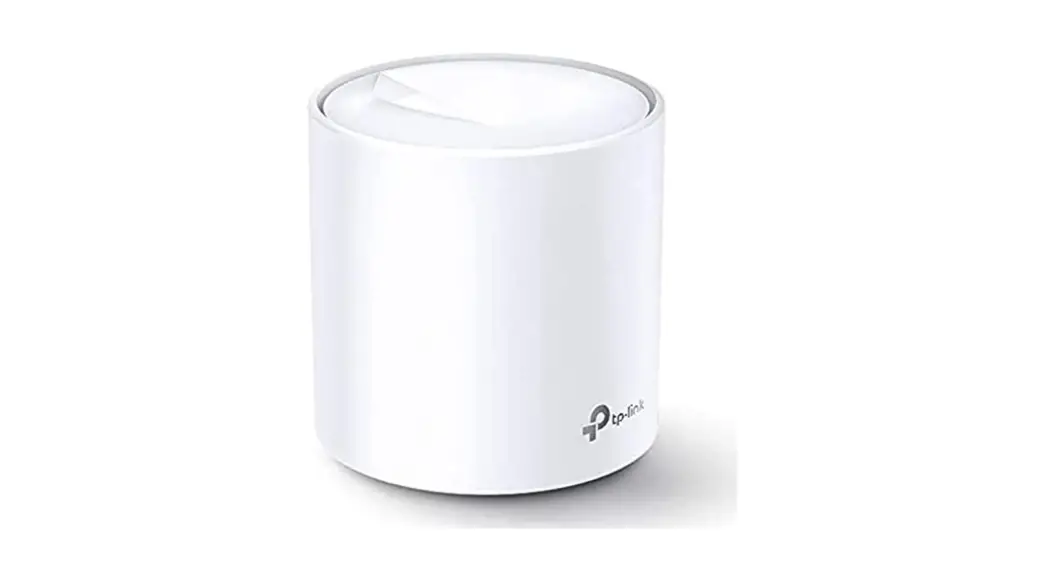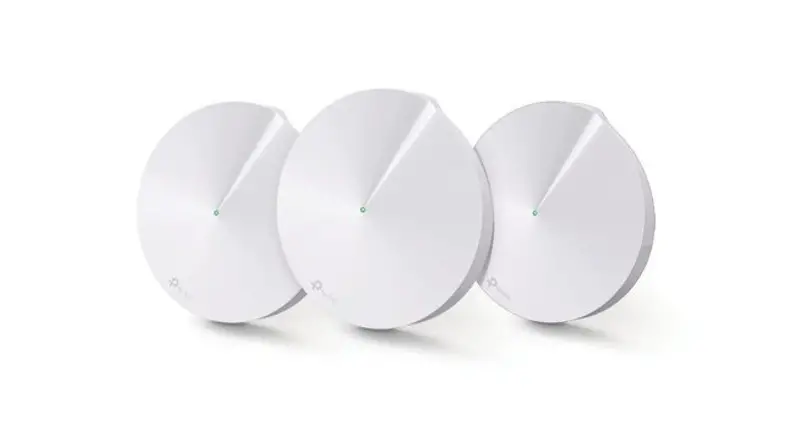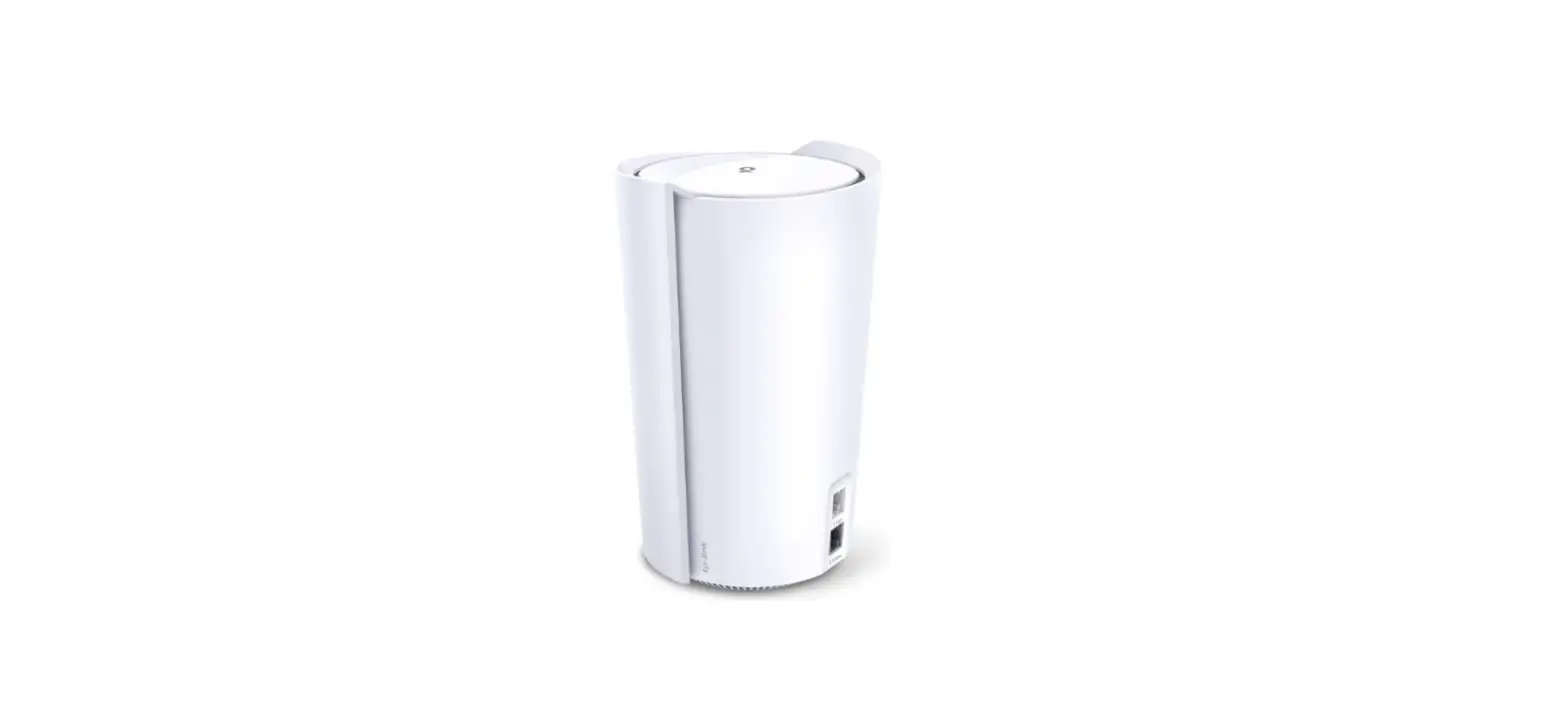

tp-link X95 AX7800 Whole Home Mesh Wi-Fi 6 System
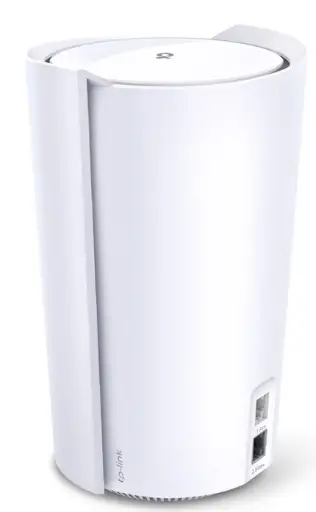
Manage Connected Devices
In the Overview page, you can check the working status of all the connected devices, view the device details, or change the device settings.
Tap a client on the Devices list to check the details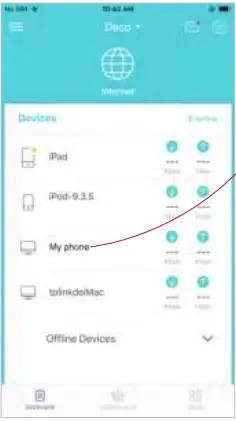
Tap setting to manage the device 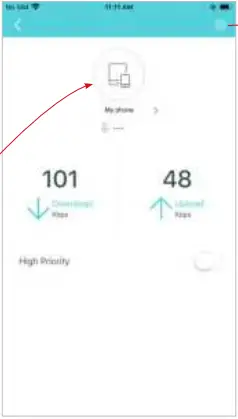
Tap Belongs to to add a unique profile for the device and manage its online activities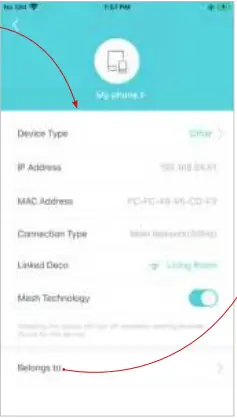
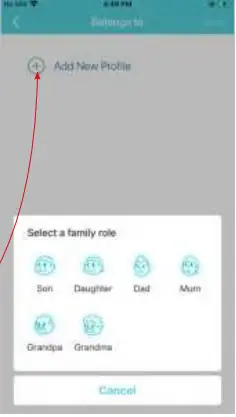
Create New Networks
On the Deco app, you can create different Deco networks bound to your TP-Link ID, and manage them conveniently from the Deco app with one account. You can also help family or friends by managing their network on your Deco app. Two methods are provided as below to create a new network: from the Overview page or the Menu page.
Method 1. Create a new network from the Overview page
Tap > Create New Network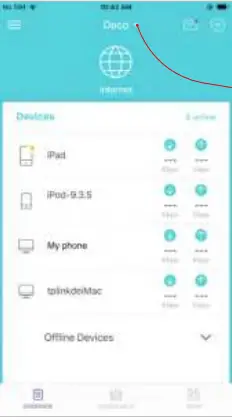
Then follow the app instruction to complete the setup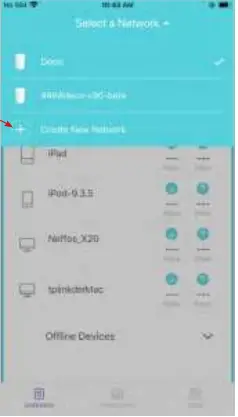
On the Deco app, you can create different Deco networks bound to your TP-Link ID, and manage them conveniently from the Deco app with one account. You can also help family or friends by managing their network on your Deco app. Two methods are provided as below to create a new network: from the Overview page or the Menu page.
Method 2. Create a new network from the Menu page
Tap to open the Menu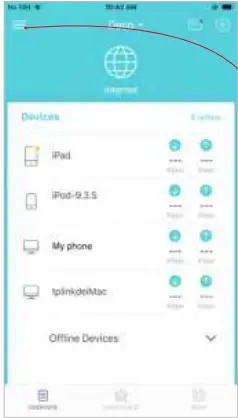
Tap CREATE NEW NETWORK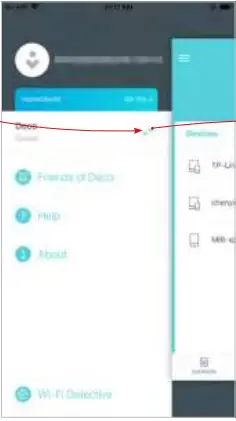
Follow app instruction to complete the setup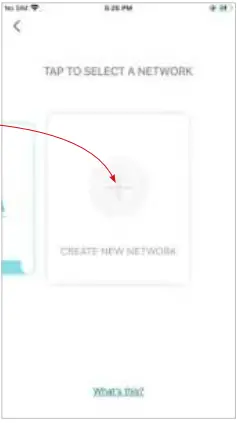
Remove/Reboot Deco
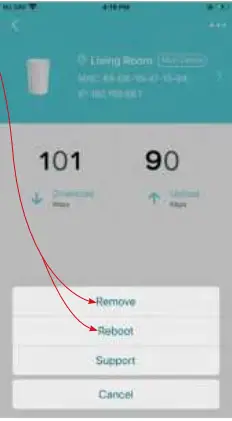
You can remove or reboot your Deco easily on the Deco app. Follow the steps below.
Tap to check all Deco’s status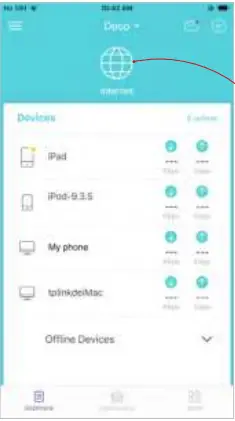
Tap a Deco unit to enter the details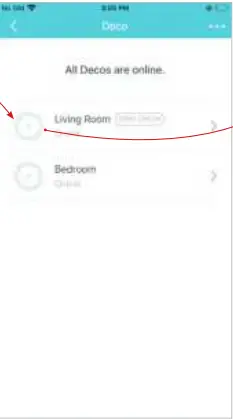
Tap to remove or reboot the Deco
Note: If the LED light of Deco does not turns pulsing blue after tapping Remove, refer to Appearance to use the reset button to reset it.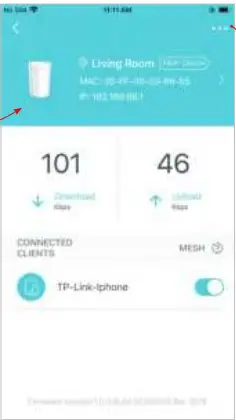
HomeShield
Whether protecting your network from malicious attacks, managing your family’s online activities, or prioritizing devices to get better performance, TP-Link HomeShield provides you a kit of basic (free) and Pro (charged) features to enhance your whole home network with enhanced security. An overview of HomeShield features are shown below.
- What is HomeShield: tp-link.com/homeshield
- How to use HomeShield features and upgrade to HomeShield Pro: go to the product support page at https://www.tp-link.com and refer to TP-Link HomeShield User Guide.
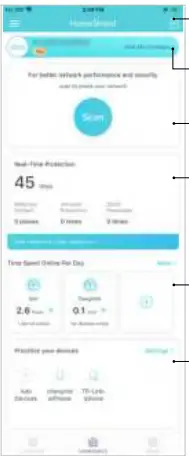
- Weekly/Monthly Reports: Review a weekly or a monthly list of usage, such as security threats, top visited contents, and more, to better manage your family’s online activities.
- HomeShield Pro subscription: To enjoy more features, you can upgrade to HomeShield Pro.
- Scan: Examine your network regularly to identify the potential risks, thus improving your network performance and security.
- Real-Time Protection: Real-Time Protection is for Pro users only. There are three ways to ensure your home network and your IoT devices remains safe: (1) block malicious websites, protect your home network and applications against external attacks and eliminate vulnerabilities; (2) prevent infected devices from sending sensitive information or security threats to clients outside your network; (3) identify IoT devices and immediately monitor their security performance once they join the network.
- Parental Controls: Create profiles for family members and specify the devices that belong to each. Set individualized
- parental controls including when and for how long each person can access the internet. Block inappropriate content and pause the internet if necessary.
- QoS: Prioritize the connection of a particular device for a set duration, such as a family member’s laptop for one hour during a video call.
Wi-Fi Settings
You can change the network name and password of your main network, create a separate network for guests to guarantee the security and privacy of your main network, and shake your device to share the network details easily with family and friends.
Tap Wi-Fi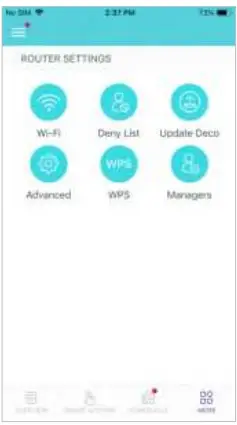
Manage your main network (eg. change your Wi-Fi network name and password)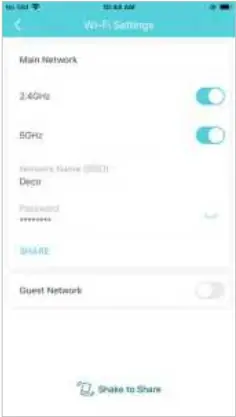
Enable guest network 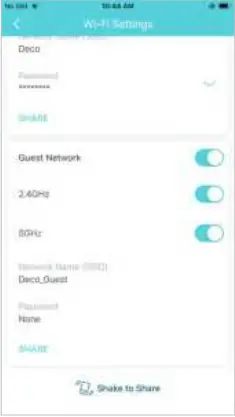
Shake to share your network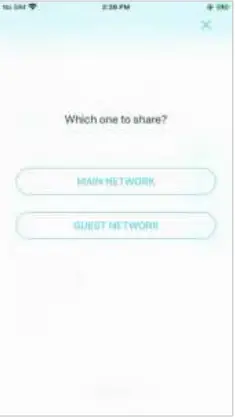
Deny List
Compile a deny list to avoid the specified devices to access to your network, ensuring the safety of your personal information shared in the network.
Tap > Deny List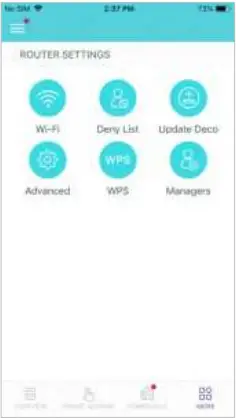
Add clients to list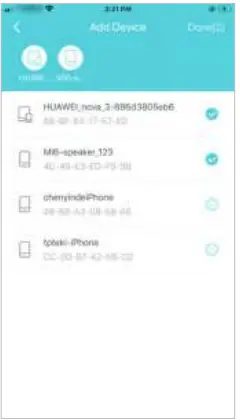
Add other devices to list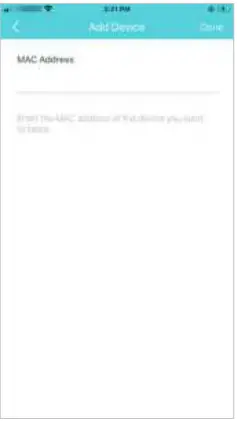
Manage the deny list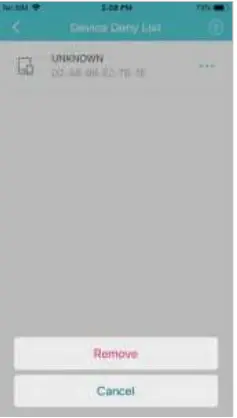
Online Update
TP-Link is dedicated to improving product features and providing a better customer experience. An up-to-date firmware provides better and more
stable network performance. Always update your Deco to the latest firmware version when prompted in the Deco app
Tap > Update Deco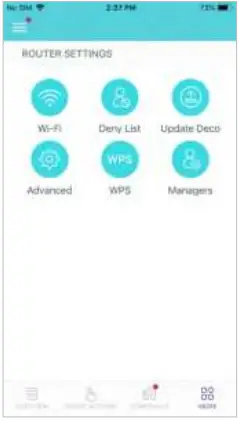
Follow app instructions to update your Deco to the latest version
Tip: If the firmware update fails, please reboot the main Deco, move the Satellite Deco closer to the main Deco, then try to update again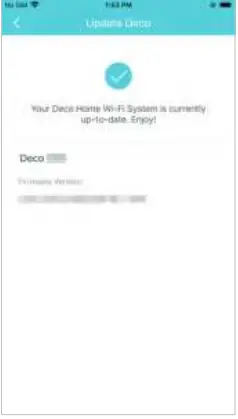
Advanced Features
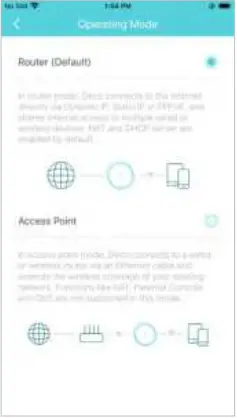
Additional features are available under the Advanced menu. You can modify WAN settings (IPv4 & IPv6), add IPv6 firewall rules, modify LAN IP, set up DHCP server, enable VLAN/IPTV/MAC Clone mode, reserve the same IP address for a specific device, set up port forwarding rules to make your local computers accessible to other devices over the internet, enable TP-Link DDNS, SIP ALG, fast roaming and beamforming, control Deco’s LED, change the working mode, and configure the notification settings
Tap > Advanced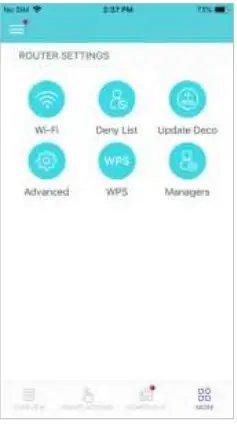
View IPv4 details or change the internet connection type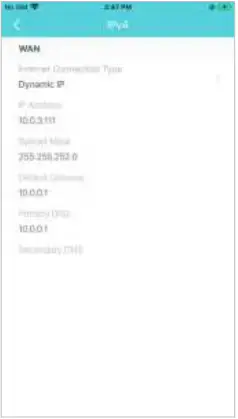
Enable IPv6 to set up an IPv6 internet connection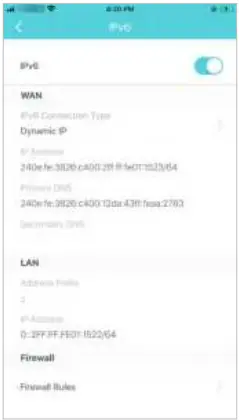
Add IPv6 firewall rules to allow specific devices to access the specified services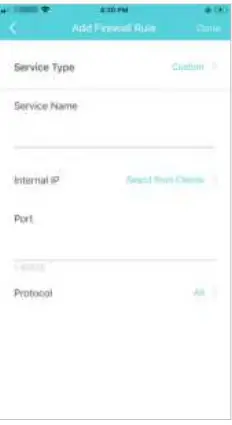
Modify LAN IP to avoid IP address confict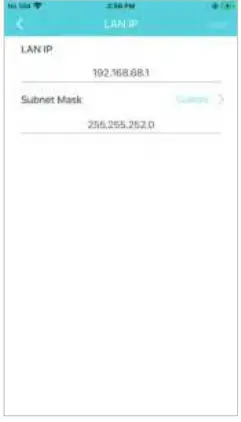
Change DHCP server settings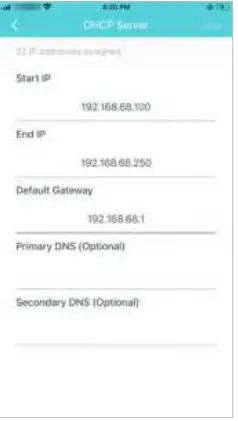
Enable IPTV/VLAN mode to support IPTV services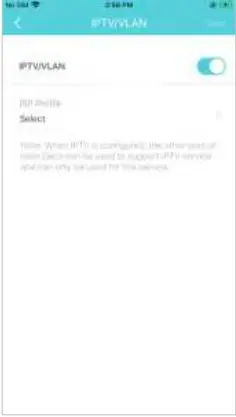
Enable MAC Clone if Deco fails to connect to the internet Tip: For more about MAC Clone, refer to https://www.tp-link.com/support/faq/2925/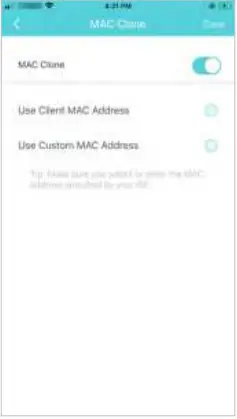
Reserve IP addresses for specific devices to recognize and manage the device more easily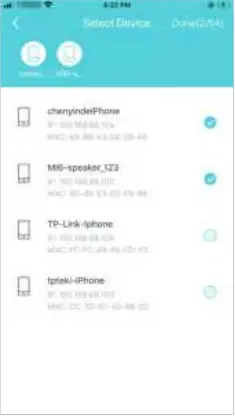
Set up port forwarding rules to enable devices in your network accessible over the internet with safety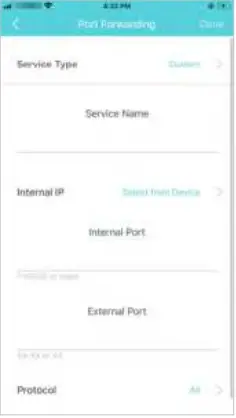
Register a TP-Link DDNS domain name to access your router and local servers using a domain name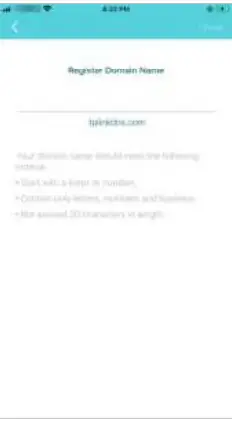
Enable SIP ALG to communicate with SIP (Session Initiation Protocol) servers via NAT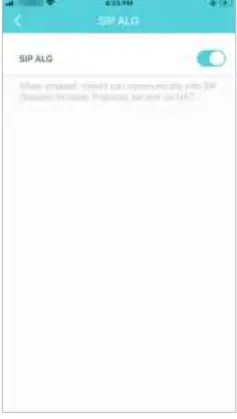
Enable UPNP to allow your local network to dynamically open ports for applications like gaming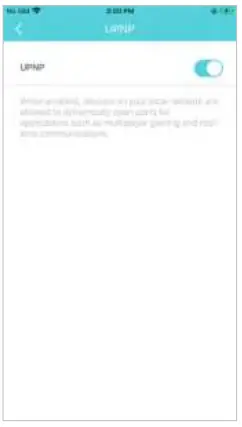
Enable Fast Roaming to allow your wireless devices to switch connection to different Decos seamlessly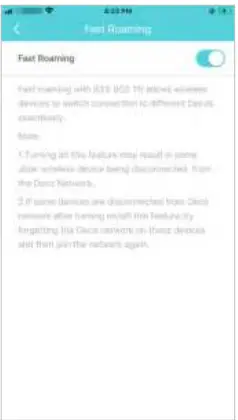
Enable Beamforming to concentrate Wi-Fi signal towards connected devices for stronger connections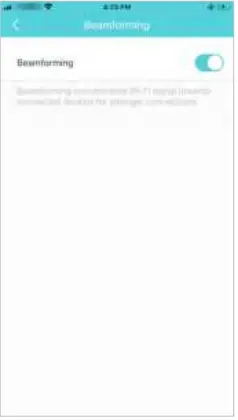
Toggle off LED to turn off the light on Deco. Configure the Night Mode to turn off the LED light at bedtime only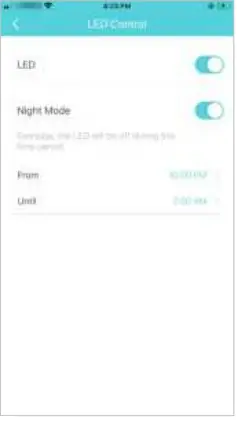
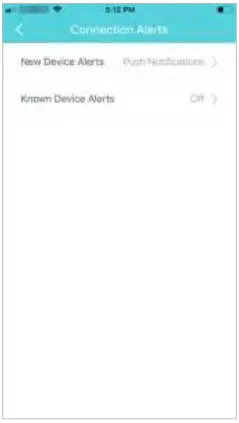
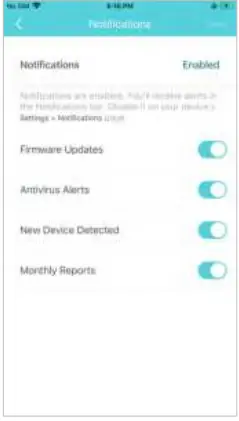
Note: If the Notifications option shows “Disabled”, go to Settings > Notifications on your mobile device to enable it.
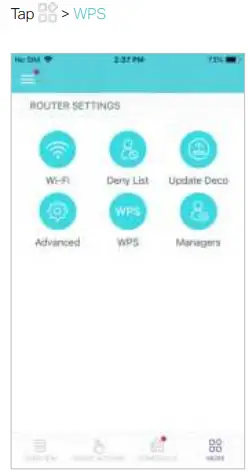
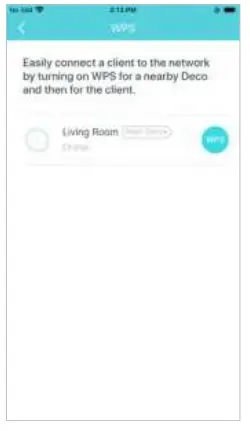
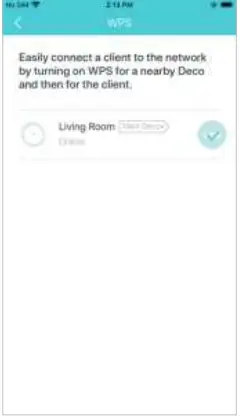
WPS (Wi-Fi Protected Setup) helps you to quickly and securely connect a client to a network with a tap without entering any password.
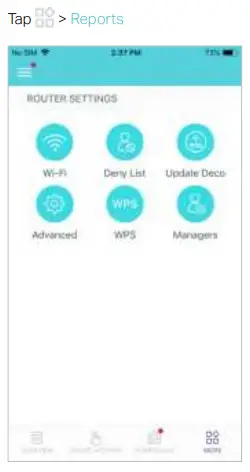
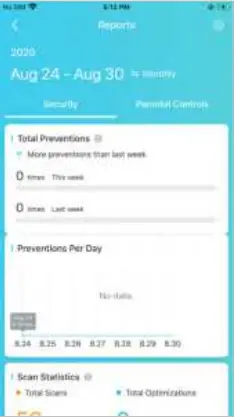
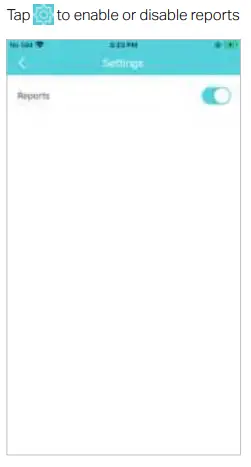
Review the weekly or monthly usage reports, such as security threats and total connected network devices each day.
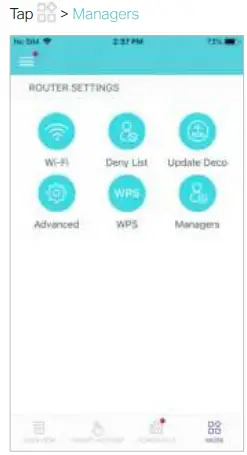
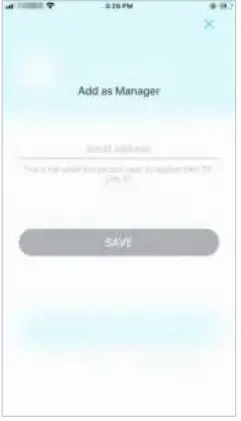
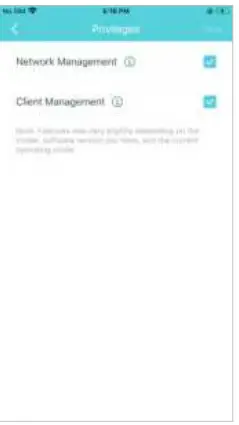
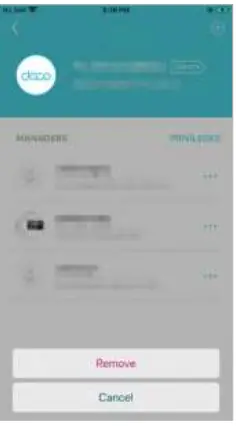
Add friends and family members to help manage your network. Each manager should have their own TP-Link ID.
FAQ
Q1. What should I do if I fail to configure the main Deco and get stuck on “We couldn’t find Deco”?
Refer to the guide https://www.tp-link.com/support/faq/2239/ or follow the video https://youtu.be/2HYuEYS9XJM
Q2. What should I do if I fail to configure the satellite Deco and get stuck on “We couldn’t find another Deco”?
Refer to the guide https://www.tp-link.com/support/faq/1447/ or follow the video https://youtu.be/iVgDzoo16T4
Q3. What should I do if I fail to configure the main Deco and get stuck on “Testing Internet Connection”?
Refer to the video https://youtu.be/OSUrGdWH-i0
Q4. What should I do if my wireless devices cannot connect to Deco?
Refer to the guide https://www.tp-link.com/support/faq/2718/
Q5. What should I do if Deco suddenly lost internet access?
Refer to the guide https://www.tp-link.com/support/faq/1454/
Q6. How can I find a suitable spot for my Deco?
Refer to the guide https://www.tp-link.com//support/faq/1446/
Q7. What can I do if the Deco app isn’t working properly?
Refer to the guide https://www.tp-link.com/support/faq/1456/
FCC Compliance Information Statement
Model Number: Deco X95
| Component Name | Model |
| I.T.E POWER SUPPLY | T120250-2B4 |
Responsible party:
TP-Link USA Corporation
Address: 10 Mauchly, Irvine, CA 92618
Website: http://www.tp-link.com/us/
Tel: +1 626 333 0234
Fax: +1 909 527 6804
E-mail: [email protected]
This equipment has been tested and found to comply with the limits for a Class B digital device, pursuant to part 15 of the FCC Rules. These limits are designed to provide reasonable protection against harmful interference in a residential installation. This equipment generates, uses and can radiate radio frequency energy and, if not installed and used in accordance with the instructions, may cause harmful interference to radio communications. However, there is no guarantee that interference will not occur in a particular installation. If this equipment does cause harmful interference to radio or television reception, which can be determined by turning the equipment off and on, the user is encouraged to try to correct the interference by one or more of the following measures:
- Reorient or relocate the receiving antenna.
- Increase the separation between the equipment and receiver.
- Connect the equipment into an outlet on a circuit different from that to which the receiver is connected.
- Consult the dealer or an experienced radio/ TV technician for help.
This device complies with part 15 of the FCC Rules. Operation is subject to the following two conditions:- This device may not cause harmful interference.
- This device must accept any interference received, including interference that may cause undesired operation. Any changes or modifications not expressly approved by the party responsible for compliance could void the user’s authority to operate the
equipment.
Note: The manufacturer is not responsible for any radio or TV interference caused by unauthorized modifications to this equipment. Such modifications could void the user’s authority to operate the equipment
FCC RF Radiation Exposure Statement
This equipment complies with FCC RF radiation exposure limits set forth for an uncontrolled environment. This device and its antenna must not be co-located or operating in conjunction with any other antenna or transmitter.
“To comply with FCC RF exposure compliance requirements, this grant is applicable to only Mobile Configurations. The antennas used for this transmitter must be installed to provide a separation distance of at least 20 cm from all persons and must not be co-located or operating in conjunction with any other antenna or transmitter.”
FCC Compliance Information Statement
Product Name: I.T.E POWER SUPPLY
Model Number: T120250-2B4
Responsible party: TP-Link USA Corporation
Address: 10 Mauchly, Irvine, CA 92618
Website: http://www.tp-link.com/us/
OPERATIING FREQUENCY: 2412-2462MHz, 5180-5240MHz, 5250MHz, 5500-5640MHz, 5745-5825MHz
Tel: +1 626 333 0234
Fax: +1 909 527 6804
E-mail: [email protected]
This equipment has been tested and found to comply with the limits for a Class B digital device, pursuant to part 15 of the FCC Rules. These limits are designed to provide reasonable protection against harmful interference in a residential installation. This equipment generates, uses and can radiate radio frequency energy and, if not installed and used in accordance with the instructions, may cause harmful interference to radio communications. However, there is no guarantee that interference will not occur in a particular installation. If this equipment does cause harmful interference to radio or television reception, which can be determined by turning the equipment off and on, the user is encouraged to try to correct the interference by one or more of the following measures:
- Reorient or relocate the receiving antenna.
- Increase the separation between the equipment and receiver.
- Connect the equipment into an outlet on a circuit different from that to which the receiver is connected.
- Consult the dealer or an experienced radio/ TV technician for help.
This device complies with part 15 of the FCC Rules. Operation is subject to the following two conditions:
- This device may not cause harmful interference.
- This device must accept any interference received, including interference that may cause undesired operation.
Any changes or modifications not expressly approved by the party responsible for compliance could void the user’s authority to operate the equipment.
We, TP-Link USA Corporation, has determined that the equipment shown as above has been shown to comply with the applicable technical standards, FCC part 15. There is no unauthorized change is made in the equipment and the equipment is properly maintained and operated.
CE Mark Warning
This is a class B product. In a domestic environment, this product may cause radio interference, in which case the user may be required to take adequate measures.
OPERATING FREQUENCY(the maximum transmitted power)
- 2412MHz—2483.5MHz (20dBm)
- 5150MHz—5250MHz (23dBm)
- 5250 MHz -5350 MHz (23dBm)
- 5470 MHz -5725 MHz (30dBm)
Frequency band 5150 – 5250 MHz:
Indoor use: Inside buildings only. Installations and use inside road vehicles and train carriages are not permitted. Limited outdoor use: If used outdoors, equipment shall not be attached to a fixed installation or to the external body of road vehicles, a fixed infrastructure or a fixed outdoor antenna. Use by unmanned aircraft systems (UAS) is limited to within the 5170 – 5250 MHz band.
Frequency band 5250 – 5350 MHz:
Indoor use: Inside buildings only. Installations and use in road vehicles, trains and aircraft are not permitted. Outdoor use is not permitted.
Frequency band 5470 – 5725 MHz:
Installations and use in road vehicles, trains and aircraft and use for unmanned aircraft systems (UAS) are not permitted.
EU Declaration of Conformity
TP-Link hereby declares that the device is in compliance with the essential requirements and other relevant provisions of directives 2014/53/EU, 2009/125/EC, 2011/65/EU and (EU)2015/863.
The original EU Declaration of Conformity may be found at https://www.tp-link.com/en/support/ce/
RF Exposure Information
This device meets the EU requirements (2014/53/EU Article 3.1a) on the limitation of exposure of the general public to electromagnetic fields by way of health protection.
The device complies with RF specifications when the device used at 20 cm from your body.
National Restrictions
Attention: This device may only be used indoors in all EU member states, EFTA countries and Northern Ireland.
| AT | BE | BG | CH | CY | CZ | DE | DK | |
| EE | EL | ES | FI | FR | HR | HU | IE | |
| IS | IT | LI | LT | LU | LV | MT | NL | |
| NO | PL | PT | RO | SE | SI | SK | UK(NI) |
UK Declaration of Conformity
TP-Link hereby declares that the device is in compliance with the essential requirements and other relevant provisions of the Radio Equipment
Regulations 2017.
The original UK Declaration of Conformity may be found at https://www.tp-link.com/support/ukca
National Restrictions
Attention: This device may only be used indoors in Great Britain.
Canadian Compliance Statement
This device complies with Industry Canada license-exempt RSS standard(s). Operation is subject to the following two conditions:
- This device may not cause interference, and
- This device must accept any interference, including interference that may cause undesired operation of the device.
Caution
The device for operation in the band 5150–5250 MHz is only for indoor use to reduce the potential for harmful interference to co-channel mobile satellite systems;
DFS (Dynamic Frequency Selection) products that operate in the bands 5250- 5350 MHz.
Radiation Exposure Statement
This equipment complies with IC radiation exposure limits set forth for an uncontrolled environment. This equipment should be installed and operated with minimum distance 20cm between the radiator & your body.
Safety Information
- Keep the device away from water, fire, humidity or hot environments.
- Do not attempt to disassemble, repair, or modify the device. If you need service, please contact us.
- Do not use damaged charger or USB cable to charge the device.
- Do not use any other chargers than those recommended
- Do not use the device where wireless devices are not allowed.
- Adapter shall be installed near the equipment and shall be easily accessible.
- Use only power supplies which are provided by manufacturer and in the original packing of this product. If you have any questions, please don’t hesitate to contact us.
- Operating Temperature: 0°C~40°C (32°F~104°F)
- This product uses radios and other components that emit electromagnetic fields. Electromagnetic fields and magnets may interfere with pacemakers and other implanted medical devices. Always keep the product and its power adapter more than 15 cm (6 inches) away from any pacemakers or other implanted medical devices. If you suspect your product is interfering with your pacemaker or any other implanted medical device, turn off your product and consult your physician for information specific to your medical device.
Please read and follow the above safety information when operating the device. We cannot guarantee that no accidents or damage will occur due to improper use of the device. Please use this product with care and operate at your own risk.
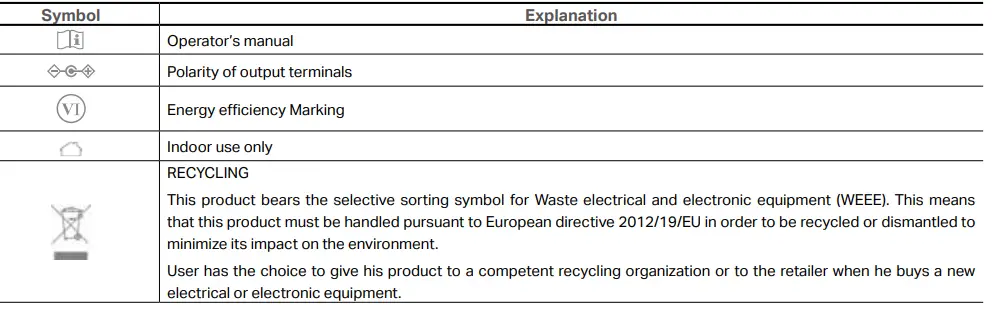
Explanation of the symbols on the product label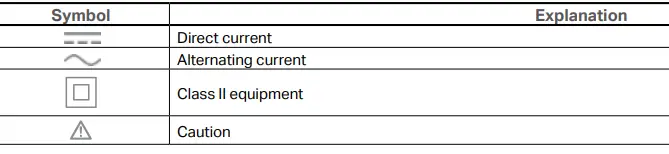
References
 Link: Simple, secure one-click payments
-
HomeShield | TP-Link
-
How to Configure MAC Clone on Deco if Deco fails to connect to the internet | TP-Link
-
WiFi Networking Equipment for Home & Business | TP-Link
-
WiFi Networking Equipment for Home & Business | TP-Link
-
How can I find a suitable spot for my Deco? | TP-Link
-
CE Regulatory Compliance | TP-Link
-
TP-Link Product Support - Wireless Networking Equipment Support
-
Fail to setup the Satellite Deco | TP-Link
-
What can I do if the Deco app isn't working properly | TP-Link
-
Fail to setup main Deco | TP-Link
-
Cannot connect to Deco Wi-Fi | TP-Link
-
Regulatory Compliance | TP-Link
 Link: Simple, secure one-click payments
 HomeShield | TP-Link
 How to Configure MAC Clone on Deco if Deco fails to connect to the internet | TP-Link