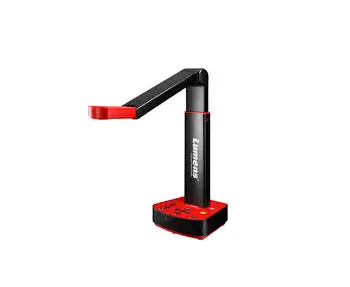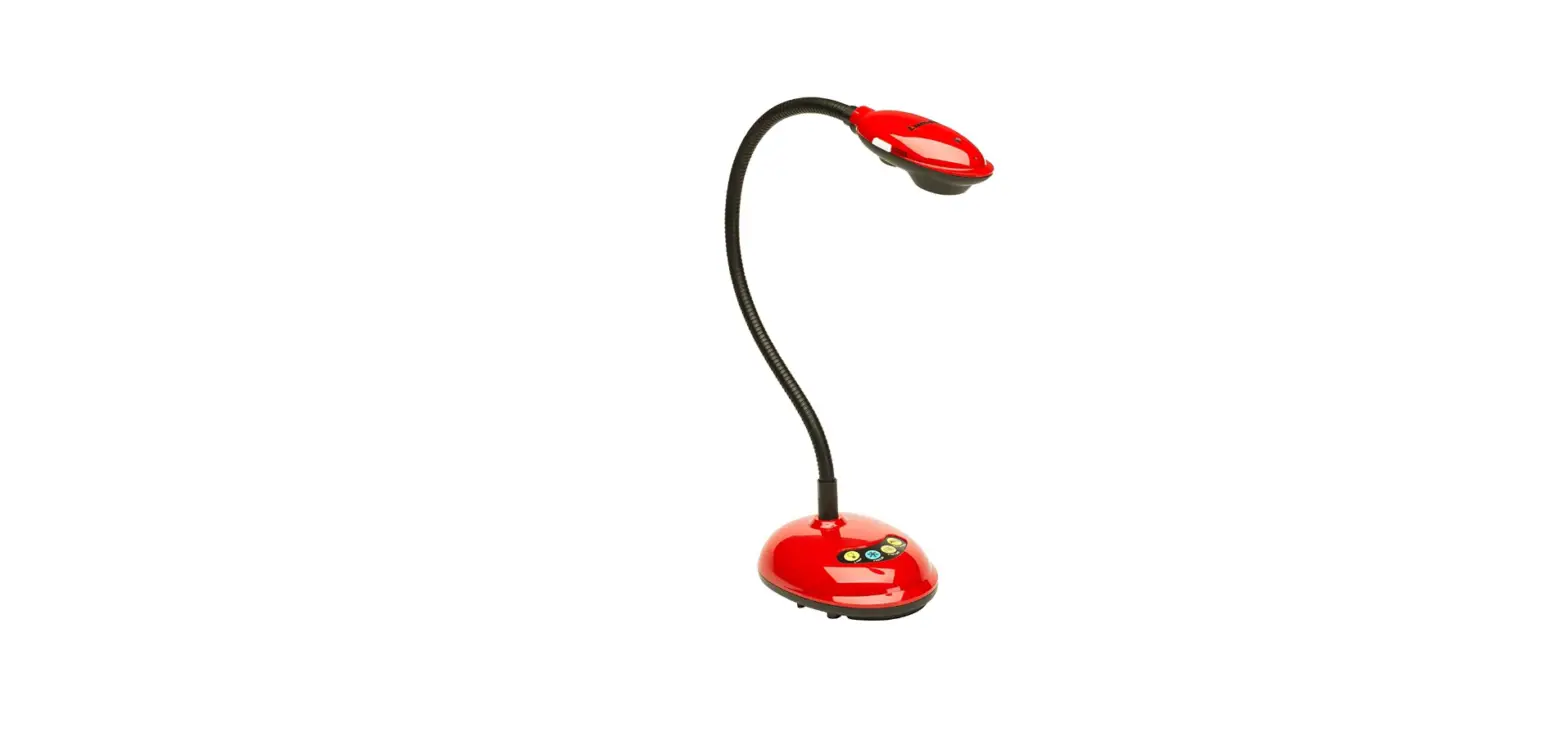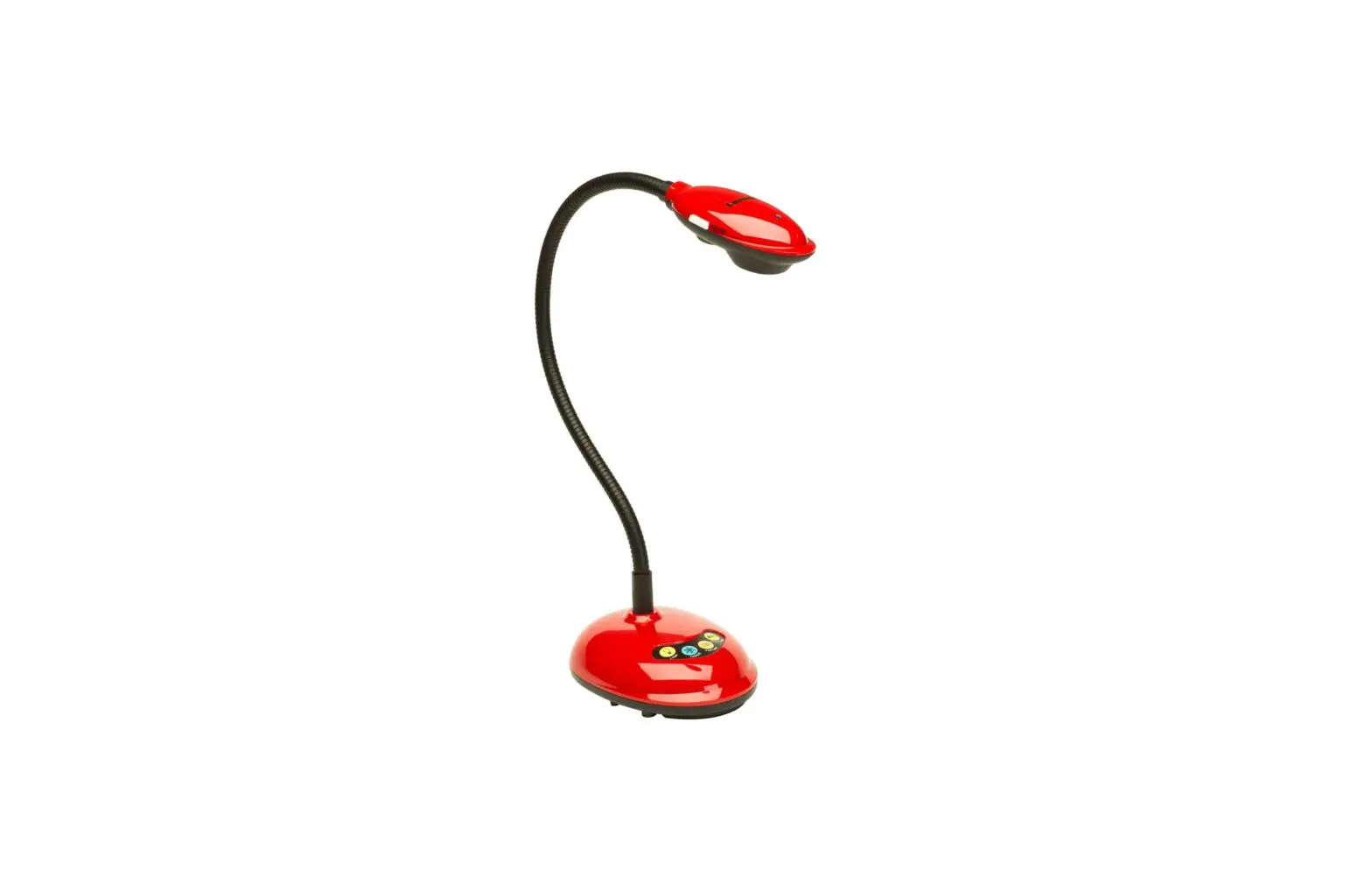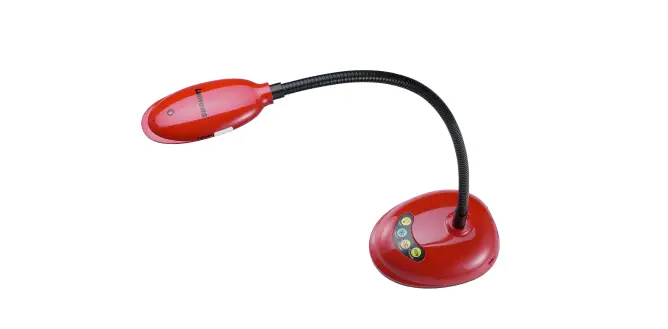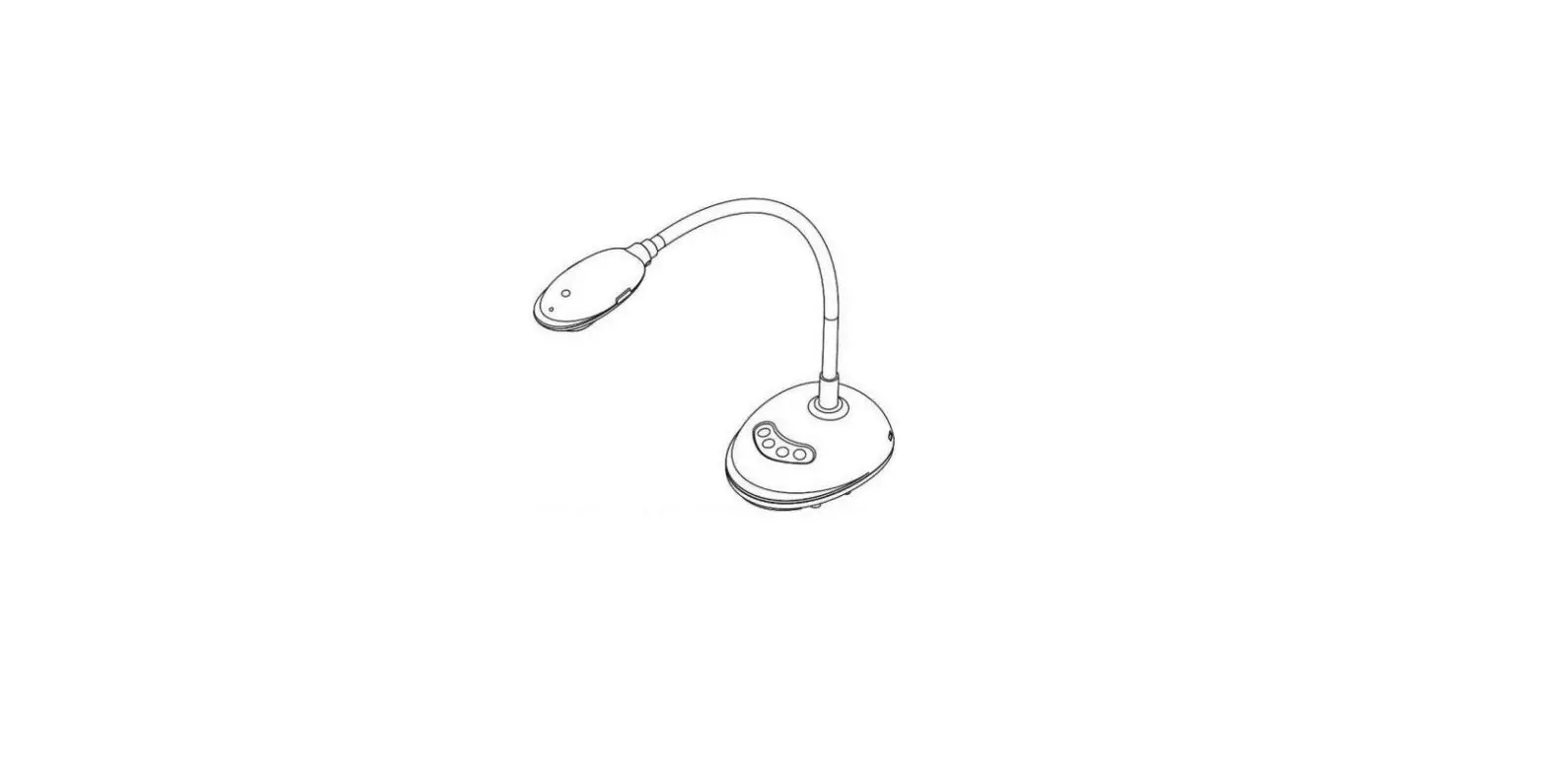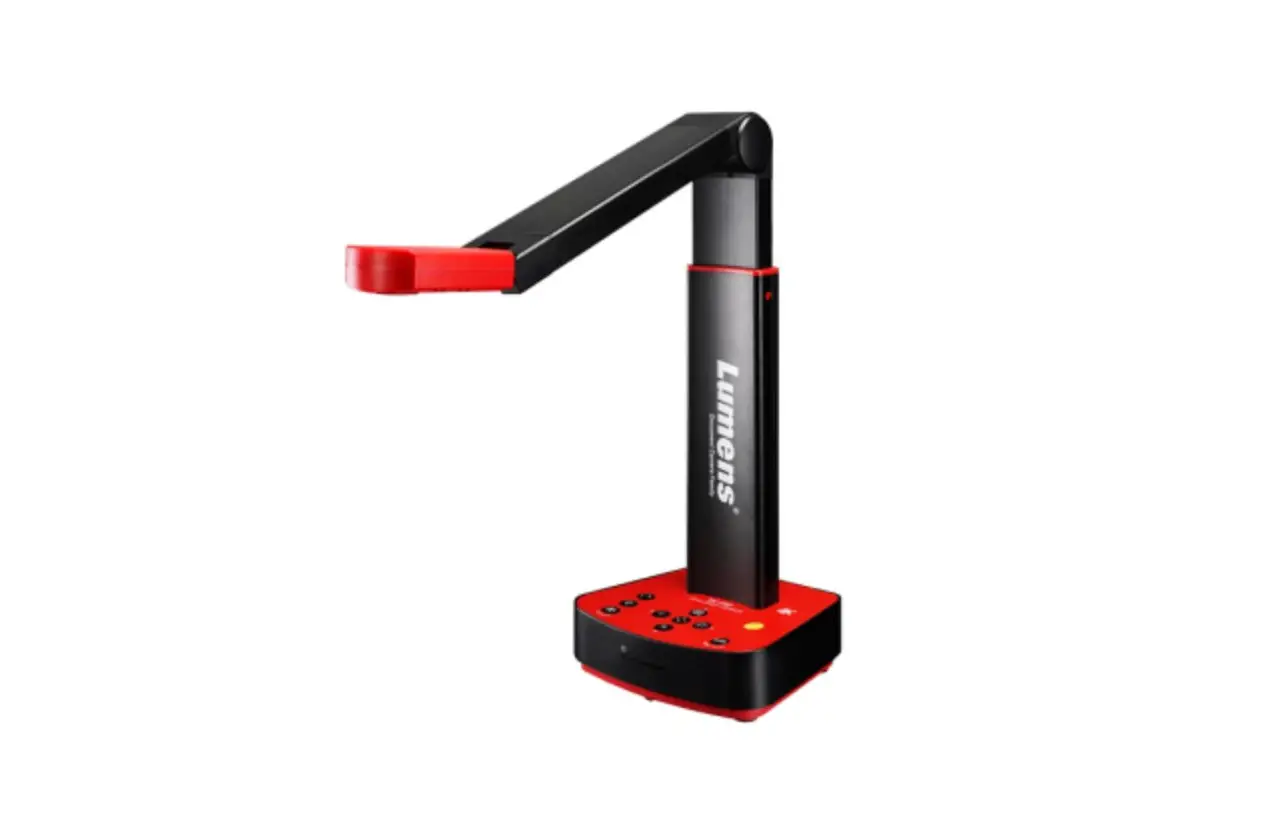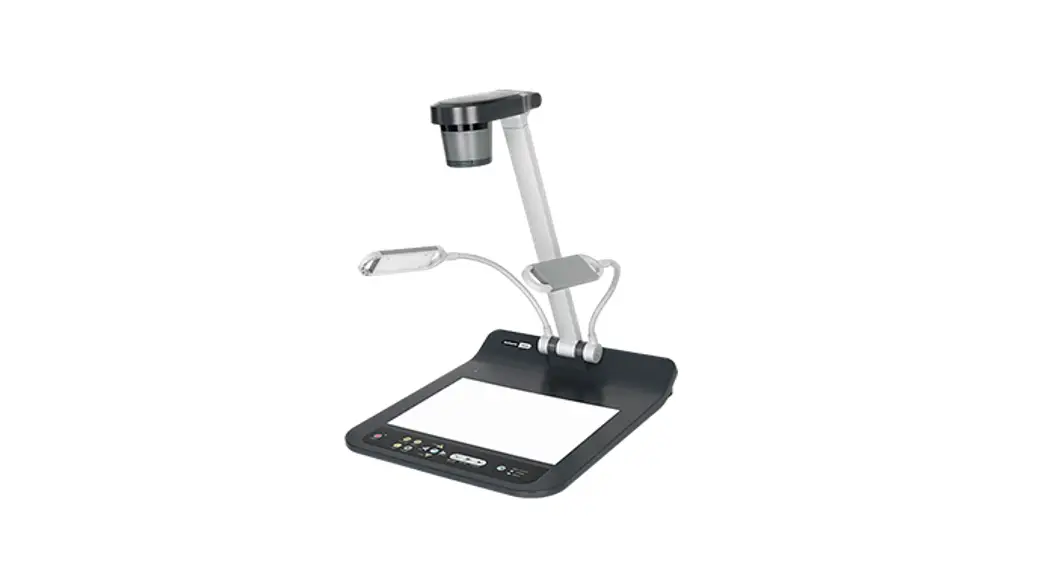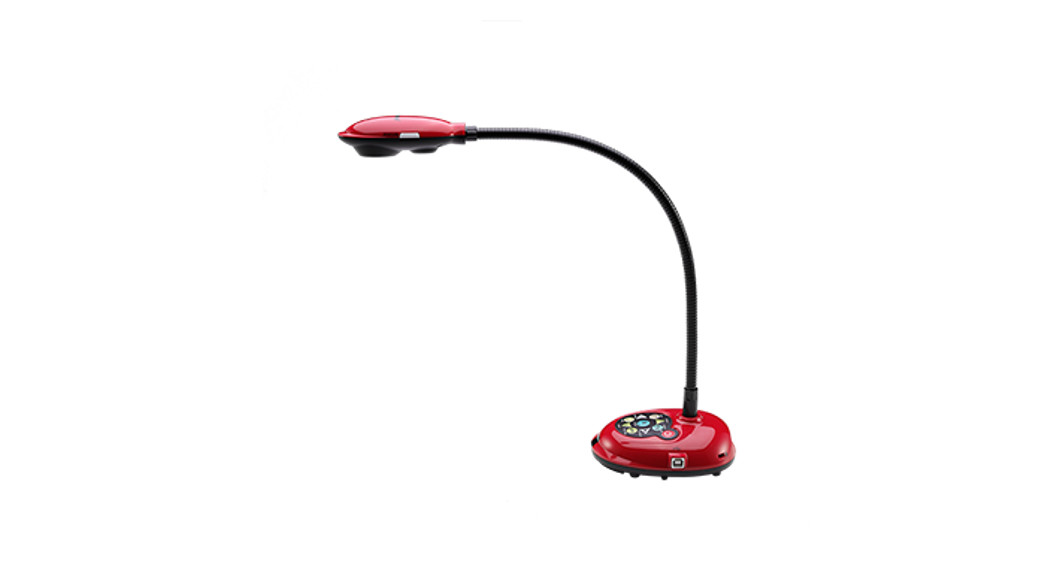

DC172
4K Document Camera
User Manual
[Important]
To download the latest version of Quick Start Guide, multilingual user manual, software, or driver, etc., please visit Lumens https://www.MyLumens.com/support
Copyright Information
Copyrights © Lumens Digital Optics Inc. All rights reserved. Lumens is a trademark that is currently being registered by Lumens Digital Optics Inc.
Copying, reproducing, or transmitting this file is not allowed if a license is not provided by Lumens Digital Optics Inc.
unless copying this file is for the purpose of backup after purchasing this product. In order to keep improving the product, Lumens Digital Optics Inc. hereby reserves the right to make changes to product specifications without prior notice. The information in this file is subject to change without prior notice. To fully explain or describe how this product should be used, this manual may refer to names of other products or companies without any intention of infringement.
Disclaimer of warranties: Lumens Digital Optics Inc. is neither responsible for any possible technological, editorial errors or omissions, nor responsible for any incidental or related damages arising from providing this file, using, or operating this product.
Chapter 1 Safety Instructions
Always follow these safety instructions when setting up and using the Document Camera:
- Operation
1.1 Please use the product in the recommended operating environment, away from water or source of heat
1.2 Do not place the product on a tilted or unstable trolley, stand, or table.
1.3 Please clean the dust on the power plug prior to usage. Do not insert the product’s power plug into a multiplug to prevent sparks or a fire.
1.4 Do not block the slots and openings in the case of the product. They provide ventilation and prevent the product from overheating.
1.5 Do not open or remove covers, otherwise, it may expose you to dangerous voltages and other hazards.
Refer all servicing to licensed service personnel.
1.6 Unplug the product from the wall outlet and refer servicing to licensed service personnel when the following situations happen:
•If the power cords are damaged or frayed.
•If the liquid is spilled into the product or the product has been exposed to rain or water. - Installation
2.1 For security considerations, please make sure the standard hanging rack you bought is in line with UL or CE safety approbations and installed by technician personnel approved by agents. - Storage
3.1 Do not place the product where the cord can be stepped on as this may result in fraying or damage to the lead or the plug.
3.2 Unplug this product during thunderstorms or if it is not going to be used for an extended period.
3.3 Do not place this product or accessories on top of vibrating equipment or heated objects. - Cleaning
4.1 Disconnect all the cables prior to cleaning and wipe the surface with a dry cloth. Do not use alcohol or volatile solvents for cleaning. - Batteries (for products or accessories with batteries)
5.1 When replacing batteries, please only use similar or the same type of batteries.
5.2 When disposing of batteries or products, please adhere to the relevant instructions in your country or region for disposing of batteries or products.
■ Precautions
 | This symbol indicates that this equipment may contain dangerous voltage which could cause electric shock. Do not remove the cover (or back). No user-serviceable parts inside. Refer servicing to licensed service personnel. |  | This symbol indicates that there are important operating and maintenance instructions in this User Manual with this unit. |
■FCC Warning
This equipment has been tested and found to comply with the limits for a Class A digital device, pursuant to part 15 of the FCC Rules. These limits are designed to provide reasonable protection against harmful interference when the equipment is operated in a commercial environment.
■IC Warning
This digital apparatus does not exceed the Class A limits for radio noise emissions from digital apparatus as set out in the interference-causing equipment standard entitled “Digital Apparatus,” ICES-003 of Industry Canada.
Cet appareil numerique respecte les limites de bruits radioelectriques applicables aux appareils numeriques de Classe A prescrites dans la norme sur le material brouilleur: “Appareils Numeriques,” NMB-003 edictee par l’Industrie.
■EN55022 (CE Radiation) Warning
This product is intended for use in a commercial, industrial, or educational environment. It is not intended for residential use.
The operation of this equipment in a residential environment could cause radio interference.
Chapter 2 Package Contents
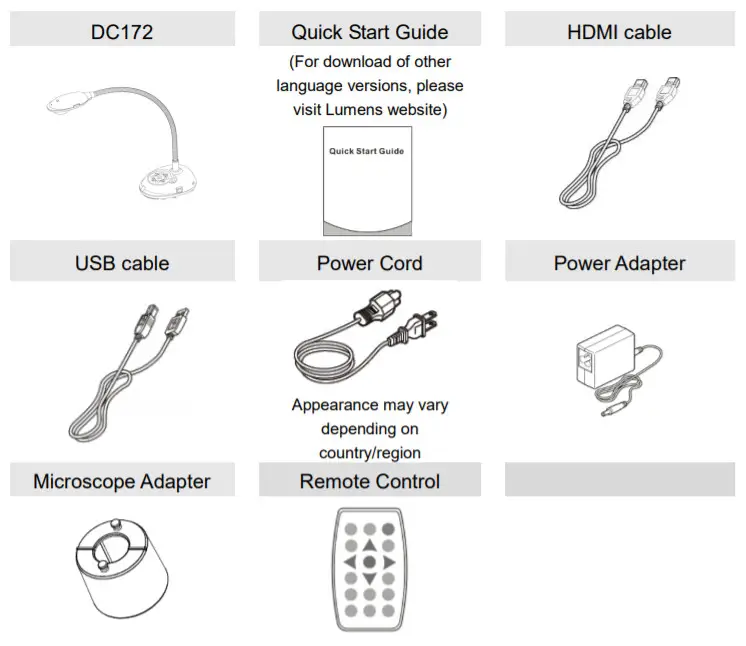
Chapter 3 Product Overview
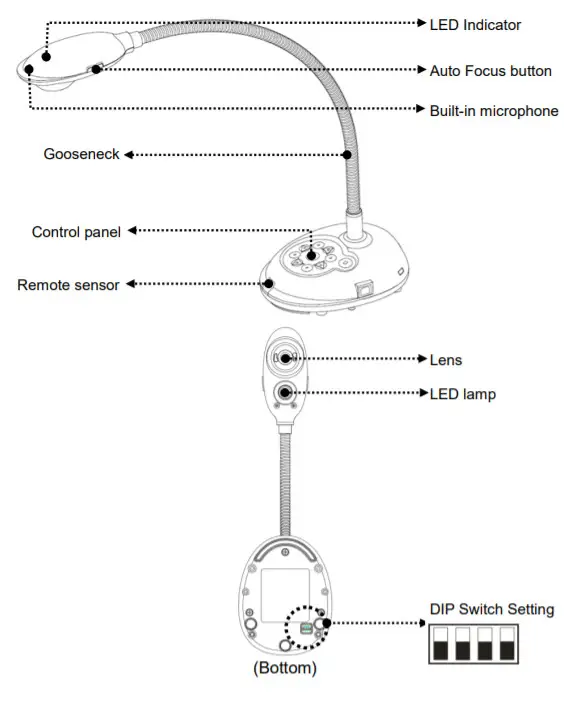
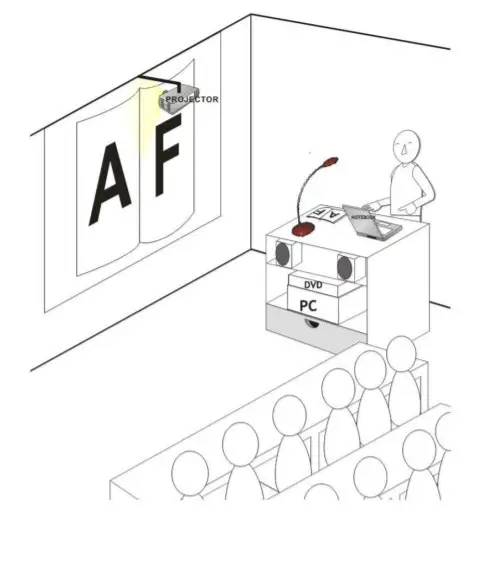
3.1 Diagram of the relative position between a user and device
Chapter 4 Installation and Connections
4.1 System diagram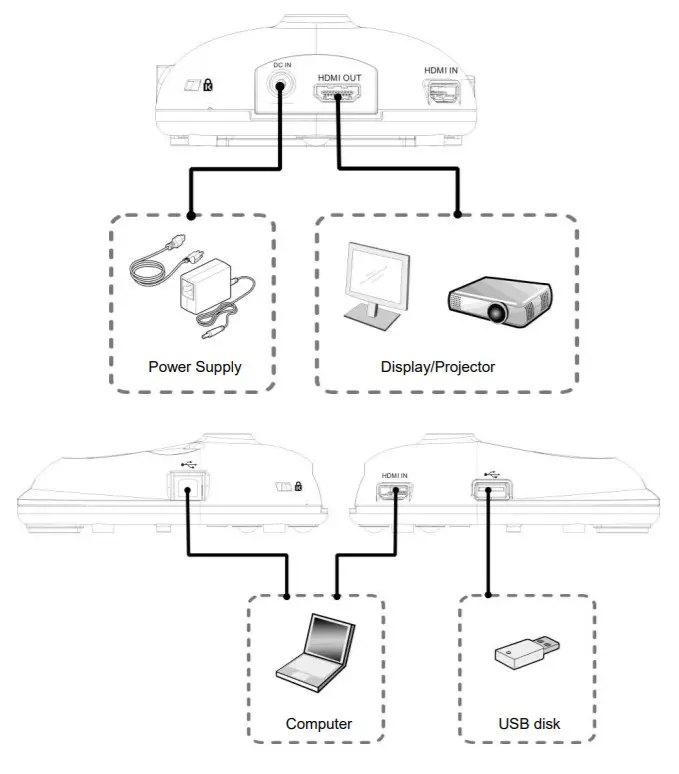
4.2 Installing Application Software
The application software installed on the computer enables you to: Control the DC172.Capture and record images.Annotate the image, highlight important details and save it.Support the full-screen function.
[Remark] Please refer to Ladibug™ 4K software user manual for installation steps and software operation.
Chapter 5 Start Using
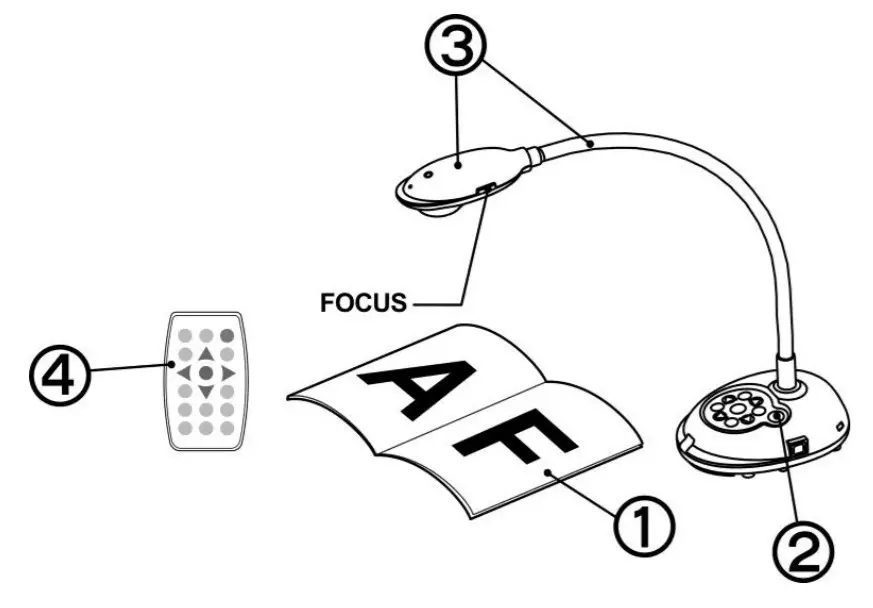
- Place an object to be displayed under the camera.
- Turn on Power
 .
. - Adjust the gooseneck and lens to the appropriate positions.
- Press the [AUTO TUNE]
 button to optimize the image.
You are ready to teach/present.
[Remark] Each time the camera head is moved, press the [FOCUS] button to refocus the lens.
 .
. button to optimize the image.
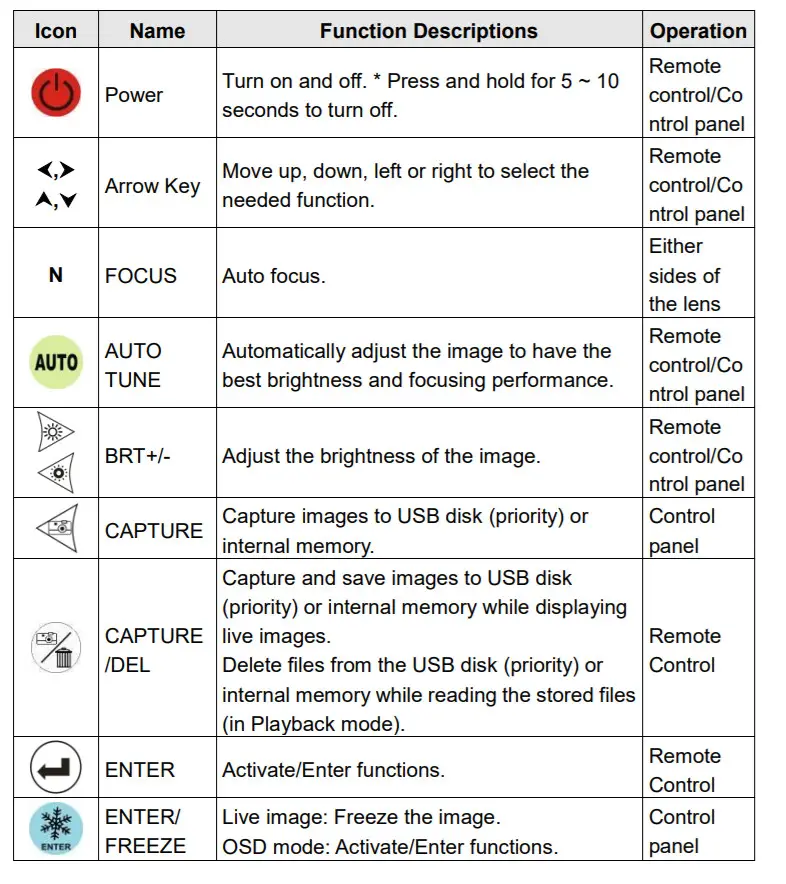
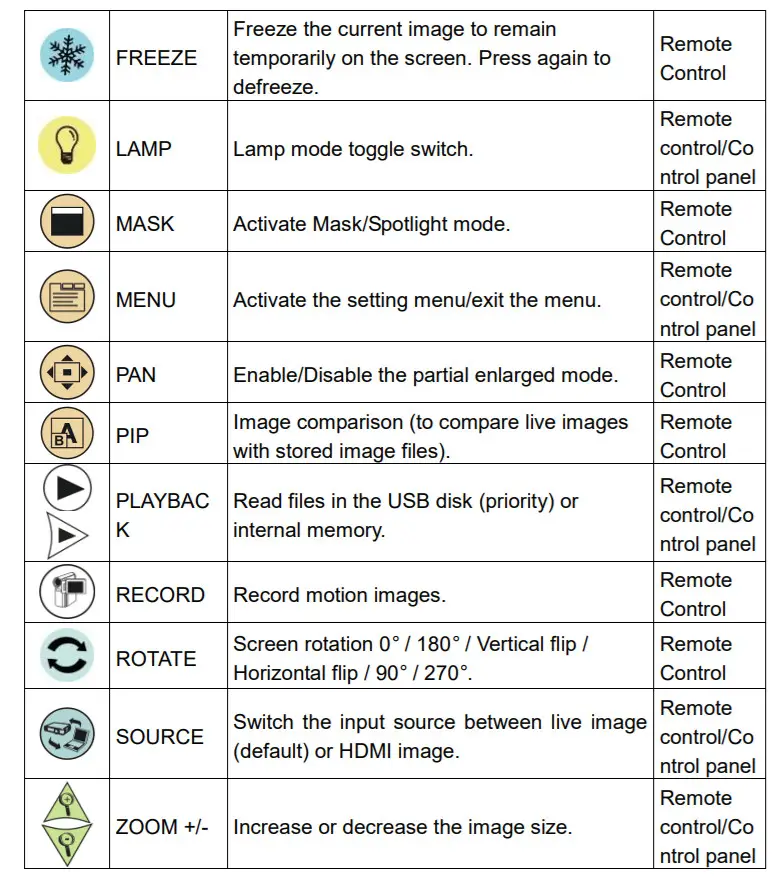
6.1 Functions of control panel and remote control
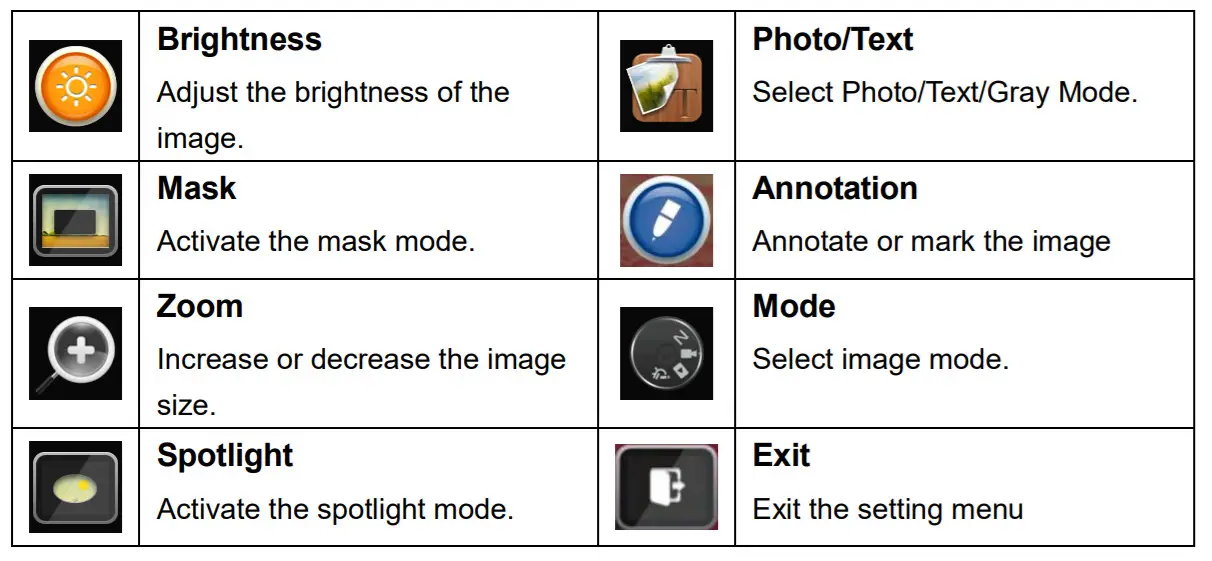
6.2 Setting Menu
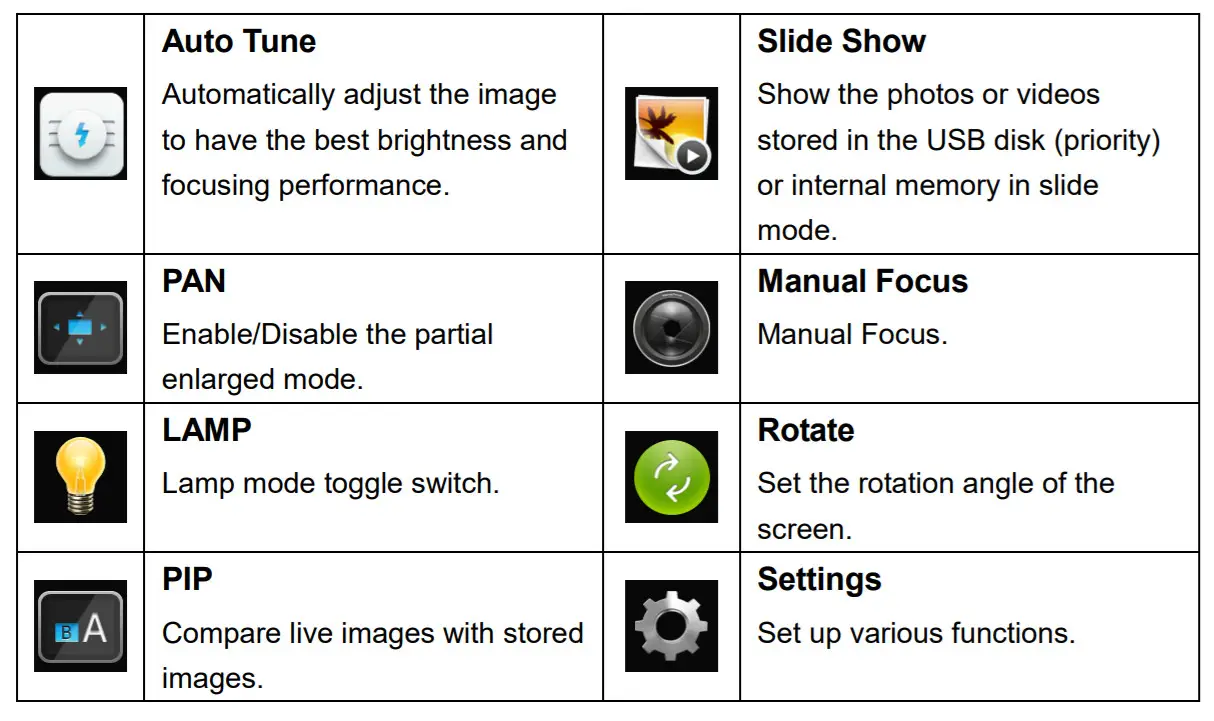
6.2.1 Main menu
[Remark] Press [MENU] on the remote control or control panel to display the setting menu.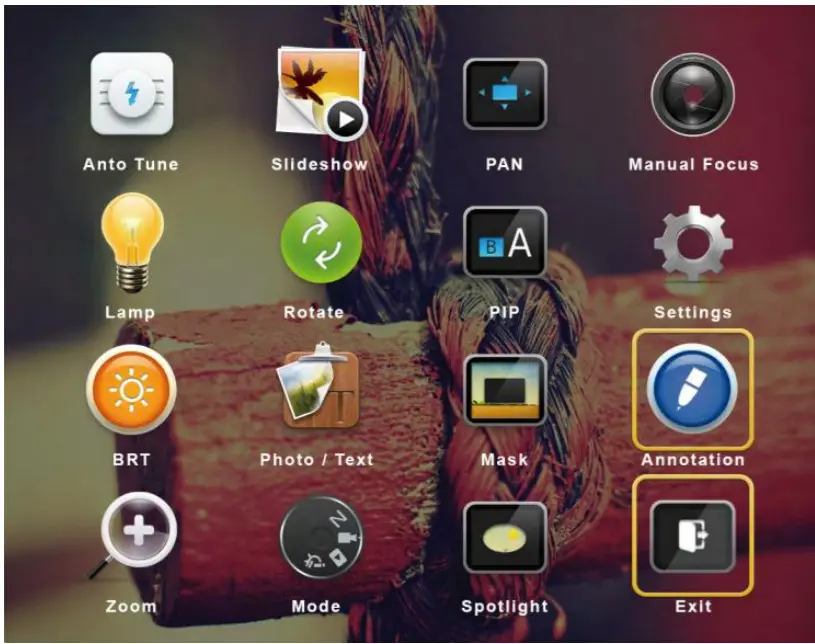
6.2.2 Setting menu
| 1st Level Major Items | 2nd Level Minor Items | Function Descriptions |
| Capture | Capture Mode | Use the left and right arrow keys to select the capture mode. |
| Capture Time | Use the left and right arrow keys to select the capture time. The setting range is 1 – 72 hours. <Note> This will be active only when capture mode is set to time-lapse. | |
| Capture Interval | Use the left and right arrow keys to select the capture interval. The setting range is 3 seconds – 5 minutes. <Note> This will be active only when capture mode is set to time-lapse. | |
| Image Quality | Use the left and right arrow keys to select the image quality for the captured images and recorded videos. | |
| Storage | Slide Show | Show the photos or videos stored in the USB disk (priority) or internal memory in slide mode. <Note> Upper limit: The maximum size of a single photo is 7 MB. |
| Delay | Use the left or right arrow keys to select the delay before changing to the next slide with a setting for 0.5 10 seconds or Manual. | |
| Copy To USB Disk | Copy files from internal memory to the USB disk. |
| Delete All | Delete all images in the USB disk (priority) or internal memory. | |
| Format | Format the USB disk (priority) or internal memory. | |
| Control | Auto Exposure | Regardless of the outside environment, the machine will adjust the brightness to the optimal condition. |
| Auto White Balance | Regardless of outside light or color, the machine will adjust the color to the optimal condition. | |
| Audio Out Volume | Use the left and right arrow keys to adjust the volume. | |
| Mic Levels | Use the left and right arrow keys to adjust the volume. | |
| Digital Zoom | Use the left and right arrow keys to turn on/off the digital zoom. | |
| Advanced | Language | Switch to different languages. There are a total of 20 languages available for selection. |
| Lock Down | Set the lockdown when the power is On. | |
| Auto Erase | Set the stored images to be automatically deleted when Off is selected. | |
| Preset Load | Read the value of the current image mode. | |
| Preset Save | Store the value of the current image mode. | |
| Splash Screen Settings | Launch [Splash Screen Settings] window. | |
| Factory Reset | Resume the factory default setting to operate. | |
| Firmware Version | Display RN version. |
6.2.3 Mask mode setting menu
| Function Items | Function Descriptions |
| Live image | Press [ENTER] to return to the live image. |
| Transparency | Use the left and right arrow keys to adjust the transparency of the mask. |
| Step | Use the left and right arrow keys to select the step of the mask. |
| V Size | Use the left and right arrow keys to select the vertical height of the mask. |
| H Size | Use the left and right arrow keys to select the horizontal length of the mask. |
| Exit | Press [ENTER] to confirm your selection and exit the mask mode setting menu. |
6.2.4 Spotlight mode setting menu
| Function Items | Function Description |
| Live image | Press [ENTER] to return to the live image. |
| Shape | Use the left and right arrow keys to select the shape of the spotlight zone. |
| Transparency | Use the left and right arrow keys to adjust the transparency of the border in the spotlight mode. |
| Step | Use the left and right arrow keys to select the step of the spotlight zone. |
| V Size | Use the left and right arrow keys to adjust the height of the spotlight zone. |
| H Size | Use the left and right arrow keys to adjust the width of the spotlight zone. |
| Exit | Press [ENTER] to confirm your selection and exit the spotlight mode setting menu. |
6.2.5 Splash Setting Windows
| Function Items | Function Descriptions |
| Power On Image Setting | Select to use default/custom power on the image. |
| Power On Logo Show Time | Set the duration of displaying the power on the logo that can be adjusted between 4 – 30 seconds. |
| Power On Image Select | Power On Image Select. Only pictures in JPEG format are supported. |
| Exit | Press [ENTER] to confirm your selection and exit the splash screen setting window. |
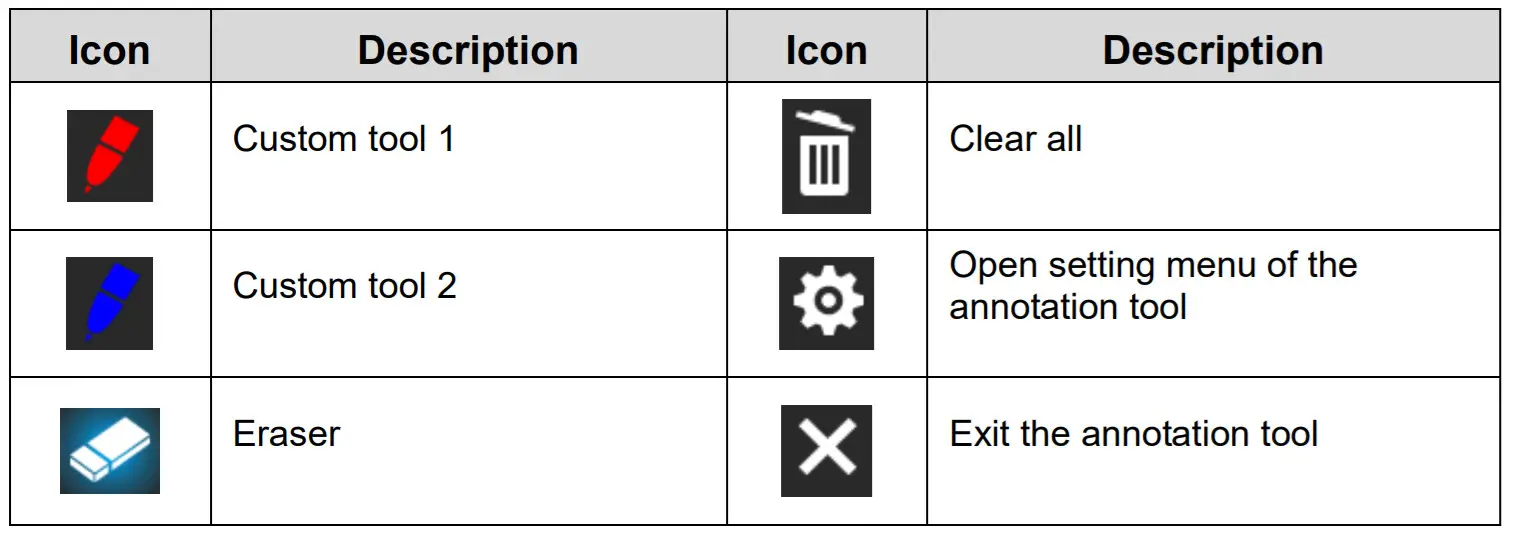
6.2.6 Annotation Tools
After connecting the mouse via USB, right-click to activate the  drawing the function of the setting menu
When the mouse stays at the right side of the screen, the mouse annotation menu can be activated
<Remark> You can only choose either USB screen or mouse annotation
- When the mouse annotation function is selected, then remove the USB cable
- To access the USB screen, please make sure that the mouse annotation function is not in use
Chapter 7 Descriptions of Major Functions
7.1 I would like to automatically adjust the image to have the best brightness and focusing performance
Use the Remote Control or Control Panel:
- Press [AUTO TUNE] for the best brightness and focusing performance.
7.2 I would like to switch image sources
The live image is the default image source. Press [SOURCE]  on the remote control or control panel to have DC172 switch among the sources of the following images:
- Live image (default).
- HDMI IN。
[Remark] This image switch applies to HDMI OUT simultaneously.
7.3 I would like to freeze images
- Press [FREEZE] on the remote control or control panel to freeze the current image on the screen. Press again to defreeze.
7.4 I would like to rotate the image
Remote control:
- Press the [ROTATE] key to rotate the screen. (The sequence is: 0°/180°/Vertical flip/Horizontal flip/90°/270°).
Control panel:
- Click [MENU] to access the setting menu and then select the [ROTATE] function. Adjust the rotation by pressing [▶] or [◀].
[Note] When the HDMI output is in 90°/270° mode, the USB screen displays as 0°, and PAN, PIP, recording functions are not available.
7.5 I would like to record images
[Note] Connect USB disk to DC172 4K to start recording images.
7.5.1 Recording motion images
[Remark] You may not be able to capture or record images when
[Capture Image] mode is set to [Disable].
Remote control:
- Press [RECORD] on the remote control to start recording images.
Press [RECORD] again to stop. - Record sounds with the built-in microphone of the control panel
Control panel:
- Press and hold the [Capture] button for about 2 seconds to start recording. Press [Capture] again to stop.
7.5.2 Playing images
- To play images, please refer to 7.13 I would like to view captured/recorded images.
7.6 I would like to use the MASK and Spotlight function
Remote control:
- Press [MASK] to activate the mask/spotlight mode menu in order to adjust function settings for Live, Transparency, Step, V Size, H Size
Control panel:
- Press [MENU] to access the setting menu and then select the [Mask] function in order to adjust function settings for Live, Transparency, Step,
V Size, H Size
7.7 I would like to compare images (compare live images with stored image files (PIP))
This function will compare and contrast a live image with a stored image.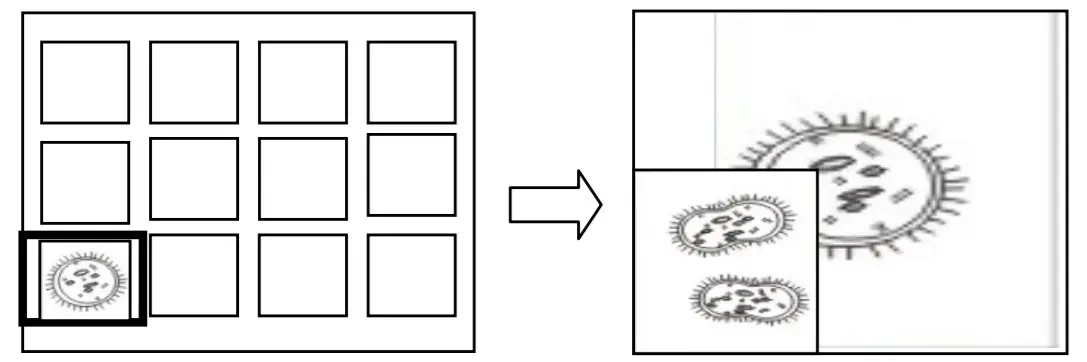
Remote control:
- Press [Playback] to access the Playback image thumbnails, and select the files to be compared
- Press [PIP] to execute image comparison. Press the direction keys to move the live image
- Repeat Steps 1 – 2 to change other image files
7.8 I would like to change the power of the image.
[Note] The power on the image file must be less than 5 MB and in JPEG format
[Note] To save the file, please follow the instruction below:
File path: \DCIM\100MEDIA, for example: J:\DCIM\100MEDIA
File name: four English letters+ four numbers, for example:
LUMN0001.JPG
- Press [MENU] on the remote control or control panel to access the setting menu. To adjust settings, select [Settings] →[Advanced Settings] → [Splash Setting Windows]
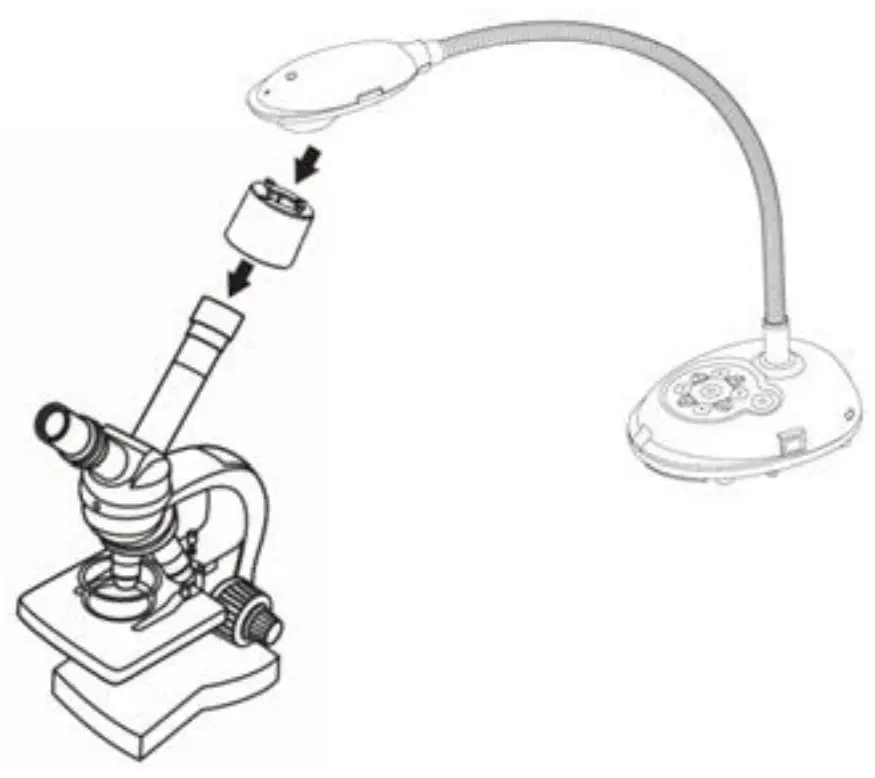
Chapter 8 Connecting to Microscope
- Mount the microscope adapter accessories onto the microscope
[Note] Please choose an appropriate microscope adapter. Microscope adapter accessories are applicable to eyepieces of Ø 28 mm. - The lens of DC172 connects with the microscope adapter

- If the image is not clear
3.1. Please adjust the focus of the microscope.
3.2. Please press the [FOCUS] button on either side of the DC172 lens to execute the autofocus.
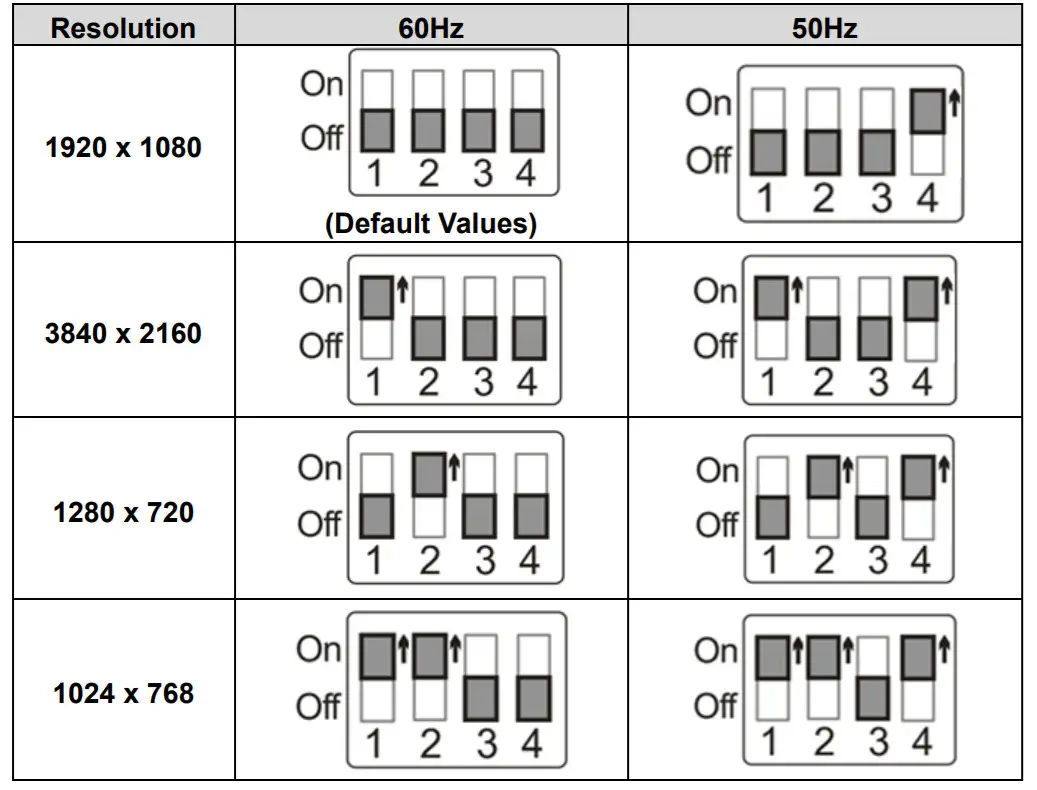
Chapter 9 DIP Switch Setting
- Description of DIP
DIP Function Descriptions DIP 1 & DIP 2 Output Resolution DIP3 OFF (Normal mode): 30 fps, applicable to the general scene. ON (High-speed mode): 60 fps, applicable to support rapidly changing scenes.
(Only applicable to 1080P and 720P, but not 4K).DIP4 OFF: 60Hz ON: 50Hz 
Chapter 10 Troubleshooting
This chapter describes problems you may encounter while using DC172. If you have questions, please refer to related chapters and follow all the suggested solutions. If the problem still occurred, please contact our distributors or service center.
No. | Problems | Solutions |
| 1 | Boot without power signal | Make sure you have plugged in the power cord. |
| 2 | There is no image output from DC172 |
|
| 3 | Unable to focus | Probably the document is too close. Press [ZOOM -] on the remote control or control panel. Or pull away from the lens from the document to increase the distance, and then press the [FOCUS] button on the right side of the lens for autofocus. |
| 4 | The image is incomplete | Check the Auto Image setting of your projector. Please refer to the user manual of the projector or check for the DIP switch setting. |
| 5 | Lumens Document Camera, Ladibugna, and other applications cannot be used simultaneously | Lumens Document Camera, Ladibugni, and other applications cannot be used simultaneously. Only one application can be executed at a time. Please close the currently running applications and then execute the application to be used. |
| 6 | When DC172 is turned on, the auxiliary floodlight does not light | Please make sure the headlamp is set to [Off]. |
| 7 | The data in the USB disk cannot be read |
|
| 8 | Fail to store images or react |
|
| 9 | The output image is too bright, too dark, or vague | Press the [AUTO TUNE] button to automatically adjust the image to have the best brightness and focusing performance. |
| 10 | Unable to record images |
|
| 11 | The operating steps in the manual are not applicable to the machine | The operating steps in the manual maybe not be applicable to the machine due to improvement in functions. Check to see if the Firmware version of your machine is up-to-date. Please go to Lumens official website to check whether the latest version is available for update. https://www.mylumens.com/support |
| 12 | How to unlock the locked device | Press [MENU] to access the setting menu 4 [Settings] 4 [Advanced Settings] 4 [Lock Down] 4 select [OFF] to disable the lockdown function when the power is On. |