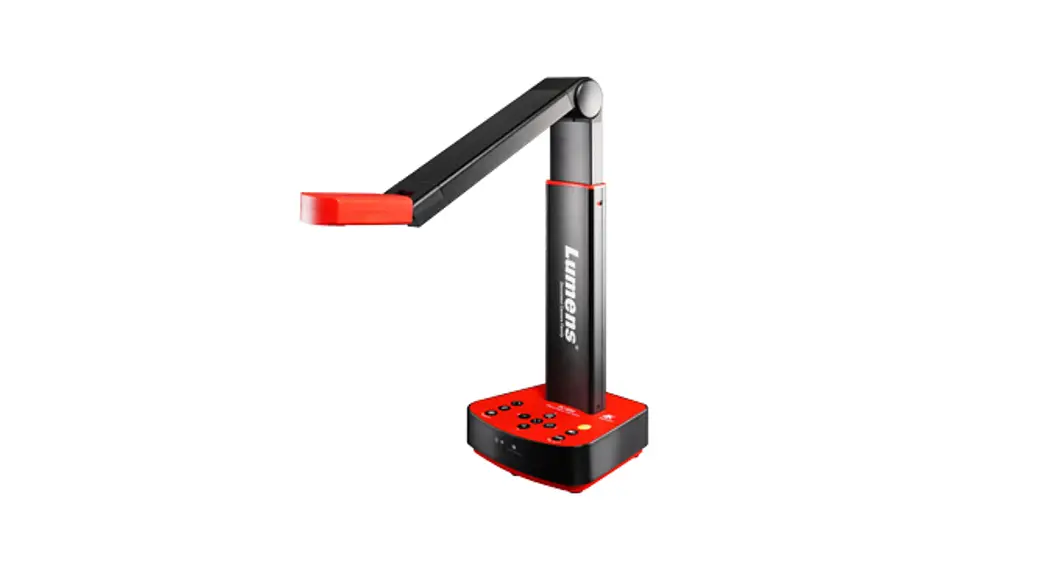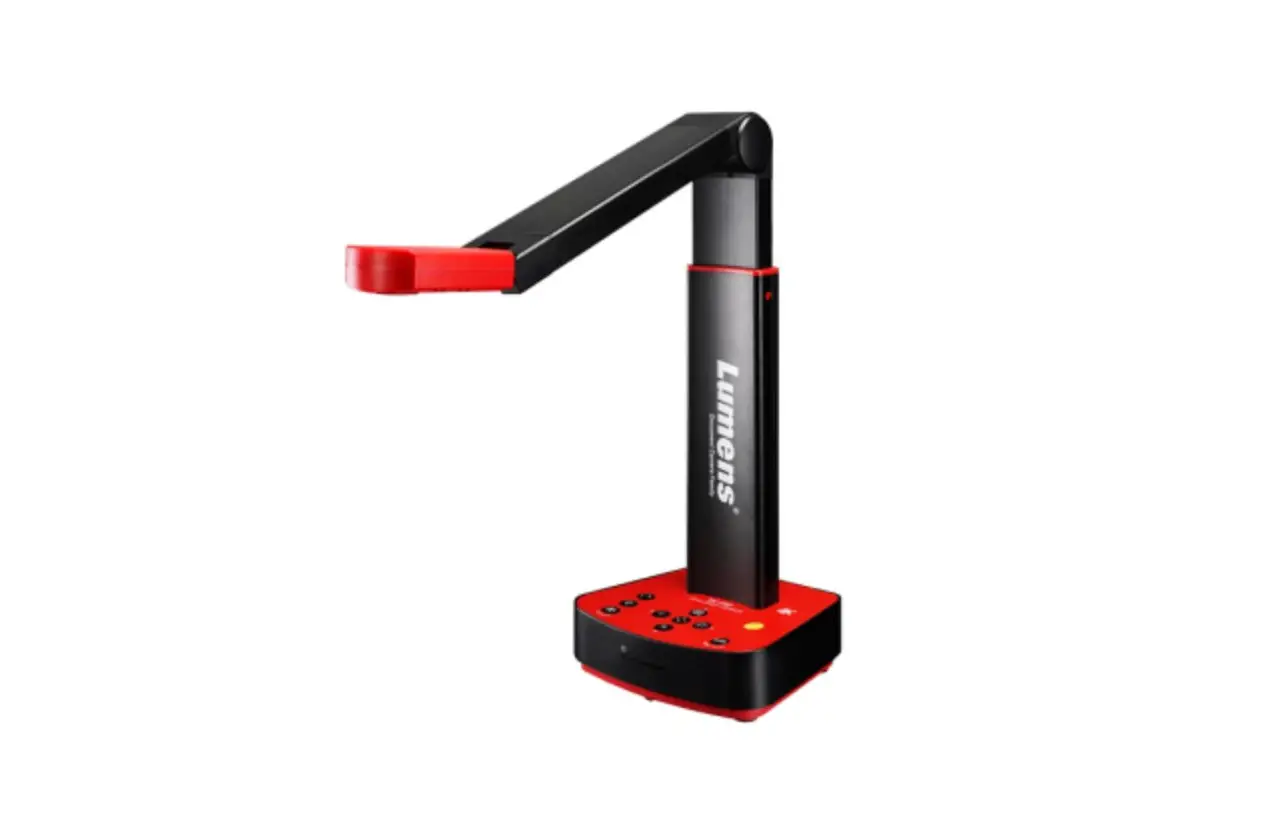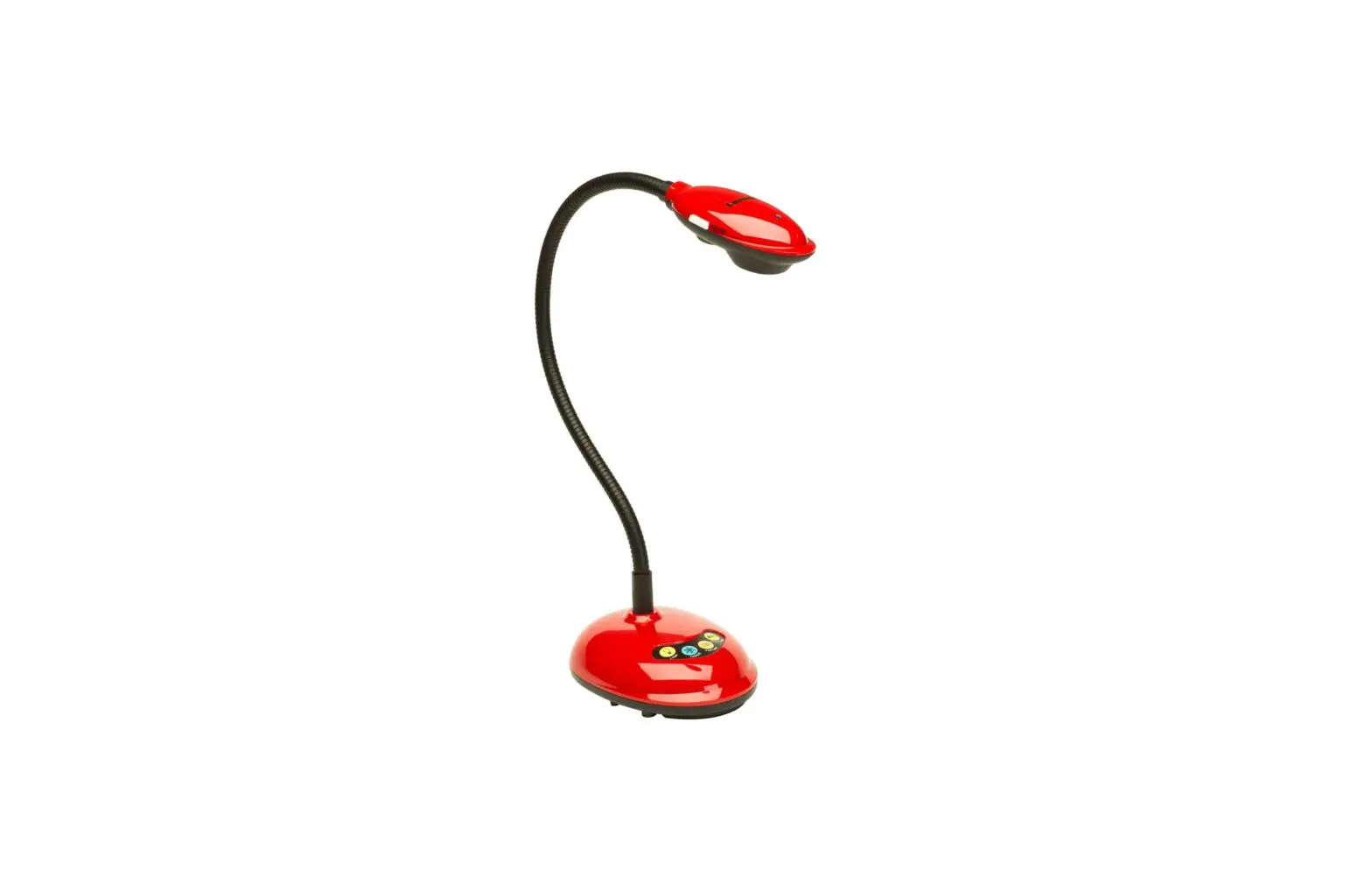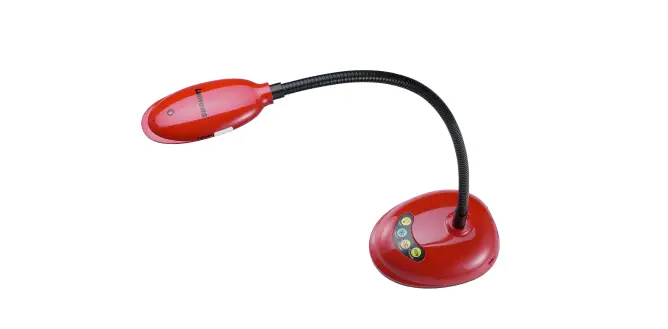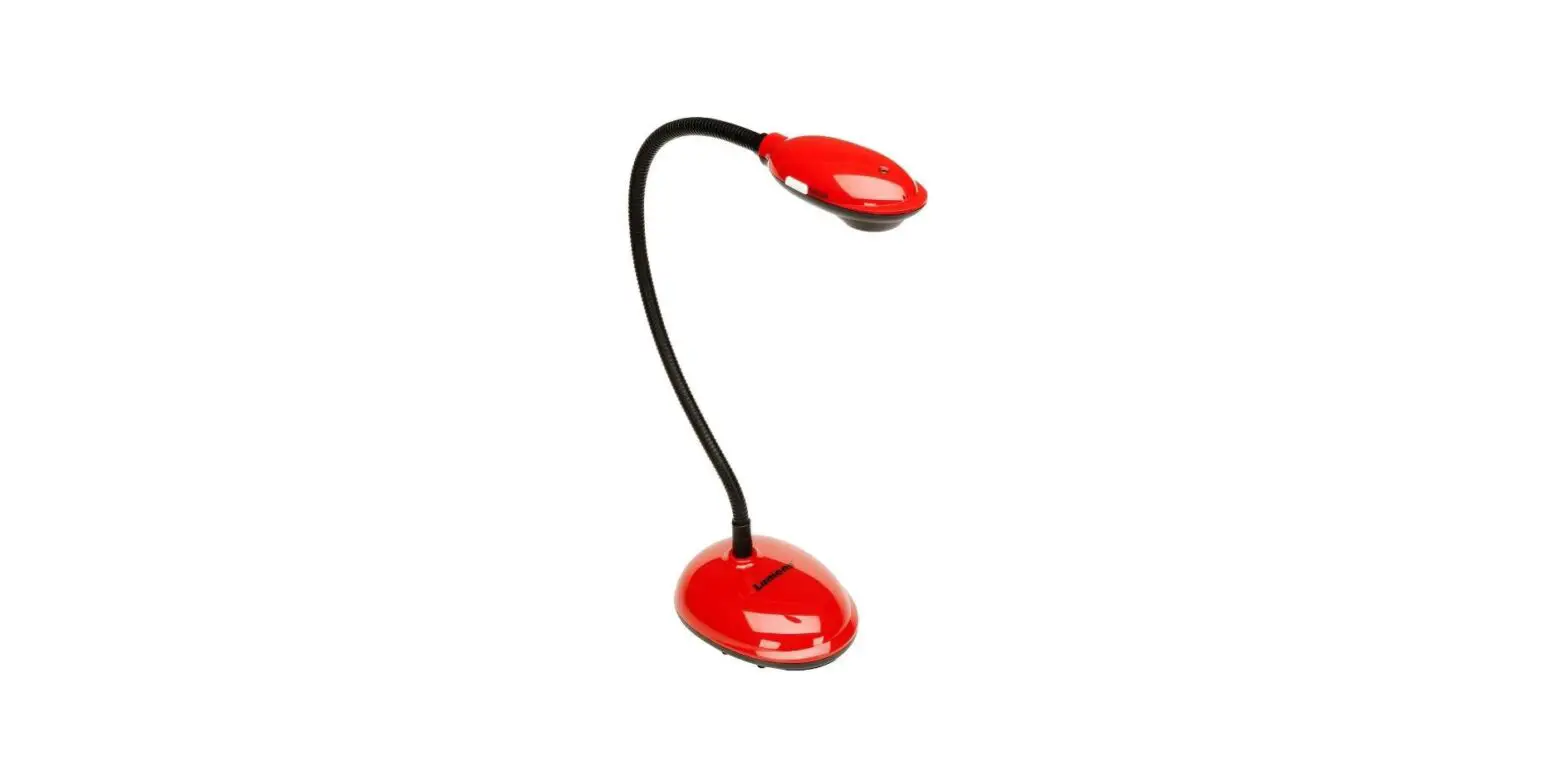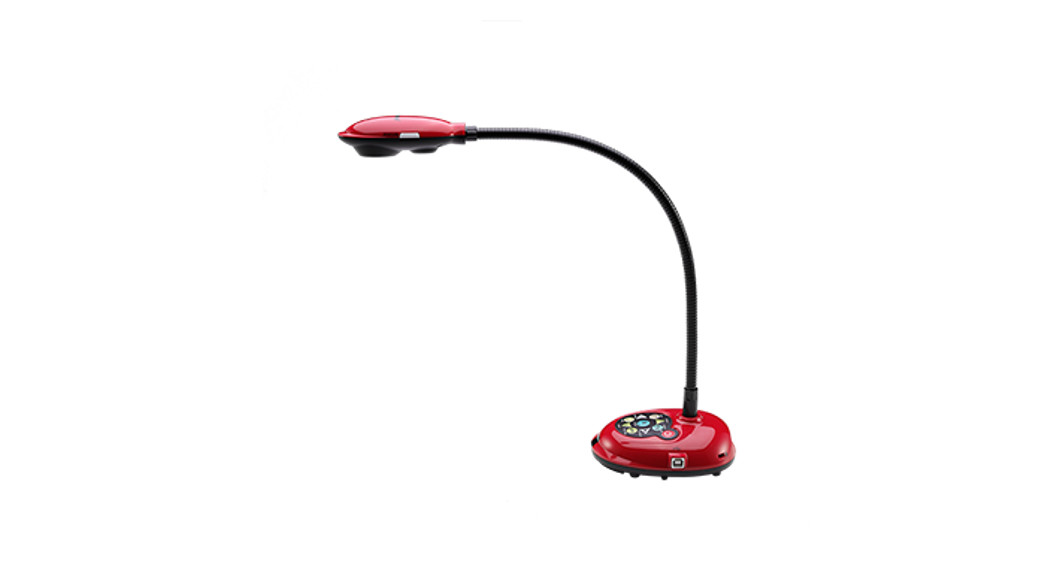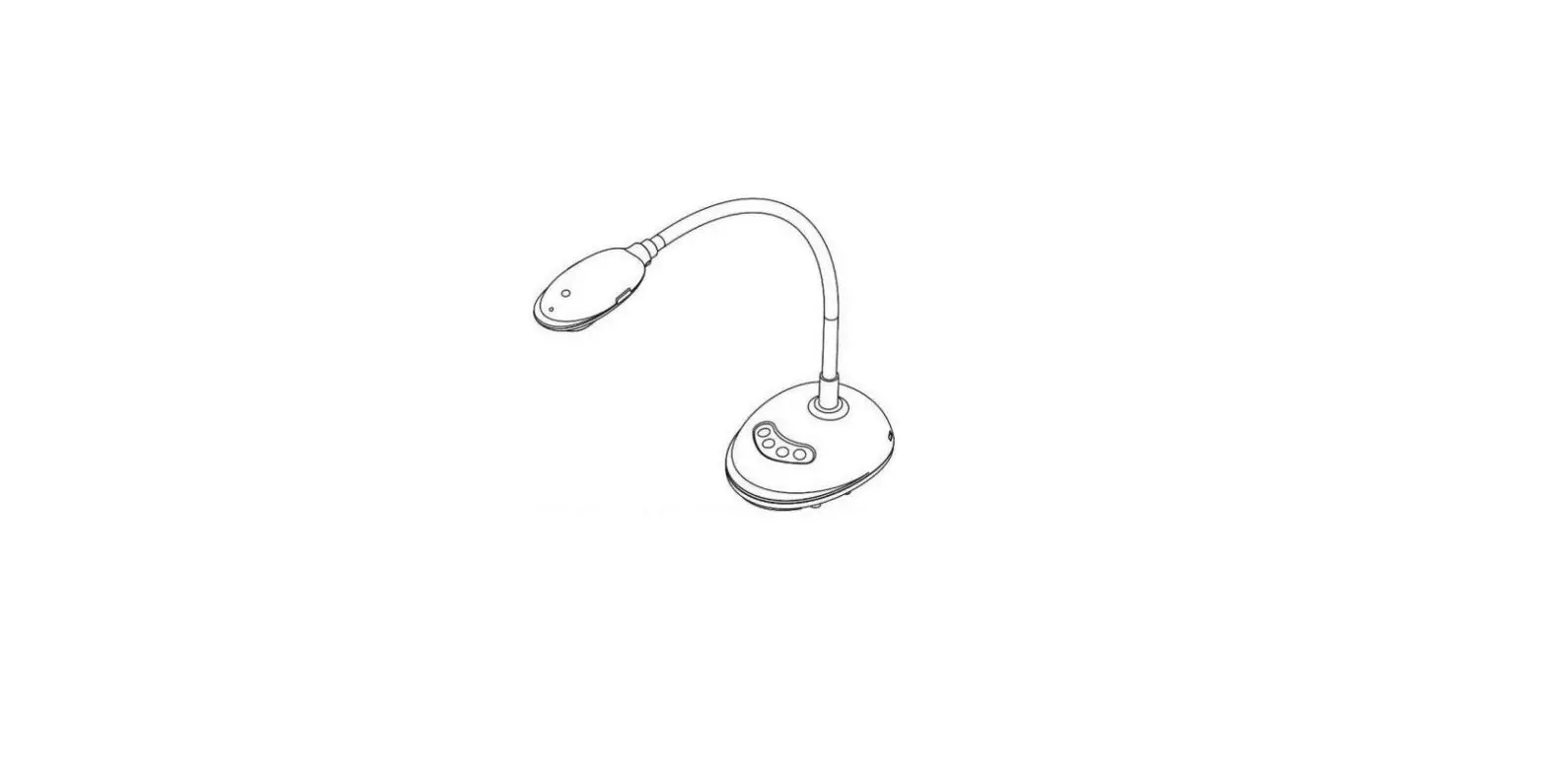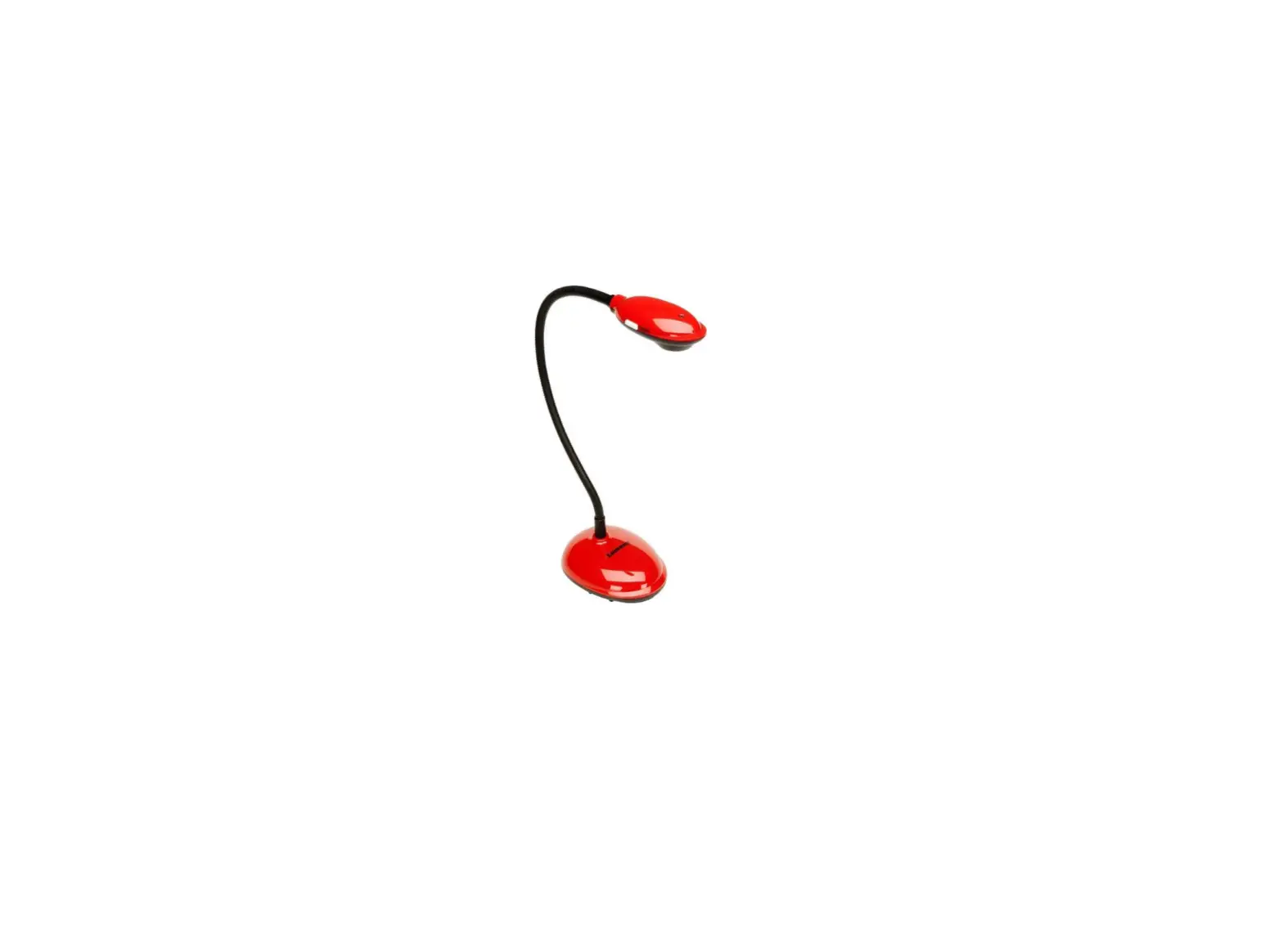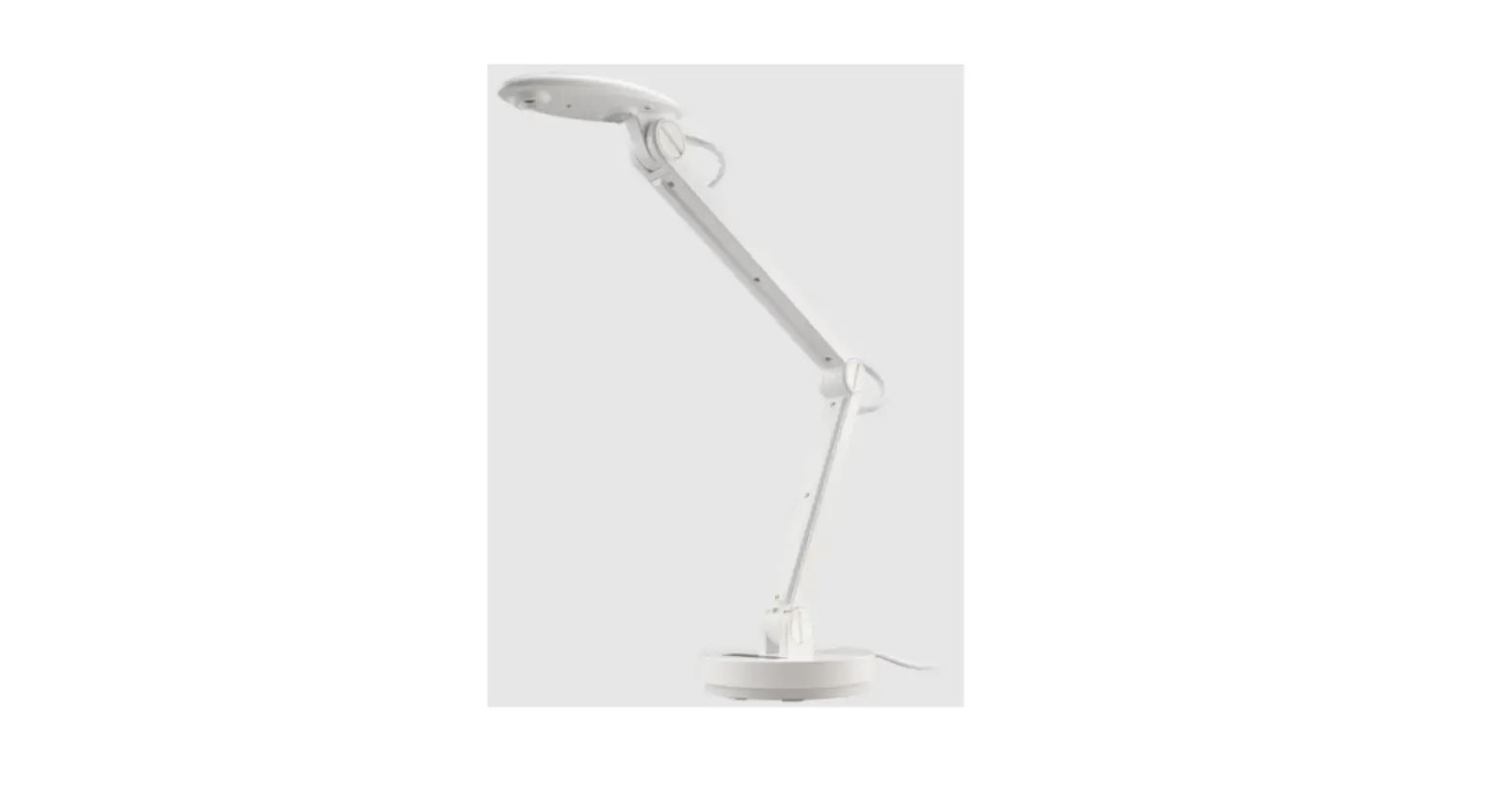

Lumens DC-F20 USB Document Camera
Important
- Please activate your warranty at www.MyLumens.com/reg
- Please visit our website www.MyLumens.com/support to download the latest version of the Software, Multilingual User Manual, and Quick Start Guide.
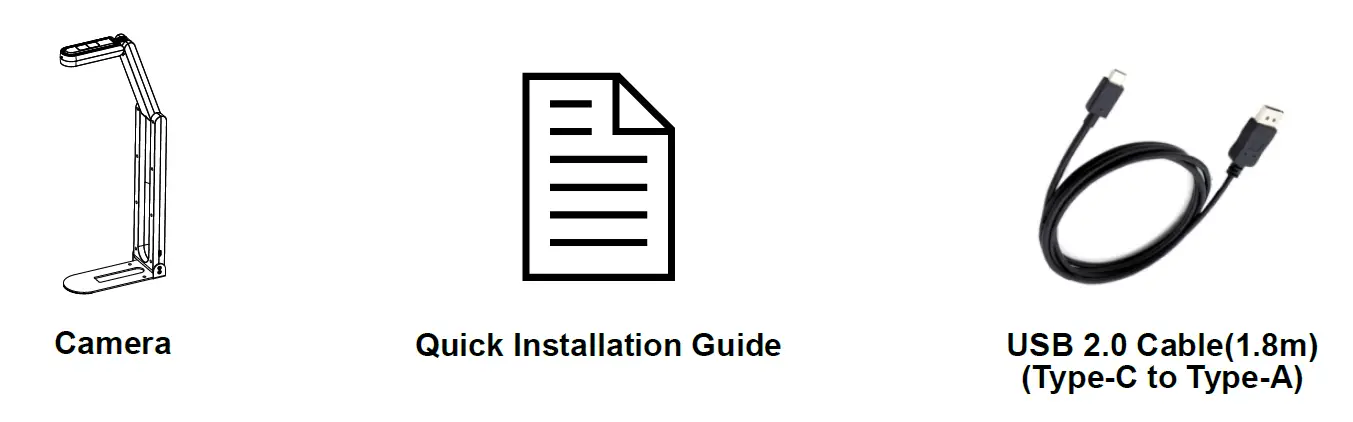
Package Contents
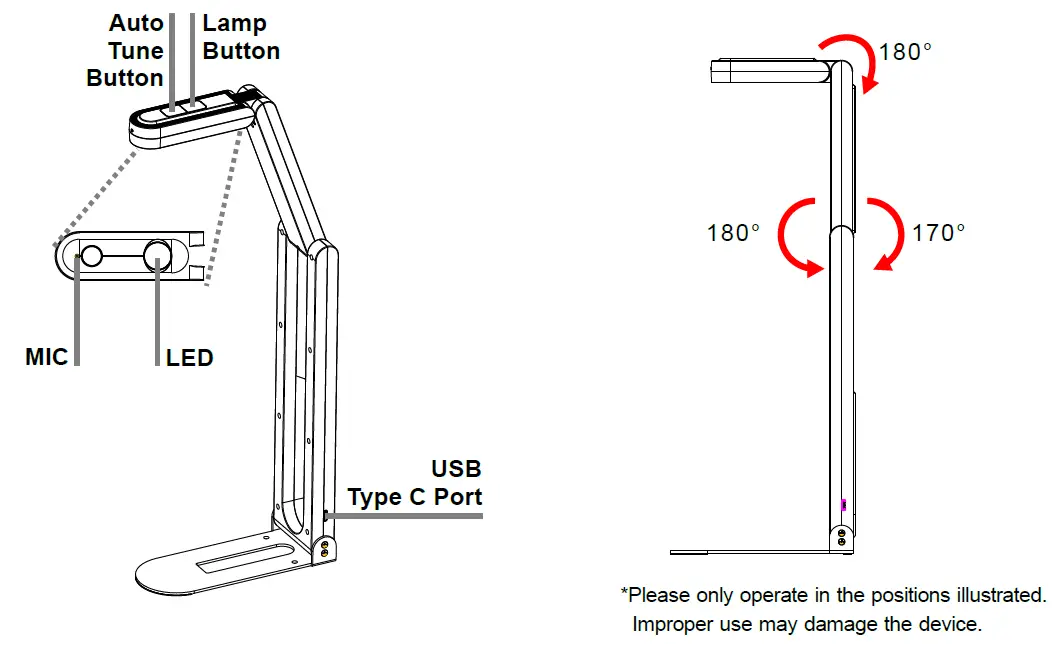
Product Overview
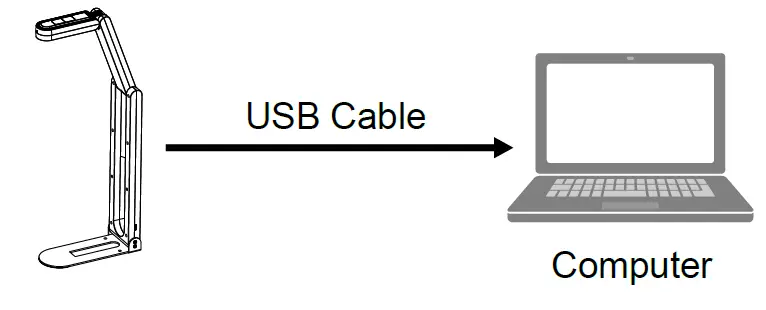
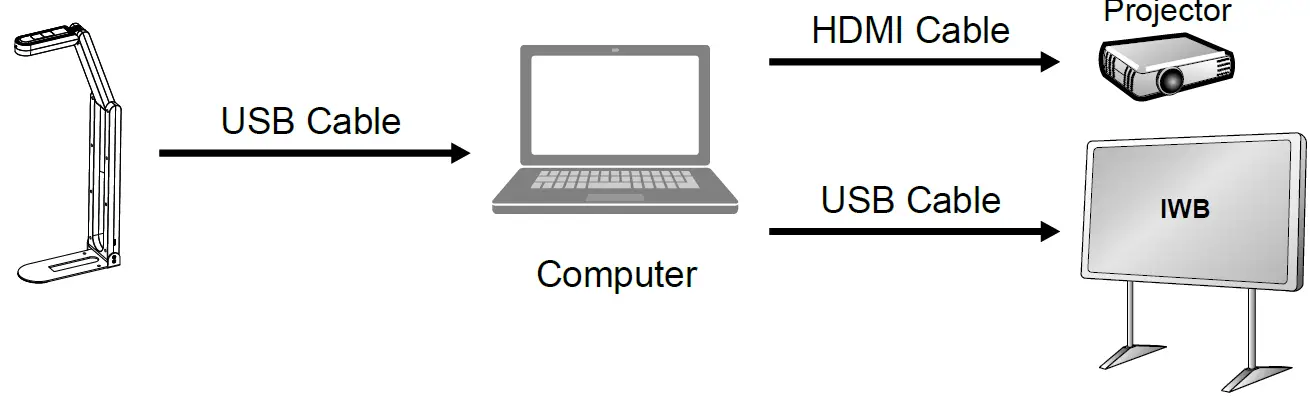
Installation and Connections
- Connecting to a computer

- Connecting to an Interactive Whiteboard (IWB)

Getting Started
- Installing Ladibug software.

- After installing the software, double-click the icon to open the software, view images and DC-F20
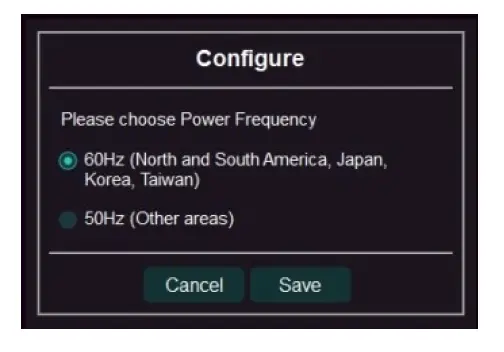
The Power Frequency setting page will display during the first use. Please the settings following the screen
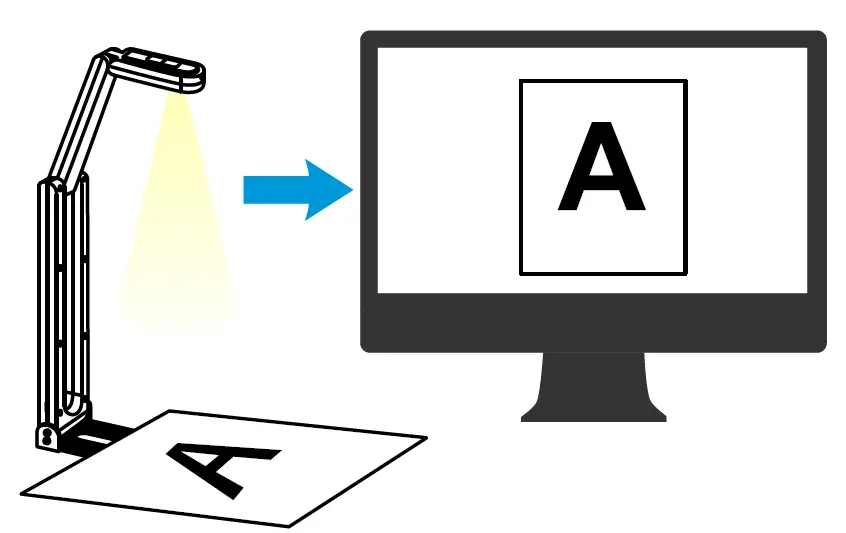
- Place an object to be displayed under the camera.
DC-F20 camera coverage is 420 mm x 297 mm. (Equivalent to A3 paper size)
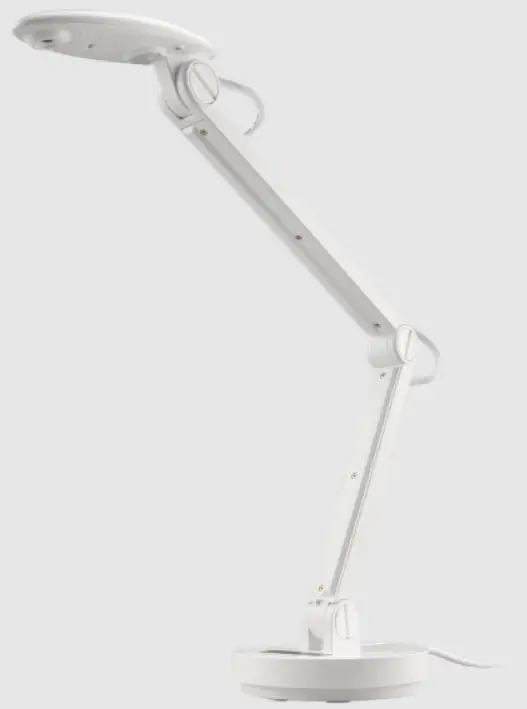
- Adjust the support arm and camera to the required positions.
- Press
 the button to optimize the image. You are ready to teach/present.

 the button to optimize the image. You are ready to teach/present.
References
 Lumens中国|IP音视讯方案-视频会议摄像机-会议平板-矩阵-会议录播-视频展台-高清会议摄像机-拼接处理器-自动跟踪像机--Lumens影像专家-Lumens会议影像机影像专家
-
Lumens中国|IP音视讯方案-视频会议摄像机-会议平板-矩阵-会议录播-视频展台-高清会议摄像机-拼接处理器-自动跟踪像机--Lumens影像专家-Lumens会议影像机影像专家
-
Lumens – Pro AV Technology | Lumens
-
Lumens – Pro AV Technology | Lumens
-
Lumens – Pro AV Technology | Lumens
-
Download | Lumens
 Lumens中国|IP音视讯方案-视频会议摄像机-会议平板-矩阵-会议录播-视频展台-高清会议摄像机-拼接处理器-自动跟踪像机--Lumens影像专家-Lumens会议影像机影像专家
 Lumens – Pro AV Technology | Lumens