
USB PTZ Camera Controller
User Manual
Version: 1.0.13 Issue
Date: AUG 16, 2021

Copyright Information
Copyrights © Lumens Digital Optics Inc., All rights reserved.
Lumens is a registered trademark of Lumens Digital Optics Inc.
Copying, reproducing or transmitting this file is not allowed if a license is not provided by Lumens Digital Optics Inc. unless copying this file is for the purpose of backup after purchasing this product.
In order to keep improving the product, Lumens Digital Optics Inc. hereby reserves the right to make changes to product specifications without prior notice. The information in this file is subject to change without prior notice.
To fully explain or describe how this product should be used, this manual may refer to names of other products or companies without any intention of infringement.
Disclaimer of warranties: Lumens Digital Optics Inc. is neither responsible for any possible technological, editorial errors or omissions, nor responsible for any incidental or related damages arising from providing this file, using, or operating this product.
What is the USB PTZ Camera Controller
1.1 Introduction to USB PTZ Camera Controller
The software enables users to control the PTZ camera and modify its settings, providing convenient camera control during a video conference.
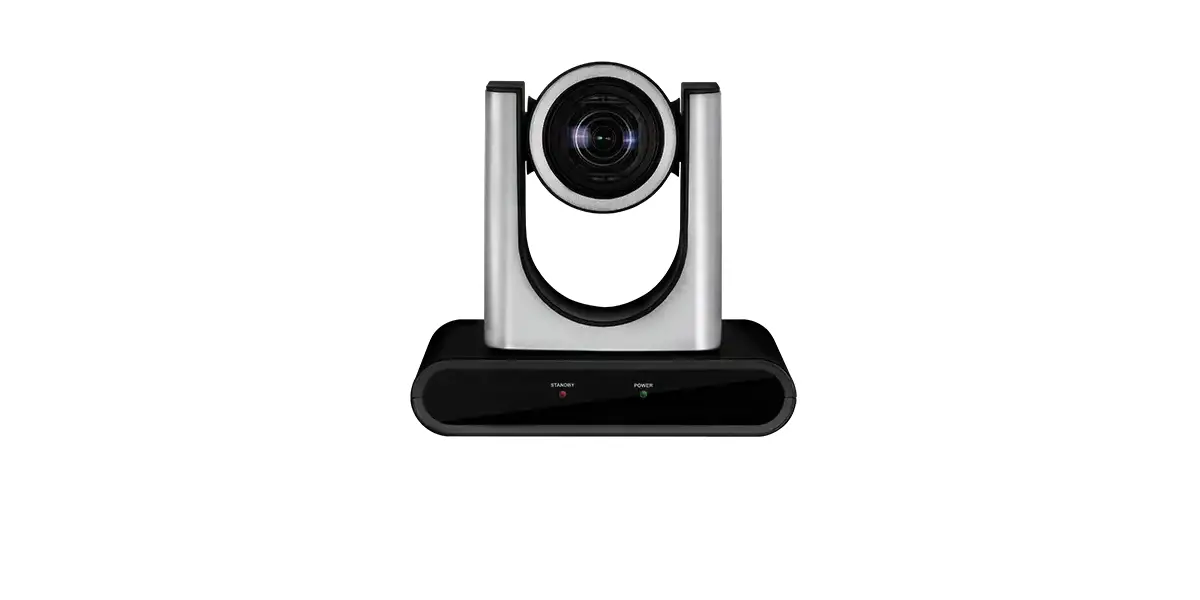
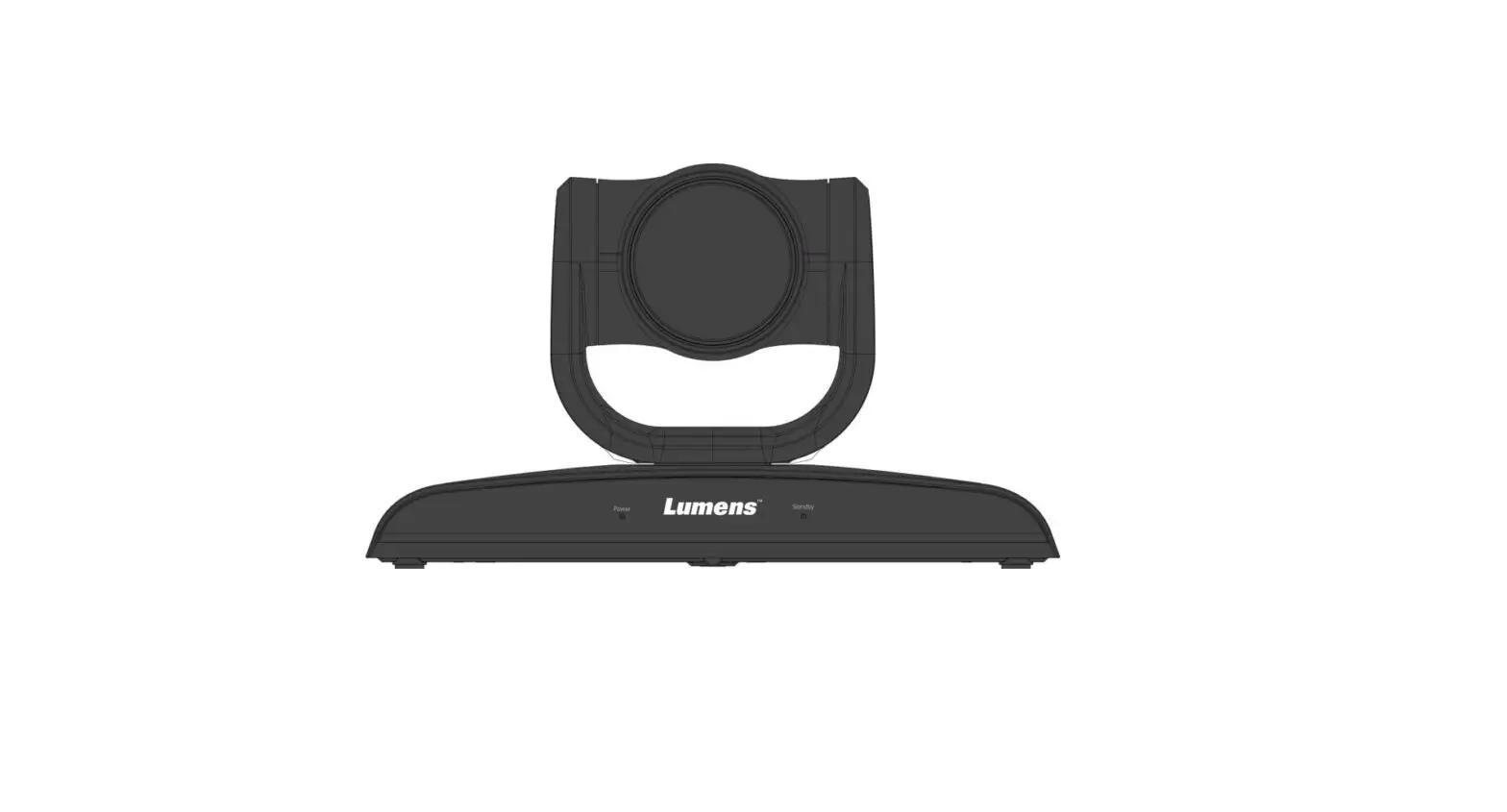
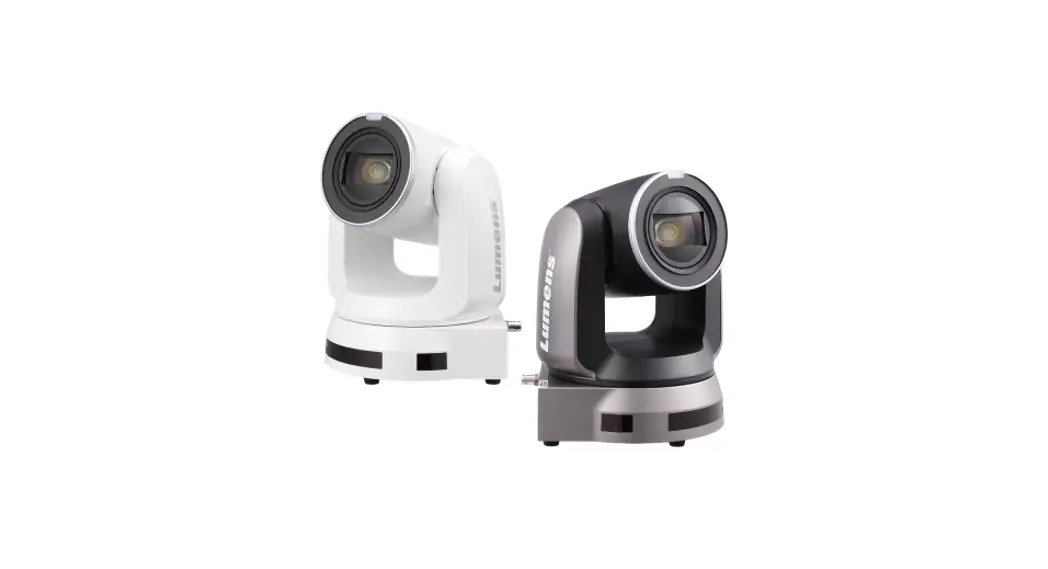
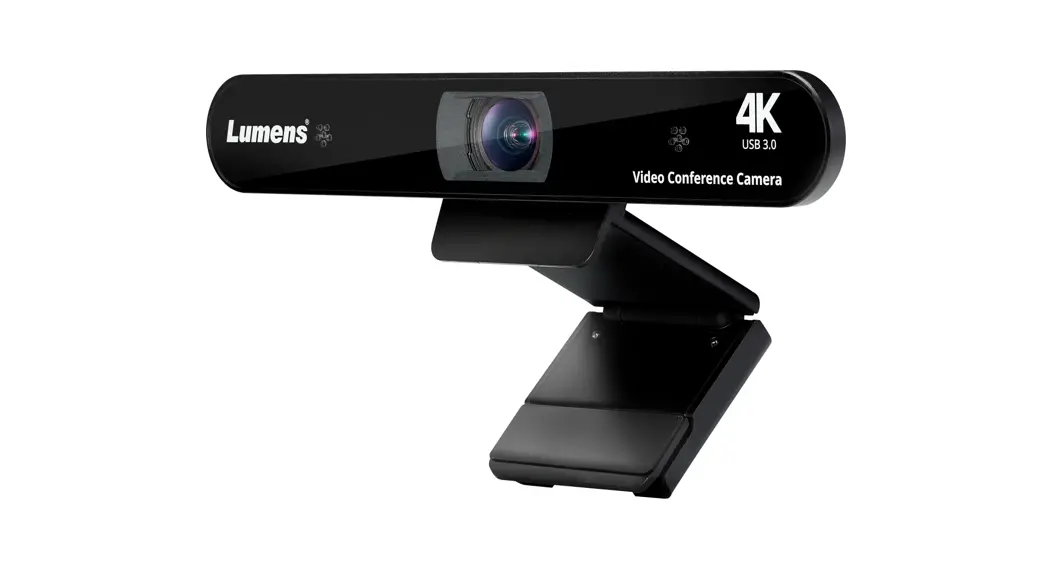
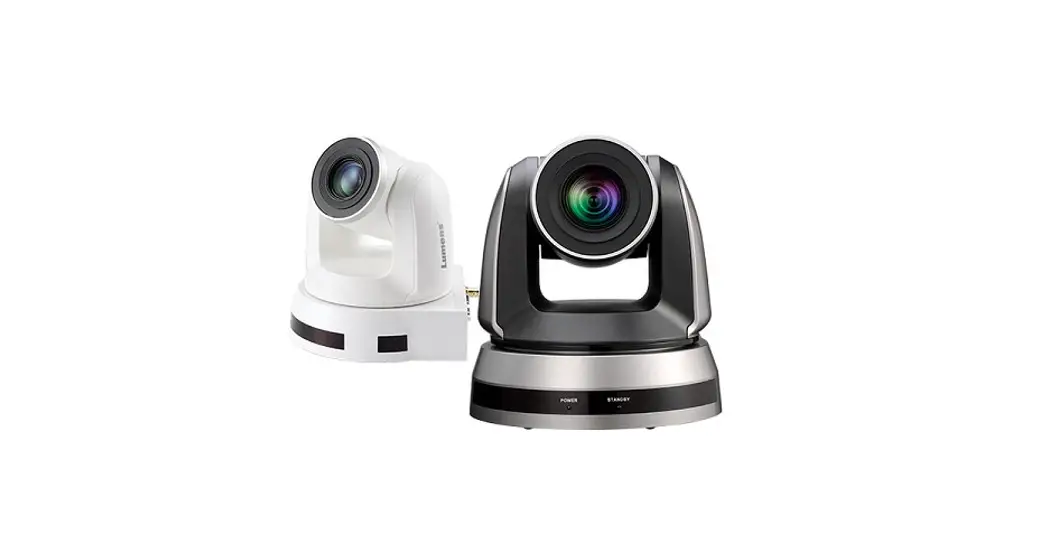
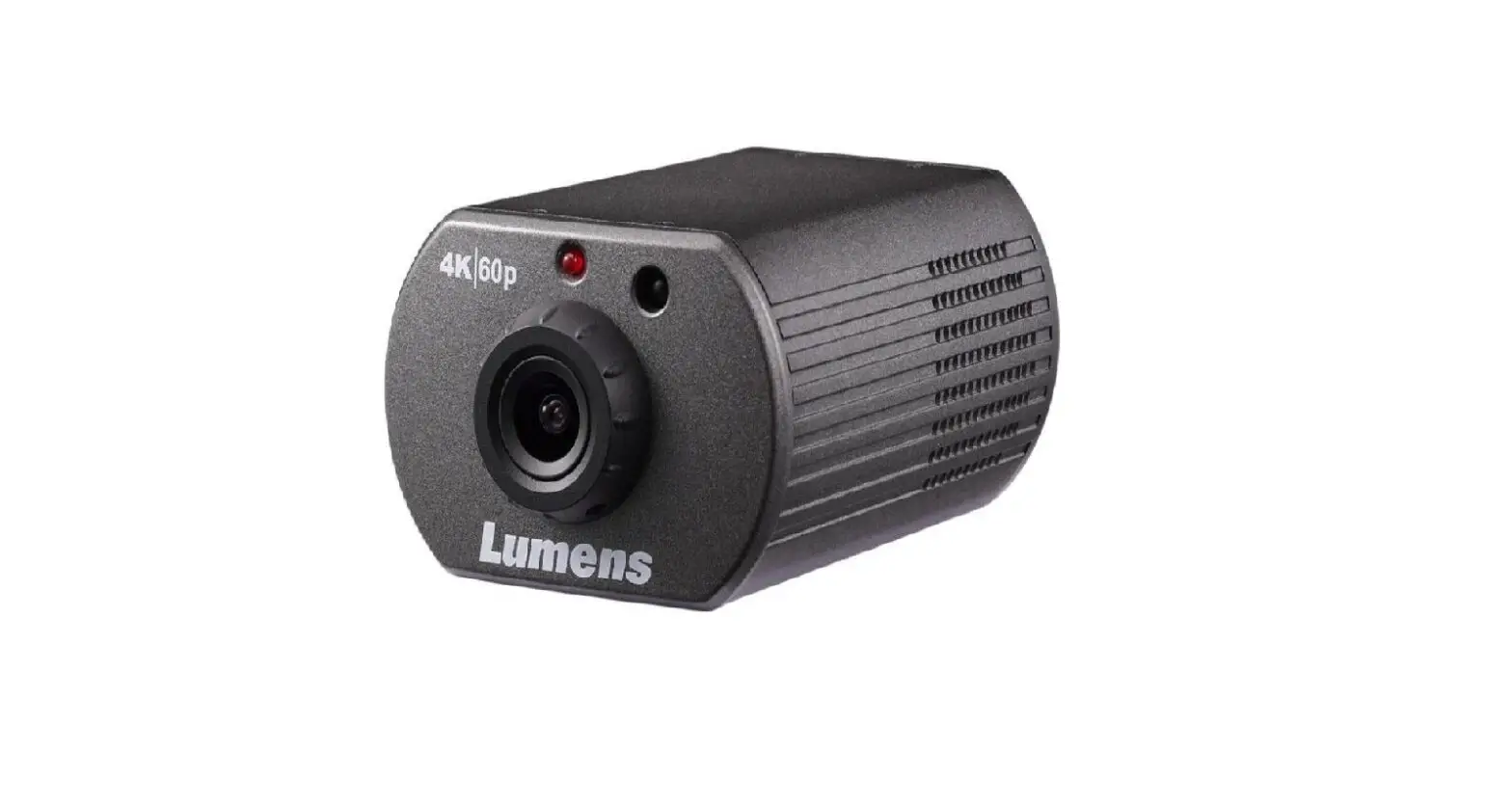
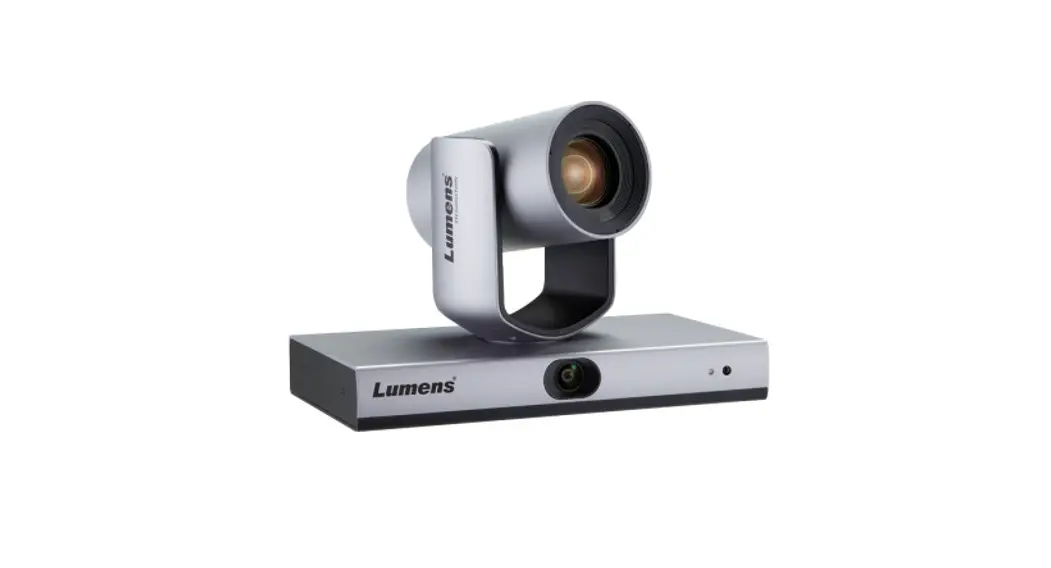
1.2 Applicable to VC-B10U, VC-B11U, VC-B20U, VC-B30U, MS-10
Connections and Installation
2.1 System Requirements
OS: Windows 7 / 8 / 8.1 / 10
- CPU: Intel Core 2 Duo 2 GHz or above
- Memory: 1 GB (32-bits)/2 GB (64-bits)
- RAM Min Hard Drive Space: 1 GB or above
- Min Resolution: 1024 x 768
- Supporting Direct X
OS: MAC OS X 10.8 ~ 10.12
- CPU: CPU: Intel Pentium® 2 GHz Intel Core 2 Duo
- Memory: 1 GB DDR2 667 Hz RAM or above
- Min Hard Drive Space: 1 GB or above
- Min Resolution: 1024 x 768 24-bit display
- QuickTime: 7.4.5 or above
2.2 Installing USB PTZ Camera Controller on Windows
2.2.1 Click [setup.exe] to enter the installation screen, then follow the instruction on the screen to click [Next].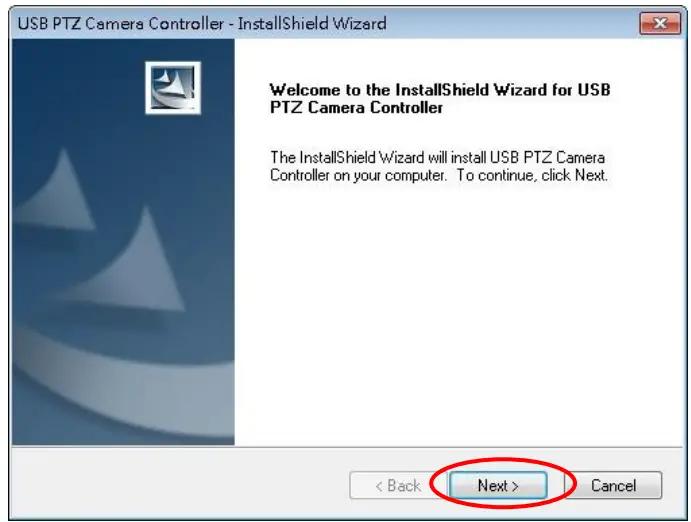 2.2.2 Please [Restart] the computer to complete the installation.
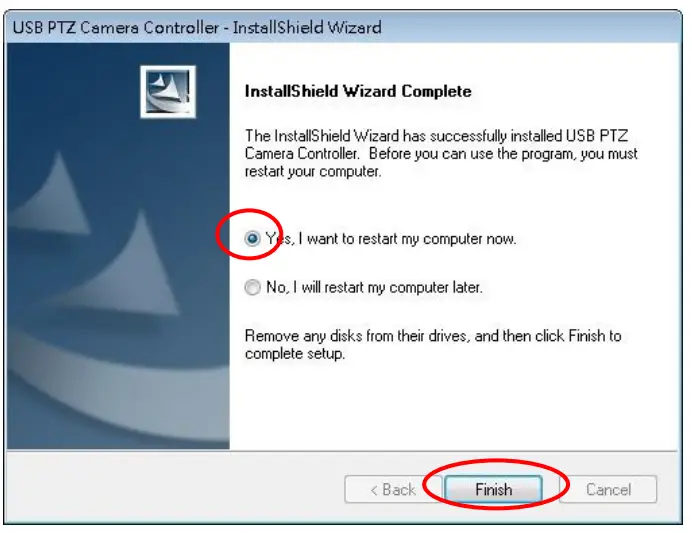 2.3 Installing USB PTZS Camera Controller on a MAC
2.3.1; Please download USB PTZ Camera Controller software on the LumensTM website.
2.3.2 Extract the file downloaded and then click [USBPTZCameraController.pkg] to install.
2.3.3 Please finish the installation by following the on-screen instructions.
2.3.4 Click [Continue].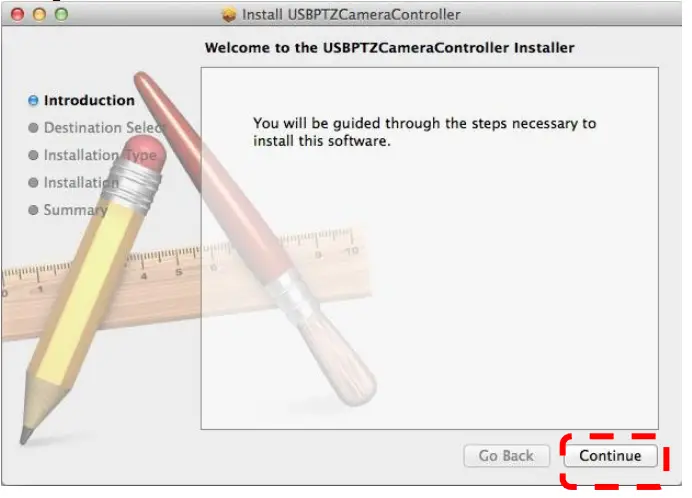
2.3.5 Click [Install].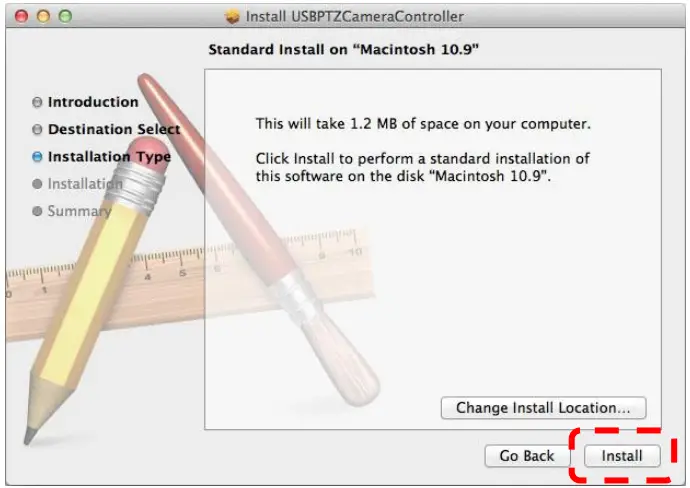 2.3.6 Enter the username and password, and then press [Install Software].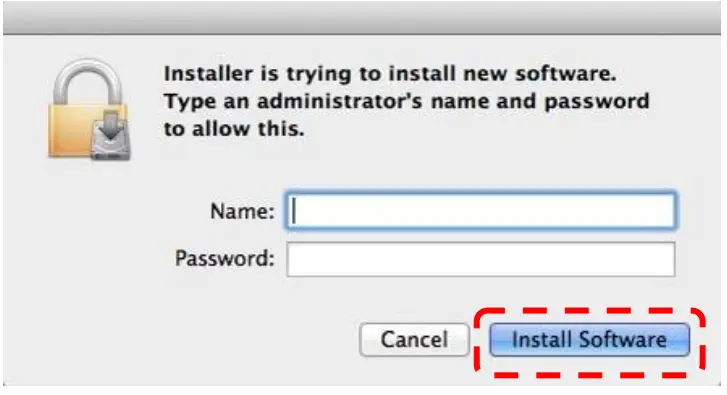
2.3.7 Click [Continue].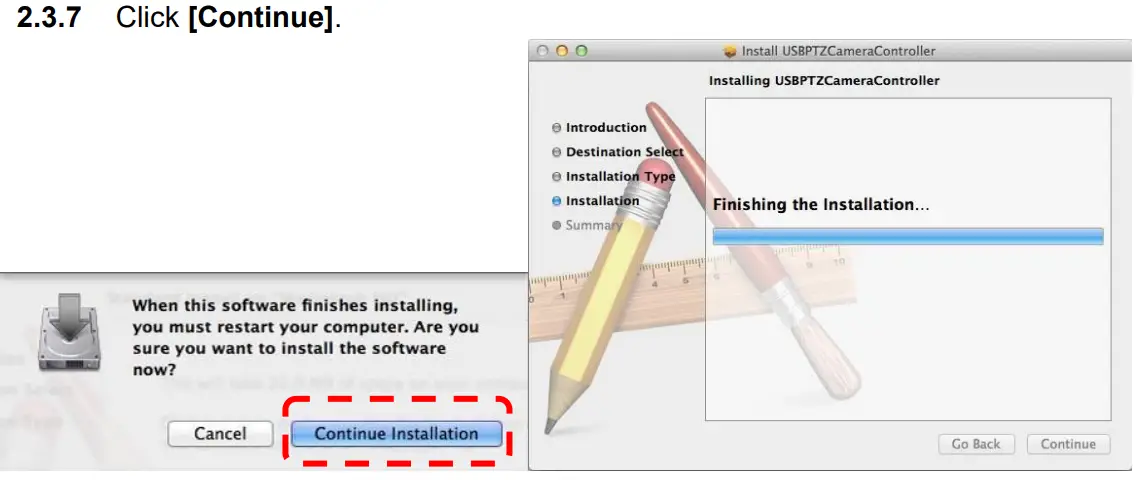 2.3.8 Press [Restart] to finish the software installation.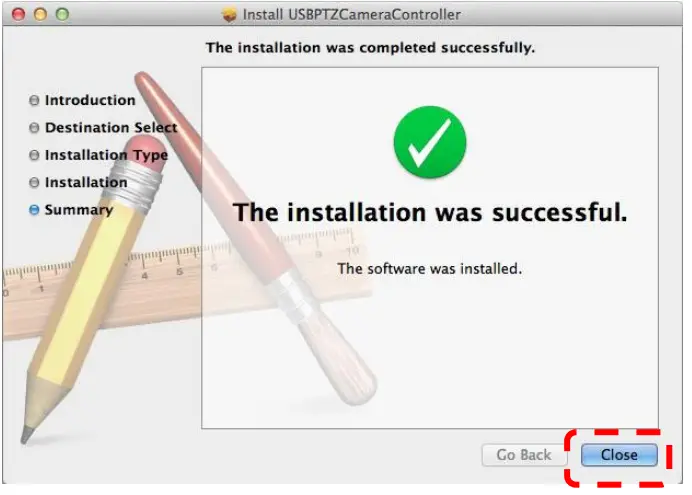
Start Using
Before launching the software, please ensure that the camera is correctly installed. Only launch USB PTZ Camera Controller after the video conference begins.
Function Description
4.1 PTZ main Screen
This screen offers a set of commonly used camera functions.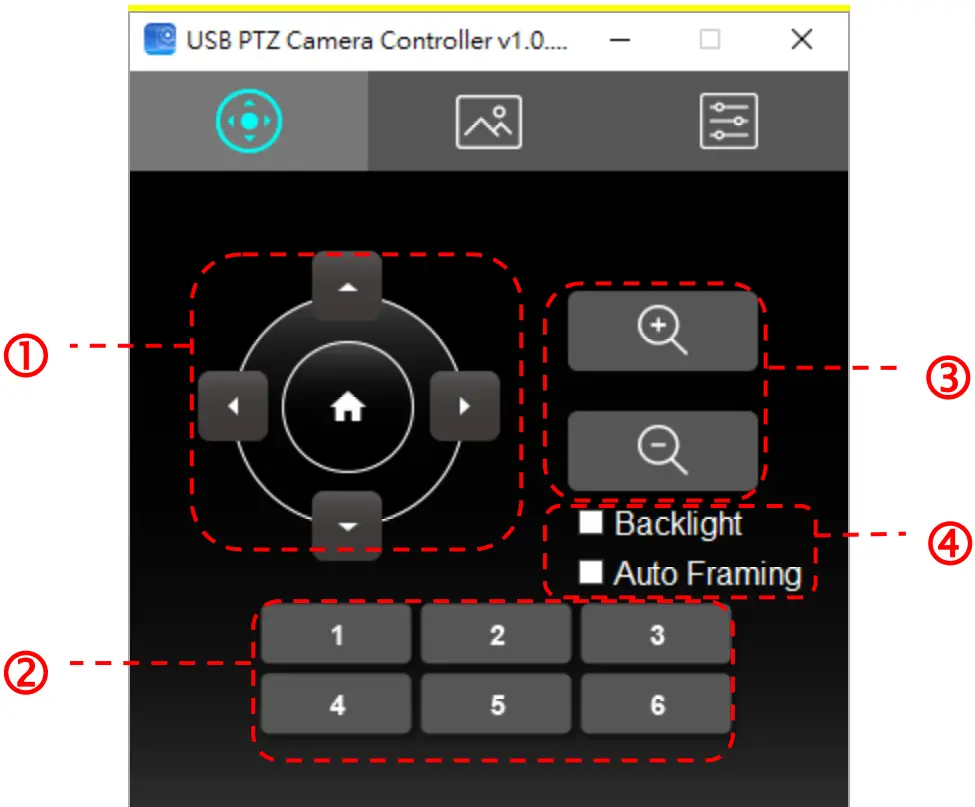 <Remark>The following descriptions are in the order of left to right and top to bottom as indicated in the figure
| No. | Function | Description |
| 1. |  | Move the lens |
| 2. | Call Preset (1-6) | Pre-set Shortcuts |
| 3. | Zoom +/- | Adjust image size (VC-B11U and MS-10 are not |
| supported when the resolution is 4K) | ||
| 4. | Backlight/ | Backlight compensation (VC-B1OU is not supported) / Smart viewfinder |
| Auto Framing |
4.2 Picture Settings Page
Image quality-related parameters can be modified on this page 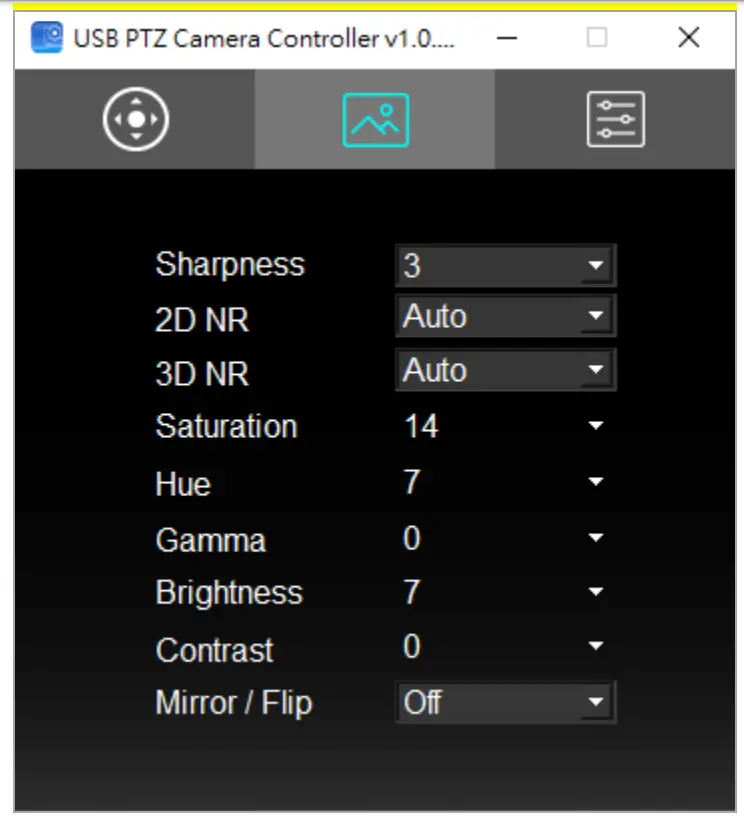
<Remark>The following descriptions are in the order of left to right and top to bottom as indicated in the figure
| No. | Function | Description |
| 1. | Sharpness | Adjust the Sharpness of the image |
| 2. | 2D NR | Noise reduction setting |
| 3. | 3D NR | 3D dynamic noise reduction settings (VC-B1OU is not supported) |
| 4. | Saturation | Adjust the Saturation of the image |
| 5. | Hue | Adjust the Hue of the image |
| 6. | Gamma | Adjust the Gamma of the image |
| 7. | Brightness | Adjust the Brightness of the image |
| 8. | Contrast | Adjust the Contrast value of the image |
| 9. | Mirror / Flip | Set the Mirror/Flip mode (VC-B1OU is not supported) |
4.3 Advanced Settings
Users can access advanced camera functions and modify advanced settings on this page. 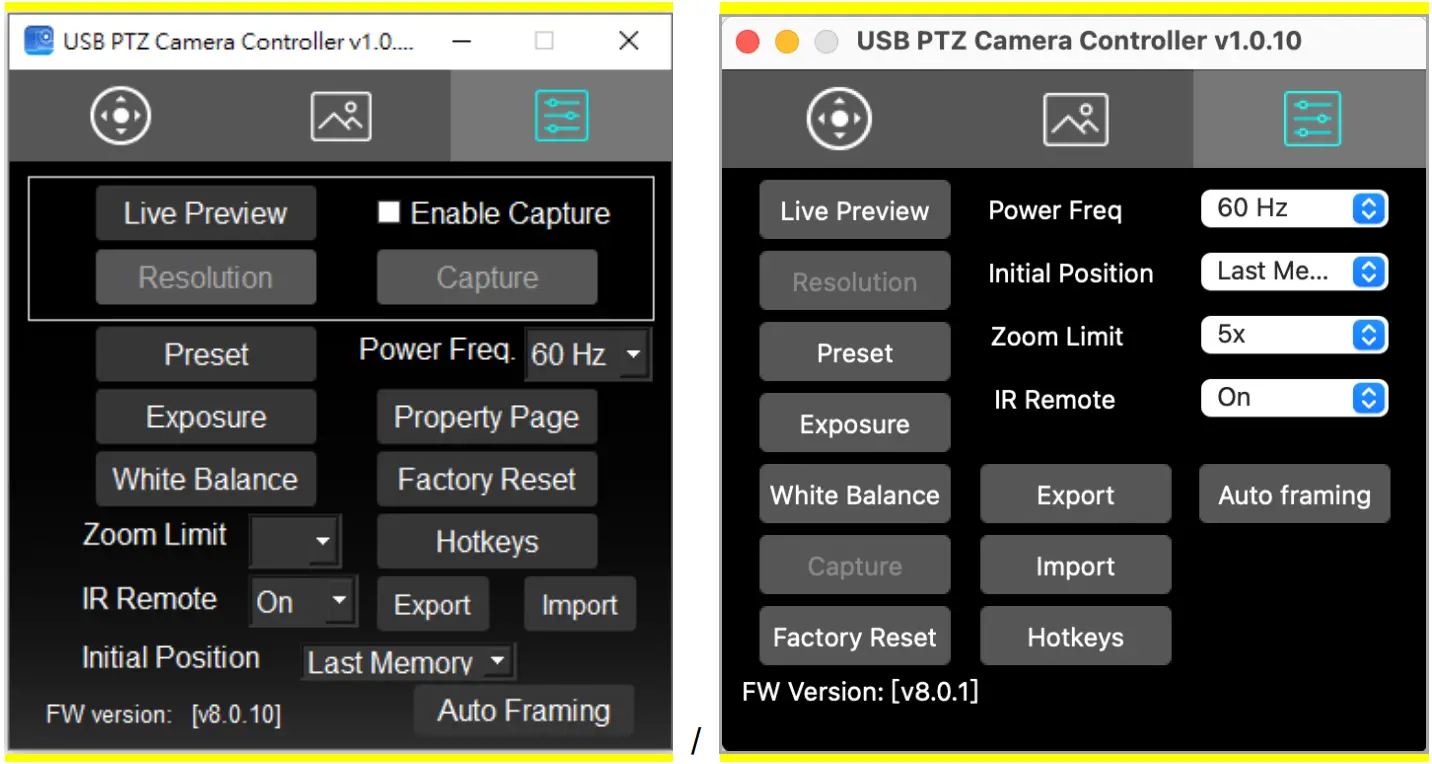
<Remark>The following descriptions are in the order of left to right and top to bottom as indicated in the figure
| No. | Function | Description |
| 1. | Live Preview | Opens the USB PTZ Camera preview window |
| 2. | Resolution | Settings of the preview window resolution; this function will only be available when the preview window is launched |
| 3. | Enable Capture | Deactivate capture function |
| 4. | Capture | Capture images |
| 5. | Preset | Opens the preset settings window |
| 6. | Exposure | Opens the exposure settings window (VC-B1OU |
| is not supported) | ||
| 7. | White Balance | Opens the white balance settings window |
| 8. | Zoom Limit | Magnification Limit (Supports VC-B10U) |
| 9. | IR Remote | Turns on/off remote control (VC-B2OU and VC-B3OU are not supported) |
| 10. | Initial Position | Sets the initial position of power on (VC-B2OU and VC-B3OU are not supported) |
| 11. | Auto Focus | Opens the autofocus settings window (Supports |
| VC-B2OU and VC-B30U) | ||
| 12. | Power Freq. | Resets the power frequency |
| 13. | Property Page | Opens the Windows built-in video property page |
| 14. | Factory Reset | Returns to factory reset |
| 15. | Hotkeys | Sets hotkeys |
| 16. | Export | Exports the current Camera settings |
| 17. | Import | Imports the Camera settings |
| 18. | FW version | Displays the FW version number |
| 19 | Auto Framing | Sets Smart Viewfinder (Supports VC-B11U and MS-10 |
| 20 | Privacy Mode | Sets privacy mode (Supports VC-B30U) |
4.3.1 Exposure Settings
| No. | Function | Description |
| Mode | Exposure mode setting | |
| Exposure Comp. | AE Level(for VC-B30U) | |
| 3. | Exposure Level | Adjusts exposure level |
| 4. | Manual Gain | The value can be adjusted when the mode is set to Manual |
| Manual Speed | The value can be adjusted when the mode is set to Shutter Pri | |
| 6. | Manual Iris | The value can be adjusted when the mode is set to Manual or IRIS Pri |
| Gain Limit | Different AE Modes store Gain Limit parameters respectively | |
| 8. | WDR | WDR stores parameters according to AE mode |
4.3.2 Autofocus
| No. | Function | Description |
| 1. | Mode | Sets focus mode |
| 2. | AF Sensitivity | Selects AF triggering speed |
| 3. | AF Speed | Focus speed after AF triggering |
| 4. | AF Frame | Selects Full or Center focus |
| 5. | Focus | The value can be adjusted when the mode is set to Manual |
| 6. | AF One Push Trigger | Performs focus once |
| 7. | Refresh | Refreshes Focus location status |
4.3.3 White Balance Settings
| No. | Function | Description |
| Mode | Sets white balance mode | |
| Auto Type Select | Selects different modes under Auto (for VC-B20U) | |
| 3. | Red Gain | The value can be adjusted when the mode is set to Manual |
| 4. | Blue Gain | The value can be adjusted when the mode is set to Manual |
| Auto White Balance | Performs auto white balance once | |
| 6. | Refresh | Refreshes Red Gain and Blue Gain location status |
I would like to perform…
5.1 I would like to adjust the shooting angle of the lens
- Switch to PTZ
 page
page - Click on [
 ] to adjust the lens until the image is at the desired angle
 page
page5.2 I would like to zoom in/out images
- Switch to PTZ page
- Press [+] to zoom in the image
- Press [-] to zoom out the image
5.3 I would like to save/call a lens preset
5.3.1 Perform rapid switches between presets
- Switch to PTZ page
- Click on [1] to [ 6] to change the angle of the lens
5.3.2 Switching between presents
- Switch to the Advanced Settings
 page
page - Press [Preset] to open the Preset Settings window
- Select a preset number [0 ~ 127]
- Click [Call Preset] to switch presets
 page
page5.3.3 Save preset
- Switch to the Advanced Settings page
- Press [Preset] to open the Preset Settings window
- Press [] to adjust the lens
- Press [+/-] to adjust the image
- Select a preset number [0 ~ 127] 6. Press [Set Preset] to save a preset
5.4 I would like to adjust the focal length
- Switch to the Advanced Settings page
- Click [Auto Focus] to open the autofocus settings window
- Select [Manual]
- Adjust [Focus]
- Click [x] on the top right corner of the window once the parameters are set
Troubleshooting
6.1 My subject’s face is underexposed because of a strong backlight.
Solution:
- Activate BackLight
6.2 I have launched the USB PTZ Camera Controller but I cannot control the camera. Solution:
- Please ensure that the VC-B20U is connected to a power source.
- Ensure that the USB is connected.
- If the problem persists, please contact our distributors or service center.
6.3 I am unable to Pan / Tilt the camera.
Solution:
1. Please ensure that the preview screen is open.