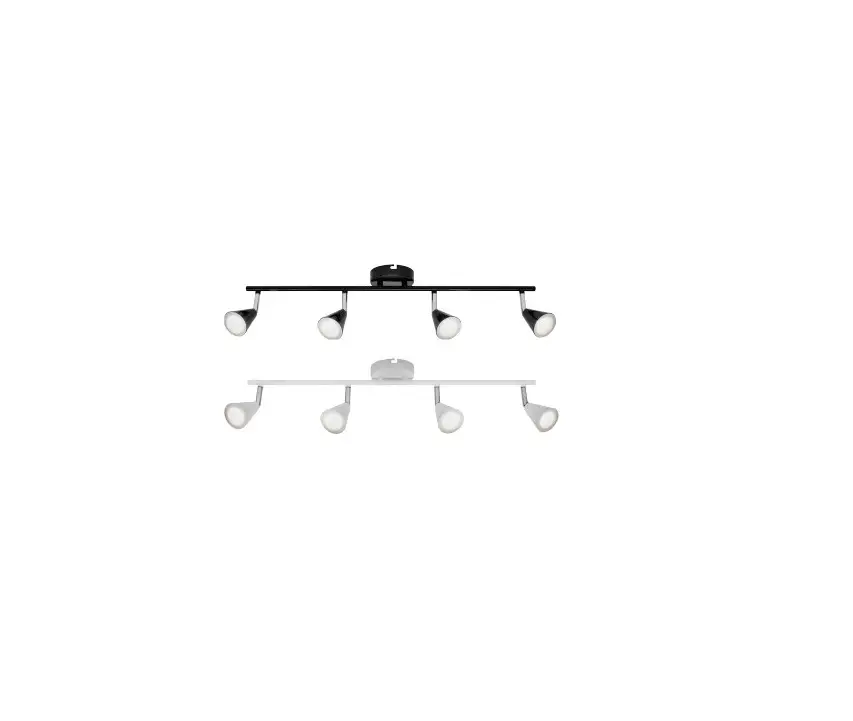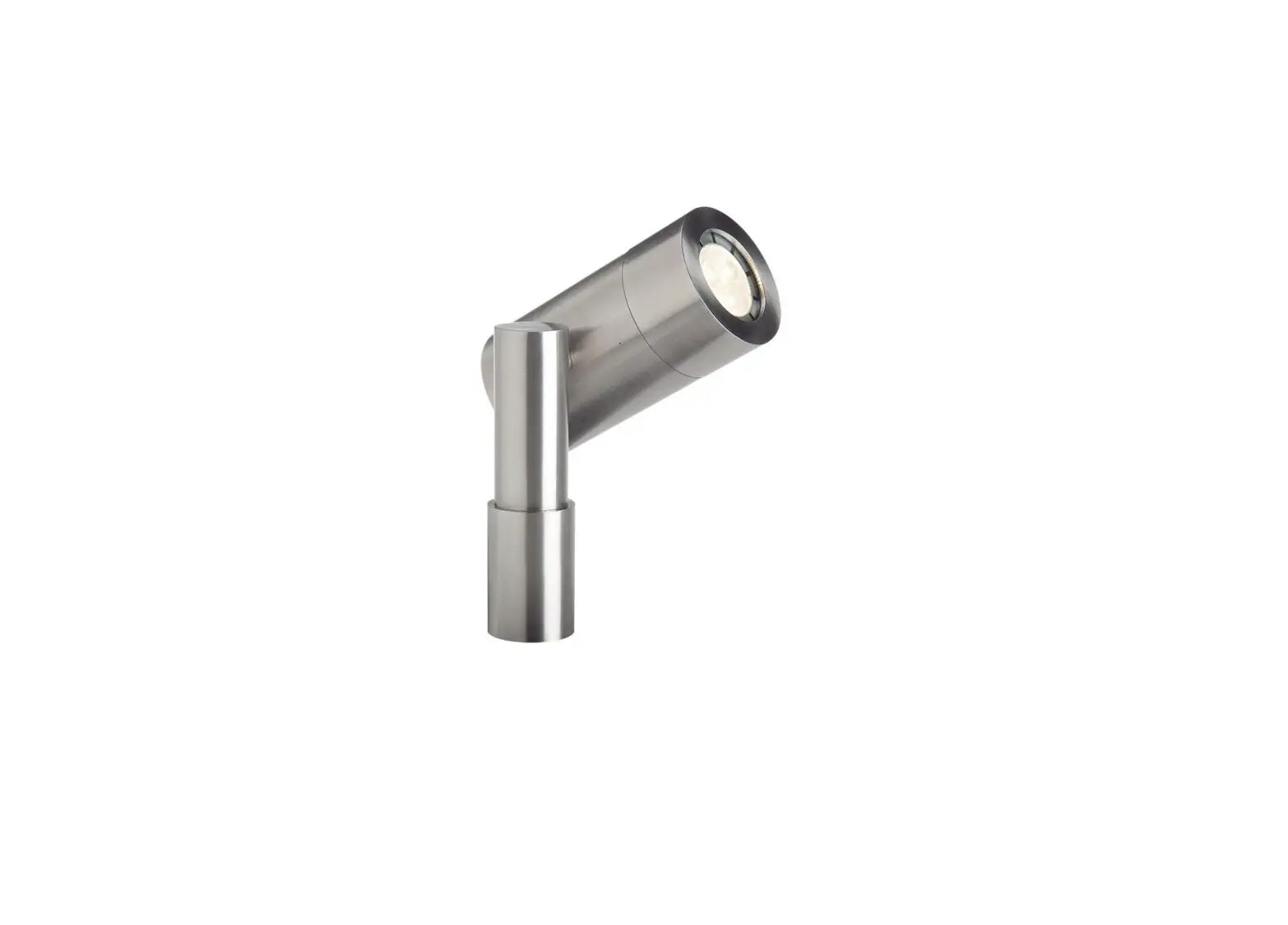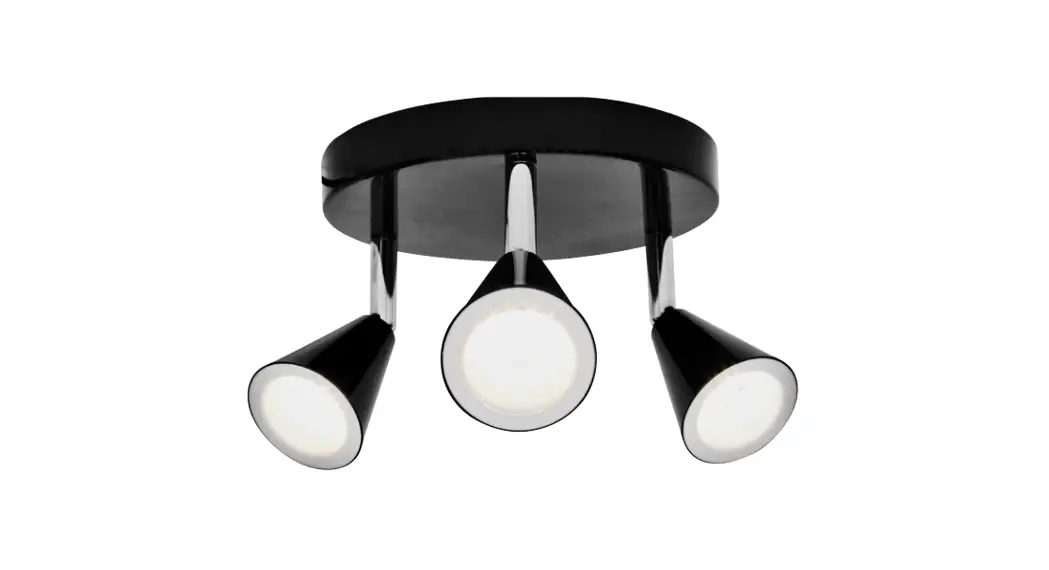
 Extended Color Spotlight
User Manual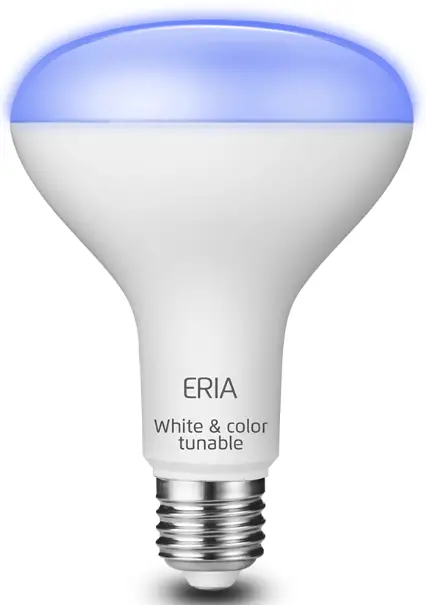
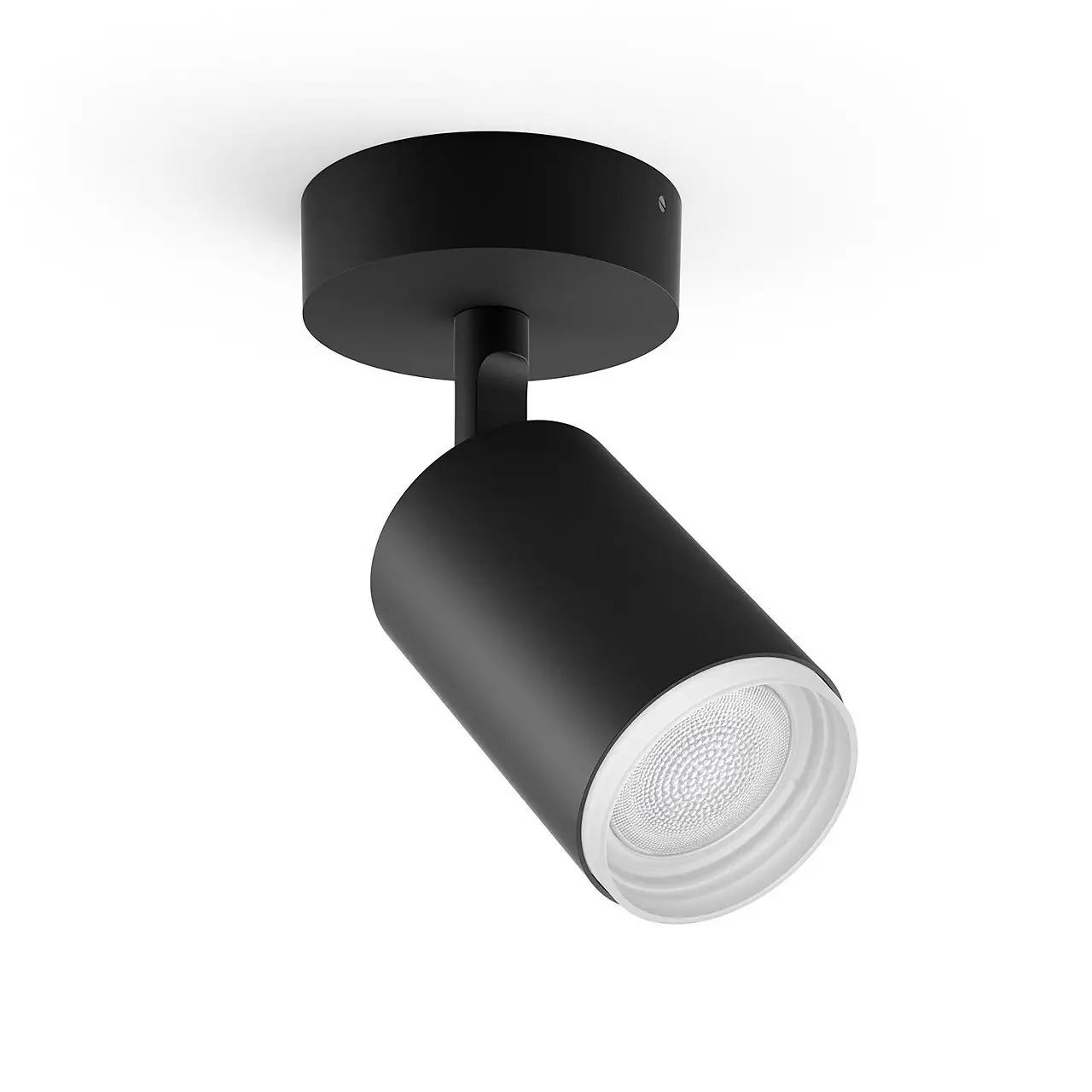
81896 Extended Color Spotlight
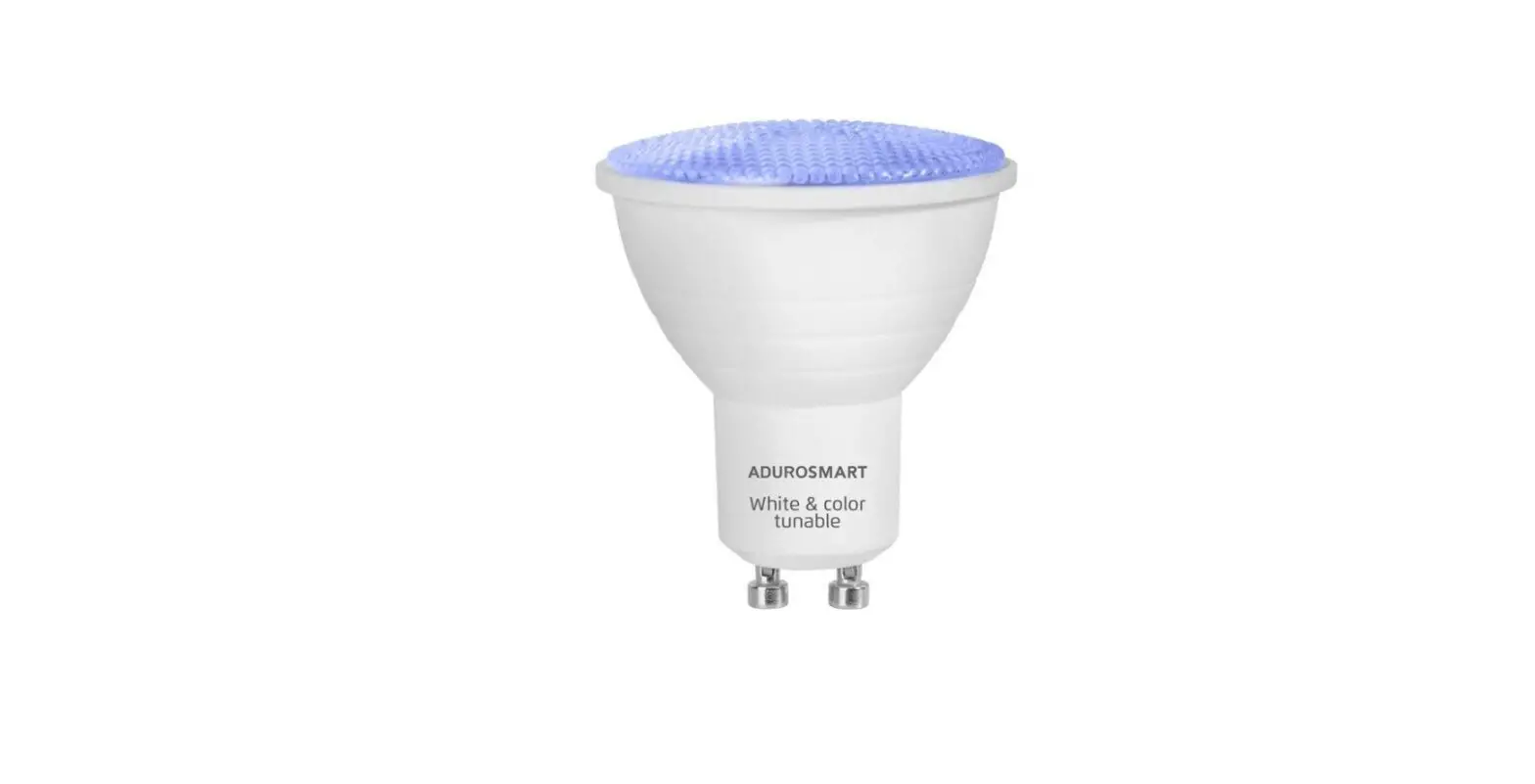
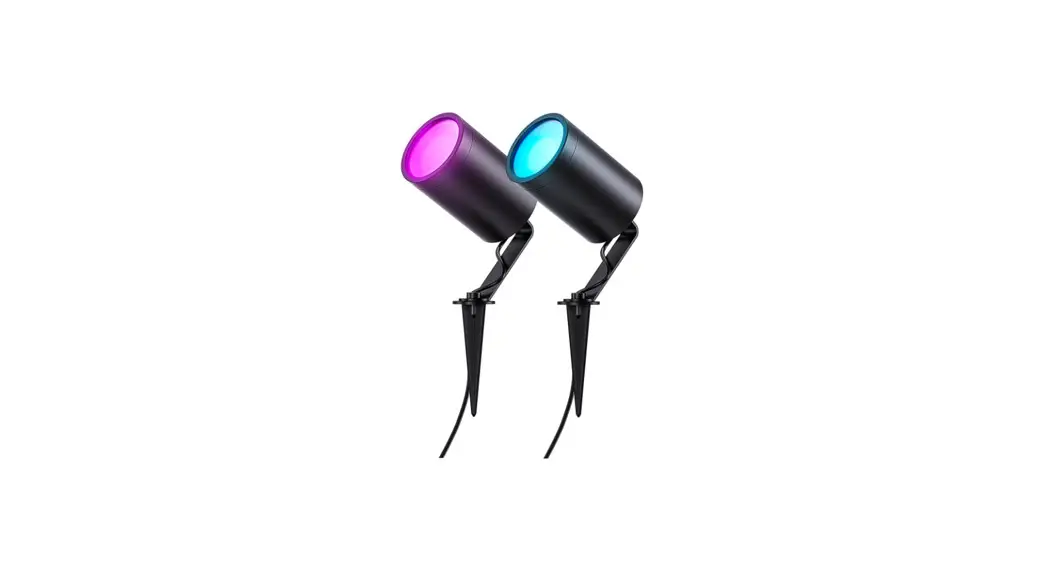
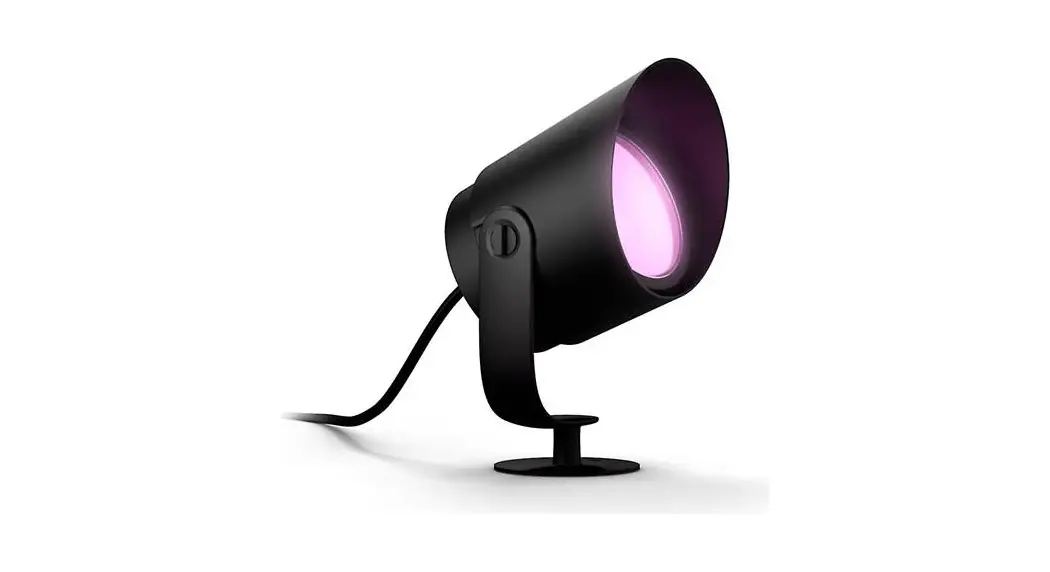
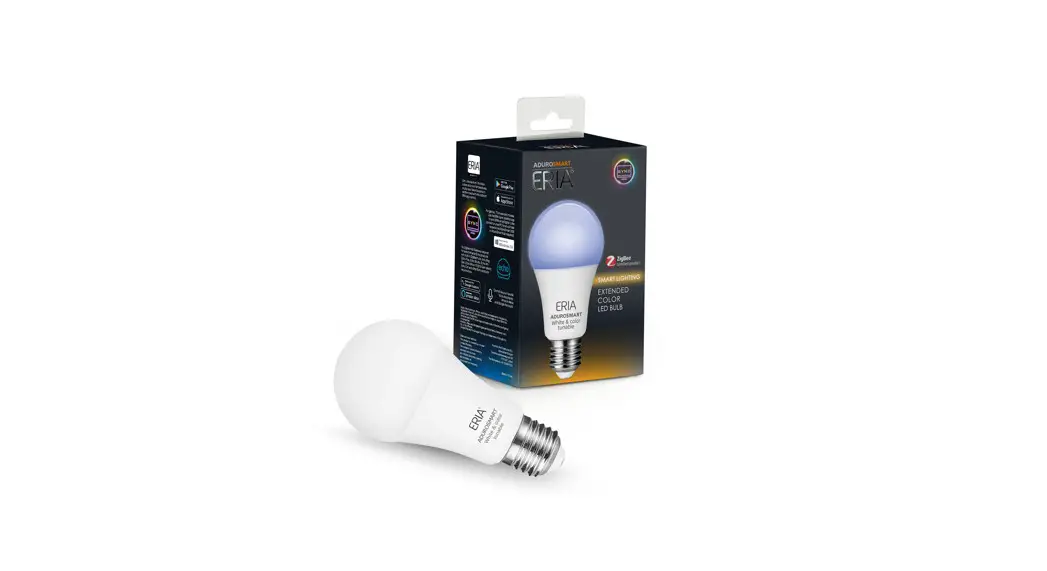
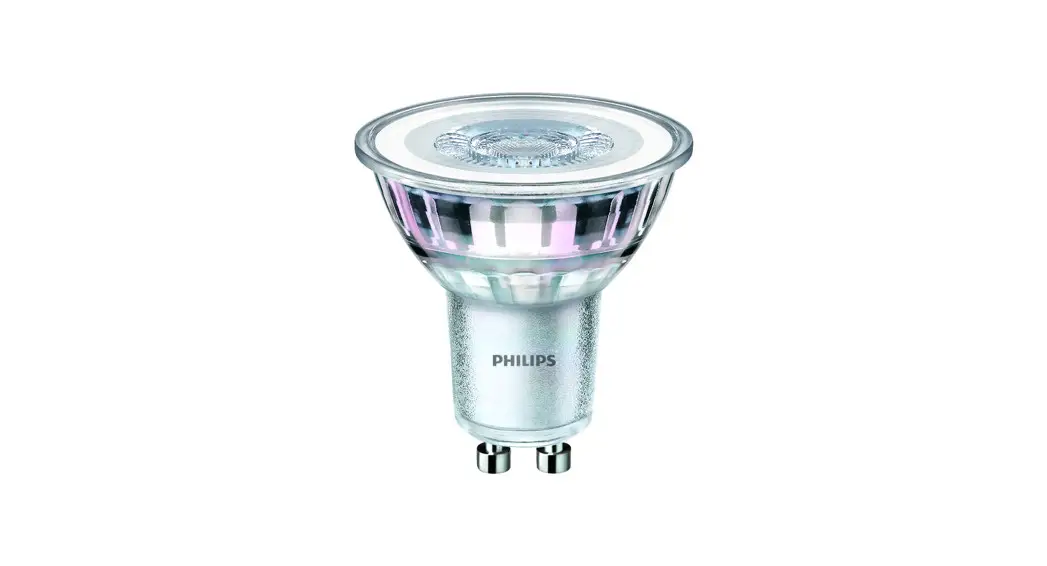
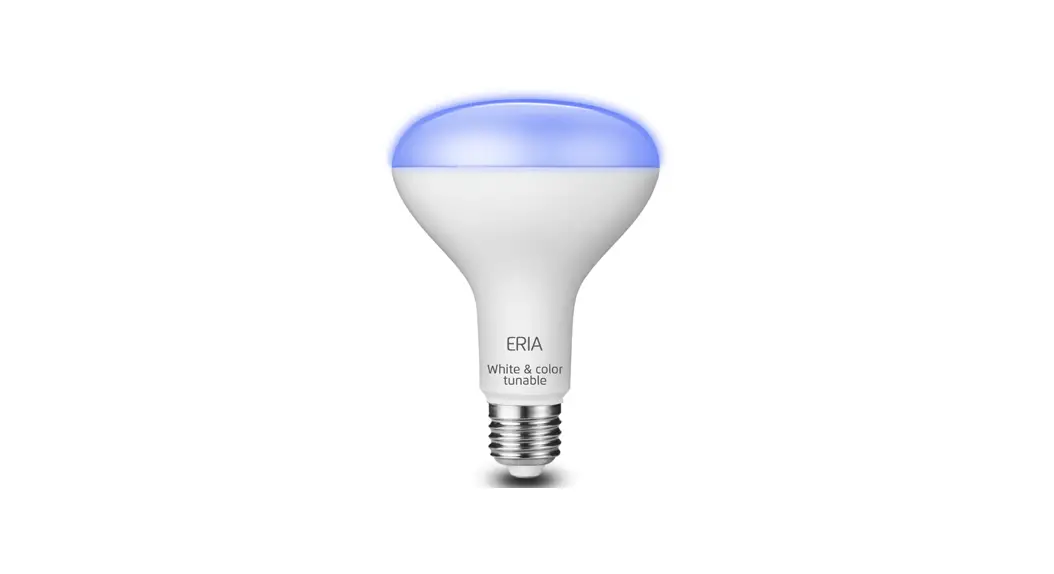
The ERIA Extended ColorSpotlight GU10 offers a range of over 16 million color combinations along with multiple white tone (2000-6500K) settings to let you choose whatever mood you want.
Easily controlled with your smartphone/tablet, or even by using voice commands with Amazon Alexa and Google Assistant. Simply use a ZigBee-compatible Adurosmart ERIA hub.
Maximum signal strength: 10 dBm
 www.adurosmart.com/manuals/extenedcolorbulb
1. Unpack your bulb and screw it into your light fitting and turn on the light.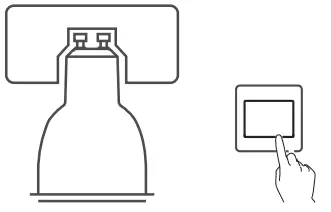
Connect with the ERIA hub
2A. Download the Adurosmart App from the Apple App Store or from Google Play or go to http://adurosmart.com/adurosmart-app/
Android | IOS |
|
|
2B. If you have a third-party ZigBee compatible hub then proceed to step l0.
3. Open the AduroSmart ERIA APP.
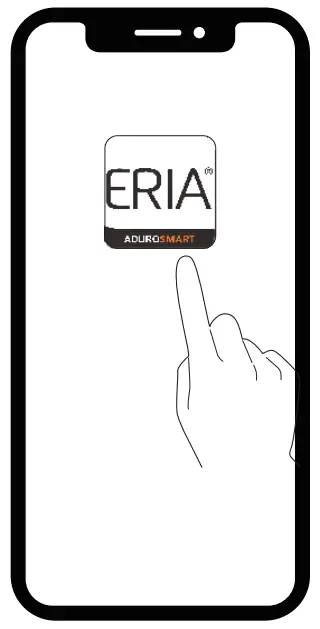
4. On the bottom right corner
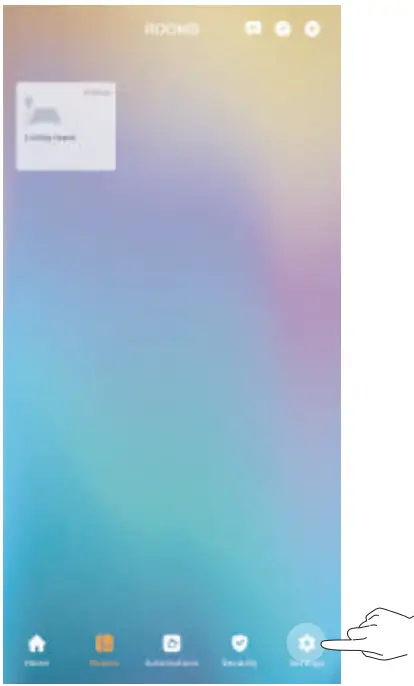
5. Select “Devices”.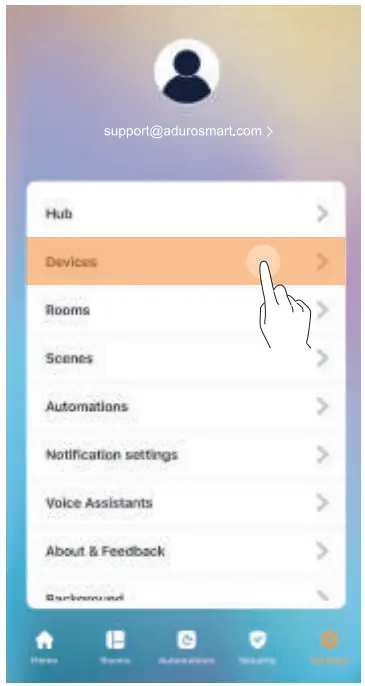
6. On the top right corner (For the latest version, please check its online user manual.) press “Settings”. press on the “+” symbol then press on “Add device”.
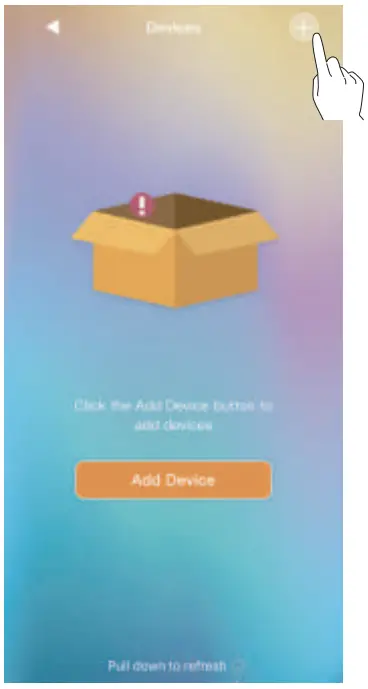
7. Select the device type.

8. Press on “Brands” and then select “AduroSmart ERIA”.
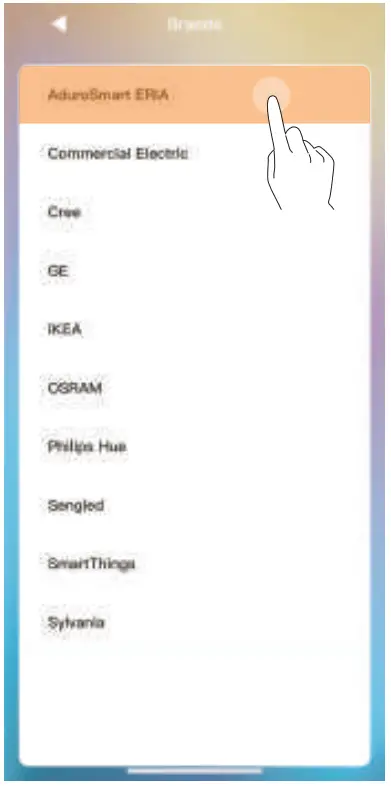
9. Press on “Extended Color bulb”
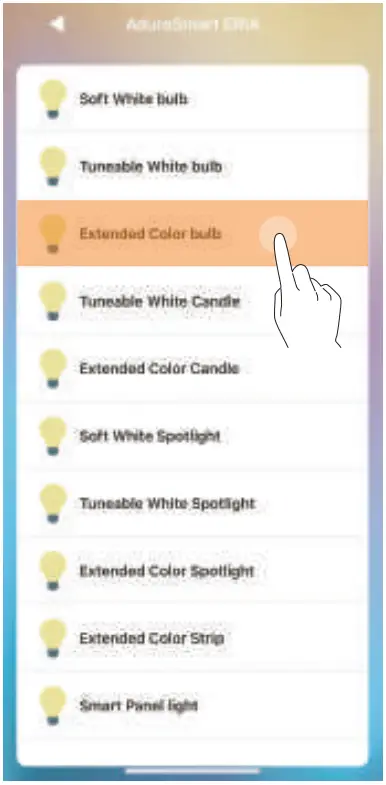
10A. Switch the power to the light ON & OFF 5 times to initiate the pairing mode, the bulb will flash once indicating that it has entered pairing mode. The pairing mode will last 60 seconds.
5x ON and Off
10B. If you have a third-party hub, then this is the moment to initiate the search from your Smart Home hub app.
11. Proceed by pressing “Search” to allow the ERIA hub to find the bulb, the LED indicator on the hub will flash green which indicates that the hub is searching for devices.
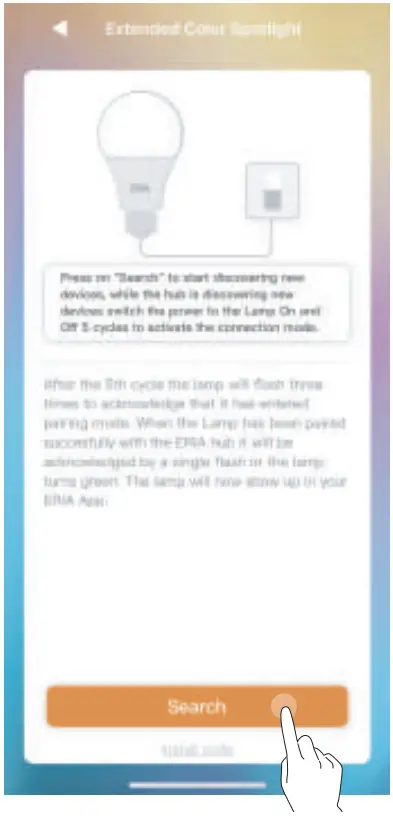
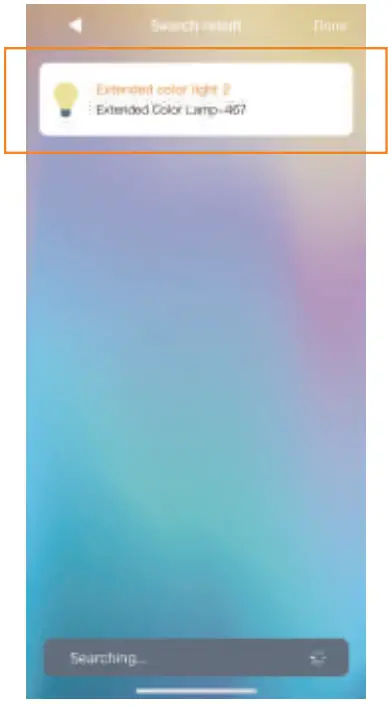
12. When the bulb has been found and paired successfully it will turn green and it will show up in your search results, press on “Done” to complete the process.
NEED HELP? CALL US
For troubleshoots, instruction videos, or more information
please visit us at www.adurosmart.com/faq
Chat with one of our support agents
at www.adurosmart.com
The Netherlands: +31 523687532
[email protected]