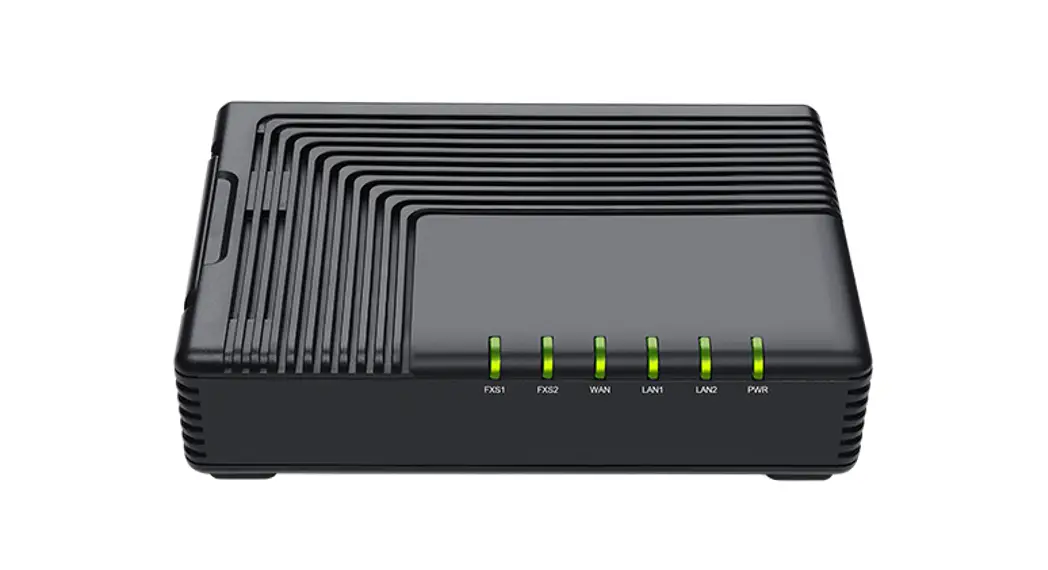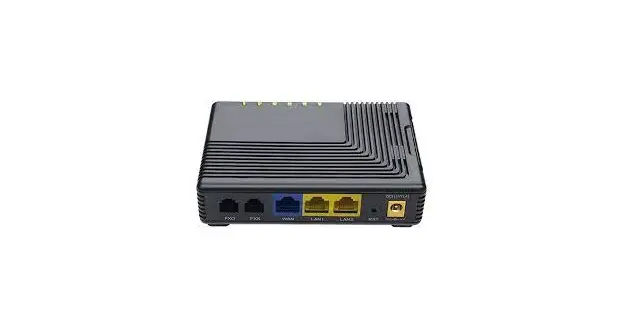

FLYINGVOICE FTA5120 VoIP Adapter
If you &11′ a nflgu~ng your device for the first Uma, you will find the step Included In this quick installation guide useful. Once you have configured the device with )’Our settings, you wll need lo 11’boot Iha device for your changes 1D be applied. If you require additional information, plans da. valid Iha latest product manual from our website al www.fLYINGVOICE.COm.
PACKAGE CONTENTS

STARTUP
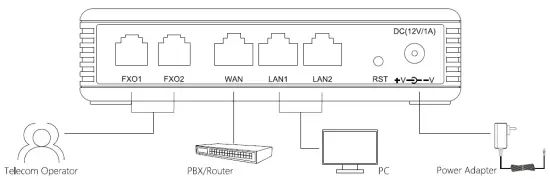
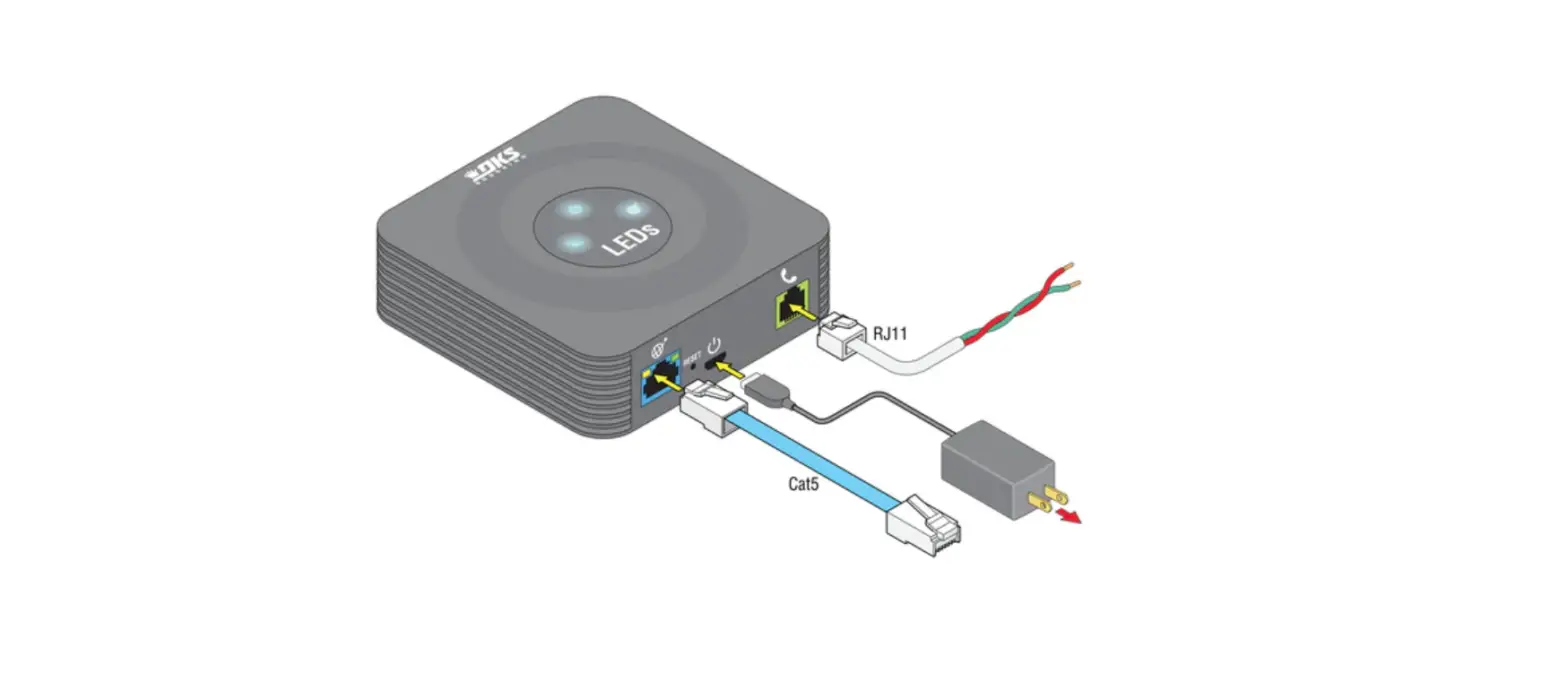
Connect Ula WAN port of your device lo )’Our router or swill::h and Ula LAN port 1o your PC., also 00nnact Ula FXO ports(s) lo Ule PS1N liNe.
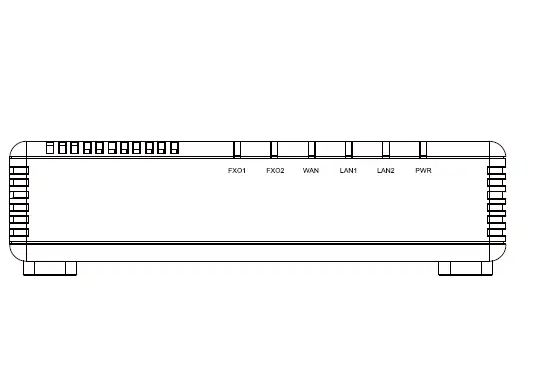
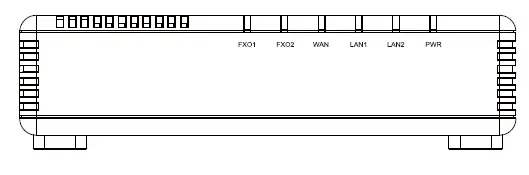
LEDs:After the herdwar9 00nnaclians have bean a, completed, check Ula status of Ula LED indica1Drs using Ule following table
| LED | Status | crlptlon | LED | Status • | Description |
|
FXOl/2 | • On | The port rs connected |
WAN | On | The port Is connected |
| • Blinking | The data ls transmitting | Blrnklng | The data rs transmitting | ||
| Off | The port is disconnected | Off • | The part I• dr,connected | ||
|
LANl/2 | • On | The port is connected |
PWR | On | The adapter is powered on and running normally |
| • Blinking | The data J•tran,mlttlng | Off | The adapter Is powered off | ||
| Off | The port is disconnected |
Network Configuration
Confirm )’Our network access mode and record ral8VBl1f. Information. Generally, 1here are three ways of natwor1< access: DHCP. static IP, and
PPPoE.
- DHCP Is Iha moat00mrnon malhodwhel1′ the ISP au1Dmatlcally00nflgu”‘8your internal connection.
- C-“Static” ~ )’OU know Iha network 00nnactian &el!ings. Fill in Iha IP permanent provided by your ISP.
- If )’Our ISP U898 Ula PPPoE connection, Uley will provide you a username, password, and related instructions.
In Ula PCUlatcannected to tle LAN port of the device, open a browser and type in “htlp://192.168.1.1” In the add”’88bar, lhanllf8MUl& “Enter” key. A Username and a Password dialog box will appear. To login as an Administrator enter “admin” as Iha username and “admin” as Iha password. To log in as a normal user en1ar “uaer” as Ula username and “uaer” as Ula p&88WOl’d.
Notice: In the81111ntyou ere unable lo open the pagehtlp://192.168.1.1 will)’Our browser, 1t00mmonly caused by the 1Padd1’888 a,null:IB w1Ul
UleWAN IP. lnUlatcase, open the page htlp://192.168.2.1 instead.
PHONE REGISTRATION
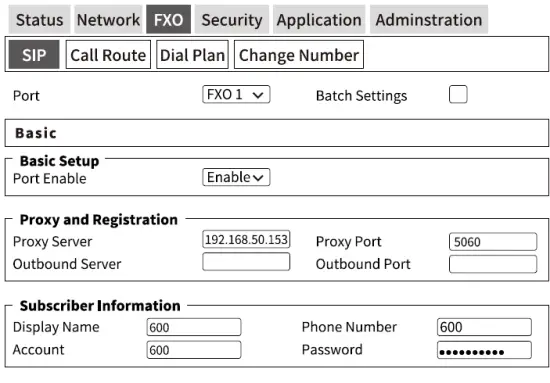
| Parameters Name | Description | Parameters Name | Description |
| Port | Select an FXO port to configure | Batch Settings | Select multiple perts to ccrmgure |
| Port Enable | Enable ardl5able the Line | Prnxy Server | The domain name or IP address cf the SIP Jerver |
| PrnxyPart | SIP Server’s Service port,default is506D | Outbound Server | Outbound Server IP or domain name |
| Outbound Port | Outbound Server’s Service port | Display Name | The display name of the registered acccunt |
| Phone Number | Telephone Number provided by SIP Server | Account | SIP acccunt provided by SIP Server |
| Password | SIP password provided by SIP Server |
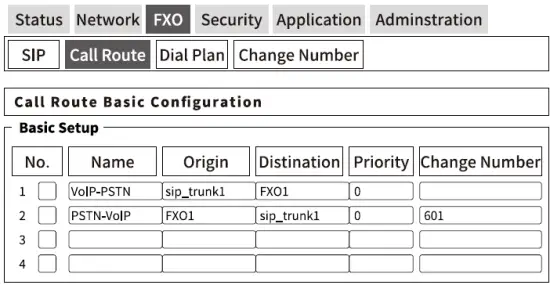
| ParametC!rs Nama | Doscrlptlon |
| Name | Give this router• descriptive name |
| Origin | The origim1l addreu of the c.all, select SIPtrunk or- FXO port |
| Destination | Tlle destination address of the call, select SIP trunk or FXO port |
| Priority | Tlle priority of the router, O has the highest priority |
| Changed Number | VOIP-PSTN: Tho route that tho phono used whon making an outbound call. PSTN-VOIP: The inbound call will be forwarded to this number(601 in the figure) with this route. |