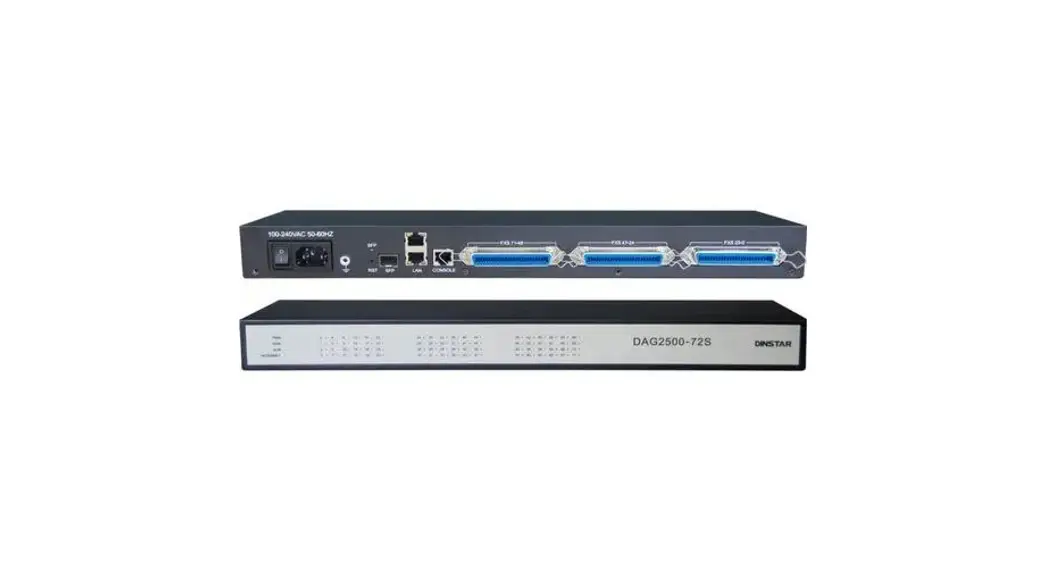
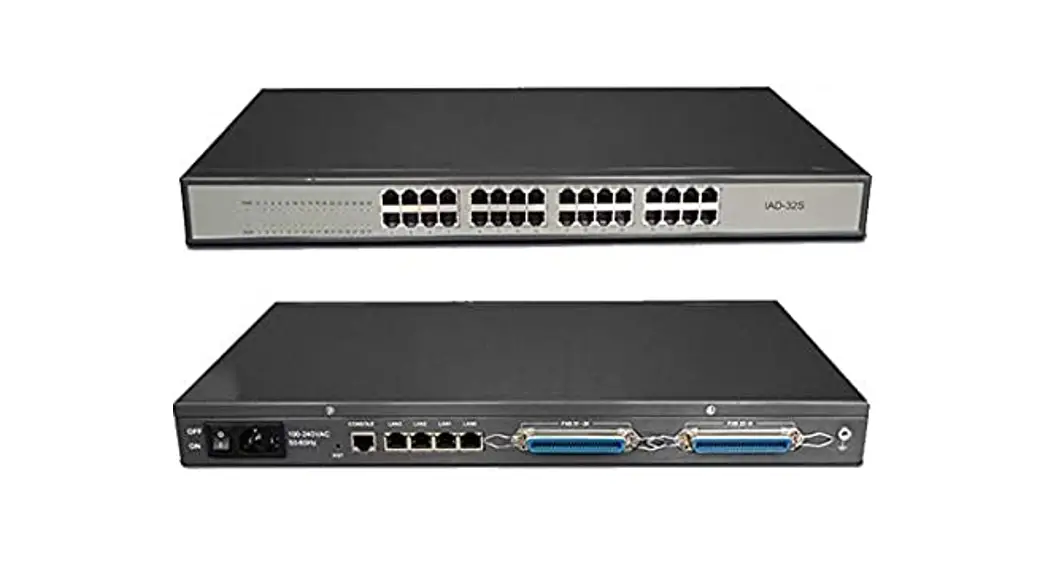
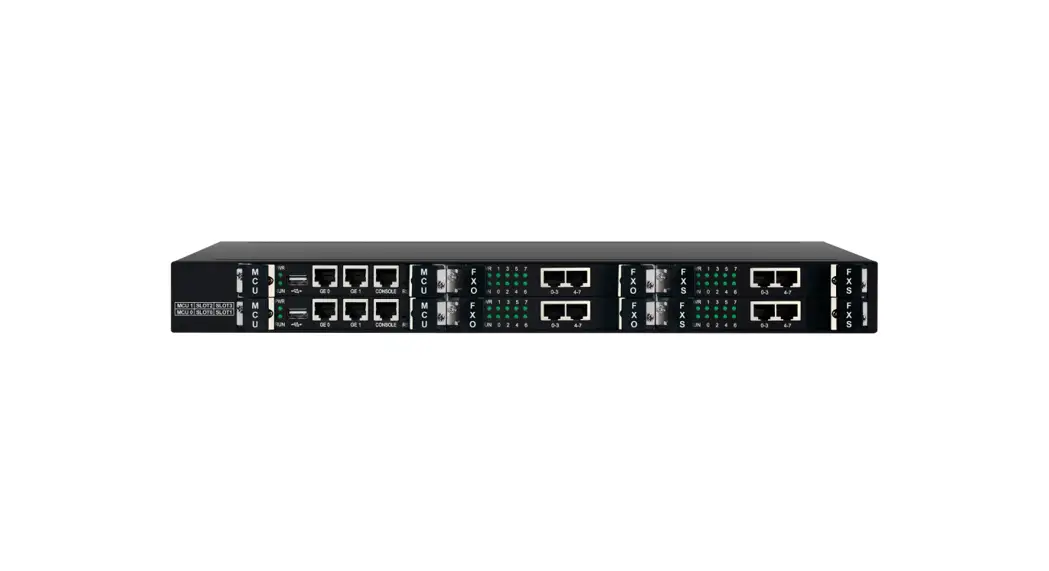
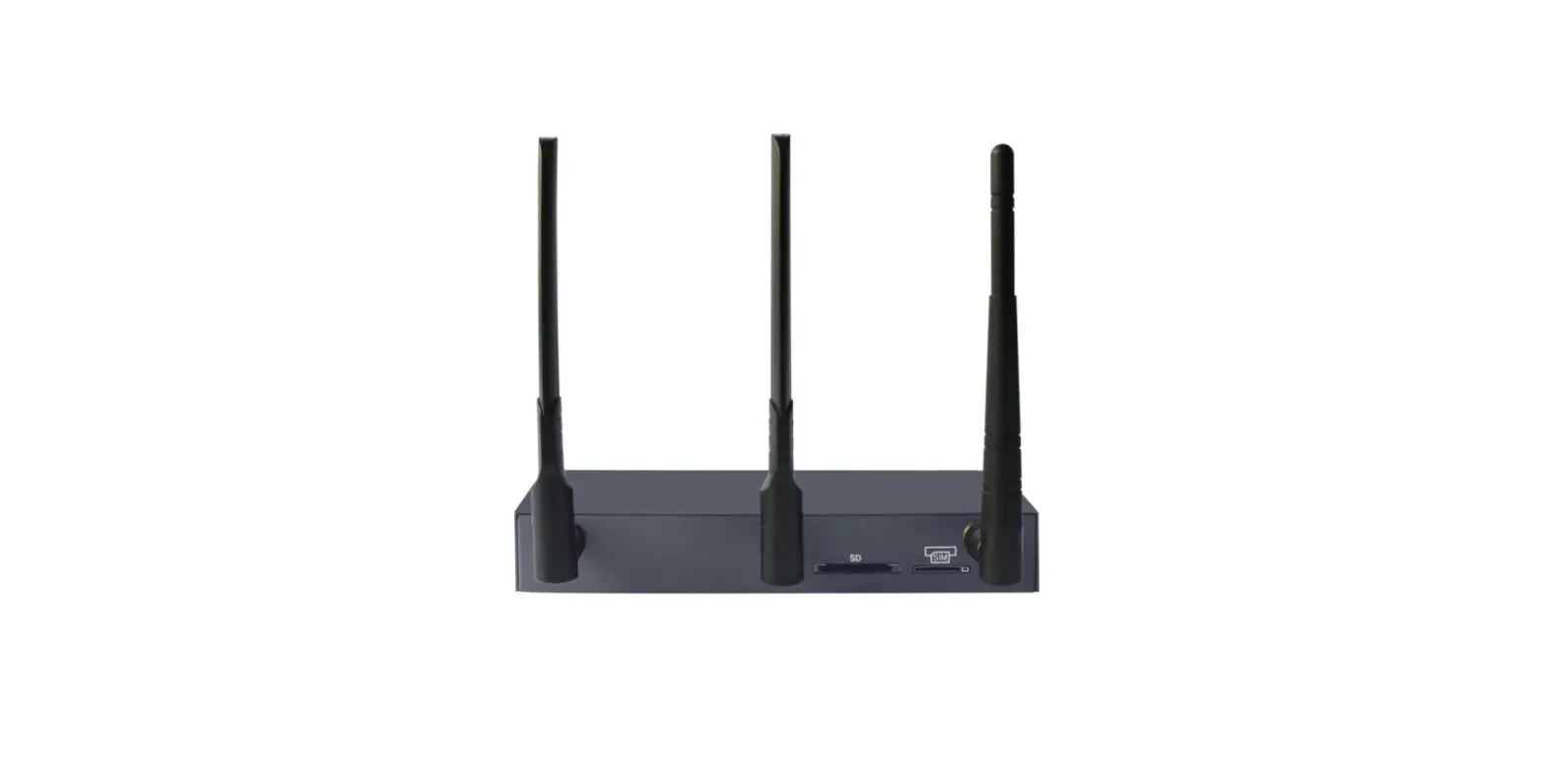
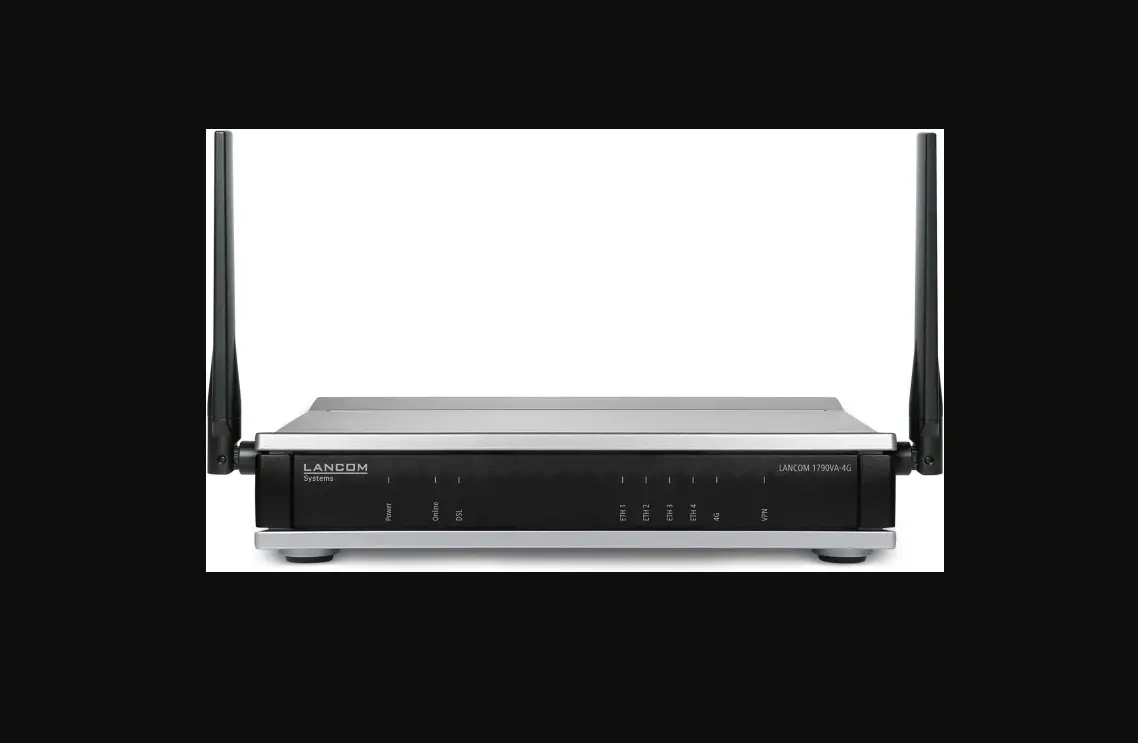
DAG1000-4O Analog VoIP Gateway
Product Information
The Dinstar VoIP Gateway is a telecommunications device that
allows for the conversion of voice calls between traditional
telephone lines and internet-based voice services. It comes in
various models, including DAG1000-4O, DAG1000-8O, DAG2000-16O,
DAG1000-4S4O, and DAG2000-8S8O. Each model has different ports and
features to meet different connectivity requirements.
Models and Ports
| Port Type | Model | WAN Ports | LAN Ports | FXS Ports | FXO Ports |
|---|---|---|---|---|---|
| WAN | DAG1000-4O | 1 | 2 | – | 4 |
| WAN | DAG1000-8O | 1 | 2 | – | 8 |
| WAN | DAG2000-16O | 1 | 3 | – | 16 |
| WAN + LAN | DAG1000-4S4O | 1 | 2 | 4 | 4 |
| WAN + LAN | DAG2000-8S8O | 1 | 3 | 8 | 8 |
Description of Indicators
| Indicator | Status | Description |
|---|---|---|
| PWR | On | The gateway is powered on. |
| PWR | Slow Flashing | The gateway is powered off or there is no power supply. |
| RUN | Fast Flashing | The gateway is running improperly. |
| RUN | On | The gateway is running properly. |
| FXS | On | The FXS port is idle or faulty. |
| FXS | Off | The FXS port is currently occupied by a call. |
| FXO | On | The FXO port is idle or faulty. |
| FXO | Off | The FXO port is currently occupied by a call. |
| WAN/LAN | Green Flashing | The gateway is not connected to the network or the network connection is improper. |
| WAN/LAN | On | The gateway is properly connected to the network. |
| WAN/LAN | Off | The network speed is set to work at 10Mbps. |
| WAN/LAN | Off | The network speed is set to work at 100Mbps. |
Installation Attentions
- Anti-jamming: To reduce interference with telephone calls, it
is highly recommended to place the telephone lines connected to the
gateway away from power cables. - Power supply: DAG1000-4O, DAG1000-8O, and DAG1000-4S4O models
require a 12VDC power adapter. DAG2000-16O and DAG2000-8S8O models
accept AC input voltage of 100-240V. Ensure a safe and stable power
supply. - Network bandwidth: Ensure sufficient network bandwidth to
guarantee stable operation of the gateway. - Temperature and humidity: Install the gateway in an equipment
room with appropriate temperature and humidity to avoid
malfunctions. - Ventilation: Avoid overheating by not piling up the gateway
with other devices and ensuring good ventilation around the
gateway. - Mechanical load: Place the gateway steadily to avoid damage. It
is advised to horizontally place the gateway on a flat surface or a
cabinet.
Quick Installation Guide
DAG1000-4O DAG1000-8O DAG2000-16O DAG1000-4S4O DAG2000-8S8O
THANKSFORCHOOSINGDINSTAR’S VOIP GATEWAY!
Please readthis guide carefully bef0o7re55in-s6t1a9lli1n9g9t6he6gateway. If you need any technical Tseulpw:p+wo8rw6t,7.pd5lei5na6sst1ea9cr1.oc9nn9t6a6ct us.
Email: [email protected] Web: www.dinstar.com
1 Models and Ports
Port Type Model
DAG1000-4O
DAG1000-8O
WAN 1 1
DAG2000-16O
0
DAG1000-4S4O
1
DAG2000-8S8O
0
LAN 2 2 3 2 3
FXS / / / 4 8
FXO 4 8 16 4 8
Please confirm your product model before installation and follow the installation guideline for the model.
2 Description of Indicators
Indicator
Definition
Status
Description
PWR RUN FXS
On
Power Indicator Of f
Slow Flashing
Running Indicator
Fast Flashing Of f
Telephone ln-use
On
Indicator
Of f
The gateway is powered on The gateway is powered off or there is no power supply The gateway is running properly
If there is a SIP account registered successfully, the indicator is fast flashing The gateway is running improperly
FXS port is currently occupied by a call
FXS port is idle or faulty
FXO
FXO In-use Indicator
On
FXO port is currently occupied
Of f
FXO port is idle or faulty
WAN/LAN
Network Link Indicator
Green Flashing Of f
Network Speed
On
Indicator
Of f
The gateway is properly connected to network
The gateway is not connected to network or network connection is improper way Work at 100Mbps
Work at 10Mbps
3 Indicators and Ports
DAG1000-4O/DAG1000-8O
Power Indicator Network Link Indicator
Reset Button
Running Indicator Network Speed Indicator FXO In-use Indicator Power Port
FXO Ports
LAN Ports WAN Port
DAG2000-16O
Power Indicator Running Indicator FXO In-use Indicator
FXO Ports 0-15
100-240VAC 50/60Hz
Power Switch Power Jack
DAG1000-4S4O
LAN Ports
Grounding Lug
Power Indicator
FXO In-use
Running Indicator
Indicator
Network Link Indicator Network Speed Indicator
FXS In-use Indicator
Power Port Reset Button
FXS Ports FXO Ports LAN Ports WAN Port
DAG2000-8S8O
Power Indicator FXS In-use FXO In-use Running Indicator Indicator Indicator FXS Ports 0-7
FXO Ports 8-15
100-240VAC 50/60Hz
AUX2
Power Switch Power Jack
LAN Ports
Grounding Lug
4 Installation Attentions
Anti-jamming: to reduce the interference with telephone calls, it’s highly recommended that telephone lines connected to the gateway should be placed away from power cables.
Power supply: DAG1000-4O, DAG1000-8O and DAG1000-4S4O are equipped with 12VDC power adapter, while DAG2000-16O and DAG2000-8S8O accepts AC input voltage of 100-240V. Please ensure safe and stable power supply.
Network bandwidth: please ensure there is enough network bandwidth so as to guarantee stabilized running of the gateway.
Temperature and humidity: to avoid any accident that might cause malfunction, it’s advised to install the gateway in an equipment room where temperature and humidity are appropriate.
Ventilation: to avoid overheating, please do not pile up the gateway with other devices and make sure the gateway has good ventilation around.
Mechanical load: please make sure the gateway is placed steadily to avoid damage. It’s highly advised to horizontally place the gateway on a flat surface or a cabinet.
5 Installation Instructions
Connection Diagram for DAG1000-4O/DAG1000-8O Connect gateway with network, and connect gateway with power input. Connect FXO port with PSTN line.
PSTN Line
DC12V Power Plug
PSTN
Telecom Operator
User
Network Cable Network Cable
LAN PC
Router
Connection Diagram for DAG2000-16O Connect gateway with network, and connect gateway with power input.
100-240VAC 50/60Hz
AC 100-240V
Network Cable
Grounding Cable Grounding Lug
Switch
Network Cable
PC
Connect FXO port with PSTN line.
PSTN Line
PSTN Telecom Operator
User
Connection Diagram for DAG1000-4S4O Connect gateway with network, and connect gateway with power input. Connect FXS port with Telephone line, and connect FXO port with PSTN line.
DC12V Power Plug
RJ11 Telephone Line
Telephone
PSTN Line
PSTN
Network Cable
PC
Network Cable
LAN
ADSL
Connection Diagram for DAG2000-8S8O Connect gateway with network, and connect gateway with power input.
100-240VAC 50/60Hz
AC 100-240V
Network Cable
Grounding Cable Grounding Lug
Switch
Network Cable
PC
Connect FXS port with Telephone line, and connect FXO port with PSTN line.
RJ11 Telephone Line Telephone
PSTN Line PSTN
6 Modify PC’s IP Address
To log in the Web Management System of the gateway, firstly, you need to modify the IP address of PC which is used to access the gateway and to make it at the same network segment with the gateway.
1 On the PC, click `Network (or Ethernet) Properties’.
2 Double-click `Internet Protocol Version 4 (TCP/IPv4)’.
3 Select `Use the following IP address’, and then enter an available IP address `192.168.11.XXX’ which is at the same network segment with `192.168.11.1′.
7 Log in Web Management System
Open a web browser and enter the gateway’s IP address (default IP is 192.168.11.1). Then input username and password in the displayed login GUI. Both the default username and password are admin.
8 Modify Gateway’s IPAddress
If you want to modify the IP address of the DAG gateway, please click `Network Local Network’ in the navigation tree on the left of the Web Management System, and then input new IP address and DNS server address on the displayed interface.
9 Basic Configurations of FXS
(1) Configure SIP Server
Log in the Web Management System of the gateway, and then click SIP Server in the navigation tree and then enter the address of the SIP server which is to be registered. Click Save in the last.
(2) Configure SIP Account Information
Click Port in the navigation tree on the left, and then click Add. Input the SIP account and authentication password assigned by the SIP server.
Click Save and then restart the gateway for the new configurations to take effect.
10 Basic Configurations of FXO
(1) Configure Port Group
You are advised to divide PSTN lines into several groups and then distribute them to different port groups. Generally, PSTN lines belonging to a same telecom operator are distributed to a same port group. Click Call & RoutingPort Group, and then click Add on the displayed interface.
When calls come from PSTN to the gateway, the off-hook auto-dial number is generally regarded as the DID (Direct-inward-dial) number or destination number of the SIP server. Click Select Port for this Group, and the following interface will be displayed, and then click Save to take effects.
(2) Configure IP Trunk
On the Call & RoutingIP Trunk interface, click Add to create an IP trunk which connects to a peer SIP server.
(3) Create Outbound Route
On the Call & Routing<IPTel Routing> interface, click Add to create an outbound route for the IP trunk. As shown in the following figure, Caller/Callee Prefix is set as `any’ and calls from IP trunk 63<eLA> are routed to port group 1<TELE>.
(4) Create Inbound Route
On the Call & Routing<TelIP/Tel Routing> interface, click Add to create an inbound route for the IP trunk. As shown in the following figure, Caller Prefix is set as`any’ and calls from port group 1<TELE> are routed to IP trunk 63<eLA>.
11 Configure FXO Parameters
On the Advanced FXS/FXO interface, configure the gateway to detect CID after ring or before ring, and enable `Send Original CID when call from PSTN’. Format of “from” field is set as `CID/CID’ when CID is available, while format of “from” field is set as`Display/User ID’ when CID is unavailable.
12 Configure Priority of Codecs
On the AdvancedMedia Parameter interface, configure the priority of preferred codecs. The gateway supports G.729, G.723, G.711U and G.711A.
13 Configure Impedance Value
To improve the compatibility of FXO ports, the gateway provides auto test to get the most matched impedance value. On the AdvancedFXS/FXO interface, click Start Test and then the gateway will automatically detect the best impedance for FXO lines. After the test is complete, save the impedance value.
14 More Details
This document only provides instructions for quick installation and basic configuration,For detailed configuration and parameter explanation, please make reference to user manual or ask for online technical support.
15 Basic Operations
Dial *158# to query the IP address of LAN port of the gateway; Dial *159# to query the IP address of WAN port of the gateway; Dial *114# to query the telephone number of a FXS port; Dial *165*000000# to restore default IP address, user name and password; Restore factory default settings: (1)dial *166*000000#; (2)press the RST button for 7 seconds; (3)Log in the gateway and then click ‘Tools Factory Reset’, then click Apply and restart the gateway. Dial *111# to restart the gateway.
16 FAQ
(1) What if the caller number is not displayed when a call comes from PSTN ? A. Consult the telecom operator about whether the CID function has been enabled, or connect the PSTN line with a telephone to check it; B. On the AdvancedFXS/FXO interface, check the gateway is configured to detect CID before ring or after ring, and then check whether “Send Original CID when Call from PSTN” is enabled or not.
(2) Can the gateway be connected with PSTN lines from different telecom operators ? Yes, it can be realized by creating port groups to manage PSTN lines belonging to different telecom operators.
(3) What if the gateway’s IP address is forgotten ? Dial the number of PSTN line first, and then dial *158# to query the IP address of LAN port of the gateway.
(4) How to restore factory default settings ? A. Press the RST button for 7 seconds; B. Dial the number of PSTN line first, and then dial *166*000000#. After that, restart the gateway. C. Log in the gateway and then click Tools Factory Reset, then click Apply and restart the gateway.
IP COMMUNICATION SOLUTIONS
Shenzhen Dinstar Co., Ltd. Web: www.dinstar.com
 深圳鼎信通达股份有限公司
 VoIP Gateway | IP PBX | IP Phone丨Session Border Controller丨SIP Intercom丨DINSTAR