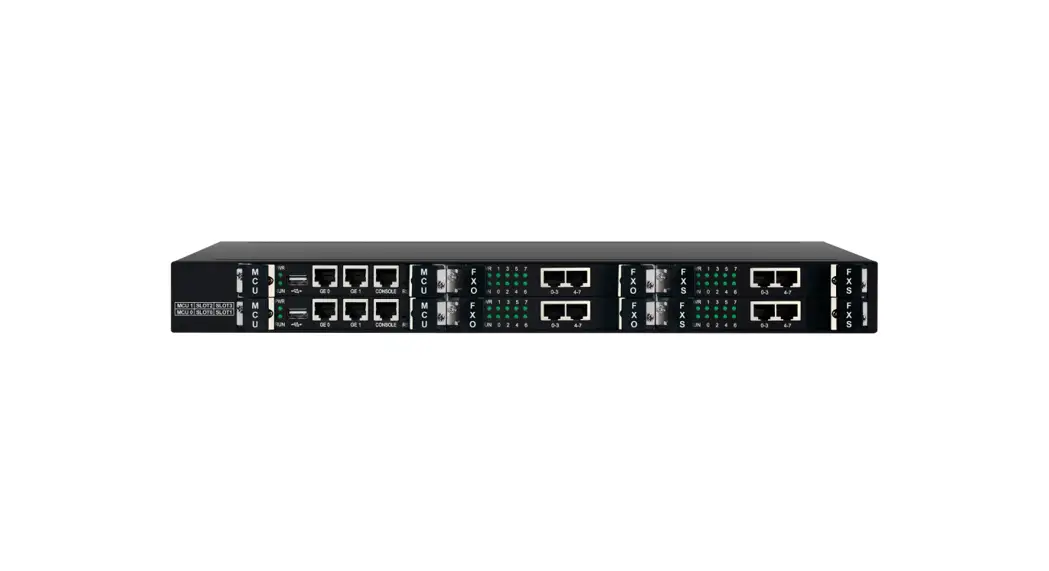

UC350 VoIP Gateway
Installation Guide
UC350 VoIP Gateway
Thanks for Choosing Dinstar’s VoIP Gateway!
Please read this guide carefully before installing the gateway. If you need any technical support, please contact us.
Tel: +86 755 61919966
Email: [email protected]
Website: www.dinstar.com
Model and Interfaces
| Interface→ Model ↓ | MCU Board | User board slots (optional) |
| UC350 | 2*100/1000M, Base-T, RJ45 1* USB 2.0 1* Console port | FXS Board: 2* RJ45 with 8 FXS FXO Board: 2* RJ45 with 8 FXO E1/T1 Board: 4* E1/T1 Ports |
Description of Indicators
| Indicators | Definition | Status | Description |
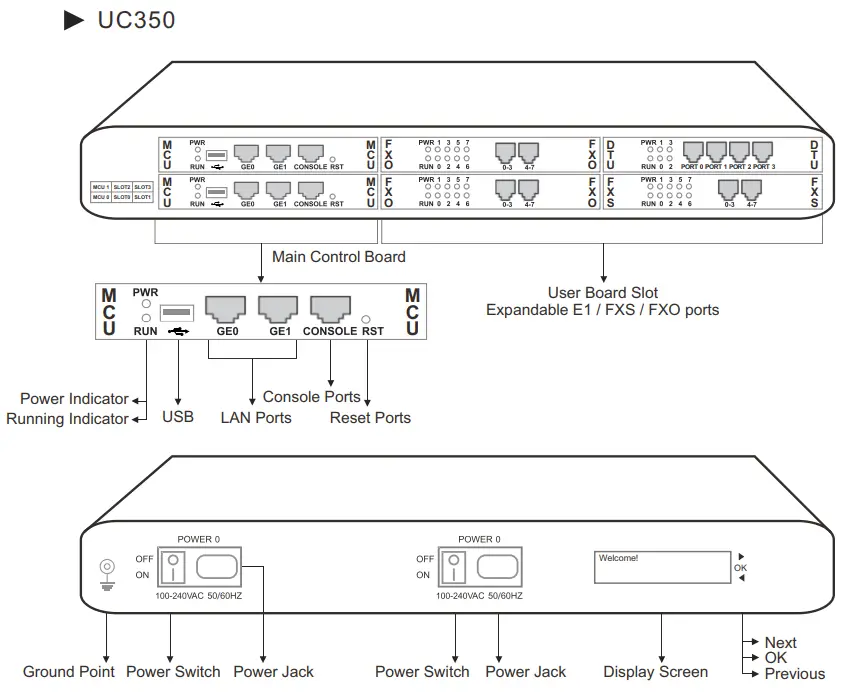
| PWR | Power Indicator | ON | The device is switched on |
| OFF | The power is switched off or there is no power supply | ||
| RUN | Running Indicator | Blinking slowly | The device is running properly |
| Blinking fastly | The device is initializing | ||
| ON/OFF | The device goes wrong | ||
| FXS/FXO | Line status Indicator | ON | FXS/FXO Port busy |
| OFF | FXS/FXO port idle | ||
| GE | Network Link Indicator | Blinking fastly | The gateway is properly connected to network |
| OFF | The gateway is not connected to network or network connection is improper | ||
| Network Speed Indicator | ON | Work at 1000Mbps | |
| OFF | Network speed lower than 1000Mbps | ||
| RST | / | / | The button is used to restart device |
Note: The above table does not contain all the indicator information. For more information, please refer to the user manual or contact technical support.
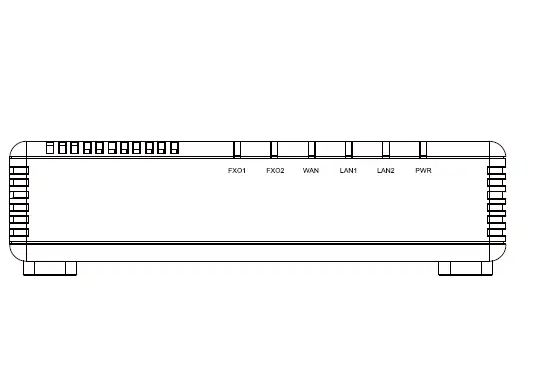
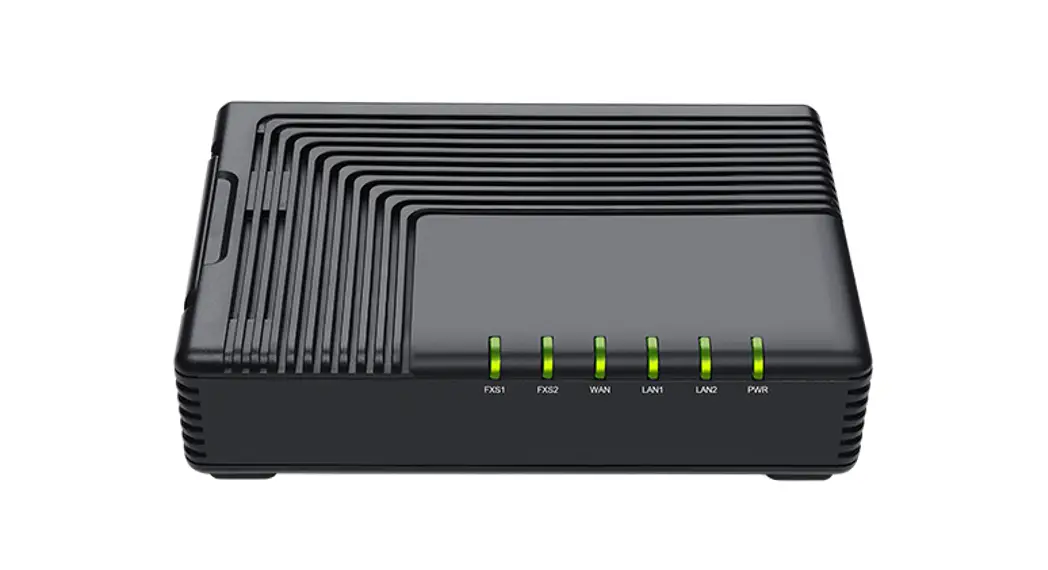
Indicators and Ports
Attentions before Installing
- To guarantee device works normally and to lengthen the service life of the device, the humidity of the equipment room where device is installed in temperature should be 0 ℃~ 45 ℃;
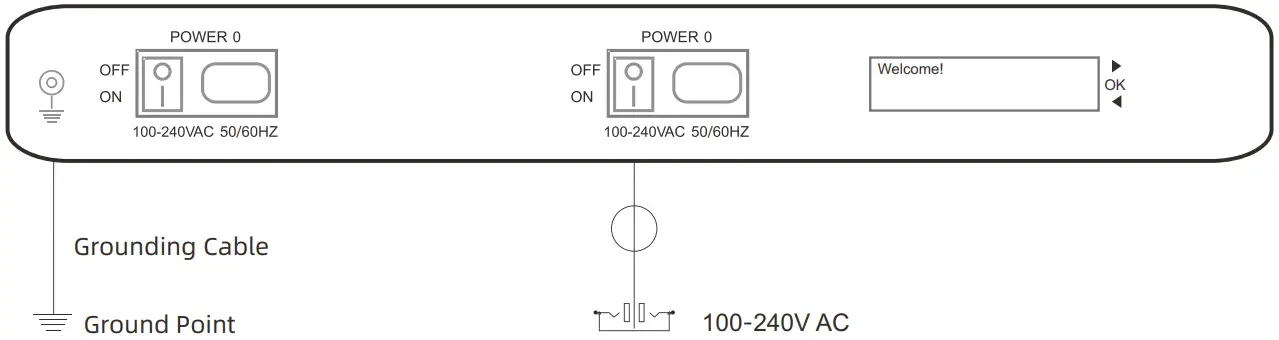
- Power supply of device should be 100 ~ 240V AC, and its socket is a three pin socket which should be grounded well;
- To reduce the interference with telephone calls, it’s highly recommended that telephone lines connected to the gateway should be placed away from power cables;
Installation Instruction
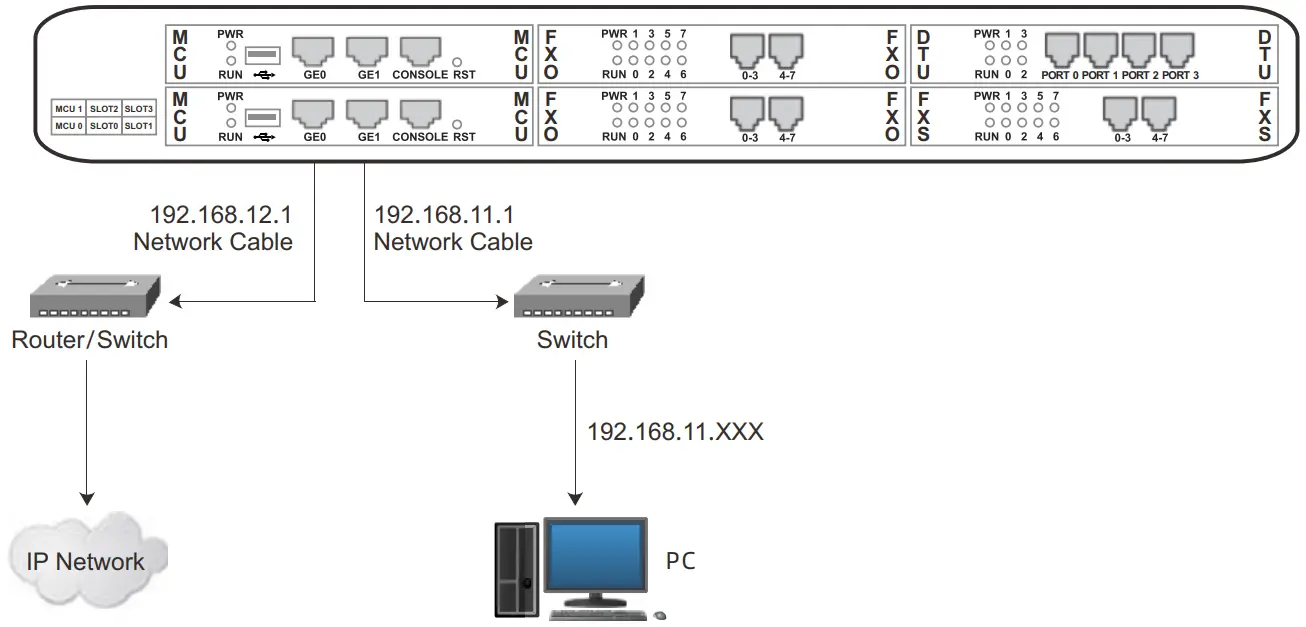
 Network connection
- Connect gateway with network via a switch

Connect the power cord to power jack
- Connect gateway with power input and ground point

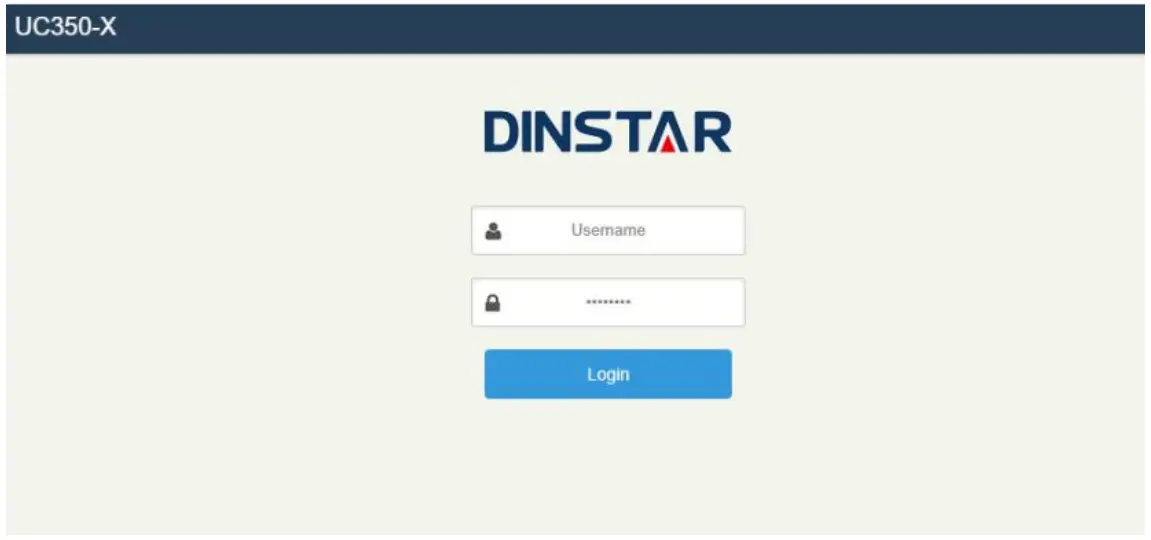
Login Web GUI
Open the GUI in browser through IP HTTPS: XX.XX.XX.XX .The GE0 default is 192.168.12.1 and GE1 default is 192.168.11.1.
The username is admin and password is admin@123#.
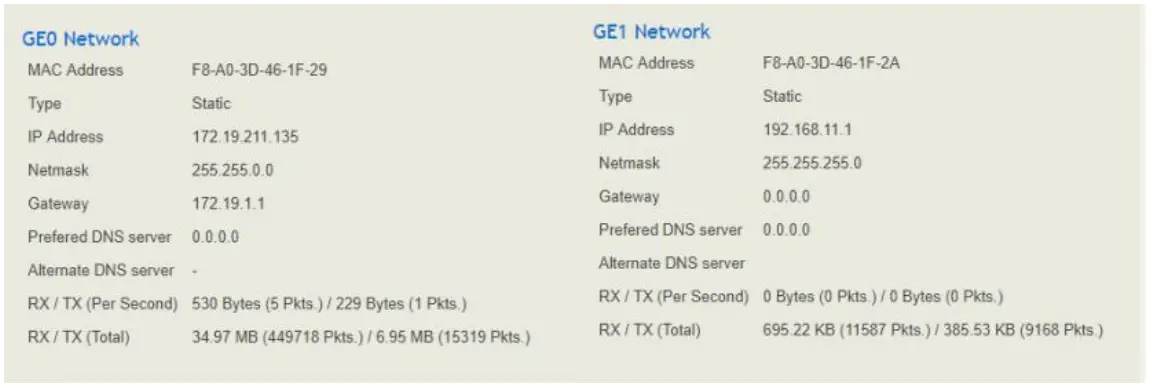
Check Network Status
Check GE0 and GE1 network status on the “Status → Overview” page.
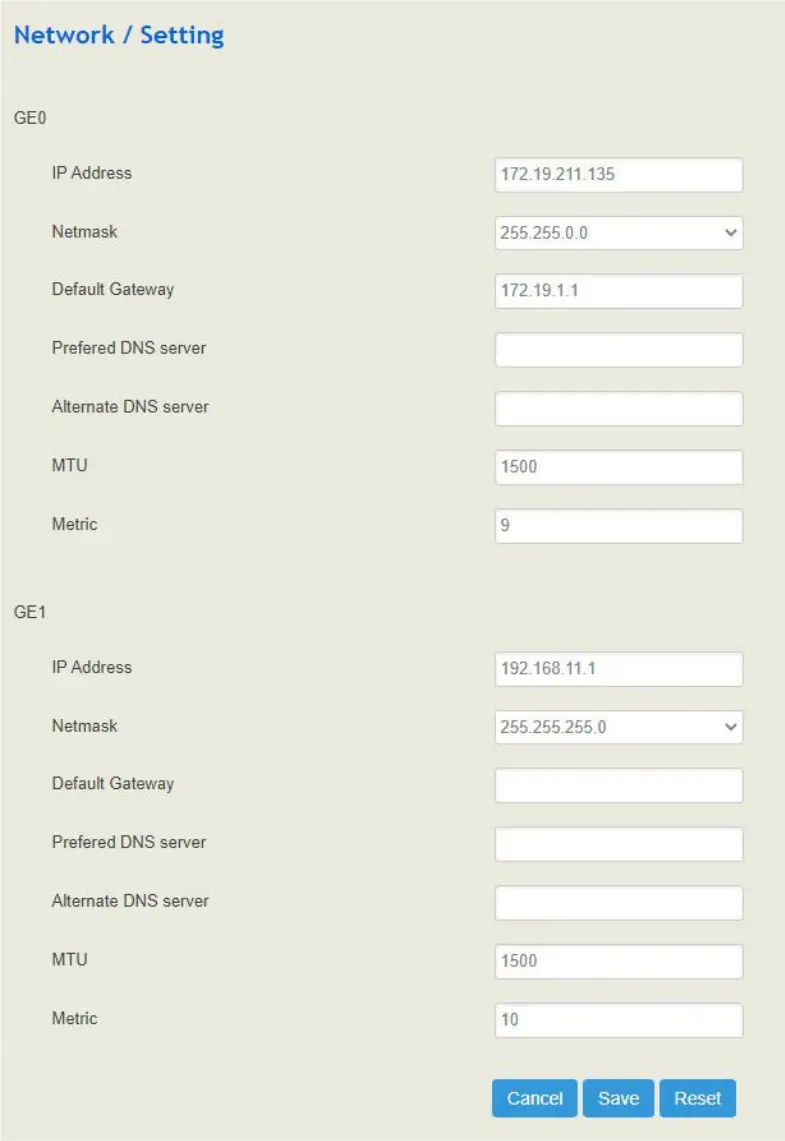
Modify Network Configuration
Log into the device and click “Network → Settings” at the top menu bar to configure IP addresses of GE0 and GE1 ports.
Click “Save” and “reset” to make the settings take effect.
Create SIP Extensions
Click “Extension→ SIP” to create the SIP extension: add/delete/disable/enable, etc. UC350 supports batch add or import account files.
Note: when add the extension, the profile should choose the corresponding one.
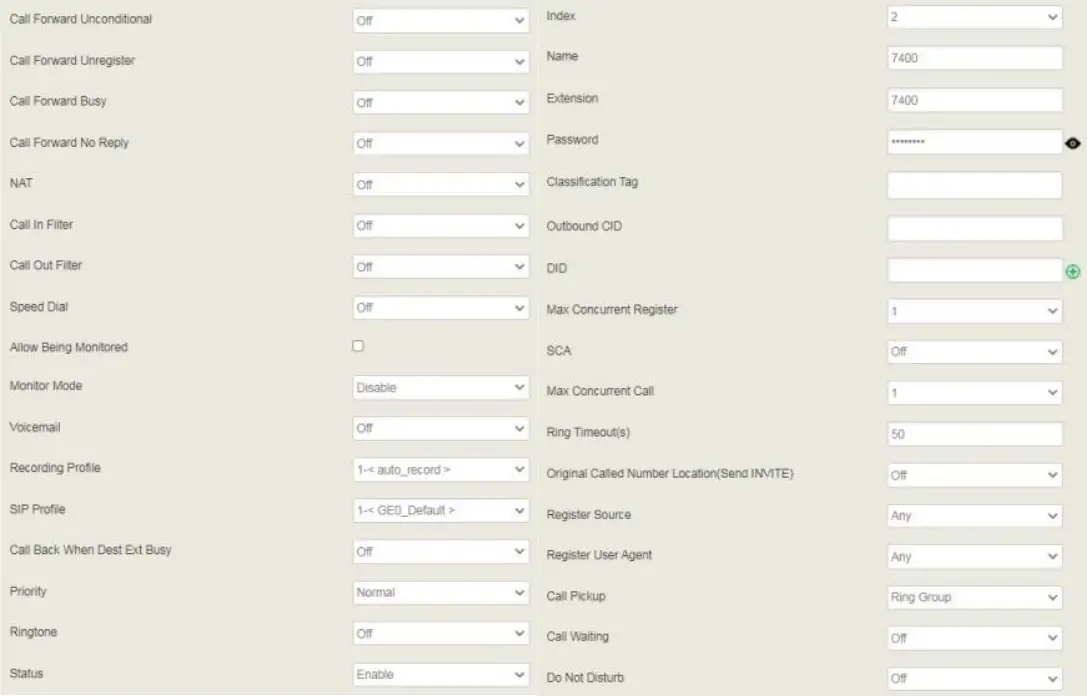
After setting, you need to click “apply” to make the settings take effect.
If the status of a newly added SIP account is “registered”, it means that the device accepts the registration of the extension.
If the status of the SIP account is “unregistered”, it means that the device rejects to register the extension.
The registration status of SIP extension and SIP trunk can be checked on the “Status → SIP” page.
Add Trunk
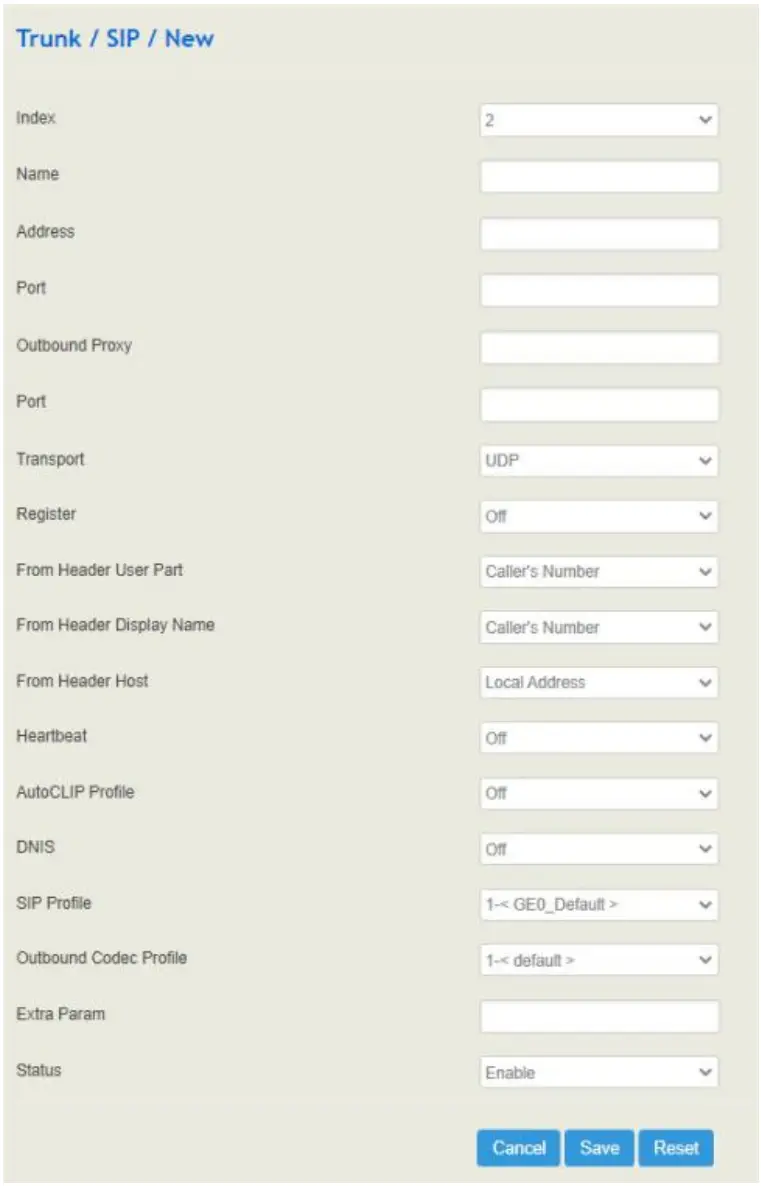
- SIP trunk
SIP trunks are used to connect other SIP terminals or service providers. When add a SIP trunk, you should choose corresponding SIP profile based on your current network. The SIP trunk supports UDP/TCP/TLS. Also, SIP trunk status can be checked under Status → SIP page.
 - FXO
You can also create Trunk/FXO. It is an alternative to support calls through or from PSTN.
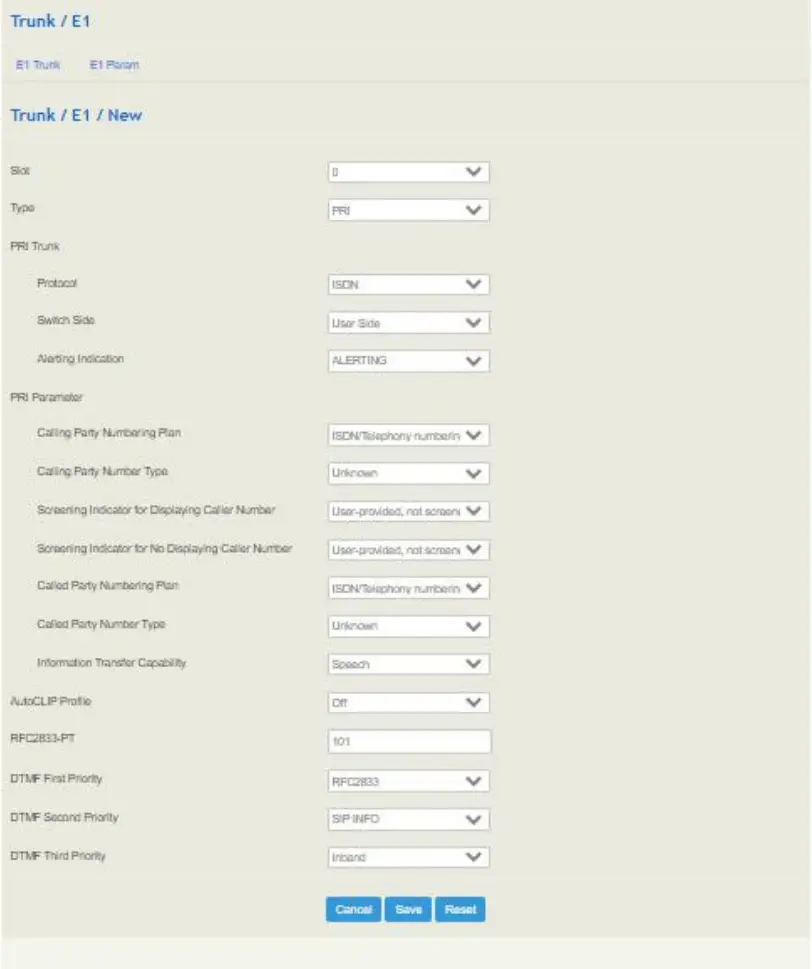
- E1/T1
You can set up ISDN PRI/SS7/R2 connections via digital E1/T1 ports. Please be sure the E1/T1 physical connection is well connected, and PRI status is up and active before configuring the call routing.
 Also, SIP trunk status can be checked under Status → SIP page.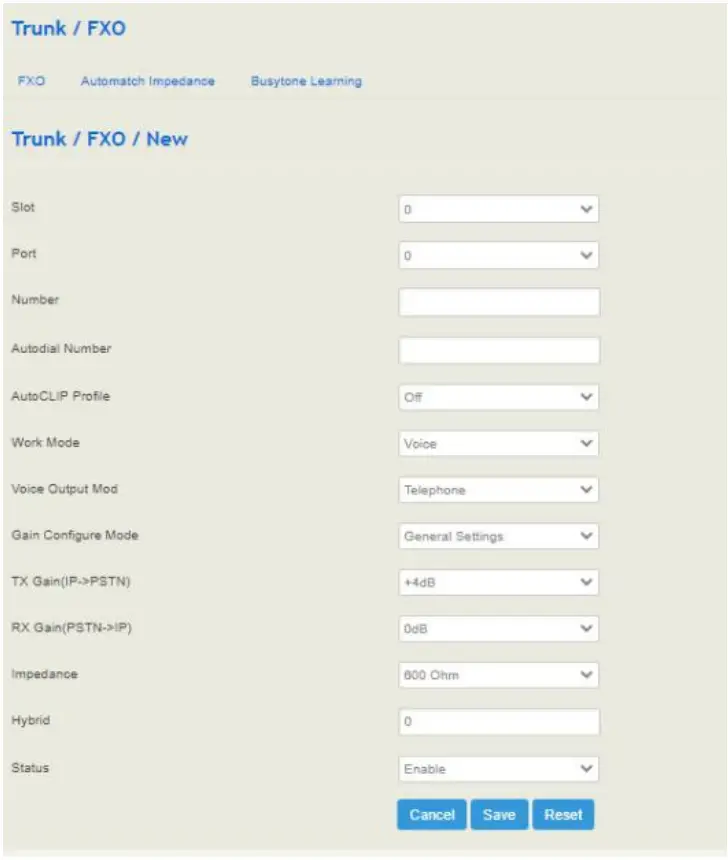
Configure Outbound/Inbound Rule
On the “Call Control → Route” interface, you can configure routes for incoming calls and outgoing calls.
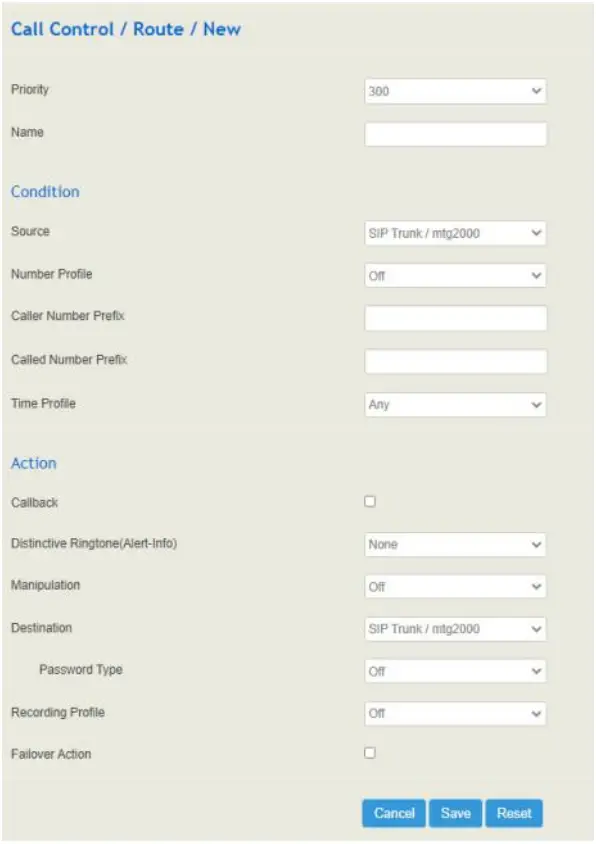
The UC350 supports max 300 routes, the rule with a lower index has a higher priority.
The key configuration of route is at “condition” part. Here, you can configure the route based on the Caller/Called Number prefix and time.
Basic Operation
Dial *158# to query the IP address of GE0 port of the device;
Dial *114# to query the telephone number of a FXS port;
Dial *111# to restart the device;
Click “system->Reboot” menu to perform reboot.
Note: Dialing *158# to query the IP address of GE0 port of the device is only available for FXO/FXS user boards.If your user board is E1/T1 boards, it has to query the IP address from CONSOLE.
More Details
This document only provides instructions for quick installation and basic configuration.
For detailed configuration and Parameter explanation, Please refer to User Manual or ask for technical support.
Frequently Asked Questions
– UC350 can support GE0/GE1 interconnection services at the same time, which can make GE0 calls out of GE1. But the corresponding network port needs to be selected in the extension or trunk. If the network port is selected incorrectly, it will cause connection problems.
– Yes , it supports video call (not conference call) such as VP2, H263, H264, H261, and also supports fax (T.30 or T.38).
– The storage method can support USB flash disk or SD card.
– If more additional FXS, FXO, and E1 ports are needed, you can connect to other external VoIP gateways through SIP trunks.
– The default FXO interface cable only supports the RJ45 interface, and the RJ11 port needs to be separated by a splitter. Refer to the user manual for specific wiring methods.
– You can factory reset the device via Web GUI.

IP Communication Solutions
Shenzhen Dinstar Co., Ltd.
Website: http://www.dinstar.com
Email: [email protected]http://www.dinstar.com/
 VoIP Gateway | IP PBX | IP Phone丨Session Border Controller丨SIP Intercom丨DINSTAR