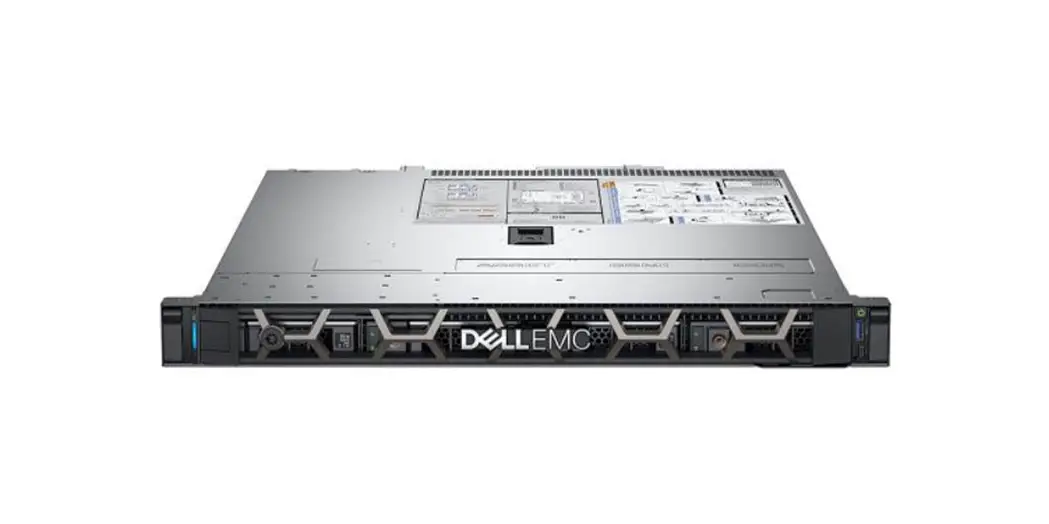
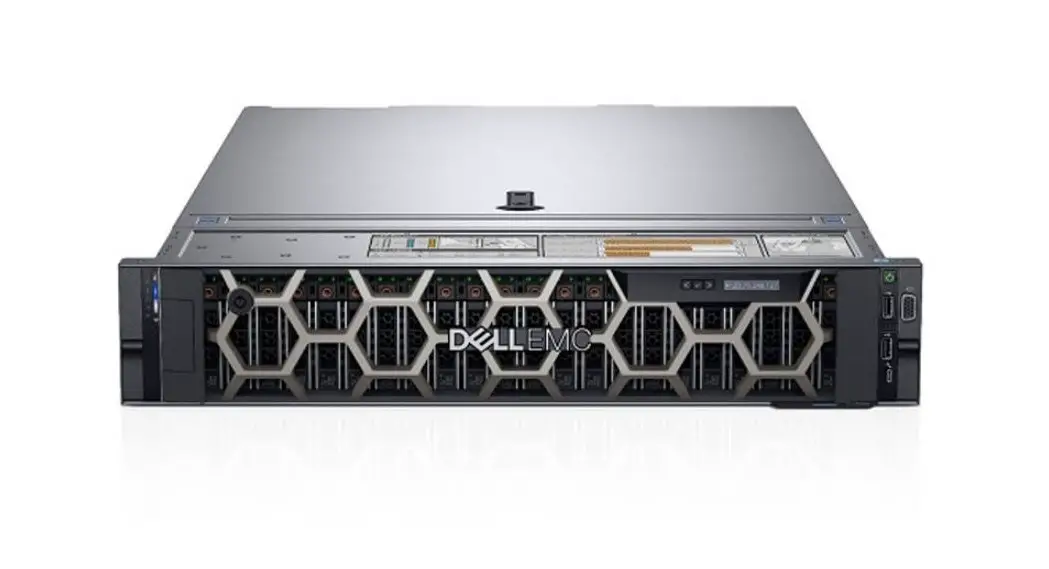
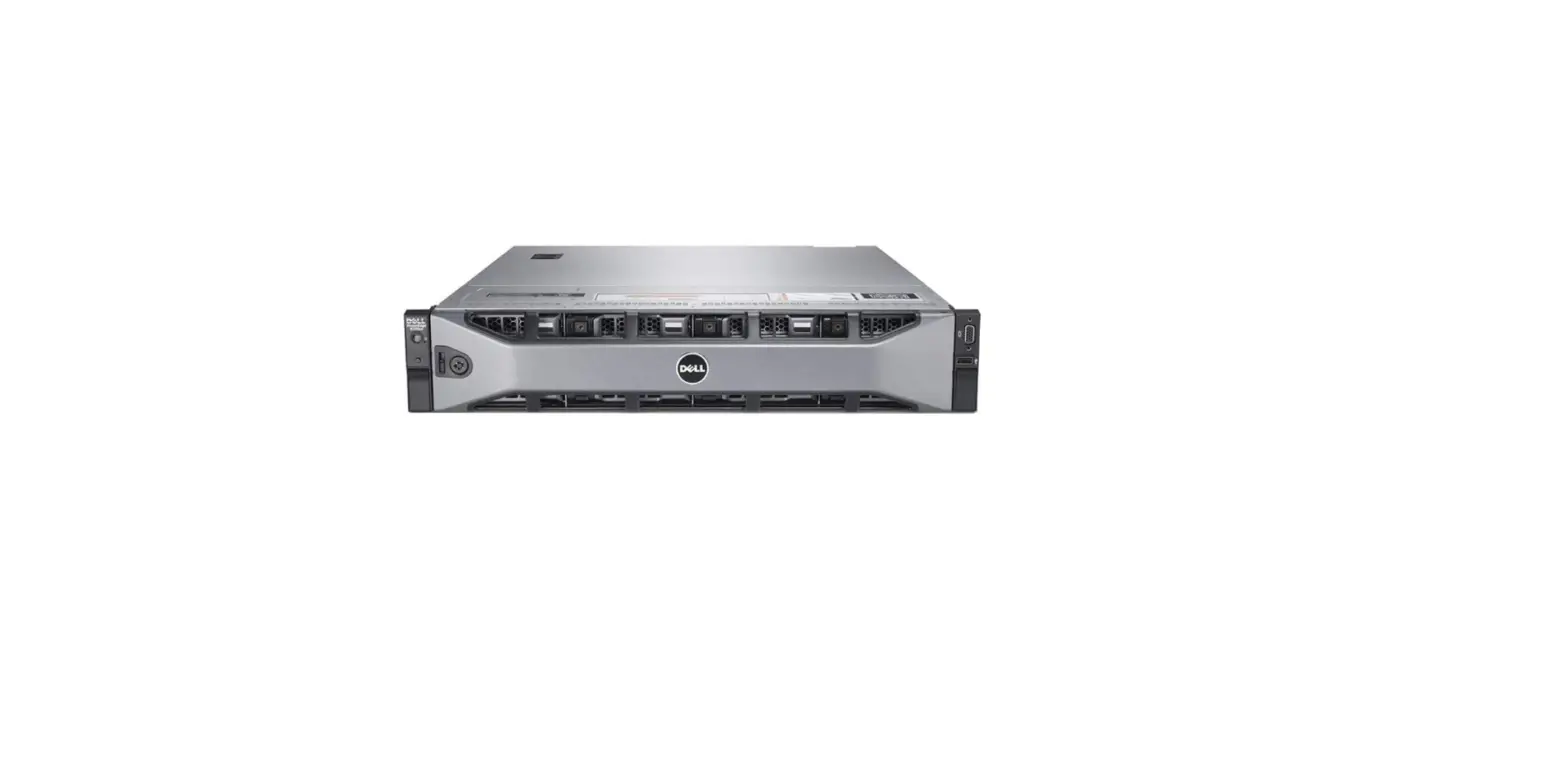
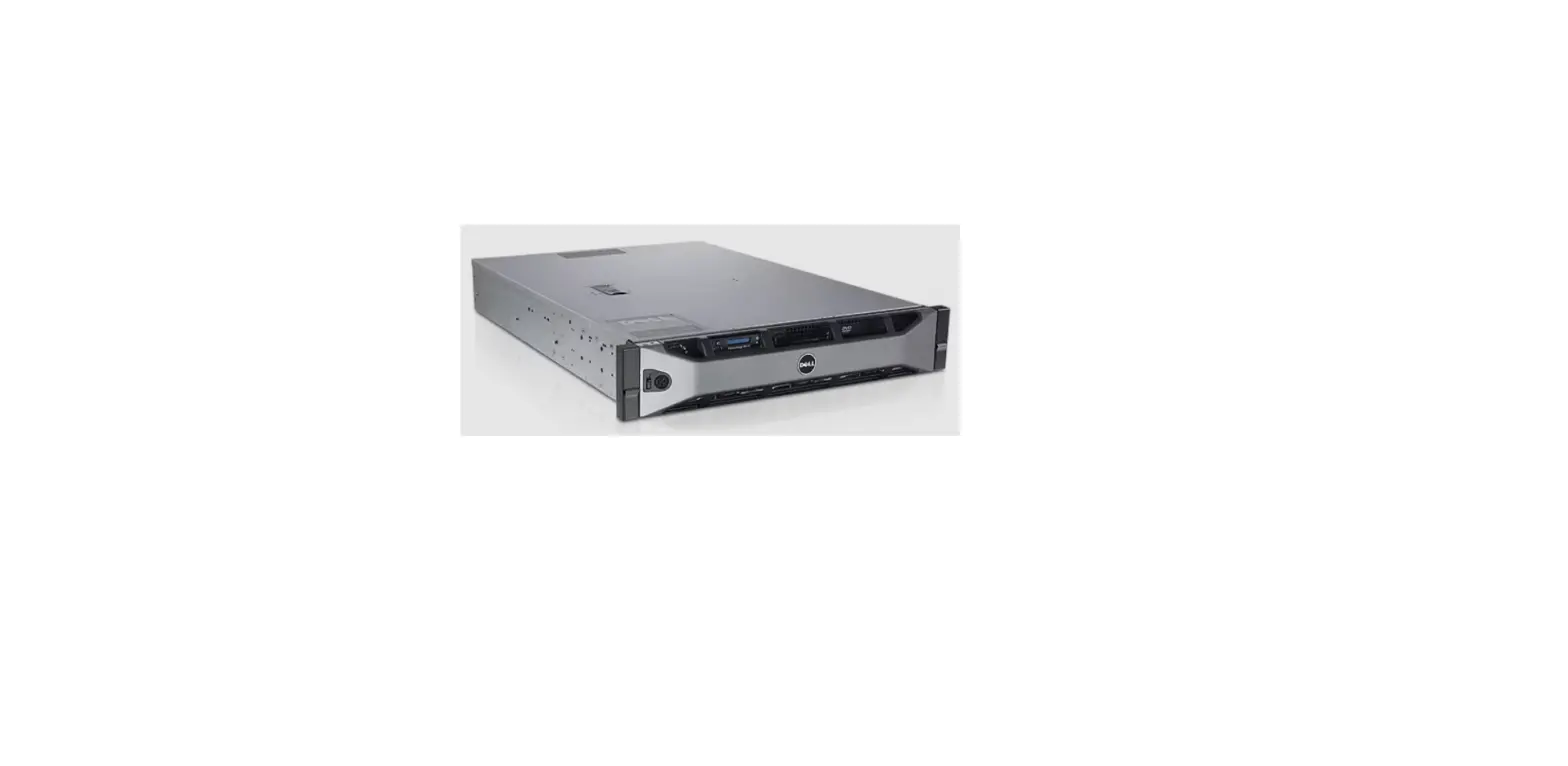
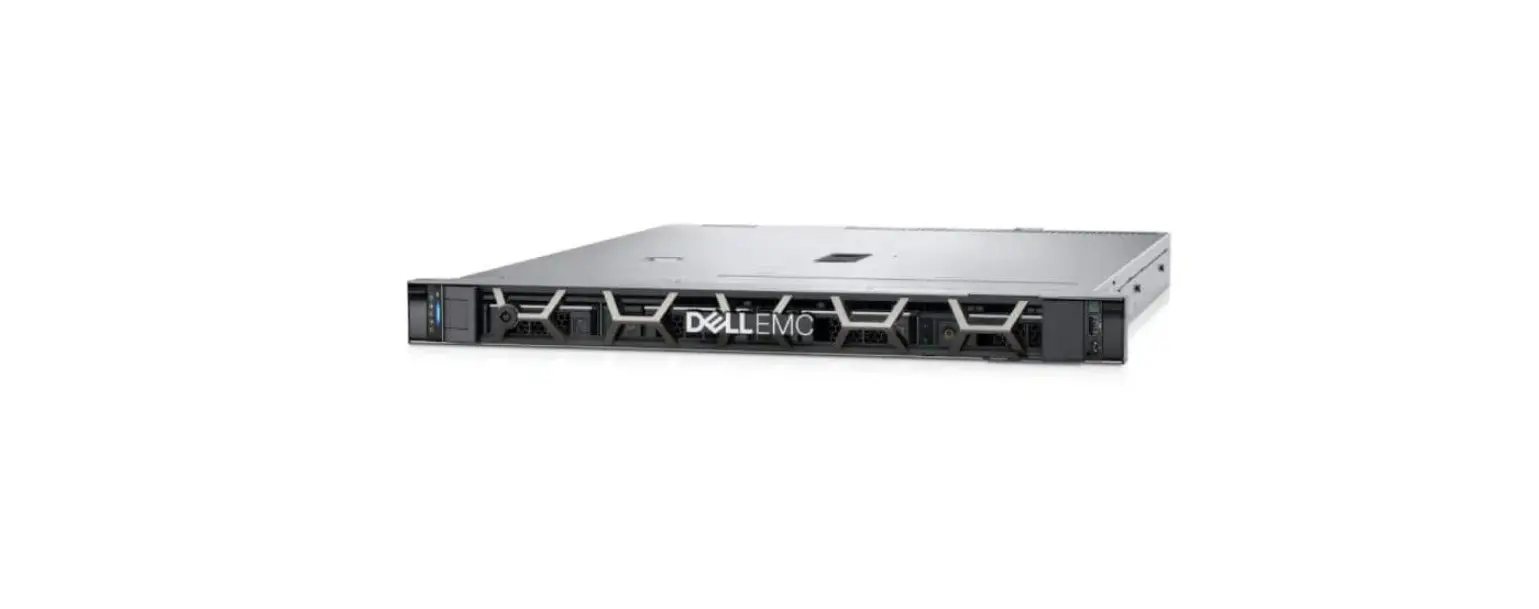
PowerEdge R650
Dell EMC PowerEdge R650
Product Information
The Dell EMC PowerEdge R650 is a server designed for
high-performance computing and storage applications. It has a
Regulatory Model of E69S Series and a Regulatory Type of E69S001.
The server comes with several features such as an air shroud,
cooling fans, an IDSDM module, a system battery, an internal USB
card, and a serial COM port. It also has a LOM and rear IO
card.
Product Usage Instructions
Before using the Dell EMC PowerEdge R650, it is important to
read the notes, cautions, and warnings in the Installation and
Service Manual. Follow the instructions carefully to avoid
potential damage to hardware or loss of data.
Installing the Air Shroud
To install the air shroud, follow the steps below:
- Locate the air shroud assembly.
- Align the air shroud assembly with the guide pins on the
chassis. - Pull the air shroud assembly towards the front of the chassis
until it clicks into place.
Cooling Fans
The Dell EMC PowerEdge R650 comes with cooling fans to regulate
temperature. No installation is required for these fans.
Installing/Removing the IDSDM Module
To install/remove the IDSDM module, follow the steps below:
- Locate the IDSDM module.
- To remove the module, press the release latch and slide the
module out of its slot. - To install the module, align it with the slot and slide it in
until it clicks into place.
Replacing the System Battery
To replace the system battery, follow the steps below:
- Locate the system battery.
- Disconnect the battery cable from the system board.
- Remove the battery from its holder.
- Insert the new battery into the holder.
- Connect the battery cable to the system board.
Installing/Removing the Optional Internal USB Card
To install/remove the optional internal USB card, follow the
steps below:
- Locate the optional internal USB card.
- To remove the card, press the release latch and slide the card
out of its slot. - To install the card, align it with the slot and slide it in
until it clicks into place.
Installing/Removing the Optional Serial COM Port
To install/remove the optional serial COM port, follow the steps
below:
- Locate the optional serial COM port.
- To remove the port, press the release latch and slide the port
out of its slot. - To install the port, align it with the slot and slide it in
until it clicks into place.
Installing/Removing the LOM and Rear IO Card
To install/remove the LOM and rear IO card, follow the steps
below:
- Locate the LOM and rear IO card.
- To remove the cards, press the release latch and slide them out
of their slots. - To install the cards, align them with the slots and slide them
in until they click into place.
Dell EMC PowerEdge R650
Installation and Service Manual
Regulatory Model: E69S Series Regulatory Type: E69S001 November 2022 Rev. A04
Notes, cautions, and warnings
NOTE: A NOTE indicates important information that helps you make better use of your product. CAUTION: A CAUTION indicates either potential damage to hardware or loss of data and tells you how to avoid the problem. WARNING: A WARNING indicates a potential for property damage, personal injury, or death.
© 2021 – 2022 Dell Inc. or its subsidiaries. All rights reserved. Dell Technologies, Dell, and other trademarks are trademarks of Dell Inc. or its subsidiaries. Other trademarks may be trademarks of their respective owners.
Contents
Chapter 1: About this document………………………………………………………………………………………. 7
Chapter 2: Dell EMC PowerEdge R650 system overview……………………………………………………….8 Front view of the system…………………………………………………………………………………………………………………………………8 Right control panel view…………………………………………………………………………………………………………………………….11 Left control panel view…………………………………………………………………………………………………………………………….. 12 Rear view of the system……………………………………………………………………………………………………………………………….. 13 Inside the system ………………………………………………………………………………………………………………………………………….. 16 Locating the Express Service Code and Service Tag………………………………………………………………………………….. 17 System information label……………………………………………………………………………………………………………………………….. 18 Rail sizing and rack compatibility matrix……………………………………………………………………………………………………….20
Chapter 3: Initial system setup and configuration………………………………………………………………22 Setting up the system…………………………………………………………………………………………………………………………………… 22 iDRAC configuration……………………………………………………………………………………………………………………………………… 22 Options to set up iDRAC IP address……………………………………………………………………………………………………….. 22 Options to log in to iDRAC………………………………………………………………………………………………………………………. 23 Resources to install operating system…………………………………………………………………………………………………………. 24 Options to download firmware ………………………………………………………………………………………………………………..24 Options to download and install OS drivers ……………………………………………………………………………………………25 Downloading drivers and firmware…………………………………………………………………………………………………………..25
Chapter 4: Minimum to POST and system management configuration validation……………………. 26 Minimum configuration to POST ………………………………………………………………………………………………………………….26 Configuration validation…………………………………………………………………………………………………………………………………26 Error messages………………………………………………………………………………………………………………………………………….27
Chapter 5: Installing and removing system components…………………………………………………….. 28 Safety instructions…………………………………………………………………………………………………………………………………………28 Before working inside your system………………………………………………………………………………………………………………. 29 After working inside your system…………………………………………………………………………………………………………………. 29 Recommended tools……………………………………………………………………………………………………………………………………… 29 Cable routing…………………………………………………………………………………………………………………………………………………. 30 Optional front bezel………………………………………………………………………………………………………………………………………. 36 Removing the front bezel…………………………………………………………………………………………………………………………36 Installing the front bezel………………………………………………………………………………………………………………………….. 37 System cover………………………………………………………………………………………………………………………………………………… 38 Removing the system cover……………………………………………………………………………………………………………………. 38 Installing the system cover……………………………………………………………………………………………………………………… 39 Drive backplane cover……………………………………………………………………………………………………………………………………40 Removing the drive backplane cover……………………………………………………………………………………………………… 40 Installing the drive backplane cover………………………………………………………………………………………………………… 41 Air shroud………………………………………………………………………………………………………………………………………………………. 43 Removing the air shroud…………………………………………………………………………………………………………………………..43
Contents
3
Installing the air shroud……………………………………………………………………………………………………………………………. 44 Cooling fans…………………………………………………………………………………………………………………………………………………… 46
Removing a cooling fan module………………………………………………………………………………………………………………. 46 Installing a cooling fan module………………………………………………………………………………………………………………… 46 Drives………………………………………………………………………………………………………………………………………………………………47 Removing a drive blank……………………………………………………………………………………………………………………………. 47 Installing a drive blank……………………………………………………………………………………………………………………………… 48 Removing the drive carrier……………………………………………………………………………………………………………………….48 Installing the drive carrier…………………………………………………………………………………………………………………………49 Removing the drive from the drive carrier………………………………………………………………………………………………50 Installing the drive into the drive carrier…………………………………………………………………………………………………. 51 Drive backplane…………………………………………………………………………………………………………………………………………….. 52 Drive backplane connectors……………………………………………………………………………………………………………………..52 Removing the drive backplane ………………………………………………………………………………………………………………..59 Installing the drive backplane………………………………………………………………………………………………………………….. 60 Rear mounting front PERC module……………………………………………………………………………………………………………… 62 Removing the front mounting front PERC module………………………………………………………………………………… 62 Installing the front mounting front PERC module………………………………………………………………………………….. 63 Removing the rear mounting front PERC module…………………………………………………………………………………..64 Installing the rear mounting front PERC module……………………………………………………………………………………. 65 Rear drive module…………………………………………………………………………………………………………………………………………. 66 Removing the rear drive module………………………………………………………………………………………………………………66 Installing the rear drive module………………………………………………………………………………………………………………..66 System memory…………………………………………………………………………………………………………………………………………….. 67 System memory guidelines………………………………………………………………………………………………………………………. 67 General memory module installation guidelines……………………………………………………………………………………….69 Intel Persistent Memory 200 series (BPS) installation guidelines …………………………………………………………70 Removing a memory module…………………………………………………………………………………………………………………….75 Installing a memory module……………………………………………………………………………………………………………………… 76 Processor and heat sink module…………………………………………………………………………………………………………………… 77 Removing the processor and heat sink module……………………………………………………………………………………….77 Removing the processor from the processor heat sink module……………………………………………………………..79 Installing the processor…………………………………………………………………………………………………………………………….80 Installing the processor heat sink module………………………………………………………………………………………………..84 Removing the liquid cooling module…………………………………………………………………………………………………………86 Installing the liquid cooling module………………………………………………………………………………………………………….. 87 Expansion cards and expansion card risers…………………………………………………………………………………………………..88 Expansion card installation guidelines…………………………………………………………………………………………………….. 89 Removing the expansion card risers………………………………………………………………………………………………………. 101 Installing the expansion card risers…………………………………………………………………………………………………………104 Removing expansion card from the expansion card riser…………………………………………………………………….. 106 Installing an expansion card into the expansion card riser…………………………………………………………………… 109 Removing the R1 paddle cards………………………………………………………………………………………………………………… 111 Installing R1 paddle card…………………………………………………………………………………………………………………………..112 Intrusion switch module……………………………………………………………………………………………………………………………….. 113 Removing the intrusion switch module………………………………………………………………………………………………….. 113 Installing the intrusion switch module……………………………………………………………………………………………………..114 M.2 SSD module on BOSS-S1 adapter card……………………………………………………………………………………………….. 115 Removing the M.2 SSD module……………………………………………………………………………………………………………… 115 Installing the M.2 SSD module……………………………………………………………………………………………………………….. 116
4
Contents
Optional BOSS S2 module……………………………………………………………………………………………………………………………. 117 Removing the BOSS S2 filler………………………………………………………………………………………………………………….. 117 Installing the BOSS S2 filler……………………………………………………………………………………………………………………. 118 Removing the BOSS S2 module………………………………………………………………………………………………………………119 Installing the BOSS S2 controller card………………………………………………………………………………………………….. 122
Optional IDSDM module………………………………………………………………………………………………………………………………. 125 Removing the IDSDM module………………………………………………………………………………………………………………… 125 Installing the IDSDM module………………………………………………………………………………………………………………….. 126
MicroSD card……………………………………………………………………………………………………………………………………………….. 127 Removing the MicroSD card………………………………………………………………………………………………………………….. 127 Installing the MicroSD card……………………………………………………………………………………………………………………. 128
Optional OCP card………………………………………………………………………………………………………………………………………..129 Removing the OCP card………………………………………………………………………………………………………………………… 129 Installing the OCP card……………………………………………………………………………………………………………………………130
System battery ……………………………………………………………………………………………………………………………………………. 131 Replacing the system battery………………………………………………………………………………………………………………….131
Optional internal USB card………………………………………………………………………………………………………………………….. 133 Removing the optional internal USB card……………………………………………………………………………………………… 133 Installing the internal USB card……………………………………………………………………………………………………………… 134
VGA module…………………………………………………………………………………………………………………………………………………. 134 Removing the VGA module……………………………………………………………………………………………………………………..134 Installing the VGA module……………………………………………………………………………………………………………………….136 Removing the rear VGA port…………………………………………………………………………………………………………………..138 Installing the rear VGA port…………………………………………………………………………………………………………………….139
Power supply unit………………………………………………………………………………………………………………………………………… 140 Hot spare feature…………………………………………………………………………………………………………………………………….140 Removing a power supply unit blank………………………………………………………………………………………………………140 Installing a power supply unit blank…………………………………………………………………………………………………………141 Removing a power supply unit………………………………………………………………………………………………………………..142 Installing a power supply unit…………………………………………………………………………………………………………………. 142
Optional serial COM port…………………………………………………………………………………………………………………………….. 143 Removing the serial COM port………………………………………………………………………………………………………………. 143 Installing the serial COM port………………………………………………………………………………………………………………… 145
System board……………………………………………………………………………………………………………………………………………….. 147 Removing the system board……………………………………………………………………………………………………………………147 Installing the system board……………………………………………………………………………………………………………………..148 Restoring the system using Easy Restore…………………………………………………………………………………………….. 150
Trusted Platform Module……………………………………………………………………………………………………………………………..150 Upgrading the Trusted Platform Module………………………………………………………………………………………………. 150 Initializing TPM for users………………………………………………………………………………………………………………………… 151 Initializing the TPM 1.2 for users……………………………………………………………………………………………………………. 151 Initializing the TPM 2.0 for users…………………………………………………………………………………………………………….151
LOM and rear IO card……………………………………………………………………………………………………………………………………151 Removing the rear Input Output card and LOM card…………………………………………………………………………….151 Installing the RIO card and LOM card…………………………………………………………………………………………………….152
Control panel…………………………………………………………………………………………………………………………………………………153 Removing the right control panel………………………………………………………………………………………………………….. 153 Installing the right control panel……………………………………………………………………………………………………………..154 Removing the left control panel……………………………………………………………………………………………………………..155 Installing the left control panel………………………………………………………………………………………………………………. 156
Contents
5
Chapter 6: Upgrade Kits……………………………………………………………………………………………….158 Management Interface Card (MIC) kit………………………………………………………………………………………………………..158 BOSS S2 kit…………………………………………………………………………………………………………………………………………………. 159 IDSDM kit……………………………………………………………………………………………………………………………………………………… 161 Internal USB card kit…………………………………………………………………………………………………………………………………….162 VGA port kit…………………………………………………………………………………………………………………………………………………. 162 Serial COM port kit……………………………………………………………………………………………………………………………………… 162
Chapter 7: Jumpers and connectors………………………………………………………………………………. 163 System board connectors…………………………………………………………………………………………………………………………….163 System board jumper settings……………………………………………………………………………………………………………………..165 Disabling a forgotten password………………………………………………………………………………………………………………….. 165
Chapter 8: System diagnostics and indicator codes…………………………………………………………. 166 Status LED indicators………………………………………………………………………………………………………………………………….. 166 System health and system ID indicator codes……………………………………………………………………………………………. 167 iDRAC Quick Sync 2 indicator codes………………………………………………………………………………………………………….. 168 iDRAC Direct LED indicator codes……………………………………………………………………………………………………………… 168 LCD panel…………………………………………………………………………………………………………………………………………………….. 169 Viewing Home screen…………………………………………………………………………………………………………………………….. 170 Setup menu…………………………………………………………………………………………………………………………………………….. 170 View menu………………………………………………………………………………………………………………………………………………. 170 NIC indicator codes……………………………………………………………………………………………………………………………………….171 Power supply unit indicator codes………………………………………………………………………………………………………………..171 Drive indicator codes…………………………………………………………………………………………………………………………………… 173 Using system diagnostics……………………………………………………………………………………………………………………………..173 Dell Embedded System Diagnostics………………………………………………………………………………………………………. 173
Chapter 9: Getting help………………………………………………………………………………………………. 175 Recycling or End-of-Life service information…………………………………………………………………………………………….. 175 Contacting Dell Technologies……………………………………………………………………………………………………………………… 175 Accessing system information by using QRL……………………………………………………………………………………………… 175 Quick Resource Locator for PowerEdge R650 system………………………………………………………………………… 176 Receiving automated support with SupportAssist ……………………………………………………………………………………. 176
Chapter 10: Documentation resources……………………………………………………………………………. 177
6
Contents
1
About this document
This document provides an overview about the system, information about installing and replacing components, diagnostic tools, and guidelines to be followed while installing certain components.
About this document
7
2
Dell EMC PowerEdge R650 system overview
The Dell EMC PowerEdge R650 system is a 1U server that supports: Up to two 3rd Generation Intel Xeon Scalable processors, with up to 40 cores per processor 32 DIMM slots Two redundant AC or DC power supply units Up to 4 x 3.5-inch, 8 x 2.5-inch SAS/SATA drives, 10 x 2.5-inch drives (with two or four universal slots to support optional
NVMe drives) or 10x 2.5-inch NVMe drives only. NOTE: For more information about how to hot swap NVMe PCIe SSD U.2 device, see the Dell Express Flash NVMe PCIe SSD User’s Guide at https://www.dell.com/support> Browse all Products > Data Center Infrastructure > Storage Adapters & Controllers > Dell PowerEdge Express Flash NVMe PCIe SSD > Documentation > Manuals and Documents.
NOTE: All instances of SAS, SATA, NVMe drives are referred to as drives in this document, unless specified otherwise.
CAUTION: Do not install GPUs, network cards, or other PCIe devices on your system that are not validated and tested by Dell. Damage caused by unauthorized and invalidated hardware installation will null and void the system warranty.
For more information, see the Dell EMC PowerEdge R650 Technical Specifications on the product documentation page.
Topics:
· Front view of the system · Rear view of the system · Inside the system · Locating the Express Service Code and Service Tag · System information label · Rail sizing and rack compatibility matrix
Front view of the system
Figure 1. Front view of 4 x 3.5-inch SAS/SATA drive system
Table 1. Features available on the front of the system
Item
Ports, panels, and slots
Icon
Description
1
Left control panel
N/A
Contains the system health, system ID, status LED, and the iDRAC Quick Sync 2 (wireless) indicator.
NOTE: The iDRAC Quick Sync 2 indicator is available only on certain configurations.
Status LED: Enables you to identify any failed hardware components. There are up to five status LEDs and an overall
8
Dell EMC PowerEdge R650 system overview
Table 1. Features available on the front of the system (continued)
Item
Ports, panels, and slots
Icon
Description
system health LED (Chassis health and system ID) bar. For more information, see the Status LED indicators section.
Quick Sync 2 (wireless): Indicates a Quick Sync enabled system. The Quick Sync feature is optional. This feature allows management of the system by using mobile devices called as OpenManage Mobile (OMM) feature. Using iDRAC Quick Sync 2 with OpenManage Mobile (OMM) aggregates hardware or firmware inventory and various system level diagnostic and error information that can be used in troubleshooting the system. For more information, see the Integrated Dell Remote Access Controller User’s Guide available at https://www.dell.com/idracmanuals
2
Drive (4)
N/A
Enables you to install drives that are supported on your system.
3
VGA port
Enables you to connect a display device to the system.
4
Right control panel
N/A
5
Information tag
N/A
Contains the power button, USB port, iDRAC Direct micro port, and the iDRAC Direct status LED.
The Information tag is a slide-out label panel that contains system information such as Service Tag, NIC, MAC address, and so on. If you have opted for the secure default access to iDRAC, then the Information tag will also contain the iDRAC secure default password.
Figure 2. Front view of 8 x 2.5-inch SAS/SATA drive system
Table 2. Features available on the front of the system
Item
Ports, panels, and slots
Icon
Description
1
Left control panel
N/A
Contains the system health, system ID, status LED, and the iDRAC Quick Sync 2 (wireless) indicator.
NOTE: The iDRAC Quick Sync 2 indicator is available only on certain configurations.
Status LED: Enables you to identify any failed hardware components. There are up to five status LEDs and an overall system health LED (Chassis health and system ID) bar. For more information, see the Status LED indicators section.
Quick Sync 2 (wireless): Indicates a Quick Sync enabled system. The Quick Sync feature is optional. This feature allows management of the system by using mobile devices called as OpenManage Mobile (OMM) feature. Using iDRAC Quick Sync 2 with OpenManage Mobile (OMM) aggregates hardware or firmware inventory and various system level diagnostic and error information that can be used in troubleshooting the system. For more information, see the Integrated Dell Remote Access Controller User’s Guide available at https://www.dell.com/idracmanuals
Dell EMC PowerEdge R650 system overview
9
Table 2. Features available on the front of the system (continued)
Item
Ports, panels, and slots
Icon
Description
2
Drive (8)
N/A
Enables you to install drives that are supported on your system.
3
Right control panel
N/A
Contains the power button, USB port, iDRAC Direct micro port, and the iDRAC Direct status LED.
4
VGA port
Enables you to connect a display device to the system.
5
Information tag
N/A
The Information tag is a slide-out label panel that contains system information such as Service Tag, NIC, MAC address, and so on. If you have opted for the secure default access to iDRAC, then the Information tag will also contain the iDRAC secure default password.
Figure 3. Front view of 10 x 2.5-inch SAS/SATA/NVMe drive system
NOTE: For 8 x 2.5-inch all NVMe drive system, need to install drive blanks on drive bays 8 and 9 in the same chassis..
Table 3. Features available on the front of the system
Item
Ports, panels, and slots
Icon
Description
1
Left control panel
N/A
Contains the system health, system ID, status LED, and the iDRAC Quick Sync 2 (wireless) indicator.
NOTE: The iDRAC Quick Sync 2 indicator is available only on certain configurations.
2
VGA port
Status LED: Enables you to identify any failed hardware components. There are up to five status LEDs and an overall system health LED (Chassis health and system ID) bar. For more information, see the Status LED indicators section.
Quick Sync 2 (wireless): Indicates a Quick Sync enabled system. The Quick Sync feature is optional. This feature allows management of the system by using mobile devices called as OpenManage Mobile (OMM) feature. Using iDRAC Quick Sync 2 with OpenManage Mobile (OMM) aggregates hardware or firmware inventory and various system level diagnostic and error information that can be used in troubleshooting the system. For more information, see the Integrated Dell Remote Access Controller User’s Guide available at https://www.dell.com/idracmanuals
Enables you to connect a display device to the system.
3
Right control panel
N/A
4
Information tag
N/A
Contains the power button, USB port, iDRAC Direct micro port, and the iDRAC Direct status LED.
The Information tag is a slide-out label panel that contains system information such as Service Tag, NIC, MAC address, and so on. If you have opted for the secure default access to
10
Dell EMC PowerEdge R650 system overview
Table 3. Features available on the front of the system (continued)
Item
Ports, panels, and slots
Icon
Description
iDRAC, then the Information tag will also contain the iDRAC secure default password.
5
Drive (10)
N/A
Enables you to install drives that are supported on your system.
For more information about the ports, see the Dell EMC PowerEdge R650 Technical Specifications on the product documentation page.
Right control panel view
Figure 4. Right control panel
Table 4. Right control panel
Item Indicator or button
1
Power button
Icon
2
USB 2.0-compliant port
3
iDRAC Direct LED
N/A
indicator
4
iDRAC Direct port (Micro-
AB USB)
Description
Indicates if the system is powered on or off. Press the power button to manually power on or off the system.
NOTE: Press the power button to gracefully shut down the ACPIcompliant operating system.
The USB port is a 4-pin connector and 2.0-compliant. This port enables you to connect USB devices to the system.
The iDRAC Direct LED indicator lights up to indicate that the iDRAC Direct port is actively connected to a device.
The iDRAC Direct port (Micro-AB USB) enables you to access the iDRAC Direct Micro-AB features. For more information, see the Integrated Dell Remote Access Controller User’s Guide available at https://www.dell.com/idracmanuals .
NOTE: You can configure iDRAC Direct by using a USB to micro USB (type AB) cable, which you can connect to your laptop or tablet. Cable length should not exceed 3 feet (0.91 meters). Performance could be affected by cable quality.
NOTE: For more information, see the Dell EMCPowerEdgeR650 Technical Specifications on the product documentation page.
Dell EMC PowerEdge R650 system overview
11
Left control panel view
Figure 5. Left control panel without optional iDRAC Quick Sync 2.0 indicator
Figure 6. Left control panel with optional iDRAC Quick Sync 2.0 indicator
Table 5. Left control panel
Item Indicator, button, or connector
1
Status LED indicators
2
System health and system ID
indicator
3
iDRAC Quick Sync 2 wireless
indicator (optional)
Icon Description
N/A Indicates the status of the system. For more information, see the Status LED indicators section.
Indicates the system health. For more information, see the System health and system ID indicator codes section.
Indicates if the iDRAC Quick Sync 2 wireless option is activated. The Quick Sync 2 feature allows management of the system using mobile devices. This feature aggregates hardware/firmware inventory and various system level diagnostic/error information that can be used in troubleshooting the system. You can access system inventory, Dell Lifecycle Controller logs or system logs, system health status, and also configure iDRAC, BIOS, and networking parameters. You can also launch the virtual Keyboard, Video, and Mouse (KVM) viewer and virtual Kernel-based Virtual Machine (KVM), on a supported mobile device. For more information, see the Integrated Dell Remote Access Controller User’s Guide at www.dell.com/poweredgemanuals
NOTE: For more information about the indicator codes, see the System diagnostics and indicator codes section.
12
Dell EMC PowerEdge R650 system overview
Rear view of the system
Figure 7. Rear view of the system with 2 x FH PCIe slots
Table 6. Rear view of the system with 2 x FH PCIe slots
Item
Ports, panels, or slots Icon
Description
1
BOSS S2 module blank N/A
This slot supports the BOSS S2 module.
2
Power supply unit (PSU 1)
Indicates the PSU.
3
PCIe expansion card riser N/A
(slot 1 – FH)
4
PCIe expansion card riser N/A
(slot 2 – FH)
5
USB 2.0 port (1)
The expansion card riser enables you to connect PCI Express expansion cards.
The expansion card riser enables you to connect PCI Express expansion cards.
This port is USB 2.0-compliant.
6
Power supply unit (PSU
2)
7
VGA port (on STD RIO
board)
8
USB 3.0 port (1)
Indicates the PSU. Enables you to connect a display device to the system. This port is USB 3.0-compliant.
9
iDRAC dedicated port
10
System identification
button
11
OCP NIC port (optional) N/A
12
NIC port (2)
Enables you to remotely access iDRAC. For more information, see the iDRAC User’s Guide at www.dell.com/ poweredgemanuals.
Press the system ID button: To locate a particular system within a rack. To turn the system ID on or off. To reset iDRAC, press and hold the button for more than 16 seconds.
NOTE: To reset iDRAC using system ID, ensure that the
system ID button is enabled in the iDRAC setup. If the system stops responding during POST, press
and hold the system ID button (for more than 5 seconds) to enter the BIOS progress mode.
This port supports OCP 3.0. The NIC ports are integrated on the OCP card which is connected to the system board.
The NIC ports are embedded on the LOM card that is connected to the system board.
NOTE: For more information, see the Dell EMCPowerEdgeR650 Technical Specifications on the product documentation page.
Dell EMC PowerEdge R650 system overview
13
Figure 8. Rear view of the system with 3 x LP PCIe slots
Table 7. Rear view of the system with 3 x LP PCIe slots
Item
Ports, panels, or slots Icon
Description
1
Power supply unit (PSU 1)
Indicates the PSU.
2
PCIe expansion card riser N/A
(slot 1)
3
PCIe expansion card riser N/A
(slot 2)
4
USB 2.0 port (1)
The expansion card riser enables you to connect PCI Express expansion cards.
The expansion card riser enables you to connect PCI Express expansion cards.
This port is USB 2.0-compliant.
5
PCIe expansion card riser N/A
(slot 3)
6
Power supply unit (PSU
2)
7
VGA port (on STD RIO
board)
8
USB 3.0 port (1)
The expansion card riser enables you to connect PCI Express expansion cards. Indicates the PSU.
Enables you to connect a display device to the system.
This port is USB 3.0-compliant.
9
iDRAC dedicated port
10
System identification
button
11
OCP NIC port (optional) N/A
12
NIC port (2)
13
BOSS S2 module
N/A
(optional)
Enables you to remotely access iDRAC. For more information, see the iDRAC User’s Guide at www.dell.com/ poweredgemanuals.
Press the system ID button: To locate a particular system within a rack. To turn the system ID on or off. To reset iDRAC, press and hold the button for more than 16 seconds.
NOTE: To reset iDRAC using system ID, ensure that the
system ID button is enabled in the iDRAC setup. If the system stops responding during POST, press
and hold the system ID button (for more than 5 seconds) to enter the BIOS progress mode.
This port supports OCP 3.0. The NIC ports are integrated on the OCP card which is connected to the system board.
The NIC ports are embedded on the LOM card that is connected to the system board.
This slot supports the BOSS S2 module.
NOTE: For more information, see the Dell EMCPowerEdgeR650 Technical Specifications on the product documentation page.
14
Dell EMC PowerEdge R650 system overview
Figure 9. Rear view of the system with 2 x 2.5-inch rear drive module and 1 x LP PCIe slot
Table 8. Rear view of the system with 2 x 2.5-inch rear drive module and 1 x LP PCIe slot
Item
Ports, panels, or slots Icon
Description
1
BOSS S2 module blank N/A
This slot supports the BOSS S2 module.
2
Power supply unit (PSU 1)
Indicates the PSU.
3
Rear drive module
N/A
4
USB 2.0 port (1)
Enables you to install drives that are supported on your system.
This port is USB 2.0-compliant.
5
PCIe expansion card riser N/A
(slot 3)
6
Power supply unit (PSU
2)
7
VGA port (on STD RIO
board)
8
USB 3.0 port (1)
The expansion card riser enables you to connect PCI Express expansion cards. Indicates the PSU.
Enables you to connect a display device to the system.
This port is USB 3.0-compliant.
9
iDRAC dedicated port
10
System identification
button
11
OCP NIC port (optional) N/A
12
NIC port (2)
Enables you to remotely access iDRAC. For more information, see the iDRAC User’s Guide at www.dell.com/ poweredgemanuals.
Press the system ID button: To locate a particular system within a rack. To turn the system ID on or off. To reset iDRAC, press and hold the button for more than 16 seconds.
NOTE: To reset iDRAC using system ID, ensure that the
system ID button is enabled in the iDRAC setup. If the system stops responding during POST, press
and hold the system ID button (for more than 5 seconds) to enter the BIOS progress mode.
This port supports OCP 3.0. The NIC ports are integrated on the OCP card which is connected to the system board.
The NIC ports are embedded on the LOM card that is connected to the system board.
NOTE: For more information, see the Dell EMCPowerEdgeR650 Technical Specifications on the product documentation page.
Dell EMC PowerEdge R650 system overview
15
Inside the system
Figure 10. Inside the system with front mounting fPERC
1. Cooling fan 3. Riser 3 5. Intrusion switch 7. Power supply unit (PSU 1) 9. BOSS S2 module 11. Memory DIMM socket for processor 1 (A6) 13. fPERC
2. Memory DIMM socket for processor 2 (B2) 4. Riser 2 6. Power supply unit (PSU 2) 8. IDSDM/Internal USB card port 10. Heat sink for processor 1 12. Drive backplane 14. Service Tag
16
Dell EMC PowerEdge R650 system overview
Figure 11. Inside the system with rear mounting fPERC
1. fPERC 3. Memory DIMM socket for processor 2 (B2) 5. Intrusion switch 7. Power supply unit (PSU 1) 9. IDSDM/Internal USB card port 11. Heat sink for processor 1 13. Backplane cover
2. Cooling fan 4. Riser 4 6. Riser 1 8. Power supply unit (PSU 2) 10. BOSS S2 module 12. Memory DIMM socket for processor 1 (A6) 14. Service Tag
Locating the Express Service Code and Service Tag
The unique Express Service Code and Service Tag are used to identify the system.
The information tag is located on the front of the system that includes system information such as the Service Tag, Express Service Code, Manufacture date, NIC, MAC address, QRL label, and so on. If you have opted for the secure default access to iDRAC, the Information tag also contains the iDRAC secure default password. If you have opted for iDRAC Quick Sync 2, the Information tag also contains the OpenManage Mobile (OMM) label, where administrators can configure, monitor, and troubleshoot the PowerEdge servers.
Dell EMC PowerEdge R650 system overview
17
Figure 12. Locating the Express Service Code and Service tag
1. Information tag (front view) 2. Information tag (back view) 3. OpenManage Mobile (OMM) label 4. iDRAC MAC address and iDRAC secure password label 5. Service Tag, Express Service Code, QRL label The Mini Enterprise Service Tag (MEST) label is located on the rear of the system that includes the Service Tag (ST), Express Service Code (Exp Svc Code), and Manufacture Date (Mfg. Date). The Exp Svc Code is used by Dell EMC to route support calls to the appropriate personnel. Alternatively, the Service Tag information is located on a label on the left wall of the chassis.
System information label
The system information label is located on back side of the system cover.
18
Dell EMC PowerEdge R650 system overview
Figure 13. Service information
Dell EMC PowerEdge R650 system overview
19
Figure 14. Memory information and system board connectors
Figure 15. LED behavior, configuration and layout, express service tag
Rail sizing and rack compatibility matrix
For specific information about the rail solutions compatible with your system, see the Dell EMC Enterprise Systems Rail Sizing and Rack Compatibility Matrix available at https://i.dell.com/sites/csdocuments/Business_solutions_engineeringDocs_Documents/en/rail-rack-matrix.pdf. The document provides the information that is listed below: Specific details about rail types and their functionalities.
20
Dell EMC PowerEdge R650 system overview
Rail adjustability range for various types of rack mounting flanges. Rail depth with and without cable management accessories. Types of racks supported for various types of rack mounting flanges.
Dell EMC PowerEdge R650 system overview
21
3
Initial system setup and configuration
This section describes the tasks for initial setup and configuration of the Dell EMC system. The section also provides general steps to set up the system and the reference guides for detailed information.
Topics:
· Setting up the system · iDRAC configuration · Resources to install operating system
Setting up the system
Perform the following steps to set up the system:
Steps 1. Unpack the system. 2. Install the system into the rack. For more information, see the rail installation and cable management accessory guides
relevant to your rail and cable management solution at www.dell.com/poweredgemanuals. 3. Connect the peripherals to the system and the system to the electrical outlet. 4. Power on the system.
For more information about setting up the system, see the Getting Started Guide that is shipped with your system. NOTE: For information about managing the basic settings and features of the system, see the Dell Technologies PowerEdge R650 BIOS and UEFI Reference Guide on the product documentation page.
iDRAC configuration
The Integrated Dell Remote Access Controller (iDRAC) is designed to make you more productive as a system administrator and improve the overall availability of Dell EMC servers. iDRAC alerts you to system issues, helps you to perform remote management, and reduces the need for physical access to the system.
NOTE: To reset iDRAC, see how to reset iDRAC.
Options to set up iDRAC IP address
To enable communication between your system and iDRAC, you must first configure the network settings based on your network infrastructure. The network settings option is set to DHCP, by default.
NOTE: For static IP configuration, you must request for the settings at the time of purchase.
You can set up the iDRAC IP address using one of the interfaces in the table below. For information about setting up iDRAC IP address, see the documentation links provided in the table below.
Table 9. Interfaces to set up iDRAC IP address Interface iDRAC Settings utility
Documentation links
Integrated Dell Remote Access Controller User’s Guide at https://www.dell.com/idracmanuals or for system specific Integrated Dell Remote Access Controller User’s Guide, go to https://www.dell.com/poweredgemanuals > Product Support page of your system > Documentation.
22
Initial system setup and configuration
Table 9. Interfaces to set up iDRAC IP address (continued)
Interface
Documentation links
NOTE: To determine the most recent iDRAC release for your platform and for latest documentation version, see KB article https://www.dell.com/support/article/ sln308699.
OpenManage Deployment Toolkit iDRAC Direct
Dell OpenManage Deployment Toolkit User’s Guide available at https://www.dell.com/openmanagemanuals > Open Manage Deployment Toolkit.
Integrated Dell Remote Access Controller User’s Guide at https://www.dell.com/idracmanuals or for system specific Integrated Dell Remote Access Controller User’s Guide, go to https://www.dell.com/poweredgemanuals > Product Support page of your system > Documentation.
NOTE: To determine the most recent iDRAC release for your platform and for latest documentation version, see KB article https://www.dell.com/support/article/ sln308699.
Lifecycle Controller
Dell Lifecycle Controller User’s Guide at https:// www.dell.com/idracmanuals or for system specific Dell Lifecycle Controller User’s Guide, go to https:// www.dell.com/poweredgemanuals > Product Support page of your system > Documentation.
NOTE: To determine the most recent iDRAC release for your platform and for latest documentation version, see KB article https://www.dell.com/support/article/ sln308699.
Server LCD panel iDRAC Direct and Quick Sync 2 (optional)
LCD panel section.
Integrated Dell Remote Access Controller User’s Guide at https://www.dell.com/idracmanuals or for system specific Integrated Dell Remote Access Controller User’s Guide, go to https://www.dell.com/poweredgemanuals > Product Support page of your system > Documentation.
NOTE: To determine the most recent iDRAC release for your platform and for latest documentation version, see KB article https://www.dell.com/support/article/ sln308699.
NOTE: To access iDRAC, ensure that you connect the ethernet cable to the iDRAC dedicated network port or use the iDRAC Direct port by using the USB cable. You can also access iDRAC through the shared LOM mode, if you have opted for a system that has the shared LOM mode enabled.
Options to log in to iDRAC
To log in to the iDRAC Web User Interface, open a browser and enter the IP address.
You can log in to iDRAC as:
iDRAC user Microsoft Active Directory user Lightweight Directory Access Protocol (LDAP) user In the login screen displayed, if you have opted for secure default access to iDRAC, enter the iDRAC secure default password available on back of the Information Tag. If you have not opted for secure default access to iDRAC, enter the default user name and password root and calvin. You can also log in by using your Single Sign-On or Smart Card.
Initial system setup and configuration
23
NOTE: Ensure that you change the default username and password after setting up the iDRAC IP address.
For more information about logging in to the iDRAC and iDRAC licenses, see the latest Integrated Dell Remote Access Controller User’s Guide at www.dell.com/idracmanuals.
NOTE: To determine the most recent iDRAC release for your platform and for latest documentation version, see KB article https://www.dell.com/support/article/sln308699.
You can also access iDRAC using command-line protocol – RACADM. For more information, see the Integrated Dell Remote Access Controller RACADM CLI Guide available at https://www.dell.com/idracmanuals. You can also access iDRAC using automation tool – Redfish API. For more information, see the Integrated Dell Remote Access Controller User’s Guide Redfish API Guide available at https://developer.dell.com.
Resources to install operating system
If the system is shipped without an operating system, you can install a supported operating system by using one of the resources provided in the table below. For information about how to install the operating system, see the documentation links provided in the table below.
Table 10. Resources to install the operating system
Resource
Documentation links
iDRAC
Integrated Dell Remote Access Controller User’s Guide at https://www.dell.com/idracmanuals or for system specific Integrated Dell Remote Access Controller User’s Guide, go to https://www.dell.com/ poweredgemanuals > Product Support page of your system > Documentation.
NOTE: To determine the most recent iDRAC release for your platform and for latest
documentation version, see KB article at https://www.dell.com/support/article/sln308699.
Lifecycle Controller
Dell Lifecycle Controller User’s Guide at https://www.dell.com/idracmanuals or for system specific Dell Lifecycle Controller User’s Guide, go to https://www.dell.com/poweredgemanuals > Product Support page of your system > Documentation. Dell recommends using Lifecycle Controller to install the OS, since all required drivers are installed on the system.
NOTE: To determine the most recent iDRAC release for your platform and for latest
documentation version, see KB article at https://www.dell.com/support/article/sln308699.
OpenManage Deployment Toolkit
www.dell.com/openmanagemanuals > OpenManage Deployment Toolkit
Dell certified VMware www.dell.com/virtualizationsolutions ESXi
NOTE: For more information about installation and how-to videos for operating systems supported on PowerEdge systems, see Supported Operating Systems for Dell EMC PowerEdge systems.
Options to download firmware
You can download firmware from the Dell support site. For information about downloading firmware, see the Downloading drivers and firmware section.
You can also choose any one of the following options to download the firmware. For information about how to download the firmware, see the documentation links provided in the table below.
Table 11. Options to download firmware
Option
Using Integrated Dell Remote Access Controller Lifecycle Controller (iDRAC with LC)
Documentation link www.dell.com/idracmanuals
Using Dell Repository Manager (DRM) Using Dell Server Update Utility (SUU)
www.dell.com/openmanagemanuals > Repository Manager www.dell.com/openmanagemanuals > Server Update Utility
24
Initial system setup and configuration
Table 11. Options to download firmware (continued)
Option
Documentation link
Using Dell OpenManage Deployment Toolkit (DTK)
www.dell.com/openmanagemanuals > OpenManage Deployment Toolkit
Using iDRAC virtual media
www.dell.com/idracmanuals
Options to download and install OS drivers
You can choose any one of the following options to download and install OS drivers. For information about how to download or install OS drivers, see the documentation links provided in the table below.
Table 12. Options to download and install OS drivers
Option
Documentation
Dell EMC support site
Downloading drivers and firmware section.
iDRAC virtual media
Integrated Dell Remote Access Controller User’s Guide at https://www.dell.com/idracmanuals or for system specific Integrated Dell Remote Access Controller User’s Guide, go to https://www.dell.com/poweredgemanuals > Product Support page of your system > Documentation .
NOTE: To determine the most recent iDRAC release for
your platform and for latest documentation version, see
https://www.dell.com/support/article/sln308699.
Downloading drivers and firmware
It is recommended that you download and install the latest BIOS, drivers, and systems management firmware on the system.
Prerequisites Ensure that you clear the web browser cache before downloading the drivers and firmware.
Steps 1. Go to www.dell.com/support/drivers. 2. Enter the Service Tag of the system in the Enter a Dell Service Tag, Dell EMC Product ID or Model field, and then press
Enter. NOTE: If you do not have the Service Tag, click Browse all products, and navigate to your product.
3. On the displayed product page, click Drivers & Downloads. On the Drivers & Downloads page, all drivers that are applicable to the system are displayed.
4. Download the drivers to a USB drive, CD, or DVD.
Initial system setup and configuration
25
4
Minimum to POST and system management configuration validation
This section describes the minimum to POST system requirement and system management configuration validation of the Dell EMC system.
Topics:
· Minimum configuration to POST · Configuration validation
Minimum configuration to POST
The components listed below are the minimum configuration to POST: One processor (CPU) in socket processor 1 One memory module (DIMM) in socket A1 One power supply unit System board + LOM card + RIO card
Configuration validation
The new generation of PowerEdge systems have added interconnect flexibility and advanced iDRAC management features to collect precise system configuration information and report configuration errors.
When the system is powered on, information about installed cables, risers, backplanes, floating card (fPERClike BOSS), and processor is obtained from the CPLD and backplane memory maps is analyzed. This information forms a unique configuration, which is compared with one of the qualified configurations stored in a table maintained by iDRAC.
One or more sensors are assigned to each of the configuration elements. During POST, any configuration validation error is logged in the System Event Log (SEL)/LifeCycle (LC) log. The reported events are categorized in the configuration validation error table.
Table 13. Configuration validation error
Error
Description
Config Error
A configuration element within the closest match contains something that is unexpected and does not match any Dell qualified configuration.
Config Missing
iDRAC found a configuration element missing within the closest match detected.
Possible cause and recommendations
Example
Wrong configuration
Config Error: Backplane cable CTRS_SRC_SA1 and BP-DST_SA1
The element reported in HWC8010 errors are assembled incorrectly. Verify element (cable, risers, etc) placement in the system.
Config Error : SL Cable PLANAR_SL7 and CTRL_DST_PA1
Missing or damaged cable, Config Missing: Float card front
device, or part
PERC/HBA
Missing element or cable is reported in HWC8010 error logs. Install the
Config Missing : SL cable PLANAR_SL8 and CTRL_DST_PA1
26
Minimum to POST and system management configuration validation
Table 13. Configuration validation error (continued)
Error
Description
Possible cause and recommendations
Example
missing element (cable, risers, etc).
Comm Error
A configuration element is not responding to iDRAC using the management interface while running an inventory check.
System management sideband communication
Unplug AC Power, reseat the element and replace the element if the problem persists.
Comm Error: Backplane 2
Error messages
This section describes the error messages displayed on the screen during POST or captured in the system event log (SEL)/ LifeCycle (LC) log.
Table 14. Error message HWC8010
Error code Message
HWC8010
The System Configuration Check operation resulted in the following issue involving the indicated component type
Arguments
Riser, floating card (fPERClike BOSS), backplane, processor, cable, or other components
Detailed Description The issue identified in the message is observed in the System Configuration Check operation.
Recommended Response Action
Category
Do the following and retry the operation: 1. Disconnect the input power. 2. Check for proper cable connection and component placement. If the issue persists, contact the
service provider.
System Health (HWC = Hardware Config)
Severity Trap/EventID
Critical 2329
Table 15. Error message HWC8011
Error code
HWC8011
Message
The System Configuration Check operation resulted in multiple issues involving the indicated component type
Arguments
Riser, floating card (fPERClike BOSS), backplane, processor, cable, or other components
Detailed Description Multiple issues are observed in the System Configuration Check operation.
Recommended Response Action
Do the following and retry the operation: 1. Disconnect the input power. 2. Check for proper cable connection and component placement. If the issue persists, contact the
service provider.
Category
System Health (HWC = Hardware Config)
Severity
Critical
Minimum to POST and system management configuration validation
27
5
Installing and removing system components
Topics:
· Safety instructions · Before working inside your system · After working inside your system · Recommended tools · Cable routing · Optional front bezel · System cover · Drive backplane cover · Air shroud · Cooling fans · Drives · Drive backplane · Rear mounting front PERC module · Rear drive module · System memory · Processor and heat sink module · Expansion cards and expansion card risers · Intrusion switch module · M.2 SSD module on BOSS-S1 adapter card · Optional BOSS S2 module · Optional IDSDM module · MicroSD card · Optional OCP card · System battery · Optional internal USB card · VGA module · Power supply unit · Optional serial COM port · System board · Trusted Platform Module · LOM and rear IO card · Control panel
Safety instructions
NOTE: Whenever you need to lift the system, get others to assist you. To avoid injury, do not attempt to lift the system by yourself.
CAUTION: Ensure that two or more people lift the system horizontally from the box and place it on a flat surface, rack lift, or into the rails.
WARNING: Opening or removing the system cover while the system is powered on may expose you to a risk of electric shock.
WARNING: Do not operate the system without the cover for a duration exceeding five minutes. Operating the system without the system cover can result in component damage.
28
Installing and removing system components
CAUTION: Many repairs may only be done by a certified service technician. You should only perform troubleshooting and simple repairs as authorized in your product documentation, or as directed by the online or telephone service and support team. Damage due to servicing that is not authorized by Dell is not covered by your warranty. Read and follow the safety instructions that are shipped with your product. NOTE: It is recommended that you always use an antistatic mat and antistatic strap while working on components inside the system. CAUTION: To ensure proper operation and cooling, all system bays and fans must always be populated with a component or a blank. NOTE: While replacing the hot swappable PSU, after next server boot; the new PSU automatically updates to the same firmware and configuration of the replaced one. For updating to the latest firmware and changing the configuration, see the Lifecycle Controller User’s Guide at https://www.dell.com/idracmanuals. NOTE: While replacing faulty storage controller, FC, or NIC card with the same type of card, after you power on the system; the new card automatically updates to the same firmware and configuration of the faulty one. For updating to the latest firmware and changing the configuration, see the Lifecycle Controller User’s Guide at https://www.dell.com/ idracmanuals. CAUTION: Do not install GPUs, network cards, or other PCIe devices on your system that are not validated and tested by Dell. Damage caused by unauthorized and invalidated hardware installation will null and void the system warranty.
Before working inside your system
Prerequisites Follow the safety guidelines listed in the Safety instructions.
Steps 1. Power off the system and all attached peripherals. 2. Disconnect the system from the electrical outlet, and disconnect the peripherals. 3. If applicable, remove the system from the rack.
For more information, see the Rail Installation Guide relevant to your rail solutions at www.dell.com/poweredgemanuals. 4. Remove the system cover.
After working inside your system
Prerequisites Follow the safety guidelines listed in Safety instructions.
Steps 1. Replace the system cover. 2. If applicable, install the system into the rack.
For more information, see the Rail Installation Guide relevant to your system at www.dell.com/poweredgemanuals. 3. Reconnect the peripherals and connect the system to the electrical outlet, and then power on the system.
Recommended tools
You may need any or combination of the following tools to perform the removal and installation procedures: Key to the bezel lock. The key is required only if your system includes a bezel. Phillips 1 screwdriver
Installing and removing system components
29
Phillips 2 screwdriver Torx T30 screwdriver 5 mm hex nut screwdriver Plastic scribe 1/4-inch flat blade screwdriver Wrist grounding strap connected to the ground ESD mat Needle-nose pliers
You need the following tools to assemble the cables for a DC power supply unit:
AMP 90871-1 hand-crimping tool or equivalent Tyco Electronics 58433-3 or equivalent Wire-stripper pliers to remove insulation from size 10 AWG solid or stranded, insulated copper wire
NOTE: Use alpha wire part number 3080 or equivalent (65/30 stranding).
Cable routing
Figure 16. Control panels and intrusion switch
Table 16. Control panels, BOSS S2 and VGA cabling
From
To
Left control panel connector
Left control panel (LCP)
Right control panel connector
Right control panel (RCP)
Front VGA connector
VGA on RCP
BOSS_CARD_PWR (BOSS S2 module power connector on system board)
BOSS_PWR (BOSS S2 module power connector on BOSS S2 module)
SL6_PCH_PA4 (BOSS signal connector on system board)
BOSS signal on BOSS S2 card module
30
Installing and removing system components
Figure 17. 10 x 2.5-inch SAS with fPERC
Table 17. 10 x 2.5-inch SAS with fPERC From SIG_PWR_1 (system board power connector) CTRL_DST_PA1 (fPERC input connector) CTRL_SRC_PA1 ( fPERC output connector)
To BP_PWR (backplane power connector) SL3_CPU1_PB2 (Signal connector on system board) DST_PA3 (backplane signal connector)
Figure 18. 10 x 2.5-inch NVMe and 2 x 2.5-inch NVMe
Installing and removing system components
31
Table 18. 10 x 2.5-inch NVMe and 2 x 2.5-inch NVMe
From
To
SL1_CPU2_PB1 (Signal connector on system board)
DST_PA1 (backplane signal connector)
SL2_CPU2_PA1 (Signal connector on system board)
DST_PB1 (backplane signal connector)
SL3_CPU1_PB2 (Signal connector on system board)
DST_PA2 (backplane signal connector)
SL4_CPU1_PA2 (Signal connector on system board)
DST_PB2 (backplane signal connector)
PADDLE R1d (Paddle R1d connector on system board)
DST_PA3 (backplane signal connector)
SIG_PWR_1 (system board power connector)
BP_PWR (backplane power connector)
SIG_PWR_0 (system board power connector)
REAR_HDD_PWR (Rear HDD module power connector)
PADDLE R1d (Paddle R1d connector on system board)
DST_SA1 (rear backplane signal connector)
Figure 19. 4 x 3.5-inch chipset SATA
Table 19. 4 x 3.5-inch chipset SATA From SIG_PWR_1 (system board power connector) SL5_PCH_SA3_PA3 (Signal connector on system board)
To BP_PWR_1 (backplane power connector) DST_PB (backplane signal connector)
32
Installing and removing system components
Figure 20. 4 x 3.5-inch SAS/SATA with fPERC and 2 x 2.5 rear drives
Table 20. 4 x 3.5-inch SAS/SATA with fPERC and 2 x 2.5 rear drives
From
To
SIG_PWR_1 (system board power connector)
BP_PWR (backplane power connector)
SL3_CPU1_PB2 (Signal connector on system board)
CTRL_DST_PA1 (fPERC connector)
SL4_CPU1_PA2 (Signal connector on system board)
DST_PA1 (rear backplane signal connector)
SIG_PWR_0 (system board power connector)
REAR_HDD_PWR (Rear HDD module power connector)
Figure 21. 8 x 2.5-inch NVMe without fPERC
Installing and removing system components
33
Table 21. 8 x 2.5-inch NVMe without fPERC From SL1_CPU2_PB1 (Signal connector on system board) SL2_CPU2_PA1 (Signal connector on system board) SL3_CPU1_PB2 (Signal connector on system board) SL4_CPU1_PA2 (Signal connector on system board) SIG_PWR_1 (system board power connector)
To DST_PA1 (backplane signal connector) DST_PB1 (backplane signal connector) DST_PA2 (backplane signal connector) DST_PB2 (backplane signal connector) BP_PWR (backplane power connector)
Figure 22. 8 x 2.5-inch SAS with front PERC module
Table 22. 8 x 2.5-inch SAS with front PERC module
From
To
SIG_PWR_1 (system board power connector)
BP_PWR (backplane power connector)
CTRL_DST_PA1 (fPERC connector)
SL3_CPU1_PB2 (Signal connector on system board)
34
Installing and removing system components
Figure 23. 8 x 2.5-inch all NVME with front PERC module
Table 23. 8 x 2.5-inch all NVME with front PERC module
From
To
CTRL_SRC_PA1 (PERC controller connector) DST_PA1 (backplane signal connector)
CTRL_SRC_PB1 (PERC controller connector) DST_PB1 (backplane signal connector)
CTRL_SRC_PA2 (PERC controller connector) DST_PA2 (backplane signal connector)
CTRL_SRC_PB2 (PERC controller connector) DST_PB2 (backplane signal connector)
CTRL_DST_PA1 (PERC controller connector)
SL3_CPU1_PB2 (Signal connector on system board)
SIG_PWR_1 (system board power connector) BP_PWR (backplane power connector)
Installing and removing system components
35
Figure 24. Management Interface Card (MIC)
Table 24. Management Interface Card (MIC) From J_REAR_SERIAL_1 (Rear I/O card connector) MIC_CON1 (System board connector)
To MIC_UART (MIC connector) 20 PIN (MIC connector)
Optional front bezel
NOTE: LCD panel is optional on the front bezel. If the front bezel has an LCD panel, see LCD panel section.
Removing the front bezel
The procedure to remove the front bezel with and without the LCD panel is the same.
Prerequisites 1. Follow the safety guidelines listed in the Safety instructions. 2. Keep the bezel key handy.
NOTE: The bezel key is part of the LCD bezel package.
Steps 1. Unlock the bezel. 2. Press the release button, and disengage the left end of the bezel. 3. Unhook the right end, and remove the bezel.
36
Installing and removing system components
Figure 25. Removing the front bezel with the LCD panel
Next steps Replace the front bezel.
Installing the front bezel
The procedure to install the front bezel with and without the LCD panel is the same.
Prerequisites 1. Follow the safety guidelines listed in the Safety instructions. 2. Locate and remove the bezel key.
NOTE: The bezel key is part of the LCD bezel package.
Steps 1. Align and insert the tabs on the bezel into the slots on the system. 2. Press the bezel until the release button clicks in place. 3. Lock the bezel.
Installing and removing system components
37
Figure 26. Installing the front bezel with the LCD panel
System cover
Removing the system cover
Prerequisites 1. Follow the safety guidelines listed in the Safety instructions. 2. Power off the system, and any attached peripherals. 3. Disconnect the system from the electrical outlet and peripherals.
Steps 1. Using a 1/4-inch flat head or a Phillips #2 screwdriver rotate the lock counterclockwise to the unlock position. 2. Lift the release latch until the system cover slides back. 3. Lift the cover from the system.
38
Installing and removing system components
Figure 27. Removing the system cover
Next steps 1. Replace the system cover.
Installing the system cover
Prerequisites 1. Follow the safety guidelines listed in the Safety instructions. 2. Follow the procedure listed in Before working inside your system. 3. Ensure that all internal cables are connected and routed properly, and no tools or extra parts are left inside the system.
Steps 1. Align the tabs on the system cover with the guide slots on the system and slide the system cover. 2. Close the system cover release latch. 3. Using a 1/4-inch flat head or Phillips #2 screwdriver, rotate the lock clockwise to the lock position.
Installing and removing system components
39
Figure 28. Installing the system cover
Drive backplane cover
Removing the drive backplane cover
Prerequisites 1. Follow the safety guidelines listed in the Safety instructions. 2. Follow the procedure listed in Before working inside your system. Steps 1. Slide the backplane cover in the direction of the arrows marked on the drive backplane cover. 2. Lift the backplane cover from the system.
40
Installing and removing system components
Figure 29. Removing the drive backplane cover
Next steps 1. Replace the drive backplane cover.
Installing the drive backplane cover
Prerequisites 1. Follow the safety guidelines listed in the Safety instructions. Steps 1. Align the drive backplane cover with the guide slots on the system. 2. Slide the drive backplane cover to the front of the system until the drive backplane cover fits into place.
Installing and removing system components
41
Figure 30. Installing the drive backplane cover
Next steps 1. Follow the procedure listed in After working inside your system.
42
Installing and removing system components
Air shroud
Removing the air shroud
Prerequisites CAUTION: Never operate your system with the air shroud removed. The system may get overheated quickly, resulting in shutdown of the system and loss of data.
1. Follow the safety guidelines listed in the Safety instructions. 2. Follow the procedure listed in Before working inside your system.
Steps 1. Hold the edges of the air shroud, and lift the air shroud out of the system.
NOTE: Air shroud is not supported for T-type heat sink and liquid cooling configurations.
Figure 31. Removing the air shroud
2. For the air shroud on the rear drive module, hold the edges of the air shroud, and lift the air shroud out of the rear drive module.
Installing and removing system components
43
Figure 32. Removing the air shroud from the rear drive module
Next steps 1. Replace the air shroud.
Installing the air shroud
Prerequisites 1. Follow the safety guidelines listed in the Safety instructions. 2. Follow the procedure listed in Before working inside your system.
Steps 1. Holding the edges of the air shroud, align the slot on the air shroud with the standoff on the system. 2. Lower the air shroud into the system until it is firmly seated.
NOTE: Air shroud is not supported for T-type heat sink and liquid cooling configurations.
44
Installing and removing system components
Figure 33. Installing the air shroud 3. For the air shroud on the rear drive module, lower the air shroud into the rear drive module until it is firmly seated.
Figure 34. Installing the air shroud on the rear drive module
Next steps 1. Follow the procedure listed in After working inside your system.
Installing and removing system components
45
Cooling fans
Removing a cooling fan module
Prerequisites 1. Follow the safety guidelines listed in the Safety instructions. 2. Follow the procedure listed in Before working inside your system. 3. If installed, remove the air shroud.
Steps Holding the orange and black edges on the fan module, lift the cooling fan module to disconnect from the connector on the system board.
NOTE: The procedure to remove standard (STD), high performance silver grade (HPR SLVR), or high performance gold grade (HPR Gold) dual cooling fan modules are same.
Figure 35. Removing a cooling fan module
WARNING: Ensure not to tilt or rotate the cooling fan module while removing from the system.
Next steps 1. Replace a cooling fan module.
Installing a cooling fan module
Prerequisites 1. Follow the safety guidelines listed in the Safety instructions. 2. Follow the procedure listed in Before working inside your system.
46
Installing and removing system components
3. If installed, remove the air shroud.
Steps 1. Align and place the fan module connector horizontally with the connector on the system board.
NOTE: The procedure to remove standard (STD), high performance silver grade (HPR SLVR), or high performance gold grade (HPR Gold) dual cooling fan modules are same.
2. Press the touch point on the cooling fan module until firmly connected.
Figure 36. Installing a cooling fan module
Next steps 1. If applicable, install the air shroud. 2. Follow the procedure listed in After working inside your system.
Drives
Removing a drive blank
Prerequisites 1. Follow the safety guidelines listed in the Safety instructions. 2. If installed, remove the front bezel.
CAUTION: To maintain proper system cooling, drive blanks must be installed in all empty drive slots.
Steps Press the release button, and slide the drive blank out of the drive slot.
Installing and removing system components
47
Figure 37. Removing a drive blank
Next steps Installing a drive or replace the drive blank.
Installing a drive blank
Prerequisites 1. Follow the safety guidelines listed in the Safety instructions. 2. If installed, remove the front bezel. Steps Insert the drive blank into the drive slot until the release button clicks into place.
Figure 38. Installing a drive blank
Next steps If removed, install the front bezel.
Removing the drive carrier
Prerequisites 1. Follow the safety guidelines listed in the Safety instructions. 2. If installed, remove the front bezel. 3. Using the management software, prepare the drive for removal. If the drive is online, the green activity or fault indicator
blinks while the drive is powering off. When the drive indicators are off, the drive is ready for removal. For more information, see the documentation for the storage controller.
48
Installing and removing system components
CAUTION: Before attempting to remove or install a drive while the system is running, see the documentation for the storage controller card to ensure that the host adapter is configured correctly to support drive removal and insertion.
CAUTION: To prevent data loss, ensure that your operating system supports drive installation. See the documentation supplied with your operating system.
Steps 1. Press the release button to open the drive carrier release handle. 2. Holding the drive carrier release handle, slide the drive carrier out of the drive slot.
Figure 39. Removing a drive carrier
Next steps Install a drive carrier or drive blank.
Installing the drive carrier
Prerequisites CAUTION: Before removing or installing a drive while the system is running, see the documentation for the storage controller card to ensure that the host adapter is configured correctly to support drive removal and insertion. CAUTION: Combining SAS and SATA drives in the same RAID volume is not supported. CAUTION: When installing a drive, ensure that the adjacent drives are fully installed. Inserting a drive carrier and attempting to lock its handle next to a partially installed carrier can damage the partially installed carrier’s shield spring and make it unusable. CAUTION: To prevent data loss, ensure that your operating system supports hot-swap drive installation. See the documentation supplied with your operating system. CAUTION: When a replacement hot swappable drive is installed and the system is powered on, the drive automatically begins to rebuild. Ensure that the replacement drive is blank or contains data that you wish to overwrite. Any data on the replacement drive is immediately lost after the drive is installed. NOTE: Ensure that the drive carrier’s release handle is in the open position before inserting the carrier into the slot.
Installing and removing system components
49
1. Follow the safety guidelines listed in the Safety instructions. 2. If installed, remove the front bezel. 3. Remove the drive carrier or remove the drive blank when you want to assemble the drives in to the system.
Steps 1. Hold the release handle and slide the drive carrier into the drive slot. 2. Close the drive carrier release handle to lock the drive in place.
Figure 40. Installing a drive carrier
Next steps If removed, install the front bezel.
Removing the drive from the drive carrier
Prerequisites 1. Follow the safety guidelines listed in the Safety instructions. Steps 1. Using a Phillips #1 screwdriver, remove the screws from the slide rails on the drive carrier.
NOTE: If the hard drive or SSD carrier has Torx screw, use Torx 6 (for 2.5-inch drive) or Torx 8 (for 3.5-inch drive) screwdriver to remove the drive. 2. Lift the drive out of the drive carrier.
50
Installing and removing system components
Figure 41. Removing the drive from the drive carrier
Next steps Install the drive into the drive carrier.
Installing the drive into the drive carrier
Prerequisites Follow the safety guidelines listed in the Safety instructions
NOTE: When installing a drive into the drive carrier, ensure that the screws are torqued to 4 in-lbs.
Steps 1. Insert the drive into the drive carrier with the drive connector facing towards the rear of the carrier. 2. Align the screw holes on the drive with the screws holes on the drive carrier. 3. Using a Phillips #1 screwdriver, secure the drive to the drive carrier with the screws.
NOTE: If the hard drive or SSD carrier has Torx screw, use Torx 6 (for 2.5-inch drive) or Torx 8 (for 3.5-inch drive) screwdriver to install the drive.
Installing and removing system components
51
Figure 42. Installing a drive into the drive carrier
Next steps Install the drive carrier.
Drive backplane
This is a service technician replaceable part only.
Drive backplane connectors
Depending on your system configuration, the drive backplanes supported are listed here:
Table 25. Supported backplane options System
PowerEdge R650
Supported hard drives options 3.5-inch (x4) SAS, SATA backplane 2.5-inch (x8) SAS or SATA backplane 2.5-inch (x10) SAS, SATA or NVMe backplane 2.5-inch (x2) SAS/SATA/NVME rear backplane
Figure 43. 4 x 3.5-inch drive backplane 1. BP_PWR_1 (backplane power and signal cable to system board)
52
Installing and removing system components
Figure 44. 8 x 2.5-inch drive backplane 1. BP_PWR_1 (backplane power and signal cable to system board)
Figure 45. 10 x 2.5-inch drive backplane
1. DST_SA2 (backplane to front PERC) 3. DST_PA2 (PCIe/NVMe connector) 5. BP_PWR_1 (backplane power and signal cable to system
board) 7. DST_PB1 (PCIe/NVMe connector)
2. DST_PB2 (PCIe/NVMe connector) 4. DST_SA1 (PERC to backplane) 6. DST_PA1 (PCIe/NVMe connector)
8. DST_PA3 (PCIe/NVMe connector)
Cable routing
Figure 46. Control panels and intrusion switch
Table 26. Control panels, BOSS S2 and VGA cabling
From
To
Left control panel connector
Left control panel (LCP)
Right control panel connector
Right control panel (RCP)
Front VGA connector
VGA on RCP
BOSS_CARD_PWR (BOSS S2 module power connector on system board)
BOSS_PWR (BOSS S2 module power connector on BOSS S2 module)
Installing and removing system components
53
Table 26. Control panels, BOSS S2 and VGA cabling (continued)
From
To
SL6_PCH_PA4 (BOSS signal connector on system board)
BOSS signal on BOSS S2 card module
Figure 47. 10 x 2.5-inch SAS with fPERC
Table 27. 10 x 2.5-inch SAS with fPERC From SIG_PWR_1 (system board power connector) CTRL_DST_PA1 (fPERC input connector) CTRL_SRC_PA1 ( fPERC output connector)
To BP_PWR (backplane power connector) SL3_CPU1_PB2 (Signal connector on system board) DST_PA3 (backplane signal connector)
54
Installing and removing system components
Figure 48. 10 x 2.5-inch NVMe and 2 x 2.5-inch NVMe
Table 28. 10 x 2.5-inch NVMe and 2 x 2.5-inch NVMe
From
To
SL1_CPU2_PB1 (Signal connector on system board)
DST_PA1 (backplane signal connector)
SL2_CPU2_PA1 (Signal connector on system board)
DST_PB1 (backplane signal connector)
SL3_CPU1_PB2 (Signal connector on system board)
DST_PA2 (backplane signal connector)
SL4_CPU1_PA2 (Signal connector on system board)
DST_PB2 (backplane signal connector)
PADDLE R1d (Paddle R1d connector on system board)
DST_PA3 (backplane signal connector)
SIG_PWR_1 (system board power connector)
BP_PWR (backplane power connector)
SIG_PWR_0 (system board power connector)
REAR_HDD_PWR (Rear HDD module power connector)
PADDLE R1d (Paddle R1d connector on system board)
DST_SA1 (rear backplane signal connector)
Installing and removing system components
55
Figure 49. 4 x 3.5-inch chipset SATA
Table 29. 4 x 3.5-inch chipset SATA From SIG_PWR_1 (system board power connector) SL5_PCH_SA3_PA3 (Signal connector on system board)
To BP_PWR_1 (backplane power connector) DST_PB (backplane signal connector)
Figure 50. 4 x 3.5-inch SAS/SATA with fPERC and 2 x 2.5 rear drives
56
Installing and removing system components
Table 30. 4 x 3.5-inch SAS/SATA with fPERC and 2 x 2.5 rear drives
From
To
SIG_PWR_1 (system board power connector)
BP_PWR (backplane power connector)
SL3_CPU1_PB2 (Signal connector on system board)
CTRL_DST_PA1 (fPERC connector)
SL4_CPU1_PA2 (Signal connector on system board)
DST_PA1 (rear backplane signal connector)
SIG_PWR_0 (system board power connector)
REAR_HDD_PWR (Rear HDD module power connector)
Figure 51. 8 x 2.5-inch NVMe without fPERC
Table 31. 8 x 2.5-inch NVMe without fPERC From SL1_CPU2_PB1 (Signal connector on system board) SL2_CPU2_PA1 (Signal connector on system board) SL3_CPU1_PB2 (Signal connector on system board) SL4_CPU1_PA2 (Signal connector on system board) SIG_PWR_1 (system board power connector)
To DST_PA1 (backplane signal connector) DST_PB1 (backplane signal connector) DST_PA2 (backplane signal connector) DST_PB2 (backplane signal connector) BP_PWR (backplane power connector)
Installing and removing system components
57
Figure 52. 8 x 2.5-inch SAS with front PERC module
Table 32. 8 x 2.5-inch SAS with front PERC module
From
To
SIG_PWR_1 (system board power connector)
BP_PWR (backplane power connector)
CTRL_DST_PA1 (fPERC connector)
SL3_CPU1_PB2 (Signal connector on system board)
Figure 53. 8 x 2.5-inch all NVME with front PERC module
58
Installing and removing system components
Table 33. 8 x 2.5-inch all NVME with front PERC module
From
To
CTRL_SRC_PA1 (PERC controller connector) DST_PA1 (backplane signal connector)
CTRL_SRC_PB1 (PERC controller connector) DST_PB1 (backplane signal connector)
CTRL_SRC_PA2 (PERC controller connector) DST_PA2 (backplane signal connector)
CTRL_SRC_PB2 (PERC controller connector) DST_PB2 (backplane signal connector)
CTRL_DST_PA1 (PERC controller connector)
SL3_CPU1_PB2 (Signal connector on system board)
SIG_PWR_1 (system board power connector) BP_PWR (backplane power connector)
Figure 54. Management Interface Card (MIC)
Table 34. Management Interface Card (MIC) From J_REAR_SERIAL_1 (Rear I/O card connector) MIC_CON1 (System board connector)
To MIC_UART (MIC connector) 20 PIN (MIC connector)
Removing the drive backplane
Prerequisites CAUTION: To prevent damage to the drives and backplane, remove the drives from the system before removing the backplane. CAUTION: Note the number of each drive and temporarily label them before you remove the drive so that you can reinstall them in the same location.
NOTE: The procedure to remove the backplane is similar for all backplane configurations.
1. Follow the safety guidelines listed in the Safety instructions. 2. Follow the procedure listed in Before working inside your system. 3. If installed, remove the air shroud.
Installing and removing system components
59
4. Remove the drive backplane cover. 5. Remove all the drives.
Steps 1. Loosen the captive screw on the cable guiding latch and lift the latch to remove the cables. 2. Disconnect the drive backplane cable from the connector on the system board. 3. Press the blue release tabs to disengage the drive backplane from the hooks on the system. 4. Lift and pull the drive backplane out of the system.
NOTE: To avoid damaging the backplane, ensure that you move the control panel cables from the cable routing clips before removing the backplane.
NOTE: The numbers on the image do not depict the exact steps. The numbers are for representation of sequence.
Figure 55. Removing the drive backplane
Next steps 1. Replace the drive backplane.
Installing the drive backplane
Prerequisites 1. Follow the safety guidelines listed in the Safety instructions. 2. Follow the procedure listed in Before working inside your system.
60
Installing and removing system components
3. If installed, remove the air shroud. 4. Remove the drive backplane cover. 5. Remove all the drives.
NOTE: To avoid damaging the backplane, ensure to move the control panel cables from the cable routing clips before removing the backplane.
NOTE: Route the cable properly when you replace it to prevent the cable from being pinched or crimped.
Steps 1. Use the guides on the system to align the slots on the backplane. 2. Insert the backplane into the guides and lower the backplane until the blue release tabs clicks into place.
NOTE: The numbers on the image do not depict the exact steps. The numbers are for representation of sequence.
Figure 56. Installing the drive backplane
3. Route the cables properly through the cable guide and connect the cables to the connector on the system board. Tighten the captive screw on the cable guiding latch.
Next steps 1. Install all the drives. 2. If removed, install the air shroud. 3. Install the drive backplane cover. 4. Follow the procedure listed in After working inside your system.
Installing and removing system components
61
Rear mounting front PERC module
Removing the front mounting front PERC module
Prerequisites 1. Follow the safety guidelines listed in the Safety instructions. 2. Follow the procedure listed in the Before working inside your system. 3. Remove the drive backplane cover. 4. If installed, remove the air shroud. 5. Disconnect the SAS cable from PERC, observe the cable routing.
Steps 1. Using a Phillips #2 screwdriver, loosen the captive screws on the front PERC module. 2. Pull the front PERC module to disengage from the connector on the drive backplane. 3. Tilt and lift the front PERC module out of the system.
NOTE: The numbers on the image do not depict the exact steps. The numbers are for representation of sequence.
Figure 57. Removing the front mounting front PERC module
Next steps 1. Replace the front mounting front PERC module.
62
Installing and removing system components
Installing the front mounting front PERC module
Prerequisites 1. Follow the safety guidelines listed in the Safety instructions. 2. Follow the procedure listed in Before working inside your system. 3. Remove the drive backplane cover. 4. If installed, remove the air shroud. 5. Route the cable properly to prevent the cable from being pinched or crimped.
Steps 1. Connect the PERC cable to the front PERC module. 2. Align the front PERC module at an angle until the tray touches the slot in the system. 3. Press the front PERC module connector with the connector on the drive backplane until firmly seated. 4. Using a Phillips #2 screwdriver, tighten the captive screws on the front PERC module.
NOTE: The numbers on the image do not depict the exact steps. The numbers are for representation of sequence.
Figure 58. Installing the front mounting front PERC module
Next steps 1. Reconnect the required cables. 2. If removed, install the air shroud. 3. Install the drive backplane cover. 4. Follow the procedure listed in After working inside your system.
Installing and removing system components
63
Removing the rear mounting front PERC module
Prerequisites 1. Follow the safety guidelines listed in the Safety instructions. 2. Follow the procedure listed in the Before working inside your system. 3. Remove the drive backplane cover. 4. If installed, remove the air shroud. 5. Remove the drive backplane. 6. Disconnect all the cables, observe the cable routing.
Steps 1. Using a Phillips #2 screwdriver, loosen the captive screws on the front PERC module. 2. Slide the front PERC module to disengage from the connector on the drive backplane.
NOTE: The numbers on the image do not depict the exact steps. The numbers are for representation of sequence.
Figure 59. Removing the rear mounting front PERC module
Next steps 1. Replace the rear mounting front PERC module.
64
Installing and removing system components
Installing the rear mounting front PERC module
Prerequisites 1. Follow the safety guidelines listed in the Safety instructions. 2. Follow the procedure listed in the Before working inside your system. 3. Remove the drive backplane cover. 4. If installed, remove the air shroud. 5. Remove the drive backplane. 6. Route the cable properly to prevent the cable from being pinched or crimped.
Steps 1. Align the connectors on the front PERC module with the connectors on the drive backplane. 2. Slide the front PERC module until the module is connected to the drive backplane. 3. Using a Phillips #2 screwdriver, tighten the captive screws on the front PERC module.
NOTE: The numbers on the image do not depict the exact steps. The numbers are for representation of sequence.
Figure 60. Installing the rear mounting front PERC module
Next steps 1. Install the drive backplane. 2. If removed, install the air shroud. 3. Install the drive backplane cover. 4. Follow the procedure listed in After working inside your system.
Installing and removing system components
65
Rear drive module
Removing the rear drive module
Prerequisites 1. Follow the safety guidelines listed in the Safety instructions. 2. Follow the procedure listed in Before working inside your system. 3. If installed, remove the air shroud. 4. Remove the rear drives. 5. Disconnect all the cables from the rear drive module. 6. If installed, remove the expansion card riser 3.
Steps 1. Using a Phillips #1 screwdriver, loosen the captive screws on the rear drive module or the liquid cooling rear drive module. 2. Slide the rear drive module and lift it away from the system.
NOTE: The procedure is same for removing the rear drive module in liquid cooling module configuration.
Figure 61. Removing the rear drive module
Next steps 1. Replace the rear drive module.
Installing the rear drive module
Prerequisites 1. Follow the safety guidelines listed in the Safety instructions. 2. Follow the procedure listed in Before working inside your system.
66
Installing and removing system components
3. If installed, remove the air shroud.
Steps 1. Align the rear drive module with the guide on the system board. 2. Lower the rear drive module and slide till it clicks. 3. Using a Phillips #1 screwdriver, tighten the captive screws on the rear drive module.
NOTE: The procedure to install the rear drive module is same for liquid cooling module configuration.
Figure 62. Installing the rear drive module
Next steps 1. If removed, install the expansion card riser 3. 2. Connect all the cables to the rear drive module. 3. Install the rear drives. 4. If removed, install the air shroud. 5. Follow the procedure listed in After working inside your system.
System memory
System memory guidelines
The PowerEdge R650 system supports DDR4 registered DIMMs (RDIMMs), Load Reduced DIMM (LRDIMMs) and Intel Persistent Memory 200 series (BPS). System memory holds the instructions that are started by the processor. Your system memory is organized into eight channels per processor (two memory sockets per channel),16 memory sockets per processor and 32 memory sockets per system.
Installing and removing system components
67
Figure 63. Memory channels
Memory channels are organized as follows:
Table 35. Memory channels
Processor Channel Channel
A
B
Processor 1 Slots A1 Slots A5 and A9 and A13
Channel C Channel D Channel E Channel F Channel G
Slots A3 and A11
Slots A7 and A15
Slots A2 and Slots A6
A10
and A14
Slots A4 and A12
Channel H
Slots A8 and A16
68
Installing and removing system components
Table 35. Memory channels (continued)
Processor Channel Channel Channel C Channel D Channel E Channel F Channel G
A
B
Processor Slots B1 Slots B5 Slots B3
2
and B9 and B13 and B11
Slots B7 and B15
Slots B2 and Slots B6
B10
and B14
Slots B4 and B12
Channel H
Slots B8 and B16
Table 36. Supported memory matrix
DIMM type
Rank
Capacity
RDIMM
1 R
2 R
LRDIMM
4 R
8 GB
16 GB, 32 GB, 64 GB 128 GB
8 R
Intel Persistent 2 R Memory 200 series
(BPS)
256 GB
128 GB, 256 GB, 512 GB
DIMM rated voltage and speed
Operating Speed
1 DIMM per channel (DPC)
2 DIMMs per channel (DPC)
DDR4 (1.2 V), 3200 3200 MT/s MT/s
3200 MT/s
DDR4 (1.2 V), 3200 3200 MT/s MT/s
3200 MT/s
DDR4 (1.2 V), 2666 3200 MT/s MT/s
3200 MT/s
DDR4 (1.2 V), 3200 3200 MT/s MT/s
3200 MT/s
DDR4 (1.2 V), 3200 3200 MT/s MT/s
3200 MT/s
DDR4 (1.2 V), 3200 3200 MT/s MT/s
3200 MT/s
General memory module installation guidelines
To ensure optimal performance of your system, observe the following general guidelines when configuring your system memory. If your system’s memory configurations fail to observe these guidelines, your system might not boot, stop responding during memory configuration, or operate with reduced memory.
The memory bus may operate at speeds of 3200 MT/s, 2933 MT/s depending on the following factors:
System profile selected (for example, Performance Optimized, or Custom [can be run at high speed or lower]) Maximum supported DIMM speed of the processors Maximum supported speed of the DIMMs
NOTE: MT/s indicates DIMM speed in MegaTransfers per second.
NOTE: Fault Resilient Memory-Non Uniform Memory Access is supported.
The system supports Flexible Memory Configuration, enabling the system to be configured and run in any valid chipset architectural configuration. The following are the recommended guidelines for installing memory modules:
All DIMMs must be DDR4. x4 and x8 DRAM based memory modules can be mixed. If memory modules with different speeds are installed, they operate at the speed of the slowest installed memory module(s). Populate memory module sockets only if a processor is installed.
For single-processor systems, sockets A1 to A16 are available. For dual-processor systems, sockets A1 to A16 and sockets B1 to B16 are available. In Optimizer Mode, the DRAM controllers operate independently in the 64-bit mode and provide optimized memory performance.
Installing and removing system components
69
Table 37. Memory population rules
Processor
Configuration
Memory population
Memory population information
Single processor
Optimizer (Independent channel) population order
A{1}, A{2}, A{3}, A{4}, A{5}, A{6}, A{7}, A{8}, A{9}, A{10}, A{11}, A{12}, A{13}, A{14}, A{15}, A{16}
1, 2, 4, 6, 8, 12 or 16 DIMMs are allowed.
Dual processor (Start with processor1. Processor 1 and processor 2 population should match)
Optimizer (Independent channel) population order
A{1}, B{1}, A{2}, B{2}, A{3}, B{3}, A{4}, B{4}, A{5}, B{5}, A{6}, B{6}, A{7}, B{7} A{8}, B{8}, A{9}, B{9}, A{10}, B{10}, A{11}, B{11}, A{12}, B{12}, A{13}, B{13}, A{14}, B{14}, A{15}, B{15}, A{16}, B{16}
2, 4, 8, 12, 16, 24 and 32 DIMMs are supported per system.
NOTE: Optimizer population order is not traditional for 8 and 16 DIMMs installations for dual processor.
Populate all the sockets with white release tabs first, followed by the black release tabs. Only RDIMM Memory modules of different capacities can be mixed provided other memory population rules are followed.
NOTE: For example, 8 GB and 16 GB memory modules can be mixed.
Mixing of more than two memory module capacities in a system is not supported. Unbalanced or odd memory configuration results in a performance loss and system may not identify the memory modules
being installed, so always populate memory channels identically with equal DIMMs for best performance. Supported RDIMM / LRDIMM configurations are 1, 2, 4, 6, 8, 12, or 16 DIMMs per processor.
Intel Persistent Memory 200 series (BPS) installation guidelines
The following are the recommended guidelines for installing Intel Persistent Memory 200 series (BPS) memory modules: Each system supports maximum of one Intel Persistent Memory 200 series (BPS) memory module per channel.
NOTE: If two different Intel Persistent Memory 200 series (BPS) capacities are mixed, an F1/F2 warning is displayed as
the configuration is not supported.
Intel Persistent Memory 200 series (BPS) can be mixed with RDIMM, LRDIMM, and 3DS LRDIMM.
NOTE: Intel Persistent Memory 200 series (BPS) cannot be mixed with 256 GB LRDIMM.
Mixing of DDR4 DIMM types (RDIMM, LRDIMM, and 3DS LRDIMM), within channels, for Integrated Memory Controller (iMC), or across sockets are not supported.
Mixing of Intel Persistent Memory 200 series (BPS) operating modes (App Direct Mode, Memory Mode) is not supported. If only one DIMM is populated on a channel, then the DIMM should always be populated in the first slot in that channel
(white slot). If a Intel Persistent Memory 200 series (BPS) and a DDR4 DIMM are populated on the same channel, always plug Intel
Persistent Memory 200 series (BPS) on second slot (black slot). If the Intel Persistent Memory 200 series (BPS) is configured in Memory Mode, the recommended DDR4 to Intel Persistent
Memory 200 series (BPS) capacity ratio is 1:4 to 1:16 per iMC. Intel Persistent Memory 200 series (BPS) cannot be mixed with other capacities of Intel Persistent Memory 200 series
(BPS) or with NVDIMMs. Mixing different capacities of RDIMMs and LRDIMMs are not allowed when Intel Persistent Memory 200 series (BPS) is
installed. Intel Persistent Memory 200 series (BPS) of different capacities are not allowed. VMware ESXi boot takes longer time when higher capacity of Intel Persistent Memory 200 series (BPS) are configured in
App Direct Mode, This is Address Range Scrub (ARS). This is expected as background Address Range Scrub (ARS) is going on the interleave sets and needs to be completed prior the pMem datastore is mounted on ESXi. In App Direct Mode (AP), sockets can be populated symmetrically or asymmetrically. In Memory Mode (MM), sockets can be populated symmetrically. Memory mode is not supported for the 6+1, 8+1 and 12+2 configurations irrespective of DDR to Intel Persistent Memory 200 series (BPS) capacity ratio. In VMware ESXI environment, if BPS goal is changed between App Direct Mode and Memory Mode, it is recommended to sanitize the Intel Persistent Memory 200 series (BPS) before creating a new goal.
70
Installing and removing system components
Populate Intel Persistent Memory 200 series (BPS) in DIMM slot 1, unless Intel Persistent Memory 200 series (BPS) is the only DIMM in that channel, and then populate in DIMM slot 0.
For more information about the supported Intel Persistent Memory 200 series (BPS) configurations, see the Dell EMC Intel Persistent Memory 200 series (BPS) User’s Guide at https://www.dell.com/support/home/products/server_int/ server_int_poweredge.
Table 38. Supported Intel Persistent Memory 200 series (BPS) for dual processor configurations
Configuration Description per processor
Memory population rules RDIMMs or LRDIMMs
Intel Persistent Memory 200 series (BPS)
Configuration 1 4 x RDIMMs, 4 x Intel Persistent Memory 200 series (BPS)
Processor1 {A1, 2, 3, 4} Processor2 {B1, 2, 3, 4}
Processor1 {A5, 6, 7 ,8} Processor2 {B5, 6, 7, 8}
Configuration 2 6 x RDIMMs, 1 x Intel Persistent Memory 200 series (BPS)
Processor1 {A1, 2, 3, 4, 5, 6} Processor2 {B1, 2, 3, 4, 5, 6}
Processor1 {A7} Processor2 {B7}
Configuration 3 8 x RDIMMs, 1 x Intel Persistent Memory 200 series (BPS)
Processor1 {A1, 2, 3, 4, 5, 6, 7, 8} Processor2 {B1, 2, 3, 4, 5, 6, 7, 8}
Processor1 {A9} Processor2 {B9}
Configuration 4 8 x RDIMMs, 4 x Intel Persistent Memory 200 series (BPS)
Processor1 {A1, 2, 3, 4, 5, 6, 7, 8} Processor2 {B1, 2, 3, 4, 5, 6, 7, 8}
Processor1 {A9, 10, 11, 12} Processor2 {B9, 10, 11, 12}
Configuration 5 8 x RDIMMs, 8 x Intel Persistent Memory 200 series (BPS)
Processor1 {A1, 2, 3, 4, 5, 6, 7, 8} Processor2 {B1, 2, 3, 4, 5, 6, 7, 8}
Processor1 {A9, 10, 11, 12, 13, 14, 15, 16}
Processor2 {B9, 10, 11, 12, 13, 14, 15, 16}
Configuration 6 12 x RDIMMs, 2 x Intel Persistent Memory 200 series (BPS)
Processor1 {A1, 2, 3, 4, 5, 6, 7, 8, 9, 10, 11, 12, 15, 16} Processor2 {B1, 2, 3, 4, 5, 6, 7, 8, 9, 10, 11, 12, 15, 16}
Processor1 {A5, 6} Processor2 {B5, 6}
NOTE: There are limited configurations available for dual socket servers with only one processor populated.
Table 39. Intel Persistent Memory 200 series (BPS) Configuration 1 – 4 x RDIMMs, 4 x Intel Persistent Memory 200 series (BPS) per processor
Total No of RDIMMs
Total No of
1 RDIMM
Intel Persistent capacity (GB)
Memory 200
series (BPS)
DIMMs
1 Intel Persistent Memory 200 series (BPS) capacity (GB)
Total Standard
Total PM
Memory Capacity Capacity
(GB)
(GB)
Supported Modes
4
4
16
128
64
512
MM or AD
4
4
32
128
128
512
MM or AD
4
4
64
128
256
512
AD
4
4
16
256
64
1024
MM or AD
4
4
32
256
128
1024
MM or AD
4
4
64
256
256
1024
MM or AD
4
4
16
512
64
2048
AD
4
4
32
512
128
2048
MM or AD
Installing and removing system components
71
Table 39. Intel Persistent Memory 200 series (BPS) Configuration 1 – 4 x RDIMMs, 4 x Intel Persistent Memory 200 series (BPS) per processor (continued)
Total No of RDIMMs
Total No of
1 RDIMM
Intel Persistent capacity (GB)
Memory 200
series (BPS)
DIMMs
1 Intel Persistent Memory 200 series (BPS) capacity (GB)
Total Standard
Total PM
Memory Capacity Capacity
(GB)
(GB)
Supported Modes
4
4
64
512
256
2048
MM or AD
Table 40. Intel Persistent Memory 200 series (BPS) Configuration 1 – 4 x LRDIMMs, 4 x Intel Persistent Memory 200 series (BPS) per processor
Total No of LRDIMMs
Total No of
1 LRDIMM
Intel Persistent capacity (GB)
Memory 200
series (BPS)
DIMMs
1 Intel Persistent Memory 200 series (BPS) capacity (GB)
Total Standard
Total PM
Memory Capacity Capacity
(GB)
(GB)
Supported Modes
4
4
128
128
512
512
AD
4
4
128
256
512
1024
AD
4
4
128
512
512
2048
MM or AD
Table 41. Intel Persistent Memory 200 series (BPS) Configuration 2 – 6 x RDIMMs, 1 x Intel Persistent Memory 200 series (BPS) per processor
Total No of RDIMMs
Total No of Intel Persistent Memory 200 series (BPS) DIMMs
1 RDIMM capacity (GB)
1 Intel Persistent Memory 200 series (BPS) capacity (GB)
Total Standard Memory Capacity (GB)
Total PM Capacity (GB)
Supported Modes
6
1
16
128
96
128
AD
6
1
32
128
192
128
AD
6
1
64
128
384
128
AD
6
1
16
256
96
256
AD
6
1
32
256
192
256
AD
6
1
64
256
384
256
AD
6
1
16
512
96
512
AD
6
1
32
512
192
512
AD
6
1
64
512
384
512
AD
Table 42. Intel Persistent Memory 200 series (BPS) Configuration 2 – 6 x LRDIMMs, 1 x Intel Persistent Memory 200 series (BPS) per processor
Total No of LRDIMMs
Total No of Intel Persistent Memory 200 series (BPS) DIMMs
1 LRDIMM capacity (GB)
1 Intel Persistent Memory 200 series (BPS) capacity (GB)
Total Standard Memory Capacity (GB)
Total PM Capacity (GB)
Supported Modes
6
1
128
128
768
128
AD
6
1
128
256
768
256
AD
6
1
128
512
768
512
AD
72
Installing and removing system components
Table 43. Intel Persistent Memory 200 series (BPS) Configuration 3 – 8 x RDIMMs, 1 x Intel Persistent Memory 200 series (BPS) per processor
Total No of RDIMMs
Total No of Intel Persistent Memory 200 series (BPS) DIMMs
1 RDIMM capacity (GB)
1 Intel Persistent Memory 200 series (BPS) capacity (GB)
Total Standard Memory Capacity (GB)
Total PM Capacity (GB)
Supported Modes
8
1
16
128
128
128
AD
8
1
32
128
256
128
AD
8
1
64
128
512
128
AD
8
1
16
256
128
256
AD
8
1
32
256
256
256
AD
8
1
64
256
512
256
AD
8
1
16
512
128
512
AD
8
1
32
512
256
512
AD
8
1
64
512
512
512
AD
Table 44. Intel Persistent Memory 200 series (BPS) Configuration 3 – 8 x LRDIMMs, 1 x Intel Persistent Memory 200 series (BPS) per processor
Total No of LRDIMMs
Total No of Intel Persistent Memory 200 series (BPS) DIMMs
1 LRDIMM capacity (GB)
1 Intel Persistent Memory 200 series (BPS) capacity (GB)
Total Standard Memory Capacity (GB)
Total PM Capacity (GB)
Supported Modes
8
1
128
128
1024
128
AD
8
1
128
256
1024
256
AD
8
1
128
512
1024
512
AD
Table 45. Intel Persistent Memory 200 series (BPS) Configuration 4 – 8 x RDIMMs, 4 x Intel Persistent Memory 200 series (BPS) per processor
Total No of RDIMMs
Total No of Intel Persistent Memory 200 series (BPS) DIMMs
1 RDIMM capacity (GB)
1 Intel Persistent Memory 200 series (BPS) capacity (GB)
Total Standard Memory Capacity (GB)
Total PM Capacity (GB)
Supported Modes
8
4
16
128
128
512
MM or AD
8
4
32
128
256
512
AD
8
4
64
128
512
512
AD
8
4
16
256
128
1024
MM or AD
8
4
32
256
256
1024
MM or AD
8
4
64
256
512
1024
AD
8
4
16
512
128
2048
MM or AD
8
4
32
512
256
2048
MM or AD
8
4
64
512
512
2048
MM or AD
Installing and removing system components
73
Table 46. Intel Persistent Memory 200 series (BPS) Configuration 4 – 8 x LRDIMMs, 4 x Intel Persistent Memory 200 series (BPS) per processor
Total No of LRDIMMs
Total No of Intel Persistent Memory 200 series (BPS) DIMMs
1 LRDIMM capacity (GB)
1 Intel Persistent Memory 200 series (BPS) capacity (GB)
Total Standard Memory Capacity (GB)
Total PM Capacity (GB)
Supported Modes
8
4
128
128
1024
512
AD
8
4
128
256
1024
1024
AD
8
4
128
512
1024
2048
AD
Table 47. Intel Persistent Memory 200 series (BPS) Configuration 5 – 8 x RDIMMs, 8 x Intel Persistent Memory 200 series (BPS) per processor
Total No of RDIMMs
Total No of Intel Persistent Memory 200 series (BPS) DIMMs
1 RDIMM capacity (GB)
1 Intel Persistent Memory 200 series (BPS) capacity (GB)
Total Standard Memory Capacity (GB)
Total PM Capacity (GB)
Supported Modes
8
8
16
128
128
1024
MM or AD
8
8
32
128
256
1024
MM or AD
8
8
64
128
512
1024
AD
8
8
16
256
128
2048
MM or AD
8
8
32
256
256
2048
MM or AD
8
8
64
256
512
2048
MM or AD
8
8
16
512
128
4096
AD
8
8
32
512
256
4096
MM or AD
8
8
64
512
512
4096
MM or AD
Table 48. Intel Persistent Memory 200 series (BPS) Configuration 5 – 8 x LRDIMMs, 8 x Intel Persistent Memory 200 series (BPS) per processor
Total No of LRDIMMs
Total No of Intel Persistent Memory 200 series (BPS) DIMMs
1 LRDIMM capacity (GB)
1 Intel Persistent Memory 200 series (BPS) capacity (GB)
Total Standard Memory Capacity (GB)
Total PM Capacity (GB)
Supported Modes
8
8
128
128
1024
1024
AD
8
8
128
256
1024
2048
AD
8
8
128
512
1024
4096
MM or AD
Table 49. Intel Persistent Memory 200 series (BPS) Configuration 6 – 12 x RDIMMs, 2 x Intel Persistent Memory 200 series (BPS) per processor
Total No of RDIMMs
Total No of Intel Persistent Memory 200 series (BPS) DIMMs
1 RDIMM capacity (GB)
1 Intel Persistent Memory 200 series (BPS) capacity (GB)
Total Standard Memory Capacity (GB)
Total PM Capacity (GB)
Supported Modes
12
2
16
128
192
256
AD
12
2
32
128
384
256
AD
74
Installing and removing system components
Table 49. Intel Persistent Memory 200 series (BPS) Configuration 6 – 12 x RDIMMs, 2 x Intel Persistent Memory 200 series (BPS) per processor (continued)
Total No of RDIMMs
Total No of Intel Persistent Memory 200 series (BPS) DIMMs
1 RDIMM capacity (GB)
1 Intel Persistent Memory 200 series (BPS) capacity (GB)
Total Standard Memory Capacity (GB)
Total PM Capacity (GB)
Supported Modes
12
2
64
128
768
256
AD
12
2
16
256
192
512
AD
12
2
32
256
384
512
AD
12
2
64
256
768
512
AD
12
2
16
512
192
1024
AD
12
2
32
512
384
1024
AD
12
2
64
512
768
1024
AD
Table 50. Intel Persistent Memory 200 series (BPS) Configuration 6 – 12 x LRDIMMs, 2 x Intel Persistent Memory 200 series (BPS) per processor
Total No of LRDIMMs
Total No of Intel Persistent Memory 200 series (BPS) DIMMs
1 LRDIMM capacity (GB)
1 Intel Persistent Memory 200 series (BPS) capacity (GB)
Total Standard Memory Capacity (GB)
Total PM Capacity (GB)
Supported Modes
12
2
128
128
1536
256
AD
12
2
128
256
1536
512
AD
12
2
128
512
1536
1024
AD
Removing a memory module
Prerequisites 1. Follow the safety guidelines listed in the Safety instructions. 2. Follow the procedure listed in the Before working inside your system. 3. Remove the air shroud.
WARNING: The memory modules are hot to touch for some time after the system has been powered off. Allow the memory modules to cool before handling them.
NOTE: To ensure proper system cooling, memory module blanks must be installed in any memory socket that is not occupied. Remove memory module blanks only if you intend to install memory modules in those sockets.
NOTE: DIMM blanks to be removed for partial configurations with EXT heat sink having CPU TDP > 165 W.
Steps 1. Locate the appropriate memory module socket. 2. To release the memory module from the socket, simultaneously press the ejectors on both ends of the memory module
socket to fully open. CAUTION: Handle each memory module only by the card edges, ensuring not to touch the middle of the memory module or metallic contacts.
3. Lift the memory module away from the system.
Installing and removing system components
75
Figure 64. Removing a memory module
Next steps 1. Replace the memory module. 2. If you are removing the memory module permanently, install a memory module blank. The procedure to install a memory
module blank is similar to that of the memory module. NOTE: When operating your system with single processor, install memory module blanks in processor 2 memory sockets.
.
Installing a memory module
Prerequisites 1. Follow the safety guidelines listed in the Safety instructions. 2. Follow the procedure listed in Before working inside your system. 3. Remove the air shroud.
Steps 1. Locate the appropriate memory module socket.
CAUTION: Handle each memory module only by the card edges, ensuring not to touch the middle of the memory module or metallic contacts.
2. If a memory module is installed in the socket, remove it. NOTE: Ensure the socket ejector latches are fully open, before installing the memory module.
3. Align the edge connector of the memory module with the alignment key of the memory module socket, and insert the memory module in the socket. CAUTION: To prevent damage to the memory module or the memory module socket during installation, do not bend or flex the memory module; insert both ends of the memory module simultaneously.
76
Installing and removing system components
NOTE: The memory module socket has an alignment key that enables you to install the memory module in the socket in only one orientation.
CAUTION: Do not apply pressure at the center of the memory module; apply pressure at both ends of the memory module evenly.
4. Press the memory module with your thumbs until the ejectors firmly click into place. When the memory module is properly seated in the socket, the levers on the memory module socket align with the levers on the other sockets that have memory modules installed.
Figure 65. Installing a memory module
Next steps 1. Install the air shroud. 2. Follow the procedure listed in After working inside the system. 3. To verify if the memory module has been installed properly, press F2 and navigate to System Setup Main Menu > System
BIOS > Memory Settings. In the Memory Settings screen, the System Memory Size must reflect the updated capacity of the installed memory. 4. If the System Memory Size is incorrect, one or more of the memory modules may not be installed properly. Ensure that the memory modules are firmly seated in their sockets. 5. Run the system memory test in system diagnostics.
Processor and heat sink module
This is a service technician replaceable part only.
Removing the processor and heat sink module
Prerequisites 1. Follow the safety guidelines listed in the Safety instructions. 2. Follow the procedure listed in the Before working inside your system. 3. If installed, remove the air shroud.
Installing and removing system components
77
NOTE: The heat sink and processor are hot to touch for some time after the system has been powered down. Allow the processor heat sink module (PHM) to cool down before handling them. Steps 1. Ensure all four anti-tilt wires are in the locked position (outward position),using a Torx #T30 screwdriver, loosen the captive screws on the PHM n the order below: a. Loosen the first screw three turns. b. Loosen the screw diagonally opposite to the screw you loosened first. c. Repeat the procedure for the remaining two screws. d. Return to the first screw and loosen it completely. 2. Set all the anti-tilt wires to unlocked position (inward position).
Figure 66. Loosening the screws and set the anti-tilt wires to the unlocked position 3. Lift the PHM from the system and set the PHM aside with the processor side facing up.
78
Installing and removing system components
Figure 67. Removing a processor and heat sink module
Next steps If you are removing a faulty heat sink, replace the heat sink, if not, remove the processor.
Removing the processor from the processor heat sink module
Prerequisites WARNING: Remove the processor from processor and heat sink module (PHM) only if you are replacing the processor or heat sink.
1. Follow the safety guidelines listed in the Safety instructions. 2. Follow the procedure listed in the Before working inside your system. 3. If installed, remove the air shroud. 4. Remove the processor and heat sink module (PHM) or the liquid cooling module.
CAUTION: You may find the CMOS battery loss or CMOS checksum error displayed during the first instance of powering on the system after replacing the processor or system board. To fix this, simply go to setup option to configure the system settings.
Steps 1. Place the PHM with the processor side facing up. 2. Using your thumb, lift up the Thermal Interface Material (TIM) break lever to release the processor from the TIM and carrier. 3. Holding the processor by its edges, lift the processor away from the carrier.
NOTE: Ensure to hold the carrier to the heat sink as you lift the TIM break lever.
Installing and removing system components
79
Figure 68. Lift up the TIM break lever
4. Using your thumb and index finger, first hold the carrier release tab at the pin 1 connector, pull out the tip of the carrier release tab, and then lift the carrier partially from the heat sink. NOTE: Ensure to return the TIM break lever back to its original position.
5. Using your thumb and index finger, first hold the carrier release tab at the pin 1 connector, pull out the tip of the carrier release tab, and then lift the carrier from the heat sink.
6. After all the corners are released from the heat sink, lift the carrier from the pin 1 corner of the heat sink.
Figure 69. Removing the processor carrier
Next steps Replace the processor into a processor and heat sink module (PHM).
Installing the processor
Prerequisites 1. Follow the safety guidelines listed in the Safety instructions. 2. Follow the procedure listed in Before working inside your system.
80
Installing and removing system components
Steps 1. Place the processor in the processor tray.
NOTE: Ensure the pin 1 indicator on the processor tray is aligned with the pin 1 indicator on the processor. 2. Place the processor carrier on top of the processor that is in the processor tray aligning pin 1 indicator on the processor.
NOTE: Ensure the pin 1 indicator on the bracket is aligned with the pin 1 indicator on the processor before placing the bracket on the processor. NOTE: Before you install the heat sink, ensure to place the processor and carrier in the tray.
Figure 70. Installing the processor carrier 3. Align the processor with processor carrier, by using the fingers press the carrier on all the four sides until it clicks into place.
NOTE: Ensure the processor is securely latched to the processor carrier.
Installing and removing system components
81
Figure 71. Press the carrier on the four sides
4. If you are using an existing heat sink, remove the thermal grease on the heat sink by using a clean lint-free cloth. 5. Use the thermal grease syringe included with your processor kit to apply the grease in a thin spiral on the bottom of the heat
sink.
Figure 72. Applying thermal grease
CAUTION: Applying too much thermal grease can result in excess grease coming in contact with and contaminating the processor socket. NOTE: The thermal grease syringe is intended for single use only. Dispose of the syringe after you use it. 6. For new heat sink. remove the Thermal Interface Material (TIM) protective film from the base of heat sink.
82
Installing and removing system components
Figure 73. Remove the Thermal Interface Material (TIM) protective film
7. Place the heat sink on the processor and press the base of the heat sink until the carrier locks onto the heat sink at all the four corners. CAUTION: To avoid damaging the fins on the heat sink, do not press down on the heat sink fins.
NOTE: Ensure latching features on processor carrier and heat sink are aligned during assembly. Ensure that the pin 1 indicator on the heat sink is aligned with the pin 1 indicator on the carrier before placing the
heat sink onto the processor carrier.
Installing and removing system components
83
Figure 74. Installing the heat sink onto the processor
Next steps 1. Install the processor heat sink module. 2. If removed, install the air shroud. 3. Follow the procedure listed in After working inside your system.
Installing the processor heat sink module
Prerequisites Never remove the heat sink from a processor unless you intend to replace the processor or system board. The heat sink is necessary to maintain proper thermal conditions. 1. Follow the safety guidelines listed in the Safety instructions. 2. Follow the procedure listed in the Before working inside your system. 3. If installed, remove the air shroud. 4. If installed, remove the processor dust cover.
Steps 1. Set the anti-tilt wires to the unlocked position on the heat sink (inward position). 2. Align the pin 1 indicator of the heat sink to the system board, and then place the processor and heat sink on the processor
socket. CAUTION: To avoid damaging the fins on the heat sink, do not press down on the heat sink fins.
NOTE: Ensure the heat sink is held parallel to the system board to prevent damaging the components.
84
Installing and removing system components
Figure 75. Installing the processor and heat sink (PHM)
3. Set the anti-tilt wires to the locked position (outward position), and then using the Torx #T30 screwdriver, tighten the screws (8 in-lbf) on the heat sink in the below sequence: a. Tighten the first screw three turns. b. Tighten the screw diagonally opposite to the screw you tighten first. c. Repeat the procedure for the remaining two screws. d. Return to the first screw to tighten it completely.
Figure 76. Set the anti-tilt wires to the locked position and tightening the screws
Installing and removing system components
85
Next steps 1. If removed, install the air shroud. 2. Follow the procedure listed in the After working inside your system.
Removing the liquid cooling module
Prerequisites 1. Follow the safety guidelines listed in the Safety instructions. 2. Follow the procedure listed in the Before working inside your system.
WARNING: The heat sink and processor are hot to touch for some time after the system has been powered off. Allow the heat sink and processor to cool down before handling them.
Steps 1. Using a Phillips #1 screwdriver, loosen the captive screw on the liquid cooling ring holder. 2. Lift up the liquid cooling ring holder to loosen the liquid cooling tubes. 3. Disconnect the liquid cooling detection cable from the rear I/O (RIO) card connector. 4. Unlatch the tube clip to loosen the liquid cooling tubes. 5. Remove the liquid cooling tubes from the RIO panel. 6. Using a Torx #T30 screwdriver, loosen the captive screws on the heat sink. 7. Set all the anti-tilt wires to unlocked position (inward position). 8. Lift the liquid cooling heat sink modules from the system.
NOTE: The numbers on the image do not depict the exact steps. The numbers are for representation of sequence.
Figure 77. Removing the liquid cooling heat sink modules
86
Installing and removing system components
Next steps 1. If you are uninstalling a faulty liquid cooling module, replace the liquid cooling modules, else remove the processor.
Installing the liquid cooling module
Prerequisites Never uninstall the heat sink from a processor unless you intend to replace the processor or system board. The heat sink is necessary to maintain proper thermal conditions. 1. Follow the safety guidelines listed in the Safety instructions. 2. Follow the procedure listed in the Before working inside your system. 3. If installed, remove the air shroud. 4. Remove expansion card riser. 5. If installed, remove the processor dust cover.
Steps 1. Align the screws on the liquid cooling module with the standoff screws on the system board.
NOTE: Ensure that the liquid cooling tubes and liquid detection cable are placed towards the rear of the system.
2. Set all the anti-tilt wires to locked position (outward position). 3. Using a Torx #T30 screwdriver, tighten the captive screws on liquid cooling module. 4. Route the liquid cooling tubes on the front of the system between DIMM slots and J_SL connector. 5. Route the liquid cooling tubes to the rear end of the system between DIMM slots and the relay components.
NOTE: Liquid detection cable must be placed underneath the cooling tubes to ensure it does not interfere with the PCIe risers.
6. Route the rear end of the liquid cooling tube through the RIO panel. NOTE: Follow the number labels on the liquid cooling tubes and ring holders (1,2).
7. Connect the liquid cooling detection cable to the RIO connector. 8. Insert the rubber rings on the tubes on to the rubber holder. 9. Using a Phillips #1 screwdriver, tighten the captive screw on the liquid cooling ring holder to secure it in place. 10. Route the liquid cooling tubes and liquid cooling detection cable along side PSU 2 and secure them with the tube clip.
NOTE: The numbers on the image do not depict the exact steps. The numbers are for representation of sequence.
Installing and removing system components
87
Figure 78. Installing the liquid cooling modules
Next steps 1. Install the expansion card riser. 2. Follow the procedure listed in the After working inside your system.
Expansion cards and expansion card risers
NOTE: When an expansion card is not supported or missing, riser the iDRAC and Lifecycle Controller logs an event. This does not prevent your system from booting. However, if a F1/F2 pause occurs with an error message, see Troubleshooting expansion cards section in the Dell EMC PowerEdge Servers Troubleshooting Guide at www.dell.com/poweredgemanuals.
88
Installing and removing system components
Expansion card installation guidelines
Figure 79. Expansion card slot connectors 1. Riser 4 slot 3. Riser 2 slot
2. Riser 3 slot 4. Riser 1 slot
Table 51. Expansion card risers
Expansion card PCIe slots on the
riser
riser
R1a (Riser 1)
Slot 1
R2a (Riser 2)
Slot 1
Slot 2
R2b (SANPI Riser)
Slot 1 Slot 2
R3a (Riser 3)
Slot 3
R4c + R4d (Riser 4)
Slot 2
R1d (Paddle card)
Slot 1
No. of slots 1 2
2 1 1 1
Processor connection Processor 1 Processor 1 Processor 2 Processor 1 and 2 Processor 2 Processor 2 Processor 2
Processor 1
height
Full height Low profile Low profile Low profile Low profile Low profile Full height
Low profile
length
3/4th length Half length Half length Half length Half length Half length 3/4th length
Slot width
x16 x16 x16 x16 x8 x16 x16
Half length
x16
Installing and removing system components
89
Figure 80. Riser 1 – Full height 1. Slot 1
Figure 81. Riser 2 – Low profile
1. Slot 1 2. Slot 2
90
Installing and removing system components
Figure 82. Riser 3 – Low profile 1. Slot 3
Figure 83. Riser 4 -Full height 1. Slot 2
Table 52. PCIe riser configuration and PERC type support
Configuration
Number of processors
R2A + R3A (Config0-1)
1
R2A + R3A (Config0-2)
2
R2B + R3A (Config1)
2
R3A (Config2)
2
R1A + R4C + R4D(Config3)
2
R1D paddle card +
2
R2A+R3A(Config4)
R1D paddle card + R2B + R3A
2
(Config5)
R3a + R1D paddle card
2
(Config6)
The PowerEdge R650 supports the following riser configurations:
PERC supported fPERC fPERC fPERC fPERC fPERC fPERC
fPERC
fPERC
Rear storage No No No Yes No No
No
Yes
Installing and removing system components
91
Table 53. Riser configuration 0-1: R2A + R3A Card type Storage Dell External PERC Adapter Foxconn (fPERC) Inventec (fPERC) Dell BOSS S2 Module Intel (PCIe SSD) Samsung (PCIe SSD) BOSS-S1 Networking Mellanox (NIC: 100 Gb) Mellanox (NIC: 25 Gb) SolarFlare (NIC: 25 Gb) Broadcom (NIC: 25 Gb) Broadcom (NIC: 100 Gb) Qlogic – Marvell (NIC: 25 Gb) Emulex (HBA: FC 32) Emulex (HBA: FC 16) Qlogic (HBA: FC 32) Qlogic (HBA: FC 16) Qlogic (NIC: 10 Gb) Qlogic – Marvell (NIC: 10 Gb) Broadcom (NIC: 10 Gb) Intel (NIC: 10 Gb) Intel (NIC: 100 Gb) Mellanox (NIC: HDR100 VPI) Mellanox (NIC:HDR VPI) Marvell (OCP: 25 G