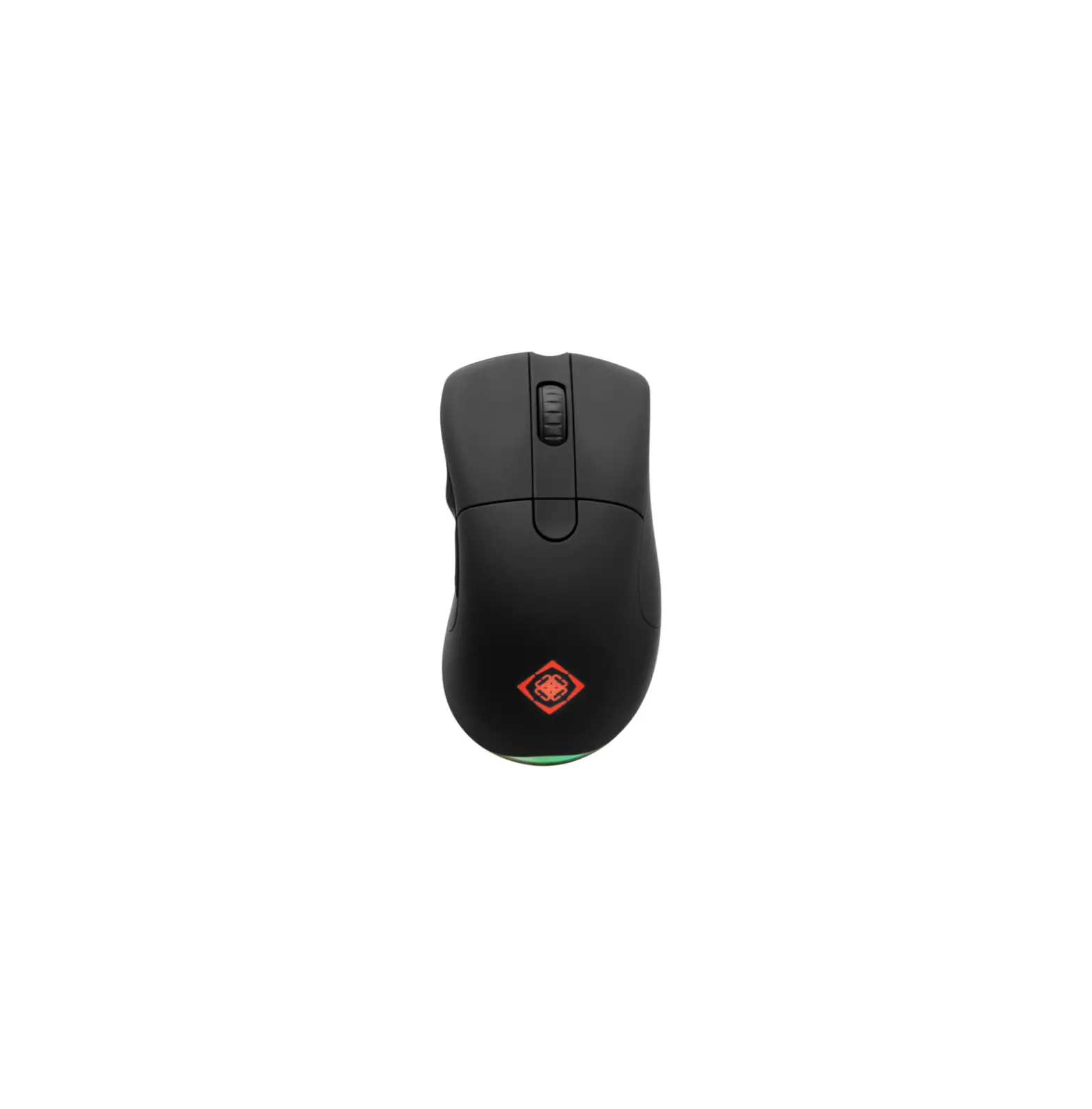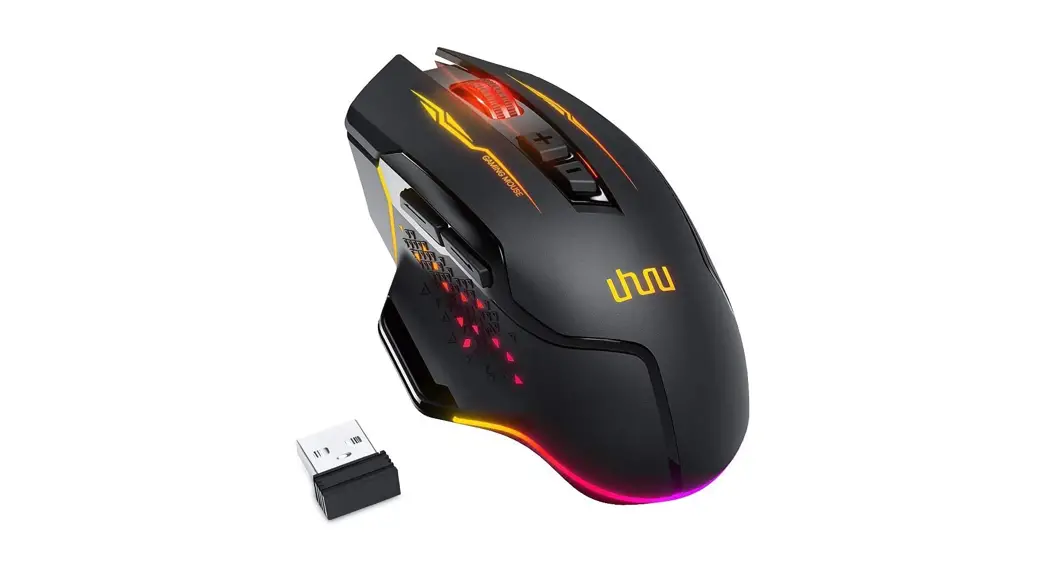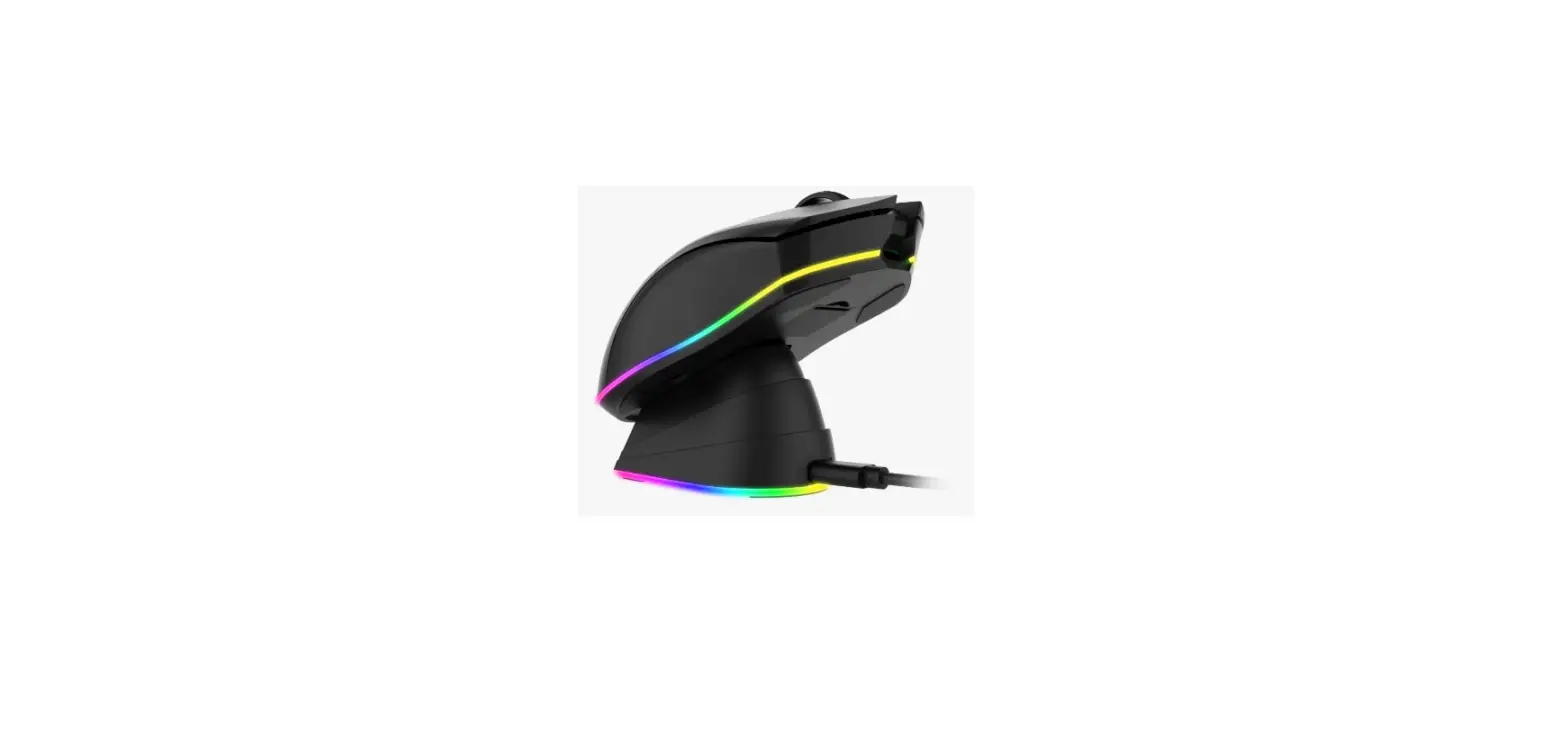
 WM80 Wireless RGB Gaming Mouse Ultralight
User Manual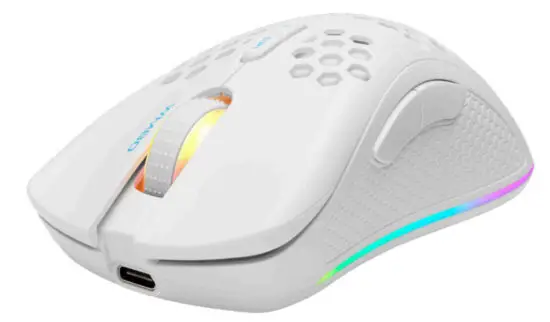
Thank you for choosing Delta!
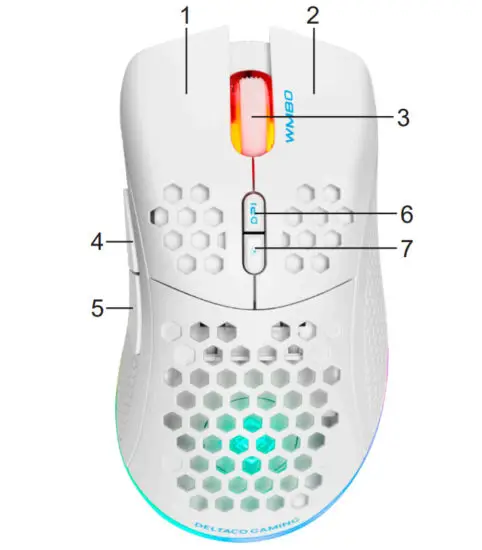
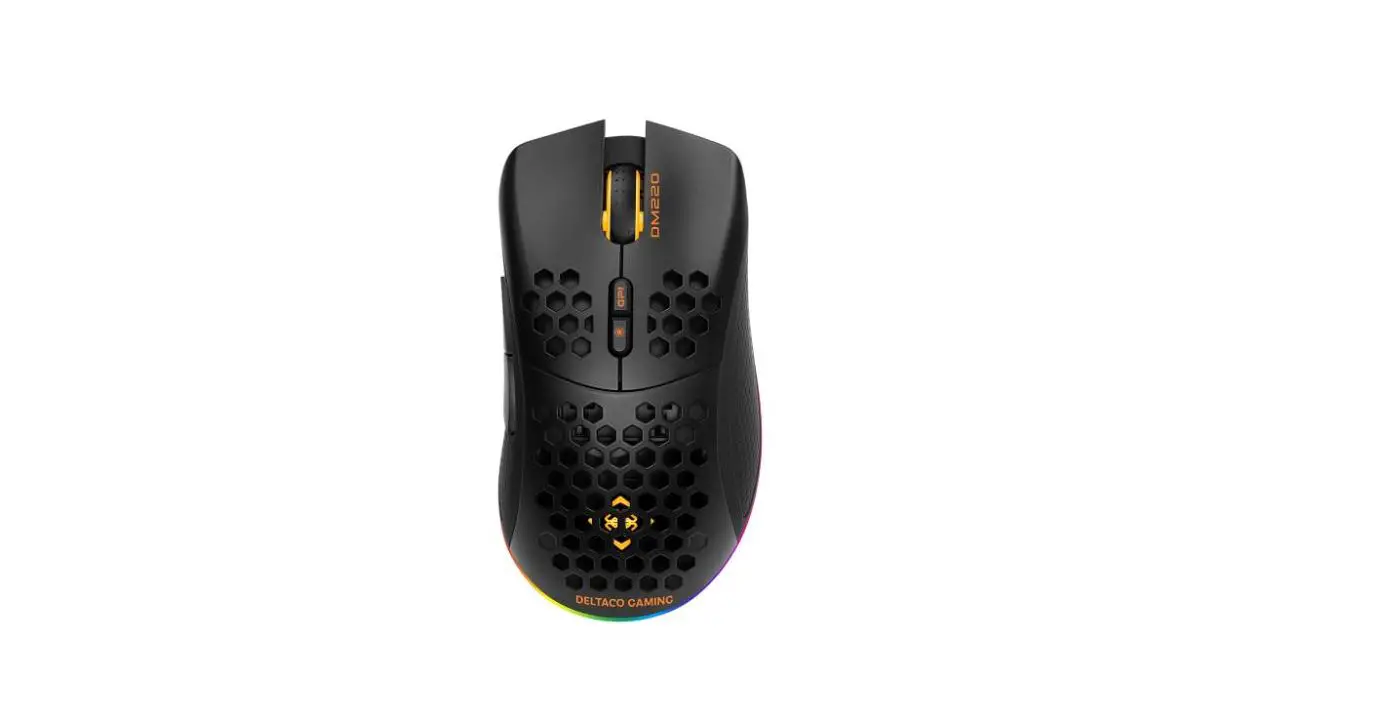
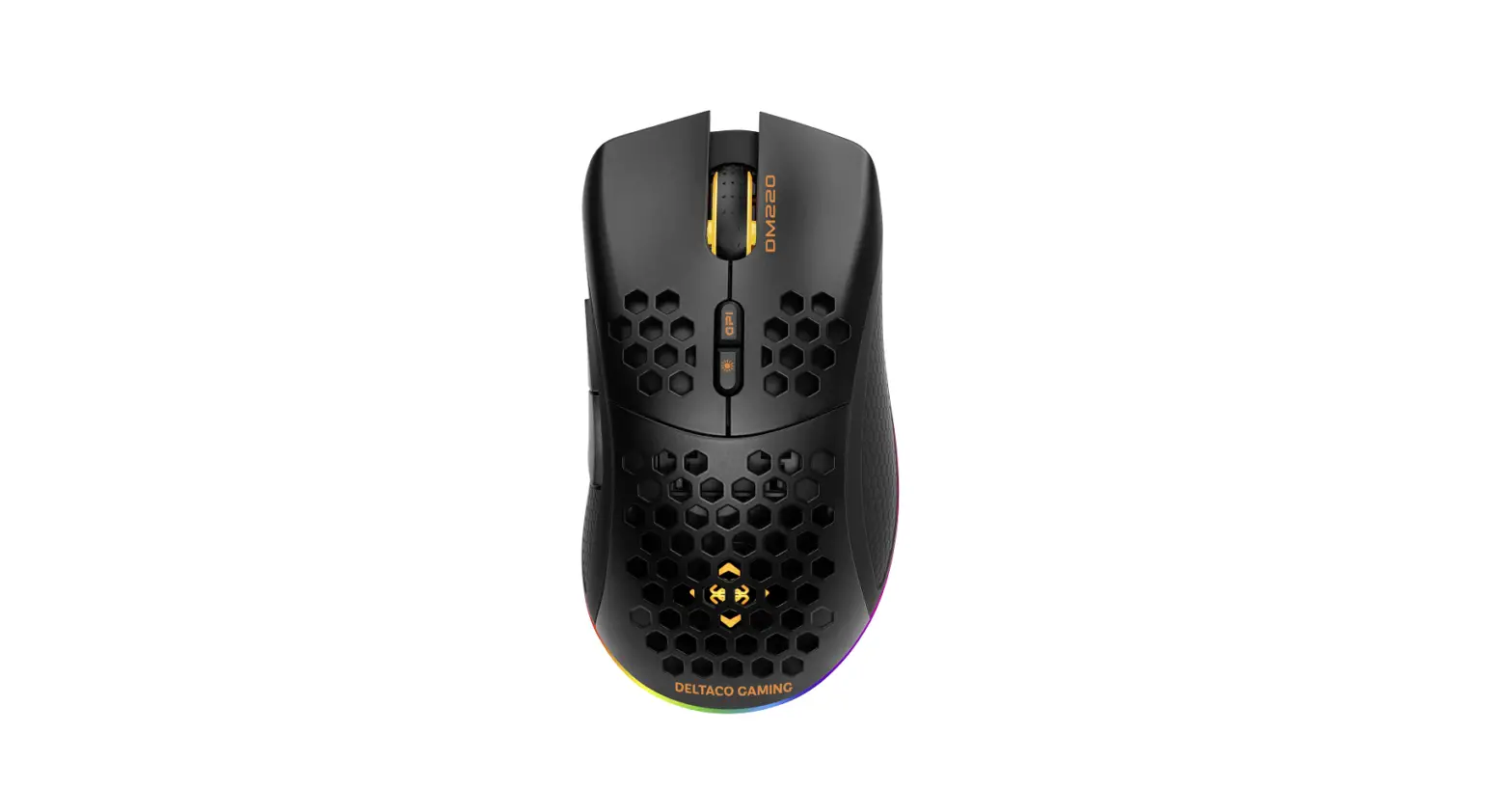
| 1. Left button | 5. Backward button |
| 2. Right button | 6. DPI button |
| 3. Mouse wheel and button | 7. LED mode button |
| 4. Forward button | |
Connect
Connect the USB receiver to a USB-A port on your computer. The mouse will automatically connect to your computer wirelessly.
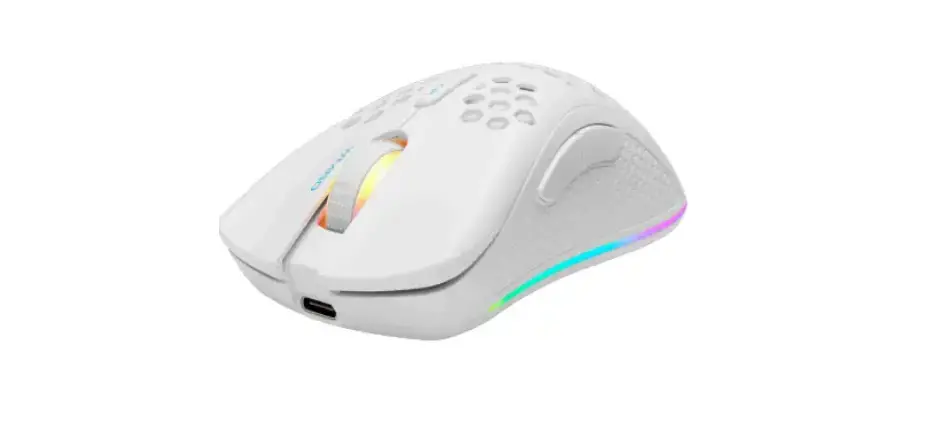
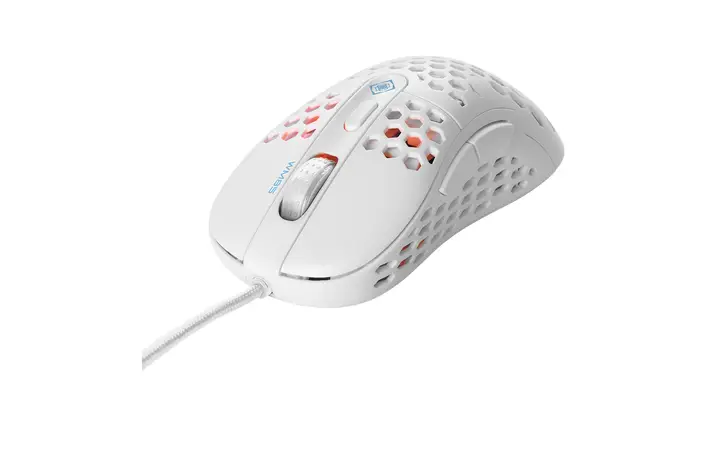
This mouse supports use with a USB cable.
If you connect the mouse with a USB cable, the mouse will charge and can be used at the same time.
Charge
To charge the mouse, connect it with a USB cable to a computer.
Power switch
On the underneath of the mouse, there is a power switch. You can change between 3 modes. Left, center or right.
 | Left = Power off. |
 | Center = Power on. All LEDs are off. |
 | Right = Power on. All LEDs are on. |
Press the LED mode button to cycle through different LED modes. One of the LED modes turns off the LEDs on the sides but keeps the other LEDs on.
DPI
Use the DPI button to change the DPI. The default DPI settings are 400/800/1600/2400/4800.
Customize the DPI settings by using our software.
When the DPI is changed, the LED flashes 5 times to confirm the change.
USB polling rate
The default polling rate is set at 1000 Hz. You can adjust the polling rate in 4 steps. 125/250/500/1000 Hz.
To change the polling rate use our software.
LED light
When you change DPI, there is a corresponding LED that changes color.
The LED color for each DPI setting can be changed, by using our software.
You can turn off the LEDs with the power switch underneath the mouse.
Cleaning
Clean the product by using a dry cloth.
Safety instructions
- Keep the product dry. Keep it away from all liquids.
- Do not open up or try to repair the product by yourself.
- Keep the product and packaging out of reach of children to prevent accidents and choke hazards.
- Do not drop or expose to shock damage.
Warranty
Please, see www.deltaco.eu for warranty information.
Support
More product information can be found at www.deltaco.eu.
Contact us by e-mail: [email protected].
Software
Download the software at www.deltacogaming.com.
 Welcome Page
 Pages - Home
 DELTACO GAMING | Homepage
 Produktinformasjon
 Deltaco - Bäst på IT-tillbehör!