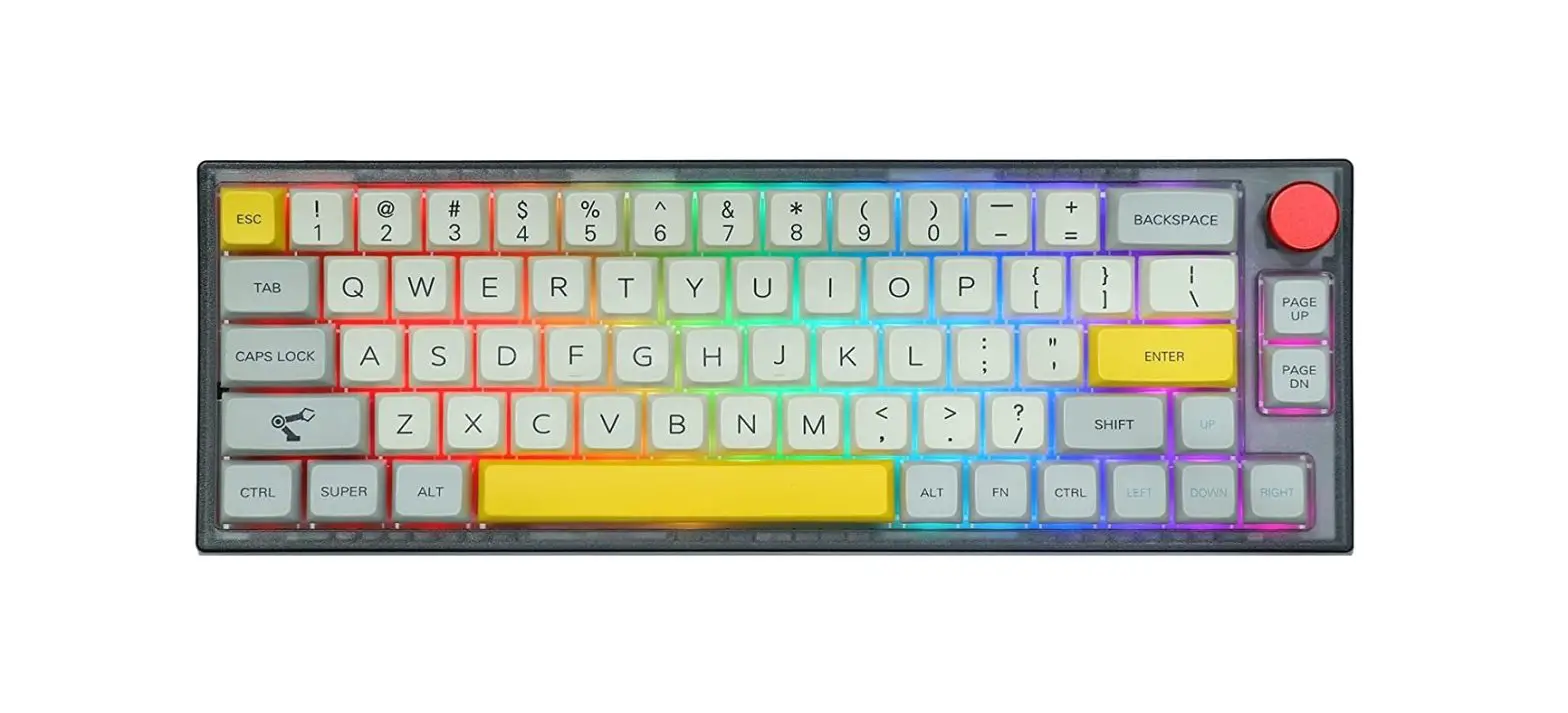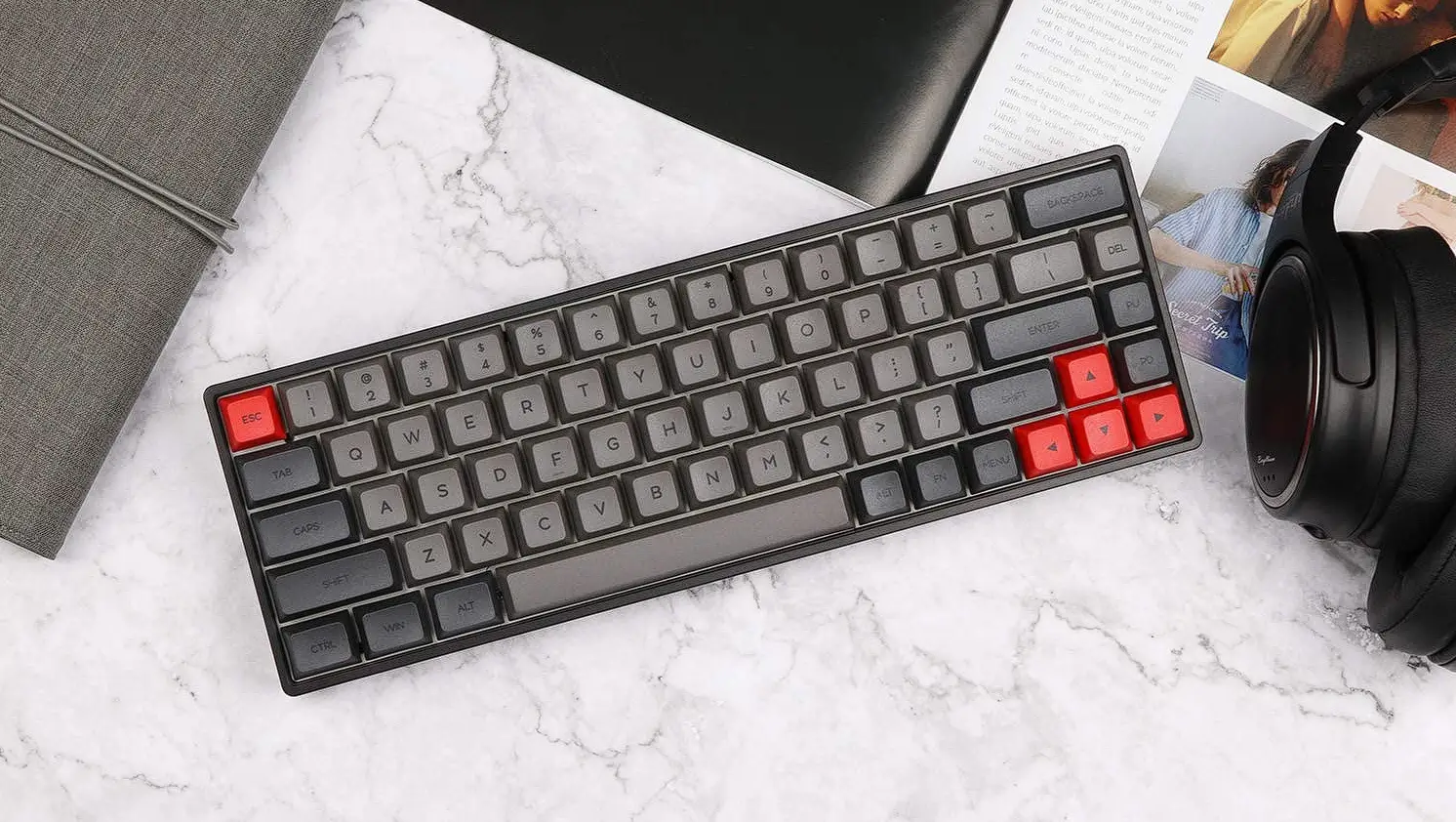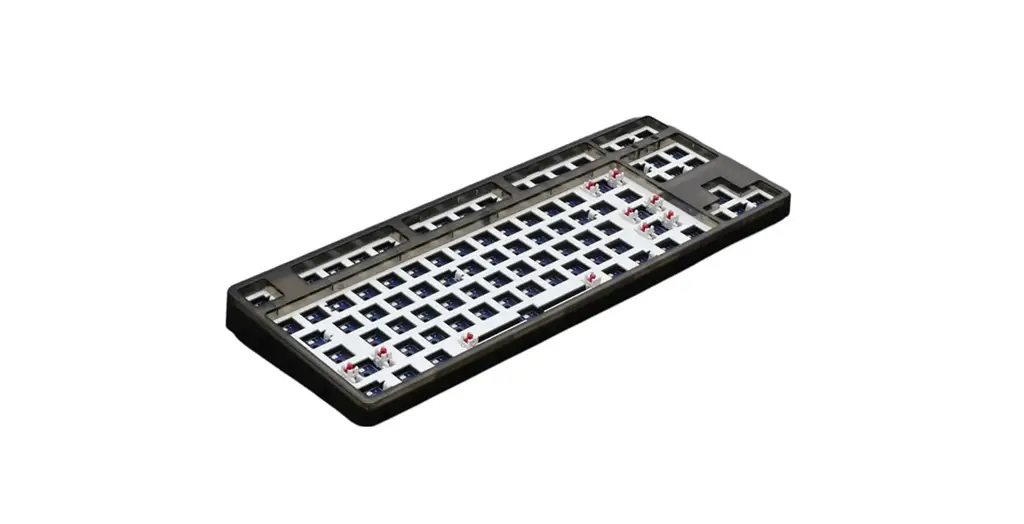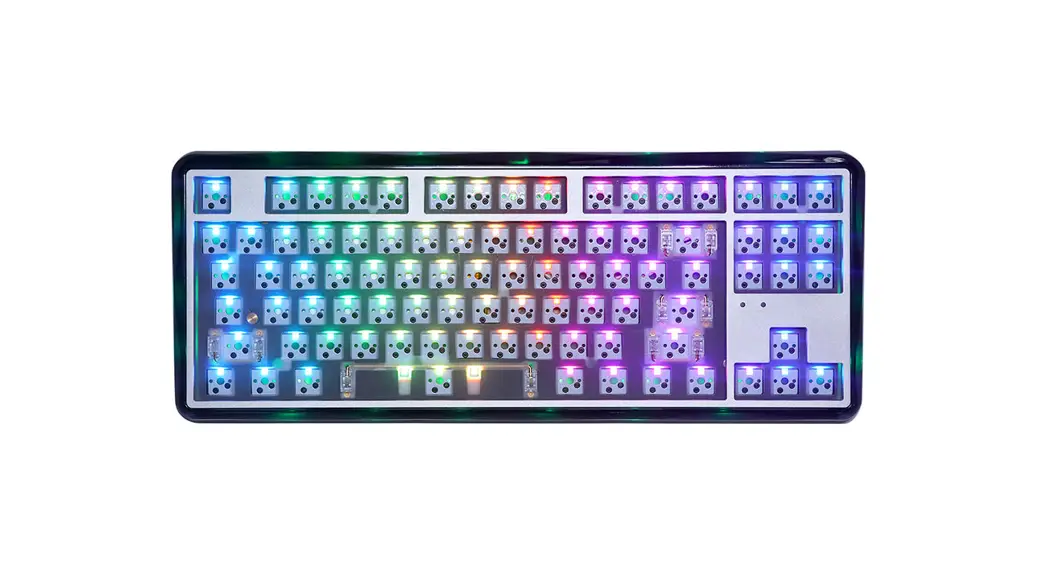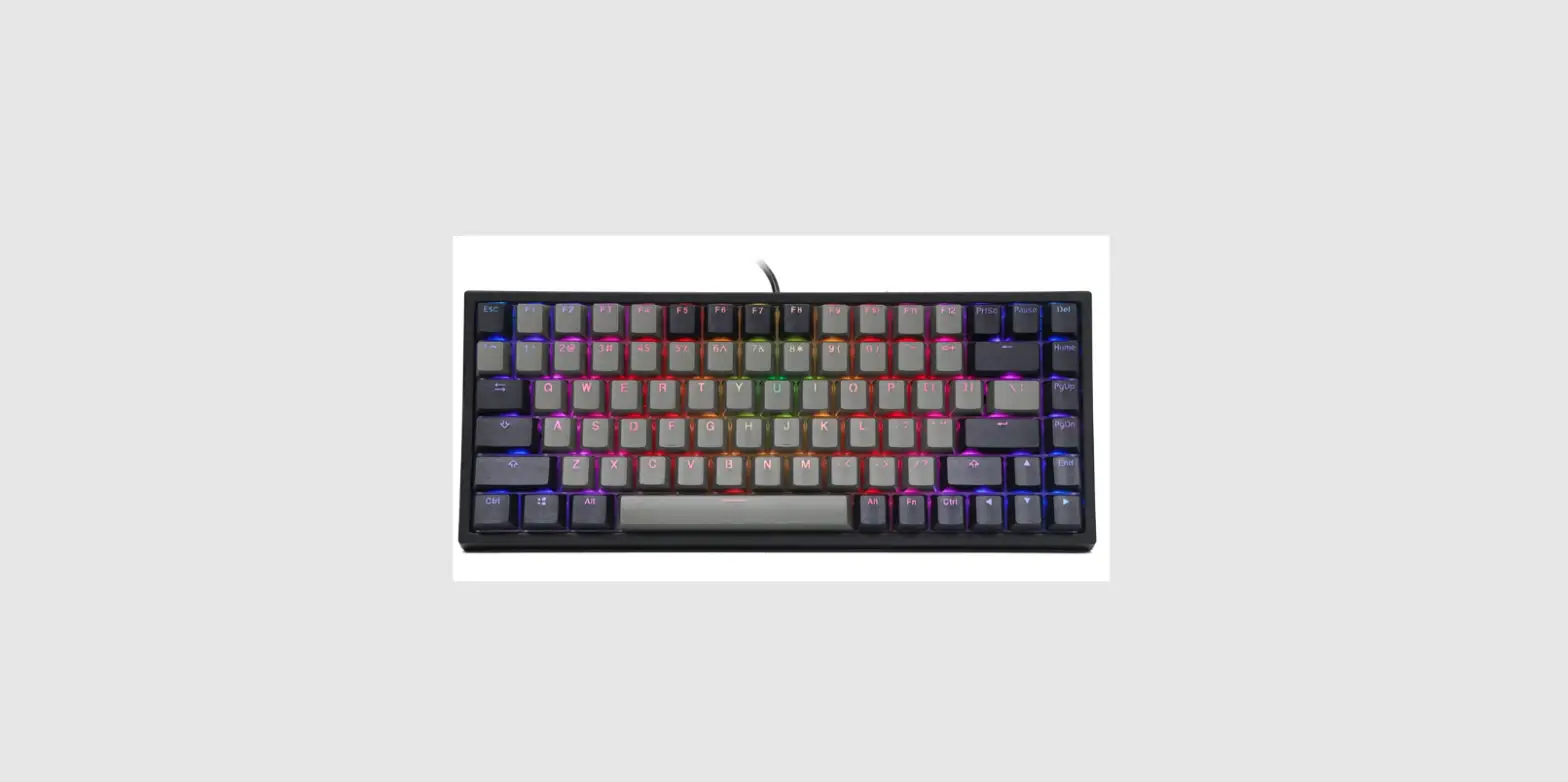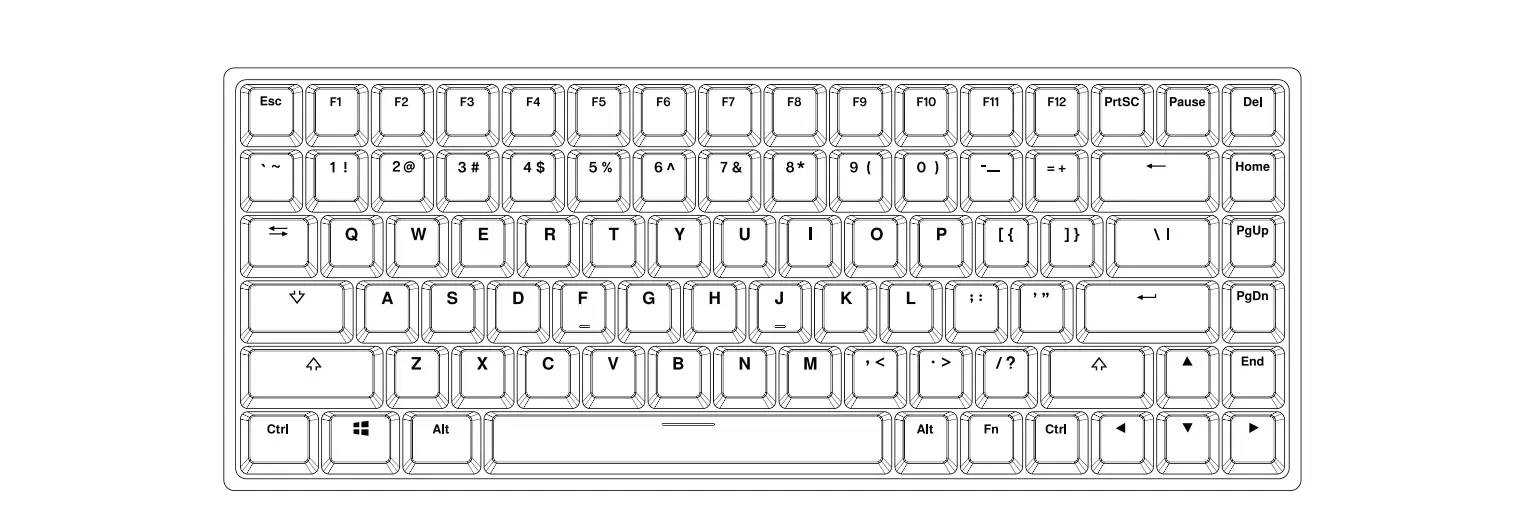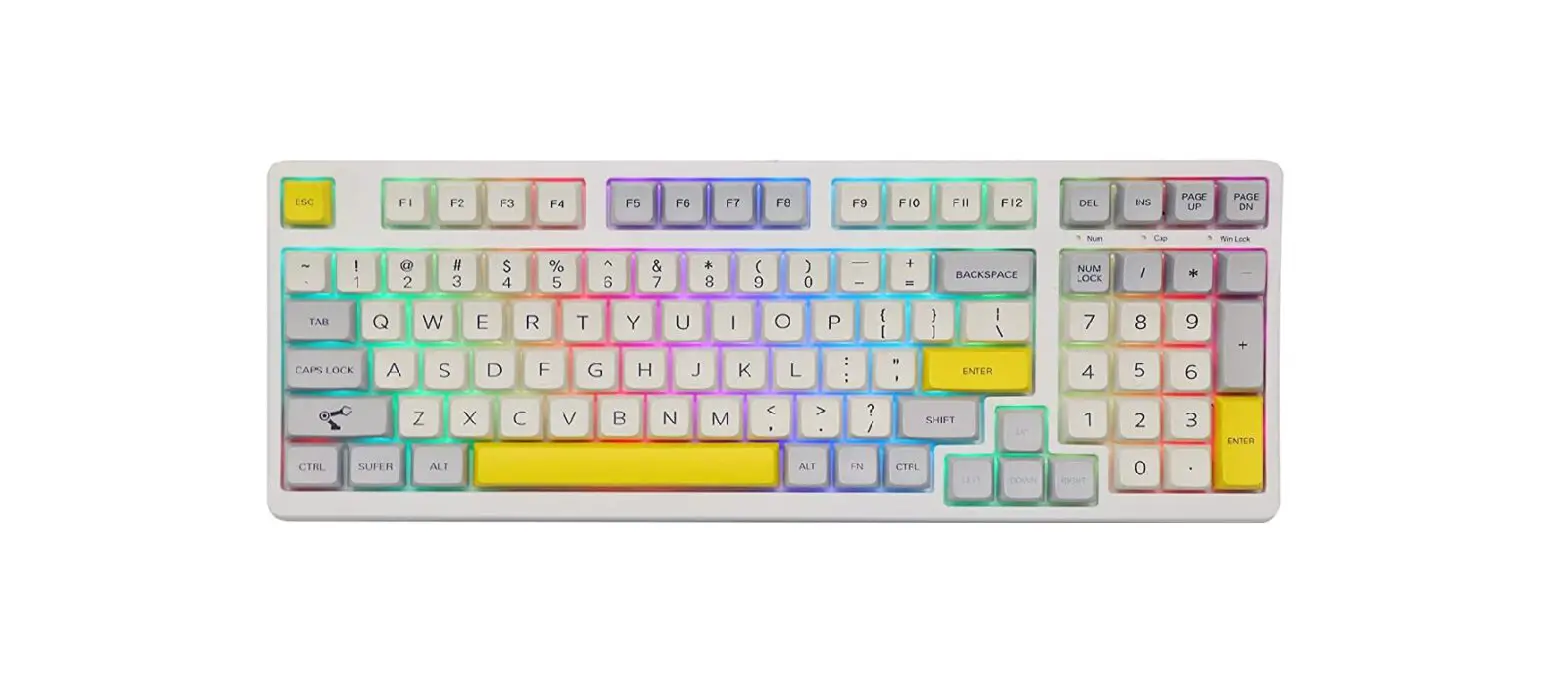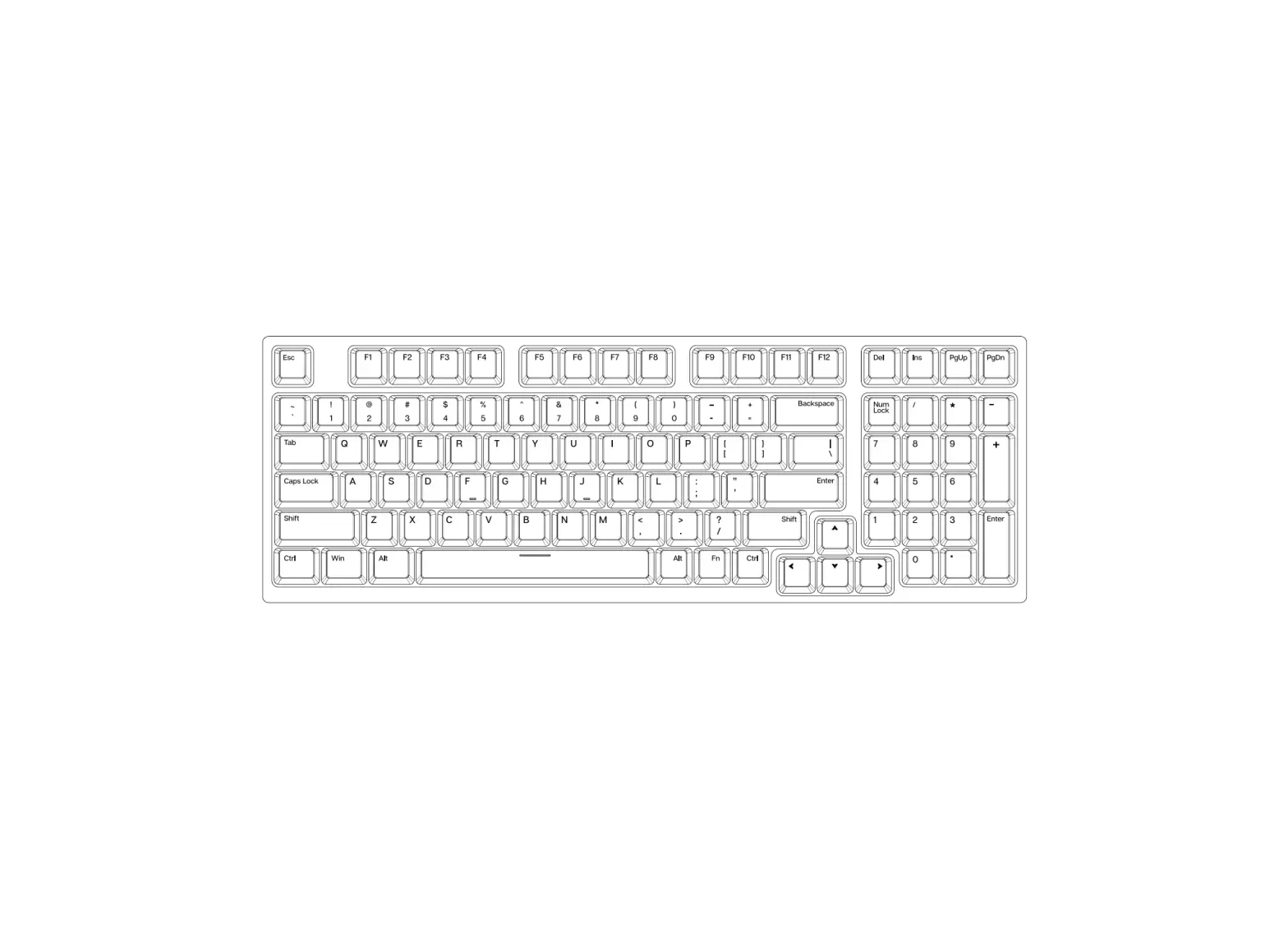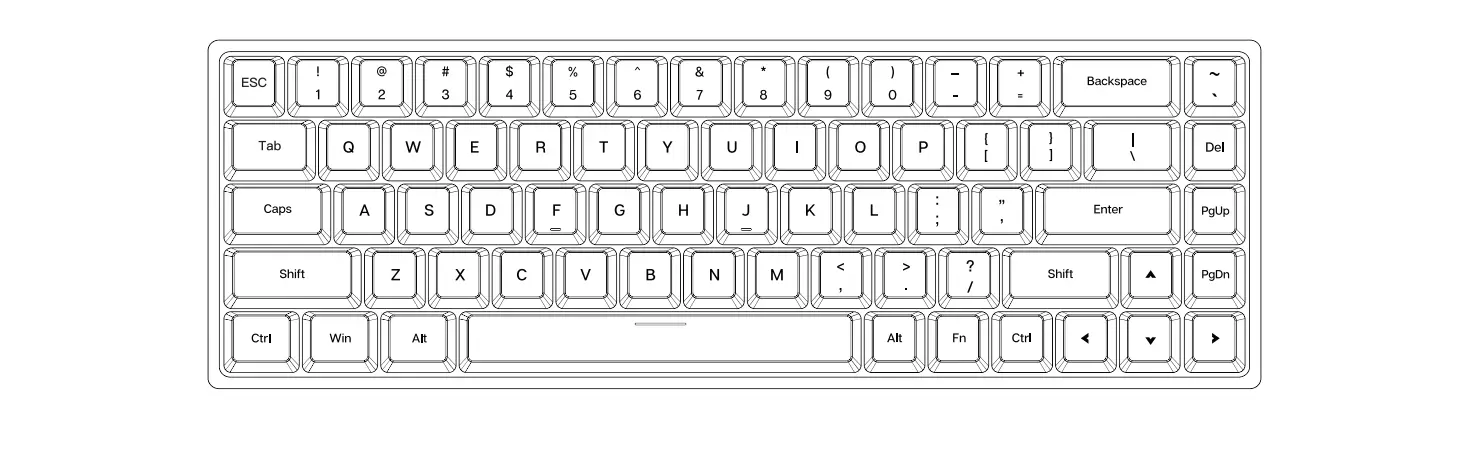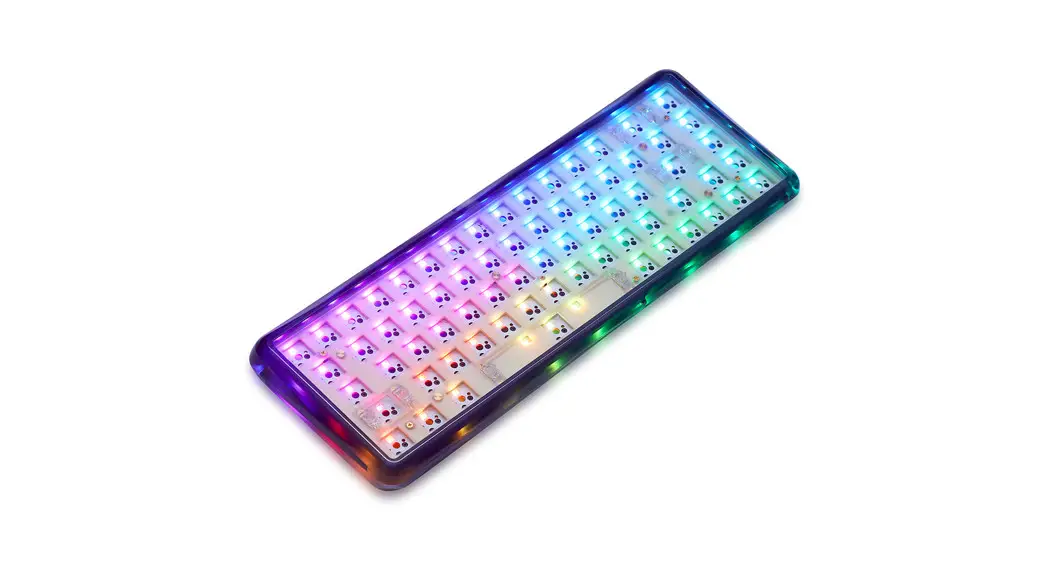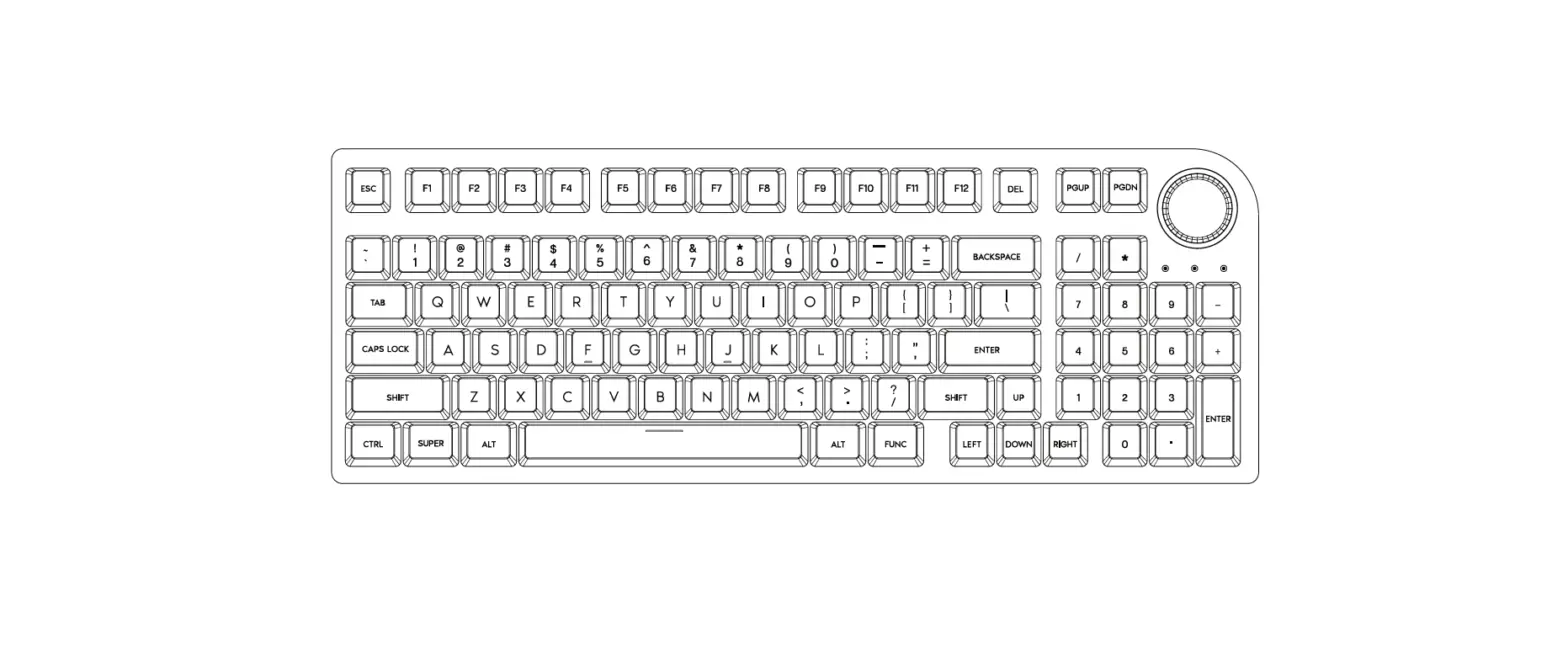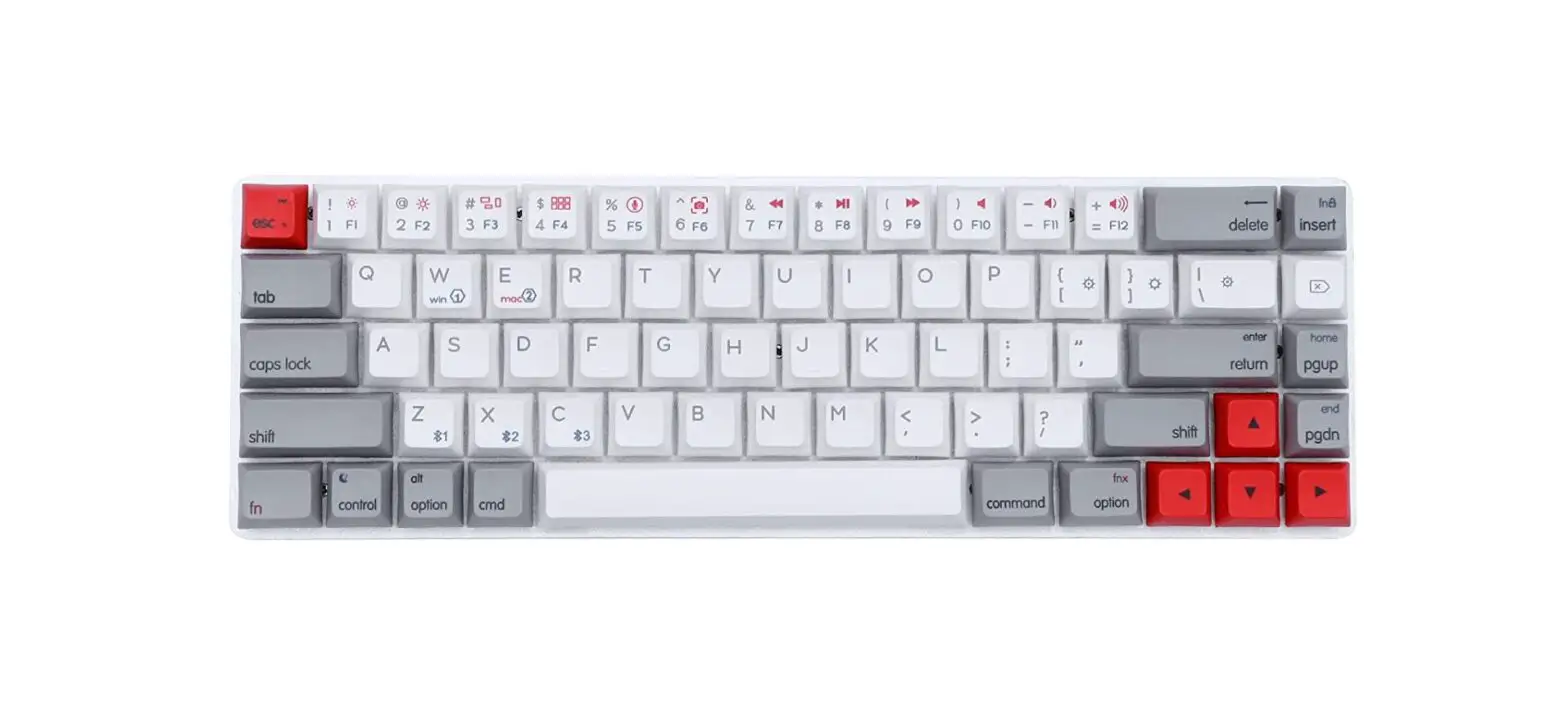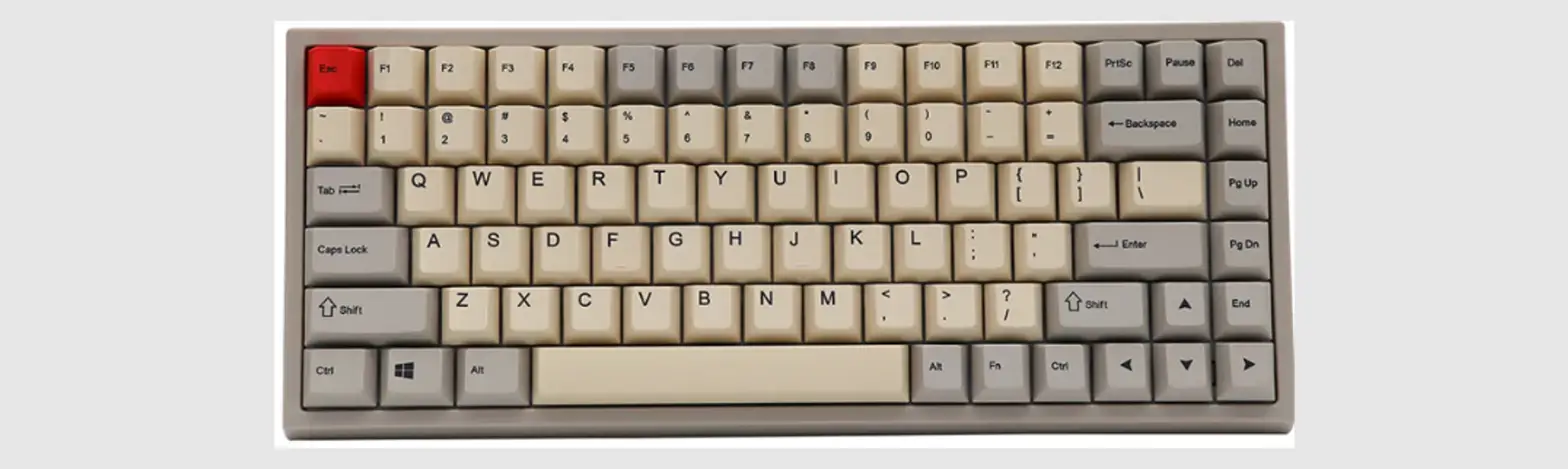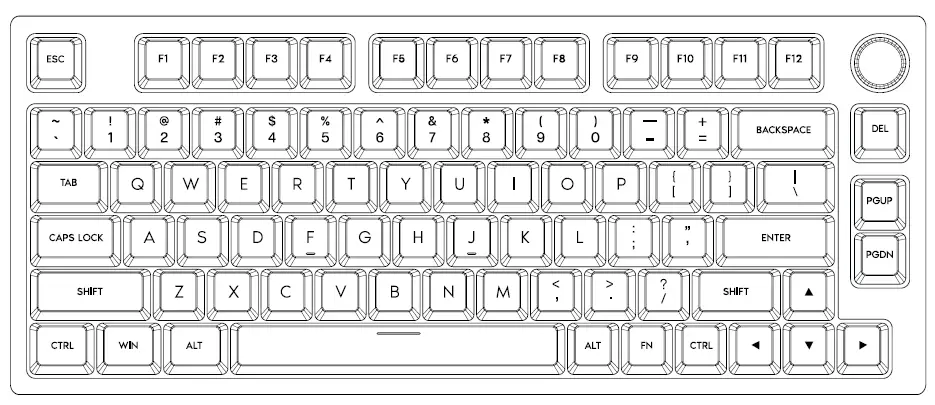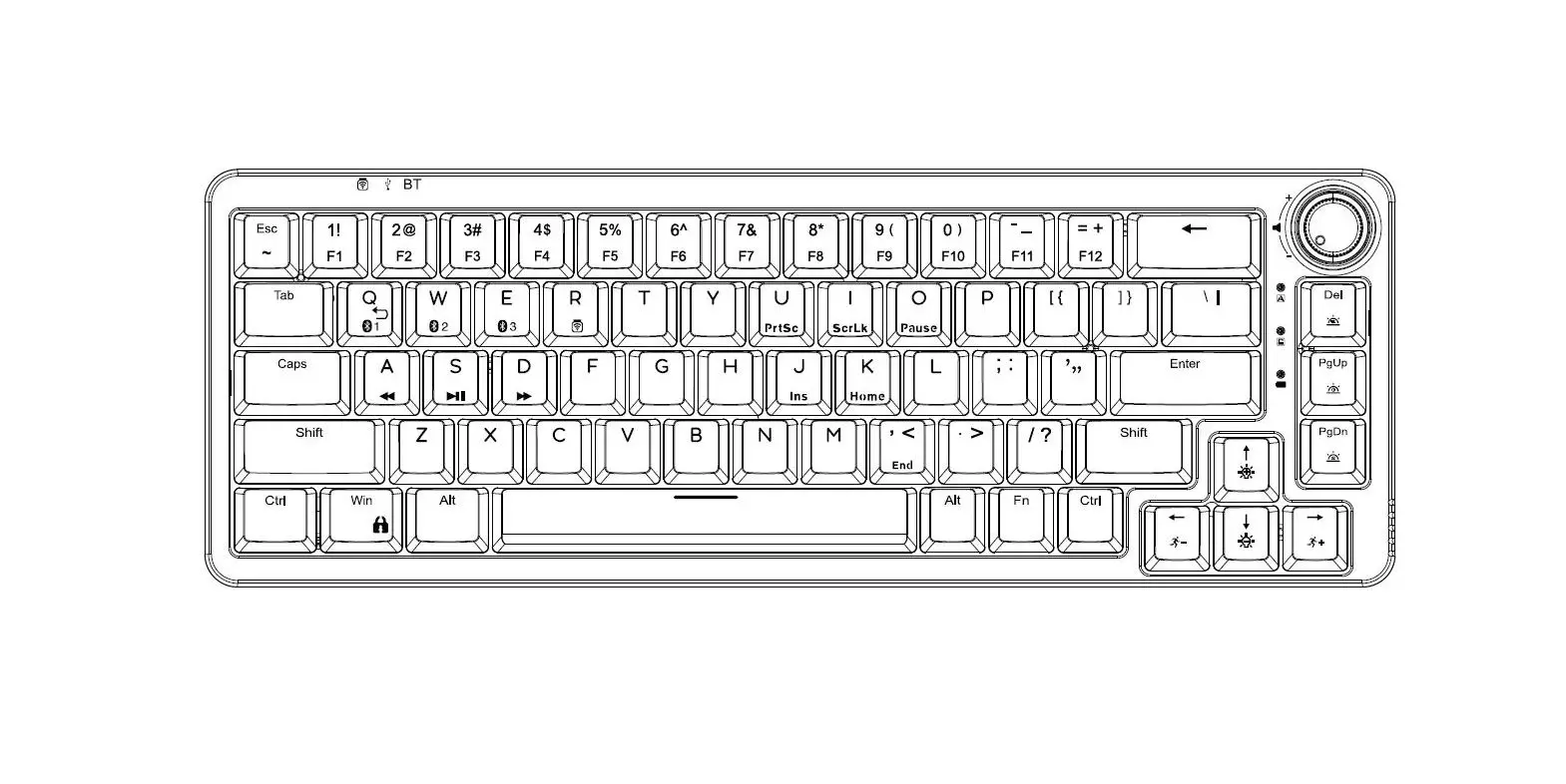

EPOMAKER TH68 65% Hot-Swap Wired/Wireless Mechanical Keyboard
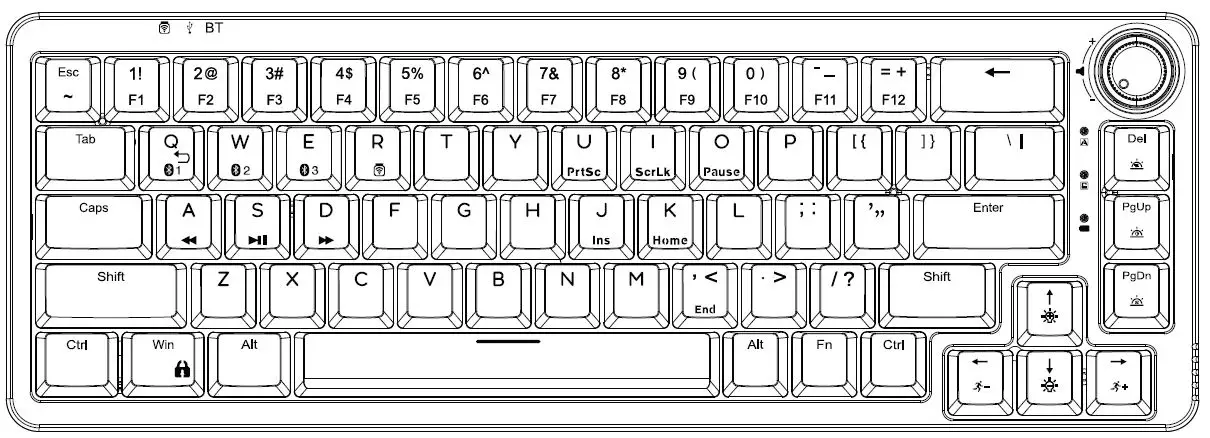
INFORMATION
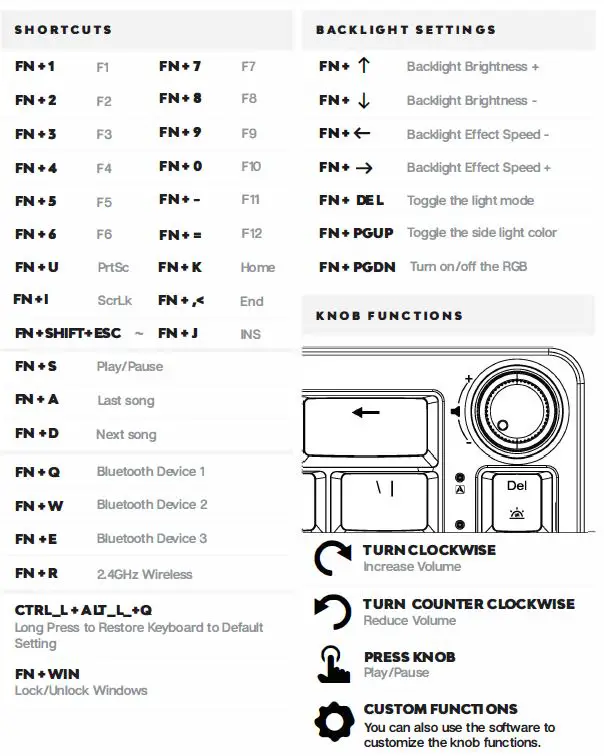
CHANGE RGB EFFECTS
Pressing Fn + Del at the same time allows you to switch the RGB effect of your TH68 Keyboard.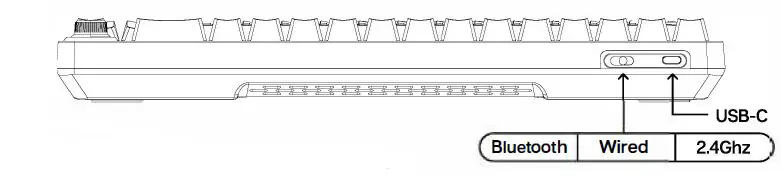
WIRED OR WIRELESS
Find the Connectivity Mode switch in the back of the keyboard and slide it to the left, right or center to change the connection method.
PAIRING BLUETOOTH
FN • Q/W/E Long Press for 3 seconds to pair Bluetooth device
FN + Q/W/E Short Press to switch to last paired device
Turn the switch to the right to activate the Bluetooth pairing mode. Long press FN+Q/W/E to start pairing. While pairing, the LED will flash quickly. After successfully pairing, the LED will stay on for around 10 seconds. If the connection is failed in 30 seconds, the LED will be off and the keyboard will be in sleep mode.
PAIRING WIRELESS 2.4GHz
FN+R Long Press for 3 seconds to pair Wireless 2.4GHz
Turn the switch to the left to activate the 2.4G pairing mode. Insert the receiver into your computer, you will see the LED flash quickly. After successfully pairing, the LED will stay on for around 10 seconds. If the connection is failed in 30 seconds, the LED will be off and the keyboard will be in sleep mode.
PAIRING WIRED MODE
Keep the switch staying in the middle, and connect the keyboard with your device via a USB-C cable.
BLUETOOTH a WIRELESS 2.4GHZ SPECIFICAT IONS
The operating system should be windows 8 or above to support the Bluetooth function. The device should support Bluetooth 5.0 or a higher version to use Bluetooth 5.0.
KEYBOARD WAKE UP/SLEEP
If your keyboard is sleeping press any key to wake it up, it will remember the last device connected.
REPLACING KEVCAPS AND SWITCHES
For a full guide on how to remove keycaps and switches scan the QR Code or type in your browser: https://epomaker.com/blogs/guides/diy-guide-how-to-remove-and-replace-your-mechanical-keyboard-switches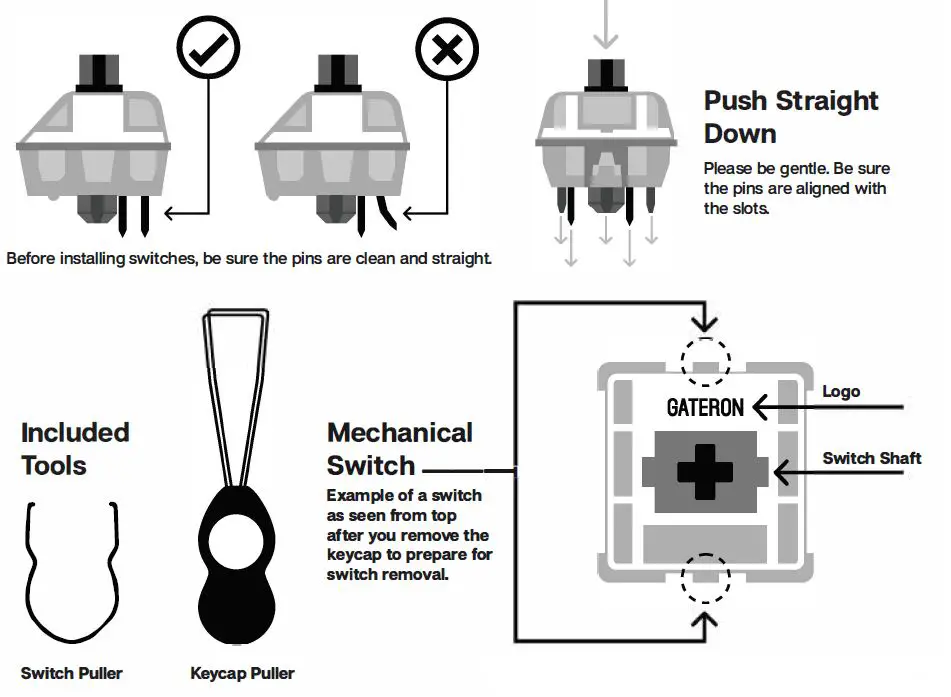
Remove Switches
- Grab your Switch Removal Tool and align the gripping teeth vertically (on the Y-Axis) at the center of the switch, as shown in the example graphic above.
- Grab the switch with the Switch Puller and apply pressure until the switch releases itself from the plate.
- Using firm but gentle force pull the switch away from the keyboard using a vertical motion.
The Switch Puller tool aligns Vertically to the Switch to unclip the plastic securing the switch to the plate.
Install Switches
- Check that all the switch metallic pins are perfectly straight and clean.
- Align the switch vertically to have the Gateron logo facing north. The pins should align themselves to the keyboard PBC.
- Press the switch down until you hear a click. This means your switch clips have attached themselves to the keyboard plate.
- Inspect the switch to ensure it’s properly attached to your keyboard, and test it.
Note: If the key doesn’t work its possible you may have bent one of the switches while installing it. Pull the switch out and repeat the process. Pins may be damaged beyond repair and need replacement if this process is not done correctly. Never apply excessive force when replacing keycaps or switches. If you cannot remove or install keycaps or switches please contact customer service as soon as possible to avoid damage to the keyboard due to operating errors.
TECHNICAL ASSISTANCE
For technical assistance, please email to [email protected] with your purchase order number and a detailed description of your issue. We normally respond to enquiries within 24 hours. If you purchased your keyboard from a distributor or not from any official store of Epomaker, please contact them directly for any additional help.
COMMUNITY FORUMS
Join our community and learn together with other keyboard enthusiasts. Cl https://discord.gg/2q3Z7C2 https://www.reddit.com/user/epomaker/
WARRANTY
EPOMAKER’s Warranty covers any factory defects that might affect the proper functionality of your purchase. It doesn’t cover any damage that may occur from normal wear and tear. If your product is defective we will send you a replacement unit. Replacement units might require you to send the defective unit back to Epomaker. We provide a 1 year warranty for our products when bought from our website (EPOMAKER.com). Your item will not be covered by your 1 year warranty if the inspection shows any sign of modification or changes unsupported by the original product, these include: Changing internal components, Assembling and reassembling the product, Replacing Batteries, etc. We will ONLY cover the item if it is bought from our official stores. You do not have a warranty with us if you bought the item from another reseller or likewise. Please contact the store that you bought your product from to resolve issues.