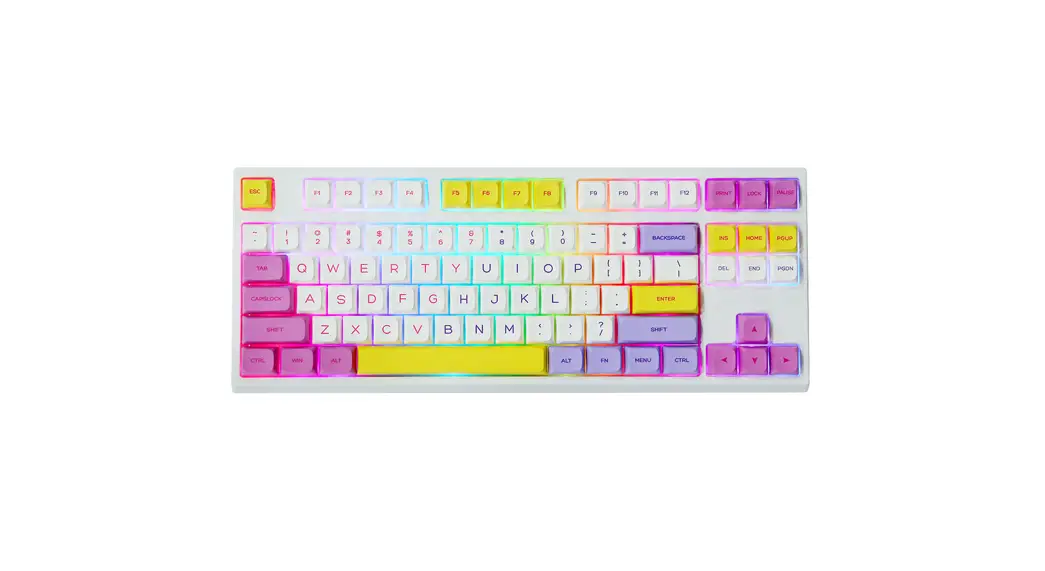
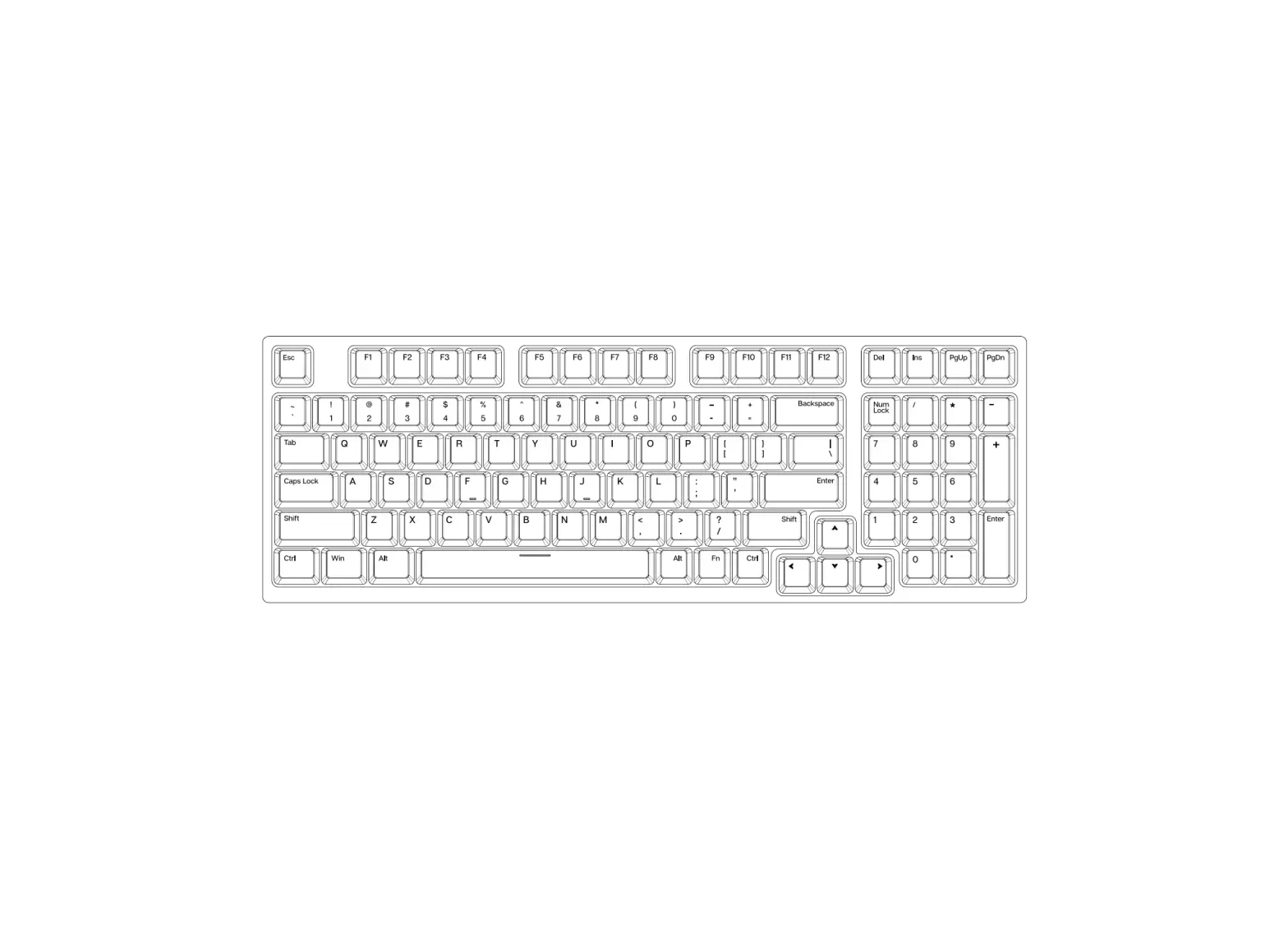
TH80 X 75% Hot Swap Wired/Wireless RGB Mechanical Keyboard
Product Information
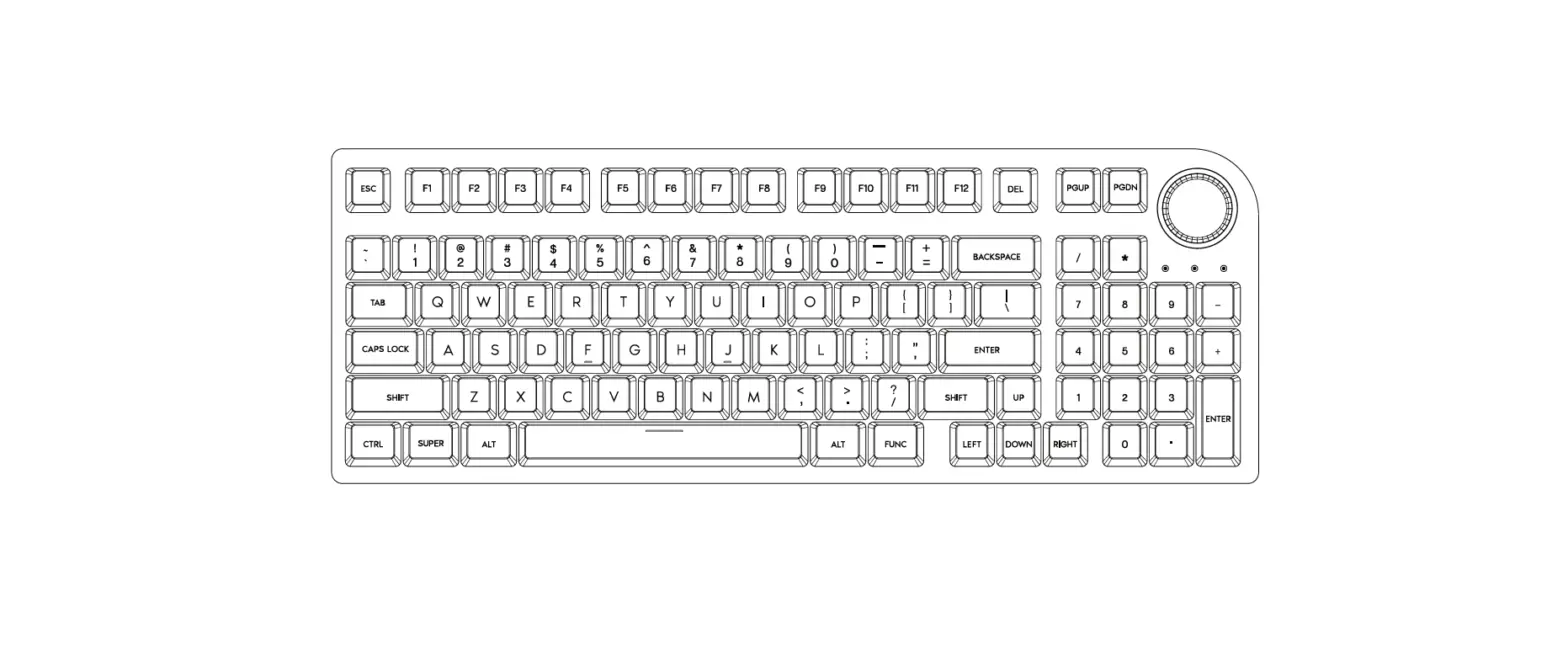
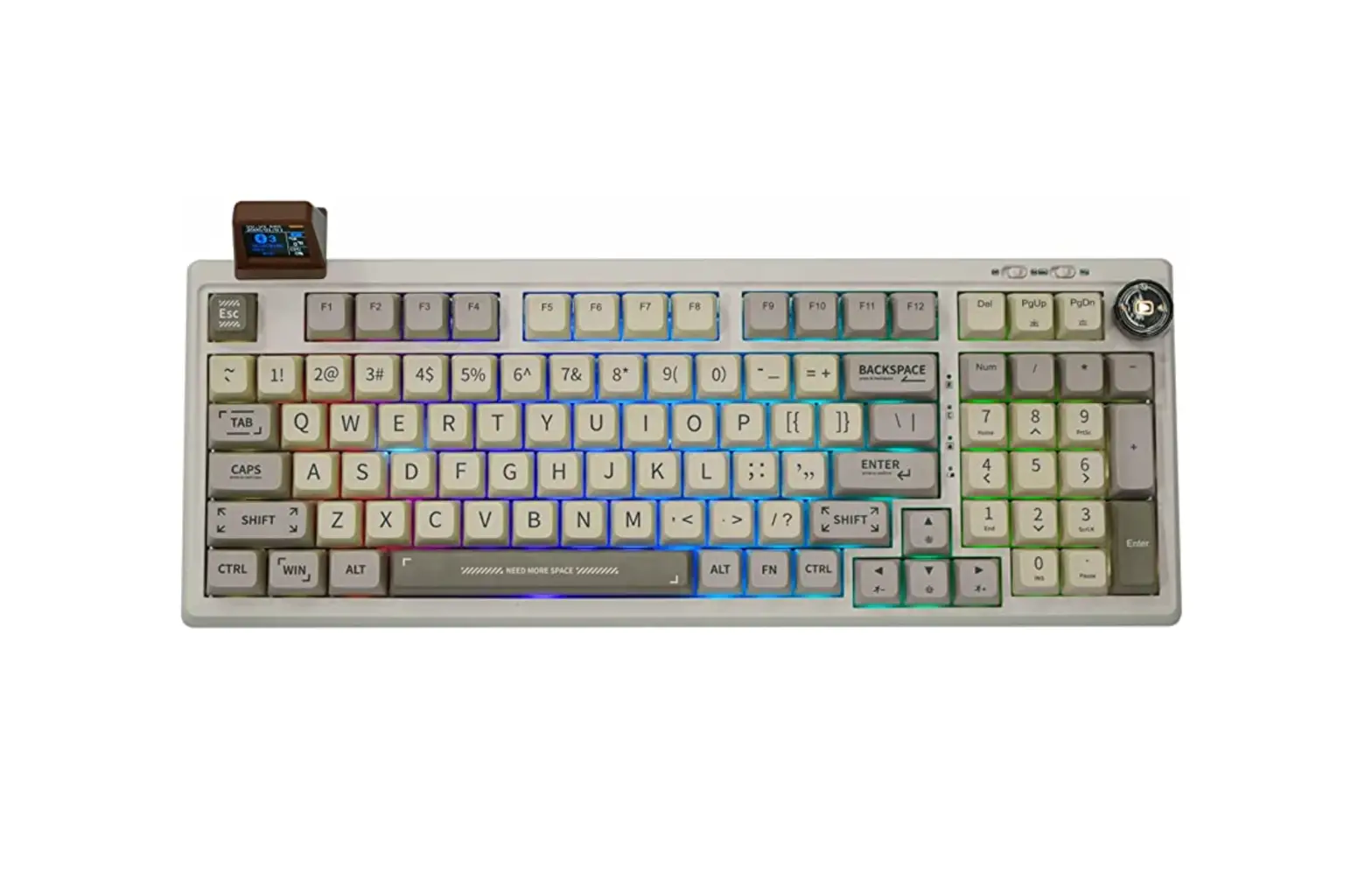
The Epomaker TH80 X is a 75% hot-swappable mechanical keyboard
that can be used wired or wirelessly. It features an LED screen and
RGB backlighting with customizable effects and brightness. The
keyboard is made in China by Shenzhen Changyun Technology Co., Ltd.
It is RoHS compliant and has NKRO in all modes. The TH80 X has a
4000+4000mAh battery capacity and can be connected via Type-C
wired, 2.4G, or Bluetooth wireless. It is compatible with Windows
and Mac operating systems.
Product Usage Instructions
Windows Shortcuts
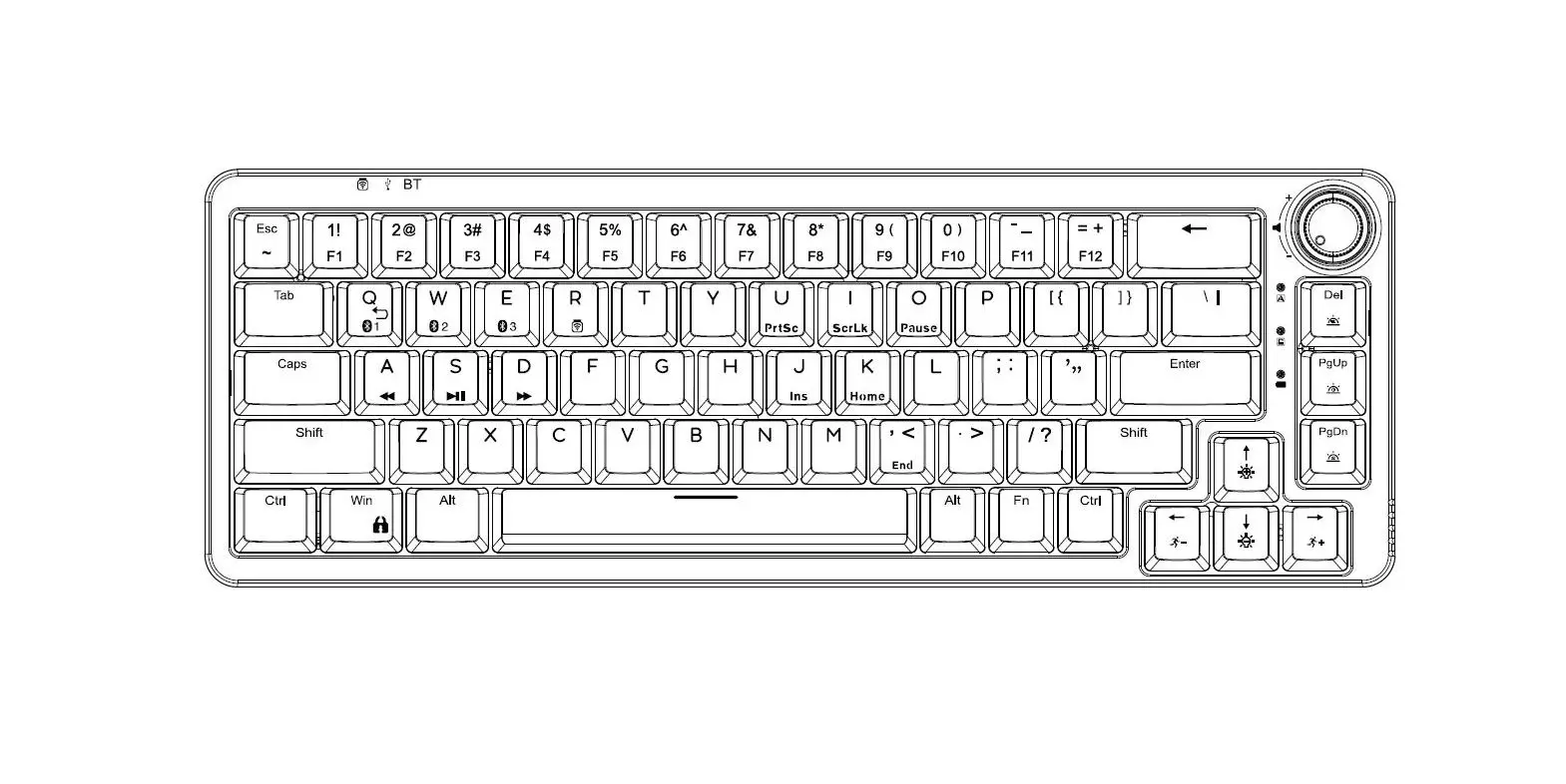
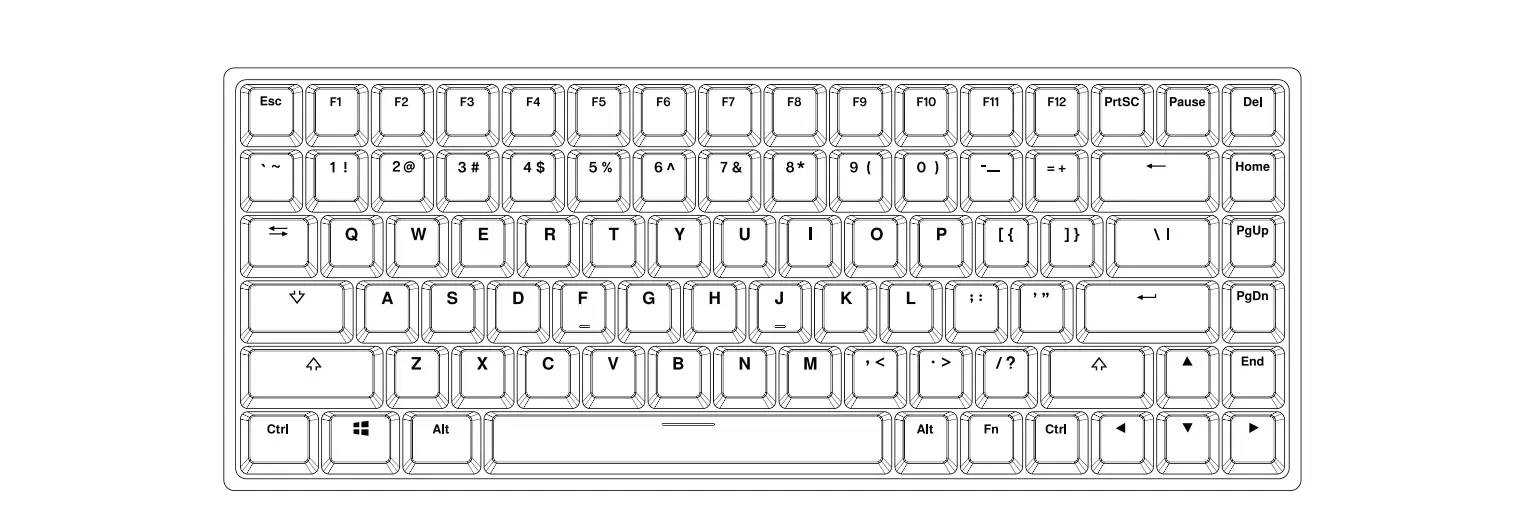
To use the Windows shortcuts on the Epomaker TH80 X, press the
FN key along with the corresponding F1-F12 key:
- FN + F1: Screen Brightness
- FN + F2: Screen Brightness +
- FN + F3: Task Explorer
- FN + F4: Mail
- FN + F5: My Computer
- FN + F6: Previous Track
- FN + F7: Play/Pause
- FN + F8: Next Track
- FN + F9: Mute Volume
- FN + F10: Volume –
- FN + F11: Volume +
- FN + F12: Insert Home End PrtSc Scroll Lock Pause Lock/Unlock
Win Key - FN + U: Screen Brightness –
- FN + I: Backlights Brightness –
- FN + O: Backlights Brightness +
- FN + J: Backlights Speed –
- FN + K: Backlights Speed +
- FN + L: Toggle On/Off Backlights
- FN + WIN: Toggle RGB Effects
- FN + P: Toggle RGB Colors
MacOS Shortcuts
To use the MacOS shortcuts on the Epomaker TH80 X, press the
corresponding F1-F12 key:
- F1: Screen Brightness
- F2: Screen Brightness +
- F3: Task Search
- F4: Mic
- F5: Sleep
- F6: Previous Track
- F7: Play/Pause
- F8: Next Track
- F9: Mute Volume
- F10: Volume –
- F11: Volume +
- F12: Insert Home End
- FN + J: Backlights Brightness –
- FN + K: Backlights Brightness +
- FN + L: Toggle On/Off Backlights
Function Key Combinations
To use the function key combinations on the Epomaker TH80 X,
press the corresponding key combination:
- FN + ESC (hold for 3 seconds): Reset the Keyboard
- FN + 1 (short press): Switch to BT1
- FN + 1 (long press): Pair Devices
- FN + 2 (short press): Switch to BT2
- FN + 2 (long press): Pair Devices
- FN + 3 (short press): Switch to BT3
- FN + 3 (long press): Pair Devices
- FN + 4 (short press): Switch to 2.4G Mode
- FN + 4 (long press): Pair Devices
- FN + 5: Wired Mode
- FN + Knob: Enter/Exit the Knob-Screen Interaction
Pairing Bluetooth
To pair the Epomaker TH80 X with a Bluetooth device:
- Toggle the switch on the top-right corner of the keyboard to
make sure it is in wireless mode. - Hold FN + 1/2/3 for 3-5 seconds until the LED screen displays
pairing signals and the keyboard is ready to pair. - Turn on your Bluetooth device and find TH80 X BT5.0 or TH80 X
BT3.0, then connect. - When the keyboard is connected to the Bluetooth device, the LED
screen displays that the connection is done. - Press FN + 1/2/3 to toggle between the Bluetooth devices
1/2/3.
Pairing Wireless 2.4GHz
To pair the Epomaker TH80 X with a wireless 2.4GHz device:
- Toggle the switch on the top-right corner of the keyboard to
make sure it is in wireless mode. - Hold FN + 4 for 3-5 seconds until the LED screen displays
pairing signals and the keyboard is ready to pair. - Insert the 2.4G dongle to your device.
- The LED screen displays that the connection is done.
Wired Mode
To use the Epomaker TH80 X in wired mode:
- Toggle the switch to the wired mode.
- Press FN + 5 until the LED screen displays the current status
of the keyboard. - The keyboard enters wired mode successfully.
Interaction of the Knob and the LED Screen
To interact with the knob and LED screen on the Epomaker TH80 X,
press FN + Knob.
Replacing Keycaps and Switches
To replace keycaps and switches on the Epomaker TH80 X, scan the
QR code or visit
https://epomaker.com/blogs/guides/diy-guide-how-to-remove-and-replace-your-mechanical-keyboard-switches
for a full guide.
QUICK START GUIDE
EN
EPOMAKER TH80 X
DEL
75% Hot-Swap Wired/Wireless RGB Mechanical Keyboard with An LED-Screen
Should you require more assistance please email us at [email protected]
Made in China Manufacturer: Shenzhen Changyun Technology Co., Ltd. Address: Seventh Floor, Kai Daer Building, No.168 Tongsha Road, Xili Street, Nanshan Disctrict, Shenzhen,Guangdong, CN Email: [email protected]
Web: www.epomaker.com
RoHS
COMPLIANT
WINDOWS SHORTCUTS
FN + F1 FN + F2 FN + F3 FN + F4 FN + F5 FN + F6 FN + F7 FN + F8 FN + F9 FN + F10 FN + F11 FN + F12 FN + U FN + I FN + O FN + J FN + K FN + L FN + WIN
Screen Brightness Screen Brightness + Task Explorer Mail My Computer Previous Track Play/Pause Next Track Mute Volume Volume + Insert Home End PrtSc Scroll Lock Pause Lock/Unlock Win Key
LIGHT EFFECTS
FN + BACKSPACE Turn On/Off Backlights
FN + |
Toggle RGB Effects
FN + P
Toggle RGB Colors
FN +
Backlights Brightness –
FN +
Backlights Brightness +
FN +
Backlights Speed –
FN +
Backlights Speed +
MACOS SHORTCUTS
F1 F2 F3 F4 F5 F6 F7 F8 F9 F10 F11 F12 FN + J FN + K FN + L
Screen Brightness Screen Brightness + Task Search Mic Sleep Previous Track Play/Pause Next Track Mute Volume Volume + Insert Home End
FUNCTION KEY COMBINATIONS
FN+ESC (HOLD 3S)
Reset the Keyboard
FN + 1
Short Press to Switch to BT1; Long Press to Pair Devices
FN + 2
Short Press to Switch to BT2; Long Press to Pair Devices
FN + 3
Short Press to Switch to BT3; Long Press to Pair Devices
FN + 4
Short Press to Switch to 2.4G Mode; Long Press to Pair Devices
FN + 5
Wired Mode
FN + KNOB Enter / Exit the Knob-Screen Interaction
PAIRING BLUETOOTH
EN
Toggle the switch on the top-right corner to make sure that the
keyboard is under the wireless mode:
1. Hold Fn+1/2/3 for 3-5 seconds till the LED screen displays pairing signals, the keyboard is ready
to pair.
2. Turn on your Bluetooth device and find “TH80 X BT5.0” or “TH80 X BT3.0”, then connect. When
the keyboard is connected to the Bluetooth device, the LED screen displays that the connection is
done.
3. Press Fn+1/2/3 to toggle between the Bluetooth devices 1/2/3.
PAIRING WIRELESS 2.4GHZ
Toggle the switch on the top-right corner to make sure that the keyboard is under the wireless mode:
Hold Fn+4 for for 3-5 seconds till the LED screen displays pairing signals, the keyboard is ready to pair. Insert the 2.4G dongle to your device, the LED screen displays that the connection is done.
WIRED MODE
Toggle the switch to the wired mode, press Fn+5 till the the LED screen displays current status of the keyboard, and the keyboard enters to the wired mode successfully.
INTERACTION OF THE KNOB AND THE LED SCREEN
Step 1. Press Fn+Knob to set the main display on the screen. Rotate the knob among the static images, gif, or the keyboard status. Step 2. Press the knob to confirm the main display and goes to the menu options. *Step 3. Rotate the knob to choose the menu among “Photo/gif”, “Lights”, “RGB Color”, “Brightness”, “Speed”, “OS Mode”, “Layer”, press the knob to enter the menu, rotate the knob to choose among the options, press the knob again to confirm and go back to the menu. Step 4. Press Fn+knob again to exit the interaction. Rotate and press the knob resumes to volume & mute control. *Note: if the knob is not pressed or rotated in 5 seconds in Step 3, the display will go back to the main display. Press the knob again to continue Step 3.
SPECS
MODEL: KEYS AMOUNT: SCREEN: STRUCTURE: STABILIZER TYPE: PCB TYPE: BATTERY CAPACITY: CONNECTIVITY: ANTI-GHOST KEY: POLLING RATE: COMPATIBILITY: DIMENSION: WEIGHT:
EPOMAKER TH80 X 79 Keys LED Gasket-like mount Plate-mounted 3/5-pin Hotswap PCB 4000+4000mAh Type-C Wired, 2.4 & Bluetooth Wireless NKRO in all modes 1000hz in Type-C Wired & 2.4G modes WINDOWS/MAC 325 x 135 x 30 mm Around 0.9kg
REPLACING KEYCAPS AND SWITCHES
For a full guide on how to remove keycaps and switches scan the QR Code or type in your browser: https://epomaker.com/blogs/guides/diy-guide-how-to-remove-and-replace-your-mechanical-keyboard-switches
Before installing switches, be sure the pins are clean and straight.
Push Straight Down
Please be gentle. Be sure the pins are aligned with the slots.
Included Tools
Mechanical Switch
Example of a switch as seen from top after you remove the keycap to prepare for switch removal.
EPOMAKER
Logo Switch Shaft
Switch Puller
Keycap Puller
The Switch Puller tool aligns Vertically to the Switch to unclip the plastic securing the switch to the plate.
Remove Switches
1. Grab your Switch Removal Tool and align the gripping teeth vertically (on the Y-Axis) at the center of the switch, as shown in the example graphic above.
2. Grab the switch with the Switch Puller and apply pressure until the switch releases itself from the plate.
3. Using firm but gentle force pull the switch away from the keyboard using a vertical motion.
Install Switches
1. Check that all the switch metallic pins are perfectly straight and clean. 2. Align the switch vertically to have the Gateron logo facing north. The
pins should align themselves to the keyboard PBC. 3. Press the switch down until you hear a click. This means your switch
clips have attached themselves to the keyboard plate. 4. Inspect the switch to ensure it’s properly attached to your keyboard,
and test it.
Note: If the key doesn’t work its possible you may have bent one of the switches while installing it. Pull the switch out and repeat the process.
Pins may be damaged beyond repair and need replacement if this process is not done correctly. Never apply excessive force when replacing keycaps or switches. If you cannot remove or install keycaps or switches please contact customer service as soon as possible to avoid damage to the keyboard due to operating errors.
TECHNICAL ASSISTANCE
EN
For technical assistance, please email to [email protected] with your purchase order number and a detailed description of your issue.
We normally respond to enquiries within 24 hours. If you purchased your keyboard from a distributor or not from any official store of Epomaker, please contact them directly for any additional help.
COMMUNITY FORUMS Join our community and learn together with other keyboard enthusiasts.
https://discord.gg/2q3Z7C2
https://www.reddit.com/r/Epomaker/
WARRANTY
EPOMAKER’s Warranty covers any factory defects that might affect the proper functionality of your purchase. It doesn’t cover any damage that may occur from normal wear and tear. If your product is defective we will send you a replacement unit. Replacement units might require you to send the defective unit back to Epomaker.
We provide a 1 year warranty for our products when bought from our website (EPOMAKER.com). Your item will not be covered by your 1 year warranty if the inspection shows any sign of modification or changes unsupported by the original product, these include: Changing internal components, Assembling and reassembling the product, Replacing Batteries, etc.
We will ONLY cover the item if it is bought from our official stores. You do not have a warranty with us if you bought the item from another reseller or likewise. Please contact the store that you bought your product from to resolve issues.
QUICK-START ANLEITUNG
DE
EPOMAKER TH80 X
DEL
75% Hot-Swap kabelgebundene/drahtlose mechanische RGB-Tastatur mit LED-Bildschirm
Sollten Sie weitere Hilfe benötigen, senden Sie uns bitte eine E-Mail an [email protected].
Hergestellt in China Hersteller: Shenzhen Changyun Technology Co., Ltd. Adresse: Siebter Stock, Kai Daer Building, Nr. 168 Tongsha Road, Xili Street, Nanshan-Bezirk, Shenzhen, Guangdong, CN E-Mail: [email protected] Internet: www.epomaker.com
RoHS
COMPLIANT
WINDOWS-VERKNÜPFUNGEN
MACOS-VERKNÜPFUNGEN
FN + F1 FN + F2 FN + F3 FN + F4 FN + F5 FN + F6 FN + F7 FN + F8 FN + F9 FN + F10 FN + F11 FN + F12 FN + U FN + I FN + O FN + J FN + K FN + L FN + WIN
Bildschirmhelligkeit Bildschirmhelligkeit + Aufgabe Entdecker E-Mail Mein Computer Vorheriger Titel Wiedergabe/Pause Nächster Track Stummschalten Band Band + Insert Home End PrtSc Scroll Lock Pause WIN-Schlüssel sperren/entsperren
LICHTEFFEKTE
FN + BACKSPACE
Hintergrundbeleuchtung ein-/ausschalten
FN + |
RGB-Effekte umschalten
FN + P
RGB-Farben umschalten
F1 F2 F3 F4 F5 F6 F7 F8 F9 F10 F11 F12 FN + J FN + K FN + L
Bildschirmhelligkeit Bildschirmhelligkeit + Aufgabe Suche Mikrofon Schlaf Vorheriger Titel Wiedergabe/Pause Nächster Track Stummschalten Band Band + Insert Home End
FUNKTIONSTASTENKOMBINATIONEN
FN+ESC
Zurücksetzen der Tastatur
(3S HALTEN)
FN + 1
Kurz drücken, um zu BT1 zu wechseln; Lang drücken, um Geräte zu koppeln
FN + 2
Kurz drücken, um zu BT2 zu wechseln; Lang drücken, um Geräte zu koppeln
FN + 3
Kurz drücken, um zu BT3 zu wechseln; Lang drücken, um Geräte zu koppeln
FN + FN + FN + FN +
Hintergrundbeleuchtung Helligkeit –
Hintergrundbeleuchtung Helligkeit +
Hintergrundbeleuchtung Geschwindigkeit –
Hintergrundbeleuchtung Geschwindigkeit +
Kurz drücken, um in den 2.4G-Modus FN + 4 zu wechseln;
Lang drücken, um Geräte zu koppeln
FN + 5 Verdrahteter Modus
FN + KNOB
Eingabe / Beenden der Knopf-Bildschirm-Interaktion
BLUETOOTH-KOPPLUNG
Schalten Sie den Schalter in der oberen rechten Ecke um, um sicherzustellen, dass sich die Tastatur im drahtlosen Modus befindet:
DE
1. Halten Sie Fn+1/2/3 für 3-5 Sekunden gedrückt, bis die LED-Anzeige das Pairing-Signal anzeigt. 2. Schalten Sie Ihr Bluetooth-Gerät ein und suchen Sie “TH80 X BT5.0” oder “TH80 X BT3.0”, dann verbinden Sie es. Wenn die Tastatur mit dem Bluetooth-Gerät verbunden ist, zeigt die LED-Anzeige an, dass die Verbindung hergestellt ist. 3. Drücken Sie Fn+1/2/3, um zwischen den Bluetooth-Geräten 1/2/3 umzuschalten.
PAIRING WIRELESS 2.4GHZ
Schalten Sie den Schalter in der oberen rechten Ecke um, um sicherzustellen, dass sich die Tastatur im drahtlosen Modus befindet:
Halten Sie Fn+4 für 3-5 Sekunden gedrückt, bis die LED-Anzeige das Pairing-Signal anzeigt, die Tastatur ist bereit zum Pairing. Stecken Sie den 2.4G-Dongle in Ihr Gerät, die LED-Anzeige zeigt an, dass die Verbindung hergestellt ist.
VERDRAHTETER MODUS
Schalten Sie den Schalter auf den kabelgebundenen Modus um, drücken Sie Fn+5, bis der LED-Bildschirm den aktuellen Status der Tastatur anzeigt und die Tastatur erfolgreich in den kabelgebundenen Modus wechselt.
INTERAKTION ZWISCHEN DEM KNOPF UND DEM LED-BILDSCHIRM
Schritt 1. Drücken Sie Fn+Knopf, um die Hauptanzeige auf dem Bildschirm einzustellen. Drehen Sie den Knopf zwischen statischen Bildern, gif oder dem Tastaturstatus. Schritt 2. Drücken Sie den Drehknopf, um die Hauptanzeige zu bestätigen und zu den Menüoptionen zu gelangen. *Schritt 3. Drehen Sie den Knopf, um das Menü unter “Photo/gif”, “Lights”, “RGB Color”, “Brightness”, “Speed”, “OS Mode”, “Layer” auszuwählen, drücken Sie den Knopf, um in das Menü zu gelangen, drehen Sie den Knopf, um zwischen den Optionen zu wählen, drücken Sie den Knopf erneut, um zu bestätigen und zurück ins Menü zu gelangen. Schritt 4. Drücken Sie erneut Fn+Knopf, um die Interaktion zu beenden. Drehen und drücken Sie den Knopf, um zur Lautstärke- und Stummschaltungsregelung zurückzukehren. *Hinweis: Wenn der Knopf in Schritt 3 nicht innerhalb von 5 Sekunden gedrückt oder gedreht wird, kehrt das Display zur Hauptanzeige zurück. Drücken Sie den Drehknopf erneut, um mit Schritt 3 fortzufahren.
SPEZIALIEN MODELL: SCHLÜSSEL AMOUNT: BILDSCHIRM: STRUKTUR: STABILISATOR-TYP: PCB-TYP: BATTERIEKAPAZITÄT: VERBINDLICHKEIT: ANTI-GHOST-SCHLÜSSEL: WÄHLRATE: KOMPATIBILITÄT: ABMESSUNG: GEWICHT:
EPOMAKER TH80 X 79 Tasten LED Dichtungsähnliche Halterung Plattenmontiert 3/5-Pin Hotswap PCB 4000+4000mAh Type-C Wired, 2.4 & Bluetooth Wireless NKRO in allen Modi 1000hz in Type-C Wired & 2.4G modes WINDOWS/MAC 325 x 135 x 30 mm Etwa 0,9 kg
TOETSKAPJES EN SCHAKELAARS VERVANGEN
Voor een volledige handleiding over het verwijderen van toetskapjes en schakelaars, scan de QR-code of typ in uw browser: https://epomaker.com/blogs/guides/diy-guide-how-to-remove-andreplace-your-mechanical-keyboard-switches
Voordat u de schakelaars monteert, moet u ervoor zorgen dat de pennen schoon en recht zijn.
Gerade nach unten drücken
Ga voorzichtig te werk. Zorg ervoor dat de pinnen zijn uitgelijnd met de gleuven.
Meegeleverd gereedschap
Schakelaar
Toetskap trekker
Mechanische schakelaar
EPOMAKER
Logo Schacht van schakelaar
Voorbeeld van een schakelaar van bovenaf gezien nadat u de toetskap hebt verwijderd om het verwijderen van de schakelaar voor te bereiden.
Het gereedschap voor het uittrekken van schakelaars richt zich verticaal op de schakelaar om het plastic los te maken waarmee de schakelaar aan de plaat is bevestigd.
Schakelaars verwijderen
1. Pak uw gereedschap voor het verwijderen van schakelaars en lijn de grijptanden verticaal (op de Y-as) uit op het midden van de schakelaar, zoals weergegeven in de voorbeeldafbeelding hierboven.
2. Pak de schakelaar vast met de schakelaartrekker en oefen druk uit tot de schakelaar zichzelf losmaakt van de plaat
3. Trek de schakelaar met een stevige maar zachte kracht met een verticale beweging weg van het toetsenbord.
Schakelaars installeren
1. Controleer of alle metalen pennen van de schakelaar perfect recht en schoon zijn.
2. Lijn de schakelaar verticaal uit, zodat het Gateron-logo naar het noorden wijst. De pinnen moeten uitgelijnd zijn met de PBC van het toetsenbord.
3. Druk de schakelaar omlaag totdat u een klik hoort. Dit betekent dat de clips van de schakelaar zich aan de toetsenbordplaat hebben bevestigd.
4. Inspecteer de schakelaar om er zeker van te zijn dat hij goed is bevestigd aan uw toetsenbord, en test hem
Opmerking: Als de toets niet werkt, is het mogelijk dat u een van de schakelaars verbogen hebt tijdens de installatie ervan. Trek de schakelaar eruit en herhaal het proces Als dit proces niet correct wordt uitgevoerd, kunnen de pennen onherstelbaar beschadigd raken en moeten ze worden vervangen. Oefen nooit overmatige kracht uit bij het vervangen van toetskapjes of schakelaars. Als u de toetskapjes of schakelaars niet kunt verwijderen of installeren, neem dan zo snel mogelijk contact op met de klantenservice om schade aan het toetsenbord als gevolg van bedieningsfouten te voorkomen.
DE
TECHNISCHE BIJSTAND Voor technische bijstand stuurt u een e-mail naar [email protected] met uw bestelnummer en een gedetailleerde beschrijving van uw probleem.
Normaal gesproken beantwoorden wij uw vragen binnen 24 uur. Als u uw toetsenbord bij een distributeur of niet bij een officiële winkel van Epomaker hebt gekocht, neem dan rechtstreeks contact met hen op voor eventuele aanvullende hulp.
FORUMS VAN DE GEMEENSCHAP Word lid van onze community en leer samen met andere toetsenbordenthousiastelingen.
https://discord.gg/2q3Z7C2
https://www.reddit.com/r/Epomaker/
GARANTIE De garantie van EPOMAKER dekt alle fabrieksfouten die van invloed kunnen zijn op de goede werking van uw aankoop. Het dekt geen schade die kan ontstaan door normale slijtage. Als uw product defect is, sturen wij u een vervangend apparaat. Voor vervanging kan het nodig zijn dat u het defecte apparaat terugstuurt naar Epomaker.
Wij bieden 1 jaar garantie op onze producten bij aankoop via onze website (EPOMAKER.com). Uw item zal niet worden gedekt door uw 1 jaar garantie als de inspectie enig teken van wijziging of veranderingen toont die niet worden ondersteund door het originele product, deze omvatten: Het veranderen van interne onderdelen, Het in elkaar zetten en opnieuw in elkaar zetten van het product, Het vervangen van Batterijen, enz.
Wir decken den Artikel NUR ab, wenn er in unseren offiziellen Geschäften gekauft wurde. Sie haben keine Garantie bei uns, wenn Sie den Artikel bei einem anderen Händler oder ähnlichem gekauft haben. Bitte kontaktieren Sie das Geschäft, in dem Sie Ihr Produkt gekauft haben, um Probleme zu lösen.
GUÍA DE INICIO RÁPIDO
ES
EPOMAKER TH80 X
DEL
75% Teclado mecánico RGB con cable/inalámbrico Hot-Swap con pantalla LED
Si necesita más ayuda, envíenos un correo electrónico a [email protected].
Hecho in China Fabricante: Shenzhen Changyun Technology Co., Ltd. Dirección: Seventh Floor, Kai Daer Building, No.168 Tongsha Road, Xili Street, Nanshan Disctrict, Shenzhen,Guangdong, CN Email: [email protected]
Web: www.epomaker.com
RoHS
COMPLIANT
ACCESOS DIRECTOS DE WINDOWS
FN + F1 FN + F2 FN + F3 FN + F4 FN + F5 FN + F6 FN + F7 FN + F8 FN + F9 FN + F10 FN + F11 FN + F12 FN + U FN + I FN + O FN + J FN + K FN + L FN + WIN
Brillo de la pantalla Brillo de pantalla + Tarea Explorador Correo Mi ordenador Pista anterior Reproducir/Pausa Siguiente pista Silenciar Volumen Volumen + Insert Home End PrtSc Scroll Lock Pause Bloquear/Desbloquear Win Key
EFECTOS DE LUZ
FN + BACKSPACE
Encender y apagar la retroiluminación
FN + |
Alternar efectos RGB
FN + P
Alternar colores RGB
FN +
Retroiluminación Brillo –
FN +
Retroiluminación Brillo +
FN +
Retroiluminación Velocidad –
FN +
Retroiluminación Velocidad +
ACCESOS DIRECTOS MACOS
F1 F2 F3 F4 F5 F6 F7 F8 F9 F10 F11 F12 FN + J FN + K FN + L
Brillo de la pantalla Brillo de pantalla + Tarea Buscar en Mic Dormir Pista anterior Reproducir/Pausa Siguiente pista Silenciar Volumen Volumen + Insert Home End
COMBINACIONES DE TECLAS DE FUNCIÓN
FN+ESC (HOLD 3S)
Reiniciar el teclado
FN + 1
Pulsación corta para cambiar a BT1; Pulsación larga para emparejar dispositivos
FN + 2
Pulsación corta para cambiar a BT2; Pulsación larga para emparejar dispositivos
FN + 3
Pulsación corta para cambiar a BT3; Pulsación larga para emparejar dispositivos
FN + 4
Pulsación corta para cambiar al modo 2.4G; Pulsación larga para emparejar dispositivos
FN + 5 Modo cableado
FN + KNOB
Entrar / Salir de la Interacción Pomo-Pantalla
EMPAREJAMIENTO BLUETOOTH
Activa el interruptor de la esquina superior derecha para asegurarte de que el teclado está en modo inalámbrico:
1. Mantenga pulsado Fn+1/2/3 durante 3-5 segundos hasta que la pantalla LED muestre señales de emparejamiento, el teclado está listo para emparejarse. 2. 2. Encienda el dispositivo Bluetooth y busque “TH80 X BT5.0” o “TH80 X BT3.0”; a continuación, conéctelo. Cuando el teclado está conectado al dispositivo Bluetooth, la pantalla LED muestra que la conexión se ha realizado. 3. Pulse Fn+1/2/3 para alternar entre los dispositivos Bluetooth 1/2/3.
ES
PAREO INALÁMBRICO 2,4 GHZ Activa el interruptor de la esquina superior derecha para asegurarte de que el teclado está en modo inalámbrico:
Mantenga pulsado Fn+4 durante 3-5 segundos hasta que la pantalla LED muestre las señales de emparejamiento, el teclado está listo para emparejarse. Inserte el dongle 2.4G en su dispositivo, la pantalla LED muestra que la conexión se ha realizado.
MODO CABLEADO
Modo cableadoConmute el interruptor al modo cableado, pulse Fn+5 hasta que la pantalla LED muestre el estado actual del teclado, y el teclado entre en el modo cableado correctamente.
INTERACCIÓN DEL MANDO Y LA PANTALLA LED
Paso 1. Pulse Fn+Pomo para establecer la visualización principal en la pantalla. Gire el mando entre las imágenes estáticas, gif, o el estado del teclado. Segundo paso. Pulse el mando para confirmar la visualización principal y pasar a las opciones del menú. *Paso 3. Gire el mando para elegir el menú entre “Foto/gif”, “Luces”, “Color RGB”, “Brillo”, “Velocidad”, “Modo OS”, “Capa”, pulse el mando para entrar en el menú, gire el mando para elegir entre las opciones, pulse el mando de nuevo para confirmar y volver al menú. Paso 4. Pulsa de nuevo Fn+pomo para salir de la interacción. Gire y pulse el mando para volver al control de volumen y silencio. *Nota: si no se pulsa o gira el mando en 5 segundos en el Paso 3, la pantalla volverá a la pantalla principal. Pulse de nuevo el mando para continuar con el Paso 3.
ESPECIFICACIONES MODELO: CANTIDAD DE LLAVES: PANTALLA: ESTRUCTURA: TIPO DE ESTABILIZADOR: TIPO PCB: CAPACIDAD DE LA BATERÍA: CONECTIVIDAD: LLAVE ANTIFANTASMA: TASA DE ENCUESTA: COMPATIBILIDAD: DIMENSIONES: PESO:
EPOMAKER TH80 X 79 Claves LED Soporte tipo junta Montaje en placa Placa de circuito impreso Hotswap de 3/5 patillas 4000+4000mAh Type-C Wired, 2.4 & Bluetooth Wireless NKRO en todos los modos 1000hz in Type-C Wired & 2.4G modes WINDOWS/MAC 325 x 135 x 30 mm Alrededor de 0,9 kg
SUSTITUCIÓN DE LAS TECLAS Y DE LOS INTERRUPTORES Para obtener una guía completa sobre cómo quitar las tapas de las teclas y los interruptores, escanee el código QR o escriba en su navegador: https://epomaker.com/blogs/guides/diy-guide-how-to-remove-and-replace-your-mechanical-keyboard-switches
Antes de instalar los interruptores, asegúrese de que las clavijas estén limpias y rectas.
Empuje hacia abajo.
Tenga cuidado. Asegúrese de que las clavijas estén alineadas con las ranuras.
Herramientas incluidas
Interruptor mecánico
Ejemplo de un interruptor visto desde arriba después de quitar la tapa del teclado para preparar la extracción del interruptor.
EPOMAKER
Logo Eje del interruptor
Extractor de interruptores
Extractor de tapas de teclas
Quitar los interruptores
1. Agarre su herramienta de extracción de interruptores y alinee los dientes de agarre verticalmente (en el eje Y) en el centro del interruptor, como se muestra en el gráfico de ejemplo anterior.
2. Agarre el interruptor con el extractor de interruptores y aplique presión hasta que el interruptor se libere de la placa
3. Con una fuerza firme pero suave, separe el interruptor del teclado con un movimiento vertical.
La herramienta de extracción de interruptores se alinea verticalmente con el interruptor para soltar el plástico que asegura el interruptor a la placa.
Instalar los interruptores
1. Compruebe que todos los pasadores metálicos del interruptor están perfectamente rectos y limpios.
2. Alinee el interruptor verticalmente para que el logotipo de Gateron esté orientado hacia el norte. Los pines deben alinearse con el PBC del teclado.
3. Presione el interruptor hacia abajo hasta que oiga un clic. Esto significa que los clips del interruptor se han unido a la placa del teclado.
4. Inspeccione el interruptor para asegurarse de que está bien conectado a su teclado, y pruébelo.
Nota: Si la tecla no funciona es posible que haya doblado uno de los interruptores al instalarlo. Saque el interruptor y repita el proceso
Las clavijas pueden dañarse de forma irreparable y necesitar ser reemplazadas si este proceso no se realiza correctamente. No aplique nunca una fuerza excesiva al sustituir las tapas de las teclas o los interruptores. Si no puede retirar o instalar las tapas de las teclas o los interruptores, póngase en contacto con el servicio de atención al cliente lo antes posible para evitar que el teclado sufra daños debido a errores de funcionamiento.
ASISTENCIA TÉCNICA
ES
Para obtener asistencia técnica, envíe un correo electrónico a [email protected] con su número de pedido y una descripción detallada de su problema.
Normalmente respondemos a las consultas en un plazo de 24 horas. Si ha adquirido su teclado a través de un distribuidor o no en ninguna tienda oficial de Epomaker, póngase en contacto con ellos directamente para cualquier ayuda adicional.
FOROS DE LA COMUNIDAD Únase a nuestra comunidad y aprenda junto a otros entusiastas de los teclados.
https://discord.gg/2q3Z7C2
https://www.reddit.com/r/Epomaker/
GARANTÍA
La garantía de EPOMAKER cubre cualquier defecto de fábrica que pueda afectar al correcto funcionamiento de su compra. No cubre ningún daño que pueda ocurrir por el desgaste normal. Si su producto es defectuoso, le enviaremos una unidad de reemplazo. Las unidades de reemplazo pueden requerir que usted envíe la unidad defectuosa de vuelta a Epomaker.
Ofrecemos una garantía de 1 año para nuestros productos cuando se compran en nuestra página web (EPOMAKER. com). Su artículo no estará cubierto por su garantía de 1 año si la inspección muestra cualquier signo de modificación o cambios no soportados por el producto original, estos incluyen: Cambio de componentes internos, Montaje y remontaje del producto, Sustitución de baterías, etc.
Sólo cubriremos el artículo si se ha comprado en nuestras tiendas oficiales. Usted no tiene una garantía con nosotros si usted compró el artículo de otro revendedor o de la misma manera. Por favor, póngase en contacto con la tienda en la que compró el producto para resolver los problemas.
GUIDE DE DÉMARRAGE RAPIDE
FR
EPOMAKER TH80 X
DEL
Clavier mécanique RVB 75 % Hot-Swap avec ou sans fil avec un écran LED
Si vous avez besoin d’aide, veuillez nous envoyer un courriel à [email protected].
Fabriqué en Chine FABRICANT: Shenzhen Changyun Technology Co., Ltd. ADRESSE: Seventh Floor, Kai Daer Building, No.168 Tongsha Road, Xili Street, Nanshan Disctrict, Shenzhen,Guangdong, CN Email: [email protected] Web: www.epomaker.com
RoHS
COMPLIANT
RACCOURCIS DE FENÊTRES
FN + F1 FN + F2 FN + F3 FN + F4 FN + F5 FN + F6 FN + F7 FN + F8 FN + F9 FN + F10 FN + F11 FN + F12 FN + U FN + I FN + O FN + J FN + K FN + L FN + WIN
Luminosité de l’écran Luminosité de l’écran + Tâche Explorer Courrier Mon ordinateur Piste précédente Lecture/Pause Piste suivante Mute Volume Volume + Insert Home End PrtSc Scroll Lock Pause Verrouillage/déverrouillage de la clé USB
EFFETS DE LUMIÈRE
FN + BACKSPACE
Allumer/éteindre les rétro-éclairages
FN + |
Basculer les effets RVB
FN + P
Basculer les couleurs RGB
FN +
Rétroéclairage Luminosité –
FN +
Rétroéclairage Luminosité +
FN +
Vitesse du rétro-éclairage –
FN +
Vitesse du rétro-éclairage +
RACCOURCIS MACOS
F1
Luminosité de l’écran –
F2
Luminosité de l’écran +
F3
Tâche
F4
Recherche
F5
Mic
F6
Sommeil
F7
Piste précédente
F8
Lecture/Pause
F9
Piste suivante
F10
Mute
F11
Volume –
F12
Volume +
FN + J Insert
FN + K Home
FN + L End
COMBINAISONS DE TOUCHES DE FONCTION
FN+ESC (TENIR 3S)
Réinitialiser le clavier
FN + 1
Appuyez brièvement pour passer au BT1 ; Appui long pour coupler les appareils
FN + 2
Appuyez brièvement pour passer au BT2 ; Appui long pour coupler les appareils
FN + 3
Appuyez brièvement pour passer au BT3 ; Appui long pour coupler les appareils
FN + 4
Appuyez brièvement pour passer en mode 2.4G ; Appui long pour coupler les appareils
FN + 5 Mode filaire
FN + KNOB
Entrer / sortir de l’interaction bouton-écran
COUPLAGE BLUETOOTH Basculez l’interrupteur dans le coin supérieur droit pour vous assurer que le clavier est en mode sans fil :
1. Maintenez Fn+1/2/3 pendant 3 à 5 secondes jusqu’à ce que l’écran LED affiche les signaux d’appairage, le clavier est prêt à être appairé. 2. Allumez votre appareil Bluetooth et trouvez “TH80 X BT5.0” ou “TH80 X BT3.0”, puis connectez-vous. Lorsque le clavier est connecté au dispositif Bluetooth, l’écran LED indique que la connexion est terminée. 3. Appuyez sur Fn+1/2/3 pour basculer entre les périphériques Bluetooth 1/2/3.
FR
PAIRING WIRELESS 2.4GHZ Basculez l’interrupteur dans le coin supérieur droit pour vous assurer que le clavier est en mode sans fil :
Maintenez Fn+4 pendant 3 à 5 secondes jusqu’à ce que l’écran LED affiche les signaux d’appairage, le clavier est prêt à être appairé. Insérez le dongle 2.4G dans votre appareil, l’écran LED indique que la connexion est établie.
MODE FILAIRE
Basculez l’interrupteur en mode câblé, appuyez sur Fn+5 jusqu’à ce que l’écran LED affiche l’état actuel du clavier, et que le clavier passe en mode câblé avec succès.
INTERACTION ENTRE LE BOUTON ET L’ÉCRAN LED
Étape 1. Appuyez sur Fn+Molette pour définir l’affichage principal à l’écran. Tournez le bouton pour choisir entre les images statiques, les gifs ou l’état du clavier. Etape 2. Appuyez sur le bouton pour confirmer l’affichage principal et passer aux options du menu. *Etape 3. Tournez le bouton pour choisir le menu parmi “Photo/gif”, “Lights”, “RGB Color”, “Brightness”, “Speed”, “OS Mode”, “Layer”, appuyez sur le bouton pour entrer dans le menu, tournez le bouton pour choisir parmi les options, appuyez à nouveau sur le bouton pour confirmer et retourner au menu. Appuyez à nouveau sur le bouton pour confirmer et retourner au menu. Étape 4. Appuyez à nouveau sur Fn+molette pour quitter l’interaction. Tournez et appuyez sur le bouton pour revenir au contrôle du volume et de la sourdine. *Remarque : si le bouton n’est pas pressé ou tourné dans les 5 secondes à l’étape 3, l’écran retournera à l’affichage principal. Appuyer à nouveau sur le bouton pour poursuivre l’étape 3.
SPECS MODÈLE : KEYS AMOUNT : ÉCRAN : STRUCTURE : TYPE DE STABILISATEUR : PCB TYPE : CAPACITÉ DE LA BATTERIE : CONNECTIVITÉ : CLÉ ANTI-FANTÔMES : TAUX DE SONDAGE : COMPATIBILITÉ : DIMENSION : POIDS :
EPOMAKER TH80 X 79 Clés LED Support en forme de joint Monté sur plaque PCB 3/5 broches Hotswap 4000+4000mAh Type-C Wired, 2.4 & Bluetooth Wireless NKRO dans tous les modes 1000hz in Type-C Wired & 2.4G modes WINDOWS/MAC 325 x 135 x 30 mm Environ 0,9 kg
REMPLACEMENT DES CAPUCHONS DE TOUCHES ET DES INTERRUPTEURS
Pour obtenir un guide complet sur la façon de retirer les capuchons et les interrupteurs, scannez le code QR ou tapez dans votre navigateur : https://epomaker.com/blogs/guides/diy-guide-how-to-remove-and-replace-yourmechanical-keyboard-switches.
Avant d’installer les interrupteurs, assurez-vous que les broches sont propres et droites.
Pousser droit vers le bas
Faites attention. Assurez-vous que les broches sont alignées avec les fentes.
Outils inclus
Interrupteur mécanique
Exemple d’un interrupteur vu du dessus après avoir retiré le capuchon du clavier pour préparer le retrait de l’interrupteur.
EPOMAKER
Logo Arbre de l’interrupteur
Extracteur d’interrupteur
Extracteur de capuchon de touche
Retirer les interrupteurs
1. Saisissez votre outil de retrait d’interrupteur et alignez les dents de préhension verticalement (sur l’axe Y) au centre de l’interrupteur, comme indiqué dans l’exemple graphique ci-dessus.
2. Saisissez l’interrupteur avec l’extracteur d’interrupteur et exercez une pression jusqu’à ce que l’interrupteur se détache de la plaque.
3. En utilisant une force ferme mais douce, éloignez l’interrupteur du clavier en effectuant un mouvement vertical.
L’outil d’extraction de l’interrupteur s’aligne verticalement sur l’interrupteur pour déclipser le plastique qui fixe l’interrupteur à la plaque.
Install Switches
1. Vérifiez que toutes les broches métalliques de l’interrupteur sont parfaitement droites et propres.
2. Alignez l’interrupteur verticalement pour que le logo Gateron soit orienté vers le nord. Les broches doivent s’aligner sur le PBC du clavier.
3. Appuyez sur le commutateur jusqu’à ce que vous entendiez un clic. Cela signifie que les clips de l’interrupteur se sont fixés à la plaque du clavier.
4. Inspectez le commutateur pour vous assurer qu’il est correctement fixé à votre clavier, et testez-le.
Remarque : si la touche ne fonctionne pas, il est possible que vous ayez plié l’un des commutateurs lors de son installation. Retirez l’interrupteur et répétez le processus.
Si ce processus n’est pas effectué correctement, les broches peuvent être endommagées au point d’être irréparables et doivent être remplacées. N’appliquez jamais une force excessive lorsque vous remplacez des capuchons de touches ou des commutateurs. Si vous ne pouvez pas retirer ou installer les capuchons de touches ou les commutateurs, veuillez contacter le service clientèle dès que possible afin d’éviter d’endommager le clavier en raison d’erreurs de manipulation.
ASSISTANCE TECHNIQUE
FR
Pour obtenir une assistance technique, veuillez envoyer un courriel à [email protected] en indiquant votre numéro de commande et une description détaillée de votre problème.
Nous répondons normalement aux demandes dans les 24 heures. Si vous avez acheté votre clavier chez un distributeur ou dans un magasin officiel d’Epomaker, veuillez les contacter directement pour toute aide supplémentaire.
FORUMS DE LA COMMUNAUTÉ Rejoignez notre communauté et apprenez avec d’autres passionnés de claviers.
https://discord.gg/2q3Z7C2
https://www.reddit.com/r/Epomaker/
GARANTIE La garantie EPOMAKER couvre tout défaut d’usine qui pourrait affecter le bon fonctionnement de votre achat. Elle ne couvre pas les dommages qui pourraient résulter d’une usure normale. Si votre produit est défectueux, nous vous enverrons une unité de remplacement. Les unités de remplacement peuvent nécessiter que vous renvoyiez l’unité défectueuse à Epomaker.
Nous offrons une garantie d’un an pour nos produits achetés sur notre site Internet (EPOMAKER.com). Votre article ne sera pas couvert par la garantie d’un an si l’inspection montre tout signe de modification ou de changement non pris en charge par le produit d’origine : Le changement de composants internes, l’assemblage et le réassemblage du produit, le remplacement des piles, etc.
Nous ne couvrirons l’article que s’il est acheté dans nos magasins officiels. Vous n’avez pas de garantie avec nous si vous avez acheté l’article chez un autre revendeur ou de la même manière. Veuillez contacter le magasin où vous avez acheté votre produit pour résoudre les problèmes.
JP
EPOMAKER TH80 X
DEL
75%/RGB LED
[email protected]
Manufacturer: Shenzhen Changyun Technology Co., Ltd. Address: Seventh Floor, Kai Daer Building, No.168 Tongsha Road, Xili Street, Nanshan Disctrict, Shenzhen,Guangdong, CN Email: [email protected] Web: www.epomaker.com
RoHS
COMPLIANT
WINDOWS
FN + F1 FN + F2 FN + F3 FN + F4 FN + F5 FN + F6 FN + F7 FN + F8 FN + F9 FN + F10 FN + F11 FN + F12 FN + U FN + I FN + O FN + J FN + K FN + L FN + WIN
+ Explorer My Computer + Win/
LIGHT EFFECTS
MACOS
F1 F2 F3 F4 F5 F6 F7 F8 F9 F10 F11 F12 FN + J FN + K FN + L
+ +
FN+ESC (HOLD 3S)
FN + 1
BT1
FN + BACKSPACE FN + 2
FN + |
RGB
FN + P
RGB
FN + 3
BT2
FN + FN + FN +
–
FN + 4
BT3
FN + 5
FN +
+
FN +
JP
LEDFn+1/2/335 TH80 X BT5.0TH80 X BT3.0 Fn+1/2/31/2/3
2.4GHZ
LEDFn+435 LED
Fn+5
LED
1Fn+ 2: 3″Photo/gif””Lights””RGB Colour “” “”””OS ” “Layer ” 4: Fn+knob
*35 3
PCB TYPE: CONNECTIVITY: :
EPOMAKER TH80 X 79 Keys LED Gasket-like mount 3/5PCB 4000+4000mAh Type-C2.4Bluetooth NKRO 1000hz (Type-C & 2.4G ) WINDOWS/MAC 325 x 135 x 30 mm 0.9kg
QR https://epomaker.com/blogs/guides/diy-guide-how-to-remove-andreplace-your-mechanical-keyboard-switches
EPOMAKER
1. ( 3)
2.
3.
1. 2. PCB
(LED) Gateron() 3. 4.
JP
24
EPOMAKER
https://discord.gg/2q3Z7C2
https://www.reddit.com/r/Epomaker/
EPOMAKER
EPOMAKER(epomaker.com) / // ///
(epomaker.com)
CN
EPOMAKER TH80 X
DEL
75% LED2.4Ghz/ 5.0/RGB
,: [email protected]
1687 : [email protected] www.epomaker.com
RoHS
COMPLIANT
WINDOWS
FN + F1 FN + F2 FN + F3 FN + F4 FN + F5 FN + F6 FN + F7 FN + F8 FN + F9 FN + F10 FN + F11 FN + F12 FN + U FN + I FN + O FN + J FN + K FN + L FN + WIN
+ / + Insert Home End PrtSc Scroll Lock Pause / Win
FN + BACKSPACE /
FN + |
RGB
FN + P
RGB
FN +
–
FN +
+
FN +
–
FN +
+
MAC
F1 F2 F3 F4 F5 F6 F7 F8 F9 F10 F11 F12 FN + J FN + K FN + L
+ / + Insert Home End
FN+ESC (3)
FN + 1
1;
FN + 2
2;
FN + 3
3;
FN + 4
2.4G ;
FN + 5
FN + /
:
Fn+1/2/3 3-5LED “TH80 X BT5.0” “TH80 X BT3.0″ Fn+1/2/3 1/2/3
CN
2.4GHZ :
Fn+4 3-5LED LED
Fn+5
LED
1Fn+ 2 3″Photo/gif””Lights””RGB Color RGB””Brightness””Speed””OS Mode” “Layer” 4Fn+
*35 3
: : PCB: : :
EPOMAKER TH80 X 791 LED Gasket 3/5PCB 4000+4000mAh Type-C , 2.4 & Type-C2.4G1000hz WINDOWS/MAC 325 x 135 x 30 mm 0.9kg
https://epomaker.com/blogs/guides/diyguide-how-to-remove-and-replace-your-mechanical-keyboard-switches
EPOMAKER
1.
) 2.
3.
1. 2. PCB
LEDGateron 3. 4.
CN
support@epomaker. com 24 Epomaker
https://discord.gg/2q3Z7C2 https://www.reddit.com/r/Epomaker/
Epomaker Epomakerepomaker.com1 /// ///
 Epomaker – epomaker
 Epomaker – epomaker
 Epomaker
 Reddit - Dive into anything