
ABOUT THIS GUIDE
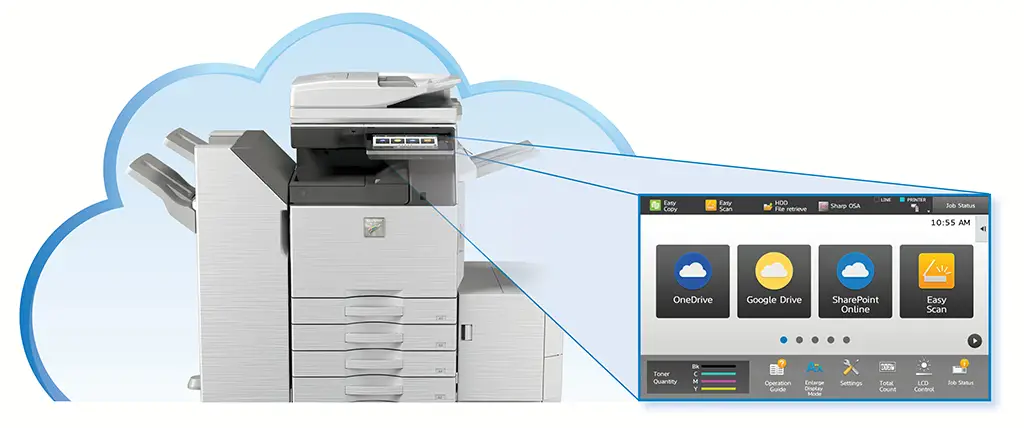
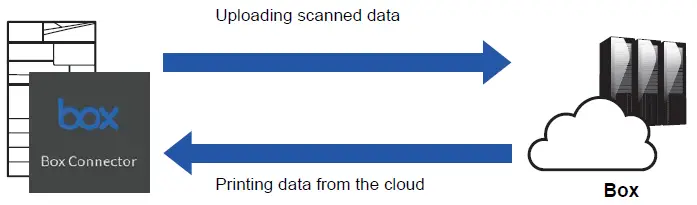
This guide explains the functions of “Box Connector” such as uploading scanned data and printing files from the cloud, which become possible by linking the machine with the online storage service “Box” provided by Box, Inc.
Please note
- This guide assumes that the persons who install and use this product have a working knowledge of their computer and web browser.
- For information on your operating system or web browser, please refer to your operating system guide or web browser guide, or the online Help function.
- Considerable care has been taken in preparing this guide. If you have any comments or concerns about the guide, please contact your dealer or nearest authorized service representative.
- This product has undergone strict quality control and inspection procedures. In the unlikely event that a defect or other problem is discovered, please contact your dealer or nearest authorized service representative.
- Aside from instances provided for by law, SHARP is not responsible for failures occurring during the use of the product or its options, or failures due to incorrect operation of the product and its options, or other failures, or for any damage that occurs due to use of the product.
Warning
- Reproduction, adaptation or translation of the contents of the guide without prior written permission is prohibited, except as allowed under copyright laws.
- All information in this guide is subject to change without notice.
Illustrations, the operation panel, the touch panel, and the Web page setup screen are shown in this guide
The peripheral devices are generally optional. However, some models include certain peripheral devices as standard equipment. For some functions and procedures, the explanations assume that devices other than the above are installed. Depending on the content, and depending on the model, and what peripheral devices are installed, this may not be usable. For details, refer to the User’s Manual.
The display screens, messages, and key names shown in the guide may differ from those on the actual machine due to product improvements and modifications. The information described in the guide assumes a full-color multifunction machine is being used. Some contents may not be available on a monochrome multifunction machine.
Box and the Box logo are trademarks or registered trademarks of Box, Inc.
Box Connector Guide
Cautions when using the Box Connector function
- Print results using the Box Connector function may not have the same quality as print results using other print methods (printer driver, etc.).
The contents of some files may cause incorrect printing or prevent printing. - It may not be possible to use some or all Box Connector functions in some countries or regions where the machine is used.
- It may not be possible to use the Box Connector function in some network environments. Even when the Box Connector function can be used, processing may require a longer time or may be interrupted.
- We do not extend any guarantees regarding the continuity or connection stability of the Box Connector function. With the exception of instances provided for by law, we bear absolutely no responsibility for any damages or loss suffered by the customer due to the above.
BEFORE USING Box Connector
Before using Box Connector, the Box Connector application must be installed on the multifunction machine. For how to install the Box Connector application, please contact your dealer or nearest authorized service representative.
Basic requirements and system requirements for Box Connector
| Item | Description | |
| Multifunction machine | Sharp OSA (BP-AM10) | Required |
| Port Control | The following ports are enabled. • Server Port: Sharp OSA (Extended Platform): HTTP • Client Port: HTTPS | |
| Direct Print Expansion Kit | Required when printing xlsx, docx, and pptx files. | |
| Other Network Settings | Change the settings such as the IP Address, Subnet Mask, Default Gateway, DNS server, and Proxy Server as necessary. | |
Initial value settings on Box Connector
Click the [Detail] key on the page which will have been displayed after selecting Box Connector from the [System Settings] [Sharp OSA Settings] → [Embedded Application Settings] under the “Setting (Administrator)” to configure the following items.
| Item | Description |
| File Name | Sets the initial value of the scan data File Name to store. |
| Include Date in File Name | Sets whether the date and time is included with the File Name. |
Import or export the initial value file
The following explains how to export the initial values used on a Box Connector which a multifunction machine is using in order to use them on another Connector that is on the other machine, and how to import an exported file that contains an initial value setting. Select Box Connector from the [System Settings] [Sharp OSA Settings] [Embedded Application Settings] under the “Setting (Administrator)”.
Import the initial value file to register the following items in the detailed settings of the Box Connector.
| Item | Description | |
| Scan settings | File Name | Specify the initial value for the scan data File Name to store. |
| Include Date in File Name | Sets whether the date and time is included with the File Name. | |
| Colour Mode | Specify the color mode. | |
| Resolution | Specify the resolution. | |
| File Format | Set the file format of the data to be saved. | |
| Original | Specify the originals. | |
| Exposure | Specify the density of the image. | |
| Job Build | Set the use of Job Build. | |
| Blank Page Skip | Set the use of Blank Page Skip. | |
| Item | Description | |
| Print settings | Paper Size | Set the print size. |
| 2-Sided Print | Specify 2-sided printing. | |
| N-Up Printing | Specify N-Up Printing. | |
| Sort/Group | Sorting and groups for output can be set. | |
| Staple Sort* | Specify staple sorting. | |
| Punch* | Specify punching. | |
| B/W Print | Prints the file in black and white. | |
| Fit To Page | Print with the file expanded to the full paper size. | |
- Installation of an inner finisher, a finisher or a saddle finisher is required to use “Staple Sort”.
- Installation of a punch module in addition to an inner finisher, a finisher, or a saddle finisher is required to use “Punch”.
USING Box Connector
- Tap the [Box Connector] key on the Home screen
If you cannot find the Box Connector icon on the Home Screen, register the Box Connector to the Home Screen in the Home Screen Settings of the machine System Settings. - When the Box login screen is displayed, enter the login e-mail address and password, and tap the [OK] key.
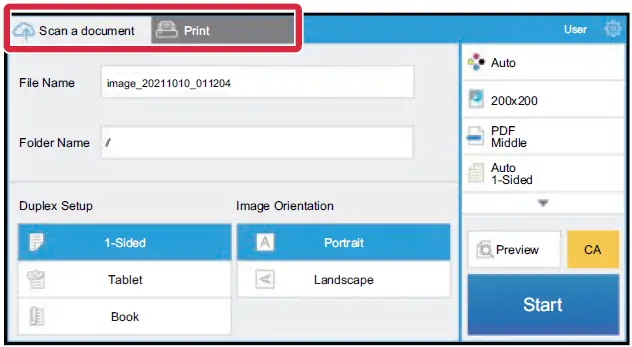
- To scan the originals and upload the scanned data, tap the [Scan a document] tab. To print the file, tap the [Print] tab and switch to the print screen.

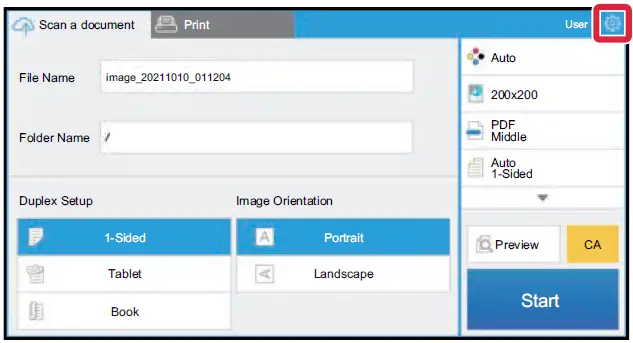
- When you are done and want to log out, tap and tap [Switch Accounts].
Returns to the login screen.
Print data
Select the files that you wish to print. Up to 10 files can be printed simultaneously. Up to 16 print jobs can be reserved.
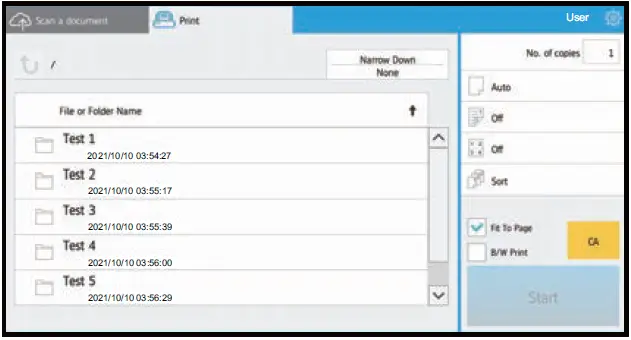
- In the screen displayed after login, switch to the print screen and select the folder that contains the file that you wish to print.
The files that are in the folder are displayed.
- Tap the files that you wish to print.
Print settings can be changed from the menu on the right side of the screen.
- Tap the [Start] key.
The selected file will be printed.
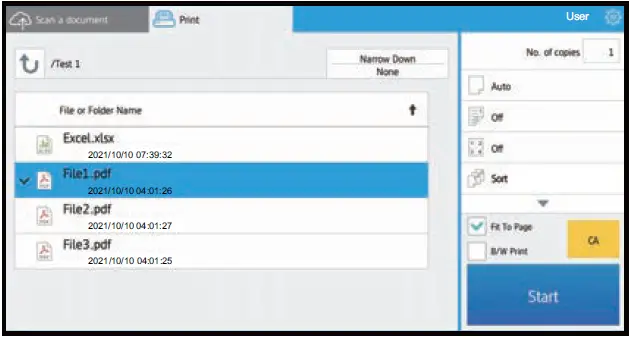
Print settings
To print a single file, you can change the following settings. When multiple files are selected, only the number of copies can be changed. Initial values are used for the other settings.
| Item | Initial values | Description |
| No. of copies | 1 | 1 to 9999 copies can be set. |
| Paper Size | Auto | Set the print size. |
| 2-Sided Print | Off | Specify 2-sided printing. |
| N-Up Printing | Off | Specify N-Up Printing. |
| Staple Sort* | Off | Specify staple sorting. |
| Sort/Group | Sort | Sorting and groups for output can be set. |
| Punch* | Off | Specify punching. |
| Print What* | Selected Sheet | Only displayed when printing an Excel file. Select whether to print one sheet within a workbook or the entire workbook. |
| Fit To Page | On | Print with the file expanded to the full paper size. |
| B/W Print | Off | Prints the file in black and white. |
Installation of an inner finisher, a finisher or a saddle finisher is required to use “Staple Sort”. Installation of a punch module in addition to an inner finisher, a finisher or a saddle finisher is required to use “Punch”. Depending on the model, the Direct Print Expansion Kit may be required to use “Print What”.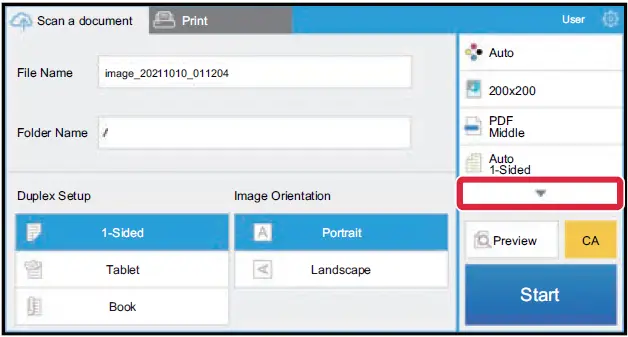
Tap to view all of the print settings that can be used.
Scan/upload data
Upload the data scanned on the machine to Box. Select the folder where you want to store the file. Scanned data up to the size set in “Maximum Size of Data Attachments(FTP/Desktop/Network Folder)” of System Settings (Administrator) or up to 9999 sheets (pages) per file can be uploaded.
- Set the original in the machine.
For the procedure for setting the original, see the manual of the machine. - Tap the Folder Name.
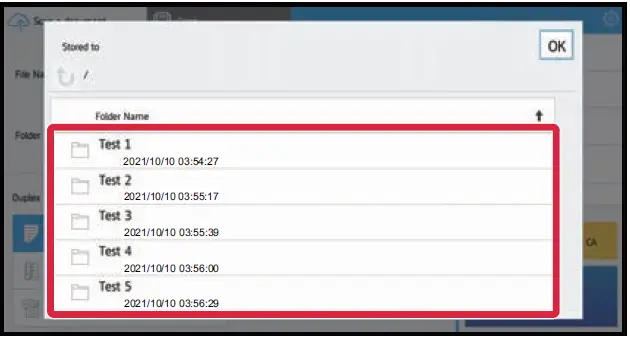
The folder registered in Box is displayed.
- Select the folder that you wish to save.
Tap the folder that you wish to save and tap the [OK] key. Returns to the screen of step 2. The name of the selected folder is displayed as the folder name. - Tap the [Start] key.
The selected file will be scanned.
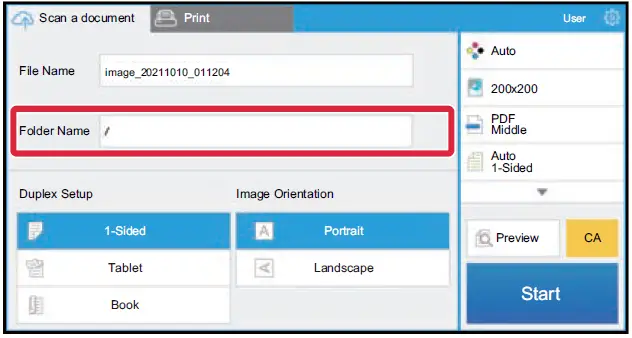
Scan settings
Base screen
| Item | Description |
| File Name | Sets the file name. Initially, displays the “File Name” set in the detailed settings of Box Connector. Displays the scanned date and time in the File Name entry box when the “Include Date in File Name” is enabled. |
| Folder Name | Sets the folder to store a file. |
| Duplex Setup | Performs the settings for a 2-sided scanning. |
| Image Orientation | Sets the orientation of the image. |
Scan setting screen
When scanning, the following settings can be configured.
| Item | Initial values | Description |
| Colour Mode | Auto | Specify the color mode. |
| Resolution | 200 dpi | Specify the resolution. |
| File Format | Set the file format of the data to be saved. | |
| Original | Auto | Specify the originals. |
| Exposure | Auto | Specify the density of the image. |
| Job Build | Off | Set the use of Job Build. |
| Blank Page Skip | Off | Set the use of Blank Page Skip. |
| Preview | – | A preview of the scanned data is displayed before the originals are scanned. |
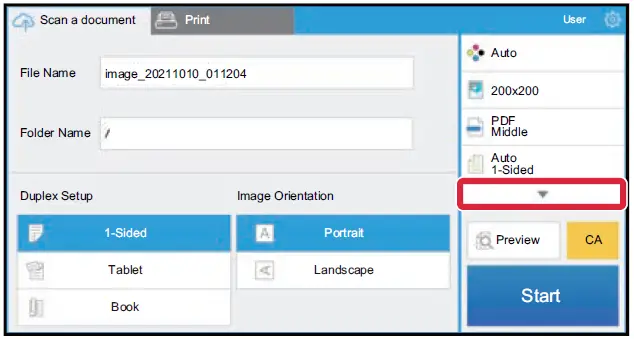
Tap to view all of the scan settings that can be used.
Apply the current value as the default value/Return the default value to the factory default
- After changing each setting, tap, and tap [Apply the current value as the default value] to set the current value to the default value when logging in.
- Tap [Return default value to factory default] to return the default value of setting to the factory default.
- If a password entry screen is displayed, enter the administrator password of this machine.