

HD 1080P Wireless Security W-Fi Camera User Manual
HD 1080P Wireless Security Wi-Fi Camera User Manual Version: Mar, 2020
HD 1080P Wireless Security W-Fi Camera
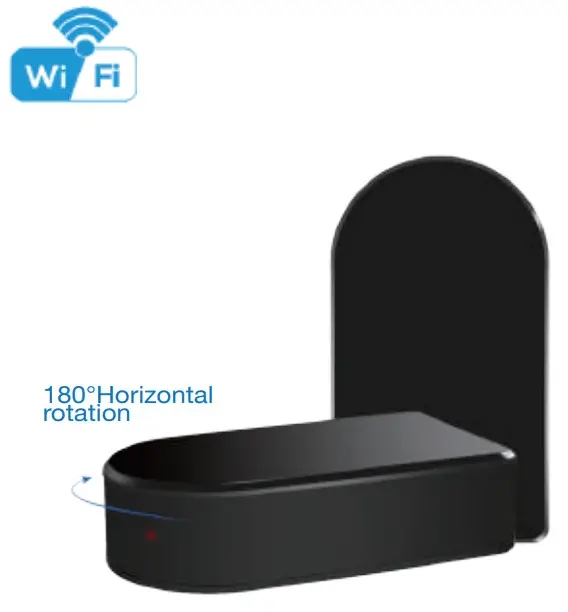
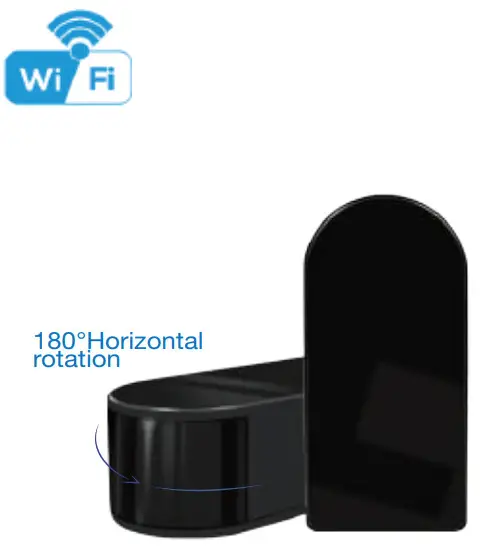
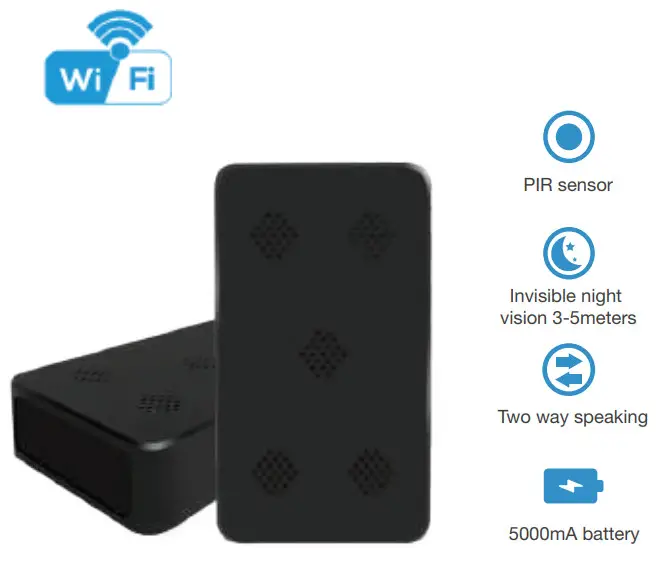
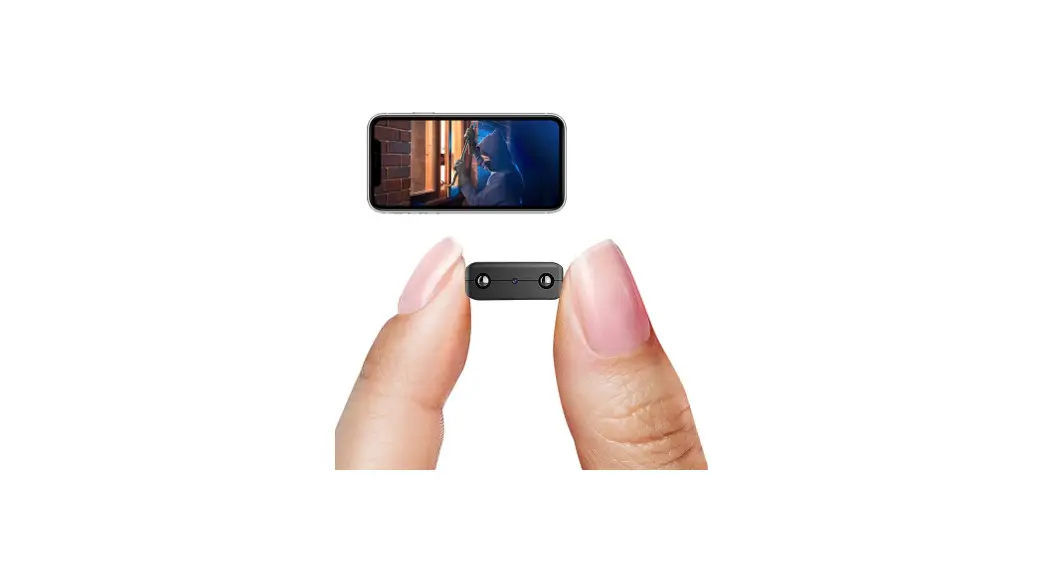
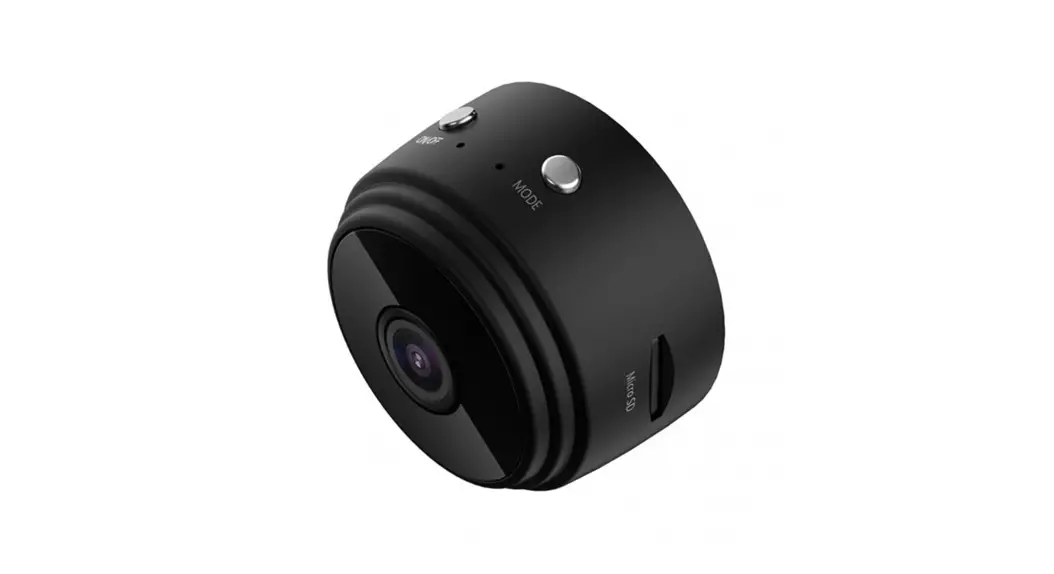
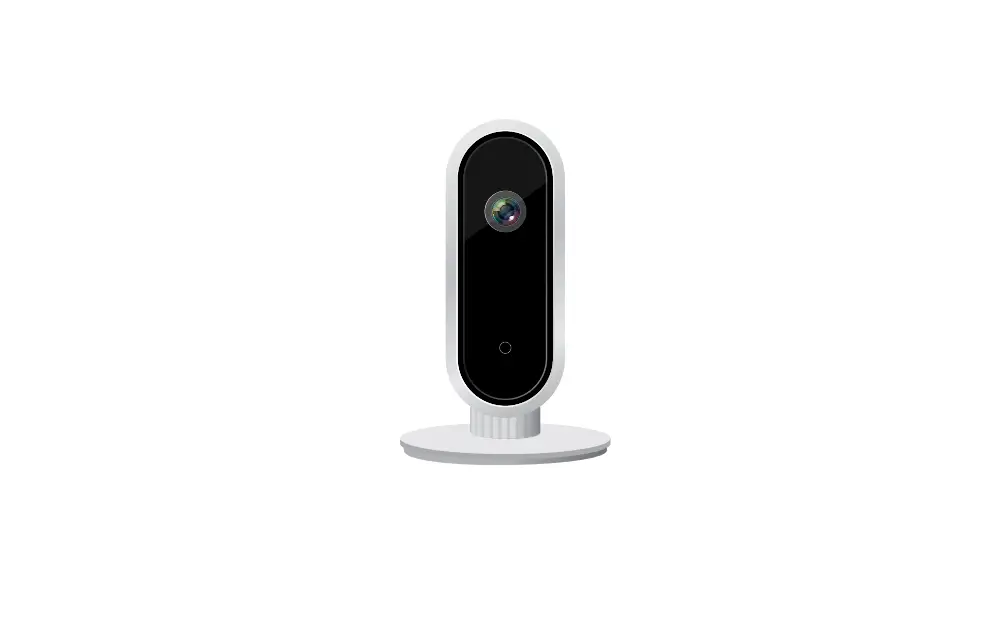
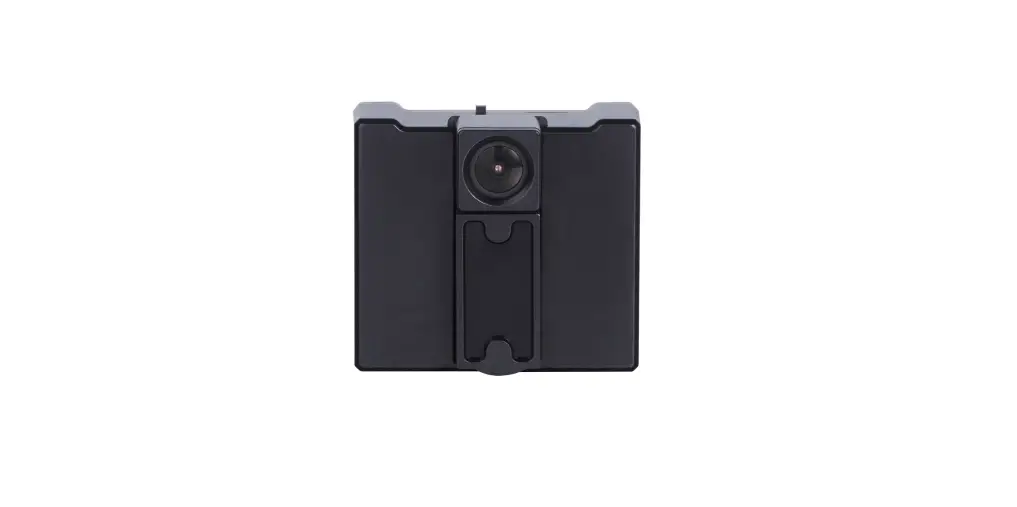
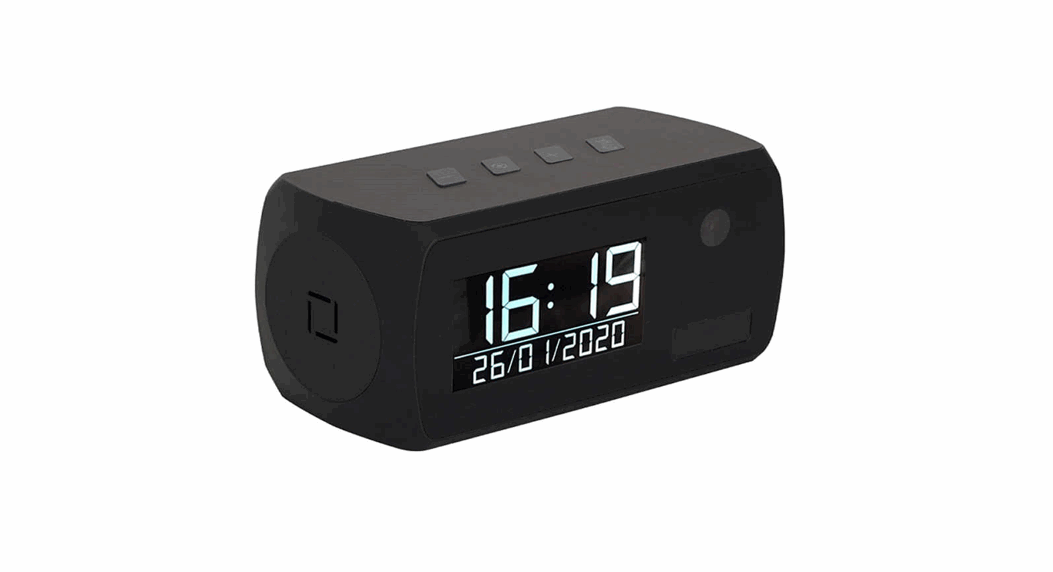
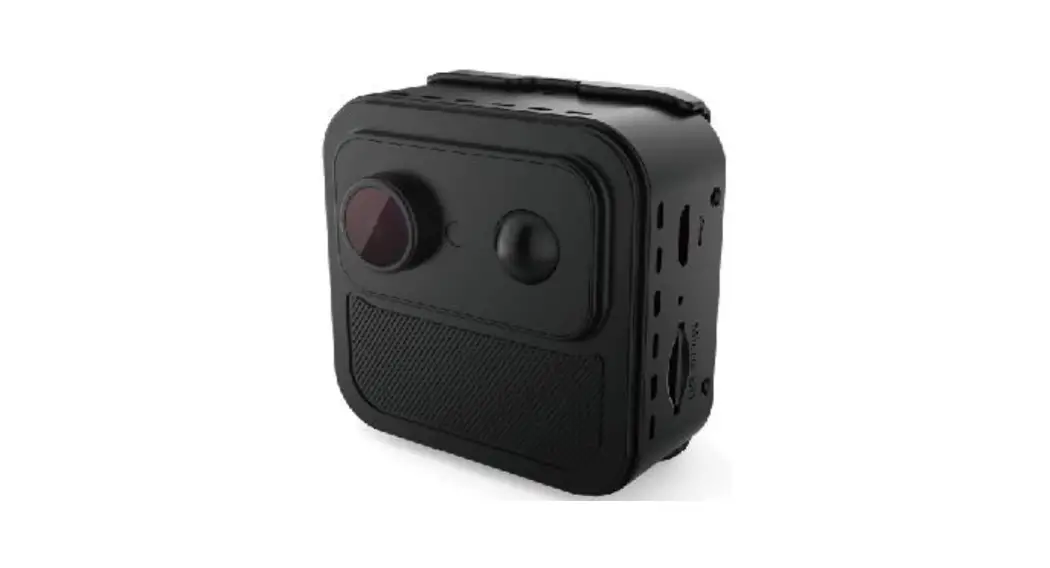
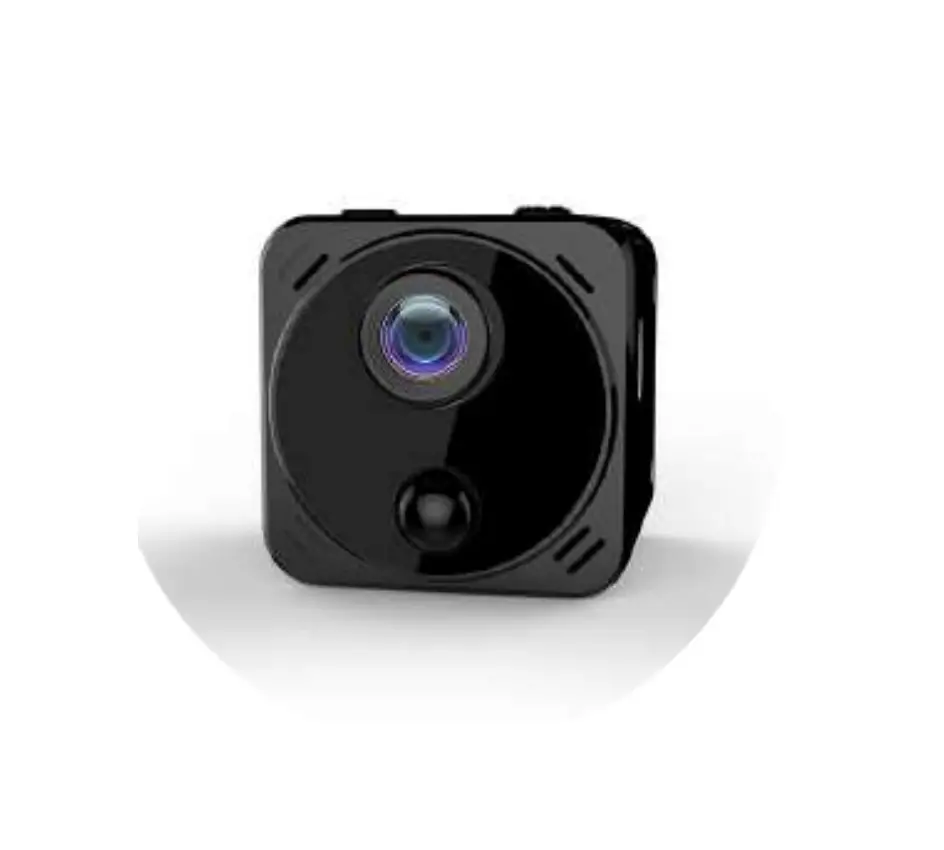
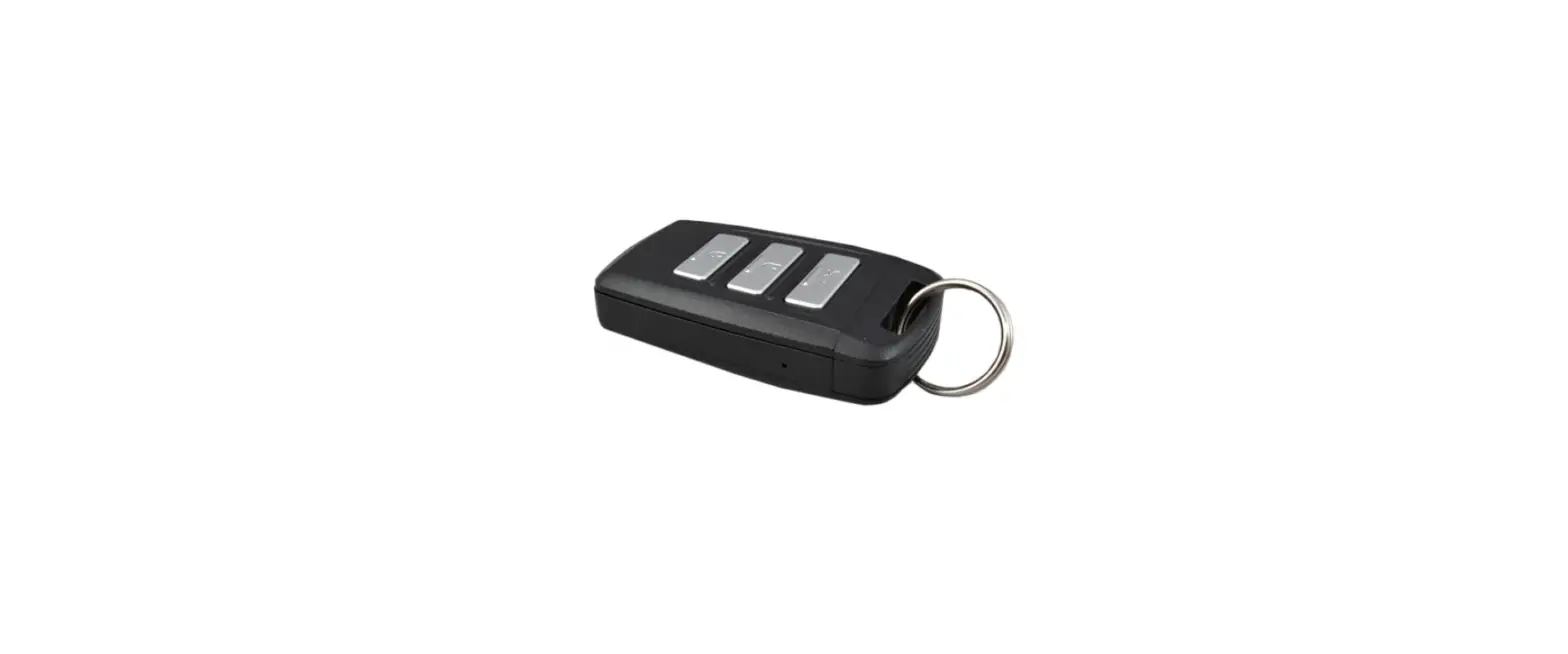
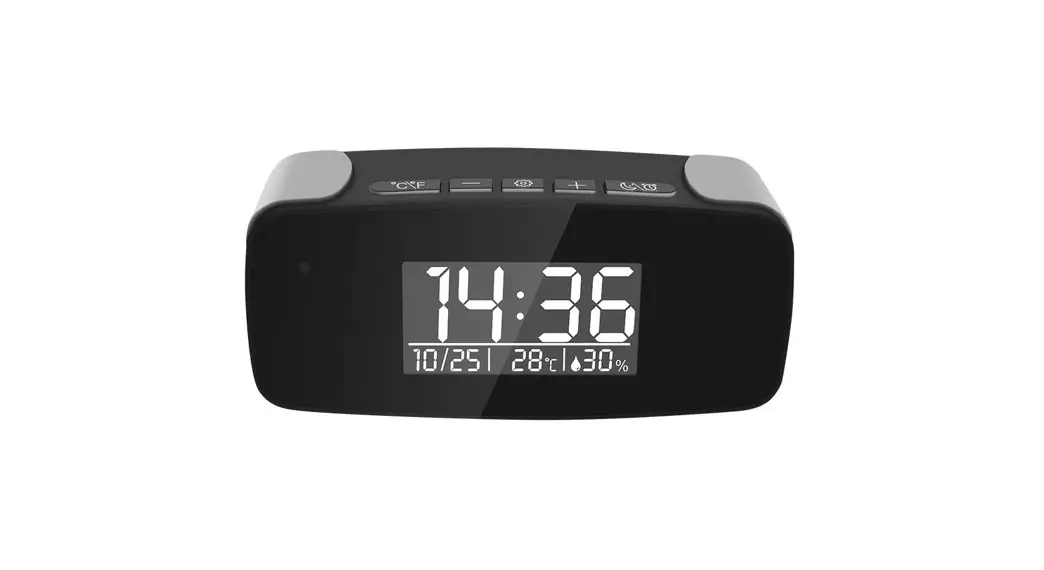
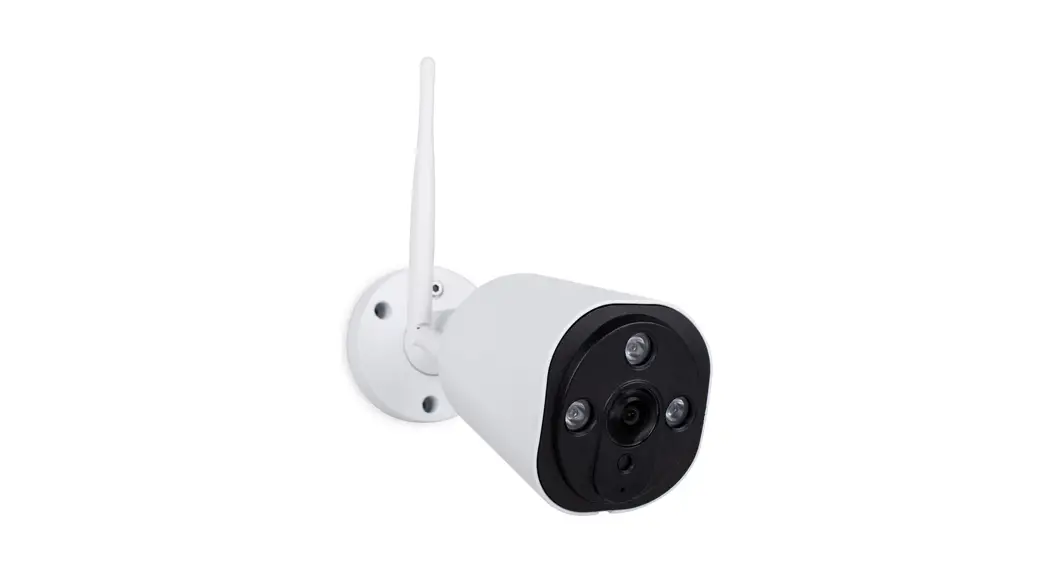
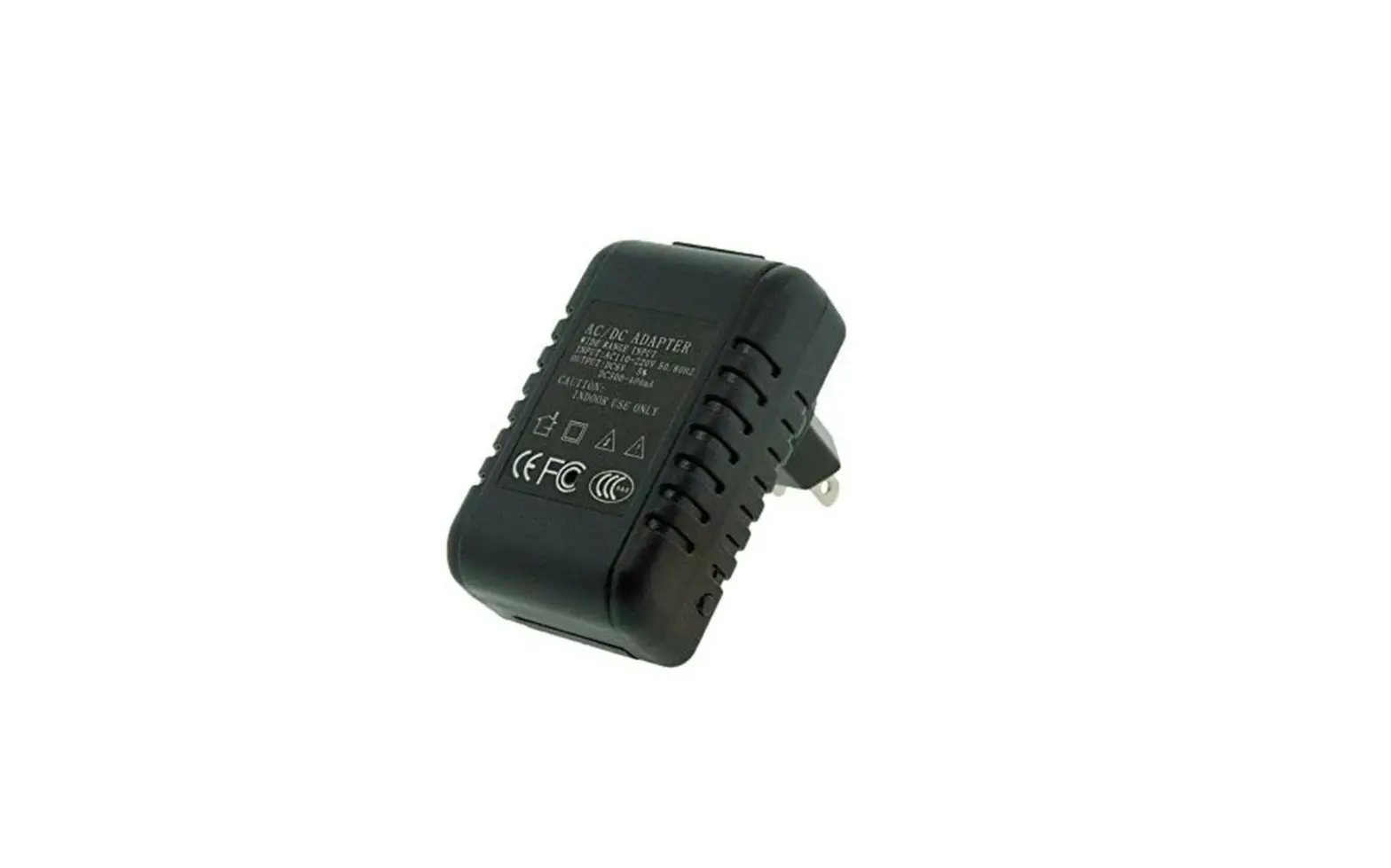
Black box Mini black box Night vision black box
Overview:
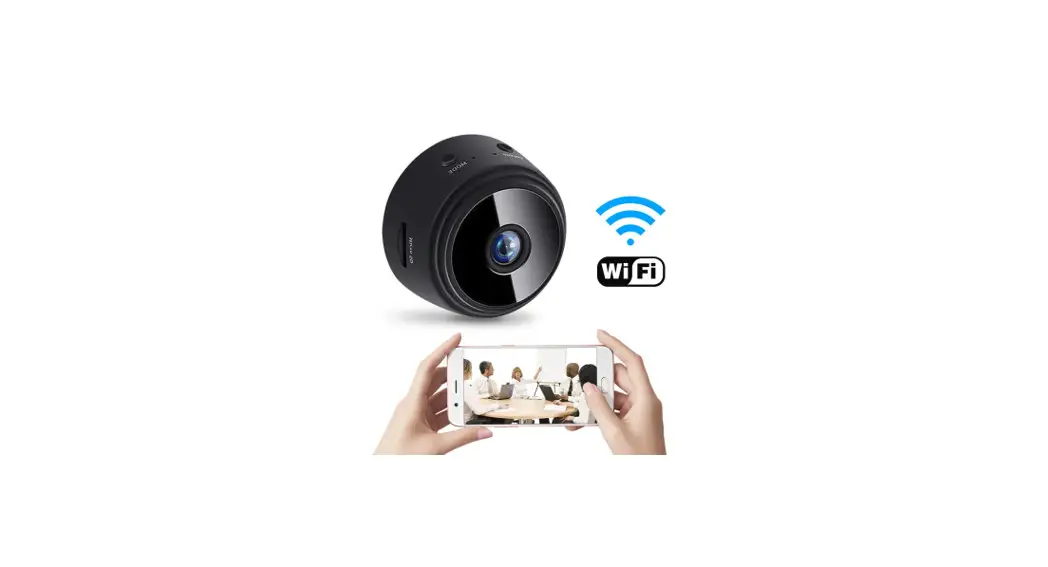
This security Wi-Fi camera kit is equipped with a powerful 1080p smart Wi-Fi camera for live streaming video, and it comes with motion detection video recording and alarm. Mini design and easy hidden to DIY any kinds of unique and exclusive security cameras for home & business surveillance. Usages: Nanny camera, home/ shop/ office/ warehouse surveillance camera…… Warning : ” illegal use is not allowed! Or, there will be consequences to bear! “
In the box 1x Wi-Fi camera 1x USB cable 1x AC power adapter 1x User manual 1 x Micro SD Card Reader
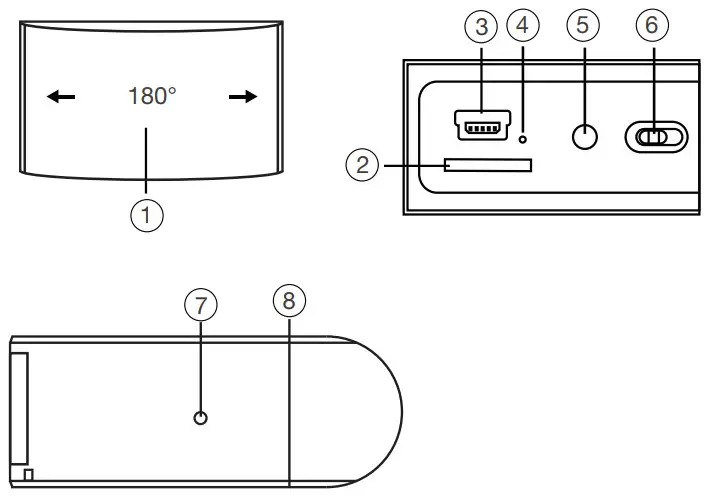
Product structure of Black box
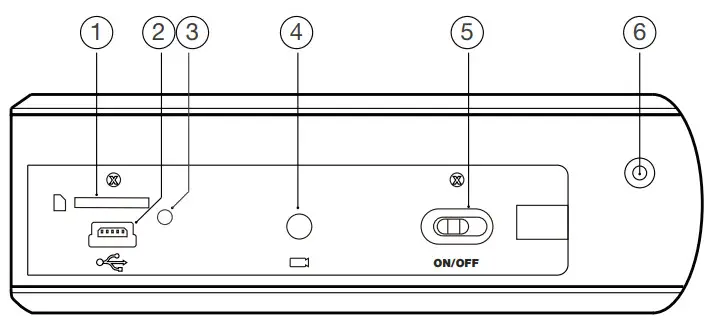
- Micro SD card slot
- USB port
- Power indicator light
- Reset key
- ON/OFF (For Wi-Fi Camera)
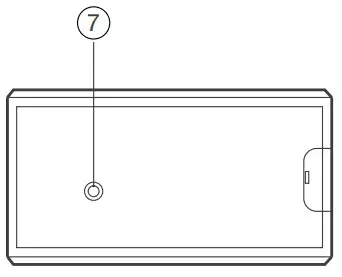
- Camera
- Wi-Fi indicator light
Product structure of Mini black box
 Camera
- Micro SD card slot
- USB port
- Power indicator light
- Reset key
- ON/OFF (For Wi-Fi Camera)
- Wi-Fi indicator light
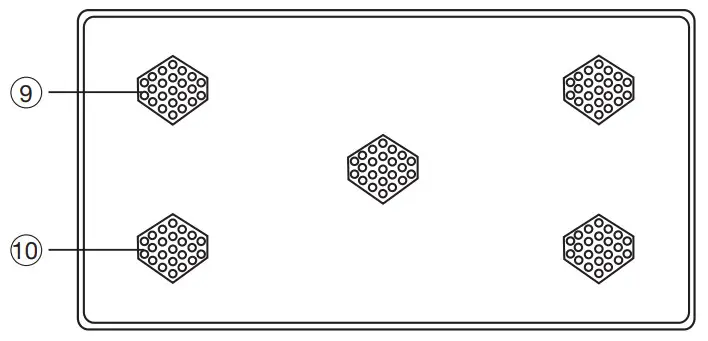
- Magnet
 Camera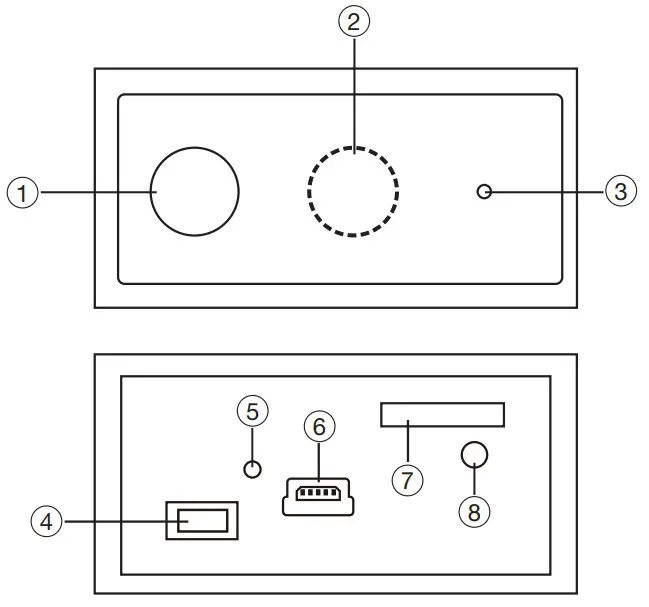
Product structure of Night vision black box1 PIR sensor 2 Invisible night vision led 3 Camera 4 ON/OFF (For Wi-Fi Camera) 5 Wi-Fi/ Power indicator light 6 USB port 7 Micro SD card slot 8 Reset 9 Speaker 10 Microphone

Getting started of Wi-Fi camera part Step1: Download and install APP Search and download free APP named “HDSmartIPC” in Apple APP store, Google play or Electronic market, and install it. Step 2: Take off side/back cover, turn switch to ON. Put on the cover, and plug in power. Wait for 1 minute; Step 3:Connect WiFi
- Open smartphone settings, search and connect the device’s wireless signal named”AI/LM……”,wait Wi-Fi connected, and phone status bar appear Wi-Fi
 symbol.
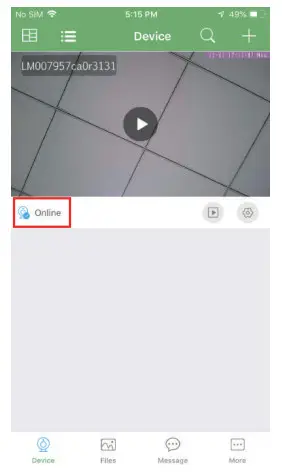
- Enter APP, app will add just connected camera automatically, Camera Online then;
 TIPS: This step = P2P mode, can check video locally when without Wi-Fi.
 - Press the gear icon
 after the camera and select Device settings ,select Wi-Fi Config.
- Select the router Wi-Fi and input password, camera will be connected to the router Wi-Fi. The smartphone will disconnect the signal from device and connect to the router Wi-Fi.
- Quit APP, and device restart automatically and ready again in 30 seconds.
- Enter APP and check live video locally or remotely anywhere.

 symbol.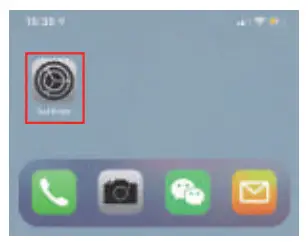
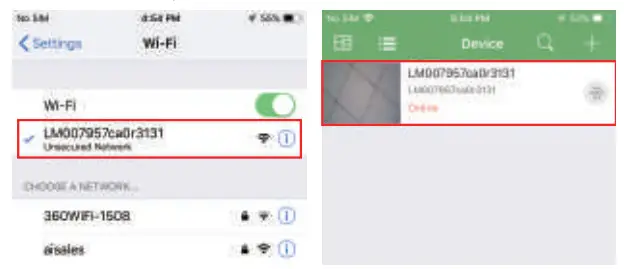 TIPS: This step = P2P mode, can check video locally when without Wi-Fi.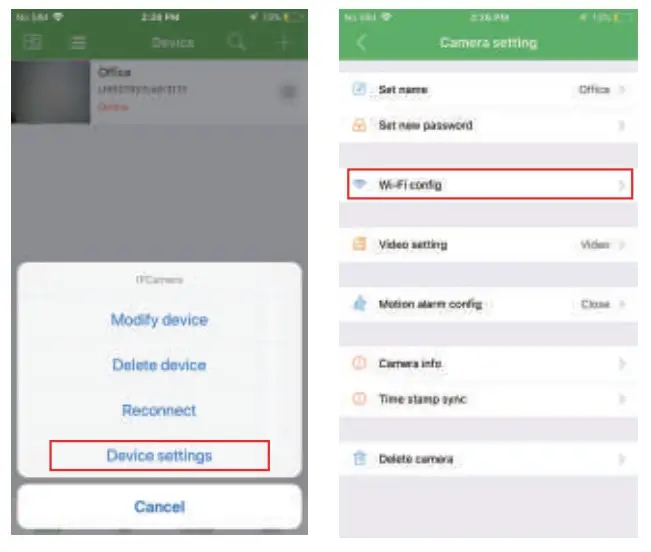
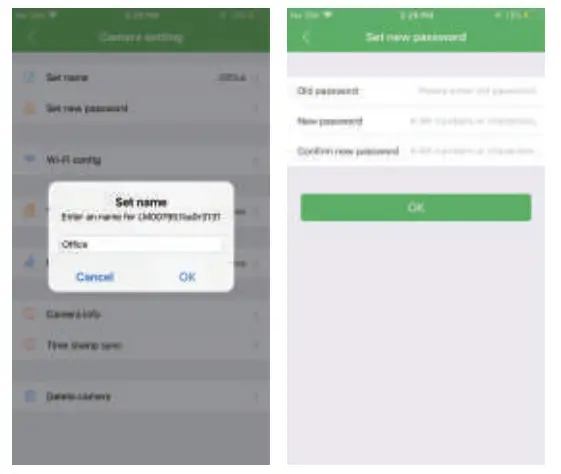
Set camera name and private code Set name:Press the after the camera and select Device settings,select Set name, insert name like Office,Room…… Set new password:Press the after the camera and select Device settings,select Set new password and change it to new one. Default one is 8888.
APP introduction:
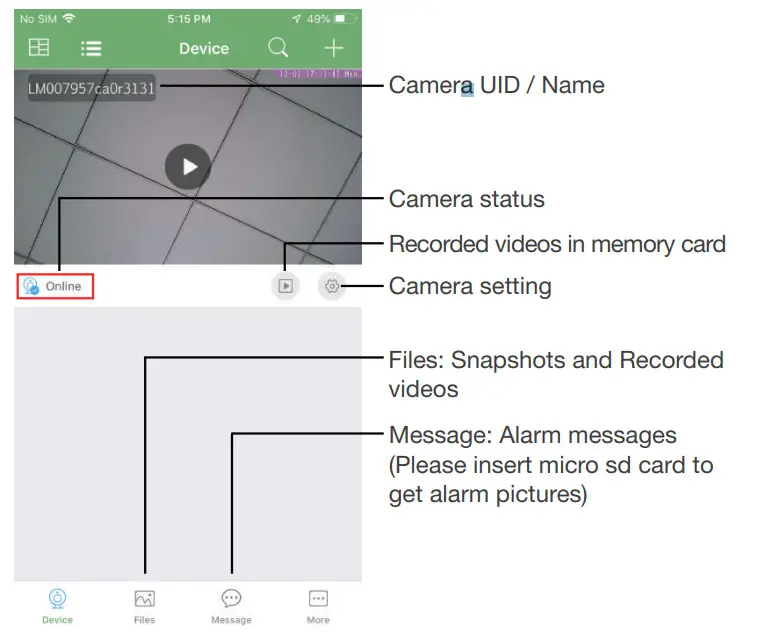
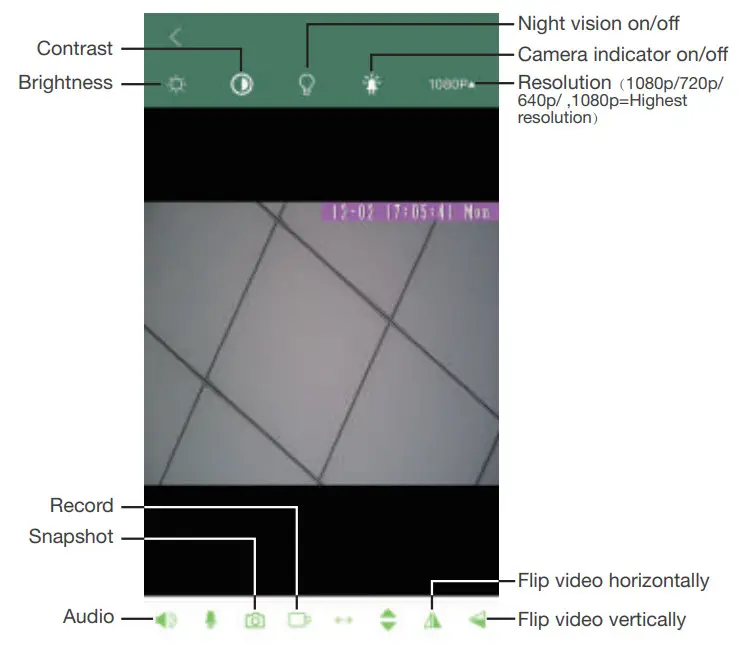
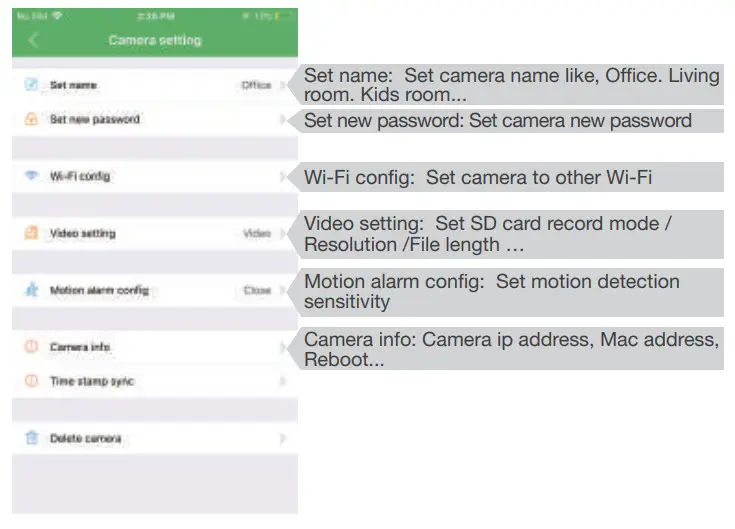

Live video page – Click camera to check TIPS:Each setting in Device Settings, please scroll down and press ok to save the setting. Set and watch by PC remotely (Windows Only)
Scan to download PC Client
Specification
| Resolution | 1.0/2.0 Mega pixel CMOS lens |
| Video pixel in phone | Max 1920’1080 |
| Video pixel in TF card | 1080720 |
| Frames | Max 25fps |
| Compressed format | H.264 |
| View angle | 90° |
| Type of memory card | TF card>=Class 4/10 and HC marked |
| Maximum capacity of memory card | 128GB |
| PC operation system | Windows 7.81 Mac OS X |
| Play software | VLC Player/SM Player |
| Mobile phone operation system | Android/i0S |
| Web browser | 1E7 and above. chrome, fire fox |
| Battery capacity | 5000mA. 950mA |
| Recording | 1 minute/ around 20MB |
| Working time | About 8-10 hours. About 3-4 hours |
| Charging time | About 10-15 hours. About 6-8 hours |
| Power adapter | 5V / 2A |
FAQ
– A:Press reset key for 10 seconds and wait 1 minute.
– A: Select suitable resolution according to the real time network environment.
– A: 1). Set motion detect sensitivity in Motion alarm config;
– 2). When motion detected, camera will push a alarm message to your phone and take one picture for checking in the APP [ Page 15 – Message ]. (A micro ds card MUST be inserted for saving alarm pictures)
– A: 1). Use a card reader to read and play;
– 2). Use APP to play back [ Page 15 – ];
];
– 3). Play back in good speed network.
– A: Turn on camera and wait for 1 minute, press reset key around 10 seconds till back indicators off to restore factory default. Camera restarts and get ready again in 1 minute.
– A: Please contact local dealer for video guide.