Contents hide

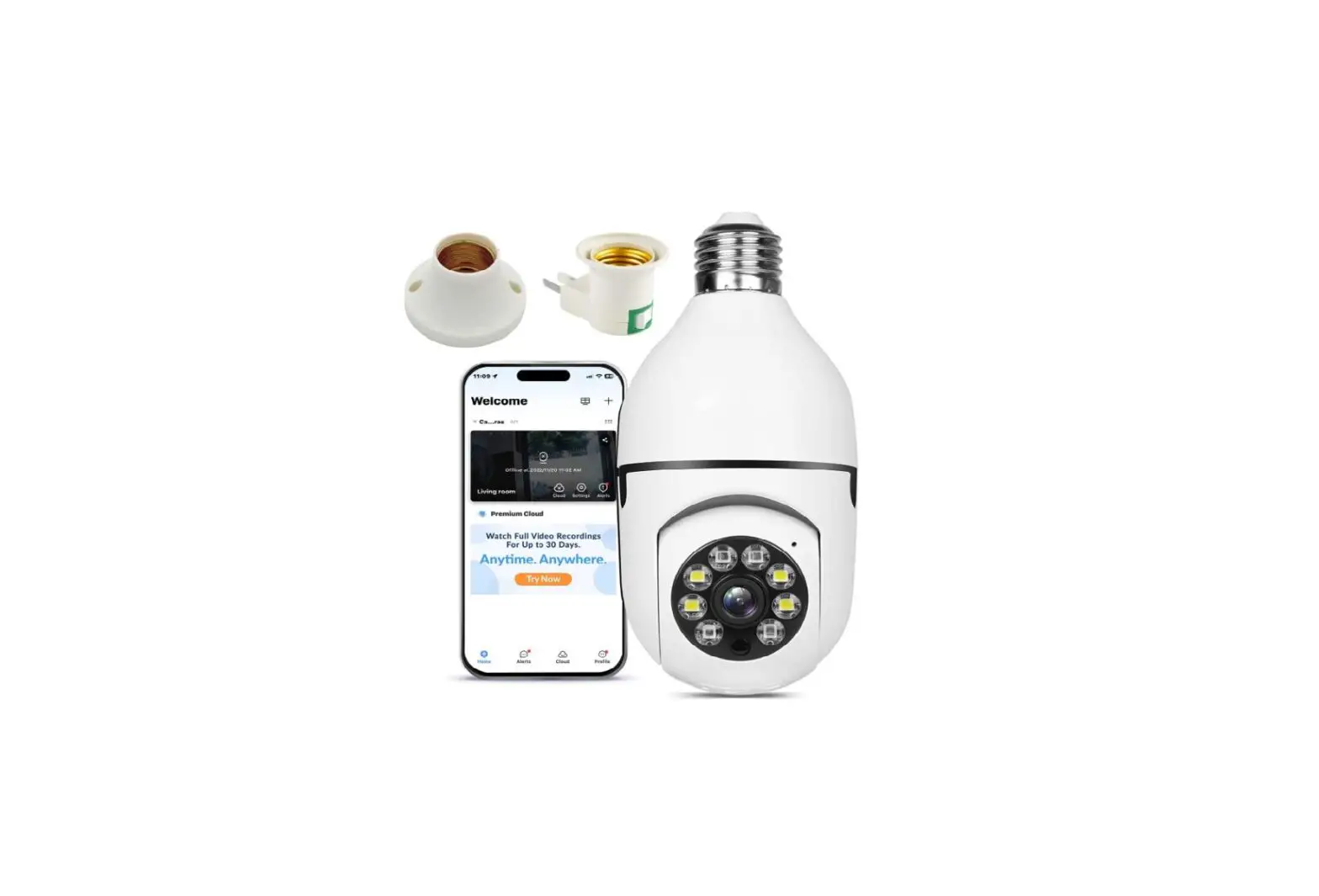
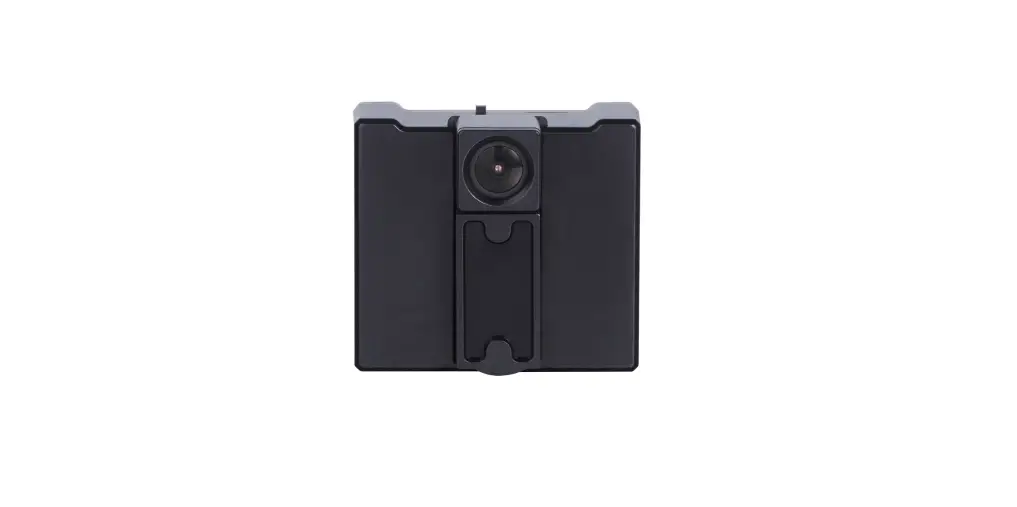
OzSpy HAIXNAN2MP HD 1080P Wireless Security Wi-Fi Camera
Quick guide of Wi-Fi camera function
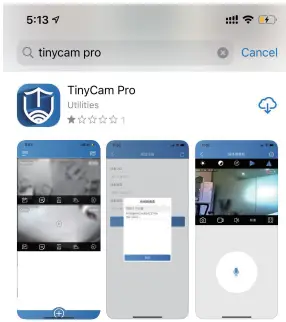
- Download Free App <TinyCam Pro> from App Store or Google Play.
Tips: Please allow “TinyCam Pro” to access smartphone location while using the APP - Insert micro SD card–> Plug in Power adapter–> Turn on the ON/OFF switch, wait for 1 minute(Wi-Fi indicator is flashing regularly);
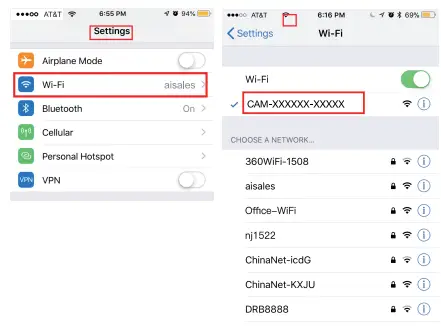
- Enter smartphone settings-> Search and connect device’s W-Fi named: CAM…, wait till phone status bar appear Wi-Fi symbol

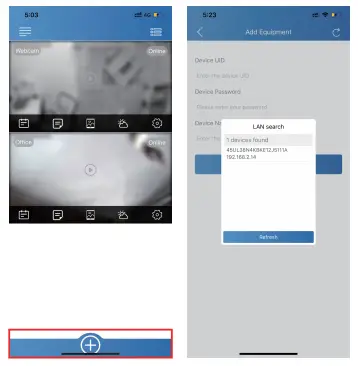
- Enter APP tap below “
 ” icon-> LAN search->Tap the found device -> Tap Add -> Camera Online then;
Tips: This step = P2P mode, can check video locally when without Wi-Fi. - Press
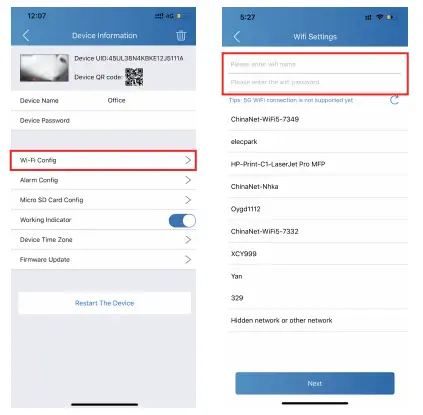
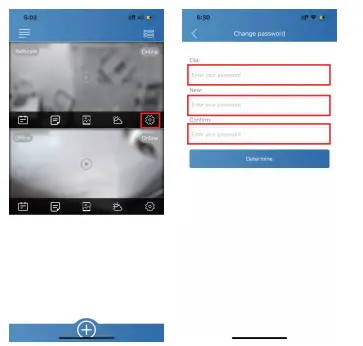
 icon on the right corner of camera-> WiFi Config >Select local Wi-Fi (SSID)-> Input password > Tap Next;
 - Quit APP, wait 30 seconds (device restart automatically)and connected with set Wi-Fi(Wi-Fi indicator is solid);
- Enter APP to check live video locally or remotely anywhere.
PS.: Contact local dealer for tutorial video setting up.

 ” icon-> LAN search->Tap the found device -> Tap Add -> Camera Online then;
 icon on the right corner of camera-> WiFi Config >Select local Wi-Fi (SSID)-> Input password > Tap Next;
OVERVIEW
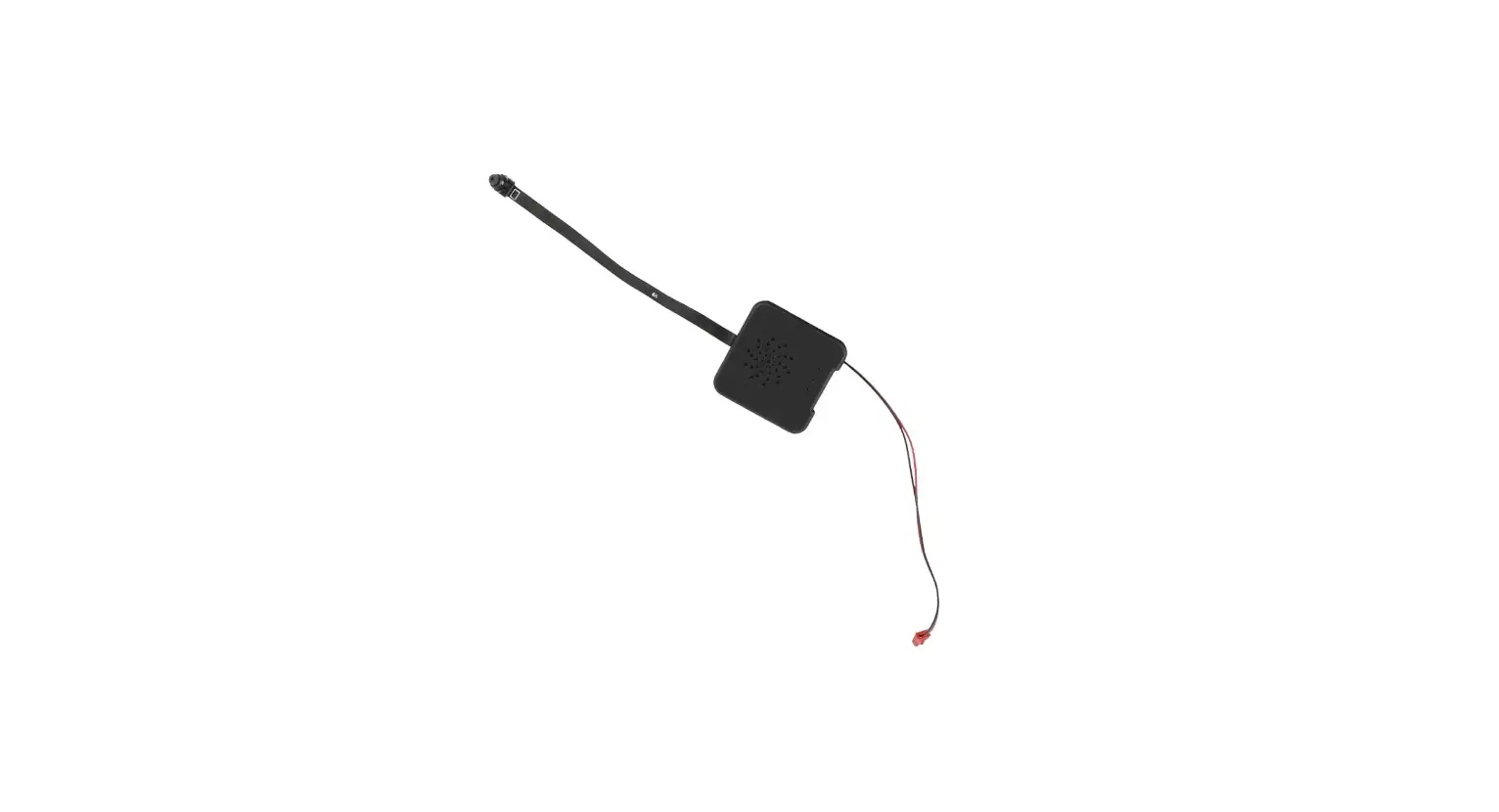
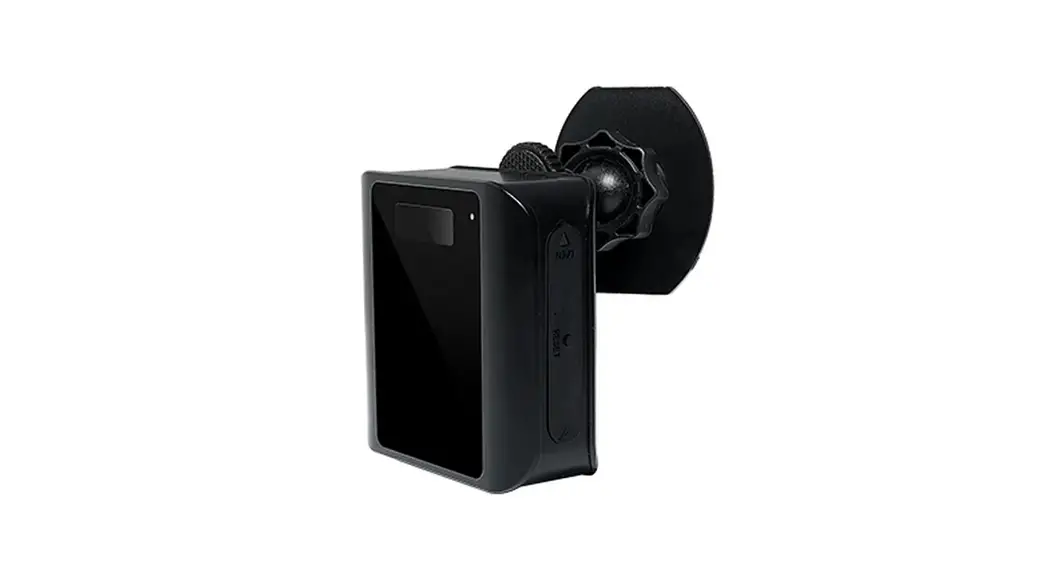
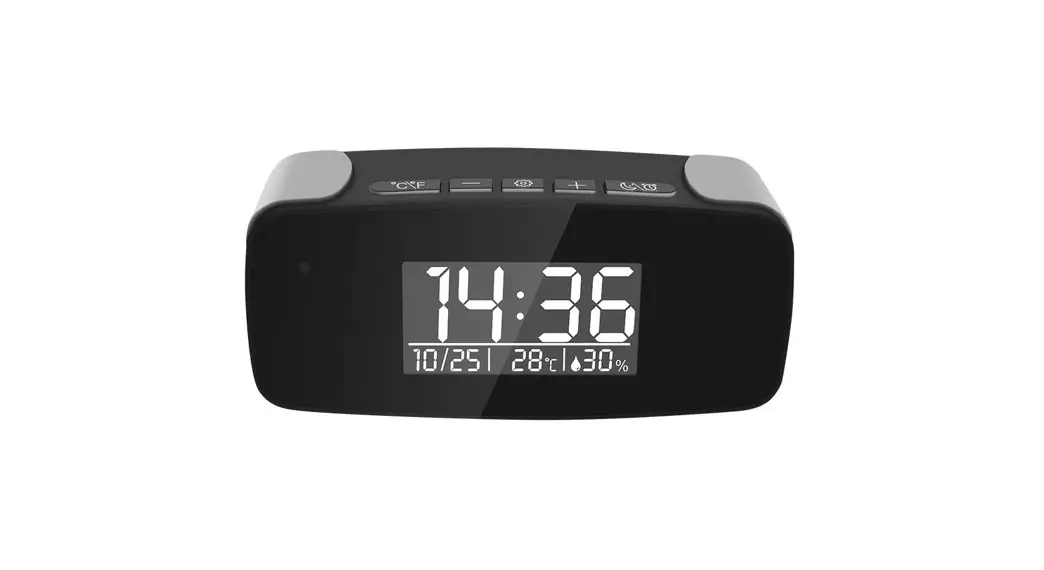
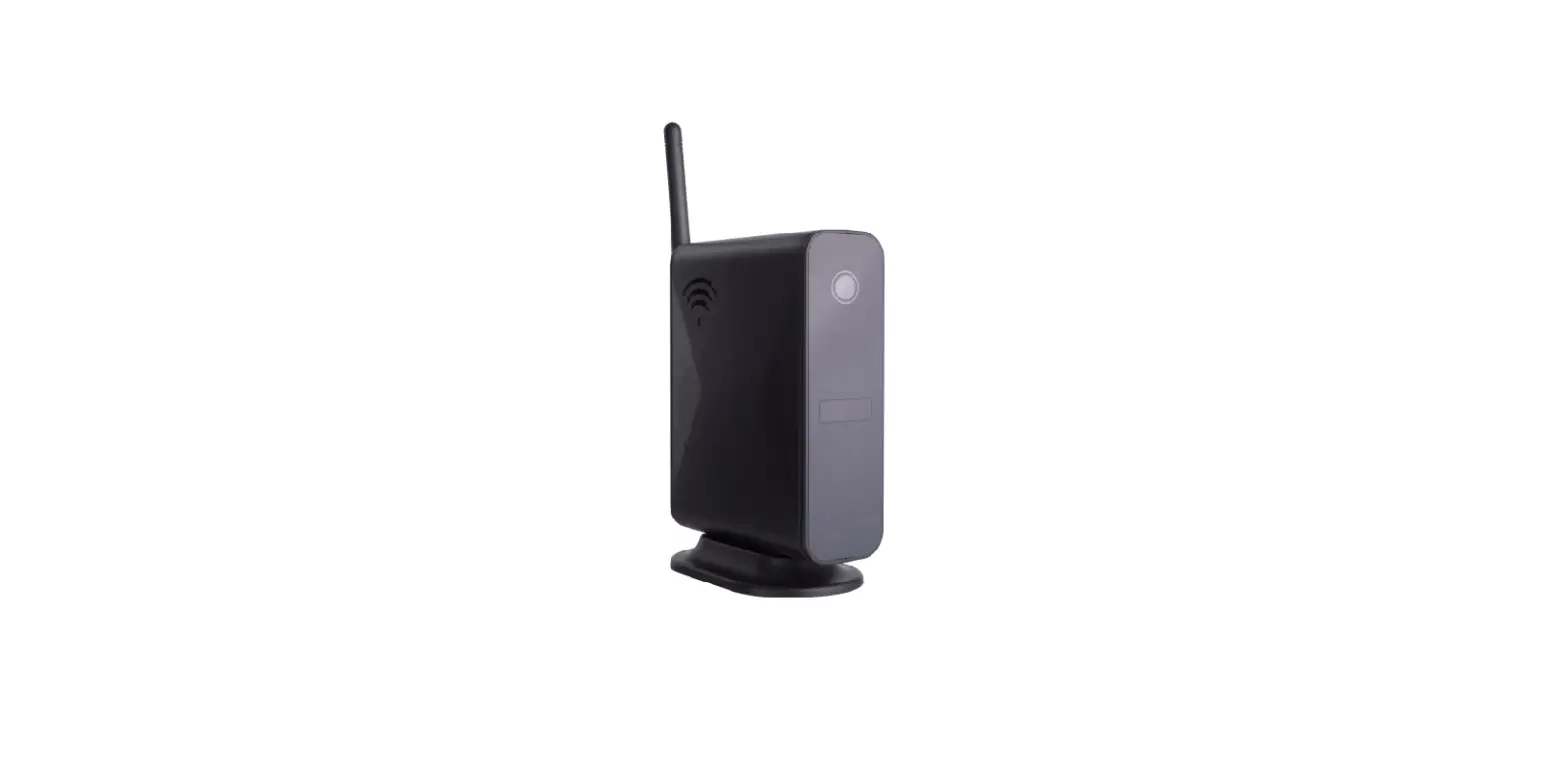
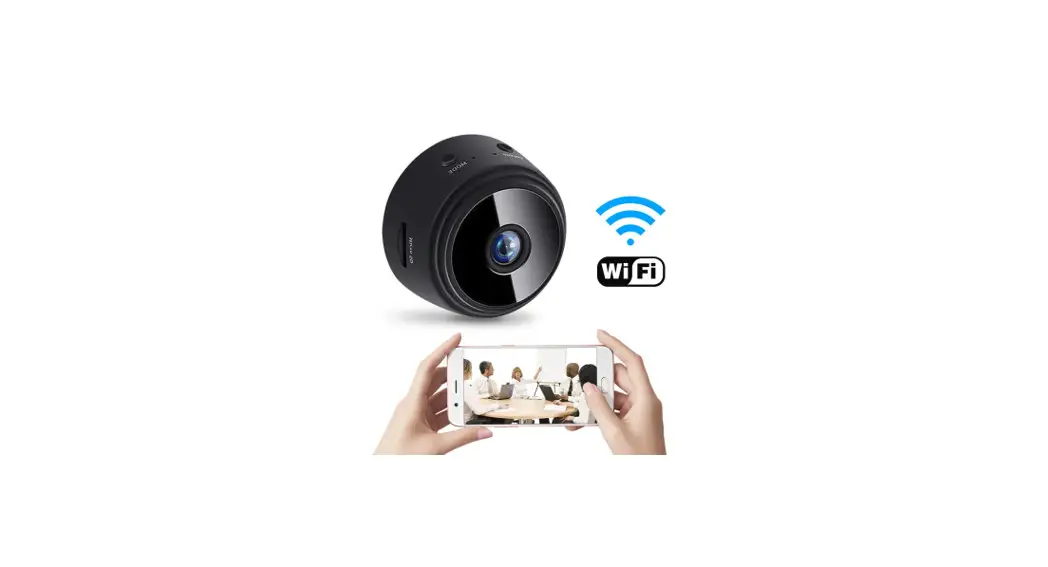
This mini wireless Wi-Fi security camera is integrated with powerful 1080P smart Wi-Fi camera comes with 5 meters powerful night vision. First, they can be used for watching live streaming video day and night, or taking photo and video by APP in smart-phone remotely after Wi-Fi connected;Also, it supports Point to Point(P2P) function, easily connected for local live video without Wi-Fi. Second, it also support motion detect alarm function, cycle recording and work when charging.
Usages: Nanny camera, Home/ Shop/ Office/ Warehouse surveillance camera.
Warning: illegal use is not allowed! Or, there will be consequences to bear!”
IN THE BOX
- 1 x Camera Unit
- 1 x User Manual
- 1 x USB Cable
- 1 x Reset Pin
- 1 x Micro SD Card Reader
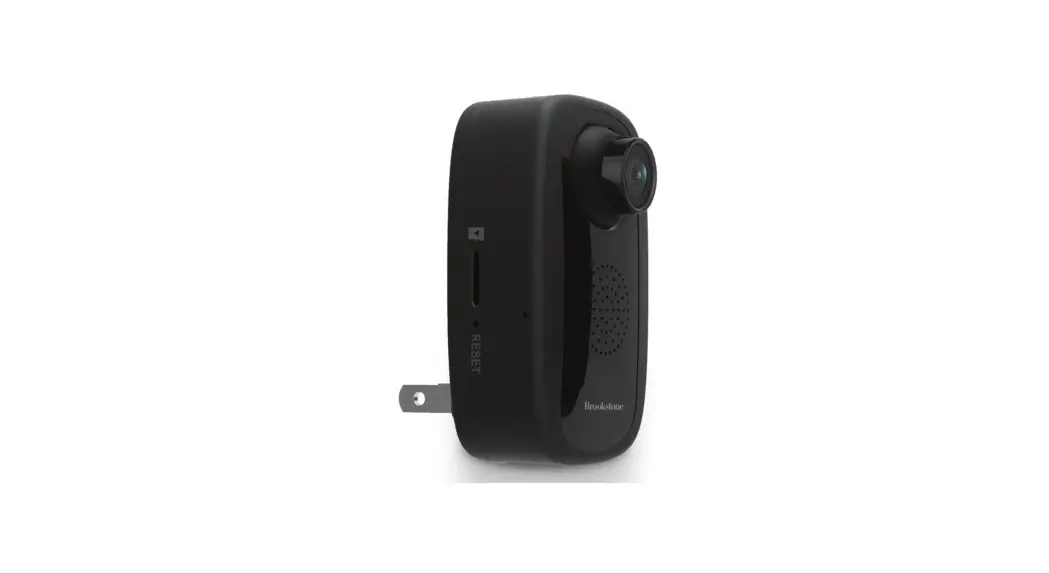
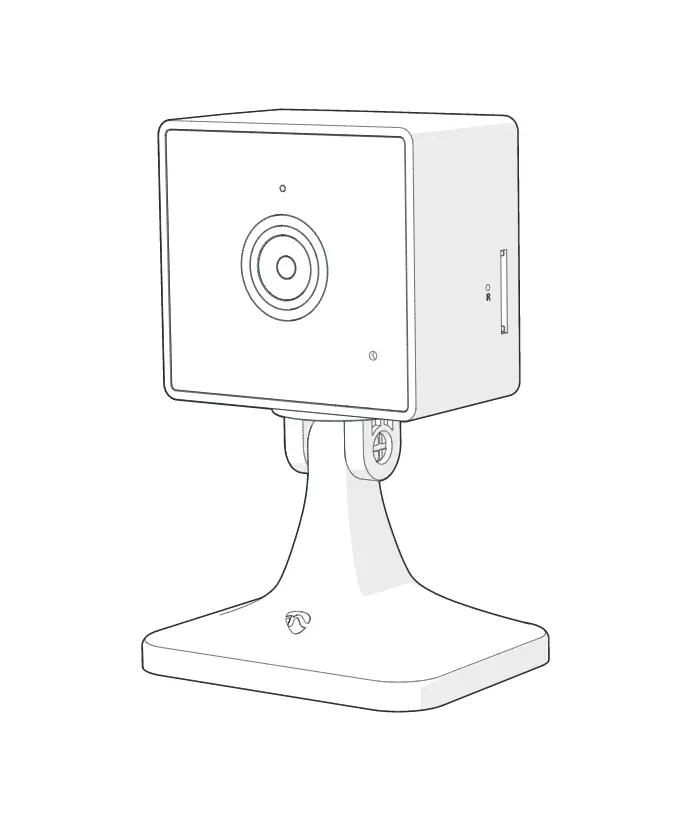
Product structure
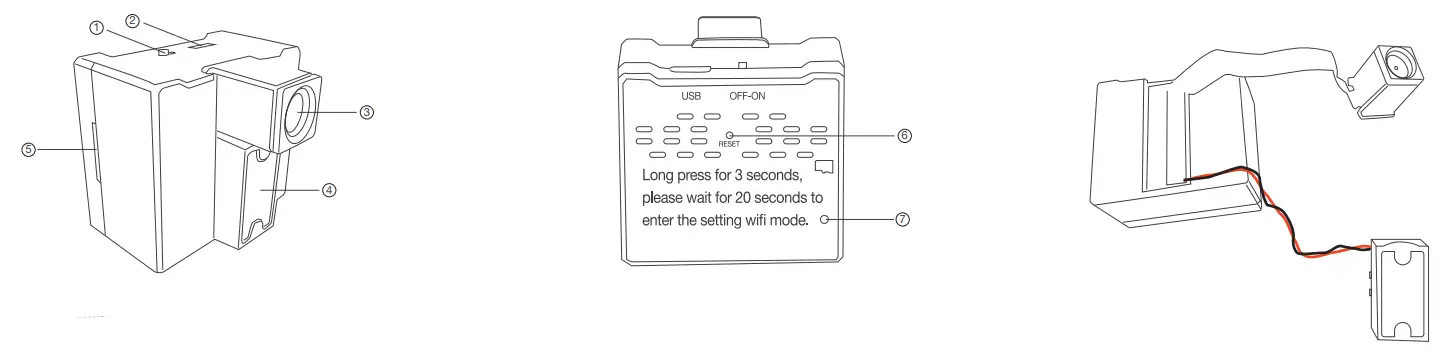
- ON/OFF switch
- USB port
- Camera
- Invisible night vision leds
- Micro SD card slot
- Reset key
- Mic
Wi-Fi Camera Connection Setting
- Step1: Download and install APP
Scan below QR code or search and download free APP named <TinyCam Pro> in Apple APP store, Google play or Electronic market, and install it;
Tips: Please allow “Tiny Cam Pro” to access your location while you are using the app(for syncing local weather info).
- Step 2: Insert micro SD card–> Plug in Power adapter–> Turn on the ON/OFF switch, wait for 1 minute(Wi-Fi indicator is flashing regularly):

- Step 3: Connect Wi-Fi
- Open smartphone settings, search and connect the device’s wireless signal named “CAM.”wait Wi-Fi connected, and phone status bar appear Wi-Fi symbol.

- Enter APP, tap below “” icon -> LAN search->Tap the found device-> Tap Add-> Camera Online then:

- Tap icon on the right corner of camera -> Wi-Fi Config-> Select local Wi-Fi (SSID)-> Input password-> Tap Next;

- Quit APP, wait 30 seconds (device restart automatically)and connected with set Wi-Fi(Wi-Fi indicator is solid)
- Enter APP and check live video locally or remotely anywhere.
- Open smartphone settings, search and connect the device’s wireless signal named “CAM.”wait Wi-Fi connected, and phone status bar appear Wi-Fi symbol.

Set camera name and private code
- Set name: Tap the after the camera, Input a new name(like Office..) in Device Name;

- Set new password: Tap the after the camera, Tap Device Password–>Old assword 123456.
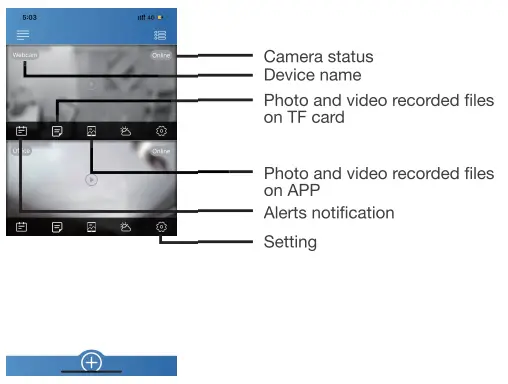
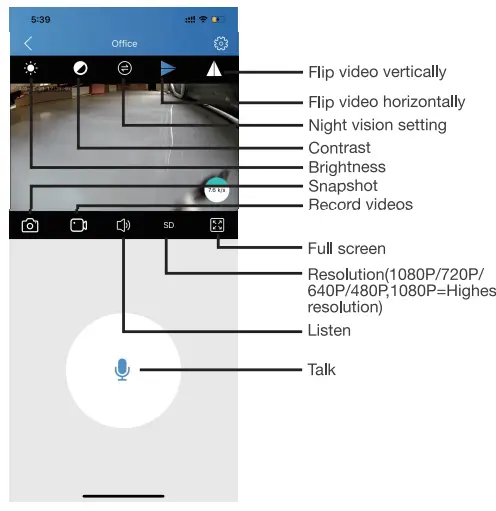
APP introduction
Tips:
- Please confirm phone setting has allowed TinyCam Pro App to access the location services;
- A TF card(Micro SD card) must be inserted for saving alerts pictures.
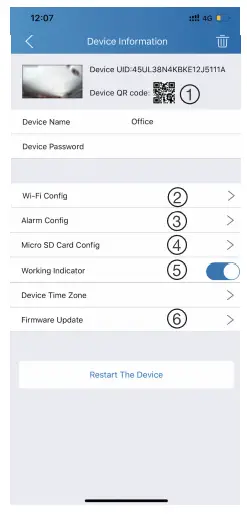
- Share camera with others by QR code.
- Wi-Fi Config: Set camera to connect to local Wi-Fi.
- Alarm Config: Set motion detection sensitivity.
- Micro SD Card Record Config: Set SD card recordmode/ Resolution /File length.
- Working Indicator: To turn on/off device’s working led.
- Firmware Update: Update device’s latest firmware by app.
Specification
- Resolution 2 Mega CMOS
- Video pixel Max 19201080
- Compressed format H.264
- View angle 100 Degree
- Night Vision 5M
- Type of memory card TF card>=Class 4/10 and HC marked
- Maximum capacity of memory card 128GB
- PC operation system Windows 7, 8/ Mac OSX
- Play software VLCPlayer/SMPlayer
- Mobile phone operation system Android/ios
- Web browsers IE7 and above, chrome, firefox
- Power consumption 250mAh without night vision 350mAh with night vision
- Battery Capacity Rechargeable 950 mA
- Recording 1 minute/ around 7MB
- Working in day time About 4 hours
- Working in night time About 3 hours
- Charging time About 5 hours
FAQ
- Q: Time display is not stable, always blinking?
A: It’s with low battery, please charge it. - Q: Can’t get device Wi-Fi signal?
A: Press reset key for 10 seconds and wait 1 minute. - Q: Live video not smooth and clear?
A: Select suitable resolution according to the real time network environment. - Q: Motion detect set and alarm?
A:- Set motion detect sensitivity in App Setting > Alarm Config
- When motion detected, camera will push a alarm message to your phone and take one picture for checking in the APP [Page 14 – Alert notification ]. (A micro sd card MUST be inserted for saving alarm pictures)
- Q: Micro SD card instruction?
A:- Set motion detect sensitivity in App Setting > Alarm Config
- Once device is connected to Wi-Fi, can set SD management in App Setting > Micro SD Card Config.
- Q: How to play micro SD card video?
A:- Use a card reader to read and play;
- Use APP to play back [ Page 14 – TF card recorded files ];
- Play back in good-speed network.
- Q: Forget camera password, or item goes abnormal?
A: Turn on camera and wait for 1 minute, press reset key around 10 seconds till back indicators off to restore factory default. Camera restarts and get ready again in 1 minute. - Q: Any operation video demo of the camera for setting up?
A: Please contact local dealer for video guide.