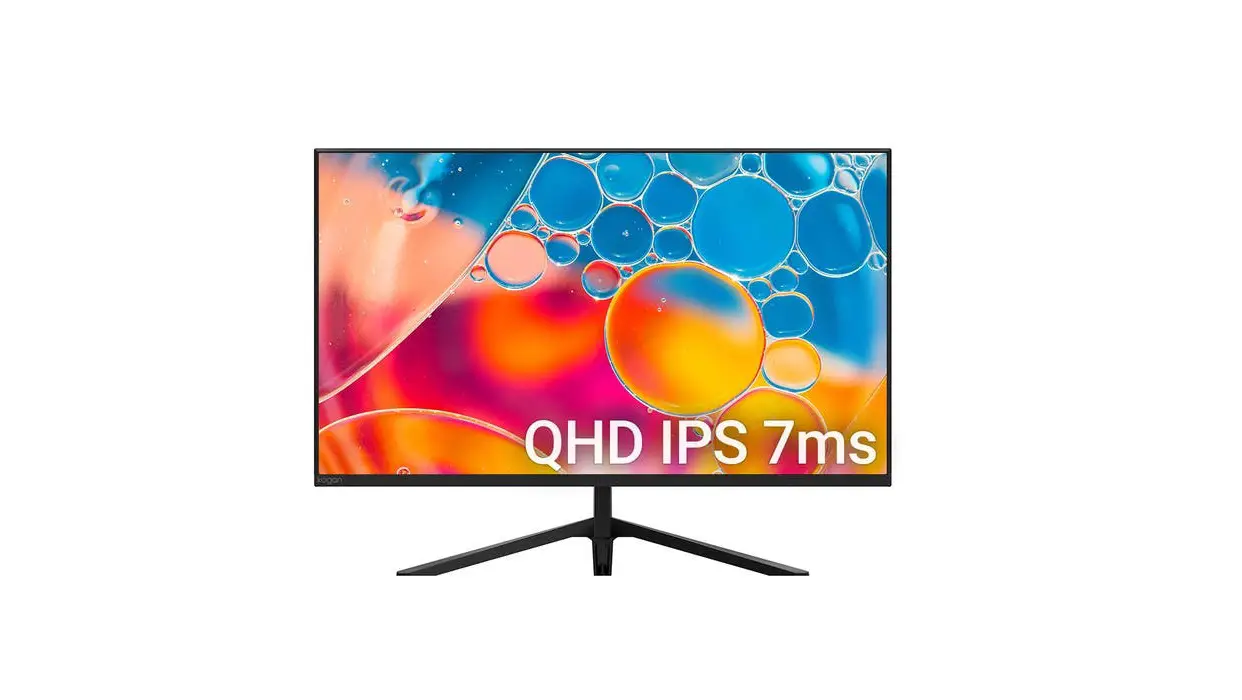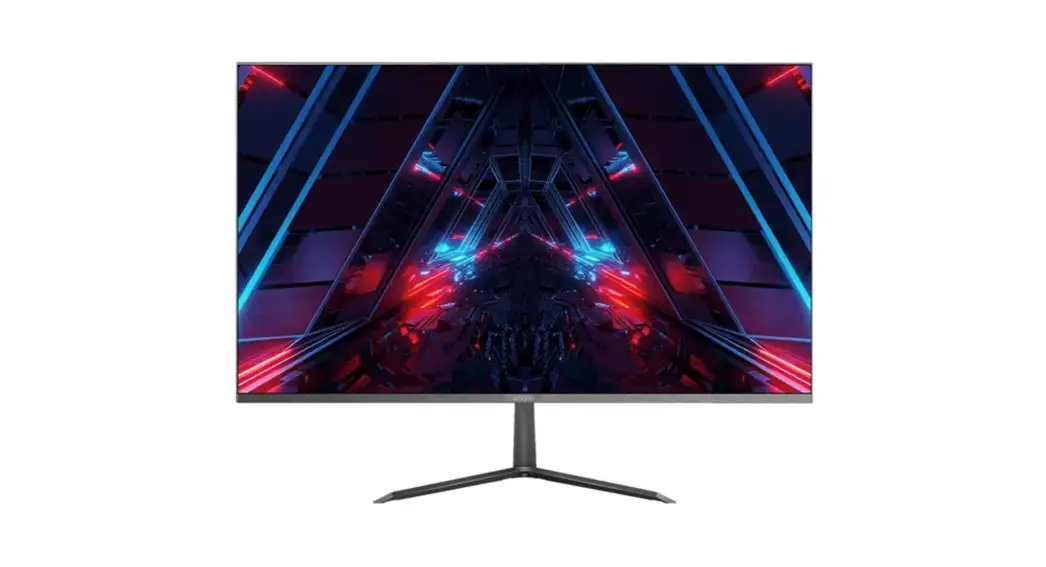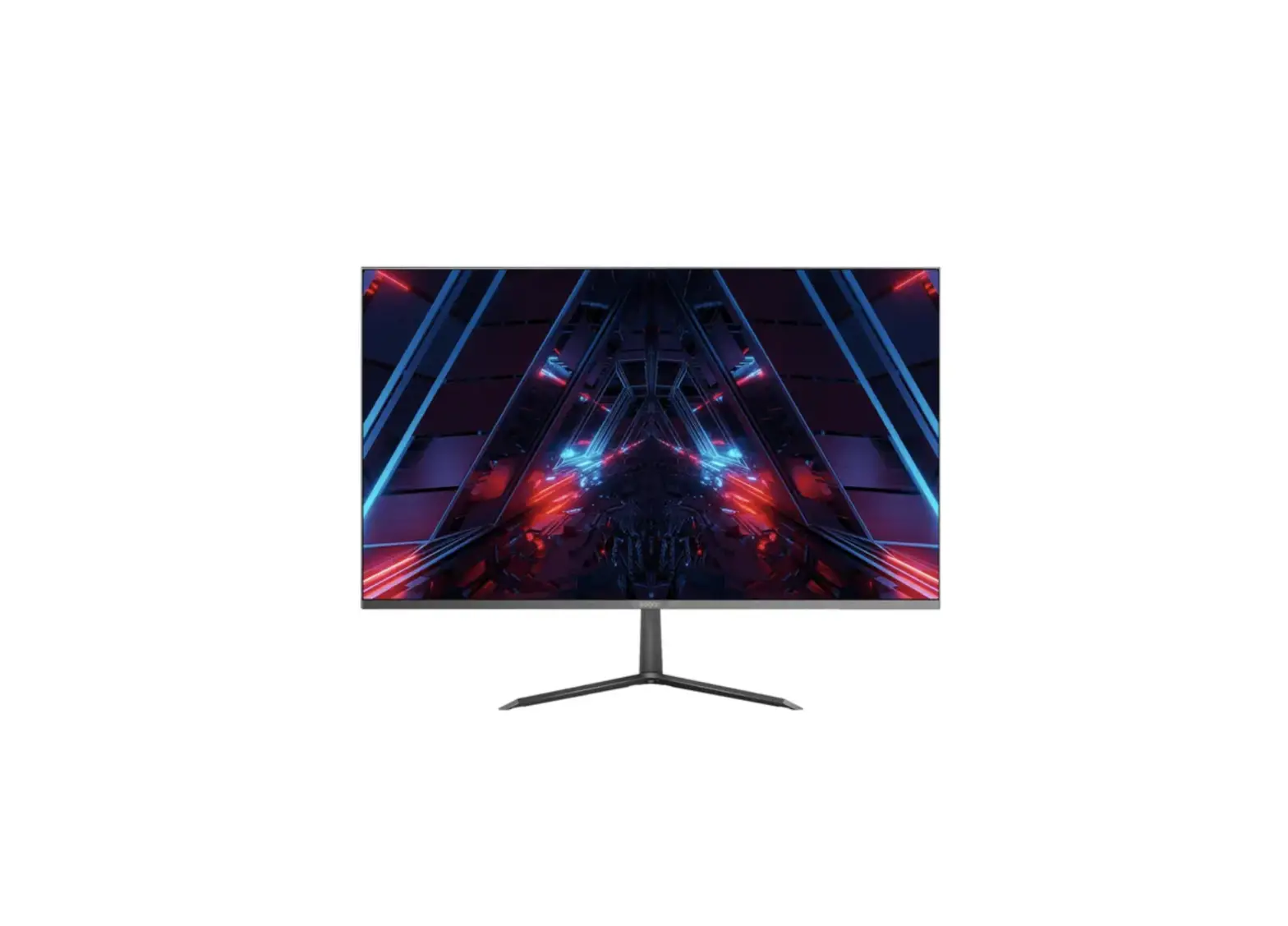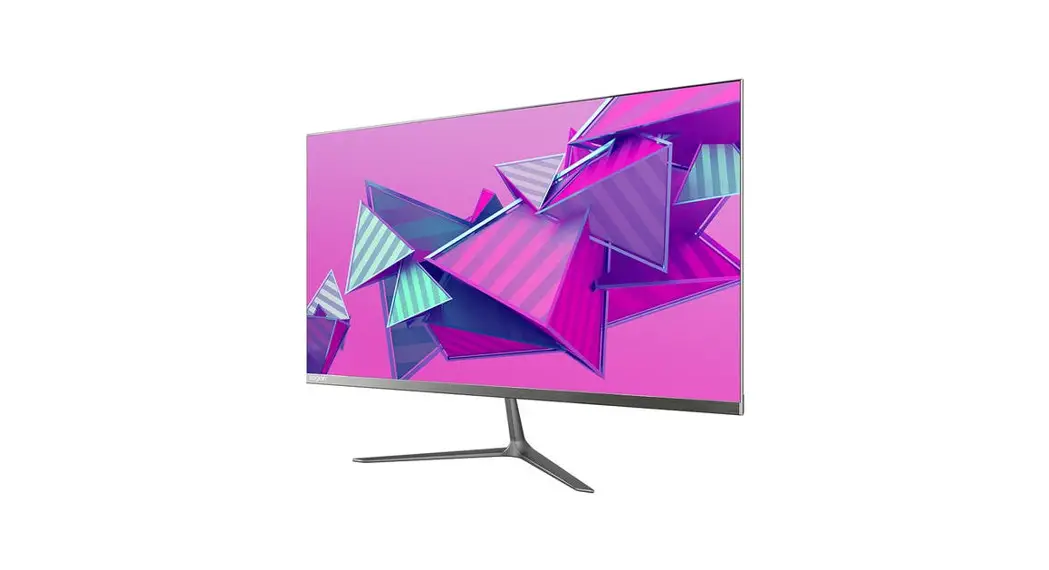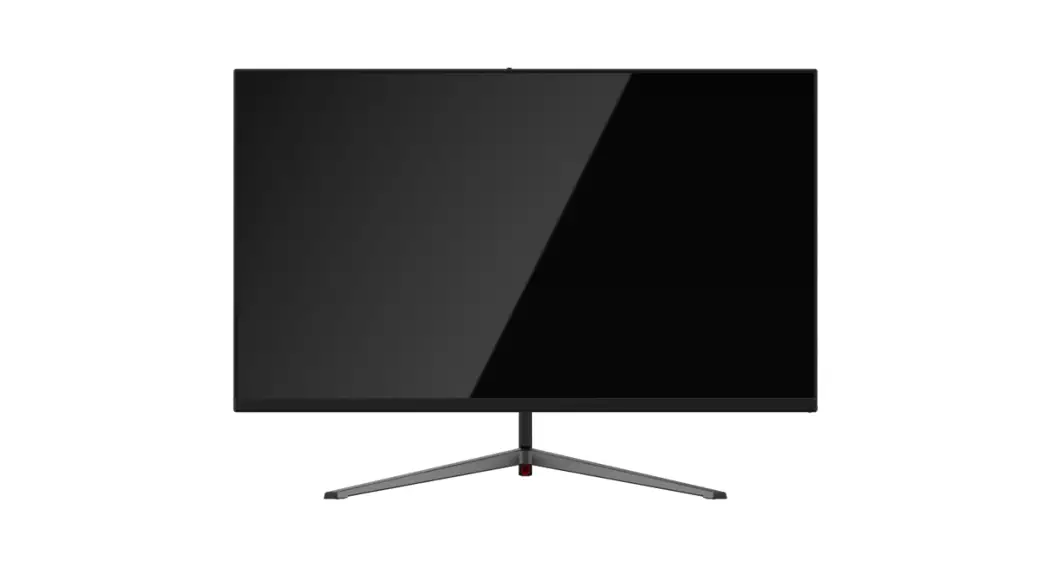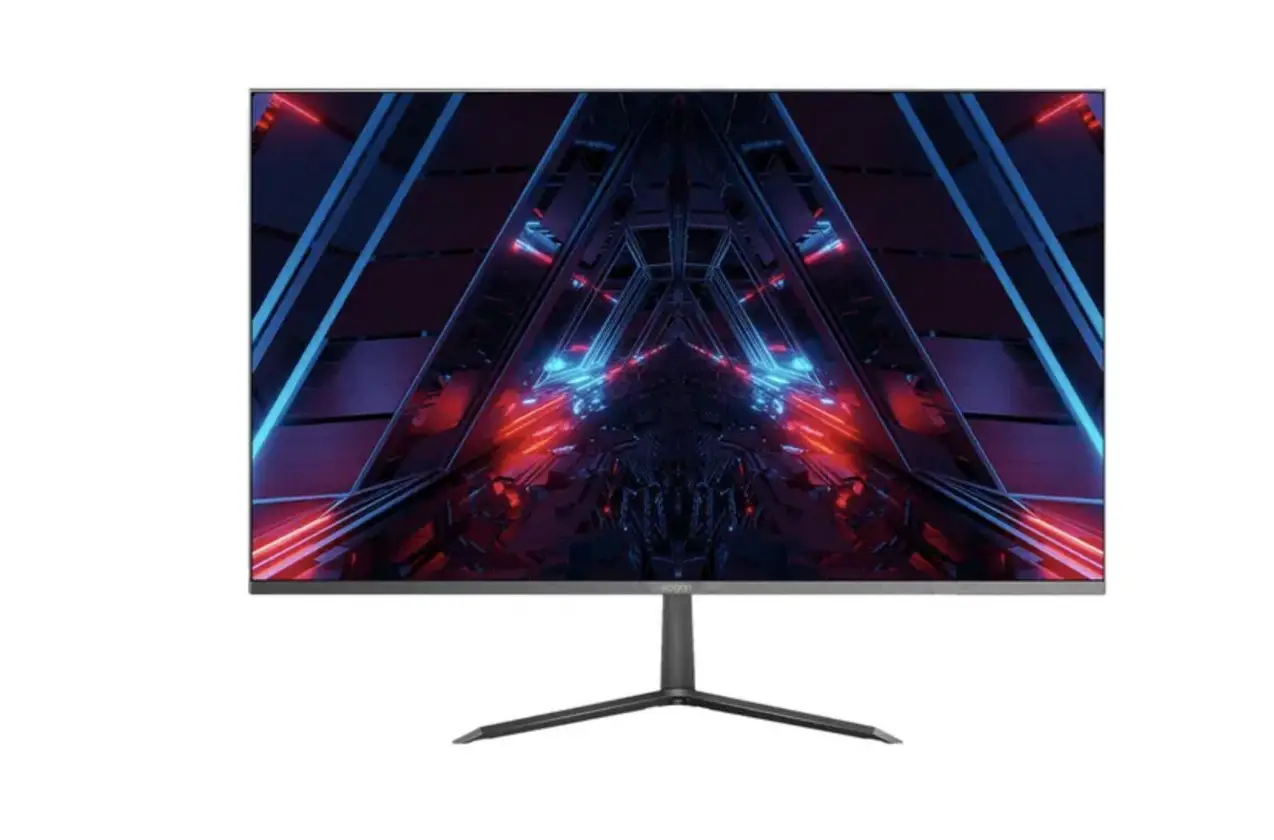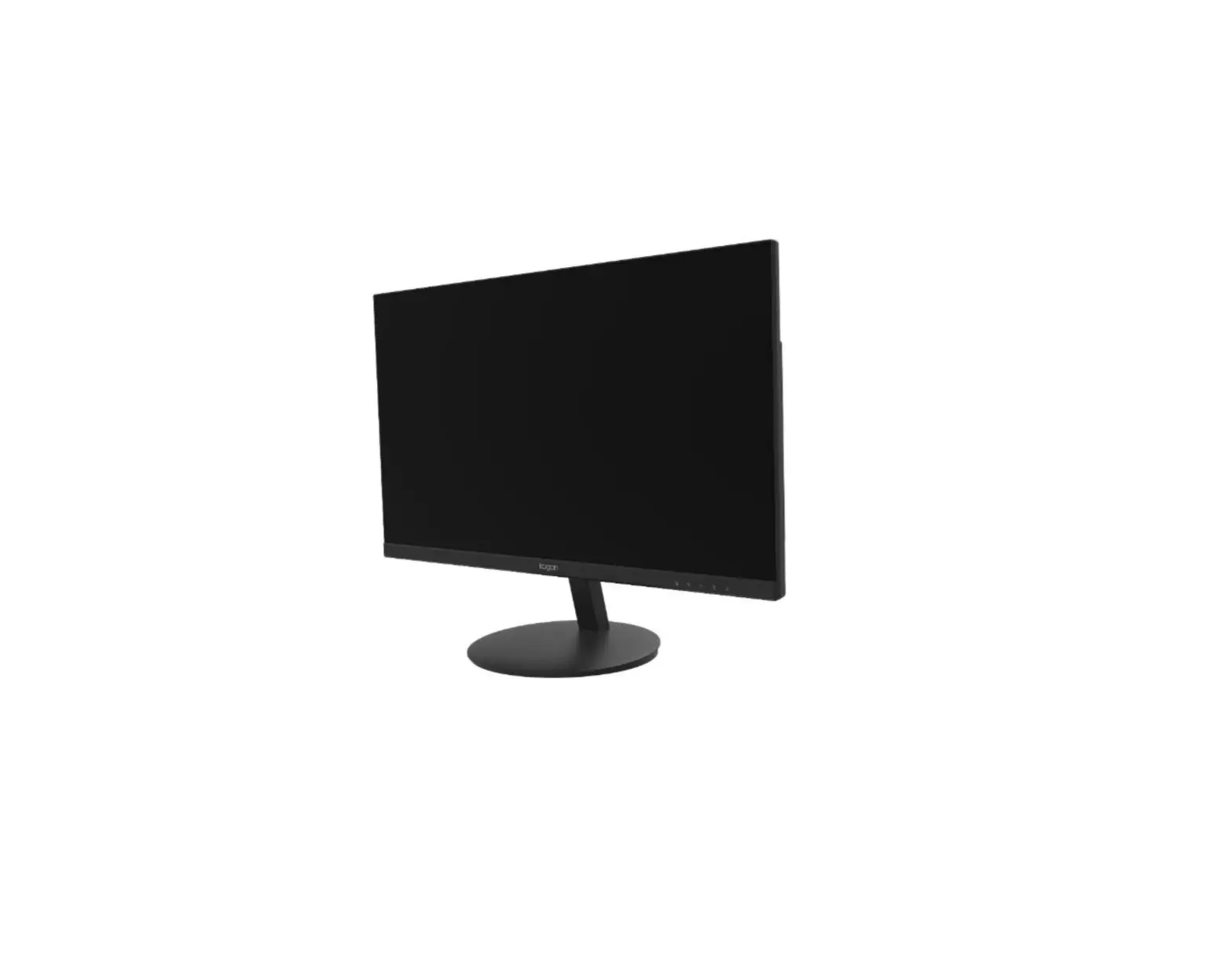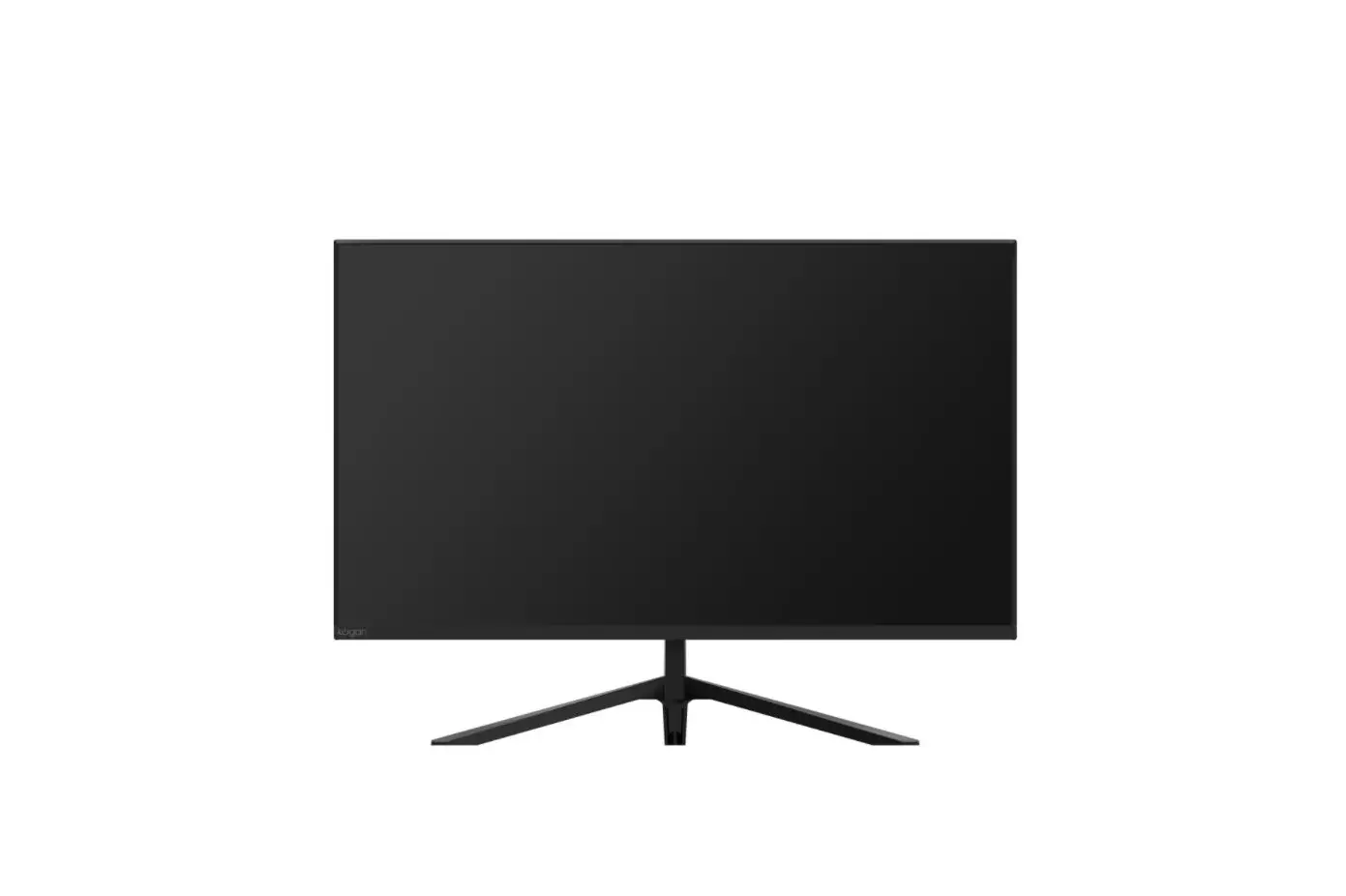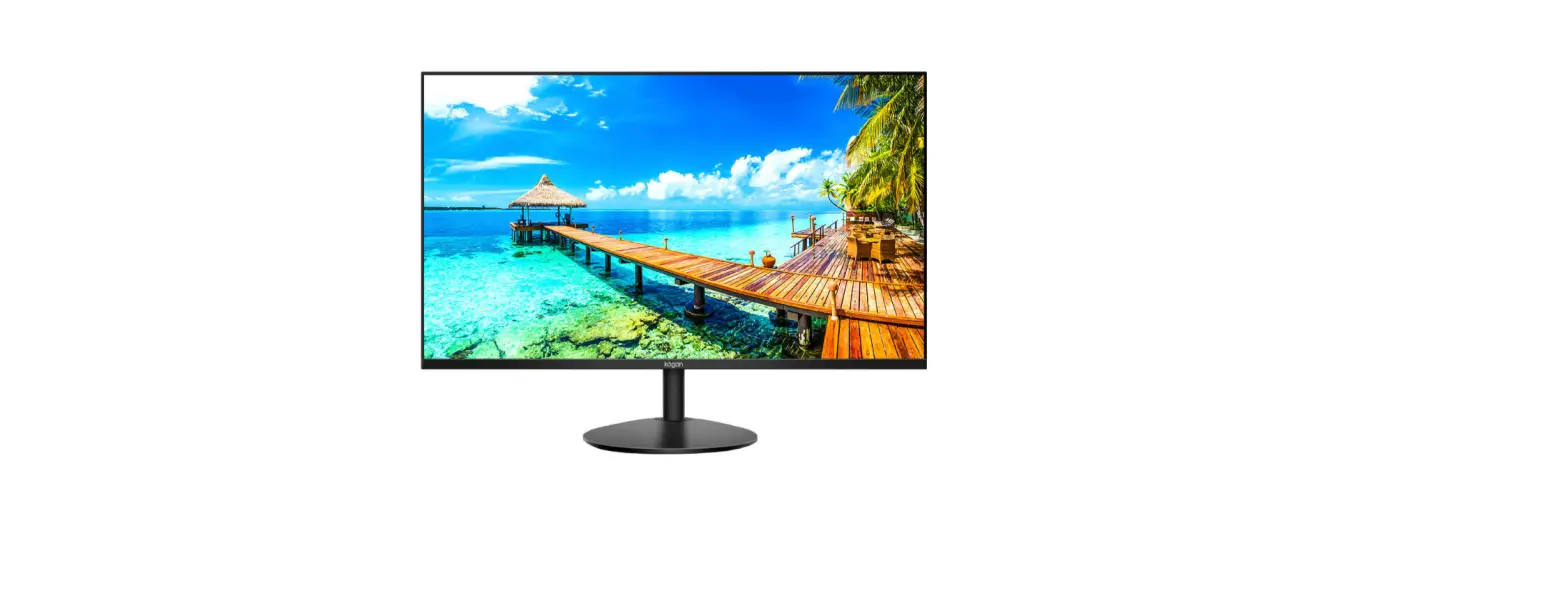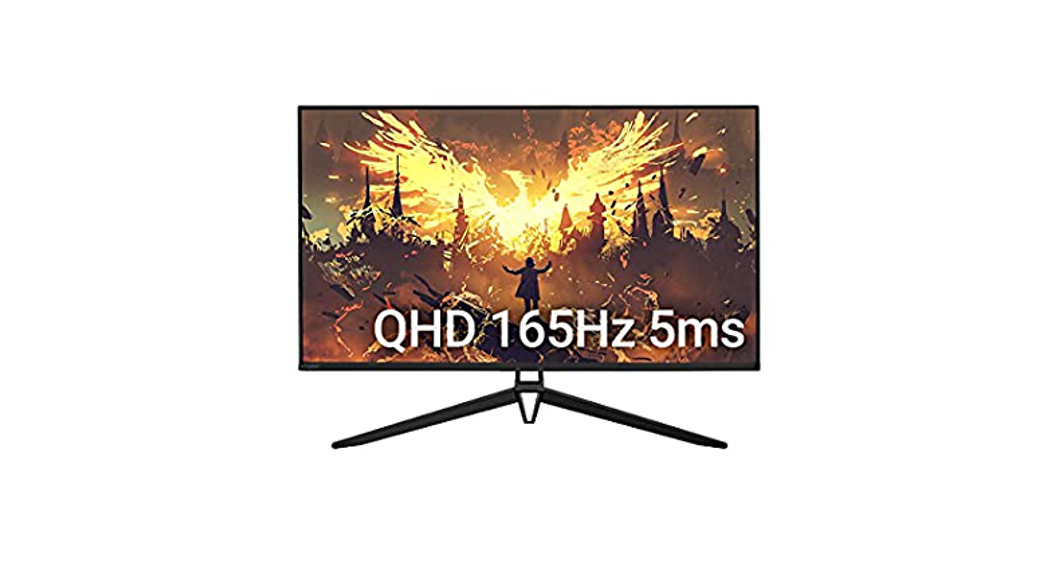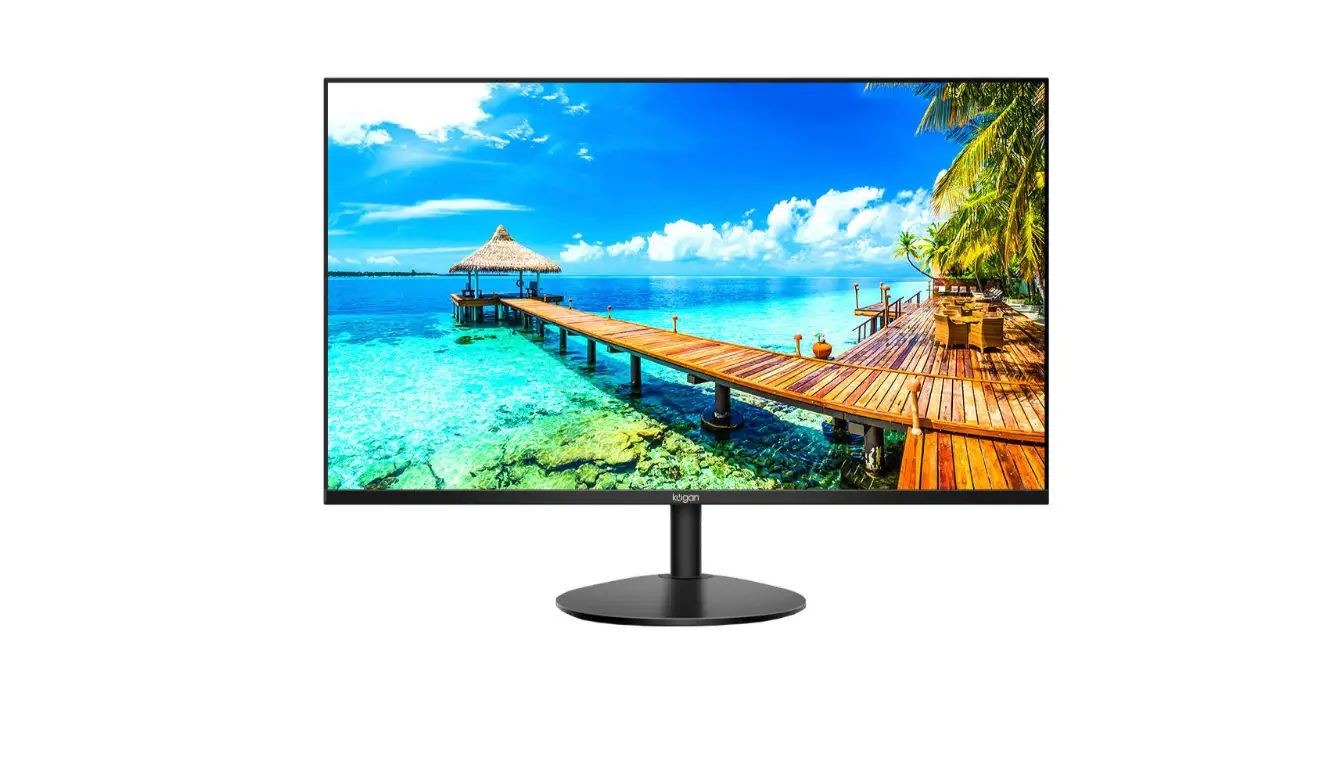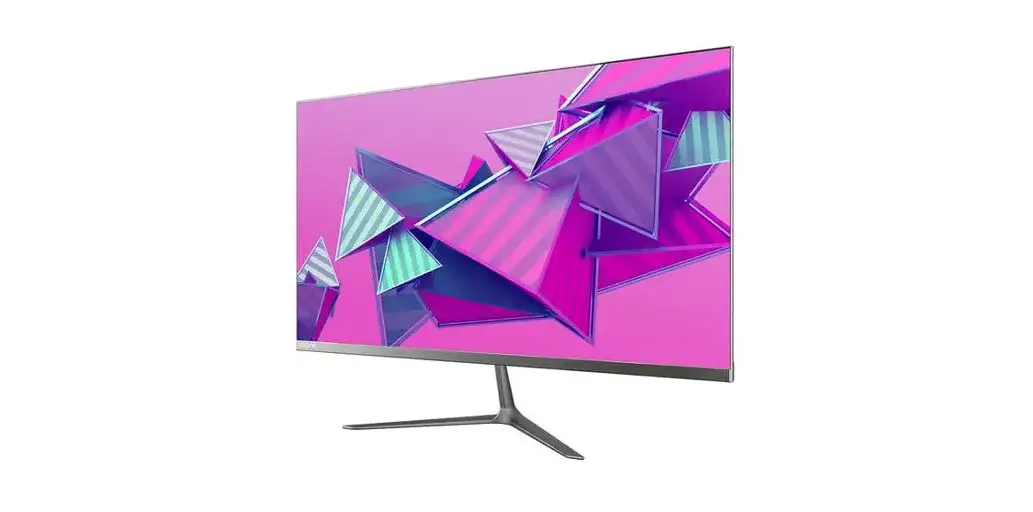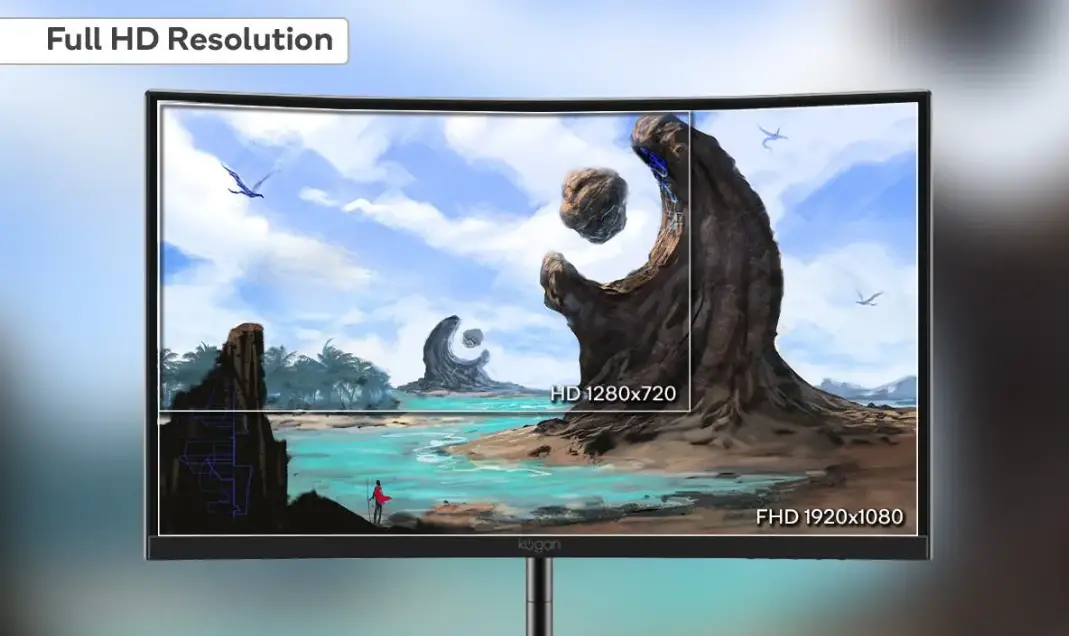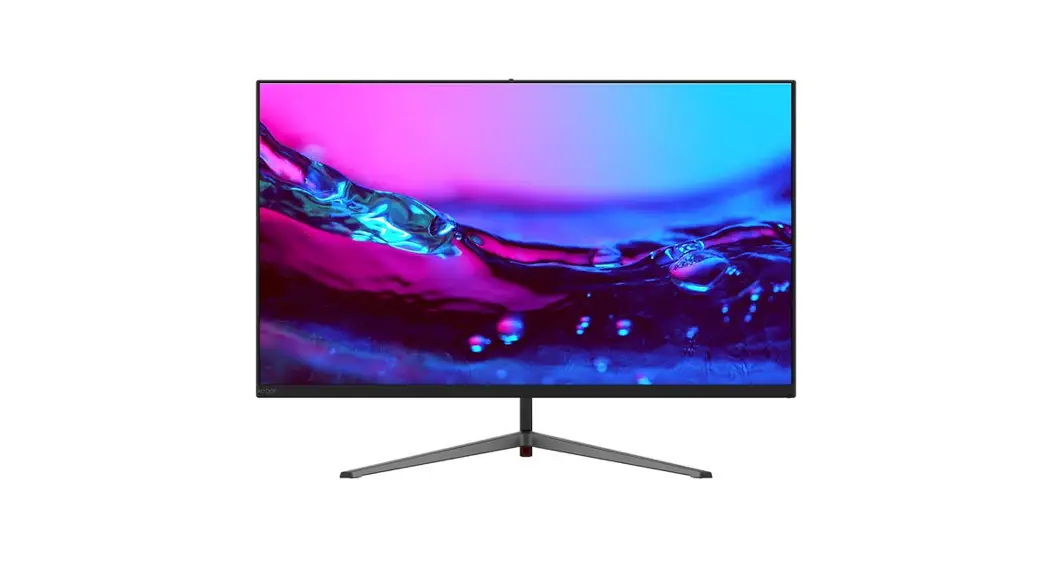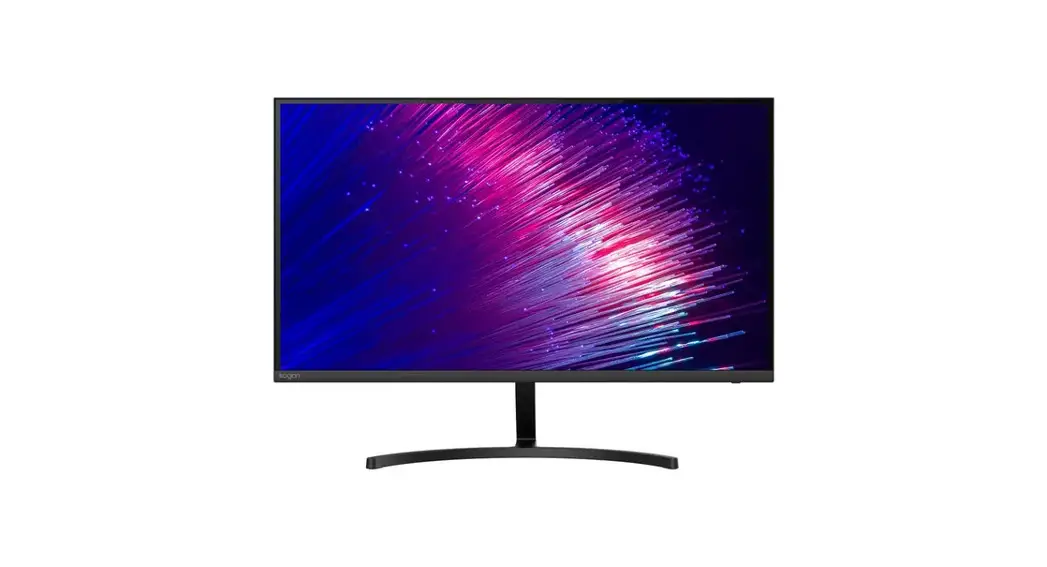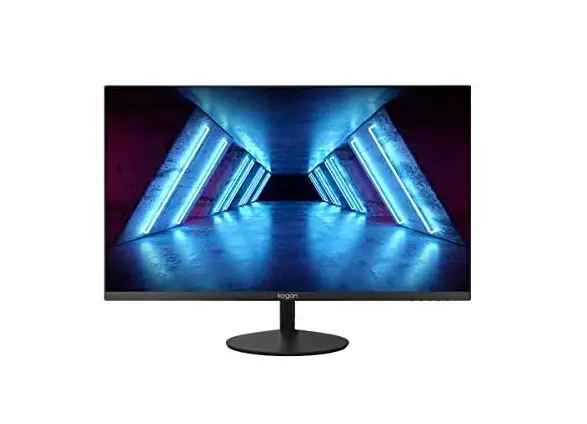
kogan KAMN27QFSA 27″ QHD IPS Freesync 74HZ Frameless Monitor User Guide
SAFETY & WARNINGS
- Read all instructions before using the monitor and retain for future reference.
- Unplug the monitor before cleaning it.
- Use a clean, slightly dampened cloth to wipe the main monitor body.
- To clean the screen, turn it off unplug it and wait for it to cool completely, then wipe it with a dry micro-fibre cloth.
- Do not use cleaning alcohol, ammonia-based liquids or other harsh cleaners.
- This monitor is designed with ventilation holes on the back of the casing. Do not cover or block them.
- Do not insert any object or spray any liquid into the vents.
- Avoid placing the monitor near heaters, stoves, fireplaces or other sources of heat.
- Place monitor in well ventilation room.
- Do not position the monitor in unsafe locations. If the monitor falls, it may be damaged and may injure nearby people.
- Unplug the monitor if it is not going to be used for an extended period.
- Do not place heavy objects on the monitor, its power cord or any connected cable.
- Do not open the back panel of the monitor, as it contains a high-voltage current even when not plugged in.
- Before disposing of any packaging, place all items on a soft, clean and flat surface to ensure all components are accounted for.
The terms HDMI and HDMI High-Definition Multimedia Interface and the HDMI Logos are trademarks or registered trademarks of HDMI Licensing Administrator, Inc. in the United States and other countries.
COMPONENTS
- Monitor

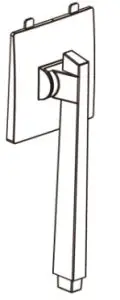
- Stand Arm

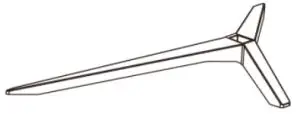
- Stand base

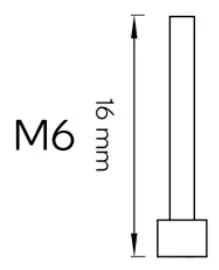
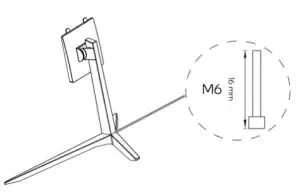
- Stand base screw (M6 x 16mm)

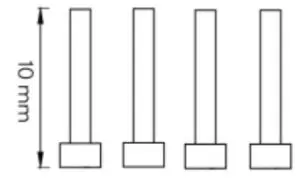
- VESA screws (x4)

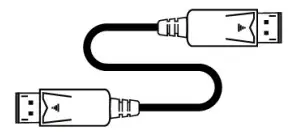
- Display port cable

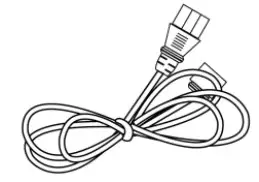
- Power cable

- User guide

OVERVIEW
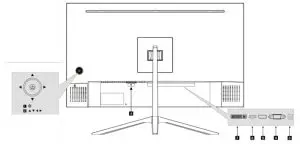
- Power button
- Directional buttons
- Audio in
- VGA connector
- DP connector
- HDMI connector
- DVI connector
- Power connector
ASSEMBLY
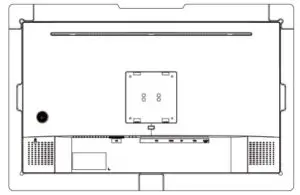
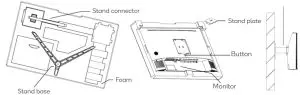
WARNING: The panel of the monitor is fragile. Keep the foam underneath the monitor screen while assembling the stand.
- Carefully remove the monitor, stand arm and stand base from the box.

- Attach the stand base to the stand arm using the provided M6 screw.

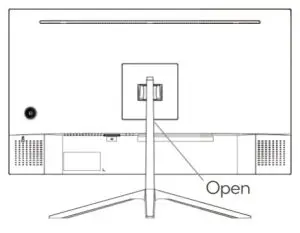
- Insert the stand arm into the rear of the monitor and push down until it is firmly connected.

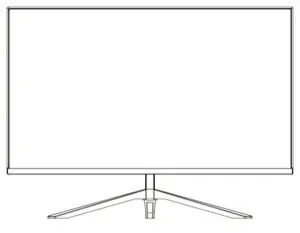
- Lift the monitor up straight and remove the bottom foam. Stand the monitor up on the installed base.
VESA MOUNT
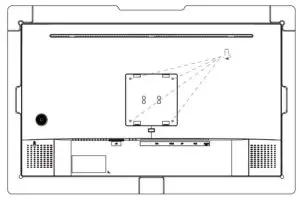
 VESA mounting pattern 100 x 100mm, screw size M4.
Note: VESA mount or mounting accessories are NOT included.
- Open the box, remove the monitor keeping the protection foam attached and gently place it on a desktop or table.
- Remove the foam covering the rear of the monitor. Press the release button to remove the stand plate. If the monitor is already attached to the stand, remove the stand.

- Assemble the mount as per the instructions provided with the mount.

CONNECTIVITY
Power cable
Connect the included power cable to the monitor power port, then connect the other end to a power outlet.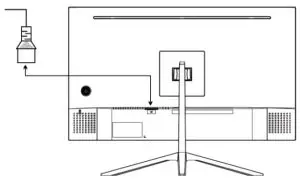
Audio In
Connect the audio cable between the socket on the rear of the monitor (Audio In) and your computer audio outlet.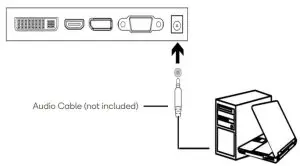
DisplayPort
Use the included DisplayPort cable to connect the monitor to your computer.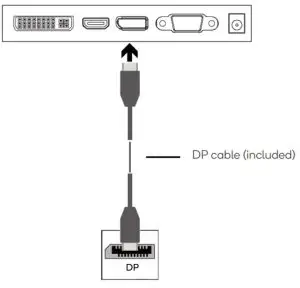
HDMI
Use a HDMI cable to connect the monitor to your computer.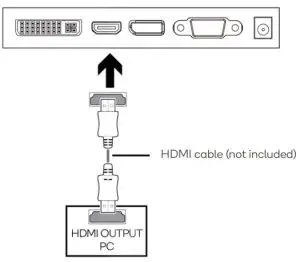
VGA
Use a VGA cable to connect the monitor to your computer.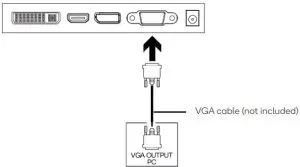
DVI
Use a DVI cable to connect the monitor to your computer.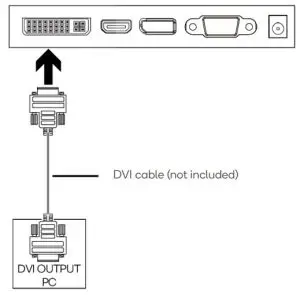
OPERATION
- Connect the monitor to the input device via HDMI/DisplayPort/DVI or VGA.
- Connect the power cable to the monitor, then connect the other end directly to a power socket.
- Use the power button to turn the monitor on.
Directional Buttons:
To use the directional buttons, press the Power button in the desired direction.
Shortcuts:
- Source menu: Press the Power button to the RIGHT twice to bring call up the signal source selection menu, use the directional buttons to select the desired source and press Power to confirm.
- Display mode menu: Press the Power button to the LEFT twice to bring call up the display mode menu, use the directional buttons to select the desired display mode and press Power to confirm.
- Gameplus timer menu: Press the Power button UP twice to bring call up the
Gameplus timer menu. Select the desired timing length and press Power to confirm. - Gameplus sight menu: Press the Power button DOWN twice to bring call up the Gameplus sight menu. Select the desired sight and press Power to confirm.
FreeSync
- In order to use this feature, ensure your hardware has FreeSync capability and the graphics drivers are fully up to date.
- After connecting, you may receive a prompt to enable the feature on your
computer. If you do not receive the prompt, you may need to enable the function in your graphics card menu. - See your graphics card manufacturer’s documentation for instructions on how to turn on and/or enable FreeSync.
Display settings
When first using this monitor it will automatically configure the optimal display settings. The On-Screen Display (OSD) Menu can be used to adjust your monitor’s display settings to your liking. To access the OSD:
- Press the Power button to the right to activate the navigation window.

- Press the Power button to enter the OSD menu.

- Press the Power button up and down to navigate the functions.
- With the desired function highlighted, press the Power button to enter the submenu.
- After making your desired adjustments press the Power button to confirm the settings and exit the current screen.
- Press the Power button to the left to exit the current screen

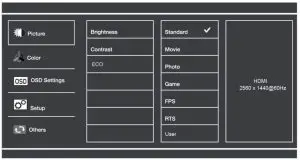
Refer to the following pages for a detailed list of the OSD menu functions.
| Menu | Sub-Menu | Options | Description |
|
Picture | Brightness | ~0-100 | Adjust display brightness |
| Contrast | ~0-100 | Adjust display contrast | |
| ECO | STANDARD/PHOTO /GAME/MOVIE /FPS/RTS/USER | Preset colour modes | |
|
Colour |
Colour Temperature | 6500K |
Select colour temperature mode or allow manual colour configuration (USER) |
| 9300K | |||
| User Define | |||
| Red | ~0-100 | Adjust red value (USER mode only) | |
| Green | ~0-100 | Adjust green value (USER mode only) | |
| Blue | ~0-100 | Adjust blue value (USER mode only) | |
|
OSD Settings |
Language | English, 简体中文, 한국어, Español, Français, Deutsch, Italiano |
Set OSD language |
| OSD H-Position | 0~100 | Adjust OSD horizontal position | |
| OSD V-Position | 0~100 | Adjust OSD vertical position | |
| OSD Transparency | 0~100 | Set OSD overall transparency |
| OSD Time Out | 0-100 | Set how long the OSD remains open after last input | |
|
Setup | Input | Auto Select / DP / HDMI /VGA/DVI | Select input source or allow manual selection |
| Mute | ON/ OFF | Enable or disable monitor speaker output | |
| Volume | 0-100 | Adjust monitor speaker volume | |
| Reset | / | Restore factory defaults | |
|
Others |
Display Size | Full Screen |
Select the display’s aspect ratio |
| 4:3 | |||
| Auto | |||
| Low blue Light | Off/ Weak/Median/ Weak/Median/Strong / Strongest | Blue light reduction adjustment | |
| Over Driver | On/Off | Enable or disable overdrive for faster response time | |
| FreeSync | On/Off | Enable or disable AMD FreeSync |
DISPLAY MODES & GAMEPLUS
Display modes
Press the Power button to the left to switch between the preset display modes. These modes include: Standard, Text, Movie, Game, FPS and RTS. These modes are designed to optimise settings according to your activity. Standard mode is suitable for most activities.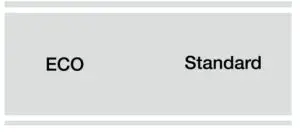
Gameplus
Press the Power button downwards to switch Gameplus modes. These overlay icons are primarily designed to assist aim during first person shooter games.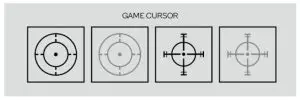
SPECIFICATIONS
| Screen size | 27″ |
| Aspect ratio | 16:09 |
| Brightness | 300cd/m2 (typical) |
| Panel | IPS |
| Resolution | 2560 x 1440 |
| Refresh rate | 75Hz |
| Response time | 7ms with Overdrive enabled (14ms typical) |
| Viewing angle | ?178°(H) / 178°M |
| Contrast ratio | 1000:1 |
| VESA mounting | 100 x 100mm |
| colours | 1.07B |
| Signal input | HDMI 1.4 x 1, DP 1.2 x 1, VGA x 1, DVI x 1 |
| Power | AC 100-240V – 50/60Hz 1.1A |
| Audio | |
| Speakers | Yes |
| Audio in Yes | Yes |
| Accessories | |
| Power cable Yes | Yes |
| DisplayPort Cable Yes | Yes |
| Additional functions | |
| Low Blue Light Yes | Yes |
| Flicker Free Yes | Yes |
| Physical dimensions | |
| Dimensions (w. Stand) | 615.3 x 455.3 x 247.3 (mm) |
| Dimensions (w/o Stand) | 615.3 x 360.83 x 72.2 (mm) |
| Net weight | 4.9kg |
| Gross weight | 6.9kg |
Need more information?
We hope that this user guide has given you the assistance needed for a simple set-up. For the most up-to-date guide for your product, as well as any additional assistance you may require, head online to help.kogan.com