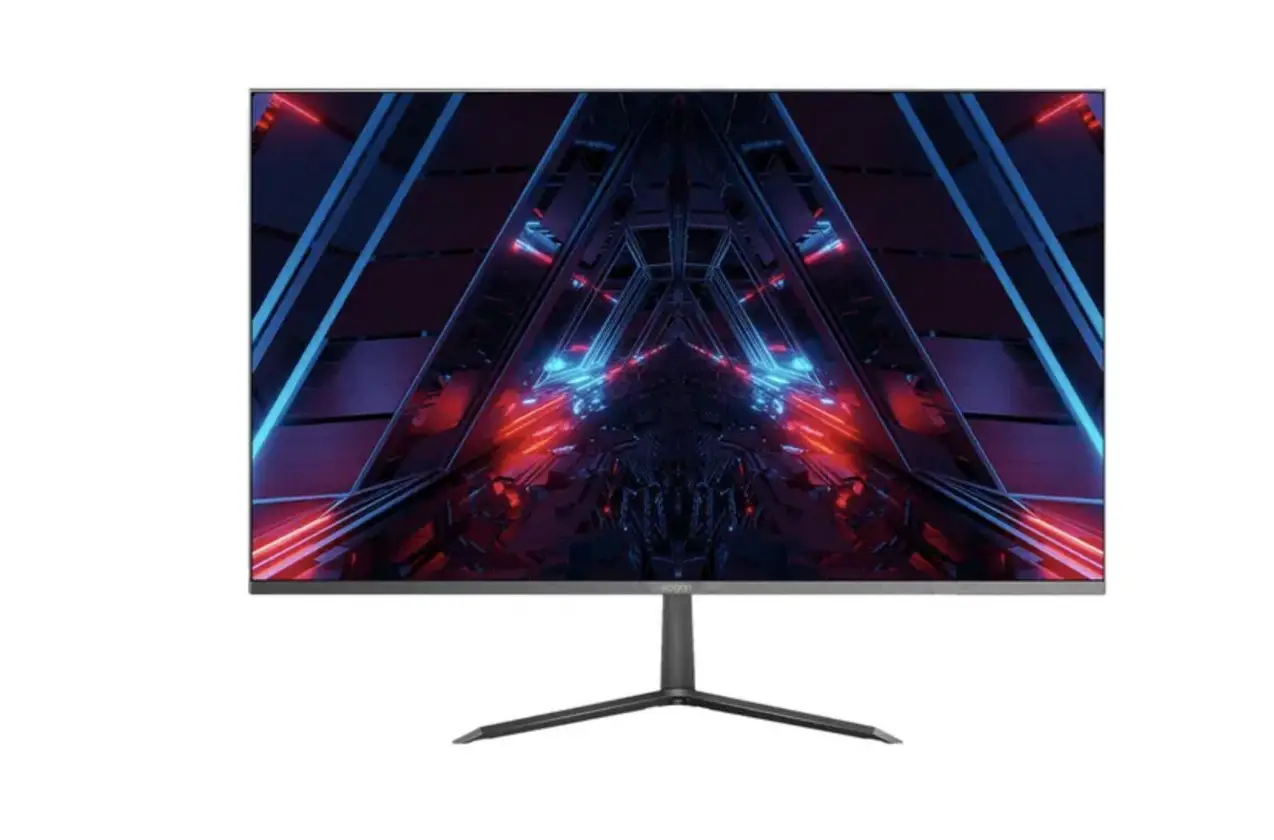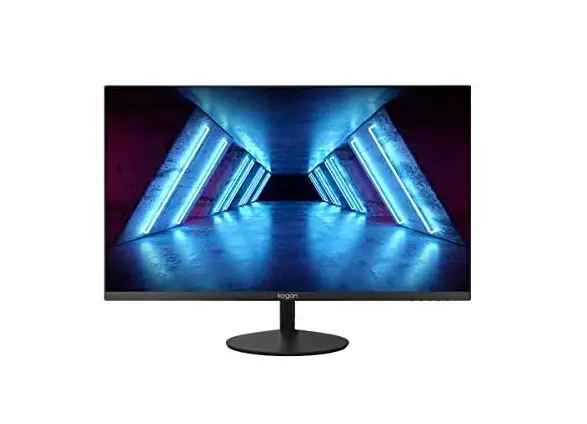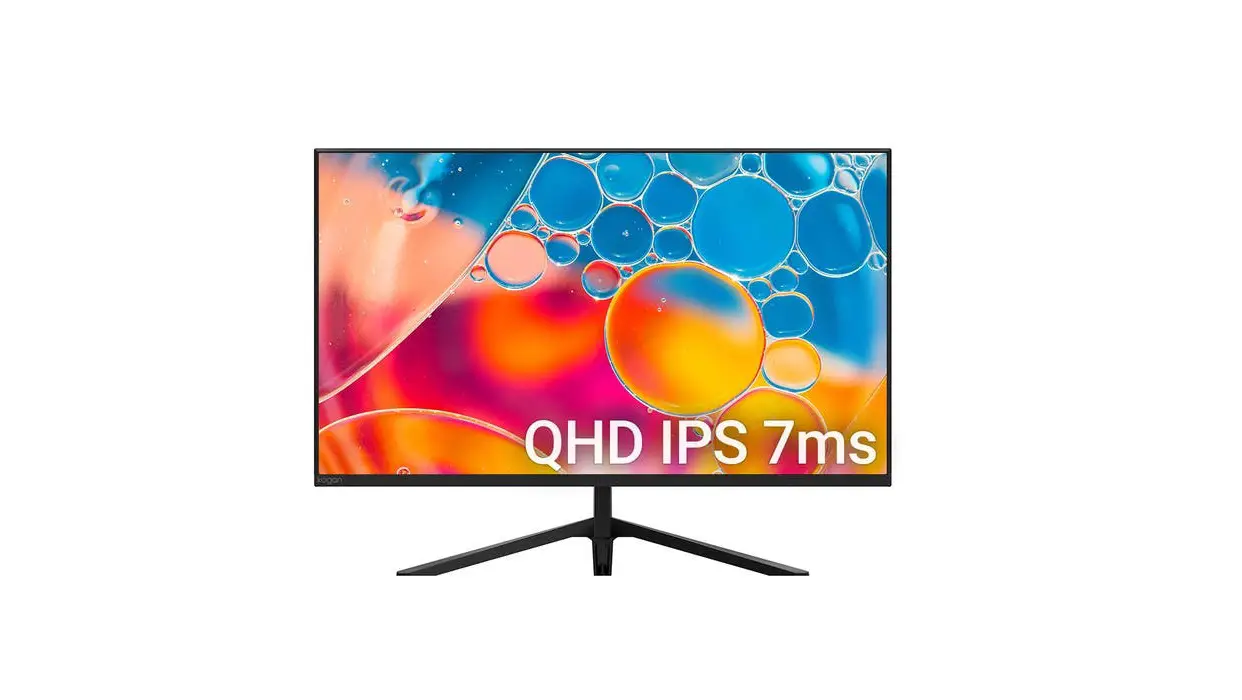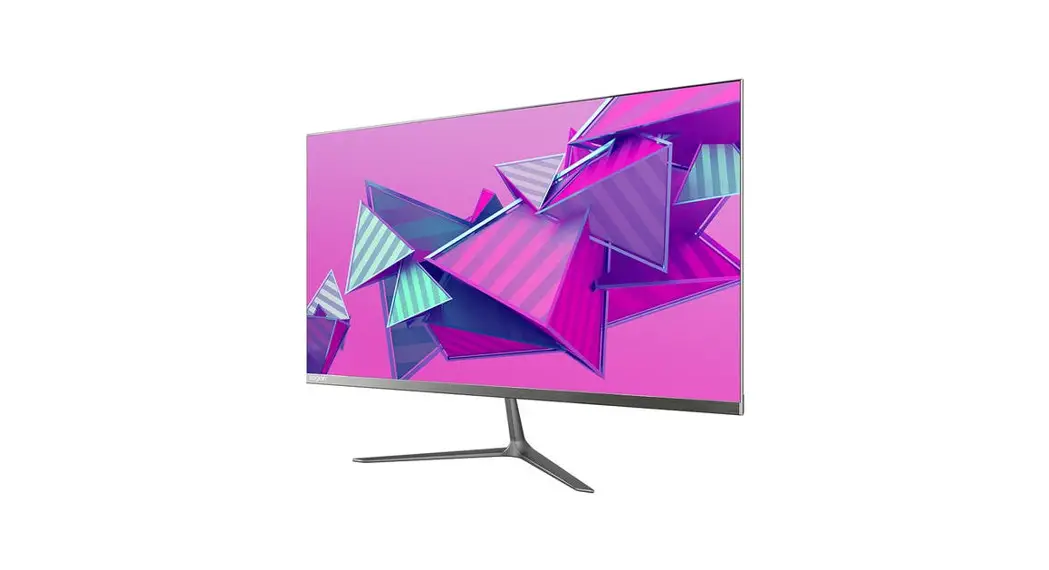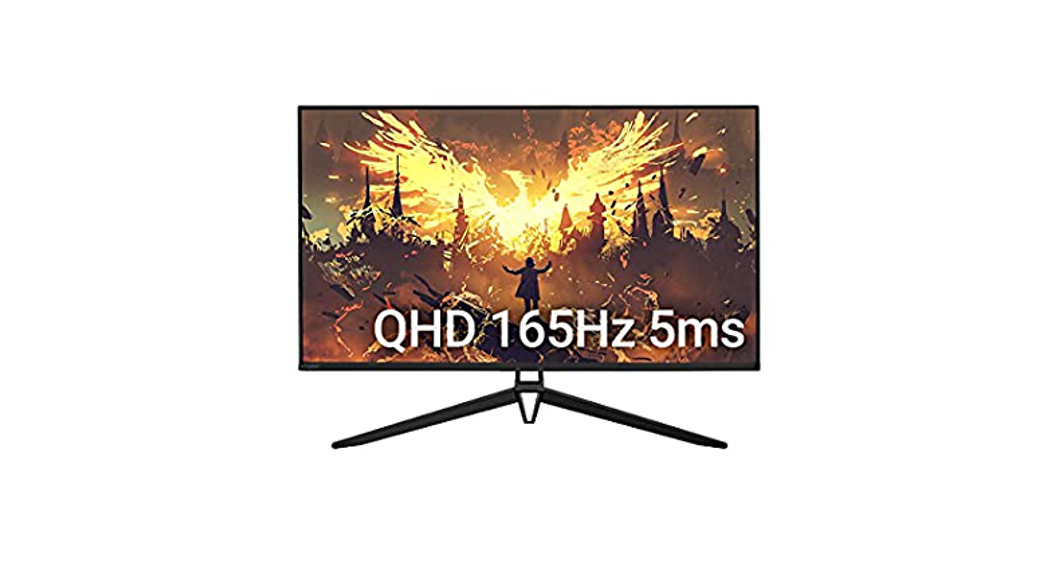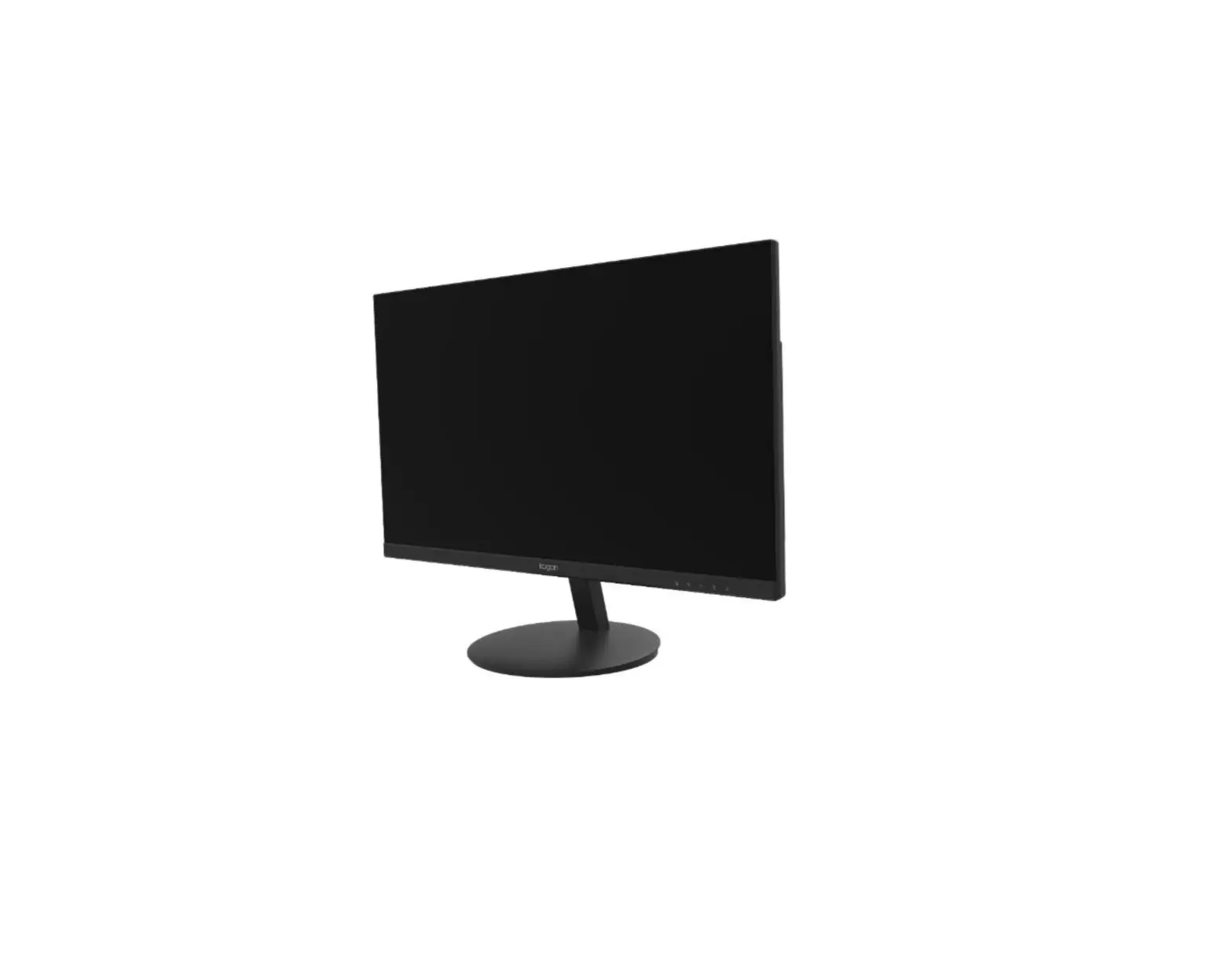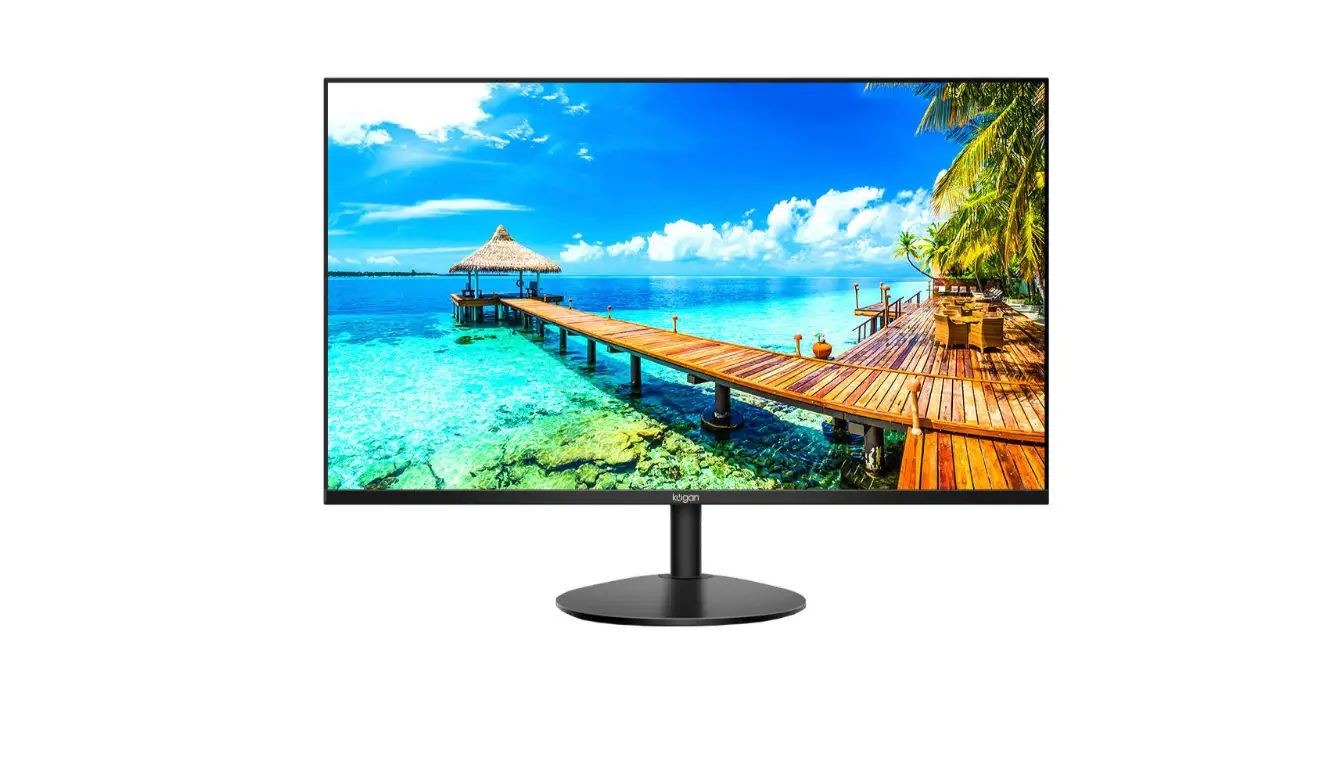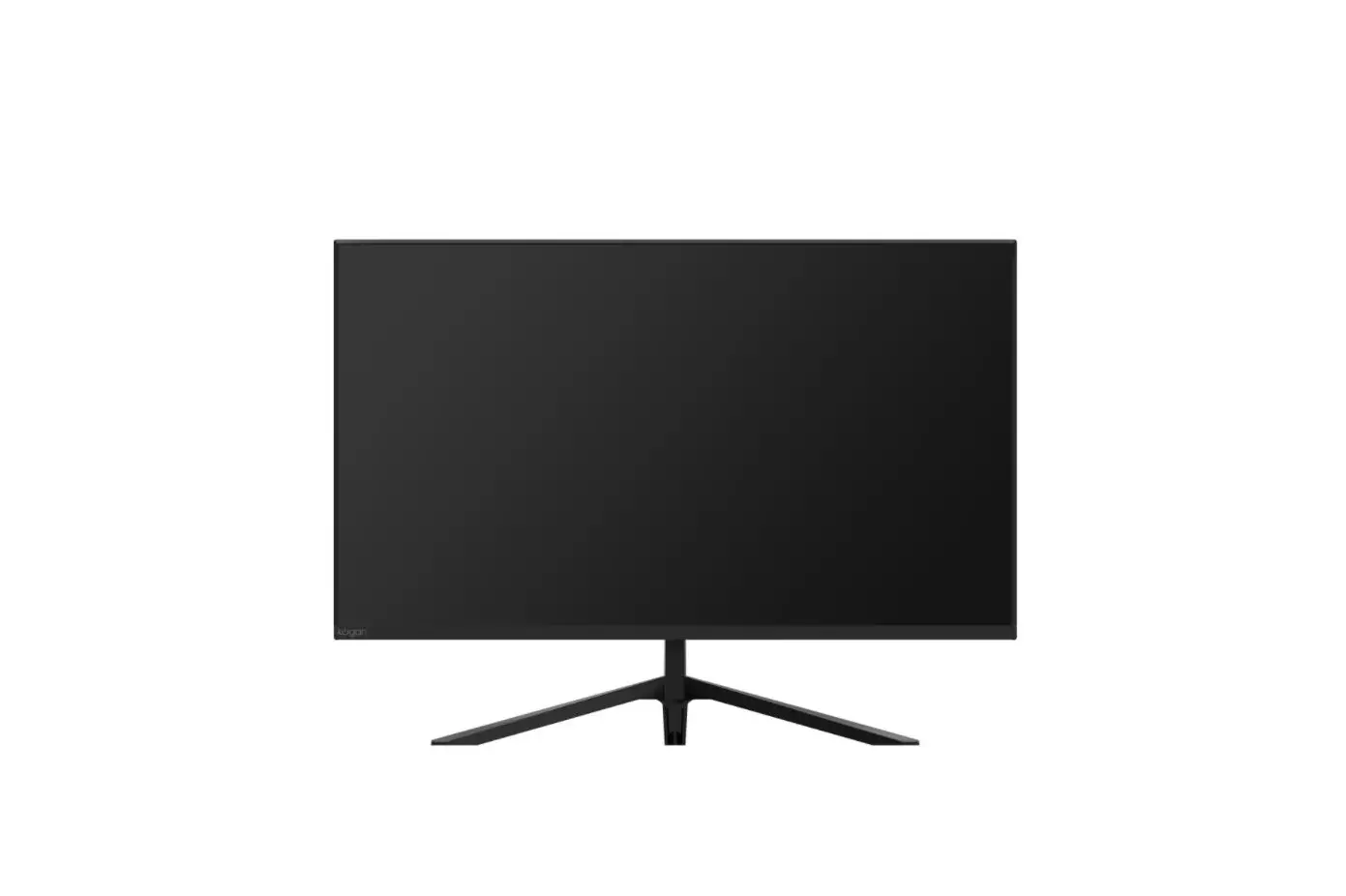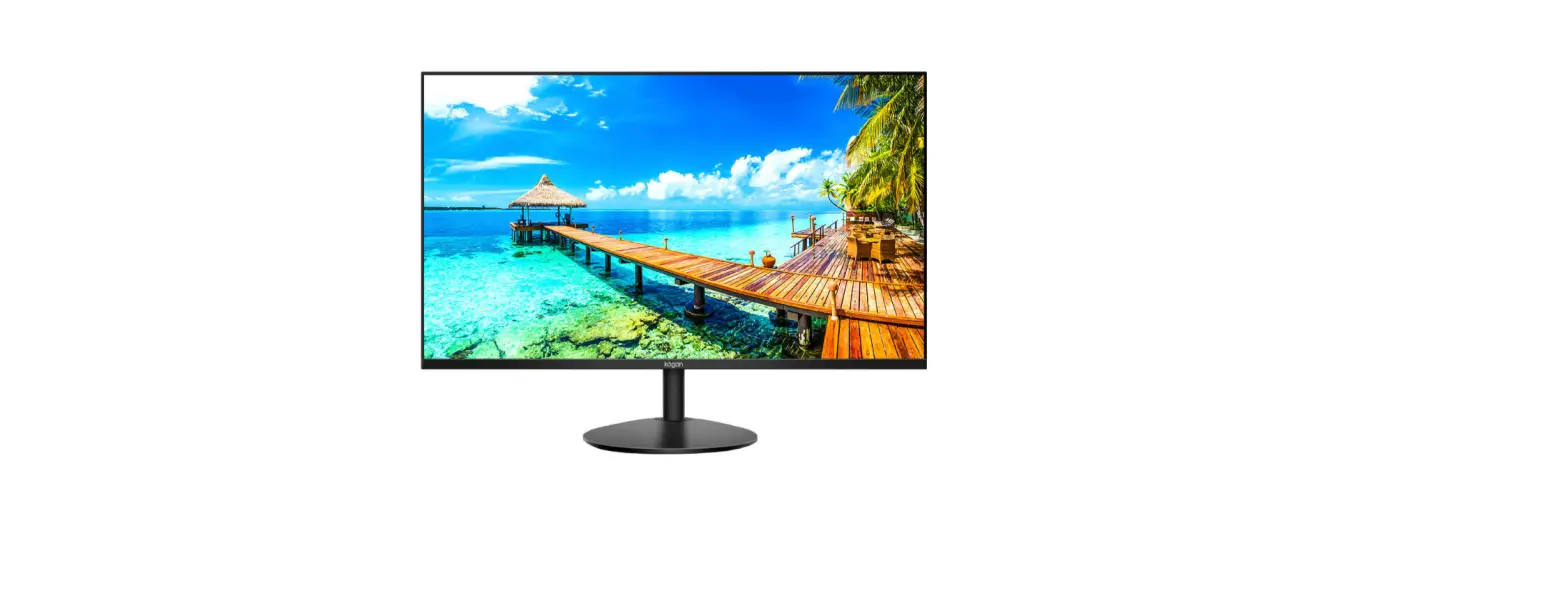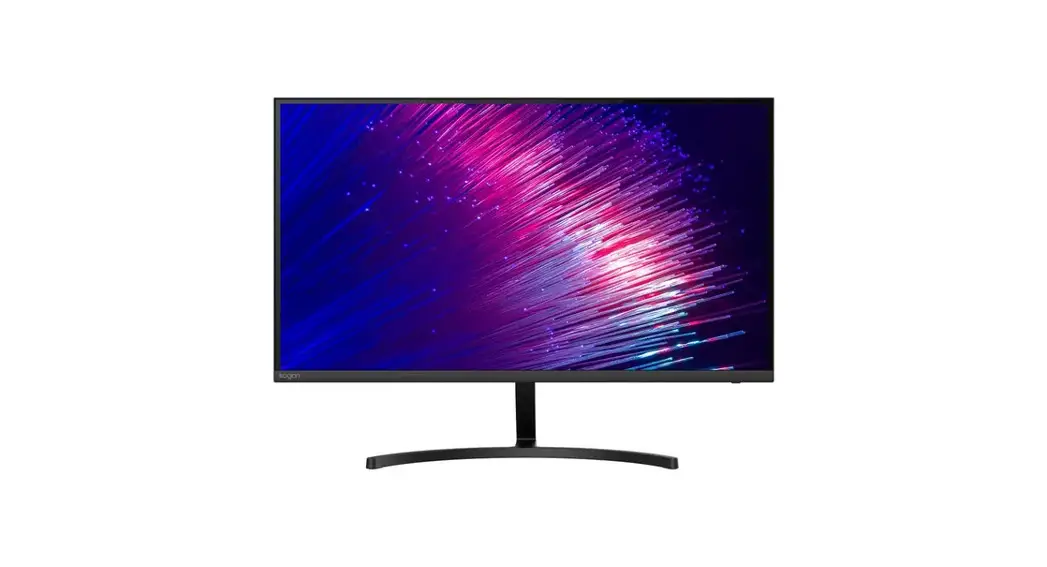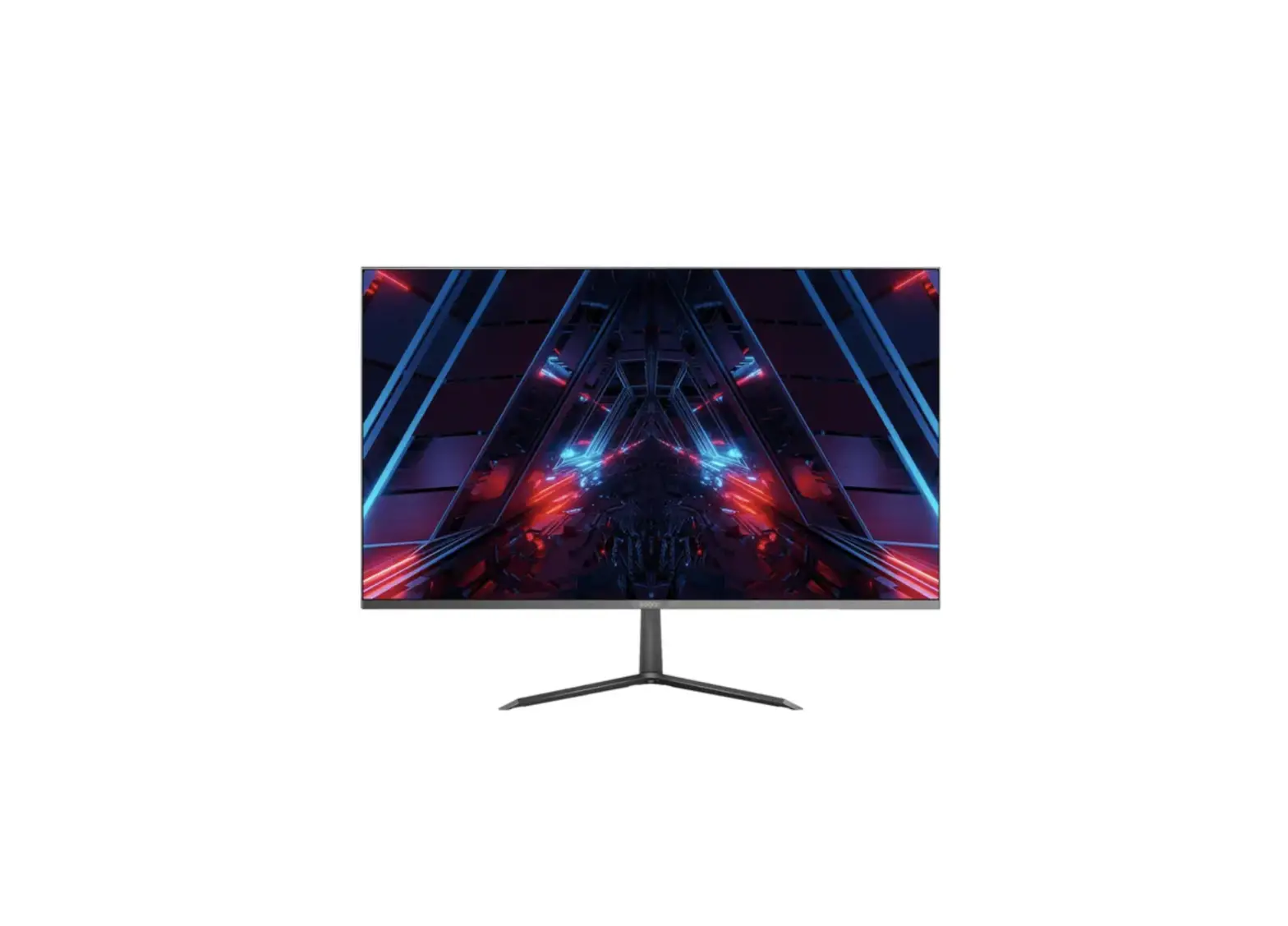
kogan KAMN32QF7TB 32″ QHD IPS Freesysng Frameless Monitor User Guide
SAFETY & WARNINGS
Read all instructions before using the appliance and retain for reference.
- Unplug the monitor before cleaning it with a slightly damp, clean cloth.
- Wiping the screen once it has been turned off with a dry microfiber cloth is recommended.
- Do not use cleaning alcohol or ammonia-based liquids or other harsh cleaners.
- This monitor is designed with ventilation holes on the back of the casing. Do not cover or block them.
- Avoid placing the monitor near heaters, stoves, fireplaces or other sources of heat, as well as in rooms lacking in adequate ventilation.
- Do not insert any objects or spray any liquids into the vents.
- Do not position the monitor in unsafe locations. If the monitor falls, it may be damaged and may injure nearby people.
- Unplug the monitor if it is not going to be used for an extended period.
- Do not place heavy objects on the monitor, its power cord or any connected cables.
- Do not open the back panel of the monitor, as it contains a high-voltage current even when not plugged in.
OVERVIEW
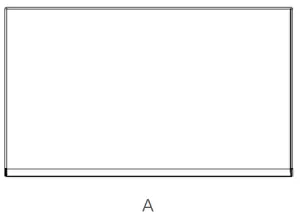
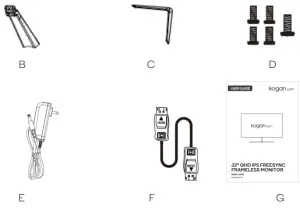
- A Monitor
- B Stand Connector
- C Stand Base
- D M4 x 10mm Screws (4x)
M5 x 16mm Screws (1x) - E Power Adapter
- F HDM| Cable
- G User Guide
ASSEMBLY
Built-in stand
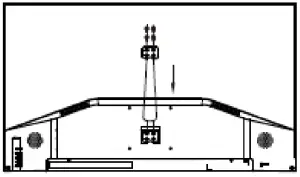
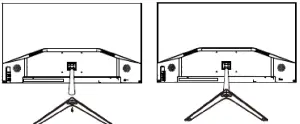
- Lay the monitor on a cloth with the LCD panel facing down to prevent the LCD panel from being damaged. Install the bracket body on the stand base with screws.

- Attach the stand base by pressing it on to the LCD panel.

Angle adjustment
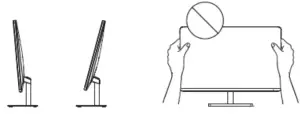
The viewing angle of the built-in stand can be adjusted forward 5° or backward 15° for a comfortable viewing experience.
Note
- The above illustrations are for reference only.
- Take care not to touch the screen area when adjusting the angle of the monitor.
VESA mount
Before installing this monitor on a desk or wall mount, make sure to disconnect the stand.
Consult a professional technician for wall mount installations. Kogan accepts no liability for installations not performed by a professional technician.
To ensure sufficient ventilation, Install the monitor at least 10cm away from the wall and leave about 10cm of space at each side of the monitor.
- Place a clean, dry and lint-free cloth on a flat, stable surface.
- Gently lay the monitor on the cloth with the LCD screen facing down.
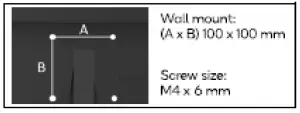
- Identify the four wall mounting screw holes on the back of the monitor.
- Install the wall mounting bracket (not supplied) on the back of the monitor and attach the monitor to the wall according to the mounting bracket’s instructions.
- Make sure that all screws (not supplied) are tightened and secured properly
NOTE
- Ensure the wall mounting bracket and screws conform to VESA standards.
- For more information, refer to the user manual for the wall mounting bracket.
CONNECTIVITY
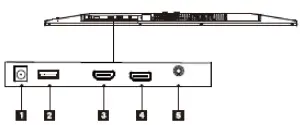
Turn off the PC and the monitor before connecting them.
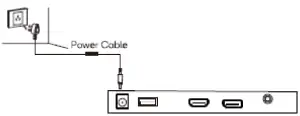
- Power Cable
Connect the included power cable to the monitor power port, then connect the other end into a power outlet.
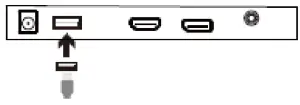
- USB
You can connect a charging device to the USB port (output 5VDC/1A) on the monitor.
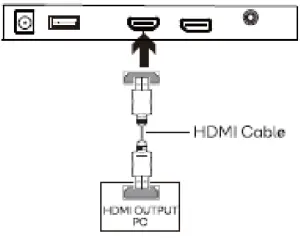
- HDMI
Connect an HDMI cable from your PC to the monitor.
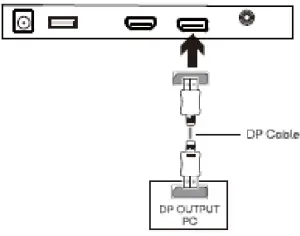
- DisplayPort
Connect a DisplayPort cable from your PC to the monitor.
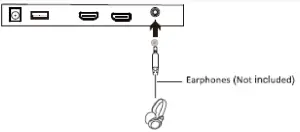
- 3.5mm Audio Out
Earphones or speakers can be connected to receive sound output from your monitor.
Note that the sound output on your PC must be set to the monitor
OPERATION
Setup
- Connect your PC to the monitor using the included HDMI cable.
- Connect the power cable to your monitor then connect the other end to your power source. It is recommended that you use a surge protector with adequate voltage if a wall outlet cannot be reached directly.
- Locate the power button on the monitor and press it to turn the monitor on.
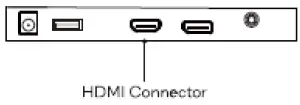
FreeSync
The feature itself is on by default when setting 75Hz refresh rate. In order to use this feature, note you must have hardware with FreeSync capability, an HDMI cable and the latest graphic drivers.
Connect to the monitor using an HDMI cable. After connecting, you may receive a prompt to enable the feature on your computer. If you do not receive the prompt, you may need to enable the function in your graphics card menu. See your graphics card manufacturer’ s documentation for instructions on how to turn on and/or enable FreeSync.
Controls
You can easily control the functions of the monitor through the control buttons.
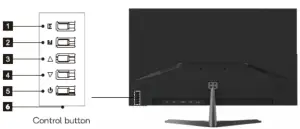
- E Exit Button: Press to exit.
- M Menu Button: Press to display the OSD menu or enter sub-menus.
 Up Button: Press to move up in the menus.
 Down Button: Press to move down in the menus.
 Power Button: Press to turn the monitor on/off.
- LED Indicator: Changes colors to indicate status.
The below table shows the monitor status indicated by the indicators.
 Up Button: Press to move up in the menus.
 Down Button: Press to move down in the menus.
 Power Button: Press to turn the monitor on/off.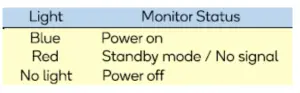
OSD menu
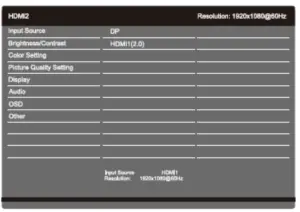
- To view the OSD menu, press the control button at the bottom right of the
monitor. - Use the buttons (E, ,, M, ) to configure options.
- To return to the previous menu to set other menu items, press E.
- Press E to exit the OSD menu.
| Main Menu | Sub-Menu | Options | Description |
| Input Source | DP | N/A | Select input |
| HDMI 1(2.0) | N/A | ||
| Brightness/ Contrast | Brightness | 0~100 | Adjust display brightness |
| Contrast | 0~100 | Adjust display contrast | |
| DCR | On, Off | Turn DCR function on/off | |
| Color Setting | Gamma | 2.0, 2.2, 2.4, | Set gamma |
| Picture Mode | Standard, Photo, Movie, Game | Set visual mode | |
| Color Temperature | Normal, Warm, Cool, USER | Adjust colour temperature | |
| Hue | 0~100 | Adjust display hue | |
| Saturation | 0~100 | Adjust display saturation | |
| Low Blue Light | 0~100 | Set blue light filtering level | |
| Picture Quality Setting | Sharpness | 0~100 | Set display sharpness |
| Overdrive | Off, High, Middle, Low | Set screen response time | |
| Noise Reduction | Off, High, Middle, Low | Reduce noise caused by signal source interference |
| Super Resolution | Off, High, Middle, Low | When the resolution of the display screen is low, this function can be turned on to enhance the image resolution. | |
| Dynamic Luminous Control | On, Off | Turn dynamic luminous control on/off | |
| Backlight | 0~100 | Adjust Backlight | |
| Display | Aspect Ratio | Wide Screen, 4:3,1:1, Auto | Select on-screen aspect ratio |
| Audio | Mute | On, Off | Turn mute mode on/off |
| Volume | 0~100 | Adjust audio volume | |
| OSD | Language | English,简体中文, 한국어, Русский, Español, 日本語, Français, German, Dutch, Portuguese, Italian | Set OSD language |
| OSDH-Position | 0~100 | Adjust the OSD’s horizontal position | |
| OSD V-Position | 0~100 | Adjust the OSD’s vertical position | |
| OSD Transparency | 0~100 | Adjust the OSD transparency value | |
| OSD Timeout | 5~100 | Set how long the OSD remains | |
| OSD Rotation | Normal, 90, 180, 270 | Set OSD rotation direction | |
| Other | FreeSync [Adaptive Sync] | On, Off | Turn FreeSync on/off |
| Reset | N/A | Reset monitor configurations |
SPECIFICATIONS
| Model | KAMN32QF7TB |
| Screen Size | 32″ |
| Aspect Ratio | 16:9 |
| Backlight | E-LED |
| Brightness | 250cd/m² |
| Panel | IPS |
| Resolution | 2560×1440 |
| Refresh Rate | 75Hz |
| Response Time | 5ms |
| Viewing Angle | ≥178°(H) / 178°(V) |
| Contrast Ratio | 1200:1 |
| VESA Mounting | 100*100mm |
| Colours | 1.07B |
| AMD FreeSync | YES |
| Signal Input | DP1.2*1, HDMI2.0*1 |
| Power | DC 12V 3A |
| Audio | |
| Speakers | NO |
| Audio Out | YES |
| Accessories | |
| Adapter | YES |
| HDMI Cable | YES |
| Additional Functions | |
| Low Blue Light | YES |
| FreeSync | YES |
| Physical Dimensions | |
| Dimensions (w. Stand) | 713×182.1×495.7 mm |
| Dimensions (w/o Stand) | 713×34.6×412.1 mm |
| Net Weight | 6.0kg |
| Gross Weight | 7.8kg |
NOTES____________________________________________________________________________________________________________________
Need more information?
We hope that this user guide has given you the assistance needed for a simple set-up. For the most up-to-date guide for your product, as well as any additional assistance you may require, head online to help.kogan.com