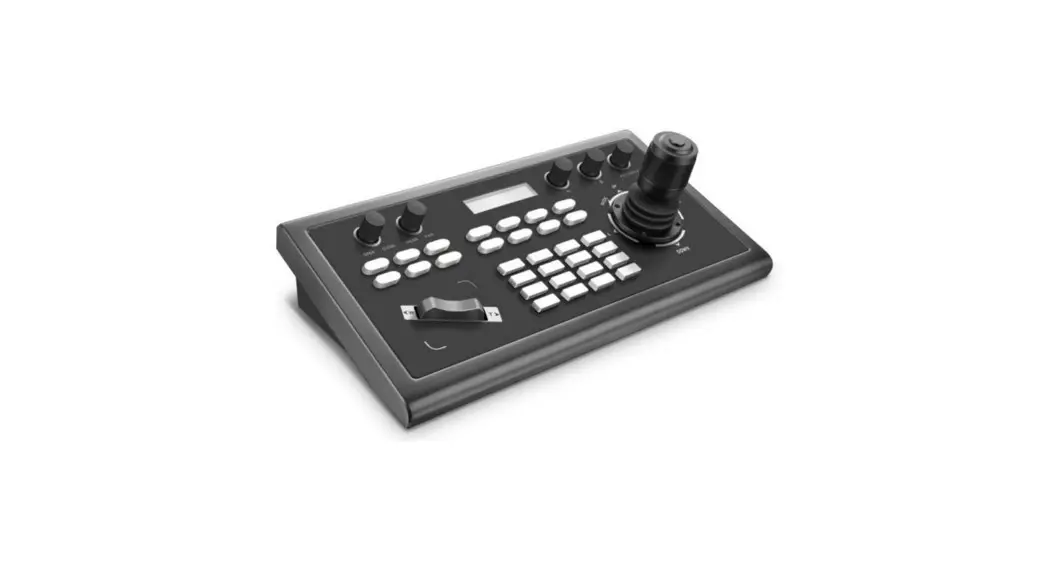
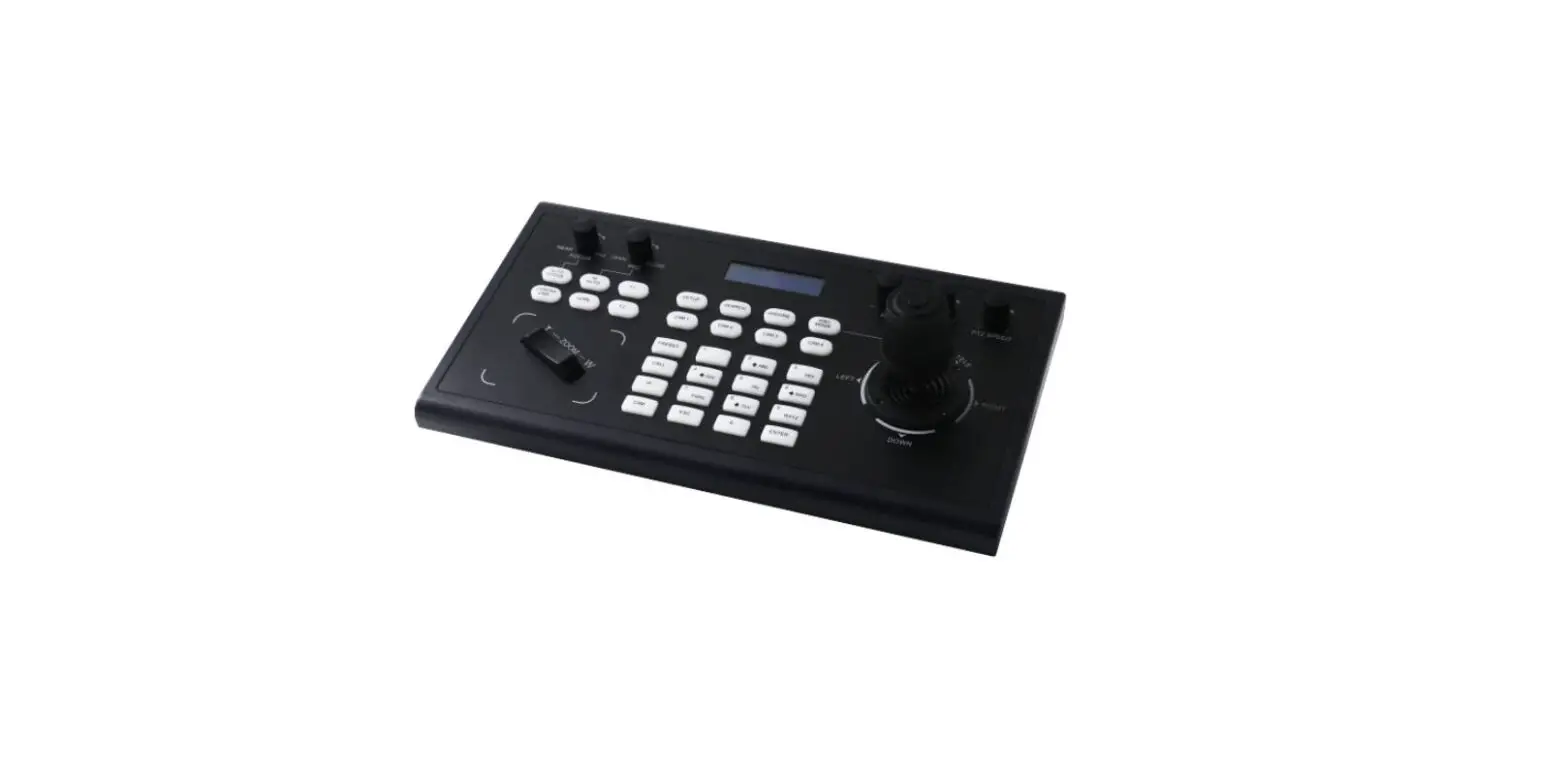
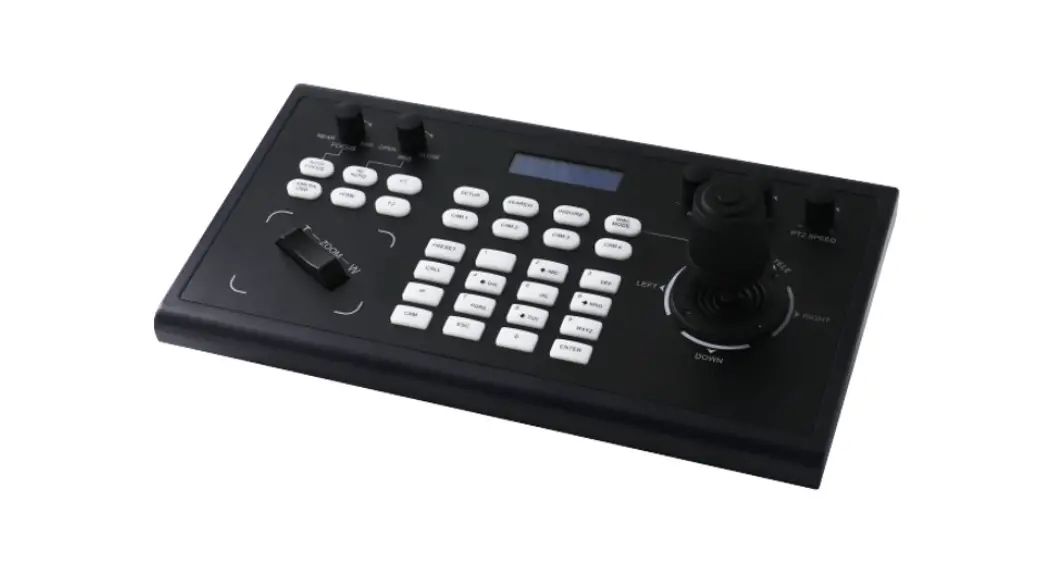
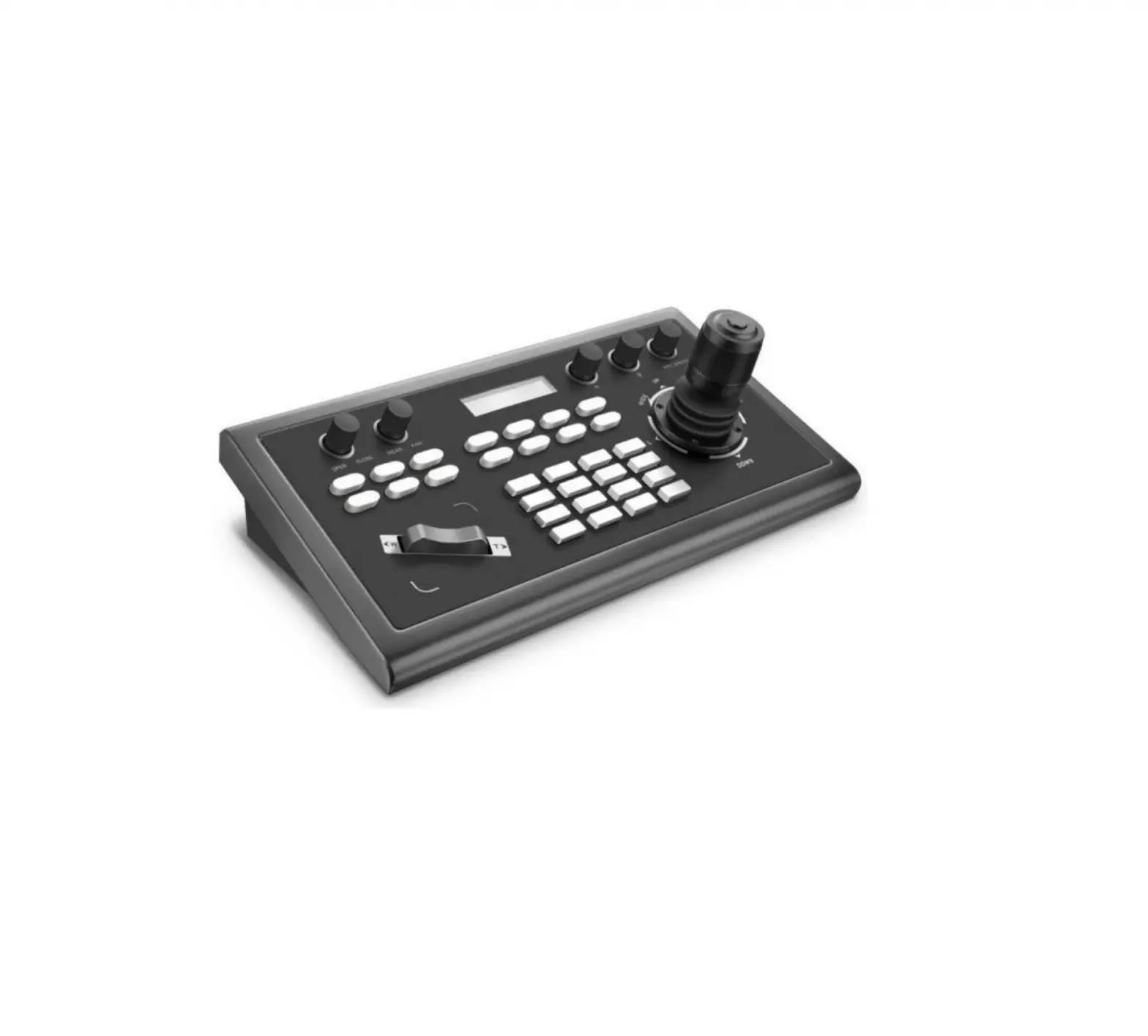
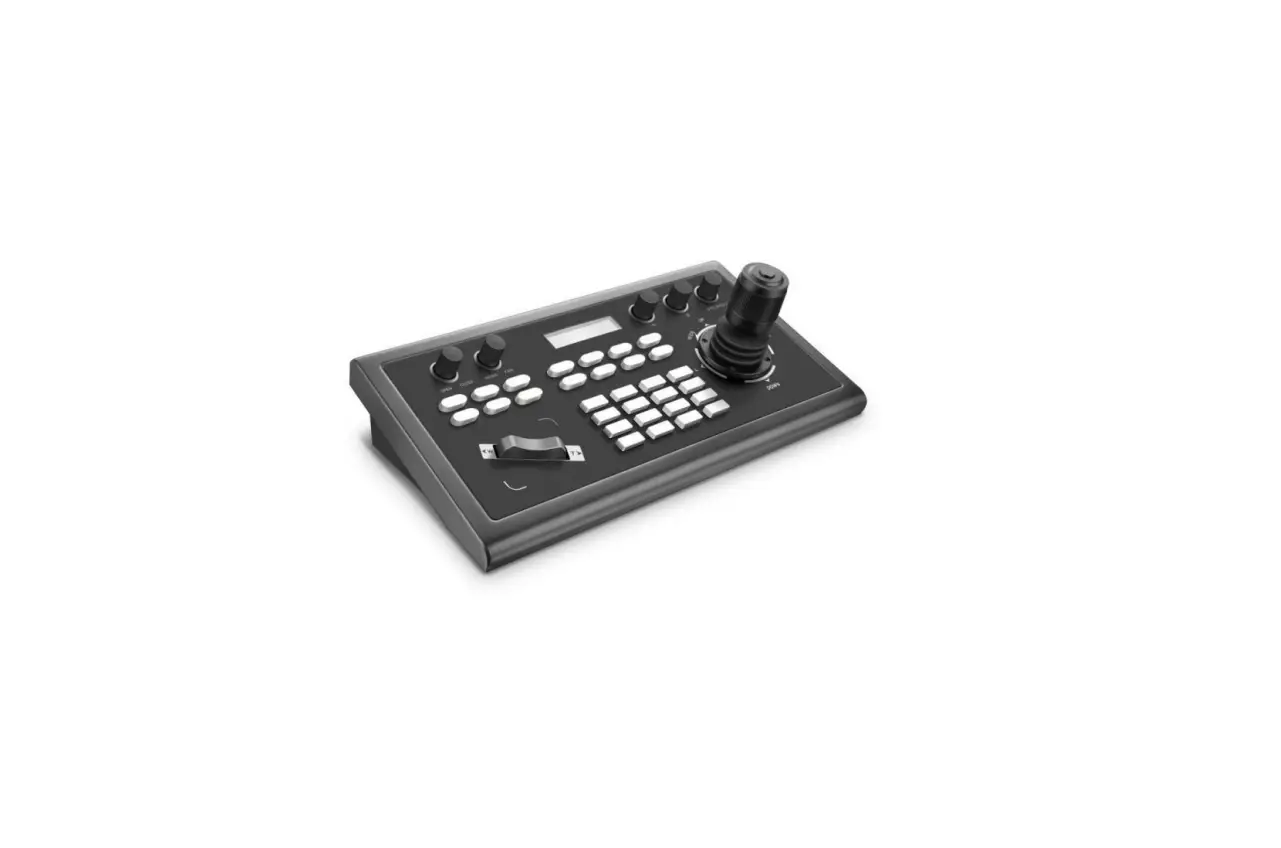
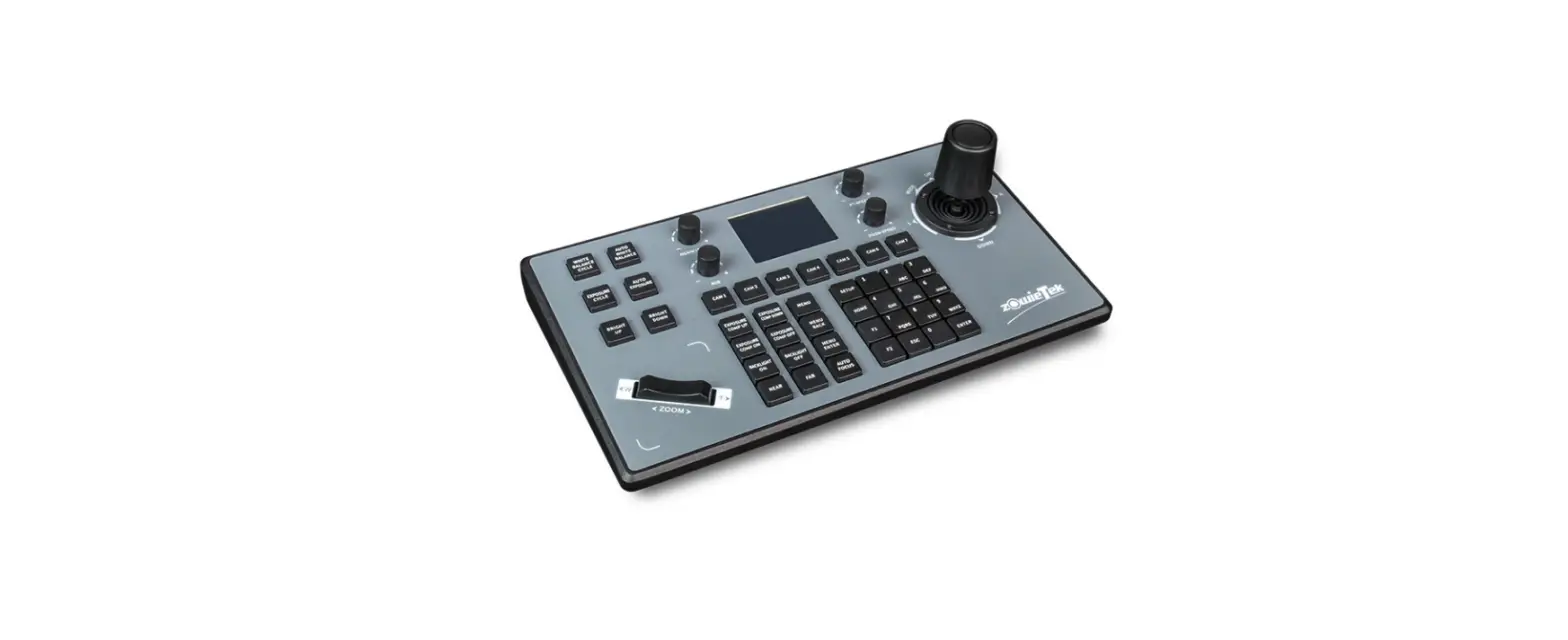
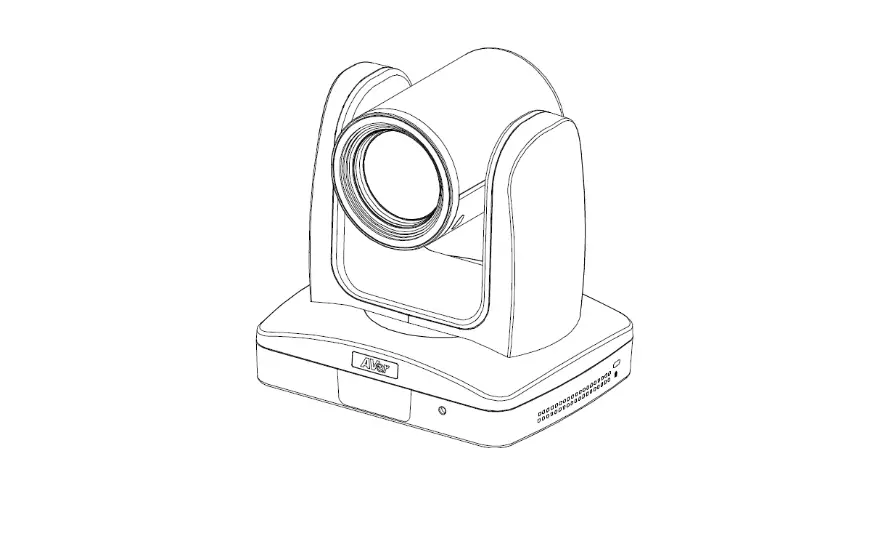
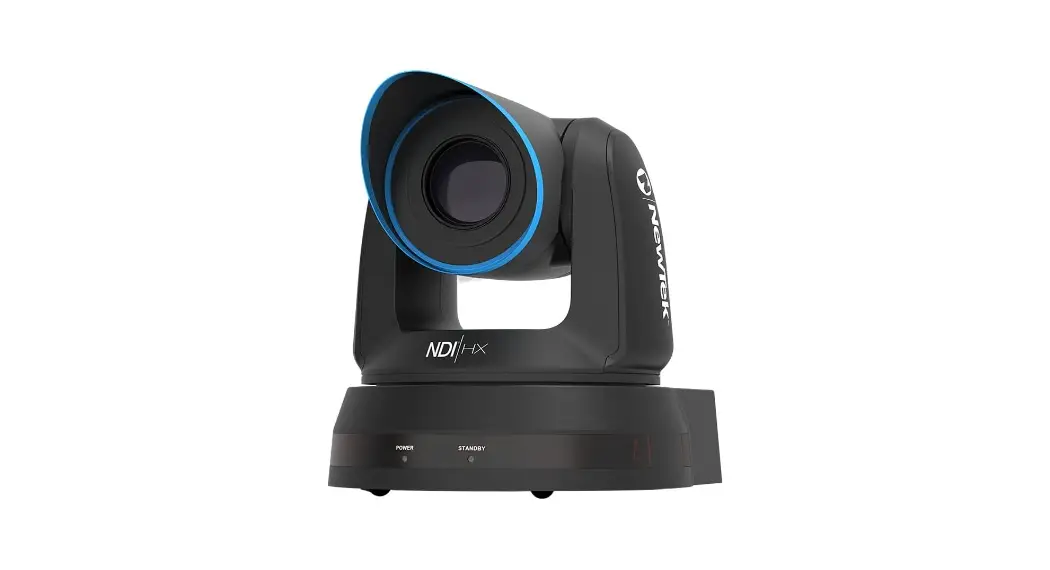
ZT-156 PTZ Camera IP Controller
Product Information:
Zenty is a professional A/V solution provider that offers a
controller for PTZ cameras. The controller supports various control
modes and protocols, including IP VISCA, ONVIF, RS422, RS232,
VISCA, ONVIF, and PELCO.
The controller is equipped with an Ethernet port and a
four-dimensional joystick for easy control of camera movements. It
also features a lead LCD display and button sound prompts.
The controller and PTZ camera must be connected to the same LAN,
and their IP addresses must be in the same segment. The default
setting for the IP controller is to obtain the IP address
automatically.
The product is powered by an external power supply and has low
power consumption. It operates within a specified temperature range
and comes in compact dimensions.
Product Usage Instructions:
To bind CAM NUM with the entered IP and port information, press
the CAM button when adding a device.
To enter a letter C, press the number key 2 three times
continuously in the input interface.
To clear the input information, move the joystick leftward.
In IP VISCA and ONVIF mode, the IP address displayed on the
screen represents either the local IP address of the controller or
the IP address of the connected device, depending on the displayed
prompts.
There are four control modes available: IP VISCA, ONVIF, RS422,
and RS232. Choose the appropriate mode based on your
requirements.
To switch between settings 1 and 2, and 2 and 3, move the
joystick up and down. To turn the button sound prompts on or off,
move the joystick left and right. Confirm with the Enter
button.
To input a custom name and VISCA command, follow the steps:
Input custom name -> Enter -> Input VISCA command. For
example, if the command is 8101040702FF, input 01040702 (0 cannot
be omitted).
To delete a saved device, use the joystick to navigate through
the devices and their information. Move the joystick leftwards to
select the IP and CAM NUM information, then press Enter to delete
the device.
To set the baud rate for a certain address code, follow these
steps: Move the joystick up, down, left, and right to switch
addresses (1-7) -> Enter -> Move the joystick left and right
to switch baud rate -> Enter.
For example, if you want to set the baud rate for address 1 as
9600, select address 1, press Enter, select baud rate 9600, then
press Enter.
To set the baud rate and protocol for a certain address code,
follow these steps: Move the joystick up, down, left, and right to
switch addresses (1-255) -> Enter -> Move the joystick left
and right to choose protocols -> Enter – > Move the joystick
left and right to switch baud rate -> Enter.
For example, if you want to set the baud rate for address 1 as
9600 and the protocol as PELCO-D, select address 1, press Enter,
select protocol PELCO-D, press Enter, select baud rate 9600, then
press Enter.
Zenty | Professional A/V Solution Provider
(844) 200-1945 | [email protected]
Page 1 of 17
ZENTY ®
9807 EMILY LANE STAFFORD, TX 77477
(844) 200-1945 [email protected]
Copyright © Zenty AV
(844) 200-1945 | [email protected]
Page 2 of 17
Copyright © Zenty AV
(844) 200-1945 | [email protected]
Page 3 of 17
Copyright © Zenty AV
· What is the function of CAM NUM when adding a network device?
CAM NUM will be associated and bound with the currently entered IP and port information. It will quickly switch to the CAM NUM bound device when adding a device with CAM button.
· How to enter English letters when setting the username, password, and custom keys of F1/F2?
For example: to enter letter C, simply press the number key “2” three times continuously in the input interface.
· How the enter the IP address? The camera controller doesn’t have “.” button, so enter the IP address with four segments: Take IP address 192.168.0.1 for example, when finished inputting 192 and 168, after inputting 0, move the joystick rightward to switch to the next segment input.
· How to clear in input mode?
Move the joystick leftward to clear the input information.
· The home page of each mode refers to the displayed page when controller initialization is complete.
In IP VISCA and ONVIF mode, if you see the prompts of “Visca!” and “Onvif!”, the IP address displayed on the screen is the local IP address of the controller. While the prompts of “Visca:” and “Onvif:” shown on the page, the IP address displayed on the screen belongs to the connected device.
There are four control modes: Two IP control modes (IP VISCA and ONVIF); Two analog control modes (RS422 and RS232)
There are three control protocols: VISCA, ONVIF, and PELCO.
(844) 200-1945 | [email protected]
Page 4 of 17
Copyright © Zenty AV
The controller and PTZ camera must be connected to the same LAN, and the IP addresses must be at the same segment. For example: 192.168.1.123 is at the same segment with 192.168.1.111 192.168.1.123 is not at the same segment with 192.168.0.125 The default setting for IP controller is obtaining IP address automatically.
Ethernet Joystick Connection Display Prompt Tone
(844) 200-1945 | [email protected]
1 x Ethernet Port Four-dimensional (up, down, left, right), joystick control and clock, zoom tele/wide Lead LCD Button sound prompt on/off
Page 5 of 17
Copyright © Zenty AV
Power Supply Power Consumption Operating Temperature Storage Temperature Dimensions(mm)
DC 12V/1A 0.6W Max 0°C ~ 50°C -20° ~ 70°C 320 * 180 * 100
(844) 200-1945 | [email protected]
Page 6 of 17
Copyright © Zenty AV
(844) 200-1945 | [email protected]
Page 7 of 17
Copyright © Zenty AV
(844) 200-1945 | [email protected]
Page 8 of 17
Copyright © Zenty AV
Move the joystick up and down to switch 1 to 2, and 2 to 3 settings. Move the joystick left and right to switch the button sound prompts on and off. Confirm with the Enter button.
(844) 200-1945 | [email protected]
Page 9 of 17
Copyright © Zenty AV
Input custom name -> Enter -> Input VISCA command For example: the command is 8101040702FF, then input 01040702 (0 can’t be omitted).
Delete the saved device:
Move the joystick up and down to view devices. Move the joystick rightwards to view the device’s port information. Move the joystick leftwards to view the IP, CAM NUM information, Enter to delete the selected device.
Control settings (set the baud rate for a certain address code):
Move the joystick up, down, left, and right to switch addresses (1-7) -> Enter -> Move the joystick left and right to switch baud rate -> Enter
(844) 200-1945 | [email protected]
Page 10 of 17
Copyright © Zenty AV
For example: Select the address: 1 -> Enter -> Select the baud rate: 9600 -> Enter When the controller switches to address 1, the control baud rate is 9600.
Control settings (set the baud rate for a certain address code): Move the joystick up, down, left, and right to switch addresses (1-255) -> Enter -> Move the joystick left and right to choose protocols -> Enter – > Move the joystick left and right to switch baud rate -> Enter For example: Select the address: 1 -> Enter -> Select the protocol: PELCO-D -> Enter -> Select the baud rate: 9600 -> Enter When the controller switches to address 1, the control baud rate is 9600, protocol is PELCO-D.
Delete saved device: Move the joystick up and down to view devices. Move the joystick rightwards to view the device’s port information. Move the joystick leftwards to view the IP, CAM NUM information. Enter to delete the selected device.
Search and add: In ONVIF mode, follow the steps below to add a LAN device to the PTZ controller:
(1) After the controller has obtained the IP address, simply press the Search button (2) All available devices with ONVIF protocol in the LAN will be displayed on the controller when
search process is complete (3) Move the joystick up/down to select the device, press the Enter button to confirm (4) It’s required to enter the device’s username, password, and CAM NUM information when
(844) 200-1945 | [email protected]
Page 11 of 17
Copyright © Zenty AV
adding a device (5) Press the Enter button to save (6) Alternatively, to add a device via [I] button manually (7) Press the Inquire button to view the added device. Move the joystick up/down to view the
saved device (move the joystick rightwards to view the port). Press the Enter button to select a camera to control, or use the CAM button to connect and control
Searching function is not available in IP VISCA mode, but to manually add a device, follow these steps:
(1) Manually add a device via the [IP] button (2) Press the Inquire button to view the added device/ Move the joystick up/down to view
the saved device (move the joystick rightwards to view the port). Press the Enter button to select a camera to control, or use the CAM button to connect and control.
Simply set the address code and baud rate to control. In PELCO mode, correctly set the PELCO-D or PELCO-P protocol is required.
(1) Connect the controller and computer to the same LAN and enter the controller’s IP address in the browser
(2) Default username: admin | password: empty (3) Home page is as below:
(844) 200-1945 | [email protected]
Page 12 of 17
Copyright © Zenty AV
(4) Home page consists of three segments: Search Device List (green), Added Device List (blue), or Manually Add (yellow), Device Details (orange)
(5) Click “Search” button to find ONVIF devices in the LAN, which will be displayed in the green frame automatically
(6) Select the device in the “Search Device List”, and click “Add” to complete. Press “Ctrl” for multiple selections
(7) Select the device in the “Added Device List”, and click “Delete” to complete. Press “Ctrl” for multiple selections
(8) After successfully adding a device, click the IP address in the “Added Device List” to edit the account and port information of the device
(9) After addition, deletion, and modification, click “Save” button for changes to take effect Note: Any modification to the configuration on home page needs to be saved by clicking “Save” button, otherwise the modification won’t be saved.
(844) 200-1945 | [email protected]
Page 13 of 17
Copyright © Zenty AV
Modifying the device IP access way and port parameters in LAN settings is shown below:
Dynamic address (default access way): the controller will automatically acquire IP address from the router Static address: Change the network to static address when necessary. Simply input the network segment information to modify.
The upgrade function is applied for maintenance and updates. Chose the right upgrading file and click “start” to update the controller. It will auto reboot after updating.
Note: Do not operate the controller during the upgrade process. Do not power off or disconnect the network.
(844) 200-1945 | [email protected]
Page 14 of 17
Copyright © Zenty AV
Click “Reboot” for maintenance if the controller runs for a long time.
Clean this unit with a soft, dry cloth. Never use alcohol, paint thinner, or benzine to clean.
If your product does not work properly because of a defect in materials of workmanship, our company (referred to as “the warrantor”) will, for the length of the period indicated as below, “Parts and Labor (5) Years”, which starts with the date of original purchase (“Limited Warranty period”), at its option either (a) repair your product with new or refurbished parts, or (b) replace it with a new or a refurbished product. The decision to repair or replace will be made by the warrantor.
During the “Labor” limited warranty period, there will be no charge for labor. During the “Parts” warranty period, there will be no charge for parts. You must mail-in your product during the warranty period. This Limited Warranty is extended only to the original purchaser and only covers products purchased as new. A purchase receipt or other proof of original purchase date is required for Limited Warranty service.
When shipping the unit, carefully pack and send it prepaid, adequately insured, and preferably in the original carton. Include a letter detailing the complaint and provide a day time phone and/or email address where you can be reached.
This Limited Warranty ONLY COVERS failures due to defects in material or workmanship, and DOES NOT COVER normal wear and tear or cosmetic damage. The Limited Warranty ALSO DOES NOT COVER damages which occurred in shipment, or failures which are caused by products not supplied by warrantor, or failures which result from accidents, misuse, abuse, neglect, mishandling, misapplication, alteration, faulty installation, set-up adjustments, mis-adjustment of consumer controls, improper maintenance, power line surge, lightning damage, modification, or service by anyone other than a Factory Service center or other Authorized Servicer, or damage that is attributed to acts of God.
THERE ARE NO EXPRESS WARRANTIES EXCEPT AS LISTED UNDER “LIMITED WARRANTY COVERAGE”. THE WARRANTOR IS NOT LIABLE FOR INCIDENTAL OR CONSEQUENTAIL DAMAGES RESULTING FROM THE USE OF THIS PRODUCT, OR ARISING OUT OF ANY BREACH OF THIS WARRANTY. (As examples, this excludes damages for lost time, cost of having someone remove or re-install an installed unit if applicable, travel to and from the service, loss of or damage to media or images, data or other recorded
(844) 200-1945 | [email protected]
Page 15 of 17
Copyright © Zenty AV
content. The items listed are not exclusive, but are for illustration only.) PARTS AND SERVICE, WHICH ARE NOT COVERED BY THIS LIMITED WARRANTY, ARE YOUR RESPONSIBILITY.
(844) 200-1945 | [email protected]
Page 16 of 17
Copyright © Zenty AV
WWW.ZENTY.COM 9807 EMILY LANE STAFFORD, TX 77477
(844) 200-1945 [email protected]
[email protected]
(844) 200-1945 | [email protected]
Page 17 of 17
Copyright © Zenty AV
 Zenty - The AV Technology Leader