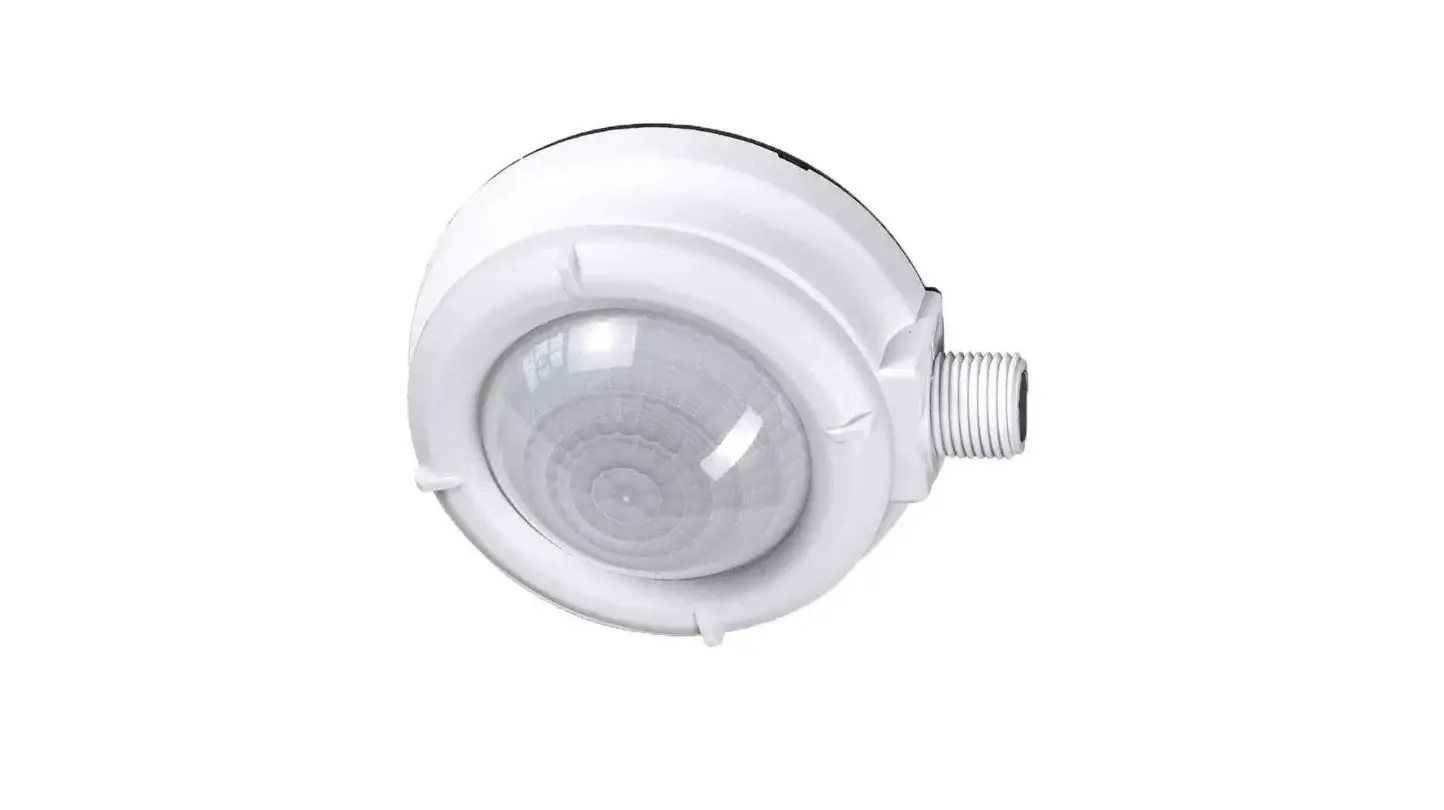
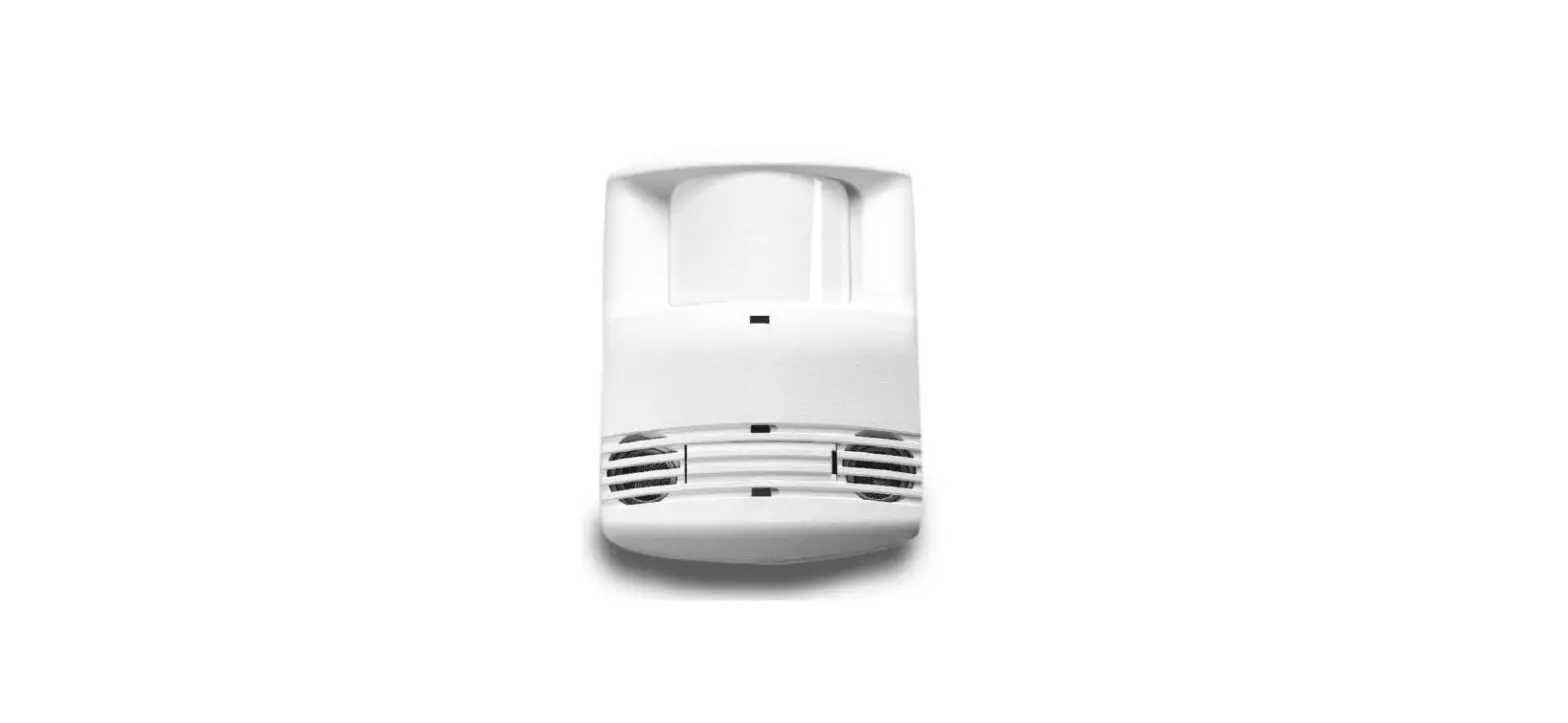
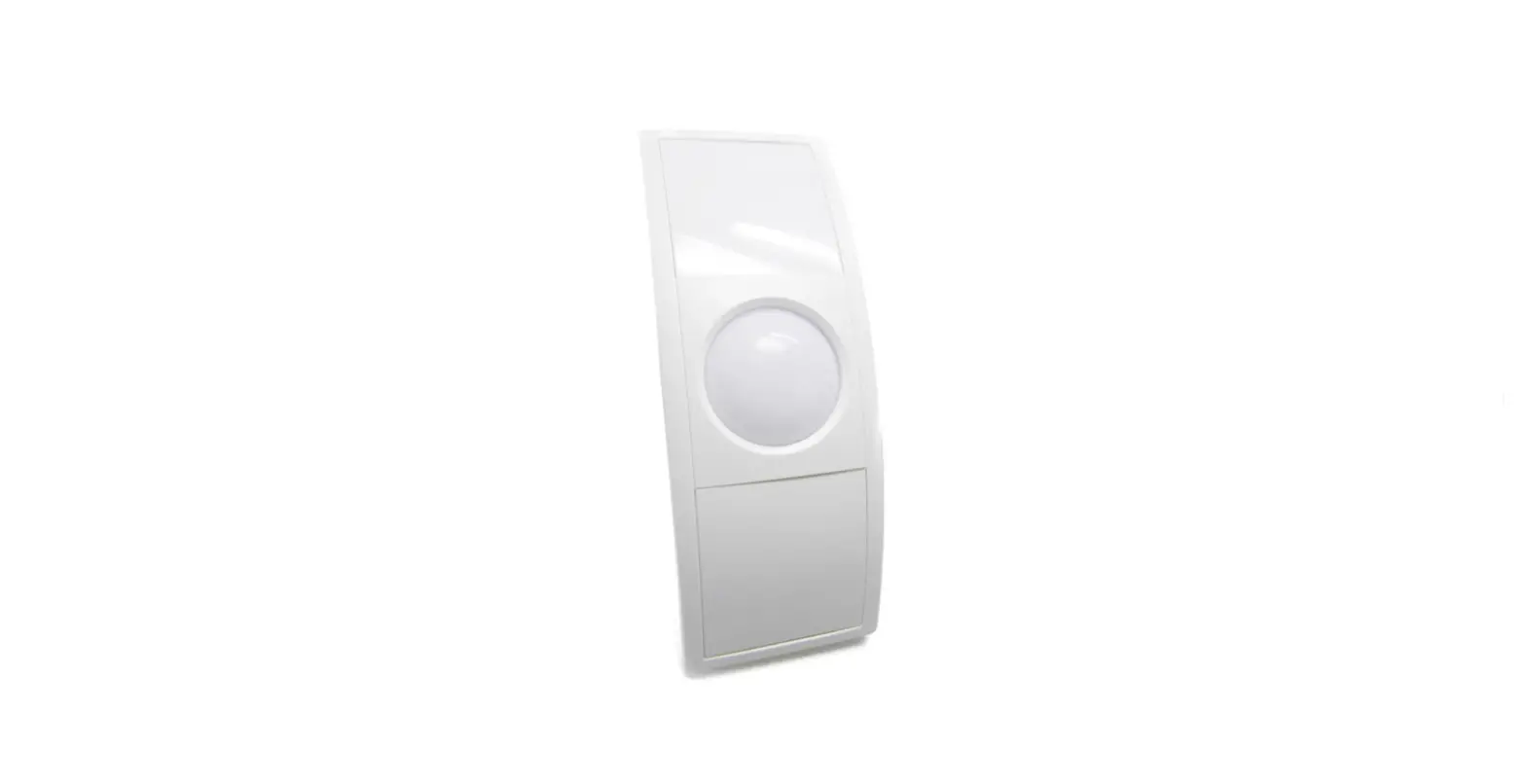
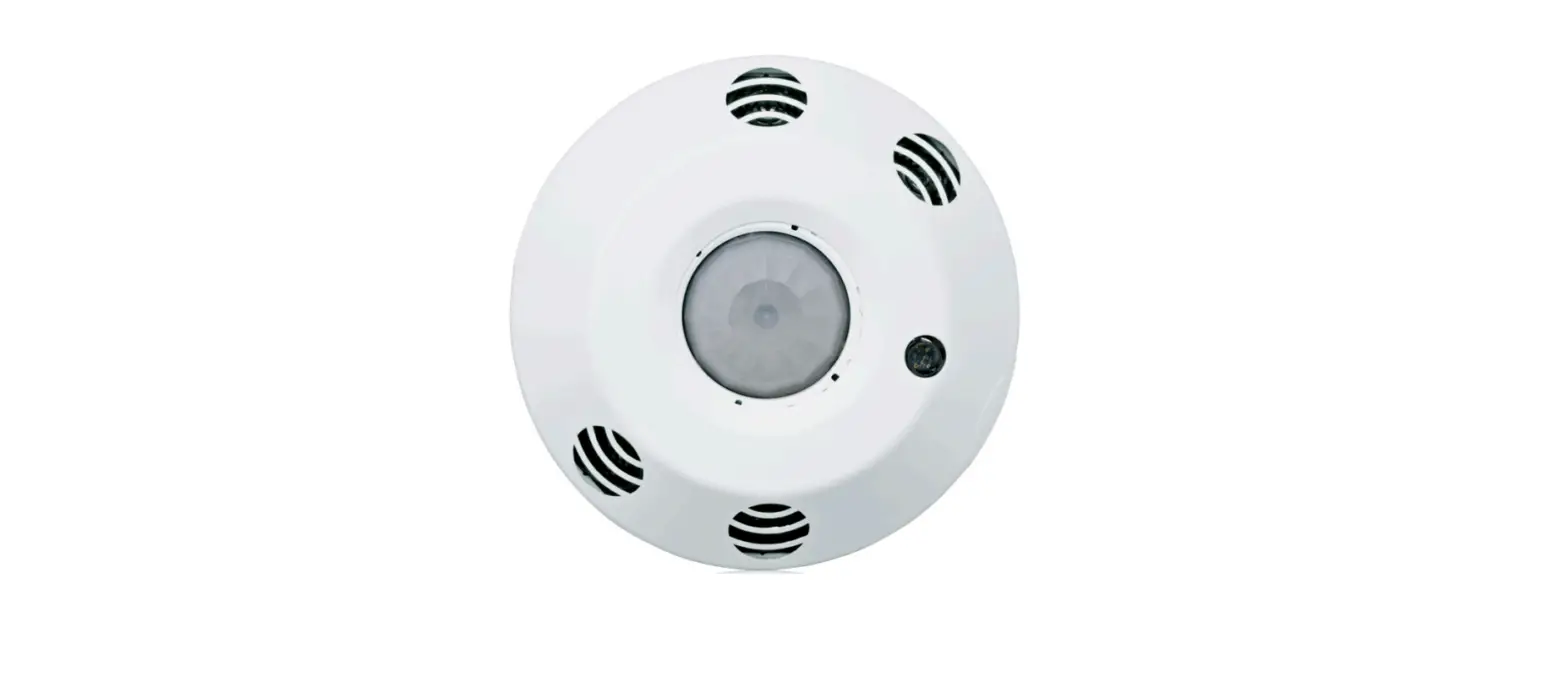
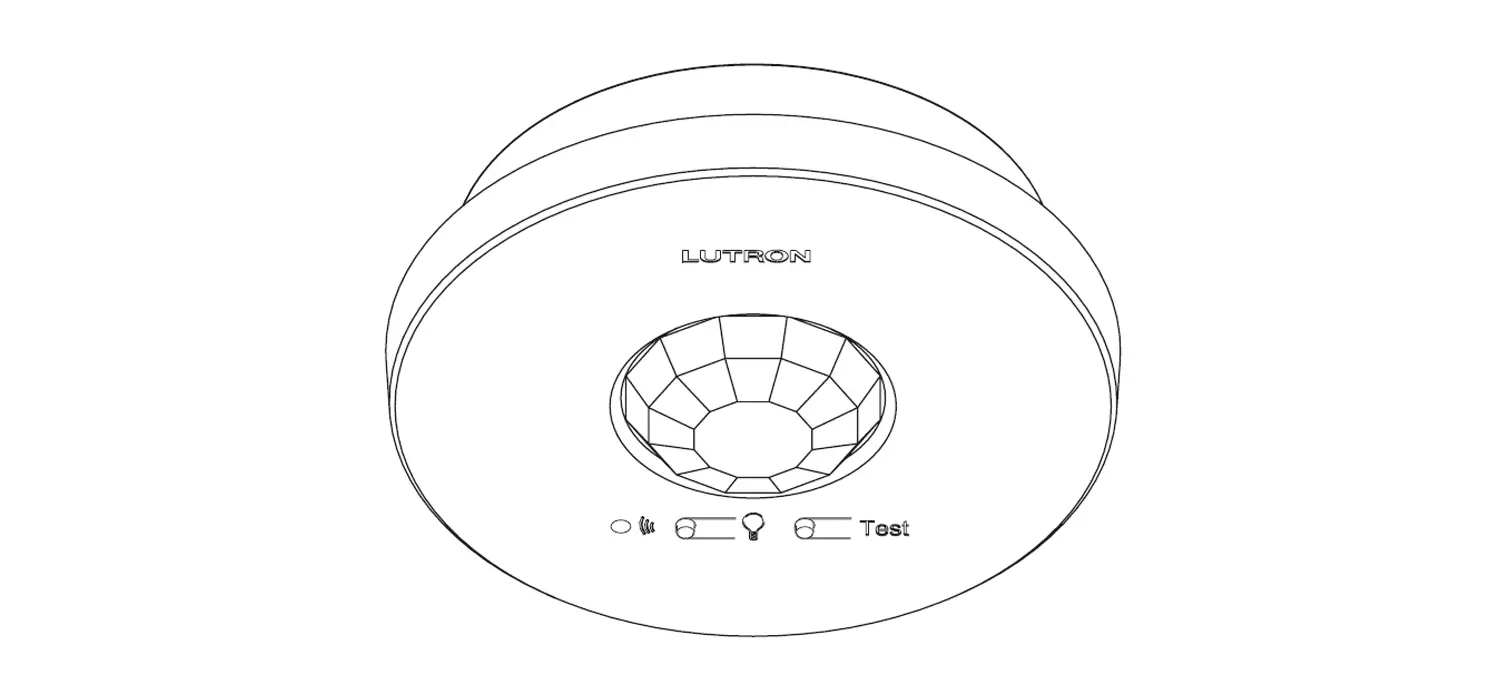
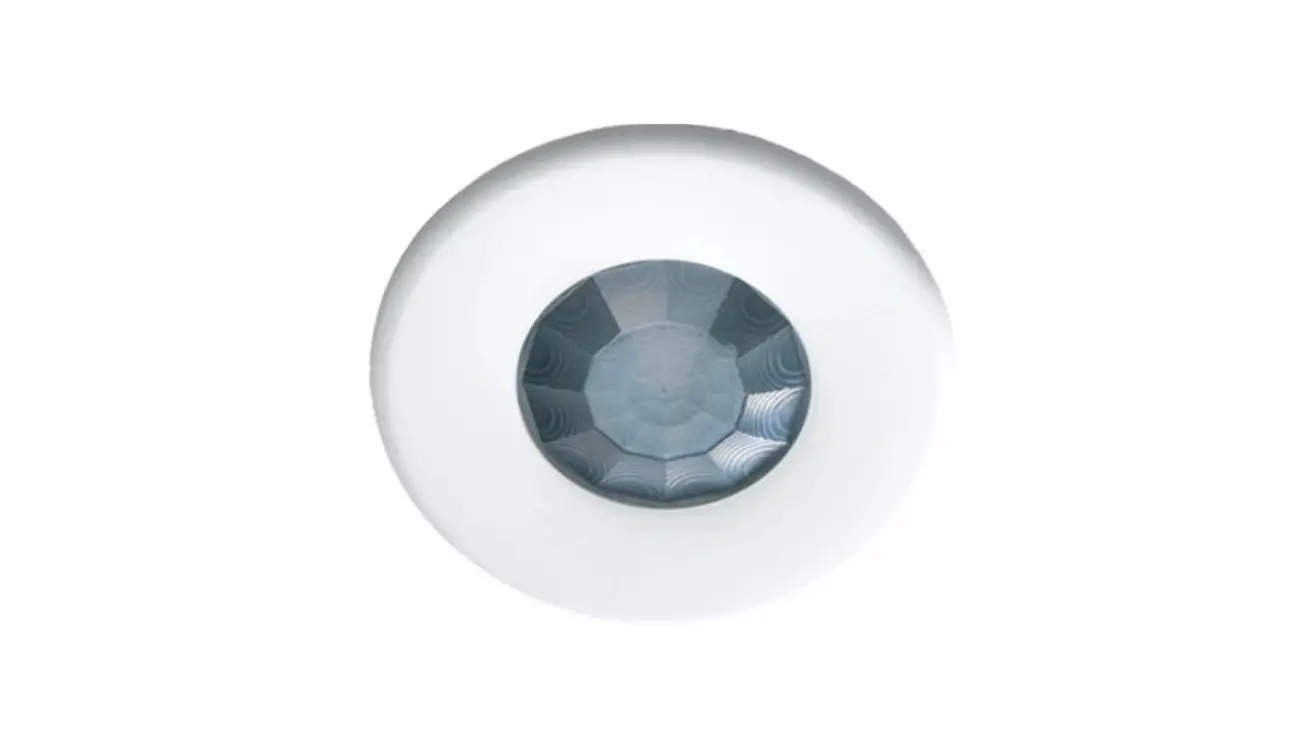
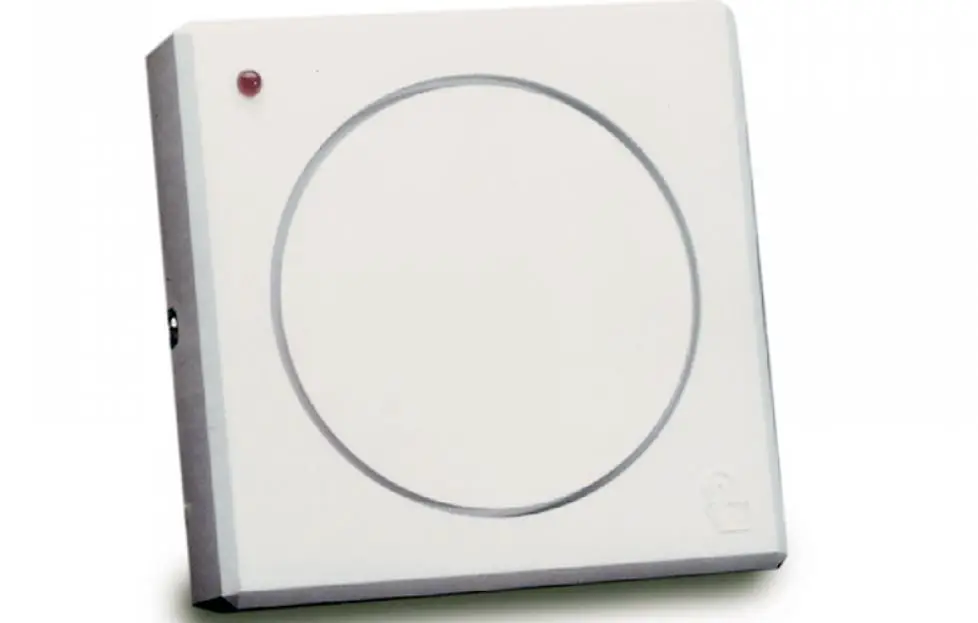
OCS 100W Occupancy Sensor
Product Information
The OCS 100W is a device designed to detect occupancy using both
PIR (Infrared) and US (Ultrasonic) sensors. It features various
front panel features and controls to ensure accurate detection and
avoid false detections. The device has LED status indicators for
both the PIR and US sensors, as well as removable front cover for
easy access to the controls.
Front Panel Features
- DIP Switches (A): Used for various settings related to
occupancy detection. - DIP Switches (B): Used for timer and sensitivity
adjustments. - Ultrasonic Sensors: Detects occupancy using ultrasonic
waves. - Ultrasonic (US) Green LED: Status indicator for the ultrasonic
sensor. - Infrared/Photocell Sensor and Lens: Detects occupancy using
infrared technology. - Infrared (PIR) Red LED: Status indicator for the infrared
sensor. - Removable Front Cover: Provides easy access to the
controls.
Controls
Figure 2 shows the controls of the OCS 100W:
- A Switch Function:
- OFF: Not used.
- ON: Occupancy detection is mutually exclusive (either PIR or US
detection).
- B Switch Function:
- *Default and recommended settings.
- Timer Setting (B1 and B2 switches must be set together):
- 8 minutes: OFF, OFF
- 4 minutes: OFF, ON
- 15 minutes: ON, OFF
- 30 minutes: ON, ON
- Timer adjust: Manual or Automatic mode.
- Sensitivity adjust: Manual or Automatic mode.
Product Usage Instructions
Occupancy Detection Mode
The OCS 100W is designed to detect occupancy using both the PIR
and US sensors with their default settings to avoid false
detections. By default, the A switch function is set to ON,
enabling occupancy detection based on either PIR or US sensor
triggering.
Adjusting Sensor Sensitivity and Timer Settings
To adjust the sensor sensitivity and timer settings, follow
these steps:
- Ensure the B switch function is set to ON for Manual mode.
- Adjust the timer switches (B1 and B2) according to your desired
time duration. Refer to the recommended settings for different
durations. - Adjust the infrared sensitivity dial (Red) and ultrasonic
sensitivity dial (Green) based on the desired sensitivity level.
For Manual mode, ensure B4 is set to ON.
Visual LED Indicators
The A3 switch function can be used to enable or disable the
visual LED indicators. Setting A3 to OFF provides a visual
notification whenever the PIR or US sensors are triggered. If the
flashing LEDs are distracting or need to be disabled, set A3 to
ON.
Automatic Adjustments and Reset
The A4 switch function allows for automatic adjustments and
reset. When toggled ON, the device retains all learned sensor
settings. Toggling A4 OFF will erase all learned adjustments. This
function is only applicable when the Timer (B3) or Sensitivity
adjust (B4) switches are set to Automatic mode (OFF).
Timer and Occupancy Behavior
The timer settings determine how long the sensor remains active
after occupancy is no longer detected. In Manual mode (B3 set to
ON), adjust the timer switches to set the desired time duration. In
Automatic mode (B3 set to OFF), the timer settings are ignored, and
the sensor triggers OFF immediately when there is no occupancy
detected.
Note: If it takes too long for the OCS to turn off when the room
is unoccupied, adjust the timer to 8 or 4 minutes and extend the
timer via the configuration of the connected control processor.
This setup helps reduce false detection.
Refer to Figure 3 for an overview of the front panel features
and controls.
Occupancy Sensor OCS 100W · Setup Guide
The OCS 100W is a dual technology occupancy sensor that can be used to automate meeting and presentation spaces when used with Extron control products. The OCS is equipped with ultrasonic (US), infrared (PIR), and photocell sensors that can be used together to report ambient light conditions and room occupancy. Sensors can be wired directly to Extron controller products equipped with Digital I/Os ports or via eBUS, when using optional eBUS interface accessories. The OCS requires 24 VDC for operation. If local 24 V power is not available, use the included 12 V to 24 V, USB 5 V to 24 V power converter.
NOTE: The OCS 100W is designed to detect occupancy using both the PIR and US sensors with their default settings to avoid false detections.
Front Panel Features and Control
DIP Switches (A)
DIP Switches (B)
Ultrasonic Sensors
Ultrasonic (US) Green LED (status indicator)
Infrared/Photocell Sensor and Lens
Infrared (PIR) Red LED (status indicator)
Removable Front Cover
Figure 1. OCS 100W Front Panel Features
1234 1234
A
B
Notch
Blue Timer Test Button
Red Infrared Sensitivity Dial
Green Ultrasonic Sensitivity Dial
Blue Photocell Sensitivity Dial
Figure 2. OCS 100W Controls
· Ultrasonic Sensors (2) — Detect movement in the room, based on ultrasonic sound waves. The US sensor emits ultrasonic sound waves into an area and measures the speed of their return to detect the presence of people. Frequency changes are caused by the movement of people, which is detected by the US waves.
· Ultrasonic (US) Green LED status indicator — Flashes when the ultrasonic sensors detect occupancy.
· Infrared/Photocell Sensor and Fresnel Lens —
· The Fresnel lens diffracts the incoming light and directs the light to the infrared sensor behind it.
· The Infrared (PIR) sensor detects the presence of people based on the difference between the heat generated by moving people versus the ambient room temperature.
· Infrared (PIR) Red LED status indicator — Flashes when the infrared sensor detects occupancy.
· Removable Front Cover — Conceals all controls and DIP switches. · DIP Switches (A) —
A Switch Function
OFF
ON
Note
1 Not used
*Not used
Not used
Switch is not used.
2 Occupancy
*Mutually
Independent
detection
exclusive
(either PIR or
behavior – Dual (requires both US detection)
Technology Mode PIR and US
detection)
If A2 is set to OFF, both the PIR and US sensors must be triggered (simultaneously) before the OCS reports an occupancy signal. If A2 is set to ON, the OCS reports occupancy based on only one of the sensors being triggered. When only one sensor is desired, set A2 to ON and adjust the dials accordingly. If A2 is ON, false detection when the room is not occupied increases.
3 Sensor status indicators
*LEDs enabled LEDs disabled
Setting A3 to OFF provides a visual notification whenever the PIR or US sensors are triggered. When the visual LED indicators are a distraction or you want to disable the flashing LEDs, A3 should be set to ON.
4 Automatic adjust *Retain
Erase all learned Only applicable when Timer (B3) or Sensitivity adjust (B4) or
reset
learned sensor settings (toggle both are set to Automatic mode (OFF). Toggling A4 ON then
adjustments ON, then OFF) OFF will reset any stored learned adjustments.
*Default and recommended settings
1
Occupancy Sensor OCS 100W · Setup Guide (Continued)
· DIP Switches (B) — (see figure 2 on the previous page)
B Switch Function
Settings
Note
1 Timer Setting (B1 and B2
2 switches must be set together)
*8 minutes: OFF
*OFF
4 minutes: OFF
ON
15 minutes: ON
OFF
30 minutes: ON
ON
In manual mode only (B3 set to ON), set the amount of time before the sensor triggers OFF when there is no occupancy detected. In automatic mode (B3 set to OFF) the timer settings are ignored.
B Switch Function
OFF
ON
3 Timer adjust 4 Sensitivity adjust
Automatic Automatic
*Manual *Manual
Applies to the Timer (blue), Infrared sensitivity (red), and Ultrasonic sensitivity (green) adjustment dials. · Setting to Manual mode allows for
more predicted behavior and is better suited for automating AV applications. · Setting to Automatic mode allows the sensor to learn over time the ideal timer and sensitivity adjustments for the space and usage trends. This is better suited for automating lighting applications. · All adjustment dials are disabled when set to Automatic (OFF).
*Default and recommended
NOTE: B3 must be set to ON for Manual mode, in order to adjust the timer switches manually. B4 must be set to ON for Manual mode, in order to adjust the infrared sensitivity and US sensitivity dials manually.
· Timer Setting (B1 and B2) — The occupancy sensor has a built-in timer feature. In Manual mode (B3 set to ON), set the B1 and B2 DIP Switches together, as shown in the table above, to set the amount of time before the sensor triggers OFF. When the sensor detects motion, it instantly triggers ON.
Once occupancy is no longer detected, the timer begins. If no motion is detected and the timer expires, then the sensor triggers OFF.
NOTE: If it takes too long for the OCS to turn off when the room is unoccupied, adjust the timer to 8 or 4 minutes and extend the timer via the configuration of the connected control processor. This setup reduces false detection.
· Blue Timer Test Button — · To enable an 8 second timer test mode, push the blue button once. The test mode lasts for 1 hour, and then automatically resets to the dip switch settings. · To cancel the 8 second test mode, push and hold the blue button until the red LED flashes, returning the OCS to the settings defined by the dip switches.
· Red Infrared Sensitivity Dial — Adjust this dial to increase or decrease infrared sensitivity. · Turn counter-clockwise (CCW) to decrease sensitivity. Major movements are needed to detect occupancy. · Turn clockwise (CW) to increase sensitivity. Minor movements are detected as occupancy. · The factory default setting is at 75%.
· Green Ultrasonic Sensitivity Dial — Adjust this dial to increase or decrease ultrasonic sensitivity. · Turn counterclockwise (CCW) to decrease sensitivity. Major movements are needed to detect occupancy. · Turn clockwise (CW) to increase sensitivity. Minor movements are detected as occupancy. · The factory default setting is at 100%.
· Blue Photocell Sensitivity Dial — Photocell prevents the sensor from triggering on when the area is adequately lit with natural light and when motion is detected. The sensor must be mounted directly over an area that is representative of the average, natural room lighting. Before setting the photocell control, wait until the natural light is brightest (optional). Adjust this dial to increase or decrease photocell sensitivity. · Turn counterclockwise to decrease photocell sensitivity, causing it to activate with less light. · Turn clockwise to increase photocell sensitivity, requiring brighter light to activate the sensor. · Factory default is 100% (full clockwise) — Photocell sensor is disabled. · Range — 10 to 1000 lux
2
Recommended Setup
DIP Switches (A)
DIP Switches (B)
Ultrasonic (US) Green LED (status indicator)
1234 1234
A
B
Notch
Infrared (PIR) Red LED (status indicator)
Blue Timer Test Button
Red Infrared Sensitivity Dial
Green Ultrasonic
Blue Photocell Sensitivity Dial
Sensitivity Dial
Figure 3. OCS 100W Front Panel Features and Controls
With the OCS in the default or recommended settings (A2 OFF), the OCS requires both the IR sensor AND the US sensor to detect occupancy to turn ON. Only one sensor (PIR or US) needs to trigger to reset the timer for the OCS to remain ON while the room is still occupied. When the OCS is in the OFF state, no occupancy is detected.
Follow these steps to set up the OCS to detect occupancy with minimal false detection:
NOTE: We recommend using the OCS 100W in the default settings when beginning the setup or the test mode. If needed, adjust slightly from the default sensitivity settings.
1. Keep all the DIP switches and rotary dials in the default positions. 2. Set the OCS in Test Mode. 3. Enter the room several times to verify if the IR detector is detecting movement (red LED flashes).
· If the red LED flashes when entering the room, the default red infrared sensitivity dial is set correctly. · Verify the red LED flashes with movement throughout the room. · Turn the red infrared sensitivity dial to decrease or increase IR sensitivity, until the red LED only flashes when entering the
room or making movements throughout the room. · To avoid false detections when the room is unoccupied, do not make the sensor too sensitive. 4. Enter the room and verify if the US detector is detecting movement (green LED flashes). · If the green LED flashes when entering the room, the default green ultrasonic range dial is set correctly. This sensor is
very sensitive. · Verify the green LED flashes with movement throughout the room. · Turn the green ultrasonic range dial to decrease or increase US sensitivity, until the green LED only flashes when entering
the room or making movements throughout the room. · To avoid false detections when the room is unoccupied, do not make the sensor too sensitive. 5. Leave the room and close the door. Wait until the Digital output state, relay or red and green LEDs stay OFF. Wait several minutes to ensure there are no false detections. · If the door remains open, the US sensor may detect changes. · If possible, wait longer, to confirm no IR or US change is registered. 6. Enter the room again to confirm the Digital output state, relay, red, or green LEDs turn ON.
NOTE: After going through these steps and verifying the OCS is set up to accommodate the room, do not adjust the DIP switches or dials.
Automatic Mode
Out of the box, the OCS 100W can be set up in Automatic Mode, where no manual sensitivity adjustments are needed and sensitivity learning and adjustments are made automatically. For simple setup, we recommend keeping the OCS in the default settings and flipping the B4 Dip switch to the OFF (Auto) position. The OCS is ready to mount (see Installation on page 5).
3
Occupancy Sensor OCS 100W · Setup Guide (Continued)
Sensor Placement and Installation Options
When placing the sensor in a room, be sure the sensor is not aimed out through a door. The sensor can detect hallway traffic, causing false triggers. PIR sensors trigger in response to changes in the amount of IR arriving from any of their segments of view within a direct line of sight from the sensor. US sensors trigger in response to changes in the frequency of reflected ultrasonic waves, caused by movement within the space.
NOTE: See Troubleshooting on page 7 if you experience false triggers.
Wrong
60°
Ceiling Mount
Wall Mount
Correct
Hallway
80° Rotation
Installation Options
Sensor Placement Figure 4. Sensor Placement and Installation Diagrams
NOTE: Mount the OCS 6 to 8 feet (1.8 to 2.4 m) away from HVAC vents and high air flow areas
Top View Corner Mount
Sensor Coverage
32′ (10 m)
23′ (7 m)
40′ (12 m)
20′ (6 m)
23′ (7 m)
32′ (10 m)
Sensor Coverage
Figure 5.
US Minor Motion US Major Motion Sensor Coverage Diagrams
IR Minor Motion IR Major Motion
20′ (6 m) Minor Motion Coverage
40′ (12 m) Major Motion Coverage
10′ (3 m) Mounting Height
4
OCS 100W Parts
Pull
Cover
Figure 6. OCS 100W Parts
Wiring Harness
Body
Mounting Bracket
Bracket Cover
Mounting Bolt, Washer and Nut. (2)
Installation
ATTENTION:
· All structural steps and electrical installation must be performed by qualified personnel in accordance with local and national building codes and electrical codes.
· Toute étape structurelle et installation électrique doit être effectuée par un personnel qualifié, conformément aux codes de sécurité de bâtiments et de produits électriques en vigueur à l’échelle régionale et nationale.
· Only connect to Class III SELV systems. · Connectez l’unité uniquement à des systèmes fonctionnant en très basse tension de sécurité (TBTS) de classe III.
4
Snap Bracket Cover in place to conceal wiring and Mounting Bracket.
Wiring Harness
Building Wiring
Wall
1
Insert wiring through Mounting Bracket.
Bracket Cover
2
Wall
Secure Mounting Bracket to the wall.
3
Connect building wiring to Wiring Harness with included wire nuts.
Push
“POP”
5
Snap sensor onto mounting post.
Figure 7. OCS 100W Installation
Loosen Tighten
Position
Locking
6
Screw
Plug Wiring Harness into connector located on the left side, opposite exit slot and place wiring under wire tabs. Align sensor and tighten position locking screw.
“SNAP”
7
Replace Cover.
5
Occupancy Sensor OCS 100W · Setup Guide (Continued)
PC 1224 Wiring
ATTENTION: · Do not connect power to the device until you have read ATTENTION: on page 8. · Ne branchez pas l’alimentation à l’appareil avant d’avoir lu les mises en garde «ATTENTION:» a la page 8.
· Remove power from the system before making any connections. · Mettez le système hors tension avant d’effectuer tout raccordement.
· The controller and the OCS 100W must share a common ground connection to avoid ground loops and a difference in grounding potential.
· Le contrôleur et l’OCS 100W doivent partager une connexion de mise à la terre commune pour éviter les risques de boucles de terre et une différence dans le potentiel de terre.
The OCS 100W requires 24 VDC. If the sensors are connected to a device that does not provide 24 VDC, use the included PC 1224 power module: 1. Connect a 12 VDC power source to the 12 VDC input on the supplied PC 1224 power converter (see figure 8), or power via
the USB type-C 5 V input (see figure 9). 2. Wire the PC 1224 24 VDC, 75 mA max connector to the black and red wires on the OCS 100W.
NOTE: When the PC 1224 is powered via the USB 5 V input, the 24 V output is rated at 35 mA.
A 12 VDC, 1.25 A max pass-through is available to power additional 12 VDC devices, only if powered from the 12 V input.
OCS 100W Wiring
Extron PC 1224 Power Module
PC 1224
24V OUT 75 mA MAX
5V IN USB-C
12V OUT 1.25 A MAX
External Power Supply (12 VDC)
12V IN 1.5 A MAX
Ground Black)
33-2749-01 B www.extron.com
+12 V (Red)
+24 V (Red)
Ground (Black)
+12 V (Red)
Occupancy Control Signal (Blue)
Ground (Black)
COM 1
COM 2 DIGITAL I/O
Tx Rx G RTS CTS Tx Rx G
1 23 4G
POWER
12V 1.0A MAX
VOL VCG
RELAYS 1 2C
eBUS +V +S -S G
IPCP PRO 250
MAC: 00-05-A6-XX-XX-XX S/N: ####### E######
IR/S
Extron
OCS 100W Occupancy Sensor
PWR OUT = 6W
SG
LAN
Ground all Devices
IPCP PRO 250 Control Processor
Figure 8. OCS 100W External Power Supply Wiring Diagram
Extron TLS 1025M 10″ Wall Mount TouchLink Scheduling Touchpanel
Main Conference Room
Available
5V IN USB-C
Extron
PC 1224 Power Module
USB
PC 1224
24V OUT 75 mA MAX
12V OUT 1.25 A MAX
PoE
Reserve January 10, 10:33am 10:33 11am 11:30 12pm 12:30 1pm 1:30
Digital Input
12V IN 1.5 A MAX
33-2749-01 B www.extron.com
Figure 9. OCS 100W USB Power Wiring Diagram
Extron OCS 100W Occupancy Sensor
+24 V OUT (Red)
Ground (Black)
Occupancy Control Signal (Blue)
6
Wire
Connections
Note
Power
Black
Ground
Shared with all of the outputs.
Red
+24 VDC
Power input.
Occupancy Control Outputs
Blue
Occupancy control output
When wiring the blue wire of the OCS to Extron products with Digital or FLEX Input ports, configure the ports as Input without pull up. The sensor provides approximately 21 VDC in the ON state and 0 VDC in the OFF state. Use the shared black ground wire.
Blue/White Common
Relay contacts could be used to trigger third party devices, such as HVAC,
Black/White Normally closed when unoccupied based on occupancy.
Yellow/White Normally open when unoccupied
Occupancy and Lighting Output
Gray
Occupancy and photocell control output
Typically used for lighting applications. When wiring the gray wires of the OCS to Extron products with Digital or FLEX Input ports, configure the ports as Input without pull up. The output state will remain OFF 0 VDC when occupancy is detected but there is high amount of ambient or natural light in the room. Only when there is low or no ambient or natural light in the room and occupancy is detected will the output state trigger ON 21 VDC. Use the shared black ground wire.
Troubleshooting
Problem Sensor remains ON.
Sensor remains OFF.
Sensor remains on too long. Hallway traffic turns sensor on.
Possible Cause Constant noise.
Sensitivity is set too low.
Test
Reduce both green and red knobs by 1/8 (15%) turn or remove noise source.
Increase both green and red knobs by 1/8 (15%) turn.
Timer setting too high.
Check DIP switch settings.
Infrared sensor can see into Put sensor in timer test mode
the hallway.
and walk the hallway.
Solution
Move sensor to a less noisy area within the room.
Move sensor. If the A2 DIP switch is set to OFF, set green and red US/IR sensitivity dials to normal levels. Reduce timer setting. Move sensor, so it cannot see into the hallway.
Safety Instructions
For information on safety guidelines, regulatory compliances, EMI/EMF compatibility, accessibility, and related topics, see the Extron Safety and Regulatory Compliance Guide on the Extron website.
FCC Class A Notice
This equipment has been tested and found to comply with the limits for a Class A digital device, pursuant to part 15 of the FCC rules. The Class A limits provide reasonable protection against harmful interference when the equipment is operated in a commercial environment. This equipment generates, uses, and can radiate radio frequency energy and, if not installed and used in accordance with the instruction manual, may cause harmful interference to radio communications. Operation of this equipment in a residential area is likely to cause interference. This interference must be corrected at the expense of the user.
NOTE: For more information on safety guidelines, regulatory compliances, EMI/EMF compatibility, accessibility, and related topics, see the Extron Safety and Regulatory Compliance Guide on the Extron website.
7
Power Attention
ATTENTION:
· These products are intended for use with a UL Listed LPS type power source. · Ces produits doivent être utilisés avec une source d’alimentation de type LPS certifiée UL.
· Use of a non-LPS or unlisted power supply will void all regulatory compliance certification. · L’utilisation d’une source d’alimentation non-listée ou non-listée LPS annulera toute certification de conformité
réglementaire.
· Unless otherwise stated, the AC/DC adapters are not suitable for use in air handling spaces or in wall cavities. The power supply is to be located within the same vicinity as the Extron AV processing equipment in an ordinary location, Pollution Degree 2, secured to the equipment rack within the dedicated closet, podium, or desk.
· Sauf mention contraire, les adaptateurs CA/CC ne conviennent pas à une utilisation dans les espaces d’aération ou dans les cavités murales. La source d’alimentation doit être placée à proximité de l’équipement Extron dans un emplacement ordinaire soumis à un degré de pollution de catégorie II, solidement fixé au rack d’équipement d’une baie technique, d’un pupitre, ou d’un bureau.
· The installation must always be in accordance with the applicable provisions of National Electrical Code ANSI/NFPA 70, article 725 and the Canadian Electrical Code part 1, section 16.
· Cette installation doit toujours être conforme aux dispositions applicables du Code américain de l’électricité (National Electrical Code) ANSI/NFPA 70, article 725, et du Code canadien de l’électricité, partie 1, section 16.
· The power supply shall not be permanently fixed to building structure or similar structure. · La source d’alimentation ne devra pas être fixée de façon permanente à la structure de bâtiment ou à d’autres
structures similaires.
For information on safety guidelines, regulatory compliances, EMI/EMF compatibility, accessibility, and related topics, see the Extron Safety and Regulatory Compliance Guide on the Extron website.
© 2017-2022 Extron — All rights reserved. www.extron.com All trademarks mentioned are the property of their respective owners. Worldwide Headquarters: Extron USA West, 1025 E. Ball Road, Anaheim, CA 92805, 800.633.9876
68-3155-50 Rev. I 01 22
 Extron - The AV Technology Leader