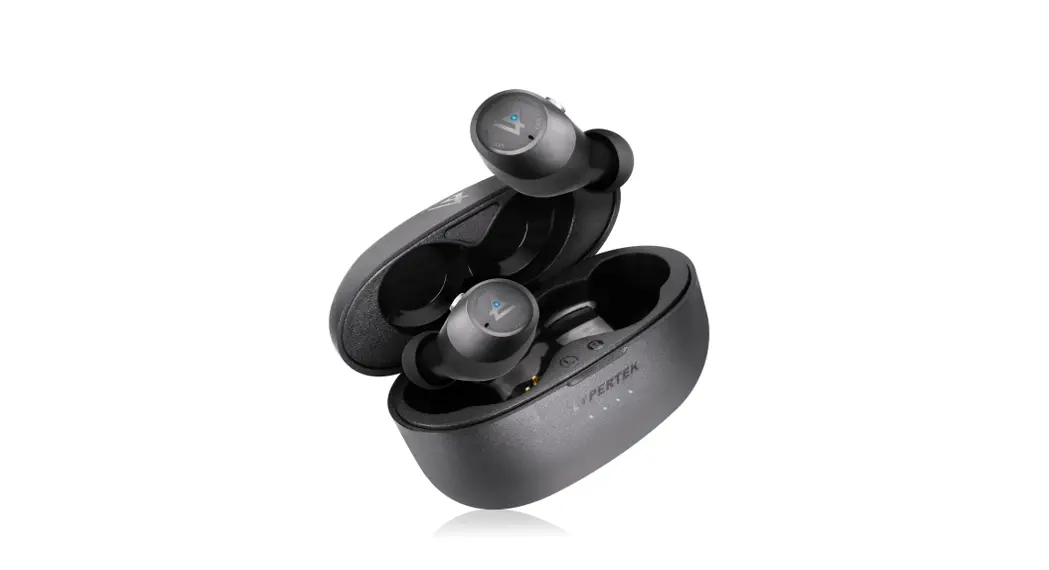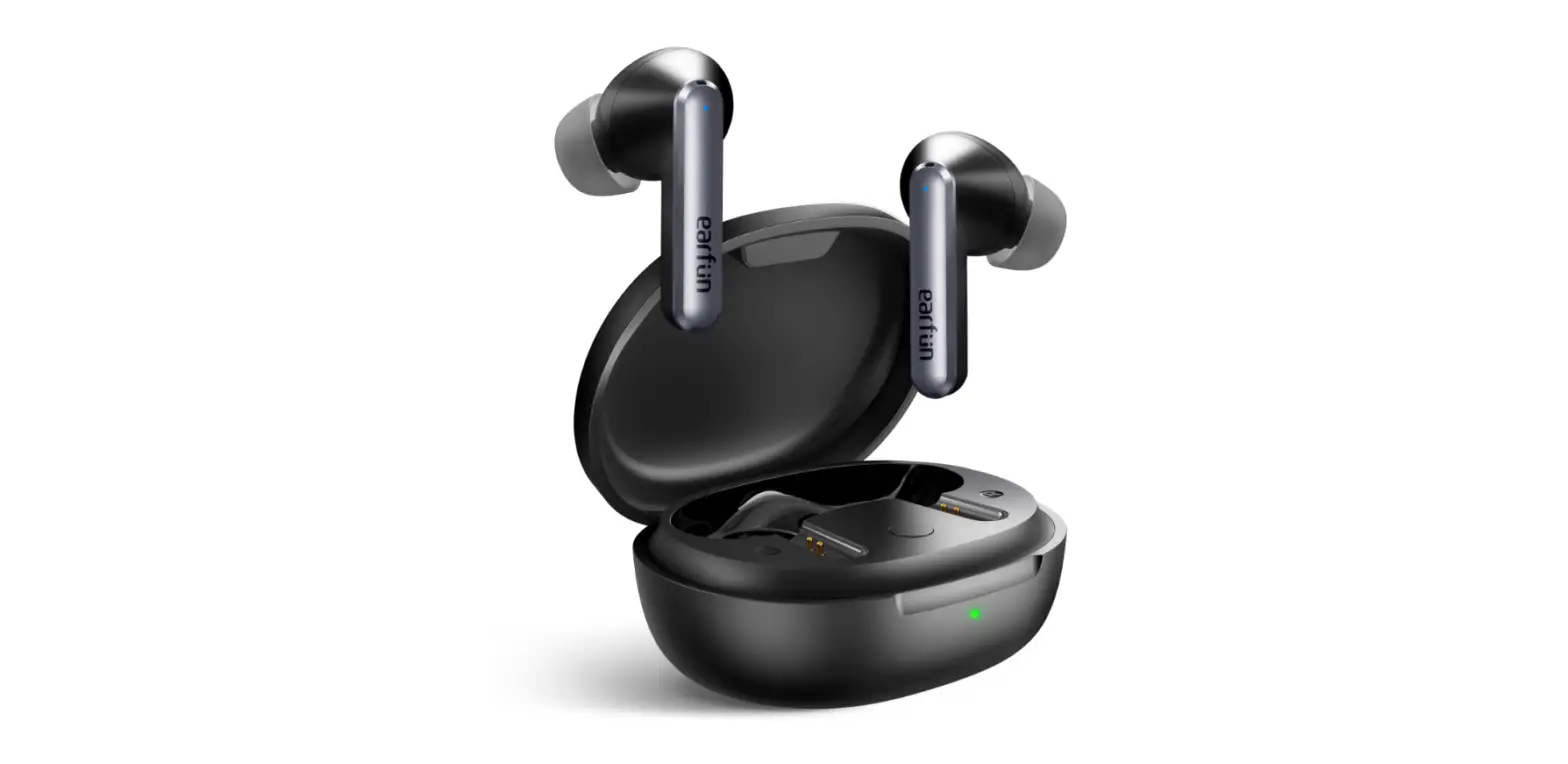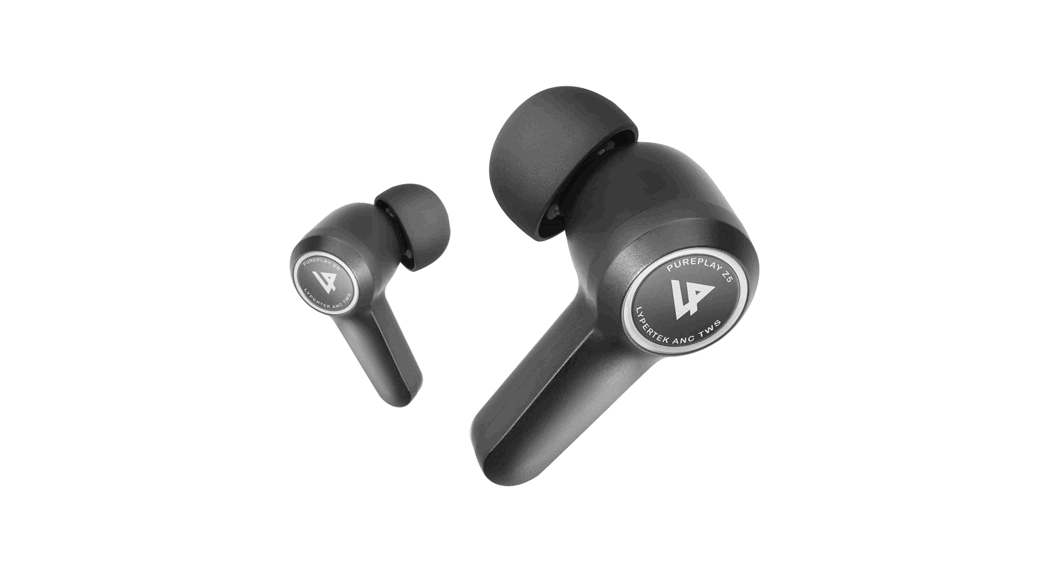

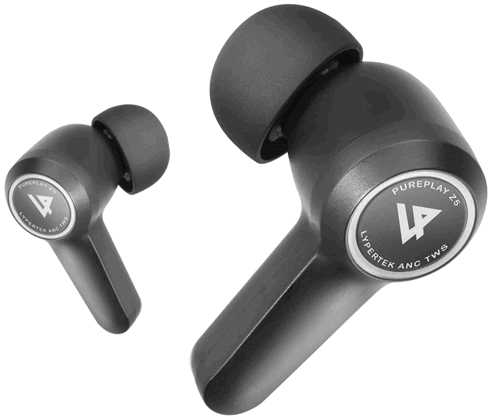
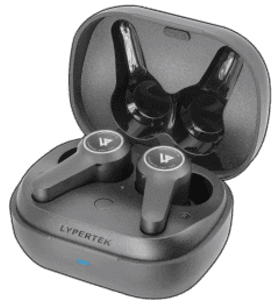
PUREPLAY Z5
ANC True Wireless Earbuds
QUICKSTART GUIDE
WHAT’S INSIDE?
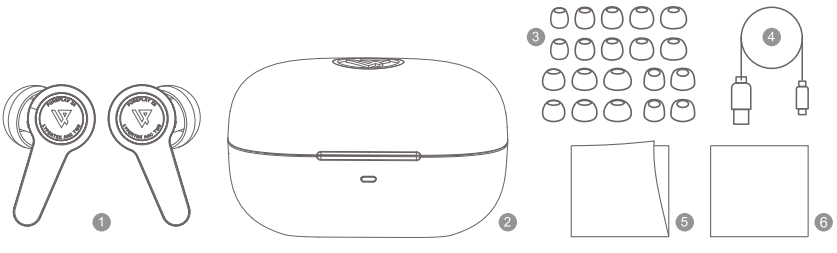
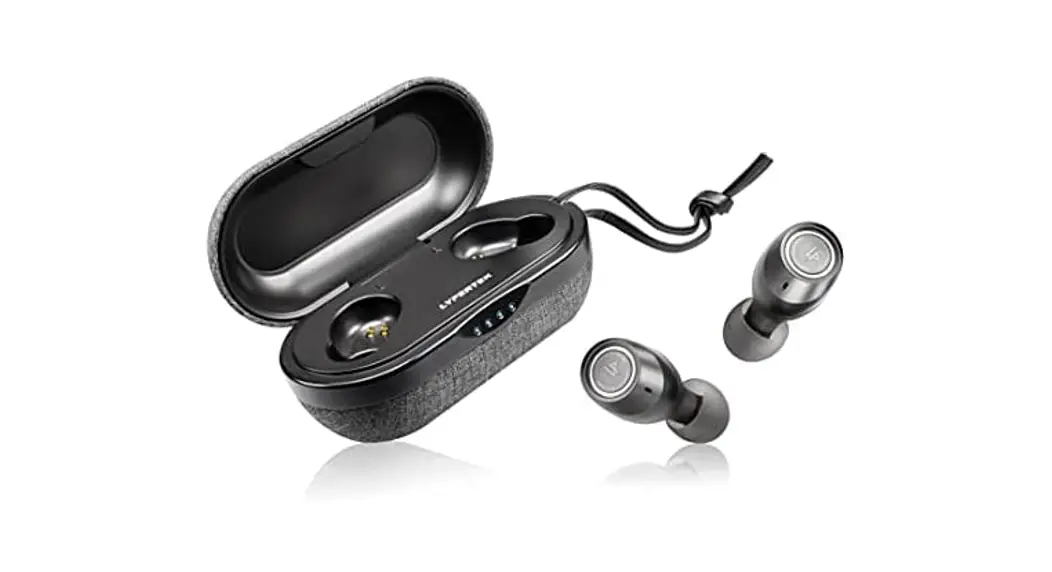
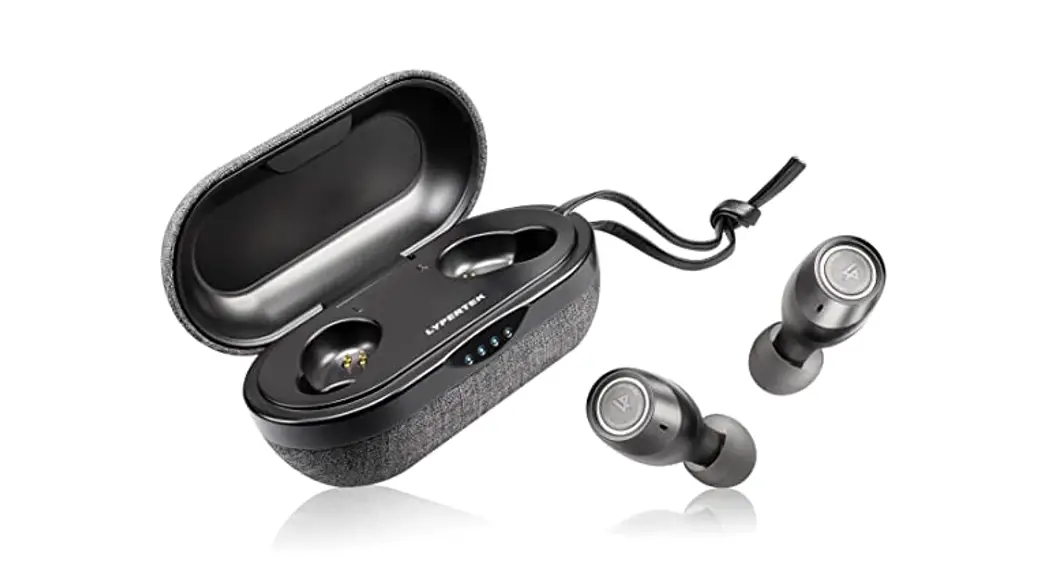
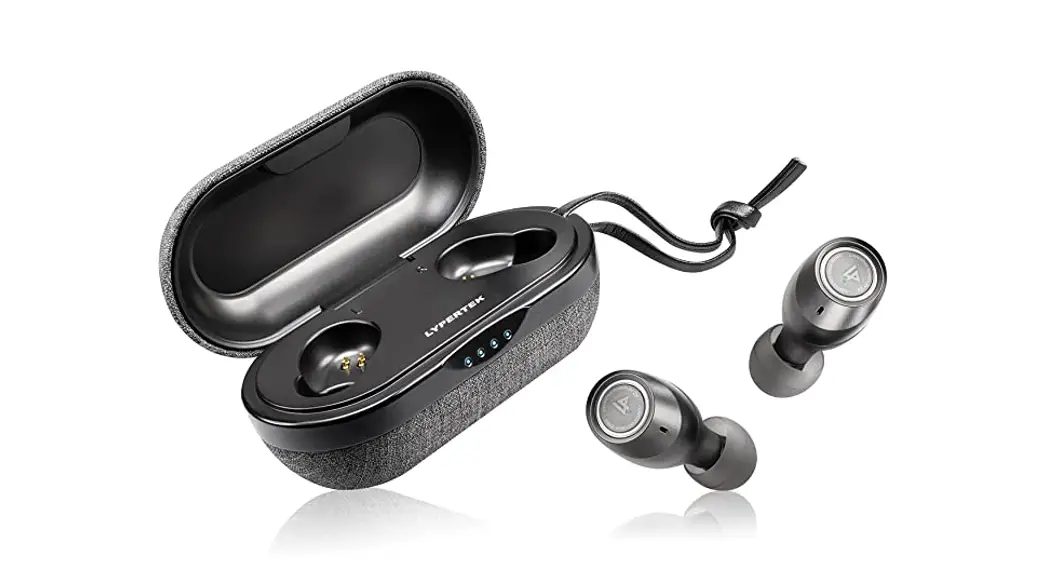
- PUREPLAY Z5
- Charging Case
- Silicone and Foam Tips
- USB-C Cable
- Quick Start Guide
- Thank You Card
DEVICE LAYOUT
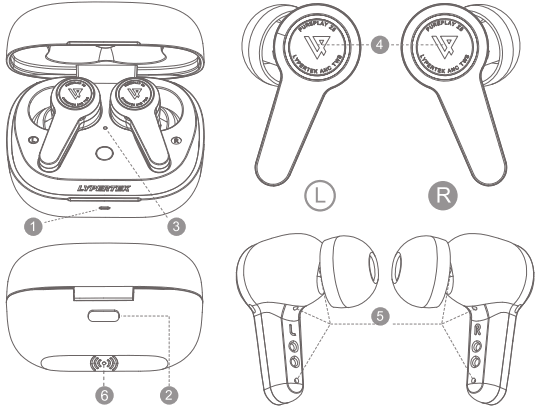
- Case LED Indicator
- Type-C Charging Port
- Earbuds Status LED Indicator
- Touch Control Area
- Microphones
- Wireless Charge Area
LED AND RESET
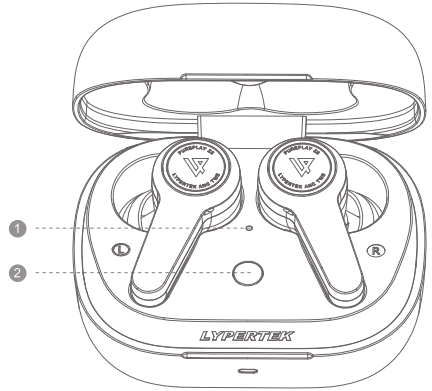
- Inside LED Indicator:
• Blue/Red flashing = Pairing
• Blue = Connected
• Red = Earbuds Charging - Reset Button:
• Press & hold for 2 — 7 sec. = Enter Pairing Mode
• Press & hold >8 sec. = Reset
CHARGING
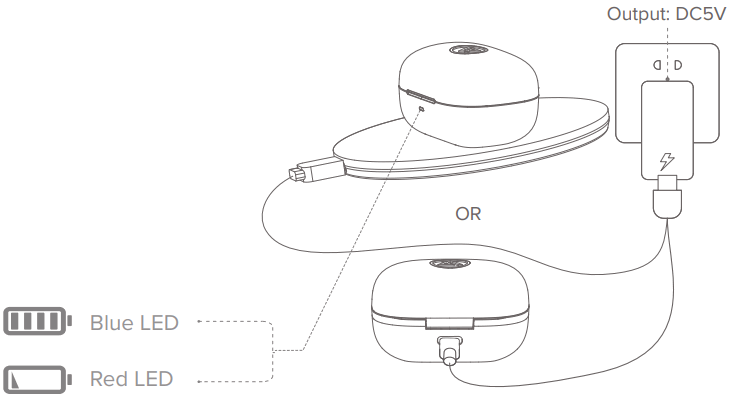
The PUREPLAY Z5 can be charged via USB-C or a wireless charging pad.
Charging Status:
- 10% — 100% charge: blue LED flashes 3 times within 1 second
- <10% charge: red LED flashes 3 times within 1 second
HOW TO PAIR
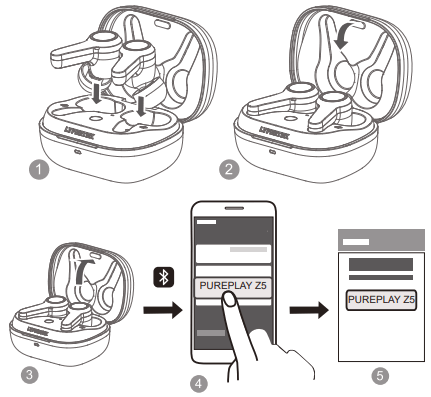
- Put the PUREPLAY Z5 into the charging case
- Close the charging case and wait for a few seconds
- Open the charging case – the PUREPLAY Z5 will enter Bluetooth pairing mode automatically
- Select LYPERTEK Z5 from the Bluetooth device list on your smartphone
- The PUREPLAY Z5 should now be successfully connected
HOW TO WEAR
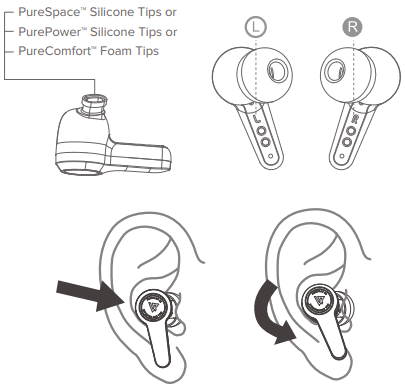
- Take your time to find the best fitting ear tips
- Insert the PUREPLAY Z5 earbuds into your ears
- Twist them carefully until they fit well
 Make sure to choose the right ear tip to achieve the best possible seal in order to have perfect sound.
Bad seal = bad sound.
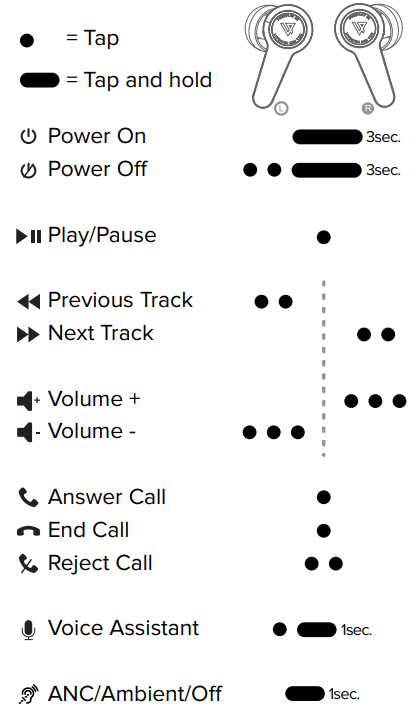
CONTROL COMMANDS
These are the default settings.
They can be customized with the PureControl ANC app.
TROUBLESHOOTING
Thin sound or low bass?
Make sure you’ve chosen the right ear tips. Bad seal = bad sound with low bass. Check the EQ in the Pure-Control app and make sure no dirt (earwax) is clogging the earbud.
Wind noise?
With ANC or Ambient Sound enabled noise is normal when strong winds are hitting the mics of the earbuds. Simply switch ANC and/or AS off.
Still outside sounds with ANC on?
ANC only reduces permanent low-frequency noise such as outside traffic or transportation noise (airplanes, trains).
To avoid malfunction or charging issues, please carefully clean the earbuds and the charging case on a regular basis.
CONTACT AND SUPPORT
For more questions and support please do not hesitate to contact us directly at [email protected] or visit our website www.lypertek.com.
FOLLOW US:  /lypertek
THANK YOU FOR CHOOSING LYPERTEK
www.lypertek.com/lypertek