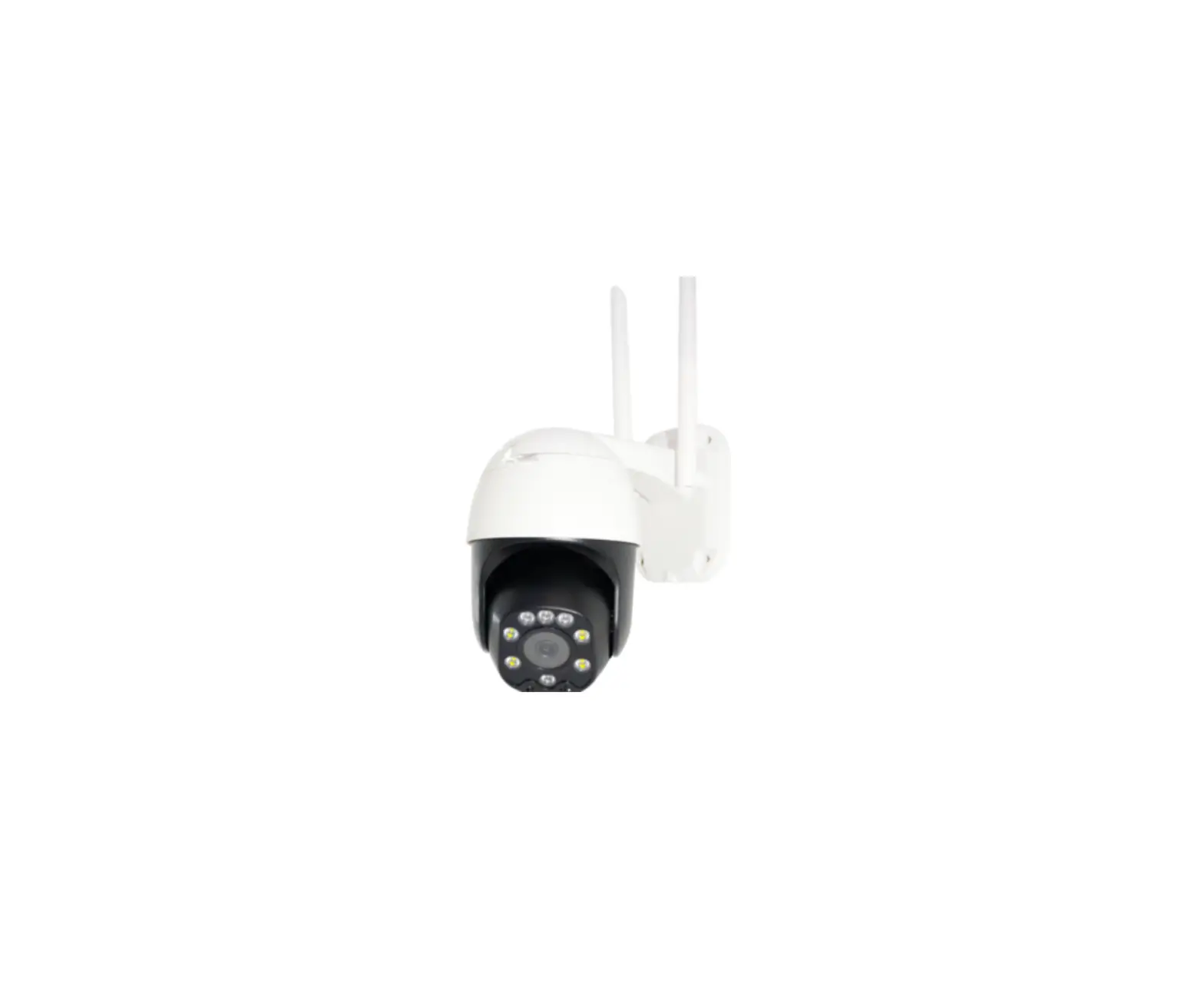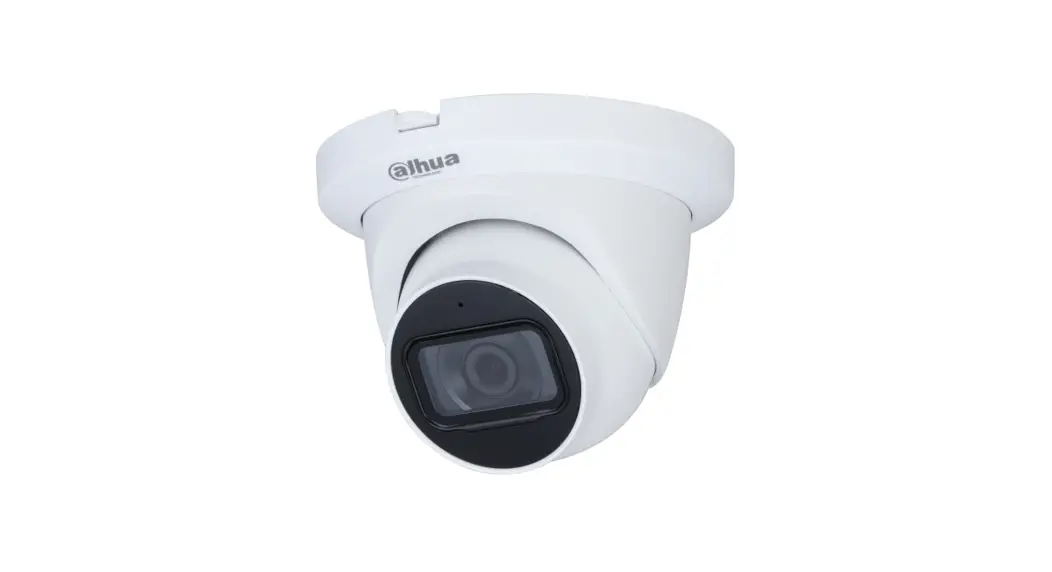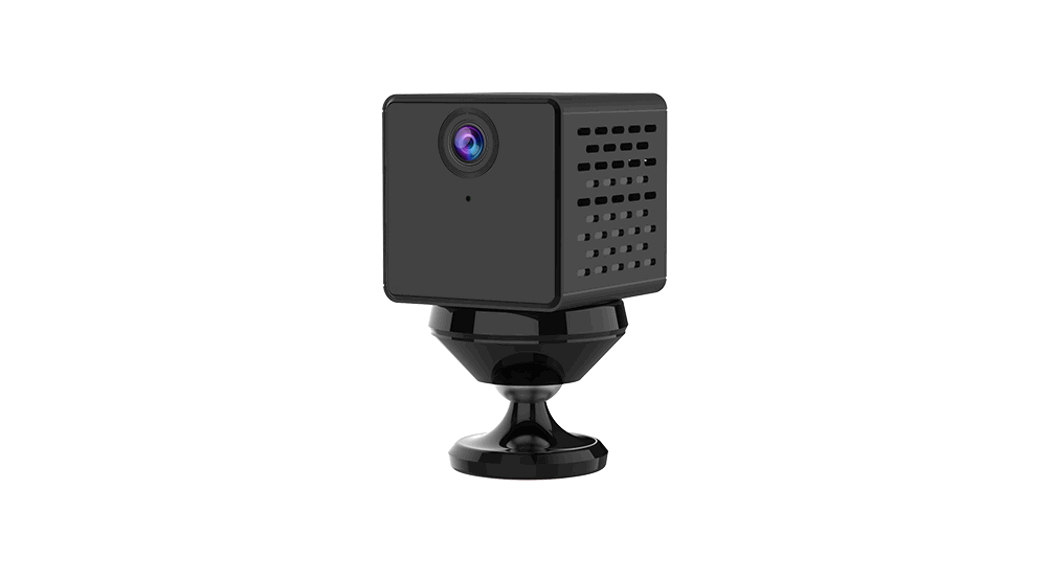
IP Camera Connection
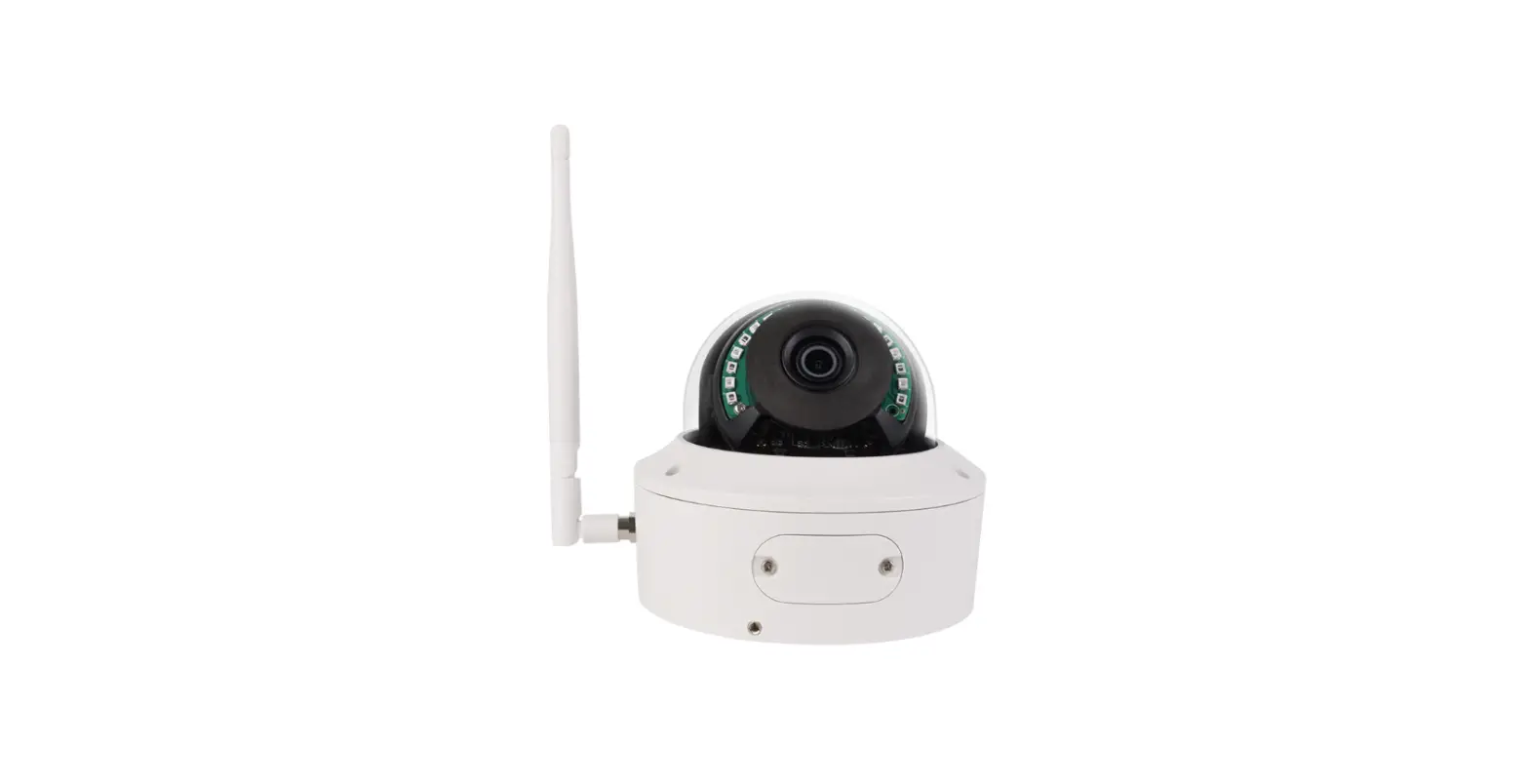
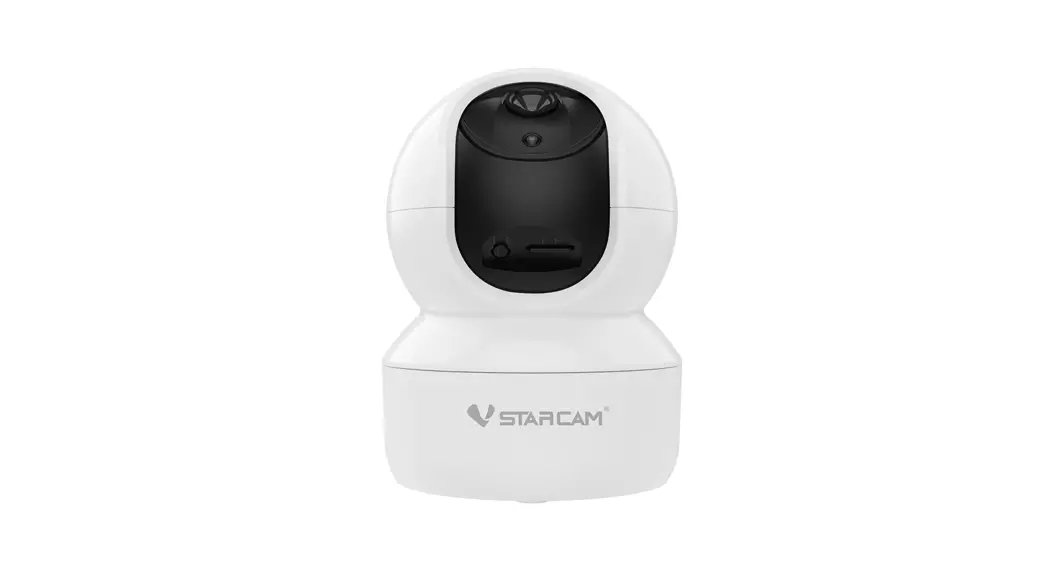
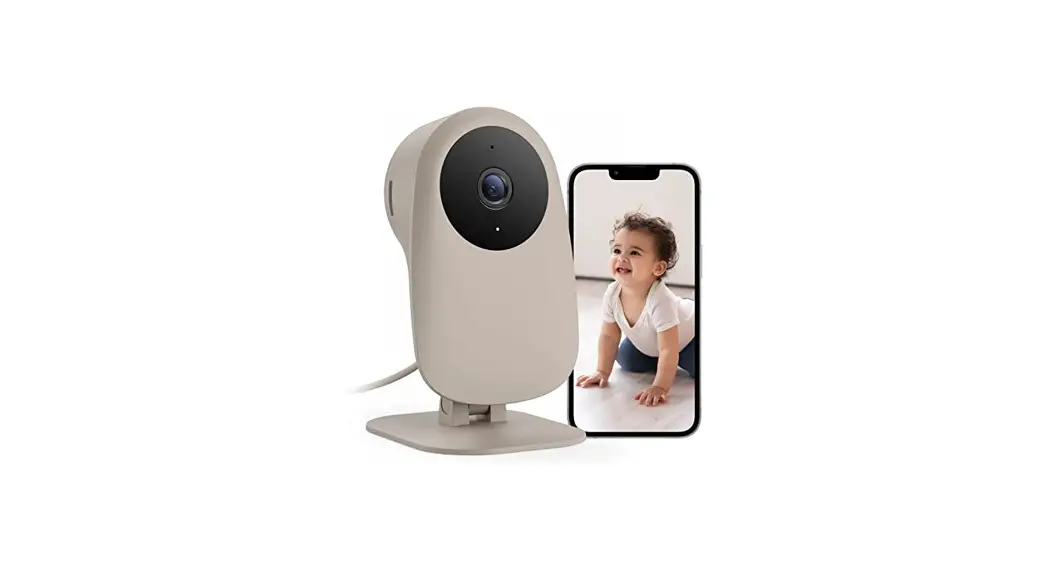
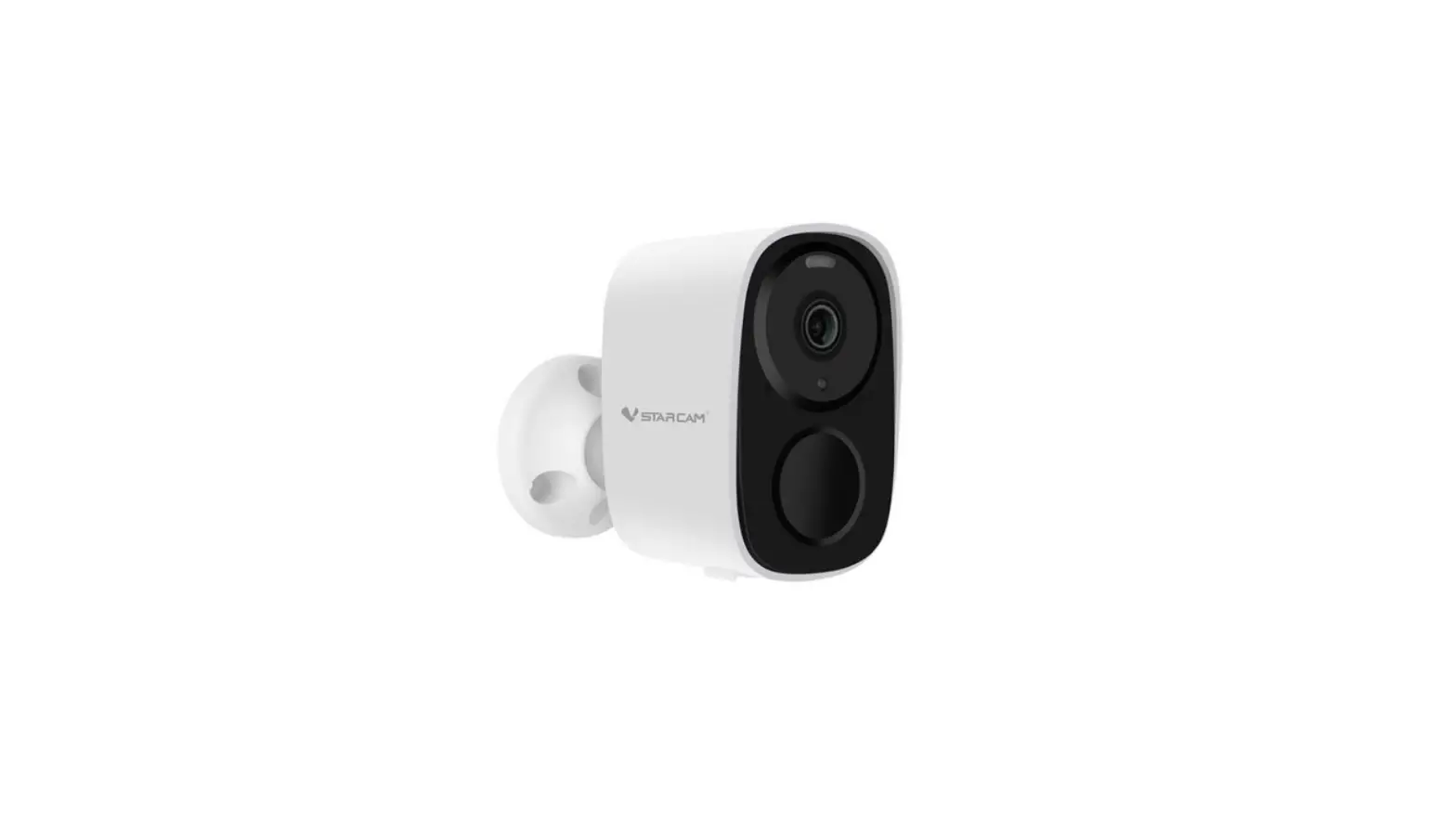
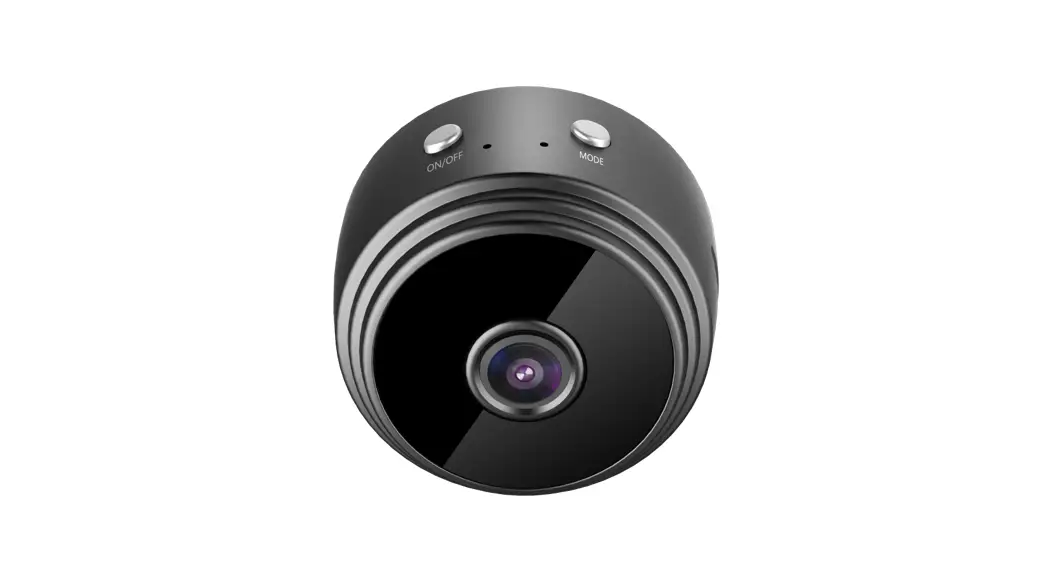
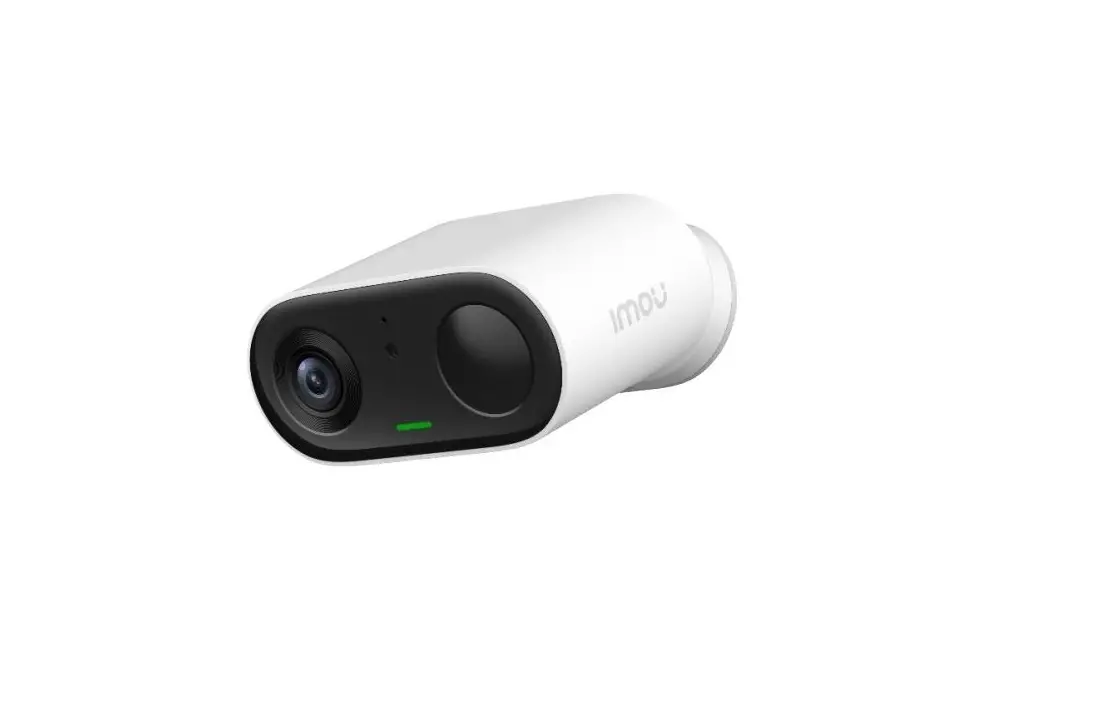
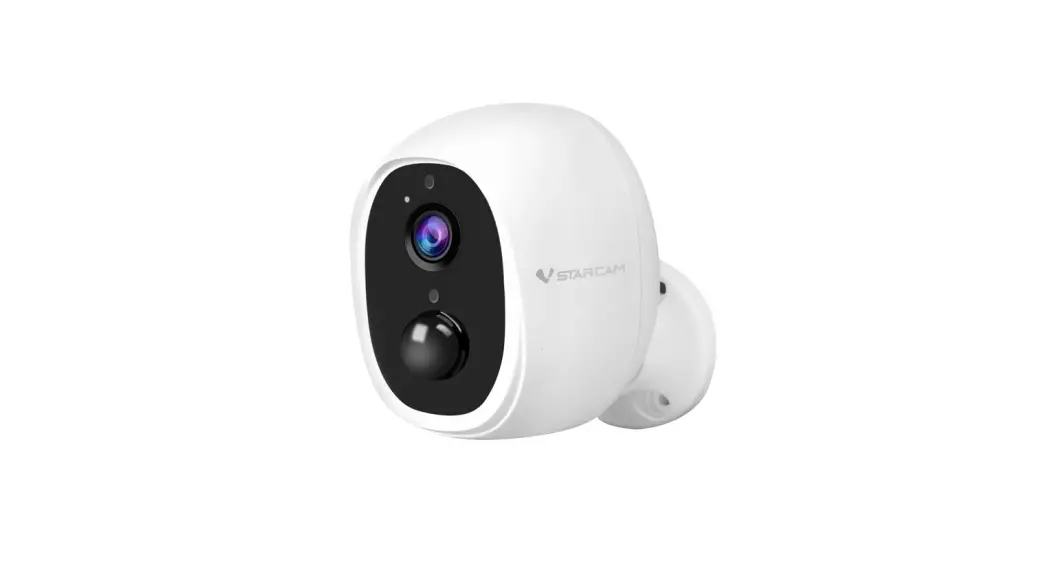
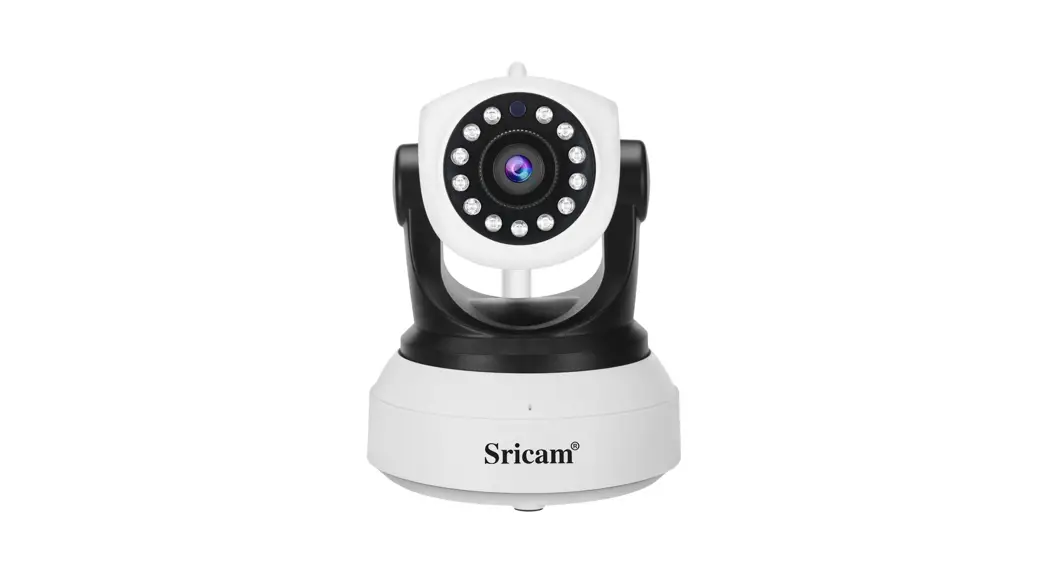
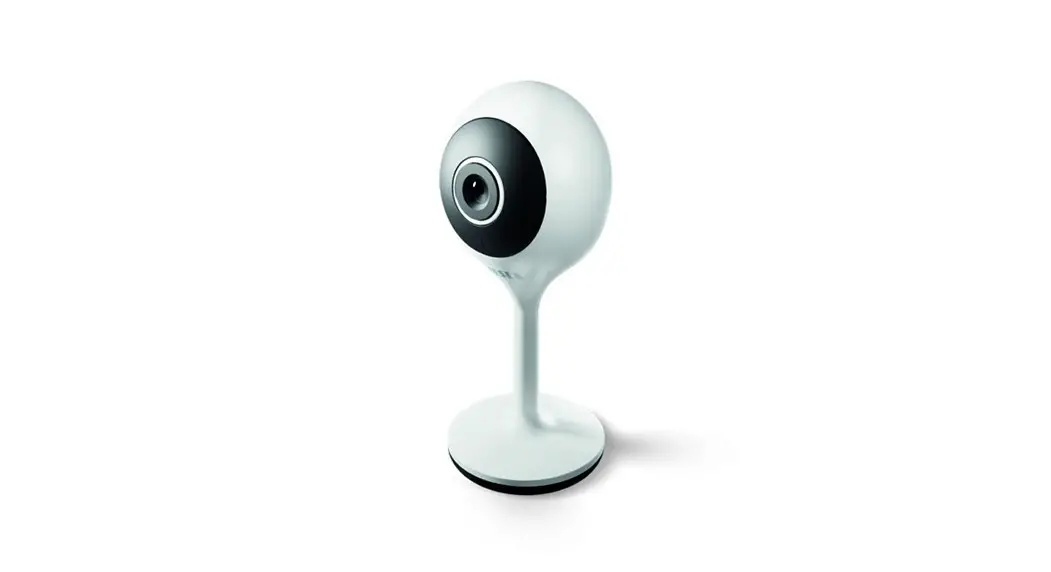
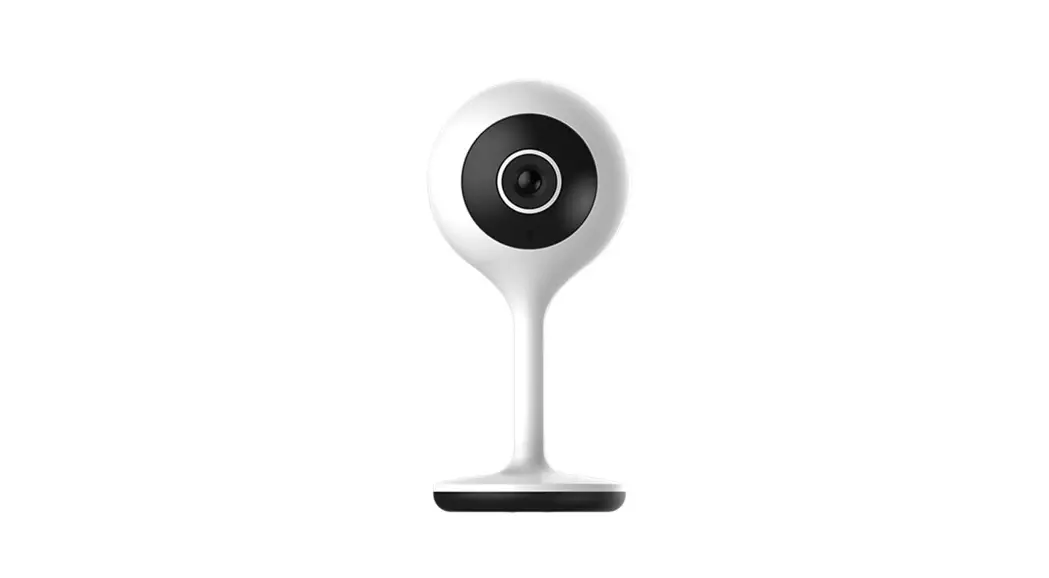
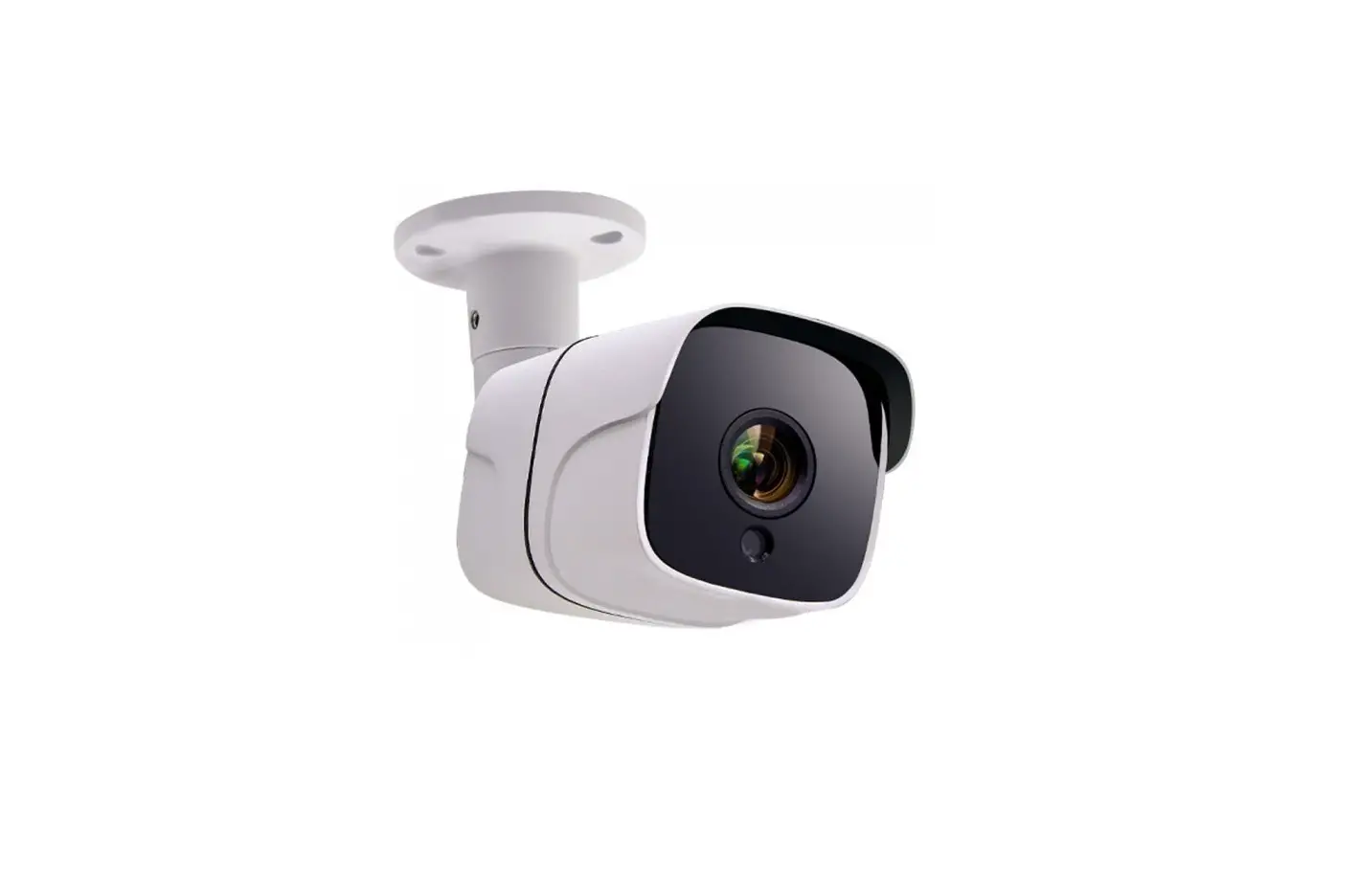
Please connect the IP camera with a power adapter, refer to the picture below. The start-up time is about 1 minute.
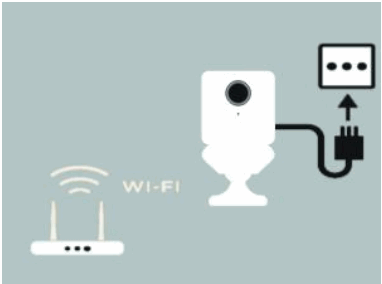
Notes: IP/Network 2.4GHz Wi-Fi (Incompatible with 5GHz). If the router supports both bands, please switch off the 5GHz band. Set WPA2-PSK(AES)/ WPA-PSK(AES) as encryption.
App download & Account register
Download app
Scan below QR code to download the app.
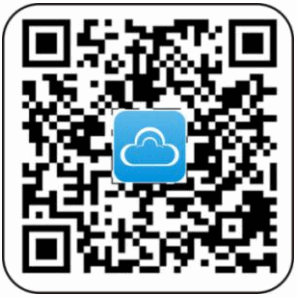 http://www.eyecloud.so/web/AppEyeCloud.html
Sign up/login Eyecloud account
Launch the APP, click the register, fill in the user name and password, then click submit.
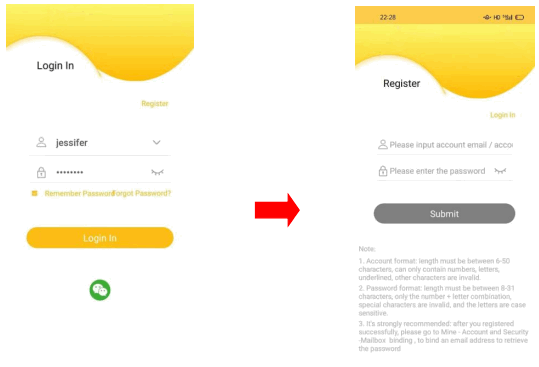
Note: After you log in, please go to “Me-Account & security-Bind Email” to bind your account with your email address, for retrieving your forgotten password.
Add the camera to the APP
3.1 After logging in to the APP, click “Add Device” on the homepage or “+” in the upper right corner, follow the APP instructions to complete the configuration and addition of the camera.
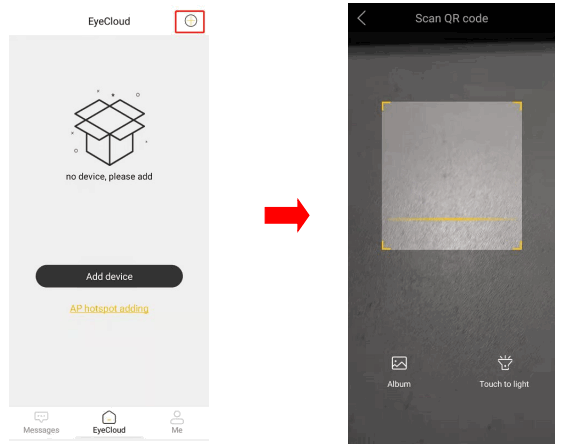
3.2 Make sure the device has been reset by hearing the warning tone or indicator light blue light flashing, then “tick” the tip after scanning the QR code and clicking “Next”.
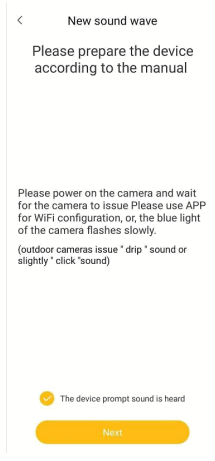
3.3 Turn up the mobile phone volume and get close to the device, then confirm your WiFi account and password to start the configuration.
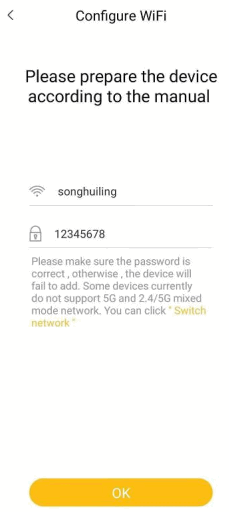
3.4 The device UID, name, and password will be shown when the configuration is finished, click the “add it” button to complete the configuration. Click the “play” icon on the video, then you can view the real-time video.
Device sharing
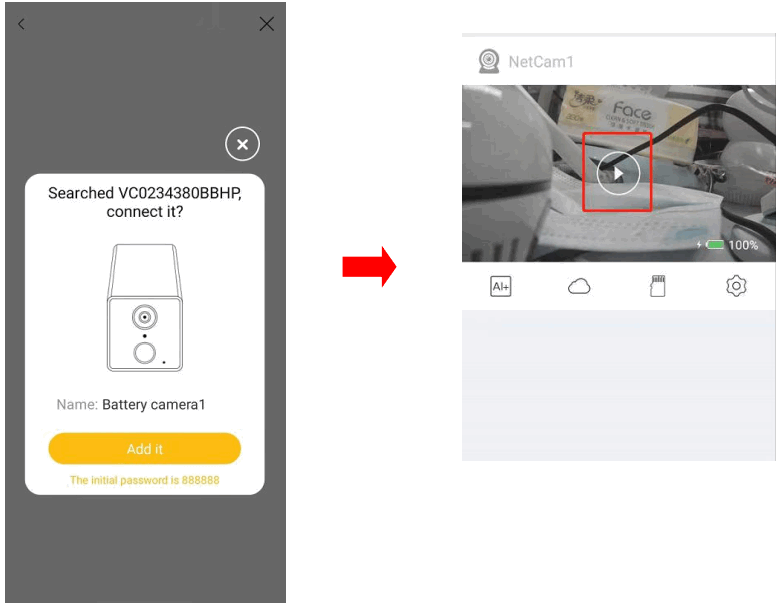
If other users want to add this camera, they can access the camera via the function of“device sharing”.
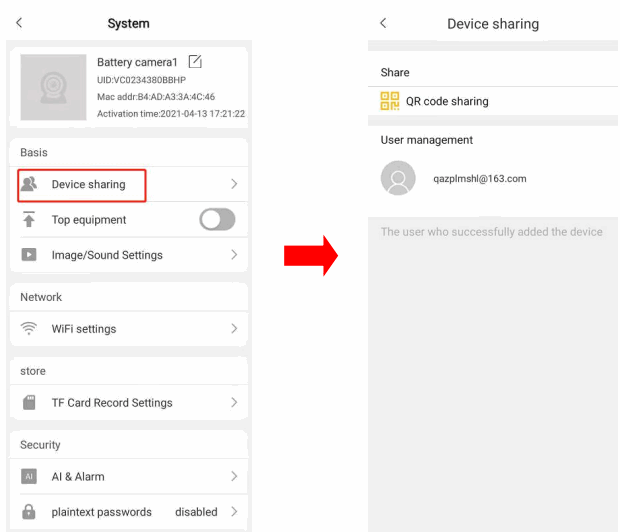
Click on“device sharing” and enter the page of the “QR code sharing”.Other users can open the downloaded Eye4 APP to scan the QR code and watch the live video.
Through the option of “user management”, all the user names added to the camera can be seen, you can delete the shared users here.
Image/Sound settings
Change camera name
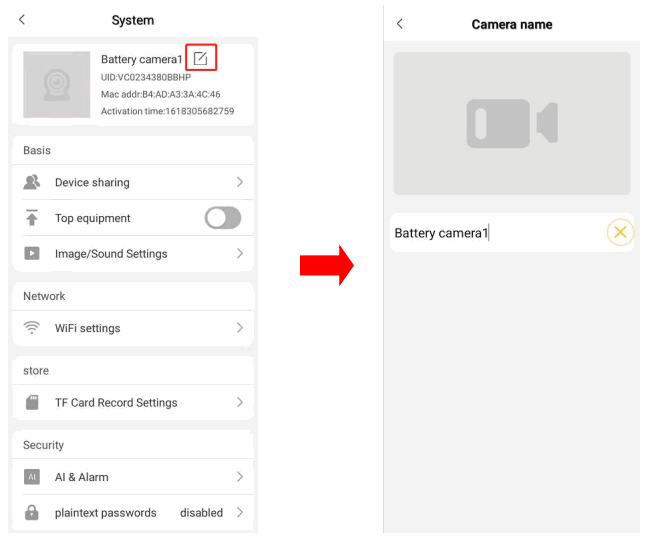
Click the “Settings” icon to the camera settings interface, tap the icon beside the camera’s name, as shown below, then you can modify the name directly.
Night vision model
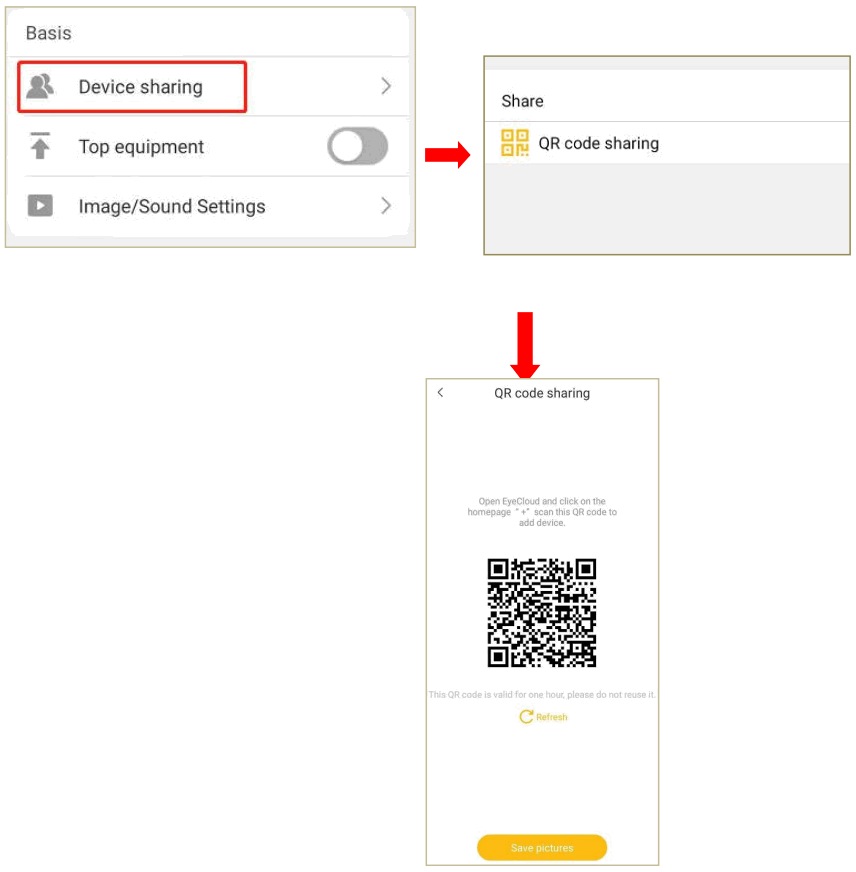
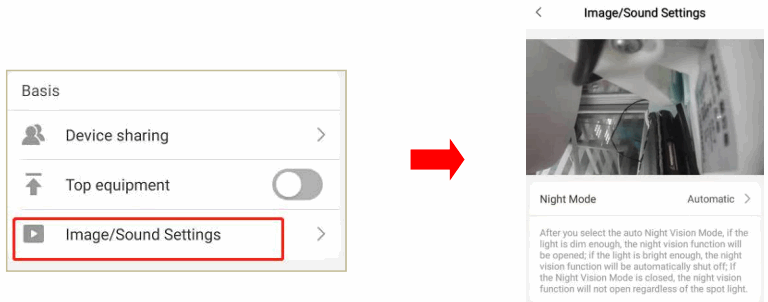
Click “image/sound settings” to enter the setting page. there are two-night models “automatic night vision” and ” close” to choose from.
Automatic night vision: the camera automatically turns on/off the night vision mode according to the light brightness level.
Off: Night Vision mode is not on.
Display time on the video
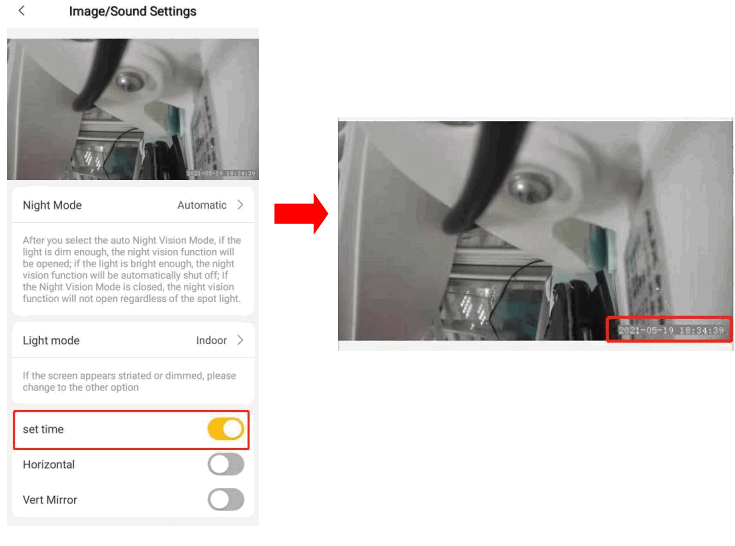
Click the “setting” icon, and go to “Image/Sound Settings” to find the “set time” option and turn it on.
Brightness & contrast adjustment
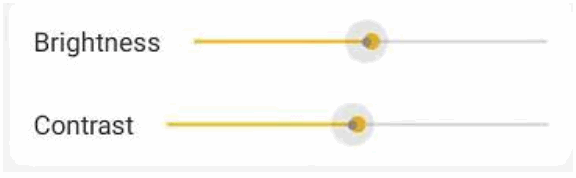
Login to the APP, click on the “SETTINGS” icon, find the “image/sound settings” option. To adjust the brightness/contrast parameters, drag the dot on the brightness/contrast slider.
Camera volume adjustment
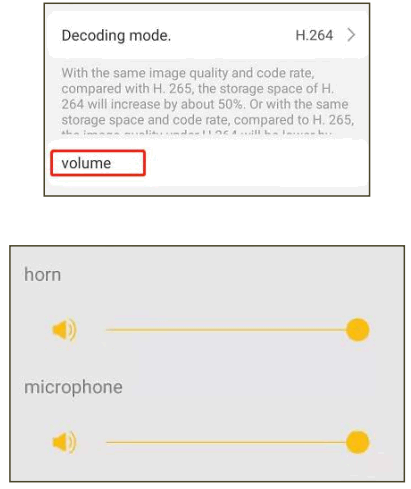
The camera’s microphone and speaker volume can be adjusted here. Tap this option to bring up the microphone and loudspeaker volume slider, slide the dot to adjust it.
TF Card Recording Settings
6.1 If you need to use TF card recording, please insert the TF card into the TF card slot of the camera, click “Settings” of the camera → find the ‘TF card record setting’ option, and you can see the status of the TF card.
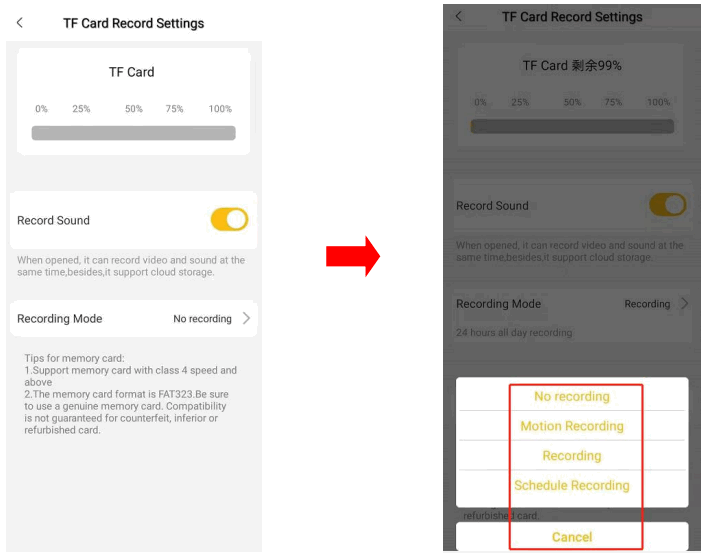
TF card recording mode can also be set here. There are modes of No recording, 24h recording, Schedule recording, and Motion recording.
If you need to record with sound, you can turn on the “Record Sound” option (Note: this function is only supported for cameras with microphones).
Format: Click “Format” to format the TF card. After formatting, all files in the TF card will be removed.
Schedule Recording
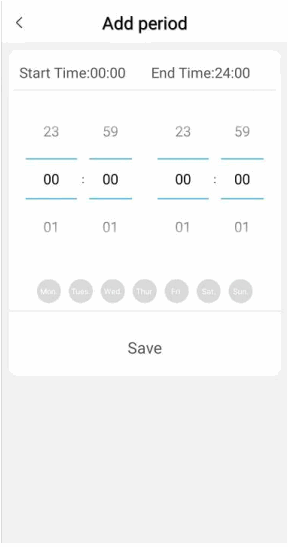
Choose “schedule recording”, set the time period you want to record in “add period”, and click “save” to keep the settings.
How to playback TF card video
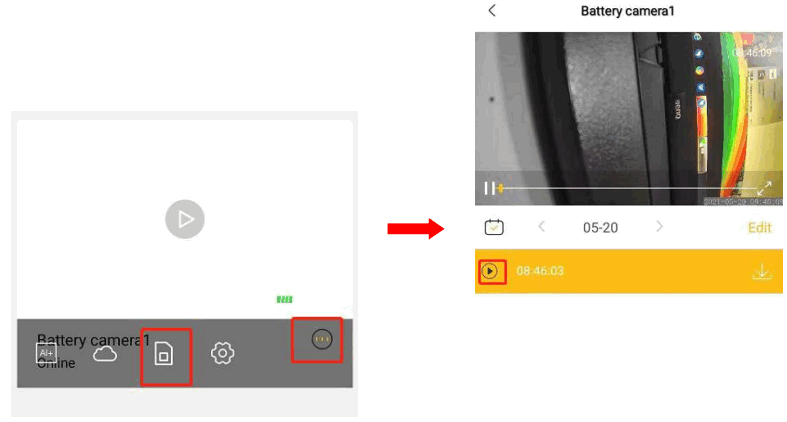
To playback the TF card video, tap the TF card icon on the camera home page, select the date and time period and click the video file to watch.
Download/deletion of TF card video files
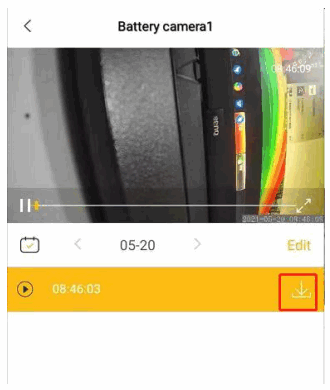
TF card video download: click the video file to start watching, tap the download arrow on the right of the video to download, the downloaded video file will be automatically saved to the phone album.
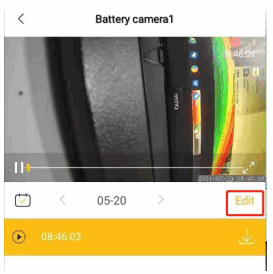
TF card video deletion: Click “Edit” at the bottom right of the video playback, select the video files and delete them.
AI & Alarm
When an AI-enabled camera is added to the APP, there will be AI options. Click “AI+” in the lower-left corner of the camera image on the home page to enter the AI function page.
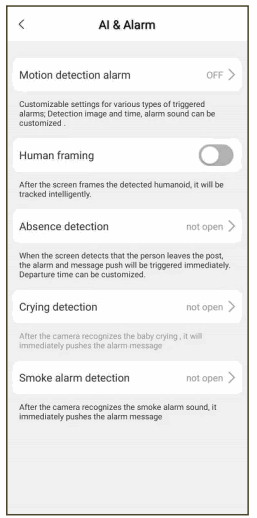
Motion detection alarm
This option includes motion detection and human detection. Click to turn on the alarm function and enter the setting page of the alarm function.
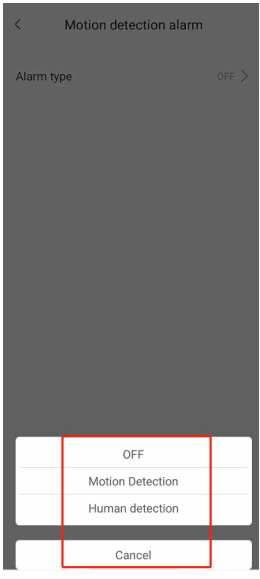
 Motion detection
Click to turn on the motion detection alarm, and the camera will trigger the alarm when it detects movement.
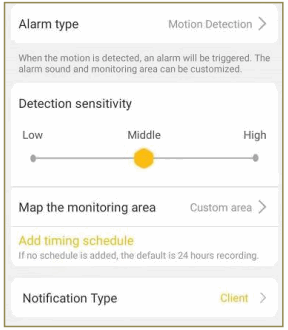
Detection sensitivity: Three levels of sensitivity are available. The higher the sensitivity, the more sensitive the camera is to detect the movement.
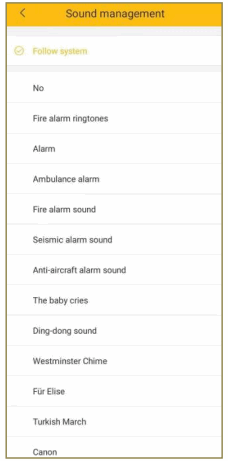
Sound management: The alarm sound from the camera. Go to notification type to set “push sound customization”, click it and choose the song you like.
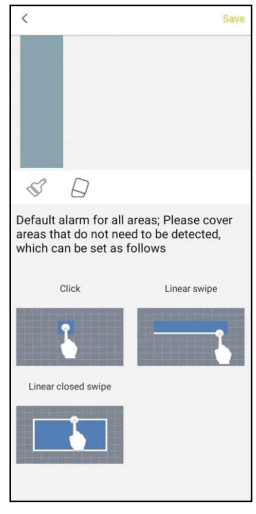
Detection area: Areas that do not need monitoring can be covered. Click “Detection Area”, and then cover the area that does not need monitoring and click “Save”. The area covered will not be alarmed.
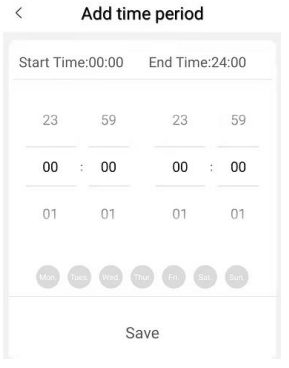
Add schedule: Can set the alarm detection period. Set the time and click “Save” to save the setting.
Notification type: Support client(mobile APP) notifications, push sound customization, and mail notifications.
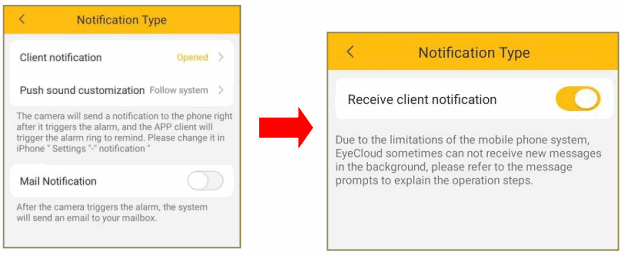
- Client notification After the client notification is enabled, when the alarm is triggered, the camera will push the alarm message to the mobile APP.
- Push sound customization It’s the sound that will be emitted on the phone when the alarm is triggered. You can choose the ‘Follow system (the alarm sound is the notification sound in the “Settings” of the phone).
- Mail notification After the alarm mailbox is set and activated, an alarm email will be sent to the mailbox after the camera triggers the alarm
Human Detection
Turn on the human detection alarm, the camera will trigger the alarm when it detects a person.
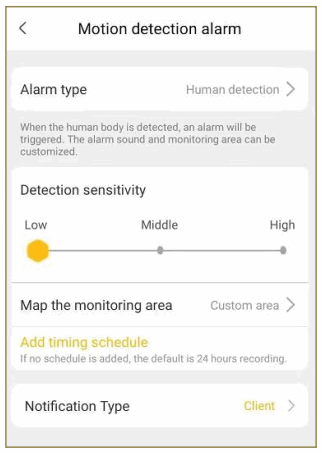
The settings details of the human detection alarm are the same as those of the motion detection.
Check the camera firmware version
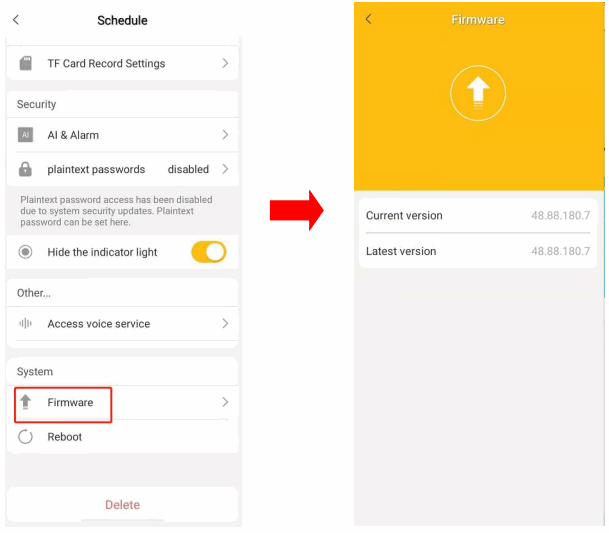
Click “firmware” in the setting interface, so that the current firmware version can be seen, the latest version also.
Four screens viewing at the same time
- Login to the APP→Clicks the four-screen button at the top left corner to enter the four-screen model(when there are extra cameras, you can slide left and right on the screen to view them).

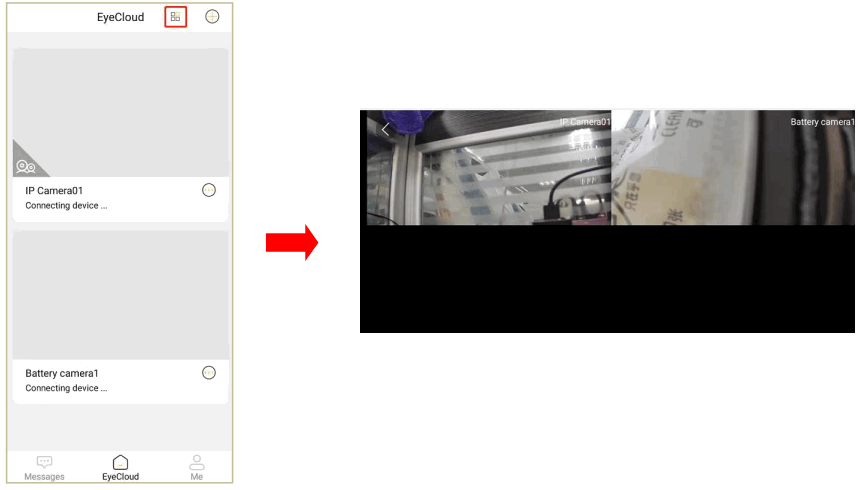
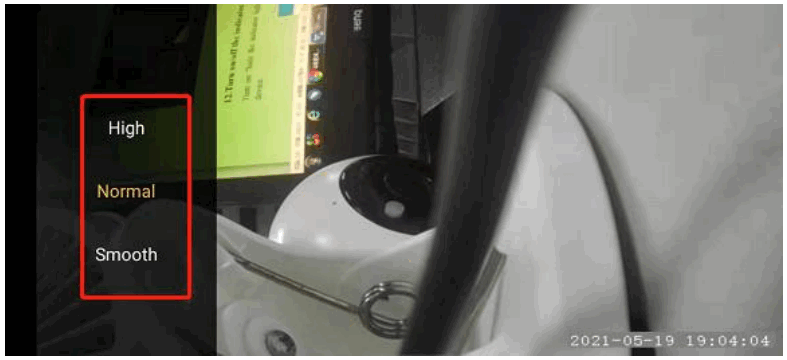
Image quality adjustment
- Login to the APP→click to watch the camera→click the button at the lower right corner in the live video to switch to the full-screen mode→tap the screen →in the meantime, the picture quality adjustment button will appear in the lower-left corner of the screen.
- There are Smooth, Normal, High, Super HD from low to high to choose from. the higher the picture quality, the more the network bandwidth it takes.

Turn on/off the indicator light
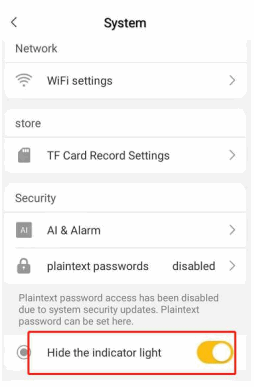
Turn on the “hide the indicator light” button to close the blue light behind the camera device.
Alarm message
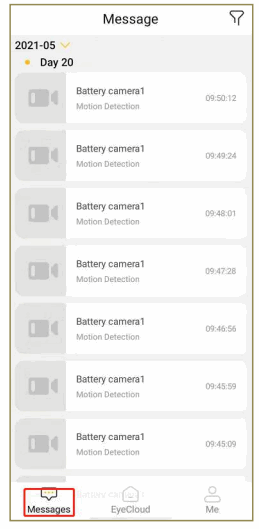
To check the alarm message of the mobile APP, open the APP and click “Message” in the lower-left corner of the home page to view.
12.1 How do I filter alarm message records
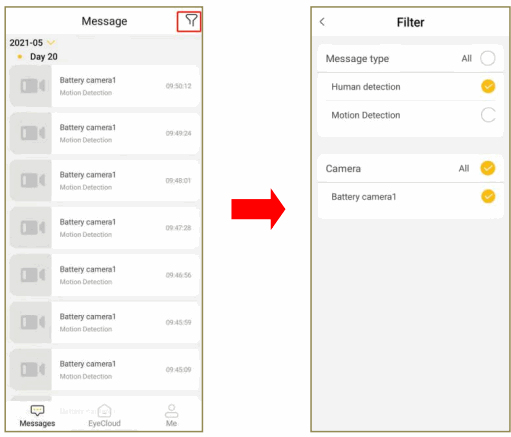
To filter the alarm message, please click the funnel icon in the upper right corner of the message center to enter the filter page, check the corresponding message type and camera, and screen the alarm message type of the camera you want to see.
12.2 How do I delete a message record(Only cameras that support dual authentication and some special models support this feature)
For iPhone, swipe the message left to delete it. For Android phones, click on the corresponding alarm message and select the delete icon in the upper right corner of the message to delete the alarm message.
12.3 Mobile phone storage location of local recording
The local recording will be stored in the file SD card /DCIM/Eye4, you can find and open the video recording in this content.
12.4 Mobile phone storage location of the local picture
Click the “snapshot” button to take photos, and the local snapshot will be stored in the file SD card/DCIM/Camera, you can find the snapshot there.
Change the APP language
You can change the APP language in your phone system’s language.
Check the camera, current users.
Click “device sharing” and the user name using the shared camera will be shown under the user management. At most 4 users can use the same camera at the same time.
About
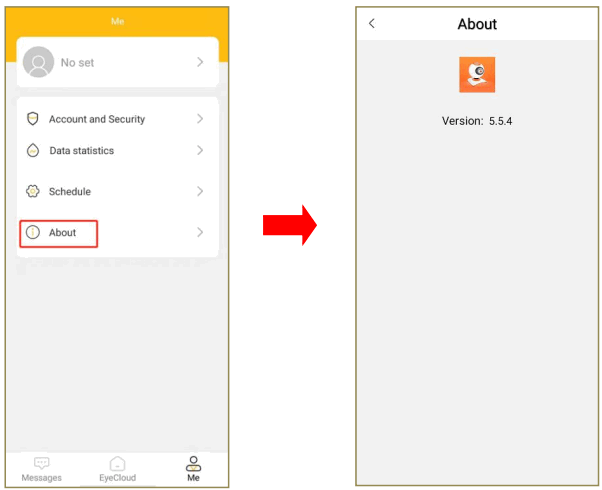
Log in to the APP→ click “Me” → click “About” to view the current APP version and update the APP.