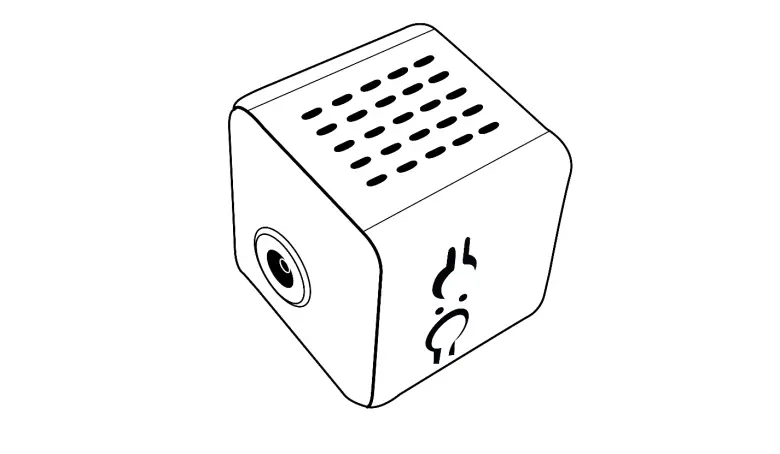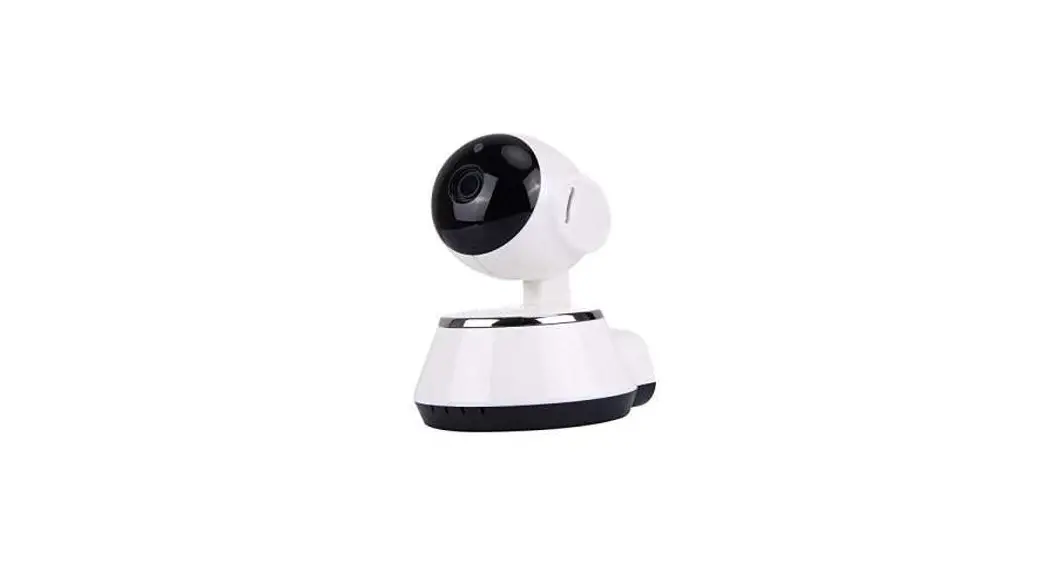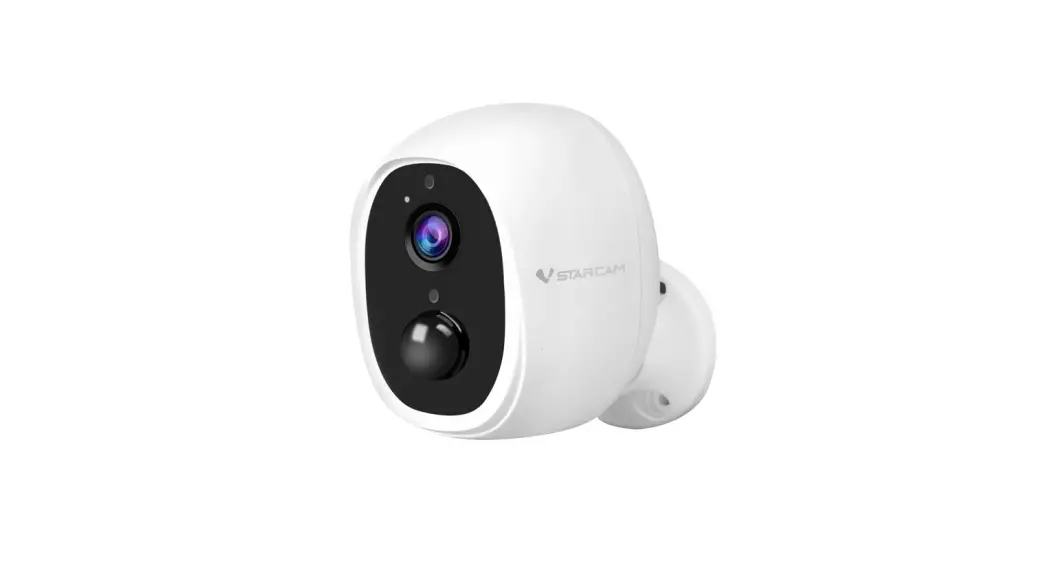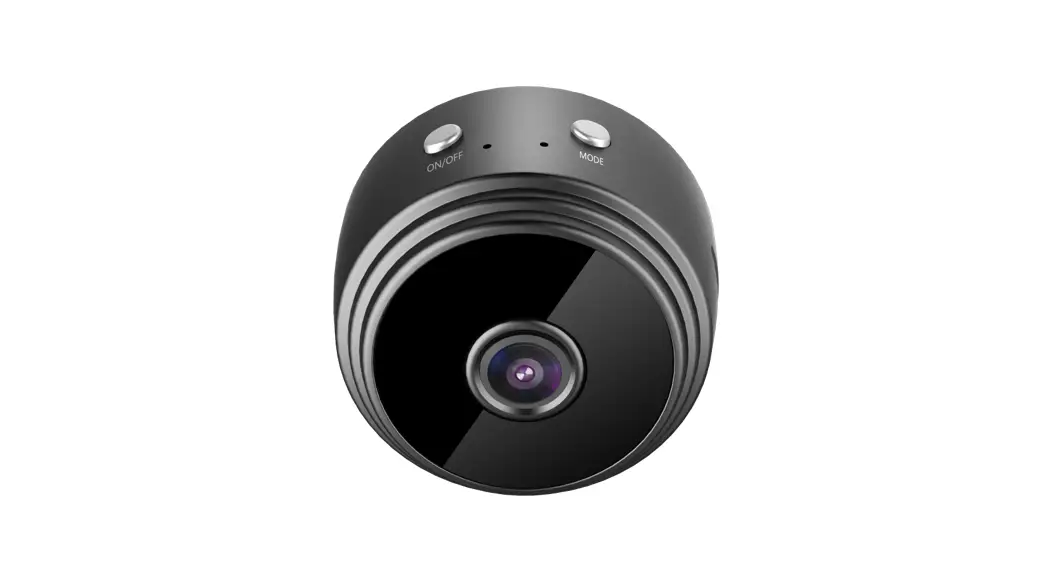
 HD Mini Camera User Manual
Download and install APP
Way 1:
- IOS Device supports searching ” Hope Way ” in App Store to download and install ” Hope Way “;
Way 2:
- Android /IOS Device scan the QR code to download ” Hope Way “.
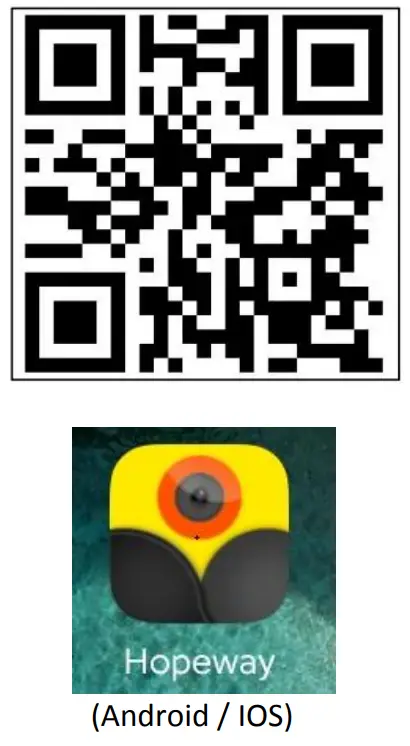
http://houwei-tech.com/web/appex
Login:
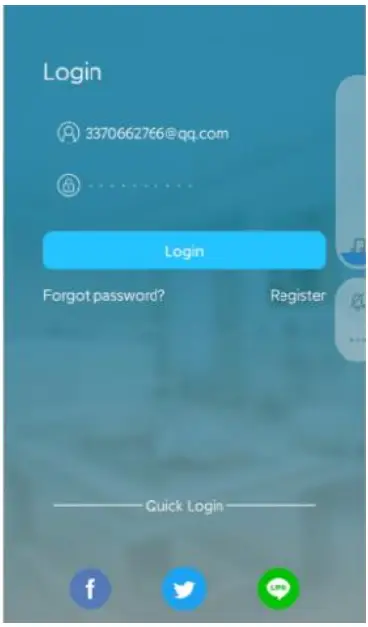
- Register by email
- Quick login by Facebook / Twitter / Line account.
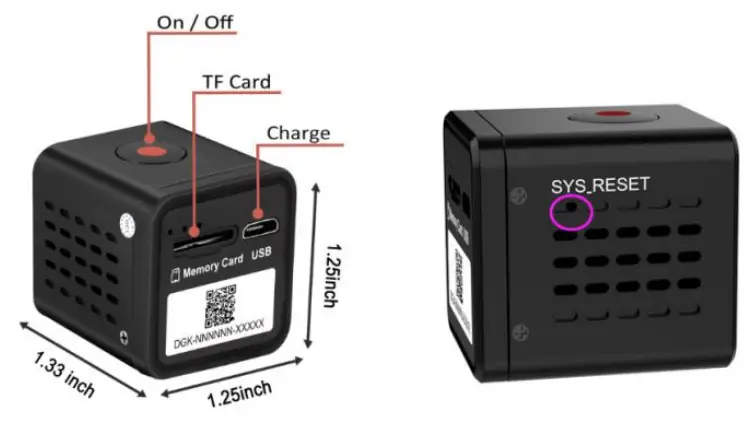
Introduction of LED indicator :
- Charging: When charging, the red light is on; When fully charged, the red light is off. (The camera turns on automatically when charging)
- Hot spot mode: Turning on the camera, blue & green lights are on, after 10 secs the green light is off, wait for 10 secs, the green light is flashing, now you may start to connect the camera hot spot mode on mobile phone WLAN.
- WIFI mode: The blue light is on, the green light is flashing, after 10 secs the green light is off, wait for 20 secs, the blue & green light are constant on, now the camera is under WIFI mode.
- Reset: Press & Hold the reset hole till the blue and green lights are off, release and then the blue light is on, wait a few secs the green light is flashing, now you may start with the hot spot mode connection.
- Reset: If you met any connecting or password problems, please restart the camera.
- Restart: If the camera dies and all buttons do not function, please reset the camera.
Four Working Mode :
- No WIFI No TF Card : (Hot spot mode)
- No WIFI with TF Card : (App connection not required)
- With WIFI No TF Card : (WIFI mode)
- With WIFI with TF Card: (WIFI mode)
Hot spot mode connection:
- Turn on camera: Press “ON/OFF” to turn on the camera, the blue & green lights are on, after 10 secs the green light is off, wait for 10 secs, and the blue light is on, the green light flashes slowly.
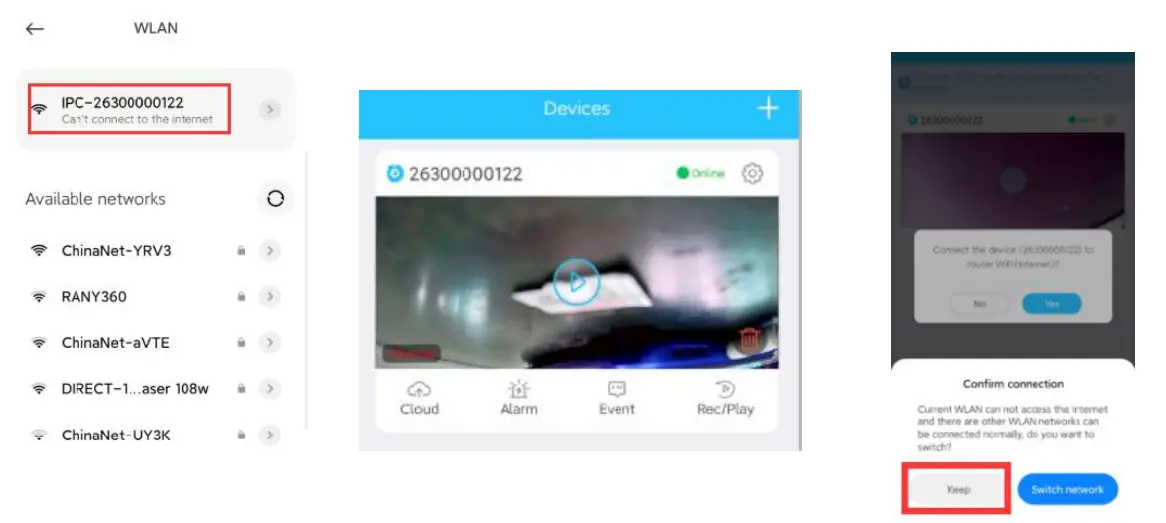
- Go to the mobile phone WLAN setting, search and connect the Wi-Fi which is named“ IP-NNNNNNNNNNN”.
- Open “Hope Way “, pull down to refresh, the camera is online.
WIFI mode connection (Remote live video watching )
Way1:
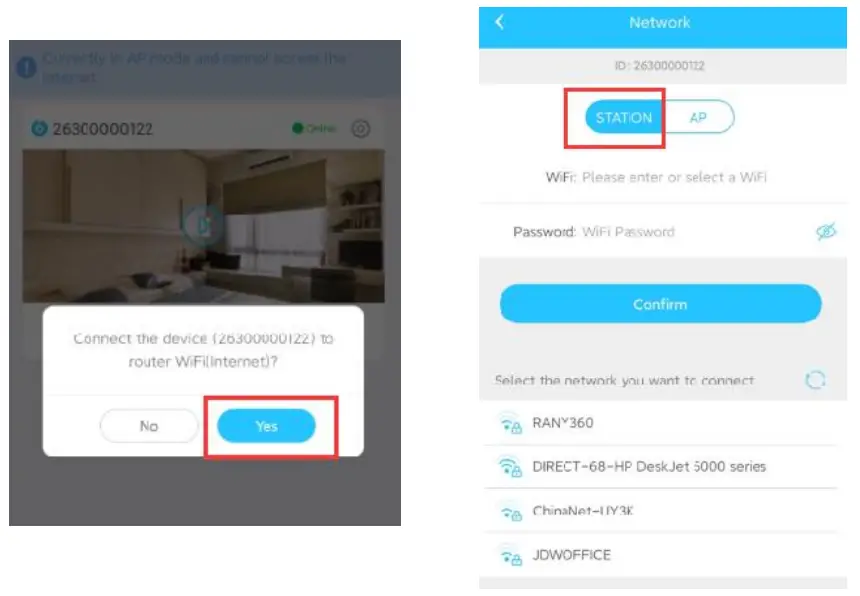
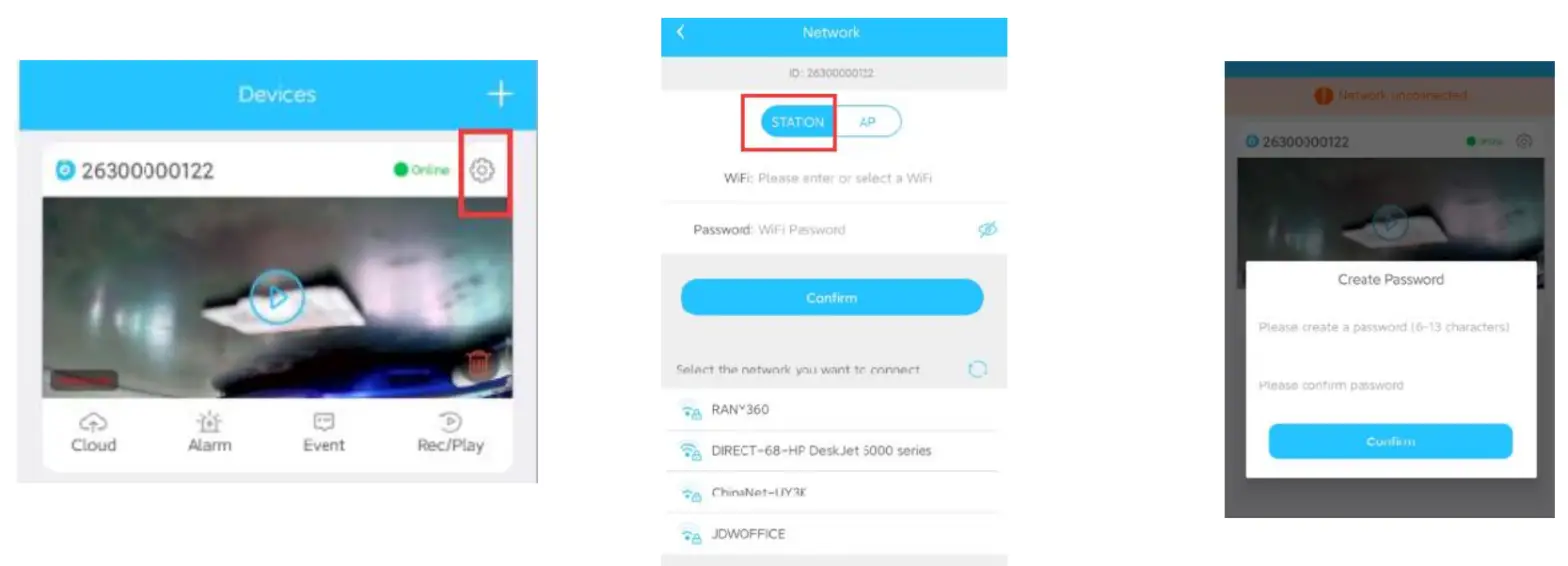
- After connecting the hot spot mode, it will ask you whether to connect
WIFI? Click “ yes ” and connect the WIFI.
Way2:
- When the camera is online under hot spot mode, click [ Set ] — Create Password — Network — Choose your WIFI from the below options and input the corresponding password, wait 3-5 minutes for rebooting the camera.
- When the camera blue and green indicator lights are both on, go to the app to pull down to refresh, then the camera is online.
App Introduction 1 :
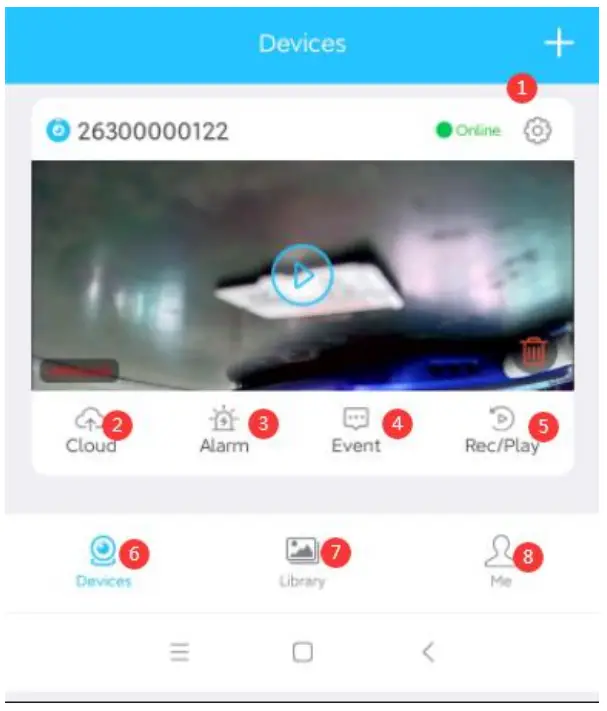
- Camera Set
- Cloud service (see 16. Cloud storage service)
- Motion Detection Alarm (see 12. Motion Detection Set)
- Motion Detection Event
- Recording files playback (see 10. Playback video records )
- Device
- Library ( Photos and videos )
- Account Setting ( see 15. Account set)
App Introduction 2 :
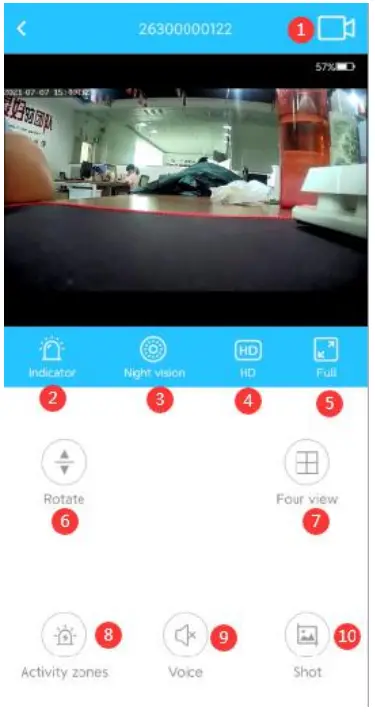
- Recording
- Turn on / off the camera blue and green indicator light
- Turn on Auto Night Vision / turn off Night Vision
- Resolution (Standard /High definition )
- Full-Screen Image
- Rotate Image
- Four Camera View (see14.Four camera image )
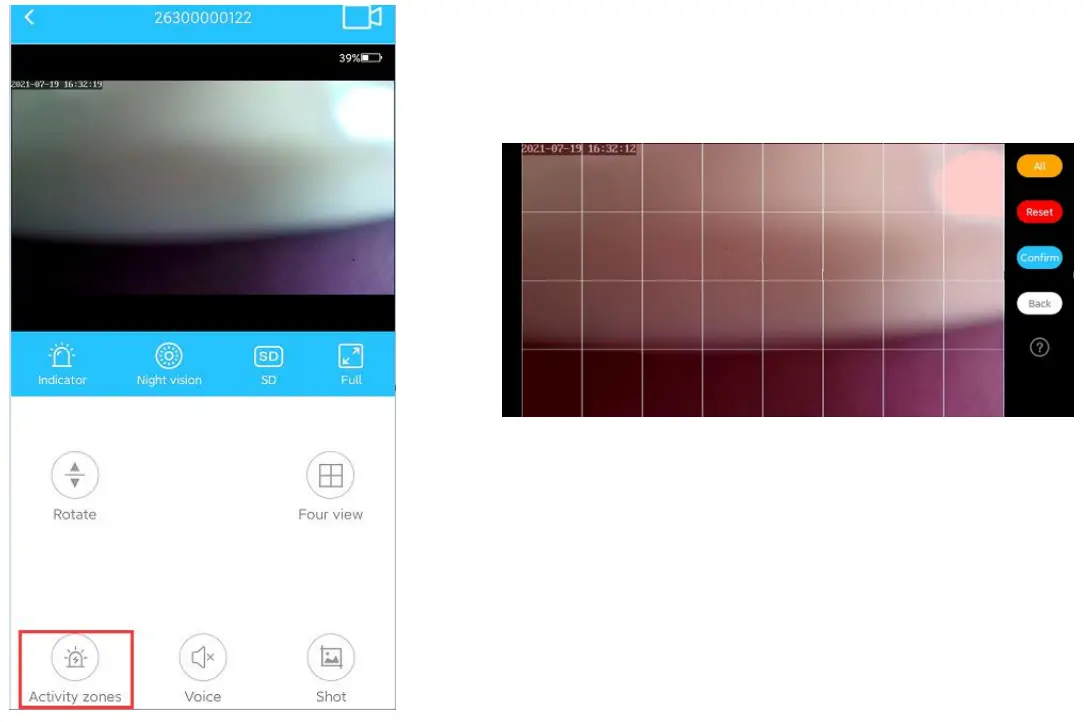
- Set Motion Detection Zone (see 12. Motion Detection Set)
- Turn on / off audio
- Snapshot
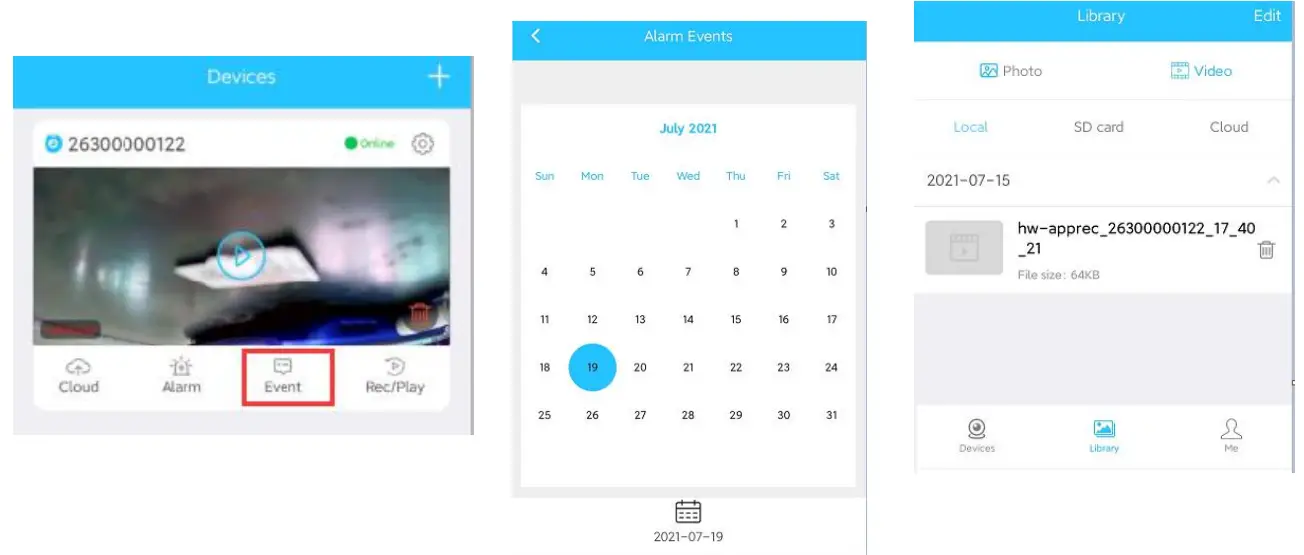
Library :
- Snapshots & Manually Video recording files are saved in Library
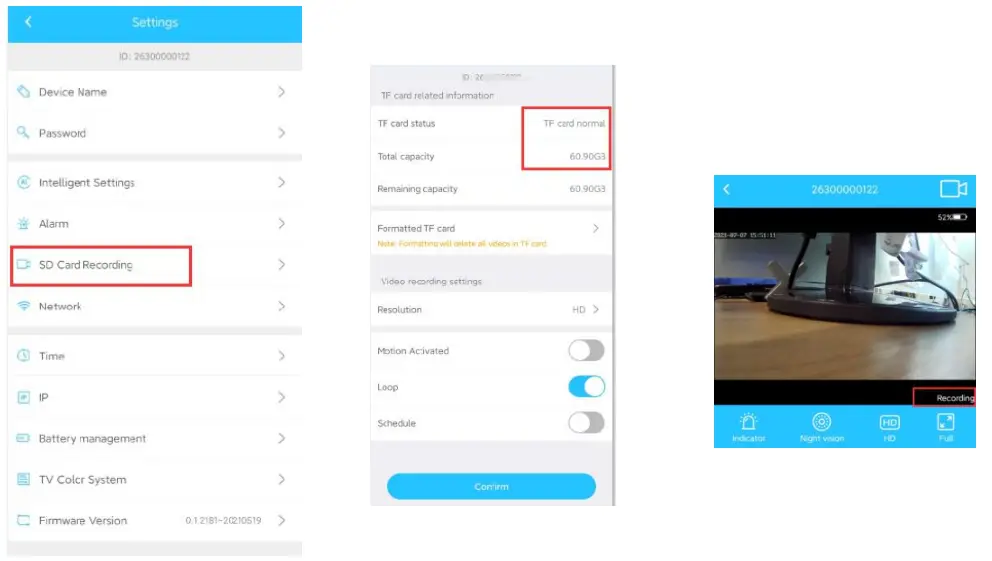
TF Card recording :
- Please use an original C10 (8G – 256G) TF card, after connecting the camera hot spot mode, insert the TF card, when it shows the capacity, the camera starts recording.

- Turn on the audio, recording the video and audio at the same time. (When the audio is on, there might be some environmental noise in playback files. )
Motion Detection Set:
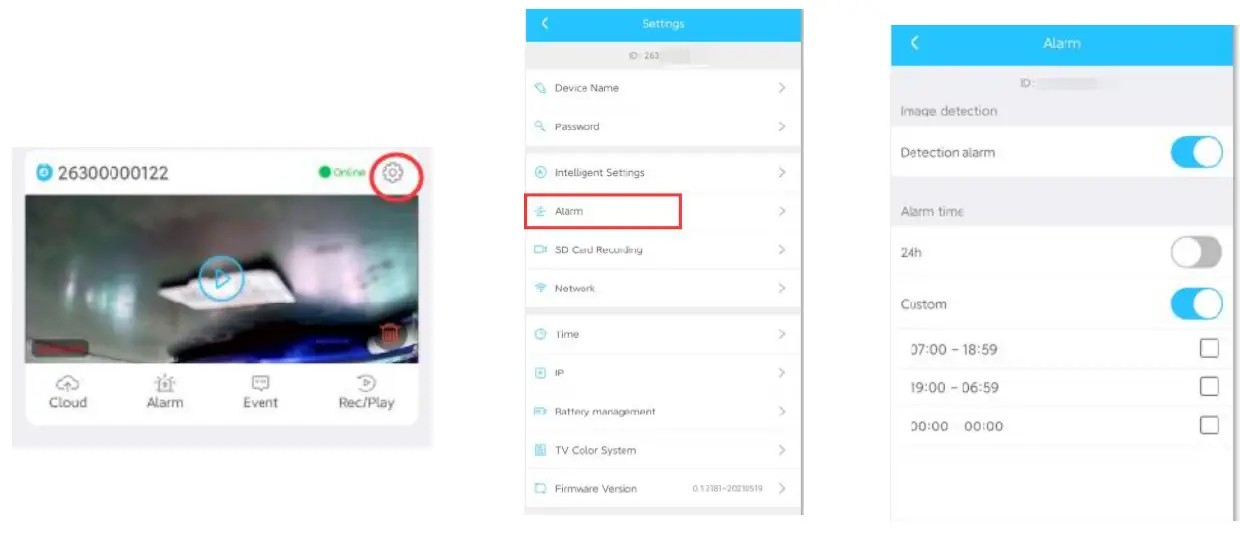
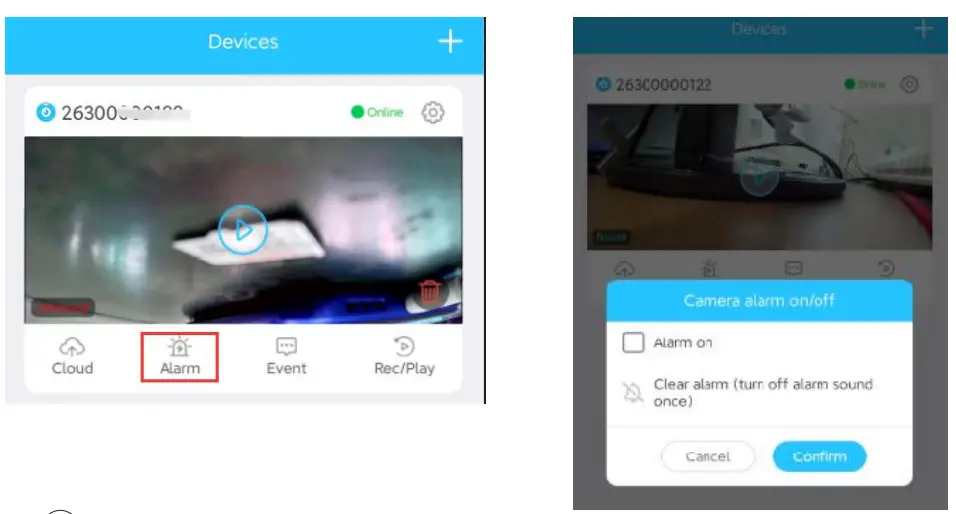
- When the camera is connected under WIFI mode,Click ” Settings ” – ” Alarm” -”Alarm on / off “

- Alarm on / off ( Clear alarm history)

- Motion Detection Area :
Password Set :
- When first connecting the camera, you need to set a password.
- If you forget the password, please reset the camera, then set a new password.
Four camera images:
Please firstly connect and bond four cameras on the app under WIFI mode, then step to four views.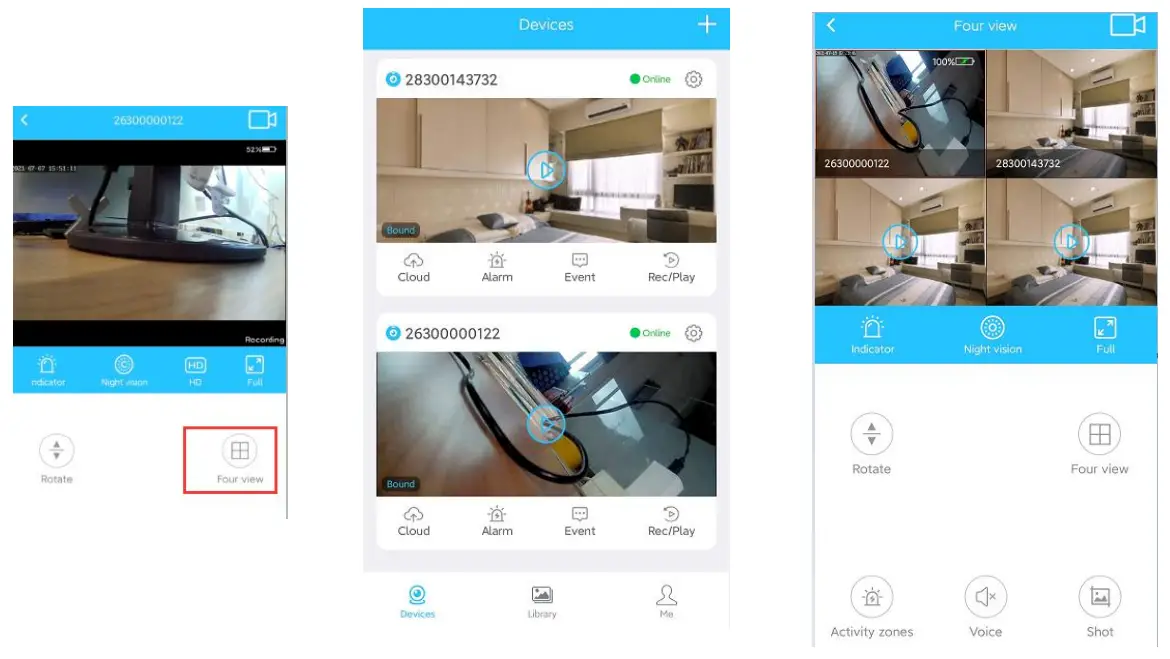
Account set :
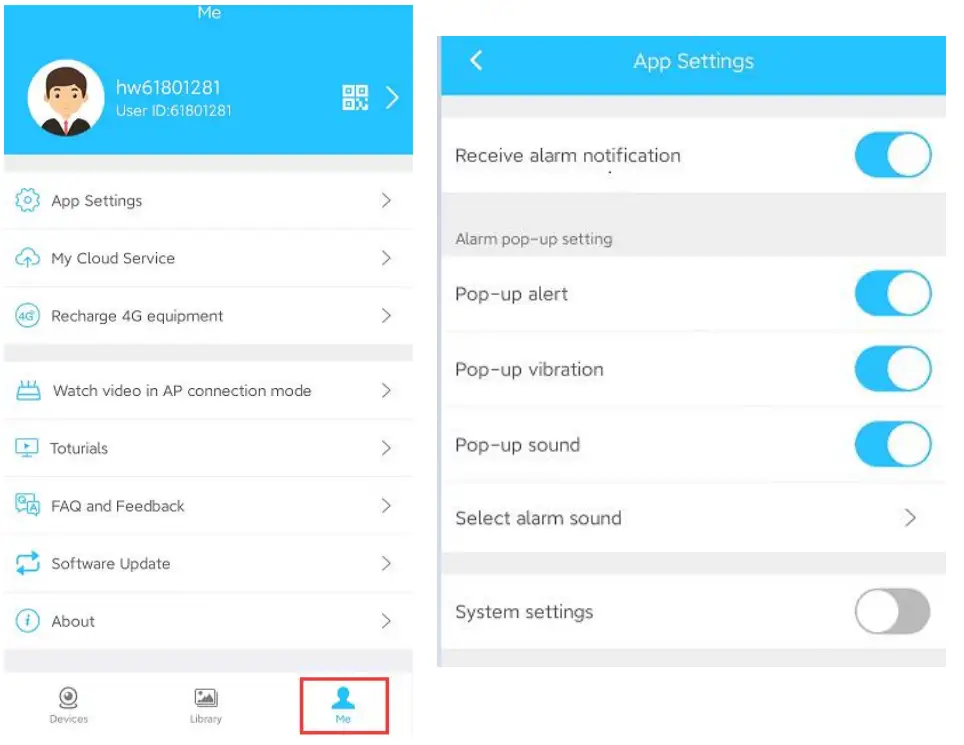
Note :
The Pop-up alert, sound, and vibration are not functions of this mini camera model.
Cloud storage service:
The cloud purchase service only works when the camera is under wifi mode.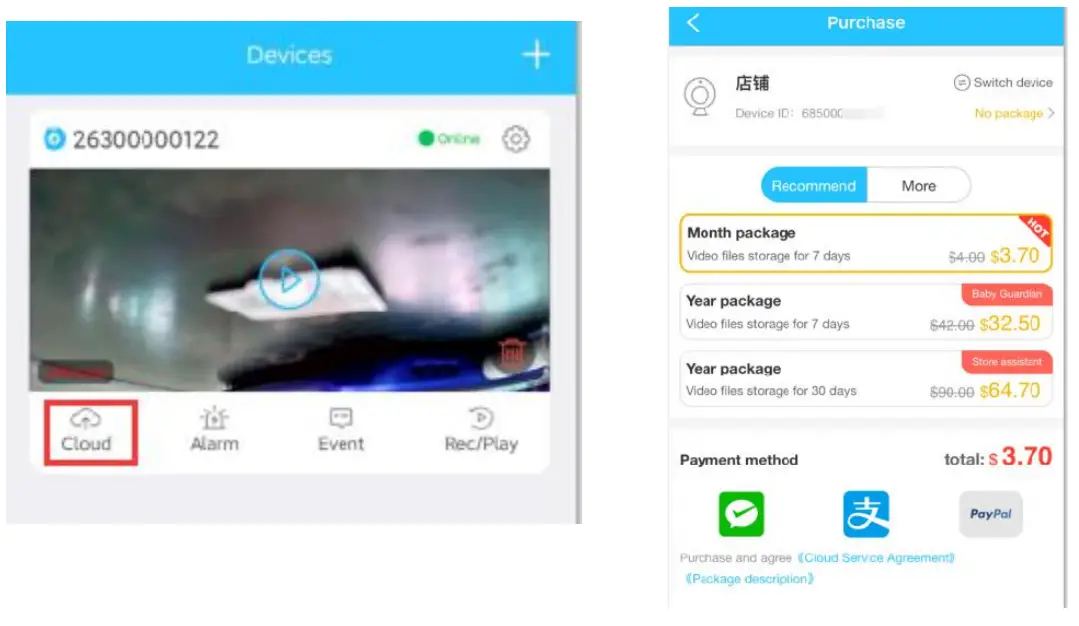
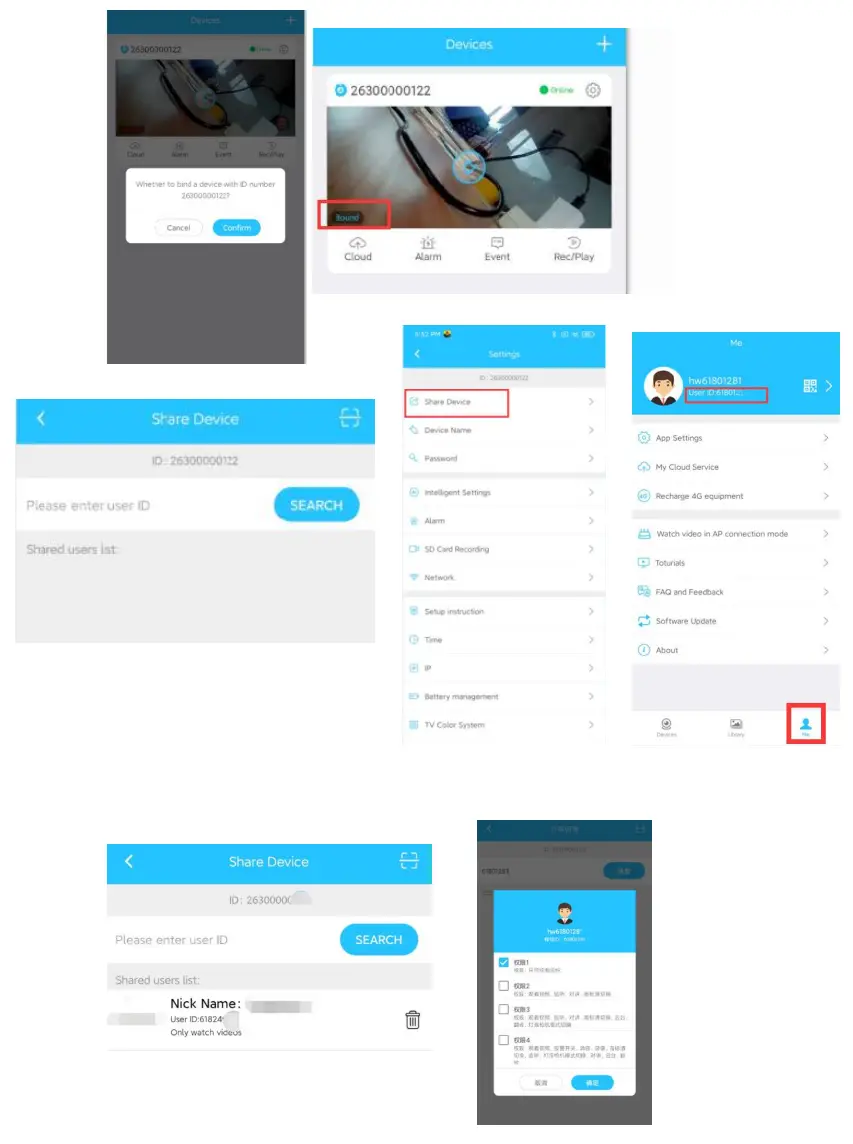
- Please connect the camera with WIFI & bond the device
- Go to set – share device – search ID (which you want to share with) – set the permission- confirm
Specifications:
| Resolution | 1080P |
| Video Format | Mp4/ MKV |
| Visual Angle | 150 degree |
| Motion Detection | 6 meters |
| IR LED | 4 |
| Battery Life | 3-4 Hours |
| Compressed Format | H.264 |
| Storage Temperature | -20-80 degree centigrade |
| Operating Temperature | -10-60 degree centigrade |
| Operation Humidity | 15-85%RH |
| Recordings Storage | TF card / Cloud |
| Compatible System | Android / IOS phone |
Warm Tips :
- When connecting to the hot spot mode, please first check the indicator light, when the blue light is on, the green light is flashing, then step to the app to connect.
- When connecting the WIFI mode, please first check the indicator light, when the blue light and green light are both on, step to the app to pull down and refresh, then the camera is online.
- If the indicator light is correct, but the camera is offline, please go to mobile phone “ WLAN ” to check the WIFI, if the wifi not connected, please connect your wifi manually and go back to the camera app to refresh, the camera will be online.
Remote Add WIFI connected camera :
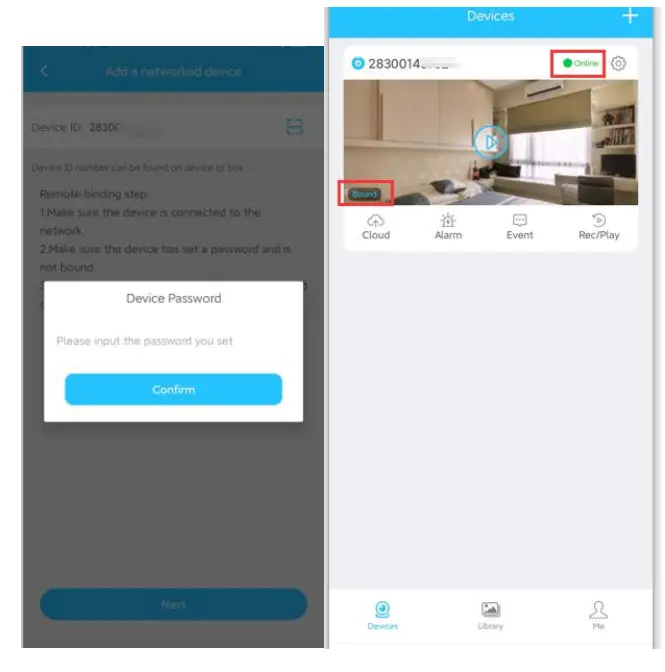
One camera had connected under WIFI mode, people in other places may add the camera by scanning the QR.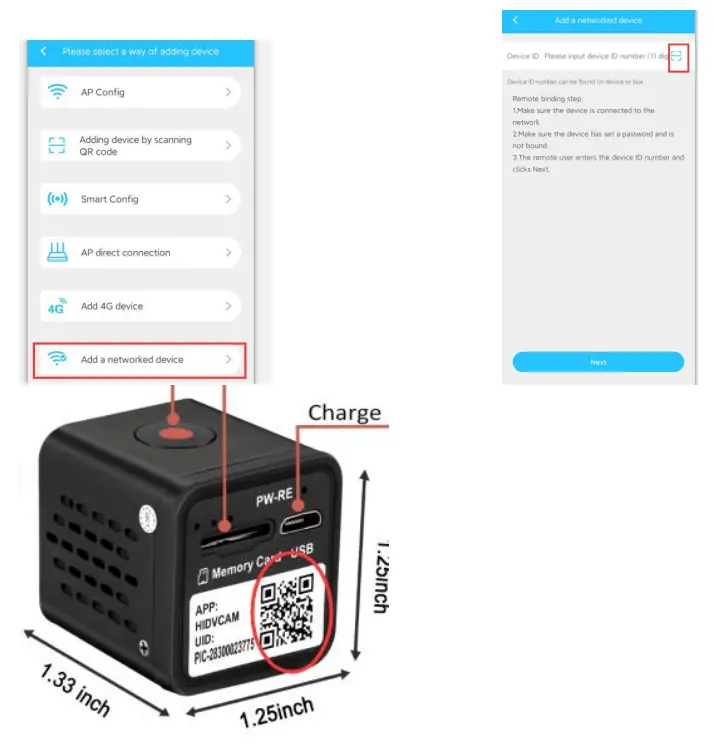
This device complies with part 15 of the FCC Rules. Operation is subject to the following two conditions: (1) this device may not cause harmful interference, and (2) this device must accept any interference received, including interference that may cause undesired operation.
Any changes or modifications not expressly approved by the party responsible for compliance could void the user’s authority to operate the equipment.
NOTE: This equipment has been tested and found to comply with the limits for a Class B digital device, pursuant to Part 15 of the FCC Rules. These limits are designed to provide reasonable protection against harmful interference in a residential installation. This equipment generates, uses, and can radiate radio frequency energy and, if not installed and used in accordance with the instructions, may cause harmful interference to radio communications.
However, there is no guarantee that interference will not occur in a particular installation.
If this equipment does cause harmful interference to radio or television reception, which can be determined by turning the equipment off and on, the user is encouraged to try to correct the interference by one or more of the following measures:
- Reorient or relocate the receiving antenna.
- Increase the separation between the equipment and receiver.
- Connect the equipment into an outlet on a circuit different from that to which the receiver is connected.
- Consult the dealer or an experienced radio/TV technician for help.
The device has been evaluated to meet general RF exposure requirements. The device can be u sed in portable exposure conditions without restriction.