
Preface
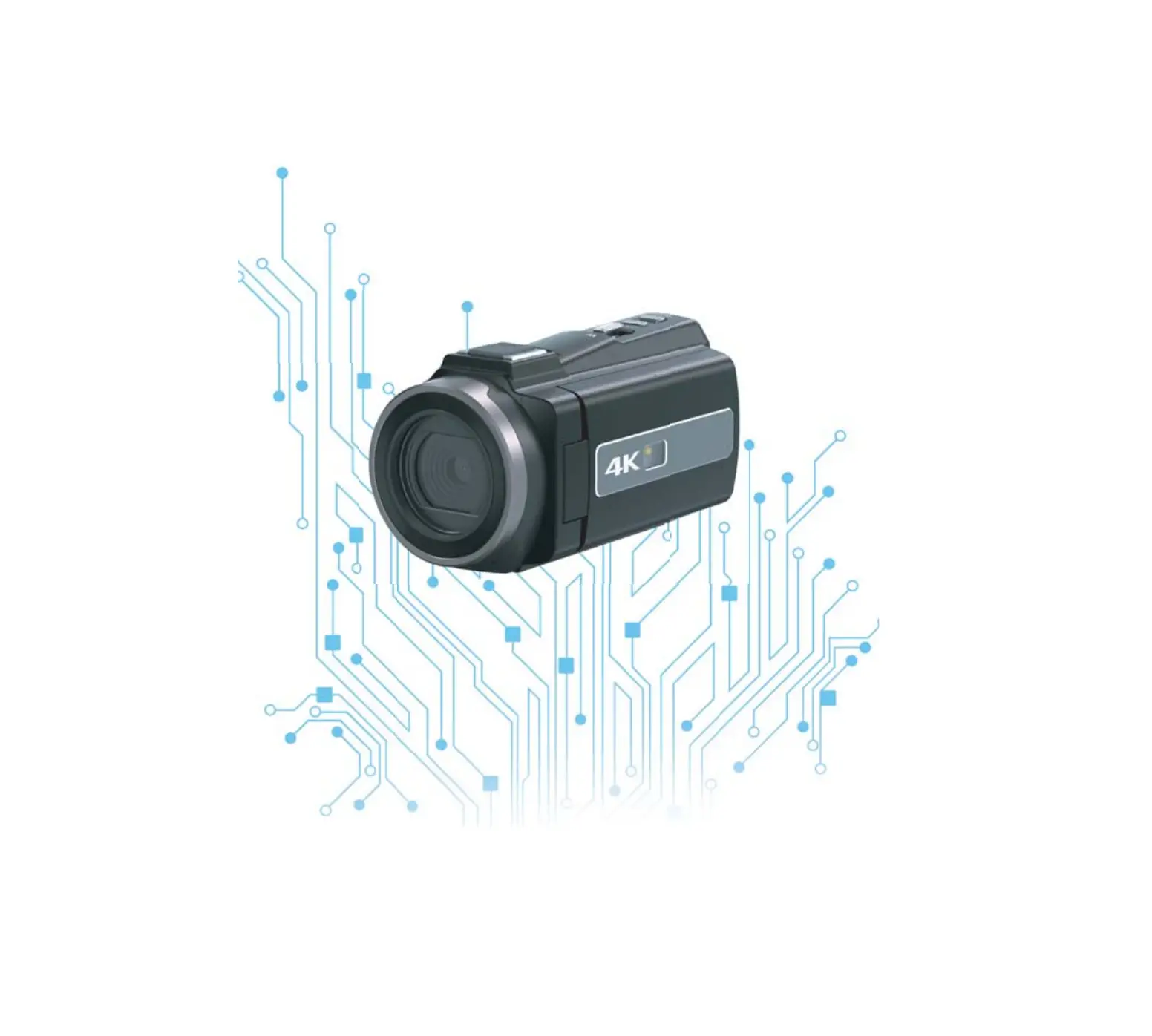
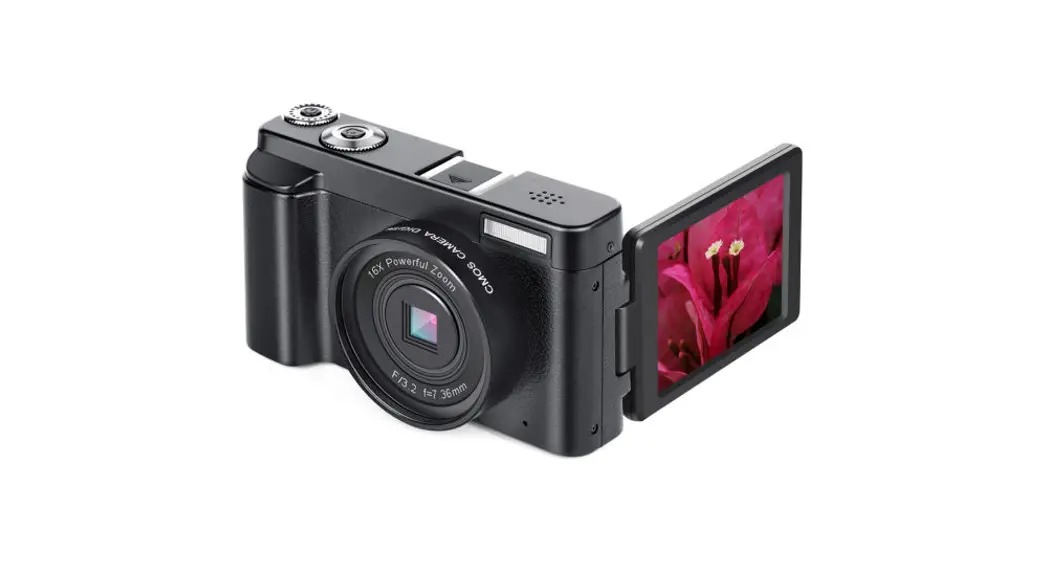
Thanks for purchasing our digital camera. Please read the user manual prior to using the camera and keep the manual in good manner for future use.
Instructions stated in this user manual are the latest information at the time when the manual was made Display or illustration used in the manual are purposed to show camera operation directly and comprehensively. Since the products can be from different batches of production and development, the display or illustration might be slightly different as what you have in the hand.
Instruction
Please use the camera as per procedures below: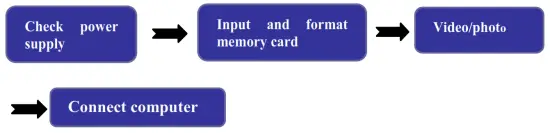
 Attention: Please format the memory card through this camera if it is new or was used by other digital camera/video. Please backup the data by floppy disk, hard-disk before format.
How to format SD card?
Step1. Support SD card slot (up to 128GB), SD card supports SDHC class 6.
Step2. Please insert the SD card into the camera, and then press the power key to turn it on.
Step3. Please press the menu key to enter the menu, select “Formatting”, press the ok key and select “Format”.
Step4. After the format is successful, press the menu key to return.
Use Tips
The camera supports SD memory card and MMC card (multimedia memory card).
SD memory has a write-protect switch, which is designed to protect data being deleted or formated.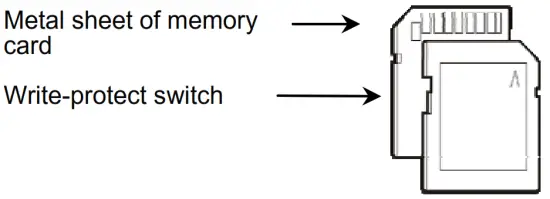
Push the switch on SD card to the bottom, data will be protected. Push the switch on SD card to the top, write-protect is canceled. Push the switch on SD card to the top before shooting photos.
Instructions of Memory Card
- Please format the memory card if it is new or has unidentified data or photos made by other camera.
- Please switch off power before insert or remove the memory card.
- Performance of memory card can be weakened after repeated use. Please replace with new memory card if the performance is down.
- As a precision electronic unit, do not fold, drop or squeeze the memory card.
- Do not put the memory card at high electric field or magnetic environment, such as near speaker or TV receiver.
- Do not use or put the memory card in superheated or supercooled environment.
- Please keep the memory card clean, and keep it away from any liquid. Use soft fabric to clean the memory card if it has contact with liquid.
- Please put the memory card in the card sleeve when not in use.
- Please be aware of that it is normal when the memory card be warming after long-time use.
- Do not use memory card which was used by other digital camera or video. Please format it with this camera before using it.
- Do not use memory card which was formatted by other digital video or card reader.
- Data can be damaged if the memory card suffers the situations as below:
– Incorrect use.
– Switch off power or remove the memory card when recording, deleting (formating) or reading the card. - Recommend to copy important data by other medias, such as floppy disk, hard-disk .
Camera Maintenance
Keep the camera at dry and dark place when not in use, and get the battery out.
- Wear the wrist strap when use the camera to prevent accident falling.
- Use proper protective casing to prevent shot and display scratch.
- To clean the shot surface, please blew dust away then wipe the shot lightly with fabric or paper special for optical device. Shot cleanser can be used if necessary. Do not use organic solvent to clean the camera.
- Do not touch the shot with finger.
Computer System Requirements
Please read the system requirements before use the camera. It is strongly suggested to use the better computer system for the camera to get the best effect.
See lowest system requirements:
Computer System Requirement | |
| Operating system | Windows7/Windows8/Windows 10/ Windows2000/XPNista |
| CPU | Above Intel PI11667 or same performance CPU |
| Internal memory | Above 128MB |
| Audio card, graphic card | Support DirectX8 or higher version |
| Hard-disk | Above 1GB space |
| Others | One standard USB 1.1 or USB 2.0 port |
Function & Feature
The camera has multiple functions and features:
- Digital Video Camera (4K)
- Digital Video Camera (48MP)
- Mass Storage (Removable Disk)
- 16X Powerful Zoom
- WIFI Wireless Transmission
- IPS Screen
Appearance
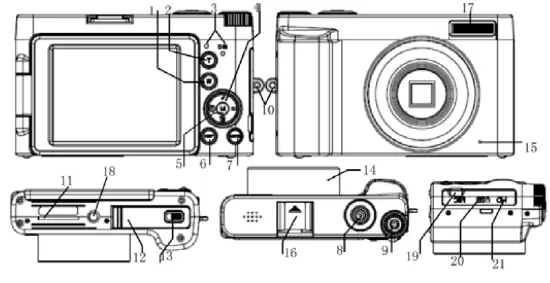
Functions of Keys & Indicators
Number | Key/Indicator | Function |
| 1 | W | zoom out focus under photo or video mode ; turn down the volume |
| 2 | T | zoom in focus under photo or video mode; turn up the volume |
| 3 | Indicator Light | The blue light is working status indicator light. |
| The red light is charging indicator light; the red light will be on when connected with a charger. The red light will go off when the battery is full. |
| 4 | UP/DOWN /Left/Right | Move Up/fast select the flash mode(under photo mode); Move down/fast delete files(under photo mode); Move left/quickly select shooting mode(single shooting, timed shooting); Move right/fast access to browse photo/video playback (shortcut playback button). |
| 5 | OK key/WIFI | Confirm; long press for three seconds to turn on WIFI |
| 6 | Mode Key | Switch the photo/video/playback mode |
| 7 | MENU | Open or exit the menu |
| 8 | Shooting Button | Take photos; recording |
| 9 | POWER | Short press to turn the camera on, long press to turn off the camera |
| 10 | Hang Buckle | Connecting the camera strap |
| 11 | SD Card | SD card location |
| 12 | Battery Case | Battery location |
| 13 | Battery Lock | Protect the battery |
| 14 | Lens Circle | Camera lens ring |
| 15 | Microphone | Microphone |
| 16 | External Hot Shoe | Install camera external accessories |
| 17 | Flash Lamp | Use the flash modes when taking photos |
| 18 | Tripod-foot | Connecting the triangle bracket |
| 19 | Recording Hole | Recording hole |
| 20 | USB/Charging Interface | USB line interface |
| 21 | HD Interface | ID line interface |
Come to Use
Place Battery
Original rechargeable lithium battery. Switch off power before replacing battery.
Press electric lock, the battery will be popped up and to be get out manually. Place the charged battery in battery box, push it up until the battery is electric locked and the placement is well done.
Place SD/MMC card
Open SD slot cap, insert the SD/MMC card (with its metal sheet to outwards) in the slot as per guidance besides the slot.
Press SD/MMC card to get it out. Attention:
- Power off camera before replace memory card
- Insert the card as correct direction. Do not insert the card with too strong force to protect the card or camera units being damaged. If the insert is not smooth, please check the insert direction.
- Memory card needs to be formatted for first time use or if the card was used by other camera.
Switch on/off
Press power button to switch on or switch off the camera. Under idle mode, if no operation is done in the time beyond auto off time, the camera will be switched off automatically for energy saving.
Switch-over Mode
Press “mode” key to enter mode interface, press up/down/left/right button to switch normal recording, slowly record, time-lapse record, normal picture, auto picture, continue picture, time picture modes.
Press the “mode” key again to return to shooting/photo interface.
Normal Record
Under this mode, press shooting button to start recording a video and press the button again to stop the video.
Slowly Record
Under this mode, press shooting button to start recording. With slow recording, moving objects can leave moving images on the video at the moment of exposure. To a certain extent, this kind of image is a phantom. The slower the speed, the more imaginary the image will be, thus forming the effect of contrasting the real with the imaginary.
Loop Record
Under this mode, press shooting button to start recording. The video will be taken with phases of 1/5/10/30 minutes or unlimited. When the time is out, the video will stop filming, and start a new video immediately and automatically. When there is no enough space in the memory card, the initial video will be deleted automatically to start a new video.
How to set the length of time for loop recording?
Step 1. Press the mode button, select “loop record”, and press the mode button again to return to the recording interface. Step 2. Press the menu button, select “video length”, you can choose 1min/5min/10min/30min, press the “OK” button to confirm.
Step 3. Press the menu button again to return to the recording interface, and you can start to use the loop recording function.
Time-lapse Record
In this mode, press the shooting button to start recording. Time-lapse recording is also called time-lapse video. It is a shooting technology that compresses a longer recording time into a shorter one.
How to set Time Lapse ?
Step 1. Press the mode button, press the OK button to select “Time-lapse Record”, and then press the mode button to return to the recording interface.
Step 2. Press the menu button, select “Recording Interval”, select 0.5s/1s/2s/5s/10s/30s/60s, and press the “OK” button to confirm.
Step 3. Press the menu button again to return to the recording interface, you can start to use the time-lapse function.
Normal Picture
Under this mode, press the shooting button to take pictures.
Auto Picture
Under this mode, press the shooting button, it will take pictures automatically at regular intervals according to your setting.For example: select “3s”, press the photo button, the camera will take a photo every 3 seconds.
How to set the time interval for Auto Photos?
Step 1. Press the mode button, select “Auto Photo”, and then press the mode button to return to the photo interface.
Step 2. Press the menu button, select “photo Interval”, select 3s/5s/10s/20s, and press the “OK” button to confirm.
Step 3. Press the menu button again to return to the camera interface, you can start to use the automatic camera function.
Continue Picture
Under this mode, press the shooting button for continuous shooting.For example: select “3S”, press the camera button, the camera will take 3 photos continuously.
How to set continuous shooting?
Step 1. Press the mode button, select “continue picture”, and then press the mode button to return to the photo interface.
Step 2. Press the menu button, select “photo frequency”, select 3p/s, 5p/s, 10p/s, and press the “OK” button to confirm.
Step 3. Press the menu button again to return to the camera interface, and you can start to use the continuous camera function.
Time Picture
Under this mode, press the shooting button to take a picture after several seconds countdown.For example: select “5S”, press the photo button, the camera will count down 5 seconds to start taking pictures.
How to set Time Picture?
Step 1. Press the mode button, press the OK button to select “Time Picture”, and then press the mode button to return to the photo interface.
Step 2. Press the menu button, select “countdown”, select 3s/5s/10s/20s, and press the “OK” button to confirm.
Step 3. Press the menu button again to return to the photo interface, and start using the Time Picture function.
Date & Time Setting
Press the mode button to make the camera in the recording/photo interface, and press the menu button to open the menu settings.
Press the left button to enter the system menu. Press the down key to select the “Time Setting” and “Date Setting” settings to set the time and date. Attention:
- You must return to the video/photo interface before you press the “mode” button to enter the mode switching interface.
- You must return to the video/photo interface before you press the “menu” button to enter the menu interface.
- Please hold the camera steadily when you are taking pictures. In order to take the best photos, it is recommended that you place the camera on a tripod or stand.
- The “BUSY” light will be on when you are taking a photo. Please do not move the camera at this time until the “BUSY” light is off. To ensure that the photo is not blurred.
Advanced operation
Photo/Video
Press the start/stop button to start filming, and press it again to stop filming.
Press photo button to take a photo.
Press T or W button under the Video/Photo mode to change digital zoom. Press the MODE button to switch modes.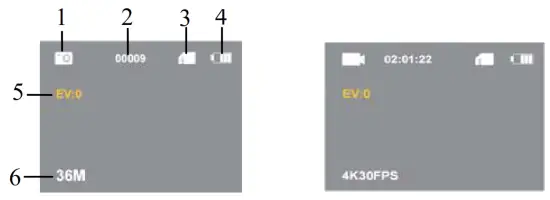
♦ Information displayed on the screen in normal recording mode/photographing mode
No. | Icon name | Instructions |
| 1 | Current mode | Press mode button to switch over modes |
| 2 | Available space | Space for video recording or photo shooting |
| 3 | SD card | Card read successfully |
| 4 | Power volume | Battery status |
| 5 | exposure | Current exposure value |
| 6 | Current resolution | Current resolution |
◆ System Menu Settings:
You must press the “mode” button return to the video/photo interface before you press the “menu” button to enter the menu interface.
Press “menu” button to open the menu setting, press left/right button or up/down key to select submenu. Then press “OK” to confirm, or press “menu” button to cancel the setting. Press the “menu” button again to return.
◆ Playback
Playback
- You must press the “mode” button return to the video/photo interface before you press the “right” button to enter the playback interface.
- Press (shortcut button) right button to enter the playback interface.
- Press the left and right button to select, and press the “ok” button to play and pause.
- Press the “mode” button to exit the playback interface.
◆ Download photo/video to computer
Connect the camera with computer, skip to “My Computer” to check the new removable disk, the photo or video made by the camera are saved under DCIM, user can copy the data from this file to computer.
Attention: Do not disconnect the camera with computer when downloading files. To prevent data loss, do not insert or remove the memory card in the camera when USB connecting with computer.
WIFI Function
◆ Application Installation
When mobile phone or tablet is equipped with the system of Android 2.2 or iOS 6.0 and above, it is able to search “RoadCam” applications on Google Play for installation.
You also can use mobile phone to scan the following QR code, and then register and download App to install:
 http://139.224.70.115/app/roadcam/roadcam.html
By wifi connection, the APP can be used to control the camera, including previewing, browsing photo albums and downloading the files from camera to the Mobile phone or Tablet for sharing, as well as a remote control by the APP control.
◆ Switch on WIFI Connection:
- Keep video camera in the video/photo interface after being turned on, long press the OK for 3 seconds to open WIFI signal source. The camera screen displays WIFI name and password.
- Check wifi setting on mobile phone or tablet, Find the wifi source name shown on camera, click to connect and input the wifi password shown on camera.
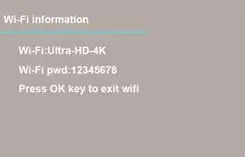 WiFi signal source switch on
◆ Connecting the APP with the Camera
When the connection is successful, users can operate the video camera through the application for previewing, browsing photo albums and downloading the files from camera to the mobile phone or tablet for sharing, as well as a remote control by the APP operation.
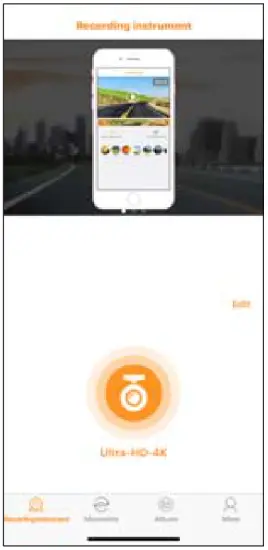 ▲Preview on APP under WIFI connected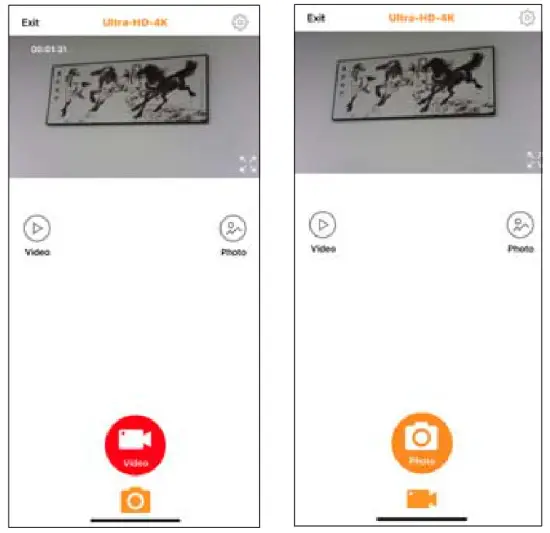
▲Preview of video and photo mode on the APP
Switch off the Function of the WIFI:
Under wifi connection state, press the “ok” button to cut off wifi source of video camera, the video camera returns to the normal state. Attention: You must press the “mode” button return to the video/photo interface before you press the “ok” button to enter the wifi interface.
Webcam Function
How to use the webcam function?
Step1. Please download the social media on your computer.
Step2. Connect the camcorder to computer with the usb cable.
Step3. Select “Camera Mode” on the camcorder’s menu.
Step4. Turn on the social media to use the webcam function.
Step5. If you want to exit Camera Mode, please press the “POWER” botton to shut down.
Attention: You must press the “mode” button return to the video/photo interface before you enter the webcam interface.
Specification
| Movie Size | 4K 60FPS; 4K 30FPS; 2.7K 30FPS; 1080P 120FPS;1080P 60FPS; 1080P 30FPS; 720P 240FPS; 720P 120FPS; 720P 60FPS; 720P 30FPS; |
| Resolution Ratio of Image | 48M(8000 X 6000 ); 36M(6880 X 5160 ); 24M(5600 X 4200); 20M(5120 X 3840); 16M(4640 X 3480); 12M(4032 X 3024); 8M(3264 X 2448); 5M(2592 X 1944); |
| Memory Card | Supports SD Card (up to 128GB), SD Card supports SDHC class 6 |
| File Format | JPG, MP4 |
| Digital Zoom | 16× |
| White Balance | Auto/Sunny/Cloudy/Incandescent /Fluorescent |
| Exposure | -3.0 ∼ +3.0 |
| USB Port | USB2.0 |
| Display | IPS LCD |
| Power | Rechargeable lithium battery |
| Menu Language | Multi-Languages |
| Focal Distance | f=7.36mm |
| Aperture | F/2.6 |
| Auto Off | Turn off/ 3 minutes/5 minutes/10 minutes |
| Operating System | Windows7/Windows8/Windows 10/ Windows2000/XP/Vista |
Attention: Product specification is the latest information at the time when this use manual is made. No further notice will be made for any variation. Specific operating methods are subject to the real camera that you purchased.
Frequent Asked Questions
| The camera fails to work after battery placement | The power may be too low, new battery is needed. |
| Battery package may be not removed. | |
| Battery may be placed reversely. Ensure correct placement of battery. | |
| Shutter is not working to make video or photo. | Memory card may be full. Please save the data with other memory card. |
| SD card may have write-protect. Get out SD card and unlock the write-protect switch. | |
| Unsharp photos | May be caused by shaking hands when photo shooting. Please hold the camera stably or use other supports like tripod. Do not shake the camera when photo shooting. |
| Dark photos or videos | Shooting environment may be too dark. Please make the shooting at bright place, or use light to brighten the shooting place. |
| Auto off | Battery may have too low power. Please change new battery. |
| To save energy, the camera will be off automatically if not in use for 1 minute (3m or 5m, subject to the setting). | |
| File can not be deleted in the camera. | SD card has write-protect. Get out SD card and unlock the write-protect switch. Or file protection function of the camera is activated, which can be switched off in the menu. |
| The video camera crashes or shows blurred screen | SD card format error, please format the SD card within the video camera or on the computer before use it. |
Warning:
This device complies with Part 15 of the FCC Rules.Operation is subject to the following two conditions:(1)this device may not cause harmful interference,and(2)this device must accept any interference received,including interference that may cause undesired operation.
changes or modifications not expressly approved by the party responsible for compliance could void the user’s authority to operate the equipment
NOTE: This equipment has been tested and found to comply with the limits for a Class B digital device,pursuant to Part 15 of the FCC Rules.These limits are designed to provide reasonable protection against harmful interference in a residential installation.This equipment generates,uses and can radiate radio frequency energy and if not installed and used in accordance with the instructions,may cause harmful interference to radio communications. However, there is no guarantee that interference will not occur in a particular installation. If this equipment does cause harmful interference to radio or television reception. which can be determined by turning the equipment off and on,the user is encouraged to try to correct the interference by one or more of the following measures:
- Reorient or relocate the receiving antenna.
- Increase the separation between the equipment and receiver.
- Connect the equipment into an outlet on a circuit different from that to which the receiver is connected.
- Consult the dealer or an experienced radio/TV technician for help.
NOTE: This device and its antenna(s)must not be co-located or operation in conjunction with any other antenna or transmitter.
RF Exposure Statement
To maintain compliance with FCC’s RF Exposure guidelines, This equipment should be installed and operated with minimum distance of 5mm the radiator your body. This device and its antenna(s)must not be co-located or operation in conjunction with any other antenna or transmitter
NO: DC101A 20220218