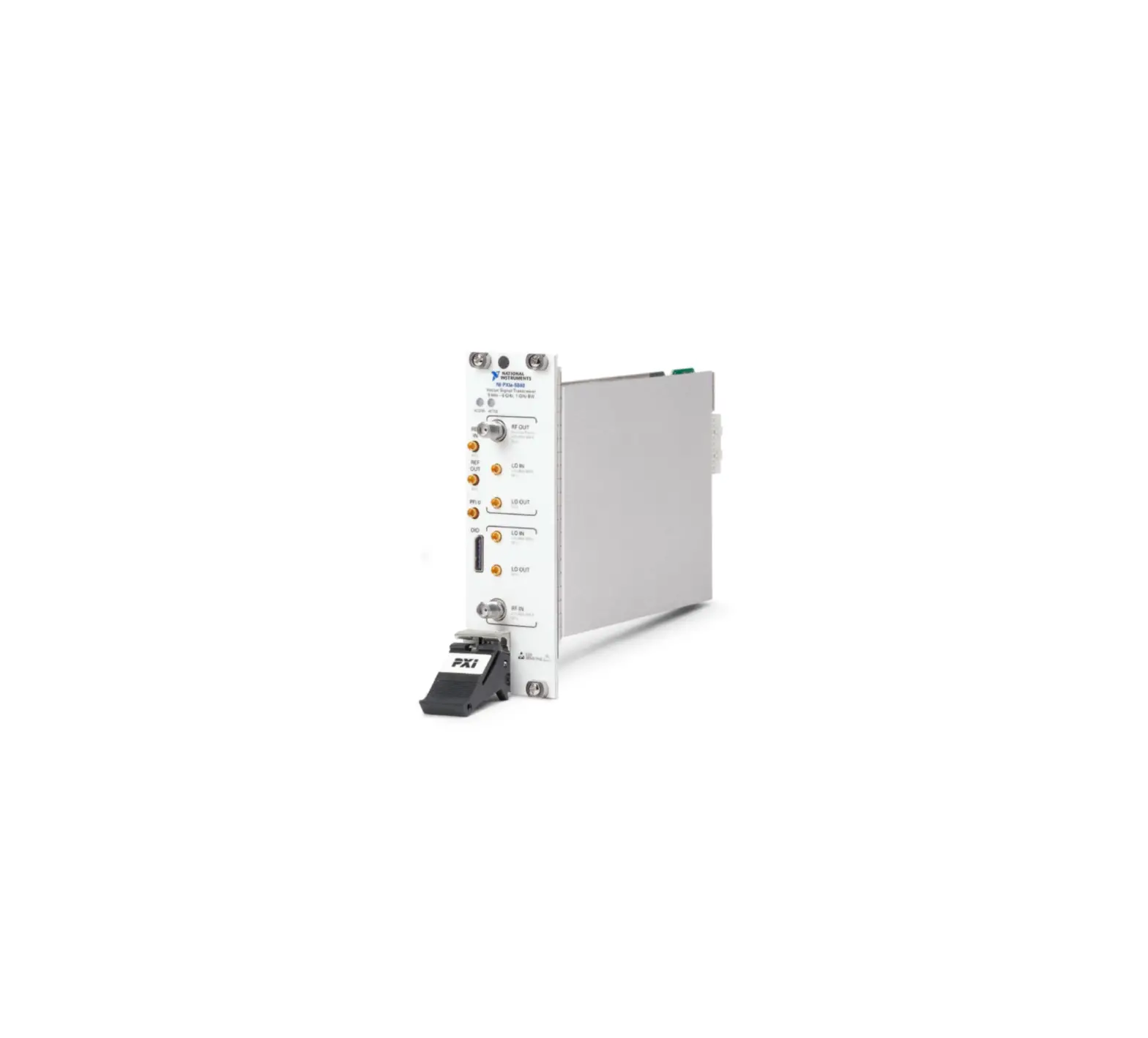
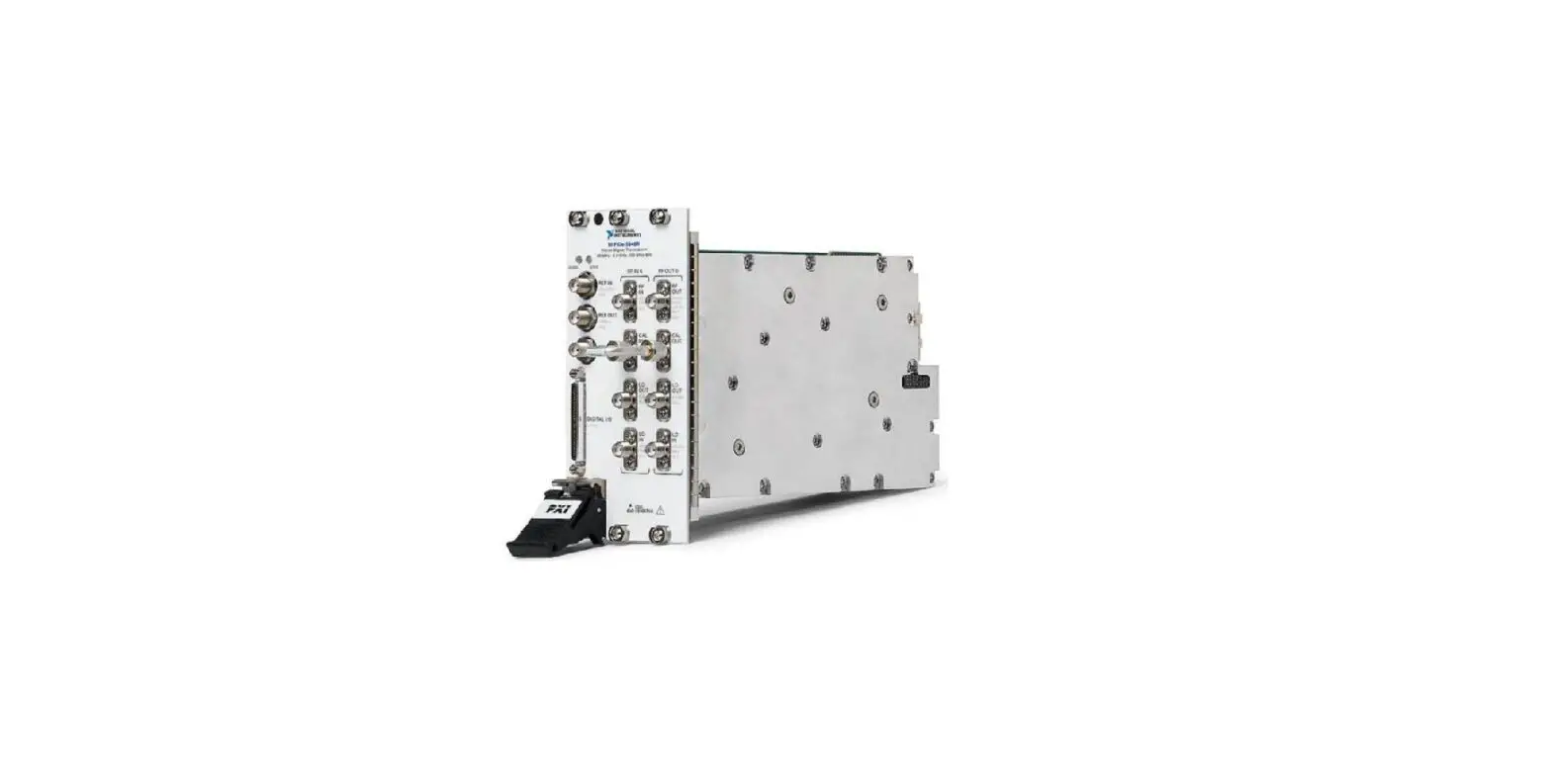
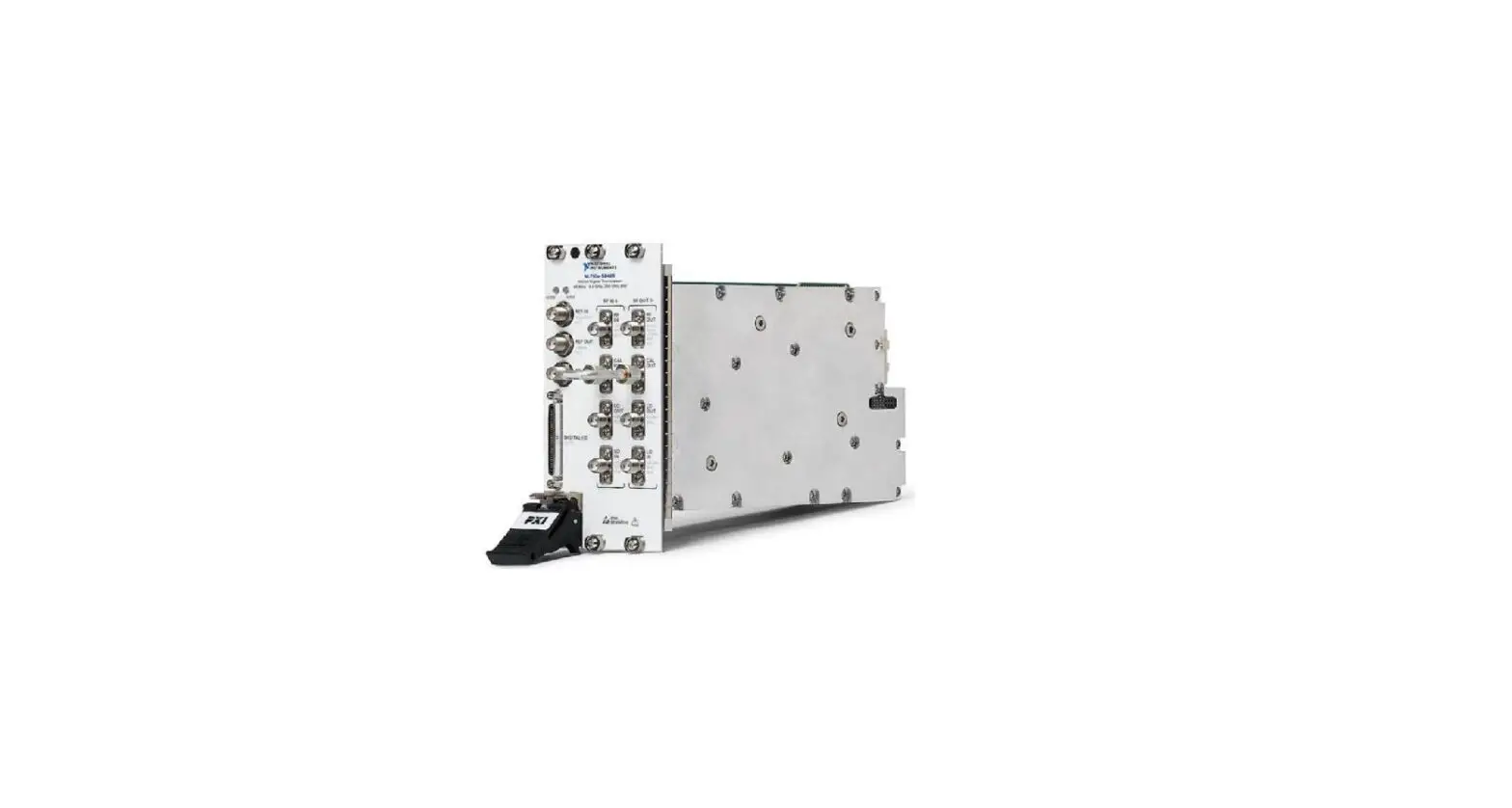
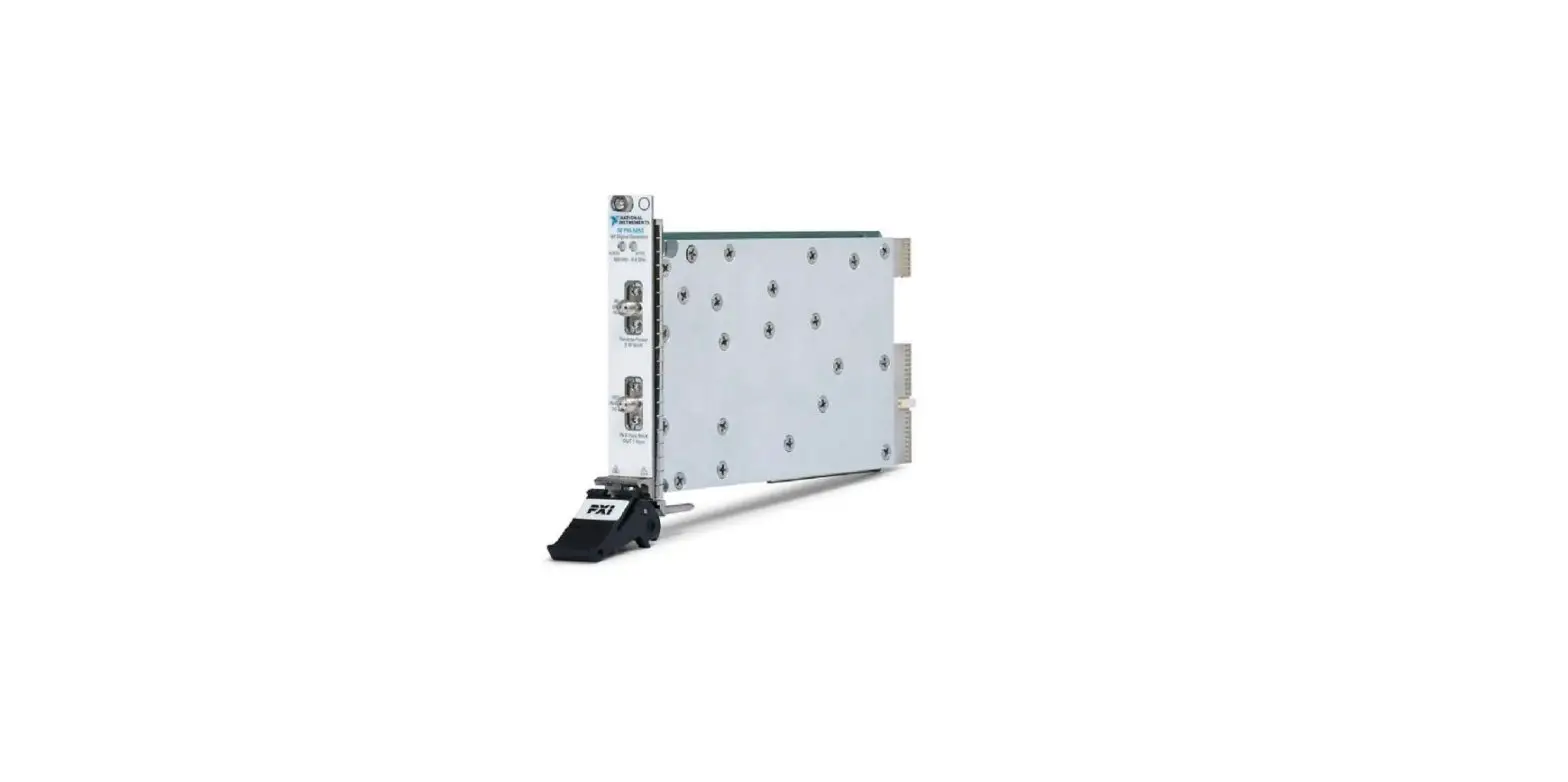
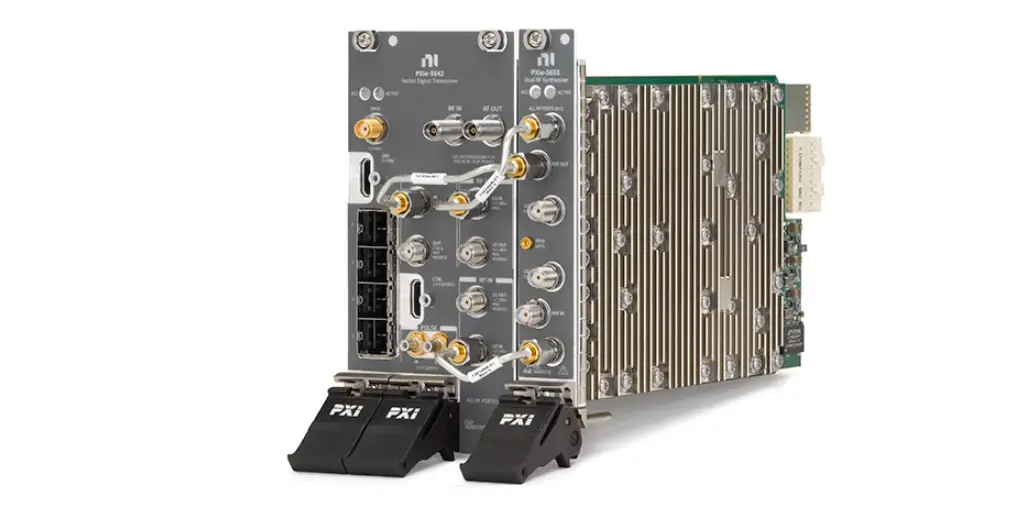
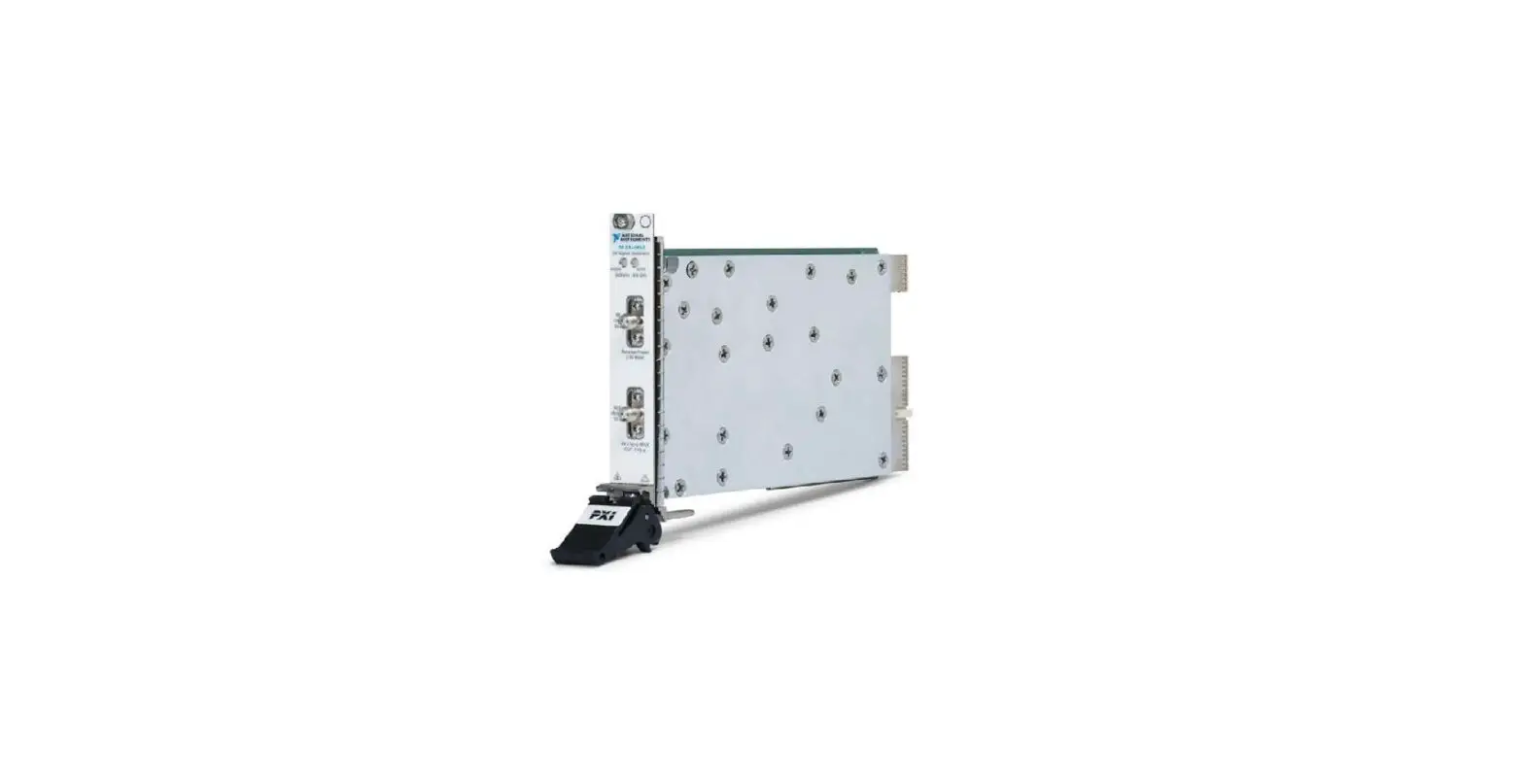
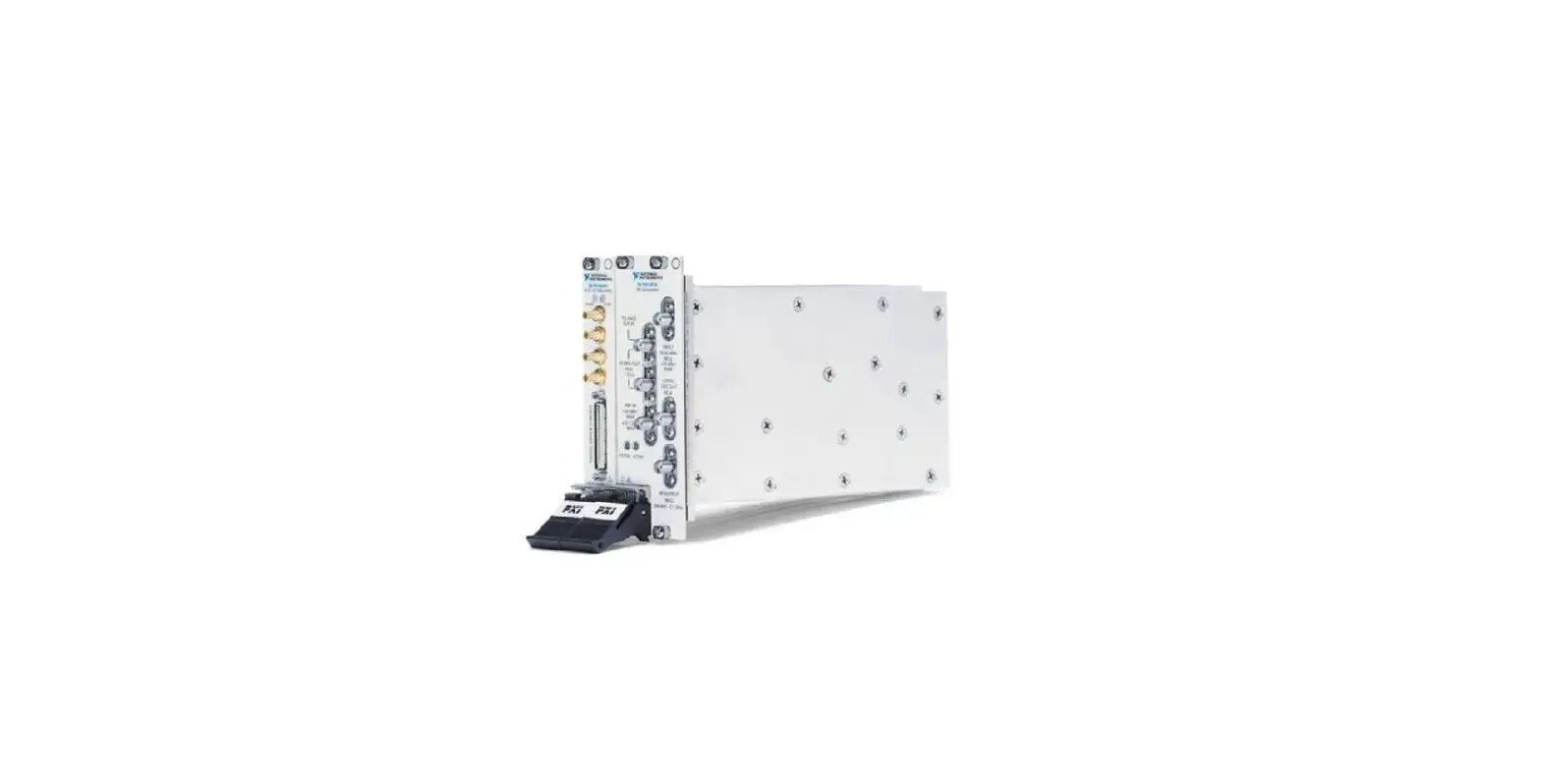
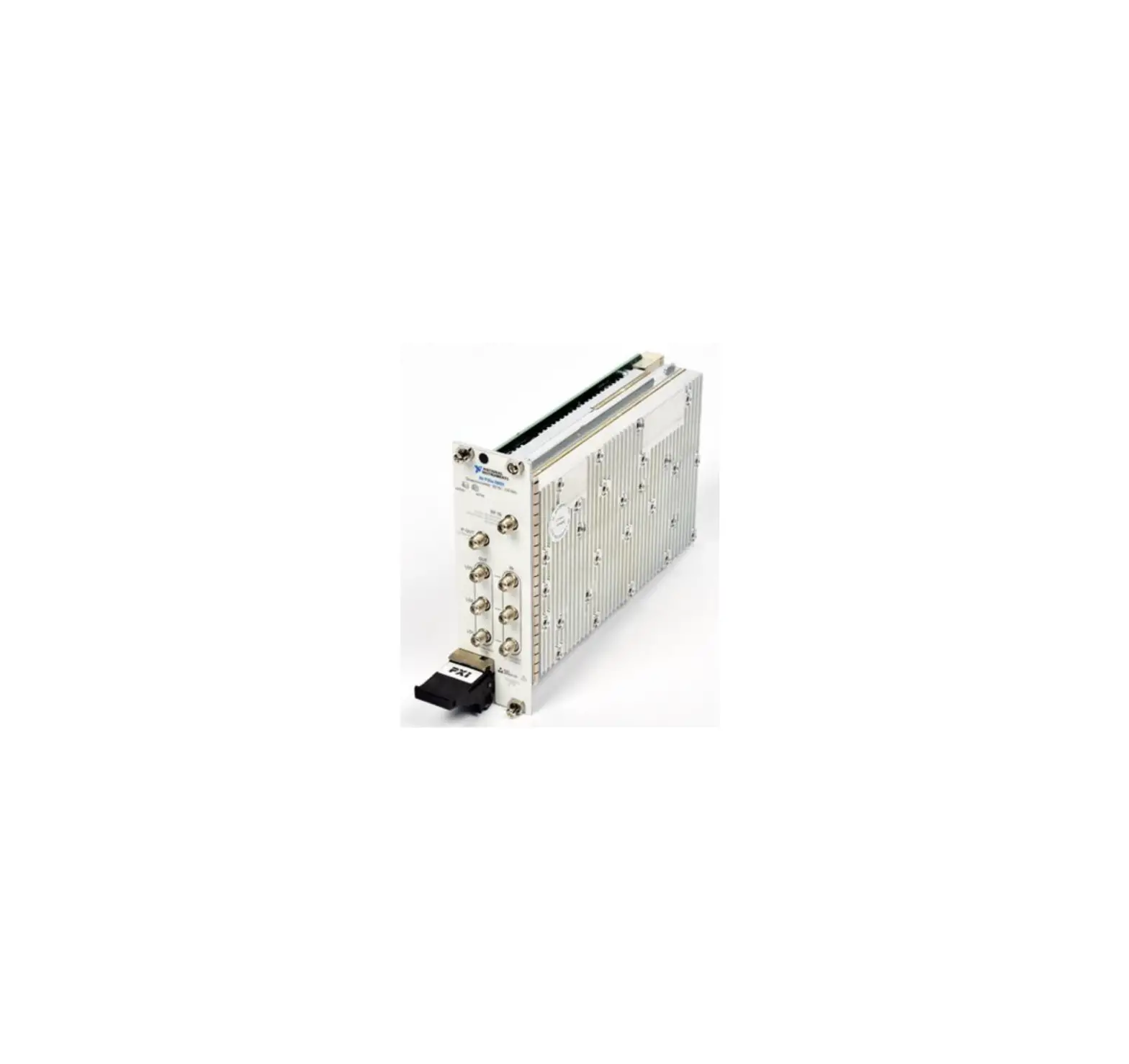
PXIe-5840 6 GHz Reconfigurable RF Vector Signal Transceiver with 1 GHz Bandwidth
PXIe-5840 Product Information
The PXIe-5840 is a 6 GHz Reconfigurable RF Vector Signal
Transceiver with 1 GHz Bandwidth. It is designed for use in
industrial locations and complies with regulatory requirements and
limits for electromagnetic compatibility (EMC) stated in the
product specifications. The product must be used in strict
accordance with the instructions in the product documentation to
minimize interference with radio and television reception and
prevent unacceptable performance degradation.
Electromagnetic Compatibility Guidelines
To ensure the specified EMC performance, operate this product
only with shielded cables and accessories. It is also recommended
to operate the product only with cables less than 3 meters in
length. Any changes or modifications to the product not expressly
approved by National Instruments could void your authority to
operate it under your local regulatory rules.
Verifying System Requirements
To use the PXIe-5840, your system must meet certain
requirements. For more information about minimum system
requirements, recommended system, and supported application
development environments (ADEs), refer to the readme, which is
available on the software media or online at ni.com/updates.
Preparing the Environment
Before using the PXIe-5840, ensure that the environment meets
the following specifications:
- Install and configure your chassis and controller before
use. - Use in industrial locations to minimize harmful
interference. - Operate only with shielded cables and accessories.
- Operate only with cables less than 3 meters in length.
- Ground yourself using a grounding strap or by holding a
grounded object, such as your computer chassis, to prevent
electrostatic discharge (ESD) from damaging the device. - Never touch the exposed pins of connectors.
Product Usage Instructions
Follow the below steps to use the PXIe-5840:
- Ensure that your chassis and controller are installed and
configured before use. - Refer to the readme available on the software media or online
at ni.com/updates to verify that your system meets the minimum
requirements and is compatible with the supported application
development environments (ADEs). - Ground yourself using a grounding strap or by holding a
grounded object, such as your computer chassis, to prevent
electrostatic discharge (ESD) from damaging the device. - Unpack the kit, ensuring that you touch the antistatic package
to a metal part of the computer chassis before removing the device.
Do not install a device if it appears damaged in any way. - Ensure that you use the PXIe-5840 in an environment that meets
the specified EMC performance guidelines. Operate only with
shielded cables and accessories, and only with cables less than 3
meters in length. - Never touch the exposed pins of connectors.
PXIe-5840
GETTING STARTED GUIDE
PXIe-5840
6 GHz Reconfigurable RF Vector Signal Transceiver with 1 GHz Bandwidth
Note Before you begin, install and configure your chassis and controller.
This document explains how to install, configure, and test the PXIe-5840. The PXIe-5840 is an RF vector signal transceiver (VST) and ships with the following software options, which you use to program the device. · NI-RFmx driver software · NI-RFSA and NI-RFSG driver software
Caution The protection provided by this equipment may be impaired if it is used in a manner not described in the documentation.
Contents
Electromagnetic Compatibility Guidelines……………………………………………………………………. 2 Verifying the System Requirements………………………………………………………………………………2 Unpacking the Kit……………………………………………………………………………………………………… 2 Preparing the Environment…………………………………………………………………………………………. 3 Verifying the Kit Contents………………………………………………………………………………………….. 4
Other Equipment………………………………………………………………………………………………… 4 Choosing and Installing the Software…………………………………………………………………………… 5
Software Options…………………………………………………………………………………………………5 Installing the Software………………………………………………………………………………………… 5 Installing the PXIe-5840…………………………………………………………………………………………….. 6 Direct Connections to the PXIe-5840……………………………………………………………………. 8 Hardware Front Panel Connectors and Indicators…………………………………………………… 9 Configuring the Hardware in MAX……………………………………………………………………………. 12 Self-Calibration……………………………………………………………………………………………………….. 12 Performing a Device Self-Calibration Using the NI-RFSA or NI-RFSG SFP…………… 13 Locating the Software and Examples…………………………………………………………………………..14 Software Locations…………………………………………………………………………………………… 14 Programming Examples Locations……………………………………………………………………… 16 Making a First Measurement…………………………………………………………………………………….. 17 Troubleshooting………………………………………………………………………………………………………. 18 What Should I Do if the PXIe-5840 Doesn’t Appear in MAX?………………………………..18 Why Is the ACCESS LED Off When the Chassis Is On?………………………………………..18
Where to Go Next……………………………………………………………………………………………………. 19 Worldwide Support and Services……………………………………………………………………………….. 19
Electromagnetic Compatibility Guidelines
This product was tested and complies with the regulatory requirements and limits for electromagnetic compatibility (EMC) stated in the product specifications. These requirements and limits provide reasonable protection against harmful interference when the product is operated in the intended operational electromagnetic environment.
This product is intended for use in industrial locations. However, harmful interference may occur in some installations, when the product is connected to a peripheral device or test object, or if the product is used in residential or commercial areas. To minimize interference with radio and television reception and prevent unacceptable performance degradation, install and use this product in strict accordance with the instructions in the product documentation.
Furthermore, any changes or modifications to the product not expressly approved by National Instruments could void your authority to operate it under your local regulatory rules.
Caution To ensure the specified EMC performance, operate this product only with shielded cables and accessories.
Caution To ensure the specified EMC performance, operate this product only with cables less than 3 meters in length.
Verifying the System Requirements
To use the PXIe-5840, your system must meet certain requirements. For more information about minimum system requirements, recommended system, and supported application development environments (ADEs), refer to the readme, which is available on the software media or online at ni.com/updates.
Unpacking the Kit
Caution To prevent electrostatic discharge (ESD) from damaging the device, ground yourself using a grounding strap or by holding a grounded object, such as your computer chassis. 1. Touch the antistatic package to a metal part of the computer chassis. 2. Remove the device from the package and inspect the device for loose components or any other sign of damage.
Caution Never touch the exposed pins of connectors.
Note Do not install a device if it appears damaged in any way.
2 | ni.com | PXIe-5840 Getting Started Guide
3. Unpack any other items and documentation from the kit. Store the device in the antistatic package when the device is not in use.
Preparing the Environment
Ensure that the environment you are using the PXIe-5840 in meets the following specifications.
Operating ambient temperature Operating relative humidity Maximum altitude
Pollution Degree
0 °C to 45 °C 10% to 90%, noncondensing (IEC 60068-2-56) 2,000 m (800 mbar) (at 25 °C ambient temperature) 2
Indoor use only.
Caution Clean the hardware with a soft, nonmetallic brush or lint free cloth. Make sure that the hardware is completely dry and free from contaminants before returning it to service.
Note Refer to the PXIe-5840 Specifications at ni.com/manuals for complete specifications.
PXIe-5840 Getting Started Guide | © National Instruments | 3
Verifying the Kit Contents
Figure 1. PXIe-5840 Kit Contents
V9ecktHozNrSI 6iPgGXnaHIlezT,-r51a8nG4sH0czeiBvWer
ACCESS
ACTIVE
R+R3eF3vedOrBsemUPMTowAeXr
REF IN 50 ORUEFT 50 PFI 0
DIO
+5L01O5dIBNm MAX L50O OUT L+501O5dIBNm MAX L50O OUT
R+503F3dIBNm MAX ESSEDNSITIVE
1
2
3
4
5
6
7
1. PXIe-5840 Module 2. Screwdriver, Part Number 772006-01 3. SMA Driver Bit, Part Number 780895-01 4. Driver Software DVD
5. Read Me First: Safety and Electromagnetic Compatibility
6. Maintain Forced-Air Cooling Note to Users 7. PXIe-5840 Getting Started Guide
Other Equipment
There are several required items not included in your device kit that you need to operate the PXIe-5840. Your application may require additional items not included in your kit to install or operate your device.
Required Items
· A PXI Express chassis and chassis documentation. For more information about compatible chassis options, visit ni.com/info and enter the Info Code pxiechassis.
· A PXI Express embedded controller or PC with MXI controller system that meets the system requirements specified in this guide and chassis documentation.
Optional Items
· PXI Chassis Slot Blocker kit (NI part number 199198-01) · SMA (m)-to-SMA (m) cables · SMA (m)-to-MMPX (m) cables · MMPX (m)-to-MMPX (m) cables · OCuLink x4, 1 m cable1
1 Using an OCuLink x4 cable supplied by another manufacturer is not recommended.
4 | ni.com | PXIe-5840 Getting Started Guide
Choosing and Installing the Software
Software Options
NI provides three software options for programming the PXIe-5840–NI-RFmx, NI-RFSA and NI-RFSG instrument driver software.
Software Option
Table 1. PXIe-5840 Software Options
Description
Use Case
NI-RFmx
Provides a single-handle instrument driver with built-in measurements.
You can use instrument driver FPGA extensions to customize the device FPGA using precompiled bitfiles.
Use NI-RFmx SpecAn to perform spectral measurements.
Use NI-RFmx Demod to perform modulation quality measurements, such as EVM.
Use NI-RFmx personalities to perform physical layer analysis on supported cellular signals.
NI-RFSA and The NI-RFSA and NI-RFSG APIs
NI-RFSG each provide a fixed API for
instrument interacting with your PXIe-5840
driver
device.
NI-RFSA and NI-RFSG provide standard IVI-based functionality needed for most vector signal analyzer and vector signal generator applications.
You can use NI-RFSA and NI-RFSG instrument driver FPGA extensions to customize the device FPGA using precompiled bitfiles.
Use NI-RFSA to create custom measurements or applications that require I/Q data.
Use NI-RFSG to generate CW or modulated waveforms.
Use NI-RFSA and NI-RFSG with the NI Modulation Toolkit to develop software-defined radio transmitters and receivers.
Use NI-RFSG with the NI Modulation Toolkit to create and generate modulated signals to test receivers.
Related Information Refer to the NI-RFmx SpecAn Help, the NI-RFmx Demod Help, the NI RF Vector Signal Analyzers Help, or the NI RF Signal Generators Help for more information about using the NI-RFmx, NI-RFSA, and NI-RFSG instrument driver FPGA extensions.
Installing the Software
You must be an Administrator to install NI software on your computer. 1. Install NI LabVIEW.
PXIe-5840 Getting Started Guide | © National Instruments | 5
2. (Recommended) Install the latest service pack for LabVIEW and any LabVIEW modules you are using.
3. Insert the driver software media into your computer. The installer should open automatically.
If the installation window does not appear, navigate to the drive, double-click it, and double-click autorun.exe. 4. Follow the instructions in the installation prompts.
Note Windows users may see access and security messages during installation. Accept the prompts to complete the installation.
Note The default installation installs NI-RFmx, NI-RFSA, and NI-RFSG.
5. When the installer completes, select Restart in the dialog box that prompts you to restart, shut down, or restart later.
Installing the PXIe-5840
Caution To prevent damage to the device caused by ESD or contamination, handle the device using the edges or the metal bracket.
You must install the software before installing the hardware.
Before you install the hardware, refer to the guidelines in the Maintain Forced-Air Cooling Note to Users included with the module to ensure that the device can cool itself effectively. This document is also available at ni.com/manuals.
The PXIe-5840 is a two-slot module with two backplane connectors. The module must be installed into two adjacent chassis slots. 1. Ensure the AC power source is connected to the chassis before installing the modules.
The AC power cord grounds the chassis and protects it from electrical damage while you install the modules. 2. Power off the chassis. 3. Inspect the slot pins on the chassis backplane for any bends or damage prior to installation. Do not install a module if the backplane is damaged. 4. If the chassis has multiple fan speed settings, ensure the fans are set to the highest setting.
Note Inadequate air circulation could cause the temperature inside the chassis to rise above the optimal operating temperature for the device, potentially causing thermal shutdown, shorter lifespans, or improper performance. 5. Position the chassis so that inlet and outlet vents are not obstructed. 6. Remove the black plastic covers from all the captive screws on the module front panel. 7. Identify two adjacent PXI Express-compatible slots in the chassis. The following figure shows the symbols that indicate the slot types.
6 | ni.com | PXIe-5840 Getting Started Guide
Figure 2. Chassis Compatibility Symbols
NI PXIe-1062Q
1
2
3
4
5
1. PXI Express System Controller Slot 2. PXI Peripheral Slot 3. PXI Express Hybrid Peripheral Slot
4. PXI Express System Timing Slot 5. PXI Express Peripheral Slot
The PXIe-5840 can be placed in PXI Express peripheral slots, PXI Express Hybrid peripheral slots, or PXI Express system timing slots.
8. Touch any metal part of the chassis to discharge static electricity.
9. Ensure that the ejector handle is in the unlatched (downward) position.
10. Hold the module by the edges and slide it into the empty compatible slots. Ensure the base engages with the guides in the chassis.
Figure 3. PXIe-5840 Module Installation
1
2
65 VMeHctzNo-rI6SP.0igXGnIaHel-zT,5r26a04n0s6McReHivzeBrW
3
ESSEDNSITIVE
1. PXI Express Chassis 2. PXIe-5840 Module 3. Ejector Handle in Unlatched (Downward) Position
11. Latch the module in place by pulling up on the ejector handle. 12. Secure the device front panel to the chassis using the front-panel mounting screws.
Note Tightening the top and bottom mounting screws increases mechanical stability and also electrically connects the front panel to the chassis, which can improve the signal quality and electromagnetic performance.
PXIe-5840 Getting Started Guide | © National Instruments | 7
13. Cover all empty slots with filler panels or use slot blockers to maximize cooling air flow. Note Proper airflow is critical to device operation.
14. Power on the chassis.
Direct Connections to the PXIe-5840
The PXIe-5840 is a precision RF instrument that is sensitive to ESD and transients. Ensure you take the following precautions when making direct connections to the PXIe-5840 to avoid damaging the device.
Caution Apply external signals only while the PXIe-5840 is powered on. Applying external signals while the device is powered off may cause damage. · Ensure you are properly grounded when manipulating cables or antennas connected to the PXIe-5840 RF IN connector. · If you are using nonisolated devices, such as a nonisolated RF antenna, ensure the devices are maintained in a static-free environment. · If you are using an active device, such as a preamplifier or switch routed to the PXIe-5840 RF IN connector, ensure that the device cannot generate signal transients greater than the RF and DC specifications of the PXIe-5840 RF IN connector.
8 | ni.com | PXIe-5840 Getting Started Guide
Hardware Front Panel Connectors and Indicators
Figure 4. PXIe-5840 Front Panel
NI PXIe-5840
Vector Signal Transceiver 9 kHz 6 GHz, 1 GHz BW
REF IN
50
REF OUT
50
PFI 0
DIO
RF OUT
Reverse Power +33 dBm MAX 50
LO IN
+15 dBm MAX 50
LO OUT
50
LO IN
+15 dBm MAX 50
LO OUT
50
RF IN
+33 dBm MAX 50
ESD SENSITIVE
PXIe-5840 Getting Started Guide | © National Instruments | 9
Caution Apply external signals only while the PXIe-5840 is powered on. Applying external signals while the device is powered off may cause damage.
Table 2. Device Front Panel Icon Definitions
Refer to the user documentation for required maintenance measures to ensure user safety and/or preserve the specified EMC performance.
The signal pins of this product’s input/output ports can be damaged if subjected to ESD. To prevent damage, employ industry-standard ESD prevention measures during installation, maintenance, and operation.
Connector
Table 3. PXIe-5840 General Front Panel Connectors
Use
Connector Type
REF IN
Input terminal that allows for the use of an external 10 MHz MMPX (f) Reference Clock.
REF OUT Output terminal that can export a 10 MHz Reference Clock MMPX (f) or the 156.25 MHz Data Clock.
PFI 0
Programmable-function digital I/O (DIO) connector for use MMPX (f) with triggers or events.
DIO
Multi-signal DIO connector that provides access to FPGA Nano-Pitch
multi-gigabit transceivers (MGTs) and general purpose
LVCMOS signals.
Caution The DIO connector is not an OCuLink interface. Do not connect the DIO connector on the PXIe-5840 to the OCuLink interface of another device. NI is not liable for any damage resulting from such signal connections.
Connector
Table 4. PXIe-5840 RF Front Panel Connectors Use
Connector Type
RF OUT RF OUT Output terminal for RF signals.
LO IN Input terminal that allows for the use of an external local oscillator (LO) for RF OUT.
LO OUT Output terminal for exporting the RF OUT LO source.
SMA (f) MMPX (f)
MMPX (f)
10 | ni.com | PXIe-5840 Getting Started Guide
Table 4. PXIe-5840 RF Front Panel Connectors (Continued)
Connector
Use
Connector Type
RF IN
LO IN Input terminal that allows the use of an external LO MMPX (f) for RF IN.
LO OUT Output terminal for exporting the RF IN LO source. MMPX (f)
RF OUT Input terminal for RF signals.
SMA (f)
Table 5. PXIe-5840 Front Panel LEDs
LED
Indications
ACCESS Indicates the basic hardware status of the device.
Off–The device is not yet functional or has detected a problem with a PXI Express power rail.
Amber–The device is being accessed. Accessed means that you are writing to the device setup registers to control the device, reading from the device to monitor the device status, or transferring data to/from the device.
Green–The device is controllable through the software.
ACTIVE Off–The device is idle.
Solid green–The device is generating a waveform.
Dim amber–The device is waiting for an acquisition Reference Trigger.
Solid amber–The device is acquiring a waveform.
Solid red–The device has detected an error. The LED remains red until the error condition is removed.
Note The indicators are listed in increasing order of priority. For example, if you are generating a waveform using NI-RFSG and waiting on an acquisition Reference Trigger in NI-RFSA, the LED is dim amber.
Related Information
Refer to the PXIe-5840 Specifications for more information about front panel connectors and LEDs.
PXIe-5840 Getting Started Guide | © National Instruments | 11
Configuring the Hardware in MAX
Use Measurement & Automation Explorer (MAX) to configure your NI hardware. MAX informs other programs about which devices reside in the system and how they are configured. MAX is automatically installed with NI-RFSA and NI-RFSG. 1. Launch MAX by navigating to Start»All Programs»National Instruments»NI MAX or
by clicking the NI MAX desktop icon. 2. In the Configuration pane, expand Devices and Interfaces to see the list of installed
devices. Installed devices appear under the name of their associated chassis. 3. Expand your Chassis tree item.
MAX lists all devices installed in the chassis. PXIe-5840 devices appear as NI-RIO devices in the list. Your default device names may vary.
Note If you do not see your hardware listed, refer to the Troubleshooting section of this document. 4. Record the device identifier MAX assigns to the hardware. Use this identifier when programming the PXIe-5840.
Caution When you install, uninstall, or move an NI-RIO device in your system, resource identification of your NI-RIO devices may change. Whenever any of these changes occur, verify resource identification of all your NI-RIO devices in MAX, and, if necessary, make changes to your software and documentation.
Self-Calibration
Self-calibration adjusts the PXIe-5840 for variations in the module environment using an onboard high-precision calibration tone.
The PXIe-5840 modules are externally calibrated at the factory; however, you should perform a self-calibration in any of the following situations: · After first installing the PXIe-5840 into your chassis · After any module in the chassis is installed, uninstalled, or moved · When the system is in an environment where the ambient temperature varies or the
module temperature has drifted more than ±5 °C from the temperature at the last selfcalibration · To periodically adjust for small performance drifts that occur with product aging
Note Allow the module to warm up for 30 minutes after the PXI Express chassis has powered on and the operating system has completely loaded before you use the module or perform self-calibration.
12 | ni.com | PXIe-5840 Getting Started Guide
Performing a Device Self-Calibration Using the NIRFSA or NI-RFSG SFP
NI recommends you perform the self-calibration using the NI-RFSA or NI-RFSG Soft Front Panel (SFP). The NI-RFSA and NI-RFSG SFPs perform the same self-calibration, so it is not necessary to use both SFPs when you self-calibrate the module. 1. Launch the NI-RFSA or NI-RFSG Soft Front Panel by navigating to Start»All
Programs»National Instruments»<Driver>»<Driver> Soft Front Panel. 2. Click Device/System»Calibration»Self Calibration. 3. Click OK to run the self-calibration. Related Information Refer to the NI RF Vector Signal Transceivers Help for more information about selfcalibration and self-calibrating in text-based languages.
PXIe-5840 Getting Started Guide | © National Instruments | 13
Locating the Software and Examples
Software Locations
Software Option
Table 6. Location of PXIe-5840 Software Options
ADE
Location
NI-RFmx LabVIEW
Available on the LabVIEW Functions palette at Measurement I/O»NI-RFmx.
LabWindows/CVI
NI-RFmx functions are available from the LabWindows/CVI Library menu at Library»RFmx SpecAn Library and Library»RFmx Demod Library.
Microsoft Visual C/C++ Use the header files located in the <NIDir>Shared ExternalCompilerSupportCinclude directory and import library files located in one of the following directories: · Windows 10 (32-bit)/8.1 (32-bit)/7 (32-bit)<NIDir>Shared ExternalCompilerSupportCinclude
· Windows 10 (64-bit)/8.1 (64-bit)/7 (64-bit) : 32-bit installation-<NIDir>Shared ExternalCompilerSupportC lib32msvc 64-bit installation-<NIDir>Shared ExternalCompilerSupportC lib64msvc
where <NIDir> is one of the following locations: · Windows 10 (32-bit)/8.1 (32-bit)/7 (32-bit)-
Program FilesNational Instruments
· Windows 10 (64-bit)/8.1 (64-bit)/7 (64-bit)Program Files (x86)National Instruments
Microsoft .NET
For the location of .NET class libraries, refer to the installed NI-RFmx readme.
14 | ni.com | PXIe-5840 Getting Started Guide
Software Option
Table 6. Location of PXIe-5840 Software Options (Continued)
ADE
Location
NI-RFSA LabVIEW LabWindows/CVI
Available on the LabVIEW Functions palette at Measurement I/O»NI-RFSA.
Available in the <IVIROOTDIR32>Drivers niRFSA directory, where <IVIROOTDIR32> is one of the following locations: · Windows 10 (32-bit)/8.1 (32-bit)/7 (32-bit)-
Program FilesIVI FoundationIVI
· Windows 10 (64-bit)/8.1 (64-bit)/7 (64-bit)Program Files (x86)IVI Foundation IVI
Microsoft Visual C/C++ Use the header files located in the <IVIROOTDIR32> Include directory and import library files located in the <IVIROOTDIR32>Lib directory, where <IVIROOTDIR32> is one of the following directories:
· Windows 10 (32-bit)/8.1 (32-bit)/7 (32-bit)Program FilesIVI FoundationIVI
· Windows 10 (64-bit)/8.1 (64-bit)/7 (64-bit)Program Files (x86)IVI Foundation
IVI
Microsoft .NET
To use the .NET API, you must install the .NET class libraries. For download and installed file locations, visit ni.com/info and enter Info Code NETAPIdriversupport.
PXIe-5840 Getting Started Guide | © National Instruments | 15
Software Option
Table 6. Location of PXIe-5840 Software Options (Continued)
ADE
Location
NI-RFSG LabVIEW LabWindows/CVI
Available on the LabVIEW Functions palette at Measurement I/O»NI-RFSG.
Available in the <IVIROOTDIR32>Drivers niRFSG directory, where <IVIROOTDIR32> is one of the following locations: · Windows 10 (32-bit)/8.1 (32-bit)/7 (32-bit)-
Program FilesIVI FoundationIVI
· Windows 10 (64-bit)/8.1 (64-bit)/7 (64-bit)Program Files (x86)IVI Foundation IVI
Microsoft Visual C/C++ Use the header files located in the <IVIROOTDIR32> Include directory and import library files located in the <IVIROOTDIR32>Lib directory, where <IVIROOTDIR32> is one of the following directories:
· Windows 10 (32-bit)/8.1 (32-bit)/7 (32-bit)Program FilesIVI FoundationIVI
· Windows 10 (64-bit)/8.1 (64-bit)/7 (64-bit)Program Files (x86)IVI Foundation
IVI
Microsoft .NET
To use the .NET API, you must install the .NET class libraries. For download and installed file locations, visit ni.com/info and enter Info Code NETAPIdriversupport.
Programming Examples Locations
Using the NI Example Finder
If you’re using NI-RFmx, NI-RFSA, or NI-RFSG with LabVIEW or LabWindows/CVI, use the NI Example Finder to locate programming examples. 1. Launch LabVIEW or LabWindows/CVI. 2. Select Help»Find Examples to open the NI Example Finder. 3. Navigate to Hardware Input and Output»Modular Instruments. 4. Open the example that best matches your application requirements.
16 | ni.com | PXIe-5840 Getting Started Guide
Using Microsoft Visual C/C++
If you’re using NI-RFmx or NI-RFSA with Microsoft Visual C/C++, locate examples in the following directories.
Table 7. Location of Microsoft Visual C/C++ Programming Examples
Software Option
Examples Location
NI-RFmx
<NIDocDir>RFmxDemodExamples
<NIDocDir>RFmxSpecAnExamples
where <NIDocDir> is the UsersPublicPublic Documents National Instruments directory.
NI-RFSA
<NIDocDir>NI-RFSAexamples
where <NIDocDir> is the UsersPublicPublic Documents National Instruments directory.
Making a First Measurement
You can verify proper installation and configuration of your device by making a measurement using the NI-RFSG and NI-RFSA SFPs. 1. Connect the RF IN port to the RF OUT port using an SMA (m)-to-SMA (m) cable.
2. Select Start»All Programs»National Instruments»NI-RFSG»NI-RFSG Soft Front Panel to launch the NI-RFSG Soft Front Panel.
3. Select the device identifier assigned to the PXIe-5840 in MAX in the Device drop-down menu.
4. Click the RF On/Off button to generate a 1 GHz continuous wave (CW) tone RF signal at the RF output terminal of your device.
5. Select Start»All Programs»National Instruments»NI-RFSA»NI-RFSA Soft Front Panel to launch the NI-RFSA Soft Front Panel.
6. Select the device identifier assigned to the PXIe-5840 in MAX in the Device drop-down menu.
7. Verify that the NI-RFSA Soft Front Panel is receiving the CW tone.
8. Close the NI-RFSA Soft Front Panel and NI-RFSG Soft Front Panel.
Related Information Refer to the NI-RFSA Soft Front Panel Help for more information about using the NI-RFSA Soft Front Panel. Refer to the NI-RFSG Soft Front Panel Help for more information about using the NI-RFSG Soft Front Panel.
PXIe-5840 Getting Started Guide | © National Instruments | 17
Troubleshooting
If an issue persists after you complete a troubleshooting procedure, contact NI technical support or visit ni.com/support.
What Should I Do if the PXIe-5840 Doesn’t Appear in MAX?
1. In the MAX configuration tree, expand Devices and Interfaces.
2. Expand the Chassis tree to see the list of installed hardware, and press <F5> to refresh the list.
3. If the module is still not listed, power off the system, ensure that all hardware is correctly installed, and restart the system.
4. Navigate to the Device Manager.
Operating System Description
Windows 10
Select Start»Control Panel»Device Manager.
Windows 8.1
Right-click the Start button, and select Device Manager.
Windows 7
Select Start»Control Panel»Device Manager.
5. If you are using a PXI controller, verify that a National Instruments entry appears in the system device list. If error conditions appear in the list, right-click the PXIe-5840 and NIRIO FPGA Device nodes and select Update Driver. If you are using an MXI controller, right-click PCI-to-PCI Bridge, and select Properties from the shortcut menu to verify that the bridge is enabled.
6. Restart your computer.
Why Is the ACCESS LED Off When the Chassis Is On?
The LEDs may not light until the device has been configured in MAX. Before proceeding, verify that the PXIe-5840 appears in MAX.
If the module appears in MAX but the ACCESS LED fails to light after you power on the chassis, a problem may exist with the chassis power rails, the hardware module, or the LED.
Caution Apply external signals only while the PXIe-5840 is powered on. Applying external signals while the device is powered off may cause damage. 1. Disconnect any signals from the PXI Express module front panel. 2. Power off the PXI Express chassis. 3. Remove the module from the PXI Express chassis and inspect it for damage. Do not reinstall a damaged device. 4. Install the module in a different PXI Express chassis slot from which you removed it. 5. Power on the PXI Express chassis.
18 | ni.com | PXIe-5840 Getting Started Guide
6. Restart your computer. 7. Verify that the device appears in MAX.
Where to Go Next
Refer to the following figure for information about other product tasks and associated resources for those tasks.
Located online at ni.com/manuals
EXPLORE
the application development environment (ADE) for your application.
Located online at ni.com/gettingstarted
LEARN
CREATE
about hardware features or review device specifications.
custom applications with an application programming
interface (API).
Learn LabVIEW Basics
NI PXIe-5840 Specifications*
NI RF Vector Signal Transceivers Help*
NI-RFmx Examples*
NI-RFSA and NI-RFSG Examples*
ni.com/vstgettingstarted
Support ni.com/support
DISCOVER
more about your products through ni.com.
RF Solutions ni.com/rf
Services ni.com/services
NI Community ni.com/community
*This item is also installed with the driver software. The VST device information is also located in the NI RF Vector Signal Analyzer Help or the NI RF Signal Generators Help.
Tip The NI RF Vector Signal Transceivers Help, available at ni.com/manuals, is an HTML version of a traditional user manual that includes detailed information about RF fundamentals, device features, and programming for vector signal transceivers.
Worldwide Support and Services
The NI website is your complete resource for technical support. At ni.com/support, you have access to everything from troubleshooting and application development self-help resources to email and phone assistance from NI Application Engineers.
Visit ni.com/services for NI Factory Installation Services, repairs, extended warranty, and other services.
PXIe-5840 Getting Started Guide | © National Instruments | 19
Visit ni.com/register to register your NI product. Product registration facilitates technical support and ensures that you receive important information updates from NI. A Declaration of Conformity (DoC) is our claim of compliance with the Council of the European Communities using the manufacturer’s declaration of conformity. This system affords the user protection for electromagnetic compatibility (EMC) and product safety. You can obtain the DoC for your product by visiting ni.com/certification. If your product supports calibration, you can obtain the calibration certificate for your product at ni.com/calibration. NI corporate headquarters is located at 11500 North Mopac Expressway, Austin, Texas, 78759-3504. NI also has offices located around the world. For telephone support in the United States, create your service request at ni.com/support or dial 1 866 ASK MYNI (275 6964). For telephone support outside the United States, visit the Worldwide Offices section of ni.com/ niglobal to access the branch office websites, which provide up-to-date contact information, support phone numbers, email addresses, and current events.
Refer to the NI Trademarks and Logo Guidelines at ni.com/trademarks for information on NI trademarks. Other product and company names mentioned herein are trademarks or trade names of their respective companies. For patents covering NI products/technology, refer to the appropriate location: Help»Patents in your software, the patents.txt file on your media, or the National Instruments Patent Notice at ni.com/patents. You can find information about end-user license agreements (EULAs) and third-party legal notices in the readme file for your NI product. Refer to the Export Compliance Information at ni.com/ legal/export-compliance for the NI global trade compliance policy and how to obtain relevant HTS codes, ECCNs, and other import/export data. NI MAKES NO EXPRESS OR IMPLIED WARRANTIES AS TO THE ACCURACY OF THE INFORMATION CONTAINED HEREIN AND SHALL NOT BE LIABLE FOR ANY ERRORS. U.S. Government Customers: The data contained in this manual was developed at private expense and is subject to the applicable limited rights and restricted data rights as set forth in FAR 52.227-14, DFAR 252.227-7014, and DFAR 252.227-7015. © 2016 National Instruments. All rights reserved. 376560B-01 Nov16
References
 Engineer Ambitiously - NI
-
Engineer Ambitiously - NI
-
Calibration Services - NI
-
Product Certifications - NI
-
NI Community - National Instruments
-
NI Learning Center - NI
-
Using Info Codes - NI
-
Product Documentation - NI
-
National Instruments Patents - NI
-
Log In - National Instruments
-
5G and 6G Technology - NI
-
NI Services - NI
-
Support - NI
-
NI Trademarks and Logo Guidelines - NI
-
Software and Driver Downloads - NI
-
Choosing the Right Software for NI Vector Signal Transceivers - NI
-
Calibration Services - NI
-
Product Certifications - NI
-
Product Documentation - NI
-
Contact Us - NI
-
.NET Resources for NI Hardware and Software - NI
-
Log In - National Instruments
-
NI Services - NI
-
Support - NI
-
Software and Driver Downloads - NI
 PXIe-5840 National Instruments PXI Vector Signal Transceiver | Apex Waves
 Engineer Ambitiously - NI
 Calibration Services - NI
 PXIe-5840 National Instruments PXI Vector Signal Transceiver | Apex Waves