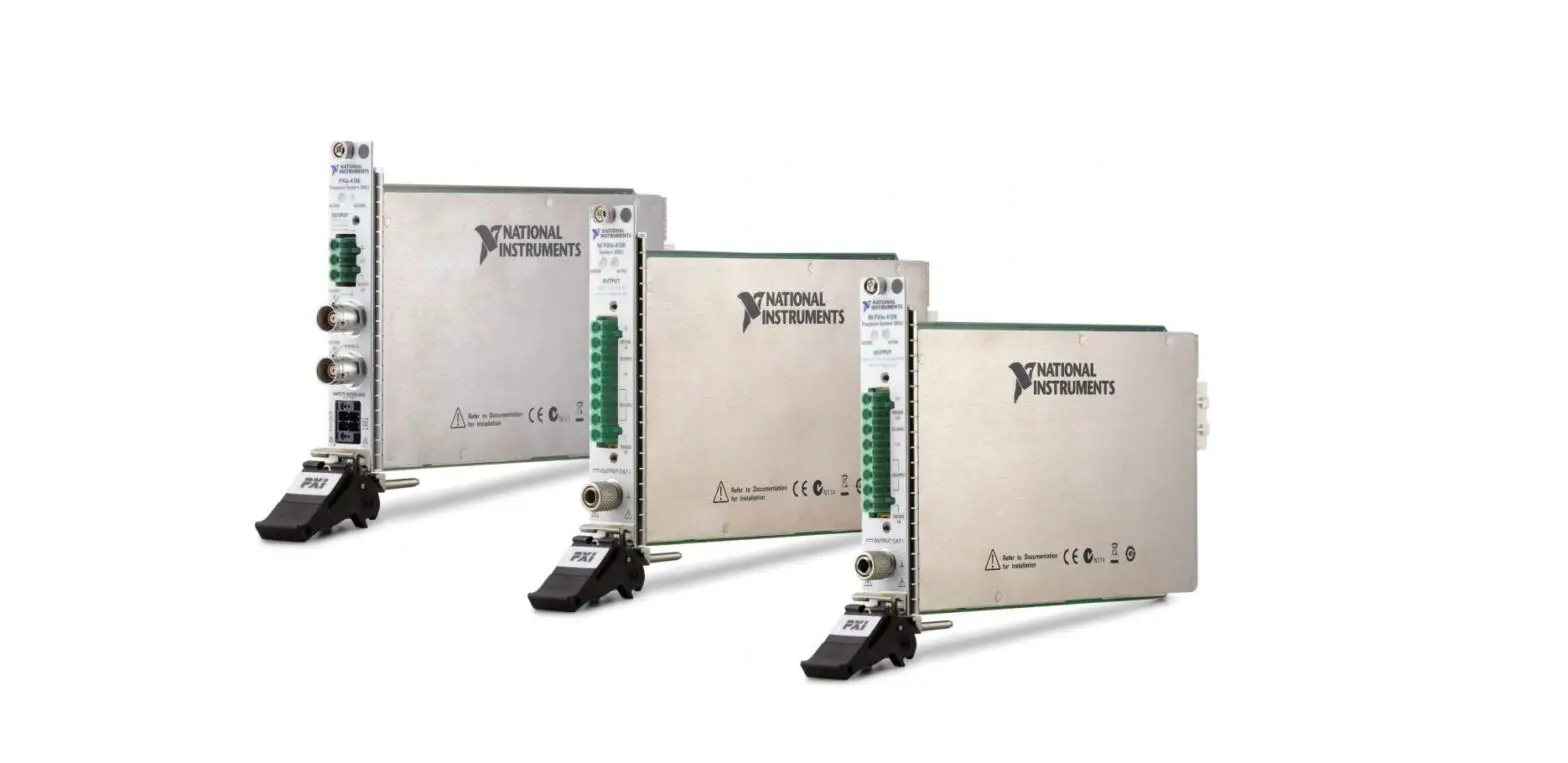
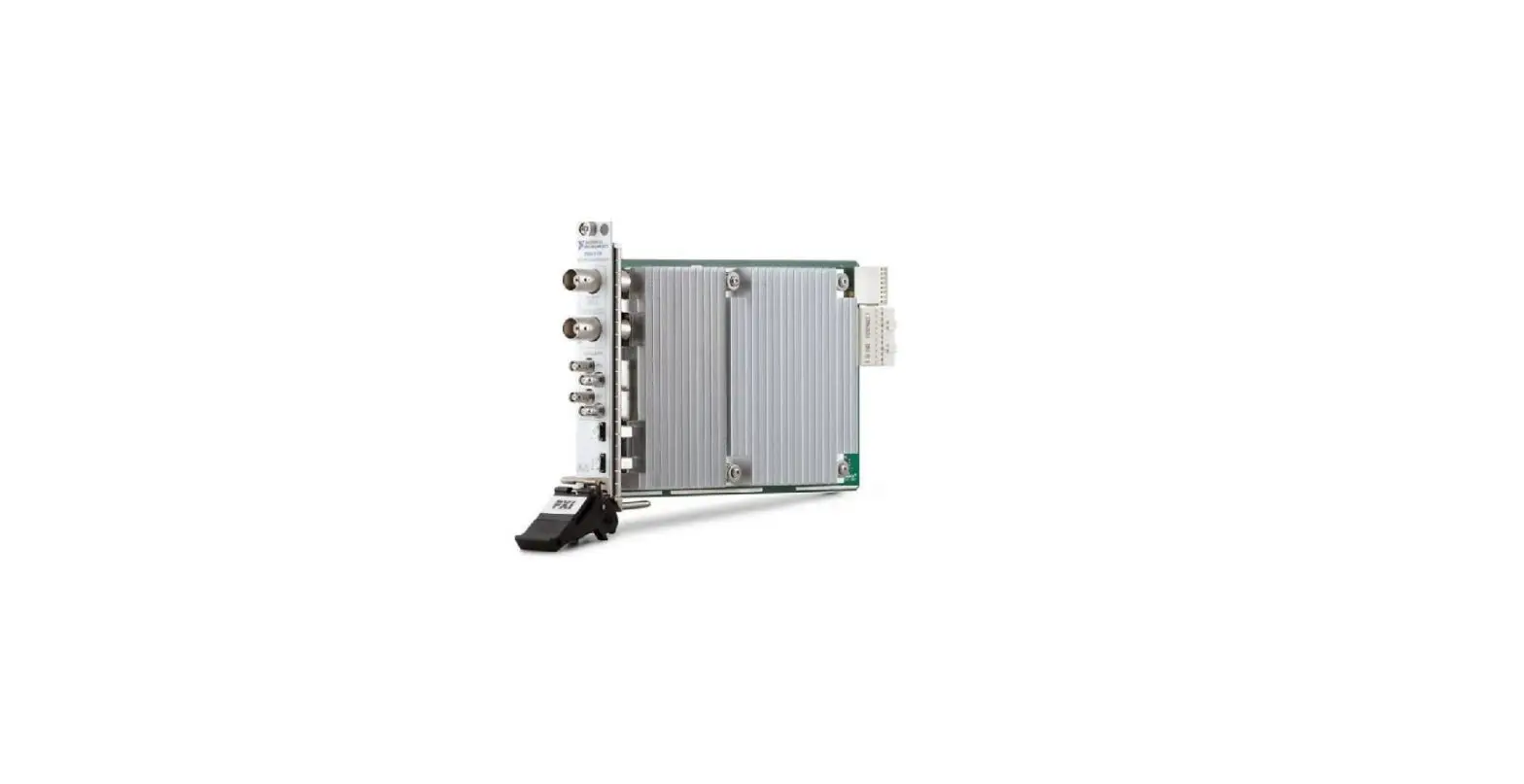
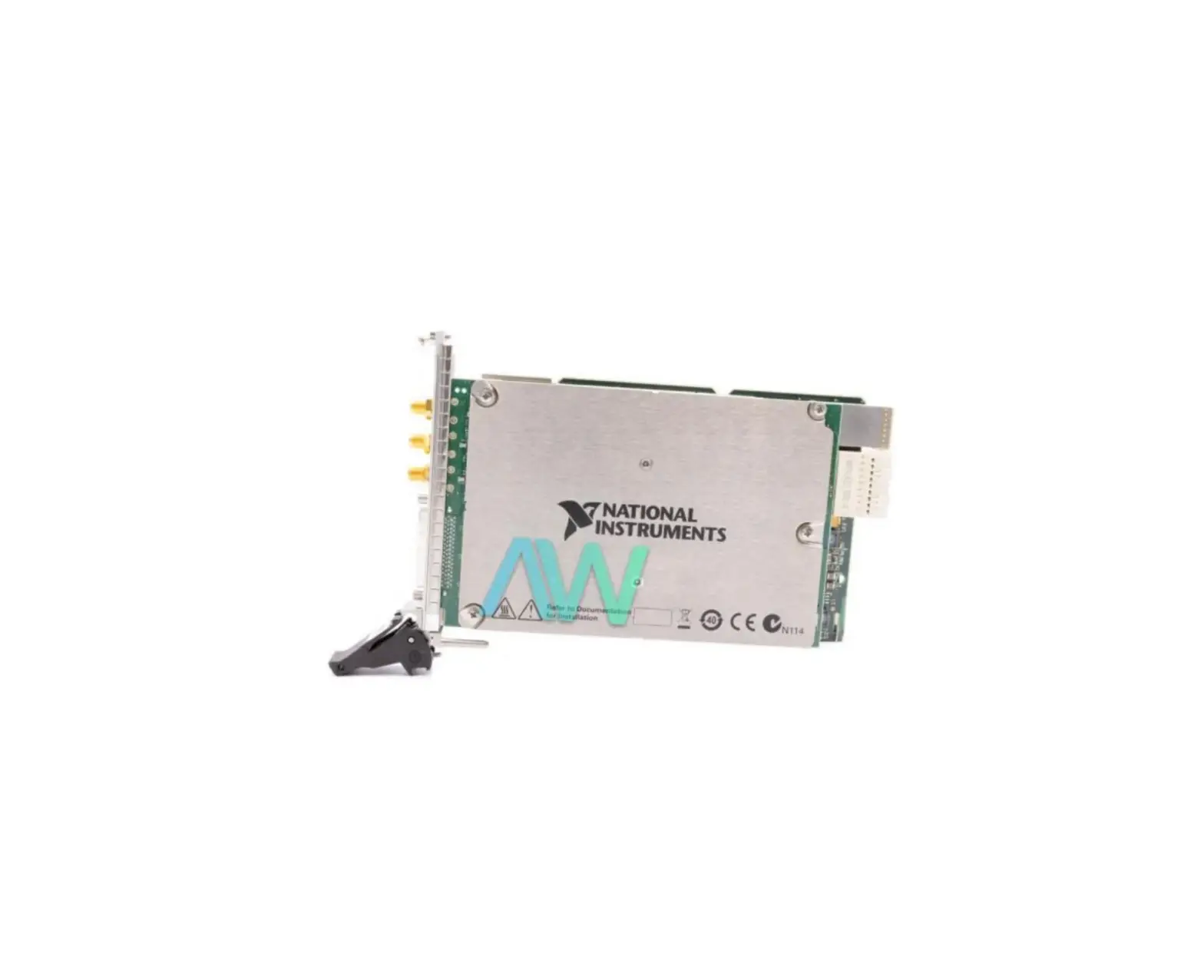
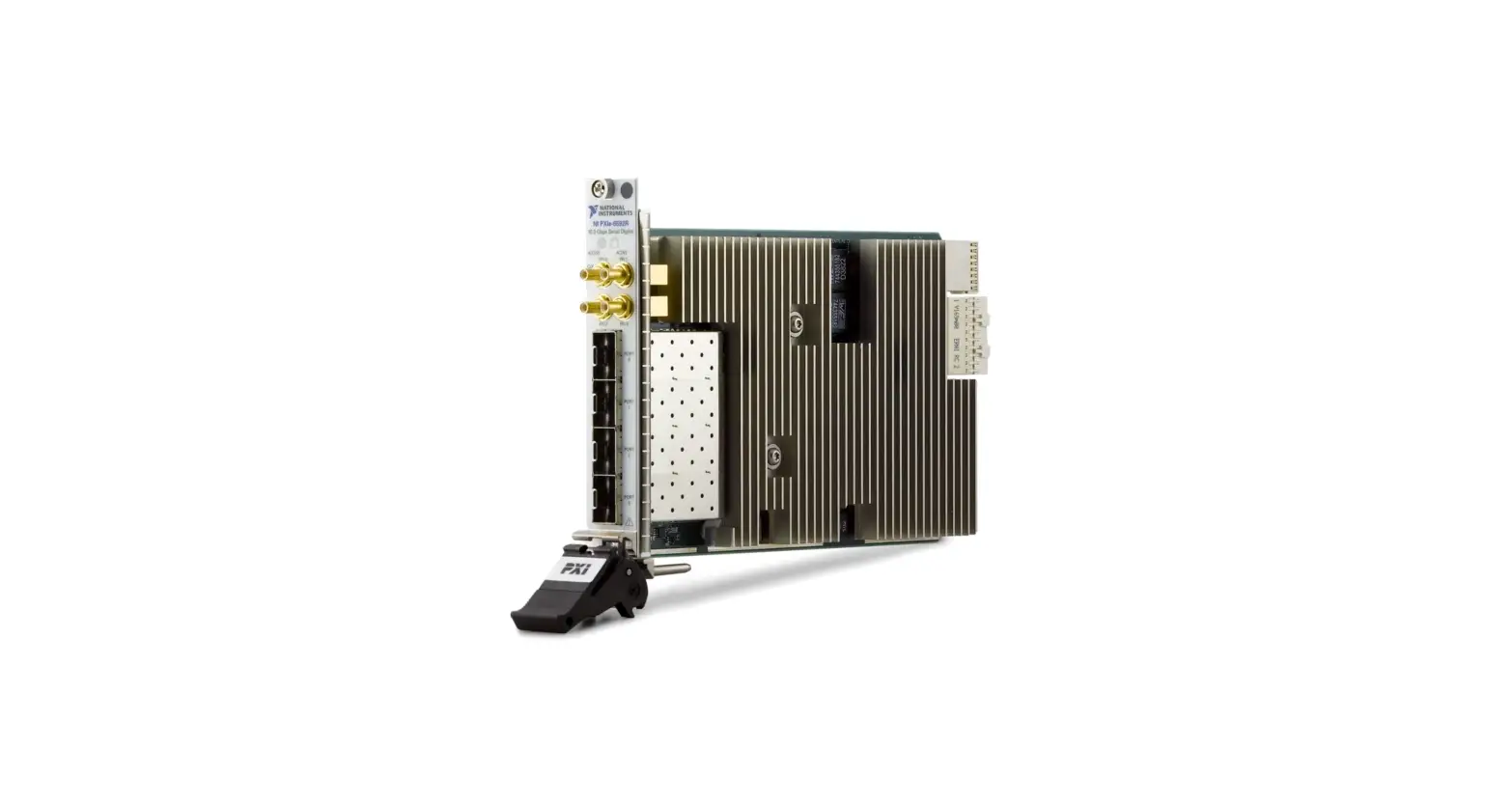
PXIe-4140 PXI Source Measure Unit Device
NI PXIe-4142 Four-Channel SMU
The NI PXIe-4142 is a four-channel source measure unit (SMU)
that requires installation, configuration, and testing. Before
using the product, it is essential to install and configure the
chassis and controller. The product comes with a user manual that
provides instructions on how to install, configure, and test the
product.
Contents
- Electromagnetic Compatibility Guidelines
- Verifying the System Requirements
- Unpacking the Kit
- Preparing the Environment
- Installing the Software
Electromagnetic Compatibility Guidelines
To ensure the specified electromagnetic compatibility (EMC)
performance, it is recommended to operate this product only with
shielded cables and accessories. Failure to follow this guideline
may impair the protection provided by the NI 414x.
Verifying the System Requirements
Before using the NI-DCPower instrument driver, it is essential
to ensure that your system meets certain requirements. For more
information about minimum system requirements, recommended system,
and supported application development environments (ADEs), refer to
the product readme available on the driver software media or online
at ni.com/manuals.
Unpacking the Kit
When unpacking the kit, it is crucial to prevent electrostatic
discharge (ESD) from damaging the device. To do so, ground yourself
using a grounding strap or by holding a grounded object, such as
your computer chassis. Touch the antistatic package to a metal part
of the computer chassis before removing the device from the
package. Inspect the device for loose components or any other sign
of damage. Do not touch the exposed pins of connectors, and do not
install a device if it appears damaged in any way. Store the device
in the antistatic package when not in use.
Preparing the Environment
Ensure that the environment you are using the NI 414x in meets
the following specifications:
- Operating Environment: Indoor use only
- Ambient temperature range
- Relative humidity range
- Storage ambient temperature range
- Maximum altitude
- Pollution Degree
Refer to the device specifications on ni.com/manuals for
complete specifications.
Installing the Software
You must be an Administrator to install NI software on your
computer. Install an ADE, such as LabVIEW or LabWindowsTM/CVITM,
and insert the driver software media into your computer. The
installer should open automatically. If the installation window
does not appear, navigate to the drive, double-click it, and
double-click autorun.exe.
By following these instructions, you can set up and use the NI
PXIe-4142 Four-Channel SMU effectively.
PXIe-4142
GETTING STARTED GUIDE
NI PXIe-4140/4141/4142/
4143/4144/4145
Four-Channel SMU
Note Before you begin, install and configure your chassis and controller.
This document explains how to install, configure, and test the NI PXIe-4140/4141/4142/4143/4144/4145 (NI 414x). The NI 414x is a four-channel source measure unit (SMU).
To access NI 414x documentation, navigate to Start»All Programs»National Instruments» NI-DCPower»Documentation.
Caution You can impair the protection provided by the NI 414x if you use it in a manner not described in this document.
Contents
Electromagnetic Compatibility Guidelines……………………………………………………………………. 2 Verifying the System Requirements………………………………………………………………………………2 Unpacking the Kit……………………………………………………………………………………………………… 2 Kit Contents……………………………………………………………………………………………………………… 3
Other Equipment………………………………………………………………………………………………… 3 Preparing the Environment…………………………………………………………………………………………. 4 Safety………………………………………………………………………………………………………………………. 4 Installing the Software……………………………………………………………………………………………….. 4 Installing the NI 414x………………………………………………………………………………………………… 5 Configuring the NI 414x in MAX…………………………………………………………………………………6 Programming the NI 414x……………………………………………………………………………………………7 Troubleshooting………………………………………………………………………………………………………… 8
What Should I Do if the NI 414x Doesn’t Appear in MAX?……………………………………..8 What Should I Do if the Module Fails the Self-Test?……………………………………………….8 Why Is the ACCESS LED Off When the Chassis Is On?………………………………………….8 Where To Go Next…………………………………………………………………………………………………….. 9 Worldwide Support and Services……………………………………………………………………………….. 10
Electromagnetic Compatibility Guidelines
This product was tested and complies with the regulatory requirements and limits for electromagnetic compatibility (EMC) stated in the product specifications. These requirements and limits provide reasonable protection against harmful interference when the product is operated in the intended operational electromagnetic environment. This product is intended for use in industrial locations. However, harmful interference may occur in some installations, when the product is connected to a peripheral device or test object, or if the product is used in residential or commercial areas. To minimize interference with radio and television reception and prevent unacceptable performance degradation, install and use this product in strict accordance with the instructions in the product documentation. Furthermore, any changes or modifications to the product not expressly approved by National Instruments could void your authority to operate it under your local regulatory rules.
Caution To ensure the specified EMC performance, operate this product only with shielded cables and accessories.
Verifying the System Requirements
To use the NI-DCPower instrument driver, your system must meet certain requirements. Refer to the product readme, which is available on the driver software media or online at ni.com/manuals, for more information about minimum system requirements, recommended system, and supported application development environments (ADEs).
Unpacking the Kit
Caution To prevent electrostatic discharge (ESD) from damaging the device, ground yourself using a grounding strap or by holding a grounded object, such as your computer chassis. 1. Touch the antistatic package to a metal part of the computer chassis. 2. Remove the device from the package and inspect the device for loose components or any other sign of damage.
Caution Never touch the exposed pins of connectors.
Note Do not install a device if it appears damaged in any way.
3. Unpack any other items and documentation from the kit. Store the device in the antistatic package when the device is not in use.
2 | ni.com | NI PXIe-414x Getting Started Guide
Kit Contents
Figure 1. NI 414x Kit Contents
1
2
3
4
5
1. NI PXIe-414x SMU Device 2. Output Connector Assembly 3. Driver Software DVD
4. NI PXIe-4140/4141/4142/4143/4144/4145 Getting Started Guide (this document)
5. Maintain Forced-Air Cooling Note to Users
Other Equipment
There are several required items not included in your device kit that you need to operate the NI 414x. Your application may require additional items not included in your kit to install or operate your device.
Required Items
· A PXI Express chassis and chassis documentation. For more information about compatible chassis options, refer to ni.com.
· A PXI Express embedded controller or MXI controller system that meets the system requirements specified in this guide and chassis documentation.
Optional Items · NI screwdriver (part number 781015-01).
NI PXIe-414x Getting Started Guide | © National Instruments | 3
Preparing the Environment
Ensure that the environment you are using the NI 414x in meets the following specifications.
Operating Environment Ambient temperature range
Relative humidity range
Storage ambient temperature range Maximum altitude Pollution Degree
0 °C to 55 °C (Tested in accordance with IEC 60068-2-1 and IEC 60068-2-2. Meets MIL-PRF-28800F Class 3 low temperature limit and MIL-PRF-28800F Class 2 high temperature limit.)
10% to 70%, noncondensing; derate 1.3% per °C above 40 °C (Tested in accordance with IEC 60068-2-56.) (Tested in accordance with IEC 60068-2-56.)
-40 °C to 70 °C (Tested in accordance with IEC 60068-2-1 and IEC 60068-2-2.)
2,000 m (800 mbar) (at 25 °C ambient temperature)
2
Indoor use only.
Note Refer to the device specifications on ni.com/manuals for complete specifications.
Safety
Caution Always refer to the specifications document for your device before connecting signals. Failure to observe the specified maximum signal ratings can cause shock, a fire hazard, or damage to the devices connected to the NI 414x. NI is not liable for any damage or injuries resulting from incorrect signal connections.
Installing the Software
You must be an Administrator to install NI software on your computer. 1. Install an ADE, such as LabVIEW or LabWindowsTM/CVITM. 2. Insert the driver software media into your computer. The installer should open
automatically.
If the installation window does not appear, navigate to the drive, double-click it, and double-click autorun.exe.
4 | ni.com | NI PXIe-414x Getting Started Guide
3. Follow the instructions in the installation prompts.
Note Windows users may see access and security messages during installation. Accept the prompts to complete the installation.
4. When the installer completes, select Restart in the dialog box that prompts you to restart, shut down, or restart later.
Installing the NI 414x
Caution To prevent damage to the device caused by ESD or contamination, handle the device using the edges or the metal bracket. 1. Ensure the AC power source is connected to the chassis before installing the modules.
The AC power cord grounds the chassis and protects it from electrical damage while you install the modules. 2. Power off the chassis. 3. Inspect the slot pins on the chassis backplane for any bends or damage prior to installation. Do not install a module if the backplane is damaged. 4. Remove the black plastic connectors from all the captive screws on the module front panel. 5. Identify a supported slot in the chassis. The following figure shows the symbols that indicate the slot types.
Figure 2. Chassis Compatibility Symbols
NI PXIe-1062Q
1
2
3
4
5
1. PXI Express System Controller Slot 2. PXI Peripheral Slot 3. PXI Express Hybrid Peripheral Slot
4. PXI Express System Timing Slot 5. PXI Express Peripheral Slot
NI 414x modules can be placed in PXI Express peripheral slots, PXI Express hybrid peripheral slots, or PXI Express system timing slots.
6. Touch any metal part of the chassis to discharge static electricity.
7. Ensure that the ejector handle is in the unlatched (downward) position.
8. Place the module edges into the module guides at the top and bottom of the chassis. Slide the device into the slot until it is fully inserted.
NI PXIe-414x Getting Started Guide | © National Instruments | 5
Figure 3. Module Installation
1
NI PXIe-1075
2
3
1. Chassis 2. Hardware Module 3. Ejector Handle in Down (Unlatched) Position
9. Latch the module in place by pulling up on the ejector handle. 10. Secure the device front panel to the chassis using the front-panel mounting screws.
Note Tightening the top and bottom mounting screws increases mechanical stability and also electrically connects the front panel to the chassis, which can improve the signal quality and electromagnetic performance. 11. Cover all empty slots using filler panels or slot blockers to maximize cooling air flow. 12. Attach output connections. a) Connect the output connector assembly to the device. Tighten any thumbscrews on the output connector assembly to hold it in place. 13. Power on the chassis.
Configuring the NI 414x in MAX
Use Measurement & Automation Explorer (MAX) to configure your NI hardware. MAX informs other programs about which devices reside in the system and how they are configured. MAX is automatically installed with NI-DCPower. 1. Launch MAX. 2. In the configuration tree, expand Devices and Interfaces to see the list of installed
devices. Installed devices appear under the name of their associated chassis. 3. Expand your Chassis tree item.
6 | ni.com | NI PXIe-414x Getting Started Guide
MAX lists all devices installed in the chassis. Your default device names may vary.
Note If you do not see your device listed, press <F5> to refresh the list of installed devices. If the device is still not listed, power off the system, ensure the device is correctly installed, and restart. 4. Record the device identifier MAX assigns to the hardware. Use this identifier when programming the NI 414x. 5. Self-test the device by selecting the device in the configuration tree and clicking Self-Test in the MAX toolbar.
The MAX self-test performs a basic verification of hardware resources.
Programming the NI 414x
You can generate signals interactively using the NI-DCPower Soft Front Panel (SFP) or you can use the NI-DCPower instrument driver to program your device in the supported ADE of your choice.
Application Programming Interface (API) NI-DCPower SFP
NI-DCPower Instrument Driver
Table 1. NI 414x Programming Options
Location
Description
Available from the start
The NI-DCPower SFP acquires,
menu at Start»All
controls, and presents data. The
Programs»National
NI-DCPower SFP operates on the
Instruments»
PC, to provide additional display
NI-DCPower»NI-DCPower capabilities.
Soft Front Panel.
LabVIEW–Available on the NI-DCPower configures and operates
LabVIEW Functions palette the device hardware and performs
at Measurement I/O»
basic acquisition and measurement
NI-DCPower.
options using LabVIEW VIs or
C or LabWindows/CVI–
LabWindows/CVI functions.
Available at Program Files»
IVI Foundation»IVI»
Drivers»NI-DCPower.
Microsoft Visual C/C++– NI-DCPower does not ship with installed C/C++ examples.
Refer to the Creating an Application with Microsoft Visual C and C++ topic of the NI DC Power Supplies and SMUs Help to manually add all required include and library files to your project.
NI PXIe-414x Getting Started Guide | © National Instruments | 7
Troubleshooting
If an issue persists after you complete a troubleshooting procedure, contact NI technical support or visit ni.com/support.
What Should I Do if the NI 414x Doesn’t Appear in MAX?
1. In the MAX configuration tree, expand Devices and Interfaces.
2. Expand the Chassis tree to see the list of installed devices, and press <F5> to refresh the list.
3. If the module is still not listed, power off the system, ensure that all hardware is correctly installed, and restart the system.
4. Navigate to the Device Manager.
Operating System Description
Windows 8
Right-click the Start screen, and select All apps»Control Panel» Hardware and Sound»Device Manager.
Windows 7
Select Start»Control Panel»Device Manager.
Windows Vista
Select Start»Control Panel»System and Maintenance»Device Manager.
Windows XP
Select Start»Control Panel»System»Hardware»Device Manager.
5. If you are using a PXI or PXI Express controller, verify that a National Instruments entry appears in the system device list. Reinstall NI-DCPower and the device if error conditions appear in the list. If you are using an MXI controller, right-click PCI-to-PCI Bridge, and select Properties from the shortcut menu to verify that the bridge is enabled.
What Should I Do if the Module Fails the Self-Test?
1. Restart the system. 2. Launch MAX, and perform the self-test again. 3. Power off the chassis. 4. Reinstall the failed module in a different slot. 5. Power on the chassis. 6. Perform the self-test again.
Why Is the ACCESS LED Off When the Chassis Is On?
The LEDs may not illuminate until the device has been configured in MAX. Before proceeding, verify that the NI 414x appears in MAX.
8 | ni.com | NI PXIe-414x Getting Started Guide
If the ACCESS LED fails to illuminate after you power on the PXI Express chassis, a problem
may exist with the PXI Express power rails, a hardware module, or the LED.
1.
Caution Apply external signals only while the NI 414x is powered on.
Applying external signals while the device is powered off may cause damage.
Disconnect any signals from the PXI Express module front panels.
2. Remove any front panel connections from the NI 414x.
3. Power off the PXI Express chassis.
4. Remove the module from the PXI Express chassis and inspect it for damage. Do not reinstall a damaged device.
5. Install the module in a different PXI Express chassis slot from which you removed it.
6. Power on the PXI Express chassis.
7. Verify that the device appears in MAX.
8. Reset the device in MAX and perform a self-test.
If the ACCESS LED still fails to illuminate and failures continue, contact NI technical support or visit ni.com/support.
Where To Go Next
Located in the hardware kit
EXPLORE
the application development environment (ADE)
for your application.
Located online at ni.com/manuals
LEARN
about hardware features or review device specifications.
NI PXIe-4142 4-CH SMU
Located using the NI Example Finder
CREATE
custom applications within an application programming
interface (API).
Learn LabVIEW Basics
Getting Started with LabWindows/CVI
NI PXIe-4140 Specifications* NI PXIe-4141 Specifications* NI PXIe-4142 Specifications* NI PXIe-4143 Specifications* NI PXIe-4144 Specifications* NI PXIe-4145 Specifications*
NI DC Power Supplies and SMUs Help*
NI-DCPower Soft Front Panel NI-DCPower Instrument Driver
NI DCPower Examples*
NI DC Power Supplies and SMUs Help*
Support ni.com/support
DISCOVER
more about your products through ni.com.
Power Supplies Solutions ni.com/powersupplies
Services ni.com/services
*This item is also installed with the driver software.
NI Community ni.com/community
NI PXIe-414x Getting Started Guide | © National Instruments | 9
Worldwide Support and Services
The National Instruments website is your complete resource for technical support. At ni.com/ support, you have access to everything from troubleshooting and application development self-help resources to email and phone assistance from NI Application Engineers. Visit ni.com/services for NI Factory Installation Services, repairs, extended warranty, and other services. Visit ni.com/register to register your National Instruments product. Product registration facilitates technical support and ensures that you receive important information updates from NI. A Declaration of Conformity (DoC) is our claim of compliance with the Council of the European Communities using the manufacturer’s declaration of conformity. This system affords the user protection for electromagnetic compatibility (EMC) and product safety. You can obtain the DoC for your product by visiting ni.com/certification. If your product supports calibration, you can obtain the calibration certificate for your product at ni.com/calibration. National Instruments corporate headquarters is located at 11500 North Mopac Expressway, Austin, Texas, 78759-3504. National Instruments also has offices located around the world. For telephone support in the United States, create your service request at ni.com/support or dial 1 866 ASK MYNI (275 6964). For telephone support outside the United States, visit the Worldwide Offices section of ni.com/niglobal to access the branch office websites, which provide up-to-date contact information, support phone numbers, email addresses, and current events.
Refer to the NI Trademarks and Logo Guidelines at ni.com/trademarks for information on National Instruments trademarks. Other product and company names mentioned herein are trademarks or trade names of their respective companies. For patents covering National Instruments products/technology, refer to the appropriate location: Help»Patents in your software, the patents.txt file on your media, or the National Instruments Patent Notice at ni.com/patents. You can find information about end-user license agreements (EULAs) and third-party legal notices in the readme file for your NI product. Refer to the Export Compliance Information at ni.com/legal/export-compliance for the National Instruments global trade compliance policy and how to obtain relevant HTS codes, ECCNs, and other import/export data. NI MAKES NO EXPRESS OR IMPLIED WARRANTIES AS TO THE ACCURACY OF THE INFORMATION CONTAINED HEREIN AND SHALL NOT BE LIABLE FOR ANY ERRORS. U.S. Government Customers: The data contained in this manual was developed at private expense and is subject to the applicable limited rights and restricted data rights as set forth in FAR 52.227-14, DFAR 252.227-7014, and DFAR 252.227-7015. © 2006–2015 National Instruments. All rights reserved. 375454A-01 Sep15
References
 Engineer Ambitiously - NI
-
Engineer Ambitiously - NI
-
Calibration Services - NI
-
Product Certifications - NI
-
NI Community - National Instruments
-
Trade Compliance - NI
-
Product Documentation - NI
-
Contact Us - NI
-
National Instruments Patents - NI
-
What Are PXI Source Measure Units? - NI
-
Log In - National Instruments
-
NI Services - NI
-
Support - NI
-
NI Trademarks and Logo Guidelines - NI
-
Engineer Ambitiously - NI
-
Calibration Services - NI
-
Product Certifications - NI
-
Product Documentation - NI
-
Product Documentation - NI
-
Contact Us - NI
-
Log In - National Instruments
-
NI Services - NI
-
Support - NI
 PXIe-4142 National Instruments PXI Source Measure Unit | Apex Waves
 Engineer Ambitiously - NI
 Engineer Ambitiously - NI
 PXIe-4142 National Instruments PXI Source Measure Unit | Apex Waves