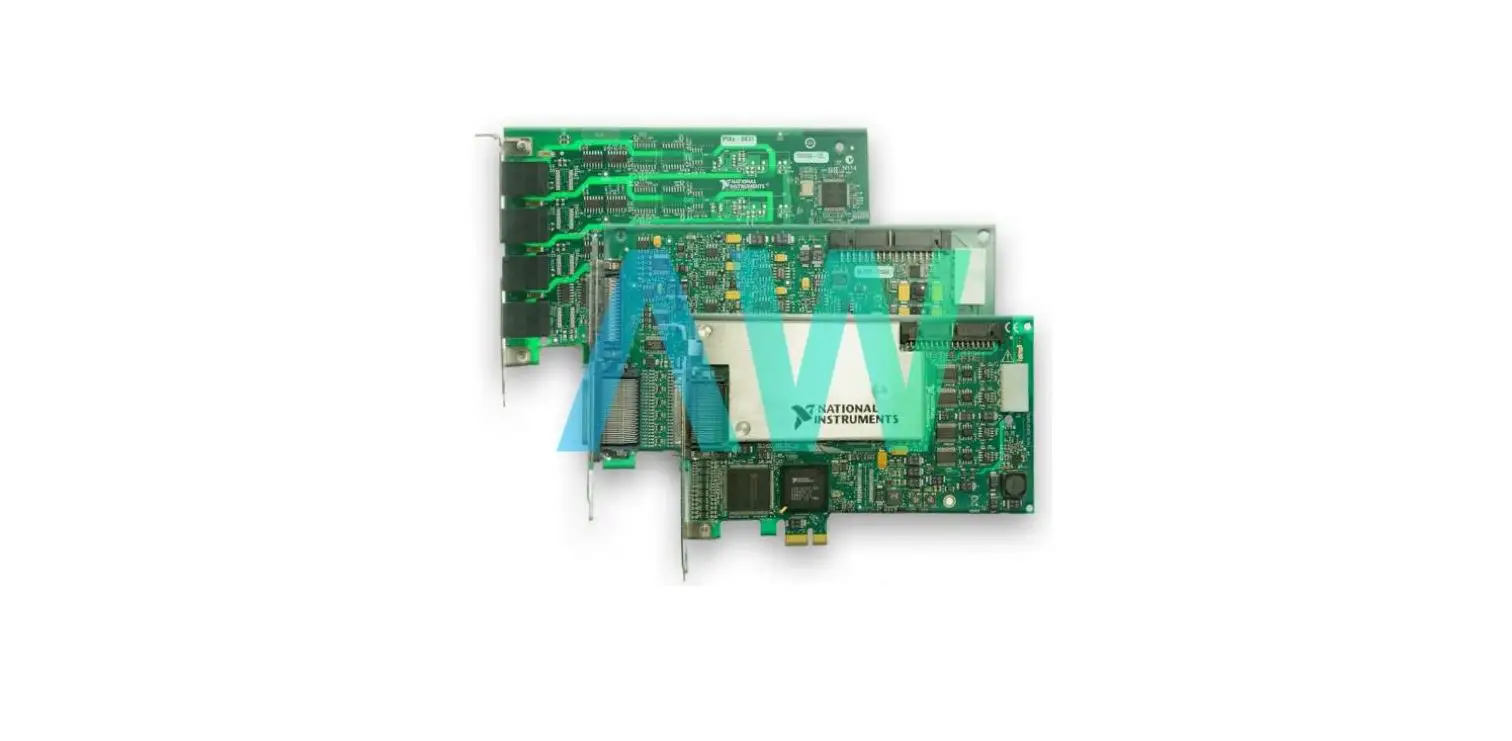
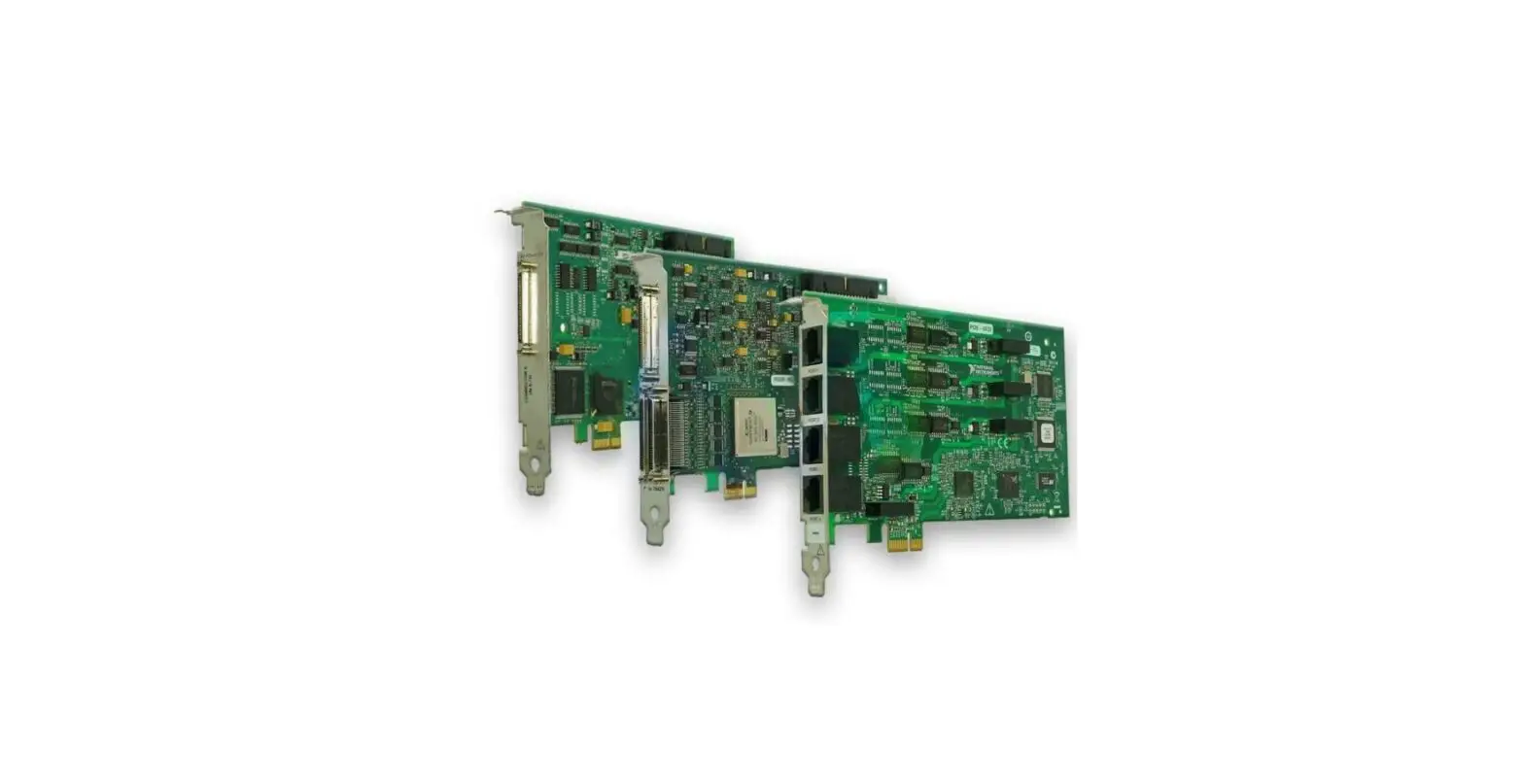
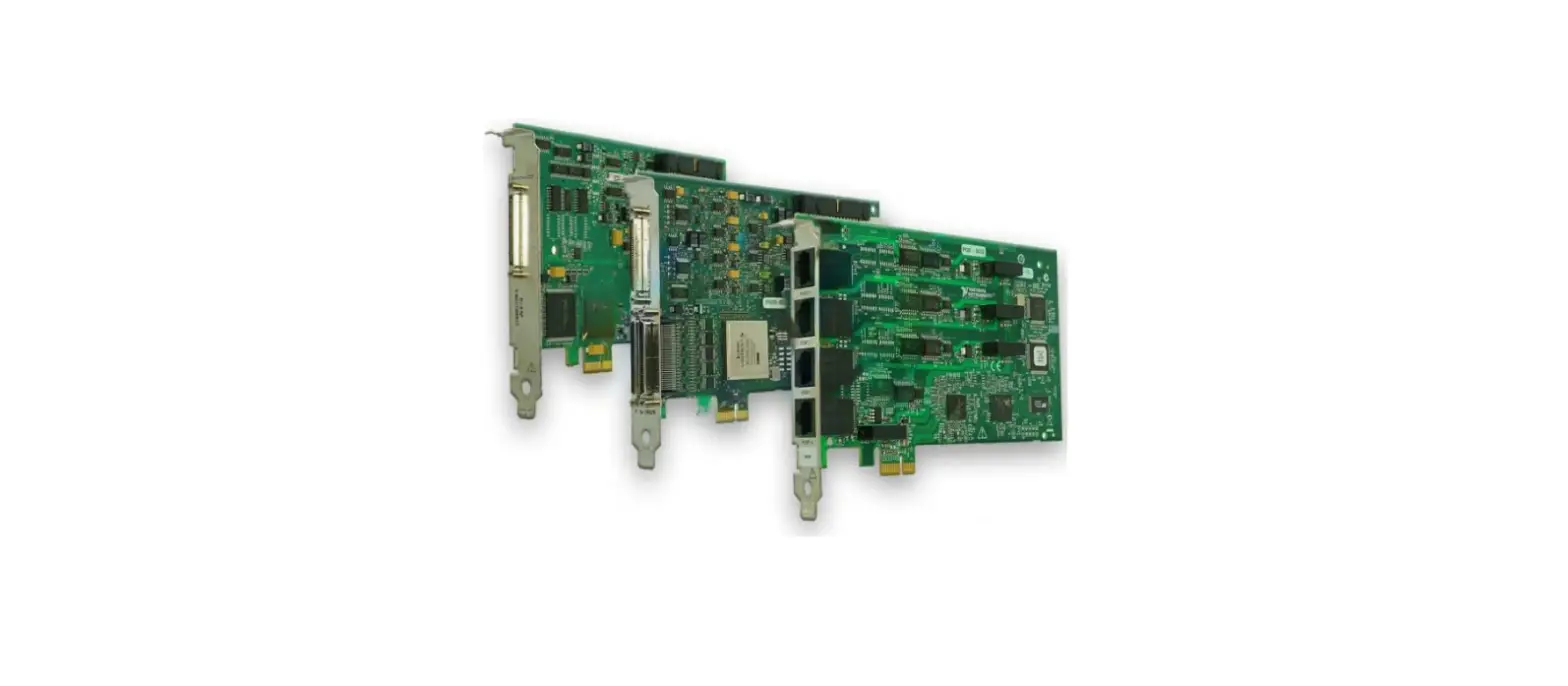
PXI-6624 PXI Express Counter or Timer Module
Product Information: PXI-6624 DAQ Module
The PXI-6624 is a data acquisition (DAQ) module designed and
manufactured by National Instruments for use with PXI and PXI
Express chassis. It is used to measure and analyze analog and
digital signals from various sources for applications such as
testing, research, and automation.
Unpacking the Kit
When unpacking the kit, it is important to take precautions to
prevent electrostatic discharge (ESD) from damaging the device. To
do this, ground yourself using a grounding strap or by holding a
grounded object, such as your computer chassis. Touch the
antistatic package to a metal part of the computer chassis before
removing the device from the package. Inspect the device for loose
components or any other sign of damage. Do not touch the exposed
pins of connectors and do not install a device if it appears
damaged in any way. Unpack any other items and documentation from
the kit and store the device in the antistatic package when the
device is not in use.
Installing the Software
Before upgrading your software, back up any applications. You
must be an Administrator to install NI software on your computer.
Refer to the NI-DAQmx Readme on the software media for supported
application software and versions. If applicable, install an
application development environment (ADE), such as LabVIEW.
Installing the Module
If you are using a MXI-Express connected chassis, turn off your
computer before installing the module. Power off and unplug the
PXI/PXI Express chassis and refer to your chassis manual to install
or configure the chassis. Before removing covers or connecting or
disconnecting signal wires, refer to the Read Me First: Safety and
Electromagnetic Compatibility with your PXI/PXI Express chassis or
device. Identify a supported PXI/PXI Express slot in the chassis.
Some modules have PXI/PXI Express slot requirements; for
information, refer to the module documentation. If you are using a
PXI Express chassis, you can place PXI modules in the PXI slots. If
a PXI module is hybrid slot compatible, you can use the PXI Express
Hybrid slots. PXI Express modules can be placed only in PXI Express
slots and PXI Express Hybrid slots. Refer to the chassis
documentation for details.
Installation Steps:
- Remove the filler panel of an unused PXI/PXI Express slot.
- Touch any metal part of the chassis to discharge static
electricity. - Ensure that the PXI/PXI Express module injector/ejector handle
is not latched and swings freely. - Place the PXI/PXI Express module edges into the module guides
at the top and bottom of the chassis. - Slide the module into the PXI/PXI Express slot to the rear of
the chassis. - When you begin to feel resistance, pull up on the
injector/ejector handle to latch the module into place.
PXI-6624
DAQ GETTING STARTED GUIDE
PXI/PXI Express
This document provides basic installation instructions for National Instruments PXI and PXI Express DAQ modules. Refer to the documentation specific to your DAQ module for more information.
Unpacking the Kit
Caution To prevent electrostatic discharge (ESD) from damaging the device, ground yourself using a grounding strap or by holding a grounded object, such as your computer chassis. 1. Touch the antistatic package to a metal part of the computer chassis. 2. Remove the device from the package and inspect the device for loose components or any other sign of damage.
Caution Never touch the exposed pins of connectors.
Note Do not install a device if it appears damaged in any way.
3. Unpack any other items and documentation from the kit. Store the device in the antistatic package when the device is not in use.
Installing the Software
Back up any applications before upgrading your software. You must be an Administrator to install NI software on your computer. Refer to the NI-DAQmx Readme on the software media for supported application software and versions. 1. If applicable, install an application development environment (ADE), such as LabVIEW,
Microsoft Visual Studio®, or LabWindowsTM/CVITM. 2. Install the NI-DAQmx driver software.
Installing the Module
1. (Optional) If you are using a MXI-Express connected chassis, turn off your computer. Note For more information about using MXI-Express chassis, refer to your chassis manual.
2. Power off and unplug the PXI/PXI Express chassis. Refer to your chassis manual to install or configure the chassis.
Caution Refer to the Read Me First: Safety and Electromagnetic Compatibility with your PXI/PXI Express chassis or device before removing covers or connecting or disconnecting signal wires.
Figure 1. Installing a PXI/PXI Express Module in the Chassis
1
2
PXI-1000B
7
3
6
5 4
1. PXI/PXI Express Chassis 2. PXI/PXI Express Chassis or MXI-Express
Controller 3. PXI/PXI Express Module 4. Injector/Ejector Handle
5. Front-Panel Mounting Screws 6. Module Guides 7. Power Switch
3. Identify a supported PXI/PXI Express slot in the chassis.
Some modules have PXI/PXI Express slot requirements; for information, refer to the module documentation.
Figure 2. Symbols for PXI Express/PXI Express Hybrid/PXI Slots
NI PXIe-1062Q
1
2
3
4
1. PXI Express System Controller Slot 2. PXI Peripheral Slot
3. PXI Express Hybrid Peripheral Slot 4. PXI Express System Timing Slot
If you are using a PXI Express chassis, you can place PXI modules in the PXI slots. If a PXI module is hybrid slot compatible, you can use the PXI Express Hybrid slots. PXI Express modules can be placed only in PXI Express slots and PXI Express Hybrid slots. Refer to the chassis documentation for details.
4. Remove the filler panel of an unused PXI/PXI Express slot.
2 | ni.com | DAQ Getting Started Guide for PXI/PXI Express
5. Touch any metal part of the chassis to discharge static electricity. 6. Ensure that the PXI/PXI Express module injector/ejector handle is not latched and swings
freely. 7. Place the PXI/PXI Express module edges into the module guides at the top and bottom of
the chassis. 8. Slide the module into the PXI/PXI Express slot to the rear of the chassis. 9. When you begin to feel resistance, pull up on the injector/ejector handle to latch the
device. 10. Secure the module front panel to the chassis using the front-panel mounting screws. 11. Plug in and power on your PXI/PXI Express chassis. 12. (Optional) If you are using a MXI-Express connected chassis, turn on your computer. 13. If applicable, install accessories and/or terminal blocks as described in the installation
guides. 14. Attach sensors and signal lines to the device, terminal block, or accessory terminals.
Refer to the documentation for your DAQ device or accessory for terminal/pinout information.
Configuring the Device in NI MAX
Use NI MAX, installed automatically with NI-DAQmx, to configure your National Instruments hardware. 1. Launch NI MAX. 2. In the Configuration pane, double-click Devices and Interfaces to see the list of installed
devices. The module is nested under the chassis.
If you do not see your device listed, press <F5> to refresh the list of installed devices. 3. Rightclick the device and select Self-Test to perform a basic verification of hardware
resources. 4. (Optional) Rightclick the device and select Configure to add accessory information and
configure the device. 5. Right-click the device and select Test Panels to test device functionality.
Click Start to test the device functions, and then Stop and Close to exit the test panel. If the test panel displays an error message, refer to ni.com/support. 6. If your device supports Self-Calibration, right-click the device and select Self-Calibrate.
A window reports the status of the calibration. Click Finish. For more information about Self-Calibration, refer to the device user manual.
Note Remove all sensors and accessories from your device before SelfCalibrating.
DAQ Getting Started Guide for PXI/PXI Express | © National Instruments | 3
Programming
Complete the following steps to configure a measurement using the DAQ Assistant from NI MAX. 1. In NI MAX, right-click Data Neighborhood and select Create New to open the DAQ
Assistant. 2. Select NI-DAQmx Task and click Next. 3. Select Acquire Signals or Generate Signals. 4. Select the I/O type, such as analog input, and the measurement type, such as voltage. 5. Select the physical channel(s) to use and click Next. 6. Name the task and click Finish. 7. Configure individual channel settings. Each physical channel you assign to a task
receives a virtual channel name. Click Details for physical channel information. Configure the timing and triggering for your task. 8. Click Run.
Troubleshooting
For software installation problems, go to ni.com/support/daqmx.
For hardware troubleshooting, go to ni.com/support and enter your device name, or go to ni.com/kb.
Find device terminal/pinout locations in MAX by right-clicking the device name in the Configuration pane and selecting Device Pinouts.
To return your National Instruments hardware for repair or device calibration, go to ni.com/ info and enter rdsenn, which starts the Return Merchandise Authorization (RMA) process.
Where to Go Next
Additional resources are online at ni.com/gettingstarted and in the NI-DAQmx Help. To access NI-DAQmx Help, launch NI MAX and go to Help»Help Topics»NI-DAQmx»NI-DAQmx Help.
Examples
NI-DAQmx includes example programs to help you get started developing an application. Modify example code and save it in an application, or use examples to develop a new application or add example code to an existing application.
To locate LabVIEW, LabWindows/CVI, Measurement Studio, Visual Basic, and ANSI C examples, go to ni.com/info and enter the Info Code daqmxexp. For additional examples, refer to ni.com/examples.
4 | ni.com | DAQ Getting Started Guide for PXI/PXI Express
Related Documentation
To find the documentation for your DAQ device or accessory–including safety, environmental, and regulatory information documents–go to ni.com/manuals and enter the model number.
Worldwide Support and Services
The NI website is your complete resource for technical support. At ni.com/support, you have access to everything from troubleshooting and application development self-help resources to email and phone assistance from NI Application Engineers. Visit ni.com/services for NI Factory Installation Services, repairs, extended warranty, and other services. Visit ni.com/register to register your NI product. Product registration facilitates technical support and ensures that you receive important information updates from NI. NI corporate headquarters is located at 11500 North Mopac Expressway, Austin, Texas, 78759-3504. NI also has offices located around the world. For telephone support in the United States, create your service request at ni.com/support or dial 1 866 ASK MYNI (275 6964). For telephone support outside the United States, visit the Worldwide Offices section of ni.com/ niglobal to access the branch office websites, which provide up-to-date contact information, support phone numbers, email addresses, and current events.
DAQ Getting Started Guide for PXI/PXI Express | © National Instruments | 5
Refer to the NI Trademarks and Logo Guidelines at ni.com/trademarks for information on NI trademarks. Other product and company names mentioned herein are trademarks or trade names of their respective companies. For patents covering NI products/technology, refer to the appropriate location: Help»Patents in your software, the patents.txt file on your media, or the National Instruments Patent Notice at ni.com/patents. You can find information about end-user license agreements (EULAs) and third-party legal notices in the readme file for your NI product. Refer to the Export Compliance Information at ni.com/ legal/export-compliance for the NI global trade compliance policy and how to obtain relevant HTS codes, ECCNs, and other import/export data. NI MAKES NO EXPRESS OR IMPLIED WARRANTIES AS TO THE ACCURACY OF THE INFORMATION CONTAINED HEREIN AND SHALL NOT BE LIABLE FOR ANY ERRORS. U.S. Government Customers: The data contained in this manual was developed at private expense and is subject to the applicable limited rights and restricted data rights as set forth in FAR 52.227-14, DFAR 252.227-7014, and DFAR 252.227-7015.
© 2016 National Instruments. All rights reserved.
376575A-01 Aug16
References
 Engineer Ambitiously - NI
-
Engineer Ambitiously - NI
-
Example Programs - NI Community
-
NI Learning Center - NI
-
Using Info Codes - NI
-
Search Results - NI
-
Product Documentation - NI
-
National Instruments Patents - NI
-
Log In - National Instruments
-
NI Services - NI
-
Support - NI
-
NI-DAQ™mx Download - NI
-
NI Trademarks and Logo Guidelines - NI
-
Example Programs - NI Community
-
NI Learning Center - NI
-
Using Info Codes - NI
-
Search Results - NI
-
Product Documentation - NI
-
Contact Us - NI
-
Log In - National Instruments
-
NI Services - NI
-
Support - NI
-
NI-DAQ™mx Download - NI
 PXI-6624 National Instruments Counter/Timer Module | Apex Waves
 Engineer Ambitiously - NI
 Example Programs - NI Community
 PXI-6624 National Instruments Counter/Timer Module | Apex Waves