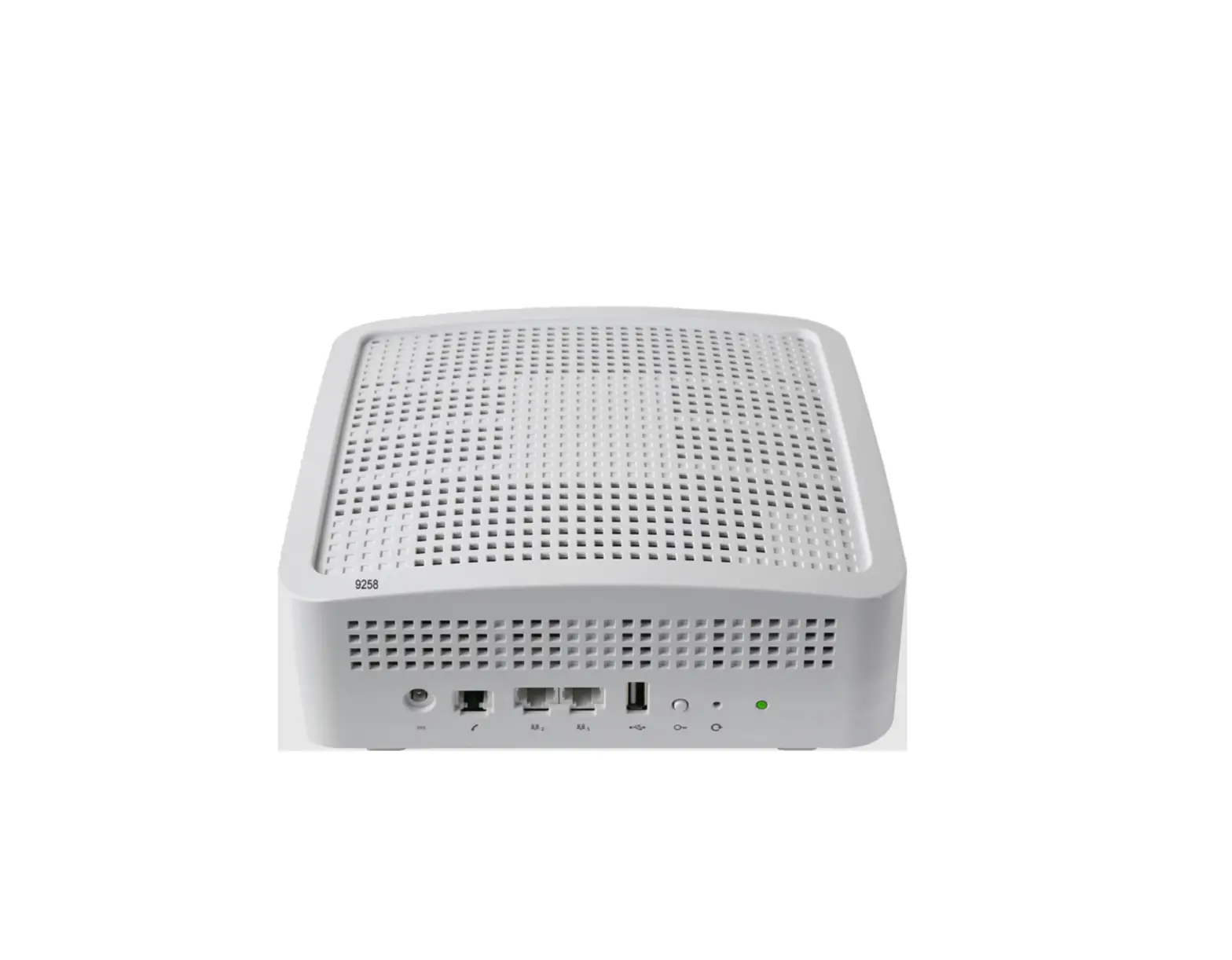
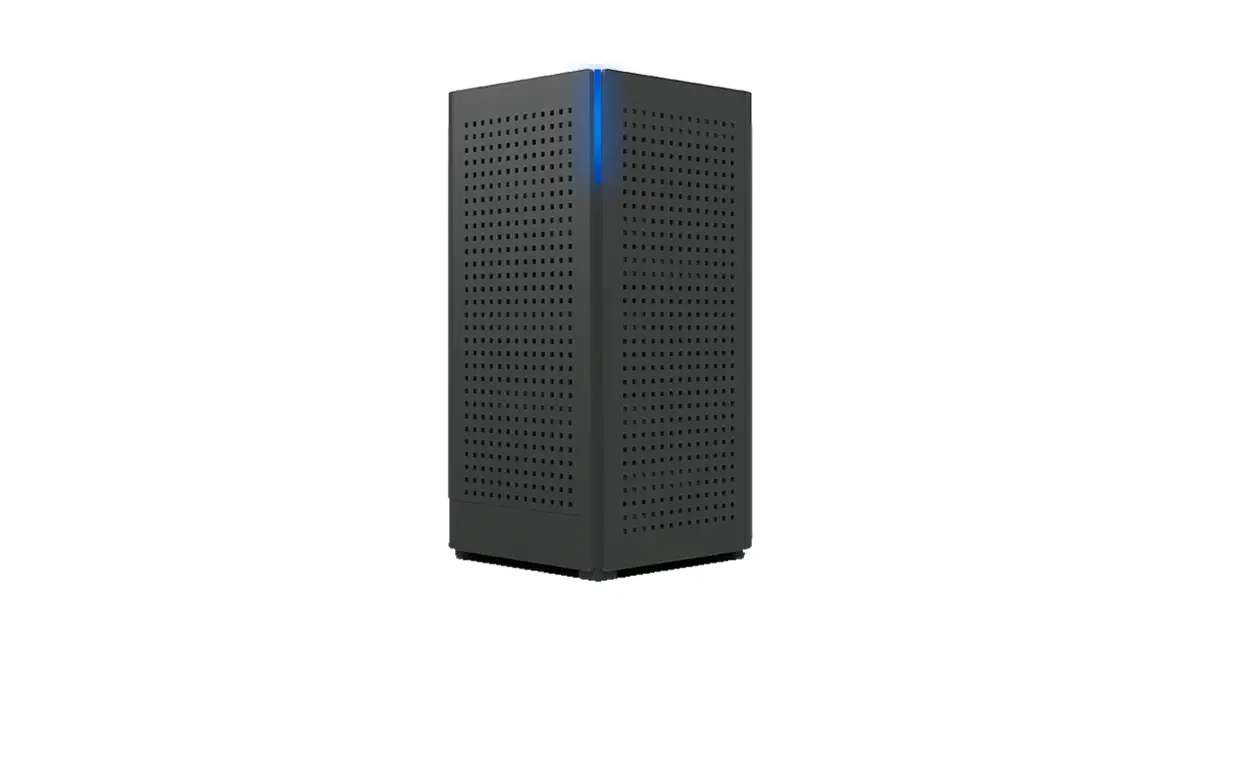
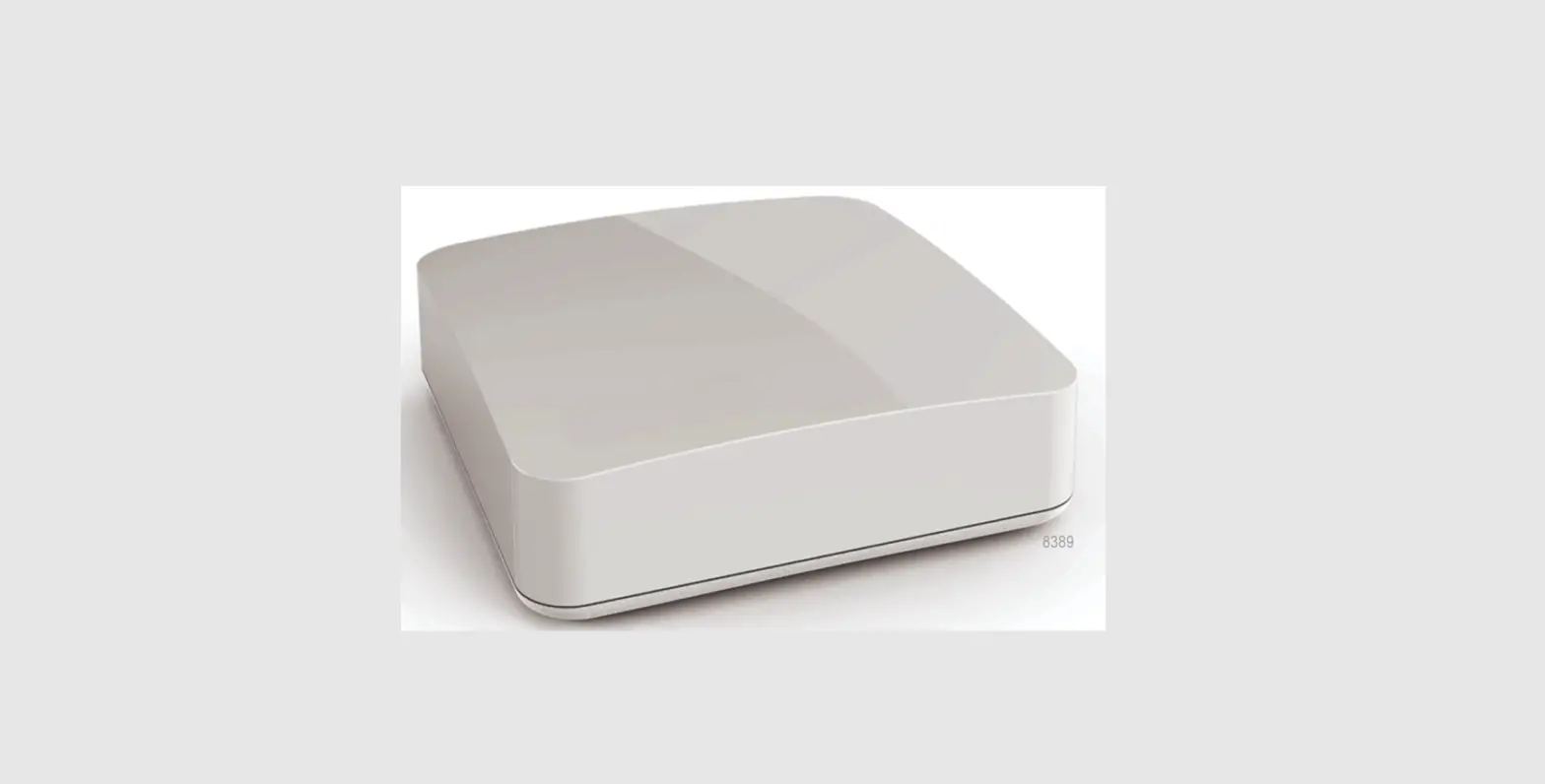
812G GigaHub
Product Information:
The GigaHub model 812G is a broadband service device that
provides Ethernet and telephone connectivity. It comes with a power
adapter, wall mount bracket, tabletop mounting stand, and a quick
start guide. The product is manufactured by Calix and can be
accessed online for additional documentation and support.
Package Contents:
- GigaHub – Model 812G
- Power Adapter (Optional – may ship separately or with
UPS*) - Wall mount bracket (Integrated Fiber Management Tray)
- Tabletop mounting stand
- GigaHub Quick Start Guide
- Product identification labels with login credentials (x2)
Quick Look:

Installation Variables:
Ensure you have the appropriate drills, drill bits, and
fasteners for routing subscriber services and/or power cables as
they pass through walls.
Product Usage Instructions:
Tabletop Mounting:
- Line up the GigaHub and Tabletop Stand as shown in the
diagram. - Slide the GigaHub down onto the Tabletop Stand until
flush. - Push the stand to the right while pulling the GigaHub to the
left until locked into place.
Wall Mounting:
The GigaHub can be wall-mounted using the provided Integrated
Fiber Management Tray. Alternatively, it can be mounted into a
Structured Wiring Enclosure.
Follow the dimensions provided in the manual to ensure proper
wall mounting.
Connecting the Equipment:
- Remove the GigaHub from its packaging and inventory all
parts. - Remove the fiber access cover and set it aside
temporarily. - Plug in the power adapter to an available wall socket and
attach the other end to the GigaHub’s power port. - Attach the fiber pigtail to the bulkhead fitting on the GigaHub
until it snaps into place. Reinstall the fiber access cover. - Push the ON/OFF switch (model 812G-2 only) to ON and allow the
GigaHub to boot up (about 3 minutes).
Connecting Outside Services:
Refer to the relevant documentation for instructions on
connecting outside services to the GigaHub.
812G GigaHub Quick Start Guide
This document provides general installation practices for the GigaHub model 812G. This document also provides guidance for site preparation, installation, and basic troubleshooting.
Scan the QR code at left to access the installation instructions for this product. All product documentation is available online from the Calix Resource Center (support.calix.com).
Package Contents
GigaHub – Model 812G Power Adapter (Optional – may ship separately or with UPS*) Wall mount bracket (Integrated Fiber Management Tray) Tabletop mounting stand GigaHub Quick Start Guide (this document) Product identification labels with login credentials (x2) * Note: For instructions on installing the optional UPS, refer to the
GigaHub Installation Guide.
P/N 220-00833, Rev 11
www.calix.com
A Quick Look
POWER BROADBAND
SERVICE
ETHERNET 1 ETHERNET 2 ETHERNET 3 ETHERNET 4
PHONE 1 PHONE 2
Reset Button
Telephone
Power
Ports (x2)
Broadband (RJ-11)
Service
Ethernet Ports (x4) Ethernet (1-4) (RJ-45)
Telephone (1-2)
Power On/Off (Toggle Switch) Model 812-2 Only
Power Adapter Port
7106
Tabletop Stand
OFF ON Model 812-2 Model 812-1 Barrel Power 8-Pin Power Connector Connector
7106
Installation Variables
Before installing the 812G GigaHub, consider what additional services may be implemented. Various Ethernet and telephone ports are available on the back of the unit which may or may not be used. Prior to determining the unit’s final location, you need to account for the following variables: · Where will the telephone lines be routed? · Where will the Ethernet cables be routed? · What type of building material is used in the home? Make sure you have
the appropriate drills, drill bits and fasteners for routing subscriber services and/or power cables as they pass through walls and the like.
— 2 —
Tabletop Mounting
The 812G GigaHub can be mounted on a tabletop in a “tower” configuration using the tabletop stand shipped with the product.
ETHERNET 2 ETHERNET 1
PHONE 1 PHONE 2
USB
1
Line-up GigaHub and
Tabletop Stand as shown.
Allow a 9/16″ offset between
the bottom corner of the GigaHub
and the top edge of the Tabletop Stand
3 Push stand to the right while pulling the GigaHub to the left until locked into place
2 Slide GigaHub down onto Tabletop Stand until flush
7108
Wall Mounting
The 812G GigaHub can be wall mounted using the provided Integrated Fiber Management Tray. As an alternative, the 812G can be mounted into a Structured Wiring Enclosure.
5.4 cm 2.125″
Dimensions with Wall Mount Tray Attached
21.3 cm 8.375″
7109
15.875 cm 6.25 ”
— 3 —
Wall Mounting Dimensions
In order to facilitate wall mounting of the 812G GigaHub, a Fiber Management Tray (wall mount bracket) is required (included with the GigaHub).
6.0″ (15.2 cm)
3.0″ (7.6 cm)
3.25″ (8.3 cm)
7081
= Standard Electrical Outlet Spacing
3.375″ (8.5 cm) 4.125″
(10.5 cm)
Note: Mounting holes with double ring indicate standard Structured Wiring Enclosure Spacing (Levithon)
— 4 —
Connecting the Equipment
1. Remove the 812G GigaHub from its packaging and inventory all parts. 2. Remove the fiber access cover and set aside temporarily. 3. Plug in the power adapter to an available wall socket and attach the
other end to the Gigahub’s power port. 4. Attach the fiber pigtail to the bulkhead fitting on the GigaHub until it
snaps into place. Re-install the fiber access cover. 5. Push the ON/OFF switch (model 812G-2 only) to ON and allow the
GigaHub to boot up (about 3 minutes).
WAN Interface (Fiber)
Reset
7107
1
2
PHONE
1
2
3
4
ETHERNET
ON/OFF POWER
Ethernet Cable
Power Adapter (110/220 VAC)
Connecting Outside Services
Subscriber voice, IP video and data services are attached to the rear of the GigaHub. 1. Locate the telephone, video, and data cables coming from the subscrib-
er’s home. 2. Connect the incoming telephone lines to the RJ-11 connectors on the
rear of the GigaHub. 3. Connect CAT5 or better Ethernet cables to the LAN Ethernet Ports (RJ-
45) for direct attached devices. 4. Secure all subscriber service wiring as appropriate.
— 5 —
Default Device Settings
Inserted inside the shipping carton of each 812G GigaHub, the inventory label (x2) provides necessary product information that may be attached to a work order or applied to the exterior of the device for future reference.
· ONU MAC address · Default IP address of the home gateway router (needed at initial turn-
up) · Default login credentials (User Name/Password)
Getting Started
To turn up network services on the 812G GigaHub, two options are available: 1. Connect an active optical fiber to the 812G GigaHub’s bulkhead fitting,
power the unit on, and allow the network OLT (for example, a Calix E7) to discover the device as an unprovisioned ONT. At the OLT, the network administrator will provision the GigaHub and provide operational parameters remotely. 2. With the fiber disconnected, access the Smart Activate or Voice Activate application included with the 812G and then enter the Registration ID into the application. With the Registration ID having previously been entered at the OLT, once the fiber is connected, the GigaHub will come up as a provisioned ONT based on the pre-provisioning that was completed for that Registration ID.
— 6 —
Home Gateway Settings
To turn up home gateway services on the 812G GigaHub, complete the following tasks:
1. Connect your PC to any LAN Ethernet port on the GigaHub using a standard Ethernet cable.
2. Open a browser and enter the IP address of the GigaHubs Embedded Web Interface (EWI): http://192.168.1.1.
Status Quick Start Wireless
Utilities Advanced
Home
Help
Logon
About
3. Enter the credentials provided on the label shipped inside the GigaHub box.
4. Navigate to the Quick Start Menu and set-up the following: a. Choose how to connect to the Internet b. Set the local time zone (may be automatically set by network)
For more information about device provisioning from the EWI, refer to the GigaHub User’s Guide.
— 7 —
Frequently Asked Questions
Q: How do I reset the device without having to unplug the unit?
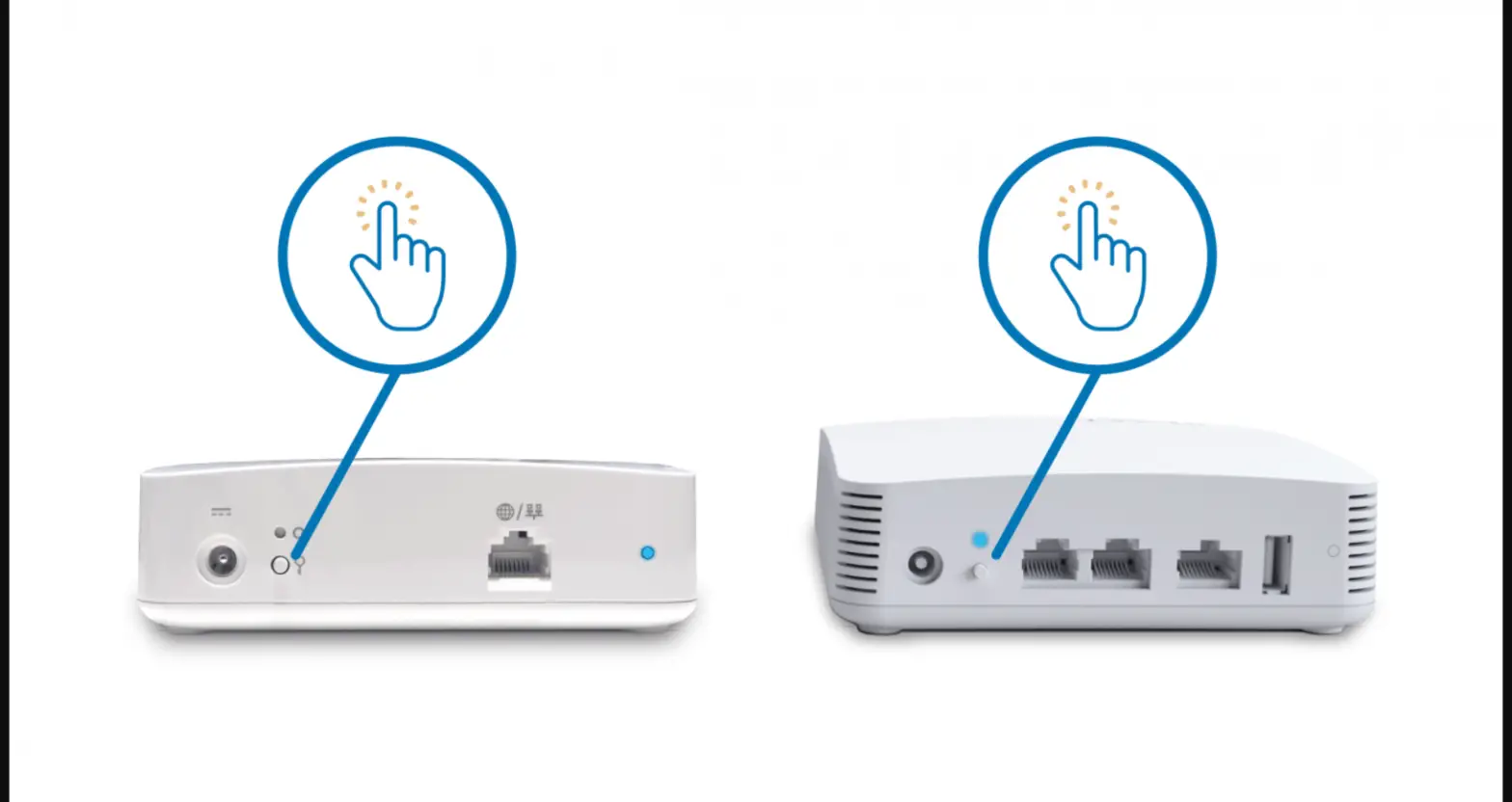
A: If the RESET button is depressed for less than 5 seconds, it resets the unit using the current configuration settings.
Q: How do I reset the device back to factory settings?
A: Pressing the RESET button on the back of the unit for at least 5 seconds, or access the “Restore Defaults” reset button located in the “Utilities” section of the Embedded Web Interface.
Q: What if the User Name or login keys are forgotten?
A: Try setting up the wired connection and configuring the wireless encryption again. Press the reset button of the wireless router for at least five seconds. Device reverts to factory default settings Custom configuration options (such as remote management credentials) are reset as well.
Q: What mounting options are available for installing the 812G?
A: The 812G should be installed using the tabletop stand or wall mount bracket to ensure best Wi-Fi performance and proper fiber optic cable management. The 812G can be installed in a flat orientation on a desktop independent of the tabletop stand. Please ensure that fiber optic cable can be properly routed to the device without excessive bends or pinching of the cable.
Q: What do I do if I cannot log on to the 812G gateway?
A: Contact your service provider.
Q: Who do I contact for service and support?
A: Contact your service provider.
— 8 —
Safety Information
The 812G GigaHub is a highly sophisticated electronic device. To get the most out of it, be sure to read the following about product care, safety and efficient use. · Treat the product with care, keep it in a clean and dust free environ-
ment. · Do not expose the GigaHub to liquid, moisture or humidity. · Do not expose the GigaHub to extreme high or low temperatures; refer
to the topic Environmental Conditions for more detailed information. · Do not expose the GigaHub to open flames or lit tobacco products. · Do not drop, throw, or try to bend the product, since rough treatment
could damage it. · Do not use this product near water, for example, near a bathtub, wash-
bowl, kitchen sink, laundry tub, in a wet basement, or near a swimming pool. · Do not attempt to disassemble the GigaHub. A broken warranty seal will void the warranty. The product does not contain consumer-serviceable components. Only Certified Service Centers should perform service. · Do not use any accessories other than those approved by the manufacturer or your service provider. Use of non-original or non-approved accessories may result in loss of performance, damage to the product, fire, electric shock or injury, and may violate regulations. The warranty does not cover product failures that have been caused by use of non-original or non-approved accessories.
–9 —
Potentially Explosive Atmosphere
Do not use the GigaHub in an area where a potentially explosive atmosphere exists. Intended Use This product is classified as telecommunication equipment not intended for direct purchase by the public. This product is designed and approved for use in an indoor location only.
CAUTION! Use of any controls, adjustments, or procedures
!
other than those specified herein may result in hazardous
radiation exposure.
Power Supply
· Ensure that a suitable AC power outlet is situated near the GigaHub and easily accessible.
· Connect the power supply cord only to the AC power outlet that meets the specifications marked next to the appliance AC power inlet on the GigaHub.
· Never alter the AC power cord. If necessary have the correct outlet installed by a qualified electrician or call your service provider for assistance.
· To reduce the risk of damage to the electric cord, remove it from the outlet by holding onto the AC power adapter rather than the cord. Make sure the cord is positioned so that it will not be stepped on, tripped over or otherwise subjected to damage or stress.
WARNING! Do not use any other power adapter except the one that accompanies this unit or a power supply identified in the list below. Use of another adapter could result in damage to the unit. To prevent electrical shock, please do not open the cover. The following power adapter is qualfied for use with this GigaHub.
This GigaHub must be powered by Dee Van Enterprise Co., LTD. DSA-24PFD-15FUS 120200 or equivalent UL Listed LPS power source rated at:
Input: 100-240 VAC, 50/60 Hz, 0.5A, Output: 12 VDC, 2A. TMA 45°C.
— 10 —
Class 1 Laser Device
WARNING! Optical Safety for Fiber Optic Modules. Never look at the transmit laser while it is powered on. Never look into the fiber optic port when the device is powered on. Never look into the end of the fiber optic cable at any time.
Children
Do not allow children to play with the GigaHub. It contains small parts that could become detached and create a choking hazard.
Regulatory Information
Declaration of Conformity
Hereby, the manufacturer declares that this product (812G) is in conformity with the requirements and other relevant provisions of the following European directives for the CE mark: · 1999/5/EC: R&TTE Directive · 2006/95/EC: Low Voltage Directive · 2004/108/EC: Electromagnetic Compatibility Directive (EMC)
Hereby, the manufacturer declares that this product (812G) is in conformity with the following standards of the CB Test Certificates:
· IEC 60950-1
The manufacturer declares that this product ( 812G) is in conformity with the requirements and other relevant provisions of the following Wi-Fi standards:
· IEEE 802.11b/g/n and WPS
The manufacturer declares that this product (812G) is in conformity with the requirements and other relevant provisions of the following Canadian standards:
· CAN ICES-3 (B)/NMB-3(B)
CAUTION! Changes or modifications to this product not
!
expressly approved by the party responsible for compliance
could void your authority to operate the equipment and inval-
idate approvals.
— 11 —
Environmental Conditions
Maximum environmental values during use: Temperature: 0° C to +40° C (32° to 104° F), Humidity: 5% to 95% RH, non-condensing
RoHS Compliance
This 812G GigaHub meets the requirements detailed in the European RoHS Directive (2002/95/EC).
WEEE Directive
Requirements according to WEEE directive (2002/96/EC)
Disposal of old electrical and electronic equipment (Applicable in the European countries with separate collection systems).
This symbol on the product indicates that this product shall not be treated as household waste. Instead it shall be handed over to the applicable collection point for the recycling of electrical and electronic equipment. By ensuring this product is disposed of correctly, you will prevent potential negative consequences for the environment and human health, which could otherwise be caused by inappropriate waste handling of this product. The recycling of materials helps to conserve natural resources. The manufacturer offers take-back and recycling services for products in many locations around the world. Customers are advised to contact their local representative for further information.
License Information
Open Source Software Utilization Notice
The 812G GigaHub uses Open Source Software Programs. Such software programs are made available subject to certain third party terms and conditions.
The fact that you are about to begin using or have purchased this product requires that you be informed of the use of these software packages and or libraries and in some cases, the third party terms and conditions applicable to such software. This information can be found on the manufacturer’s support portal. Refer to the appropriate software release notes for additional information on Open Source Software Programs used by this product.
— 12 —
 Calix Home