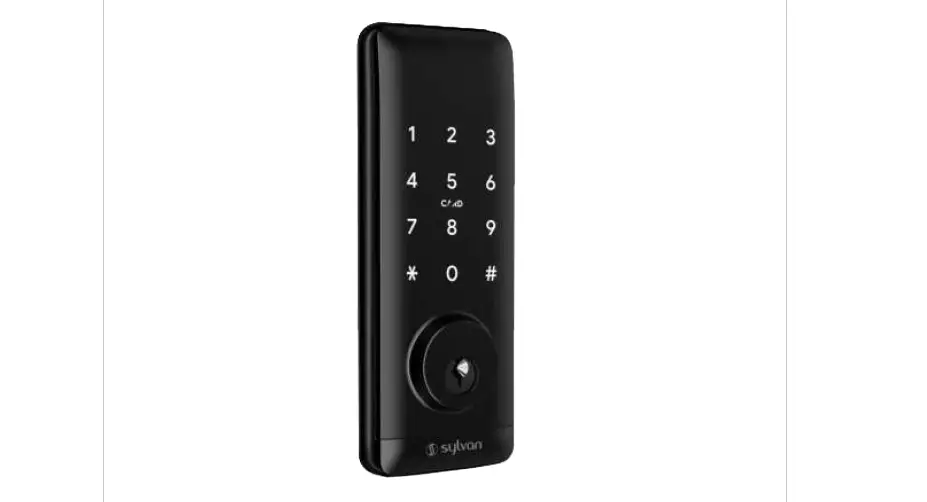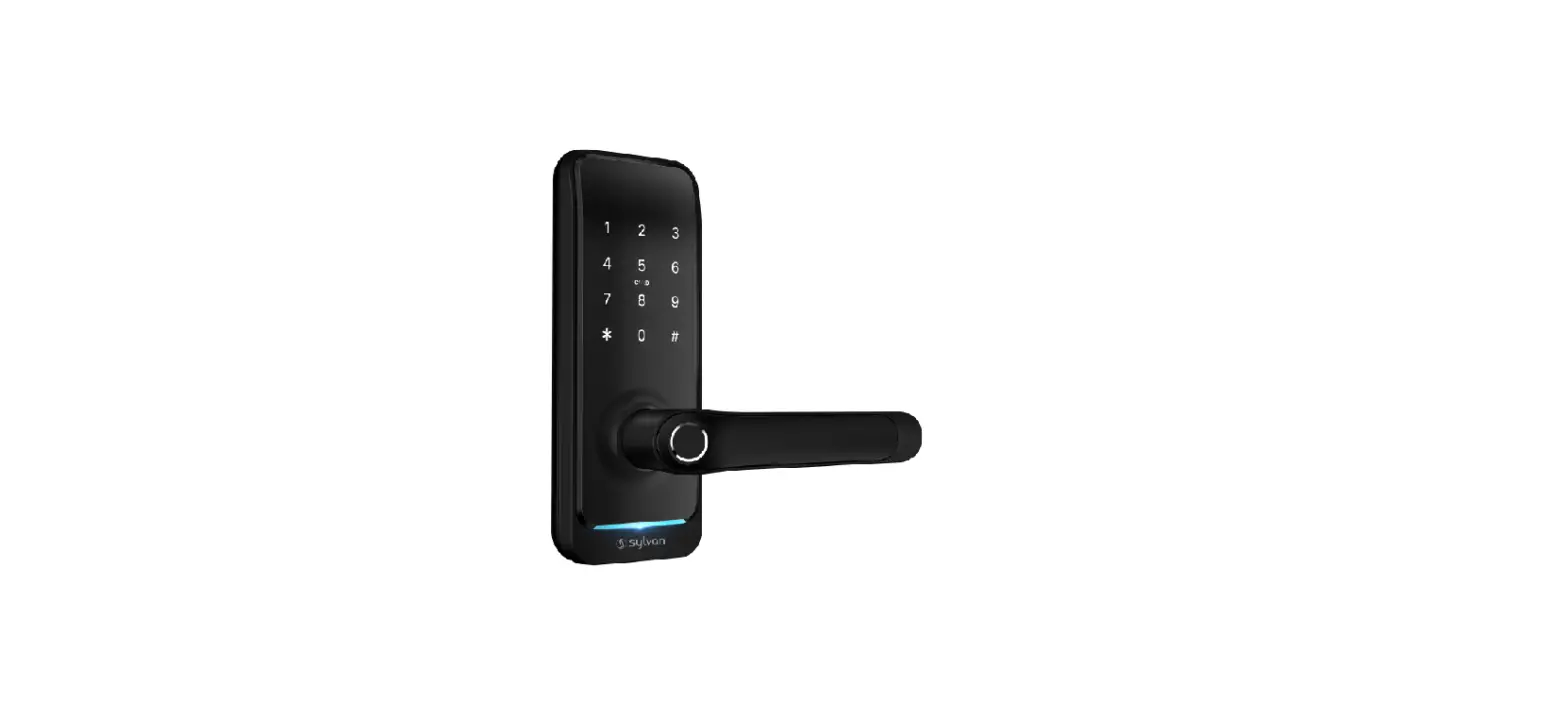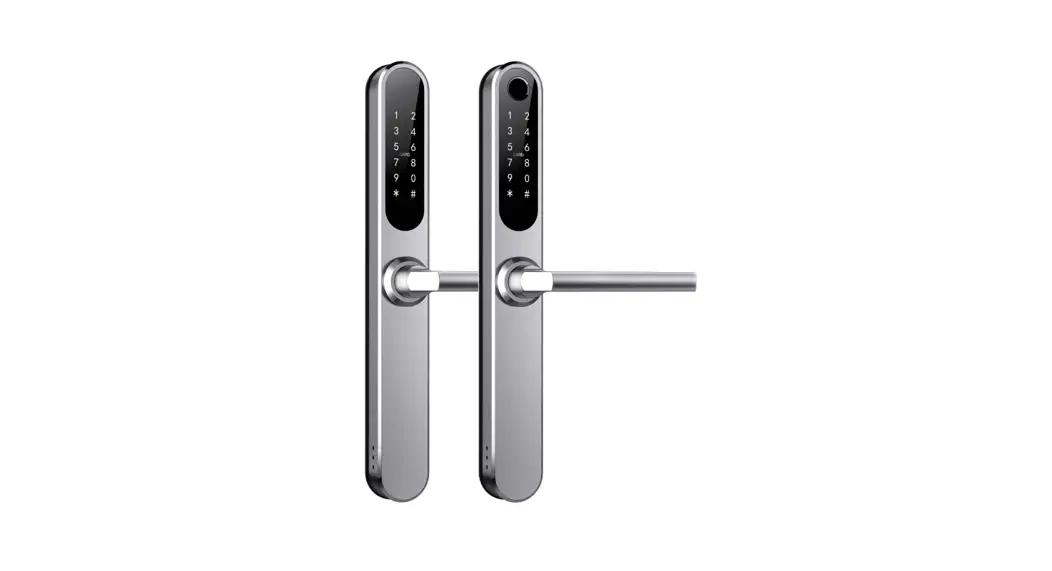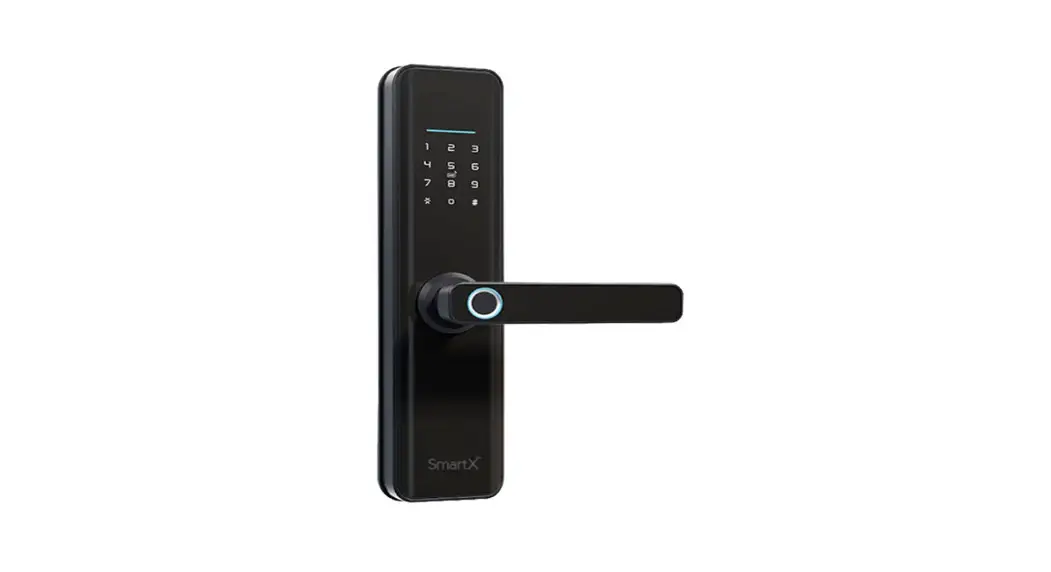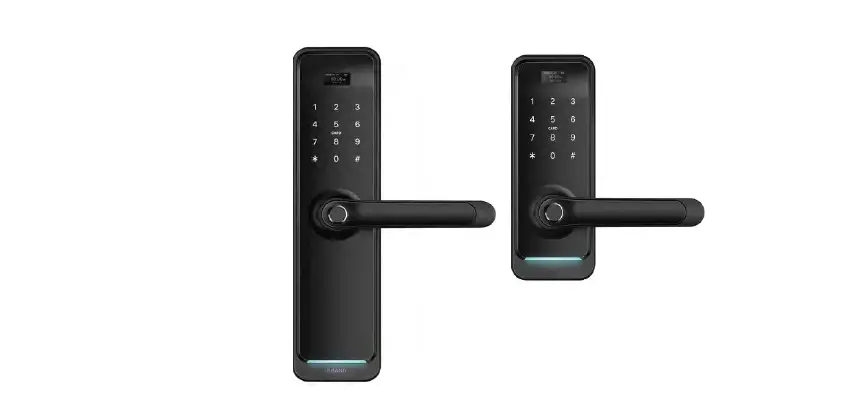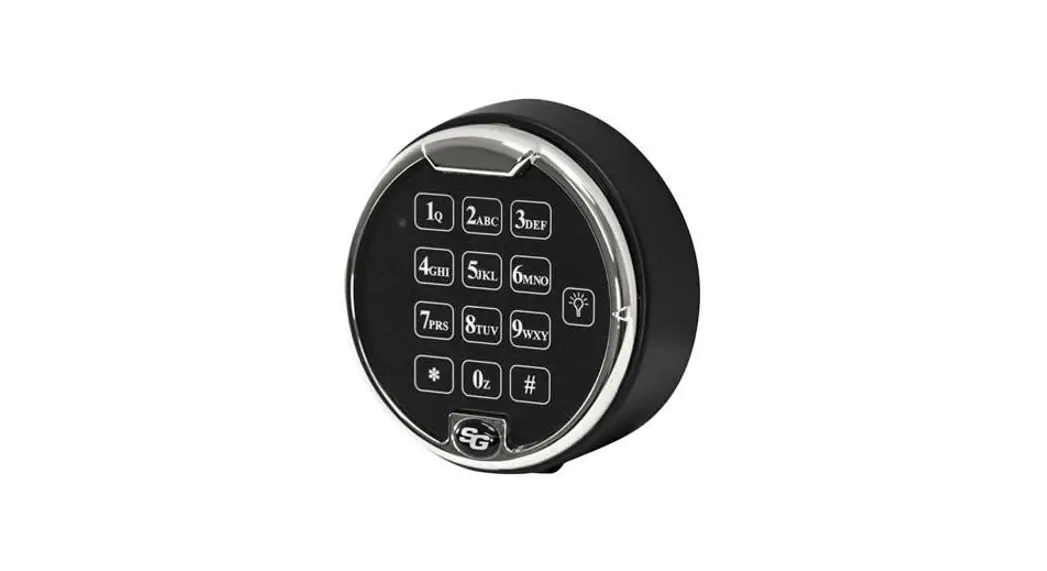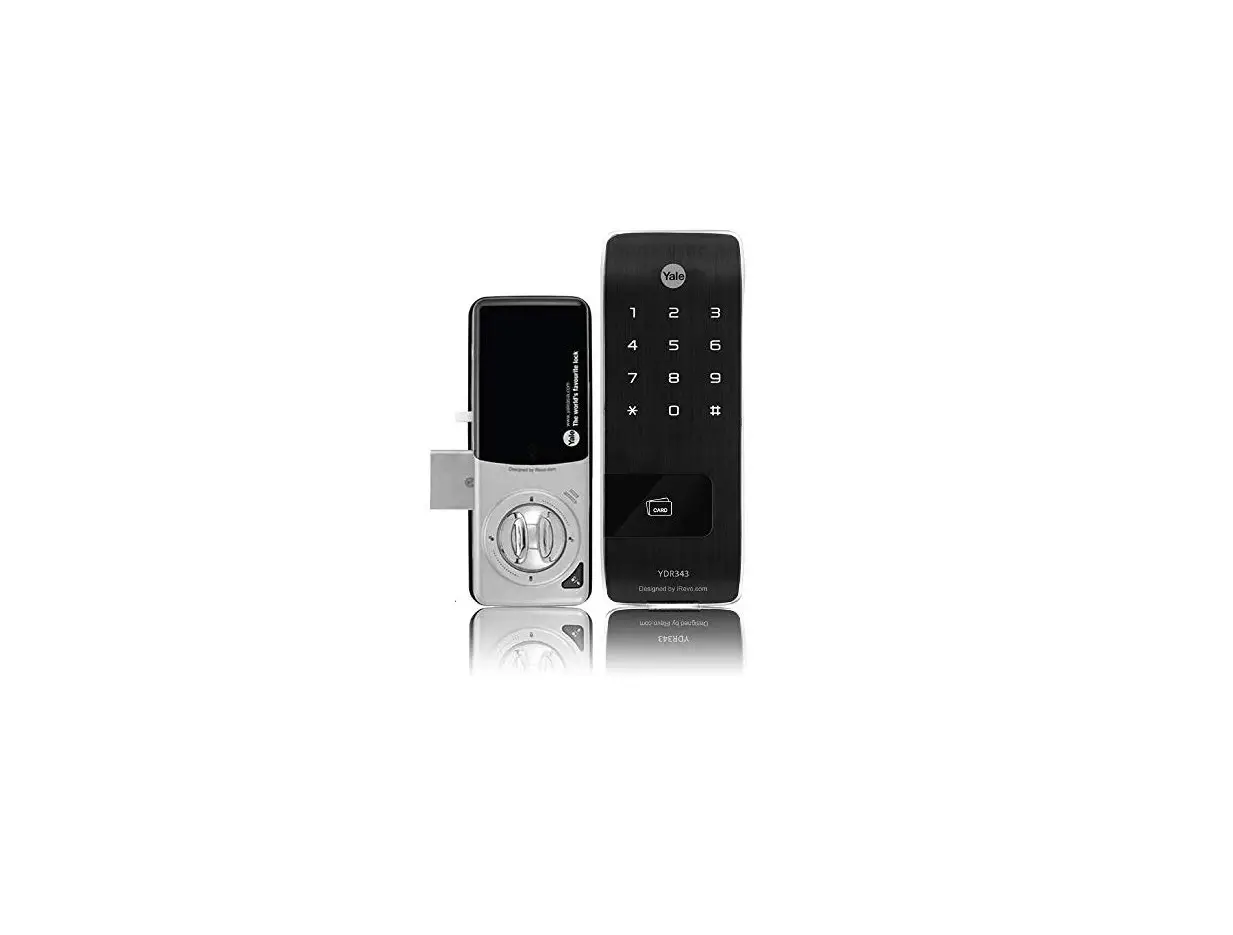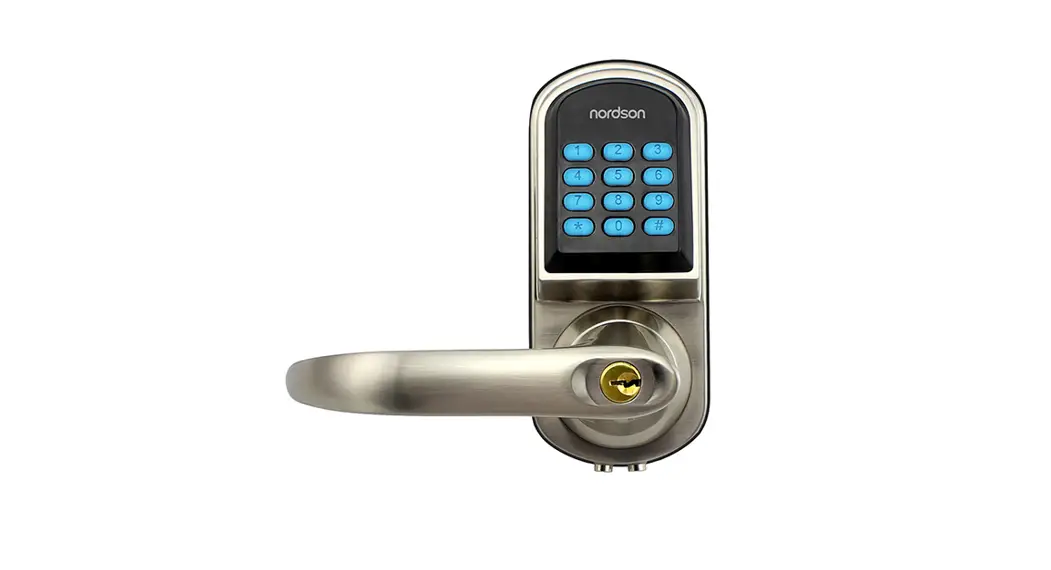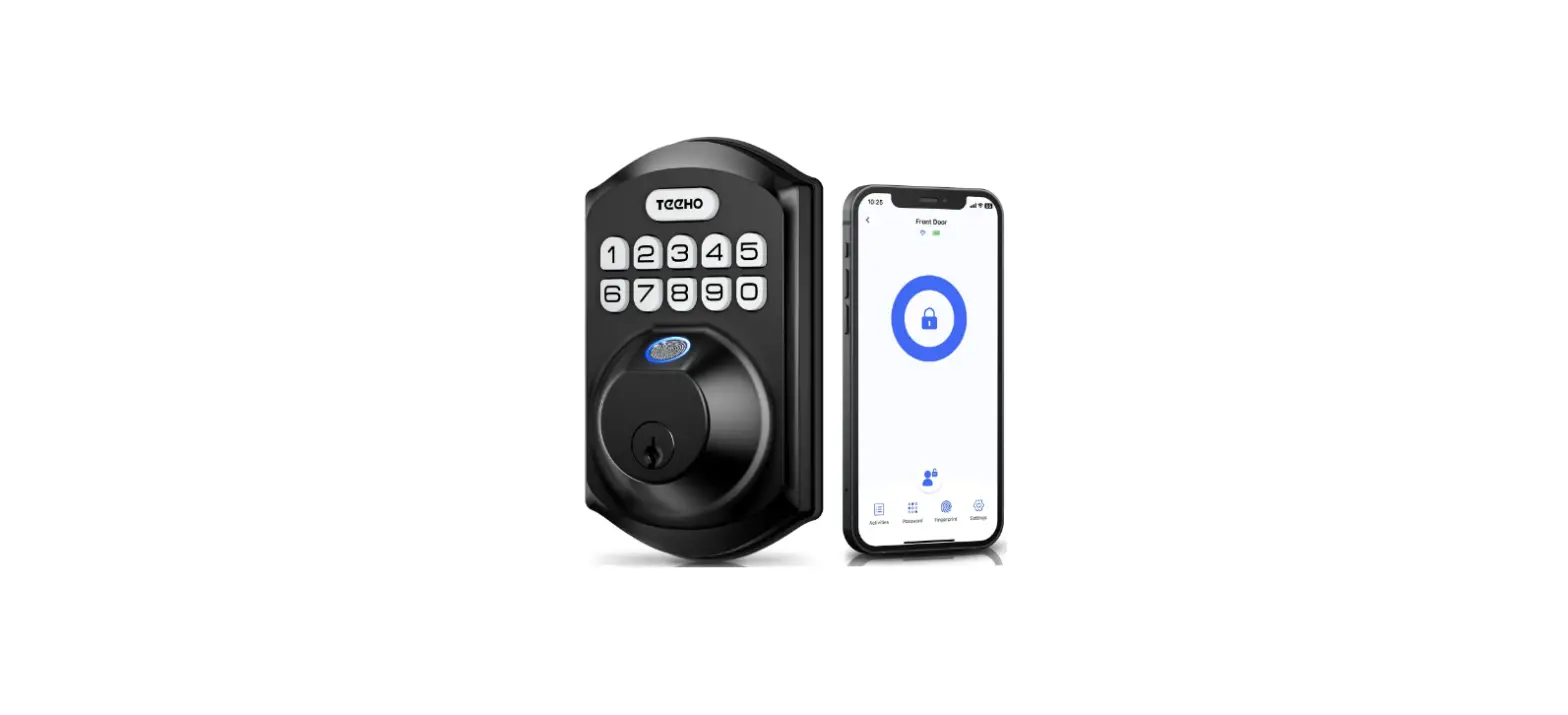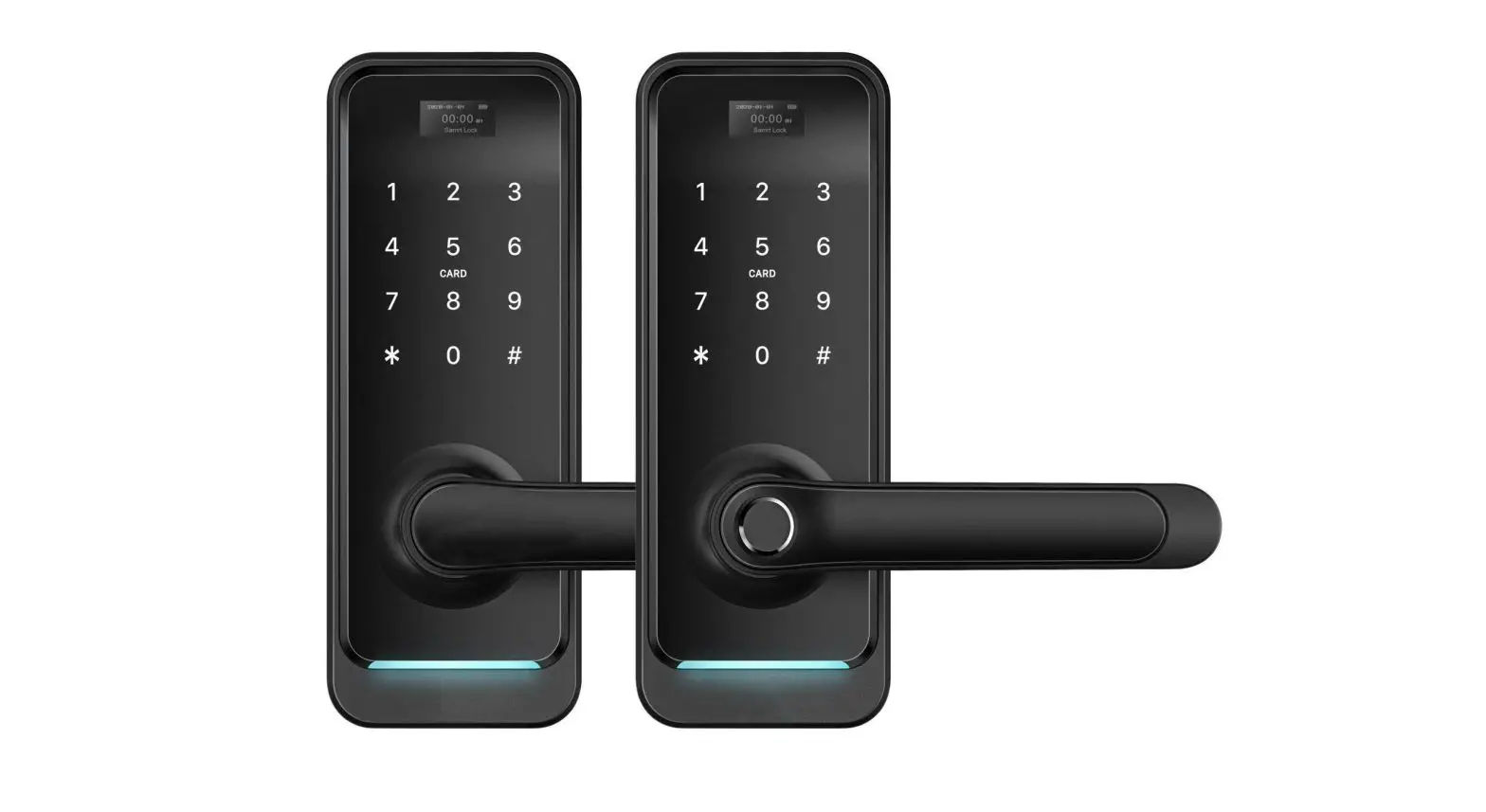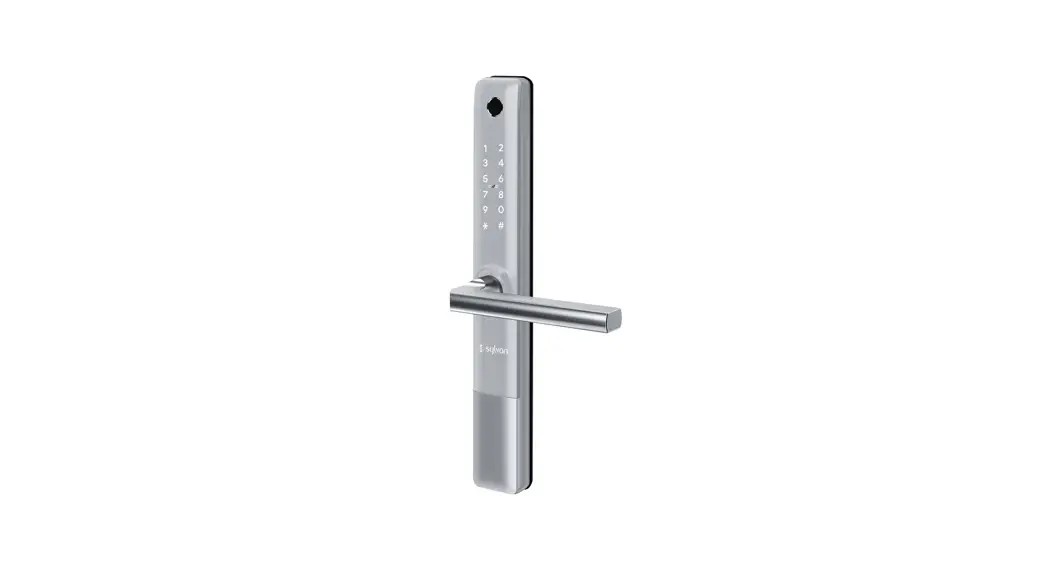
 SL36E
SL36E
INSTALLATION INSTRUCTIONS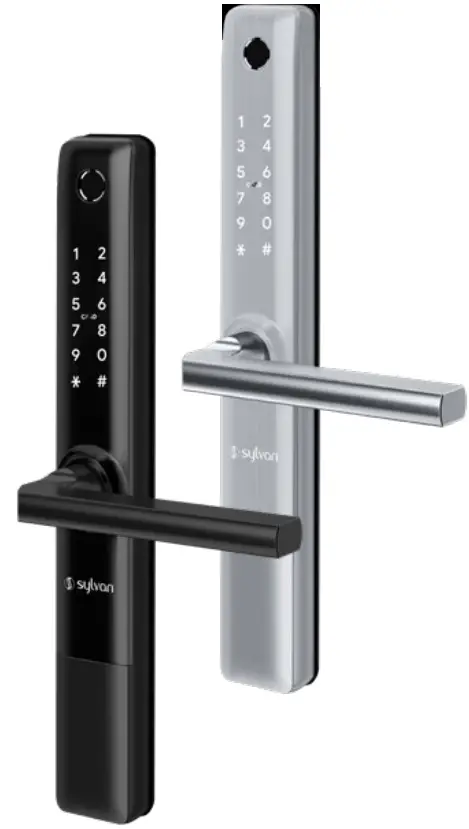
Introduction
Thank you for choosing Sylvan, this lock is for Residential use only, and its two warranty (mechanical and electronic) only applies for locks being used for residential use.
To ensure you get the best out of your purchase we ask that you follow the below:
- Please read these instructions fully before installation of this lock.
- We recommend this lock is installed by a professional installer or a serious DIYer to ensure correct installation and operation.
- The supplied rubber boots must be installed; however, this smart lock requires a smooth flat surface to hold its water tightness. This lock is not suitable for use on a tongue and groove door, where water can penetrate the lock via a groove in the door.
- We recommend that this lock is never fully exposed to direct weather for long periods of time. For long lasting properties of the product, positioning the lock under a eve or sheltered position is best.
- This lock is rated IP55, but only on the outward face of the lock. No warranty is given if the lock gets damaged from water for the inside of the door.
- This lock is not suitable for use on a gate.
- This lock comes with a mechanical key override, this can be used in a situation of complete battery loss. We recommend an override key is put somewhere safe outside in case complete power loss.
- Replace batteries when they are showing low voltage on the app.
- All batteries used with this lock must be high quality Alkaline (4 x AA batteries), to ensure long lasting use.
- Lithium or rechargeable batteries cannot be used with this lock.
| Installation Video Scan this code: | App Setup Video Scan this code: |
 |  |
| https://vimeo.com/735663457 | https://vimeo.com/742109070 |
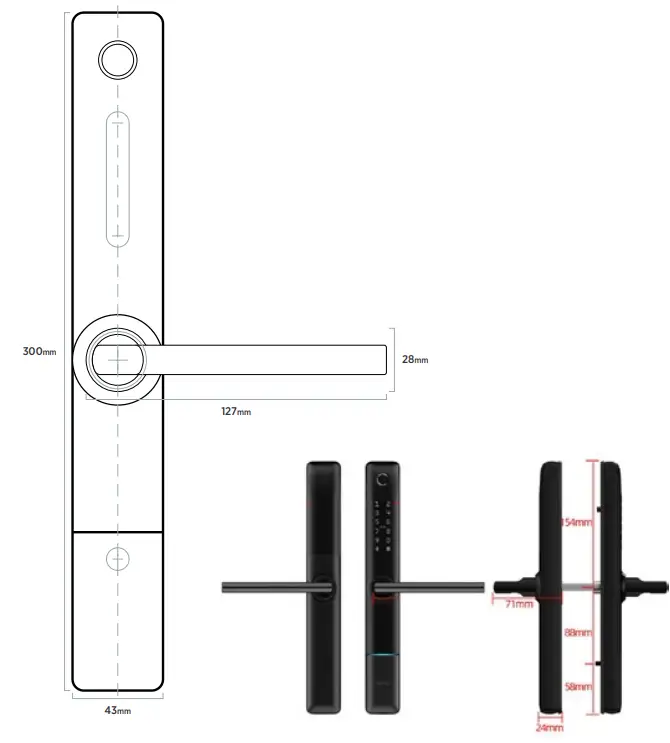
Lock Dimensions
SL36E Packing List
 | • Front panel Qty x1 |
 | • Back panel Qty x1 |
 | • User manual Qty x1 |
 | • Installation template Qty x1 |
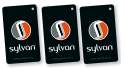 | • RFID cards Qty x3 |
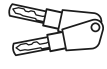 | • Mechanical keys Qty x 2 |
 | • Waterproof rubber boot Qty x2 |
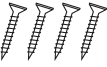 | • Wood screws 25x4mm – Qty x4 |
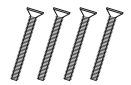 | • Aluminum fixing screws M5x 10mm Qty x4 |
 | • Short spindle 60mm Qty x1 (for narrow doors 34mm – 40mm) |
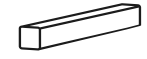 | • Long Spindle 80mm Qty x1 (for wider doors 45-55mm) |
 | • Sliding T slot screw M5x 16mm Qty x2 |
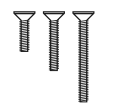 | • Various M5 machine screws Qty x1 (25mm , 30mm, 40mm, 50mm, 60mm 70mm) |
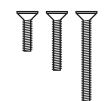 | • Various M8 machine screws Qty x2 (40mm , 35mm) |
 | • Split pin Qty x1 |
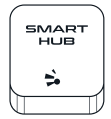 | • Smart hub Qty x1 (optional) |
 | • Smart Disc (optional) |
Product specifications:
| Model number | SL36E | Door thickness range | 35mm – 65mm |
| Material of Manufacture | Aluminum alloy | IP rating | IP55 |
| Weight | 2.5 kg | Type of use | Residential use only |
| Options of unlocking | Blue tooth Finger print Passcode Card Mechanical key Gateway (optional) Disc (optional) | Passcode capacity | App unlocks infinite Fingerprints: 200 max Passcodes: 150 max RFID Cards: 200 max |
| Working temperature | -10 – + 55 degrees C | Working Humidity | 0-95% |
| Normal voltage | 6 volts (4 x Alkaline batteries) | Warranty | 2 years mechanical |
| 2 years electronic | |||
| Low voltage Alarm | Less than 4.8 Volts | Lock | Stainless steel body |
| Lever handing | Reversible | Mortice Latch bolt | Reversible |
Anti Peeping Technology
This lock offers anti-peeping virtual passcode entry by inputting a random passcode either before or after the proper passcode followed by the # key.
Installation:
Optional: Check handing of the mortice lock
Below are the instructions to change handing if required.
Step 1: Flip lock body upside down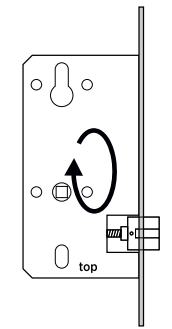 Step 2: Depress latch mechanism into lock body
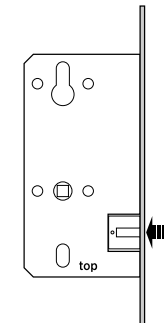 Step 3: Rotate latch mechanism
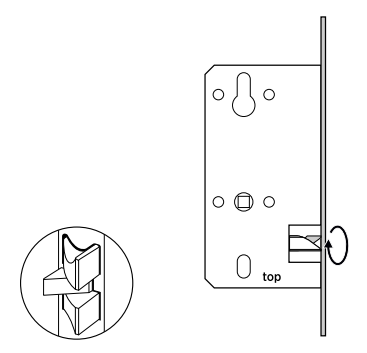 Step 4: Align and release latch mechanism,
IMPORTANT
Make sure to correctly align the center latch otherwise the lock will not function correctly.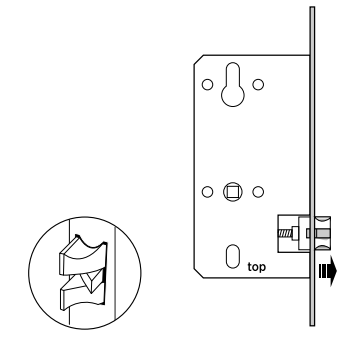 Check handing of the lever
Below are the instructions to change handing.
Front (outside) Panel
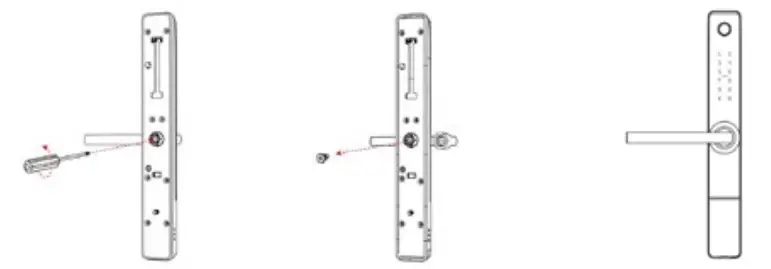 | ||
| 1. Remove handing screws | 2.Remove and rotate the handle to the left or right depending on handing direction. | 3. Reinsert the screws (using thread locker recommended) after adjusting handing direction |
Back (inside) Panel
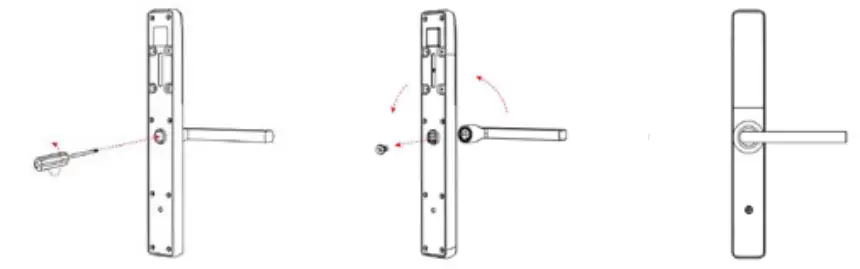 | ||
| 1. Remove handing screws | 2.Remove and rotate the handle to the left or right depending on handing direction. | 3. Reinsert the screws (using thread locker reccomeded) after adjusting handing direction |
Step 1: Install Mortice (see mortice lock instructions included)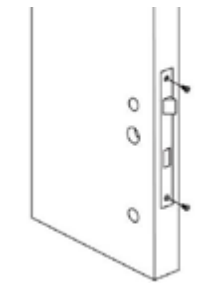
- Mark and crop door using installation template provided
- Ensure holes are clear of any sharp edges and clean of swarf and wood dust.
- Adjust tongue of latch depending on the way the door operates (refer to page 6)
Step 2: Install Outside Lock Panel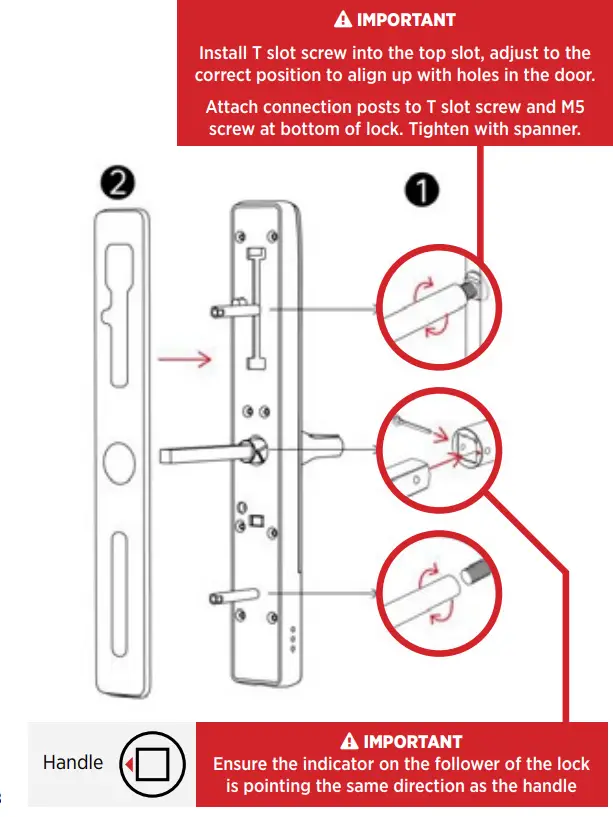 Step 3: Install Inside Lock Panel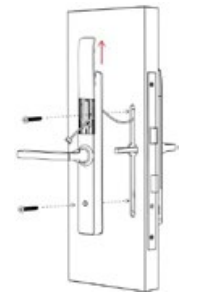
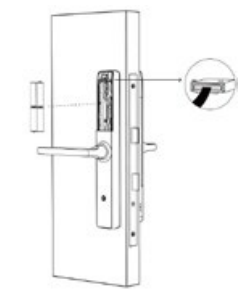
- Carefully remove battery cover from inside panel and connect cable ensuring there is adequate space within the door for it to prevent any crush issues.
- Fit the fixing screws that are the correct length to align the lock to the door.
- Before final tighten ensure the lock is sitting vertical and that no excess cables have been caught against the door.
- Ensure the rubber boots are sitting flat against the door.
- Finally, hand tighten the lock hard against the door face.

 IMPORTANT
Plug in power cable ensuring the plug is around the correct way for the plug to accept its receiver correctly.IMPORTANT
Do not pull on the plug or cable with force or let the hardware hang from the cable, damaged caused will void the warranty- Install the correct type of batteries into the lock (4 x Alkaline AA batteries)

- Re attach battery cover plate
- Finally fit striker plate and striker box to the door frame ensuring that the latch and bolts work freely when the door is closed.
- To test the correct operation of the deadbolt of the lock test by lifting the inside handle up and ensuring it runs freely into the striker plate without any resistance. If binding occurs the striker plate might need a re adjustment in position.
- Installation of the lock is now complete
 IMPORTANT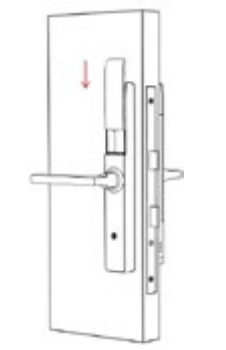
Lock Installation Checklist
- Holes drilled and aligned as per drilling template.
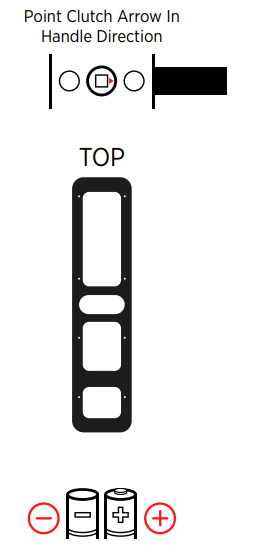
- Arrow on spindle hub points down.
- Ensure the rubber boot is aligned correctly with a good seal on the door, also making sure the lugs are correctly seated in their holes .
- Ensure split pin is installed correctly, securing the spindle.

- Ensure all screws and bolts are correctly tightened.
- Ensure power cable is installed and not bent or crimped in door.
- Check batteries are Alkaline and installed correctly.
- Check to see if the lcok requires a software update via the TT App
 1. Date Installed: / /___________
2. Installed By:_______________
3. Pin: #_______________
 1. Date Installed: / /___________
Manual reset:
If you are not admin of the Smart Lock, remove battery cover and complete:
Long press the reset button beneath the battery case for 5 seconds or until you hear: “Please Input Initialisation Passcode”. Now input code “000#” on the keypad.
The system reset will be complete. From here you can re-link the SL36E Smart Lock to your phone via the TT App.
Note: this will clear all previous users from the locks memory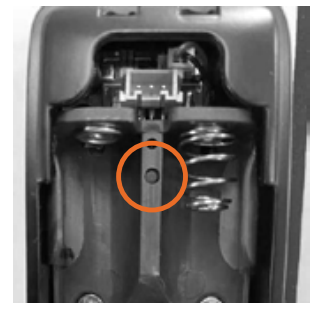
Using your Sylvan SL36E Smart Lock
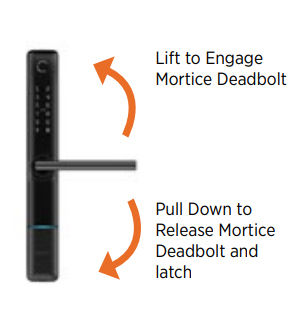 Your Sylvan SL36E has two handle functions:
Lift up the handle to engage the mortice deadbolt.
Pull down to unlock and release latch + deadbolt Important Notes: When the smart lock automatically locks, the handle disengages from the latch, but you can still lift the handle to engage the mortice bolt.
Manually unlocking with Key
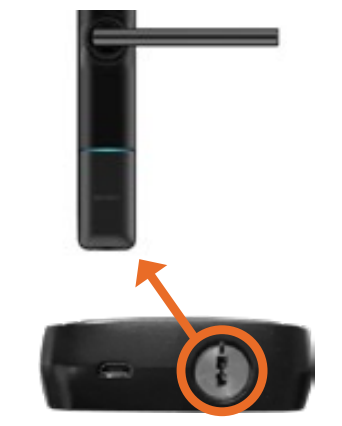 The SL36E Smart Lock has a mechanical key override to unlock it. The lock location is under the front panel. Insert one of the included keys, turn and pull handle down to unlock. Shown is the location of the mechanical key barrel, The Micro USB port beside it can be used to power up the Smart Lock if the batteries fail. When connected to a power bank or battery source, the Smart Lock can be powered up and then a PIN Code, RFID Card or the app can be used to unlock it.
Maintenance Guide:
Maintenance should be carried out on your lock every 6 months:
- Check that the screws fixing the mortice Lock are tight. Check that the screws fixing the rear panel to the front panel are tight.
- Check if batteries need replacing. If battery percentage is low replace with four fresh Alkaline 1.5V AA batteries.
- Wipe the surface of the Lock with a damp cloth, we recommend only water is used. This will help remove any dust or micro contaminants from the surface.
- It is also recommended to do a full factory reset of the Smart Lock to ensure software runs correctly.
- Check rubber boot to ensure the seal between lock and door is still good.
TTLock App Set-up instructions:
- Download app
• Download the TTlock app onto your device
• Through Apple (IOS version) use app store to download TTlock
• Through Android version go through Google play (English version) Otherwise use the below QR code
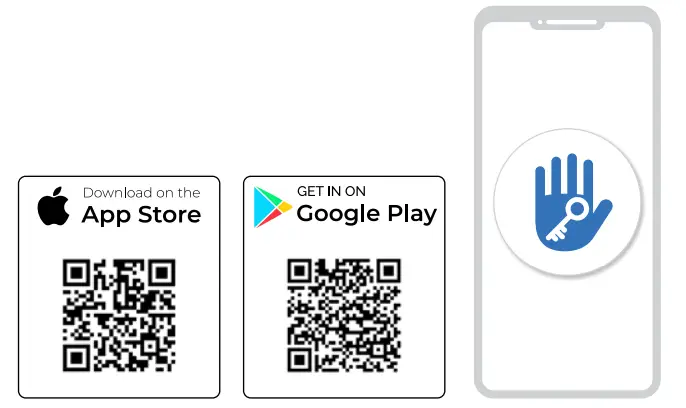
TTlock App
- TTlock supports multiple types of locks and devices
- TTlock currently supports 200 countries
- Verification codes will be sent to users’ mobile phone or email depending on how you have registered above.
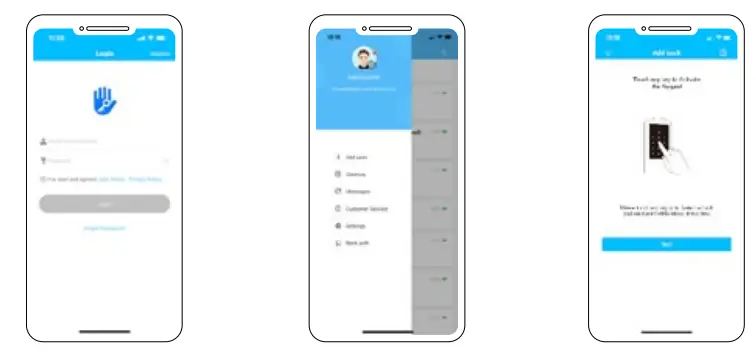 | ||
| 1. Register a new account (phone number or email) or login with an existing account if you already have one. | 2. With App open touch on main screen + Add lock | 3. While standing near the lock (and with the 4 good quality AA alkaline batteries installed into the lock) wake the lock up by touching the key pad. 4. Your lock will appear on the screen, then click + |
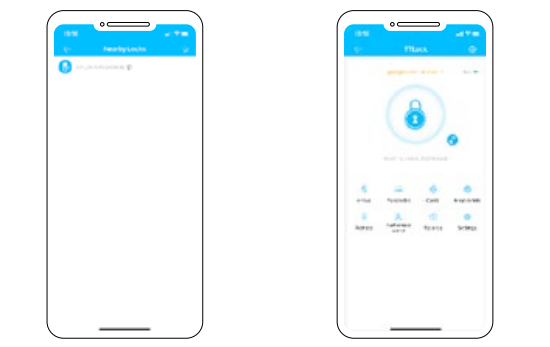 | |
| 5. Rename the lock. e.g. home front door 6. The lock is now successfully added to the app. | 7. If you have downloaded the app and loaded your lock on your device you are now the administrator of this lock, from here you can now add or delete users / passcodes / RFID card etc. |
Management of app and lock
Bluetooth (lock and unlock)
- Make sure your phone has bluetooth is switched on your phone
- The app can be used to lock or unlock the door by using bluetooth within a 5m range.
- Note: the lock will automatically re lock itself depending on the setup of the auto lock function through the app.
- From the app push the (padlock) symbol to lock or unlock the device.
- Note: 5-meter Bluetooth range can vary depending on interference such as steel, thick walls and micro wave interference etc.
Setting a passcode:
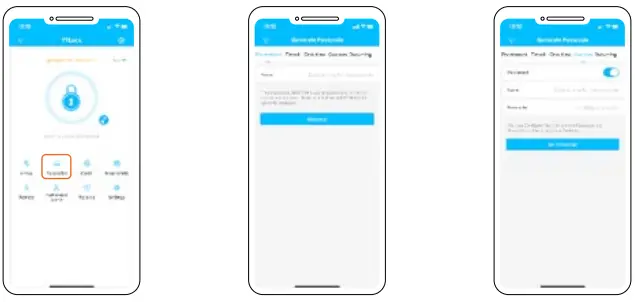
- Passcodes are another way of unlocking the device
- This lock can accept up to 150 unique PIN codes.
- Careful consideration should be taken to ensure each PIN is set up in a way that they can be well managed at a later time. We suggest naming each PIN with the name of the person using it. E.g. Bobs PIN
- We suggest when setting up passcodes to do it via the custom setting to create your own pin number. It needs to be between 4-9 digits.
- Recurring PIN codes used to give access to the user of this code at certain time of day and week.
- You can also set up Pin codes for One timed and also timed access (for example a tradesperson working in your house for a short period of time).
RFID cards
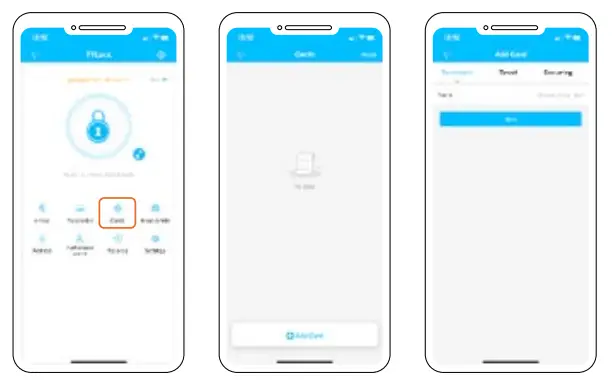
- This lock comes with three RFID cards and can store up to 200 unique RFID cards.
- To add these to the lock, touch RF Cards, then add card
- Decide if a Permanent or Timed or Recurring user
- Name the Card (we suggest the users name) e.g. Bobs RFID
- Then touch card against keypad to accept card to lock
Passage mode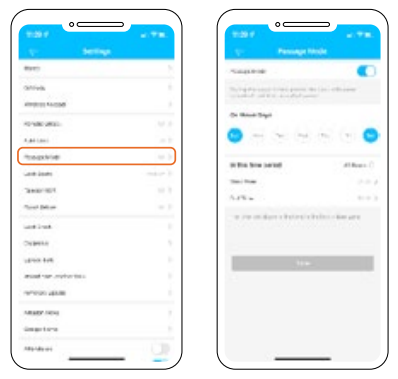
- The TT app can be used to put the lock into passage mode. NB: Passage mode is where the lock can be opened without a passcode etc
- Under the setting tab of the lock, you can switch passage mode on or off
- You can also set up a calendar so that the lock can go into passage mode on certain days at certain times.
- Note for security reasons the passage mode only starts once a successful entry to unlock the lock has been accepted.
- To lock the door when in passage mode, press and hold the # key on the lock.
Finger Prints
- This lock can accept up to 200 Unique finger prints
| ||
| 1. From main screen click on Finger print | 2. Then add finger print 3. Decide if a Permanent, Timed or Recurring user | 4. Name the finger print (we suggest the users name) eg Bobs Finger |
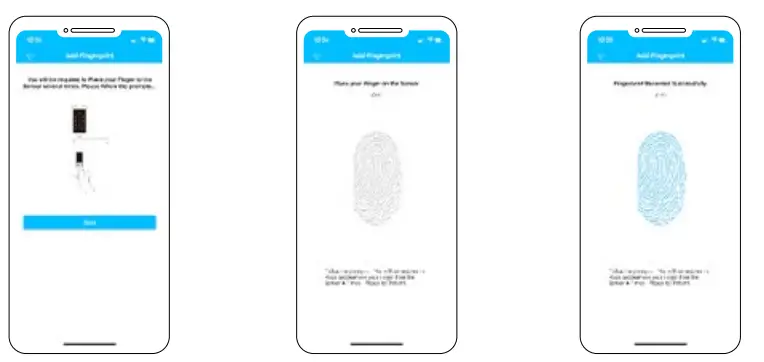 | ||
| 5. The app then prompts you to present your finger or thumb to the reader. 6. Watch and listen to the prompt of the app and lock you will see the image of the finger print and be asked to present yours to the reader. | 7. You will be asked to do this a number of times until all parts of the image on the app turn from black to blue. | 8. We suggest for convenience and user speed to save your finger print in a number of different positions. EG Bobs 1 finger, Bobs 2 finger etc. |
Remote unlock
- This can be done using a smart hub SLG02 (sold separately) see ‘sylvan.co.nz/smart-hub-slg02/’
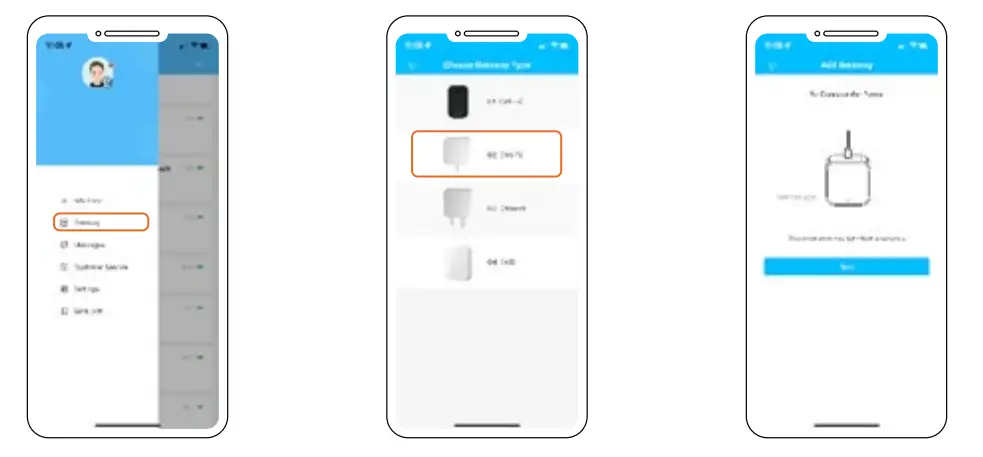 | ||
| 1. Add the smart hub via the first screen of the TTlock app | 2. Click on add Gateway 3. Choose the G2 (Wi-Fi) option | 4. Connect power to the gateway and the indicator light will flash red, it’s now in programming mode |
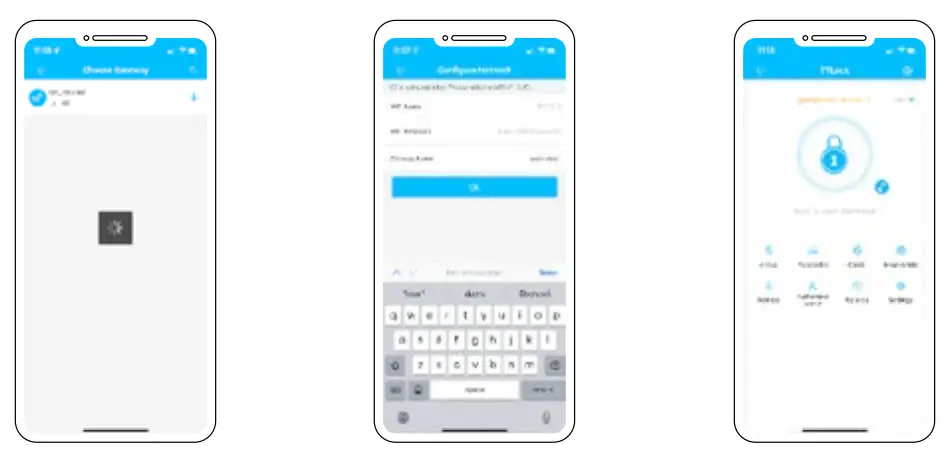 | ||
| 5. Click next 6. Once seen it will ask for you to name the gateway e.g. (garage door gate way) | 7. It will also ask for your Wi-Fi password (Note this needs to be a 2.4G) signal. 5G is not supported 8. Then the gateway is connected. | 9. Check that the gateway is online under the gateway link off the front page 10. Ensure the gate way is within 10 meters of the lock |
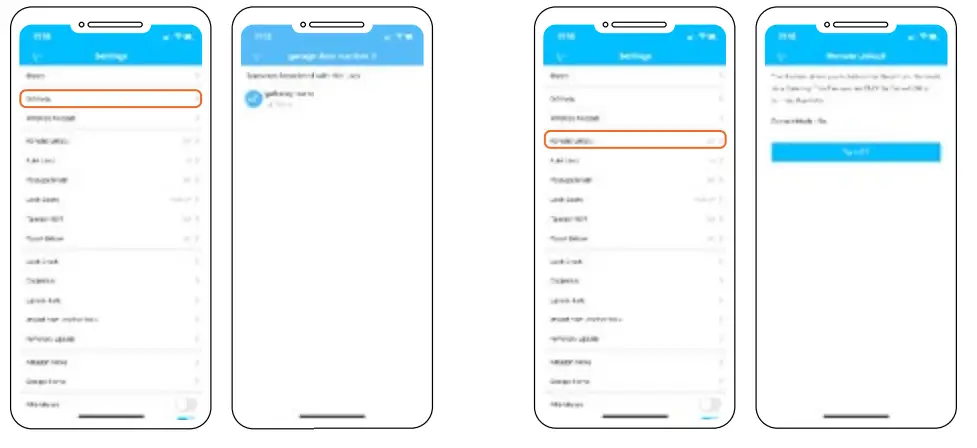 | |
| 11. In the setting screen of the lock click on gateway and you should see your named gateway. | 12. On the settings page select ‘Turn on Remote Lock’. |
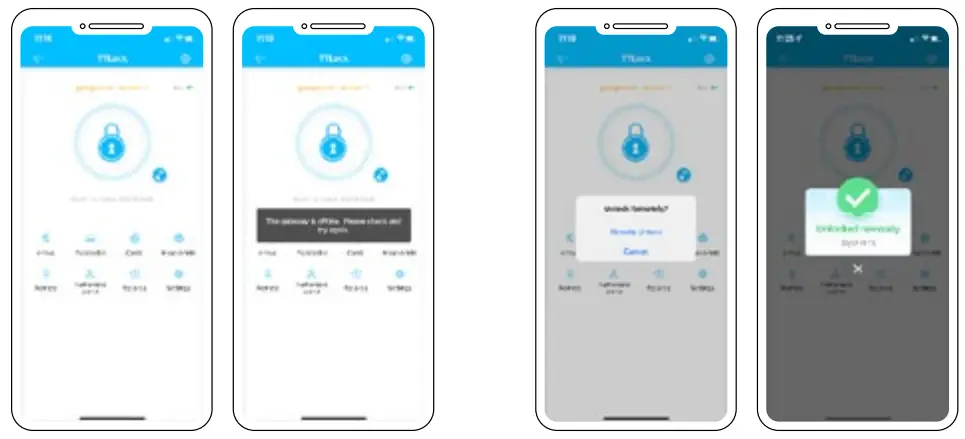 | |
| 13. On the main programming screen of the lock a small Wi Fi symbol now appear next to the padlock symbol of the app. | 14. By clicking on the Wi Fi symbol, then clicking Remote unlock you will then be able to remotely unlock your lock from anywhere using the secure Wi Fi connection. 15. The app will show when the lock has been successfully unlocked. |
NOTES
PRODUCT WARRANTY
Customer Name:__________________
Customer Phone:__________________
Purchase Date:___________________
Store name:____________________
Receipt #:_____________________
Product Name:__________________
Product Model:__________________
Note:_________________________
Note:
- Please keep this booklet and receipt so that you can use it when you need warranty service.
- We provide you with a two-year warranty from the date of purchase.
 127 Diana Drive Glenfield Auckland 0627
Ph: +64 9 444 5359
Email: [email protected]
Web: www.sylvan.co.nz
 SLG02
SLG02 Sylvan Architectural Hardware