 GT1 Thermal Transfer Printer
User Guide
Product Introduction
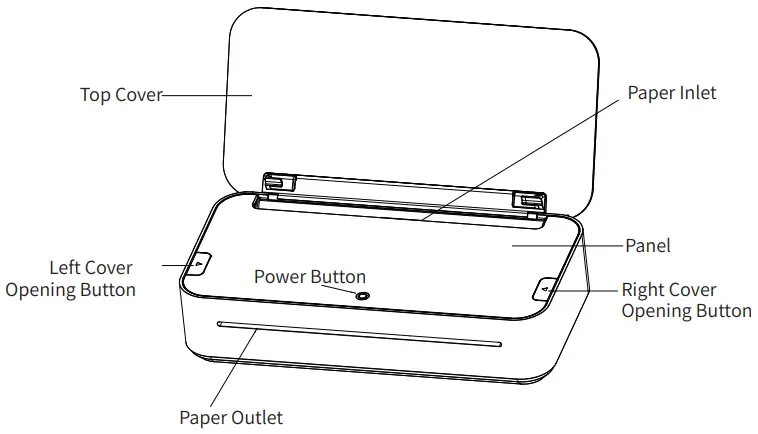
Front View:
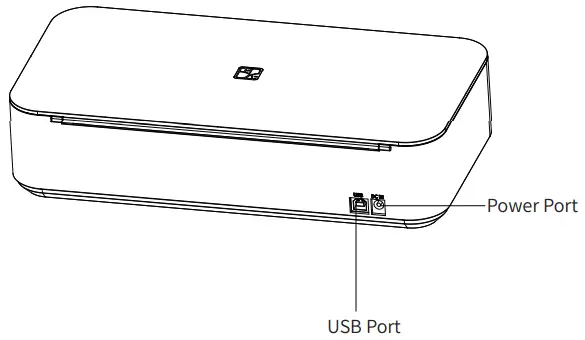
Rear View:
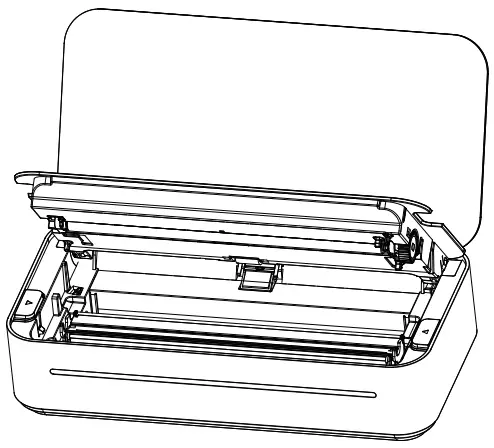
Inside View:
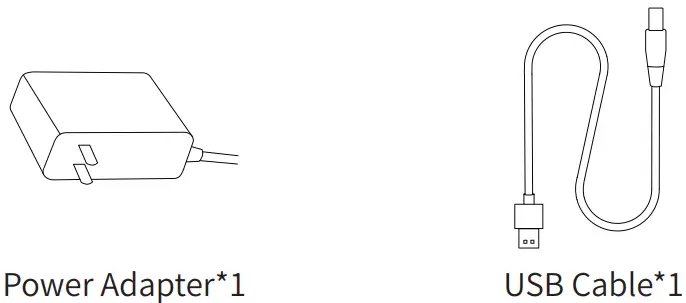
Accessories
Loading the Ribbon
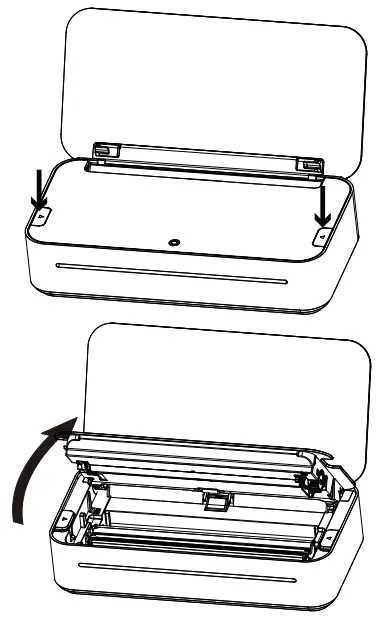
- Open the top cover and then open the panel
Open the top cover first, then press the open cover button on both sides of the panel at the same time before lifting the panel upward.
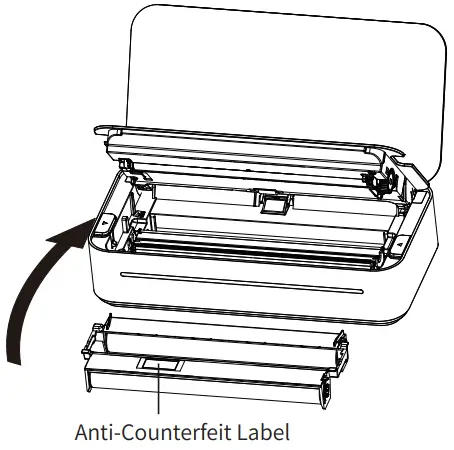
- Loading the Ribbon
Install the ribbon into the printer by pinching the left and right wings of the ribbon with both hands.
Note: The side with the anti-counterfeit label is facing the paper outlet.
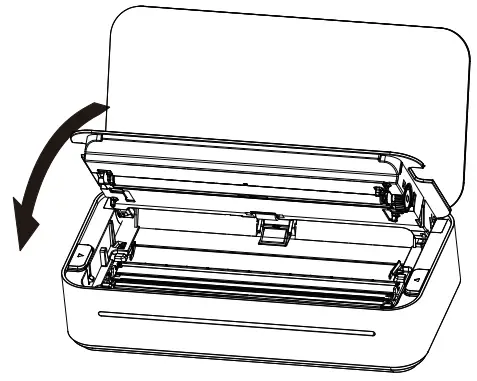
- Close the Panel
Turn the panel down and press it with both hands until you hear a “pop” sound.
Putting in the paper
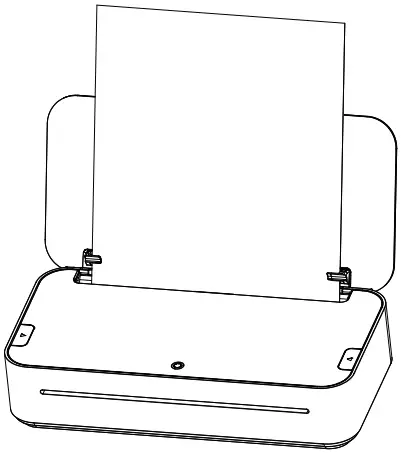
- Putting in the A4 paper
Putting in the A4 paper as shown, up to 20 sheets of A4 paper can be placed at once.
Tips:
All the drawings of product and accessories in the manual are for reference only. Due to the updating and upgrading of the product, there may be some differences between the actual product and the drawings, please refer to the actual product. For more product information, please contact HPRT customer service.
Product Name: AI Printer
Product Model: GT1
Input Parameter: DC 14V
Wi-Fi Connection: Wi-Fi IEEE 802.11b/g/n 2.4GHz
Dimensions: 295.5*147.3*69.3 mm
Weight: About 1553 g (excluded accessories)
Operating Temperature: 0℃~40℃
Power On
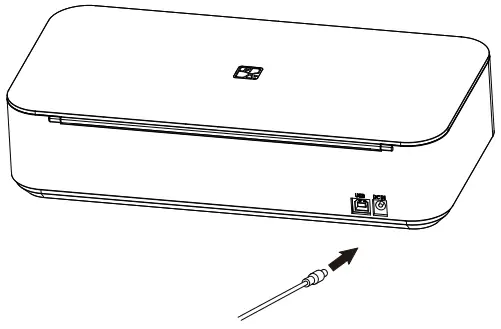
- Connecting Power
Plug the power cable into the power port on the back of the printer.
- Power On
Long press the power button for 3 seconds to power on the printer. Note: Long press the power button can power off the printer.
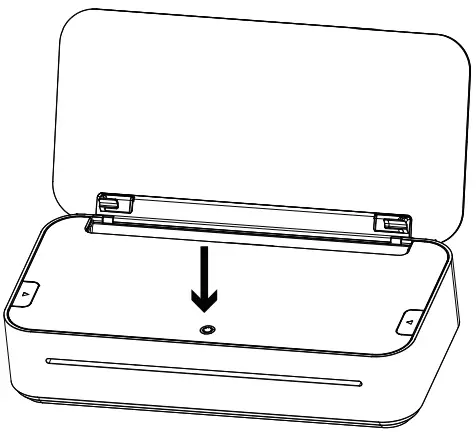 Note: Long press the power button can power off the printer.
Printing Wireless from Mobile Phone
- Download the APP
Scan the QR code or search “Hereprint” in APP store to download the “Hereprint” APP. http://hereprint.hprt.com/app/hereprint
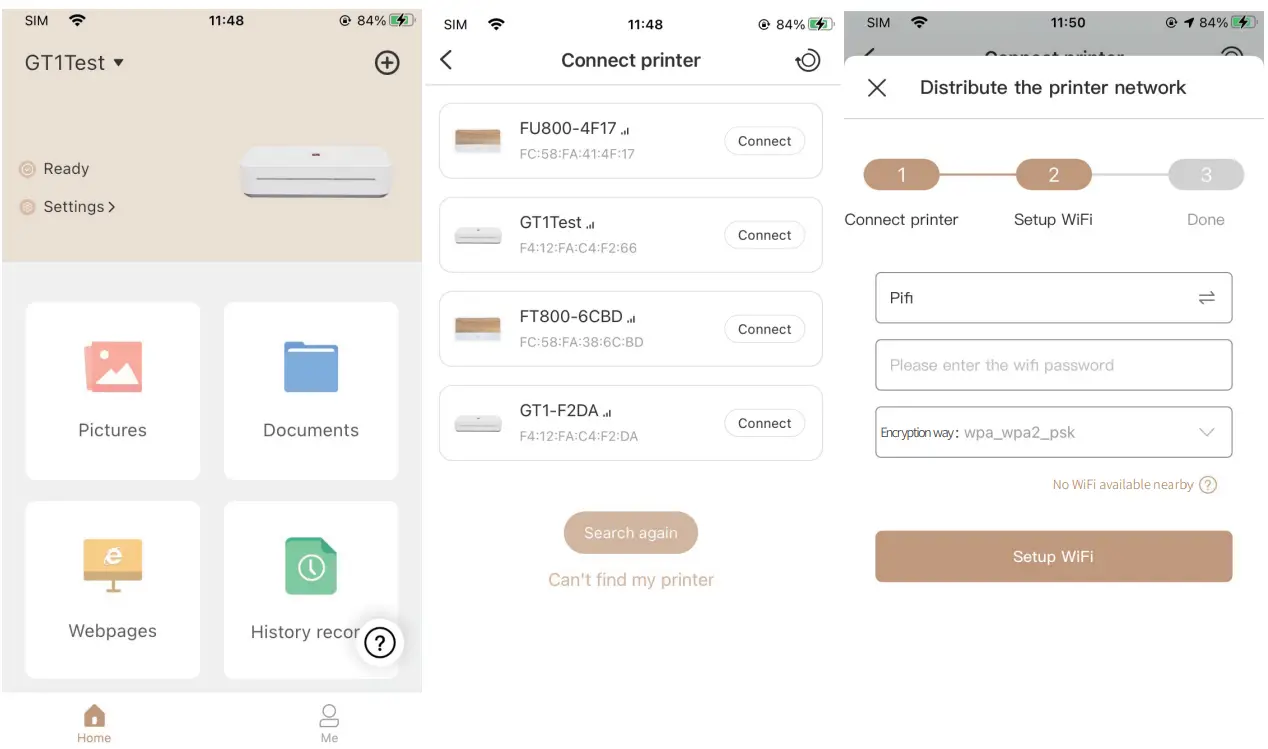
 - Connect to printer via Wi-Fi
① Connect the mobile phone to Wi-Fi hotspot (select 2.4 GHz frequency band);
② Open “HerePrint” App, click “+” in the top right corner of Home to add the device;
③ Select GT series according to the guide of App;
④ Enter the Wi-Fi password;
⑤ Waiting for the connection result.
- Printing via LAN
① The printer is on and connected to the same Wi-Fi hotspot as mobile phone;
② In “HerePrint” App, select the file to print, enter “Preview” and confirm the parameters, then your mobile phone can send data to the printer via LAN. - Cloud Remote Printing
① The printer is on and the connected Wi-Fi hotspot can access the Internet;
② Even when the printer is not around you, you can still choose the file to print via “HerePrint” App. After entering the print preview, send the data to the printer through remote printing.

Printing from Windows PC
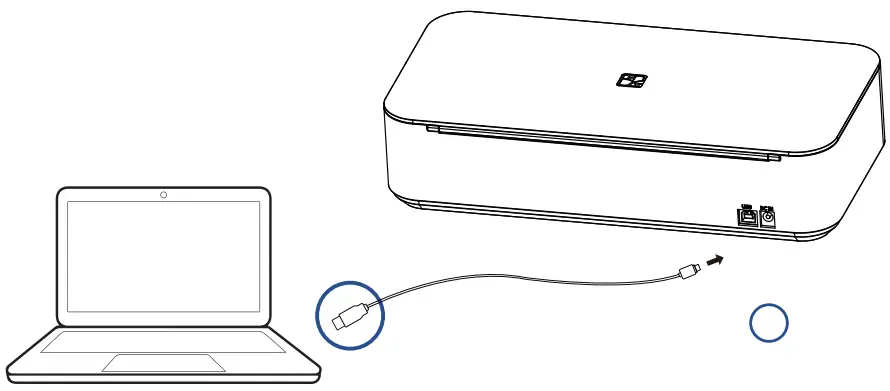
- Connect one side of the USB cable to the PC and the other side to the printer;
- Turn on the printer;
- Download the driver program from HPRT website and install it in the PC;
- Add the printer to the PC and print the documents from PC after establishing the connection.
Precautions
- The best operating temperature is 0℃~40℃, if the environmental temperature is too low or too high, the print quality may be affected.
- Please do not use the unofficial adapter or ribbon to ensure the print quality.
- During printing, the area around the print head is very hot. Do not touch it, as you could be burned.
- Do not pull out paper by force during printing, or else it may damage the printer.
- In a domestic environment this product may cause radio interference.
LED Indicator and Buzzer Definitions
- Error Status
Status Indicator Buzzer Print head temperature is too high Red LED flashes rapidly “Beep–beep beep–” Run out of ribbon Red LED flashes slowly “Beep beep beep–” Out of paper Red LED flashes slowly “Beep beep beep–” Cutter jam Red LED flashes rapidly “Beep–beep–beep–” RFID error Red LED is lighting — — Printer cover is not closed Red LED flashes slowly — *Buzzer sounds for 5 seconds and then stops
- Printer Status
Status Indicator Power on process Red, green and blue LED flashes alternately Power off Light off Printing White LED flashes slowly Firmware update Red, green and blue LED flashes alternately - Printer Status
Status Indicator Bluetooth connecting Blue LED flashes rapidly In Wi-Fi connection White LED is lighting Wi-Fi data receiving White LED flashes rapidly In USB connection Green LED is lighting USB data receiving Green LED flashes rapidly No connection currently Blue LED is lighting
FCC WARNING
This device complies with part 15 of the FCC Rules. Operation is subject to the following two conditions:
- This device may not cause harmful interference, and
- his device must accept any interference received, including interference that may cause undesired operation.
Any changes or modifications not expressly approved by the party responsible for compliance could void the user’s authority to operate the equipment.
NOTE: This equipment has been tested and found to comply with the limits for a Class B digital device, pursuant to Part 15 of the FCC Rules. These limits are designed to provide reasonable protection against harmful interference in a residential installation. This equipment generates, uses and can radiate radio frequency energy and, if not installed and used in accordance with the instructions, may cause harmful interference to radio communications.
However, there is no guarantee that interference will not occur in a particular installation. If this equipment does cause harmful interference to radio or television reception, which can be determined by turning the equipment off and on, the user is encouraged to try to correct the interference by one or more of the following measures:
- Reorient or relocate the receiving antenna.
- Increase the separation between the equipment and receiver.
- Connect the equipment into an outlet on a circuit different from that to which the receiver is connected.
- Consult the dealer or an experienced radio/TV technician for help. To maintain compliance with FCC’s RF Exposure guidelines, This equipment should be installed and operated with minimum distance between 20cm the radiator your body: Use only the supplied antenna.
FCC ID: 2AUTE-8TT22G
Manufacturer: Xiamen Hanin Electronic Technology Co.,Ltd.
Add: Room 305 A, Angye Building, Pioneering Park,Torch High-tech,Zone,Xiamen
E-mail: [email protected]
Web: www.hprt.com
 HPRT | Printer, Label Printer, QR Code Scanner Manufacturer