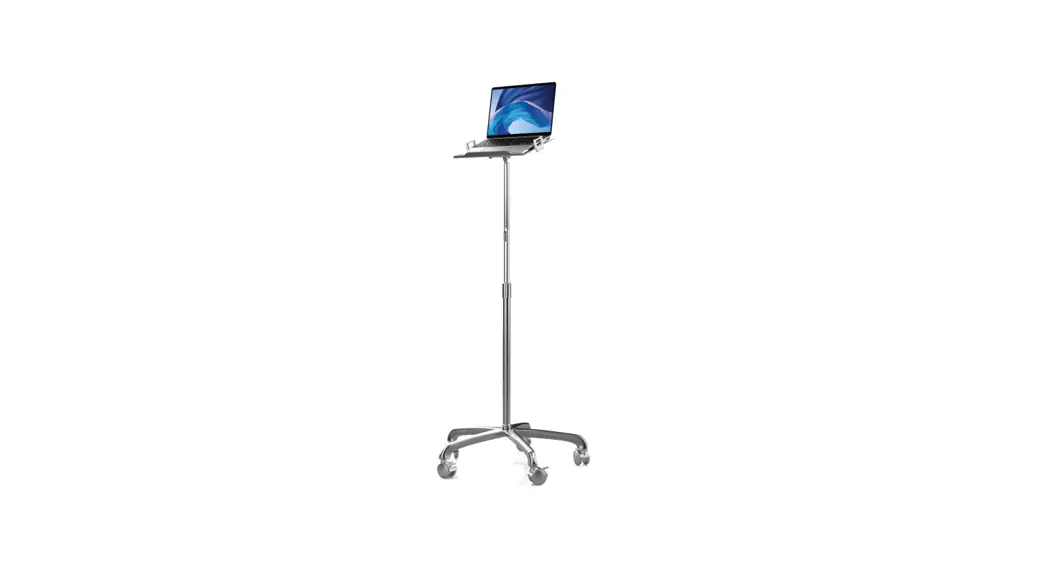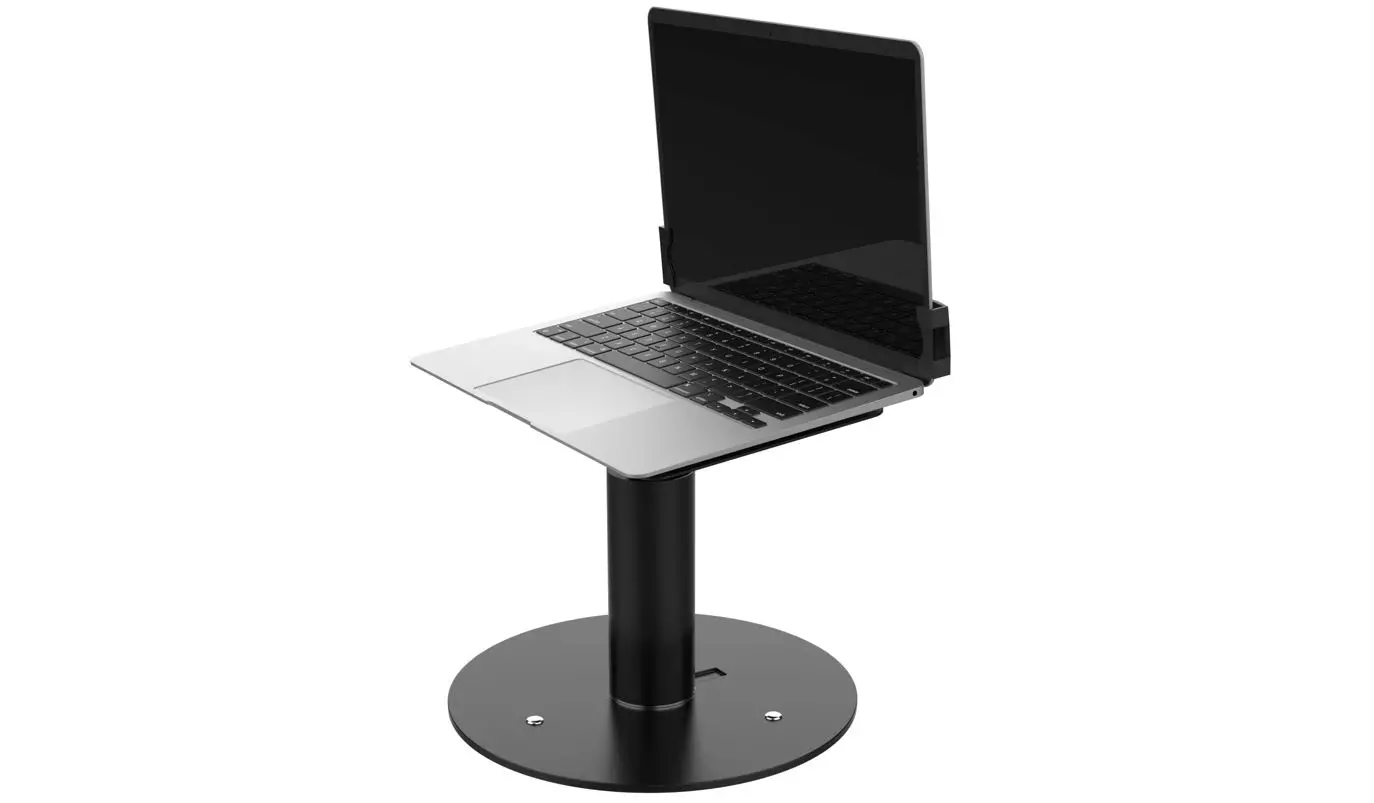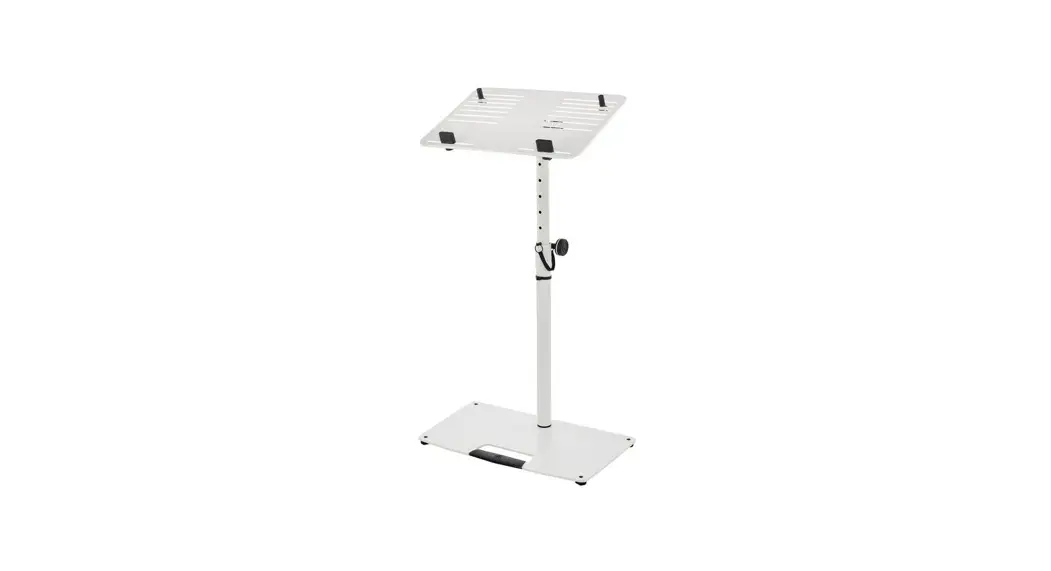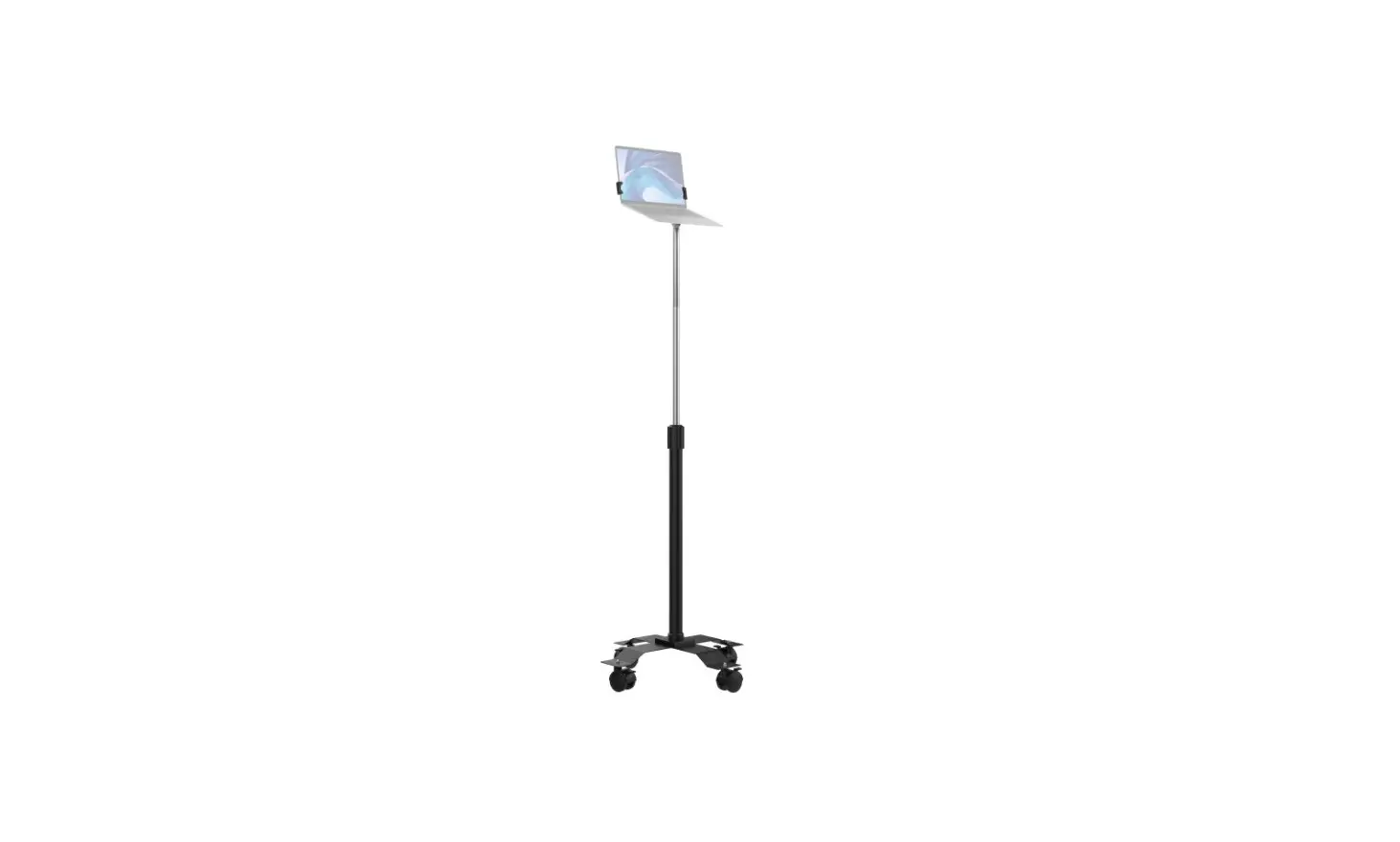
CTA LT-SCGS Digital Rolling Laptop Stand with Secure Holder Instruction Manual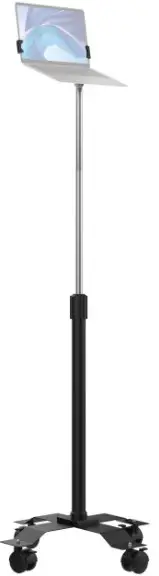
CONTENTS
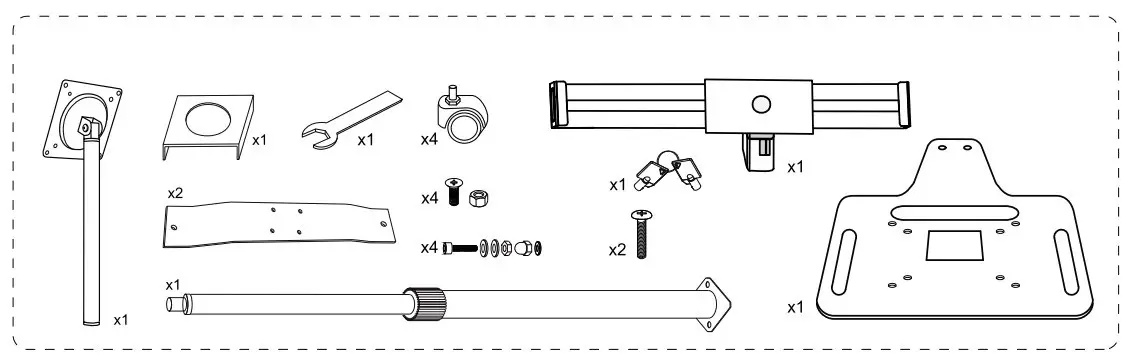
INSTALLATION
- Installing the weels
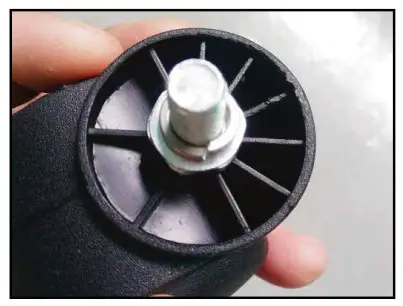
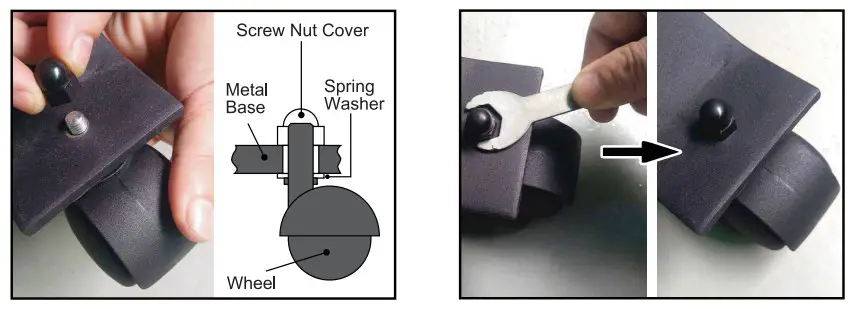
A. Place a spring washer over the screw bolt on the wheel.
B. Place the screw bolt from each wheel through the metal base, then place a nut cover over the top of each. Screw down clockwise by hand, then use wrench to tighten.
- Base Assembly and Connecting the Metal Cover
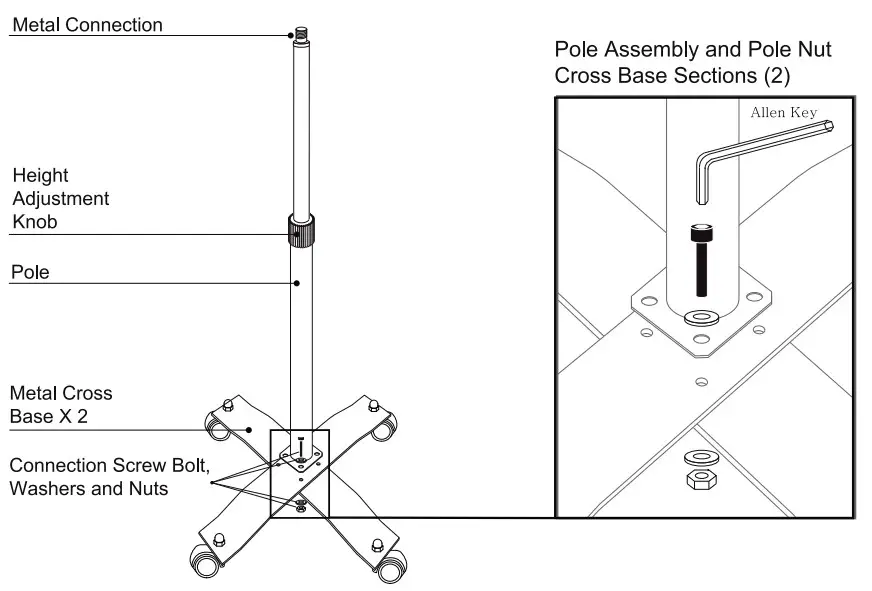
A. Place the metal base pieces with the higher piece on top of the cross base. Align the holes at the bottom of the pole with the holes on the cross base.
B. Insert a screw bolt with a washer into each of 4 holes. Place another washer on the underside of each screw bolts.
C. Grip the nut on the underside with one hand, and use the other to tighten each screw with the Allen key. Repeat to tighten all four screw bolts.
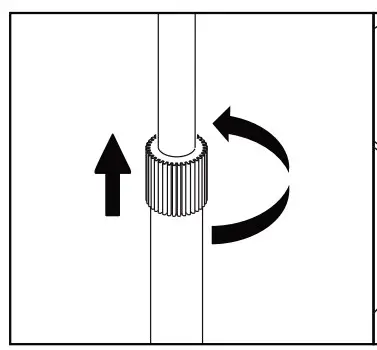
D. Rotate the grip counter clockwise to loosen completely and remove from top of pole.
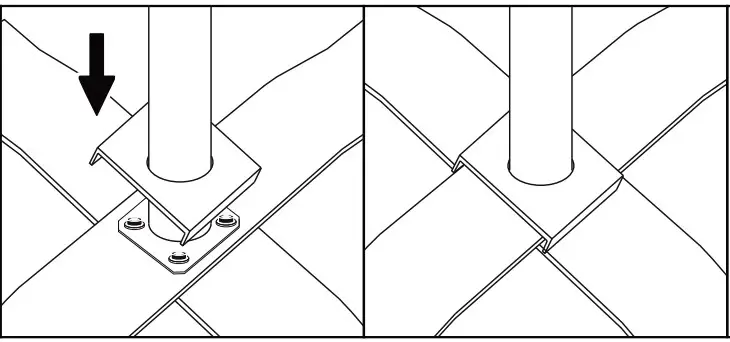
E. Place the square metal cover over the top of the pole and slide down to stand base.
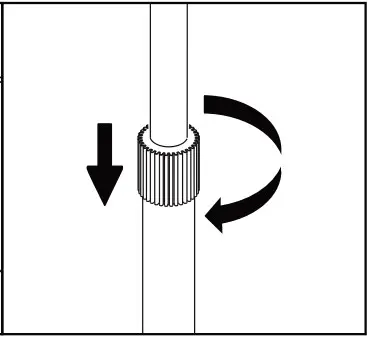
F. Place grip back over stand pole and tighten
- VESA Pole Assembly to Base

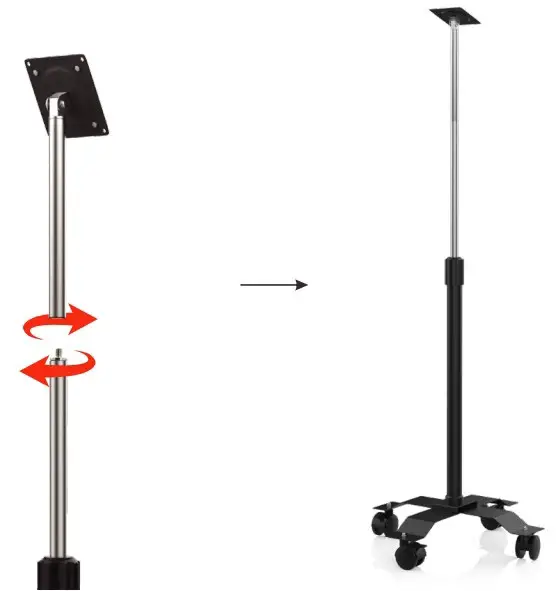
A. Screw in Clockwise ADD-VPOLE into Base Pole as shown above. - Connecting the Holder to the Laptop Plate

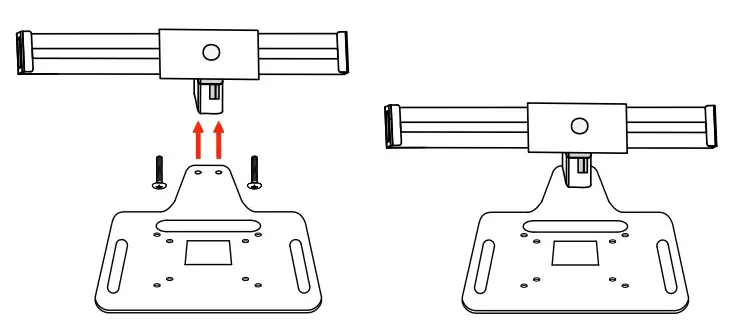
A. Screw up the screws (2) by a screwdriver to connect the Holder to the Laptop Plate as shown. - Installing Laptop to Holder
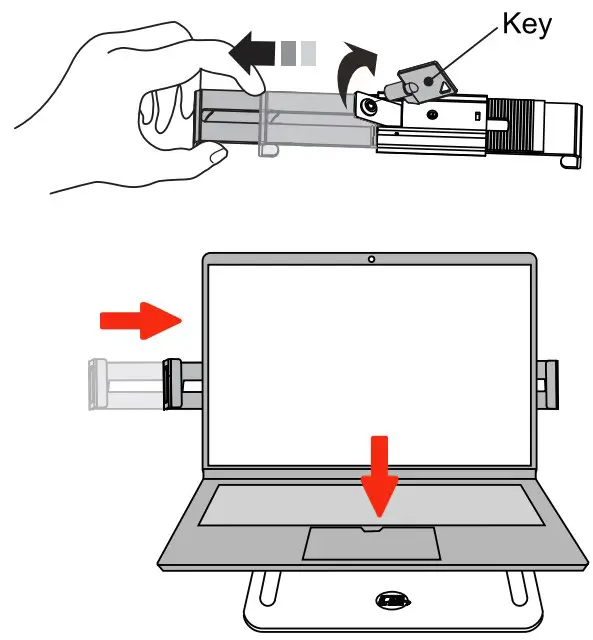
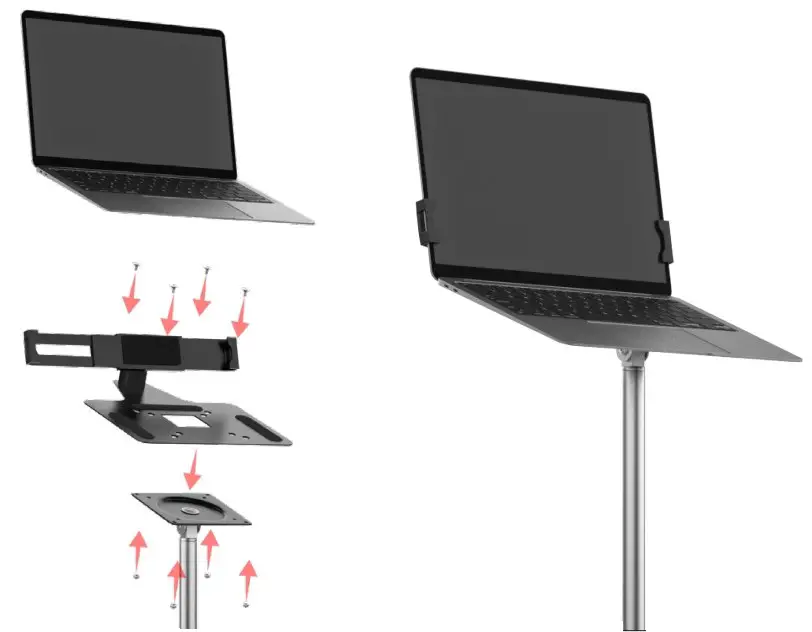
** Laptop shown for illustration and NOT INCLUDED.
A. Insert key into lock at back of holder. Turn clockwise to unlock, then slide to open. Install Laptop against fixed end, then slide closed to hold tight. Turn counter-clockwise to lock, then slide to open. - Installing Holder to Base Plate

A. Align holder to Base VESA Plate and insert the screws (4) from top and the Nuts (4) from bottom and screw it clockwise to secure it.
Tilt Adjustability
Tilt front and backwards for preferred angles as needed.
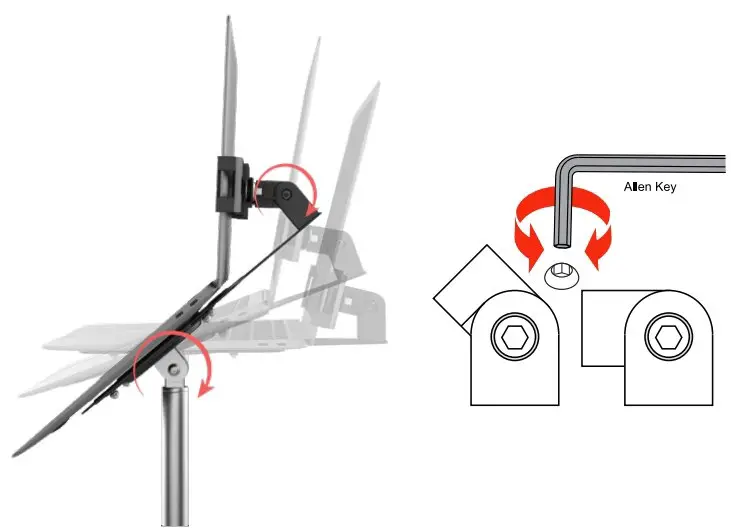
**Laptop shown for illustration and NOT INCLUDED.
Loosen and tighten the screw of the hinge with Allen Key to adjust the angle of the holder as shown.
Height Adjustability
Slide up and down for preferred Height as needed.
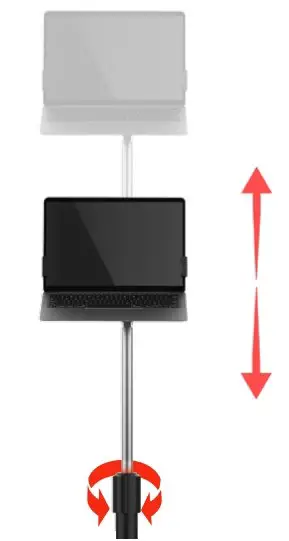
**Laptop shown for illustration and NOT INCLUDED.
Turn the adjustment knob Counter-clockwise to loose the pole then slide it up and down to desired height and then turn it clockwise to secure it
 36 Taaffe Place Brooklyn, NY 11205
 [email protected]
 778-991-0169
 www.ctadigital.com