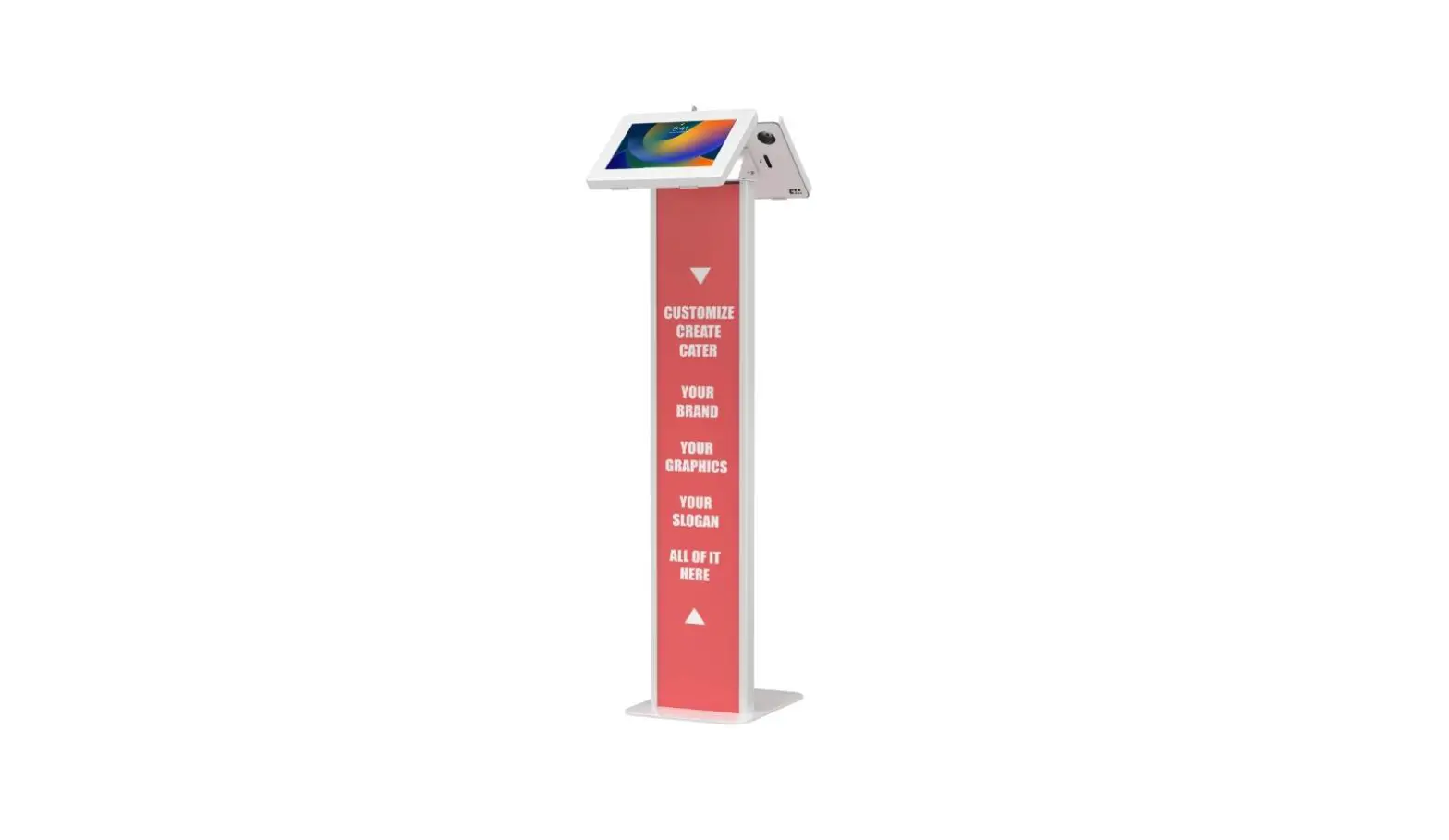
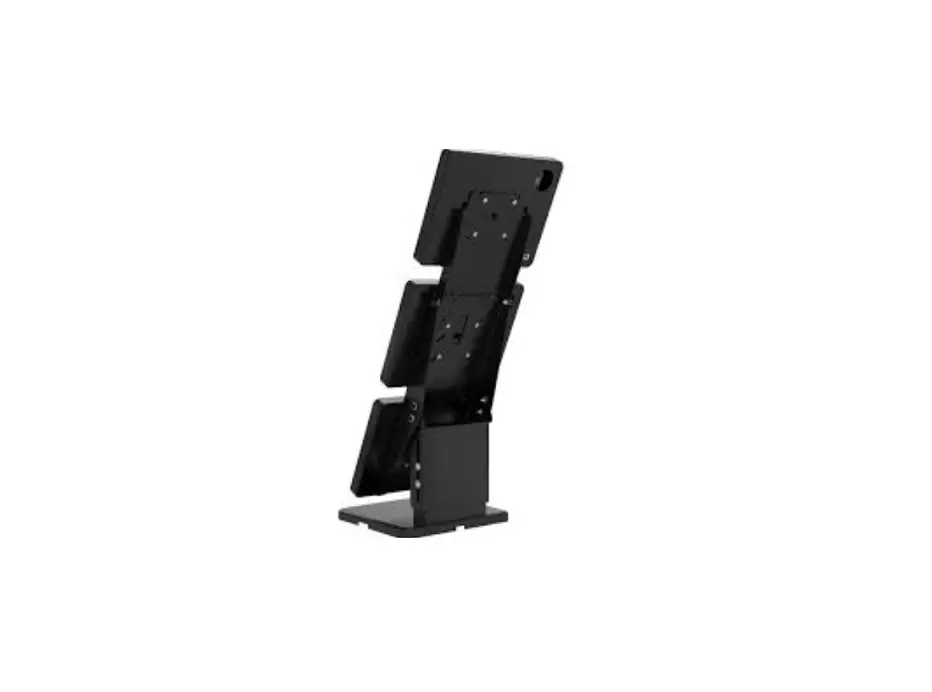
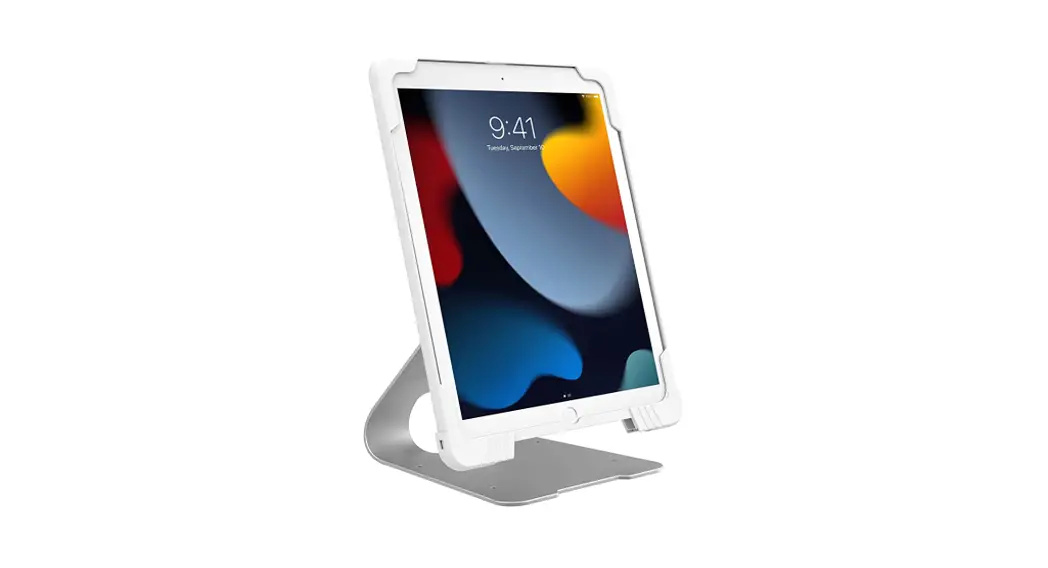
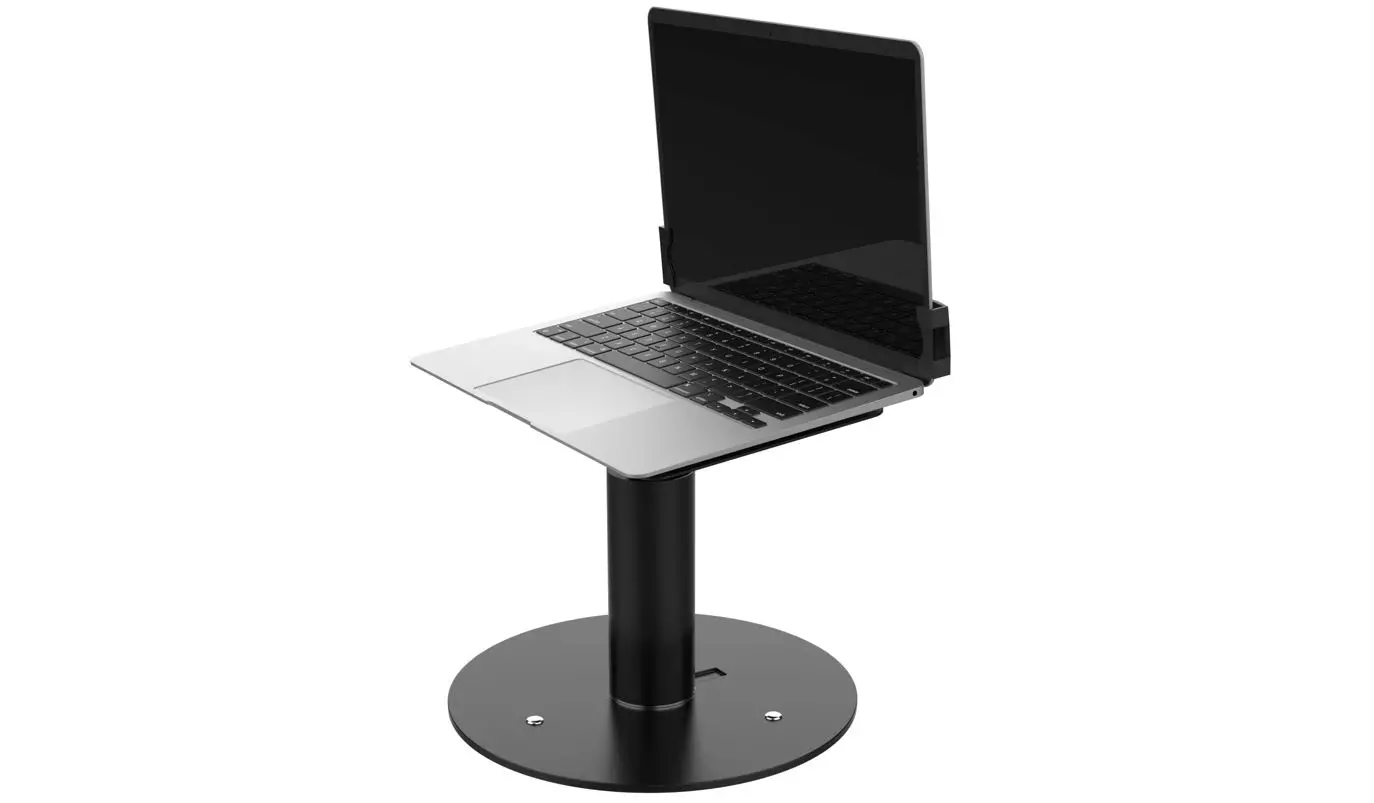
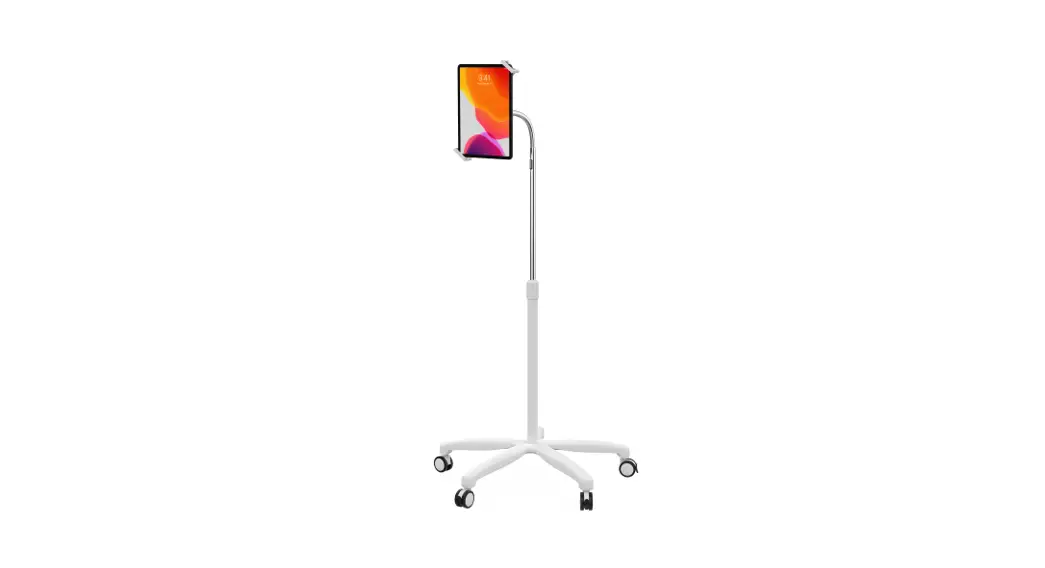
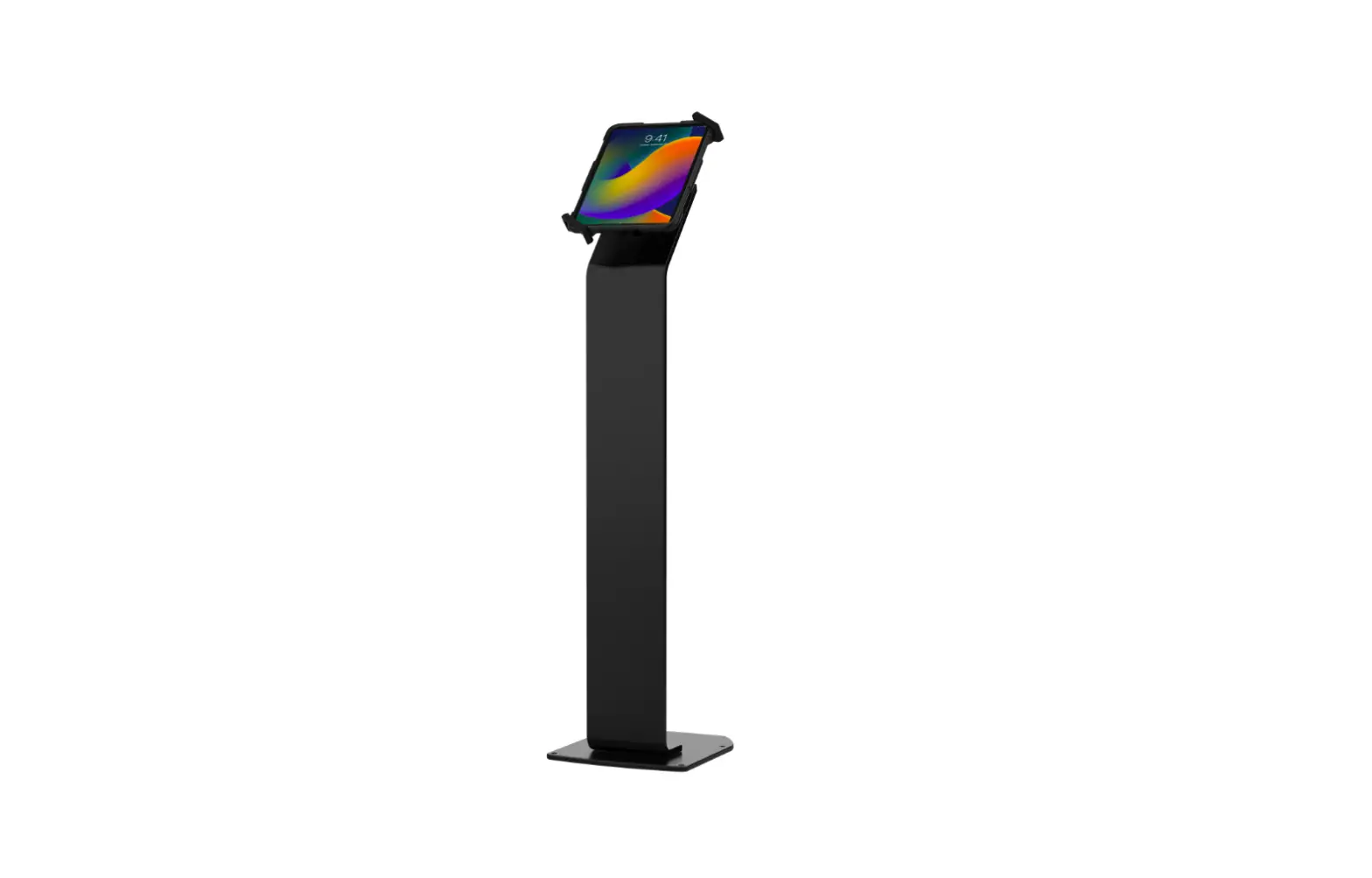
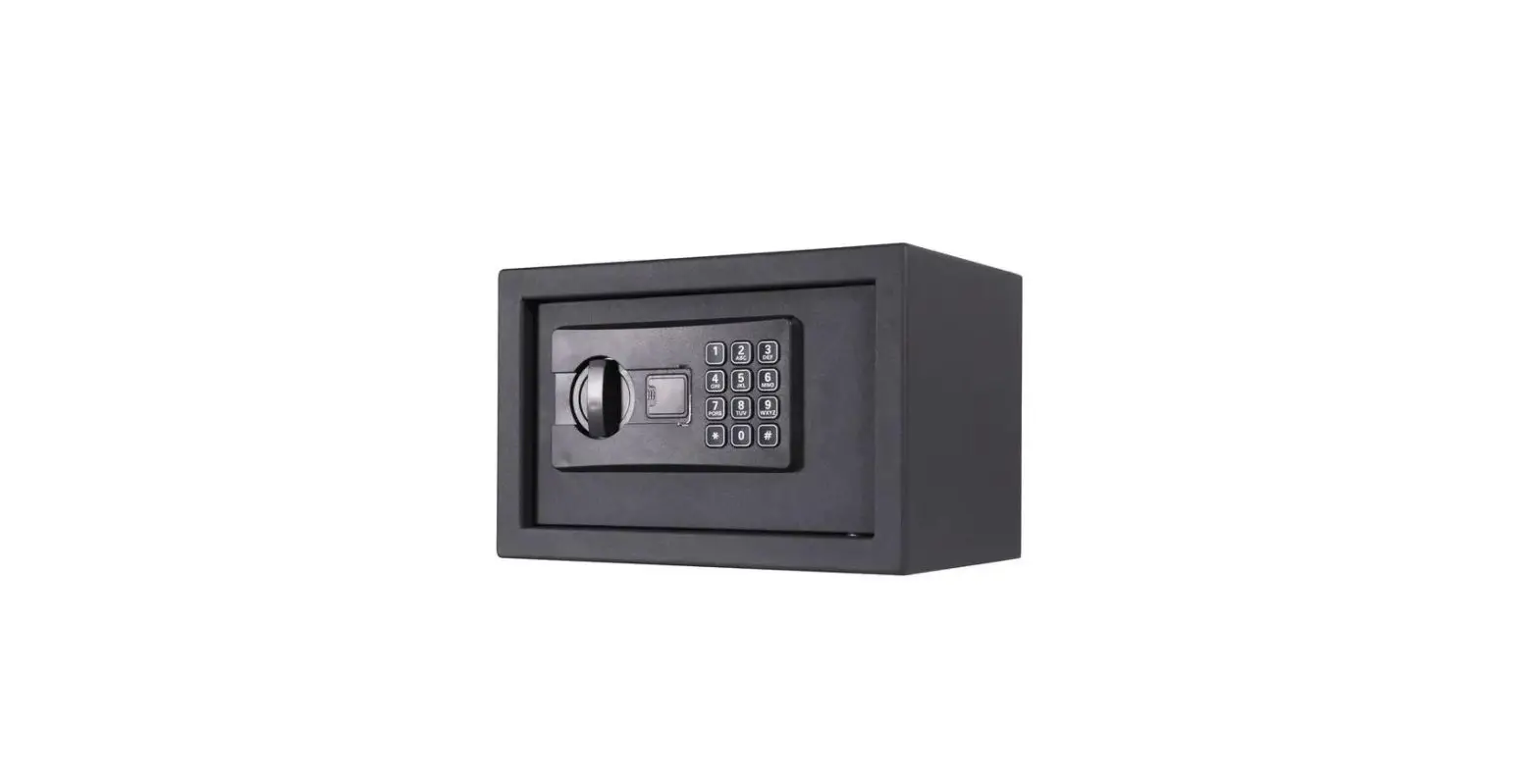
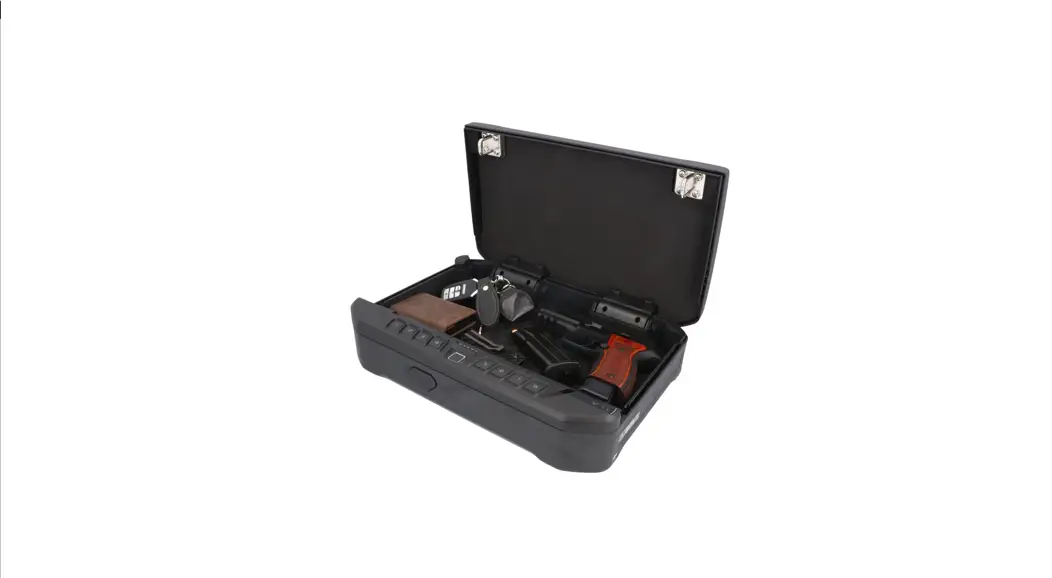
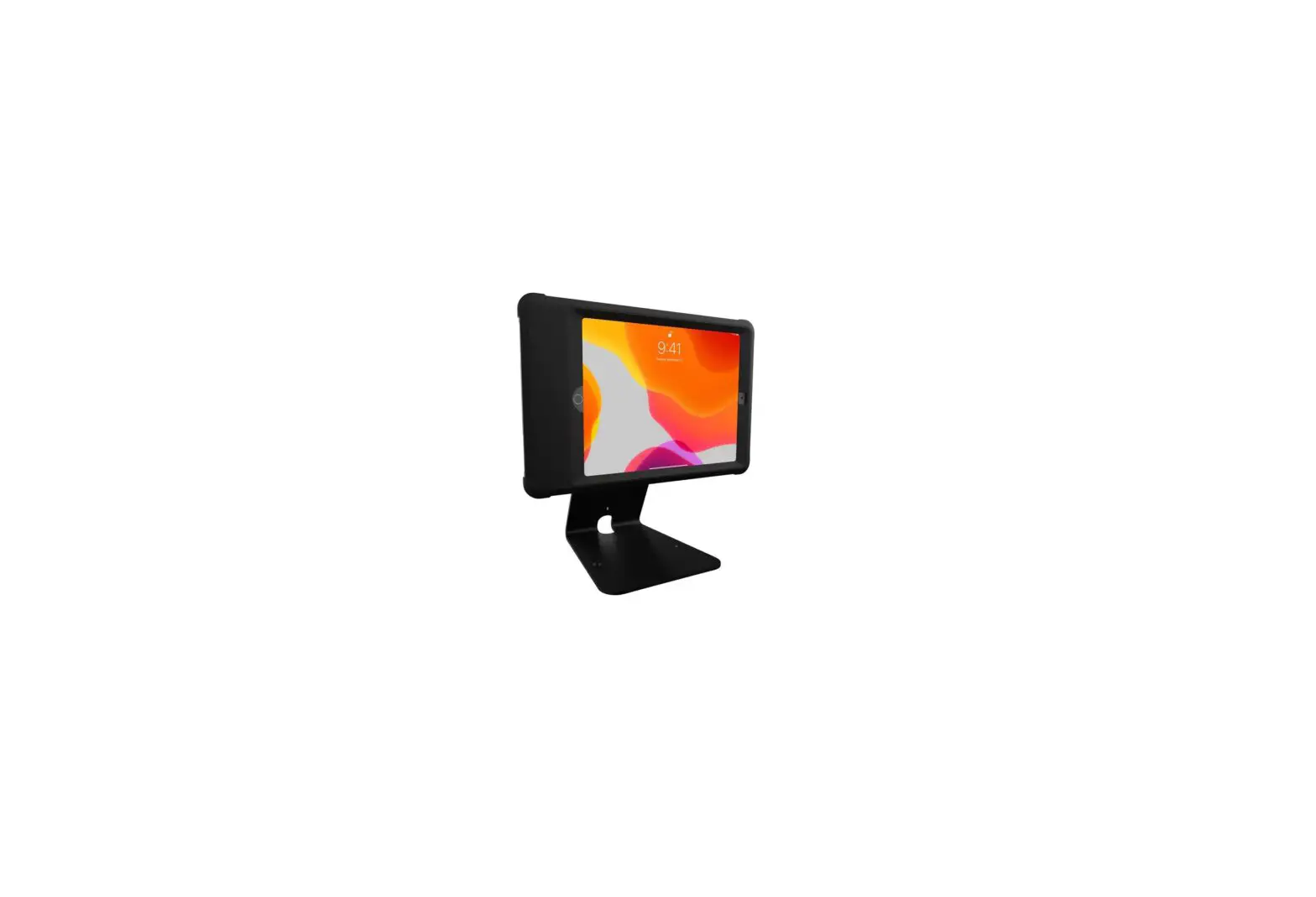
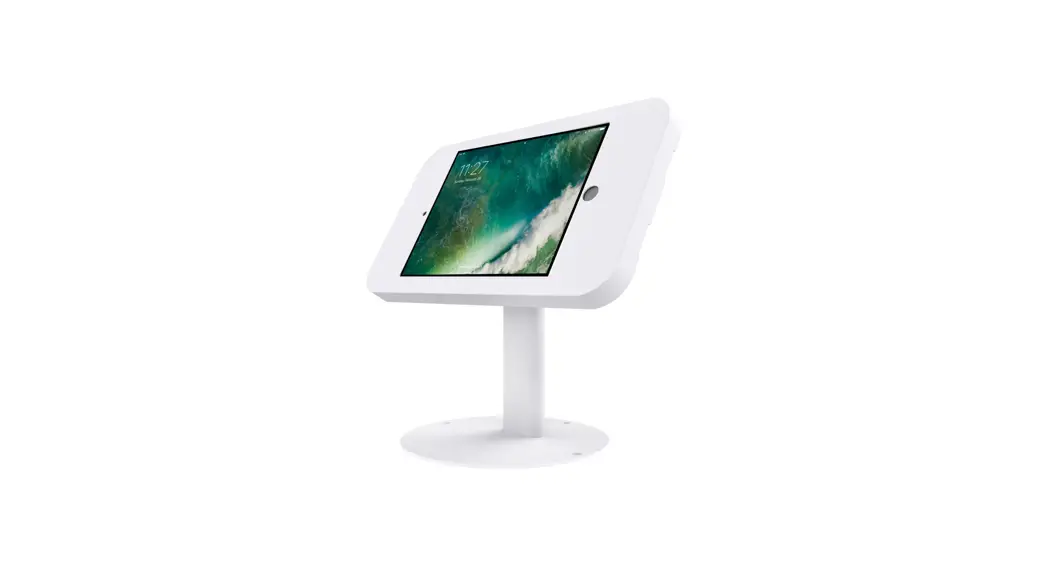
PAD-ASKB10 Dual Security Kiosk Stand with Locking Case and Cable
Dual Security Kiosk Stand with Locking Case and Cable
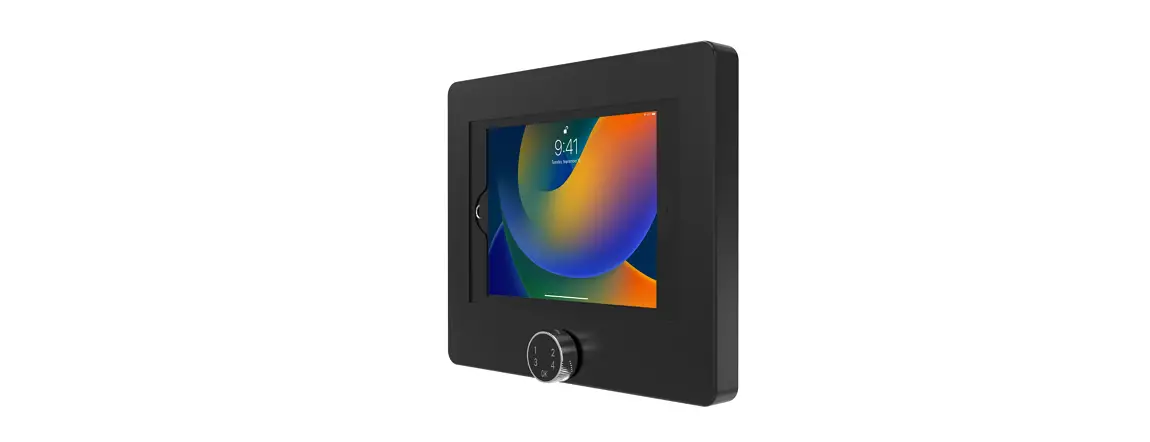
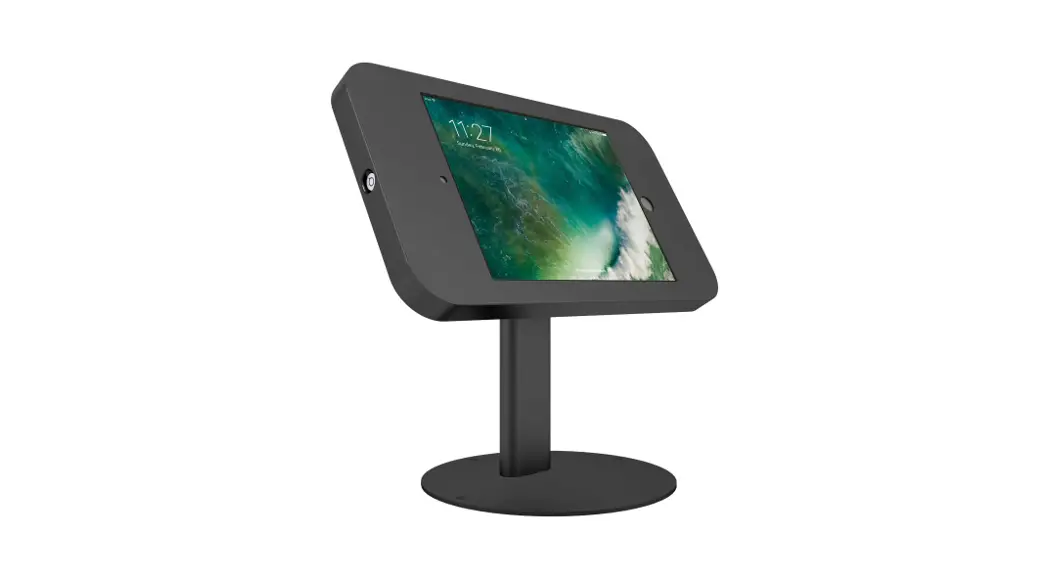
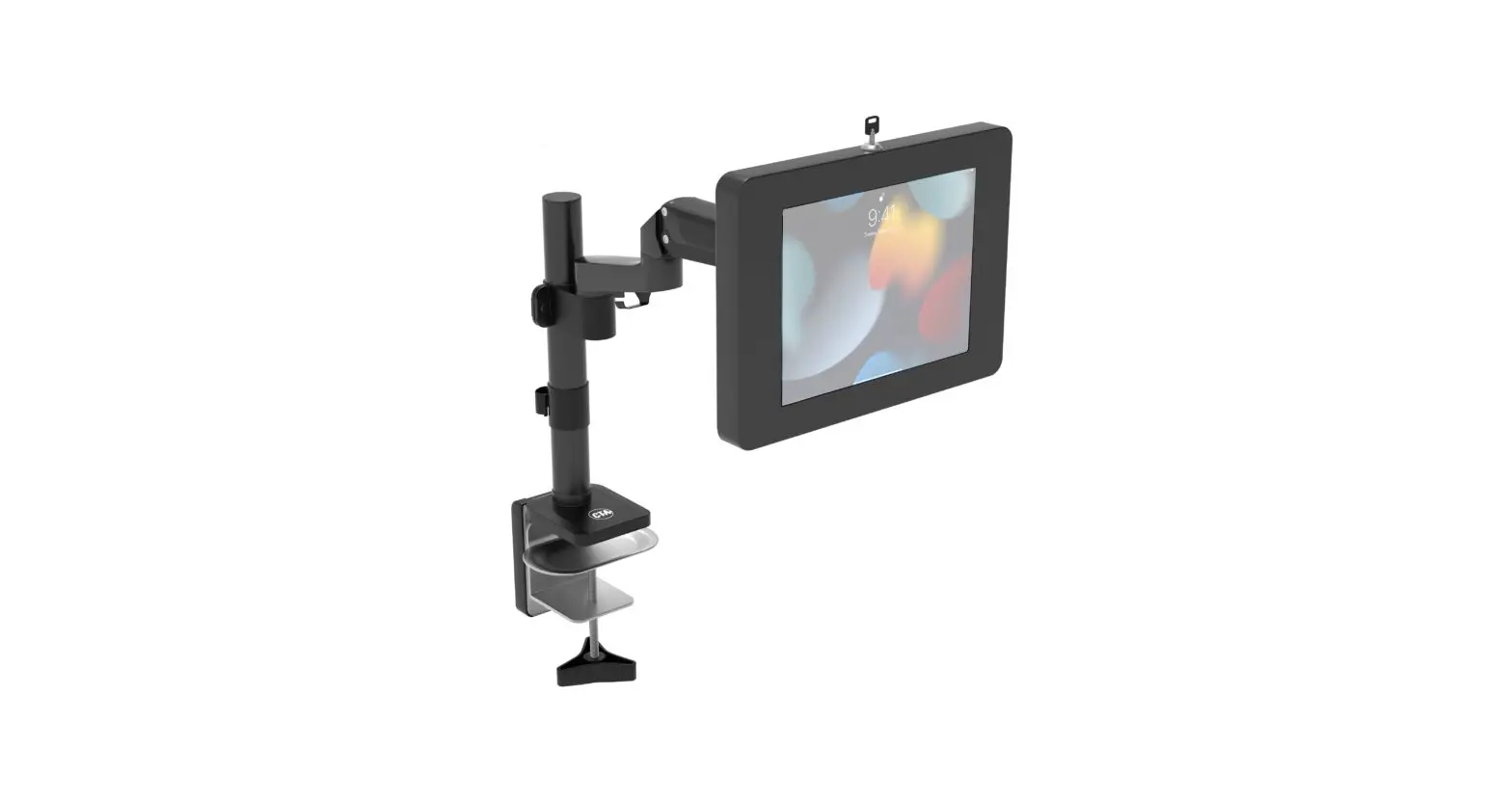
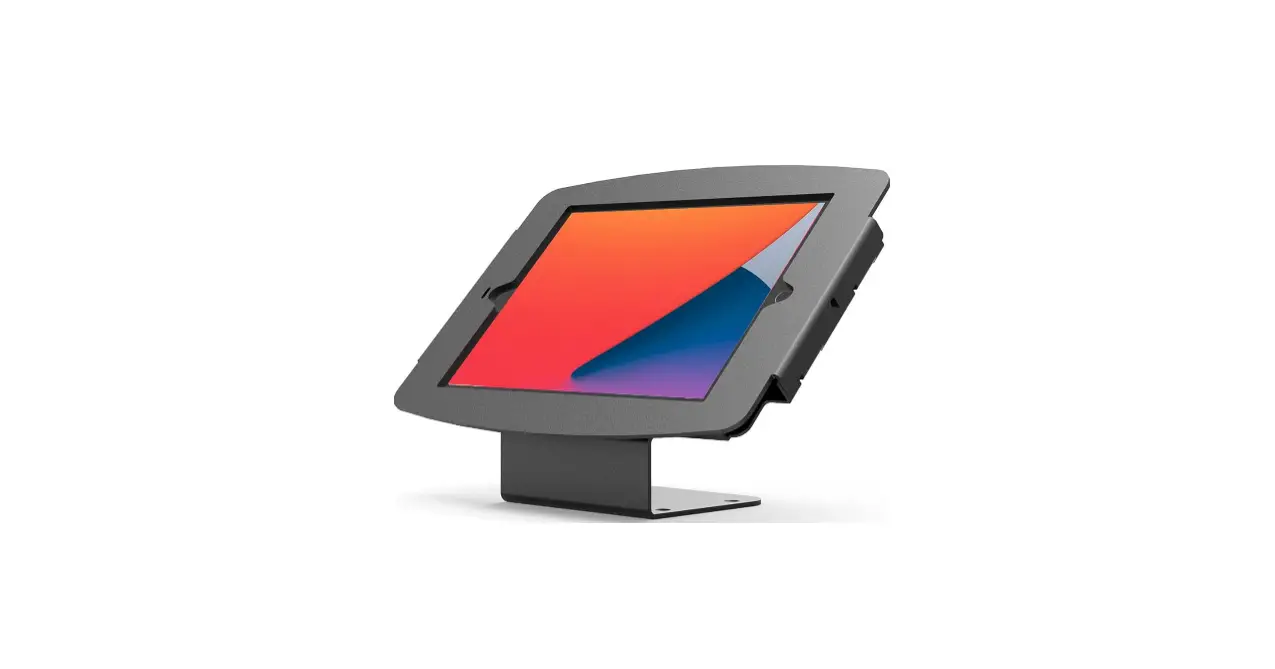
The Dual Security Kiosk Stand with Locking Case and Cable (model
PAD-ASKB10) is a versatile and secure solution for displaying and
protecting your tablet device. It comes with a locking case, cable,
and adjustable stand for optimal usability and security.
Installation:
- Attaching Holder to Body:
- Insert the holder joint (C) into the body joint (B) and align
the allen key hole. - Screw the allen screw (D) into the hole and securely tighten
with the provided allen tool (F).
- Insert the holder joint (C) into the body joint (B) and align
- Attaching Body to Base B:
- Insert the base joint (A) into the body joint (B) and align the
allen key hole. - Insert the allen screw (D) into the hole and securely tighten
with the provided allen tool (F).
- Insert the base joint (A) into the body joint (B) and align the
- (Optional) Attaching Base Pads to Base:
- Stick adhesive pads (G) to the bottom of the stand base (A) for
scratch protection and temporary mounting.
- Stick adhesive pads (G) to the bottom of the stand base (A) for
Inserting Tablet into Enclosure C:
- Open the case (C) with the stand on a flat surface.
- Place your tablet device inside the tray (C).
- Close the case door and turn the key (I) clockwise to
lock.
(Optional) Bolting to Countertop:
- Align the two screws (H) with the holes in the base (A).
- Screw in the screws until securely attached to the
counter.
Cable Management:
Fish the cable wire through the top end of the kiosk body (B)
and out the other end. Route the cable internally for a neat
appearance.
Adjustability:
Adjust the joint rotation of the kiosk body (B) to the preferred
angle. Adjust the orientation of the tablet device for the
preferred view.
Security – Cable Lock:
- Fish the cable wire through the top end of the kiosk body
(B). - Anchor the cable loop of your security cable lock (J) around an
immovable object. - Fish the cable wire out the other end of the kiosk body
(B). - Secure and lock the other end of the cable to the kiosk (A)
into the cable lock slot hole.
For further assistance, please contact our customer support at
888-733-4448.
Dual Security Kiosk Stand with Locking Case and Cable
PAD-ASKB10 INSTRUCTION – MANUAL
CONTENTS:
B x1
C x1
D
E
x2
x2
F
G
x5 x1
A x1
INSTALLATION:
1. Attaching Holder to Body
H
x2
I
x1
J
x1
C
B
2. Attaching Body to Base B
1A. Insert holder joint (C) into body joint (B) and align allen key hole.
D F
D
1B. Screw the allen screw (D) into hole and securely tighten with provied allen tool (F).
A
2A. Insert base joint (A)
into body joint (B) and
F
alling allen key hole.
3. (Optional) Attaching Base Pads to Base
G
3A. Stick adhesive pads (G) to bottom of stand base (A) for scratch protection and temporary mounting.
888-733-4448
2B. Insert the allen screw (D) into hole and securely tighten with provided allen tool (F).
4. Inserting Tablet into Enclosure C
4A. Open the case (C) with the stand on a flat surface.
C
**Tablet only shown for illustration purposes, not included.
5. (Optional) Bolting to Countertop
H
I
4B. Place your tablet device inside the tray (C).
4C. Close the case door and turn the key (I) clockwise to lock.
**Tablet and cable only shown for illustration purposes, not included.
A 5A. Aling the two screws (H) with the holes in the base (A).
6. Cable Management
**Tablet and cable only shown for illustration purposes, not included.
7. Adjustability
B
B
5B. Screw in screws until securely attached to counter.
4D. Internal cable routing.
8. Security – Cable Lock
J
C
6A. Fish the cable wire through the top end of the kiosk body (B).
B
7A. Adjust the joint rotation to the prefered angle.
**Tablet only shown for illustration purposes, not included.
C
8A. Anchor the cable loop of your security cable lock (J) around an immovable object.
A J
6B. Fish the cable wire out the other end as shown above.
7B. Adjust the orientation to the prefered view.
8B. Secure and lock the other end to the kiosk (A) into the cable lock slot hole as shown.
888-733-4448