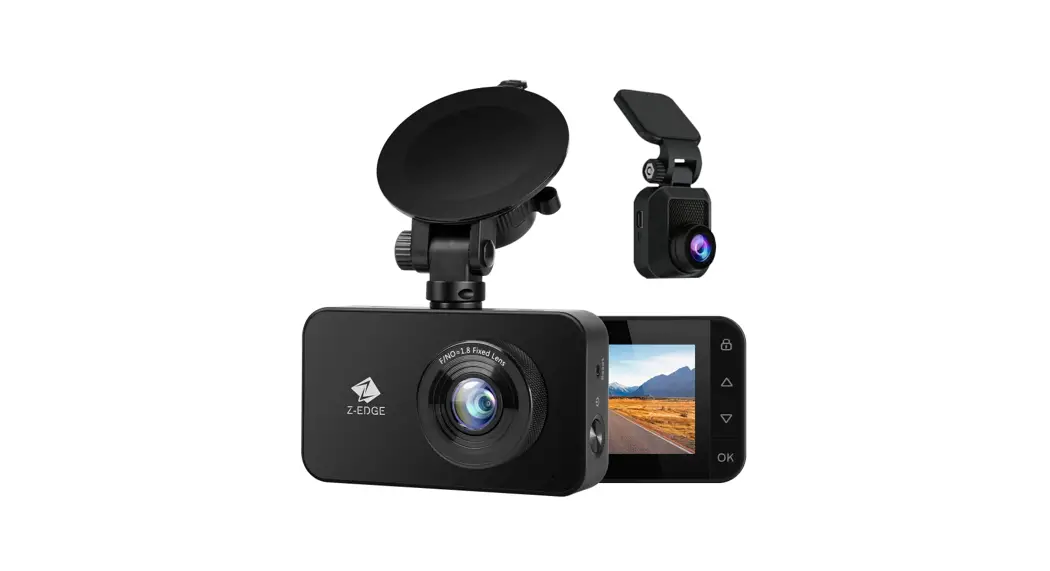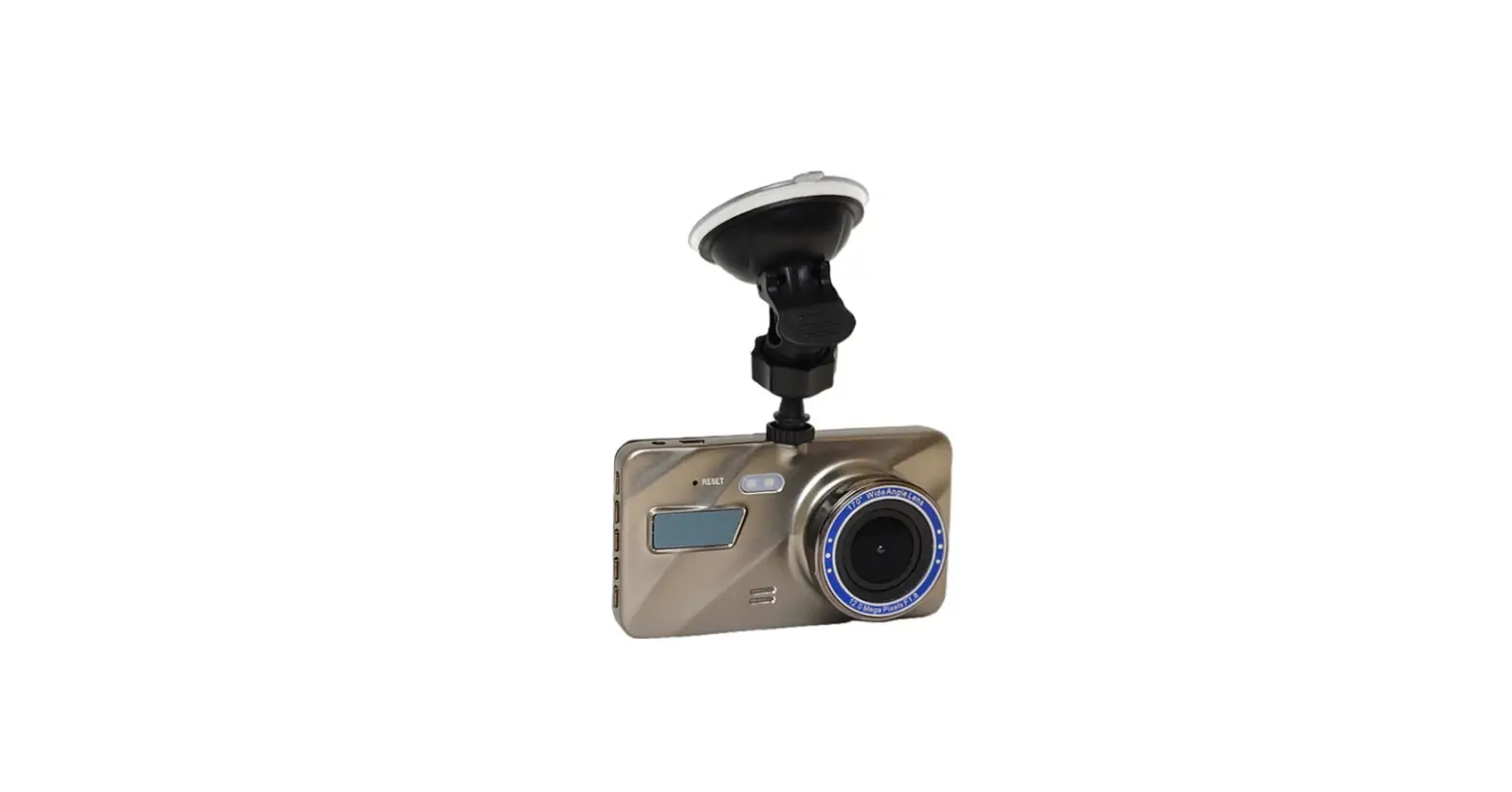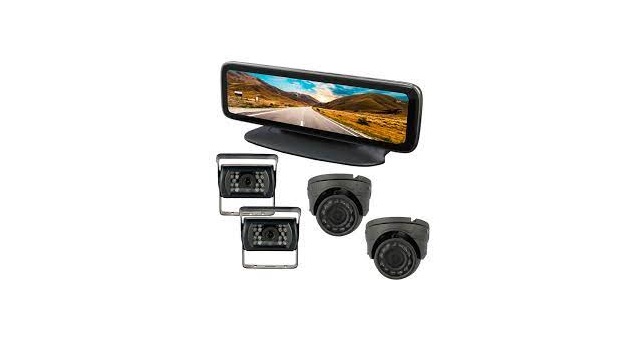
LiveEye 1-4 Cam Live Streaming 4G/WIFI Dash
Cam System – View 1 to 4 Cams from
Anywhere in the World
Quick Start Guide

DESCRIPTION
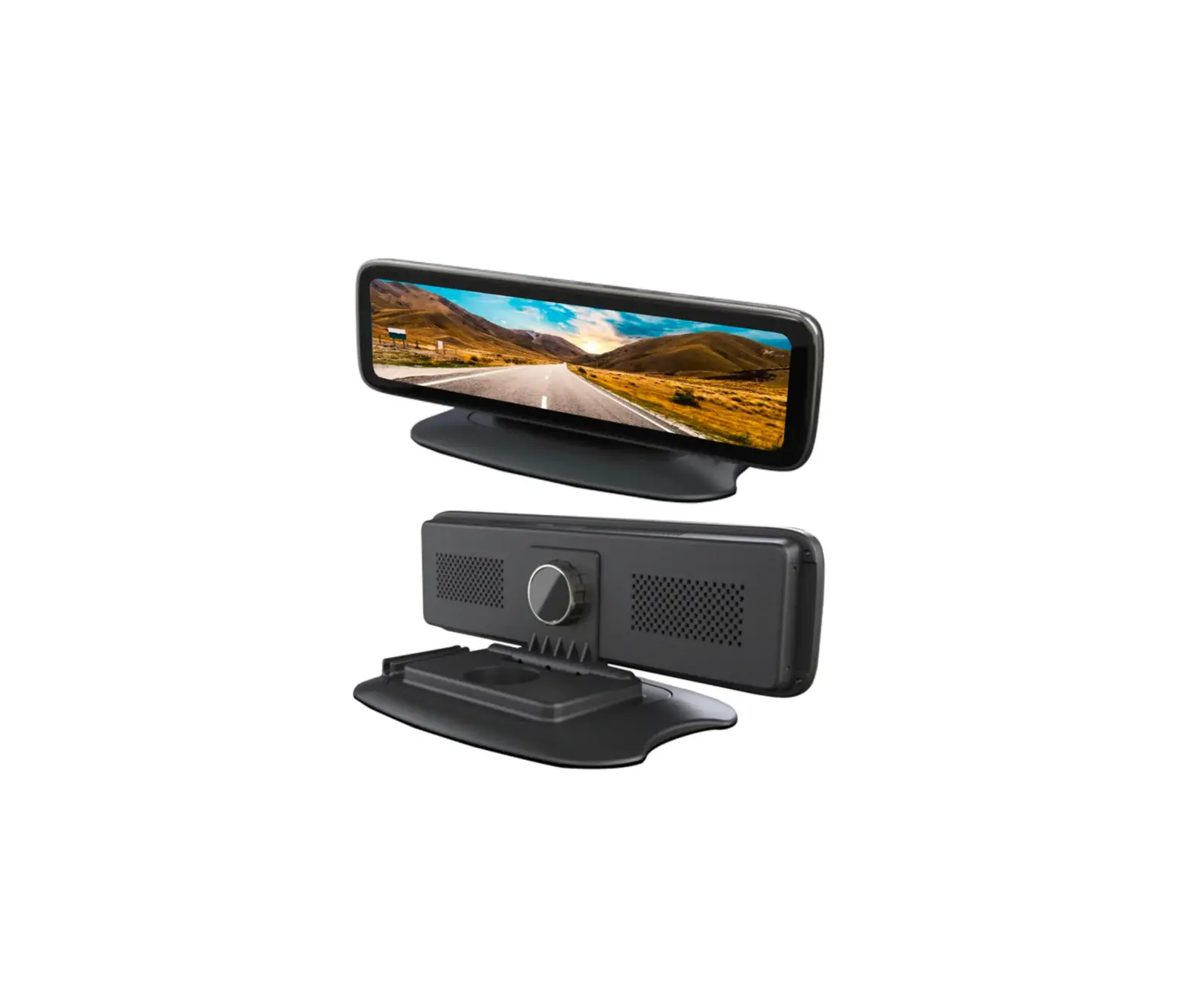
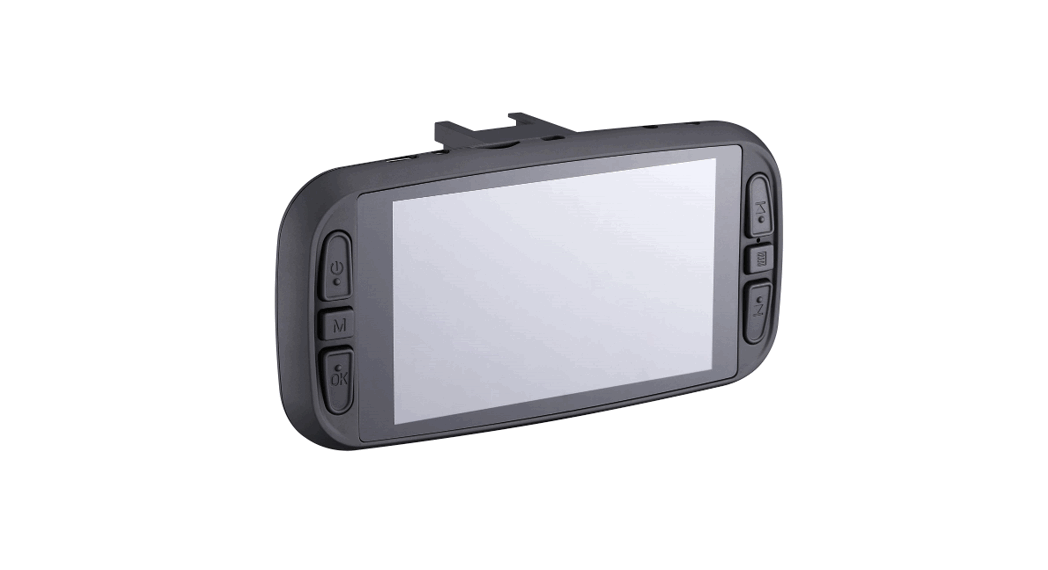
 Screen Power Button
 Installation Bracket
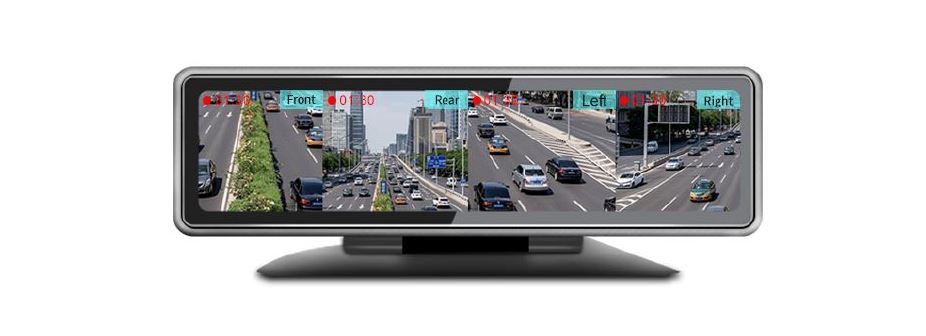
 Touch Screen Monitor
 DVR Menu
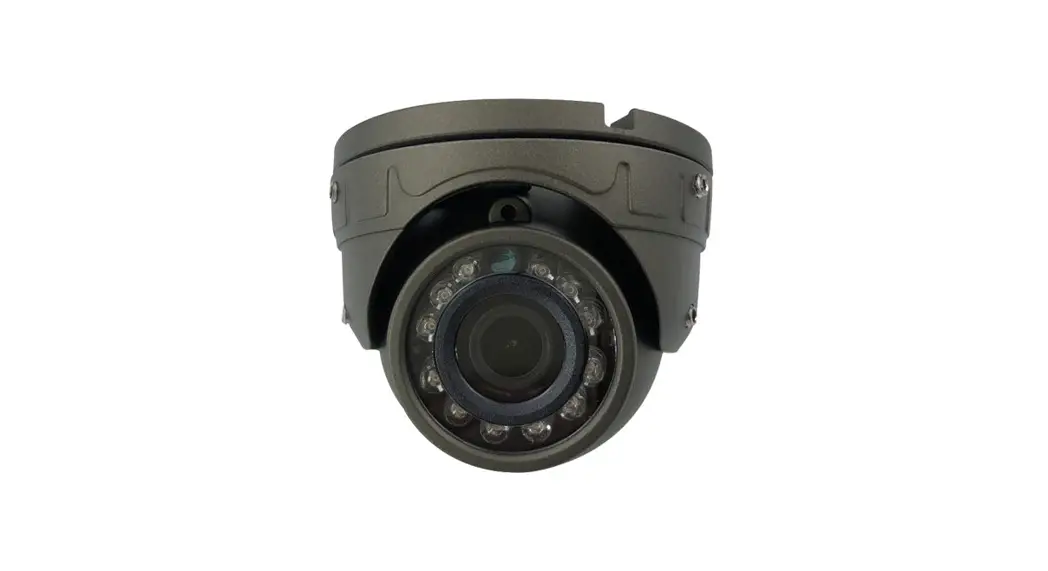
 4-CH Video Camera Showing
 SIM Card & SD Card Lock
 USB Port
 SIM Card Slot
 Micro SD Card Slot
 Tale Cable: 4-CH Video Input,Power cable, Channels trigger cable etc
Power Button Functions:
Press one time: Monitor will turn off – system is still recording and time will be displayed.
Press twice: Monitor will turn off – system is still recording and time will not be displayed.
Press three times: Screen powers back on to see main menu/cameras.
How to Shut Down Monitor: Must disconnect power wire harness from direct power source.
If device detects low voltage, the device will automatically power down.
Device Icons: Connected to Internal hot spot / 4G Signal / GPS Signal / WIFI Signal / Bluetooth




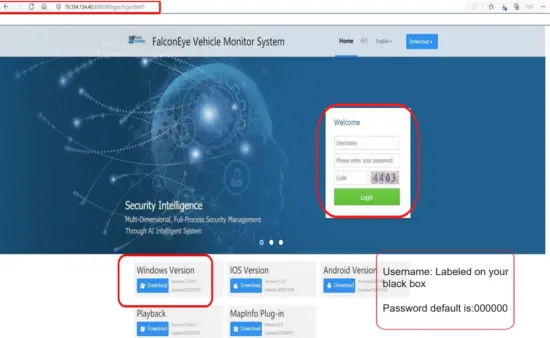
IP Web Server for remote desktop/laptop viewing: Copy and paste IP Server link to your browser.
76.184.134.40:8080/808gps/login.html?
Enter username / Password that was included in package
Mobile App IOS / Android viewing: Download “CarAssist” App

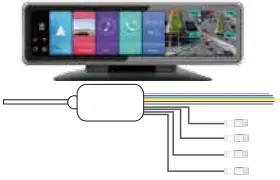
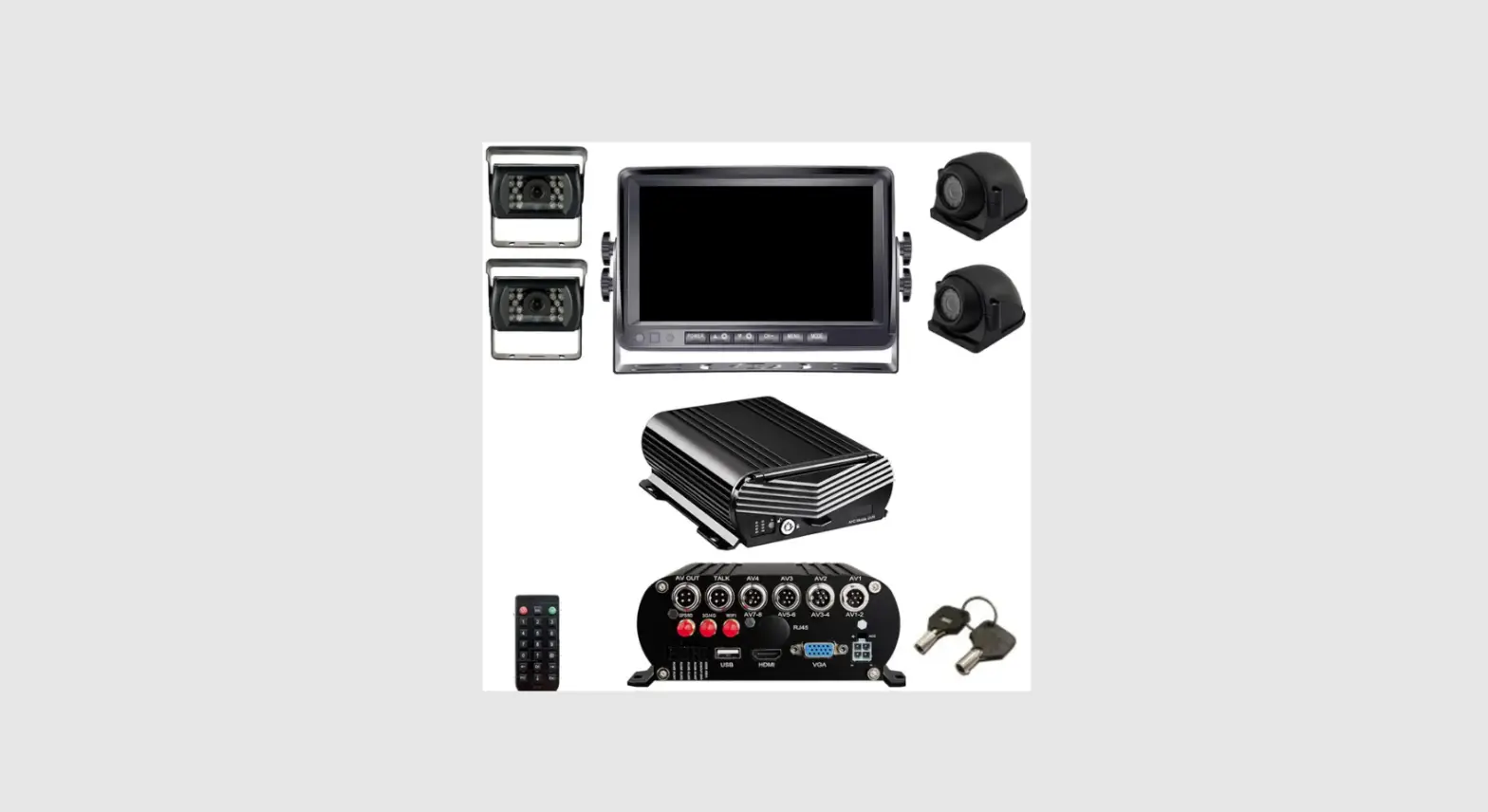
1. Monitor with DC power wire harness, and 4 camera cable connectors

2. Horizontal Installation Bracket x 1PCS

3. Vertical Installation Bracket x 1PCS

4. GPS Antena x 1PCS

5. Micro SD card and sim card door lock x 1PCS

6. Sim Card Release Tool

7. Micro SD card and sim card door lock release Screw Driver x 1PCS
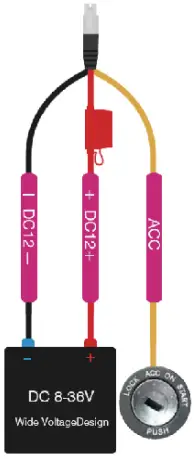
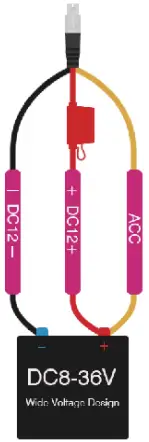
Power Wire Connections
The only way to fully power off device is to disconnect the power wire harness from the main power source.
Option 1 Recommended Option
How to change/enter APN based on the mobile 4G service sim card that is inserted in device.
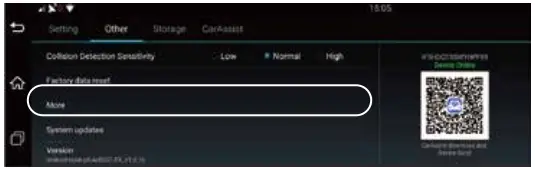
STEP-01:Click Open “Settings”=>Other=>More
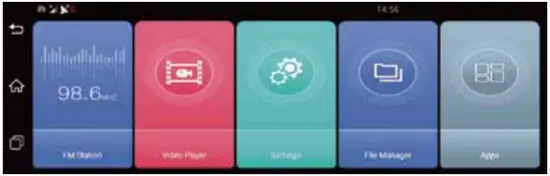
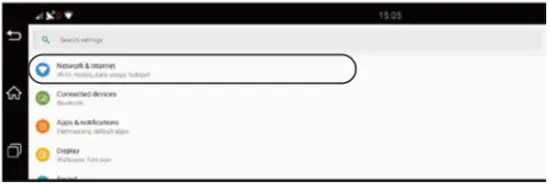
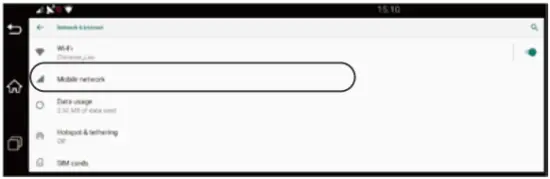
STEP-02:Click “Network & Internet”=>Mobile Network
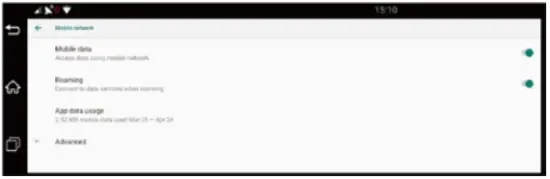
STEP-03: Click “Advance”=>Click “Access Point Names”=> Eddit APN of your 4G SIM Card=>Done
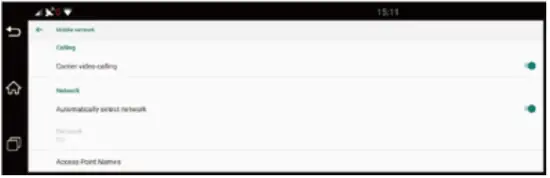
APN GUIDE:
T-Mobile: fast.t-mobile.com
ATT: broadband
Verizon: vzwinternet
Copy and paste IP Server link to your browser. 76.184.134.40:8080/808gps/login.html?